Customer Review Analyzer with Natural Function
This tutorial walks through building an HTTP service that uses a Natural Function to analyze a customer review and return structured feedback. It is the end-to-end scenario for the Natural Functions feature.
By the end you will have a POST /api/v1/analyze endpoint that takes a single customer review and returns a typed ReviewResponse containing the overall sentiment, a concise summary, per-topic sentiment, a churn-risk flag, and a suggested follow-up action. All of it is produced by an LLM, using a Natural Function as the body.
Natural functions are an experimental feature. Enable experimental features in WSO2 Integrator before using them: open Settings, expand Extensions, select the Ballerina extension, and tick Experimental: Enable Experimental Feature.
Before you start, open the Command Palette (Cmd+Shift+P / Ctrl+Shift+P) and run Ballerina: Configure default WSO2 model provider. Sign in with your WSO2 account when prompted. This is a one-time per-project setup; WSO2 Integrator writes the configuration values into the project automatically.
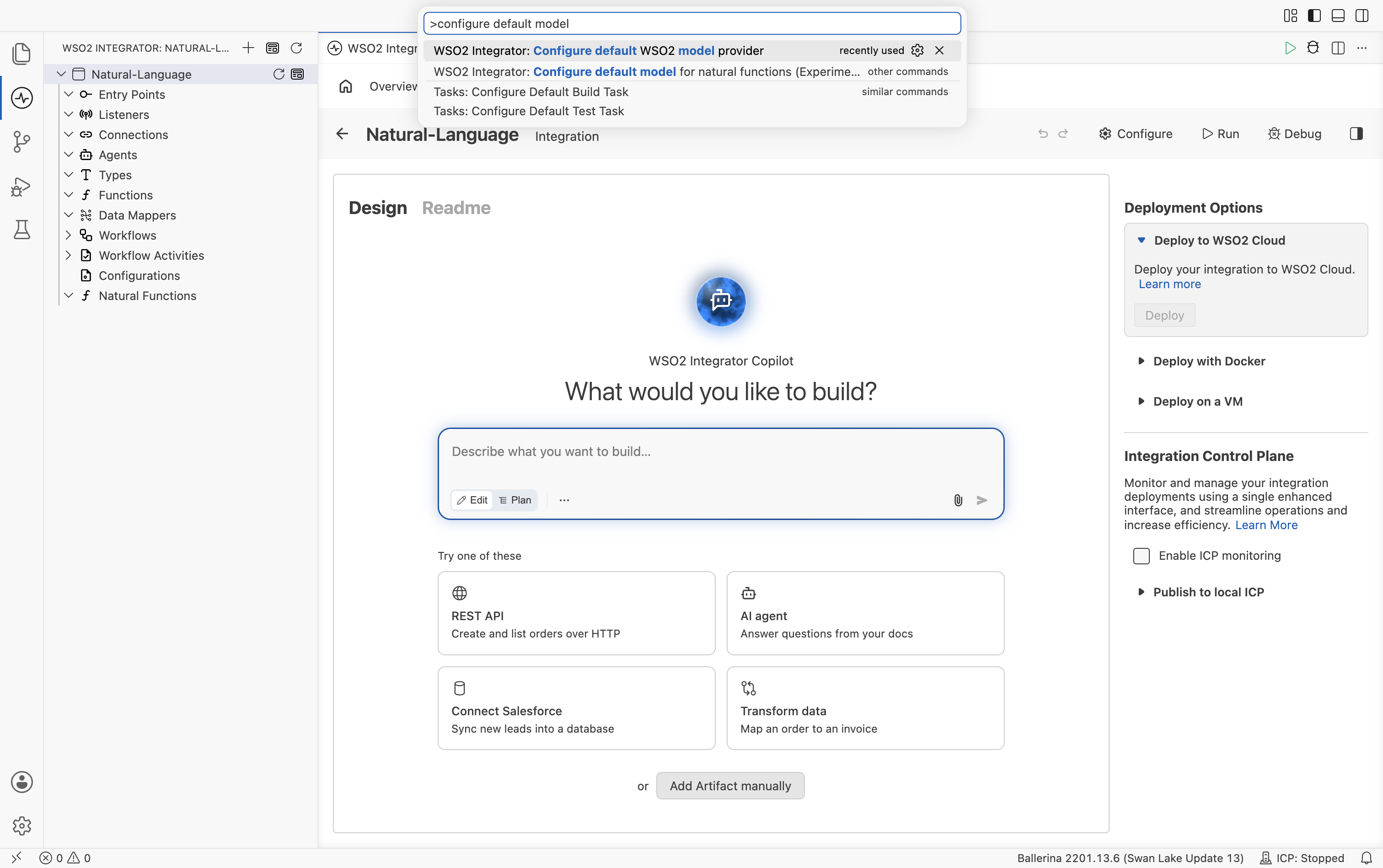
The first run may also prompt you for the wso2aiKey configuration value. The Configure Application dialog handles that for you.
What you'll build
- Create the natural function. Define a typed signature, a return type with a record, an English prompt body, and a model-provider connection.
- Create the HTTP service that exposes the function over
POST /api/v1/analyze. - Wire the resource flow to call the natural function and return the typed response.
- Run and test the service end-to-end.
1. Create the natural function
Step 1.1: Open the create form
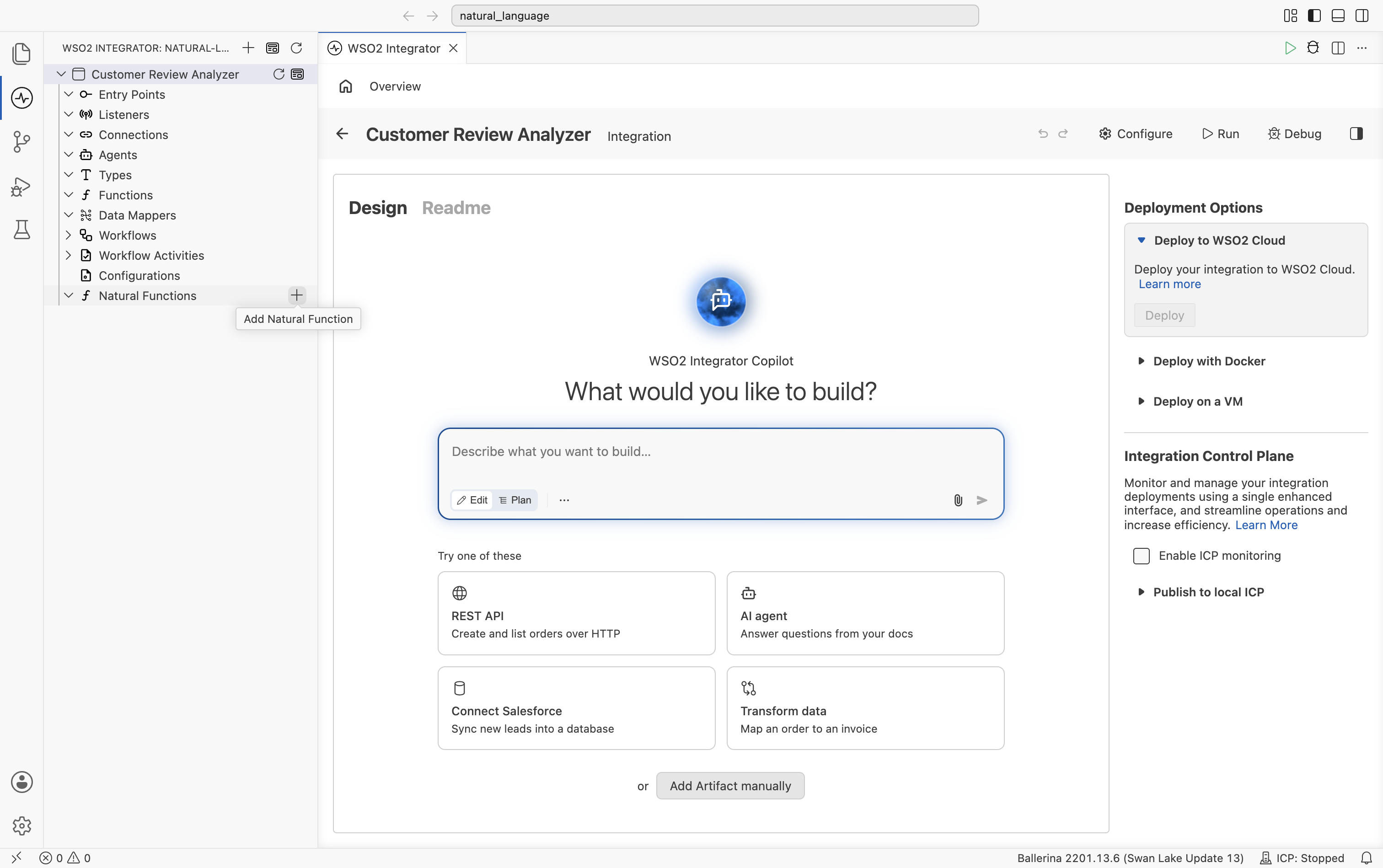
From the project sidebar, hover the Natural Functions node and click the + that appears on the right (tooltip: Add Natural Function).
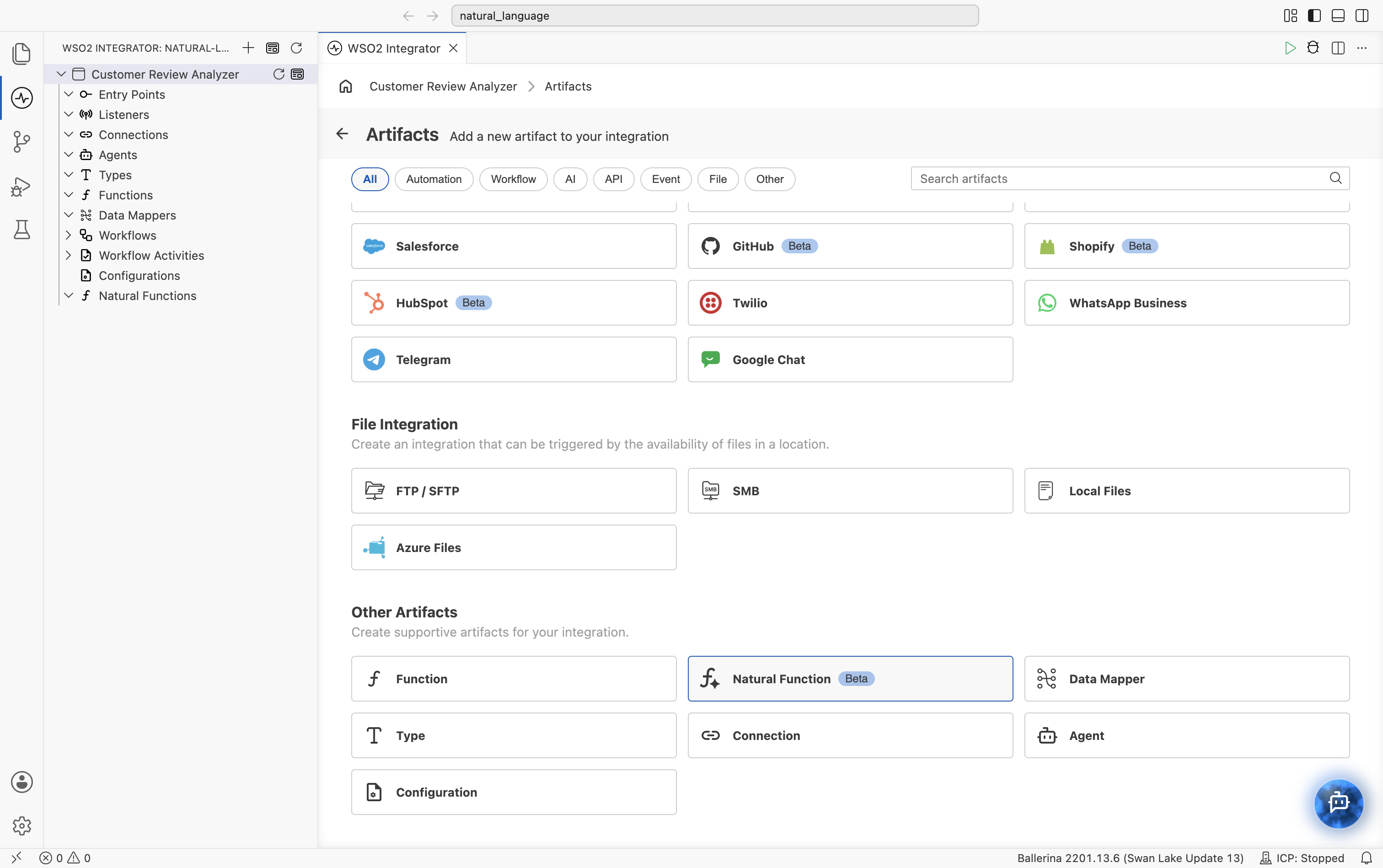
(You can also reach the same form from the integration Overview page: select Add Artifact manually below the WSO2 Integrator Copilot's quick-start cards, then pick Natural Function under Other Artifacts.)
Step 1.2: Name and parameter
The Create New Natural Function form opens. Set:
| Field | Value |
|---|---|
| Name | analyzeCustomerReviews |
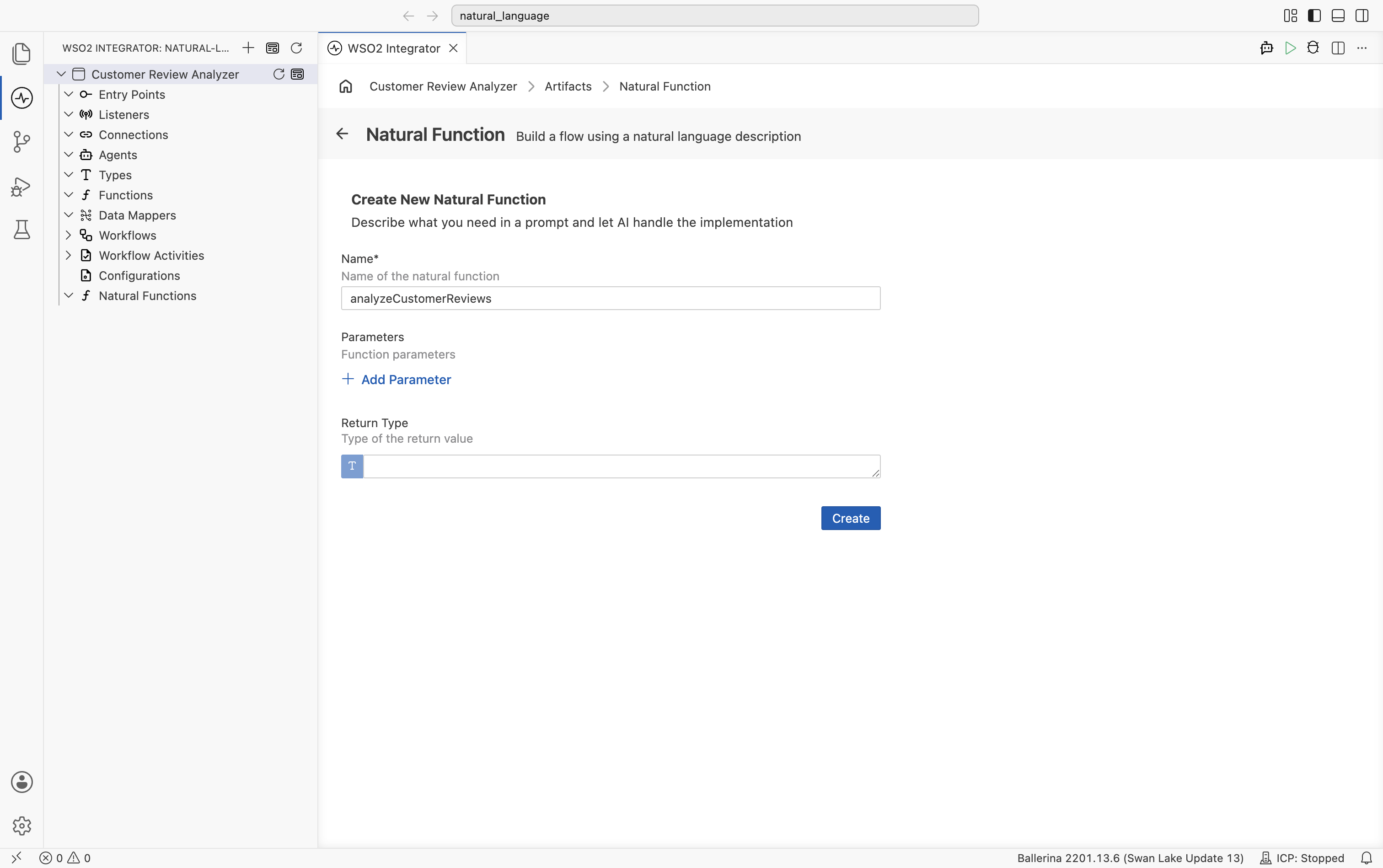
Click + Add Parameter. The parameter fields expand inline on the same page (not a separate dialog). Fill in:
| Field | Value |
|---|---|
| Type | string |
| Name | customerReview |
| Description | Review of the customer |
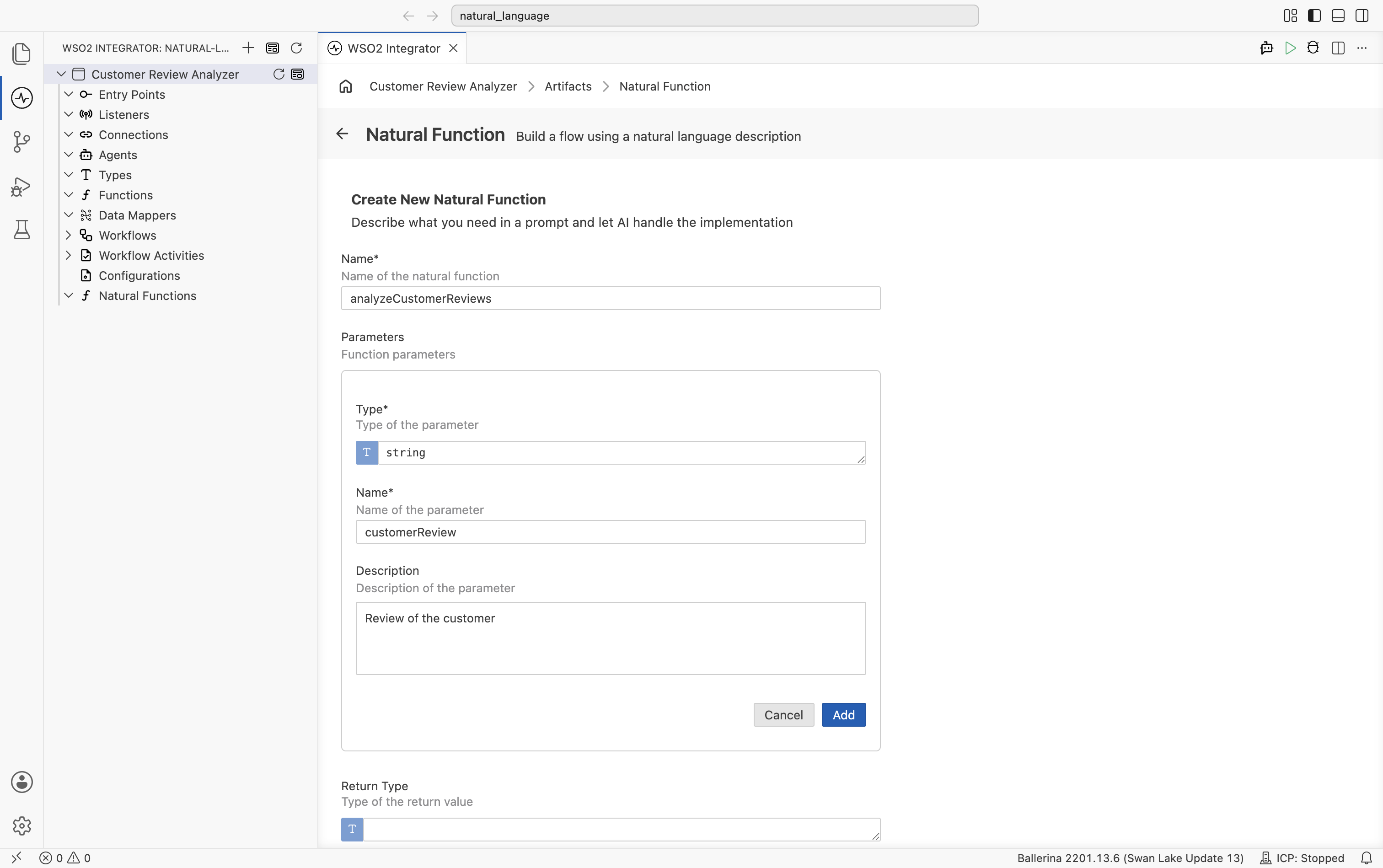
Click Add. The parameter appears as a row in the Parameters list, with edit and delete icons.
Step 1.3: Build the return type
The function will return a ReviewResponse record. The fastest way to define one is to import a JSON sample.
Click the Return Type field, then select Create New Type. The Create New Type dialog opens on top of the form; switch to the Import tab. Set:
| Field | Value |
|---|---|
| Format | JSON |
| Name | ReviewResponse |
Paste the following JSON sample into the textarea:
{
  "sentiment": "mixed",
  "summary": "Customer loves the sound quality but is frustrated by a faulty charging case and slow support response.",
  "topics": [
    { "name": "sound quality",     "sentiment": "positive" },
    { "name": "charging case",     "sentiment": "negative" },
    { "name": "customer support",  "sentiment": "negative" }
  ],
  "churn_risk": true,
  "suggested_action": "Reach out with a replacement case and apologize for the support delay."
}
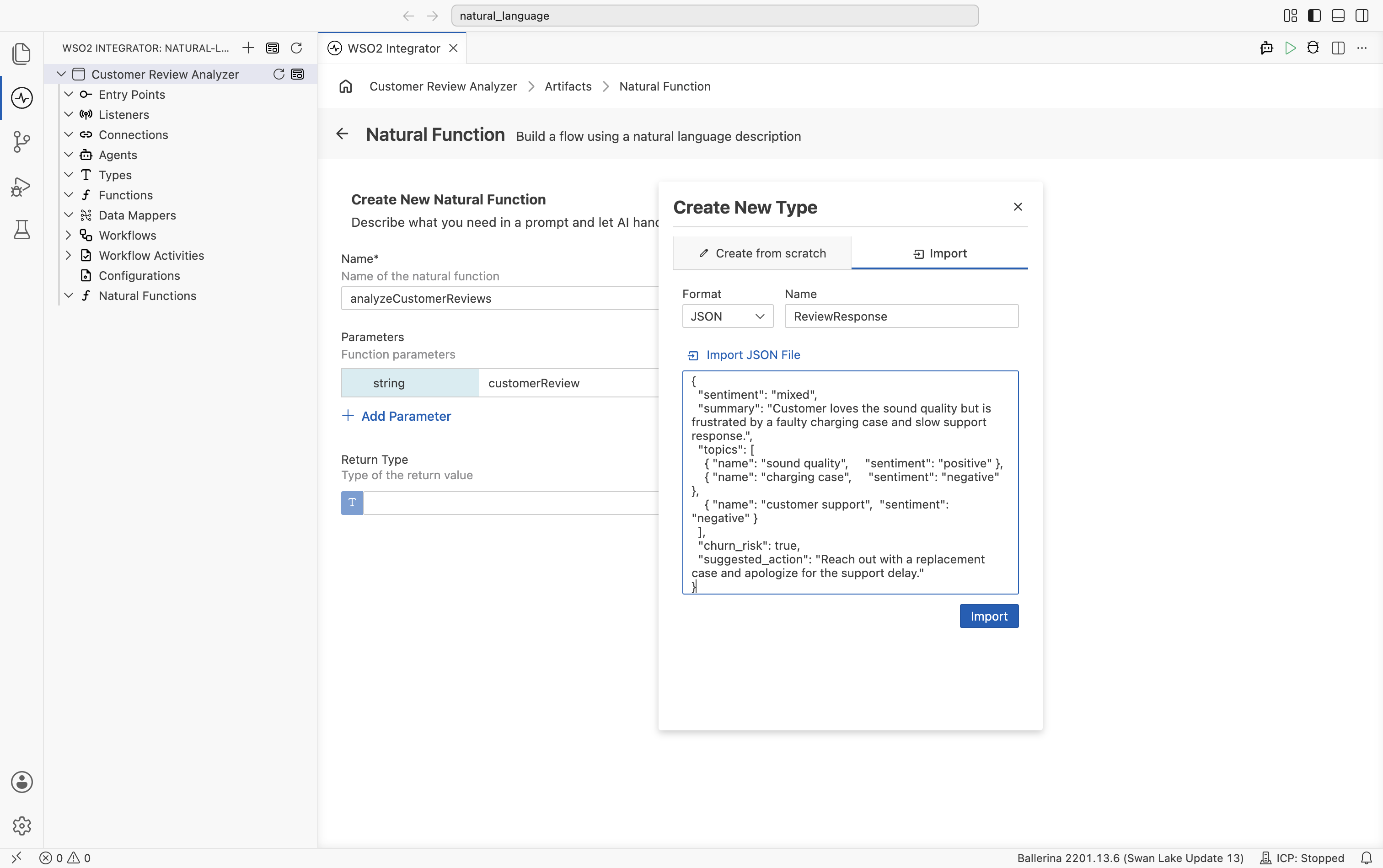
Click Import. WSO2 Integrator infers and registers three types, closes the dialog, and returns you to the completed function form: the parameter row now shows edit/delete icons, and Return Type is set to ReviewResponse.
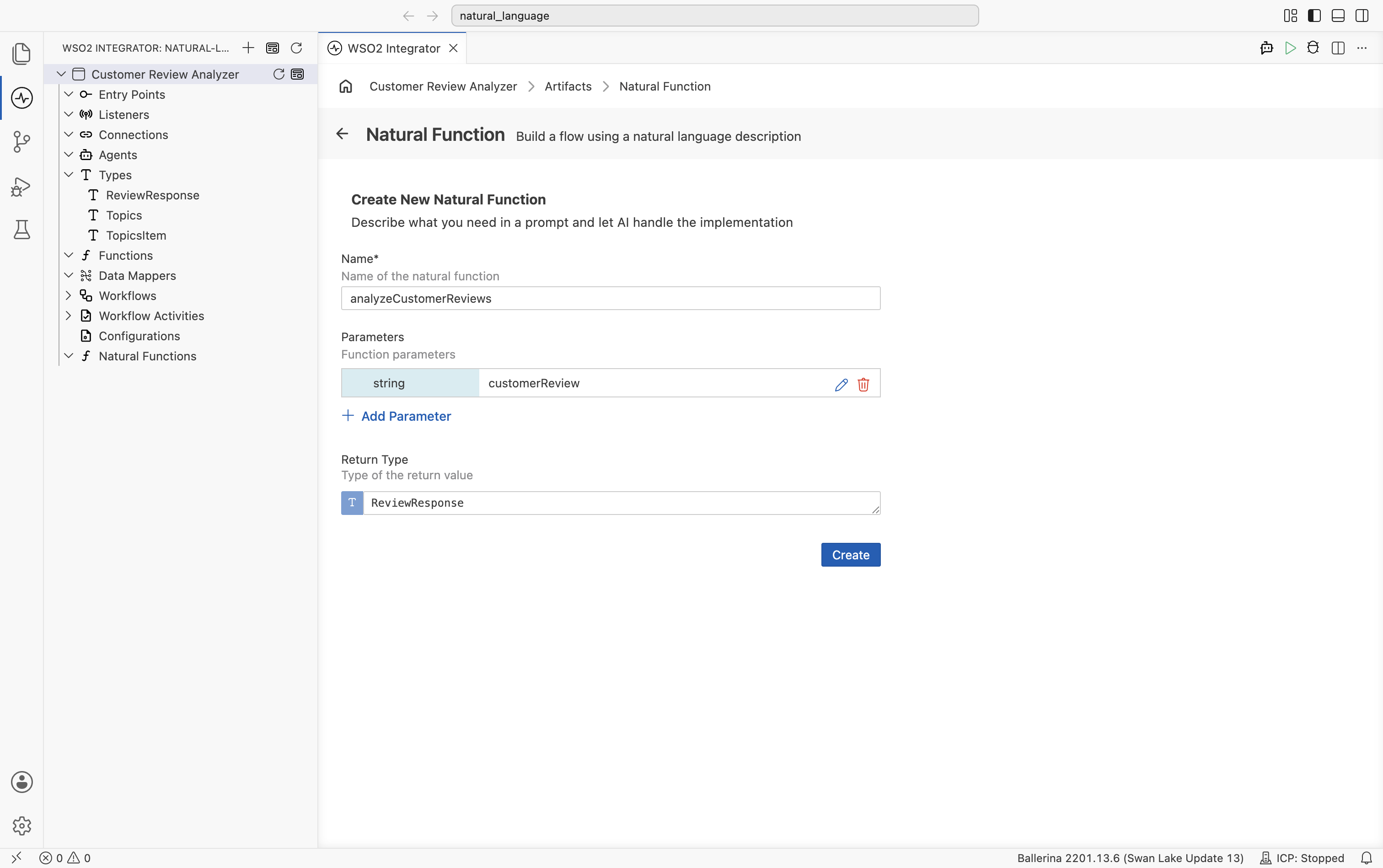
The three registered types appear under the Types node in the sidebar:
ReviewResponse: the top-level record with fieldssentiment,summary,topics,churn_risk,suggested_action.Topics: the array type used for thetopicsfield (an alias forTopicsItem[]).TopicsItem: the per-element record with fieldsnameandsentiment.
ReviewResponse is selected automatically as the function's return type.
Why these field names matter: the runtime turns the record (and its nested types) into a JSON schema and sends it to the LLM. Field names, types, and any descriptions you add become part of the contract the model is constrained to. See Typed Return Inference for the details.
Step 1.4: Create the function
Click Create. WSO2 Integrator generates the Ballerina source and opens the function in the Flow Designer. The sidebar updates with three additions:
- Connections:
_analyzeCustomerReviewsModel(the model-provider connection WSO2 Integrator created for this function). - Types:
ReviewResponse,Topics,TopicsItem. - Natural Functions:
analyzeCustomerReviews.
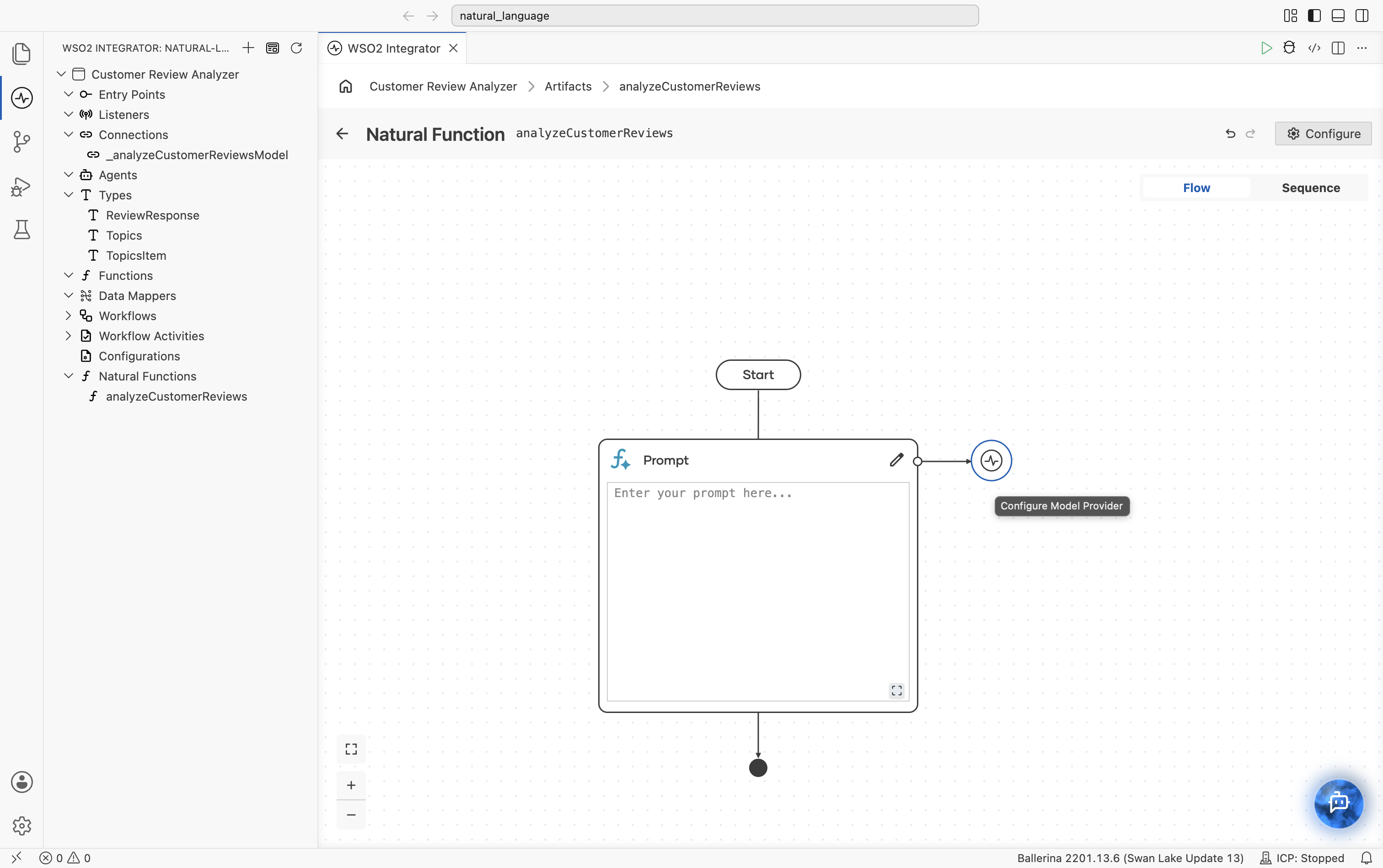
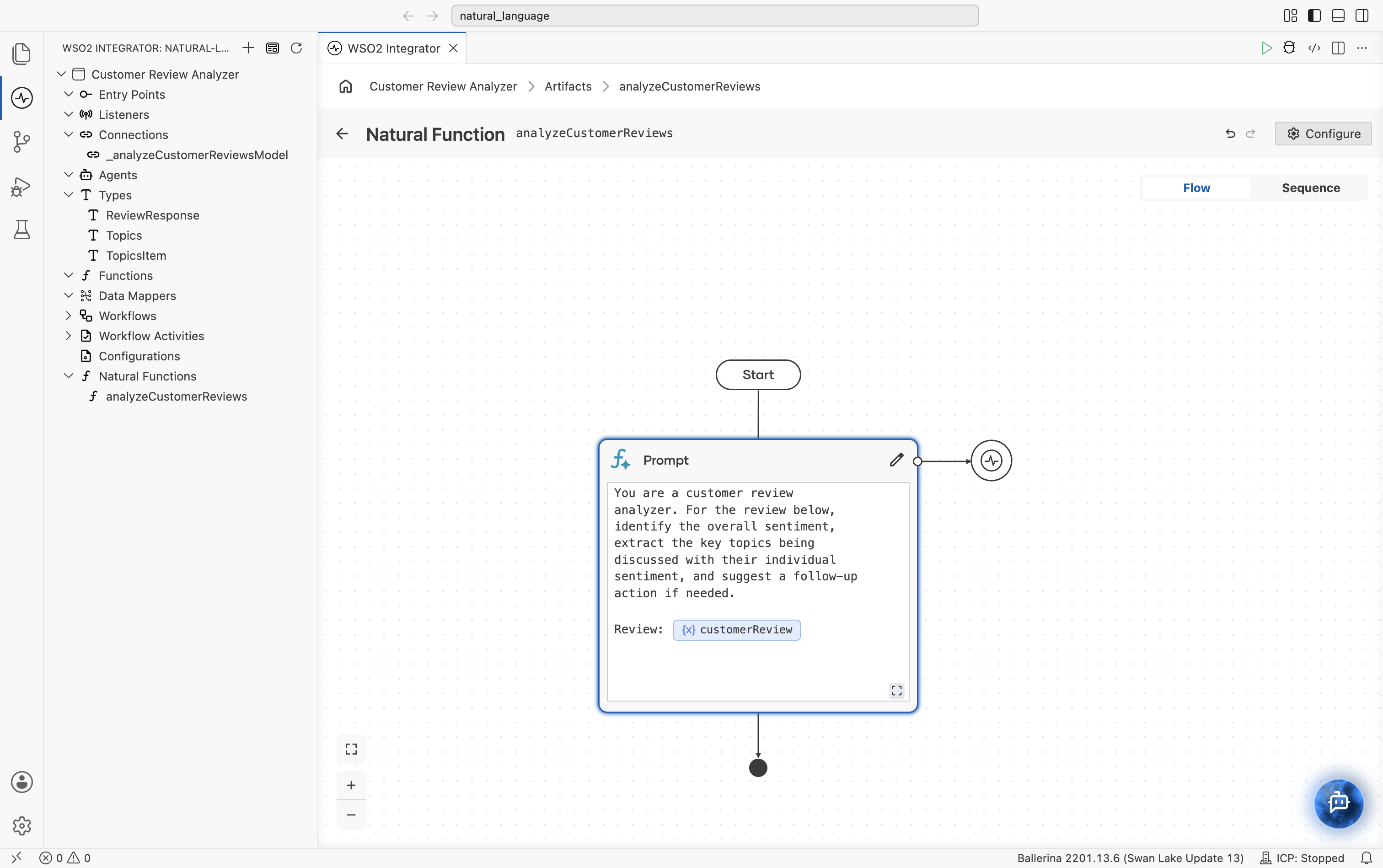
The flow shows a single Prompt node between Start and the end of the function. A pencil (edit) icon sits at the top-right corner of the node, and a small circular connection icon sits just outside it, linked by a short connector line:
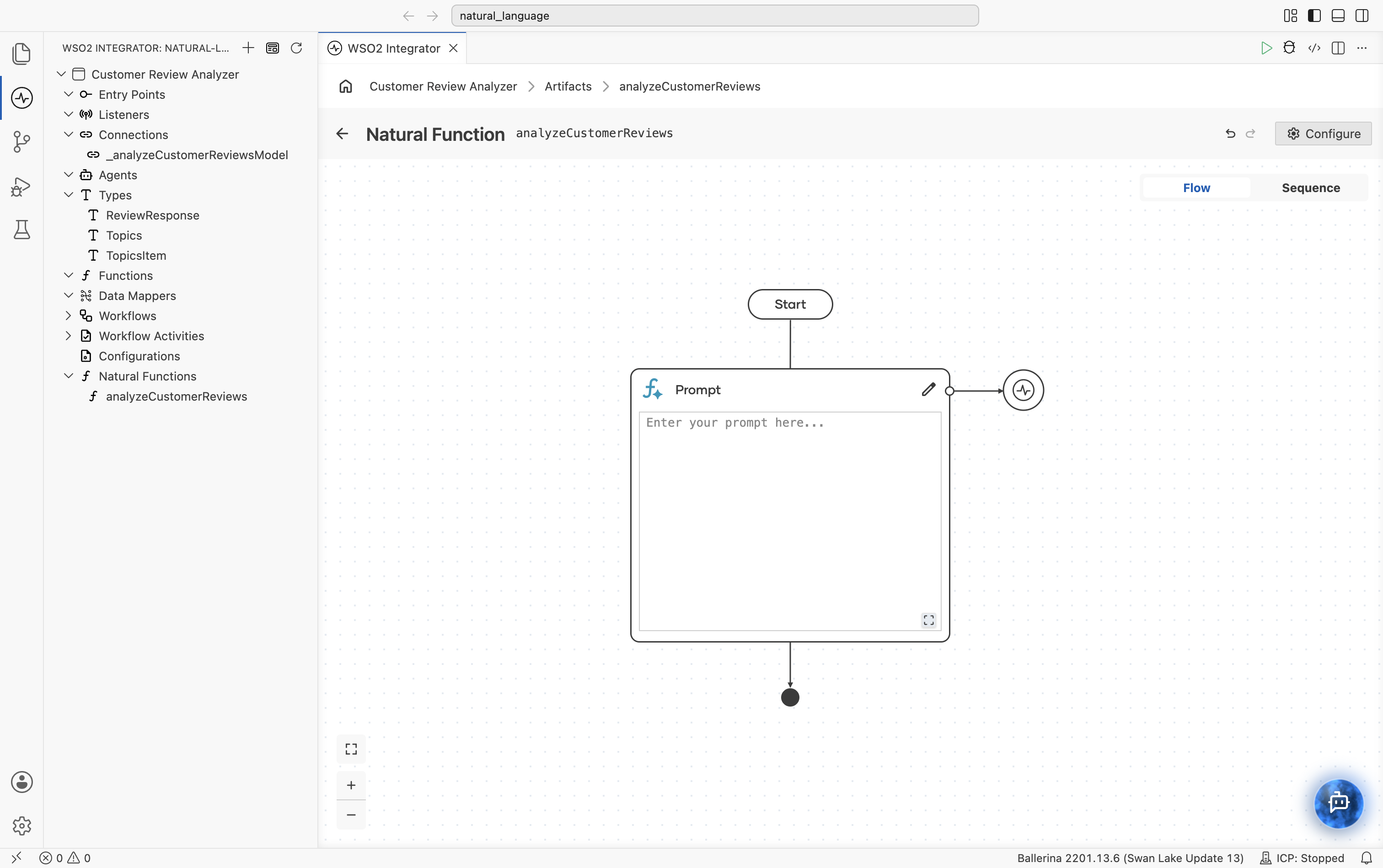
Step 1.5: Bind the model provider
Hover or click the circular connection icon next to the Prompt node. The tooltip reads Configure Model Provider.
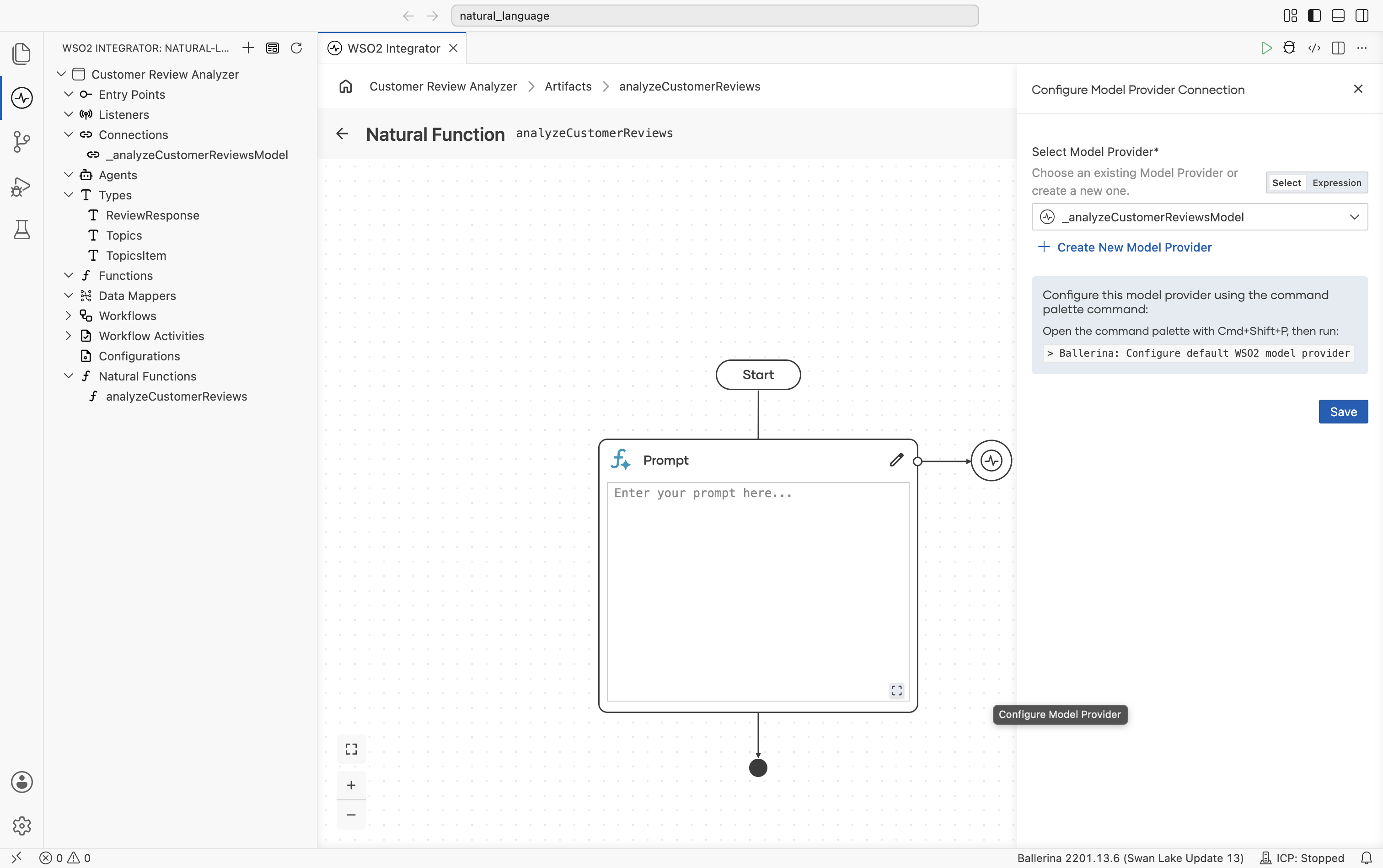
The Configure Model Provider Connection panel slides in. Pick the auto-created _analyzeCustomerReviewsModel connection and click Save.
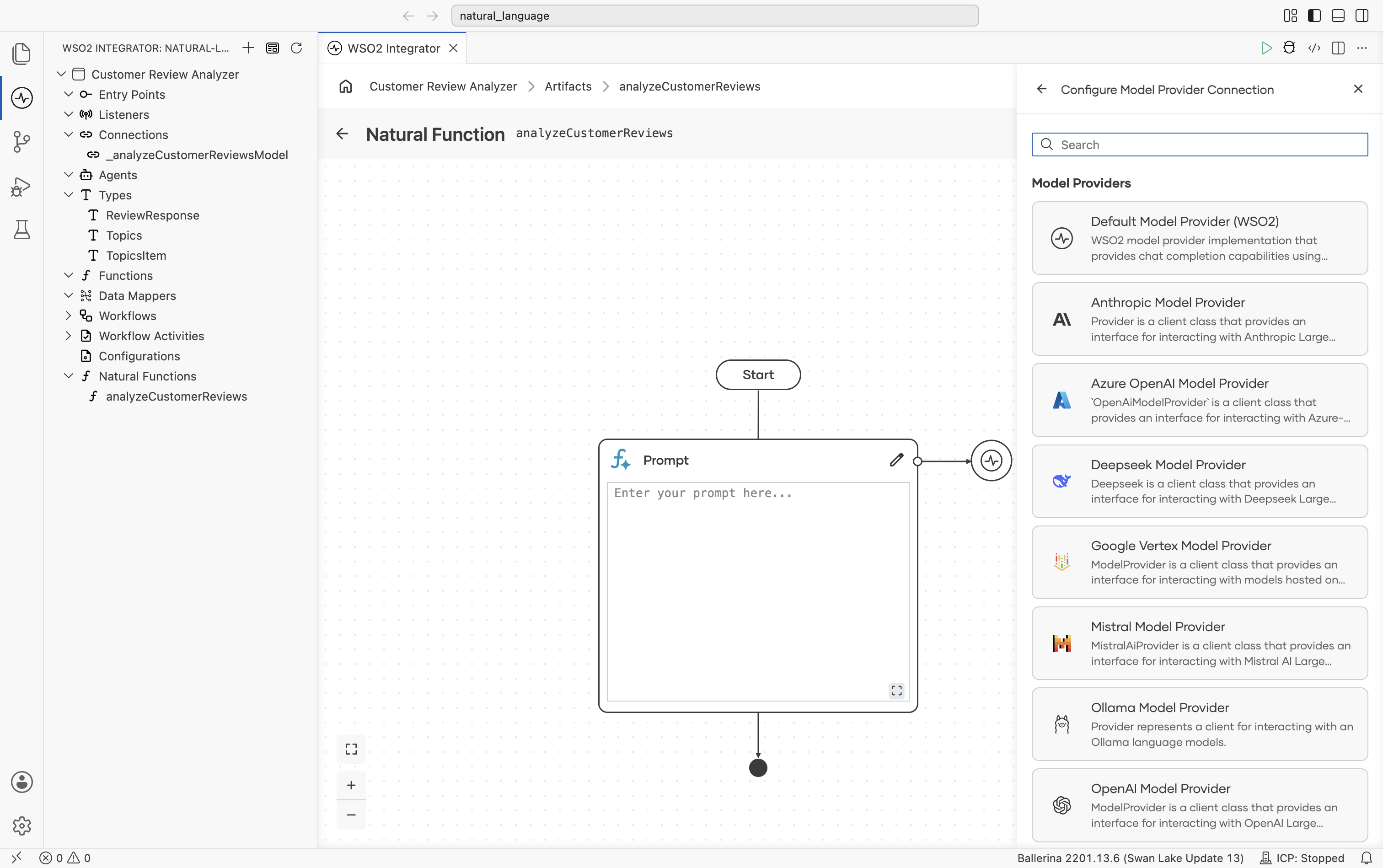
If you'd rather use OpenAI, Anthropic, Azure OpenAI, or any other provider, click + Create New Model Provider and pick from the catalogue:
Step 1.6: Write the prompt
Click the pencil icon at the top-right of the Prompt node (tooltip: Edit Prompt). The full Prompt editor opens directly, with a formatting toolbar (Insert, undo/redo, Bold, Italic, link, headings, quote, lists, table, and Preview/Source toggles).
Type the following prompt, and use the Insert menu (or just type the parameter name) to interpolate customerReview. It renders as a token pill reading {x} customerReview, backed by the Ballerina template expression ${customerReview}:
You are a customer review analyzer. For the review below, identify the overall sentiment, extract the key topics being discussed with their individual sentiment, and suggest a follow-up action if needed.
Review:
{x} customerReview
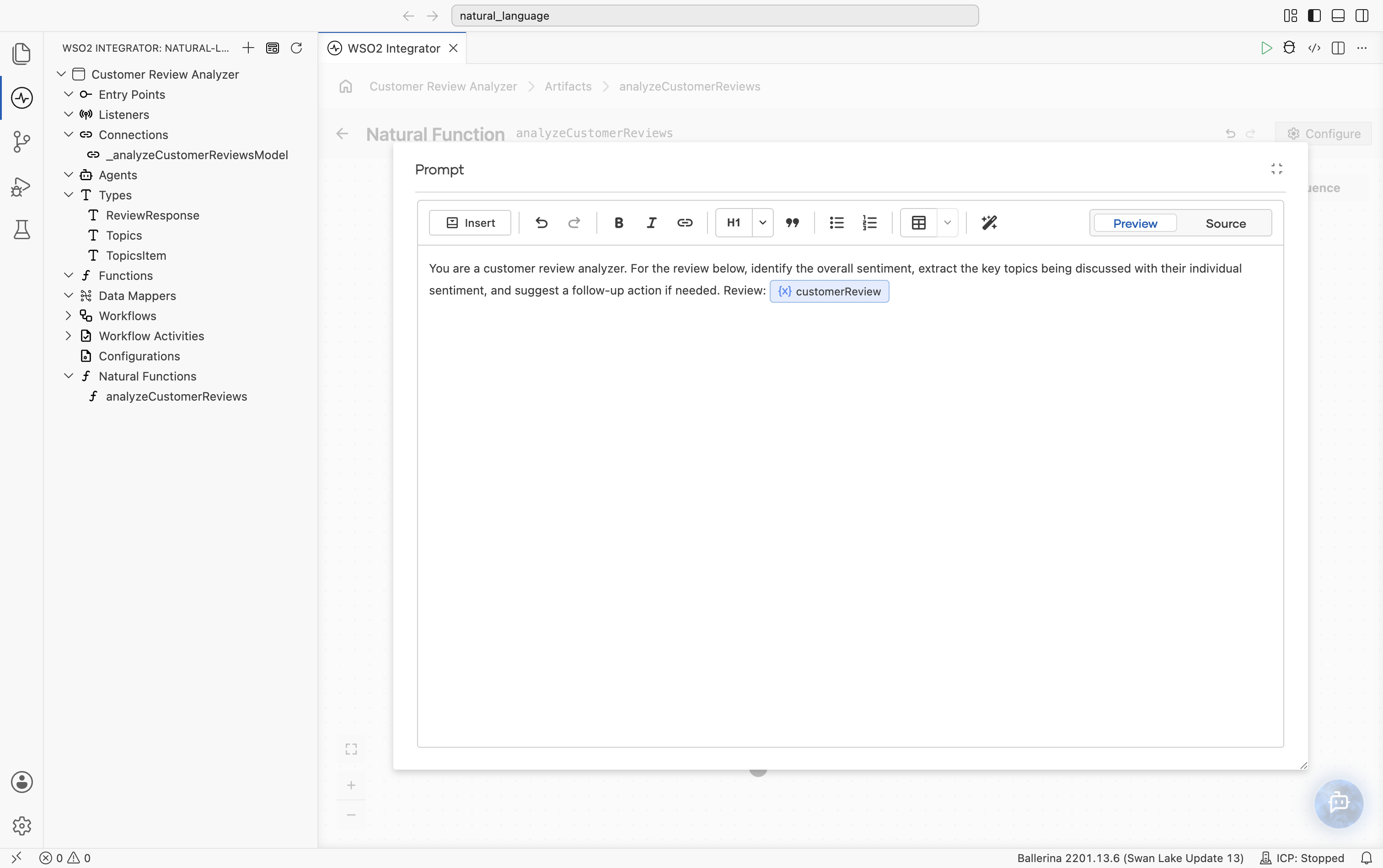
Click Save. The natural function is complete; the Prompt node shows the saved body inline, and behind the scenes WSO2 Integrator generated the Ballerina source.
Reopening a saved prompt (clicking the pencil icon again) opens a smaller floating editor with the same text but no formatting toolbar, and Cancel/Save buttons: a quick-edit view distinct from the full editor used the first time.
- Visual Designer
- Ballerina Code
function analyzeCustomerReviews(string customerReview) returns ReviewResponse|error {
    ReviewResponse|error result = natural {
        You are a customer review analyzer. For the review below, identify
        the overall sentiment, extract the key topics being discussed with their
        individual sentiment, and suggest a follow-up action if needed.

        Review: ${customerReview}
    };
    return result;
}
2. Create the HTTP service
The function is callable; now we expose it as an API.
Step 2.1: Add the service artifact
Click the back arrow to return to the integration Overview, then select Add Artifact manually. Under Integration as API, pick HTTP Service.
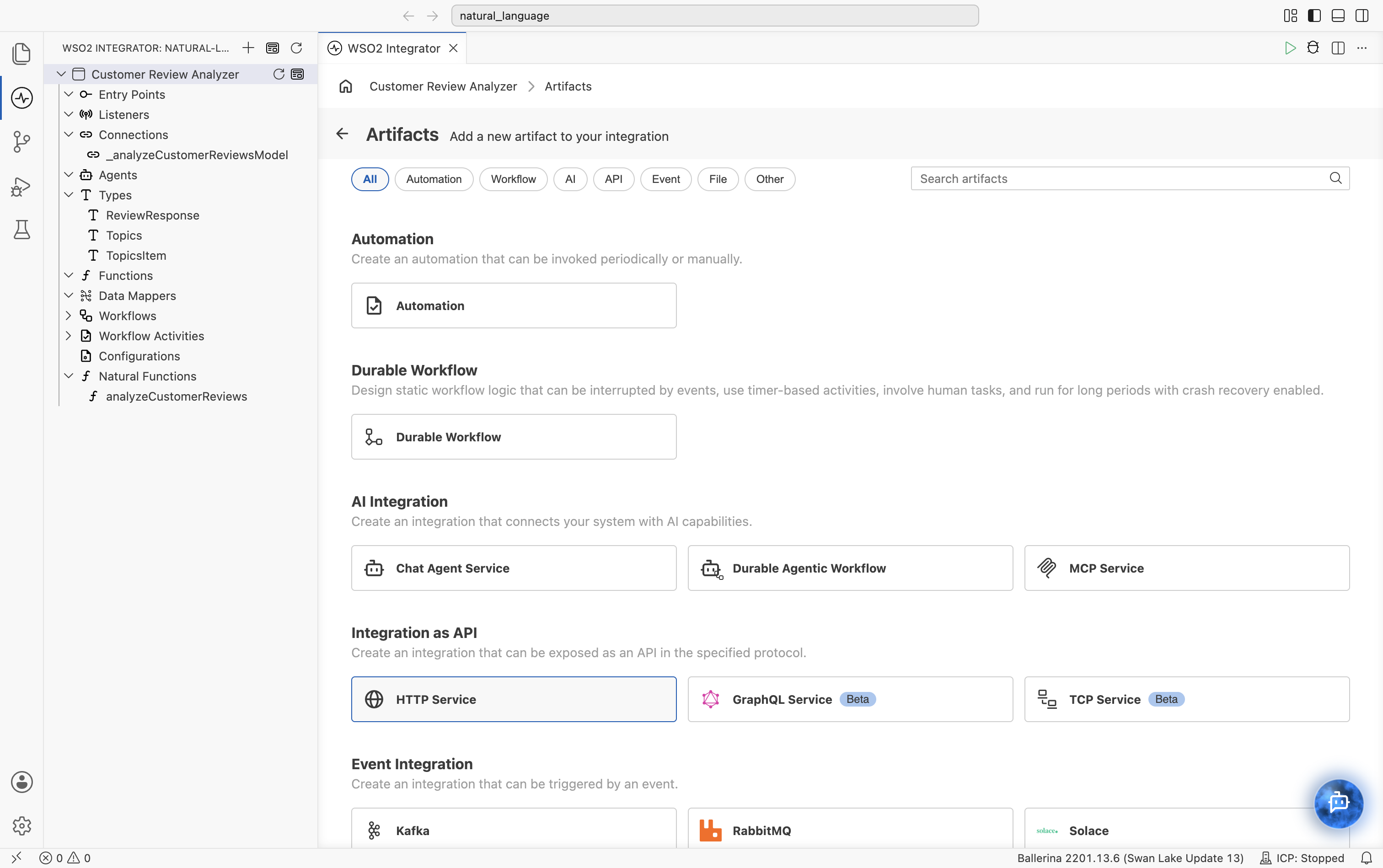
In the Create HTTP Service form, set:
| Field | Value |
|---|---|
| Service Contract | Design From Scratch |
| Service Base Path | /api/v1 |
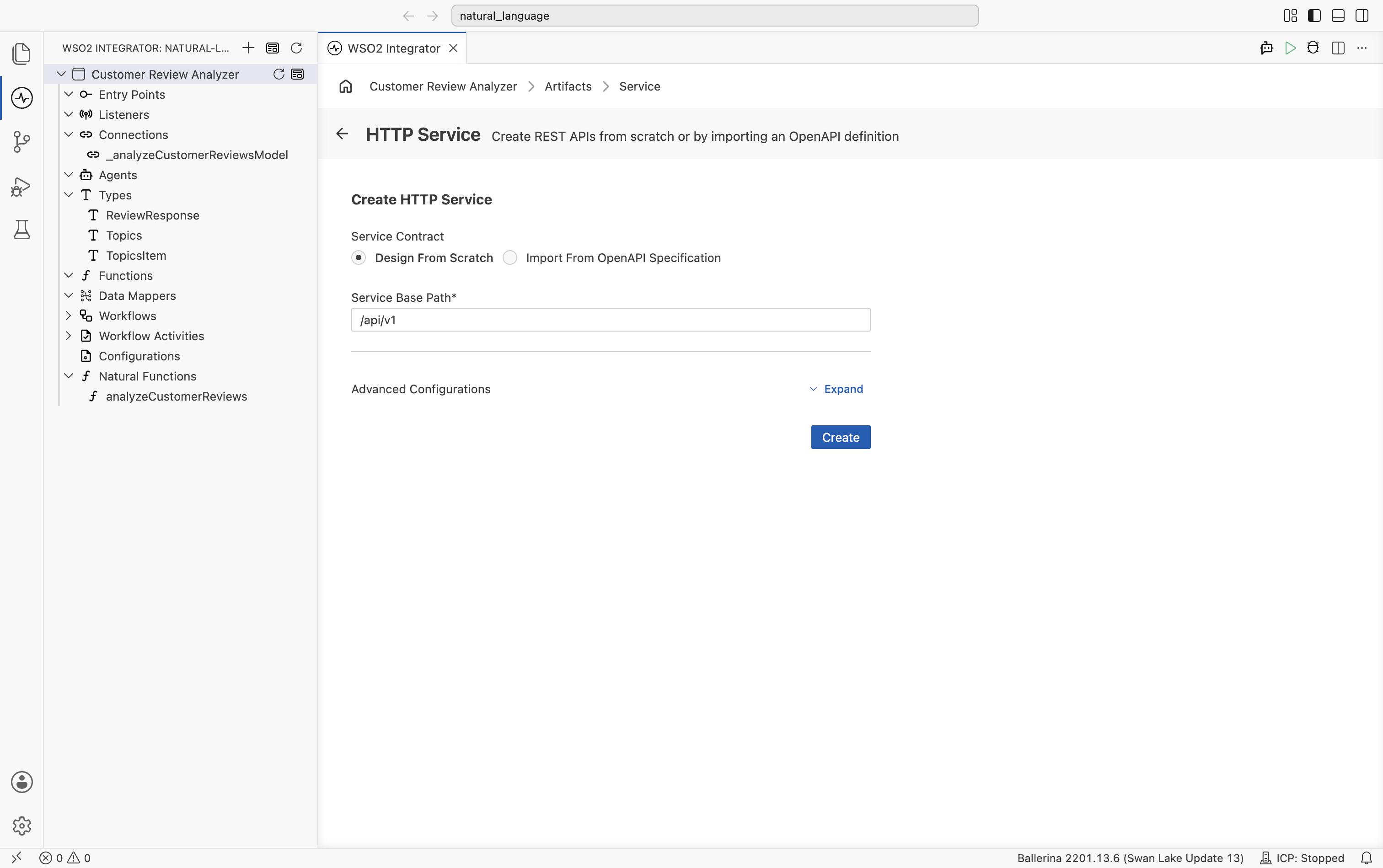
Click Create. The HTTP Service editor opens with no resources yet.
Step 2.2: Add the POST resource
Click + Add Resource. The Select HTTP Method to Add picker opens.
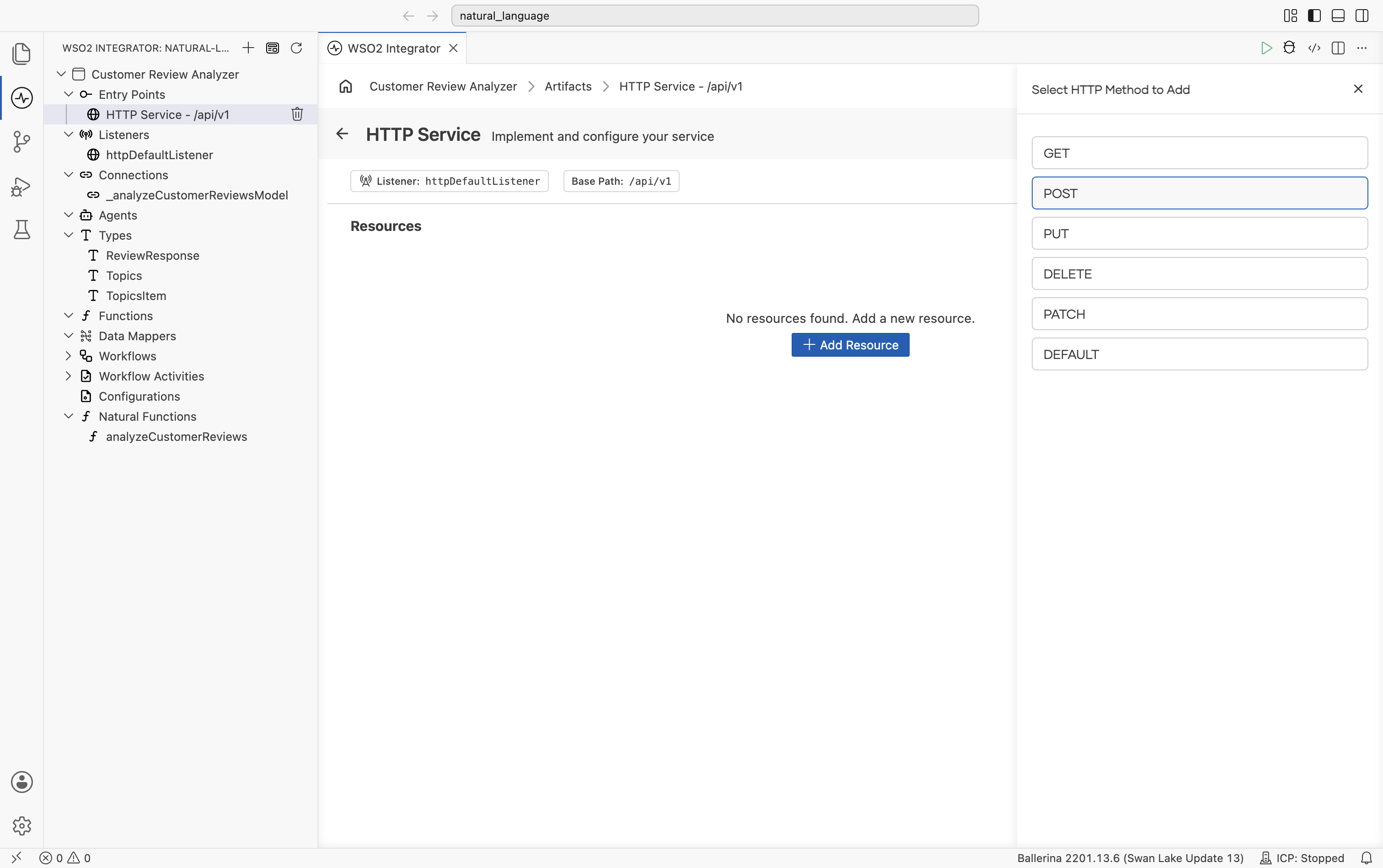
Choose POST, then configure the resource:
| Field | Value |
|---|---|
| HTTP Method | POST |
| Resource Path | analyze |
| Payload (Type / Name) | string / review |
| Responses | 201 returns ReviewResponse; 500 returns error |
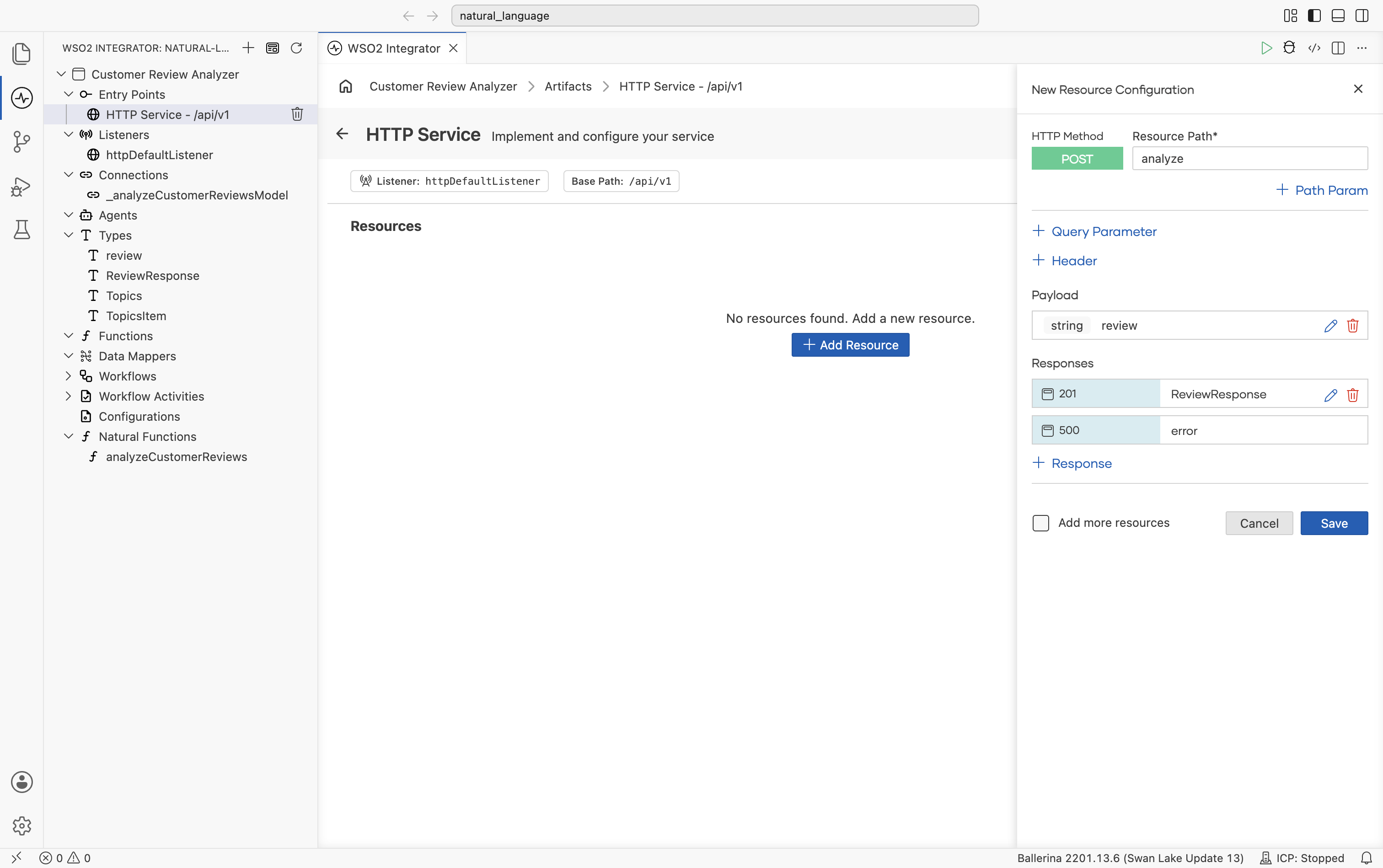
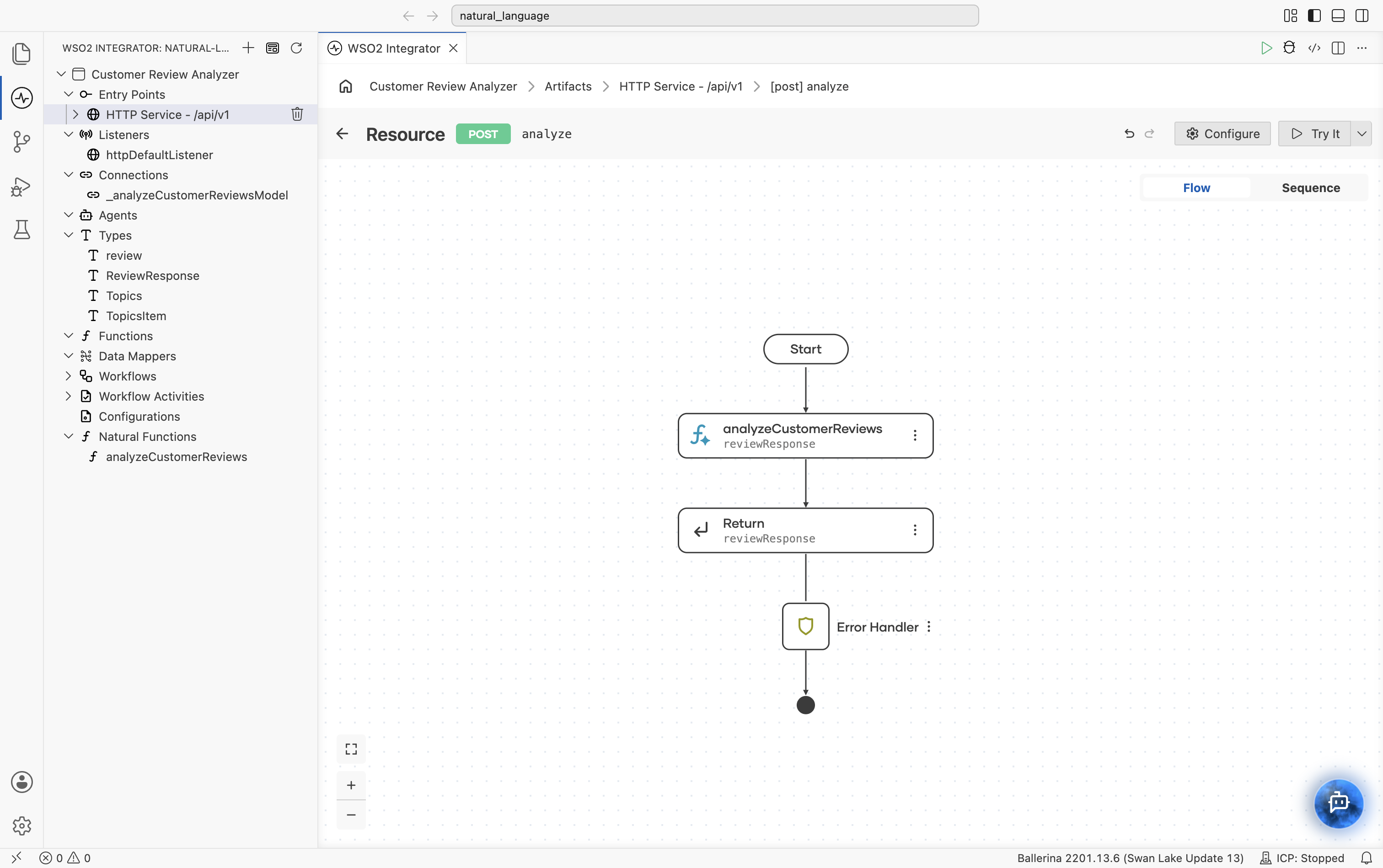
Click Save. The resource flow opens with Start, a + placeholder on the connector, and an Error Handler.
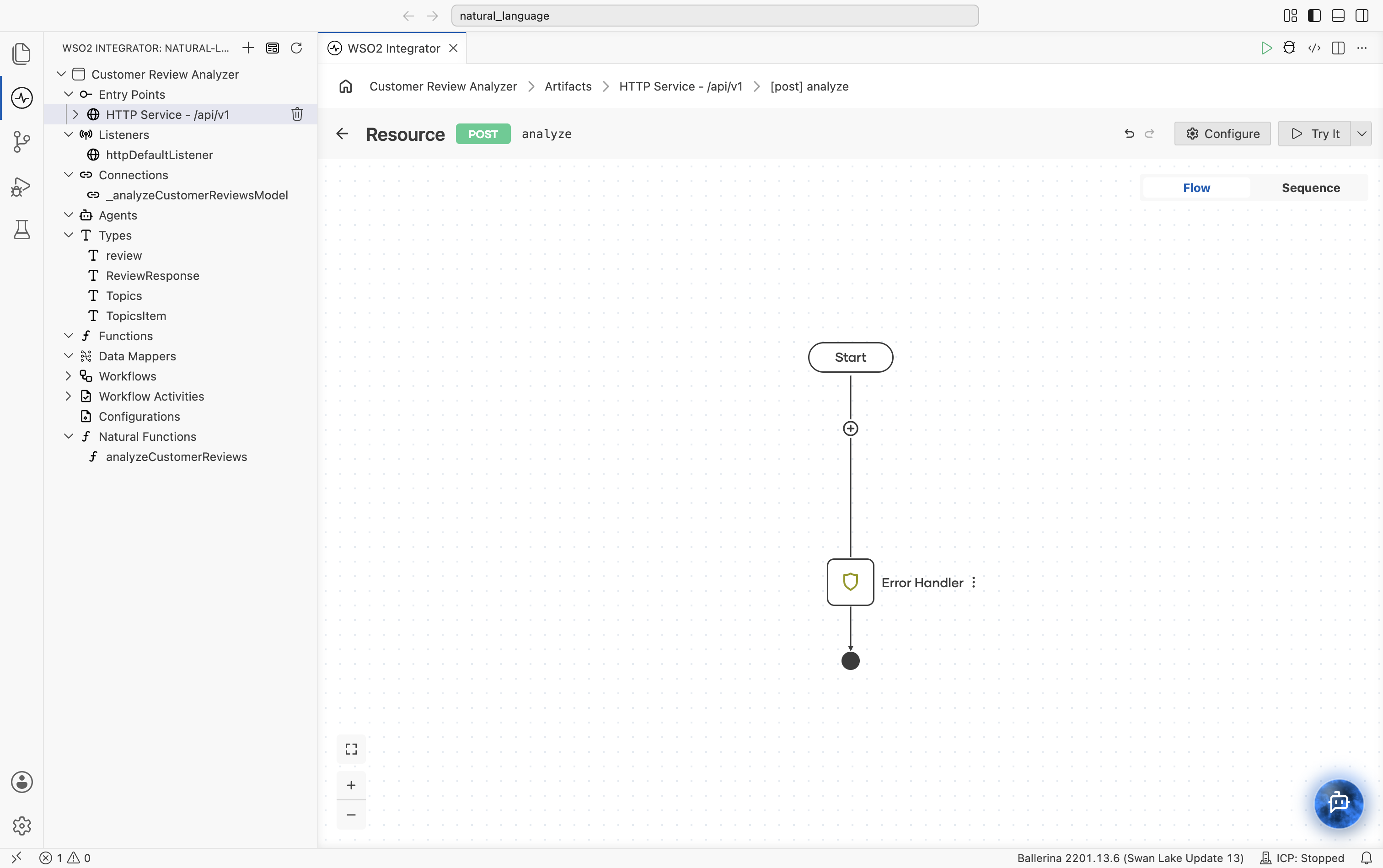
3. Call the natural function from the resource
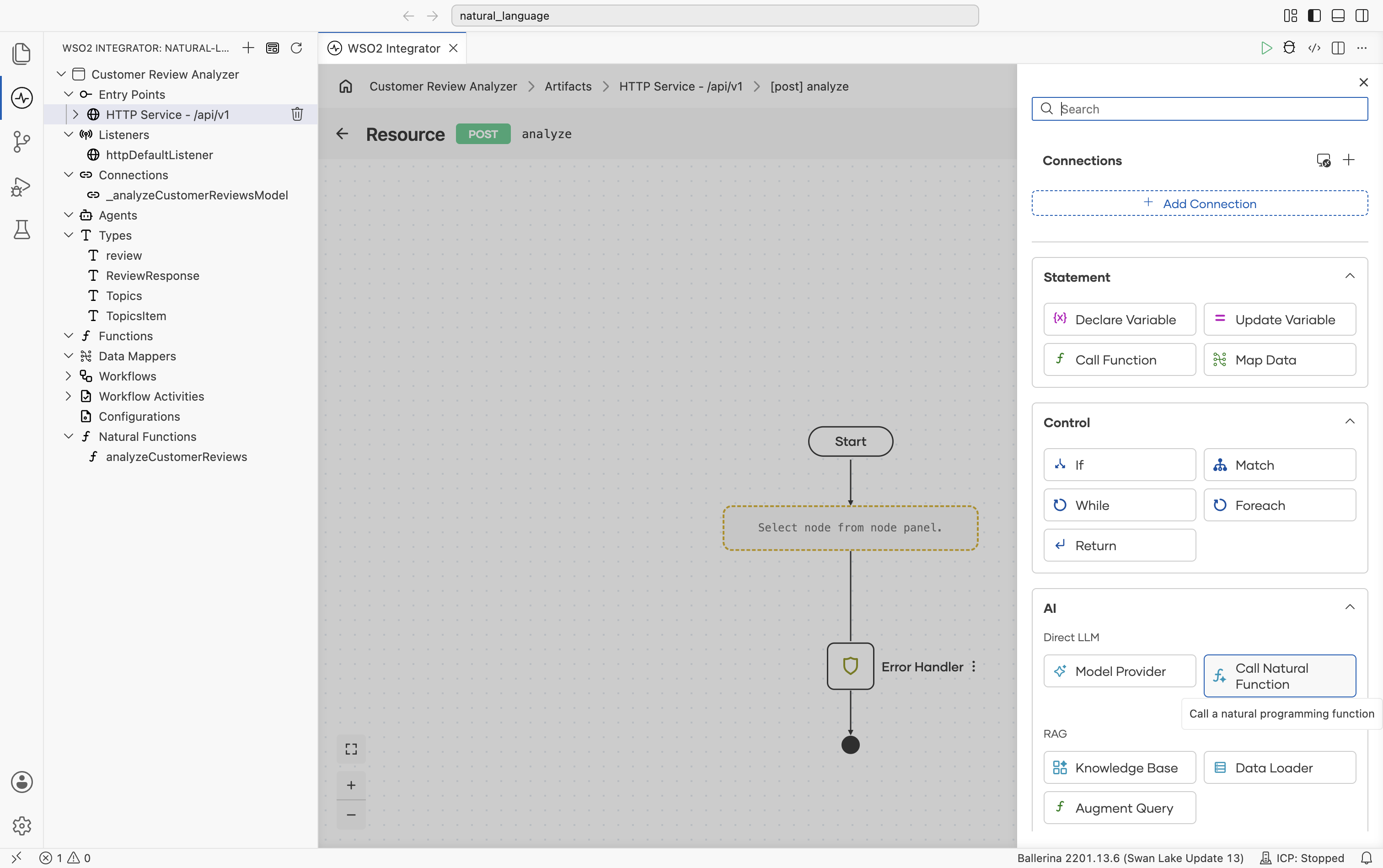
Step 3.1: Open the Add Node panel
Click the + placeholder between Start and Error Handler. The Add Node panel slides in. Expand the AI category and click Call Natural Function (tooltip: Call a natural programming function).
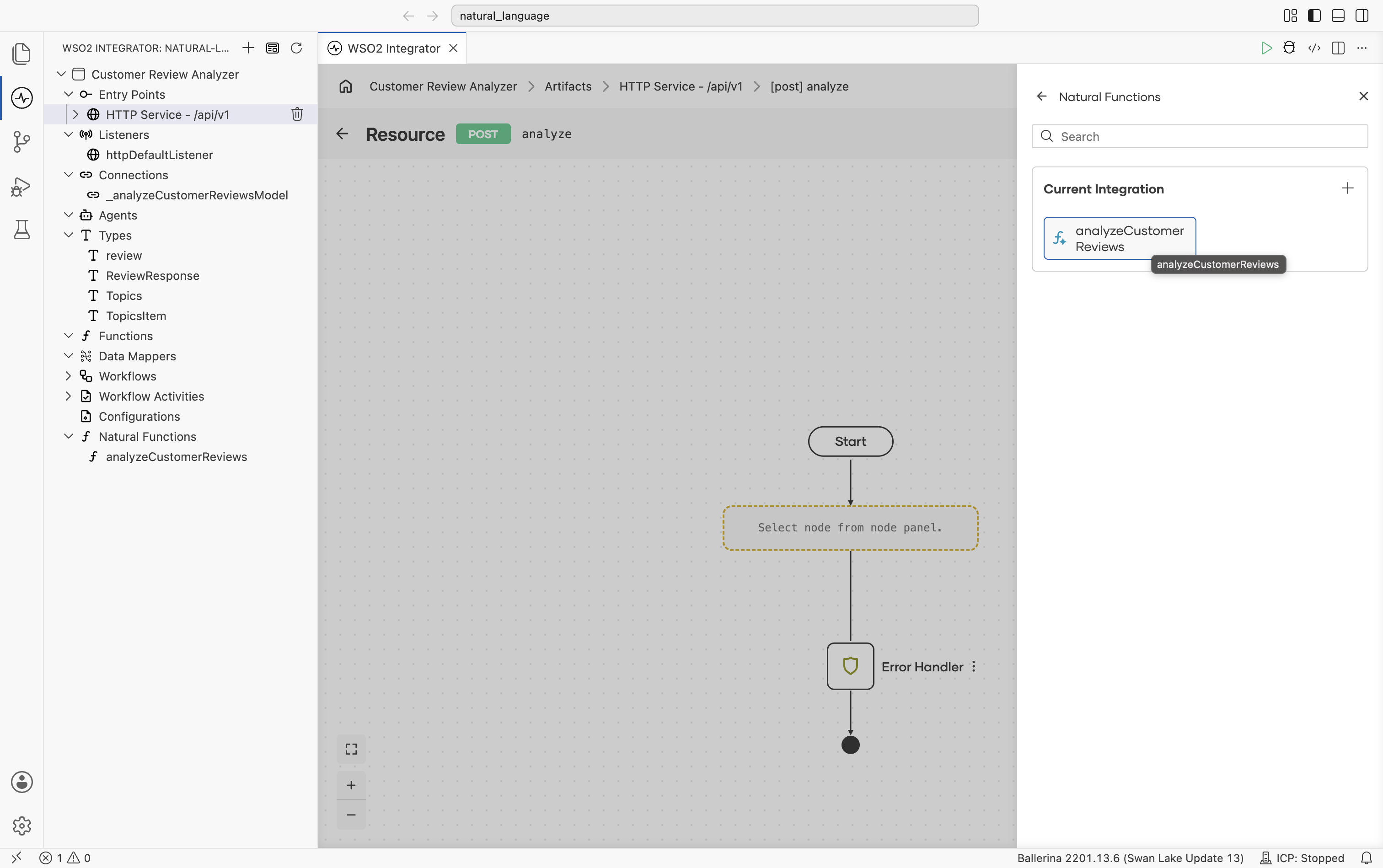
Step 3.2: Pick the function
The Natural Functions picker lists every natural function in the project under Current Integration. Pick analyzeCustomerReviews.
Step 3.3: Bind the argument
The configuration form opens, titled with your project and function name (for example, customer_review_analyzer : analyzeCustomerReviews). Each parameter on the function becomes a row; here you only have CustomerReview, with a Text/Expression toggle.
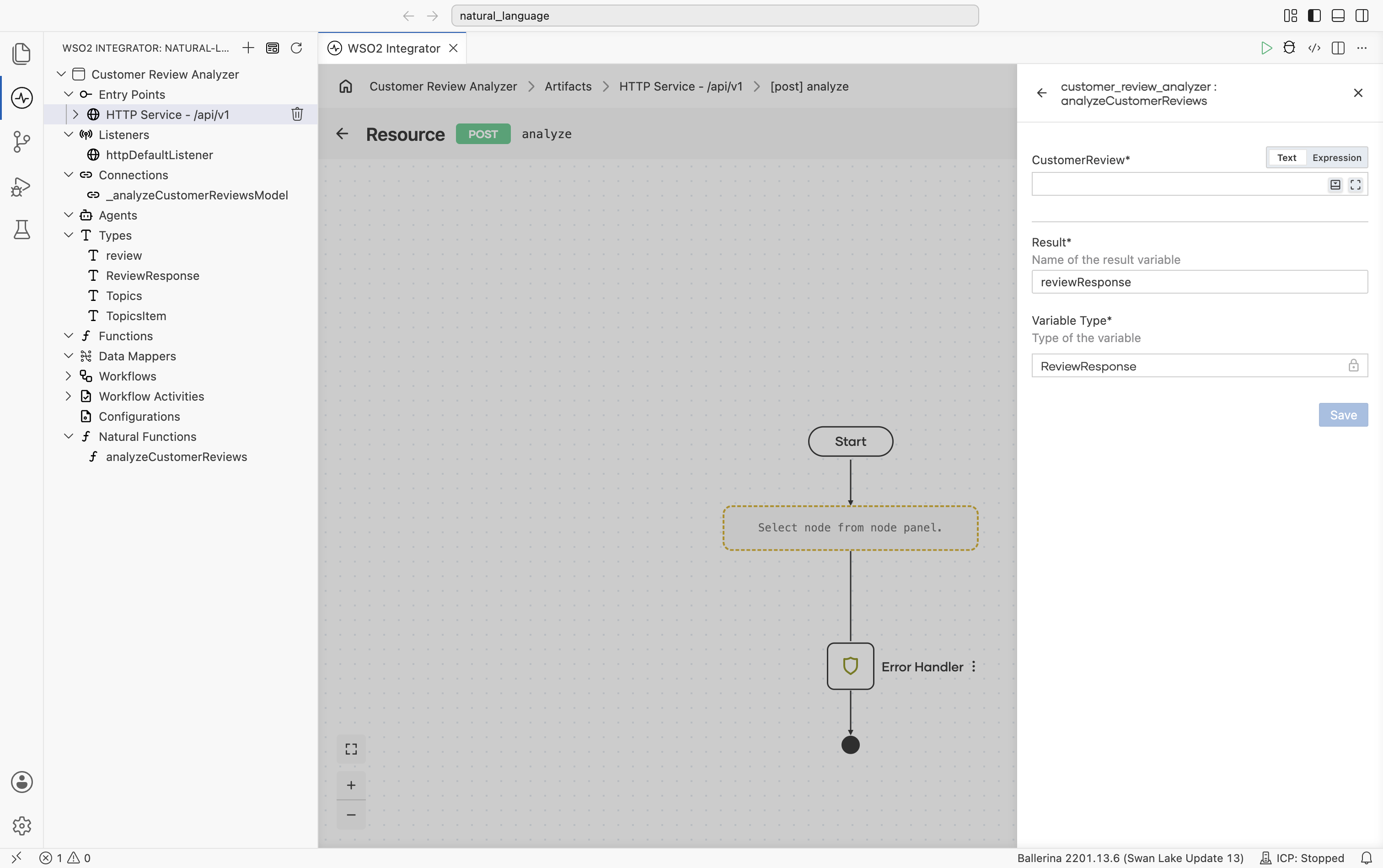
Switch CustomerReview to Expression and bind it to the inbound payload variable review. Leave Result (the variable name that will hold the typed return value, used by the next node) as reviewResponse, and Variable Type as the locked ReviewResponse (it always matches the function's declared return type).
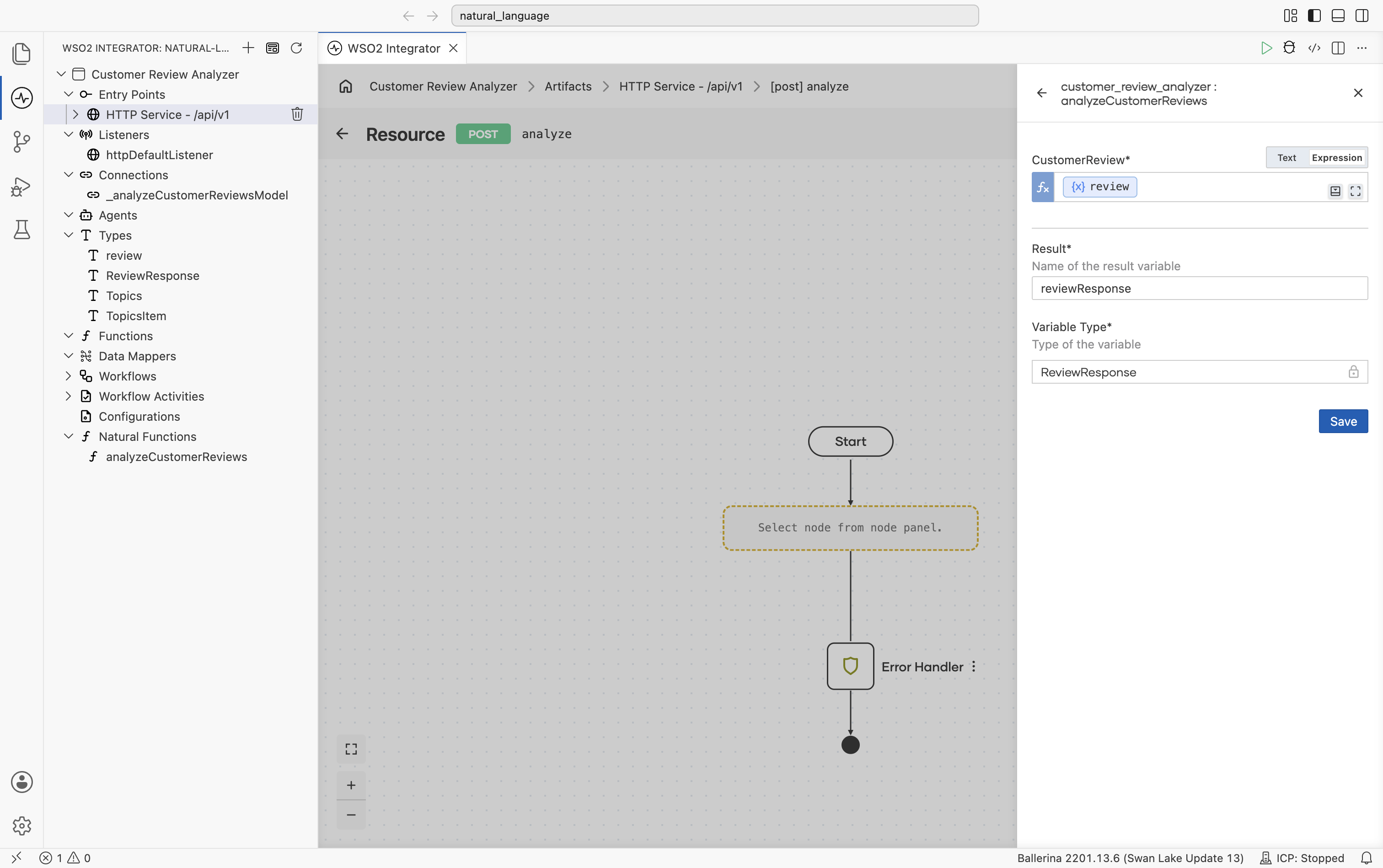
Click Save. The natural-function node lands in the flow.
Step 3.4: Add the return
Click + between the natural function call and Error Handler. In the Add Node panel, under Control, pick Return.
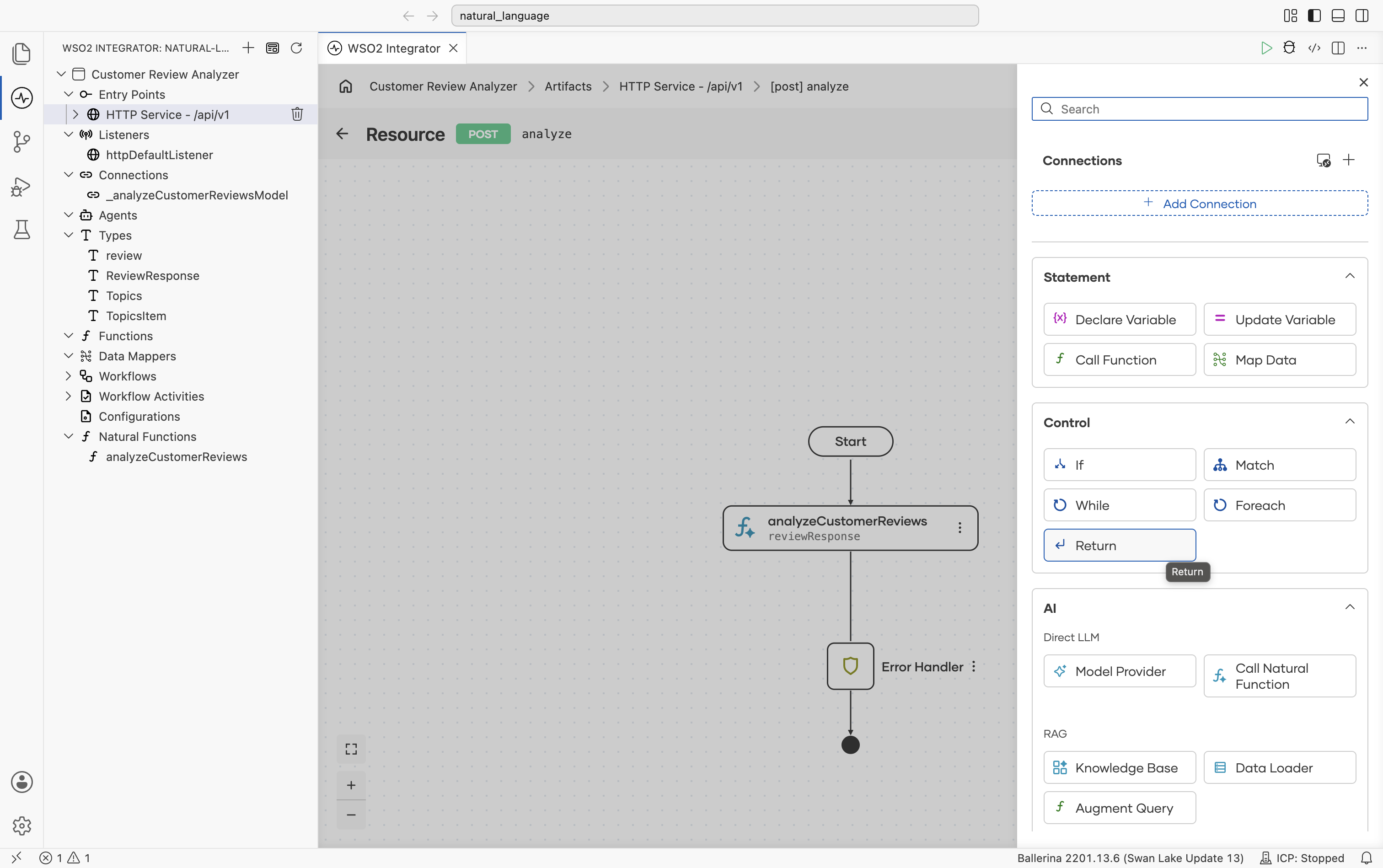
In the Return panel, set the Expression / Return value to reviewResponse.
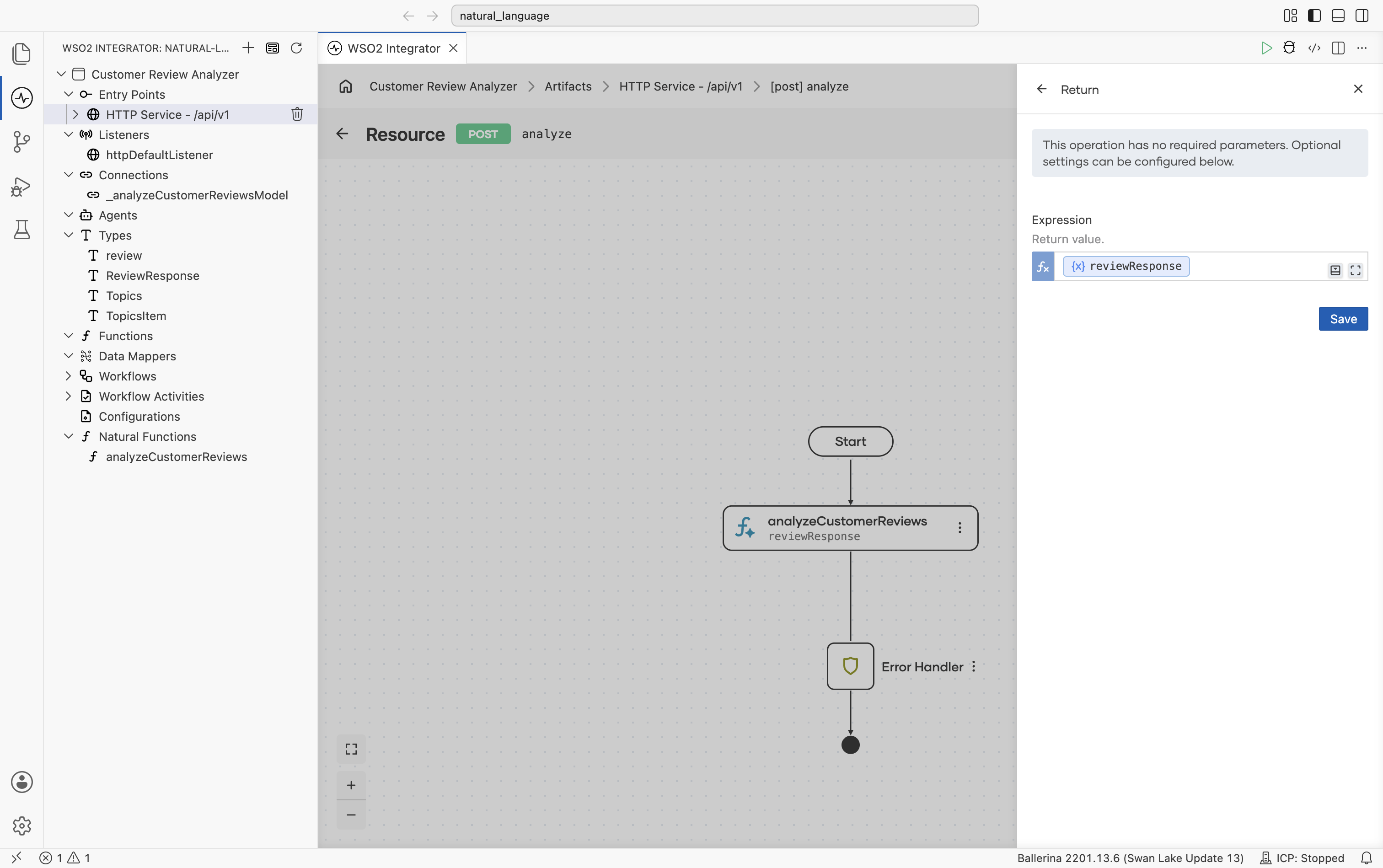
The completed flow, with a Try It button now available at the top right:
4. Run and test
Step 4.1: Run the service
From the resource editor, select Run. WSO2 Integrator applies the --experimental flag and compiles and starts the service, with progress shown in the integrated terminal.
Step 4.2: Send a test request
Select Try It. A TryIt.hurl file opens with a POST request to /api/v1/analyze prefilled. Update the JSON body with a review to analyze, for example:
{
  "review": "Loved the sound quality, but the charging case died after a week and support never replied."
}
Select the run icon next to the request to send it.
Step 4.3: Read the structured response
The response appears inline below the request, in the same TryIt.hurl tab. It shows Status: 201 Created and a fully structured body matching ReviewResponse.
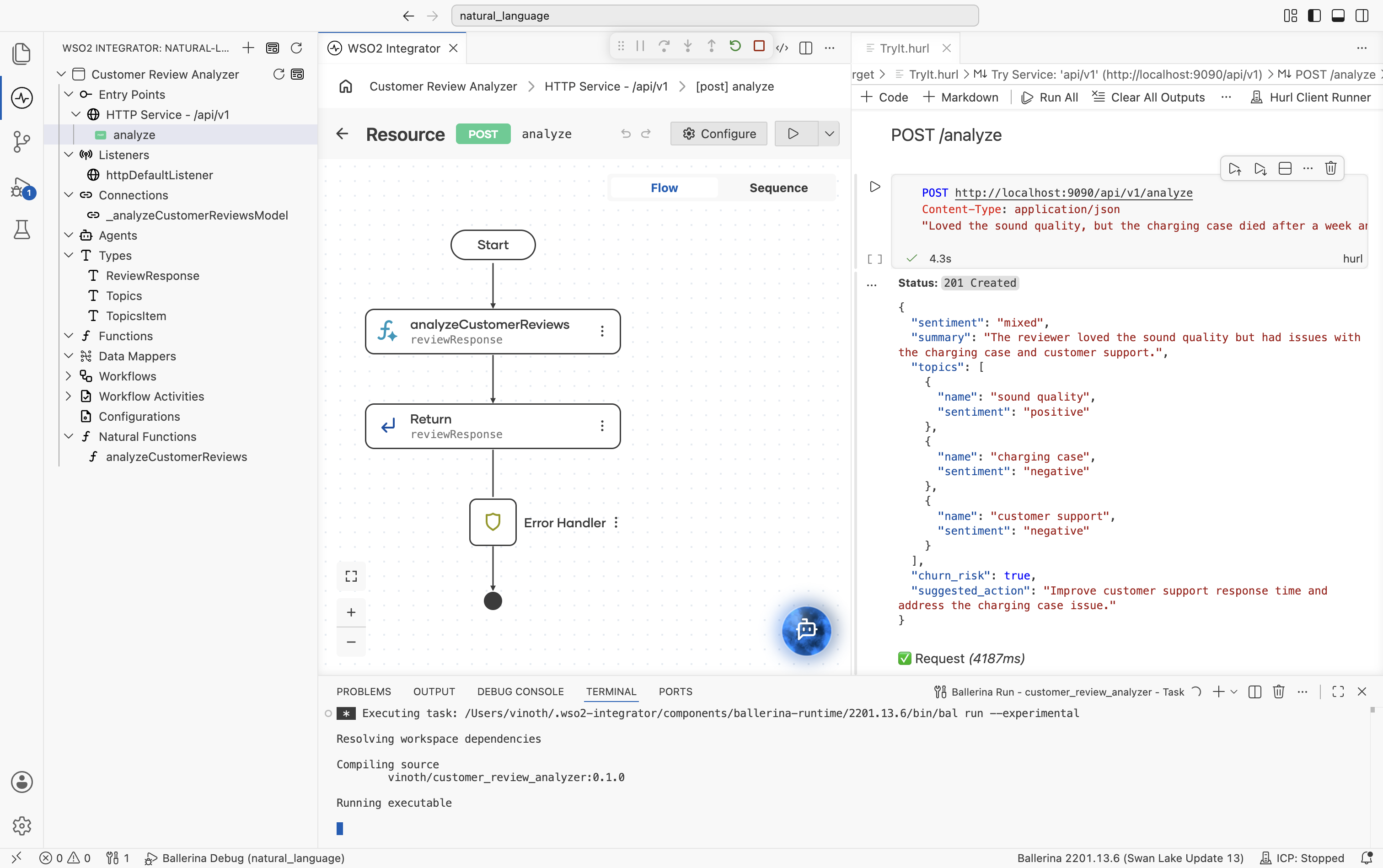
The LLM analyzed the review, identified the overall sentiment, extracted per-topic sentiment, flagged the customer as a churn risk, and suggested a concrete follow-up action. The response comes back as a typed ReviewResponse record, with no JSON parsing or schema validation in your code.
Ballerina HTTP services return
201 Createdfor POST requests by default; that is expected behaviour, not an error.
What's next
- Natural Functions reference — the single-page reference covering the form, the Prompt node, typed return inference, and calling from a flow.
- Email Generator with Direct LLM — a similar tutorial built around direct LLM calls.