EDI Processing
Work with Electronic Data Interchange (EDI) formats used in supply chain, healthcare, and financial integrations. Ballerina provides the ballerina/edi module for parsing and serializing EDI data, and the bal edi CLI tool for generating type-safe code from standard EDI specs like EDIFACT and X12.
Setting up the EDI tool
Pull the bal edi tool to generate Ballerina code from EDI schemas.
bal tool pull edi
Generating types from an EDIFACT spec
For standard EDI formats like EDIFACT, you don't need to write a schema by hand. The bal edi tool has built-in knowledge of EDIFACT message types. Run the following command to generate a JSON schema for the EDIFACT ORDERS message (version D03A):
bal edi convertEdifactSchema -v d03a -t ORDERS -o schema
This writes a ready-to-use JSON schema to schema/ORDERS.json. Then generate Ballerina record types and parser/serializer functions from it. Let's add the generated code into a separate library.
- Visual Designer
-
After creating a new integration, click the + Add icon.
-
Select Library as the type, enter
ordersas the library name, and click Add Library.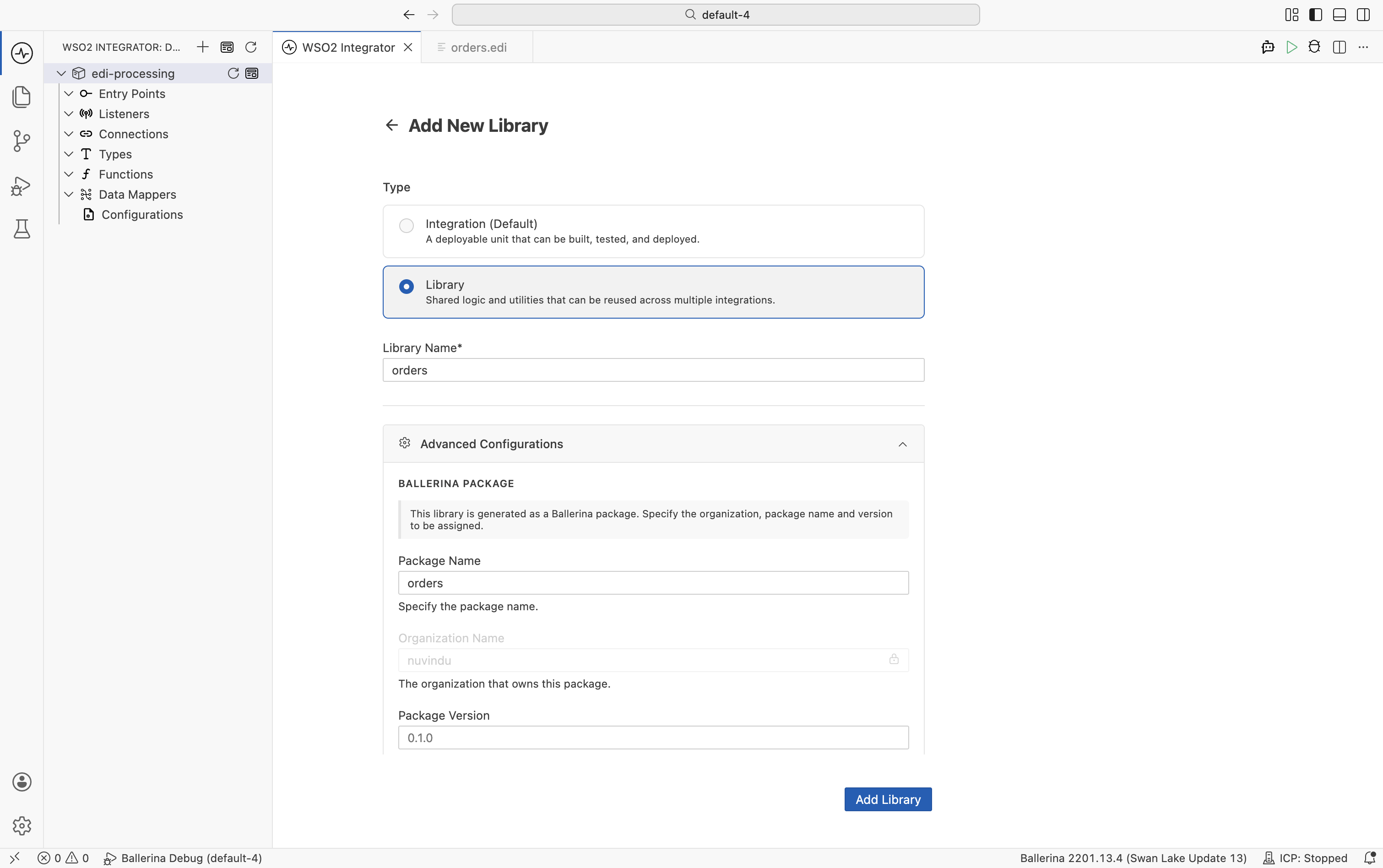
-
Open the terminal and navigate to the
ordersdirectory.cd orders -
Execute the following command to generate the necessary records and functions for the ORDERS schema.
bal edi codegen -i ../schema/ORDERS.json -o orders.bal
The generated file contains:
- Record types — matching each segment in the ORDERS message (BGM, DTM, NAD, LIN, etc.)
fromEdiString— converts an EDI string to a typed Ballerina recordtoEdiString— converts a Ballerina record to an EDI stringgetSchema— returns the EDI schema as anEdiSchemaobject
Parsing EDI documents
Once you have the generated library, parse an EDIFACT ORDERS message into typed Ballerina records.
The following EDIFACT ORDERS message will be used as the input. Save this content into a orders.edi file.
UNB+UNOA:1+SENDER+RECEIVER+260511:1000+1'
UNH+1+ORDERS:D:03A:UN'
BGM+220+PO-001+9'
DTM+137:20260511:102'
NAD+BY+123456789::9++ACME Corp'
LIN+1++PROD-001:SA'
QTY+21:10'
PRI+AAA:25'
UNS+S'
UNT+8+1'
- Visual Designer
- Ballerina Code
-
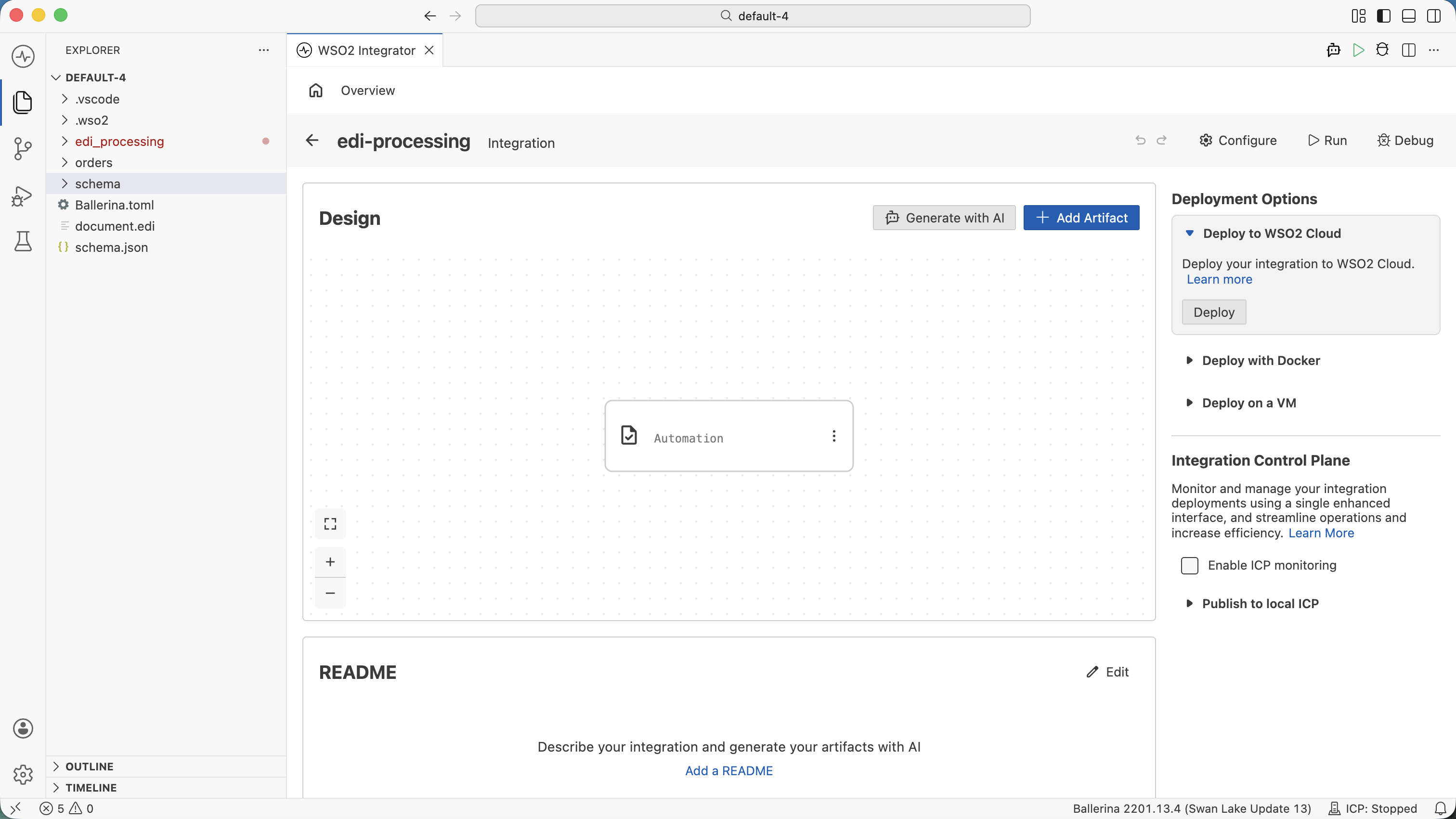
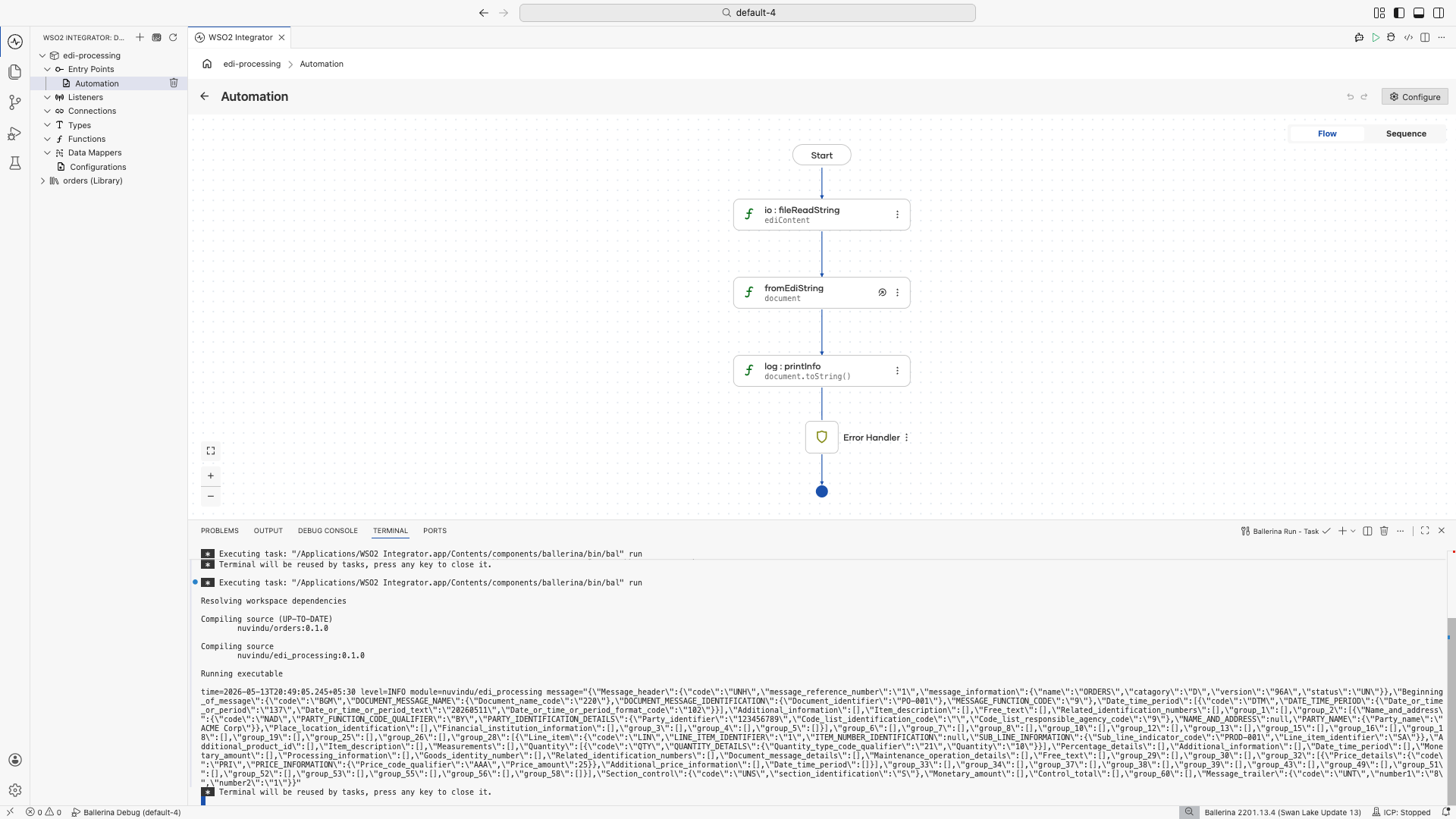
Open your main integration and click + Add Artifact on the canvas.
-
Select Automation from the artifacts panel.
-
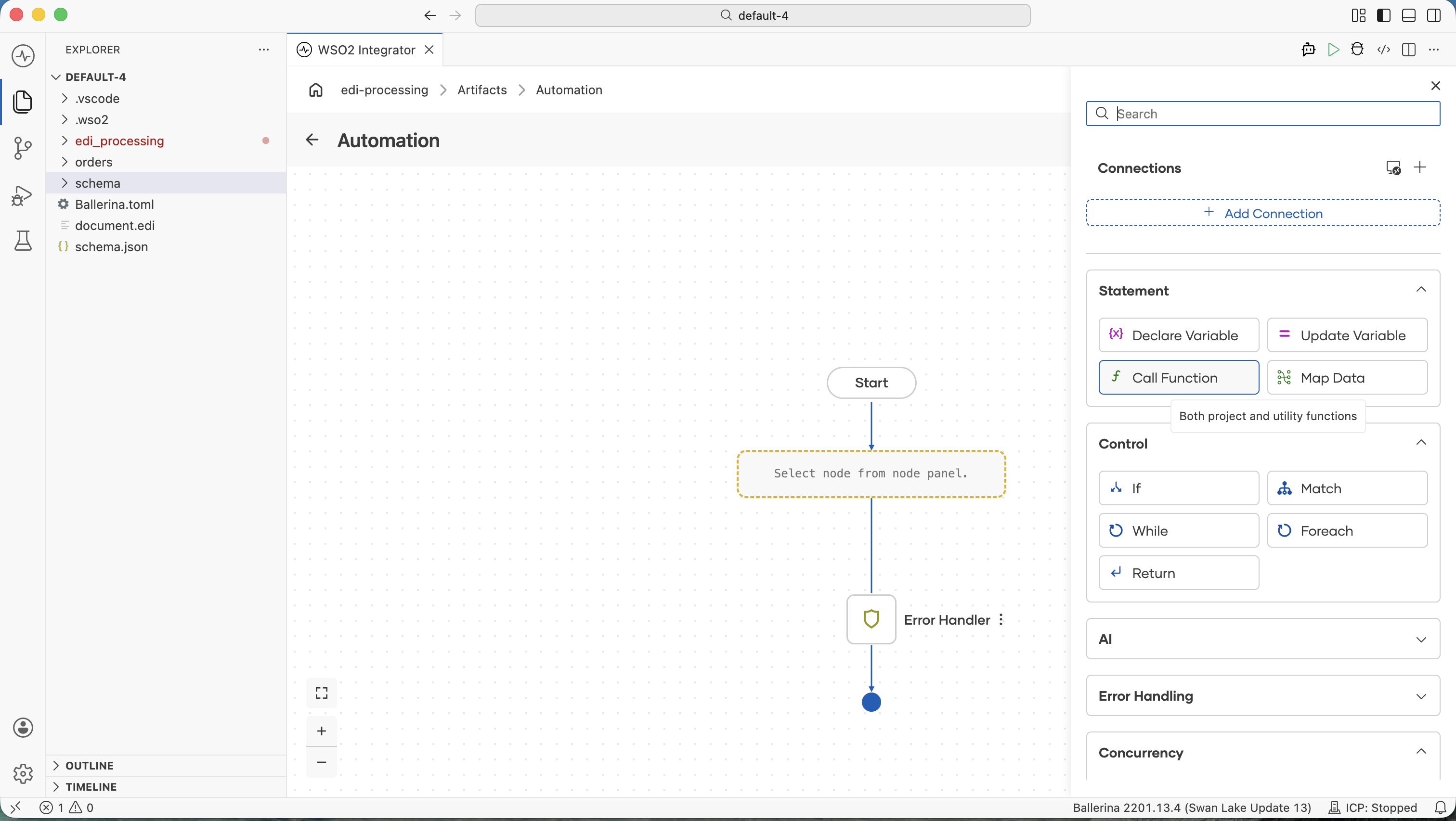
Click + and select Call Function.
-
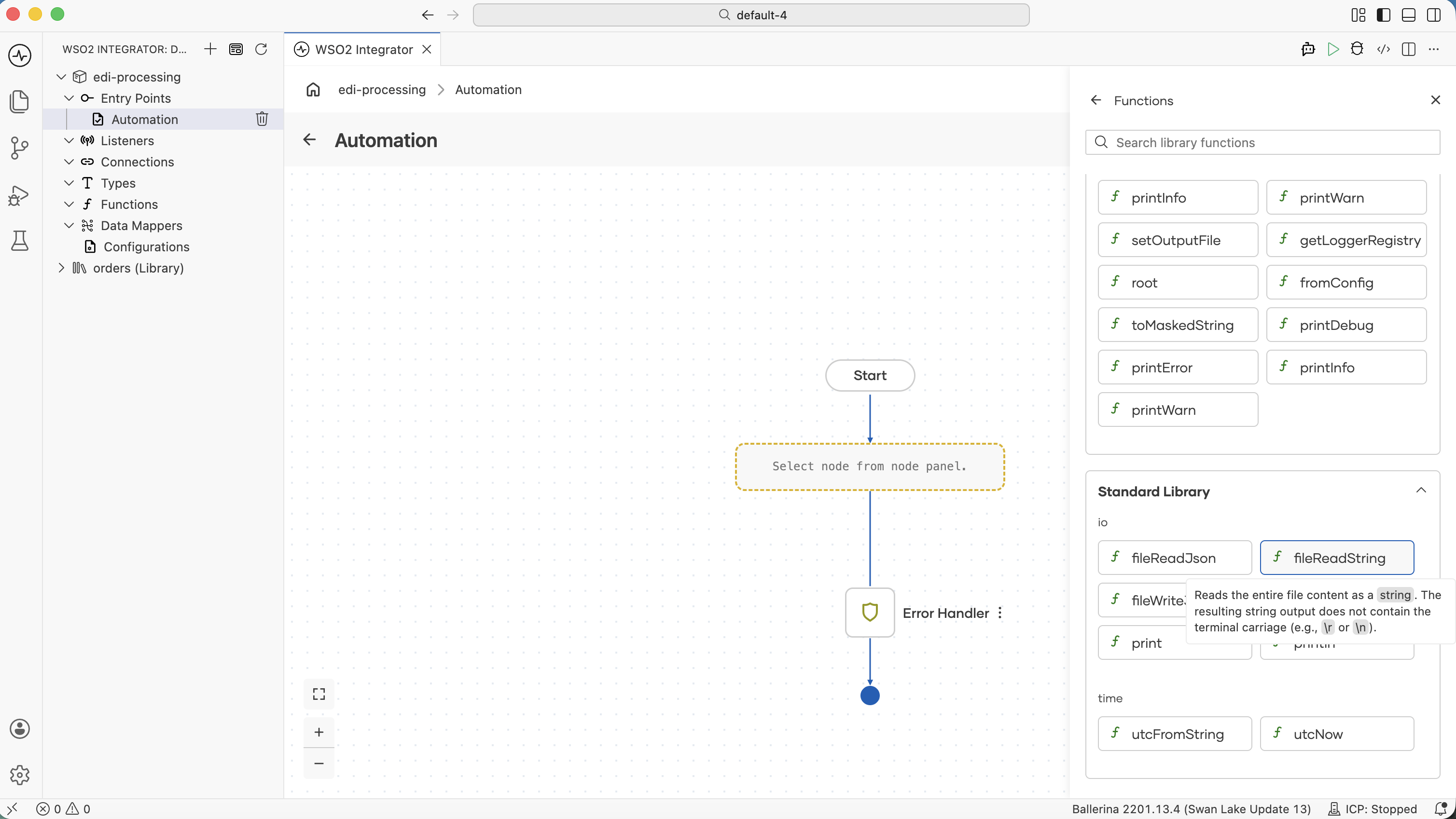
In the Functions panel, scroll down to the io section and select fileReadString.
-
Set Path to the path of your EDI file (e.g.,
orders.edi) and Result toediContent, then click Save.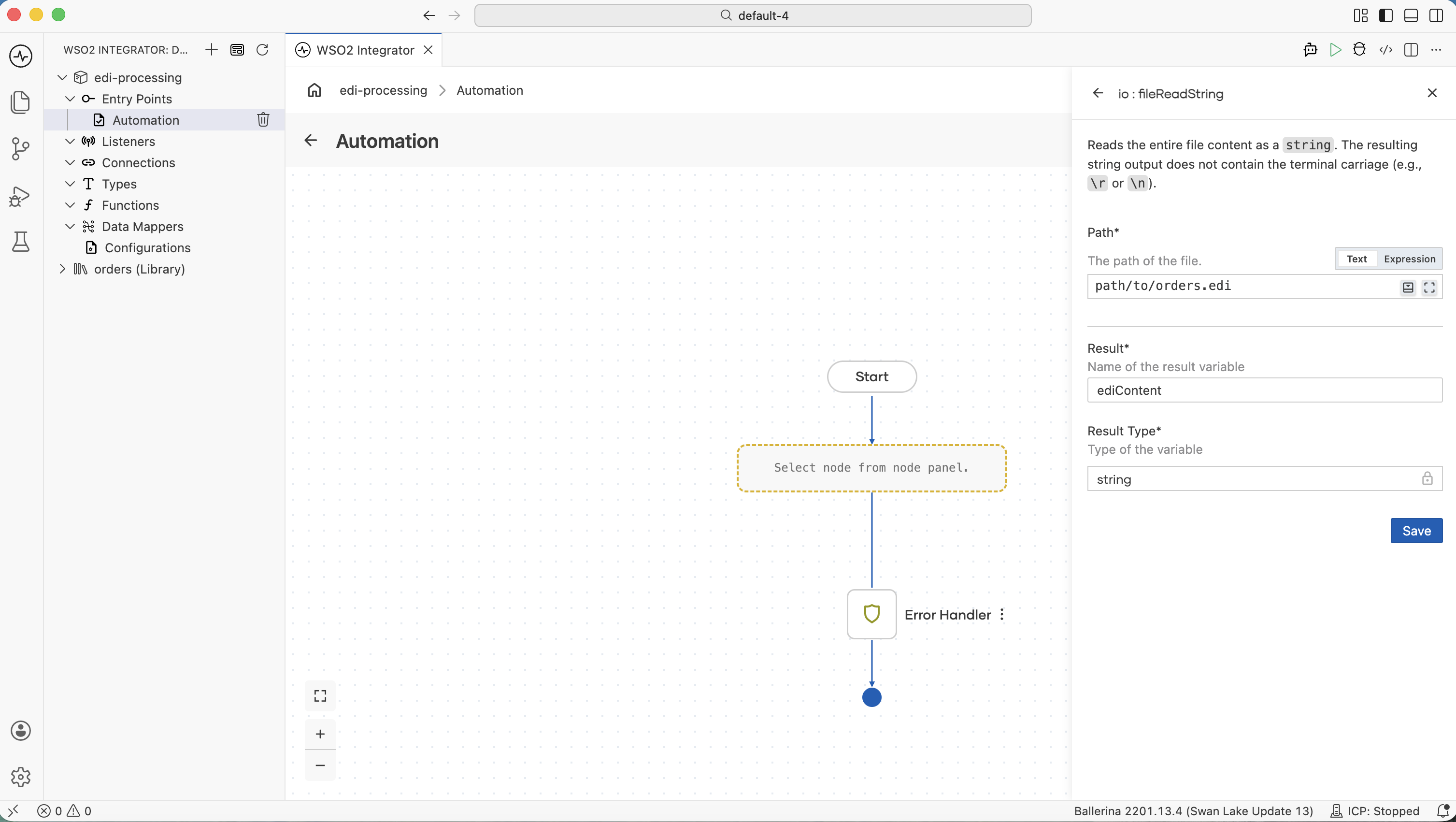
-
Click + again and select Call Function. In the Functions panel under Within Project, select fromEdiString.
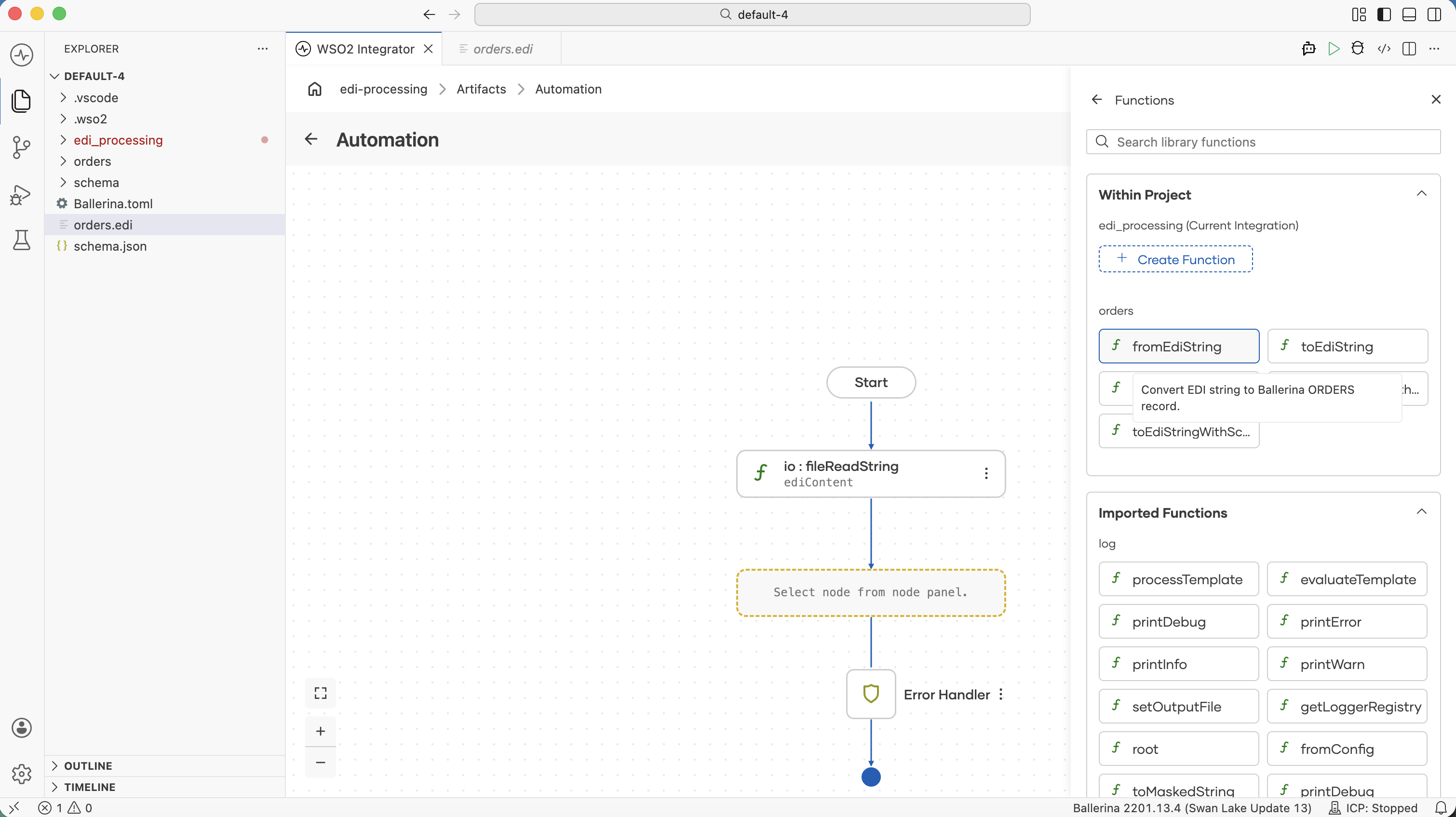
-
Set Edi Text to
ediContentand Result toorders, then click Save.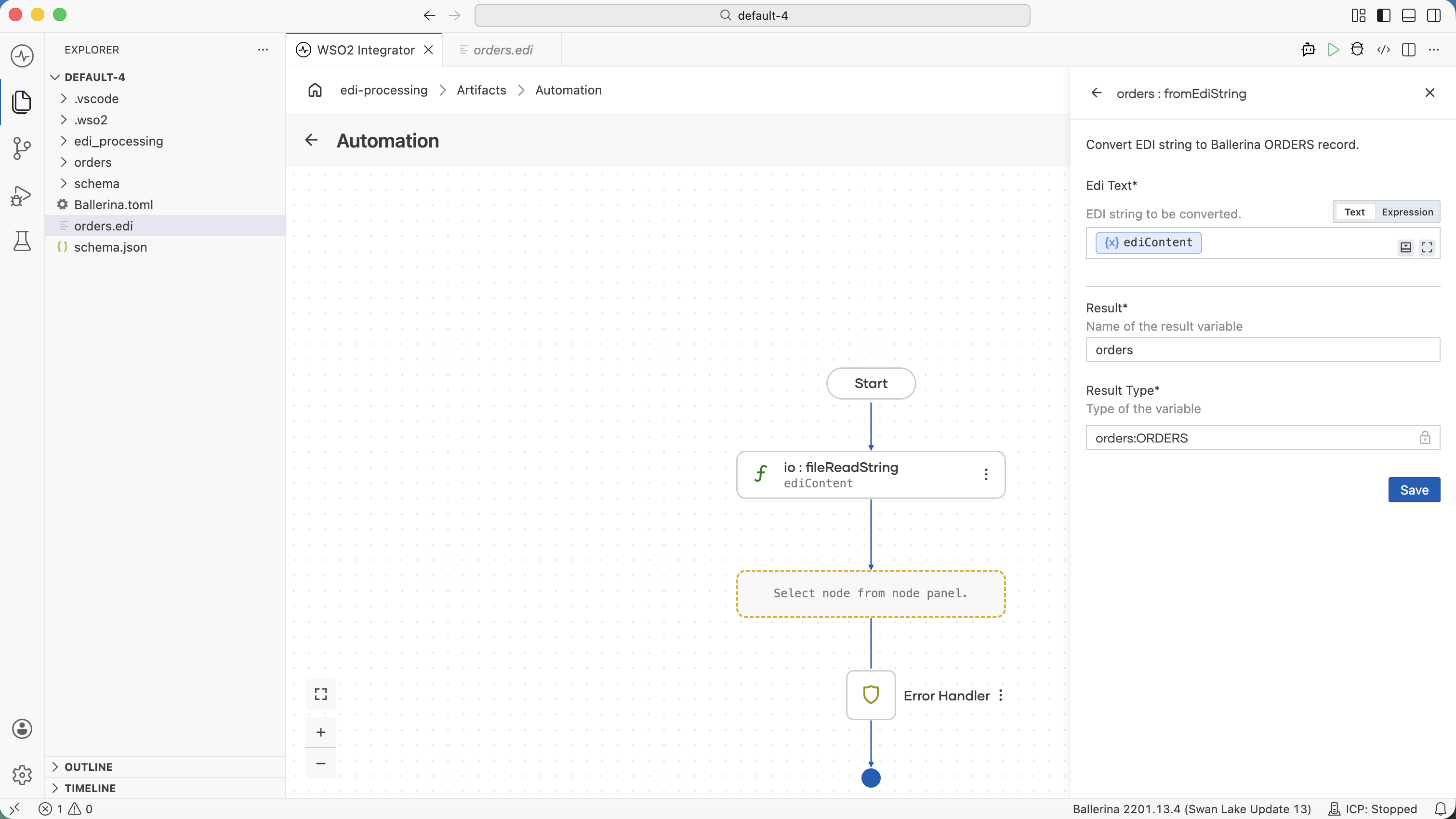
-
Click + again. In the right panel, expand the Logging section and select Log Info.
-
In the Msg field, select Expression, enter
orders.toString(), and click Save.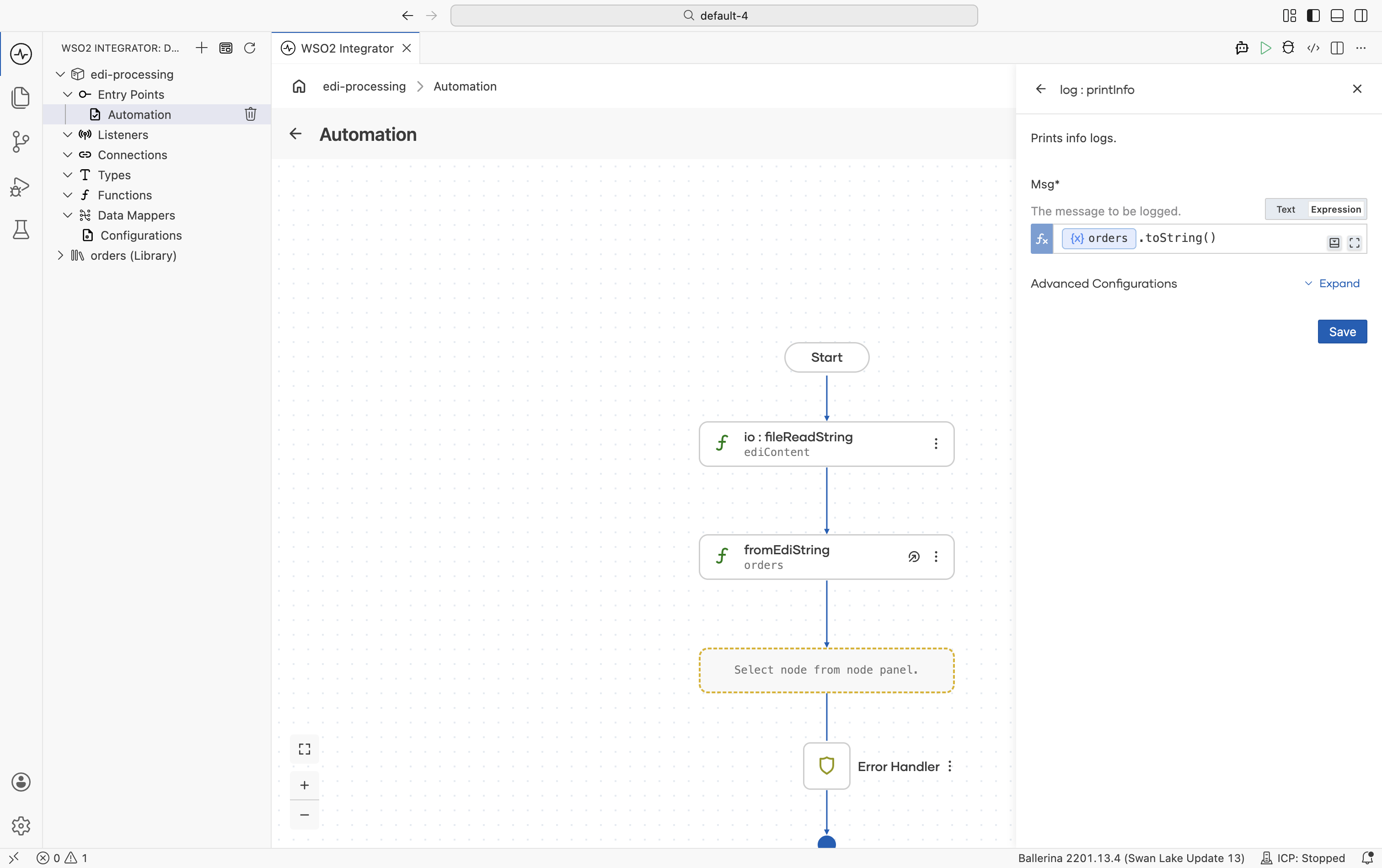
-
Run the integration and observe the logs.
import ballerina/io;
import ballerina/log;

import <add-org-name>/orders;

public function main() returns error? {
    do {
        string ediContent = check io:fileReadString("path/to/orders.edi");
        orders:ORDERS document = check orders:fromEdiString(ediContent);
        log:printInfo(document.toString());
    } on fail error e {
        log:printError("Error occurred", 'error = e);
        return e;
    }
}
Generating EDI output
Build an EDIFACT ORDERS message from Ballerina records and serialize it to EDI text.
- Visual Designer
- Ballerina Code
-
In a new integration, click + Add Artifact and select Automation.
-
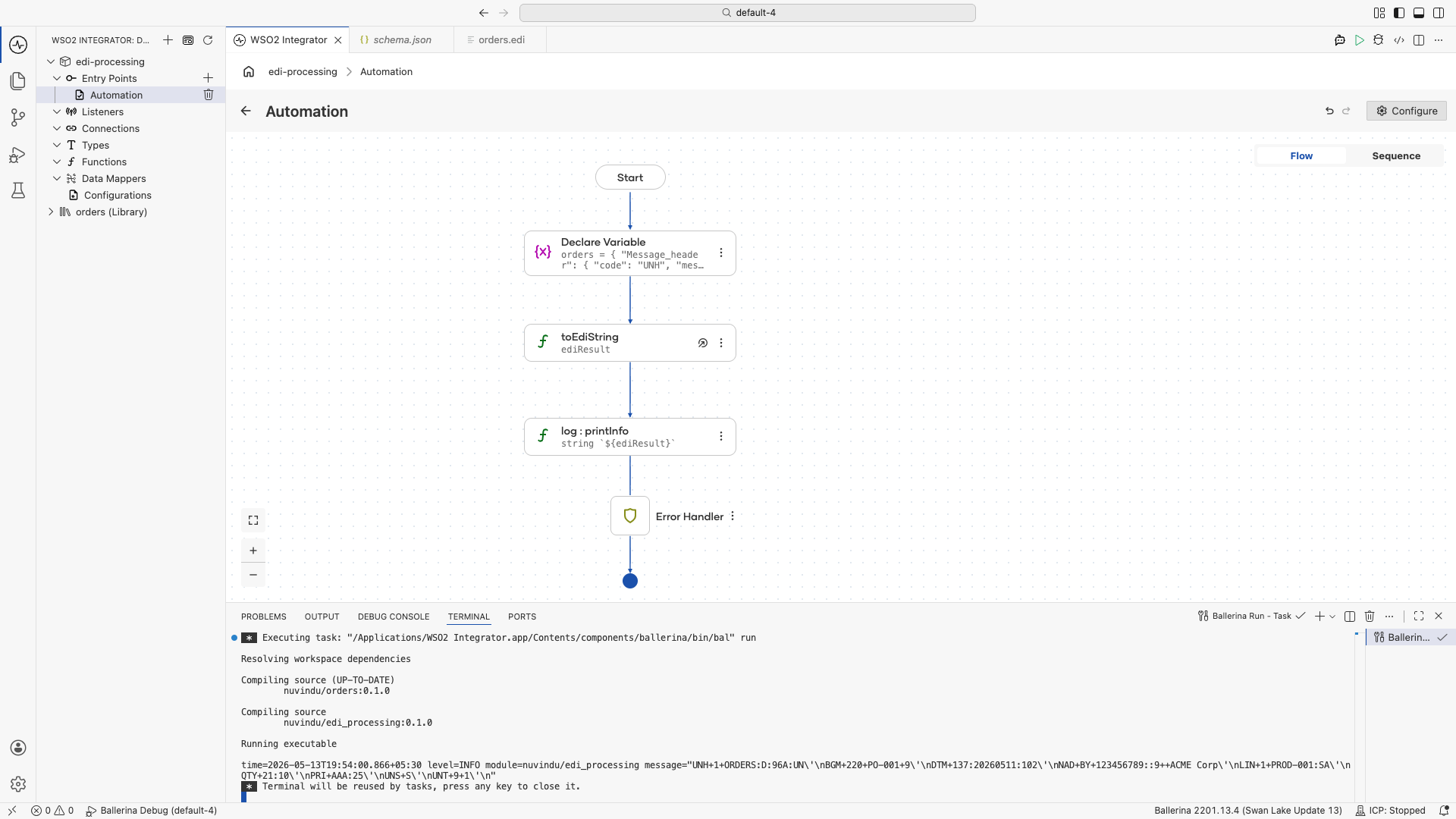
Inside the Automation, click + and select Declare Variable. Set Name to
orders, Type toorders:ORDERS, and enter the following json as the Expression, then click Save.
{"Message_header":{"code":"UNH","message_reference_number":"1","message_information":{"name":"ORDERS","catagory":"D","version":"96A","status":"UN"}},"Beginning_of_message":{"code":"BGM","DOCUMENT_MESSAGE_NAME":{"Document_name_code":"220"},"DOCUMENT_MESSAGE_IDENTIFICATION":{"Document_identifier":"PO-001"},"MESSAGE_FUNCTION_CODE":"9"},"Date_time_period":[{"code":"DTM","DATE_TIME_PERIOD":{"Date_or_time_or_period":"137","Date_or_time_or_period_text":"20260511","Date_or_time_or_period_format_code":"102"}}],"Additional_information":[],"Item_description":[],"Free_text":[],"Related_identification_numbers":[],"group_1":[],"group_2":[{"Name_and_address":{"code":"NAD","PARTY_FUNCTION_CODE_QUALIFIER":"BY","PARTY_IDENTIFICATION_DETAILS":{"Party_identifier":"123456789","Code_list_identification_code":"","Code_list_responsible_agency_code":"9"},"NAME_AND_ADDRESS":null,"PARTY_NAME":{"Party_name":"ACME Corp"}},"Place_location_identification":[],"Financial_institution_information":[],"group_3":[],"group_4":[],"group_5":[]}],"group_6":[],"group_7":[],"group_8":[],"group_10":[],"group_12":[],"group_13":[],"group_15":[],"group_16":[],"group_18":[],"group_19":[],"group_25":[],"group_26":[],"group_28":[{"Line_item":{"code":"LIN","LINE_ITEM_IDENTIFIER":"1","ITEM_NUMBER_IDENTIFICATION":{"Item_identifier":"PROD-001","Item_type_identification_code":"SA"}},"Additional_product_id":[],"Item_description":[],"Measurements":[],"Quantity":[{"code":"QTY","QUANTITY_DETAILS":{"Quantity_type_code_qualifier":"21","Quantity":"10"}}],"Percentage_details":[],"Additional_information":[],"Date_time_period":[],"Monetary_amount":[],"Processing_information":[],"Goods_identity_number":[],"Related_identification_numbers":[],"Document_message_details":[],"Maintenance_operation_details":[],"Free_text":[],"group_29":[],"group_30":[],"group_32":[{"Price_details":{"code":"PRI","PRICE_INFORMATION":{"Price_code_qualifier":"AAA","Price_amount":25}},"Additional_price_information":[],"Date_time_period":[]}],"group_33":[],"group_34":[],"group_37":[],"group_38":[],"group_39":[],"group_43":[],"group_49":[],"group_51":[],"group_52":[],"group_53":[],"group_55":[],"group_56":[],"group_58":[]}],"Section_control":{"code":"UNS","section_identification":"S"},"Monetary_amount":[],"Control_total":[],"group_60":[],"Message_trailer":{"code":"UNT","number1":"9","number2":"1"}}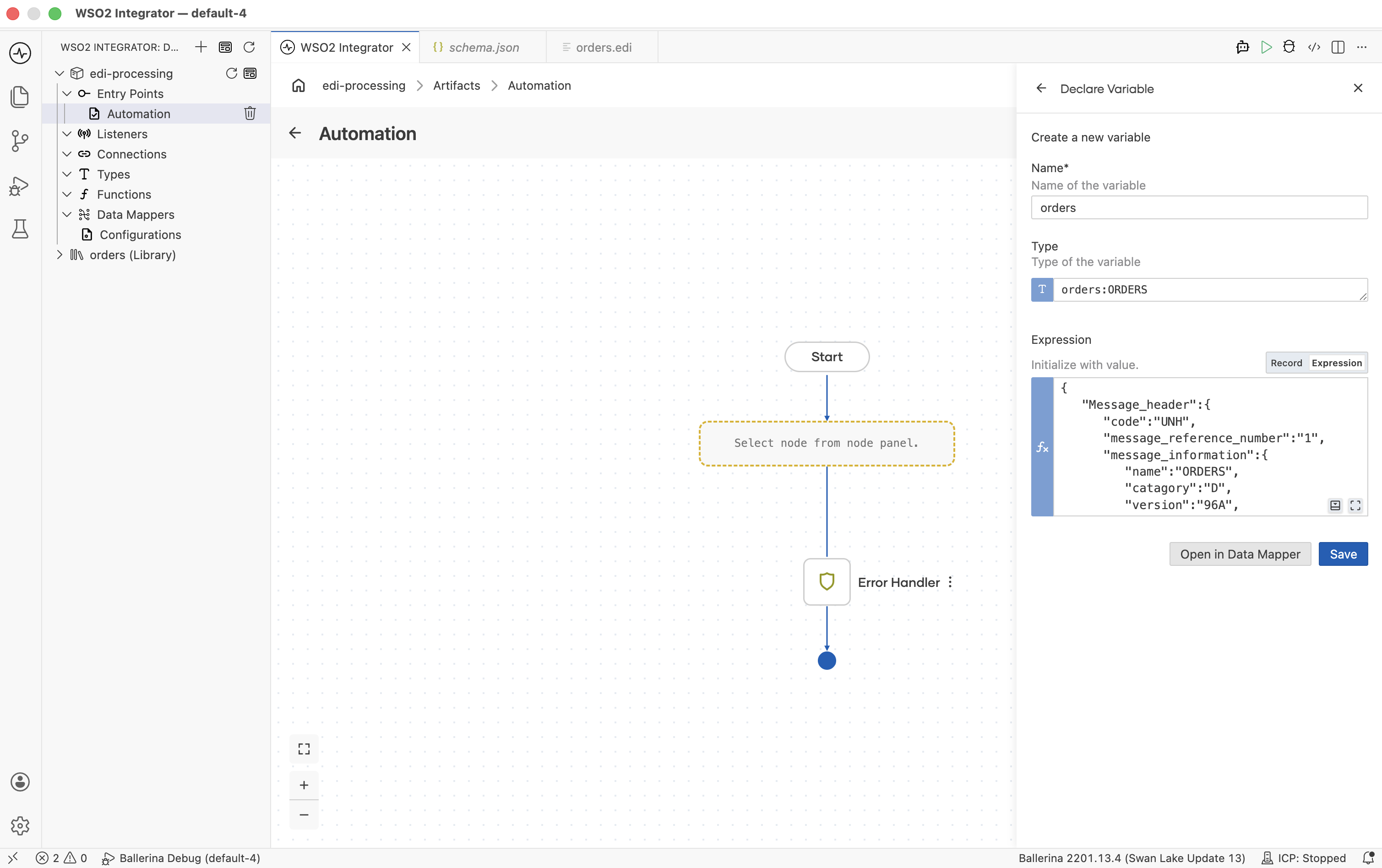
-
Click + and select Call Function. Under the orders section, select toEdiString. Set Data to
ordersand Result toediResult, then click Save.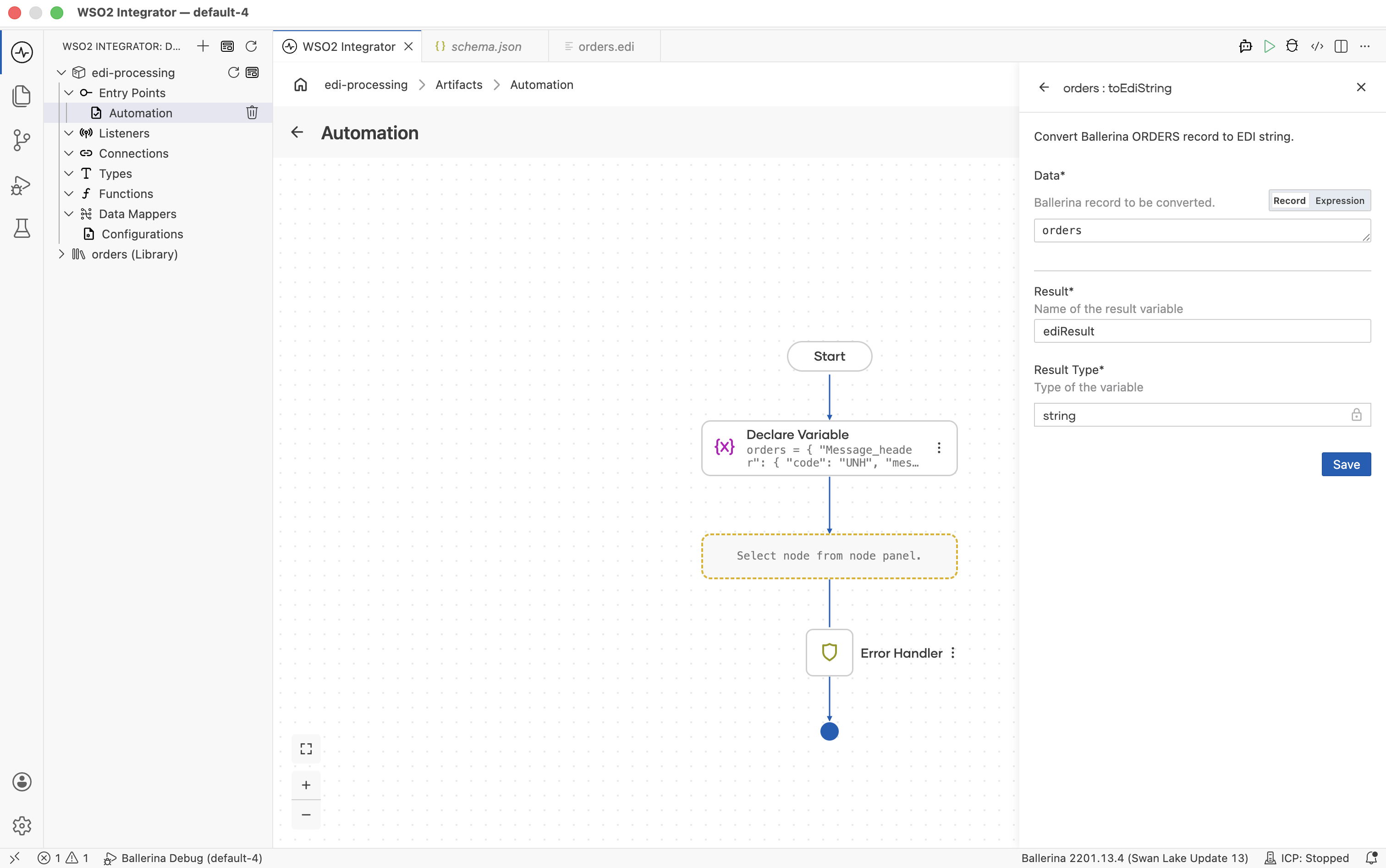
-
Click + and select Log Info. Set Msg to
ediResult, then click Save.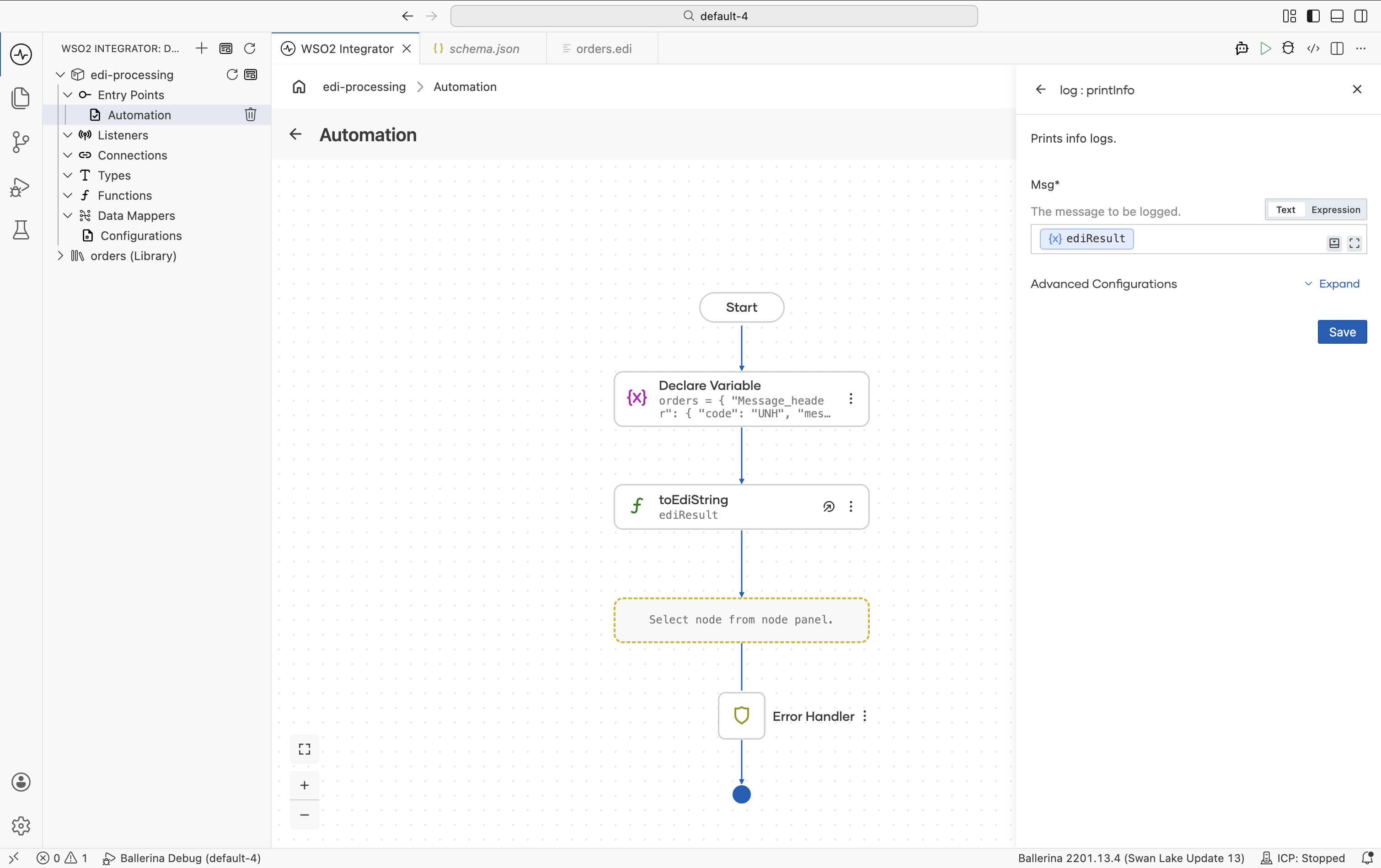
-
Run the integration and observe the logs.
import ballerina/log;

import <add-org-name>/orders;

public function main() returns error? {
   do {
      orders:ORDERS orders =  {"Message_header":{"code":"UNH","message_reference_number":"1","message_information":{"name":"ORDERS","catagory":"D","version":"96A","status":"UN"}},"Beginning_of_message":{"code":"BGM","DOCUMENT_MESSAGE_NAME":{"Document_name_code":"220"},"DOCUMENT_MESSAGE_IDENTIFICATION":{"Document_identifier":"PO-001"},"MESSAGE_FUNCTION_CODE":"9"},"Date_time_period":[{"code":"DTM","DATE_TIME_PERIOD":{"Date_or_time_or_period":"137","Date_or_time_or_period_text":"20260511","Date_or_time_or_period_format_code":"102"}}],"Additional_information":[],"Item_description":[],"Free_text":[],"Related_identification_numbers":[],"group_1":[],"group_2":[{"Name_and_address":{"code":"NAD","PARTY_FUNCTION_CODE_QUALIFIER":"BY","PARTY_IDENTIFICATION_DETAILS":{"Party_identifier":"123456789","Code_list_identification_code":"","Code_list_responsible_agency_code":"9"},"NAME_AND_ADDRESS":null,"PARTY_NAME":{"Party_name":"ACME Corp"}},"Place_location_identification":[],"Financial_institution_information":[],"group_3":[],"group_4":[],"group_5":[]}],"group_6":[],"group_7":[],"group_8":[],"group_10":[],"group_12":[],"group_13":[],"group_15":[],"group_16":[],"group_18":[],"group_19":[],"group_25":[],"group_26":[],"group_28":[{"Line_item":{"code":"LIN","LINE_ITEM_IDENTIFIER":"1","ITEM_NUMBER_IDENTIFICATION":{"Item_identifier":"PROD-001","Item_type_identification_code":"SA"}},"Additional_product_id":[],"Item_description":[],"Measurements":[],"Quantity":[{"code":"QTY","QUANTITY_DETAILS":{"Quantity_type_code_qualifier":"21","Quantity":"10"}}],"Percentage_details":[],"Additional_information":[],"Date_time_period":[],"Monetary_amount":[],"Processing_information":[],"Goods_identity_number":[],"Related_identification_numbers":[],"Document_message_details":[],"Maintenance_operation_details":[],"Free_text":[],"group_29":[],"group_30":[],"group_32":[{"Price_details":{"code":"PRI","PRICE_INFORMATION":{"Price_code_qualifier":"AAA","Price_amount":25}},"Additional_price_information":[],"Date_time_period":[]}],"group_33":[],"group_34":[],"group_37":[],"group_38":[],"group_39":[],"group_43":[],"group_49":[],"group_51":[],"group_52":[],"group_53":[],"group_55":[],"group_56":[],"group_58":[]}],"Section_control":{"code":"UNS","section_identification":"S"},"Monetary_amount":[],"Control_total":[],"group_60":[],"Message_trailer":{"code":"UNT","number1":"9","number2":"1"}};
      string ediResult = check orders:toEdiString(orders);
      log:printInfo(string `${ediResult}`);

   } on fail error e {
      log:printError("Error occurred", 'error = e);
      return e;
   }
}
EDI to JSON conversion
A common integration pattern is converting EDI documents to JSON for downstream systems.
- Visual Designer
- Ballerina Code
-
In a new integration create an Automation.
-
Click + and select Call Function and select fromEdiString.
-
Add the EDI content into Edi Text and
ordersas Result and Save.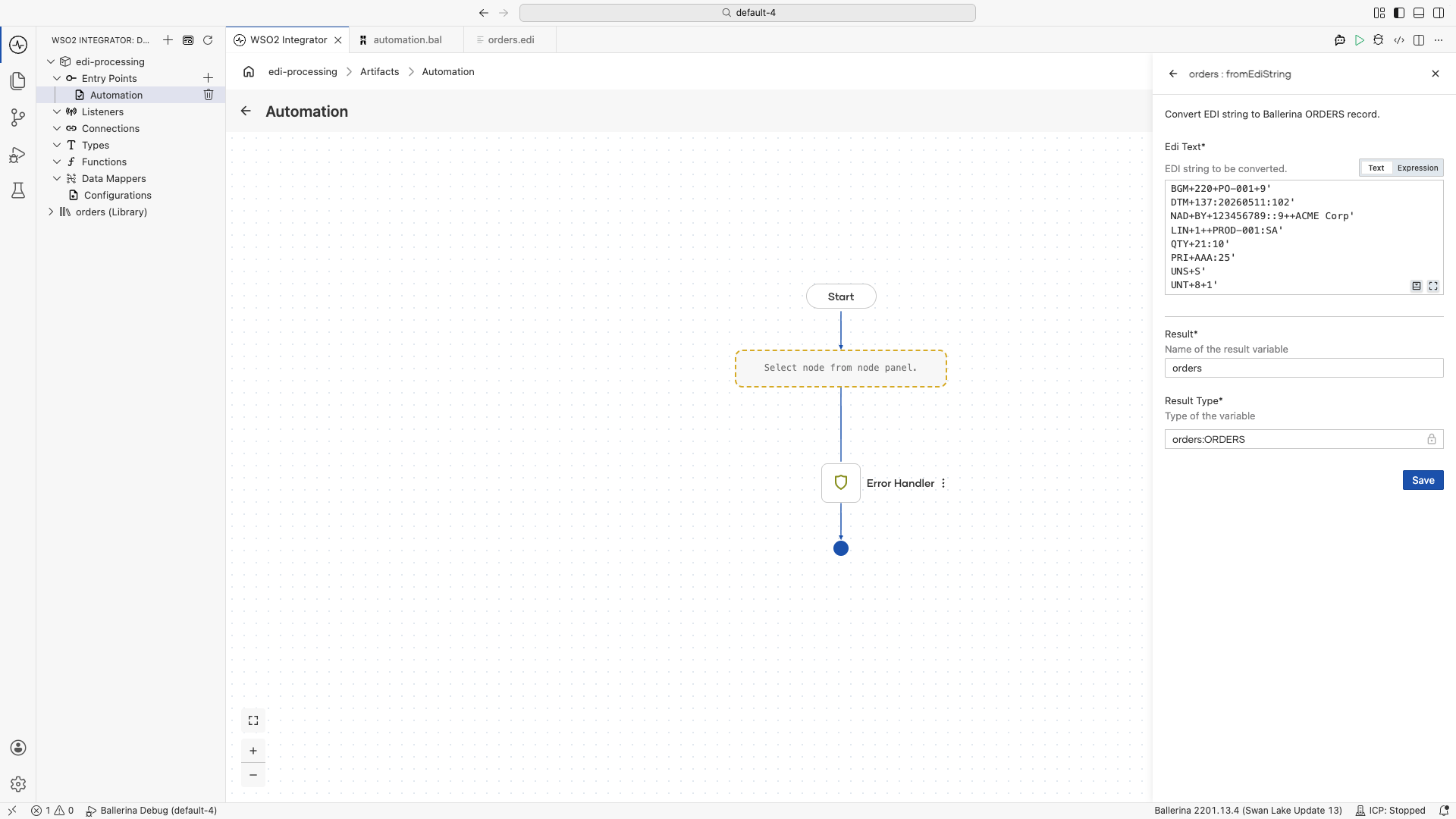
-
In the Automation, click + and select Declare Variable.
-
Set Name to
jsonOrder, Type tojson, and Expression toorders.toJson(), then click Save.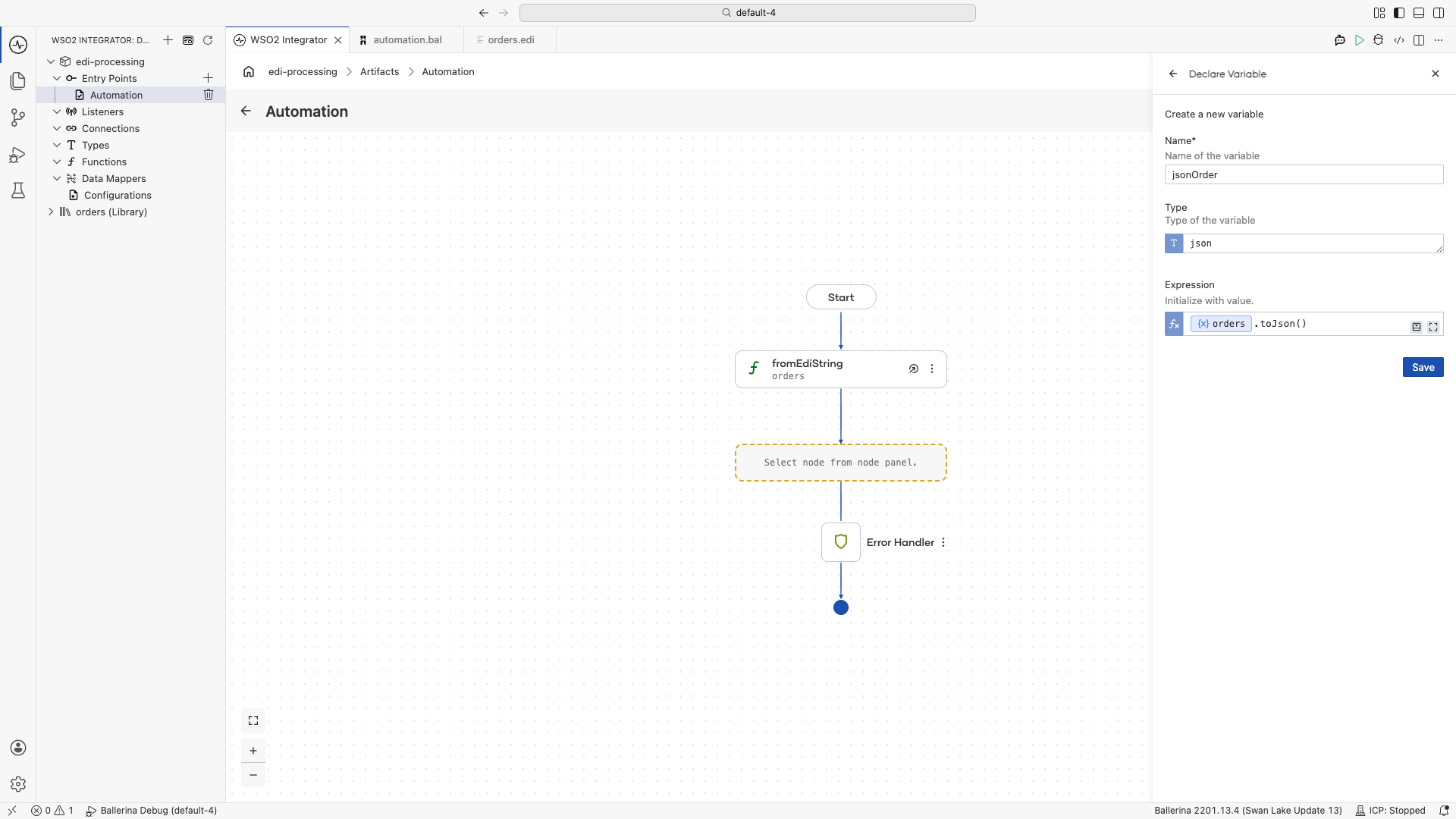
-
Click + and select Call Function. Under the
iosection, select fileWriteJson.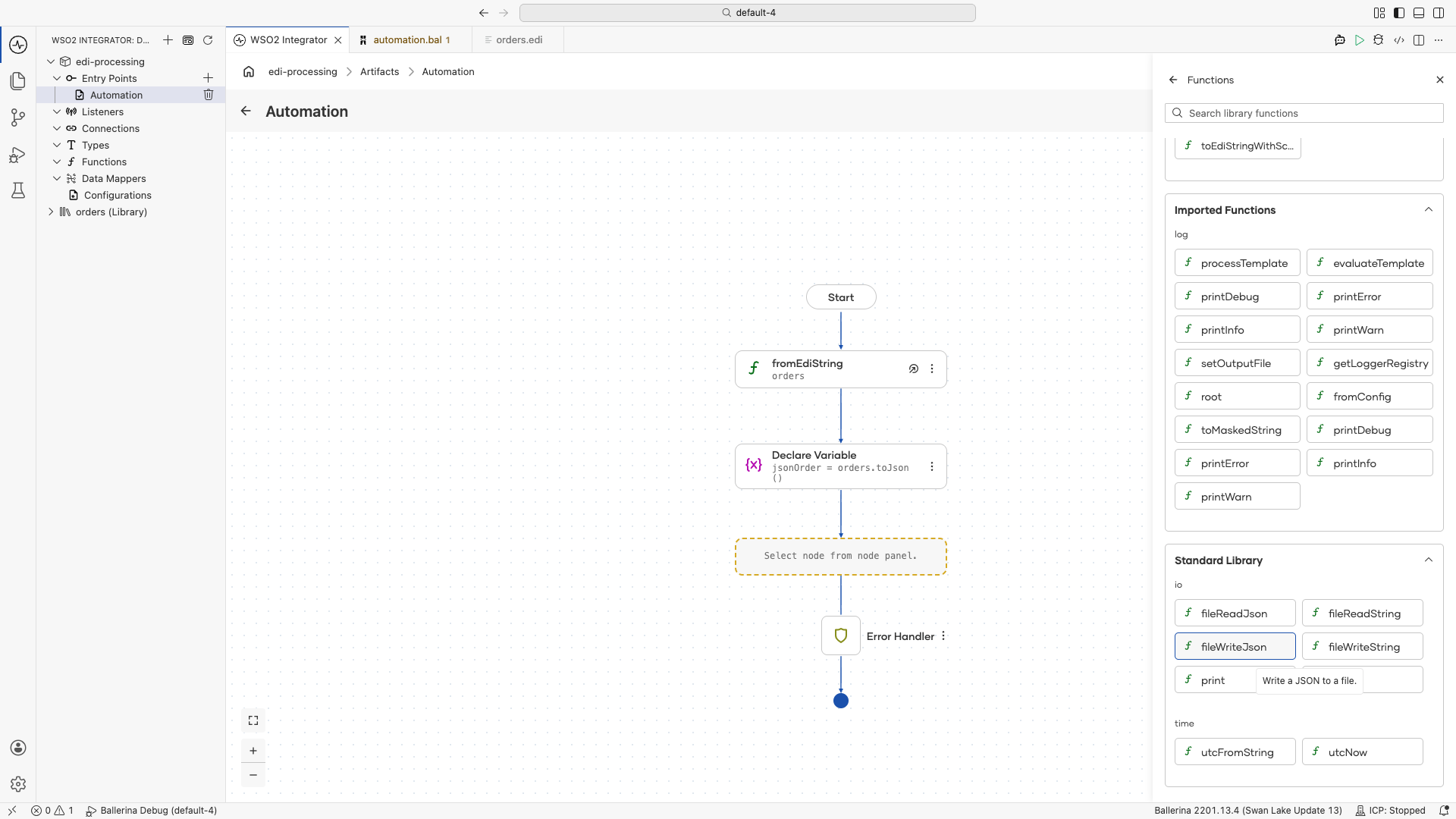
-
Set Path to
order.jsonand Content tojsonOrder, then click Save.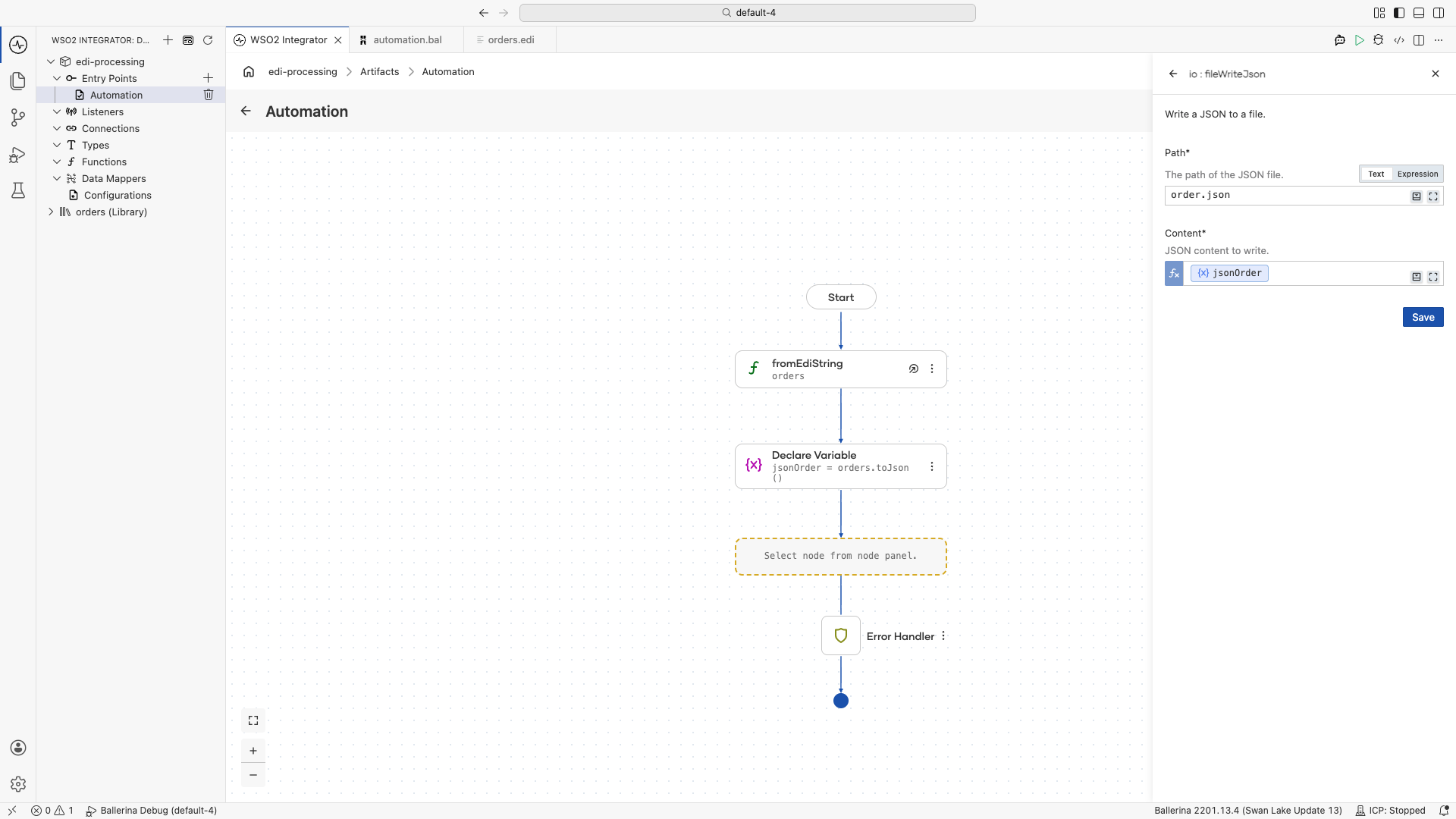
-
Run the integration and check the created
order.jsonfile.
import ballerina/io;
import ballerina/log;

import <add-org-name>/orders;

public function main() returns error? {
    do {
        orders:ORDERS orders = check orders:fromEdiString(
            string `UNB+UNOA:1+SENDER+RECEIVER+260511:1000+1'
                    UNH+1+ORDERS:D:03A:UN'
                    BGM+220+PO-001+9'
                    DTM+137:20260511:102'
                    NAD+BY+123456789::9++ACME Corp'
                    LIN+1++PROD-001:SA'
                    QTY+21:10'
                    PRI+AAA:25'
                    UNS+S'
                    UNT+8+1'`
        );
        json jsonOrder = orders.toJson();
        check io:fileWriteJson("order.json", jsonOrder);
    } on fail error e {
        log:printError("Error occurred", 'error = e);
        return e;
    }
}
JSON schema for custom EDI formats
If you work with a non-standard or proprietary EDI format, you can define your own schema as a JSON file and generate Ballerina types from it. This is the same underlying mechanism that convertEdifactSchema uses internally.
Define your schema:
{
  "name": "Document",
  "delimiters": {
    "segment": "~",
    "field": "*",
    "component": ":",
    "repetition": "^"
  },
  "segments": [
    {
      "code": "BEG",
      "tag": "BEG",
      "minOccurances": 1,
      "maxOccurances": 1,
      "fields": [
        {"tag": "purposeCode"},
        {"tag": "typeCode"},
        {"tag": "poNumber"},
        {"tag": "releaseNumber"},
        {"tag": "date"}
      ]
    },
    {
      "code": "SE",
      "tag": "SE",
      "minOccurances": 1,
      "maxOccurances": 1,
      "fields": [
        {"tag": "code"},
        {"tag": "segmentCount"},
        {"tag": "controlNumber"}
      ]
    }
  ]
}
Then generate Ballerina code from it:
bal edi codegen -i schema.json -o document.bal
For organizations managing multiple custom schemas, use libgen to generate a full reusable package:
bal edi libgen -p <org-name/package-name> -i <schemas-folder> -o <output-folder>
Best practices
- Generate code from schemas rather than parsing EDI manually — the generated records and functions handle segment delimiters, escape characters, and validation
- Use packages for reuse — bundle frequently used EDI schemas into shared Ballerina packages
- Validate early — parse EDI at the integration boundary to catch format errors before business logic executes
- Convert to records immediately — work with typed records throughout your integration and serialize back to EDI only at the output boundary
What's next
- Type System Reference — Define EDI record types