JSON Processing
JSON is a lightweight, text-based data exchange format derived from JavaScript. It is widely used in web services, APIs, microservices, and other connected applications, making it the most common data format in modern integration and API development.
WSO2 Integrator provides built-in support for JSON processing, allowing developers to easily create, read, modify, validate, and transform JSON data without relying on external libraries. This native support simplifies integration development and enables efficient handling of JSON payloads across different systems and services.
Creating JSON values
Construct JSON directly using Ballerina types. The json type accepts null, booleans, numbers, strings, arrays, and maps.
- Visual Designer
- Ballerina Code
-
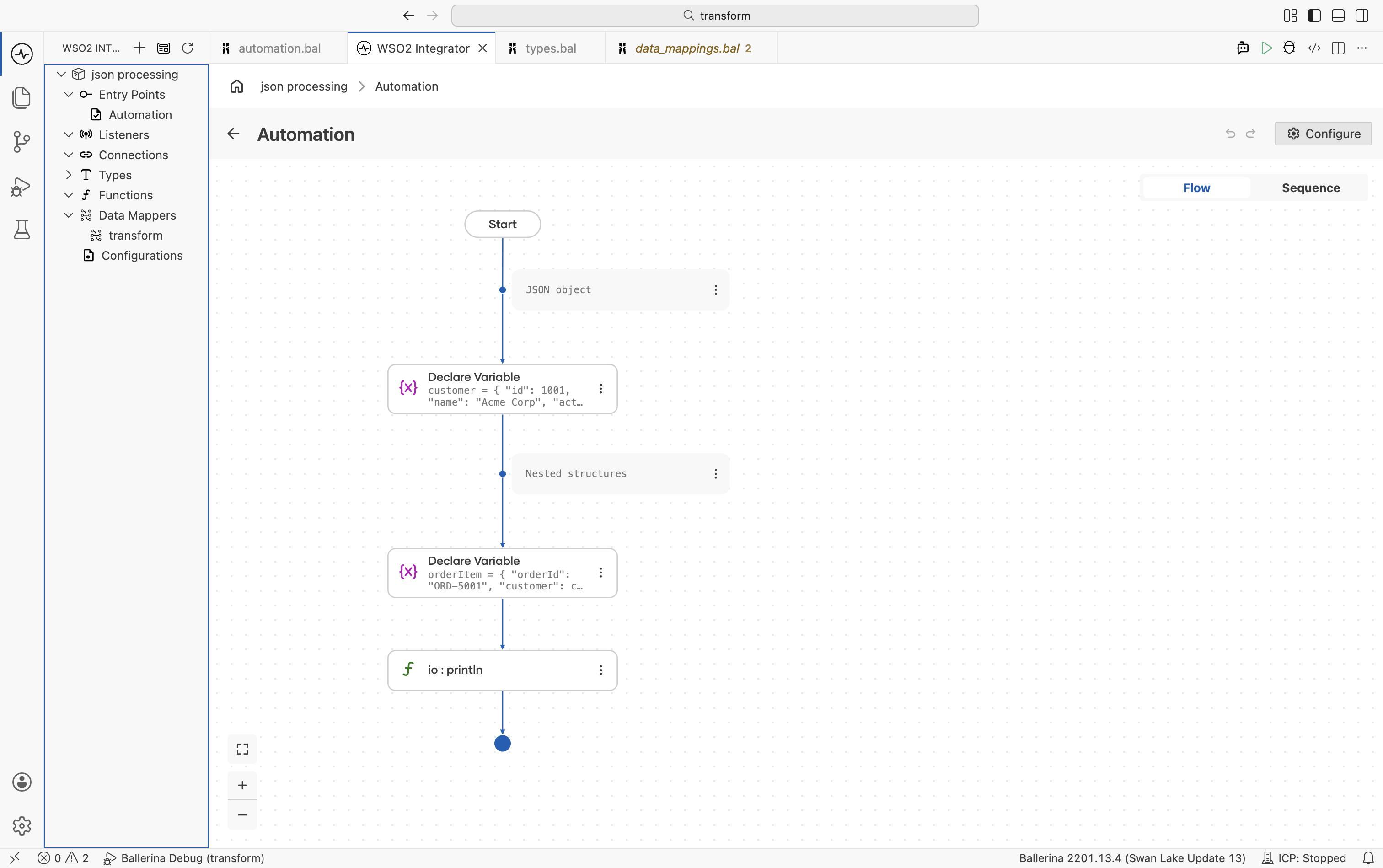
Add a Variable: In the flow designer, click + and select Declare Variable. Set the type to
jsonand enter a JSON value as the expression. -
Build nested structures: Add additional Declare Variable steps for nested JSON objects and arrays. Each variable appears as a separate Declare Variable step in the flow.
-
Configure the expression: Click a variable node to view and edit the JSON expression in the side panel.
import ballerina/io;

public function main() {
    // Scalar values
    json name = "Acme Corp";
    json count = 42;
    json active = true;
    json empty = null;

    // JSON object
    json customer = {
        "id": 1001,
        "name": "Acme Corp",
        "active": true,
        "tags": ["enterprise", "priority"]
    };

    // Nested structures

    json orderItem = {
        "orderId": "ORD-5001",
        "customer": customer,
        "items": [
            {"sku": "WDG-01", "qty": 5, "price": 29.99},
            {"sku": "GDG-02", "qty": 2, "price": 49.99}
        ]
    };
    io:println(orderItem.toJsonString());
}
Accessing JSON values
Access JSON fields with field access. Since json is dynamically shaped, most access operations return json and may require type narrowing.
- Visual Designer
- Ballerina Code
-
Define the JSON input: In the flow designer, click + and select Declare Variable. Set the type to
jsonand enter the JSON value as the expression. Name the variablepayload. This variable is then referenced in all subsequent field access steps. -
Add Variable steps for field access: Click + and select Declare Variable. Set the type to
jsonand enter a field access expression onpayload, such ascheck payload.orderId. -
Use optional access: For keys that may not exist, use
?.syntax in the expression (for example,check payload?.notes) to return()instead of an error. -
Narrow to a specific type: Set the variable type to
string,int, or another concrete type and usecheckin the expression to perform type narrowing.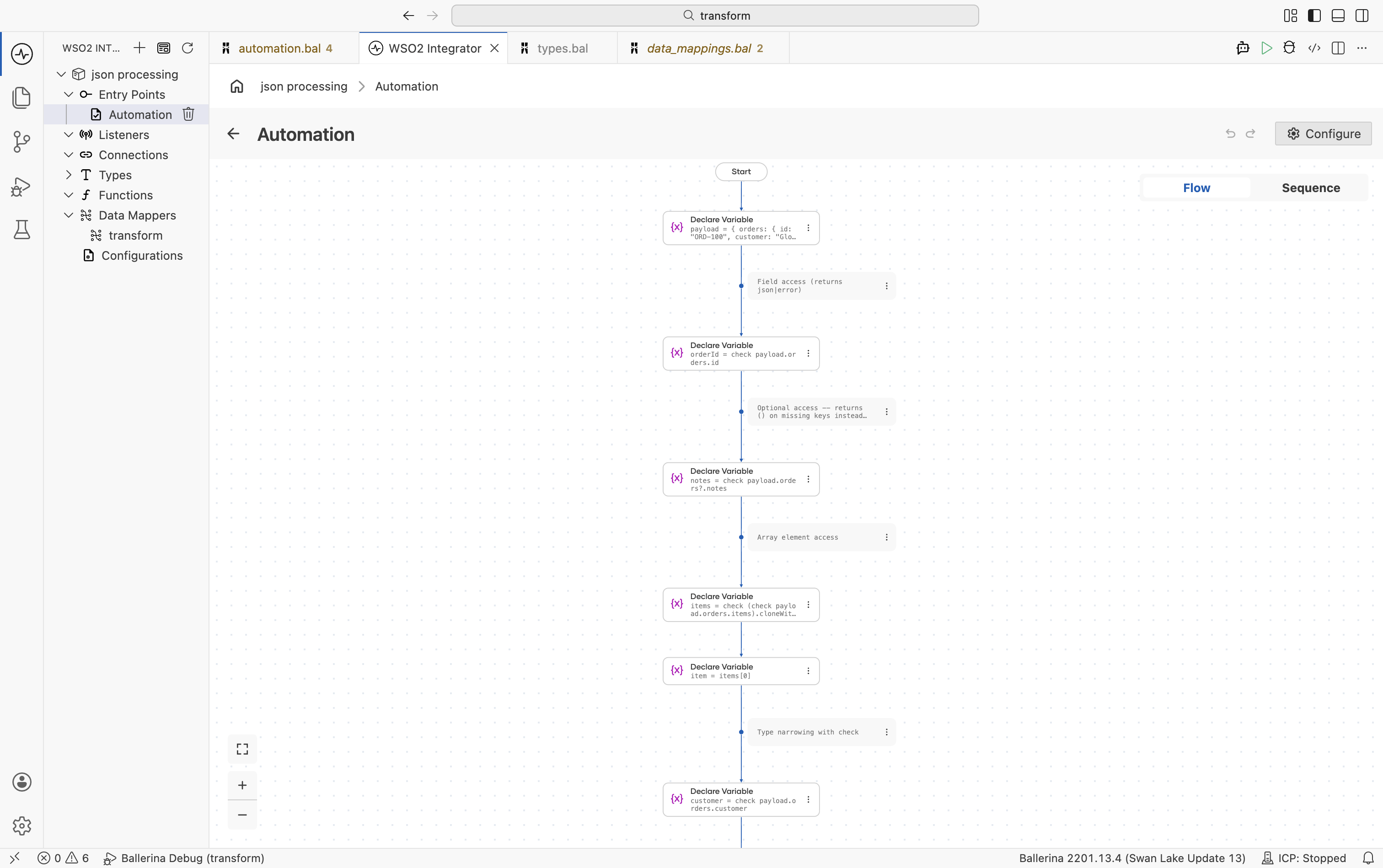
public function main() returns error? {
    json payload = {
        orders: {
            id: "ORD-100",
            customer: "Globex Inc",
            items: [
                {"sku": "A1", "qty": 3},
                {"sku": "B2", "qty": 7}
            ]
        }
    };

    // Field access (returns json|error)
    json orderId = check payload.orders.id;

    // Optional access -- returns () on missing keys instead of error
    json? notes = check payload.orders?.notes;

    // Array element access
    json[] items = check (check payload.orders.items).cloneWithType();
    json item = items[0];

    // Type narrowing with check
    string customer = check payload.orders.customer;
}
Parse a JSON string
Parse JSON payloads received as strings into either an untyped json value or a typed Ballerina record.
Into a JSON value
Use fromJsonString() when you need a quick untyped json value without defining a record type.
- Visual Designer
- Ballerina Code
-
Add a Declare Variable step for the raw string: In the flow designer, click + and select Declare Variable. Set the type to
stringand enter the JSON string as the expression. Name the variableraw. -
Parse the string: Click + and select Call Function. In the right-side panel, search for
fromJsonStringand select it. Passrawas the argument and set the result type tojson. -
Extract typed values: Add a Declare Variable step with a concrete type (for example,
string) and use a field access expression such ascheck parsed.nameto extract values from the parsed JSON.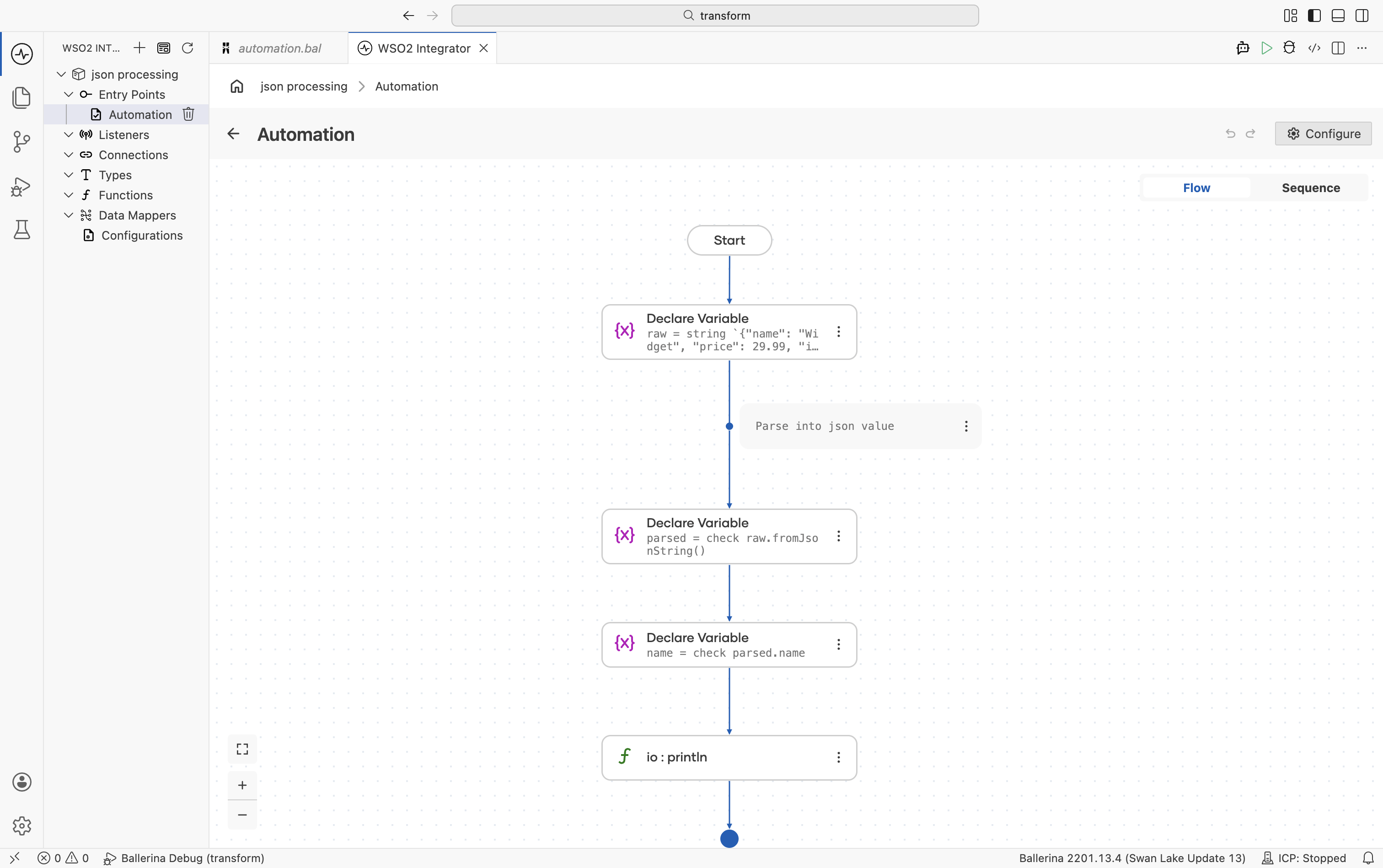
import ballerina/io;

public function main() returns error? {
    string raw = string `{"name": "Widget", "price": 29.99, "inStock": true}`;

    // Parse into json value
    json parsed = check raw.fromJsonString();
    string name = check parsed.name;
    io:println(name); // Widget
}
Into a typed record
Use jsondata:parseString() when the JSON structure is known. Define a matching record type and parse directly into it for compile-time type safety.
- Visual Designer
- Ballerina Code
-
Define the target record type: Navigate to Types in the sidebar and click + to add a new type. Define the
Productrecord. For details on creating types, see Types.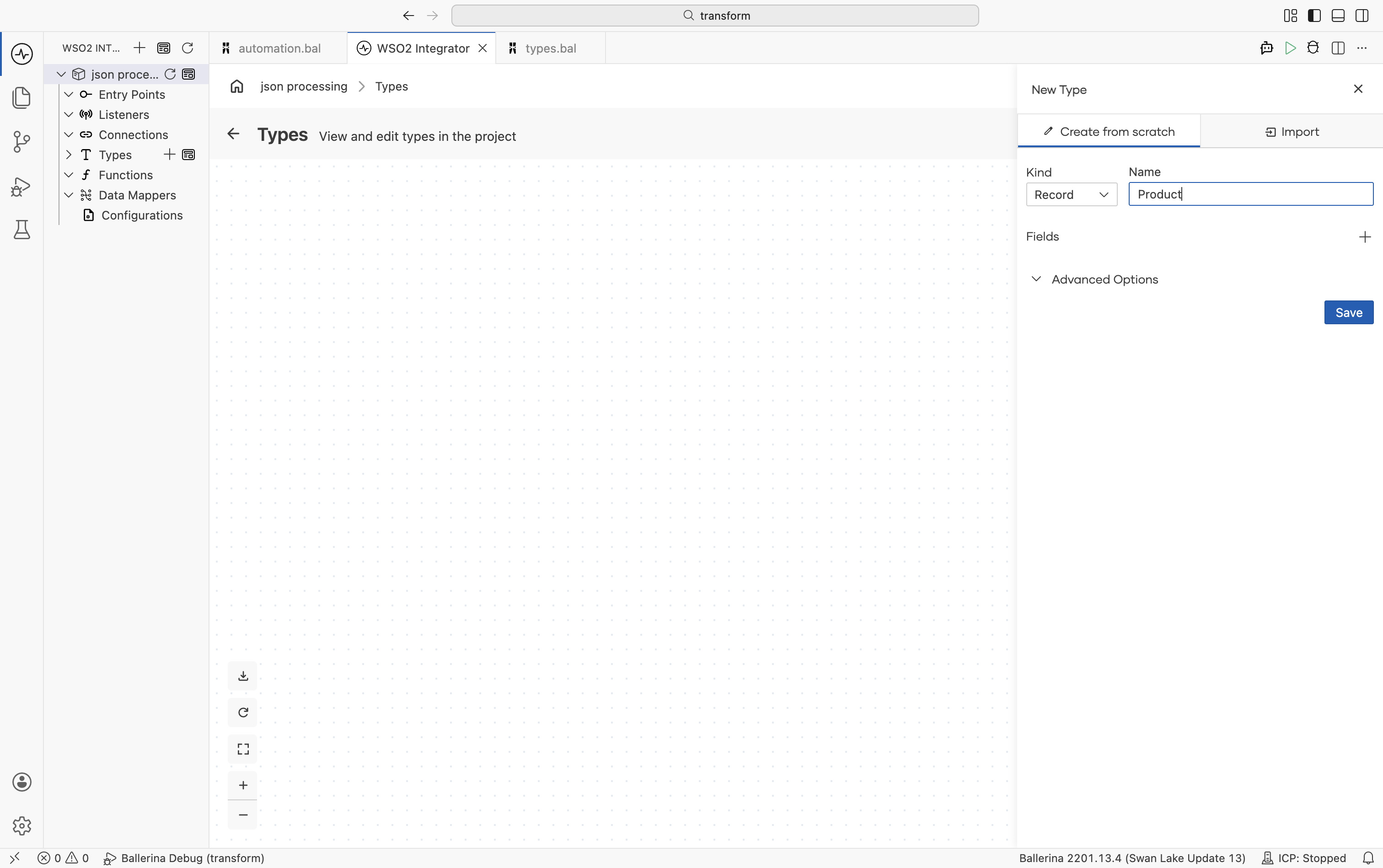
-
Add a Declare Variable step for the JSON string: In the flow designer, click + and select Declare Variable. Set the type to
stringand enter the JSON string as the expression. Name the variablejsonStr. -
Parse into the record type: Click + and select Call Function. In the right-side panel, search for
parseStringand select it from thedata.jsondatamodule.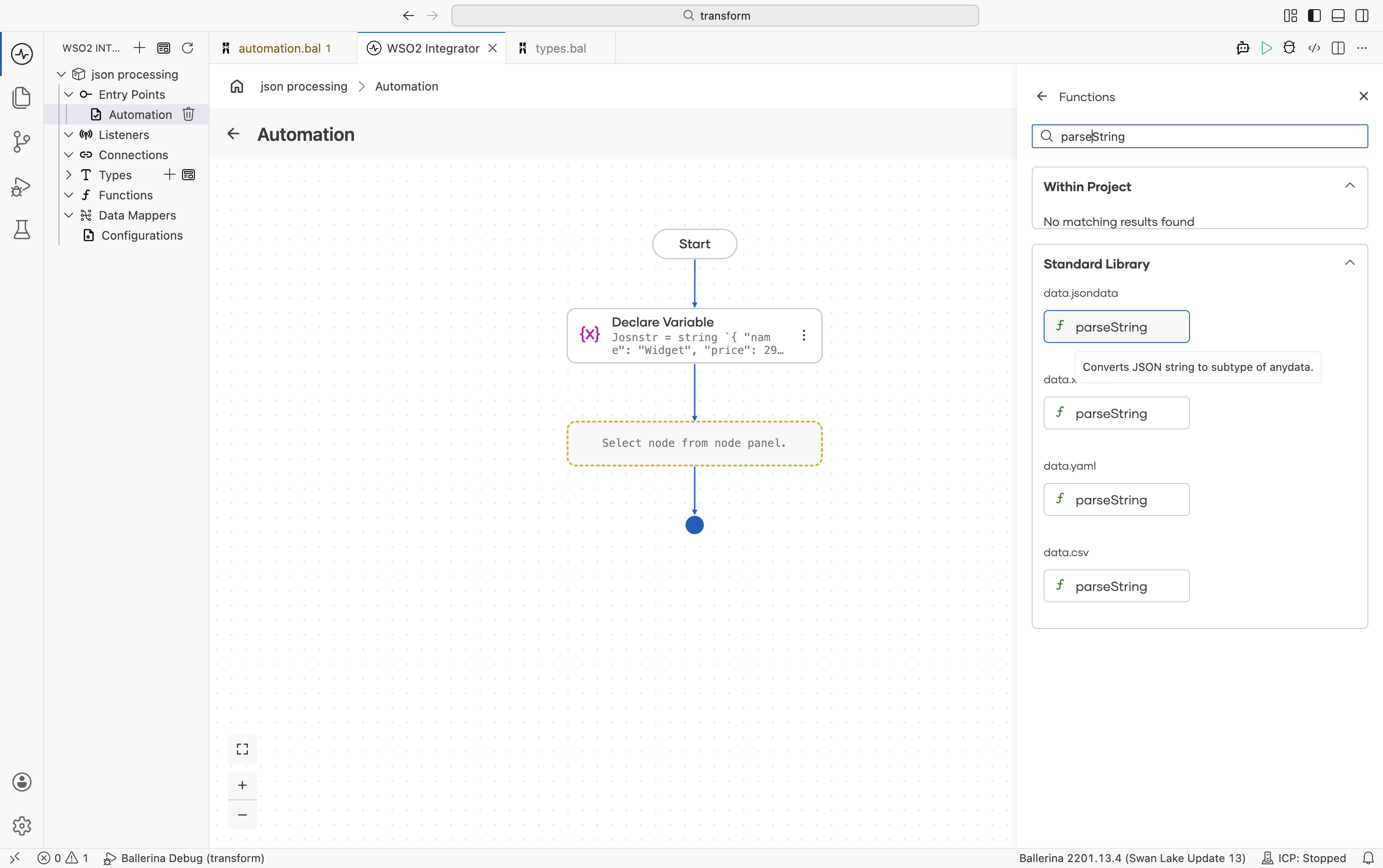
Pass
jsonStras the argument. The module is automatically imported into your file.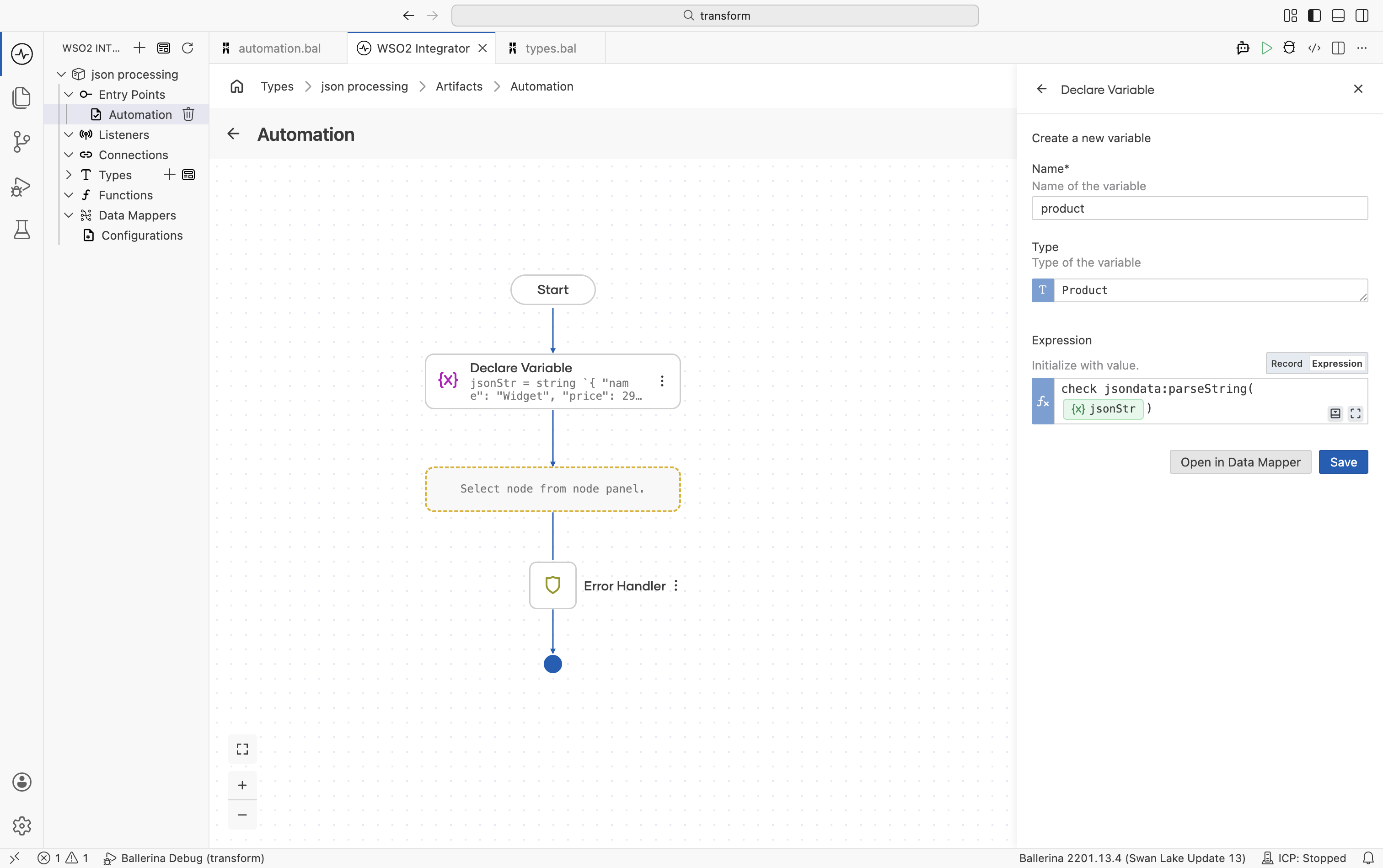
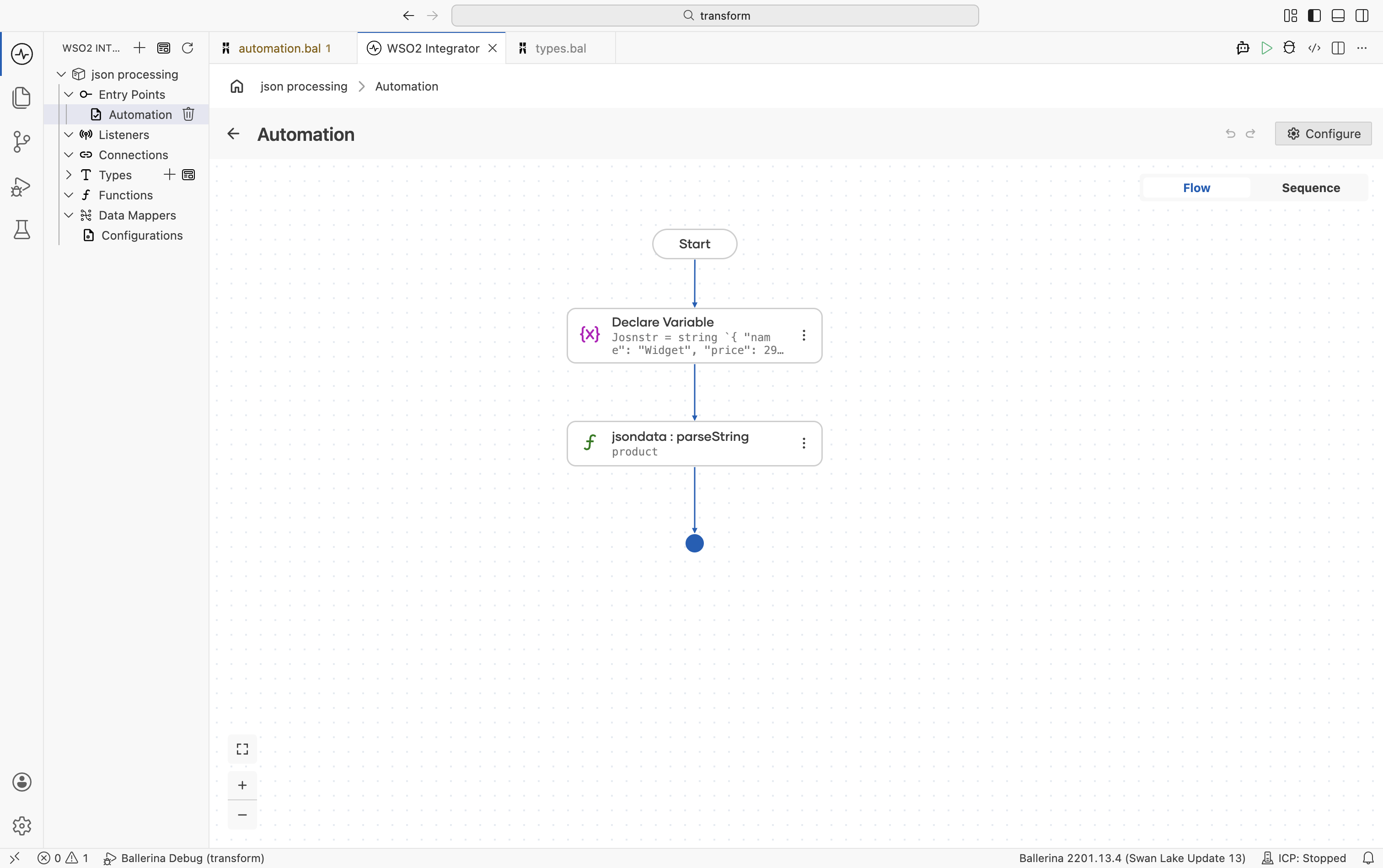
import ballerina/data.jsondata;
import ballerina/io;

// This is in the types.bal file
type Product record {|
    string name;
    decimal price;
    boolean inStock;
    string? category;
|};

public function main() returns error? {
    string jsonStr = string `{
        "name": "Widget",
        "price": 29.99,
        "inStock": true,
        "category": "hardware"
    }`;

    // Parse string directly into a typed record
    Product product = check jsondata:parseString(jsonStr);
    io:println(product.name);   // Widget
    io:println(product.price);  // 29.99
}
Convert a json value to a typed record
Use jsondata:parseAsType() when you already have a json value and want to convert it into a typed record.
- Visual Designer
- Ballerina Code
-
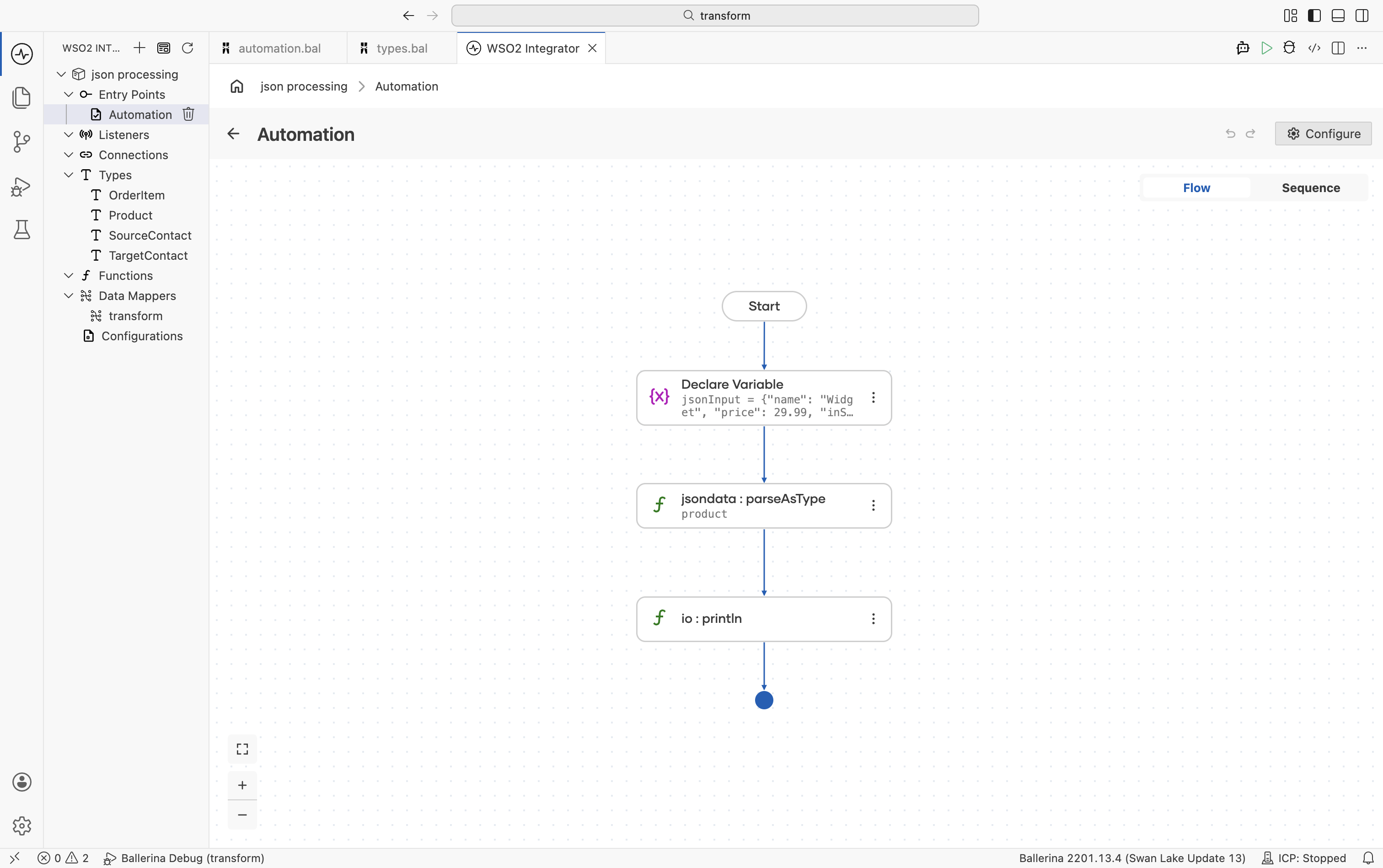
Define the record type: Navigate to Types in the sidebar and click + to add a new type. Define the record with the fields matching your JSON structure. For details on creating types, see Types.
-
Assign the json value: In the flow designer, click + and select Declare Variable. Set the type to
jsonand enter the JSON value as the expression. Name the variablejsonInput. -
Convert to the record type: Click + and select Call Function. In the right-side panel, search for
parseAsTypeand select it from thedata.jsondatamodule. PassjsonInputas the argument and set the result type to your defined record.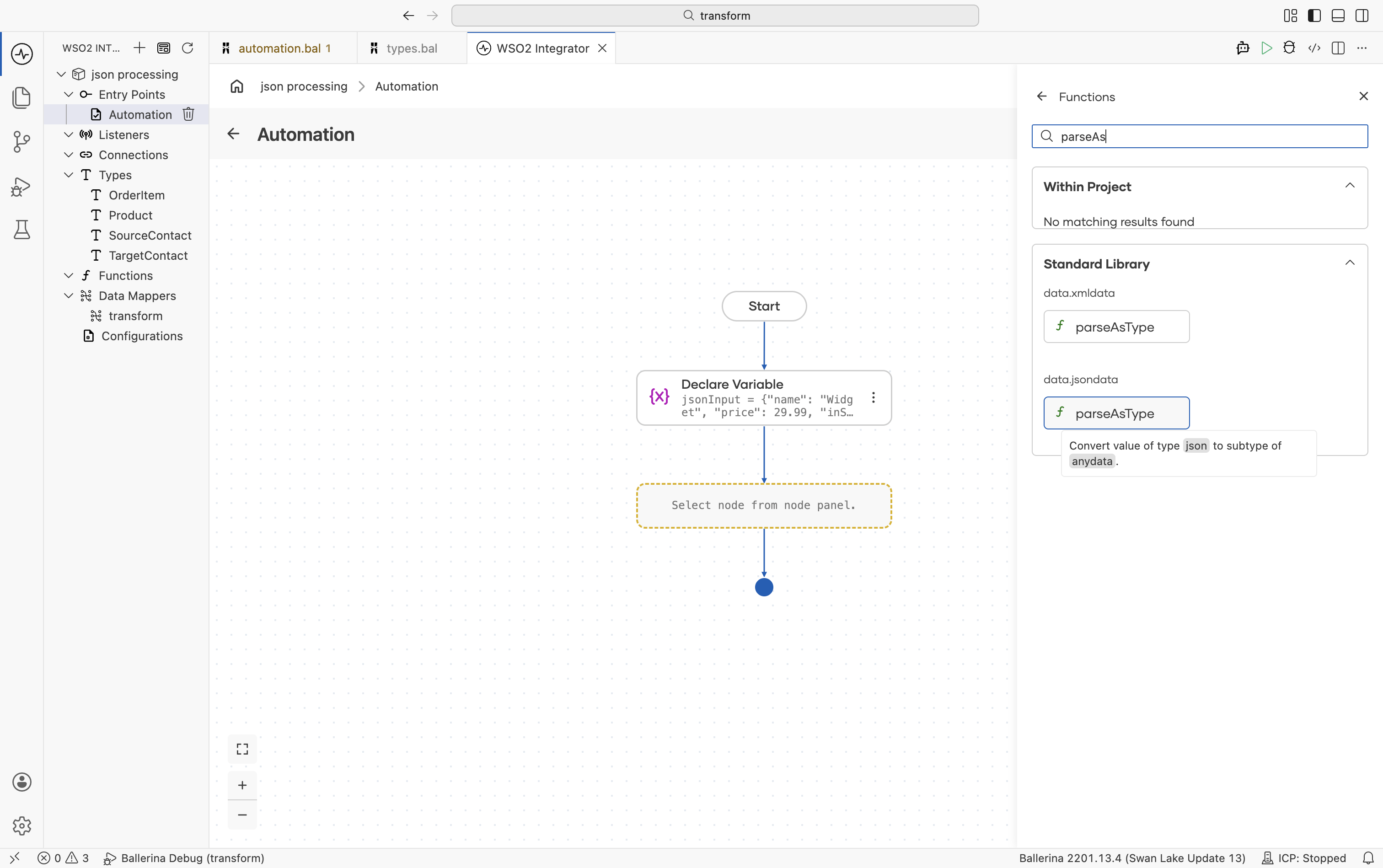
import ballerina/data.jsondata;
import ballerina/io;

type Product record {|
    string name;
    decimal price;
    boolean inStock;
|};

public function main() returns error? {
    json jsonInput = {"name": "Widget", "price": 29.99, "inStock": true};

    Product product = check jsondata:parseAsType(jsonInput);
    io:println(product.name);  // Widget
    io:println(product.price); // 29.99
}
Parse JSON arrays
Use jsondata:parseString() to parse a JSON array string directly into a typed record array. If you already have a json value instead of a string, use jsondata:parseAsType() as described in Convert a JSON value to a typed record.
- Visual Designer
- Ballerina Code
-
Define the record type: Navigate to Types in the sidebar and click + to add a new type. Define the
OrderItemrecord from scratch with the following fields:sku(string),quantity(int), andunitPrice(decimal). For details on creating types, see Types. -
Add a Variable step for the JSON string: In the flow designer, click + and select Declare Variable. Set the type to
stringand enter the JSON array string as the expression. Name the variableitemsJson. -
Parse the array: Click + and select Call Function. In the right-side panel, search for
parseStringand select it from thedata.jsondatamodule. PassitemsJsonas the argument and set the result type toOrderItem[].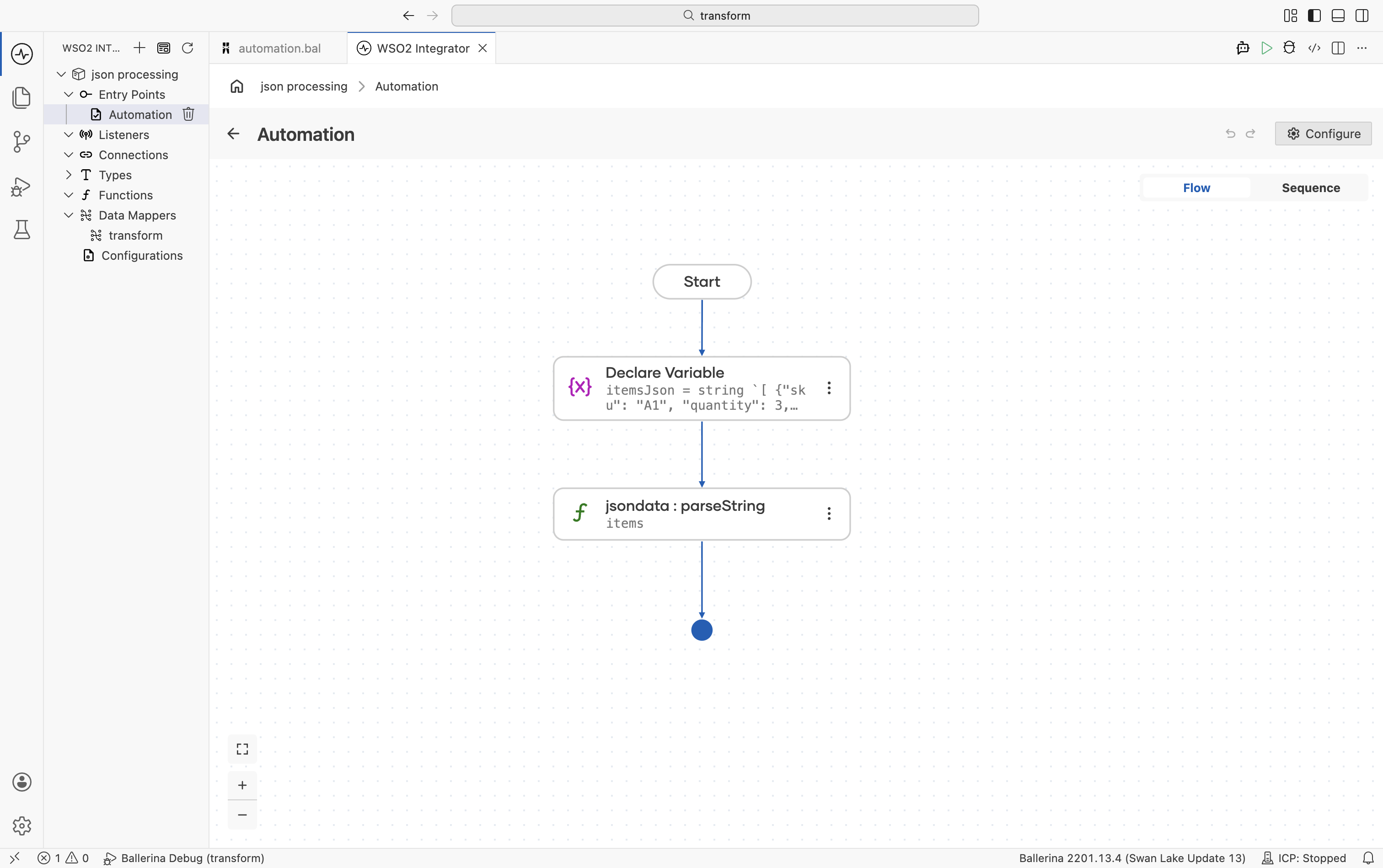
import ballerina/data.jsondata;
import ballerina/io;

type OrderItem record {|
    string sku;
    int quantity;
    decimal unitPrice;
|};

public function main() returns error? {
    string itemsJson = string `[
        {"sku": "A1", "quantity": 3, "unitPrice": 10.00},
        {"sku": "B2", "quantity": 1, "unitPrice": 25.50}
    ]`;

    OrderItem[] items = check jsondata:parseString(itemsJson);
    io:println(items);
}
Merging JSON objects
Combine multiple JSON objects using the mergeJson function.
- Visual Designer
- Ballerina Code
-
Add Variable steps: In the flow designer, click + and select Declare Variable. Set the type to
jsonand enter the JSON value as the expression. Add a second Declare Variable step for the merge. -
Merge the objects: Click + and select Call Function. In the right-side panel, search for
mergeJsonand select it from thelang.valuemodule. Pass twojsonvalues as arguments.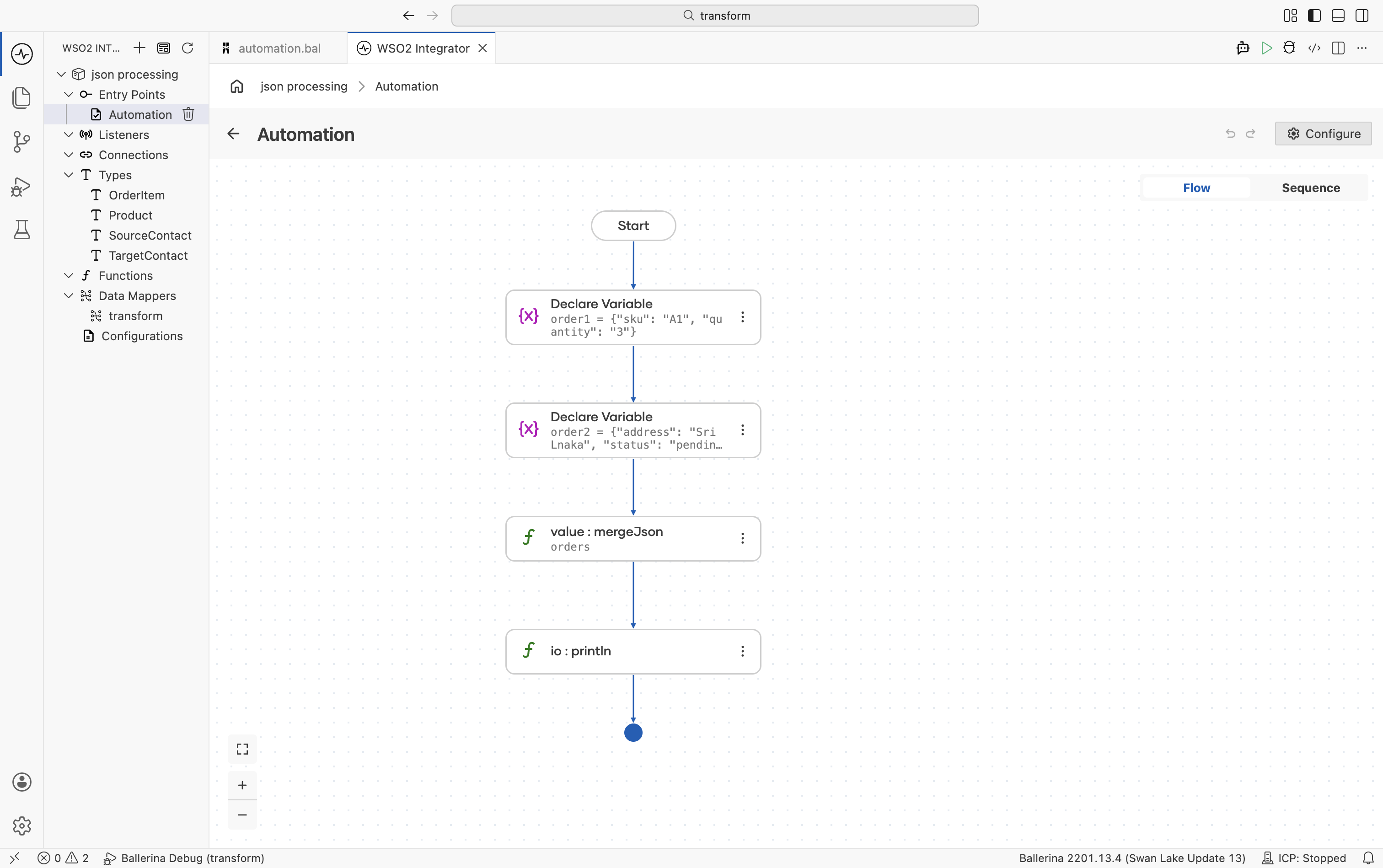
import ballerina/lang.value;
import ballerina/io;


public function main() returns error? {
    json order1 = {"sku": "A1", "quantity": "3"};
    json order2 = {"address": "Sri Lanka", "status": "pending"};
    json orders = check value:mergeJson(order1, order2);
    io:println(orders);
}
Additional scenarios
Remap field names
Use the @jsondata:Name annotation to map JSON field names to Ballerina record fields when the JSON keys do not match Ballerina naming conventions or identifier rules. This is useful when working with external APIs that use naming styles such as snake_case or kebab-case. Add the annotation directly to the record type definition in types.bal after creating the record.
import ballerina/data.jsondata;

type ApiResponse record {|
    @jsondata:Name {value: "total_count"}
    int totalCount;
    @jsondata:Name {value: "next_page"}
    string? nextPage;
|};
Null handling
Use optional types (?) to represent fields that may be missing or contain null values. Combine them with the Elvis operator (?:) to provide default values when a field is absent or evaluates to null. This helps safely process incomplete or optional JSON data without additional null checks.
- Visual Designer
- Ballerina Code
-
Use optional access: Add a Declare Variable step with the type
json?and use optional access syntaxcheck payload?.descriptionas the expression. This returns()for null or missing fields. -
Apply the Elvis operator: Add another Declare Variable step with a concrete type (for example,
string) and use a conditional expression such asdesc is string ? desc : "No description provided"to provide a default value.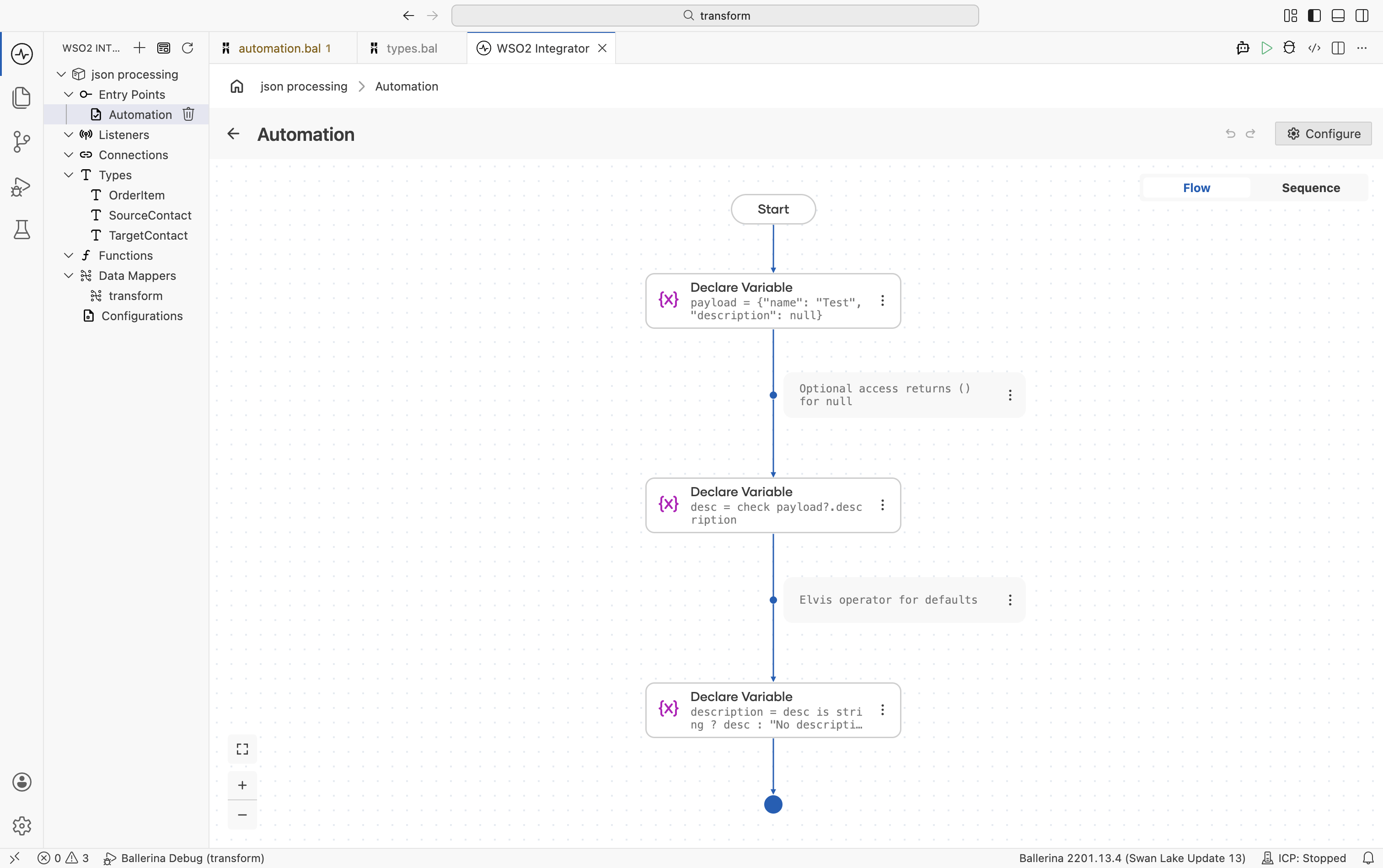
public function main() returns error? {
    json payload = {"name": "Test", "description": null};

    // Optional access returns () for null
    json? desc = check payload?.description;

    // Elvis operator for defaults
    string description = desc is string ? desc : "No description provided";
}
Large JSON payloads
For large JSON payloads, use jsondata:parseStream() to process JSON data directly from a byte stream without loading the entire payload into memory. This approach improves memory efficiency and is useful when handling large API responses, files, or streaming data sources.
- Visual Designer
- Ballerina Code
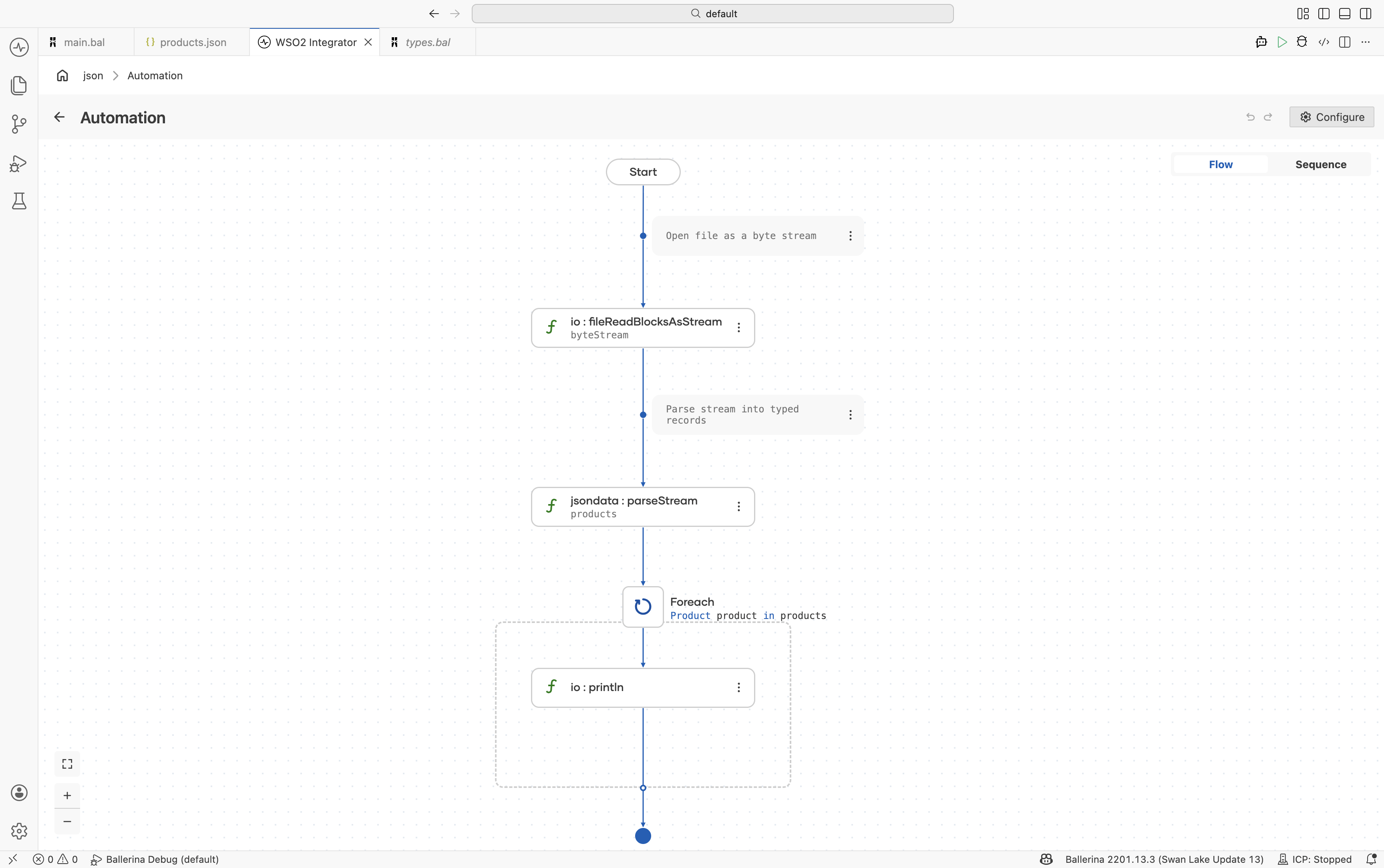
import ballerina/data.jsondata;
import ballerina/io;

type Product record {
    string id;
    string name;
    decimal price;
};

public function main() returns error? {

    // Open file as a byte stream
    stream<byte[], io:Error?> byteStream =
        check io:fileReadBlocksAsStream("products.json");

    // Parse stream into typed records
    Product[] products = check jsondata:parseStream(byteStream);

    foreach Product product in products {
        io:println(product);
    }
}
Create a products.json file in the project directory.
[
    {
        "id": "P100",
        "name": "Keyboard",
        "price": 99.99
    },
    {
        "id": "P200",
        "name": "Mouse",
        "price": 49.50
    }
]
What's next
- XML Processing - Work with XML data
- Type System & Records - Type-safe data handling