XML Processing
XML is a flexible, text-based format used to store, transport, and structure data in a way that is both human-readable and machine-readable.
WSO2 Integrator provides built-in support for XML processing, making it easy to work with XML data in integration scenarios. You can create, read, query, modify, validate, and transform XML content without relying on external libraries. This native XML support simplifies integration development and helps efficiently process XML payloads exchanged between applications, services, and enterprise systems.
XML literals and construction
Create XML values directly in WSO2 Integrator using backtick templates. The xml type supports XML elements, text nodes, comments, and processing instructions, making it easy to construct structured XML payloads within integrations.
- Visual Designer
- Ballerina Code
-
Add a Variable: In the flow designer, click + and select Declare Variable. Set the variable type to
xmland provide an XML backtick template as the expression (for example: xml<example></example>). -
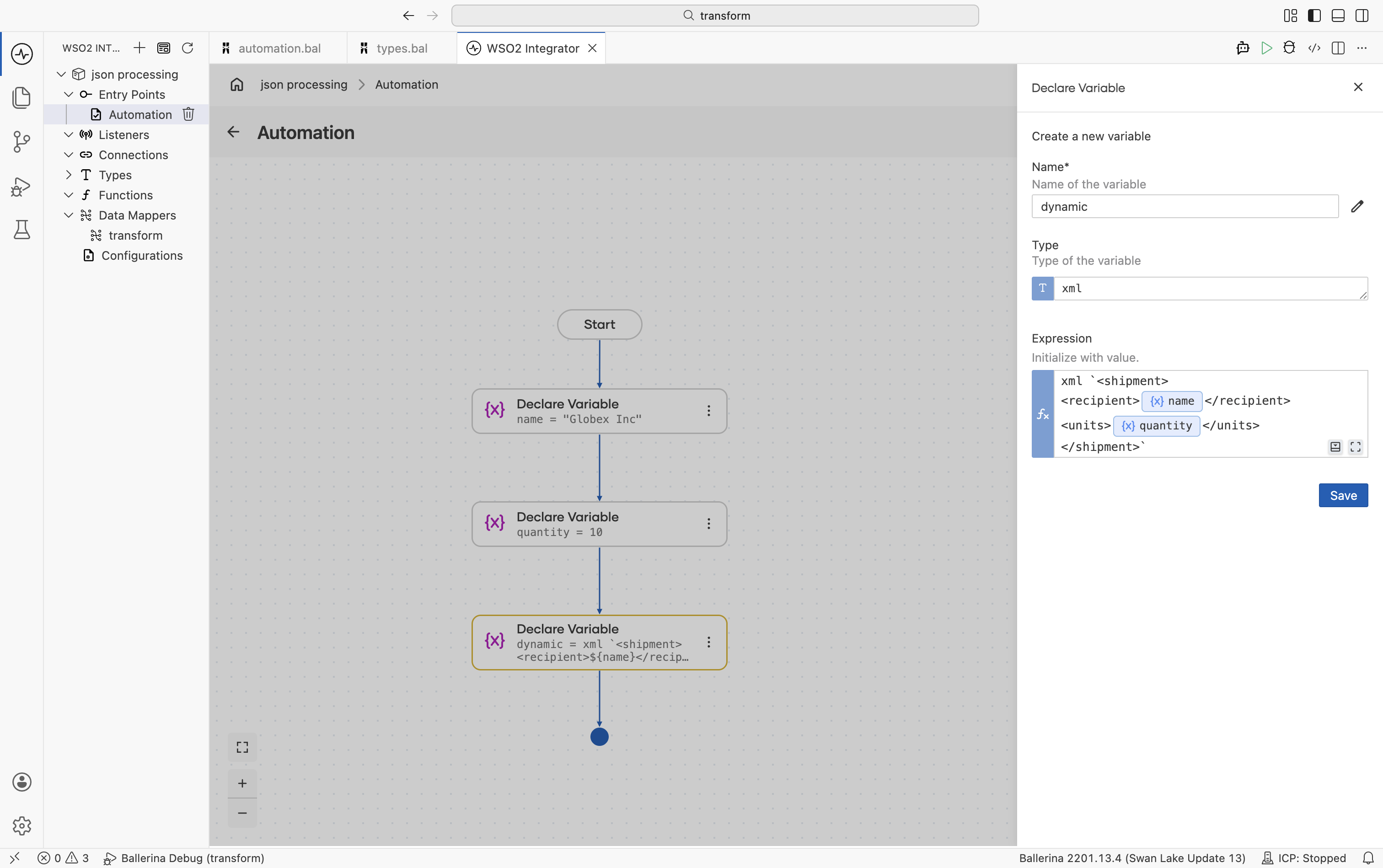
Use embedded expressions: Insert dynamic values into XML templates using
${variableName}syntax. Each XML variable is represented as a separate Declare Variable step in the flow, allowing you to visually manage XML construction.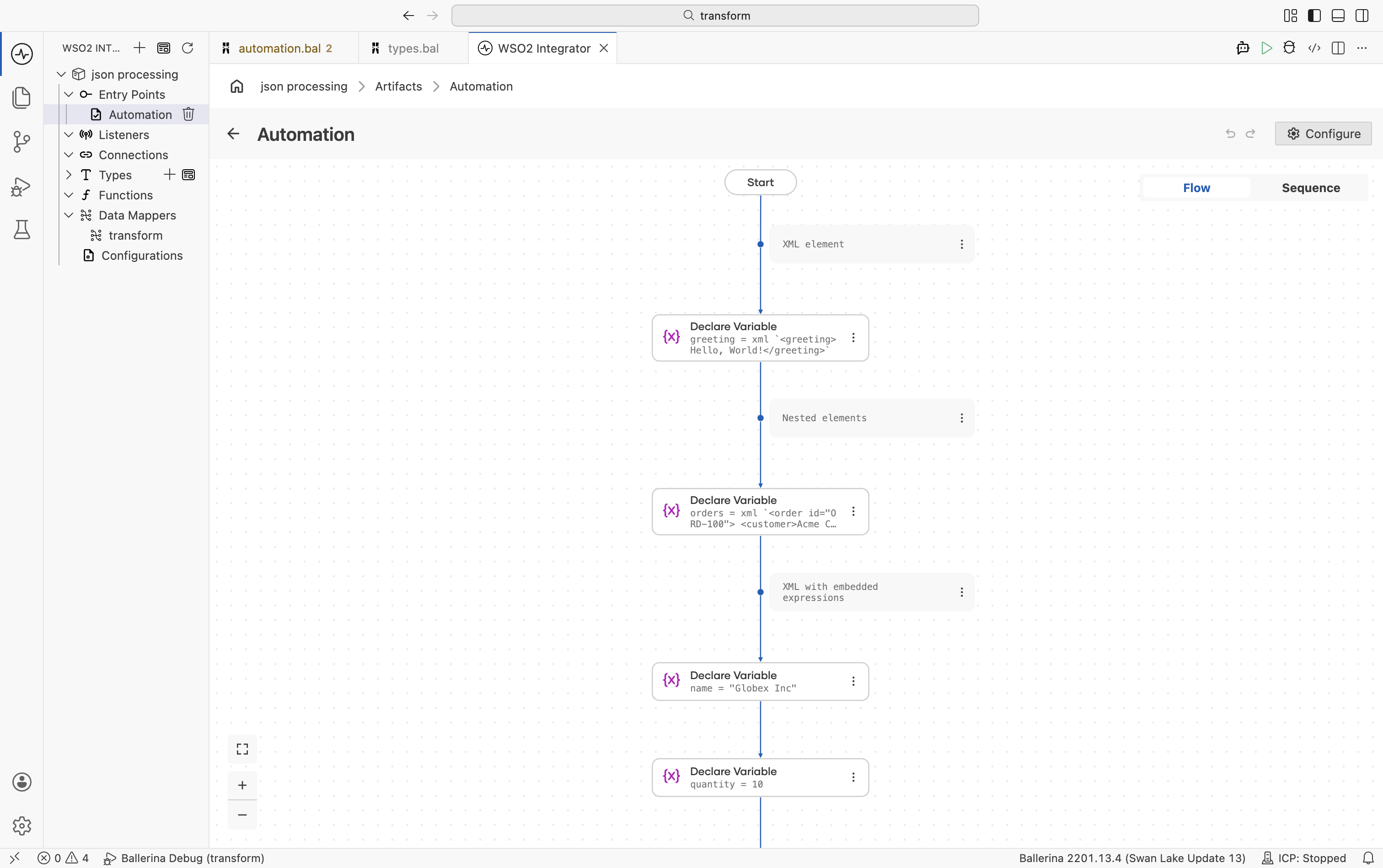
-
Configure the expression: Select a variable node to view and edit the XML template expression from the side panel.
import ballerina/io;

public function main() {
    // XML element
    xml greeting = xml `<greeting>Hello, World!</greeting>`;

    // Nested elements
    xml orders = xml `<order id="ORD-100">
        <customer>Acme Corp</customer>
        <items>
            <item sku="WDG-01" qty="5"/>
            <item sku="GDG-02" qty="2"/>
        </items>
    </order>`;

    // XML with embedded expressions
    string name = "Globex Inc";
    int quantity = 10;
    xml dynamic = xml `<shipment>
        <recipient>${name}</recipient>
        <units>${quantity}</units>
    </shipment>`;

    io:println(dynamic);
}
XML text and comments
Create XML text nodes, comments, and processing instructions directly using XML backtick templates. These XML node types can be stored in variables and used when building or transforming XML payloads.
- Visual Designer
- Ballerina Code
-
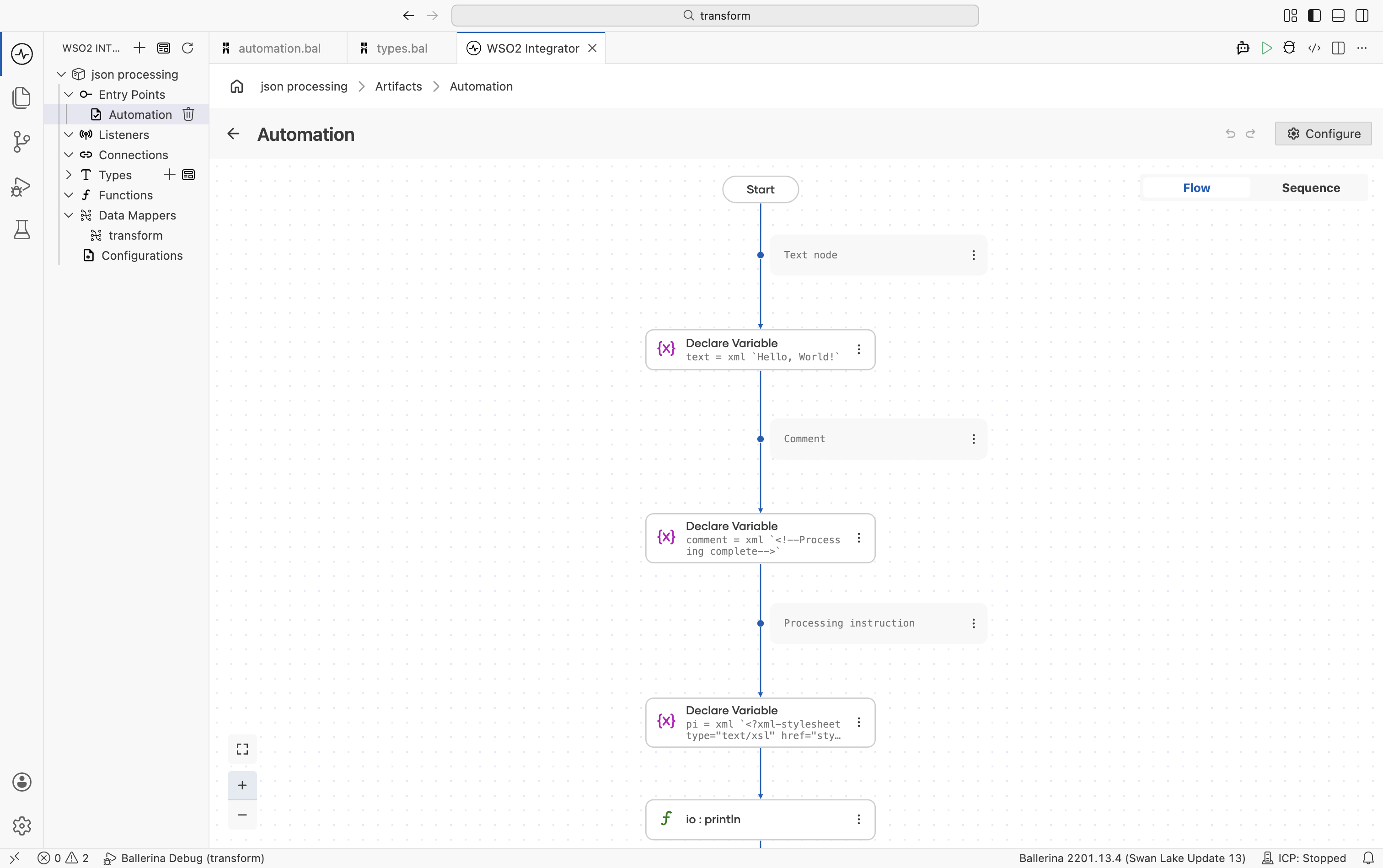
Add Variable: In the flow designer, add separate Declare Variable with the type set to
xmlfor each XML node type such as text, comment, or processing instruction. -
Define XML node values: Provide the required XML backtick template expression for the node type you want to create.
-
View the flow representation: Each XML node appears as an individual Declare Variable step in the integration flow.
import ballerina/io;

public function main() {
    // Text node
    xml text = xml `Hello, World!`;

    // Comment
    xml comment = xml `<!--Processing complete-->`;

    // Processing instruction
    xml pi = xml `<?xml-stylesheet type="text/xsl" href="style.xsl"?>`;

    io:println(text);
    io:println(comment);
    io:println(pi);
}
Navigating XML
Access child elements, attributes, and text content using XML navigation expressions in WSO2 Integrator. XML navigation makes it easy to query and extract specific parts of XML payloads during integration flows.
- Visual Designer
- Ballerina Code
-
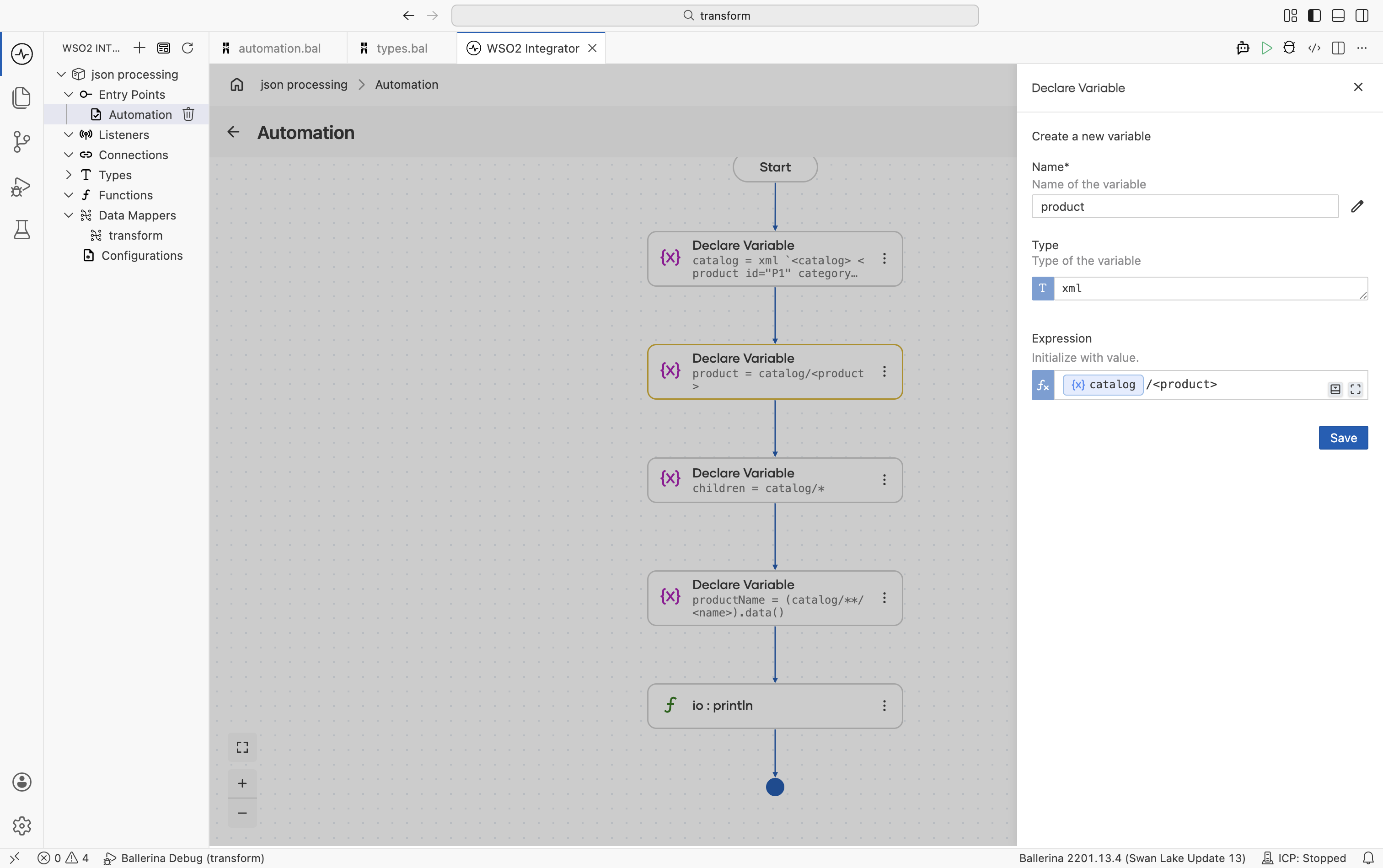
Define the XML input: In the flow designer, click + and select Declare Variable. Set the type to
xmland enter the XML literal as the expression. Name the variablecatalog. This variable is then referenced in all subsequent navigation steps. -
Navigate child elements: Add a Declare Variable step and use expressions such as
catalog/<product>to select child elements by name, orcatalog/*to retrieve all child elements. -
Access text content: Use the
.data()function in a variable expression (for example,(firstProduct/<name>).data()) to extract the text value of an XML element. -
Access attributes: Use
.getAttributes()["attributeName"]to retrieve attribute values from an XML element. -
Filter descendants: Use descendant navigation expressions such as
catalog/**/<name>to find matching elements at any level of the XML hierarchy.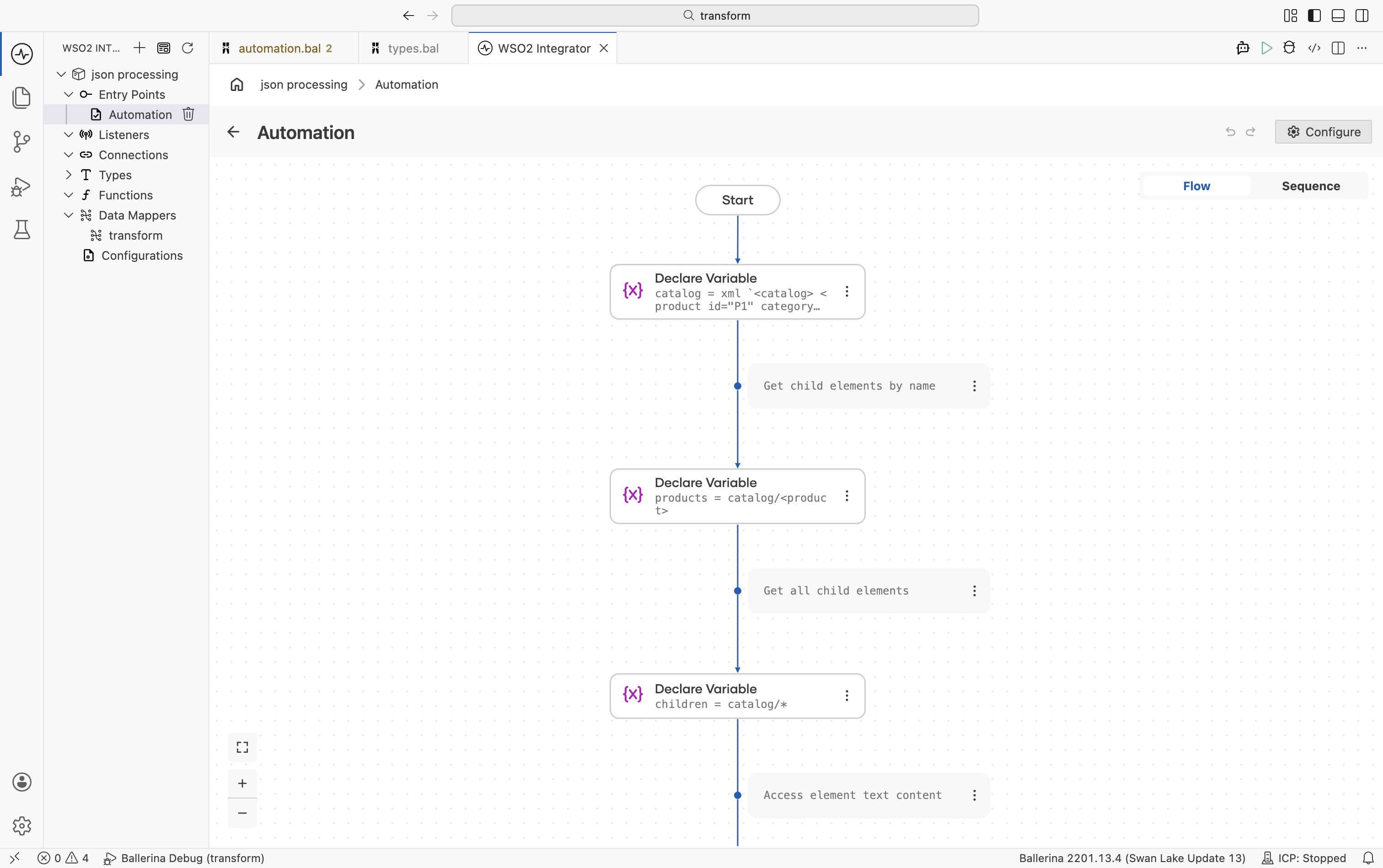
-
View and edit expressions: Select a variable node to view or modify the XML navigation expression from the side panel.
import ballerina/io;

public function main() {
    xml catalog = xml `<catalog>
        <product id="P1" category="electronics">
            <name>Widget</name>
            <price>29.99</price>
        </product>
        <product id="P2" category="tools">
            <name>Gadget</name>
            <price>49.99</price>
        </product>
    </catalog>`;

    // Get child elements by name
    xml products = catalog/<product>;

    // Get all child elements
    xml children = catalog/*;

    // Access element text content
    xml firstProduct = (catalog/<product>)[0];
    string productName = (firstProduct/<name>).data();
    io:println(productName); // Widget

    // Access attributes
    string? id = (<xml:Element>firstProduct).getAttributes()["id"];
    io:println(id); // P1

    // Filter descendant elements
    xml names = catalog/**/<name>;
    io:println(names);
    // <name>Widget</name><name>Gadget</name>
}
XML namespaces
Handle namespaced XML using xmlns declarations in Ballerina.
- Visual Designer
- Ballerina Code
xmlns namespace declarations cannot be added through the Visual Designer. Open the Ballerina source file directly and add the xmlns bindings at the top of the function or module before using namespace-prefixed expressions in the flow.
-
Add namespace declarations in code: Open the
.balfile and declare the required namespaces (for example,xmlns "http://example.com/orders" as ord;). -
Navigate namespaced elements: Add a Declare Variable and use the namespace prefix in the expression (for example,
nsOrder/<cmn:customer>).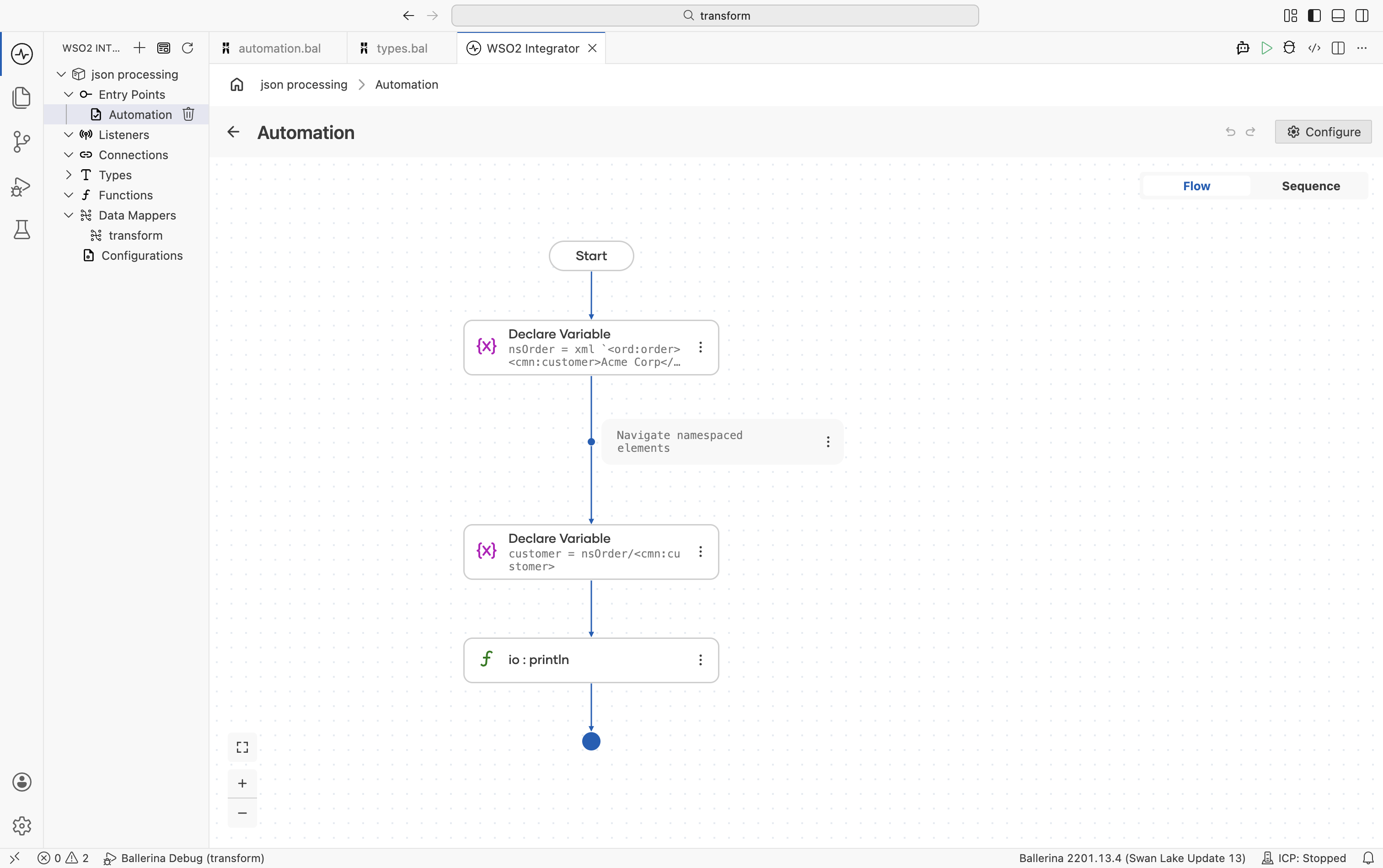
import ballerina/io;

public function main() {
    xmlns "http://example.com/orders" as ord;
    xmlns "http://example.com/common" as cmn;

    xml nsOrder = xml `<ord:order>
        <cmn:customer>Acme Corp</cmn:customer>
        <ord:total>1500.00</ord:total>
    </ord:order>`;

    // Navigate namespaced elements
    xml customer = nsOrder/<cmn:customer>;
    io:println(customer);
}
Iterating over XML
Use foreach loops or query expressions to process XML sequences in WSO2 Integrator. XML iteration is useful for reading, filtering, and transforming repeating XML elements such as lists of items, records, or orders.
- Visual Designer
- Ballerina Code
-
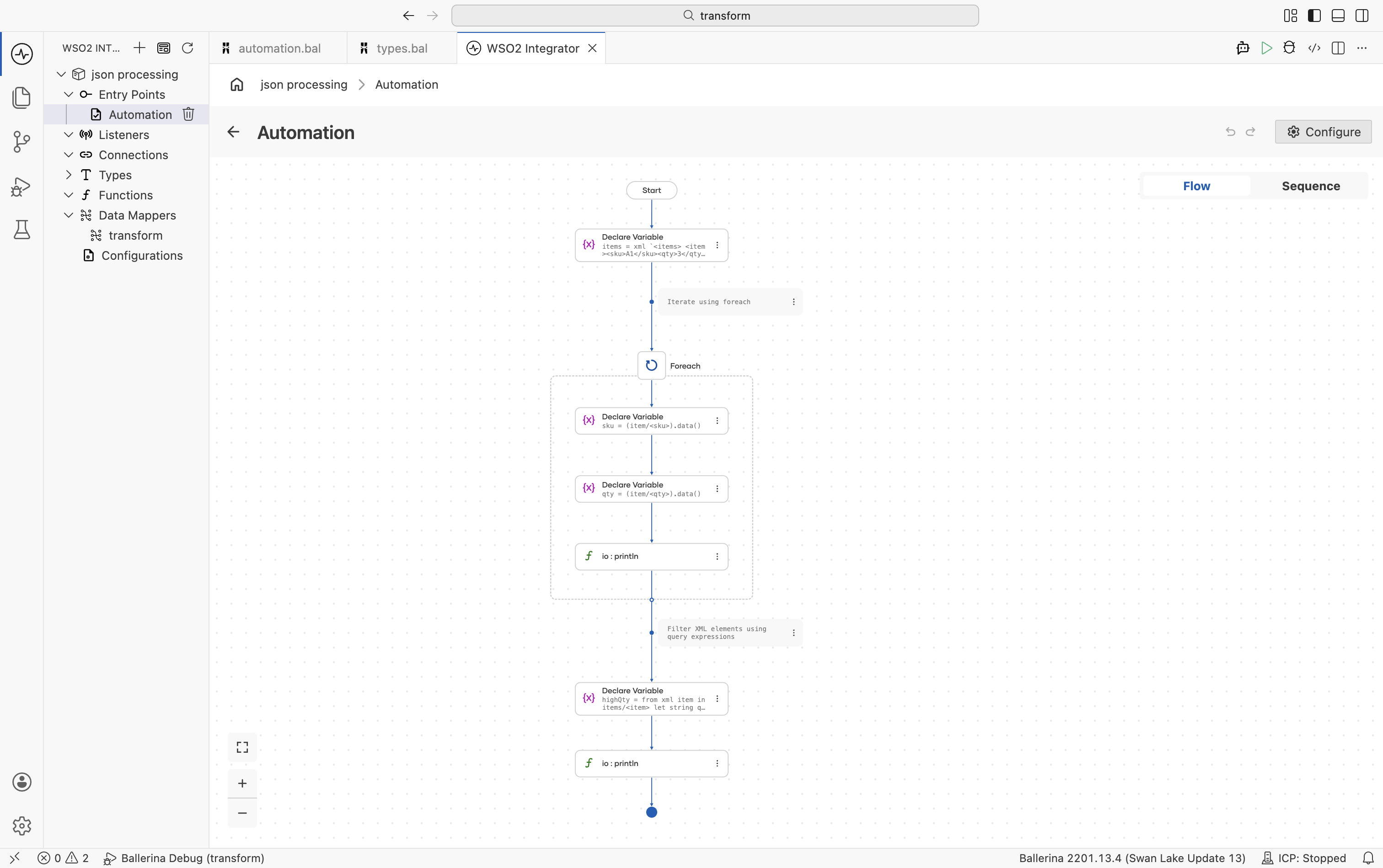
Add a Foreach step: Click + and select Foreach under Control. In the configuration panel, specify the XML collection to iterate over and the loop variable name.
Field Description Collection The XML sequence to iterate over (for example, items/<item>)Variable The loop variable bound to each XML element -
Process XML elements inside the loop: Add Declare Variable steps inside the loop body to extract values using XML navigation expressions such as
(item/<sku>).data(). -
Use query expressions for filtering: Add a Declare Variable step with a query expression to filter or transform XML sequences based on conditions.
import ballerina/io;

public function main() returns error? {
    xml items = xml `<items>
        <item><sku>A1</sku><qty>3</qty></item>
        <item><sku>B2</sku><qty>7</qty></item>
        <item><sku>C3</sku><qty>1</qty></item>
    </items>`;

    // Iterate using foreach
    foreach xml item in items/<item> {
        string sku = (item/<sku>).data();
        string qty = (item/<qty>).data();
        io:println(string `SKU: ${sku}, Quantity: ${qty}`);
    }

    // Filter XML elements using query expressions
    xml highQty = from xml item in items/<item>
        let string qtyStr = (item/<qty>).data()
        let int qty = check int:fromString(qtyStr)
        where qty > 2
        select item;
    io:println(highQty);
}
XML mutation
Modify XML structures by updating child elements or attributes. XML mutation is useful when transforming payloads, enriching messages, or updating XML content dynamically during integration flows.
- Visual Designer
- Ballerina Code
-
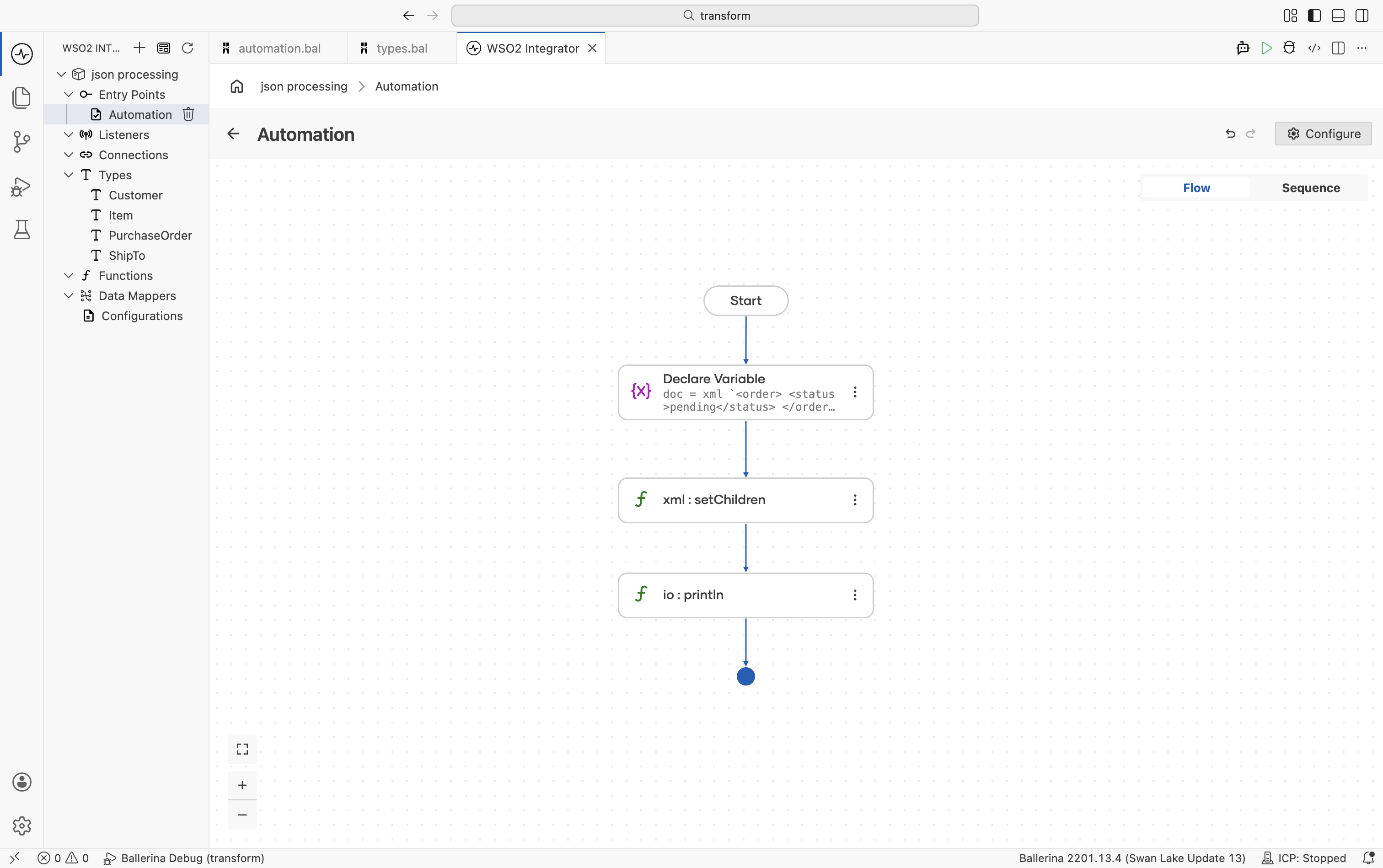
Add a Variable: Create a Declare Variable with the type set to
xml:Elementand initialize it using an XML literal. -
Mutate the XML element: Click + and select Call Function. In the right-side panel, search for
setChildrenand select it from thelang.xmlmodule. Providedocas the target and the replacement XML literal as the argument.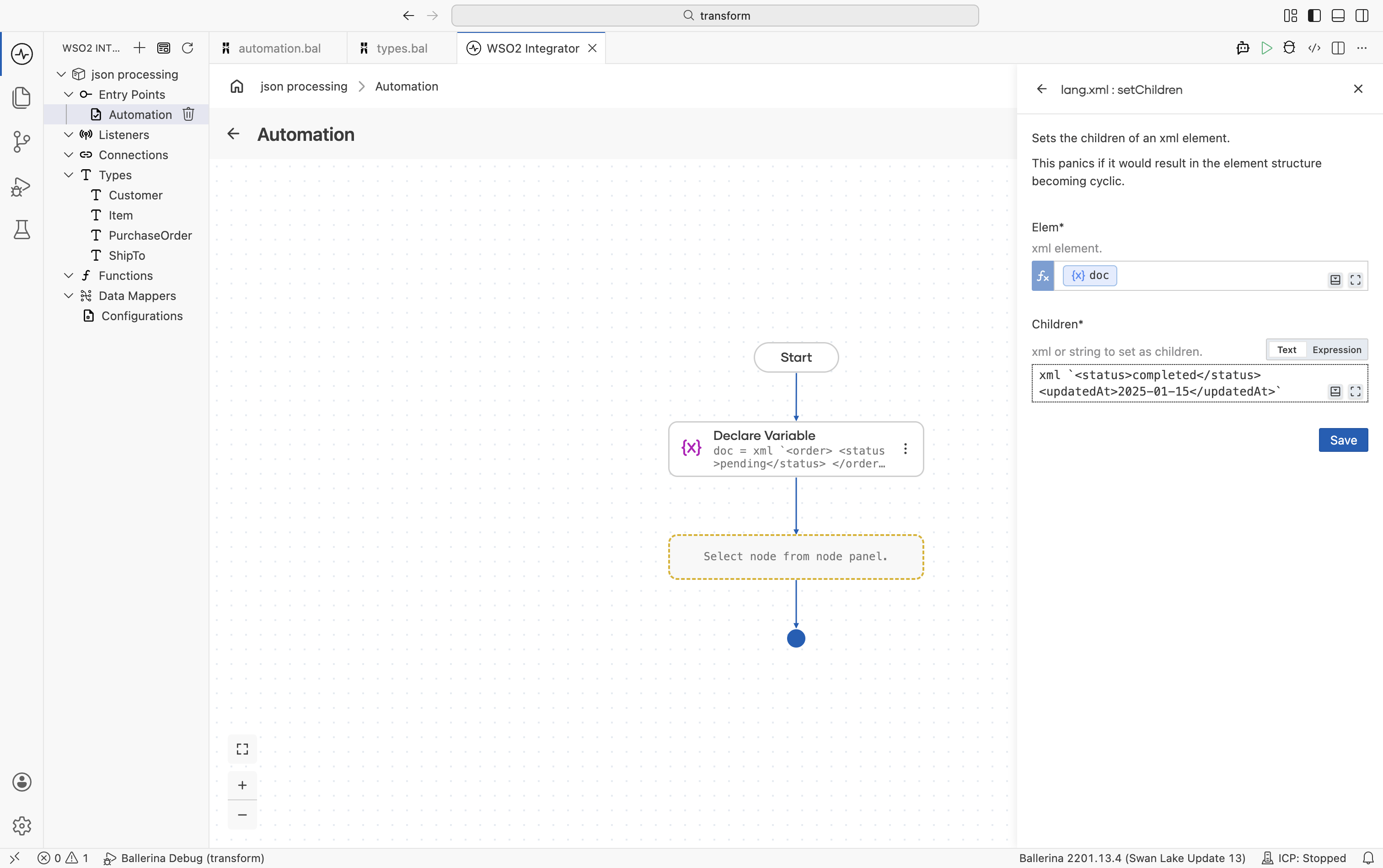
import ballerina/io;

public function main() {
    xml:Element doc = xml `<order>
        <status>pending</status>
    </order>`;

    // Replace child elements
    doc.setChildren(xml `
        <status>completed</status>
        <updatedAt>2025-01-15</updatedAt>
    `);

    io:println(doc);
}
XML to record conversion
Use the data.xmldata module to convert XML data into typed Ballerina records for type-safe access and easier manipulation. Converting XML into records simplifies validation, transformation, and field access within integration flows.
- Visual Designer
- Ballerina Code
-
Define the target record types: Navigate to Types in the sidebar and click + to create type
PurchaseOrder,ShipToandItem, see Types.infoThe
@xmldata:Attributeannotation marks a record field as an XML attribute. This annotation cannot be added through the Visual Designer. After creating theItemtype, open the generated.balfile and add@xmldata:Attributemanually above thepartNumfield definition. -
Parse XML into the record type: In the flow designer, click + and select Call Function. In the right-side panel, search for
parseAsTypeand select it from thedata.xmldatamodule.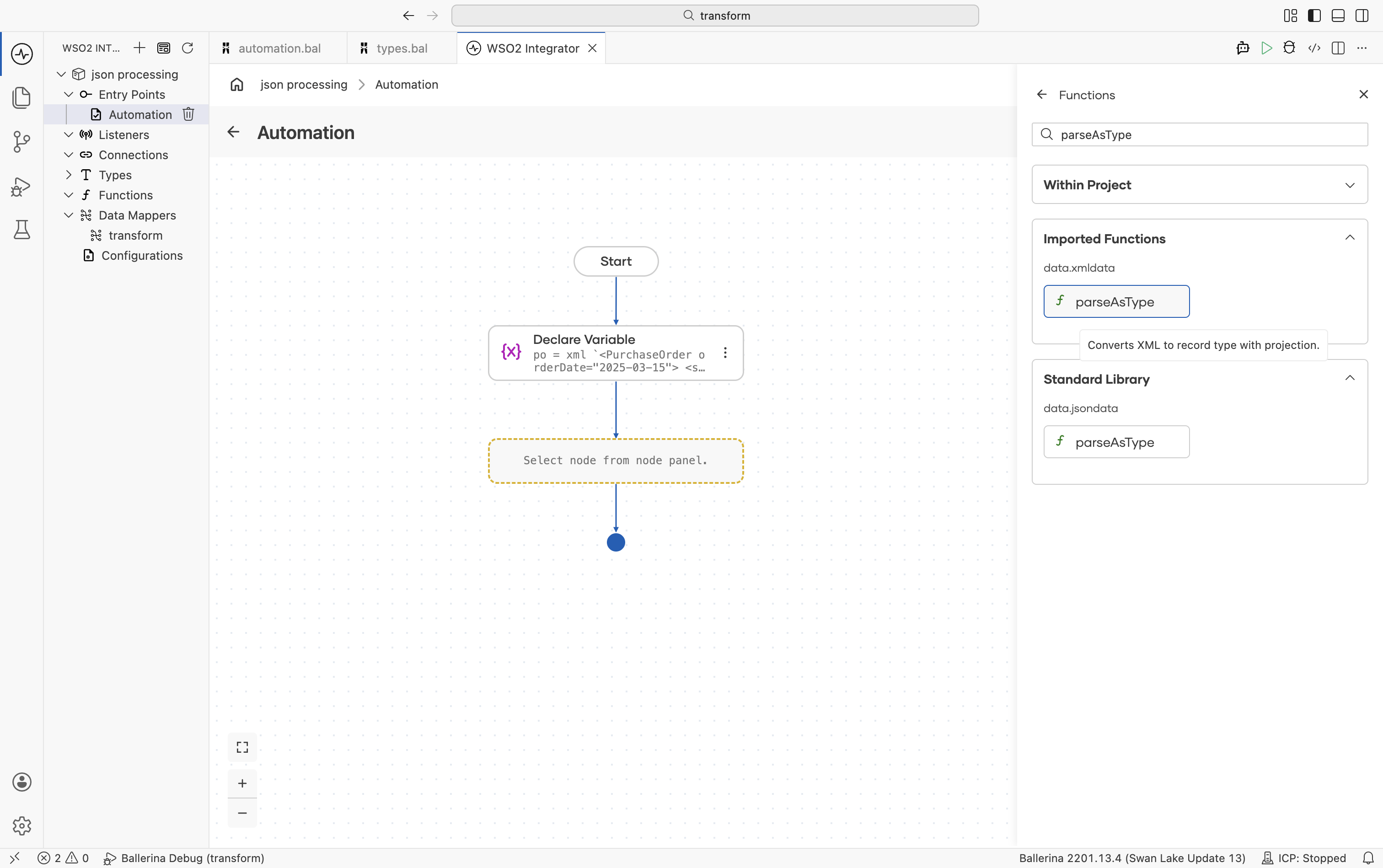
Provide the XML value
productas the argument and setPurchaseOrderas the target record type.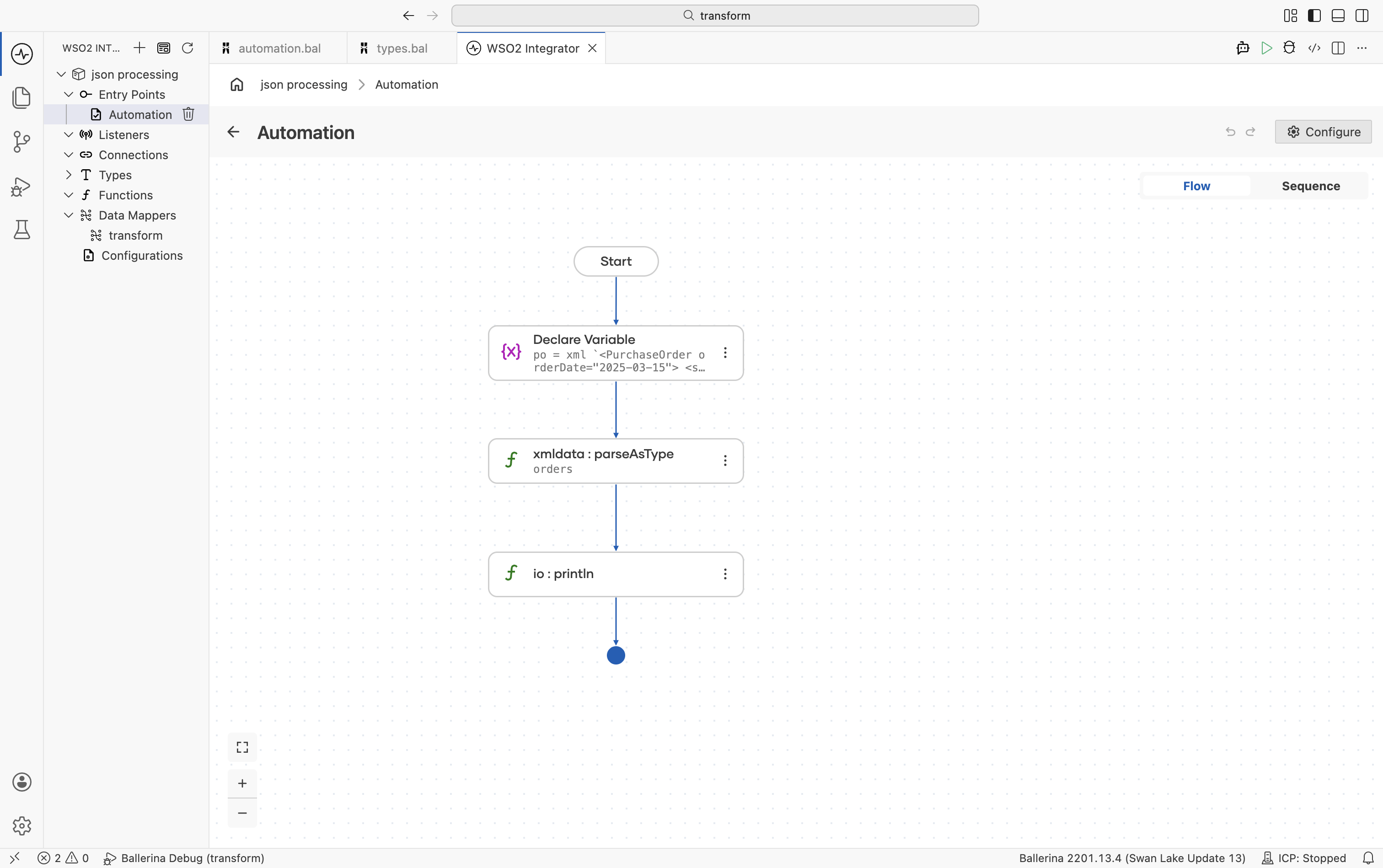
import ballerina/data.xmldata;
import ballerina/io;

type PurchaseOrder record {|
    string orderDate;
    ShipTo shipTo;
    Item[] item;
|};

type ShipTo record {|
    string name;
    string street;
    string city;
|};

type Item record {|
    @xmldata:Attribute
    string partNum;
    string productName;
    int quantity;
    decimal price;
|};

public function main() returns error? {
    xml product = xml `<PurchaseOrder orderDate="2025-03-15">
        <shipTo>
            <name>Acme Corp</name>
            <street>123 Main St</street>
            <city>Springfield</city>
        </shipTo>
        <item partNum="WDG-01">
            <productName>Widget</productName>
            <quantity>10</quantity>
            <price>29.99</price>
        </item>
    </PurchaseOrder>`;

    PurchaseOrder orders = check xmldata:parseAsType(po);
    io:println(orders.shipTo.name); // Acme Corp
}
Record to XML conversion
Convert Ballerina records into XML using the data.xmldata module. Record-to-XML conversion is useful when generating XML payloads for APIs, external systems, or XML-based integrations.
- Visual Designer
- Ballerina Code
-
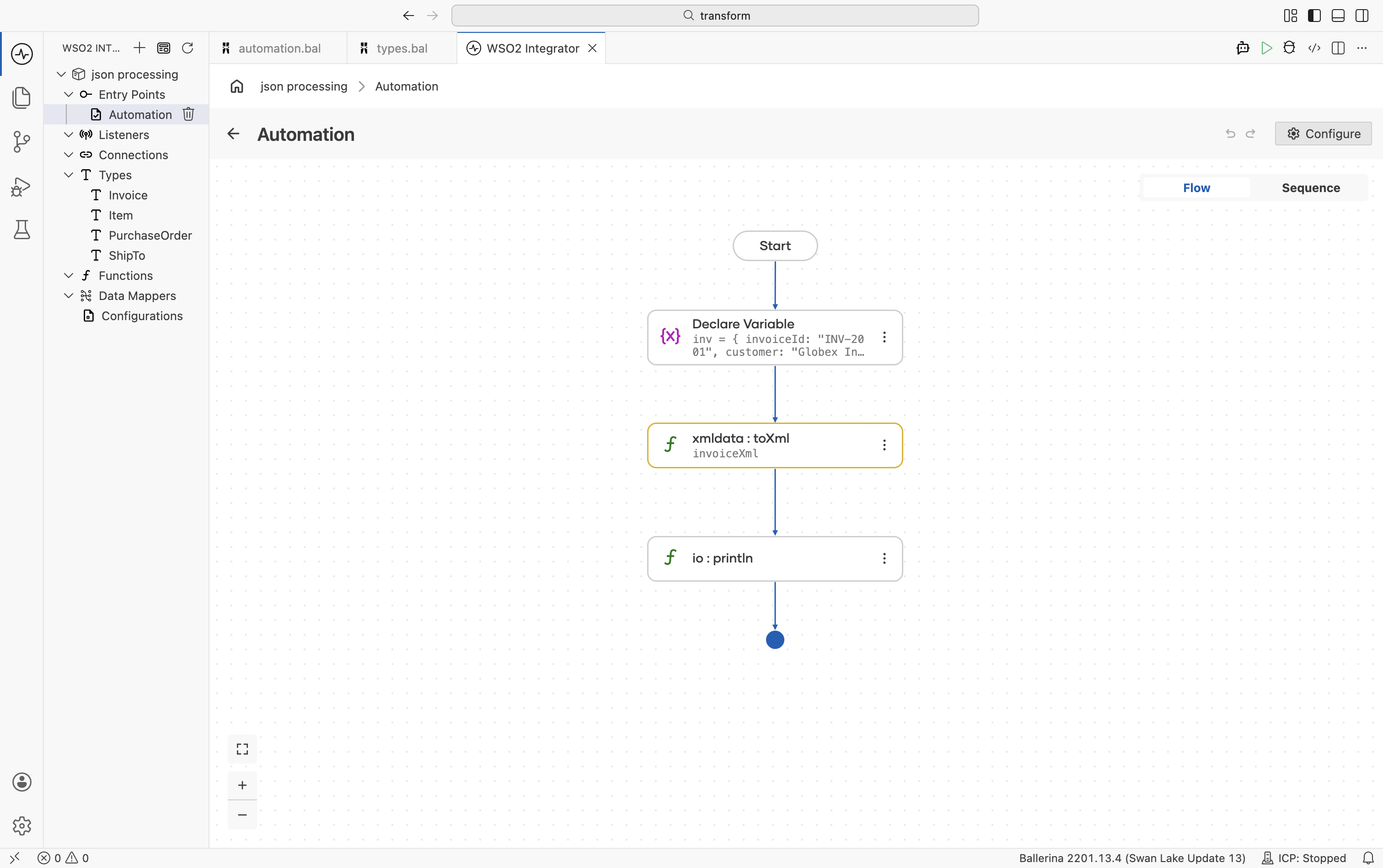
Define the record type: Navigate to Types in the sidebar and click + to create a new type using xml, see Types.
-
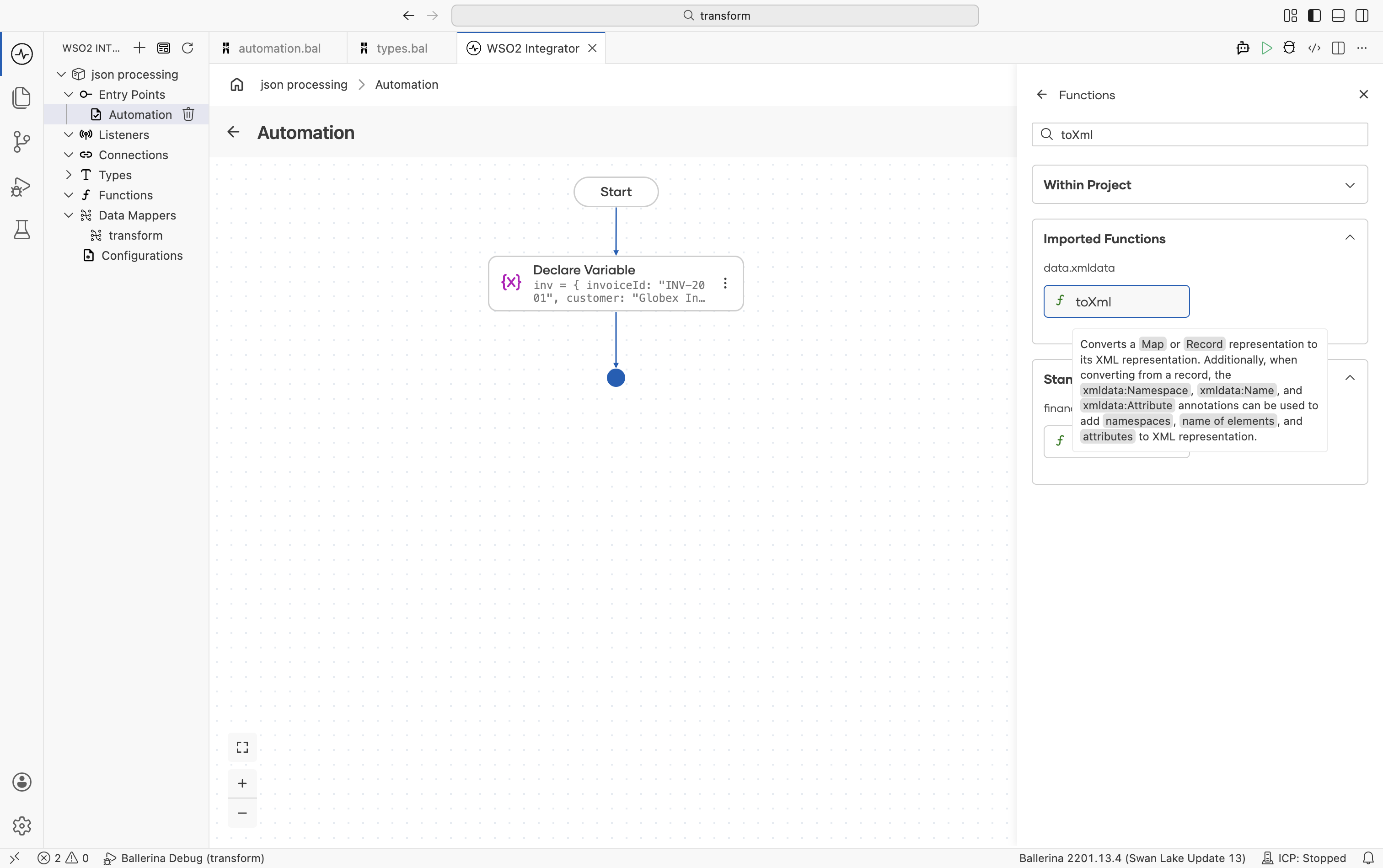
Convert the record to XML: In the flow designer, click + and select Call Function. In the right-side panel, search for
toXmland select it from thedata.xmldatamodule. Provide theInvoicerecordinvas the argument and set the result type toxml.
- Use the generated XML: The resulting XML value can be returned from a service, sent to external systems, or further transformed within the integration flow.
import ballerina/data.xmldata;
import ballerina/io;

type Invoice record {|
    string invoiceId;
    string customer;
    decimal total;
|};

public function main() returns error? {
    Invoice inv = {
        invoiceId: "INV-2001",
        customer: "Globex Inc",
        total: 1500.00
    };

    xml invoiceXml = check xmldata:toXml(inv);

    io:println(invoiceXml);
    // <Invoice><invoiceId>INV-2001</invoiceId>...</Invoice>
}
XML to JSON conversion
Convert XML data to JSON by first parsing the XML into a typed record using the data.xmldata module, then converting the record to JSON using the built-in toJson() method from lang.value. To convert JSON back to XML, use xmldata:fromJson from data.xmldata. These conversions are useful when integrating XML-based systems with JSON-based APIs and services.
- Visual Designer
- Ballerina Code
-
Define the record types: Navigate to Types in the sidebar and click + to create each type from scratch. Define the source record with fields matching your XML structure and the target record with fields required for the JSON output. For more information, see Types.
-
Parse XML into a record: Follow the steps in XML to record conversion to parse the XML value into a typed record.
-
Convert the record to JSON: Click + and select Call Function. In the right-side panel, search for
toJsonand select it from thelang.valuemodule. Provide the parsed record as the argument. The return value is ajsonvalue.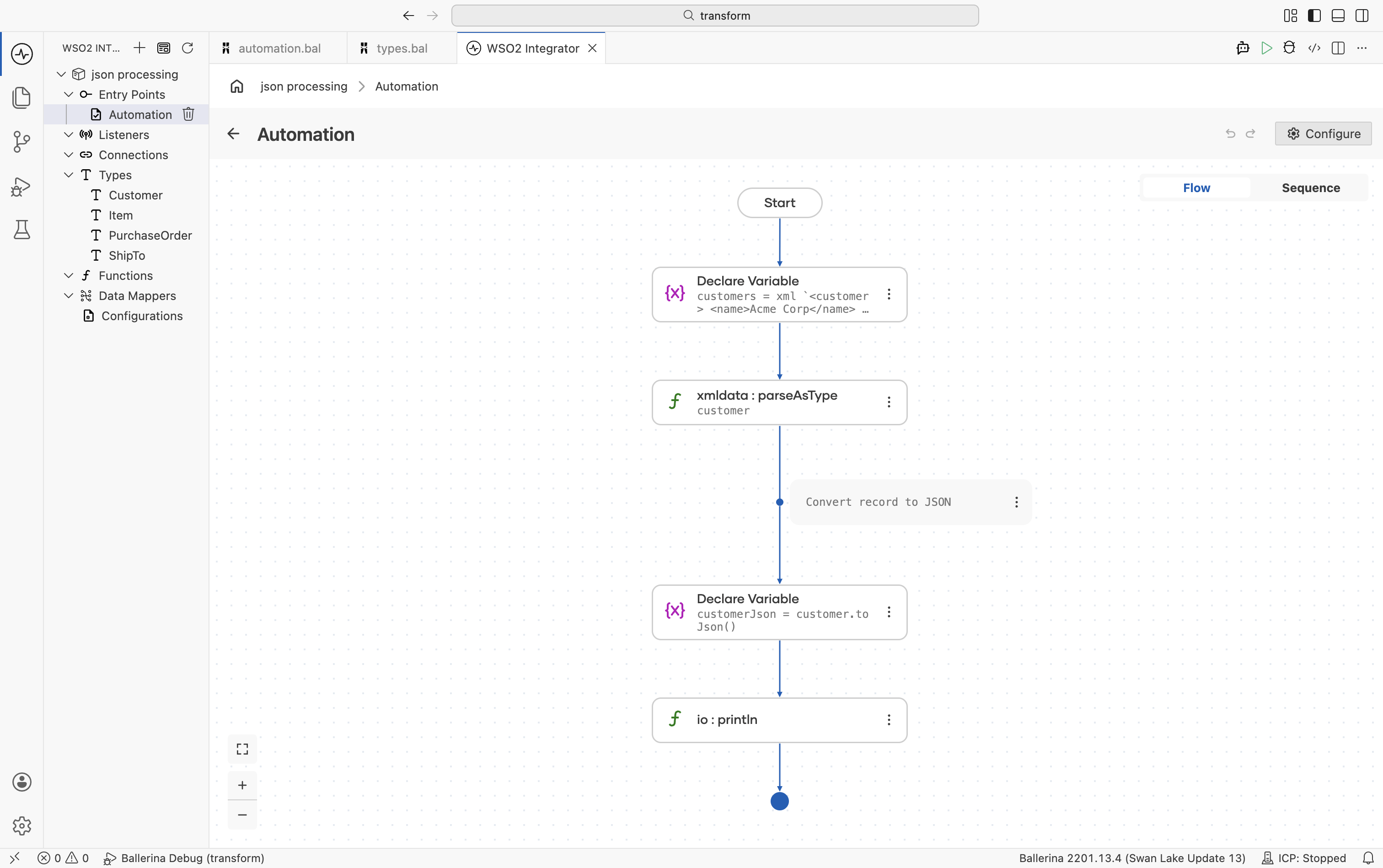
-
Map fields visually: Use the Visual Data Mapper to map or transform fields between record structures before converting the result into JSON.
import ballerina/data.xmldata;
import ballerina/io;

public function main() returns error? {
    xml customers = xml `<customer>
        <name>Acme Corp</name>
        <email>[email protected]</email>
    </customer>`;

    // Convert XML to a typed record
    record {|
        string name;
        string email;
    |} customer = check xmldata:parseAsType(customers);

    // Convert record to JSON
    json customerJson = customer.toJson();
    io:println(customerJson);

    // Convert JSON back to XML
    xml result = check xmldata:fromJson(customerJson);
    io:println(result);
}
What's next
- JSON Processing - Parse, construct, transform, and validate JSON data
- Visual Data Mapper - Map fields between record types visually
- Types - Define record types for type-safe data handling