Test GraphQL Service
The Try-It tool for GraphQL services opens a built-in GraphiQL editor where you can browse your schema, write queries and mutations, and execute them against your running service. Use it during development to verify your GraphQL operations before writing automated tests.
Open the GraphiQL editor
- Run the integration by selecting the play button.
- After the integration starts, open the GraphiQL editor in one of the following ways:
- Select Try it above the
servicedeclaration in the code editor. - Open the Command Palette (
Cmd+Shift+Pon macOS,Ctrl+Shift+Pon Windows/Linux), type Try It, and select Ballerina: Open Try It. If the integration has more than one service, select the service from the Available Services list, and then select the port of that service.
- Select Try it above the
If you select a port that the service does not run on, the Explorer shows No Schema Available and queries fail with a 404 Not Found error. Close the editor and open it again with the correct port.
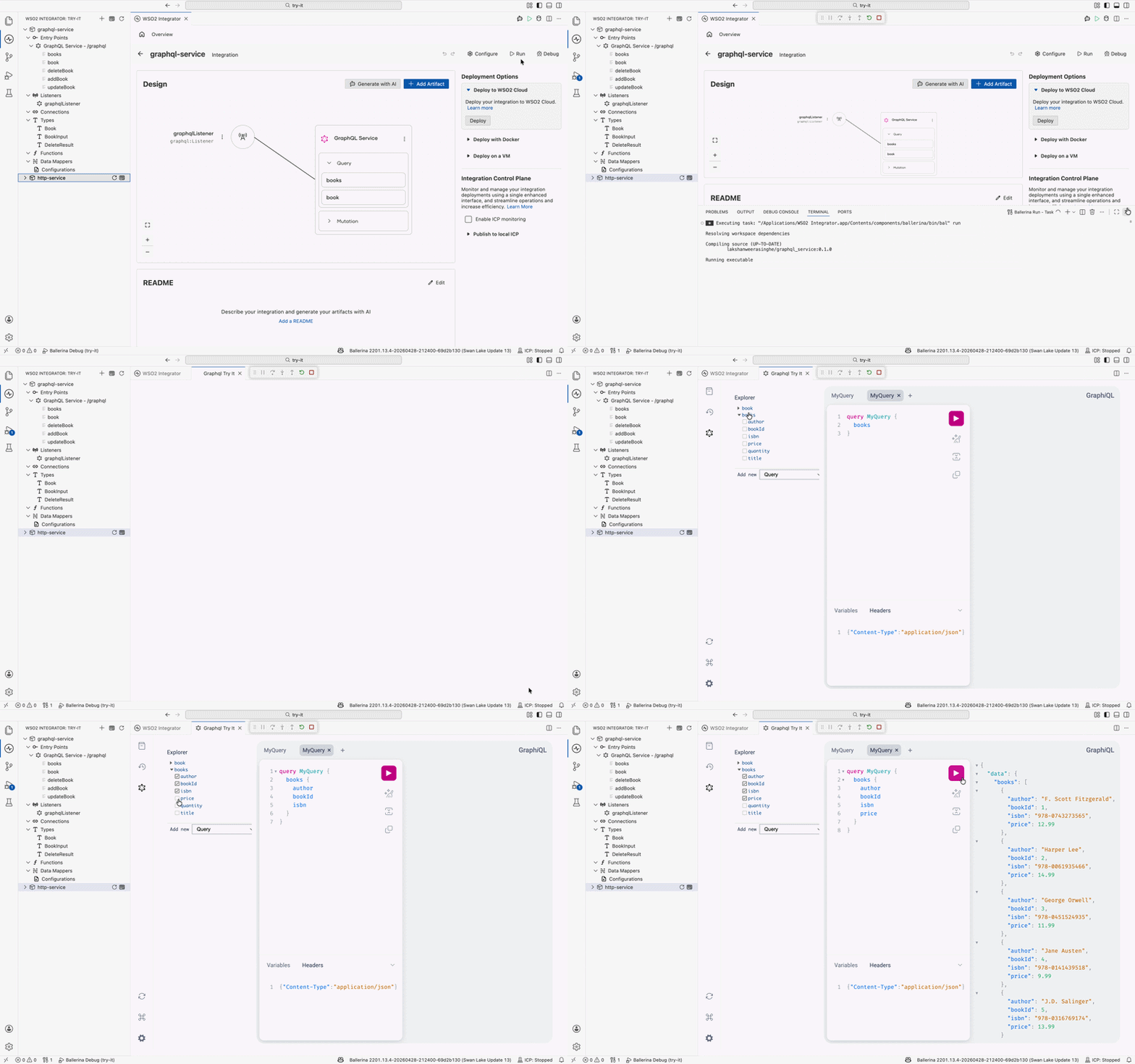
The GraphiQL editor
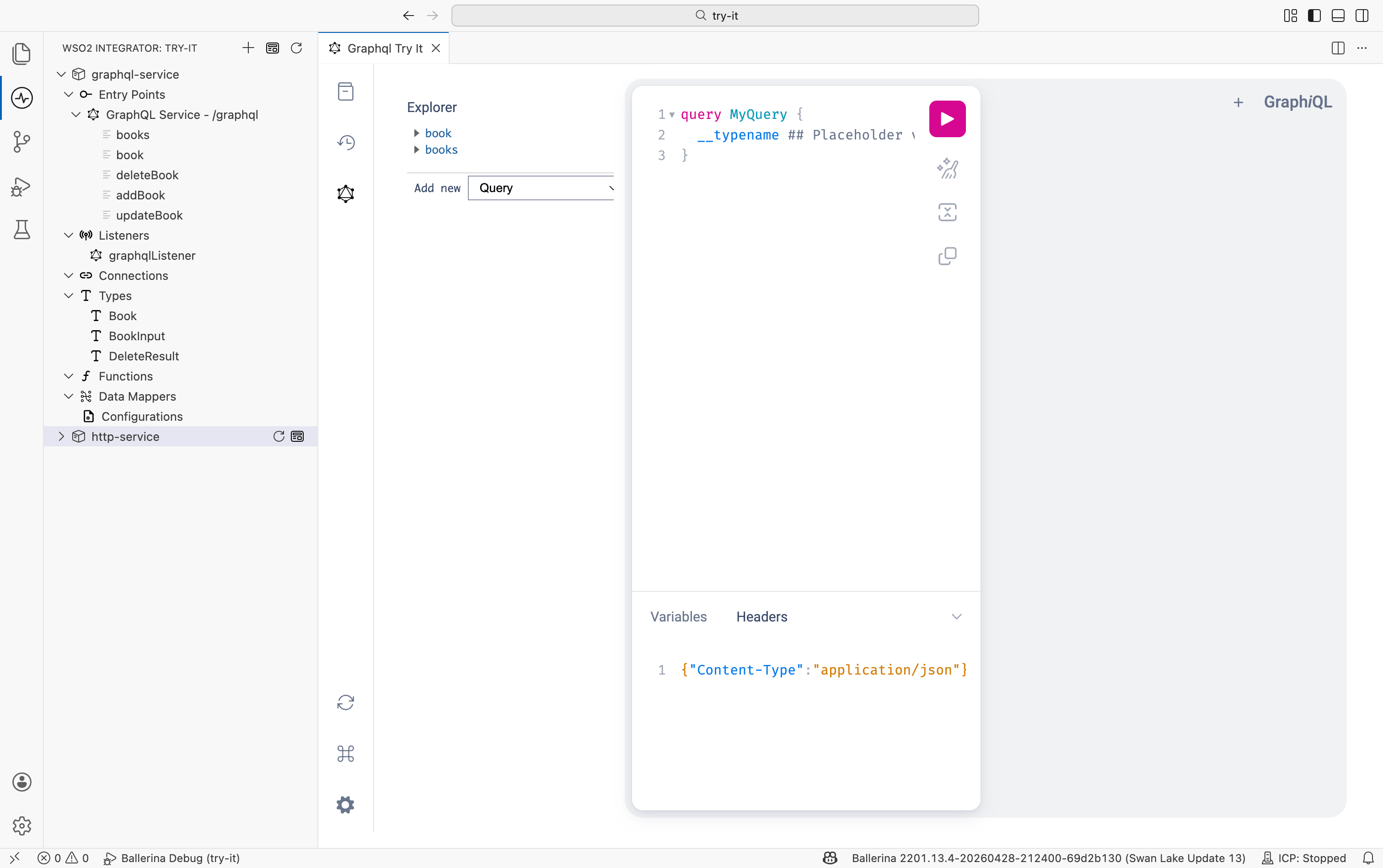
The editor is divided into the following areas:
Explorer
The Explorer panel on the left lists the fields of your service's schema. By default, it shows the query fields. Expand a node to see its fields and select fields to automatically add them to the query editor. This is the fastest way to discover what your service exposes without reading the schema manually.
At the bottom of the Explorer, choose an operation type (Query, Mutation, or Subscription) next to Add new and select + to scaffold a new operation in the editor. The fields of that operation type then appear in the Explorer. Only the operation types that your schema defines are listed.
Query editor
The center editor is where you write or review your GraphQL operations. Three action icons appear on the right side of the editor:
| Icon | Action |
|---|---|
| Prettify | Formats and re-indents the query and variables for readability. |
| Merge | Merges query fragments into a single operation. |
| Copy | Copies the current query to the clipboard. |
Select the pink play button at the top right of the editor, or press Ctrl+Enter, to execute the query against the running service. The response appears in the panel on the right.
Use the + above the editor to open a new query tab, so you can keep several operations open at the same time.
Variables and headers
The bottom panel has two tabs:
- Variables: pass input values for parameterized queries and mutations in JSON format, for example
{"id": 1}. - Headers: add or override request headers such as
AuthorizationorContent-Type, as a single JSON object. By default, it contains{"Content-Type": "application/json"}.
The Headers tab must contain a valid JSON object. If it is empty, queries fail with an Unexpected end of JSON input error. Enter {} or {"Content-Type": "application/json"} to fix it.
The Explorer shows No Schema Available if schema introspection is disabled in your service configuration. You can still write and execute queries manually in the query editor. If you change the introspection setting while the editor is open, close and reopen the GraphiQL editor to load the schema again.
What's next
- Test HTTP service — request builder for REST endpoints
- Test Chat agent — conversational testing for AI agents
- Test Explorer — create and run automated test cases from the editor