Build a Claim Handling Durable Agent
The durable AI agent receives expense claims, validates them, and pays them out — but only after a Finance reviewer approves the payment from the Integration Control Plane. If the process crashes while waiting, it resumes exactly where it left off.
Prerequisites
A working WSO2 Integrator environment.
Local setupInstall and launch WSO2 Integrator on your machine.
WSO2 Cloud AccountFor AI assisted development and WSO2 Cloud deployments.
Also required:
WSO2 Integrator CopilotSigned in to WSO2 Integrator Copilot (provides the default AI model — no API key needed)
DockerDocker installed, including Docker Compose. It runs the Temporal server that keeps the workflow's durable record.
Step 1: Create the integration
- Open WSO2 Integrator.
- Select Create in the Create a Project card.
- Set Project Name to
agent. - Set Integration Name to
ClaimHandler. - Click Create.
Step 2: Add a durable agentic workflow
Creating the agent is also where you describe it: the model it thinks with, its role, and the instructions it plans from.
- Visual Designer
- Ballerina Code
-
In the design view, click Add Artifact Manually.
-
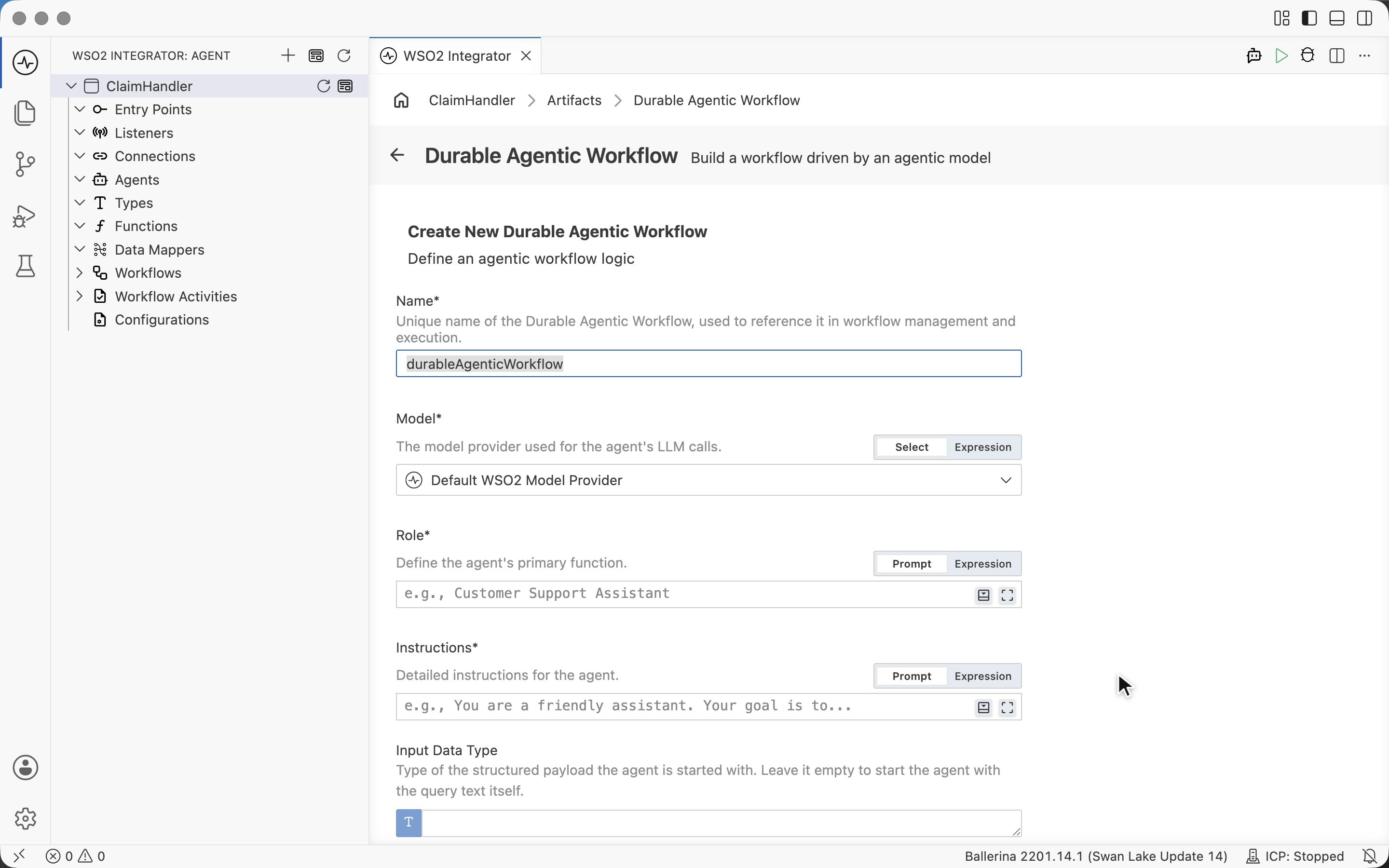
Under AI Integration, select Durable Agentic Workflow. The Create New Durable Agentic Workflow form opens.
-
Set Name to
claimAgent. -
Leave Model on Default WSO2 Model Provider, the model your Copilot sign-in provides.
-
Set Role to
Expense claim assistant. -
Set Instructions to:
Process expense claims end to end. Validate each claim with validateClaim first and
reject invalid claims with a clear reason. When a claim is valid, pay it with payClaim
using the claimed amount. Finish with a one-line summary of the outcome. -
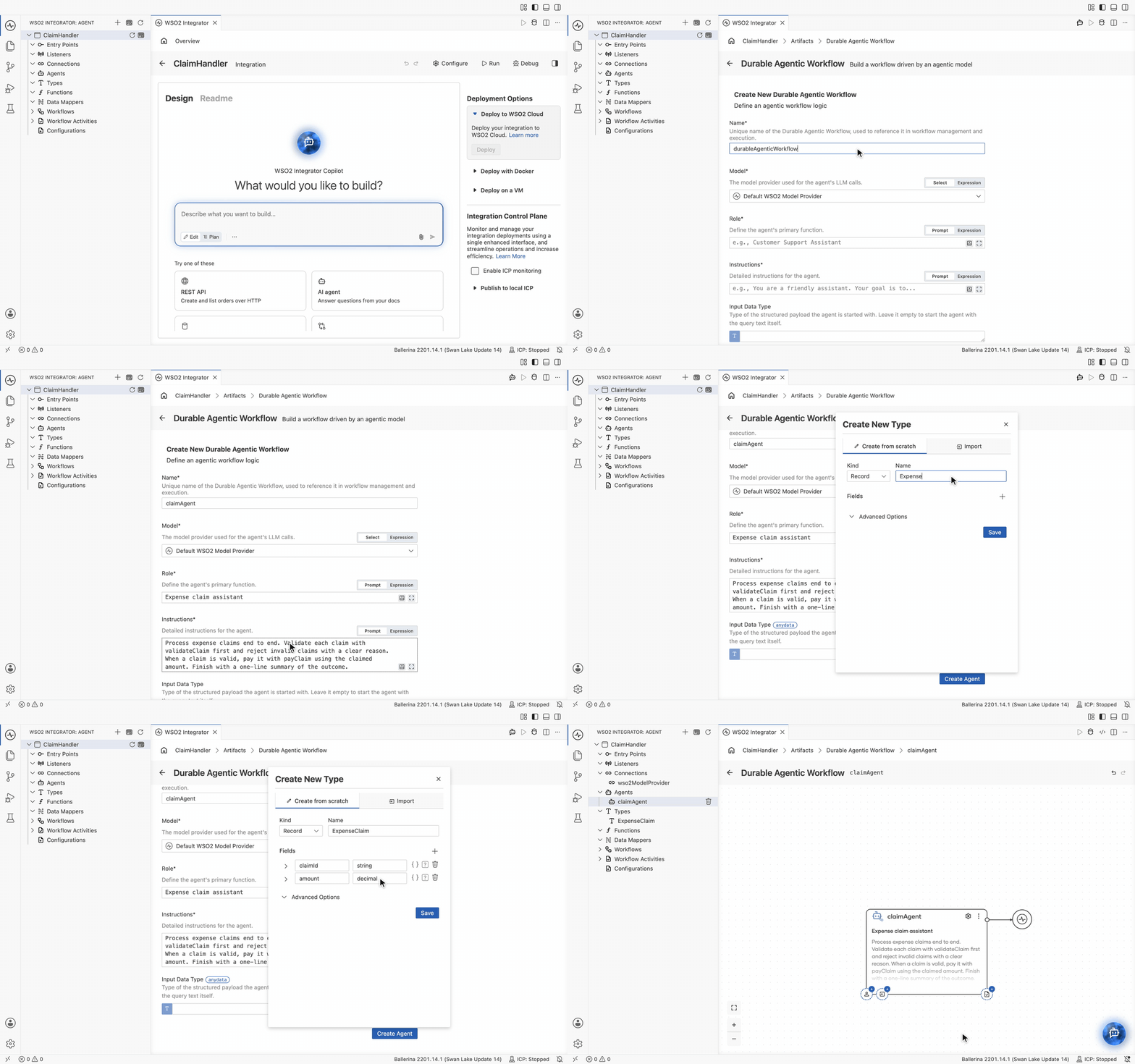
Input Data Type is the structured payload each run starts with. Create the claim record here: click the field, select + Create New Type, and on the Create from scratch tab keep Kind as Record, set Name to
ExpenseClaim, then click + next to Fields and add:Field Type claimIdstringamountdecimal -
Click Save.
-
Click Create Agent.
import ballerina/ai;
import ballerina/workflow;

type ExpenseClaim record {|
    string claimId;
    decimal amount;
|};

final ai:Wso2ModelProvider wso2ModelProvider = check ai:getDefaultModelProvider();
final workflow:DurableAgent claimAgent = check new ({
    systemPrompt: {
        role: string `Expense claim assistant`,
        instructions: string `Process expense claims end to end. Validate each claim with validateClaim first and
        reject invalid claims with a clear reason. When a claim is valid, pay it with payClaim
        using the claimed amount. Finish with a one-line summary of the outcome.`
    },
    model: wso2ModelProvider,
    inputType: ExpenseClaim
});
Step 3: Attach the agent activities
Activities are the units of work the agent can call. Each one runs durably — completed work is never lost or repeated, even across restarts.
Attach the claim validator
- Visual Designer
- Ballerina Code
- Click + on the activity anchor at the bottom right of the agent node. The Activities panel opens.
- Under Current Integration, click + Create Activity. The Workflow Activity form opens.
- Set Activity Name to
validateClaim. - Under Parameters, click + Add Parameter. Set Type to the
ExpenseClaimrecord created in Step 2 and Name toexpenseClaim, then click Add. - Set Return Type to
booleanand click Save. - Click the
validateClaimform under Current Integration. Leave Retry Policy on No Retry and click Save.
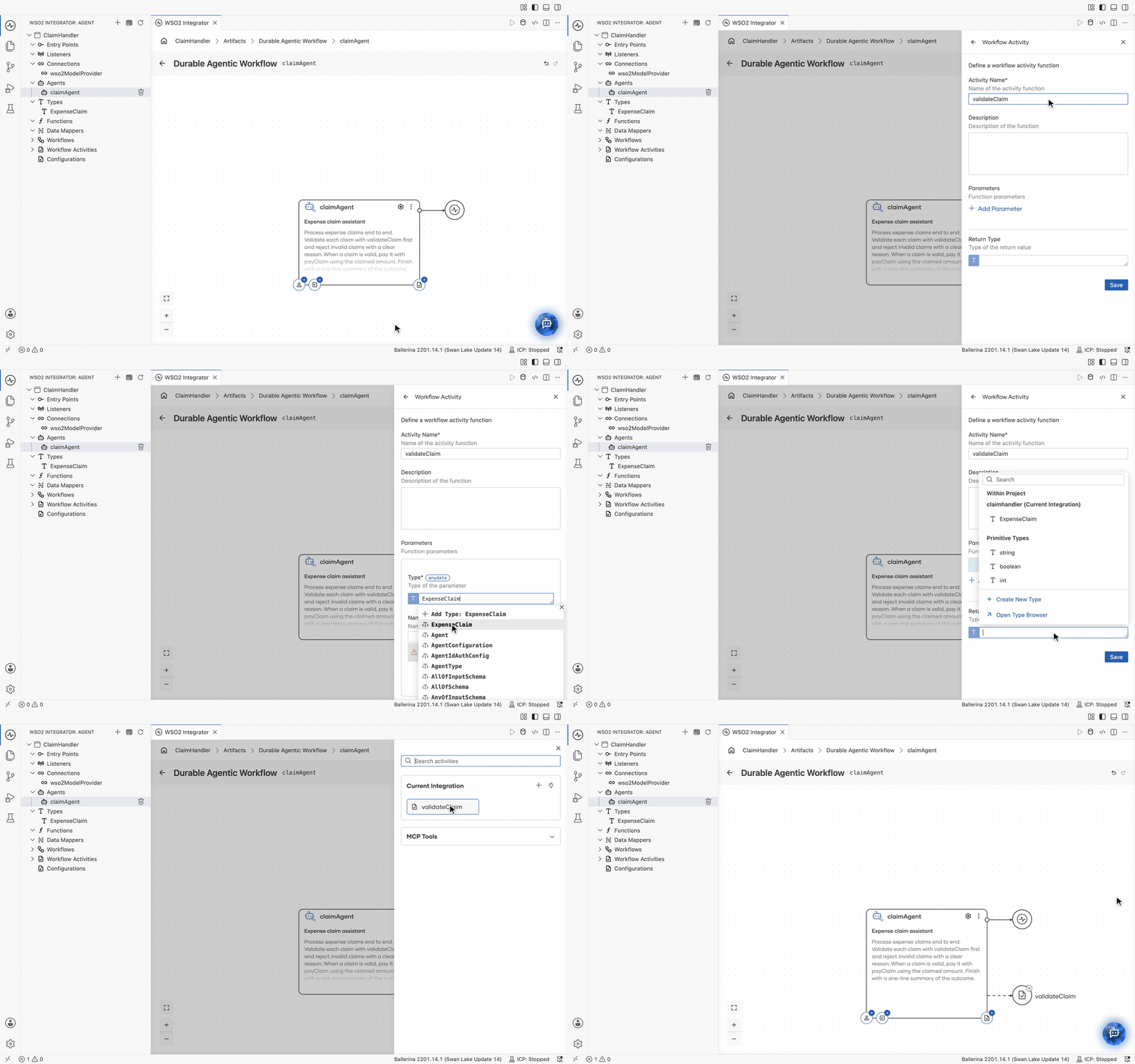
validateClaim joins the agent node as a capability and appears under Workflow Activities in the left sidebar.
workflows.bal:
import ballerina/ai;
import ballerina/workflow;

final ai:Wso2ModelProvider wso2ModelProvider = check ai:getDefaultModelProvider();
final workflow:DurableAgent claimAgent = check new ({
    systemPrompt: {
        role: string `Expense claim assistant`,
        instructions: string `Process expense claims end to end. Validate each claim with validateClaim first and
        reject invalid claims with a clear reason. When a claim is valid, pay it with payClaim
        using the claimed amount. Finish with a one-line summary of the outcome.`
    },
    model: wso2ModelProvider,
    inputType: ExpenseClaim,
    activities: [validateClaim]
});
functions.bal:
import ballerina/workflow;

@workflow:Activity
function validateClaim(ExpenseClaim expenseClaim) returns boolean|error {
}
Define the claim validator body
- Visual Designer
- Ballerina Code
Creating the activity gives it a signature but an empty body. The activity is a function, so its flow returns the validation result. Make it return true only for positive claim amounts:
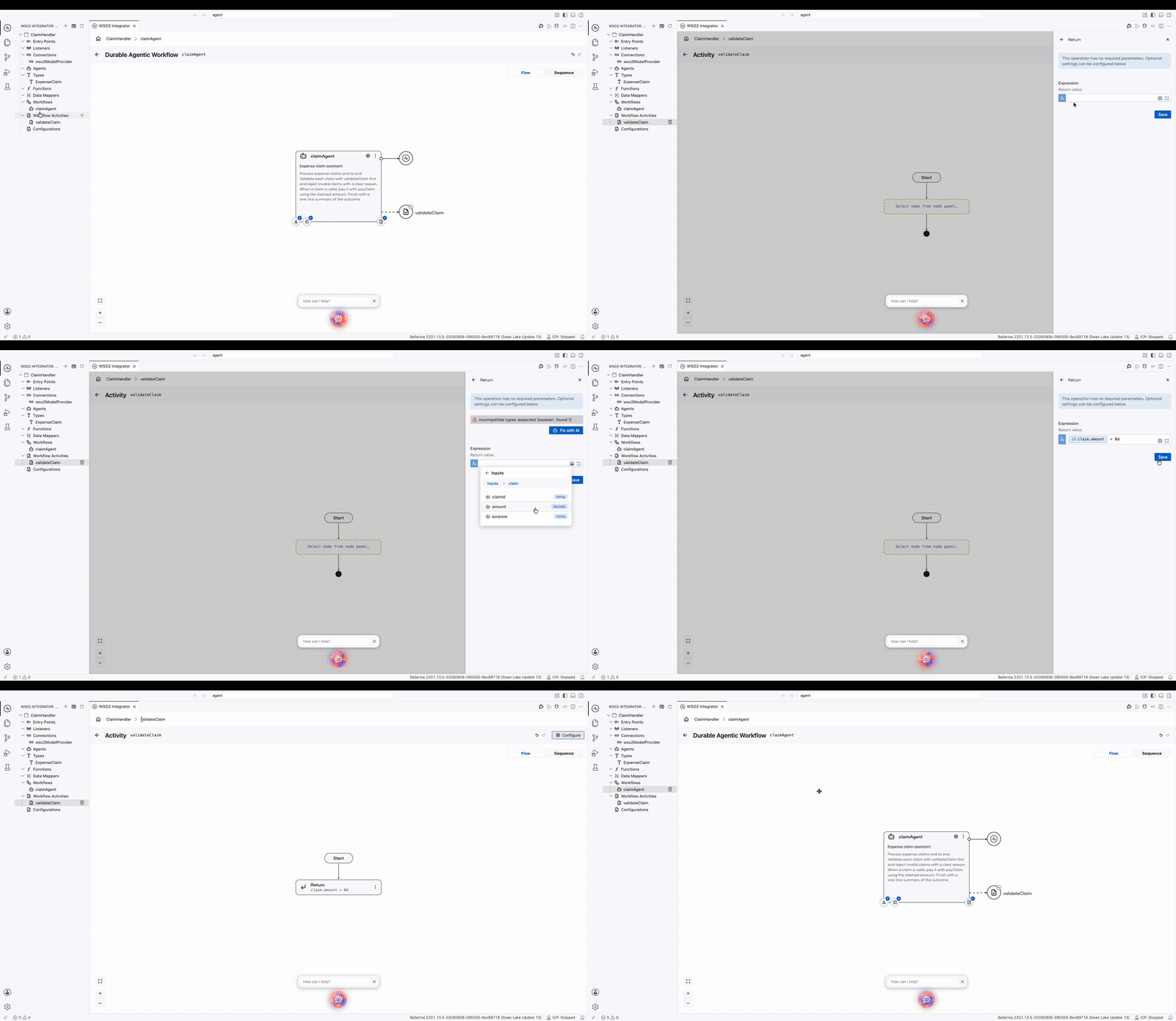
- In the left sidebar, expand Workflow Activities and select
validateClaim. - Click + on the flow diagram to open the node panel, then under Control, select Return.
- Click the Expression field to open the value helper, then select Inputs >
expenseClaim>amount. - With the cursor after the inserted value, type
> 0dto require a positive amount. - Click Save, then select
claimAgentin the left sidebar to return to the agent diagram.
@workflow:Activity
function validateClaim(ExpenseClaim expenseClaim) returns boolean|error {
    return expenseClaim.amount > 0d;
}
Add the payment activity
- Visual Designer
- Ballerina Code
Paying out is the risky step, so gate it behind a person. The activity is created the same way as the validator, and the register form is where the gate goes on:
-
Click + on the activity anchor at the bottom right of the agent node, then under Current Integration, click the + icon to create the activity.
-
Set Activity Name to
payClaim. -
Under Parameters, click + Add Parameter. Set Type to
ExpenseClaimand Name toexpenseClaim, then click Add. -
Leave Return Type empty and click Save.
-
Click the
payClaimform under Current Integration to open its register form, and set Approval Policy to Human Approval. Now, before the agent runs the activity, a review activity is created and the agent suspends durably until a reviewer proceeds or rejects. -
Set Reviewer Roles to
Finance, the roles permitted to decide that approval. -
Click Save.
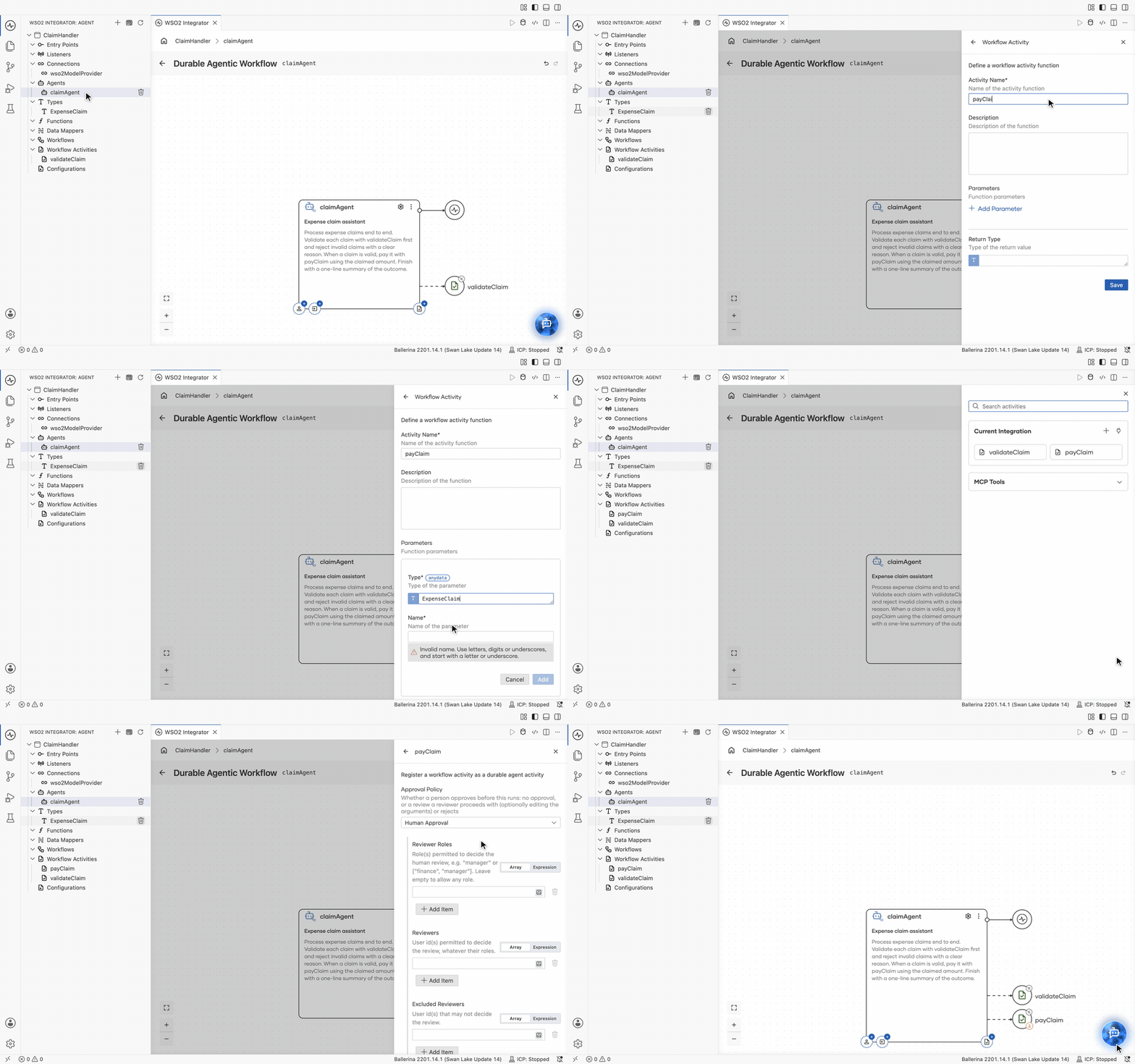
payClaim joins the agent node beside validateClaim, drawn with a badge marking it as gated. The agent can now propose a payment, but it cannot release one on its own.
workflows.bal:
import ballerina/ai;
import ballerina/workflow;

final ai:Wso2ModelProvider wso2ModelProvider = check ai:getDefaultModelProvider();
final workflow:DurableAgent claimAgent = check new ({
    systemPrompt: {
        role: string `Expense claim assistant`,
        instructions: string `Process expense claims end to end. Validate each claim with validateClaim first and
        reject invalid claims with a clear reason. When a claim is valid, pay it with payClaim
        using the claimed amount. Finish with a one-line summary of the outcome.`
    },
    model: wso2ModelProvider,
    inputType: ExpenseClaim,
    activities: [validateClaim,
                {activity: payClaim, approvalPolicy: {userRoles: "Finance"}}]
});
functions.bal:
import ballerina/workflow;

@workflow:Activity
function payClaim(ExpenseClaim expenseClaim) returns error? {
}
Step 4: Start the agent from a service
An agent does nothing until something starts it. Give the integration an HTTP resource that hands each incoming claim to claimAgent and answers with the ID of the run it started.
- Visual Designer
- Ballerina Code
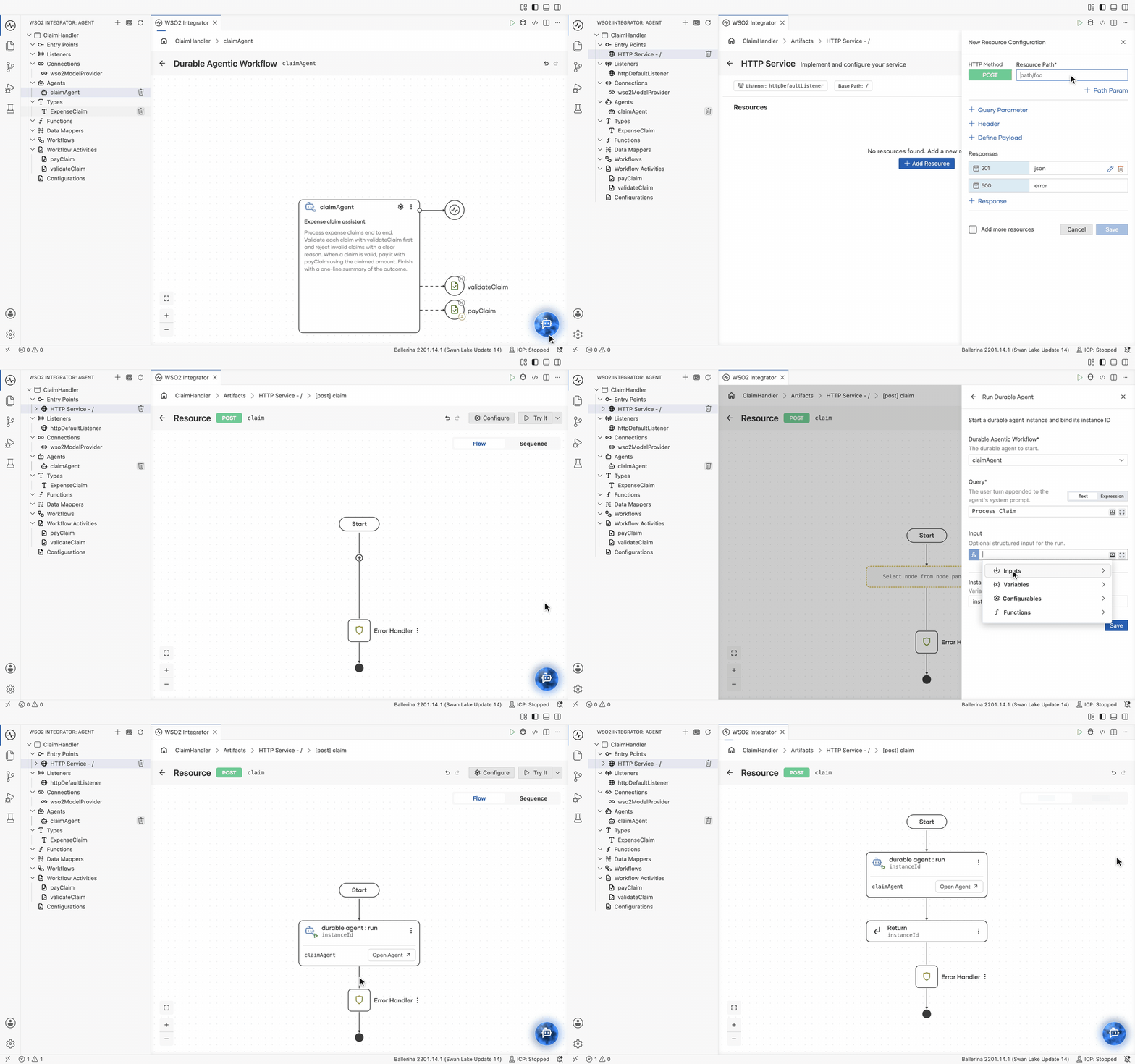
- Click ClaimHandler in the breadcrumb to open the integration overview, click + Add Artifact, then under Integration as API, click HTTP Service.
- On the Create HTTP Service form, keep Service Contract on Design From Scratch, leave Service Base Path as
/, and click Create. - The service opens with no resources. Click + Add Resource.
- Set HTTP Method to POST and Resource Path to
claim. - Click + Define Payload, open the Browse Existing Types tab, select
ExpenseClaimunder the current integration, and click Save. - Click Save to create the resource. Its own diagram opens.
- Click +, then under Workflow, click Run Durable Agent.
- Set Durable Agentic Workflow to
claimAgent. - Set Query to
Process Claim. This is the user turn appended to the agent's system prompt, so the model plans this run from it. - Set Input to the request
payload, which carries the claim itself, and leave Instance ID Variable Name asinstanceId. Click Save. - Click + below the node, click Return under Control, set Expression to
instanceId, and click Save.
The resource now starts an agent run for every claim it receives and answers with that run's instance ID.
main.bal:
import ballerina/http;

listener http:Listener httpDefaultListener = http:getDefaultListener();

service / on httpDefaultListener {
    resource function post claim(@http:Payload ExpenseClaim payload) returns json|error {
        do {
            string instanceId = check claimAgent.run("Process Claim", payload);
            return instanceId;
        } on fail error err {
            // handle error
            return error("unhandled error", err);
        }
    }
}
run starts the agent and returns immediately with its instance ID. It does not wait for the claim to finish, which is the point: the run may sit on the payClaim approval for days. Return the ID to the caller, because it is what addresses this run later.
Step 5: Start the local ICP server
The gated payClaim suspends the run until a Finance reviewer decides on it, and the Integration Control Plane console is where that decision is made. Start a local ICP server before running the integration, so the approval has somewhere to land.
- Click ClaimHandler in the breadcrumb to open the integration overview.
- In the right panel, under Integration Control Plane, check Enable ICP monitoring.
- Expand Publish to local ICP and click Start ICP Server.
The terminal opens on an ICP Server task and logs the startup. The server is ready once it reports the console address:
Starting ICP Server with configuration: /Users/<you>/.wso2-integrator/components/icp/2.1.0/conf/deployment.toml
... message="WSO2 Integrator: ICP Console started at https://localhost:9446"
... message="Workflow management service started at 0.0.0.0:9446"
The status bar at the bottom right switches from ICP: Stopped to ICP: Running.
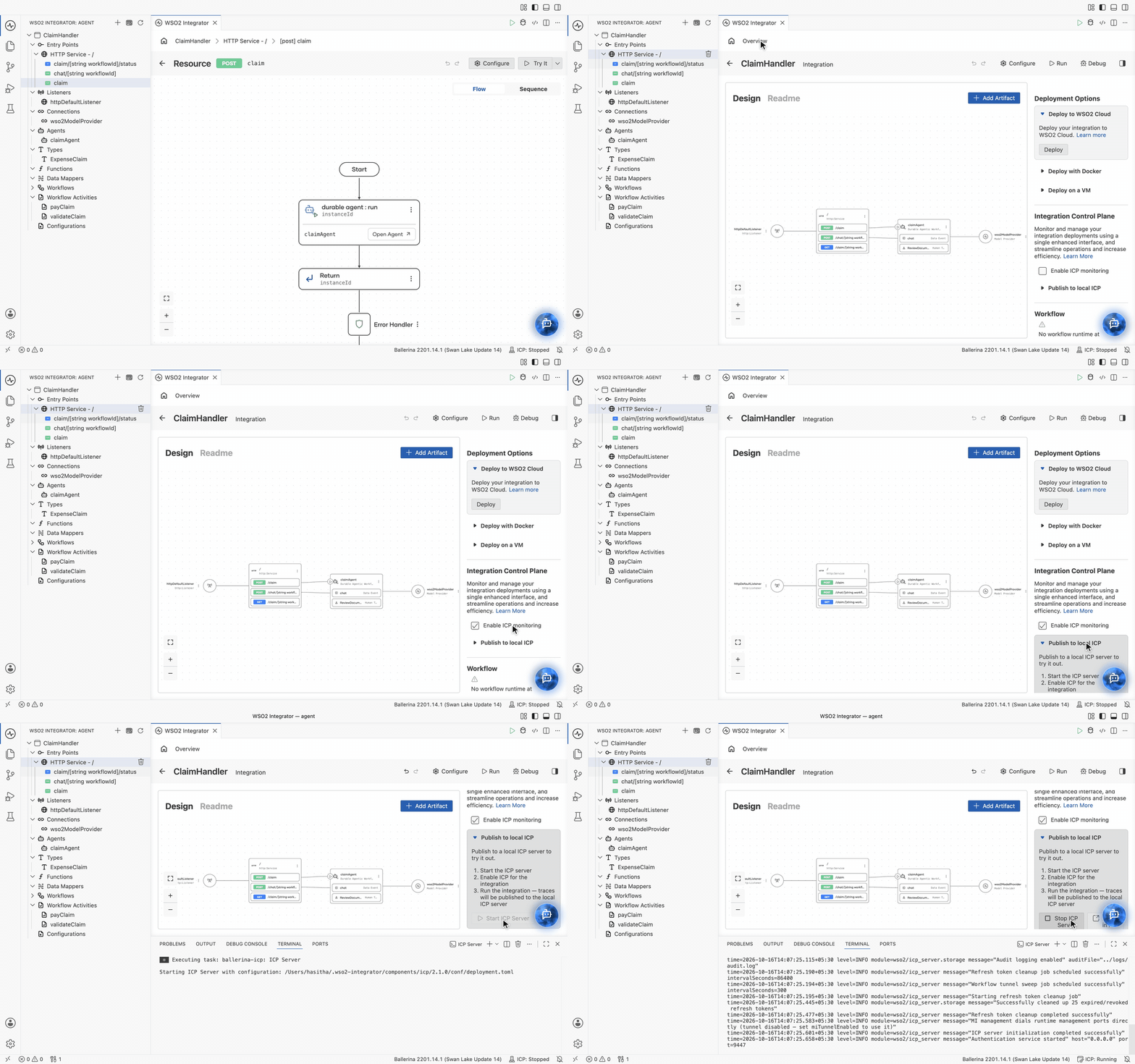
Enable ICP monitoring writes the runtime bridge configuration that points this integration at the local ICP server. Start ICP first so the integration registers with it as it boots; otherwise the run has no inbox to publish the payClaim approval to.
Step 6: Start the Temporal server
A durable workflow keeps its record in a workflow engine. The runtime's mode defaults to LOCAL, which expects a Temporal server on localhost:7233, so start one before running the integration. Temporal's sample Compose file brings up a server and its dependencies in Docker:
git clone https://github.com/temporalio/samples-server.git
cd samples-server/compose
docker compose up
Leave the containers running for the rest of this guide.
LOCAL is one of four deployment modes. A production integration usually points at a self-hosted or managed server instead, which is a matter of configuration rather than a change to the workflow.
Step 7: Run it
-
Select Run in the integration header to start the integration.
If the integration does not yet hold access details for the default provider, the first run asks: "This integration uses the WSO2 default AI provider, but it isn't configured yet. Configure it now?" Click Configure Now. It writes the provider's access details to
Config.tomlusing your Copilot sign-in, and the run continues. Later runs refresh them on their own. -
Watch the terminal. After
Compiling sourceandRunning executable, the runtime bridge connects to the ICP server started in Step 5:... module=wso2/icp.runtime.bridge message="ICP agent initialized with server URL: https://localhost:9445"
... module=wso2/icp.runtime.bridge message="ICP agent started successfully with job ID: {\"id\":59000}"
... module=wso2/icp.runtime.bridge message="Full heartbeat acknowledged by ICP server"The heartbeat is the integration registering itself, which is what puts the
payClaimapproval in front of a reviewer later.
Step 8: Submit a new claim
Once the service is up, a notification asks "1 service found in the integration. Test with Try It Client?". Click Test. A TryIt.hurl file opens beside the designer, holding a request generated from the claim resource. Send the claim from there.
- Try It
- curl
The generated request already carries the method, URL, and content type, along with the schema the resource expects:
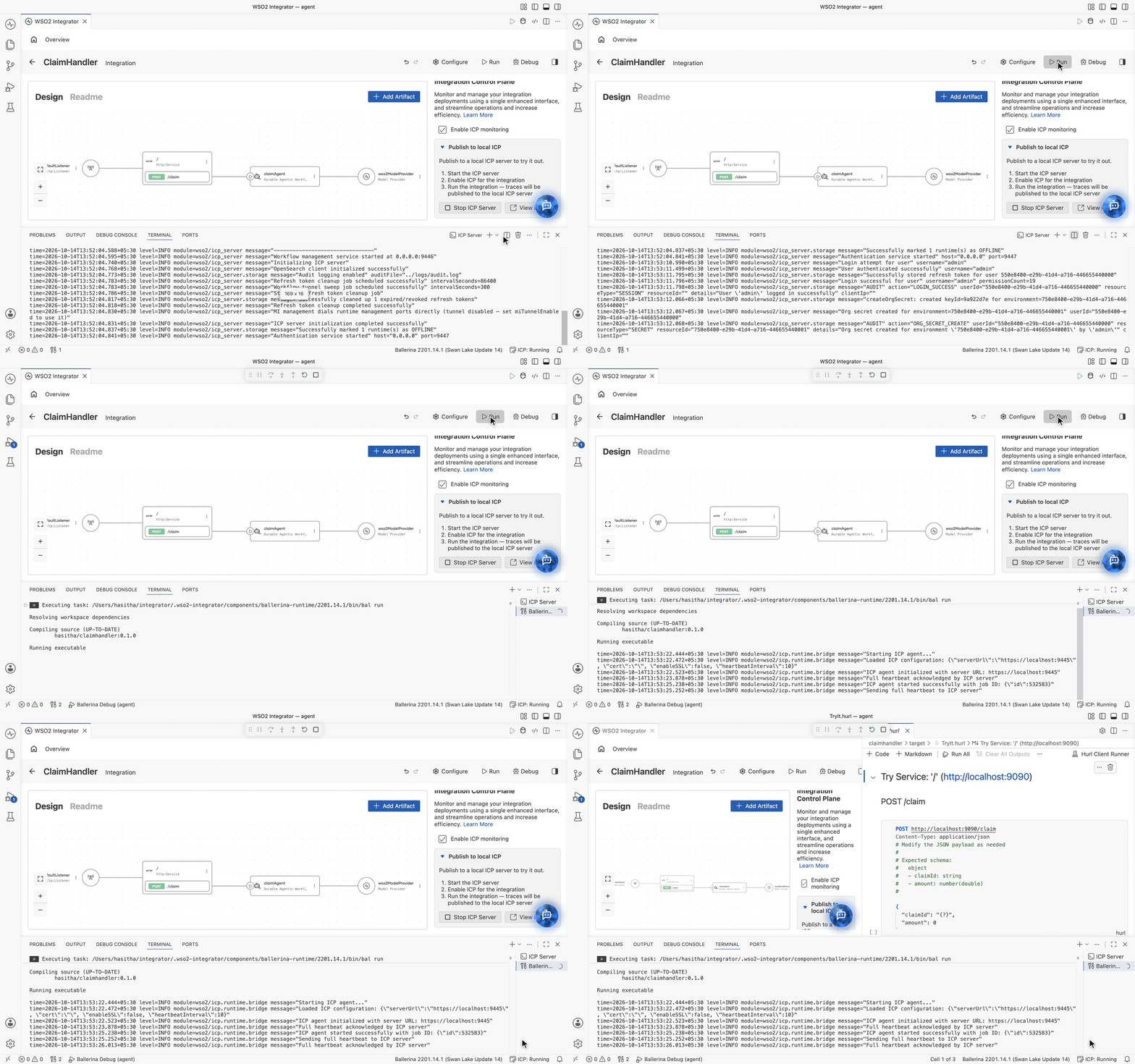
Fill in a real claim: replace the {?} placeholder for claimId and the 0 for amount, then click the run button in the request cell's left gutter to send it.
{
  "claimId": "2002",
  "amount": 1500
}
curl -X POST localhost:9090/claim -H 'Content-Type: application/json' \
  -d '{"claimId":"2002","amount":1500}'
The response appears under the cell as 201 Created, with the new run's instance ID as the body:
Status: 201 Created
01a0b2bd-4405-7694-8b4d-4e3bfb1eeea0
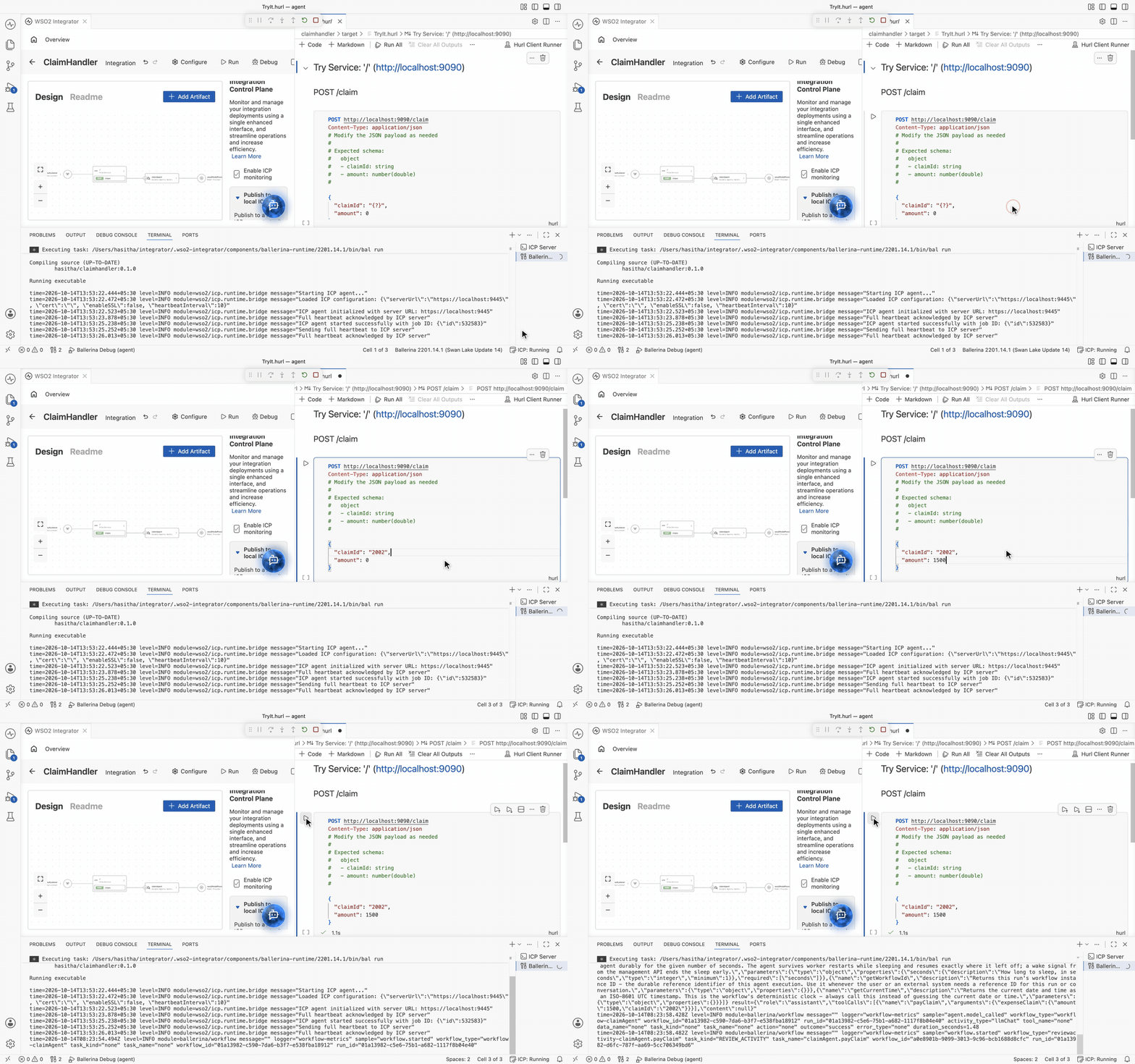
The agent validates the claim, decides to pay it, and pauses: the gated payClaim created an approval review for the Finance role. The workflow now waits durably; you can even restart the integration and nothing is lost.
Step 9: See the claim waiting in ICP
The run is now sitting on the payClaim approval, and the ICP console is where that wait is visible.
-
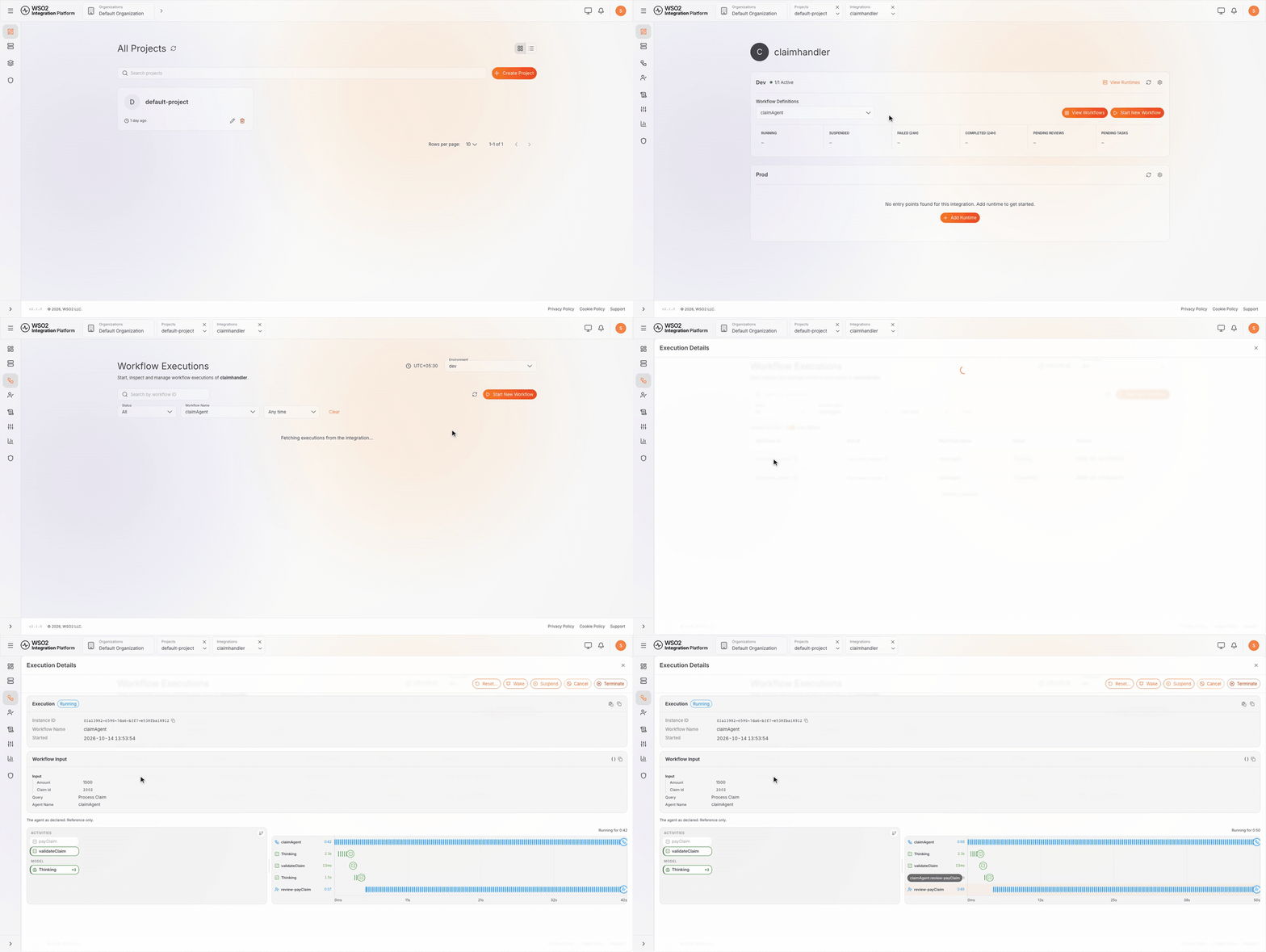
In WSO2 Integrator, under Publish to local ICP, click View in ICP. The console opens in the browser, already signed in as the super admin, on the All Projects page.
-
That page already lists
default-project, and it holds an integration namedclaimhandler. Neither was created by hand: the integration registered both with ICP when it started, and because it carries a durable workflow it is registered as a workflow integration. -
Open
default-project, thenclaimhandler. The Dev environment reports 1/1 Active and lists Workflow Definitions withclaimAgentselected. -
Click View Workflows. The Workflow Executions page lists one instance for
claimAgent, whose Workflow ID is the instance ID the claim request returned, with status Running and the time it started. -
Click the instance to open Execution Details:
- Workflow Input shows the claim the run started from, the Query it was given, and the agent name.
- The timeline below is the run so far: the agent thought, completed
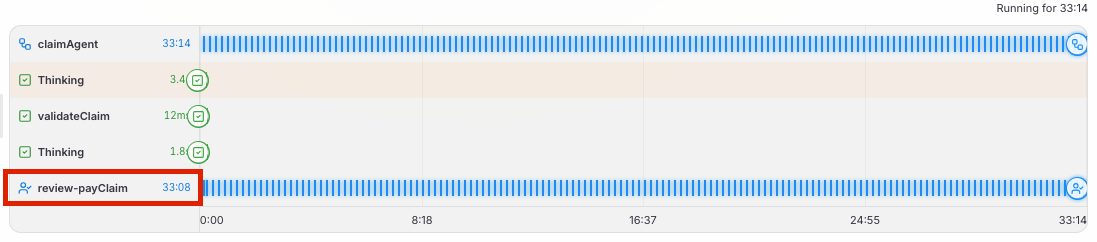
validateClaim, thought again. - At the end of the timeline, you will see that the agent opened review-payClaim, which is still running. That open review is the gate holding the payment.
Step 10: Give your user the Finance role
The review is on the timeline, but it is not yet addressed to you. payClaim was registered with Finance as its reviewer role, and the console signs you in as admin, who does not carry that role yet. Roles reach users through groups, so create a Finance role that can see and decide human tasks, and a group that grants it.
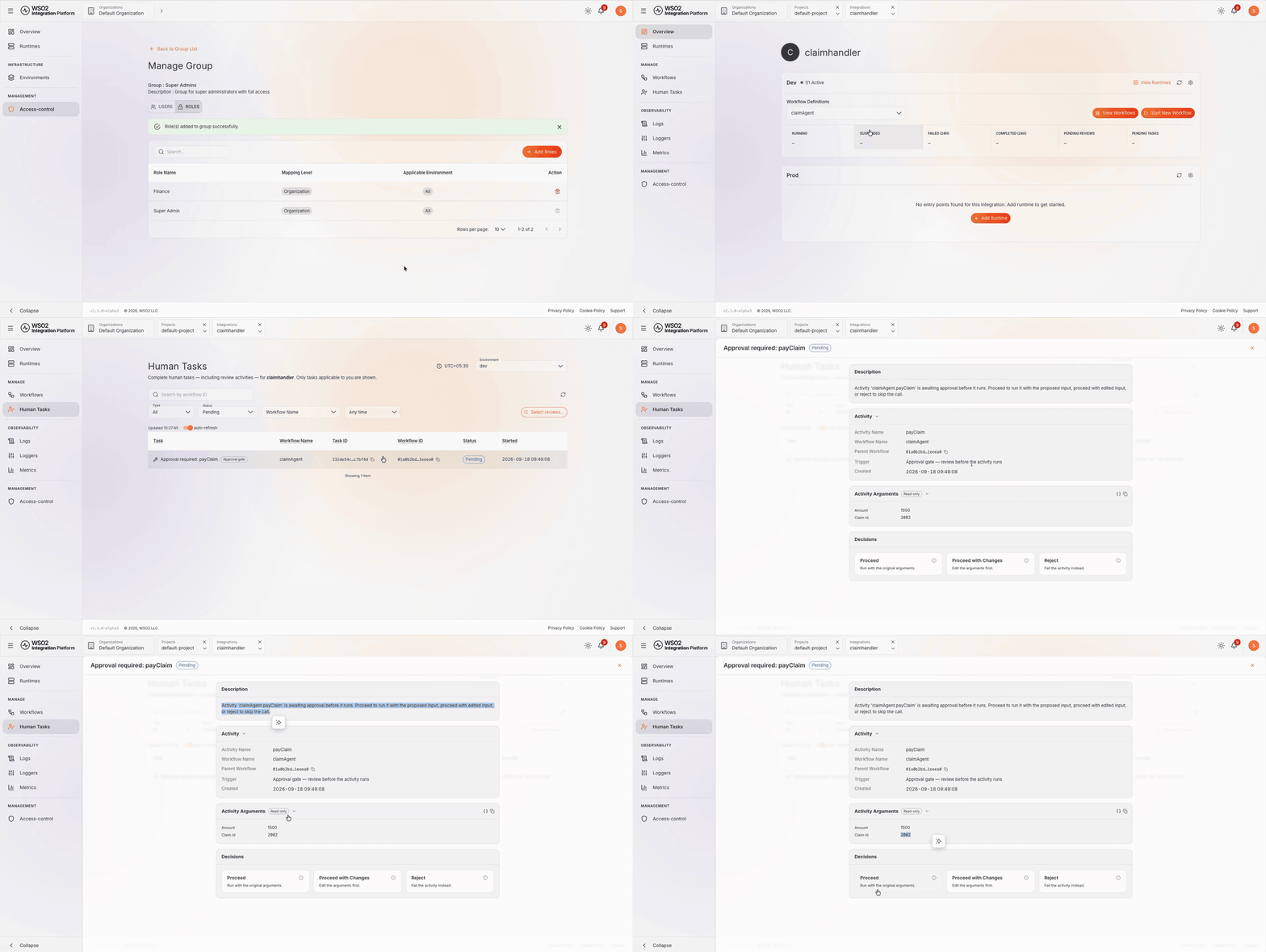
- Click Default Organization at the top of the console to leave the integration, then in the left navigation, under MANAGEMENT, click Access-control. Inside an integration, Access-control shows only that integration's roles and groups. The Users tab lists a single user,
admin(System Administrator). - Open the Roles tab and click + Create Role. Set Role Name to
Finance, expand Workflow-Management, and selectworkflow_mgt:view_human_tasks,workflow_mgt:manage_human_tasks, andworkflow_mgt:view_workflows. Click Create. - Open the Groups tab, click + Create Group, set Name to
Finance Reviewers, and click Create. - Click Finance Reviewers. On the USERS tab, click + Add Users, select System Administrator (admin), and click Add.
- On the ROLES tab, click + Add Roles. Select
Financein the Roles dropdown, leave Applicable Environments on All Environments, and click Add.
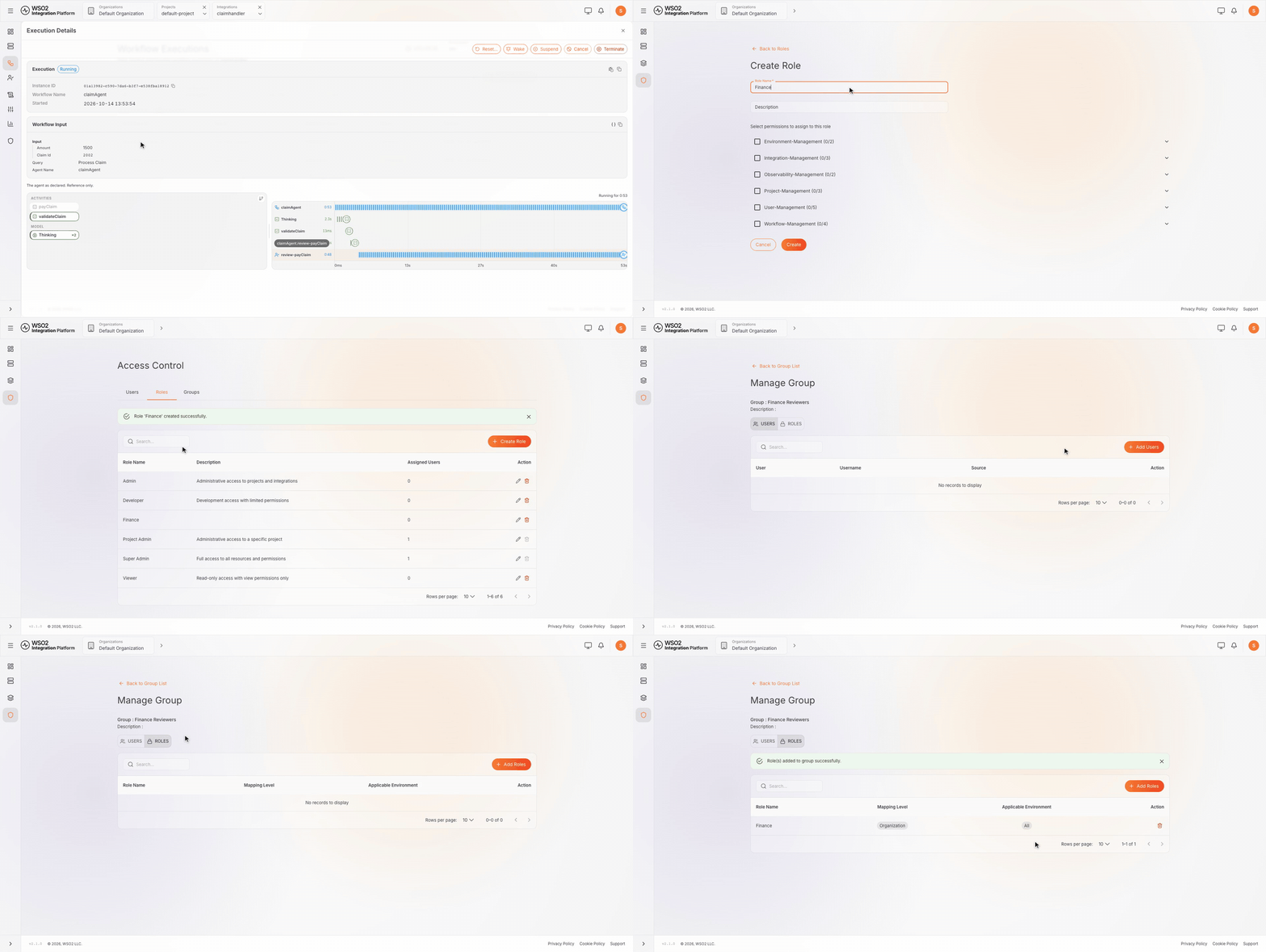
The console confirms Role(s) added to group successfully. admin now holds Finance through Finance Reviewers, so the approval reaches it. In a real deployment, add the accounts of the people who approve payments to this group; admin stands in for them here.
Step 11: Approve the payment
-
Use the breadcrumb at the top of the console to return to
default-project, thenclaimhandler. -
In the left navigation, under MANAGE, click Human Tasks. The page gathers the human tasks and review activities for
claimhandler, and it shows only the ones applicable to you. Without theFinancerole added in Step 10, this list stays empty. -
With Status on Pending, one task is listed: Approval required: payClaim, badged Approval gate, on
claimAgent, carrying the workflow ID of your run. -
Click the task. The panel lays out the decision:
- Activity names the activity and its workflow, links the parent workflow, and gives the Trigger as
Approval gate — review before the activity runs. - Activity Arguments is read-only and holds the claim ID and amount the agent proposes to pay.
- Decisions offers Proceed (run with the original arguments), Proceed with Changes (edit the arguments first), and Reject (fail the activity instead).
- Activity names the activity and its workflow, links the parent workflow, and gives the Trigger as
-
Click Proceed. Confirm Proceed repeats the arguments and warns that the activity runs with them and that this cannot be undone. Click Proceed to release the payment.
The console reports Activity proceeded, and on the next refresh the list reads No pending tasks.
Open the run again from Workflows. payClaim has now completed. The agent takes one closing turn, and the execution reads Completed, with a Closed time and a Workflow Result holding the agent's own summary of the claim. The model words it differently on each run, for example:
The claim with ID 2002 has been processed and paid successfully.
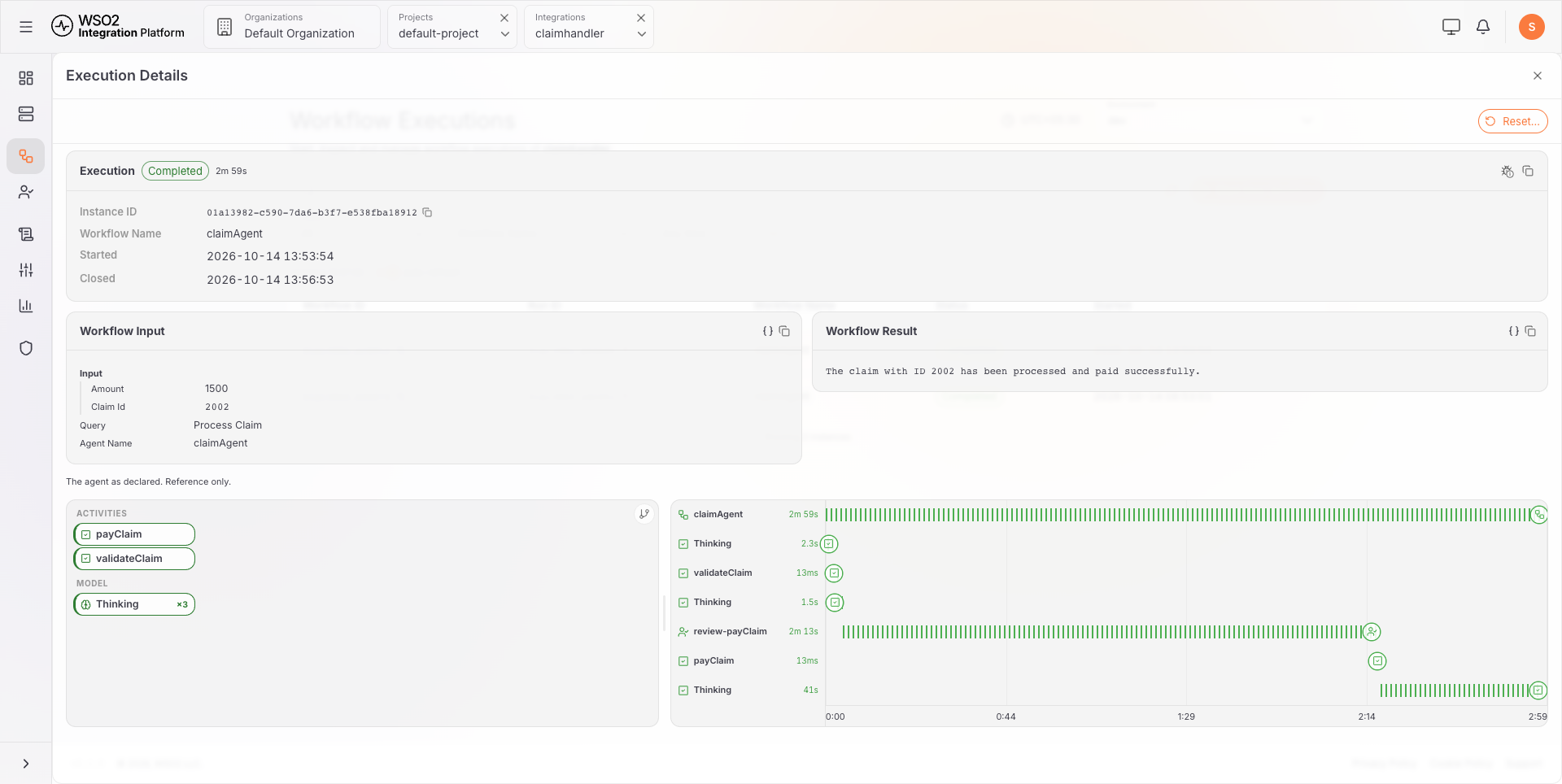
The timeline is green end to end, and it shows where the time went: the thinking turns and validateClaim took seconds, payClaim ran in milliseconds once released, and review-payClaim accounts for almost the entire run. For most of the run, nobody was working on the claim. It was waiting for a person, and it lost nothing by waiting.
Next steps
- Await human task — ask people structured questions, not just approvals.
- Error handling and review activities — let a human fix a failed step's input and retry it.
- Create a Durable Agent — events, multi-turn conversations, and agent-to-agent collaboration.