Creating an Agent
WSO2 Integrator supports the creation of AI agents as either Chat agents or Inline agents.
Chat agents
Chat agents are AI agents exposed through HTTP REST APIs, allowing users or external systems to send prompts and receive responses powered by large language models (LLMs). You create a chat agent from the Chat Agent Service artifact.
Inline agents
Inline agents can be embedded directly within integration flows, such as automations, REST APIs, GraphQL resolvers, or backend service logic, and are invoked programmatically as part of the flow.
Launching the Artifacts page
- Open your integration project in WSO2 Integrator.
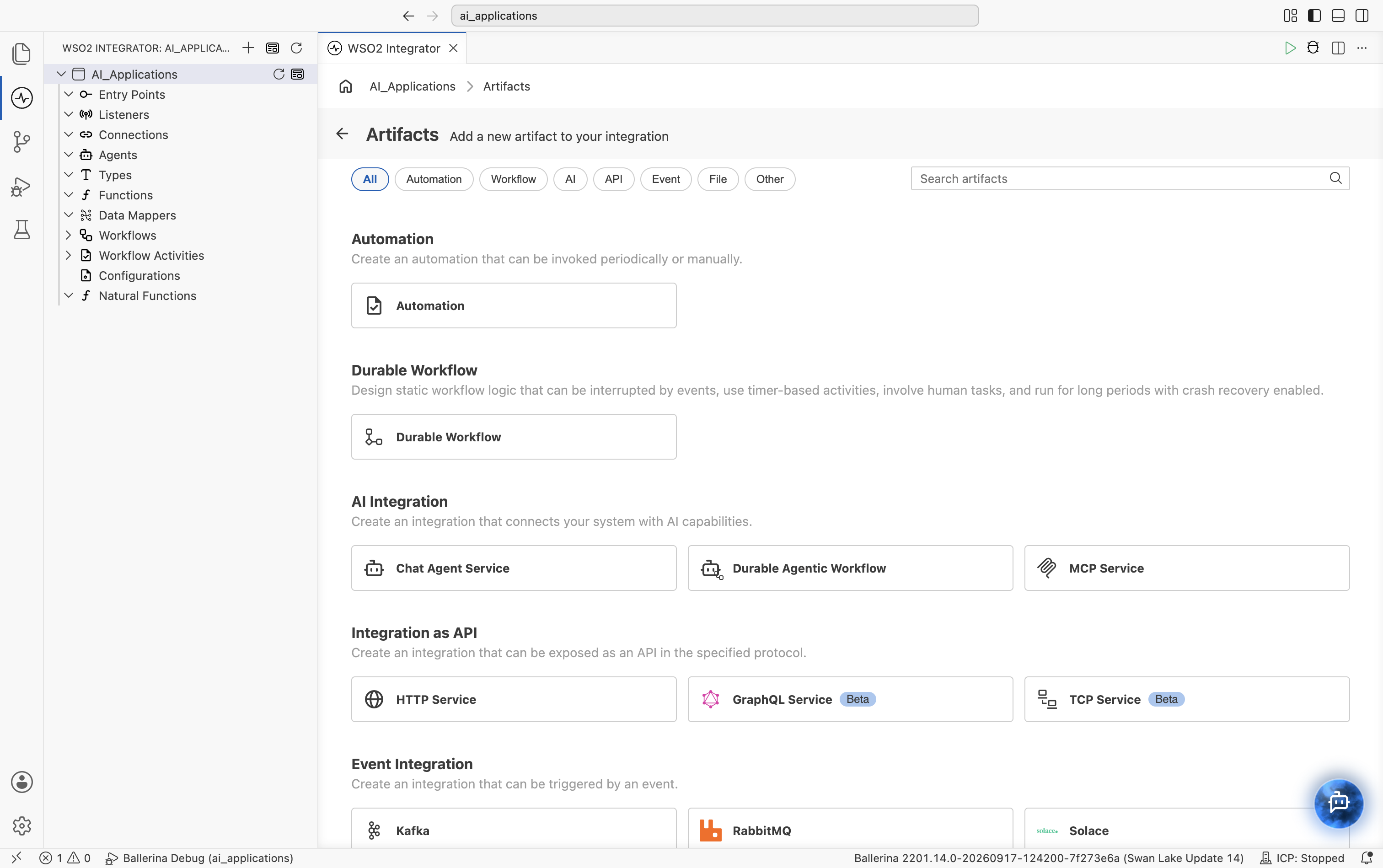
- On the Design tab, select + Add Artifact (or Add Artifact manually if the project is still empty).
Create a chat agent
Under AI Integration, select Chat Agent Service.
-
Configure the agent's model, role, and instructions:
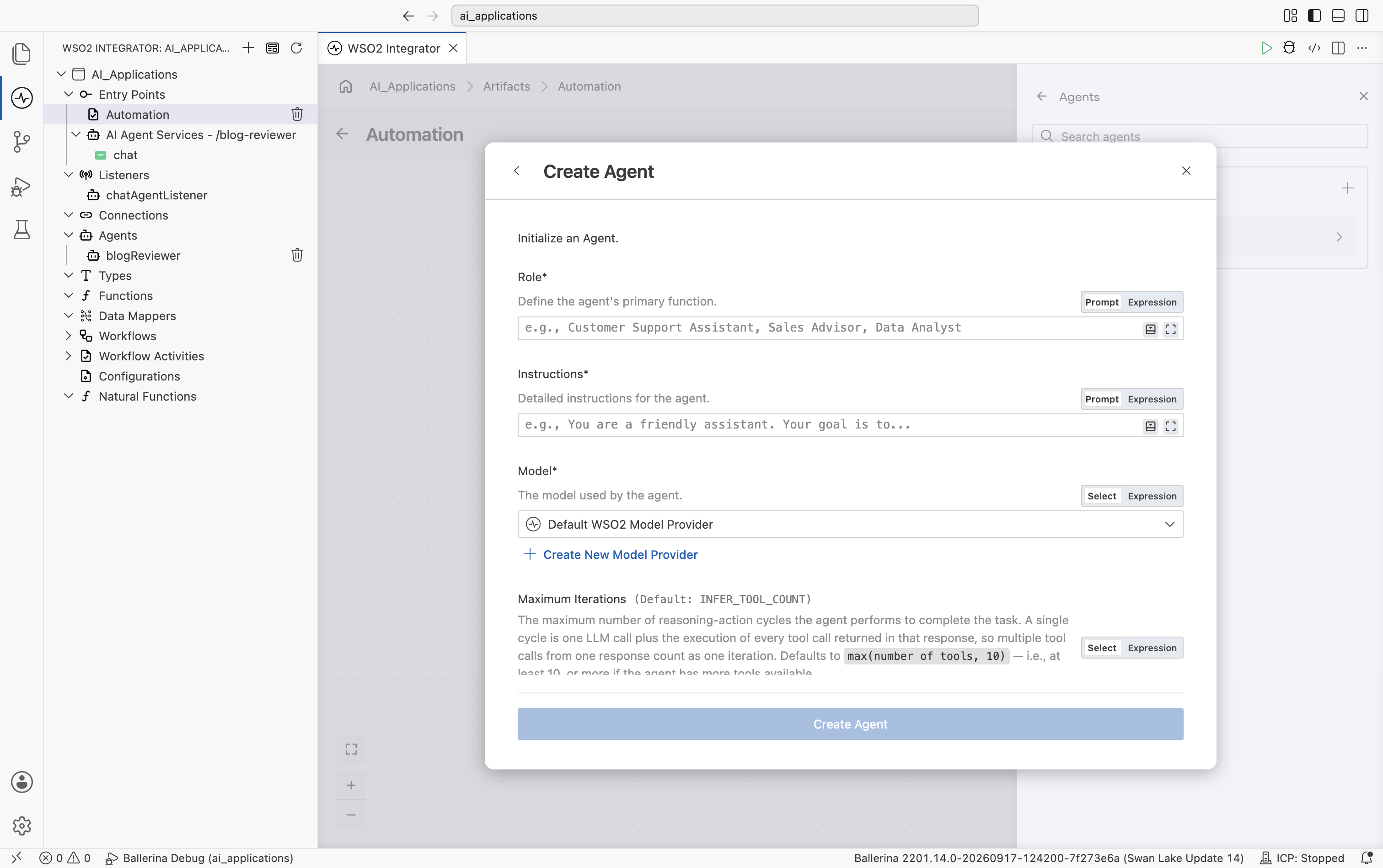
Field Required Description Role Yes Defines the agent's primary function, for example Customer Support Assistant.Instructions Yes Detailed instructions for the agent. Model Yes The model used by the agent. Select an existing model provider connection, or select Create New Model Provider. Maximum Iterations No The maximum number of reasoning-action cycles the agent performs to complete a task. Defaults to INFER_TOOL_COUNT, which resolves tomax(number of tools, 10).Verbose No Whether verbose logging is enabled. Defaults to false.Tool Loading Strategy No How tool schemas are loaded into the agent. Defaults to NO_FILTER, which loads all tools without filtering.Execute Tool Calls In Parallel No Whether multiple tool calls returned in a single LLM response are executed concurrently or sequentially. Defaults to true.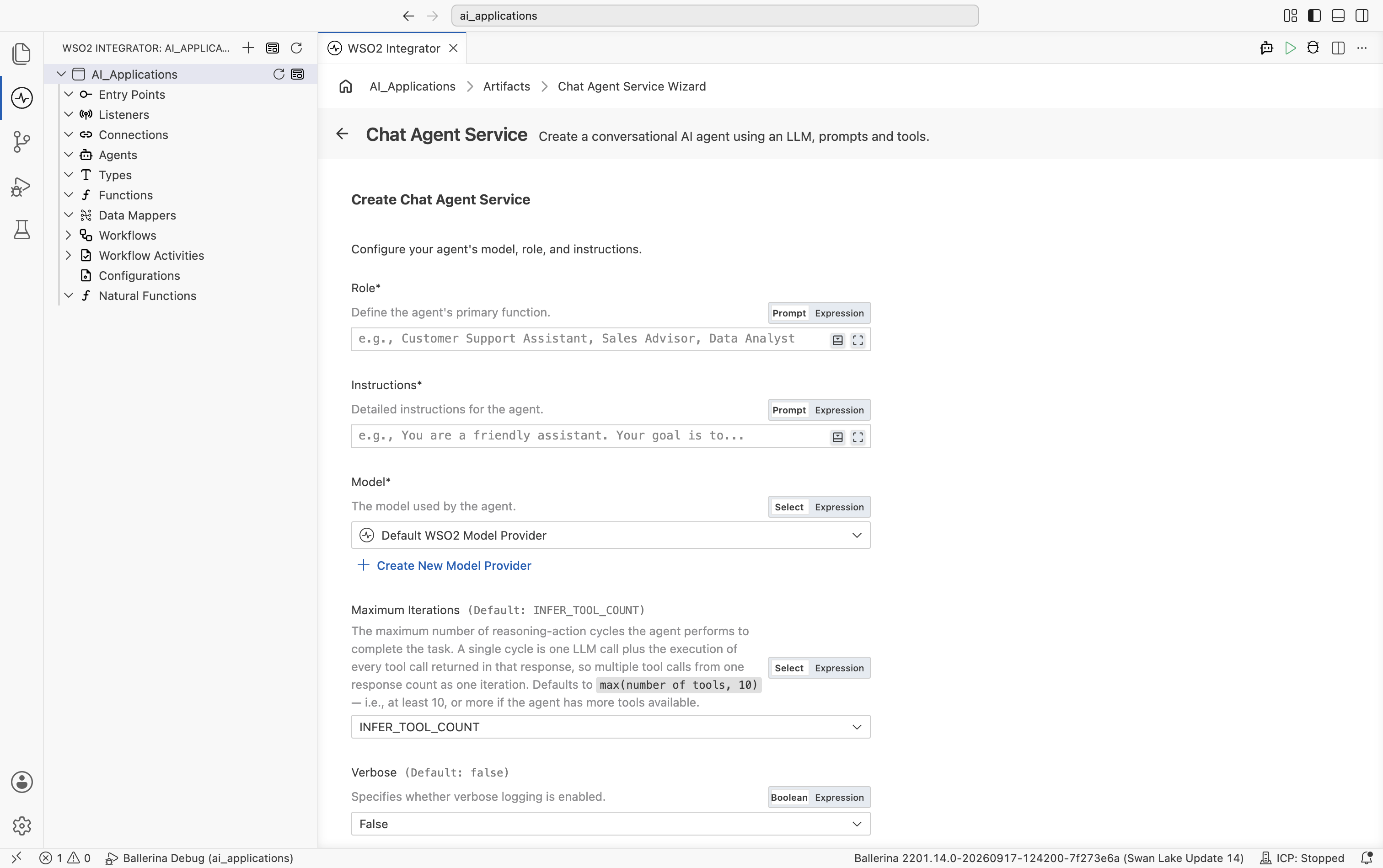
-
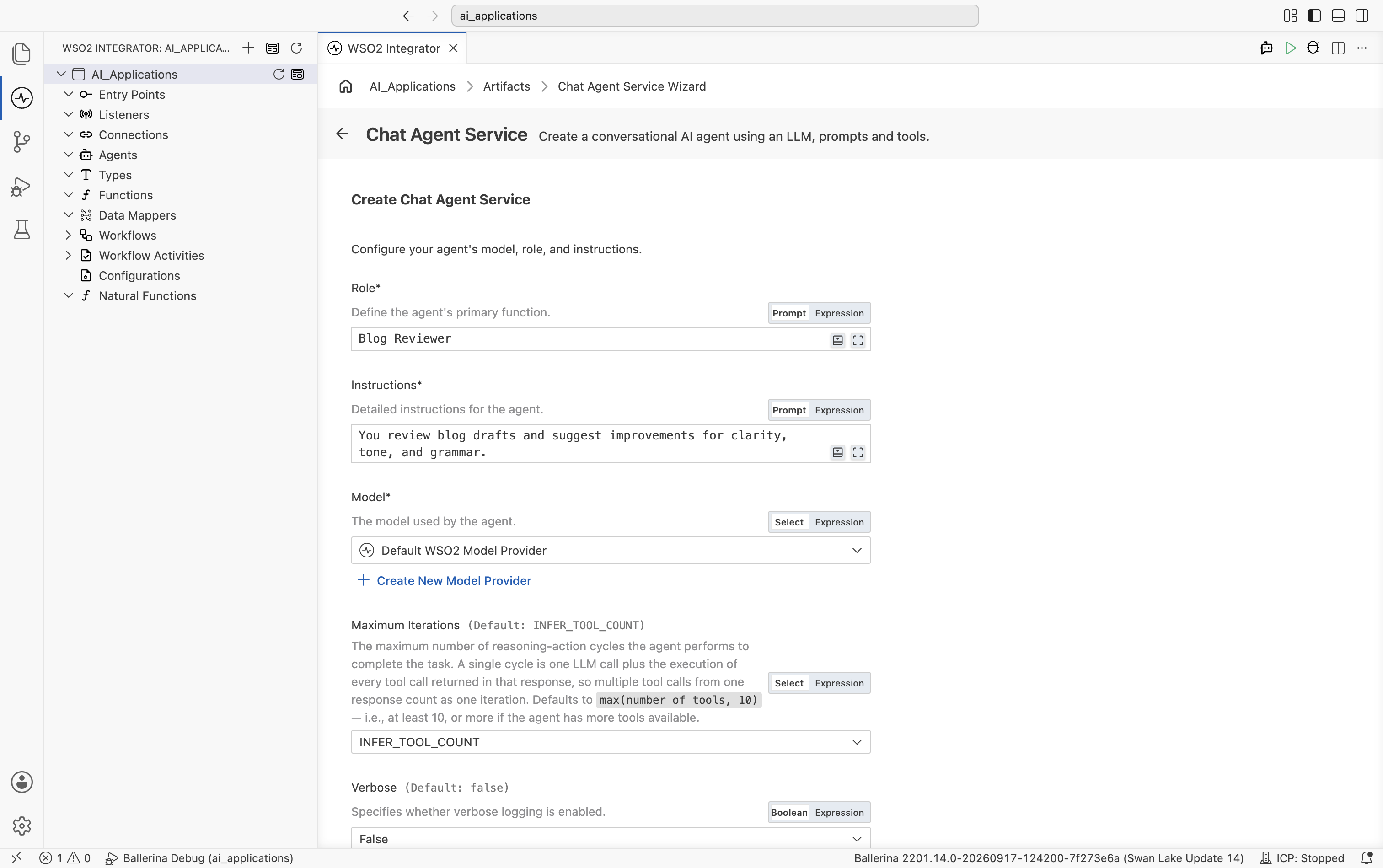
Fill in Role, Instructions, and leave Model as the Default WSO2 Model Provider.
-
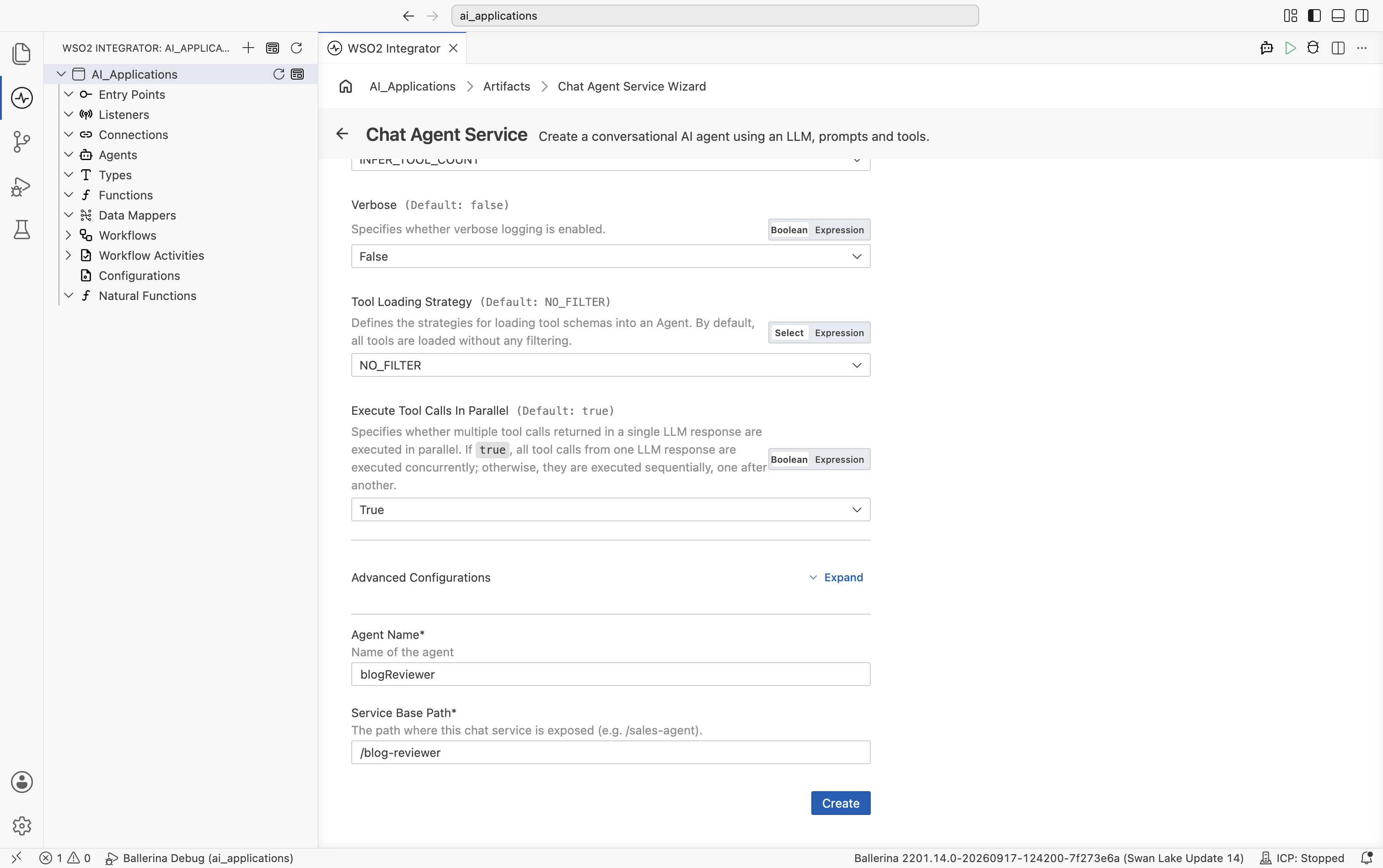
Scroll down under Advanced Configurations to set:
Field Required Description Agent Name Yes Identifier for the agent, such as blogReviewer,supportAssistant, orsalesAdvisor.Service Base Path Yes The path where this chat service is exposed, for example /blog-reviewer. -
Select Create.
WSO2 Integrator generates the required integration artifacts and displays a progress indicator while configuring the service listener and related components.
When it completes, WSO2 Integrator automatically generates the following:
- An HTTP service with a
POST /chatresource - A listener endpoint (
chatAgentListener) - An AI agent, listed under Agents
- A resource flow that invokes the agent and returns its response
- Visual Designer
- Ballerina Code
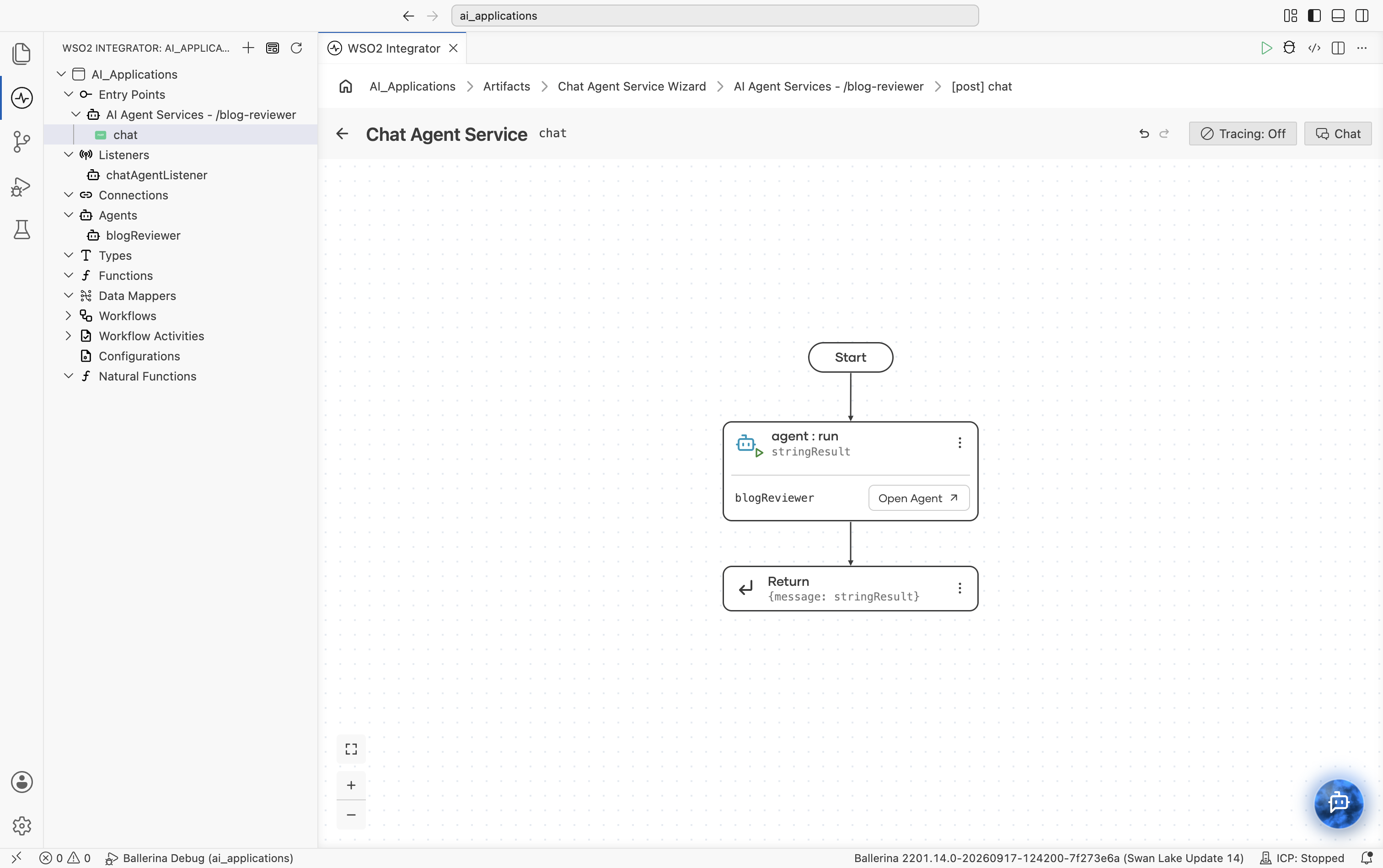
The resource flow shows Start, an agent:run node bound to a result variable with an Open Agent link, then Return.
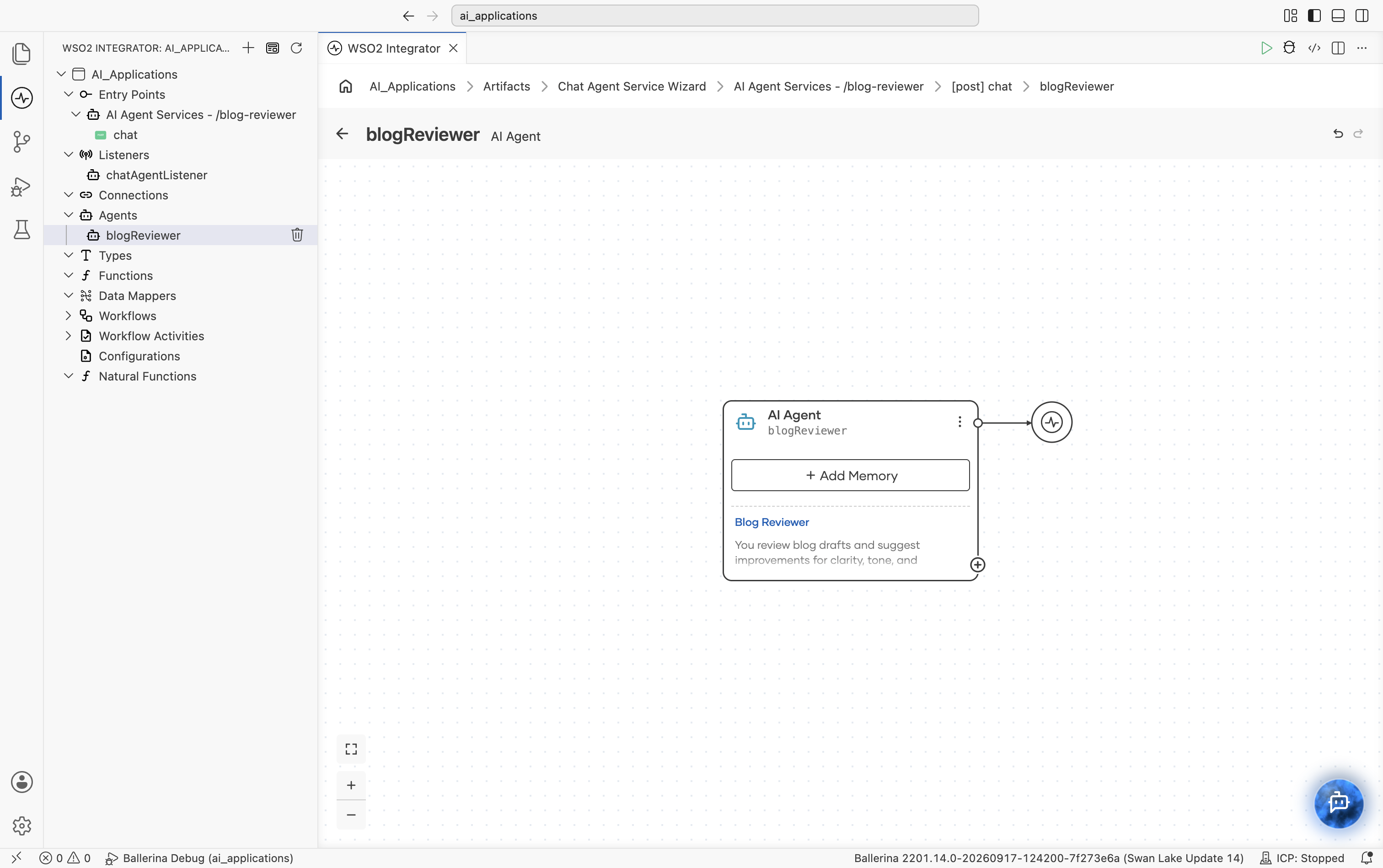
Selecting Open Agent (or the agent under Agents in the sidebar) opens the agent's own canvas: a single AI Agent block showing the agent's name, an + Add Memory button, and a preview of its role and instructions, connected to its model provider.
The generated Ballerina source for an agent named blogReviewer is similar to the following:
import ballerina/ai;
import ballerina/http;

// Default model provider
final ai:Wso2ModelProvider wso2ModelProvider =
    check ai:getDefaultModelProvider();

// Agent declaration
final ai:Agent blogReviewerAgent = check new (
    systemPrompt = {
        role: string `Blog Reviewer`,
        instructions: string `You review blog drafts and suggest
            improvements for clarity, tone, and grammar.`
    },
    model = wso2ModelProvider,
    tools = []
);

// Listener
listener ai:Listener chatAgentListener =
    new (listenOn = check http:getDefaultListener());

// Service
service /blogReviewer on chatAgentListener {

    resource function post chat(
            @http:Payload ai:ChatReqMessage request)
            returns ai:ChatRespMessage|error {

        string stringResult =
            check blogReviewerAgent.run(
                request.message,
                request.sessionId
            );

        return {message: stringResult};
    }
}
Create an inline agent
You can add an inline agent within integration flows, such as automations, REST APIs, GraphQL resolvers, or backend service logic.
-
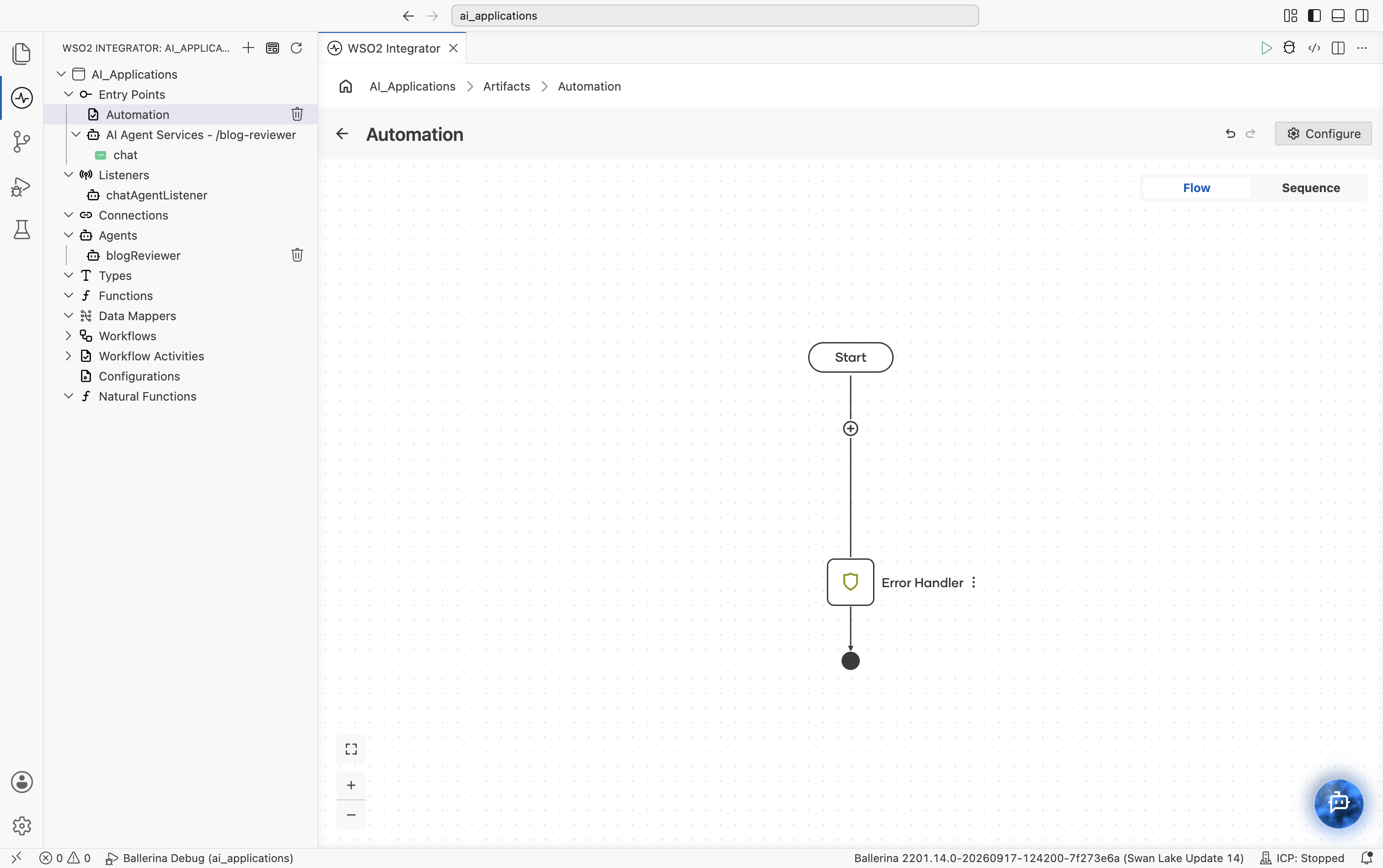
Create or open an integration artifact that has a flow editor, for example an Automation.
-
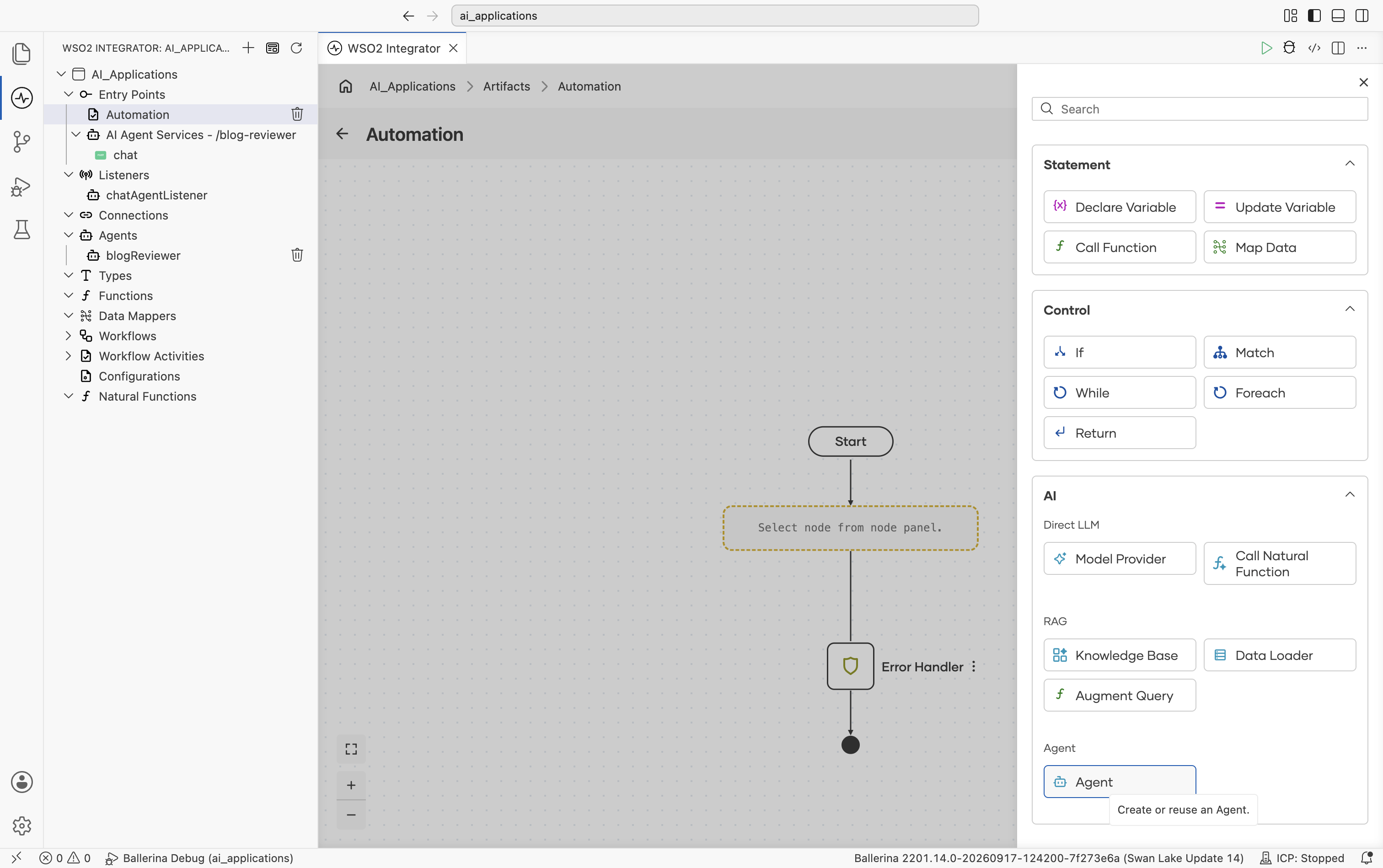
In the flow editor, select + to open the Add Node panel.
-
Under AI, select Agent. "Create or reuse an Agent."
-
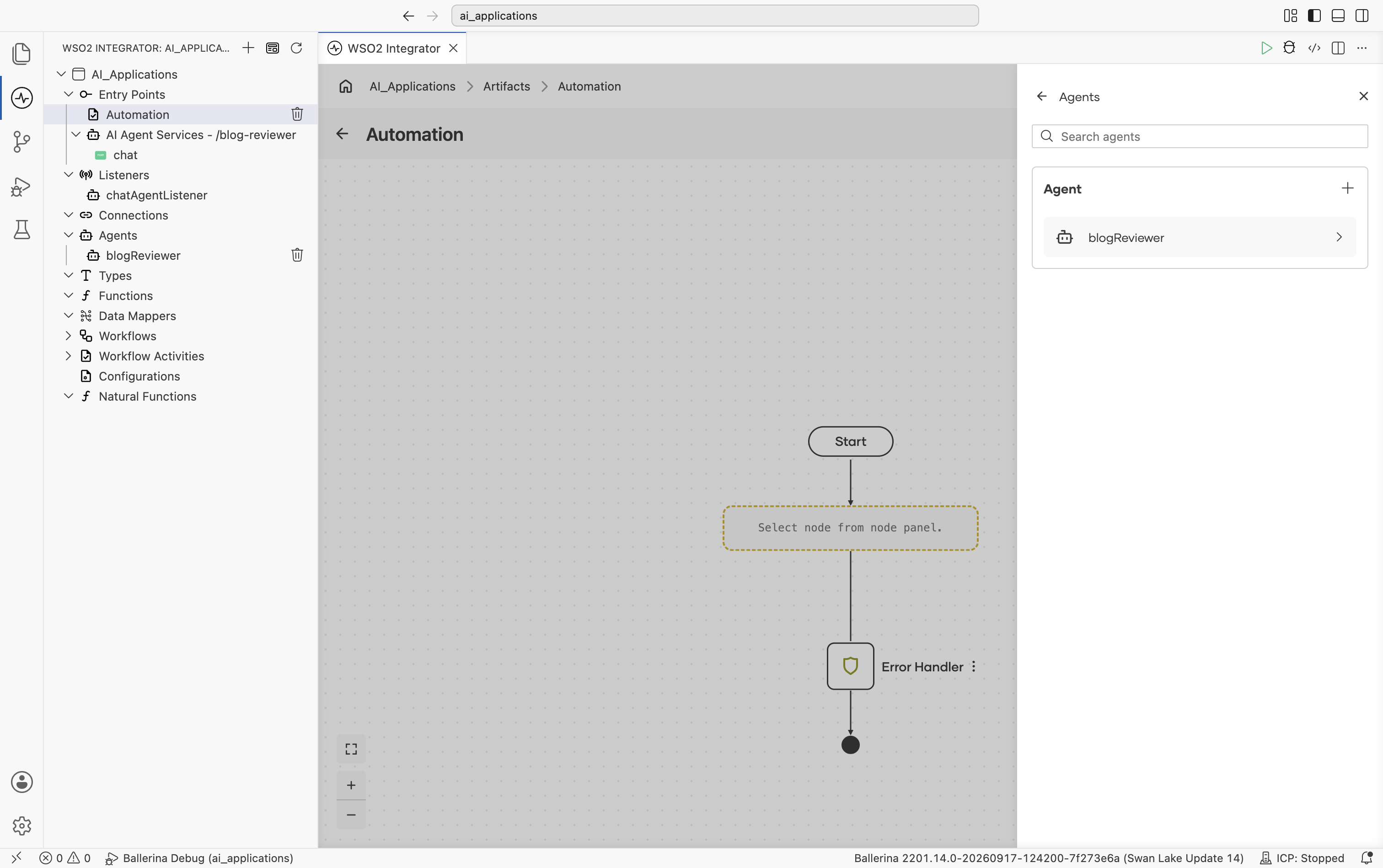
The Agents panel lists any agents already defined in the project (for example, an agent created by a Chat Agent Service) as reusable options, plus a + button to add a new one.
-
Select + to open the Add Agent dialog. It offers three ways to add an agent:
Option Description Create Agent Create a one-off agent instance for this integration only. Create Agent Definition Create a reusable agent definition that can be shared and used to create agent instances with the same configuration across projects. Pre-built Agents Select from pre-built agents available at the project or organization level. 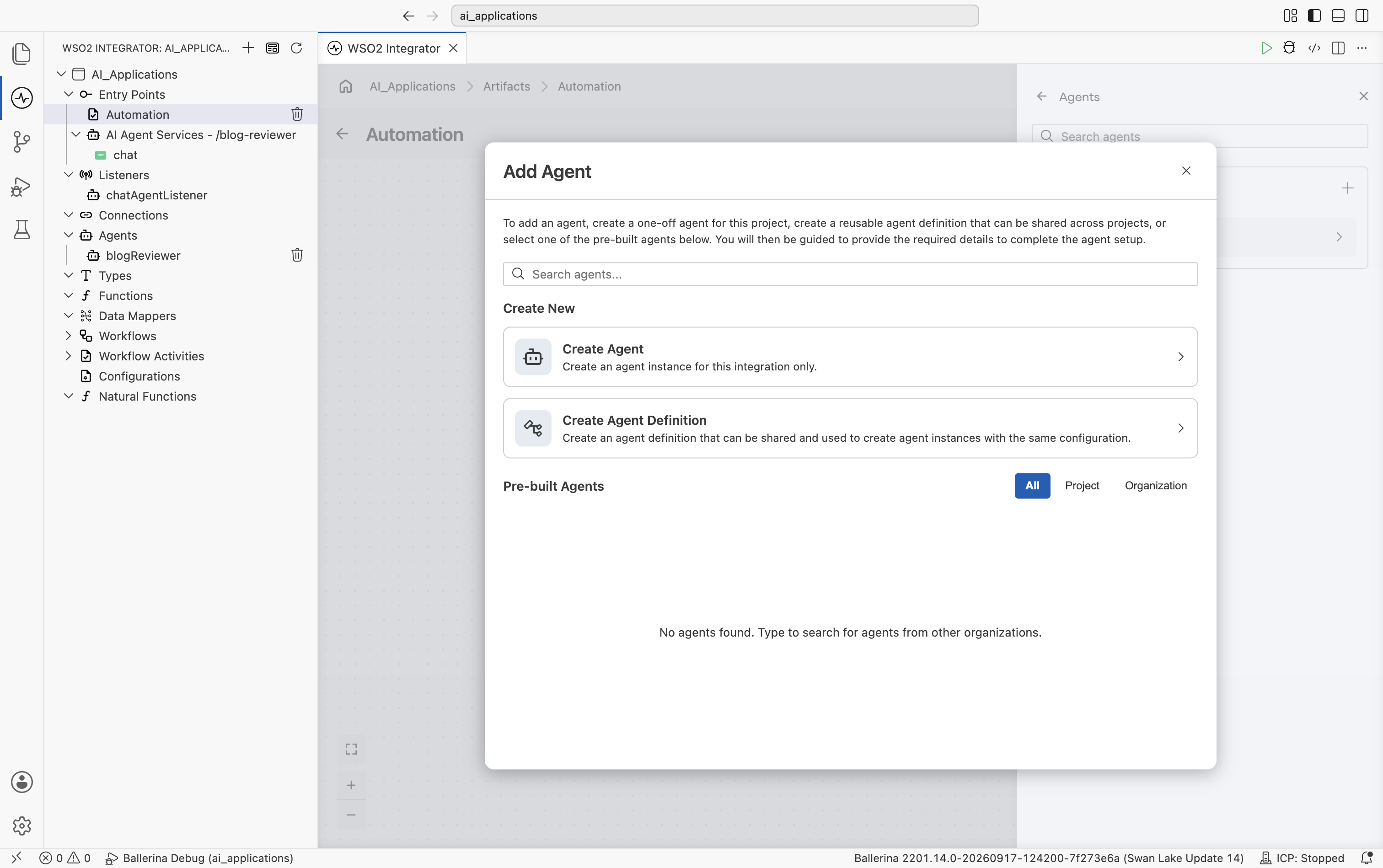
-
Select Create Agent. This opens the same Role, Instructions, Model, and advanced configuration fields as the Chat Agent Service form (see Create a chat agent above), ending with an Agent Name field instead of a service base path.
-
Fill in Role, Instructions, and Agent Name, then select Create Agent.
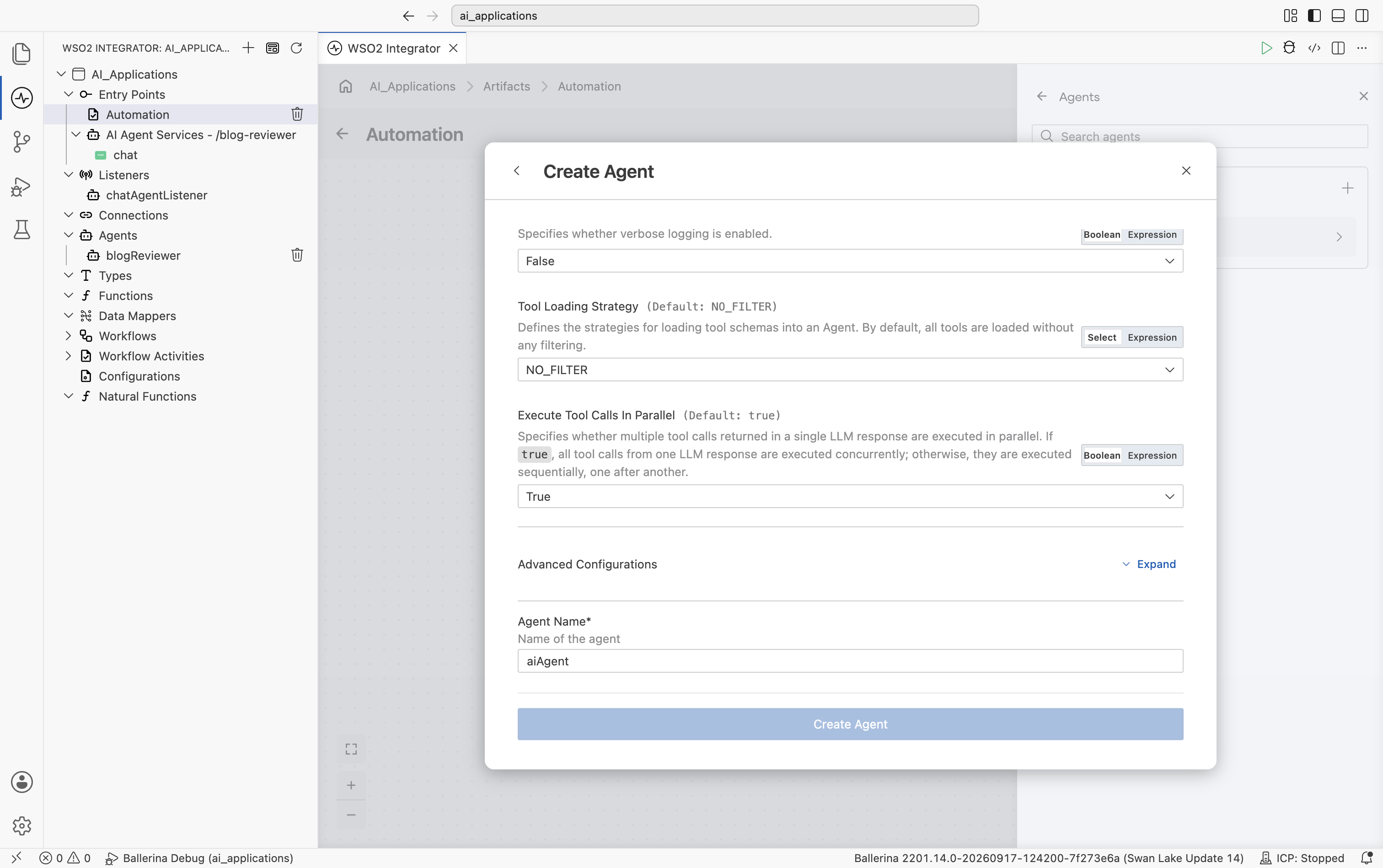
This adds the new agent under Agents in the sidebar. Immediately after, WSO2 Integrator opens the AI Agent node configuration panel to bind this specific invocation of the agent in the flow:
Field Required Description Query Yes A query to start a new turn ( string/Prompt), or aResumeto continue a paused run.Session ID No The ID associated with the agent memory. Defaults to sessionId.Context No Additional context that can be used during agent tool execution. Defaults to new().Result Yes Name of the result variable. -
Set Query. If there's no existing input variable to bind, leave Query in Prompt mode and type a literal string, for example
Summarize this: WSO2 Integrator is a low-code platform for building APIs, integrations, and AI agents.Leave Result at its default and select Save.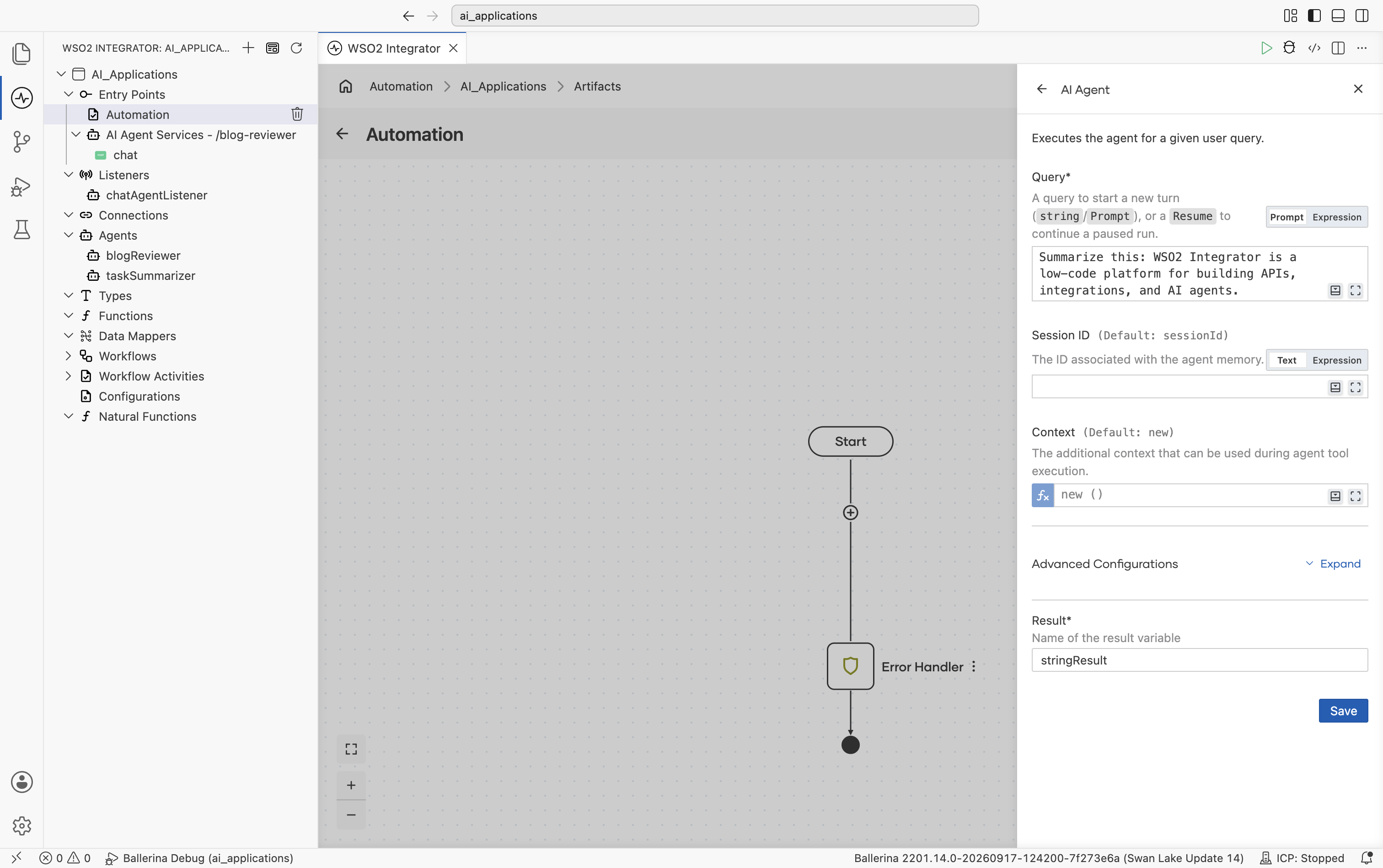
- Visual Designer
- Ballerina Code
This adds an agent:run node to the flow, bound to the result variable, with an Open Agent link back to the new agent's own canvas, the same pattern as a Chat Agent Service's resource flow.
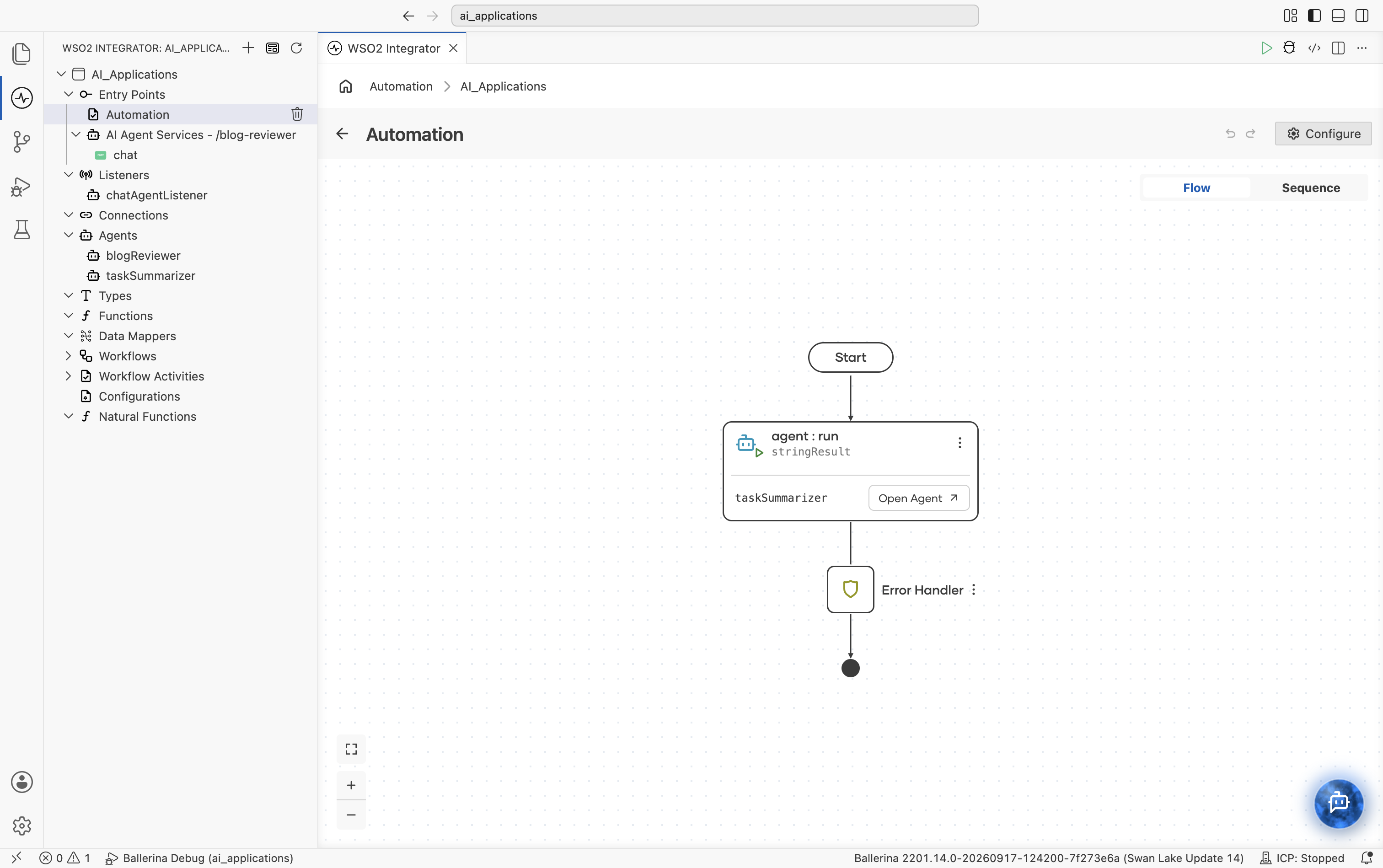
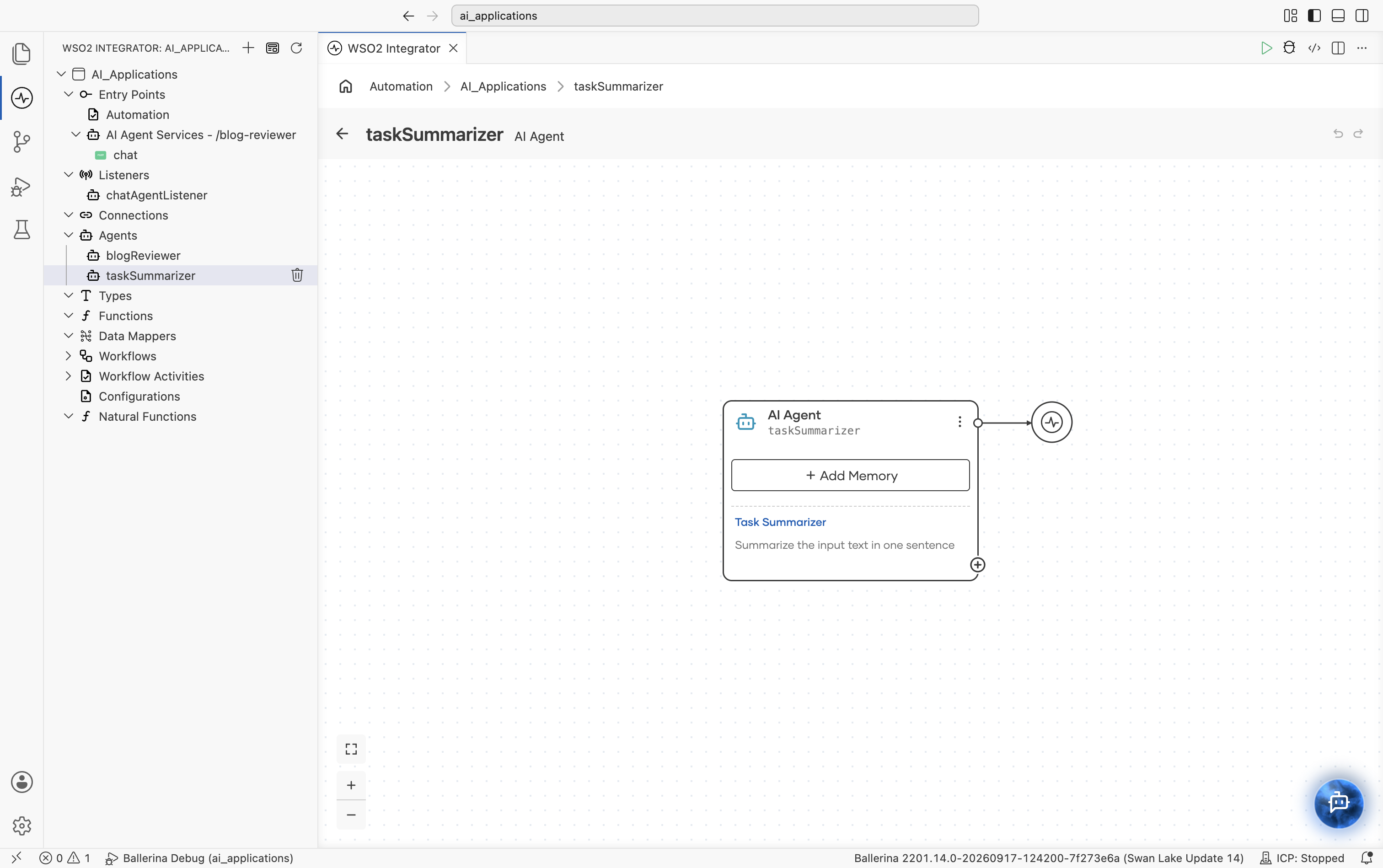
Selecting Open Agent opens the agent's own canvas: an AI Agent block showing its name, an + Add Memory button, and a preview of its role and instructions.
import ballerina/ai;

// Default model provider
final ai:Wso2ModelProvider aiWso2modelprovider =
    check ai:getDefaultModelProvider();

// Agent declaration
final ai:Agent taskSummarizerAgent = check new (
    systemPrompt = {
        role: string `Task Summarizer`,
        instructions: string `Summarize the input text in
            one sentence.`
    },
    model = aiWso2modelprovider
);

public function main() returns error? {
    string stringResult = check taskSummarizerAgent.run(
        "Summarize this: WSO2 Integrator is a low-code " +
        "platform for building APIs, integrations, and AI agents."
    );
}
After creating either kind of agent, you can configure:
- Agent behavior, including role, instructions, query, and input/output bindings
- Model provider
- Tools
- Memory
- Identity & access management
- Observability and tracing
Configure agent behavior
Use the AI Agent node configuration panel to customize how the agent behaves and responds to requests.
Click the AI Agent node to open the configuration panel and update the following configurations.
| Section | Description |
|---|---|
| Role | Defines the primary responsibility or persona of the agent. |
| Instructions | Specifies the behavior guidelines and operational instructions that the agent should follow while responding. |
| Advanced Configuration | Provides additional runtime and execution settings for the agent. |
| Result | Defines the output or response generated by the agent after execution. |
Advanced configuration
| Section | Description |
|---|---|
| Maximum Iterations | Defines the maximum number of reasoning or execution cycles the agent can perform before returning a response. |
| Verbose | Enables detailed execution logs and intermediate reasoning information for debugging and observability purposes. |
| Tool Loading Strategy | Determines how tools are discovered and loaded by the agent during execution. |
| Agent Credential | Configures the credentials or authentication details used by the agent when accessing external systems or tools. |
| Context | Defines contextual information that is passed to the agent during execution. |
| Type Descriptor | Specifies the expected structure or type information for agent inputs and outputs. |
What's next
- Tools - Add tools and integrations to the agent.
- Memory - Configure conversational and persistent memory.
- Observability - Monitor traces, logs, and execution details.
- Evaluations - Test and evaluate agent behavior and response quality.