Local Files
Local file services monitor a directory on the local file system and trigger event handlers when files are created, modified, or deleted. Use them for on-premises batch processing, development workflows, and integrations that consume files dropped into a watched directory.
Creating a local file service
- Visual Designer
- Ballerina Code
-
Click + Add Artifact in the canvas or click + next to Entry Points in the sidebar.
-
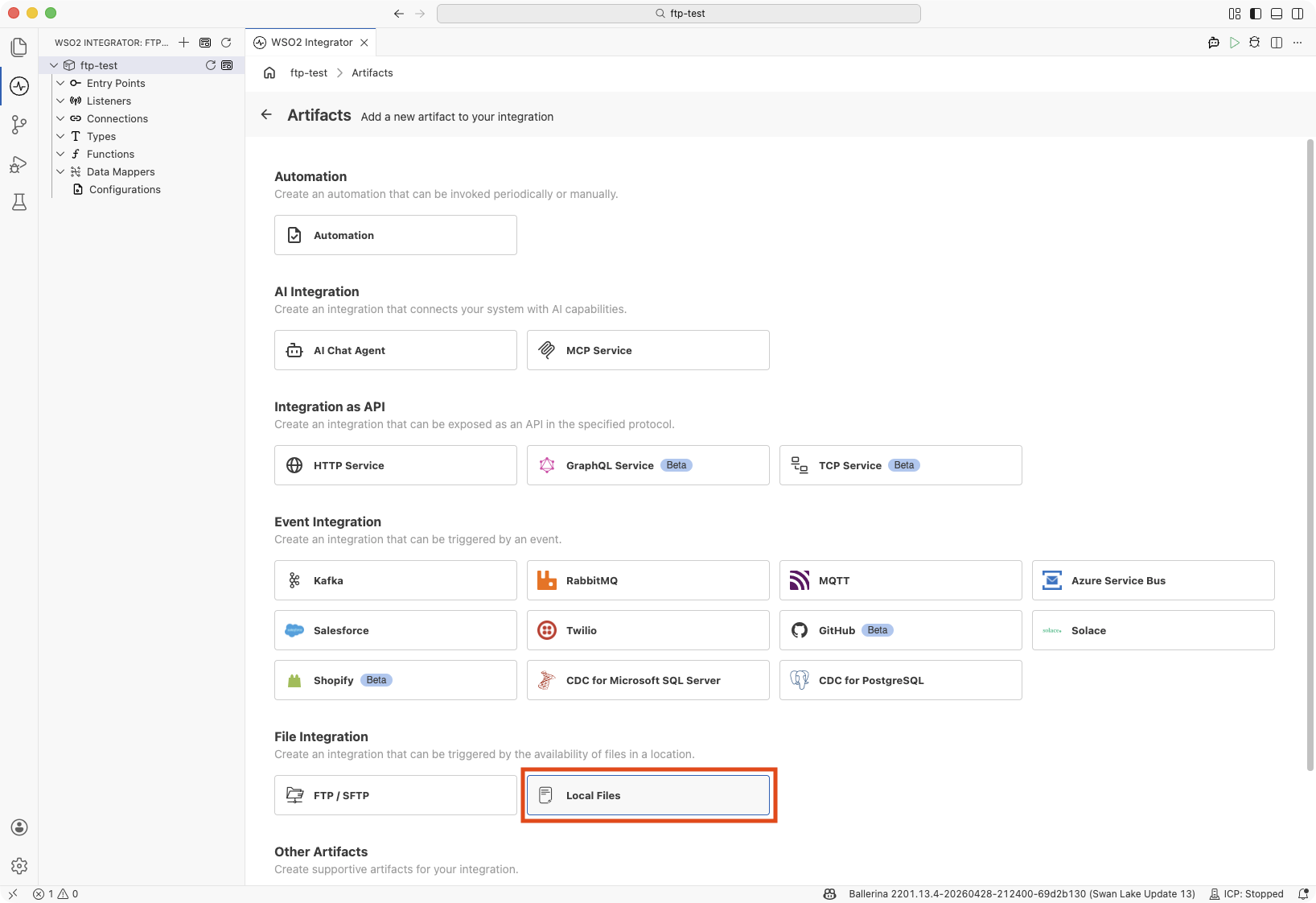
In the Artifacts panel, select Local Files under File Integration.
-
In the creation form, fill in the following fields:
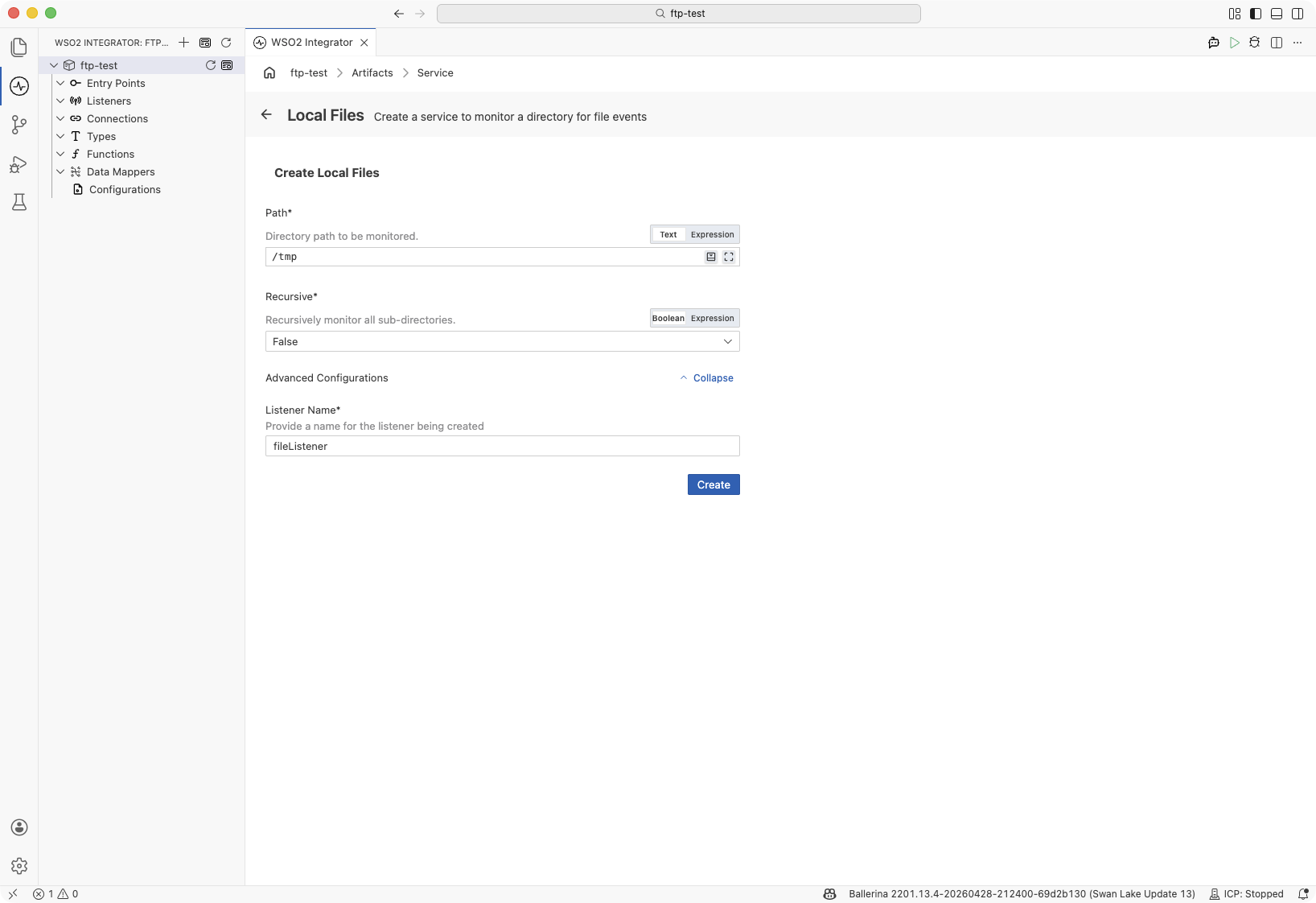
Field Description Default Path Directory path to monitor for file events (e.g., /data/incoming).Required Recursive When set to True, monitors all subdirectories under the specified path.FalseExpand Advanced Configurations to set the listener name.
Field Description Default Listener Name Identifier for the listener created with this service. fileListener -
Click Create.
-
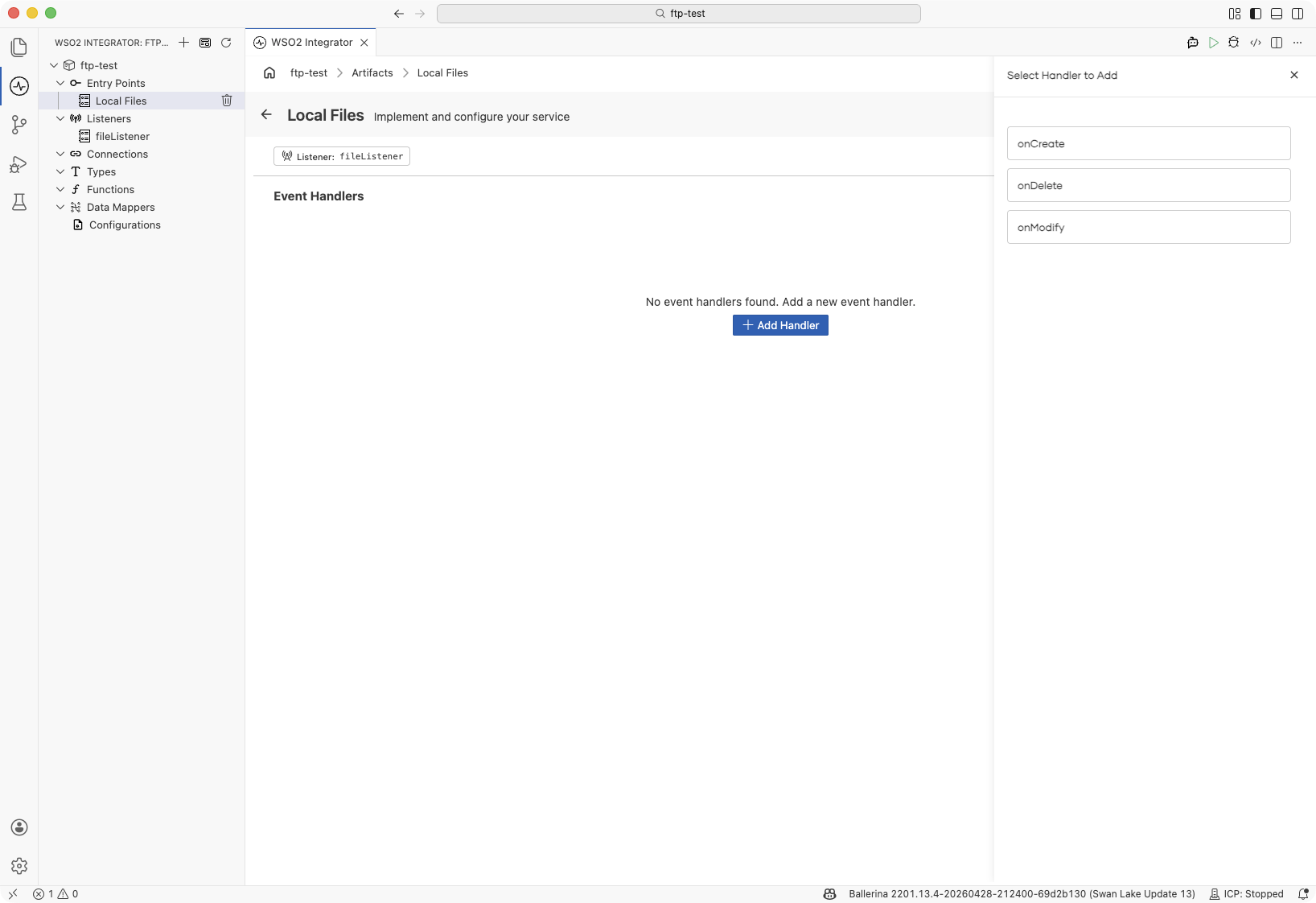
WSO2 Integrator opens the service in the Service Designer. The canvas shows the attached listener pill and the Event Handlers section.
-
Click + Add Handler to define how file events are processed.
import ballerina/file;
import ballerina/log;

configurable string path = "/data/incoming";
configurable boolean recursive = false;

listener file:Listener fileListener = check new ({
    path: path,
    recursive: recursive
});

service on fileListener {

    remote function onCreate(file:FileEvent event) returns error? {
        log:printInfo("File created", path = event.name);
    }

    remote function onModify(file:FileEvent event) returns error? {
        log:printInfo("File modified", path = event.name);
    }

    remote function onDelete(file:FileEvent event) returns error? {
        log:printInfo("File deleted", path = event.name);
    }
}
Service and listener configuration
- Visual Designer
- Ballerina Code
In the Service Designer, click the Configure icon in the header to open the Local Files Configuration panel.
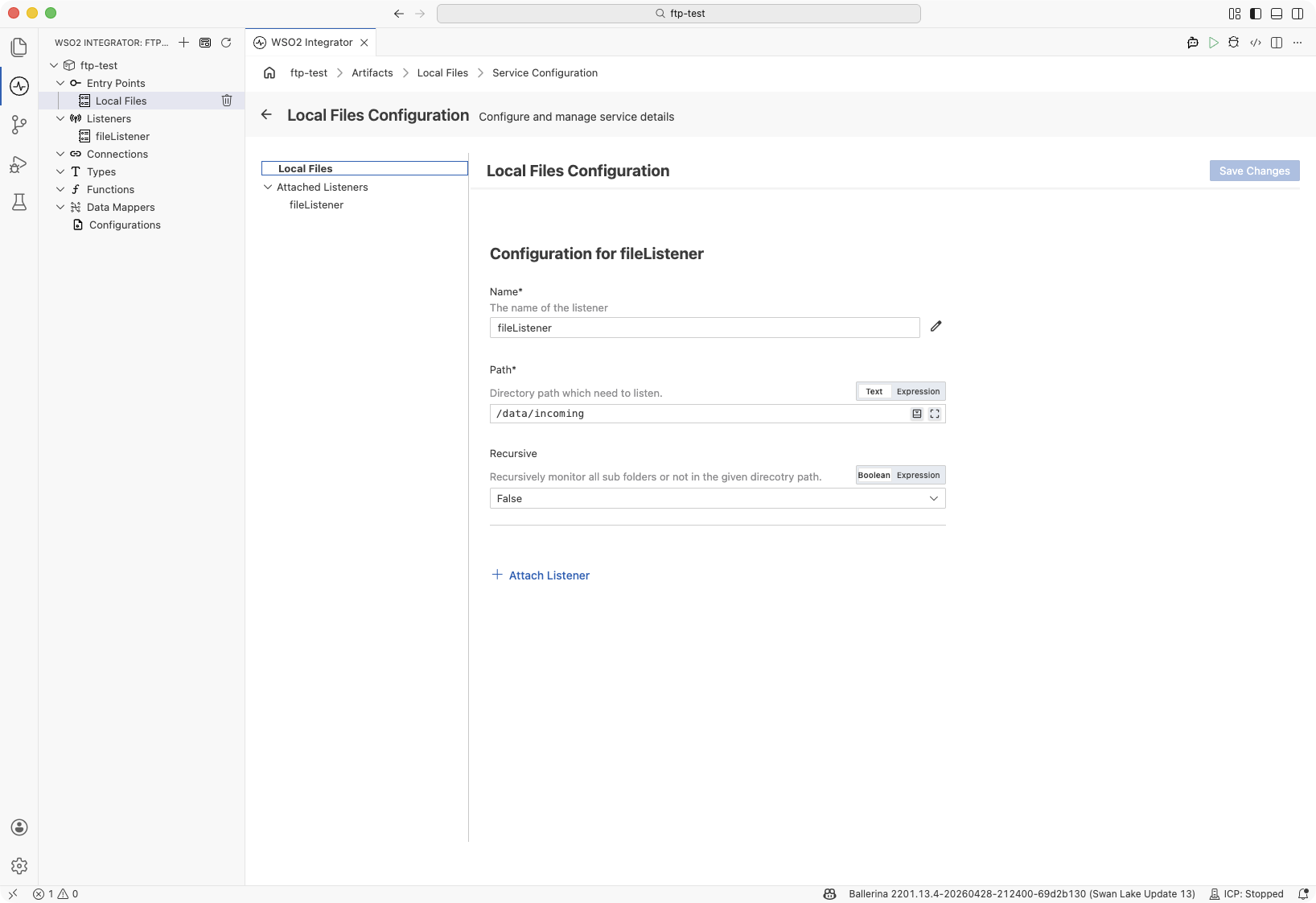
Select Local Files in the left panel to view service-level settings, or select fileListener under Attached Listeners to configure the listener.
Configuration for fileListener
| Field | Description | Default |
|---|---|---|
| Name | Identifier for the listener. | fileListener |
| Path | Directory path which the listener monitors. | Required |
| Recursive | When enabled, recursively monitors all subdirectories in the given directory path. | False |
Click + Attach Listener to attach an additional listener to the same service.
Click Save Changes to apply updates.
The listener configuration is set when constructing file:Listener:
listener file:Listener fileListener = check new ({
    path: "/data/incoming",
    recursive: false
});
file:ListenerConfig fields:
| Field | Type | Default | Description |
|---|---|---|---|
path | string | Required | Directory path to monitor |
recursive | boolean | false | Monitor all subdirectories under the path |
File handlers
A file handler is a remote function that WSO2 Integrator calls each time a matching file system event occurs in the monitored directory.
Adding a file handler
- Visual Designer
- Ballerina Code
In the Service Designer, click + Add Handler. A Select Handler to Add panel opens on the right listing the available event types. Click an event type to open its Configure Handler panel, then click Save.
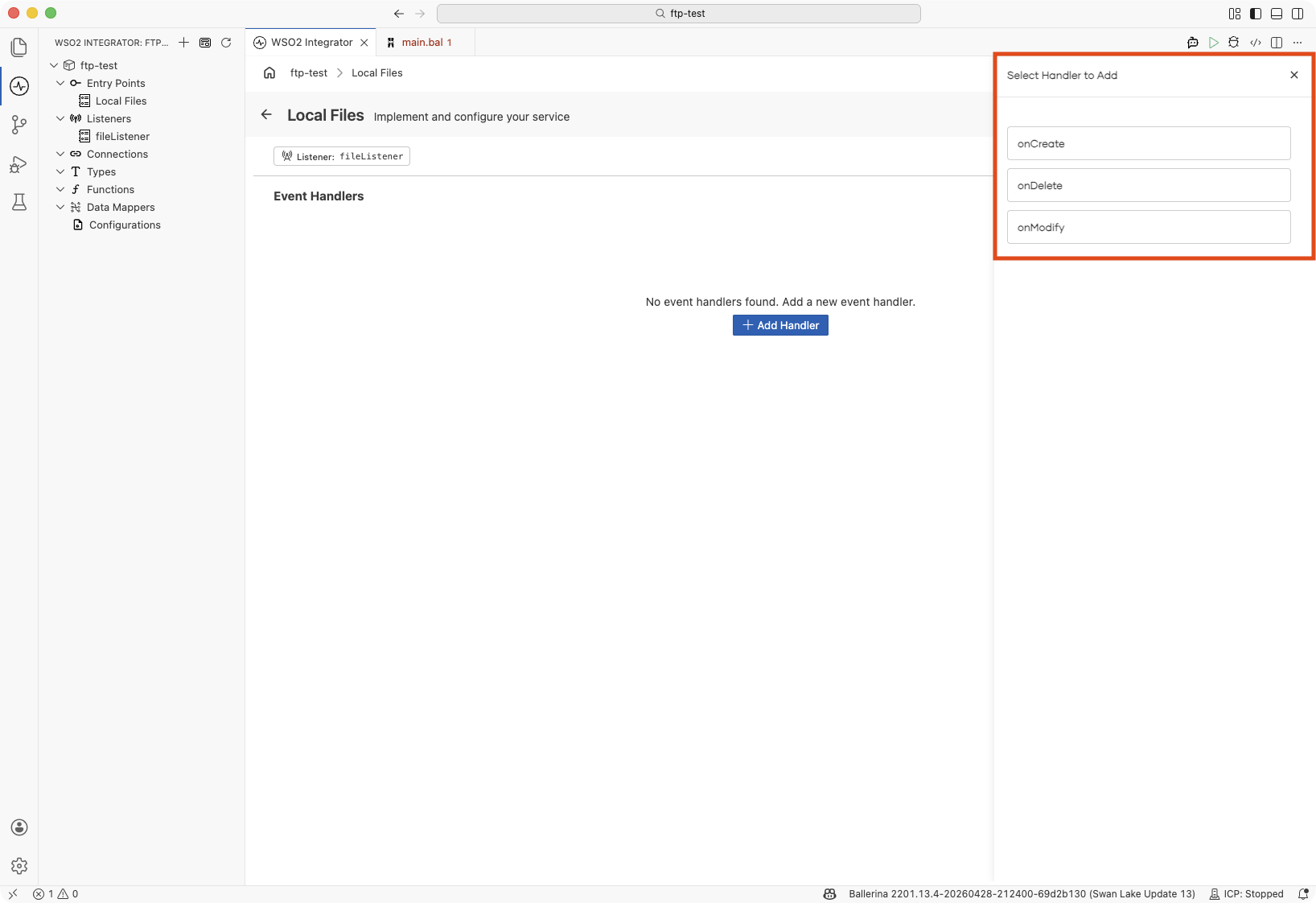
| Handler | Triggered when |
|---|---|
| onCreate | A new file is created in the monitored directory |
| onDelete | A file is deleted from the monitored directory |
| onModify | An existing file in the monitored directory is modified |
For onCreate and onModify, the panel includes a File Handling Options section that sets what happens to the file after the handler runs:
| Field | Description |
|---|---|
| On Success | Action to take when the handler completes without any errors: Move the file to another directory, or Delete it. See Post-processing. |
| On Error | Action to take when the handler returns an error. Same choices as On Success. |
| Move To | Destination directory, required when Move is selected. |
An onDelete handler has no file handling options, because the file is already gone when it runs.
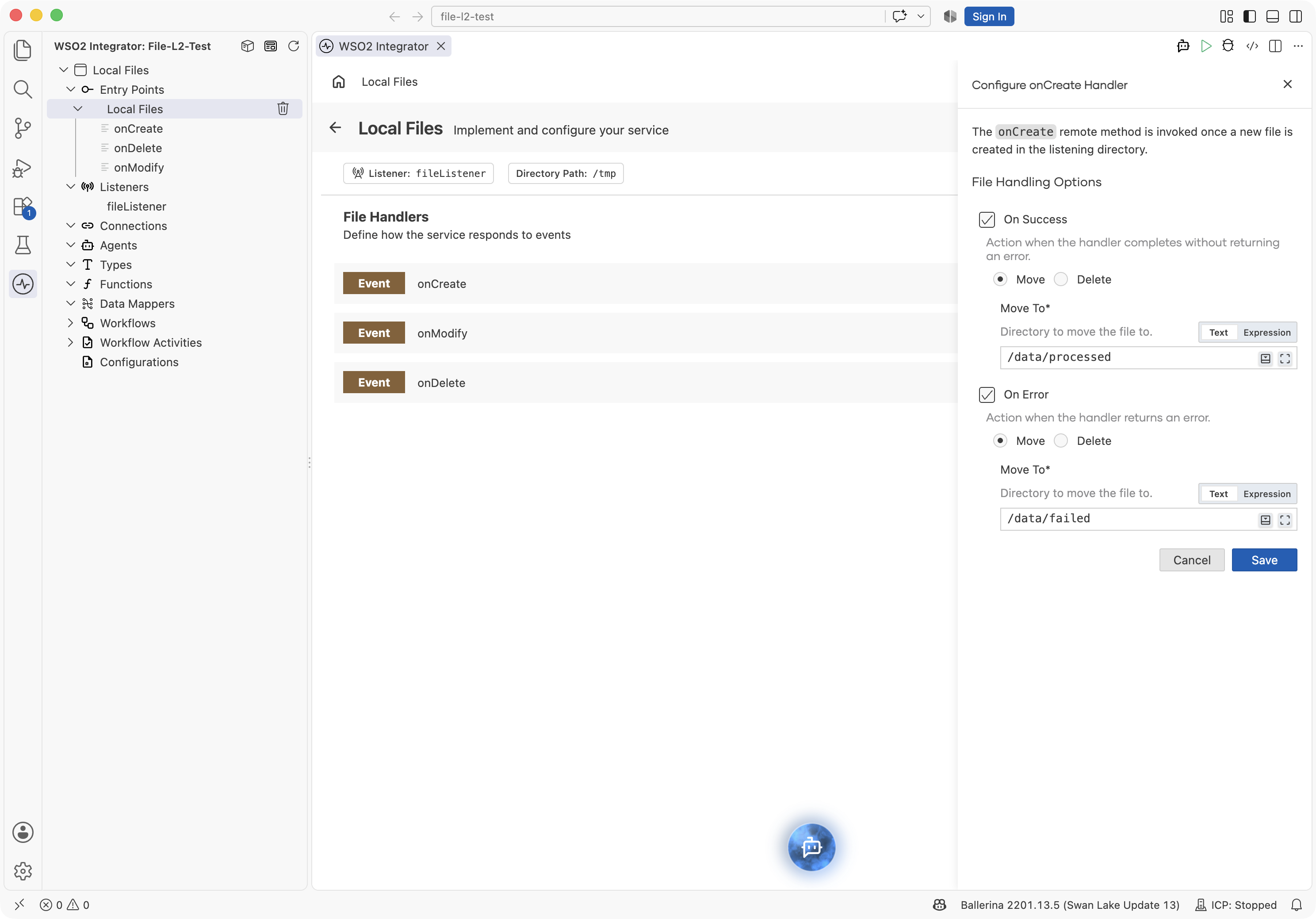
Add the handler as a remote function inside the service. Each handler receives a file:FileEvent parameter containing details about the event.
onCreate handler:
service on fileListener {

    remote function onCreate(file:FileEvent event) returns error? {
        string filePath = event.name;
        log:printInfo("New file detected", path = filePath);
        check processFile(filePath);
    }
}
onModify handler:
service on fileListener {

    remote function onModify(file:FileEvent event) returns error? {
        log:printInfo("File modified", path = event.name);
    }
}
onDelete handler:
service on fileListener {

    remote function onDelete(file:FileEvent event) returns error? {
        log:printInfo("File deleted", path = event.name);
    }
}
FileEvent
Each handler receives a file:FileEvent parameter with details about the file system event.
| Field | Type | Description |
|---|---|---|
name | string | Path of the file or directory that changed (absolute when the listener was configured with an absolute path) |
operation | string | One of "create", "modify", "delete" (lowercase) |
Post-processing: moving or deleting files
After an onCreate or onModify handler returns, the runtime can move the file to another directory or delete it. Configure this on the handler form, and switch to the Ballerina Code tab to review the generated annotation.
- Visual Designer
- Ballerina Code
The File Handling Options section has two independent toggles:
| Event | Ticked by default? | Action picker | Extra input |
|---|---|---|---|
| On Success | Yes | Move or Delete | Move To destination, required when Move is chosen |
| On Error | Yes | Move or Delete | Move To destination, required when Move is chosen |
Common combinations:
- Move on success, move on error: archive processed files and quarantine failures in separate directories.
- Delete on success, move on error: discard files that processed cleanly, and keep failures for review.
- Leave the file in place: clear On Success or On Error to skip the action for that outcome.
The form does not expose preserveSubDirs. On a recursive listener, a moved file keeps its subdirectory path under the destination. To place files directly in the destination instead, set preserveSubDirs to false on the Ballerina Code tab.
The form writes a @file:FunctionConfig annotation on the handler. Each of afterProcess and afterError takes either a move record or the bare constant file:DELETE:
service on fileListener {

    @file:FunctionConfig {
        afterProcess: {
            moveTo: "/data/archive"
        },
        afterError: file:DELETE
    }
    remote function onCreate(file:FileEvent event) returns error? {
        check processFile(event.name);
    }
}
@file:FunctionConfig fields:
| Field | Type | Description |
|---|---|---|
afterProcess | file:MOVE|file:DELETE | Action to take when the handler returns without an error. Omit the field to leave the file in place. For a move, use {moveTo: <path>}. |
afterError | file:MOVE|file:DELETE | Action to take when the handler returns an error or panics. Same shape as afterProcess. |
file:Move fields:
| Field | Type | Default | Description |
|---|---|---|---|
moveTo | string | None | Directory the file is moved into. The path resolves against the working directory, not against the watched directory. Missing directories are created. |
preserveSubDirs | boolean | true | Keeps the path of the file relative to the listener path under moveTo. Set it to false to place the file directly in moveTo. |
The annotation is valid on onCreate and onModify. On onDelete, the compiler reports an error.
The runtime applies the following rules to every action:
- A file that already exists at the destination is not replaced. The move fails, the failure is logged, and the source file stays in place.
moveTocannot be the watched directory, and on a recursive listener it cannot be a directory inside it. Attaching a service with such a destination fails, as it does whenmoveTois empty or already exists as something other than a directory.- Only regular files are acted on. Directory and symbolic link events are skipped.
- A failure of the action is logged and is not returned to the handler.
- If the file is no longer present when the action runs, the action is skipped.
- Where several services are attached to one listener, only one of them can configure an action for a given handler, and the action runs after every attached service has handled the event. The outcome of the service that configured the action decides between the success and the error action. An error returned by another attached service does not change it.
- Moving or deleting the file produces a delete event like any other removal, so
onDeleteruns for it in every service that declares it.
Reading file content
Use the ballerina/io module to read the content of the file that triggered a handler. The path of the file is available as event.name on the file:FileEvent parameter.
- Visual Designer
- Ballerina Code
In the Service Designer, open the handler and build the flow with two nodes: a Call Function node that reads the file content and a Log node that prints it.
-
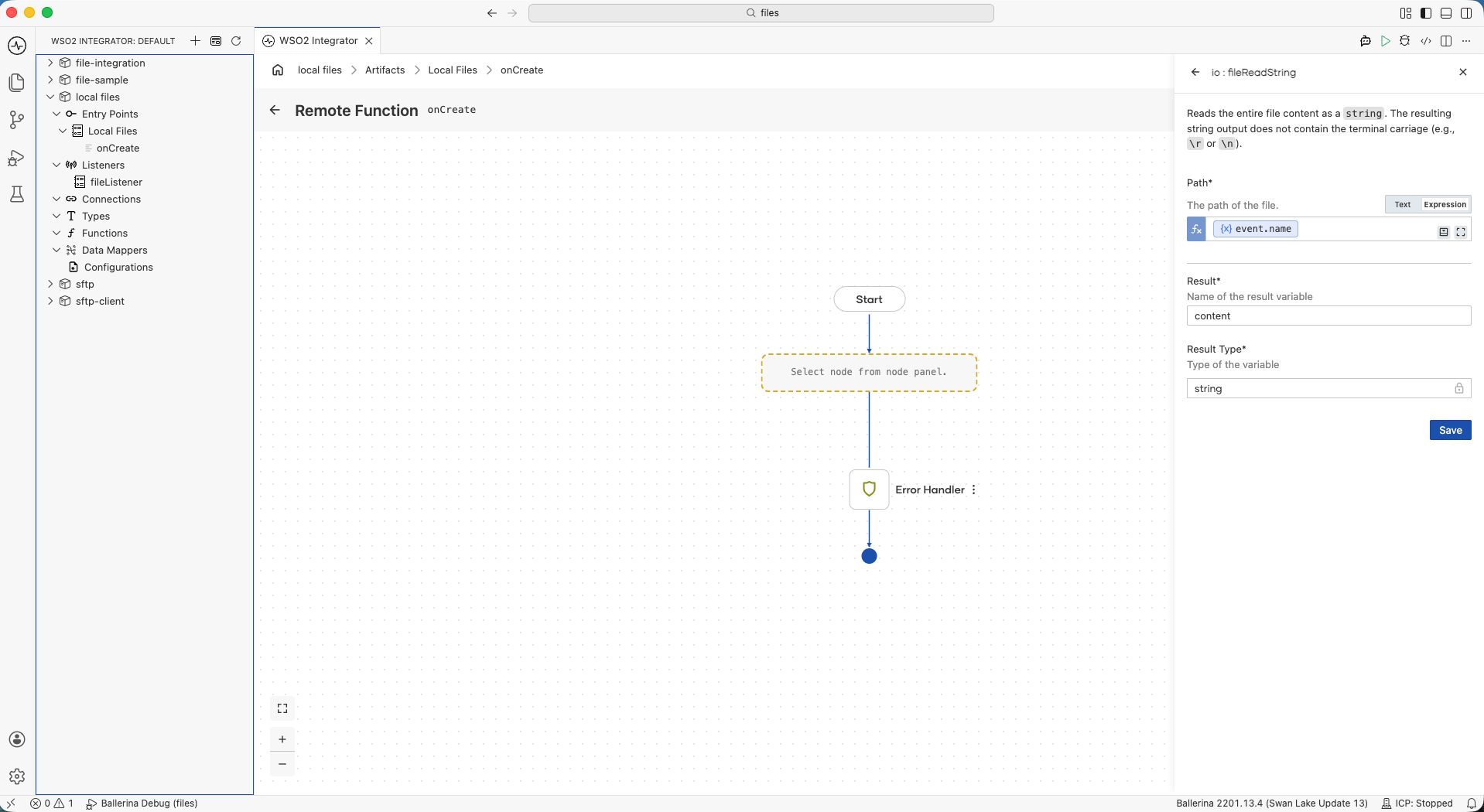
Click + on the handler canvas to add a node, pick Call Function, and select fileReadString under io functions.
-
Set
event.nameas an Expression in the Path field,contentas the Result, andstringas the Result Type. Save the node.
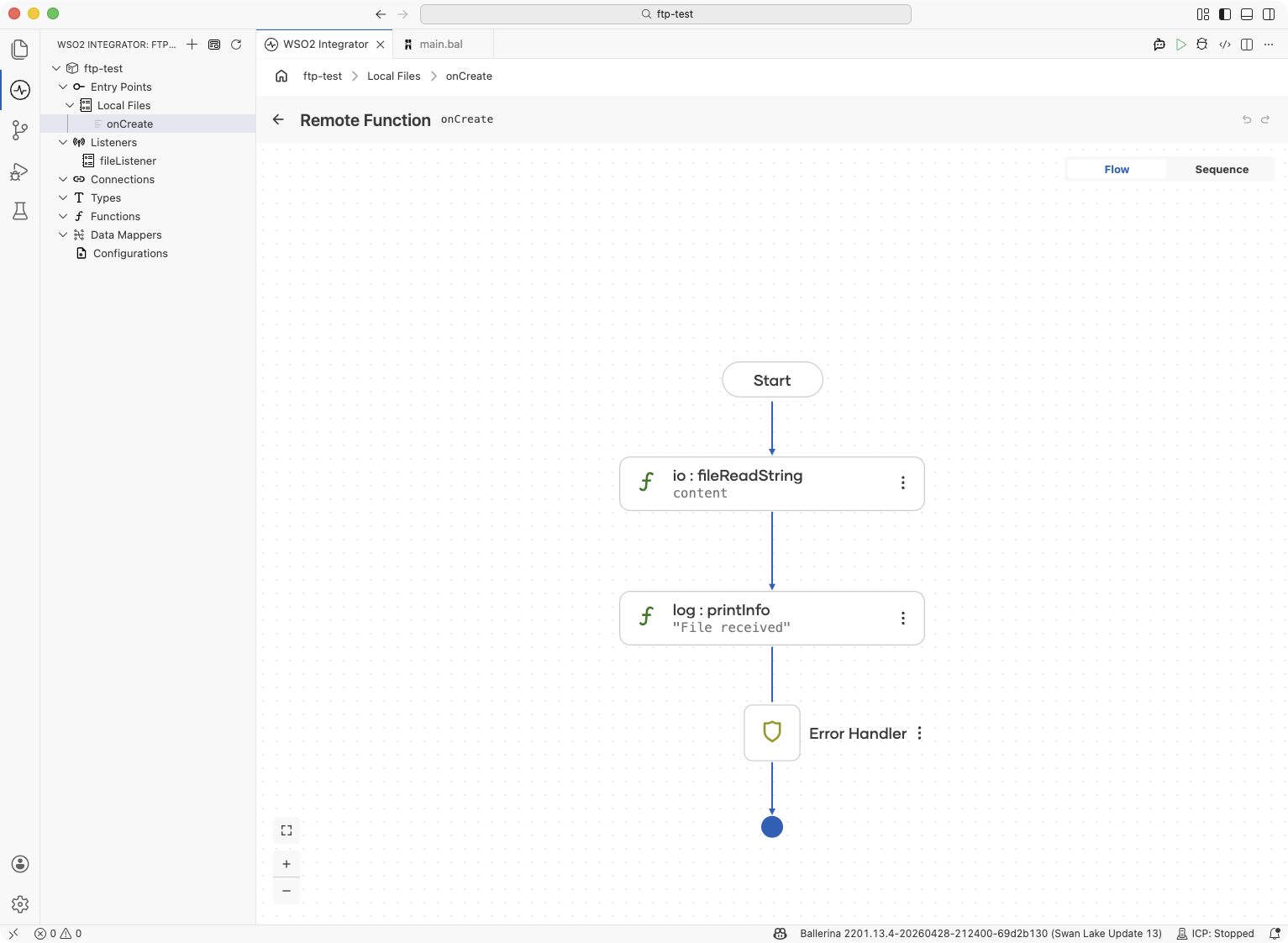
- Click + after the Call Function node, pick Log → Log Info, switch the Msg field to Expression mode, and enter
content. Save the node.
import ballerina/file;
import ballerina/io;
import ballerina/log;

service on fileListener {

    remote function onCreate(file:FileEvent event) returns error? {
        string content = check io:fileReadString(event.name);
        log:printInfo("File received", path = event.name, size = content.length());
    }
}
io read functions:
| Function | Description |
|---|---|
io:fileReadString(path) | Read the file as a single UTF-8 string |
io:fileReadBytes(path) | Read the file as a byte array |
io:fileReadLines(path) | Read the file as a string[], one entry per line |
io:fileReadJson(path) | Read and parse the file as a json value |
io:fileReadXml(path) | Read and parse the file as an xml value |
io:fileReadCsv(path) | Read and parse CSV content as string[][] or a record array |
Writing output files
Use the ballerina/io module to write results to the local file system from within a handler.
- Visual Designer
- Ballerina Code
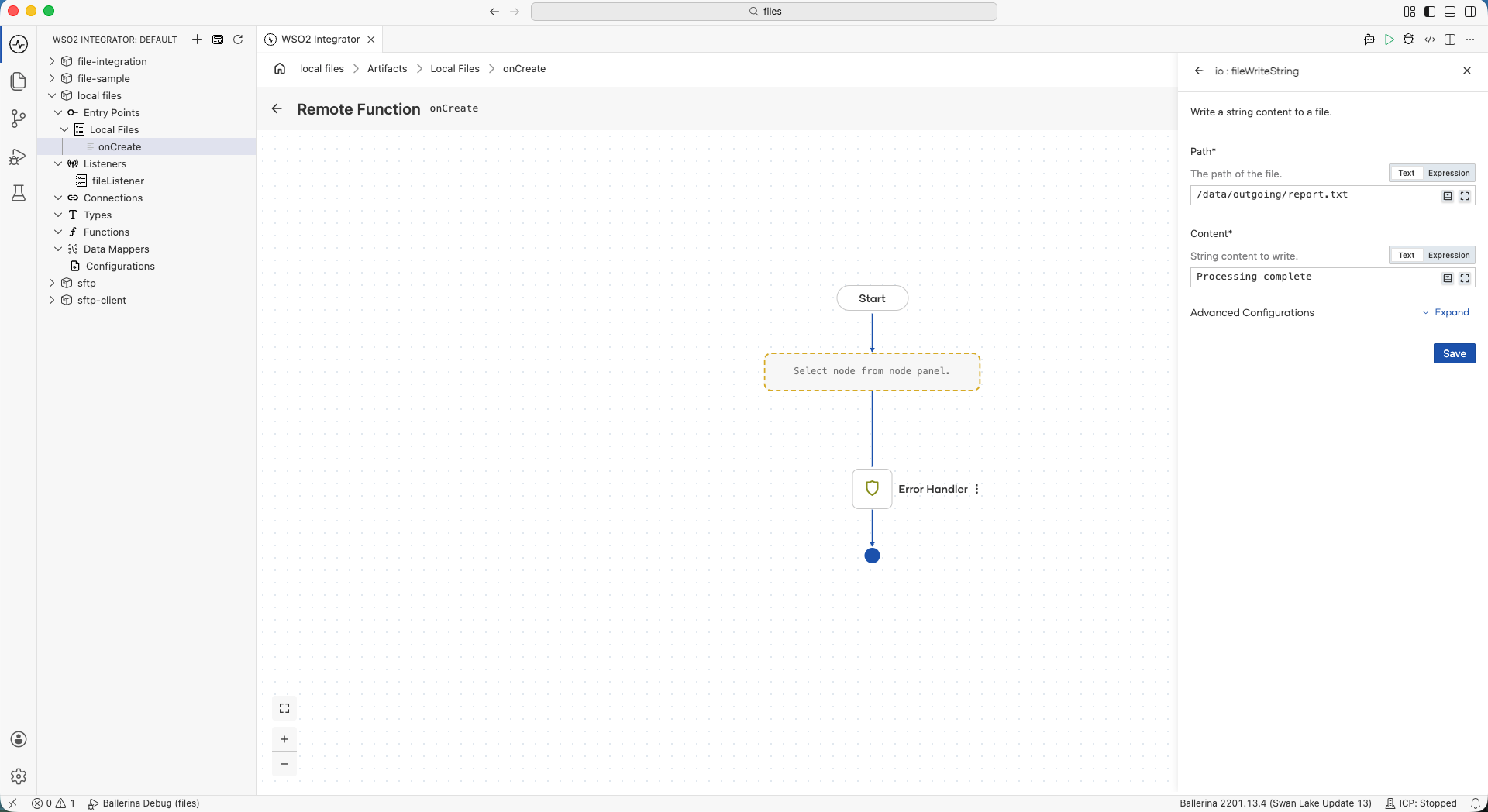
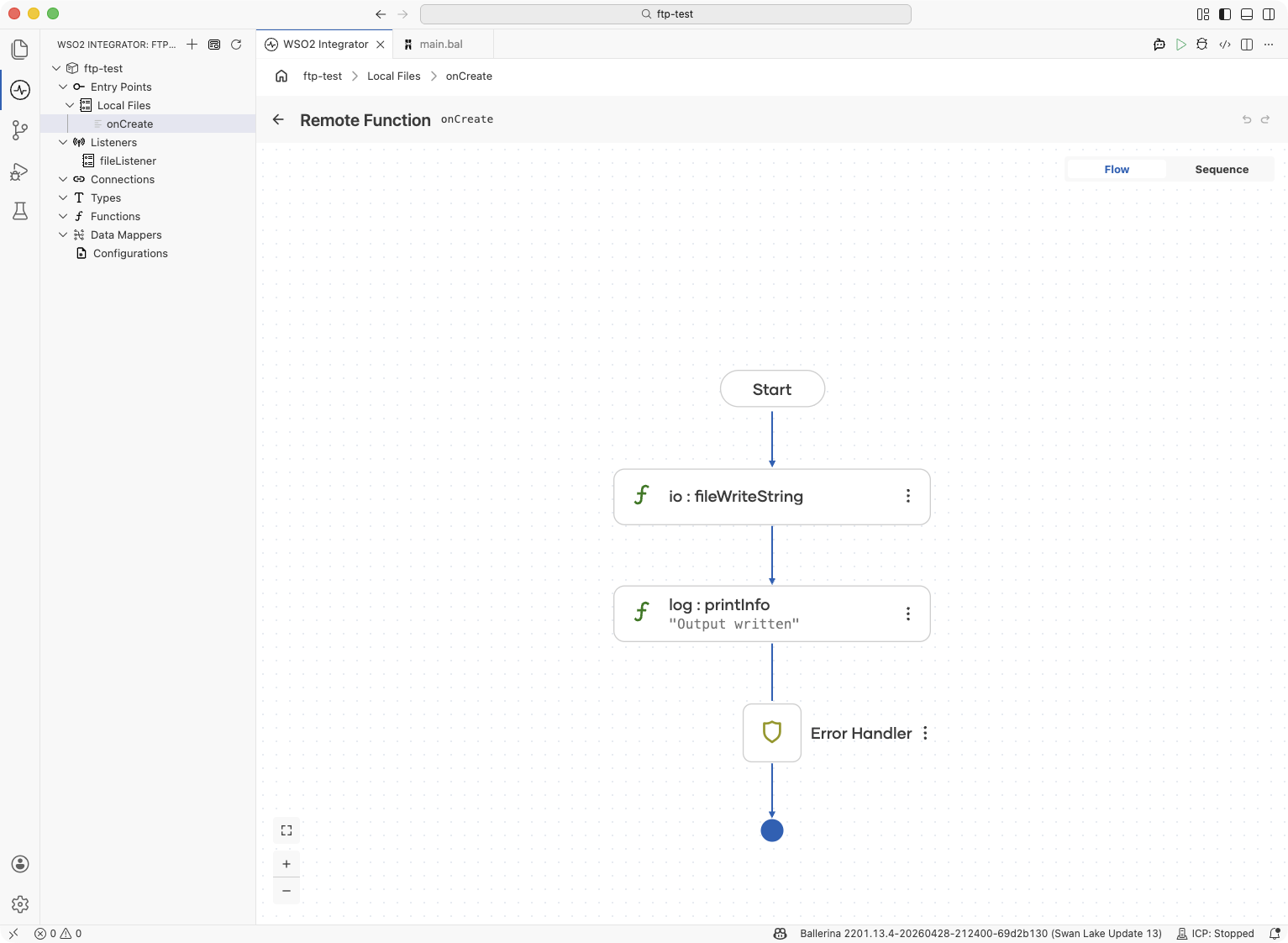
Use a Call Function node to invoke an io write function, then add a Log node to confirm the write:
-
Click + on the handler canvas to add a node, pick Call Function, and select fileWriteString under
iofunctions. -
Set the Path to
/data/outgoing/report.txtand the Content to"Processing complete.". Save the node.
- Click + after the Call Function node, pick Log → Log Info, and enter a confirmation message such as
"Output written". Save the node.
import ballerina/file;
import ballerina/io;
import ballerina/log;

service on fileListener {

    remote function onCreate(file:FileEvent event) returns error? {
        check io:fileWriteString("/data/outgoing/report.txt", "Processing complete.");
        log:printInfo("Output written", trigger = event.name);
    }
}
io write functions:
| Function | Description |
|---|---|
io:fileWriteString(path, content) | Write a string to a file, overwriting any existing content |
io:fileWriteString(path, content, option) | Write a string with io:APPEND or io:OVERWRITE option |
io:fileWriteCsv(path, content) | Serialize a record[] or string[][] and write it as CSV |
io:fileWriteBytes(path, content) | Write a byte array to a file |
io:fileWriteLines(path, content) | Write a string[] as lines to a file |
What's next
- FTP / SFTP — monitor a remote file server instead of a local directory
- File integrations on S3 file events — react to S3 uploads using an SQS listener
- Connections — reuse connection credentials across services
- Data Mapper — transform incoming file payloads between formats