Build a Supplier Order Ingestion Hub
Overview
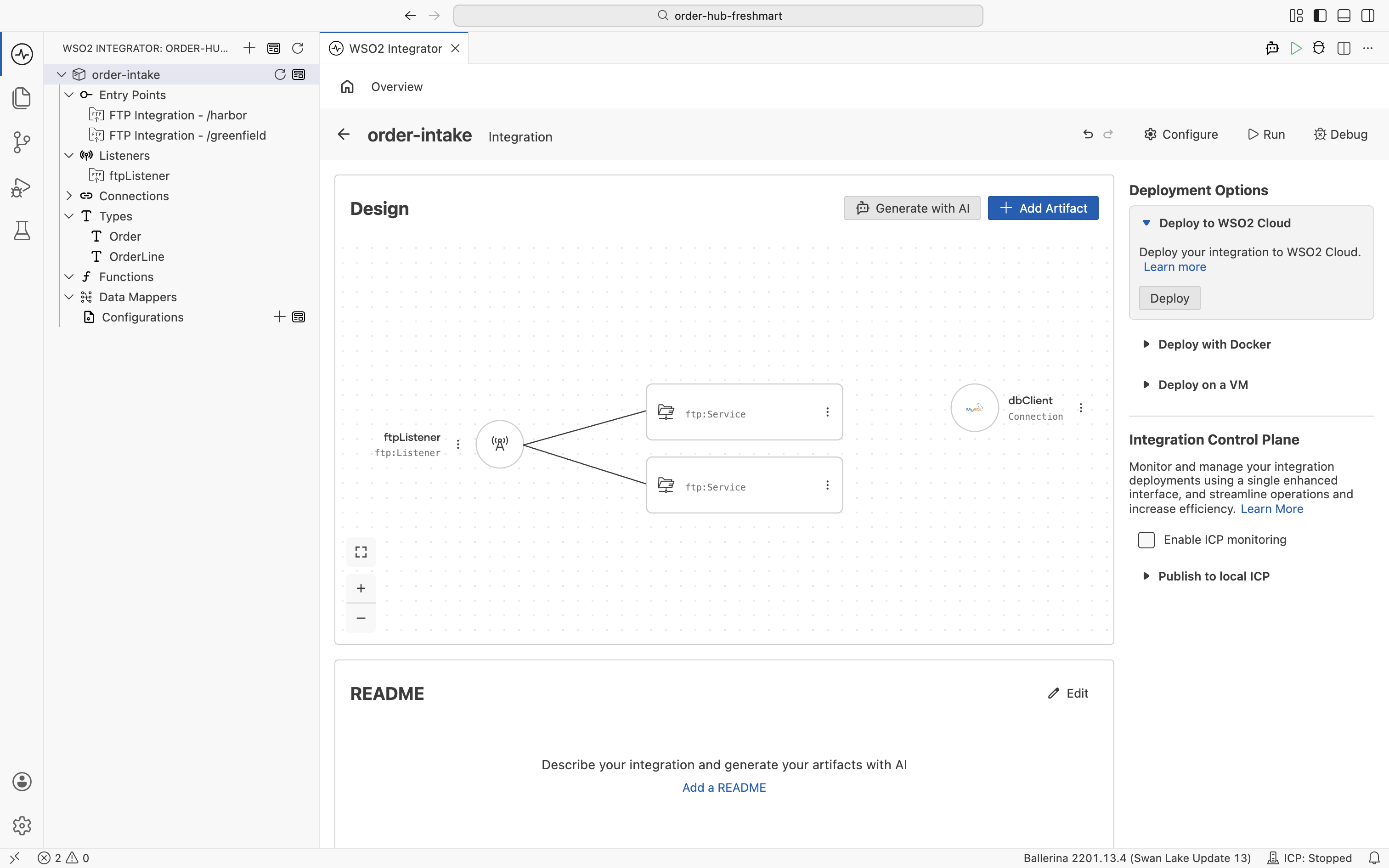
In this tutorial you build a complete B2B file ingestion hub with WSO2 Integrator, the low-code integration platform built on Ballerina. Suppliers drop order files onto a file server in different formats; your integration turns that mix into one clean, queryable order book, then reports on it daily. You design everything visually, and WSO2 Integrator generates clean Ballerina underneath. Most steps show both: the visual flow on one tab and the generated code on the other.
By the end, a CSV file from one supplier and an XML file from another will flow through the same pipeline into a single canonical shape in MySQL, and a scheduled job will email the day's orders as a report.
An ingestion hub for FreshMart, a retailer whose suppliers send purchase orders as files in incompatible formats: Greenfield Foods uploads CSV, Harbor Supplies uploads XML. Each order file is paired with a small .ok marker written once its upload finishes. Your integration polls the file server, waits until each order file is complete, normalizes both formats into one canonical Order with the data mapper, stores the orders in MySQL, and archives each file (to /processed on success, /errors on failure). A scheduled automation then reads the day's orders and emails a summary to the procurement team. You build it as two integrations in one project, entirely on the canvas.
The supplier files
Both suppliers send one order per file, paired with a small .ok marker written once the upload is complete. The two formats disagree on almost everything, and reconciling them onto one shape is exactly what the data mapper does in Step 3 and Step 4. It helps to know what arrives before you map it.
Greenfield (CSV). A header row followed by one row per line item. Every row repeats the same order_id and order_date (one file is one order), and the numeric columns are already typed: qty is an integer and unit_price a decimal. The date is ISO YYYY-MM-DD.
order_id,order_date,sku,description,qty,unit_price
GF-10231,2026-06-23,APL-001,Gala Apples 1kg,120,2.50
GF-10231,2026-06-23,BAN-004,Bananas 1kg,80,1.20
GF-10231,2026-06-23,ORG-009,Navel Oranges 1kg,60,3.10
Harbor (XML). A single <purchaseOrder> element that carries the order header as attributes (id, date, currency), with the line items nested under <items> as <item> elements. Because every value is an XML attribute, the numbers (units, price) arrive as text, and the date is DD/MM/YYYY.
<purchaseOrder id="HS-55012" date="23/06/2026" currency="USD">
  <items>
    <item code="MLK-220" name="Whole Milk 2L" units="200" price="1.85"/>
    <item code="EGG-012" name="Free-Range Eggs (dozen)" units="150" price="3.40"/>
  </items>
</purchaseOrder>
So the two shapes differ in structure (flat rows vs. nested elements), in typing (typed numbers vs. text), in date format (ISO vs. DD/MM/YYYY), and even in field names (sku vs. code, qty vs. units). The canonical Order you define in Step 1 is the single target both of them map onto.
Architecture
You build the work as two focused integrations inside one project, plus a shared canonical model they both rely on.
| Integration | Type | Responsibility |
|---|---|---|
Order Intake (order-intake) | FTP file integration | One listener, two services. The Greenfield service consumes CSV from /greenfield; the Harbor service consumes XML from /harbor. Each maps its format to the canonical Order with the data mapper, persists to MySQL, and archives the file. |
Daily Summary (daily-summary) | Automation | A scheduled job that reads the day's orders from MySQL, builds an HTML summary, and emails it to procurement. |

The two intake services share one listener because both directories live on the same file server: the connection is defined once, and each service points at its own directory with its own handler. This is the one listener ↔ many services topology. The summary is a separate automation rather than part of intake because it runs on a clock, not on a file event, keeping reporting out of the ingestion path.
The data mapper is the heart of the hub: it is what lets two unrelated file shapes converge on a single Order. So you define the canonical model and database first (Step 1), stand up the file intake (Step 2), build the two mappers (Steps 3 and 4), add the scheduled report (Step 5), and run the whole thing (Step 6).
This walkthrough uses plain FTP so the visual steps stay simple and reproducible. For real partner exchange, switch the listener to SFTP or FTPS: the same services and handlers, just a different protocol and credentials on the listener. See Creating an SFTP service.
Before you start, make sure you have:
- WSO2 Integrator installed.
- A running FTP server with the directories
/greenfield,/harbor,/processed, and/errors, plus a username and password. A Docker setup is below. - A running MySQL instance. A setup script for the
order_hubdatabase and itsordersandorder_linestables is below. - An SMTP server to receive the summary email. A local mock such as Mailpit works well for testing (SMTP on
1025, web inbox on8025). A Docker setup is below.
Set up the MySQL database
Run this script against your MySQL instance. It creates the database, the application user the integration connects as, and the two tables: orders and its child order_lines, linked by a foreign key so an order's lines are deleted with it.
CREATE DATABASE IF NOT EXISTS order_hub;

-- Application user the integration connects as
CREATE USER IF NOT EXISTS 'order_hub_user'@'%' IDENTIFIED BY 'order_hub_pass';
GRANT ALL PRIVILEGES ON order_hub.* TO 'order_hub_user'@'%';
FLUSH PRIVILEGES;

USE order_hub;

-- One row per order, keyed by the supplier's business id + supplier code
CREATE TABLE orders (
    id            INT           NOT NULL AUTO_INCREMENT PRIMARY KEY,
    order_id      VARCHAR(64)   NOT NULL,
    supplier_code VARCHAR(32)   NOT NULL,
    order_date    DATE          NOT NULL,
    order_total   DECIMAL(12,2) NOT NULL,
    currency      VARCHAR(8)    NOT NULL,
    UNIQUE (order_id, supplier_code)
);

-- The line items of an order; order_id is the integer FK into orders.id
CREATE TABLE order_lines (
    id          INT           NOT NULL AUTO_INCREMENT PRIMARY KEY,
    sku         VARCHAR(64)   NOT NULL,
    description VARCHAR(255),
    quantity    INT           NOT NULL,
    unit_price  DECIMAL(12,2) NOT NULL,
    line_total  DECIMAL(12,2) NOT NULL,
    order_id    INT           NOT NULL,
    FOREIGN KEY (order_id) REFERENCES orders(id) ON DELETE CASCADE
);
You now have an order_hub database reachable with these credentials, which you give to the dbClient connection in Step 1:
| Setting | Value |
|---|---|
| Host | localhost |
| Port | 3306 |
| Database | order_hub |
| User | order_hub_user |
| Password | order_hub_pass |
Run an FTP server in Docker
This walkthrough uses the fauria/vsftpd image. Start it with the credentials and passive ports the integration expects:
docker run -d --name file-order-hub-ftp \
  -p 21:21 -p 21100-21110:21100-21110 \
  -e FTP_USER=ftpuser -e FTP_PASS=ftppass \
  -e PASV_ADDRESS=127.0.0.1 -e PASV_MIN_PORT=21100 -e PASV_MAX_PORT=21110 \
  fauria/vsftpd
Then create the four directories the services watch and archive to:
docker exec file-order-hub-ftp sh -c 'mkdir -p \
  /home/vsftpd/ftpuser/greenfield /home/vsftpd/ftpuser/harbor \
  /home/vsftpd/ftpuser/processed /home/vsftpd/ftpuser/errors \
  && chmod -R 777 /home/vsftpd/ftpuser'
You now have an FTP server on 127.0.0.1:21, user ftpuser / ftppass, with the home /home/vsftpd/ftpuser. These are the values you put in the order-intake Config.toml (ftpHost, ftpPort, ftpUsername, ftpPassword).
Run a mock SMTP server in Docker
Mailpit captures outgoing mail and shows it in a web inbox, with no TLS or authentication, which is exactly what the daily summary needs for testing:
docker run -d --name order-hub-mail -p 1025:1025 -p 8025:8025 axllent/mailpit
It listens for SMTP on localhost:1025 and serves the inbox at http://localhost:8025. These match the daily-summary Config.toml (smtpHost, smtpPort), with the connection's security set to START_TLS_NEVER and no credentials.
Step 1: Set up the project and the canonical model
Everything you build lives in one project that holds both integrations, so you set that up first, together with the two things every later step leans on: the canonical Order model the suppliers' formats normalize into, and the MySQL database that stores each order. The data mapper in Step 3 and Step 4 maps both CSV and XML onto this one model, so defining it now is what lets the rest of the hub converge.
You created the order_hub database and its tables in the Prerequisites; here you define the canonical model and point a connection at that database.
Create the project and the canonical model
- Visual Designer
- Ballerina Code
Create the project, canonical model, and database connection
-
Launch WSO2 Integrator and, on the Create a Project card, click Create to create a project. Name the project
order-hub-freshmartand choose where it lives on disk. This is the one project that will hold both the intake and the summary integrations from the architecture. Under What do you want to build?, select Integration, name itorder-intake, and click Create.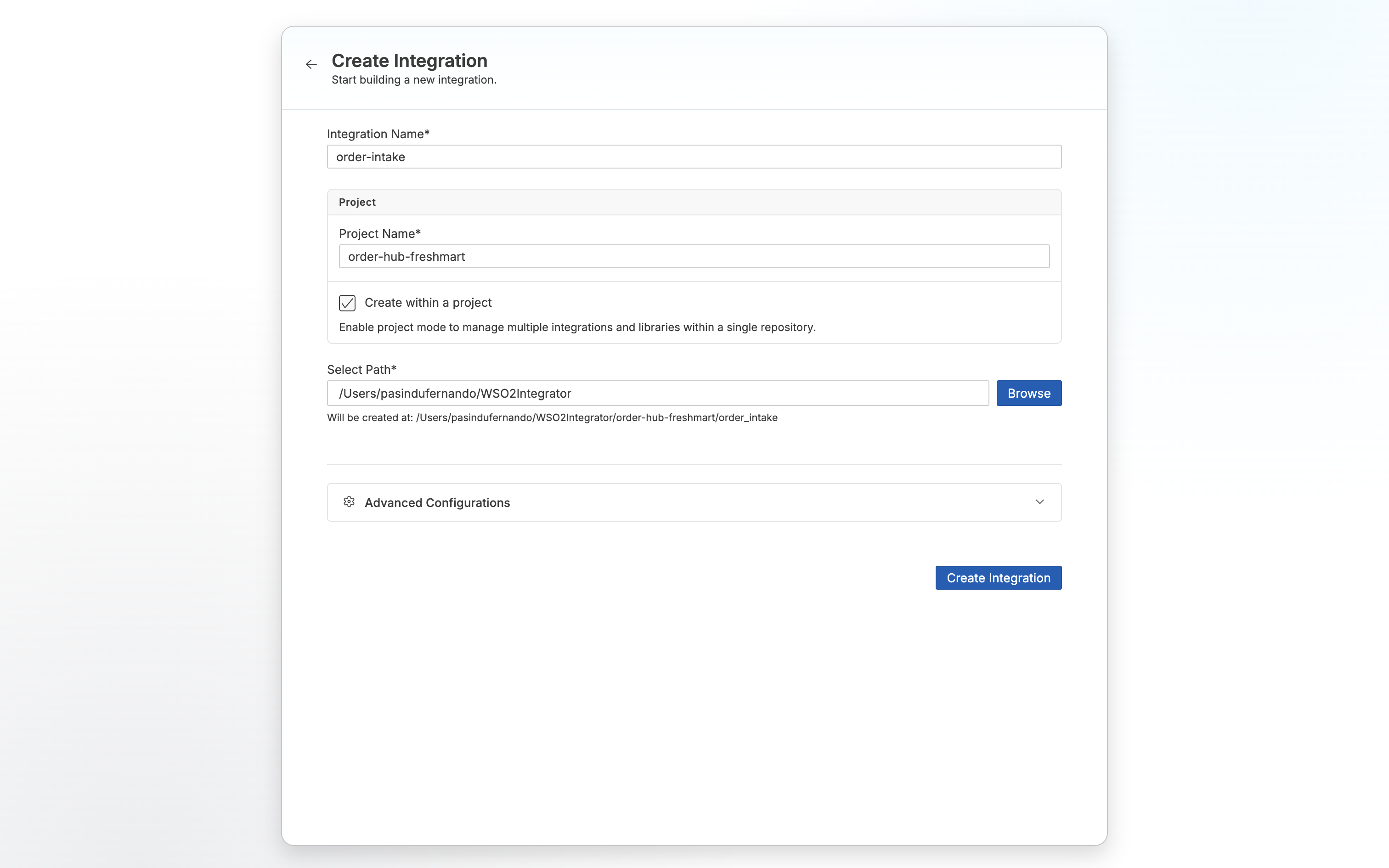
-
Define the canonical model. In the artifacts panel, open Types and add two record types: an
OrderLine(sku,description,quantity,unitPrice,lineTotal) and anOrderthat holds the order header plus alinesfield of typeOrderLine[]. When adding each one, expand Advanced configs and tick Accessible by other integrations: the Daily Summary integration reuses this module, and both intake services map onto the sameOrder.![The Type Diagram showing the Order record holding an OrderLine[] array, linked to the OrderLine record with sku, description, quantity, unitPrice, and lineTotal fields](/integration-platform/docs/saas/assets/images/canonical-types-db074a509df615b950260b231a06e5c8.png)
-
Add the database connection. In the artifacts panel, open Connections, click +, and choose Connect to a Database. Select MySQL and enter the
order_hubcredentials from the Prerequisites, then click Connect & Introspect Database.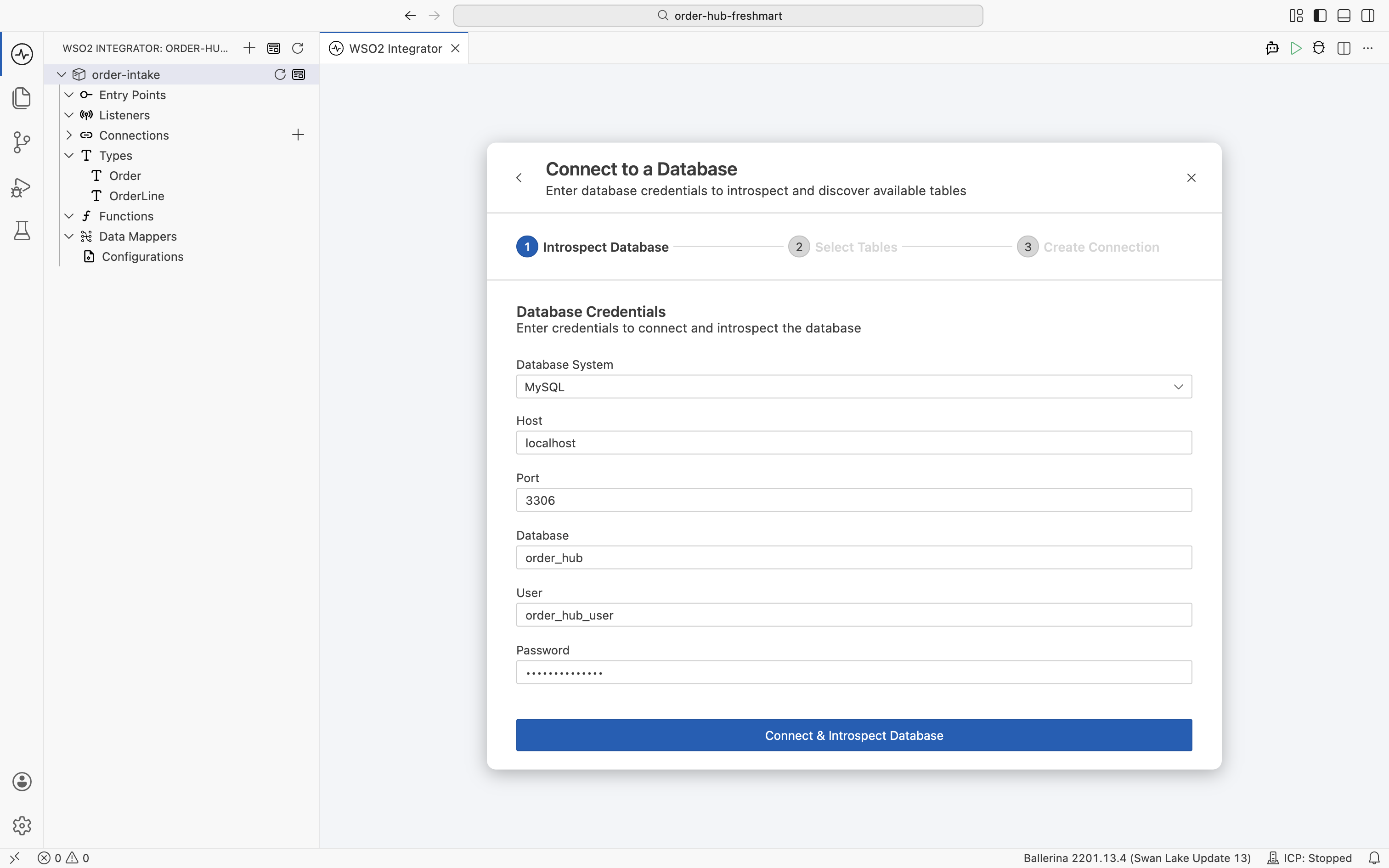
On Select Tables, keep both
ordersandorder_linesselected and click Continue to Connection Details.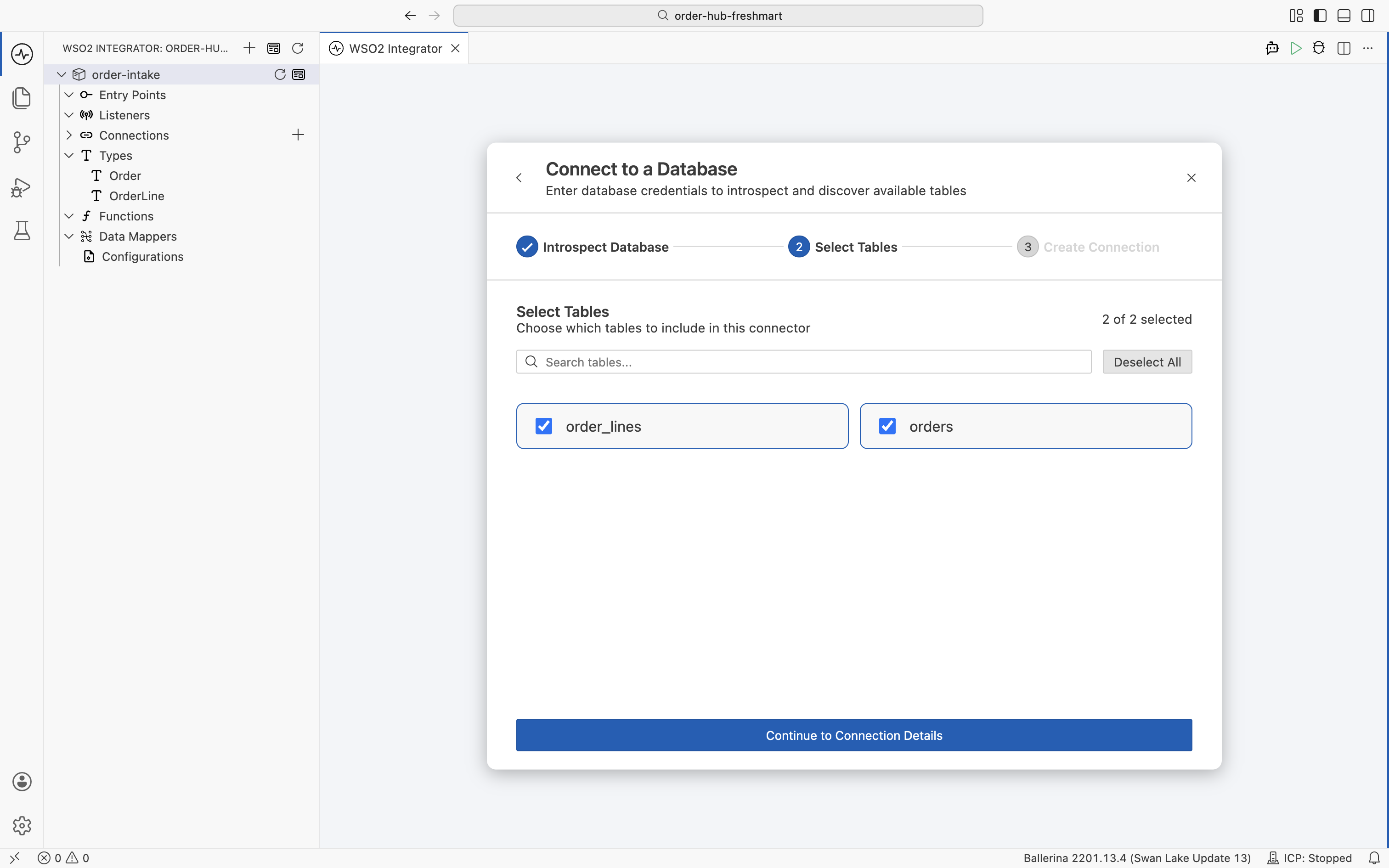
Name the connection
dbClientand click Save Connection. The persist feature generates a type-safe client with CRUD functions and the matching entities, and declares the connection's configurables (dbClientHost,dbClientPort,dbClientDatabase, and the rest) with the values you entered as defaults.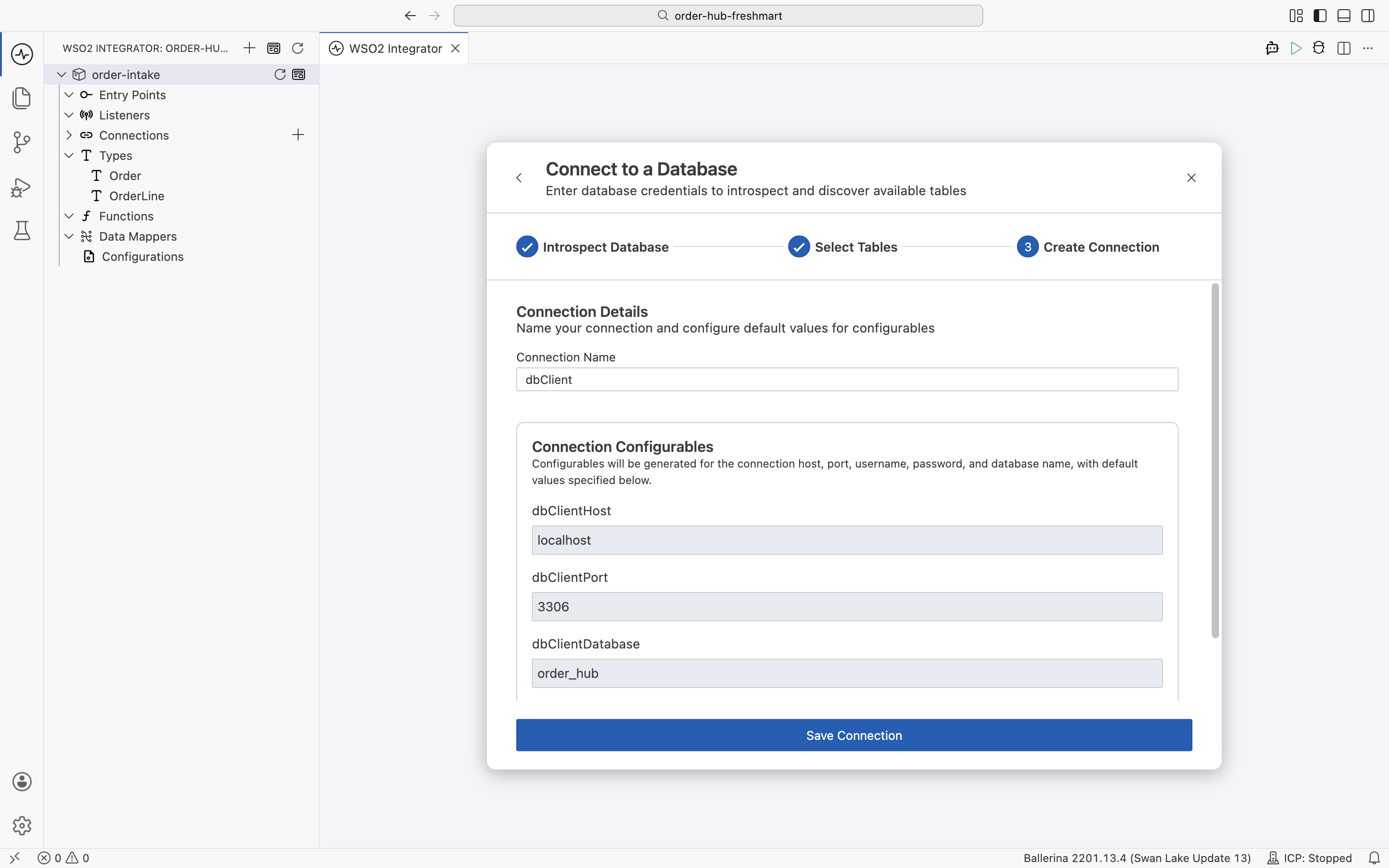
The two record types are the canonical model both supplier formats map onto. The Visual Designer wrote them to types.bal:
public type OrderLine record {|
    string sku;
    string description;
    int quantity;
    decimal unitPrice;
    decimal lineTotal;
|};

public type Order record {|
    string orderId;
    string supplierCode;
    string orderDate;
    OrderLine[] lines;
    decimal orderTotal;
    string currency;
|};
The database wizard generated the persist client and declared its connection settings in config.bal; you supply the password in Config.toml:
configurable string dbClientHost = "localhost";
configurable int dbClientPort = 3306;
configurable string dbClientUser = "order_hub_user";
configurable string dbClientPassword = ?;
configurable string dbClientDatabase = "order_hub";
# Config.toml
dbClientPassword = "order_hub_pass"
Capability: a single canonical model. You define the target shape and the database once. Every supplier format you onboard maps onto the same
Orderand lands in the same two tables, the contract the rest of the hub is built around.
Step 2: Stand up the FTP intake (one listener, two services)
Both suppliers drop their files on the same file server, so you stand up one FTP listener and hang two services off it, one watching /greenfield, one watching /harbor. Each service is gated so it only picks up a file once it matches a name pattern, has settled on disk, and its .ok companion has landed. This is the one listener ↔ many services topology: the connection is defined once and shared.
- Visual Designer
- Ballerina Code
Declare configurations and create the listener and two services
-
Declare the FTP configurations. In the artifacts panel, open Configurations and add
ftpHost(string),ftpPort(int),ftpUsername(string), andftpPassword(string). Keeping the connection details out of the code lets you point at a different server per environment without touching the integration.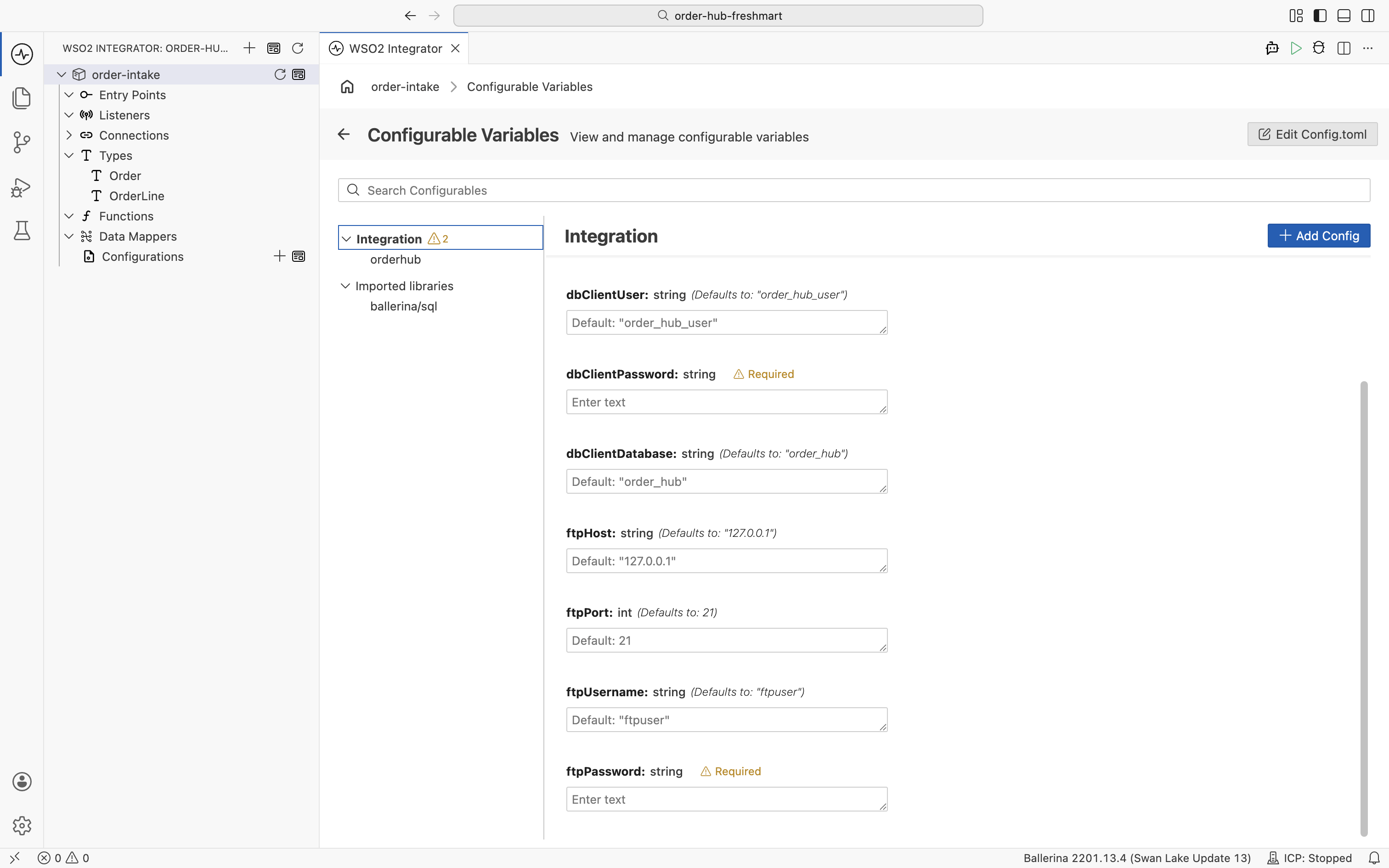
-
Add the FTP artifact. From the integration's Design view, click + Add Artifact.
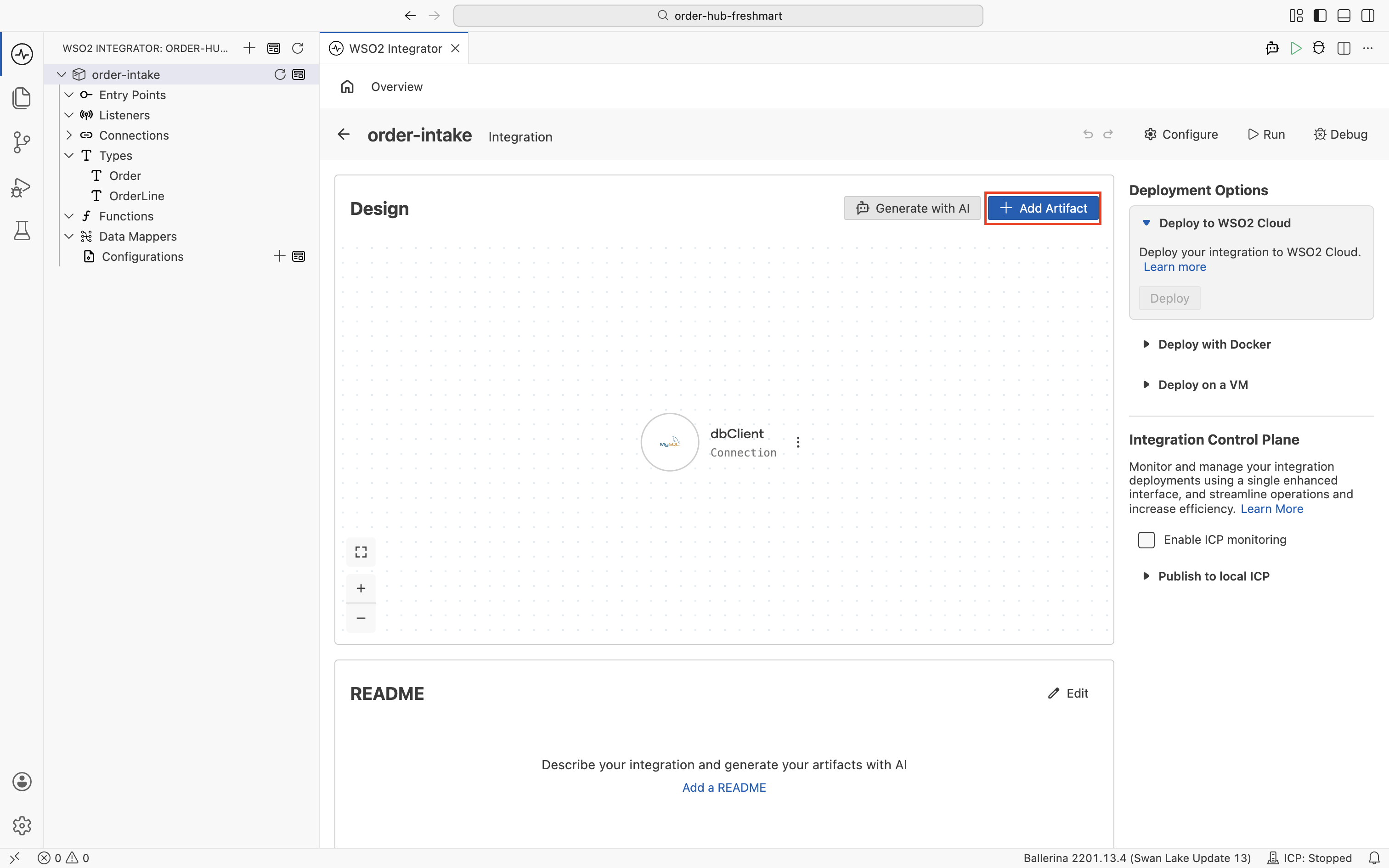
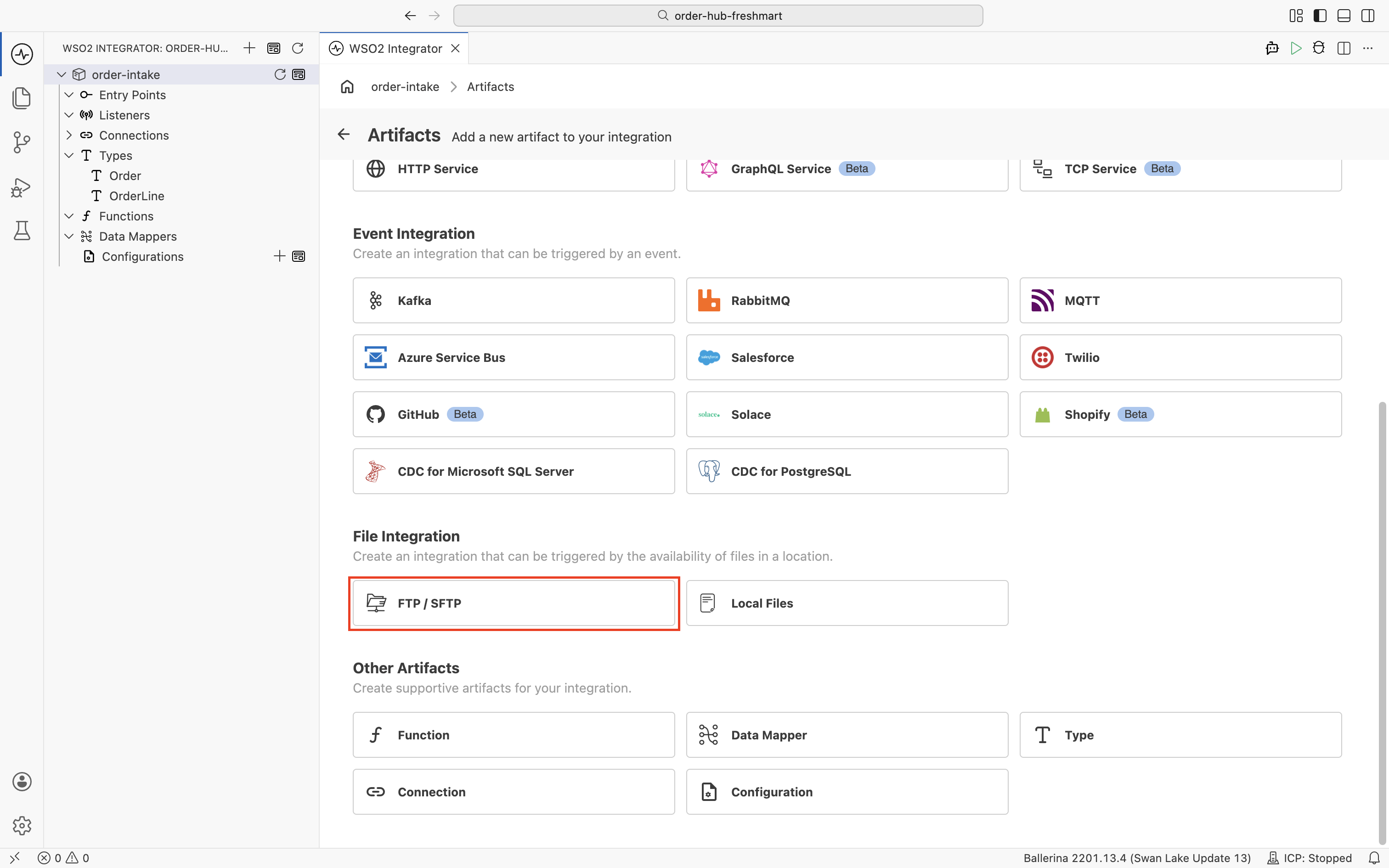
Under File Integration, choose FTP / SFTP.
-
Configure the Greenfield listener. Select the FTP protocol and Basic Authentication, then bind Host, Port Number, Username, and Password to the configurables you just declared. Switch each field to Expression mode and reference
ftpHost,ftpPort,ftpUsername, andftpPassword. Set the Monitoring Path to/greenfieldand click Next. This creates the listener (namedftpListener) and the first service together. See Creating an FTP service for the full field reference.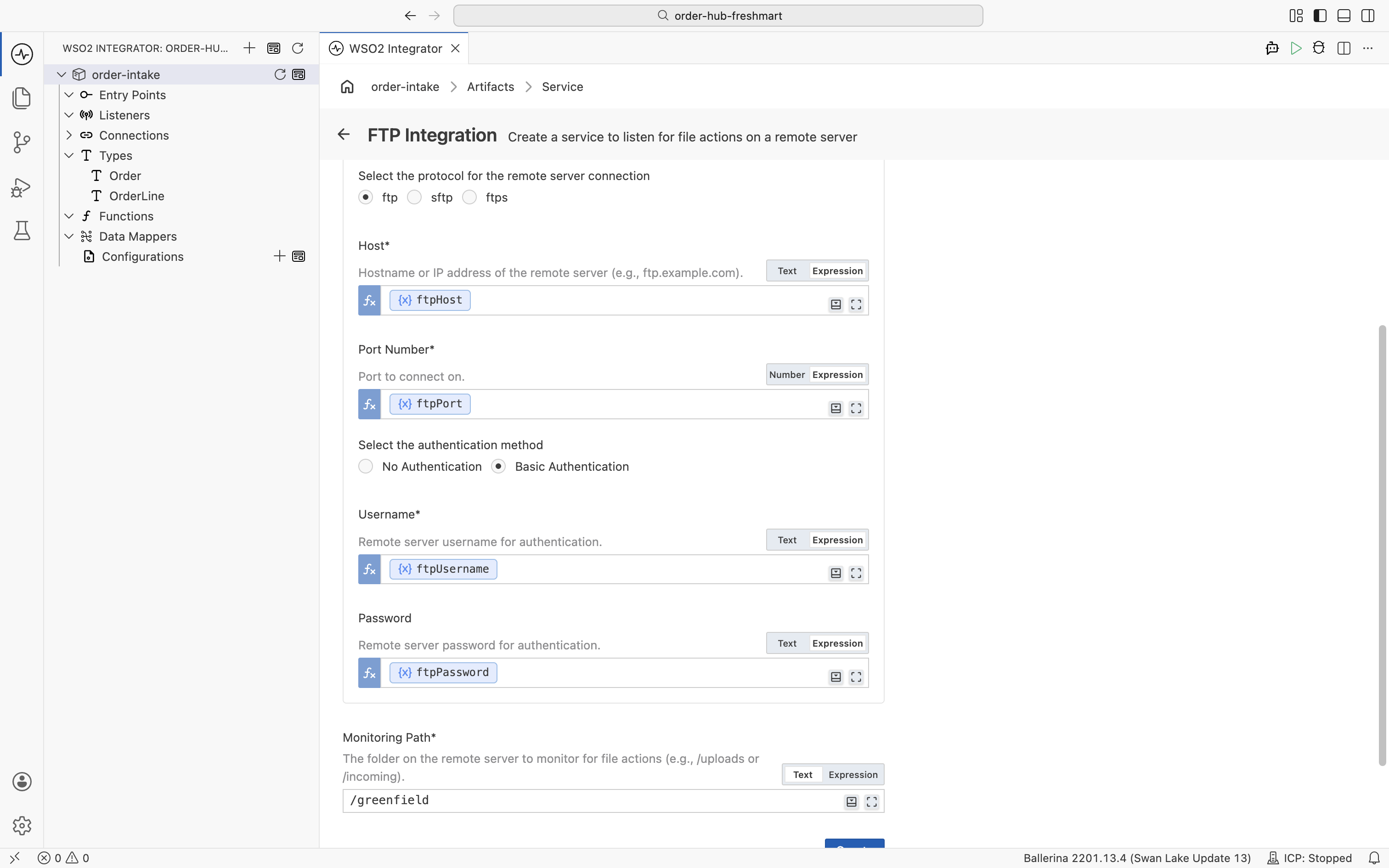 Bind fields in Expression mode
The Host, Port, Username, and Password fields must be in Expression mode to reference the configurables. In Text mode the platform treats your entry as a literal string. The Monitoring Path stays in Text mode, since it is a literal directory.
-
Gate the Greenfield service. Open the
/greenfieldservice from the project tree and click Configure in the top right.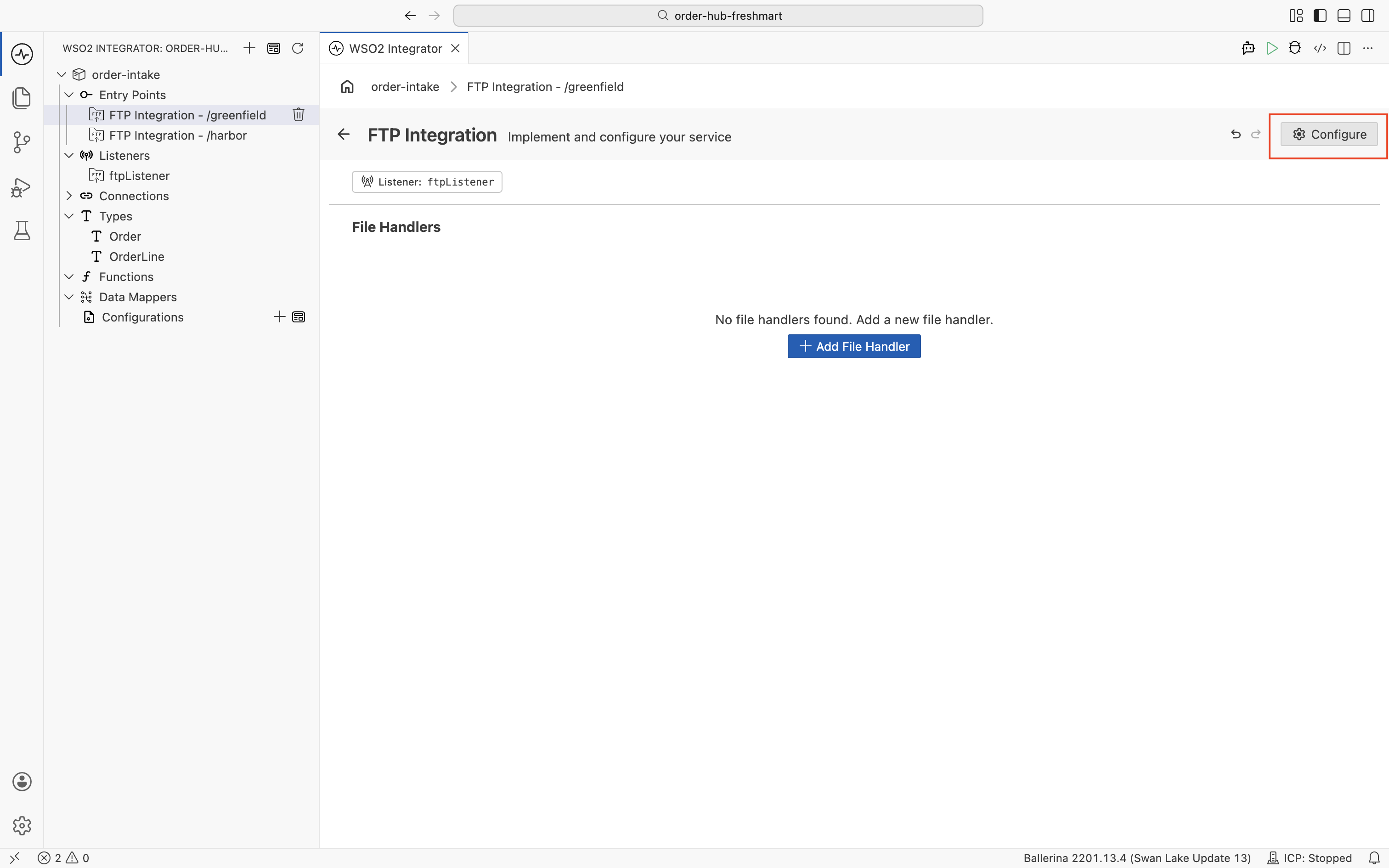
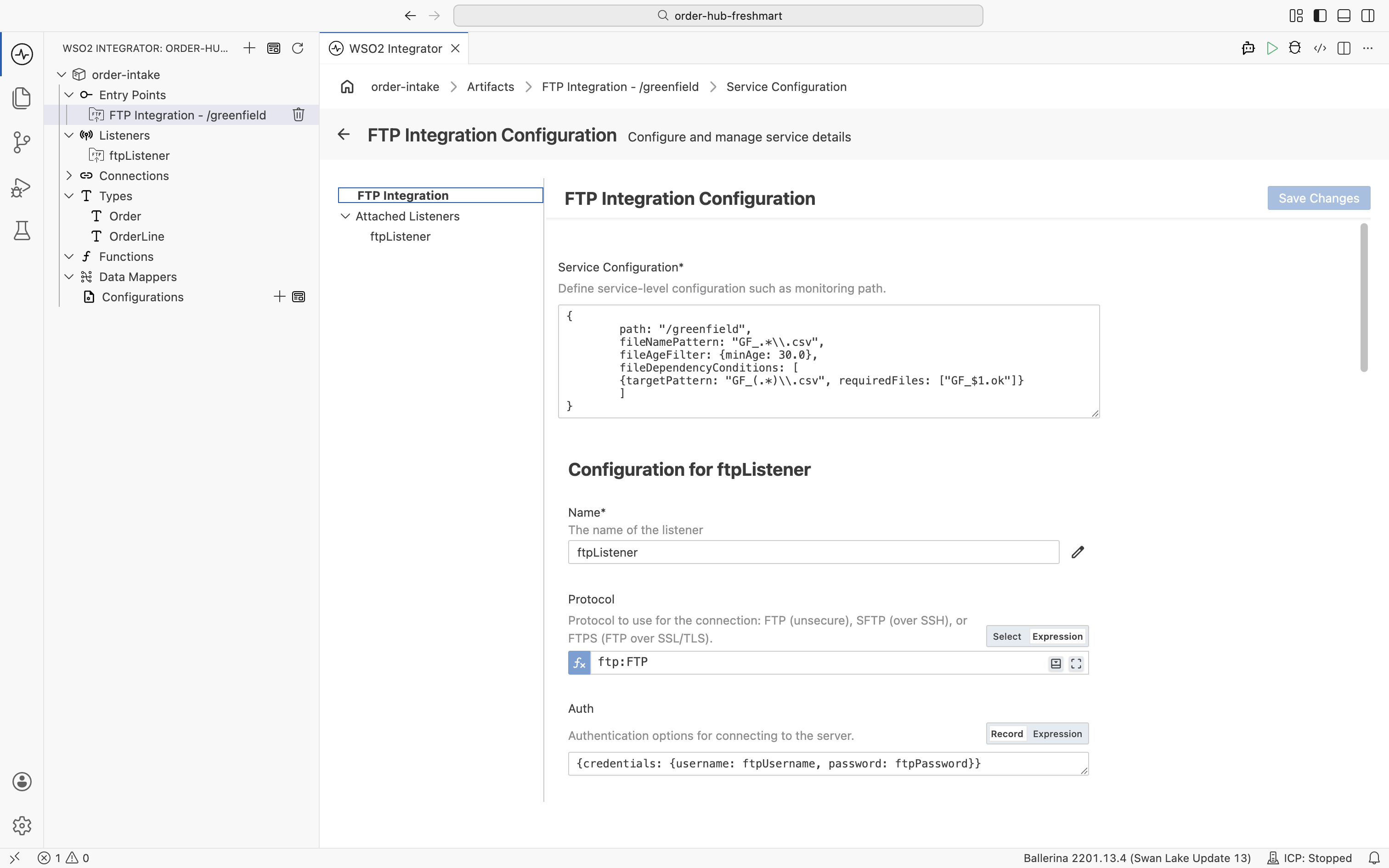
The Service Configuration is a single record you edit. Enter the trigger conditions so a file is only delivered when it is genuinely ready:
- a file name pattern
GF_.*\.csv, so only Greenfield CSVs match; - a file age filter
minAge: 30.0, so a file still being uploaded is left alone until it has settled for 30 seconds; - a file dependency condition requiring the
.okmarker: target patternGF_(.*)\.csvwith required fileGF_$1.ok, so the capture group ties eachGF_10231.csvto its ownGF_10231.ok.
{
    path: "/greenfield",
    fileNamePattern: "GF_.*\\.csv",
    fileAgeFilter: {minAge: 30.0},
    fileDependencyConditions: [
        {targetPattern: "GF_(.*)\\.csv", requiredFiles: ["GF_$1.ok"]}
    ]
}
- a file name pattern
-
Add the Harbor service on the same listener. Add another FTP / SFTP artifact, but this time reuse the existing listener: pick
ftpListenerfrom Listener Name (its protocol and credentials are inherited and locked), and set only the Monitoring Path to/harbor. Then gate it the same way, with the XML equivalents: patternHS_.*\.xml, the same 30-second age filter, and dependency targetHS_(.*)\.xmlrequiringHS_$1.ok.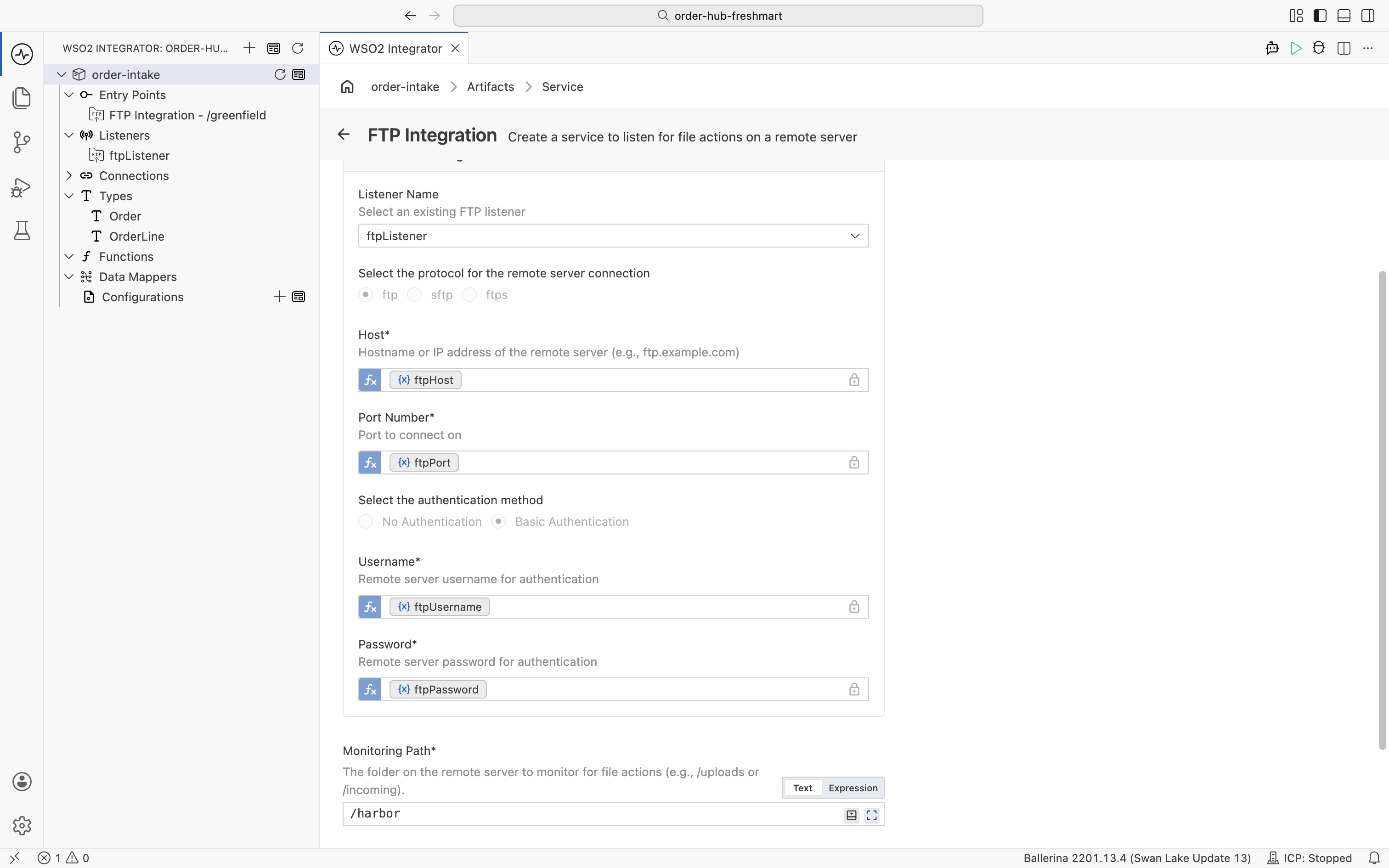
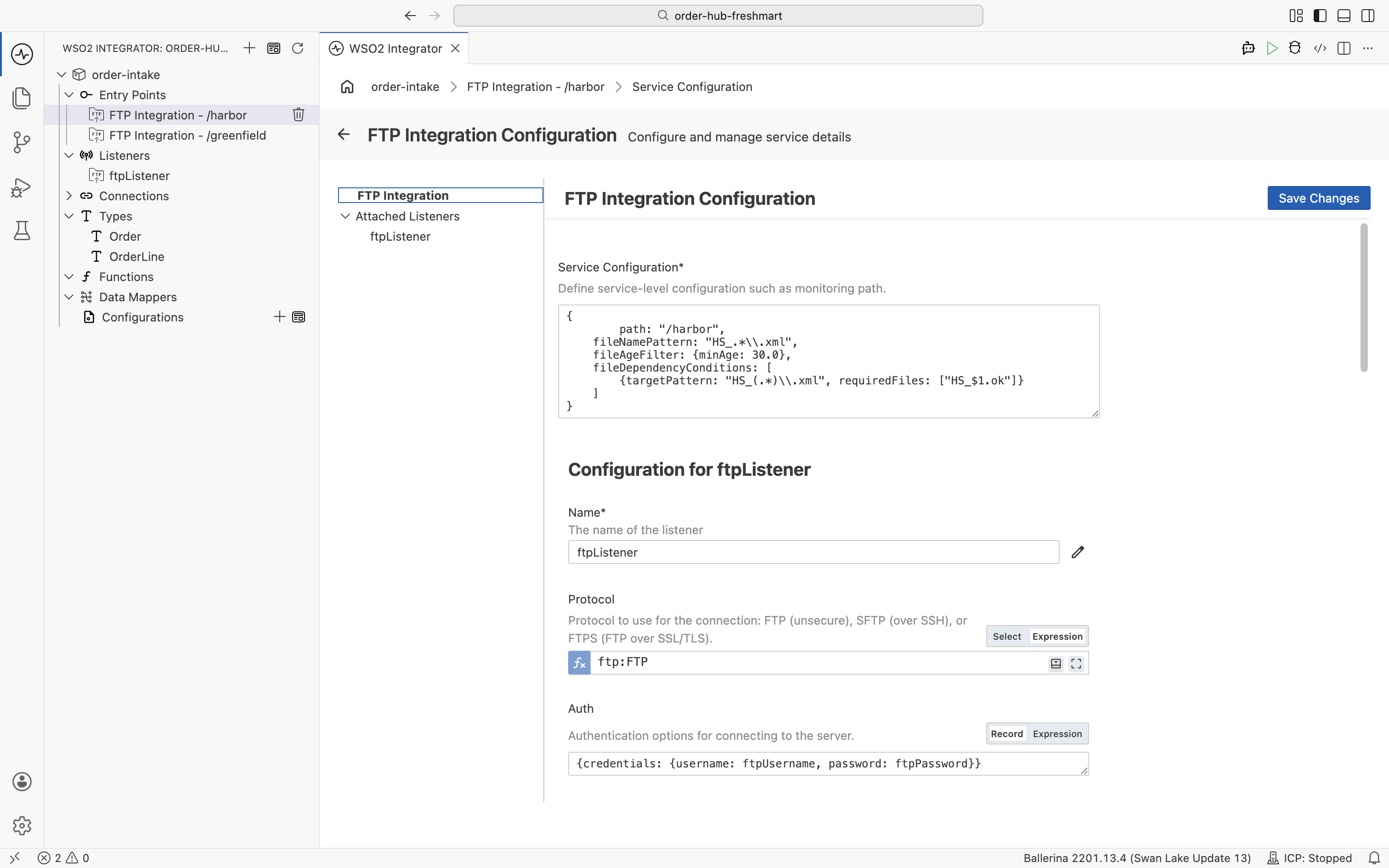
You now have two services sharing one listener, each watching its own directory.
The Visual Designer declared the configurations in config.bal; you supply the password in Config.toml:
configurable string ftpHost = "127.0.0.1";
configurable int ftpPort = 21;
configurable string ftpUsername = "ftpuser";
configurable string ftpPassword = ?;
# Config.toml
ftpPassword = "ftppass"
In main.bal, one listener is shared by both services. Each @ftp:ServiceConfig carries the gating: a name pattern, the 30-second age filter, and the .ok dependency. The handler bodies are filled in Step 3 and Step 4:
import ballerina/ftp;

listener ftp:Listener ftpListener = new (protocol = ftp:FTP, host = ftpHost, auth = {credentials: {username: ftpUsername, password: ftpPassword}}, port = ftpPort);

// Greenfield: only GF_*.csv files, settled for 30s, with a matching GF_*.ok marker present
@ftp:ServiceConfig {
    path: "/greenfield",
    fileNamePattern: "GF_.*\\.csv",
    fileAgeFilter: {minAge: 30.0},
    fileDependencyConditions: [
        {targetPattern: "GF_(.*)\\.csv", requiredFiles: ["GF_$1.ok"]}
    ]
}
service on ftpListener {
    // CSV → Order mapping and persistence, built in Step 3
}

// Harbor: the same listener, but XML files from /harbor gated on the HS_*.ok marker
@ftp:ServiceConfig {
    path: "/harbor",
    fileNamePattern: "HS_.*\\.xml",
    fileAgeFilter: {minAge: 30.0},
    fileDependencyConditions: [
        {targetPattern: "HS_(.*)\\.xml", requiredFiles: ["HS_$1.ok"]}
    ]
}
service on ftpListener {
    // XML → Order mapping and persistence, built in Step 4
}
Capability: dependency-gated polling, one connection, many feeds. Two services share one FTP connection, and each fires only when its data file matches its pattern, has settled on disk, and its
.okcompanion has landed, so you never process a half-written upload.
Step 3: Map the Greenfield CSV to the canonical Order
This is where the hub earns its keep. The Greenfield service receives the CSV file as typed rows, the data mapper folds those rows into one canonical Order, and the persist client writes the order and its lines to MySQL. Then the file is archived. You build all three on the /greenfield service you stood up in Step 2.
- Visual Designer
- Ballerina Code
Receive the CSV as typed rows
-
Open the
/greenfieldservice and add a file handler: choose On Create and set File Format to CSV. Click Define Row Schema → Create Type Schema and defineGreenfieldRowwith the columns of the file:order_id,order_date,sku,description(string),qty(int), andunit_price(decimal).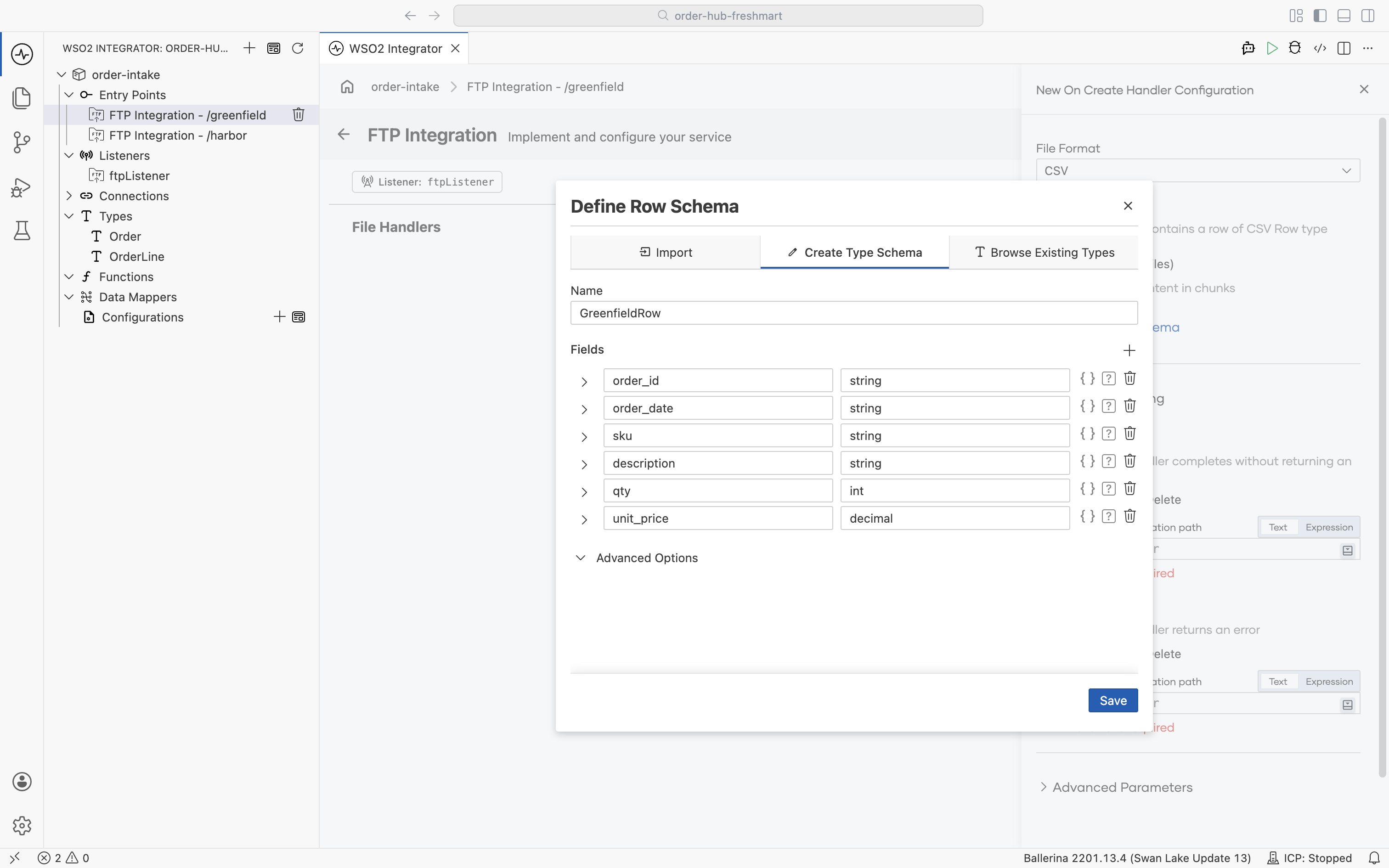
-
The platform delivers the file as a
GreenfieldRow[]namedgreenfieldRows. Under After File Processing, set Success → Move to/processedand Error → Move to/errors, then save. The handler is generated asonFileCsv.![The On Create handler configuration: File Format CSV, Content Schema GreenfieldRow[] greenfieldRows, and After File Processing moving to /processed on success and /errors on error](/integration-platform/docs/saas/assets/images/greenfield-handler-ba544c0cda812eb9104a879fff7263d6.png)
Build the data mapper
-
From Data Mappers, create
transformGreenFieldOrderswith inputGreenfieldRow[] greenFieldRowsand outputOrder.![The Create New Data Mapper form: name transformGreenFieldOrders, input GreenfieldRow[] greenFieldRows, output Order](/integration-platform/docs/saas/assets/images/greenfield-mapper-create-2034c361688605dcea05fc0d65682a69.png)
-
Because one file is one order, the order_id is the same for each row. Click the
orderIdoutput field; since the input is an array but you want a single row, choose Extract Single Element from Array.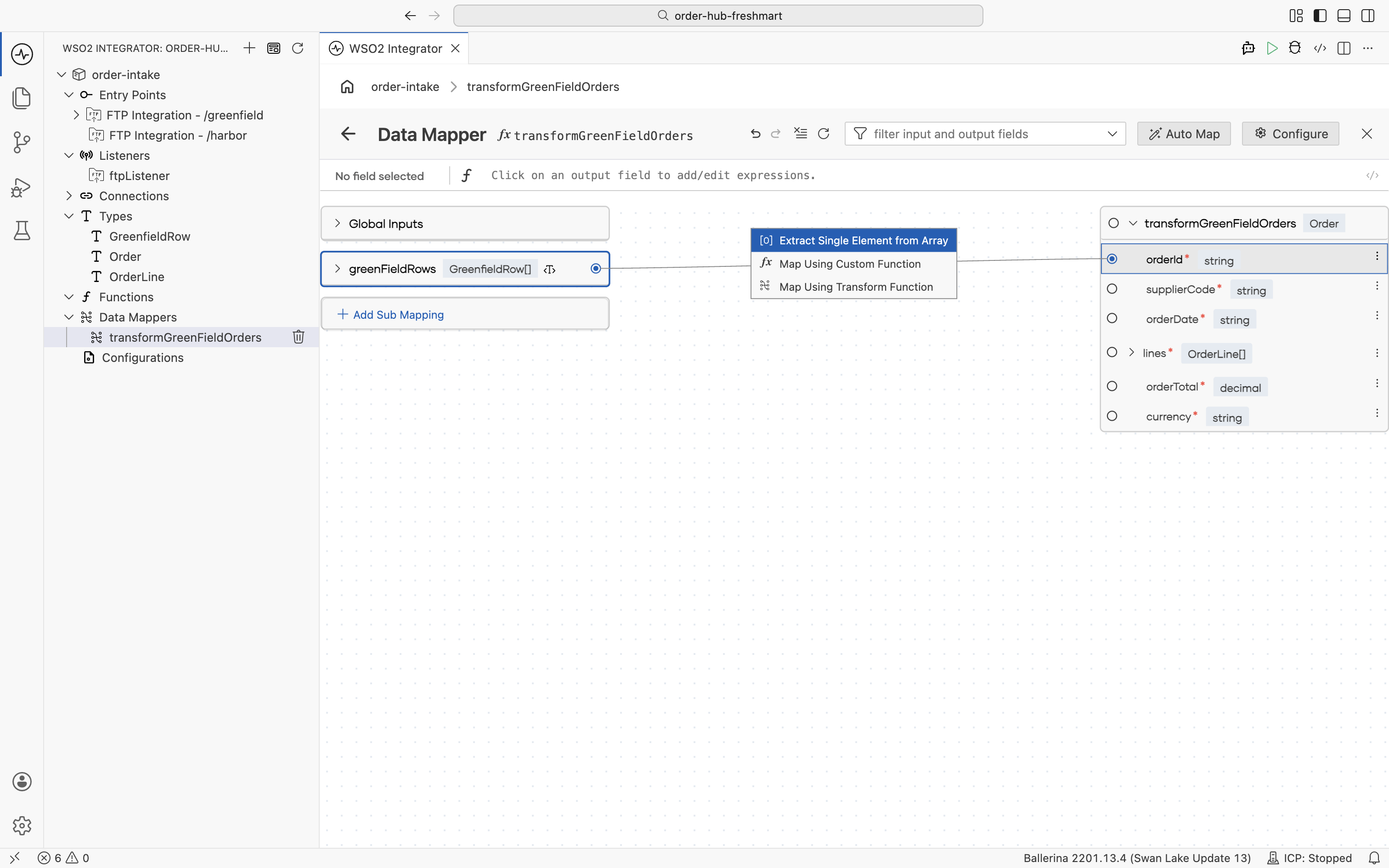
-
Reference the first row: map
orderIdfromgreenFieldRows[0].order_id.![The expression editor mapping orderId to greenFieldRows[0].order_id, with the first row's fields in the autocomplete](/integration-platform/docs/saas/assets/images/greenfield-mapper-orderid-46f920a4c12bf541713fcc386bc9ce10.png)
-
Map
orderDatethe same way, fromgreenFieldRows[0].order_date.![The expression editor mapping orderDate to greenFieldRows[0].order_date](/integration-platform/docs/saas/assets/images/greenfield-mapper-orderdate-426458ee9c4978dfc45a519a4b0703ad.png)
-
supplierCodeandcurrencyare business constants, not data from the file. Type the string values directly into their output fields:supplierCode="GREENFIELD"andcurrency="USD".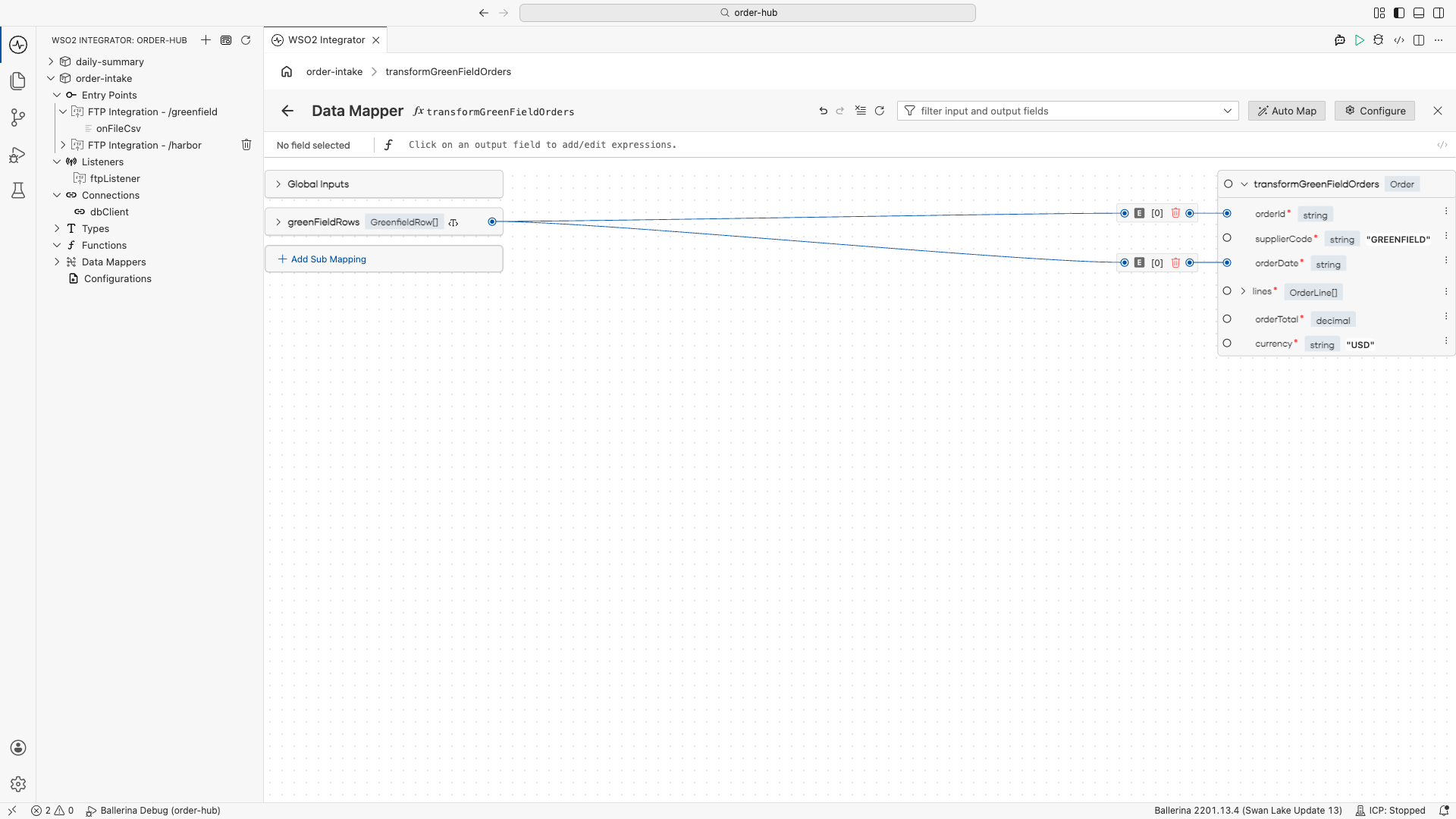
-
Map
linesas an array-to-array mapping: from thegreenFieldRowsinput, choose Map Each Element so every CSV row becomes anOrderLine.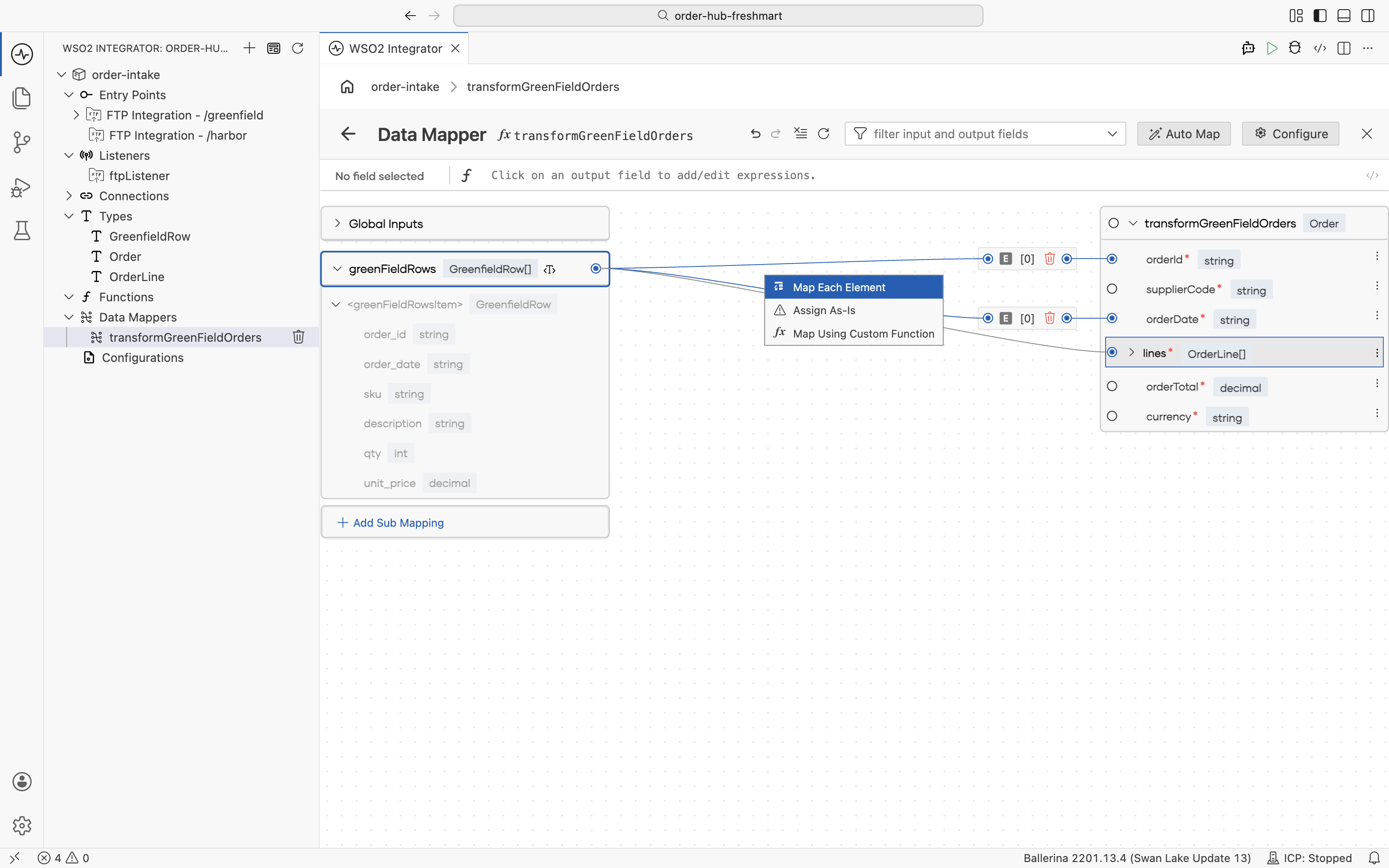
-
Inside the element mapping, map
sku,description,quantity(fromqty), andunitPrice(fromunit_price). ForlineTotal, use Convert and Map onqty, since it must be cast frominttodecimal.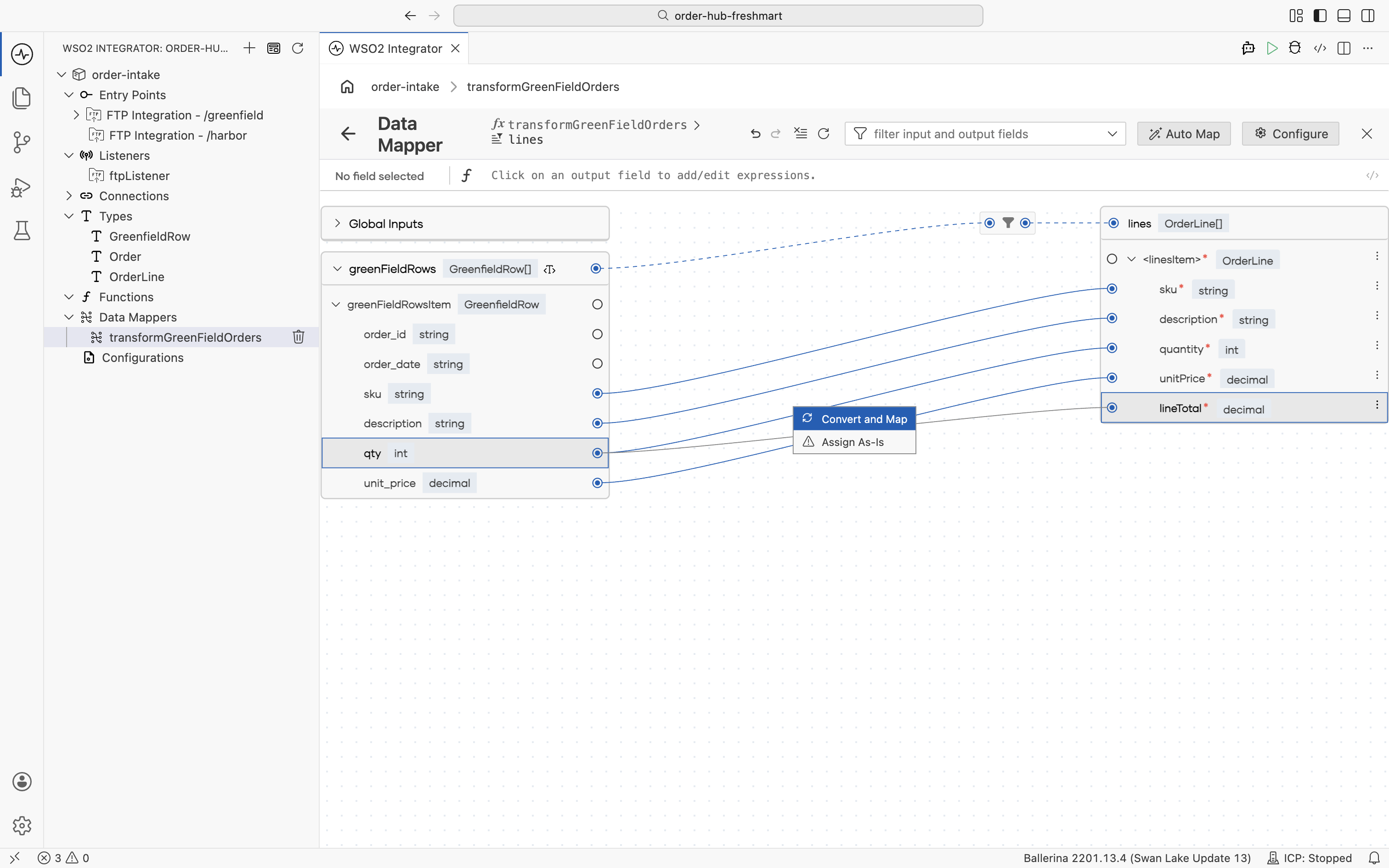
-
Complete
lineTotalas<decimal>greenFieldRowsItem.qty * greenFieldRowsItem.unit_price.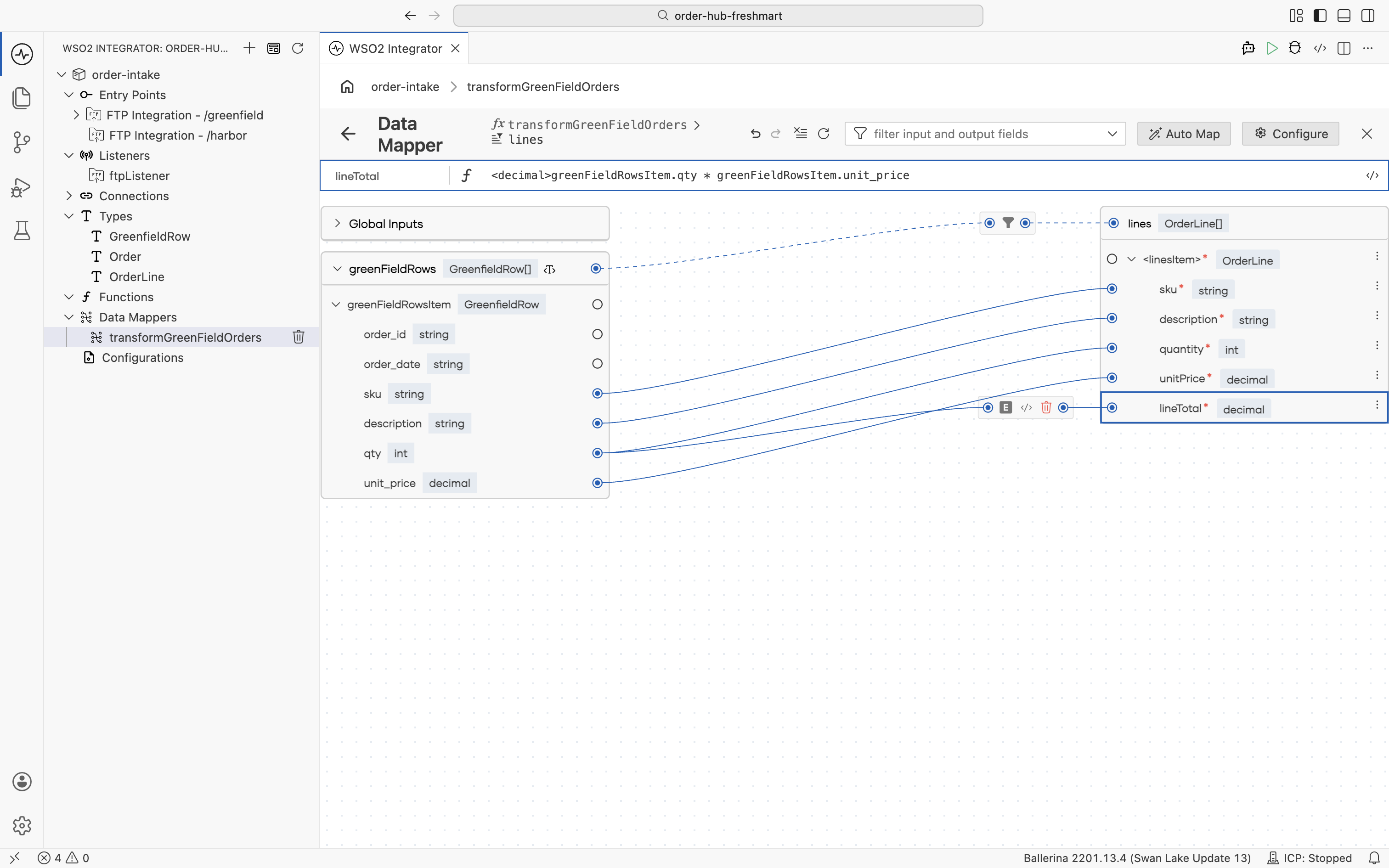
-
The order total is the sum of the line totals. Add a sub-mapping named
lineTotalsof typedecimal[].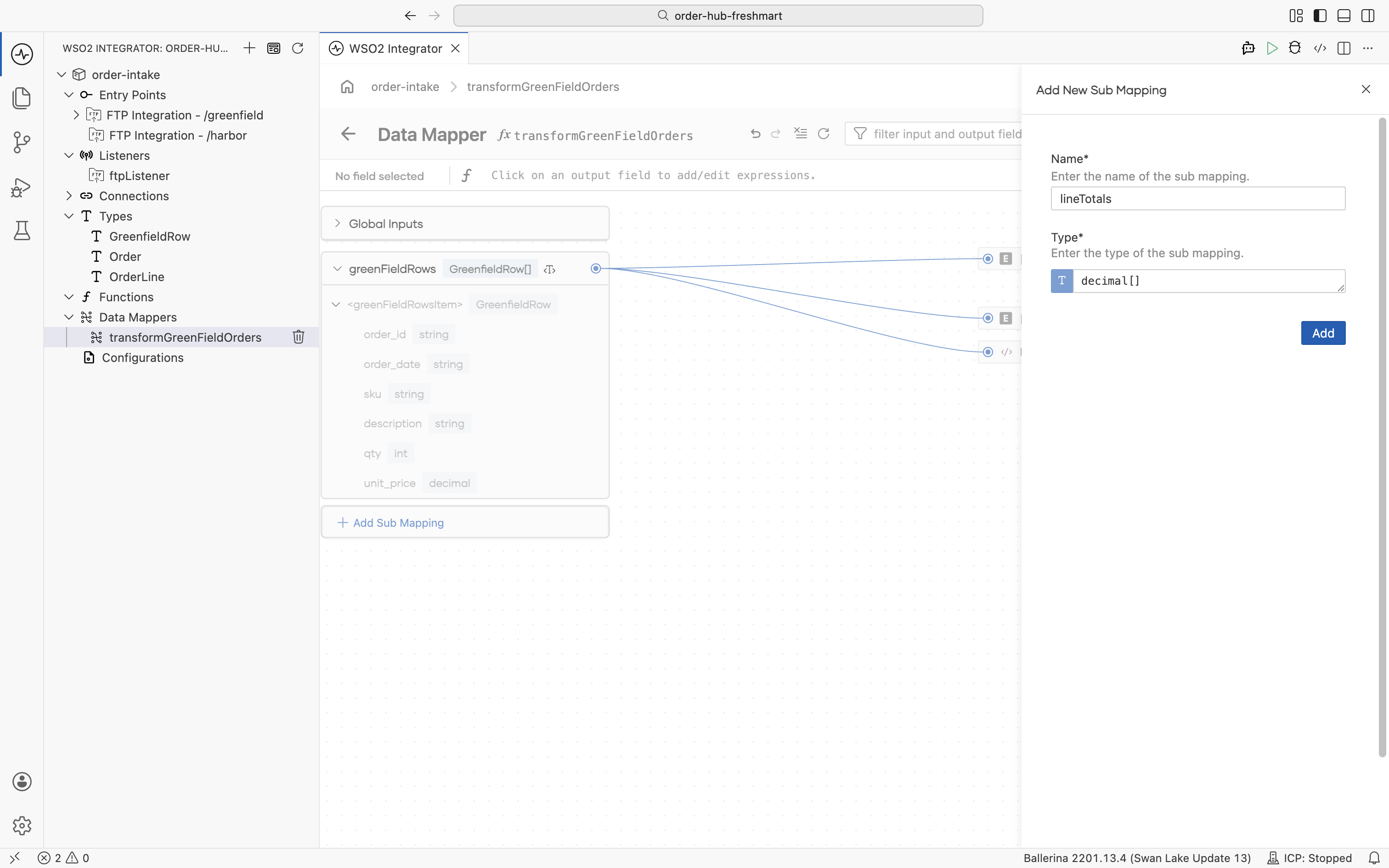
-
Populate the sub-mapping from
greenFieldRowswith Map Each Element.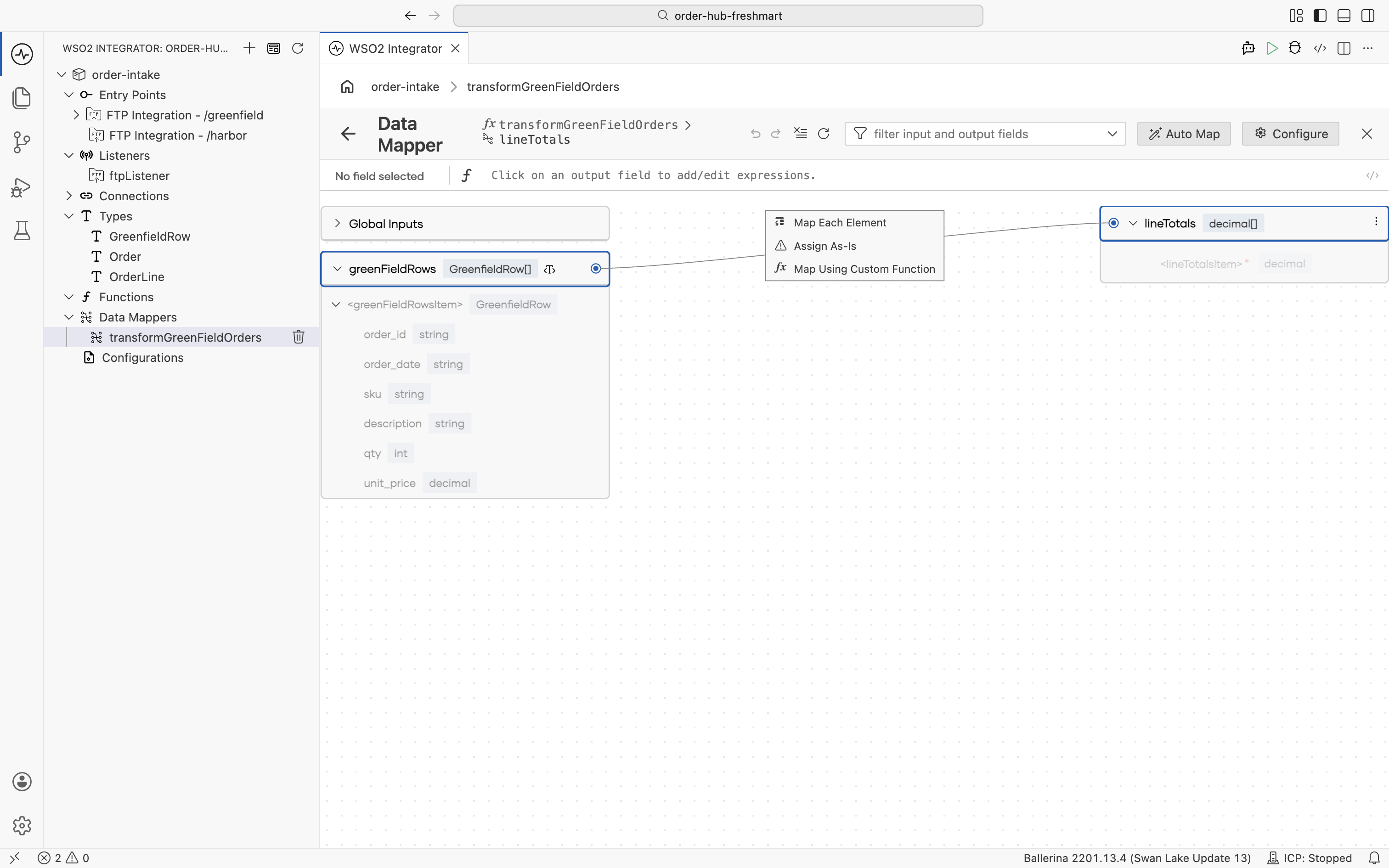
-
Each element of
lineTotalsis<decimal>greenFieldRowsItem.qty * greenFieldRowsItem.unit_price.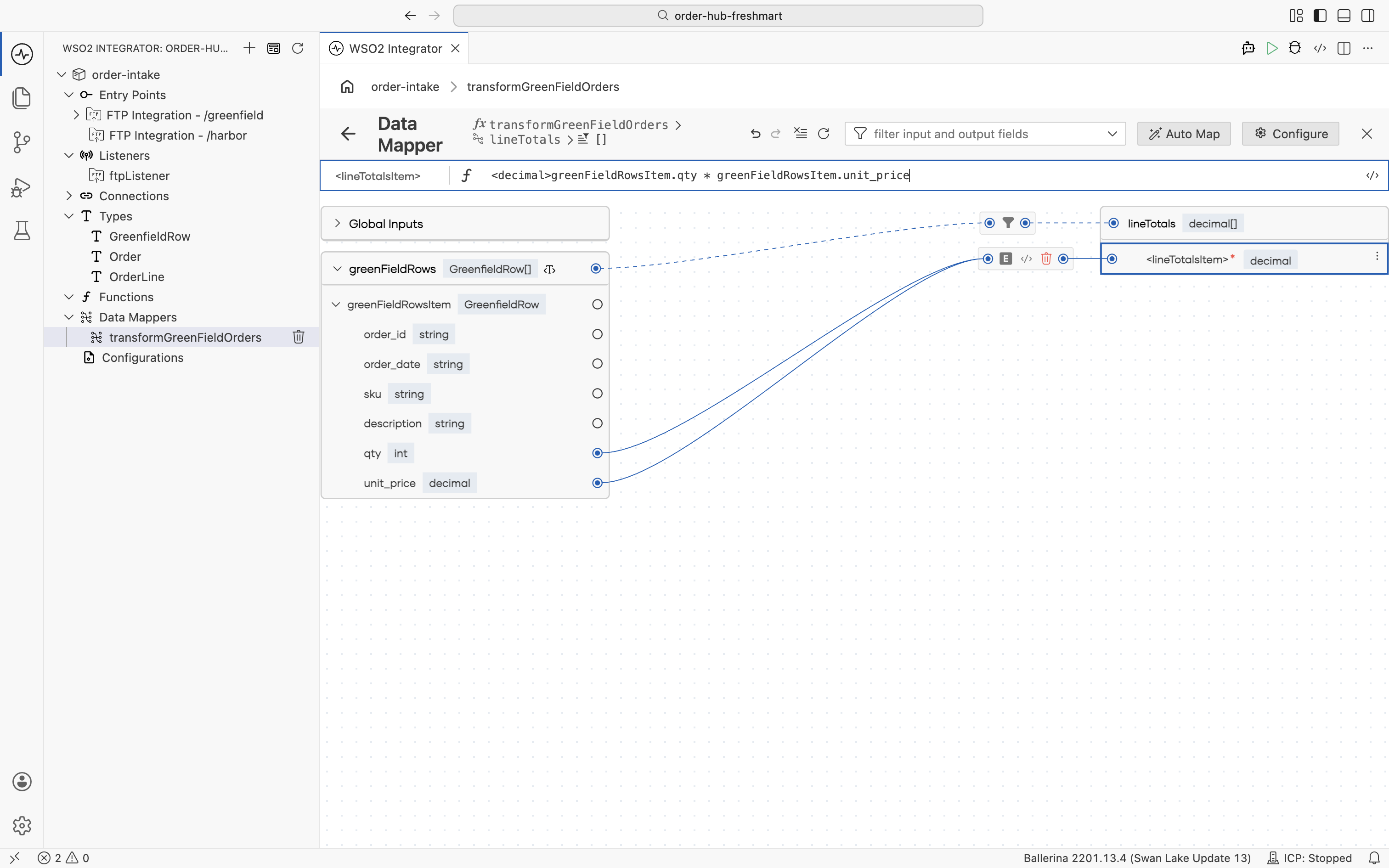
-
Now map
orderTotalfrom thelineTotalssub-mapping. Choose Aggregate and Map.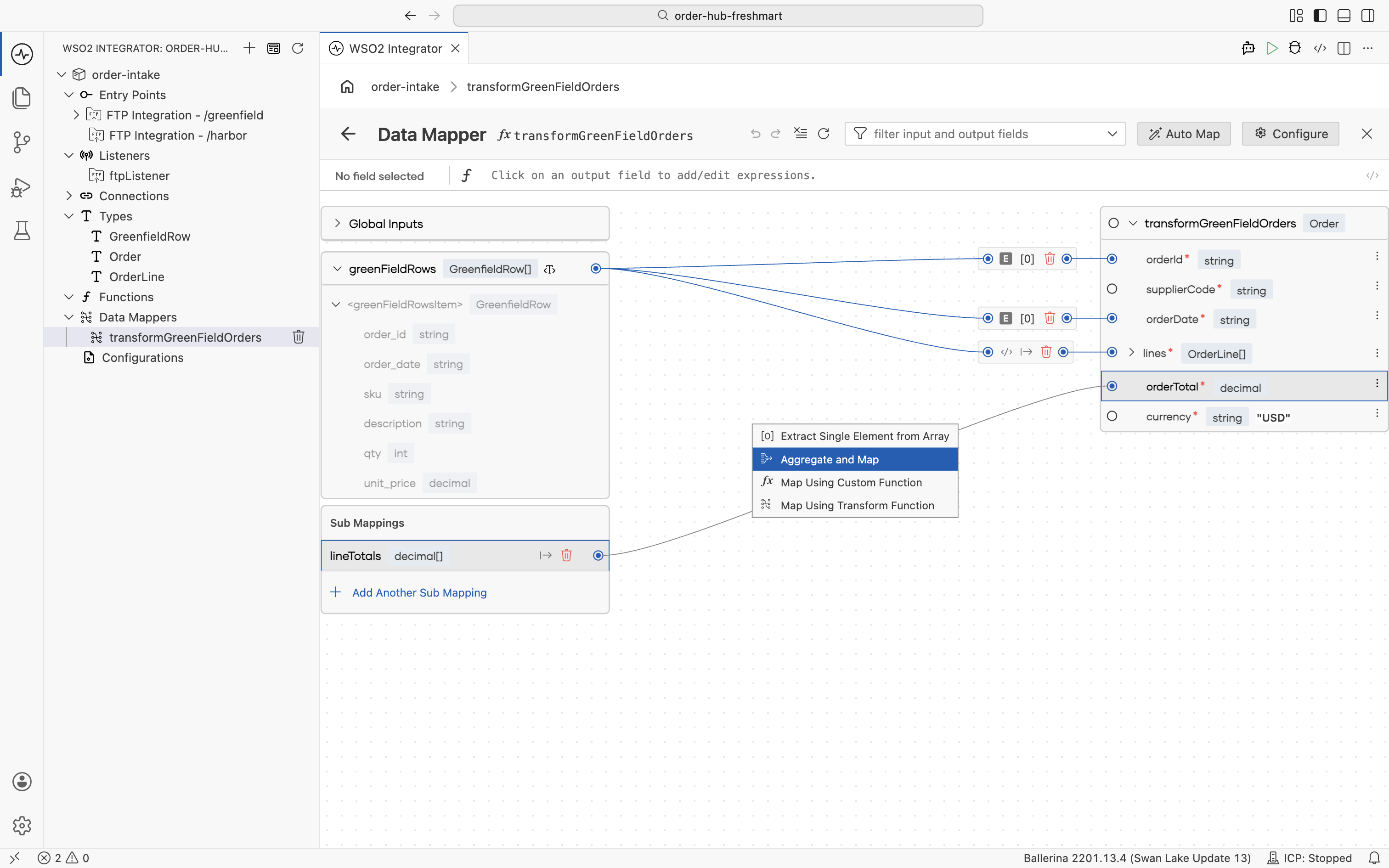
-
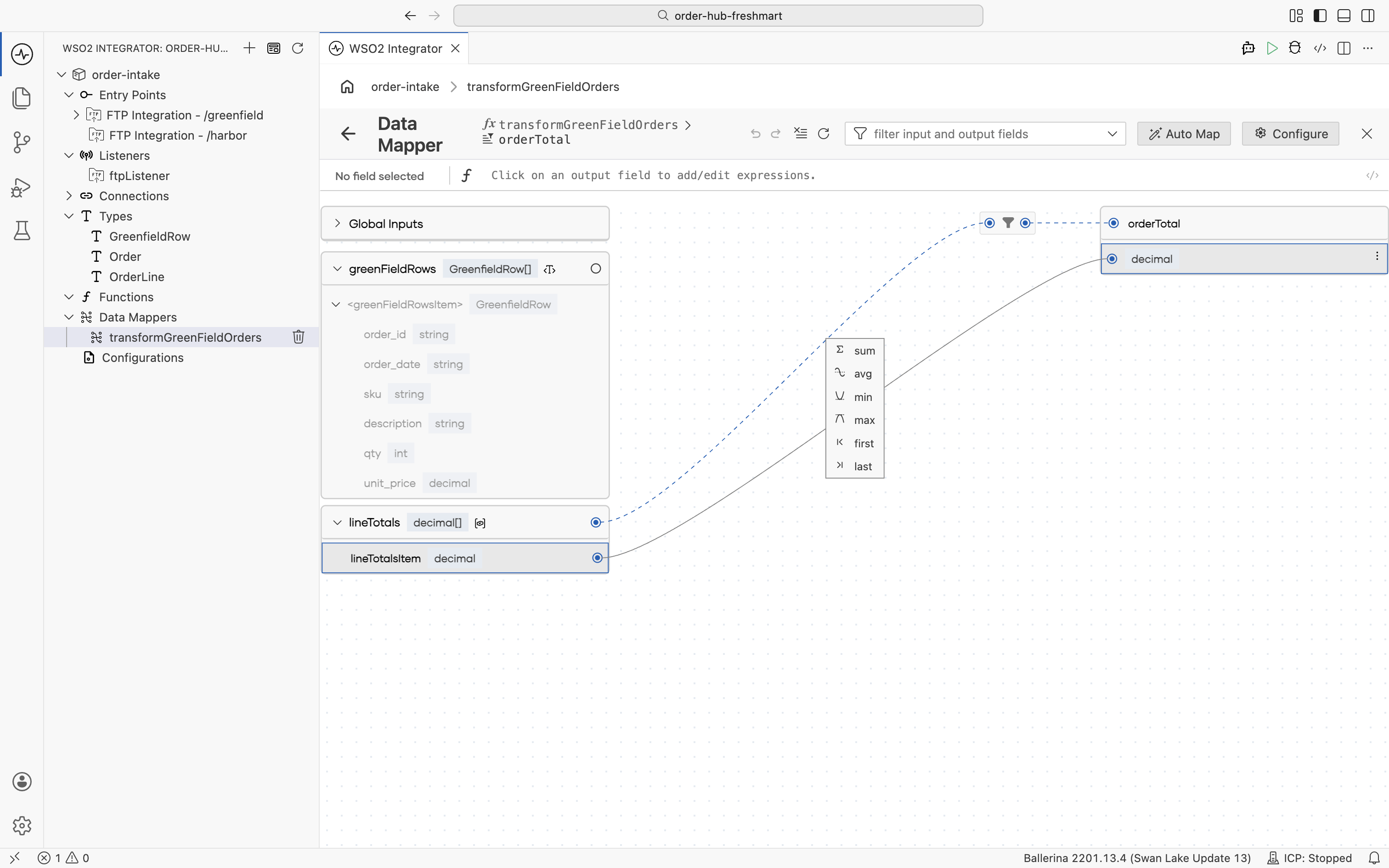
Pick the sum aggregate function.
-
The completed mapper turns the flat row array into a typed, nested
Order.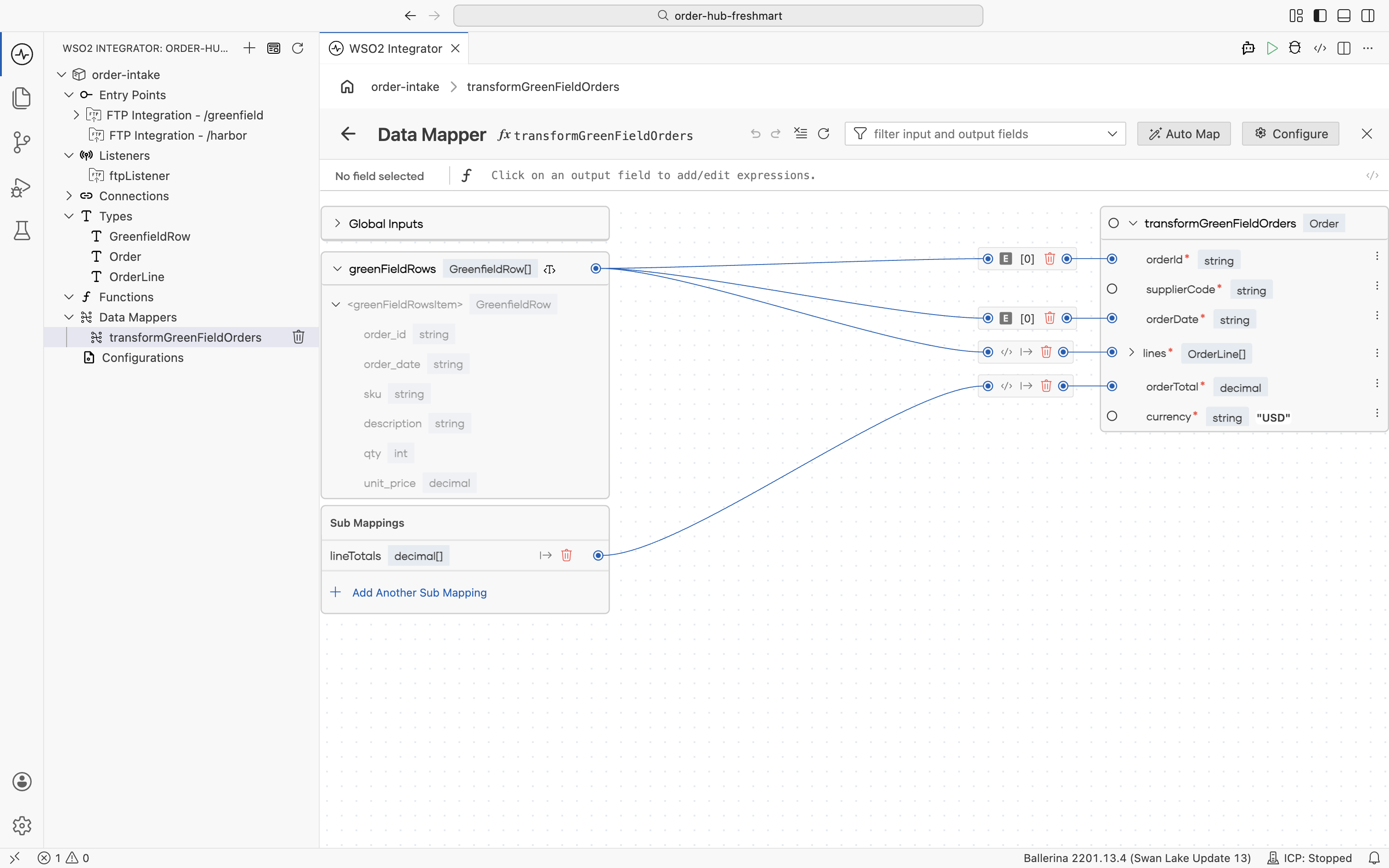
Persist and archive
-
Back on the
/greenfieldservice, theonFileCsvhandler now appears in the File Handlers list. Open it.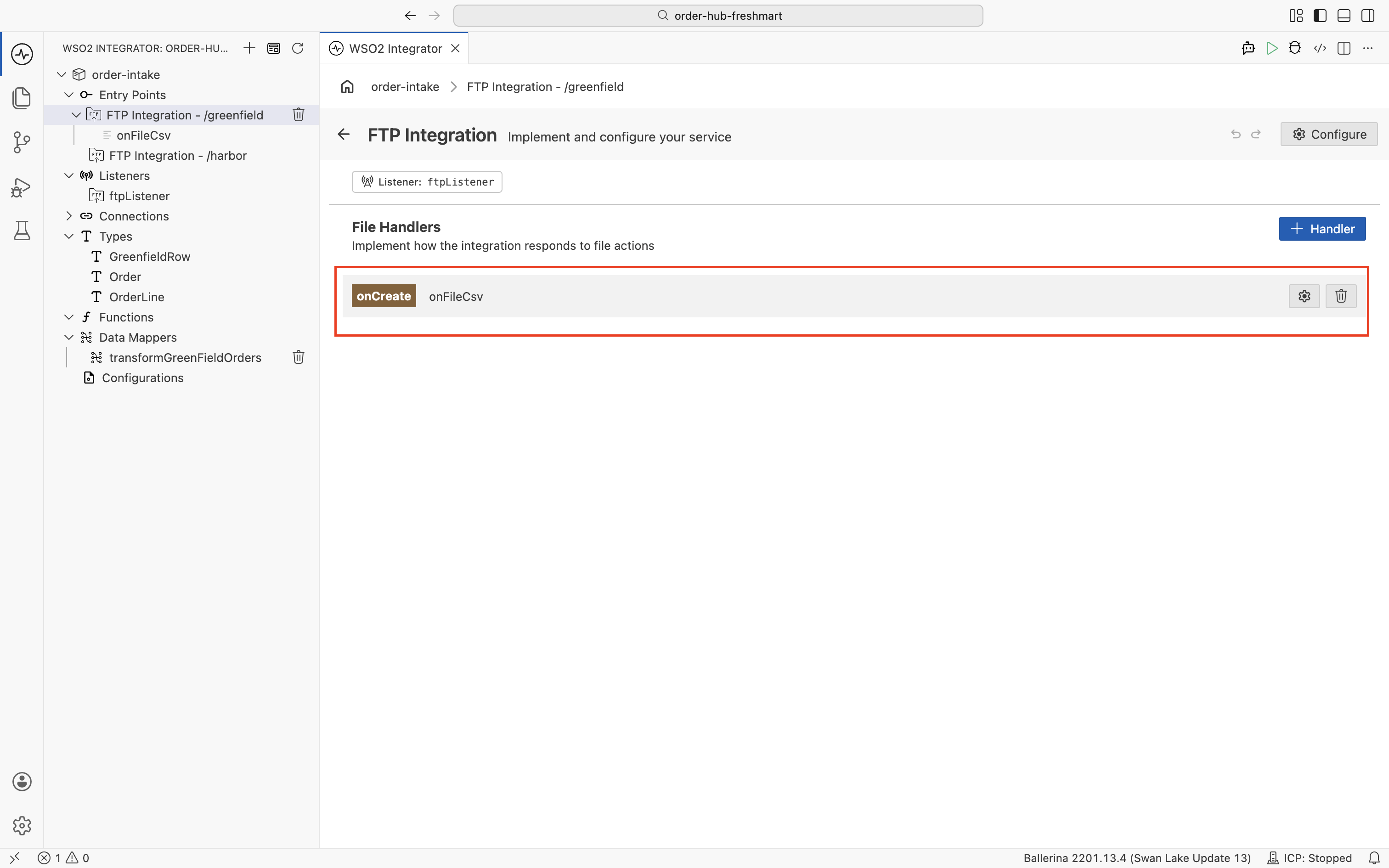
-
In the flow, add a Map Data node that runs
transformGreenFieldOrdersovergreenfieldRows, into a resultorderResultof typeOrder.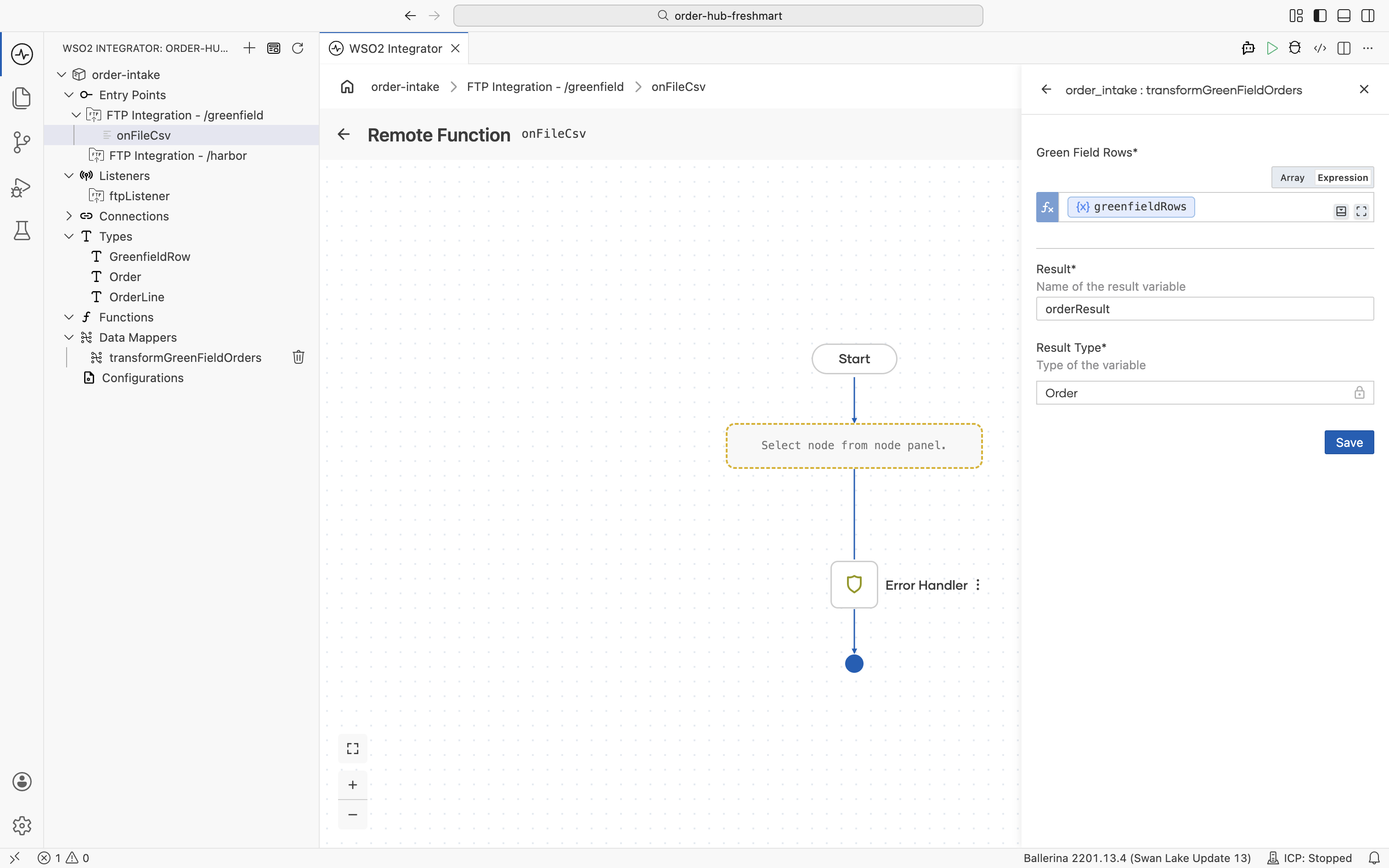
-
Add the
dbClientInsert rows into orders table operation.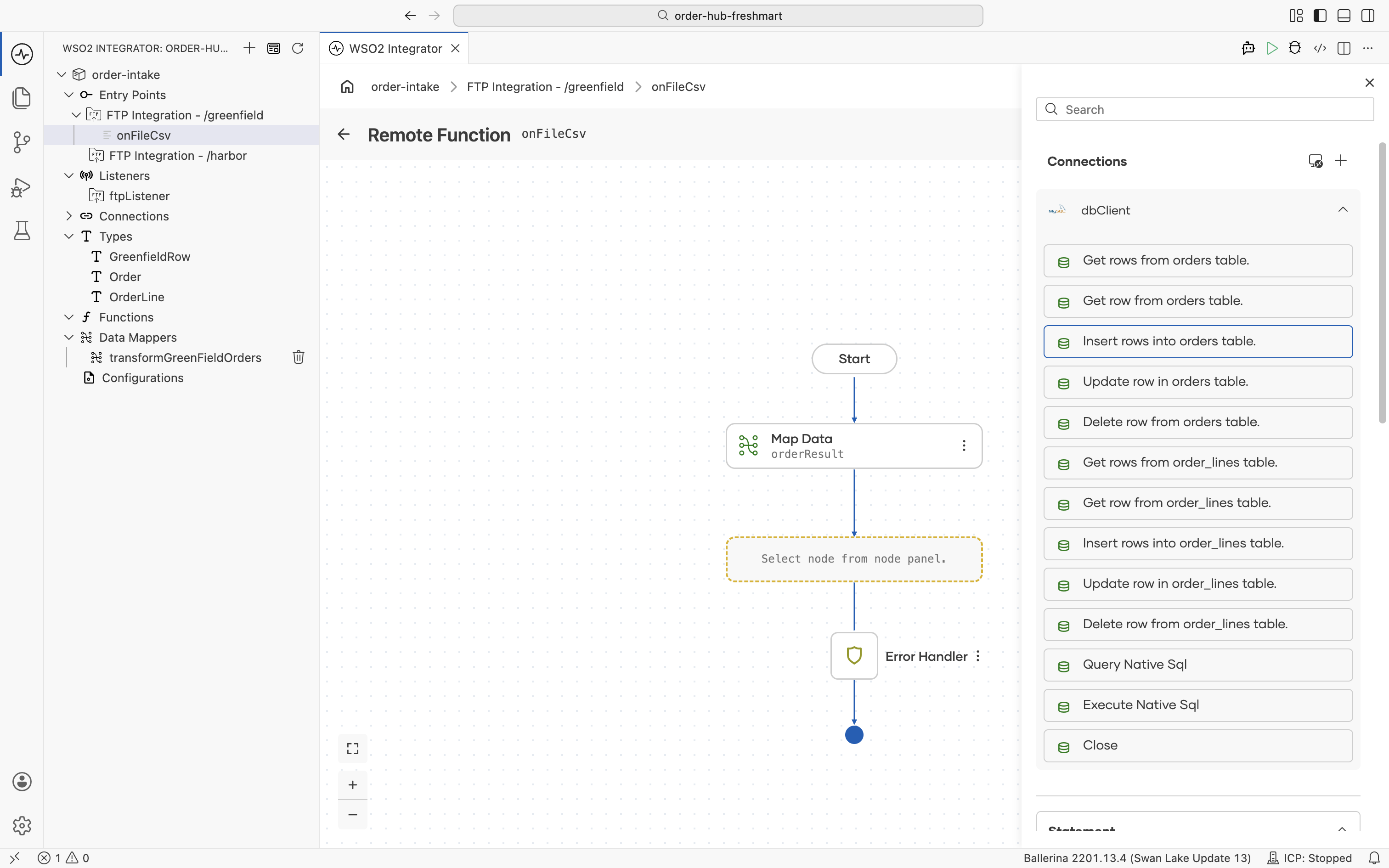
-
Build the order record from
orderResult, converting the date string into the{year, month, day}theDATEcolumn expects.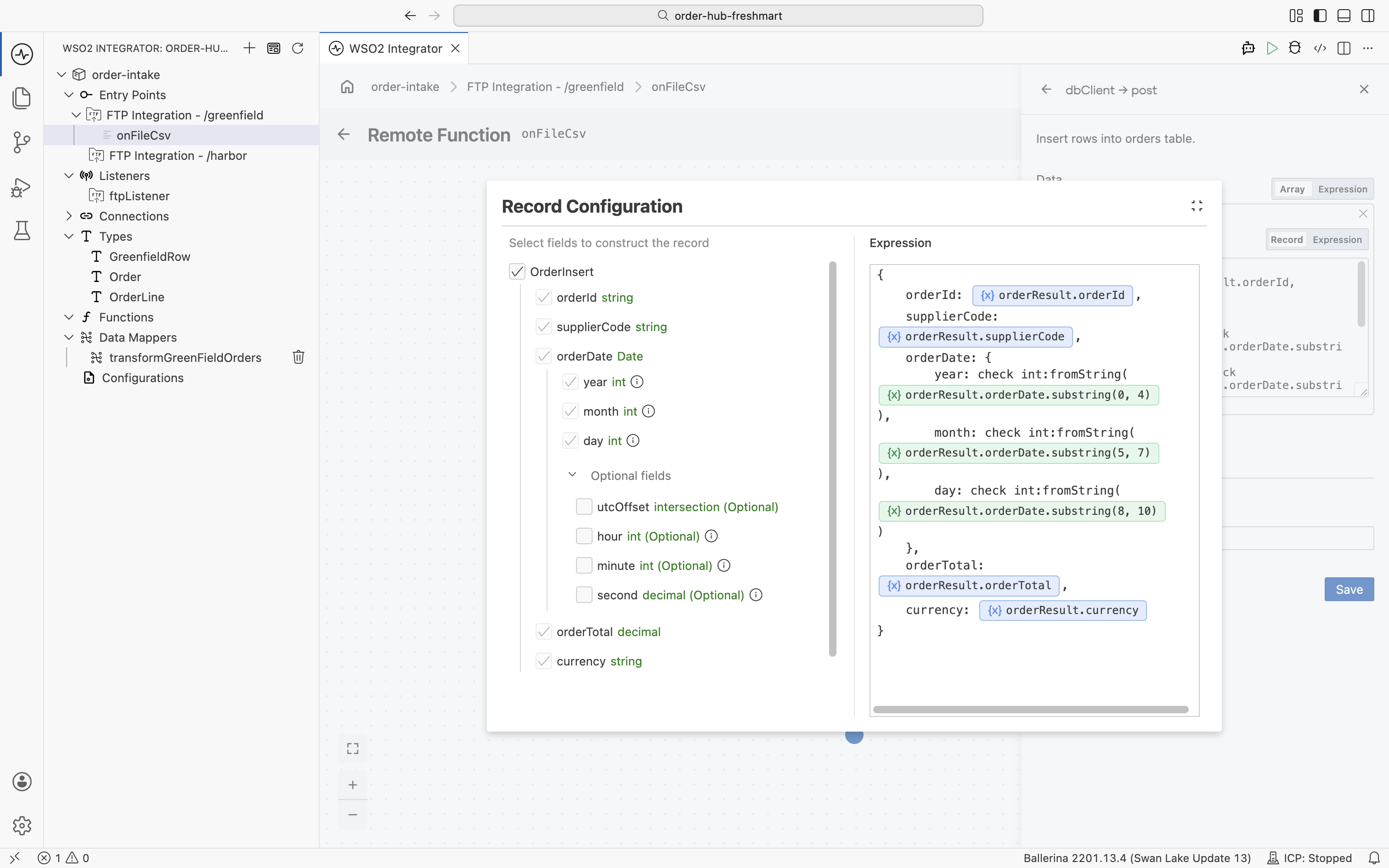 Converting the date for a
DATEcolumnThe
orders.order_datecolumn maps to atime:Daterecord ({year, month, day}), butorderResult.orderDateis an ISO string such as2026-06-23. Convert it inline by slicing the string:int:fromString(orderResult.orderDate.substring(0, 4))for the year,(5, 7)for the month,(8, 10)for the day, as shown in the code tab. -
Name the insert's result
primaryKeys; the persist client returns the generated integer keys.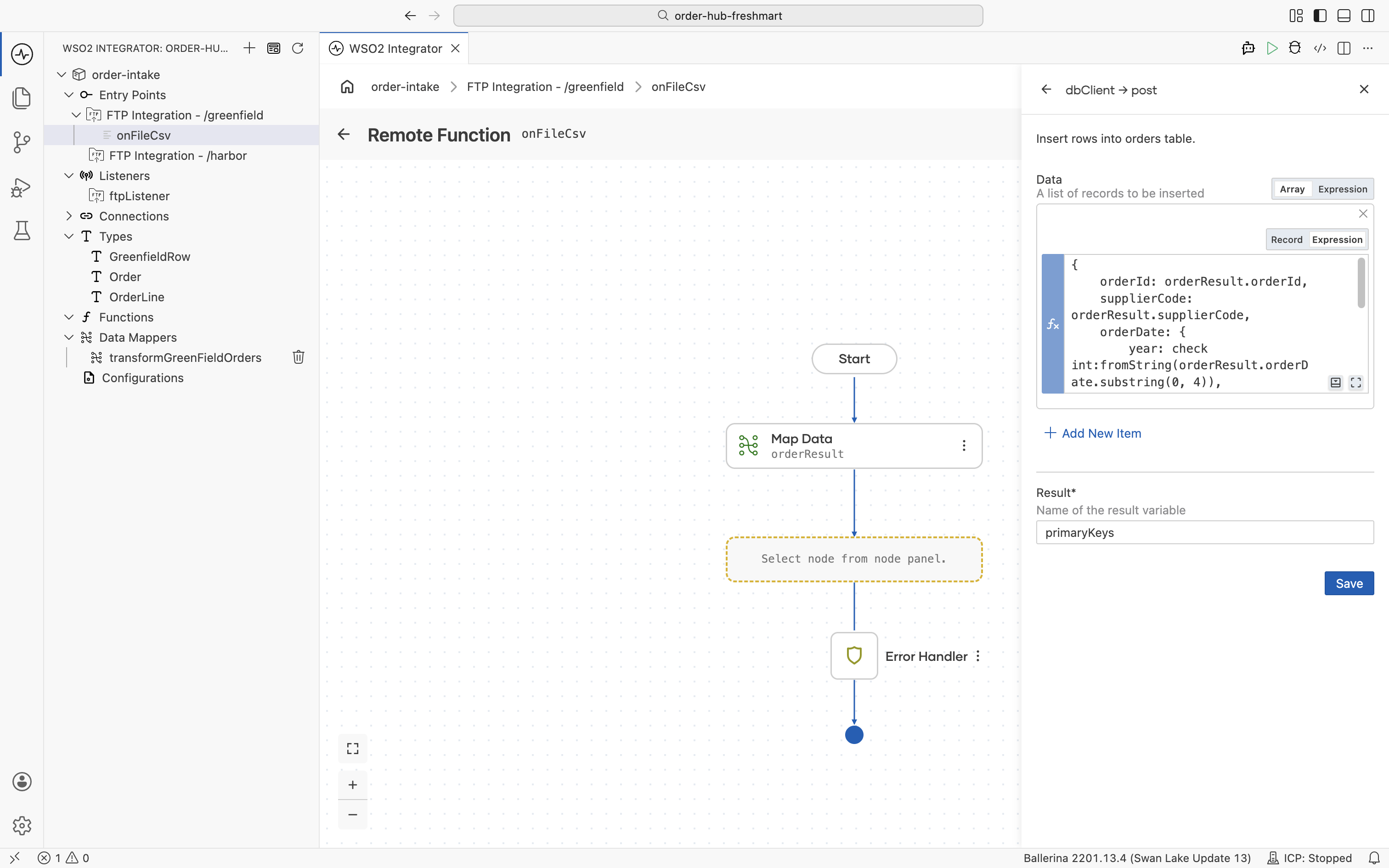
-
Loop the lines: add a Foreach over
orderResult.lines, with each element namedorderLineof typeOrderLine.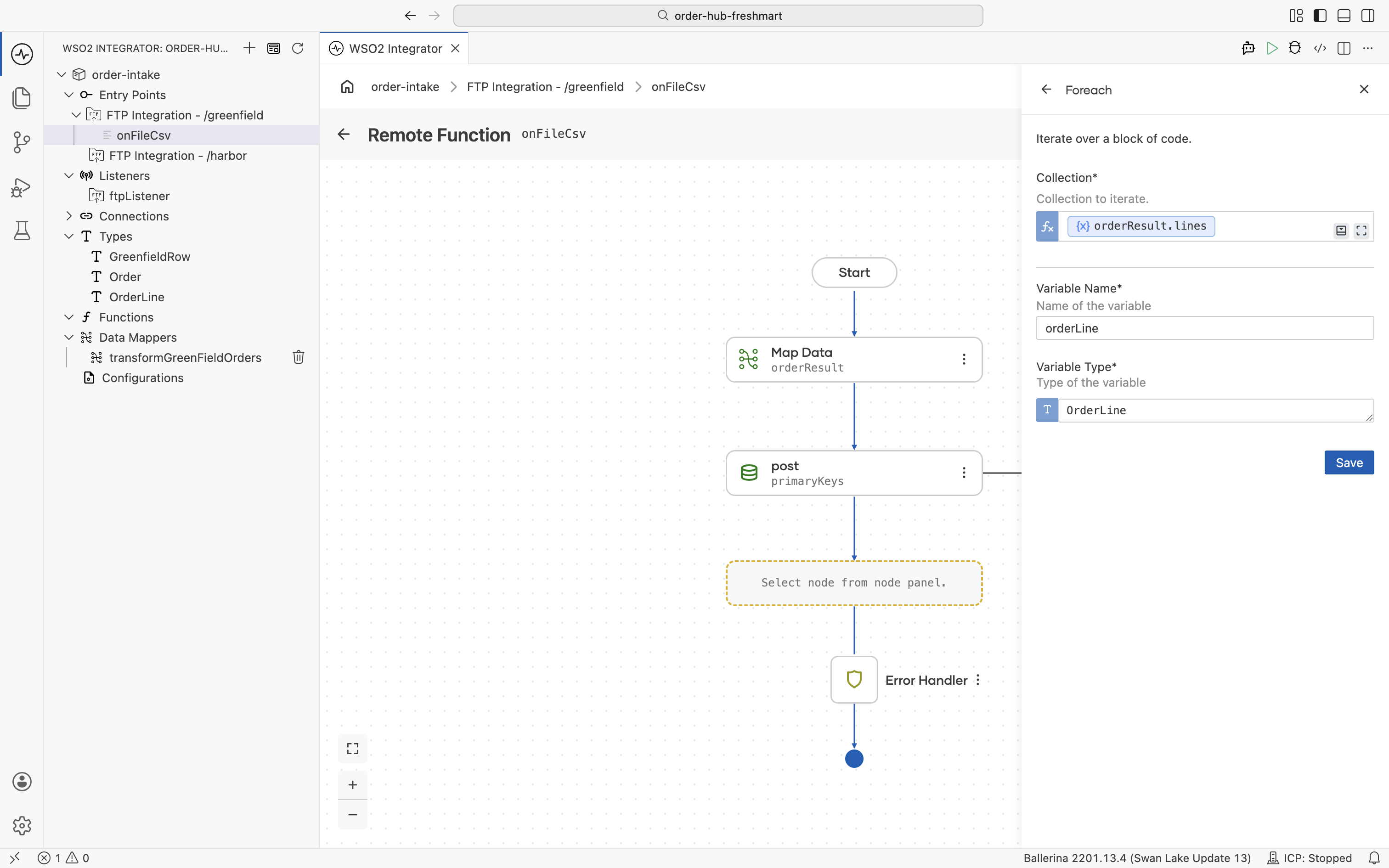
-
Inside the loop, add the
dbClientInsert rows into order_lines table operation.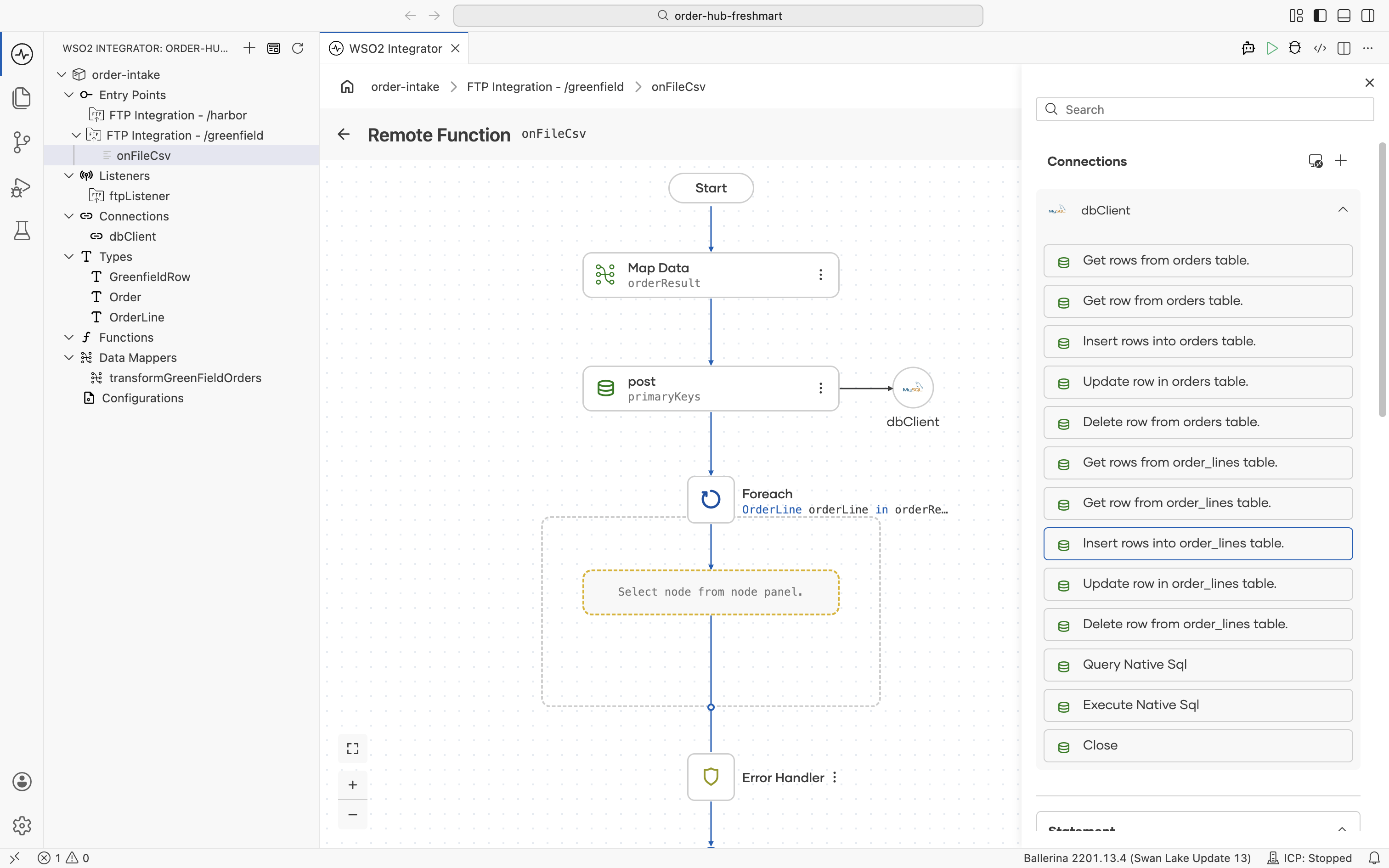
-
Build the line record from
orderLine, and set itsorderIdtoprimaryKeys[0], the integer key the order insert returned, not the business id.![The Record Configuration for the order_lines insert, mapping the OrderLine fields and setting orderId to primaryKeys[0]](/integration-platform/docs/saas/assets/images/greenfield-persist-lines-263e9d1428ab0a3b4bed573b06bade32.png)
-
Name the result
orderlineKeysand save.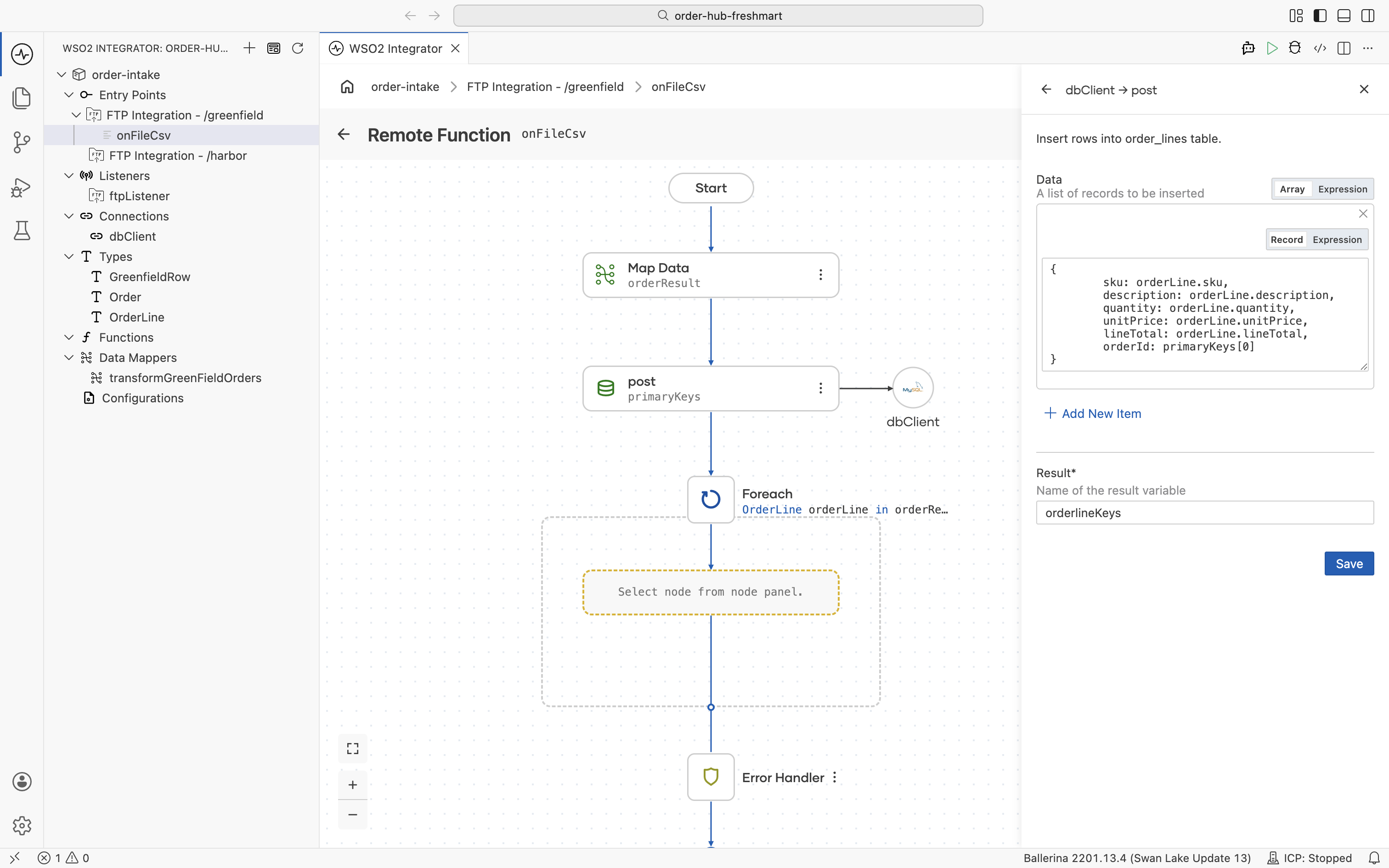
-
The completed flow maps the rows, inserts the order, then inserts each line under it.
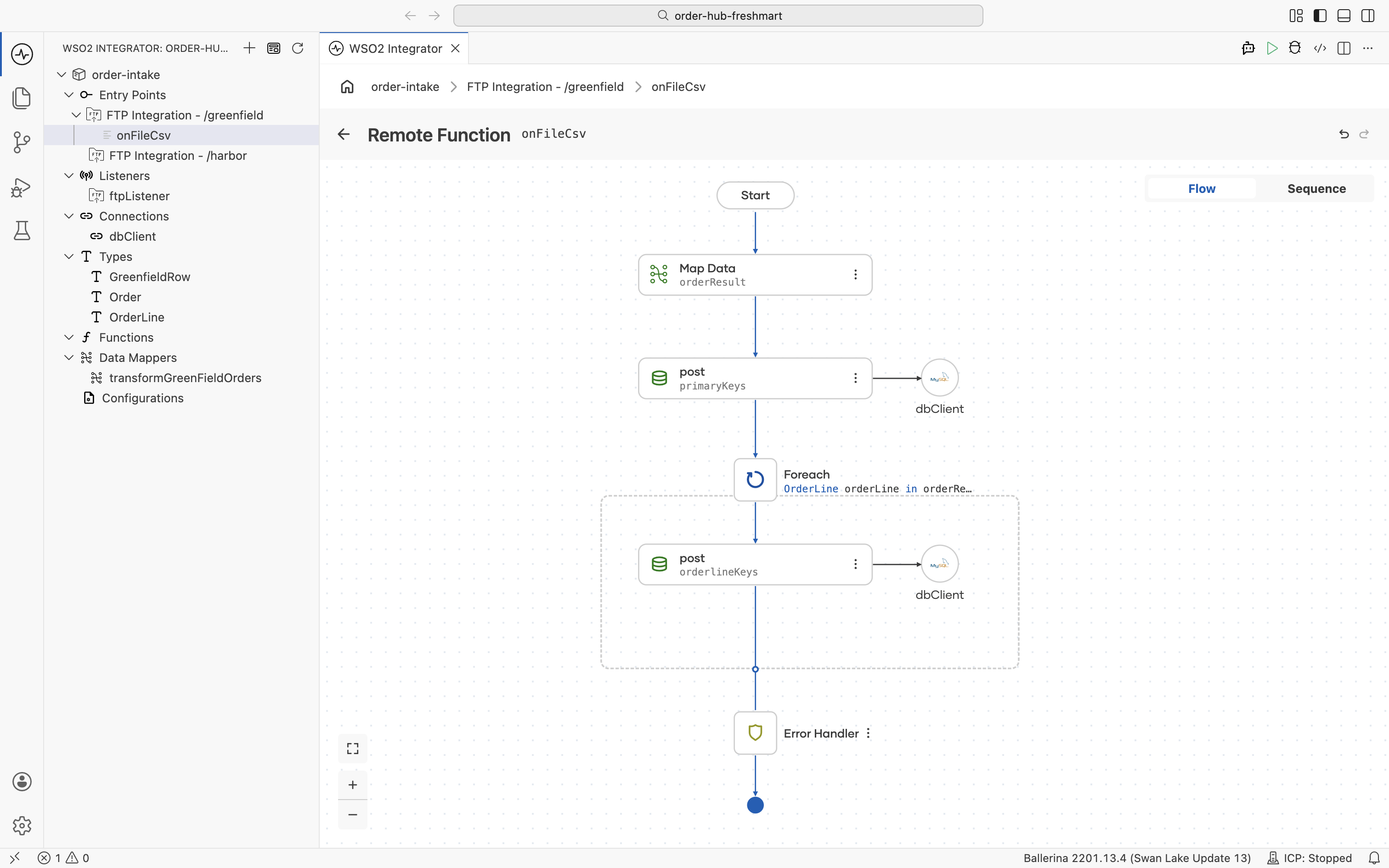
The row schema you defined is a record in types.bal:
type GreenfieldRow record {|
    string order_id;
    string order_date;
    string sku;
    string description;
    int qty;
    decimal unit_price;
|};
The data mapper is an expression-bodied function in data_mappings.bal. It reads the header from the first row, maps each row to a line (casting qty to decimal for the line total), fixes supplierCode and currency as constants, and aggregates the line totals into the order total:
function transformGreenFieldOrders(GreenfieldRow[] greenFieldRows) returns Order => let decimal[] lineTotals = from var greenFieldRowsItem in greenFieldRows
        select <decimal>greenFieldRowsItem.qty * greenFieldRowsItem.unit_price
    in {
        orderId: greenFieldRows[0].order_id,
        orderDate: greenFieldRows[0].order_date,
        lines: from var greenFieldRowsItem in greenFieldRows
            select {sku: greenFieldRowsItem.sku, description: greenFieldRowsItem.description, quantity: greenFieldRowsItem.qty, unitPrice: greenFieldRowsItem.unit_price, lineTotal: <decimal>greenFieldRowsItem.qty * greenFieldRowsItem.unit_price},
        currency: "USD",
        orderTotal: from var lineTotalsItem in lineTotals
            collect sum(lineTotalsItem),
        supplierCode: "GREENFIELD"
    };
The handler in main.bal maps the rows, inserts the order, then inserts each line with the order's generated key as its foreign key. The @ftp:FunctionConfig archives the file when the handler returns:
import ballerina/ftp;

service on ftpListener {
    @ftp:FunctionConfig {
        afterProcess: {moveTo: string `/processed`},
        afterError: {moveTo: string `/errors`}
    }
    remote function onFileCsv(GreenfieldRow[] greenfieldRows, ftp:FileInfo fileInfo) returns error? {
        do {
            Order orderResult = transformGreenFieldOrders(greenfieldRows);
            int[] primaryKeys = check dbClient->/orders.post([
                {
                    orderId: orderResult.orderId,
                    supplierCode: orderResult.supplierCode,
                    orderDate: {
                        year: check int:fromString(orderResult.orderDate.substring(0, 4)),
                        month: check int:fromString(orderResult.orderDate.substring(5, 7)),
                        day: check int:fromString(orderResult.orderDate.substring(8, 10))
                    },
                    orderTotal: orderResult.orderTotal,
                    currency: orderResult.currency
                }
            ]);
            foreach OrderLine orderLine in orderResult.lines {
                int[] orderlineKeys = check dbClient->/orderlines.post([
                    {
                        sku: orderLine.sku,
                        description: orderLine.description,
                        quantity: orderLine.quantity,
                        unitPrice: orderLine.unitPrice,
                        lineTotal: orderLine.lineTotal,
                        orderId: primaryKeys[0]
                    }
                ]);
            }
        } on fail error err {
            return error("unhandled error", err);
        }
    }
}
Capability: array mapping and aggregation. One visual mapping turns a flat CSV into a typed, nested
Order, folding many rows into one order, computing each line total, and aggregating the order total, with no parsing code.
For files too big to hold in memory, enable Stream (Large Files) on the handler to process rows in chunks, and add CSV fault tolerance to skip malformed rows instead of failing the file. See Streaming large files.
Step 4: Map the Harbor XML to the same canonical Order
Harbor sends the same kind of order, but as XML, with the values held in attributes, the numbers typed as text, and the date written DD/MM/YYYY. The point of this step is that none of that difference survives into the database: the XML lands on the exact same canonical Order as the CSV, through its own mapper and the same insert shape. You generate the source type from a sample, map it, and persist it just as in Step 3.
- Visual Designer
- Ballerina Code
Generate the source type from a sample
-
From Types, add a type and switch to the Import tab. Set the format to XML and paste a sample Harbor file, then click Import. The platform generates the record structure from the sample, turning each XML attribute into an
@xmldata:Attribute stringfield.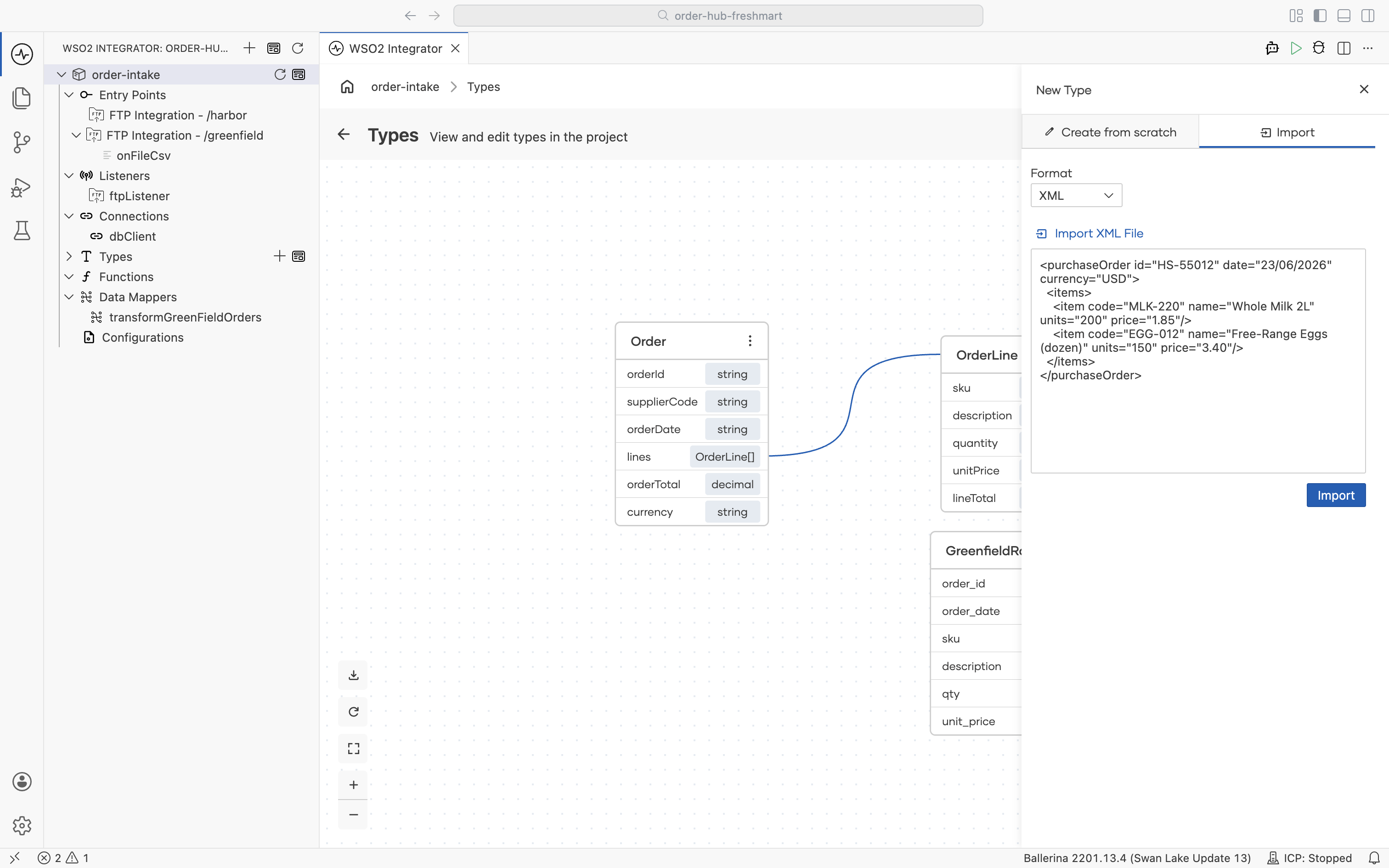
-
The generated type is named after the root element (
PurchaseOrder). Rename it toHarborOrder; the rename updates every reference across the project.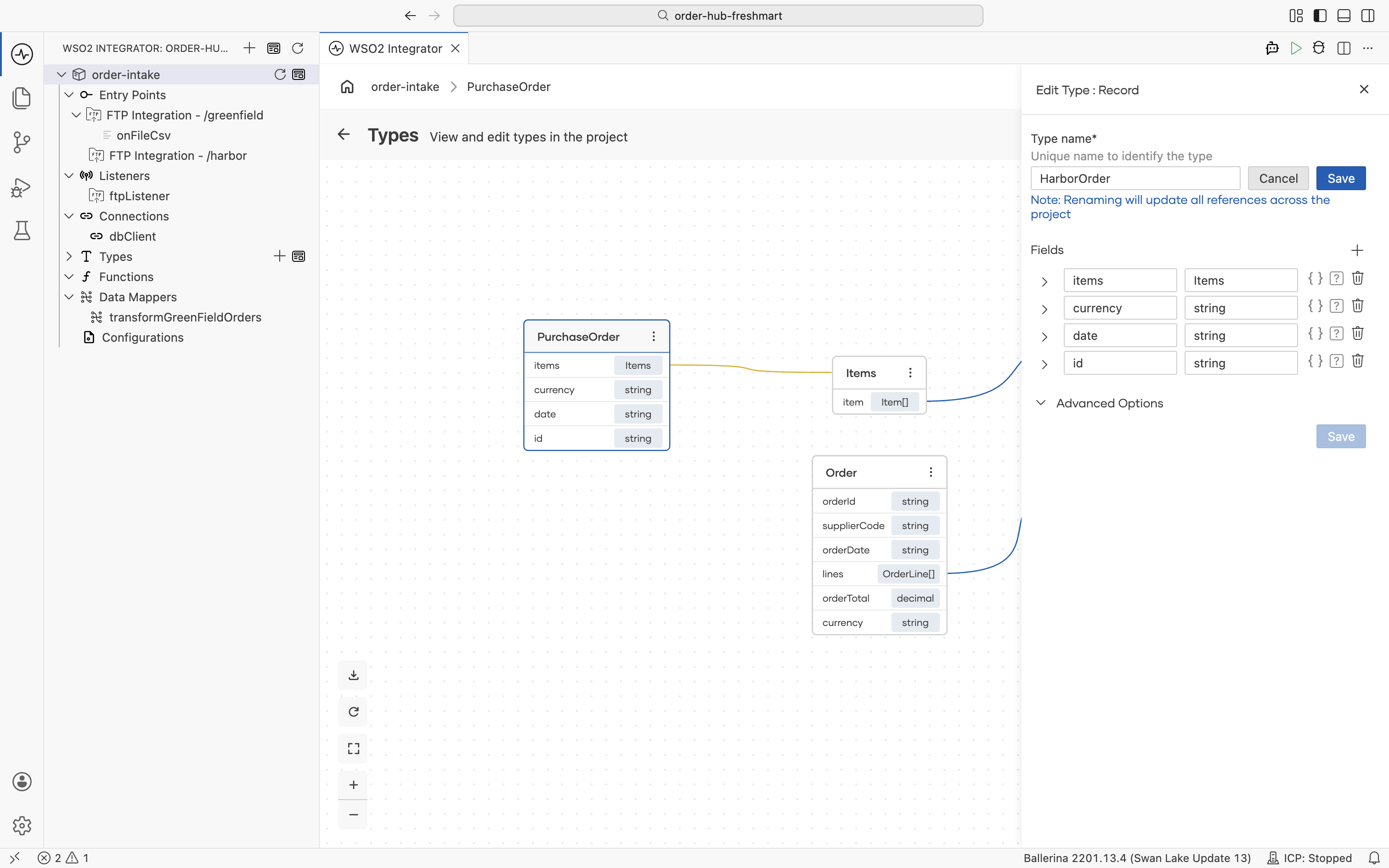
Receive the XML
-
Open the
/harborservice and add an On Create handler. Set File Format to XML, chooseHarborOrderas the Content Schema (delivered asharborOrder), and set Success → Move to/processedand Error → Move to/errors.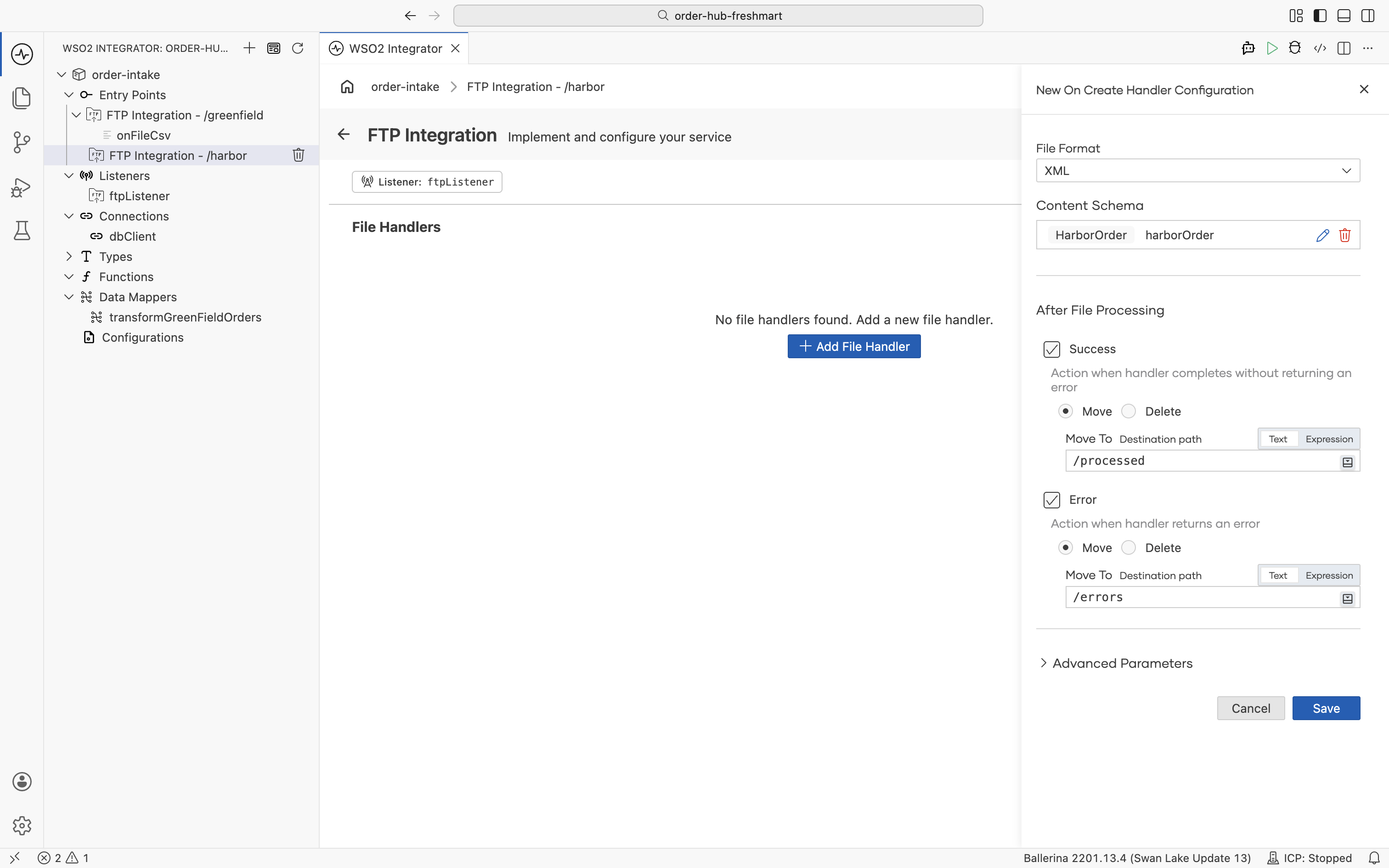
Build the data mapper
-
From Data Mappers, create
transformHarborOrderswith inputHarborOrder harborOrderand outputOrder, the same output type the Greenfield mapper produces.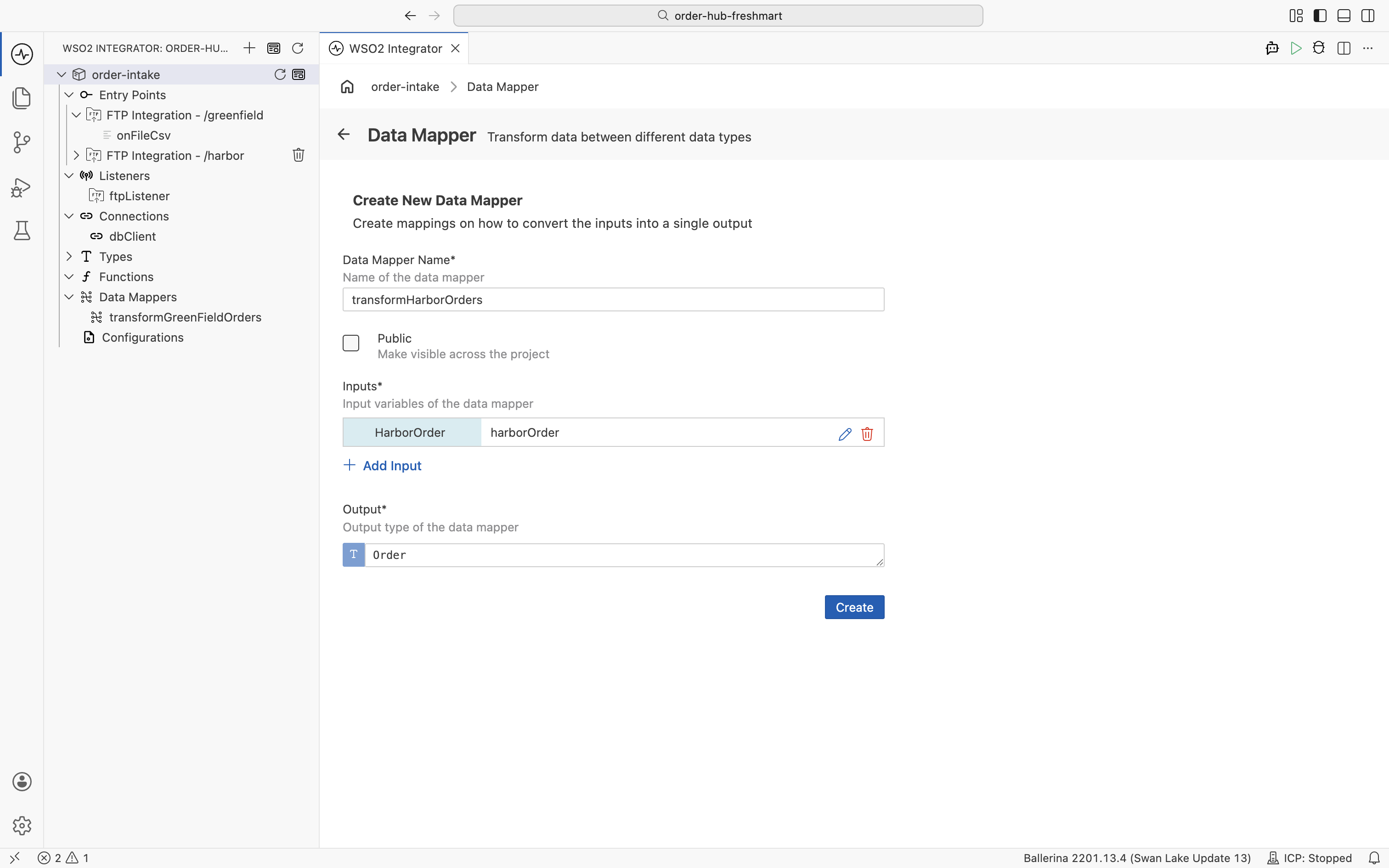
-
Map the scalar fields directly:
orderIdfromharborOrder.id,currencyfromharborOrder.currency, andorderDatefromharborOrder.date.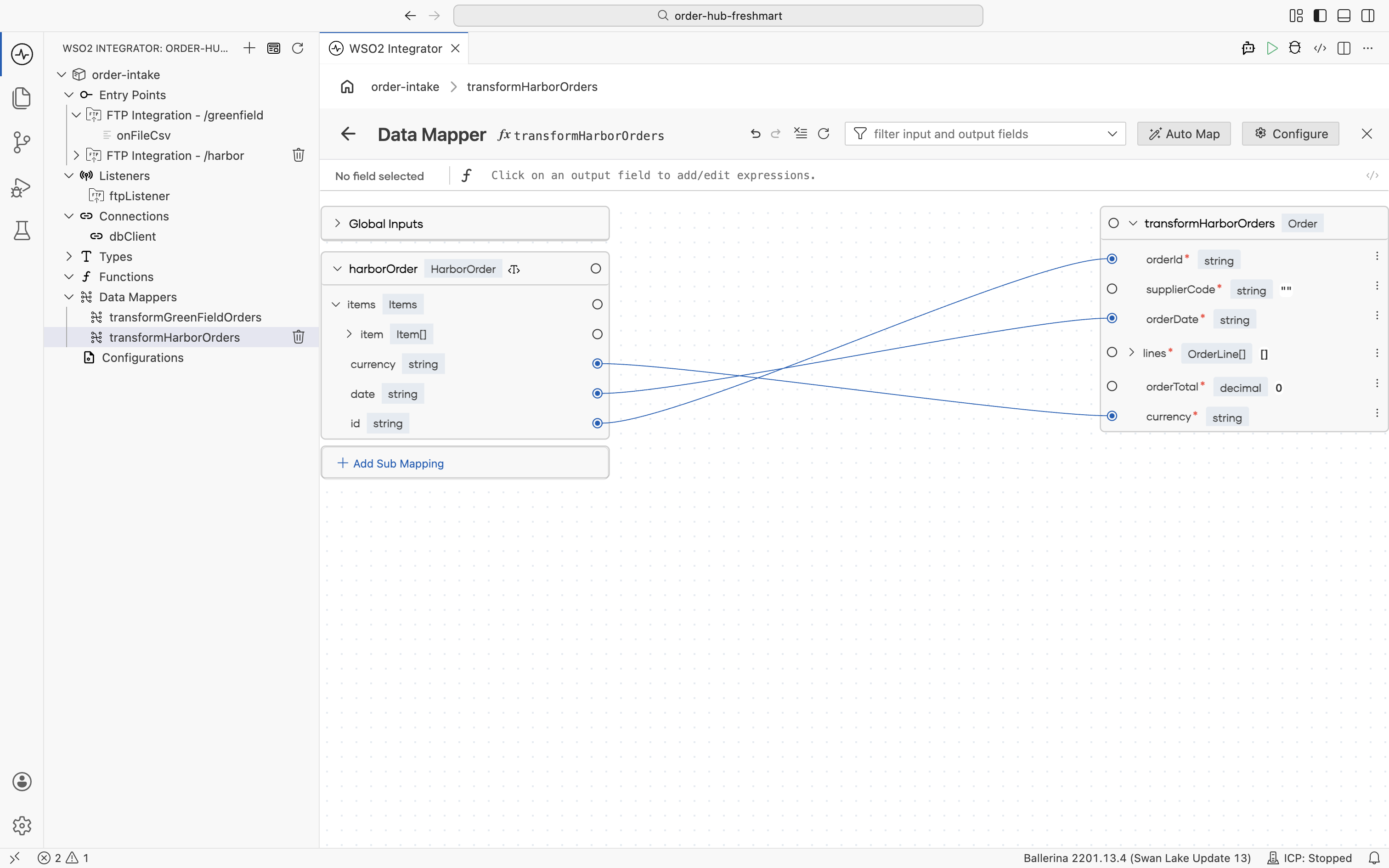
-
supplierCodeis again a business constant. Type"HARBOR"into the field.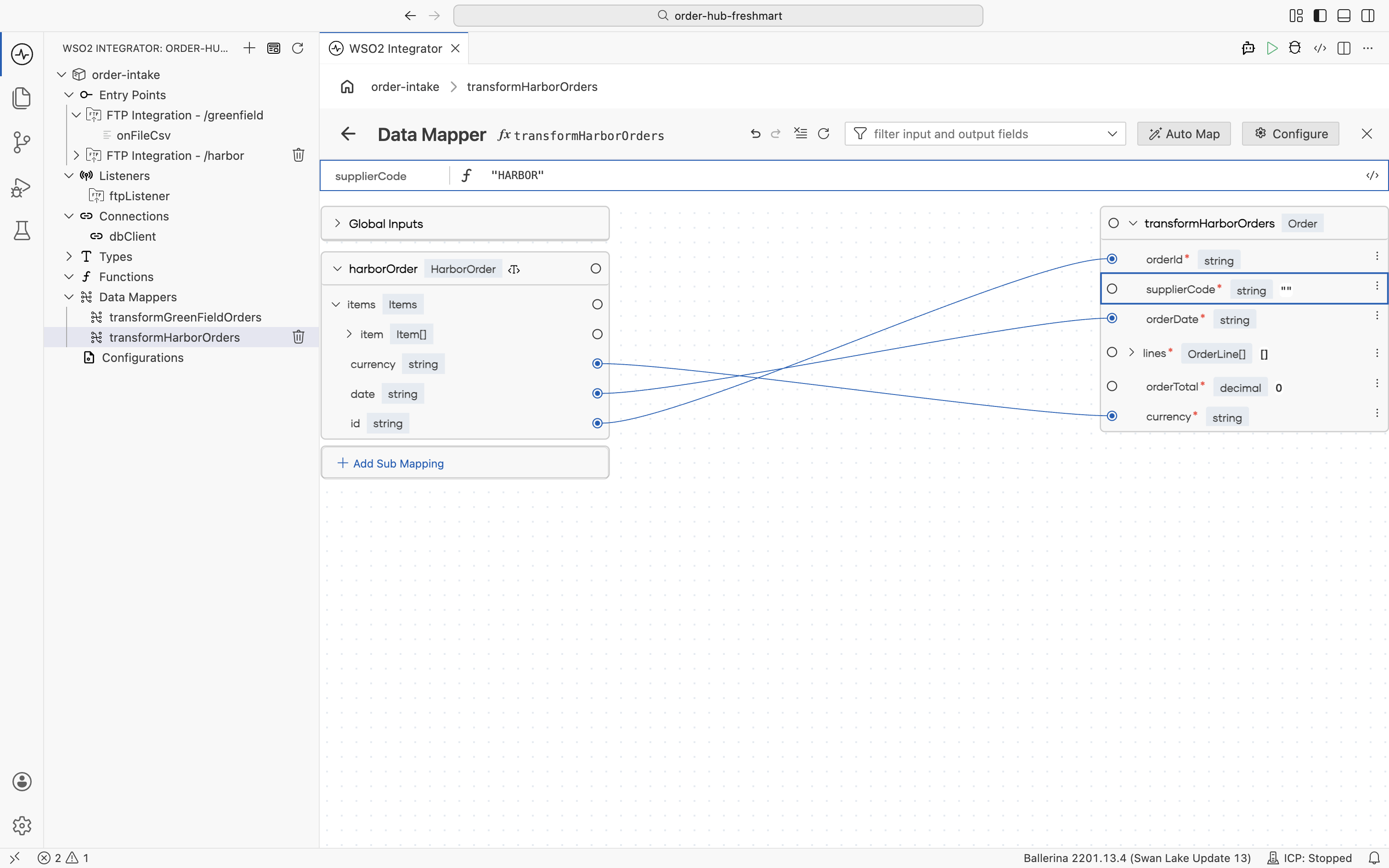
-
Map
linesfrom the repeatedharborOrder.items.itemelement: choose Map Each Element so each<item>becomes anOrderLine.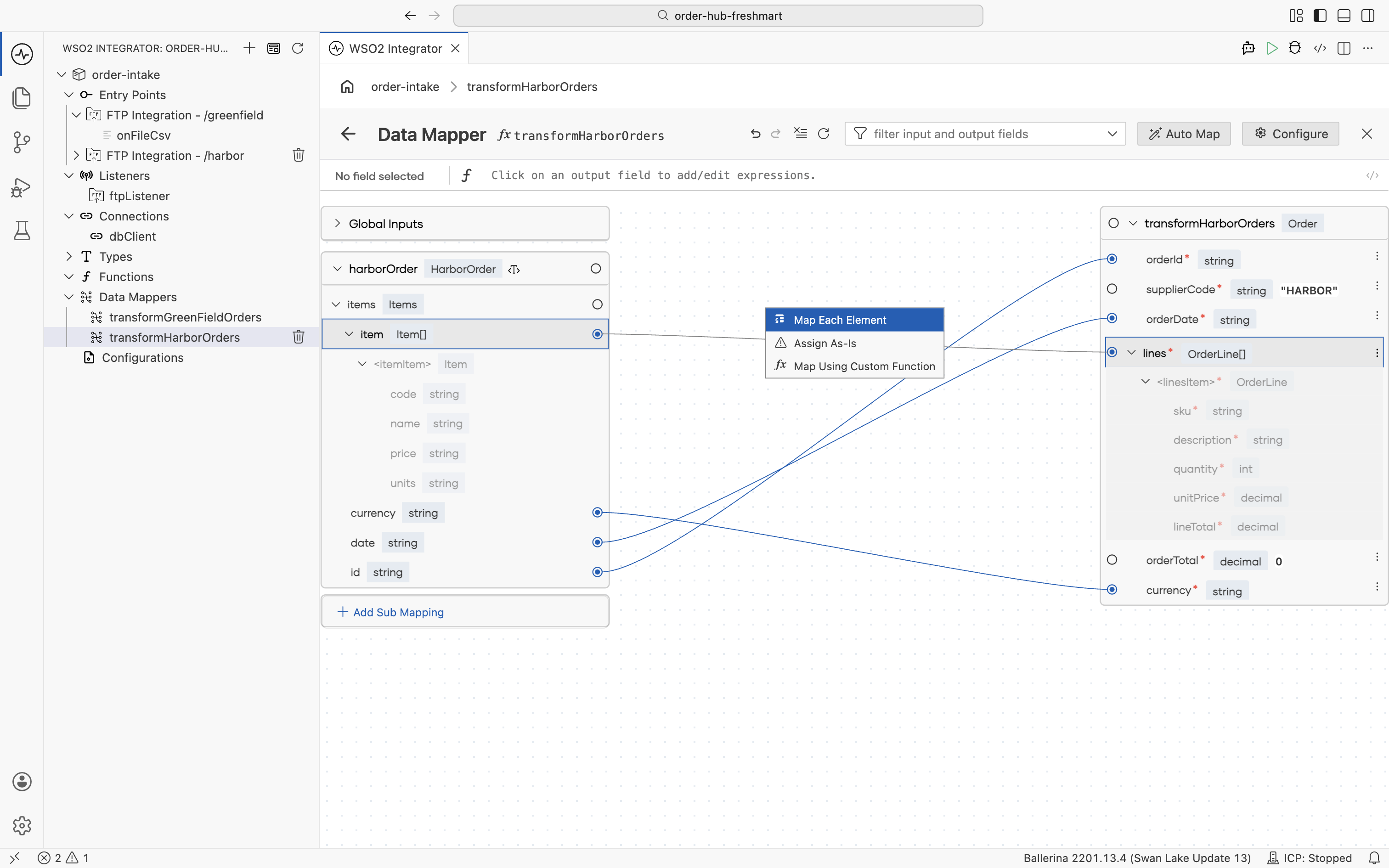
-
Inside the element mapping, map
skufromcodeanddescriptionfromname.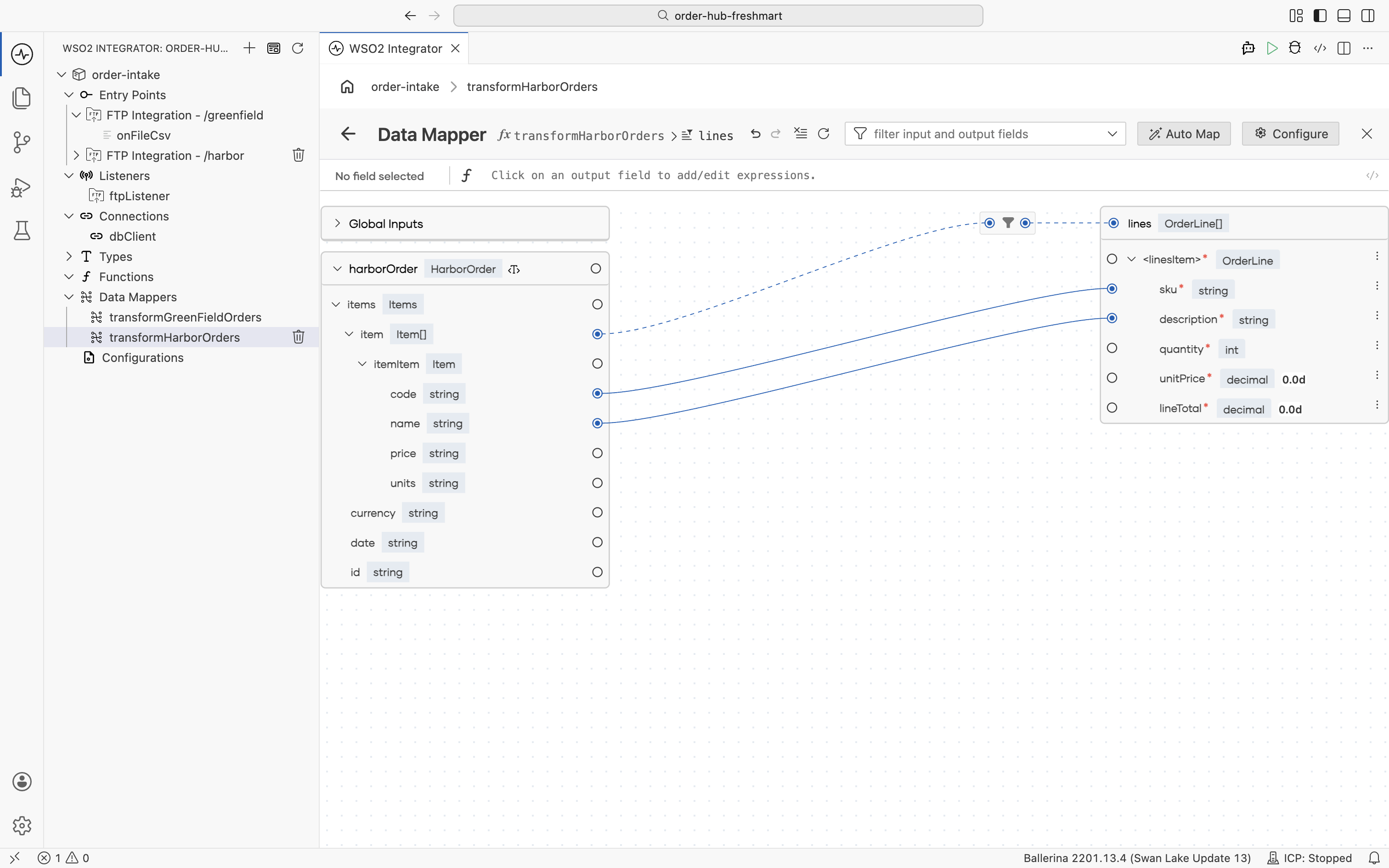
-
unitsis XML text, butquantityis anint. Use Convert and Map to coerce it.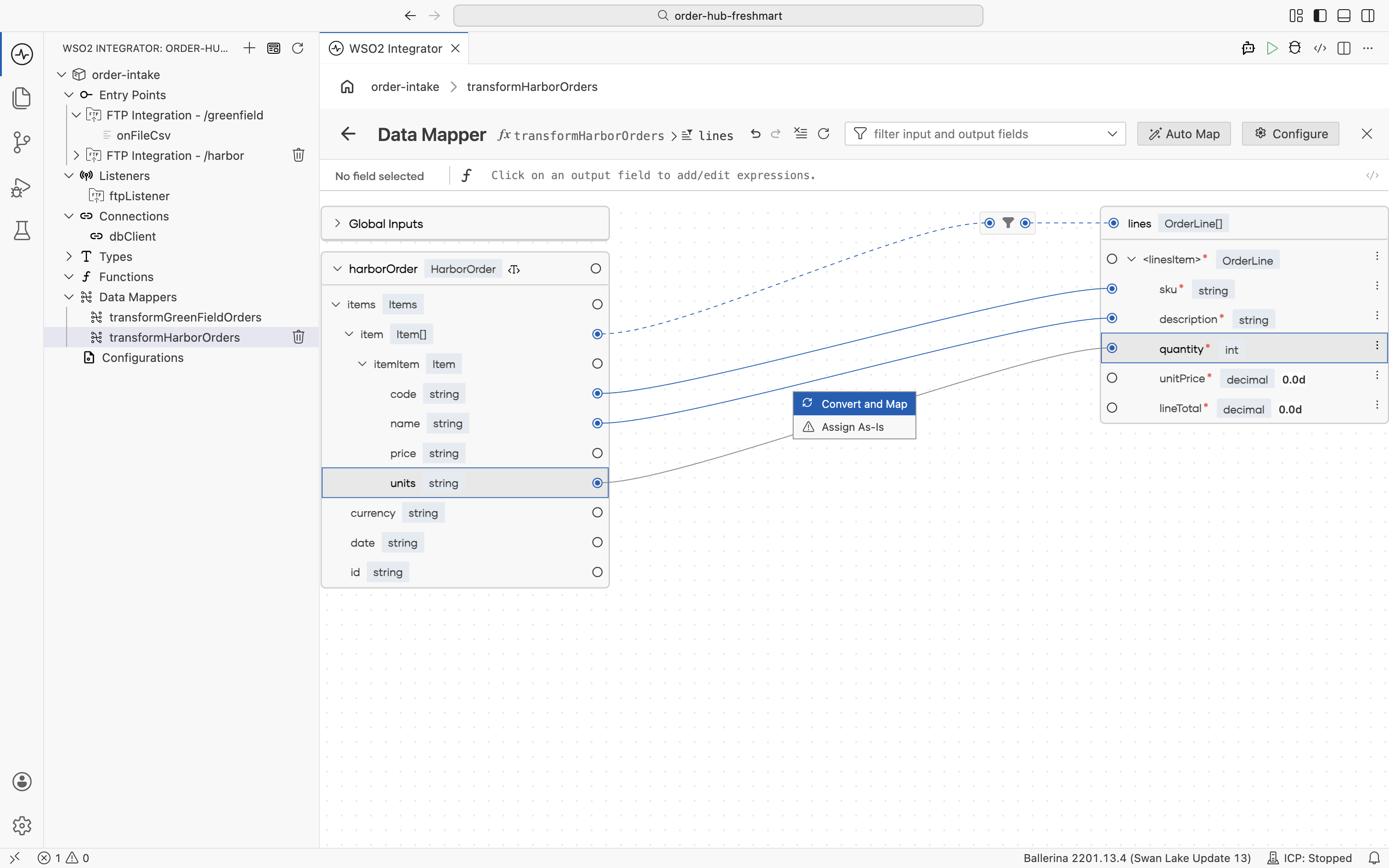
-
Likewise, Convert and Map the text
priceonto thedecimalunitPrice.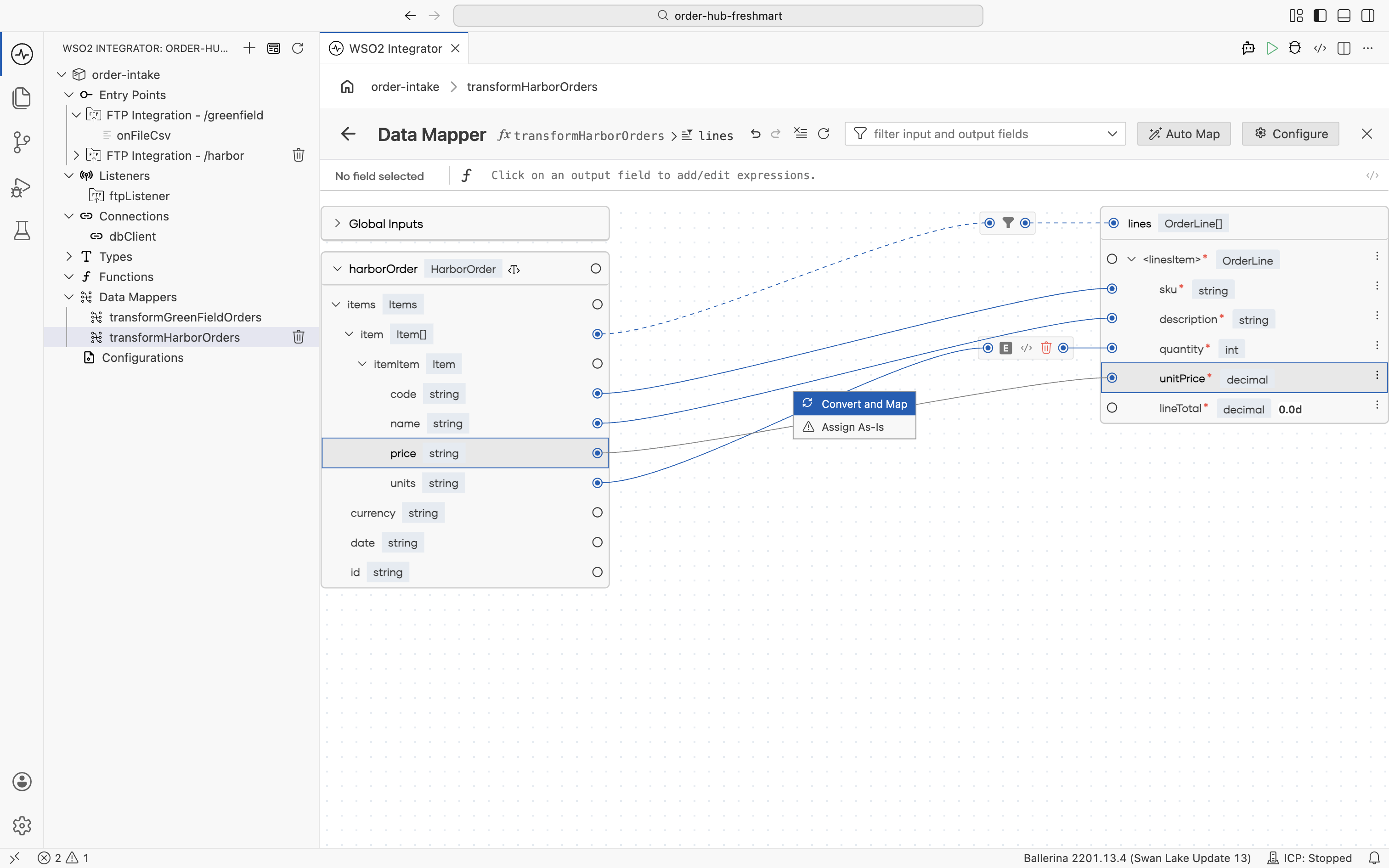 Convert and map: text into typed numbers
XML attributes are always text, so
unitsandpricearrive asstring. Convert and Map generates a safe conversion:int:fromString/decimal:fromStringwith a fallback to0when the text is not a number, so one malformed value can't crash the whole mapping. -
For
lineTotal, Convert and Map as well, since it is computed from the two text values.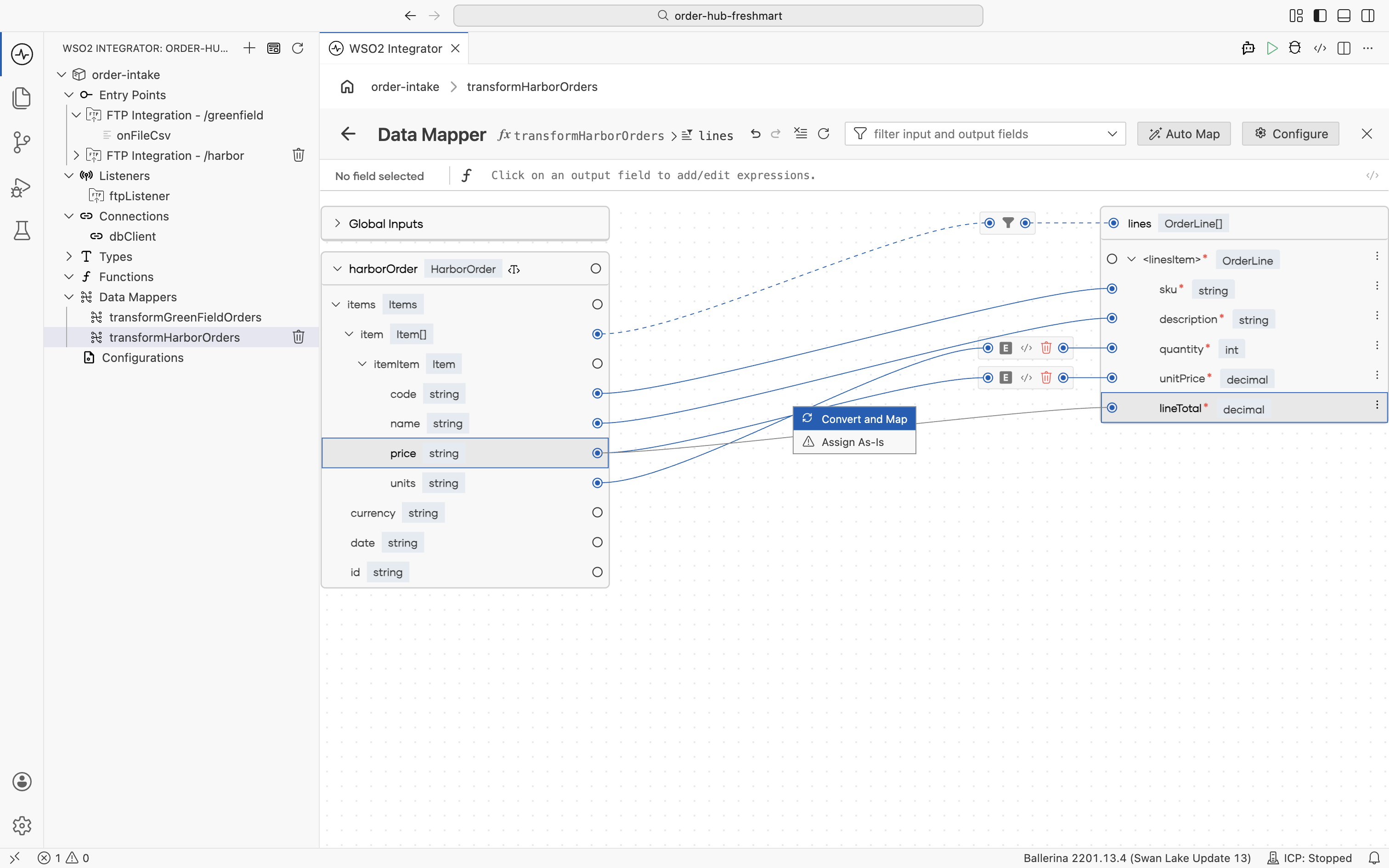
-
Complete
lineTotalas the convertedpricemultiplied by the convertedunits.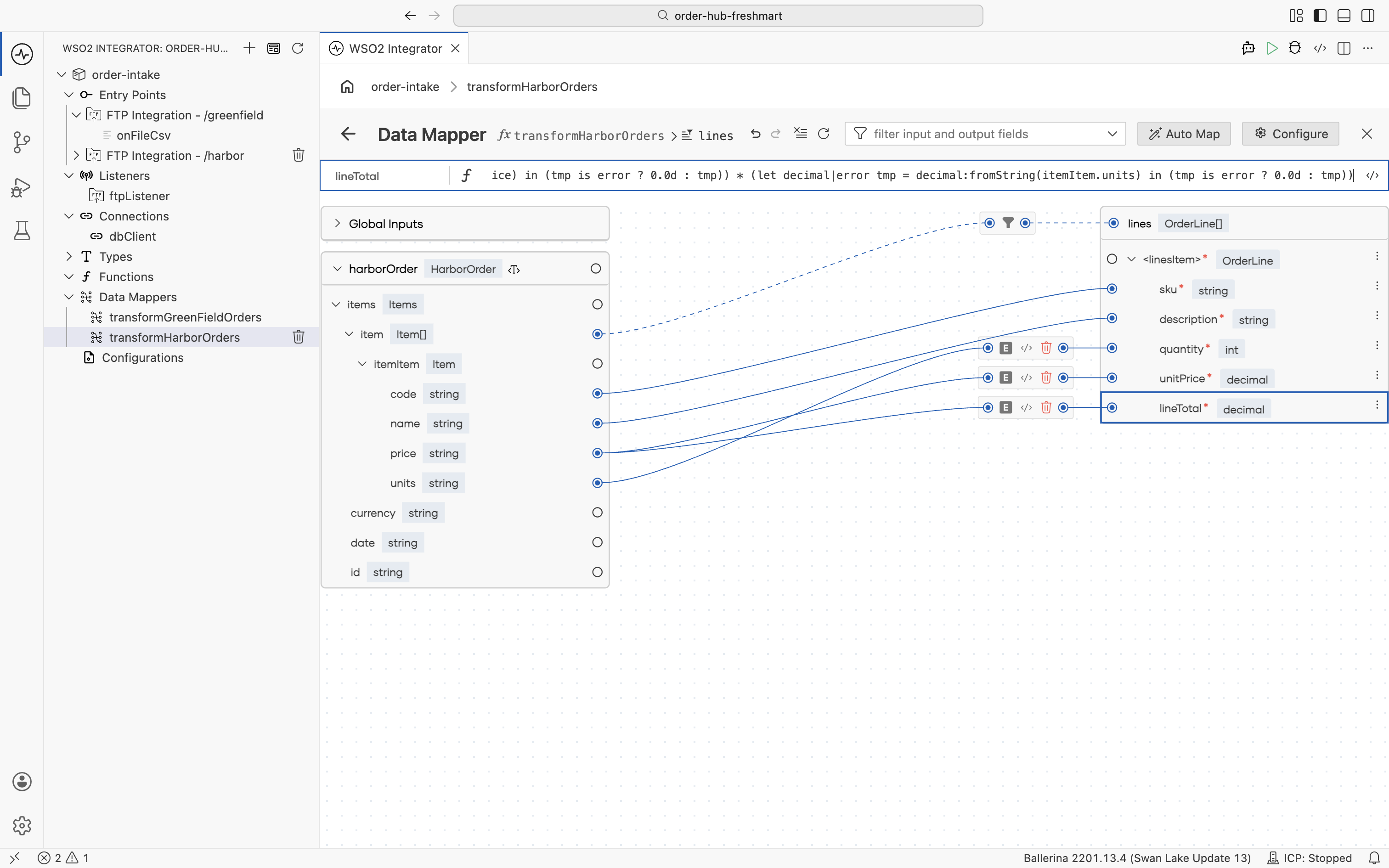
-
As with Greenfield, the order total is the sum of the line totals. Add a sub-mapping
lineTotalsof typedecimal[].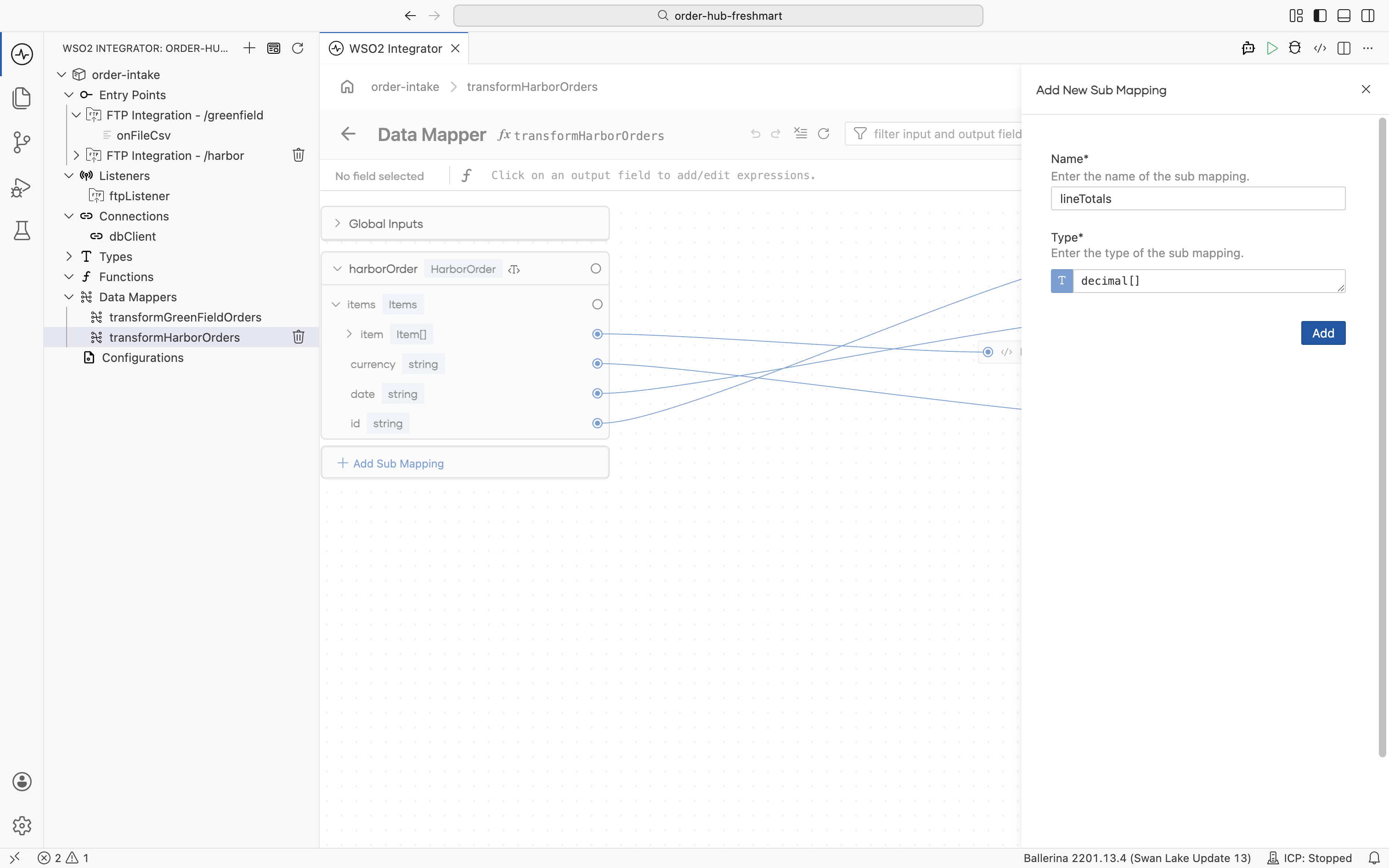
-
Populate it from
harborOrder.items.itemwith Map Each Element.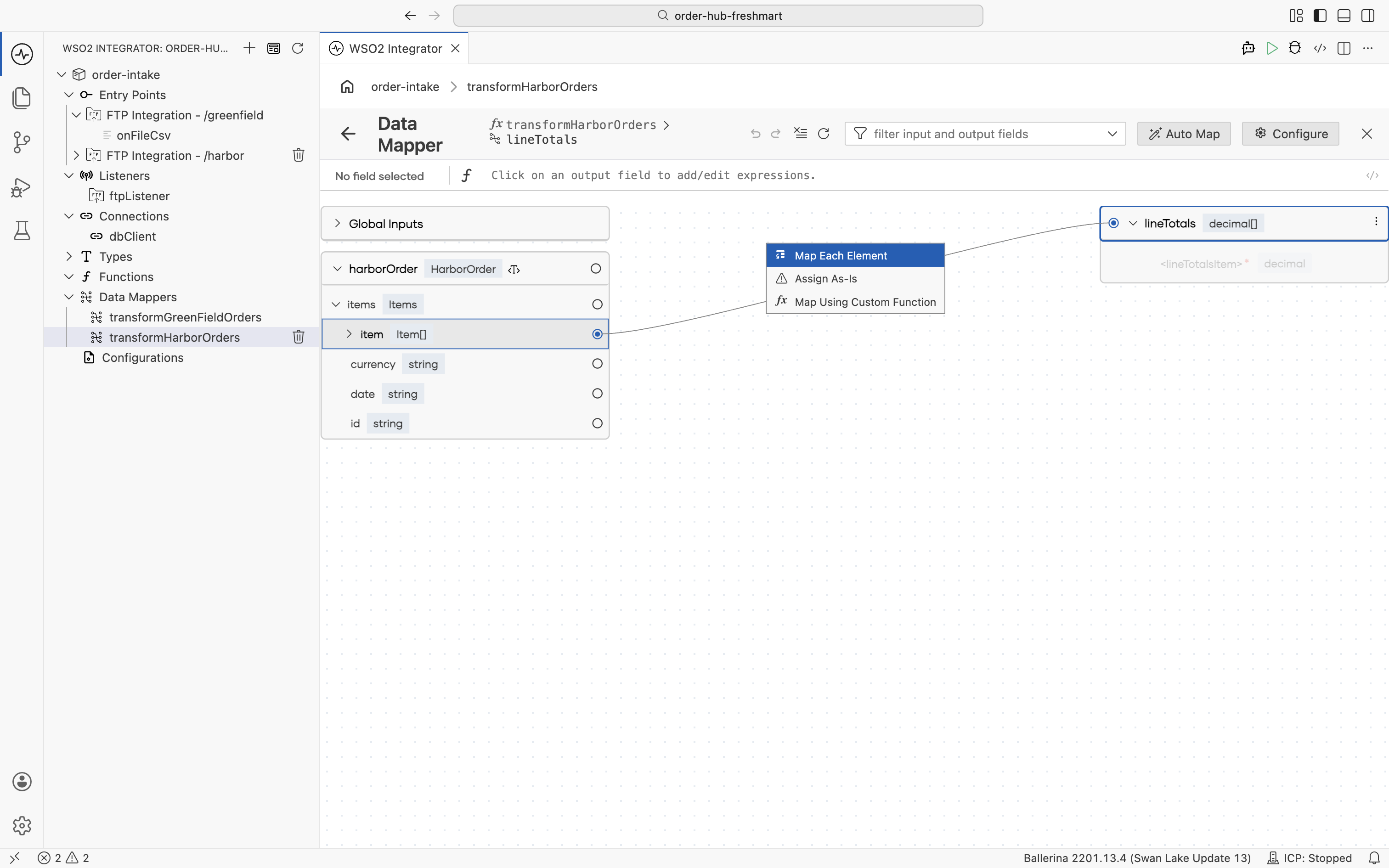
-
Each element is the converted
pricemultiplied by the convertedunits.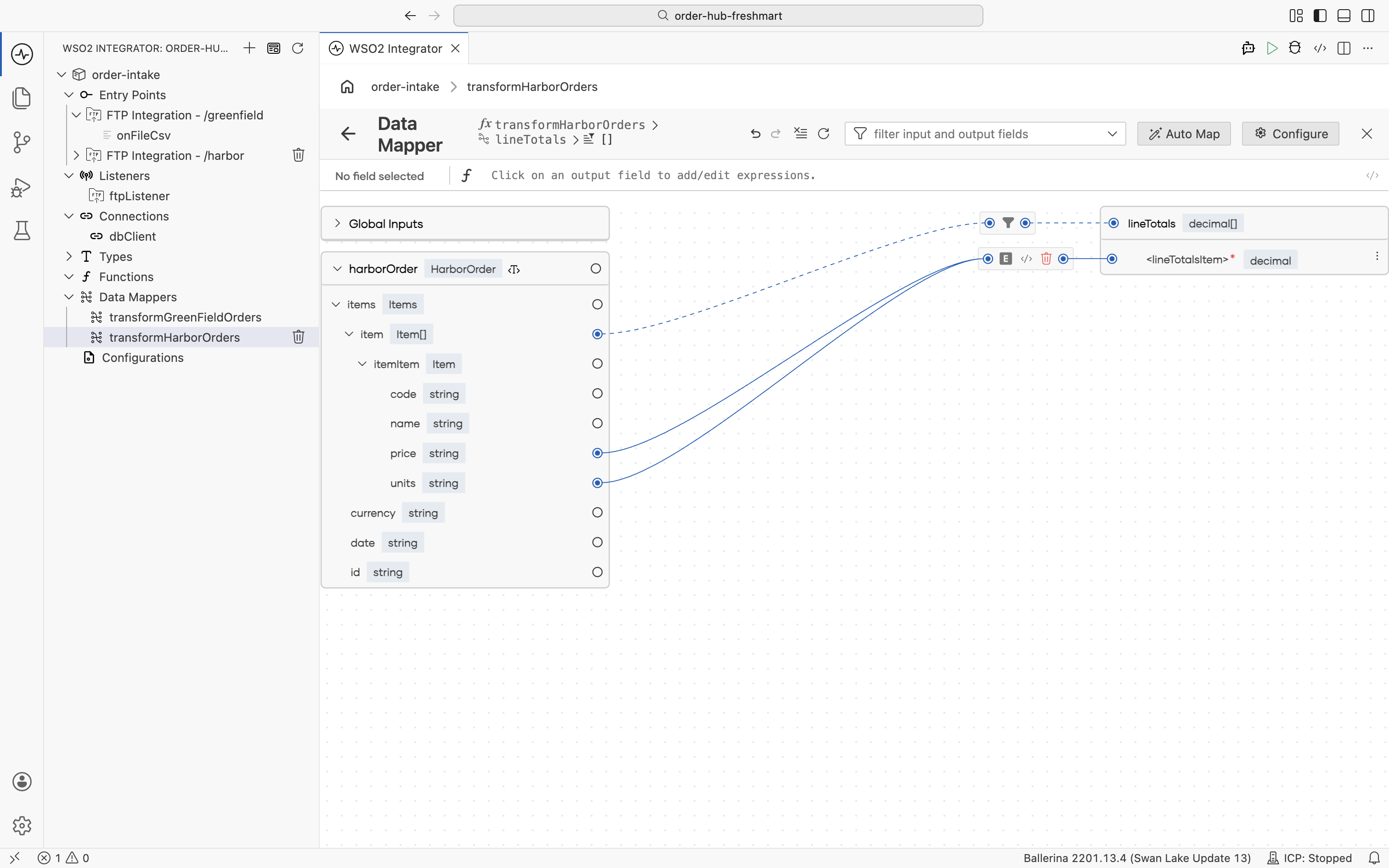
-
Map
orderTotalfrom the sub-mapping with Aggregate and Map.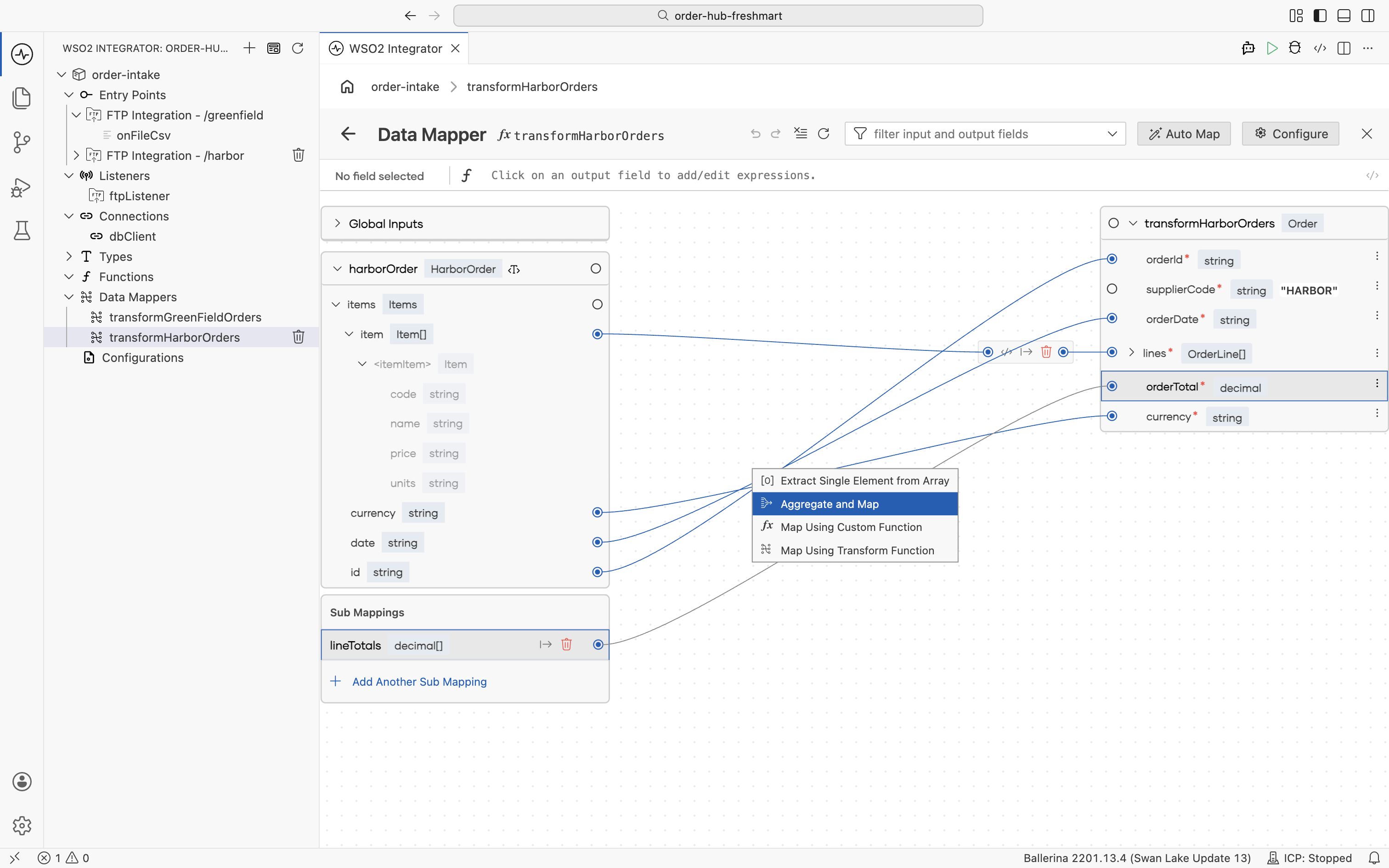
-
Pick the sum aggregate function.
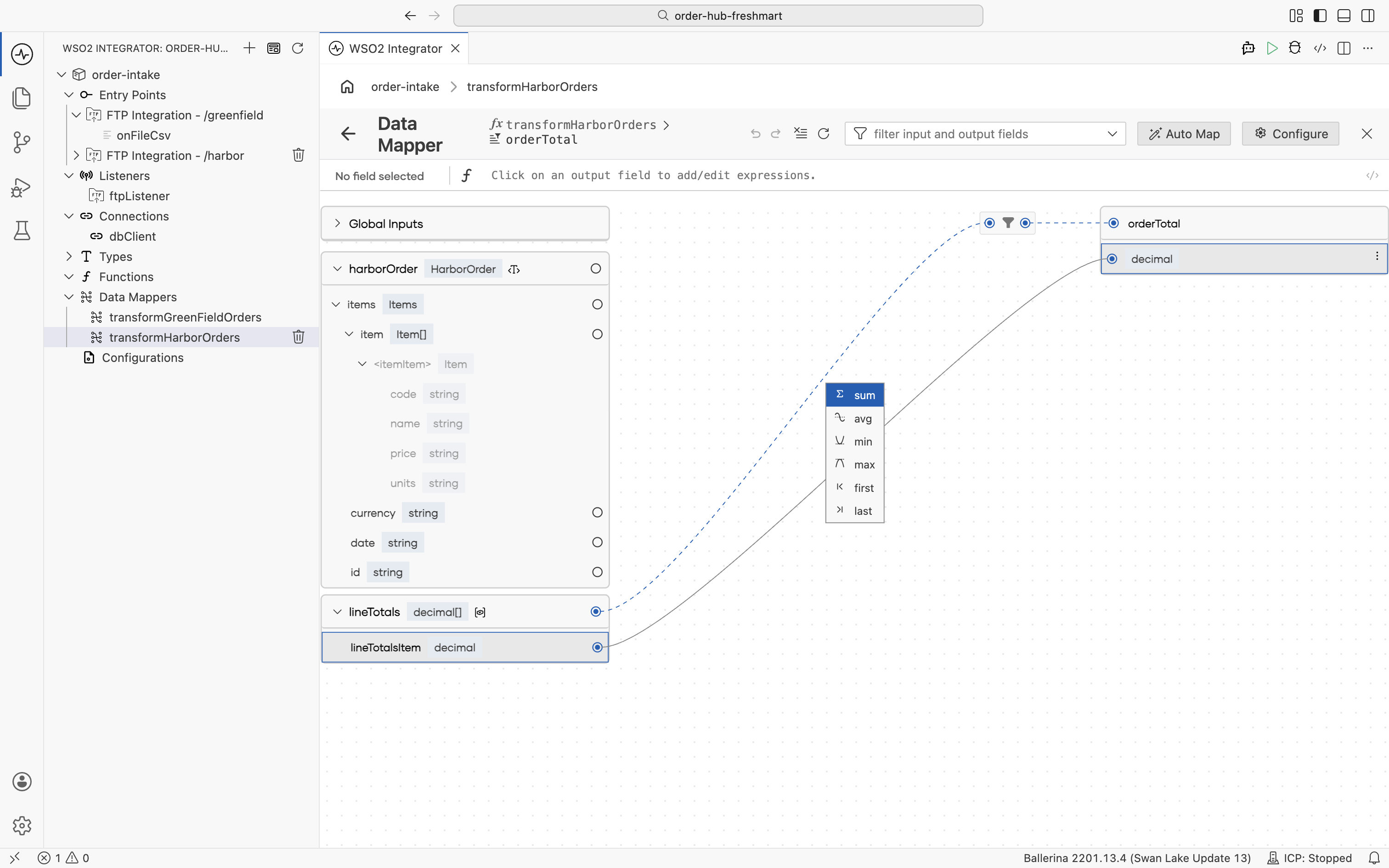
-
The completed mapper lands a completely different source shape on the same
Order.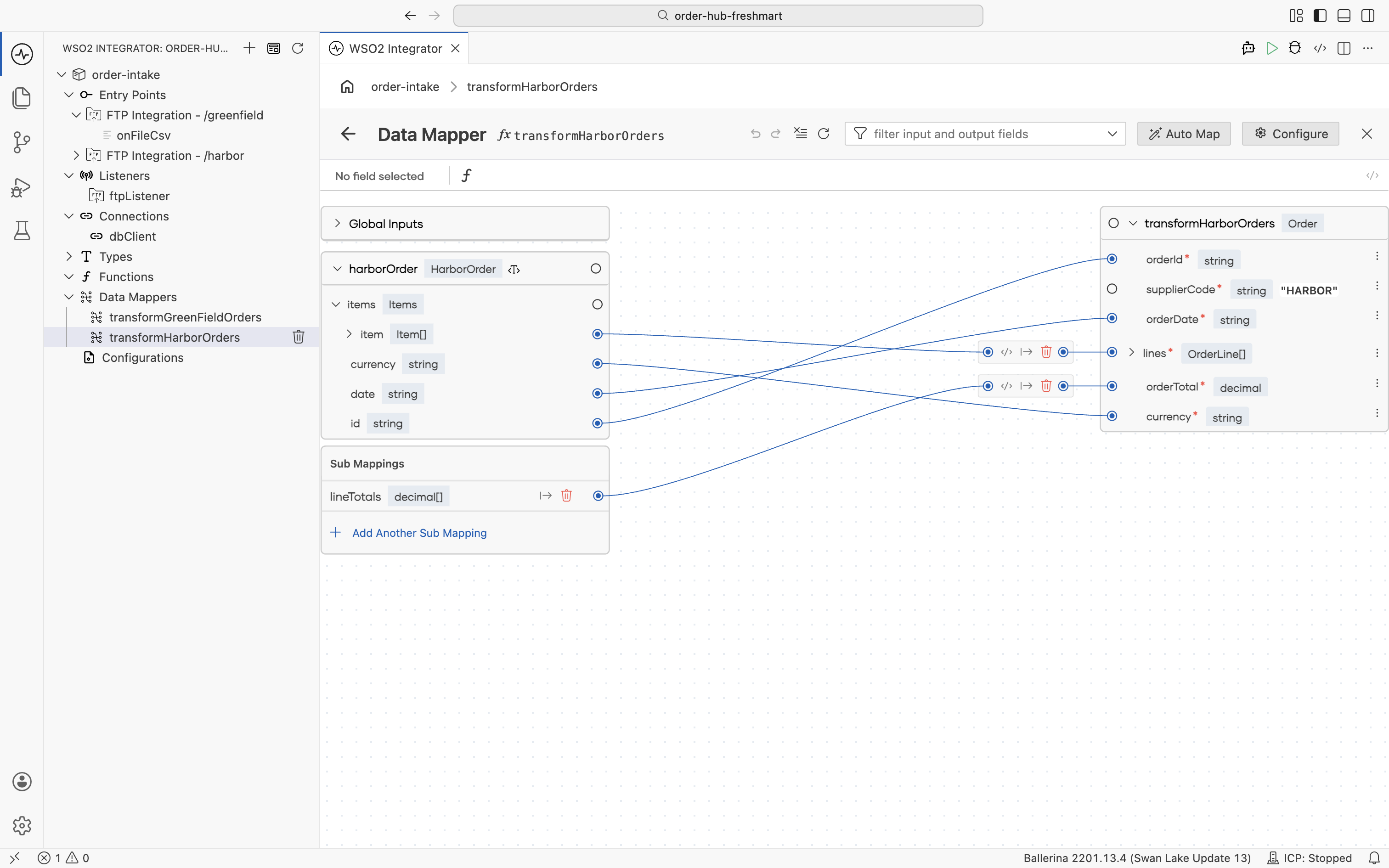
Persist and archive
-
Open the
onFileXmlflow and add a Map Data node that runstransformHarborOrdersoverharborOrder, into a resultorderResult.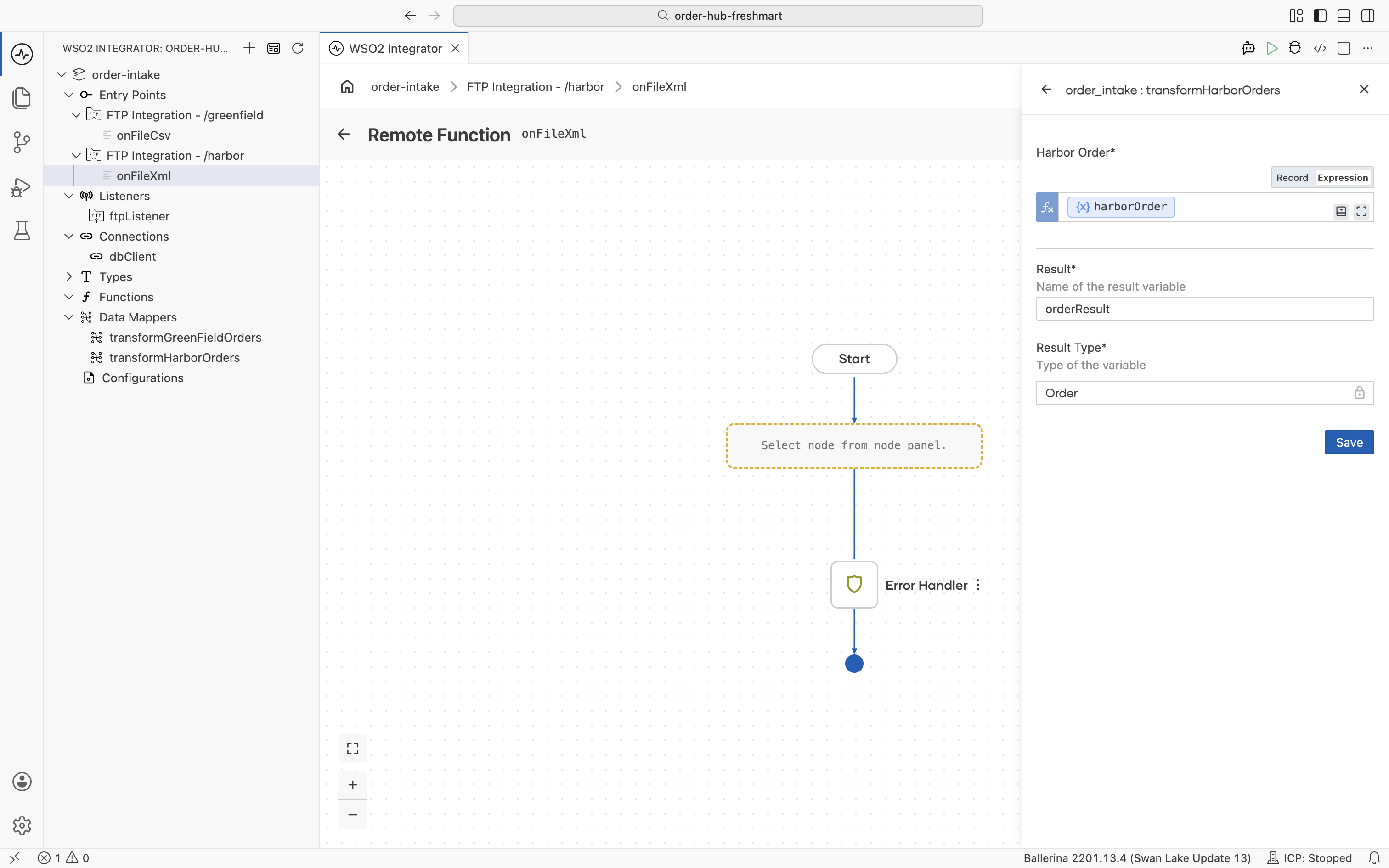
-
Add the
dbClientInsert rows into orders table operation and build the record fromorderResult.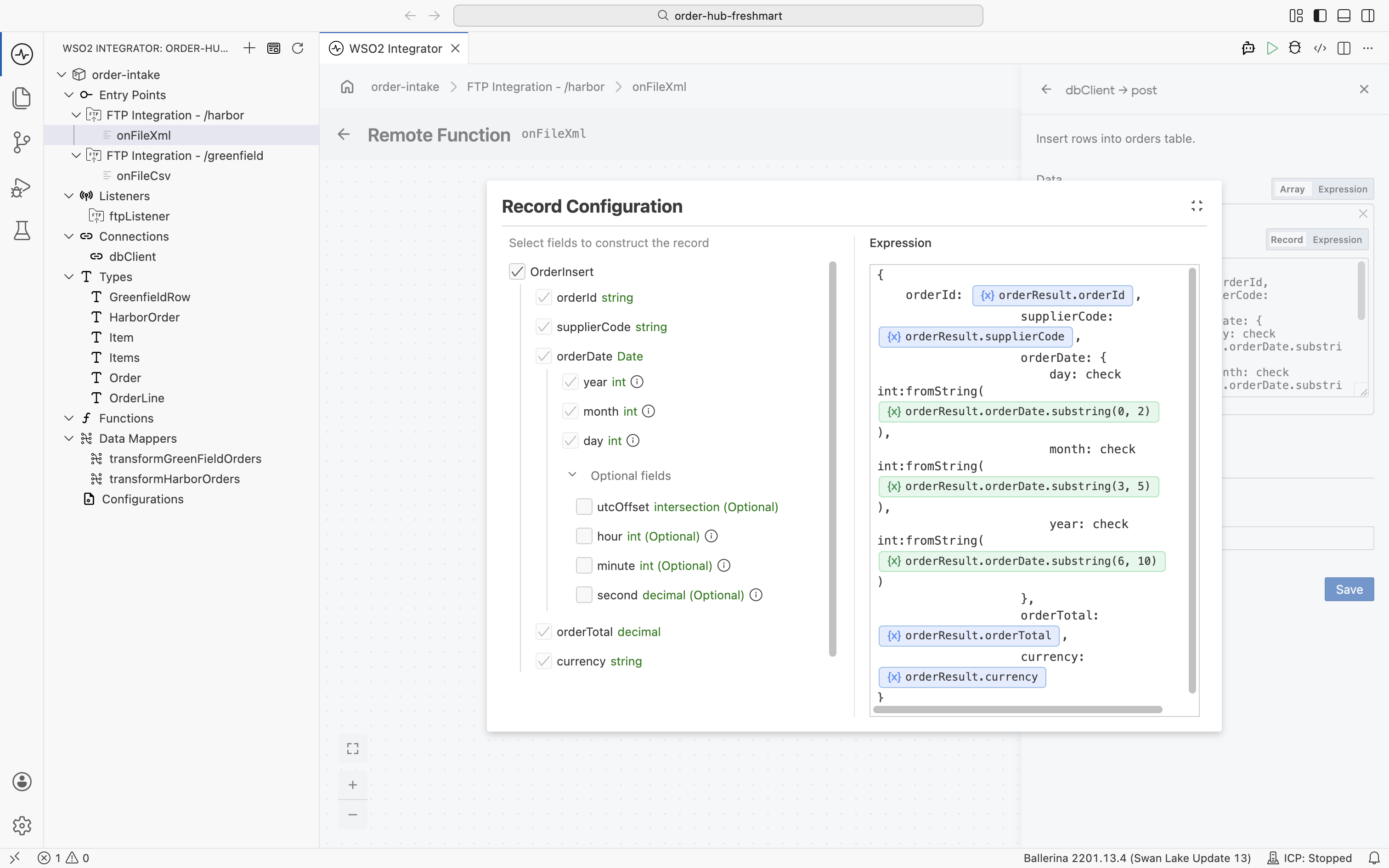 A different date format, the same target
Harbor's date is
DD/MM/YYYY(e.g.23/06/2026), so, unlike Greenfield's ISO date, it is sliced as day (0-2), month (3-5), year (6-10). The mapper leavesorderDateas the raw string; the format-specific parsing happens here, at the insert, while the column it writes to is identical. -
Name the result
primaryKeys.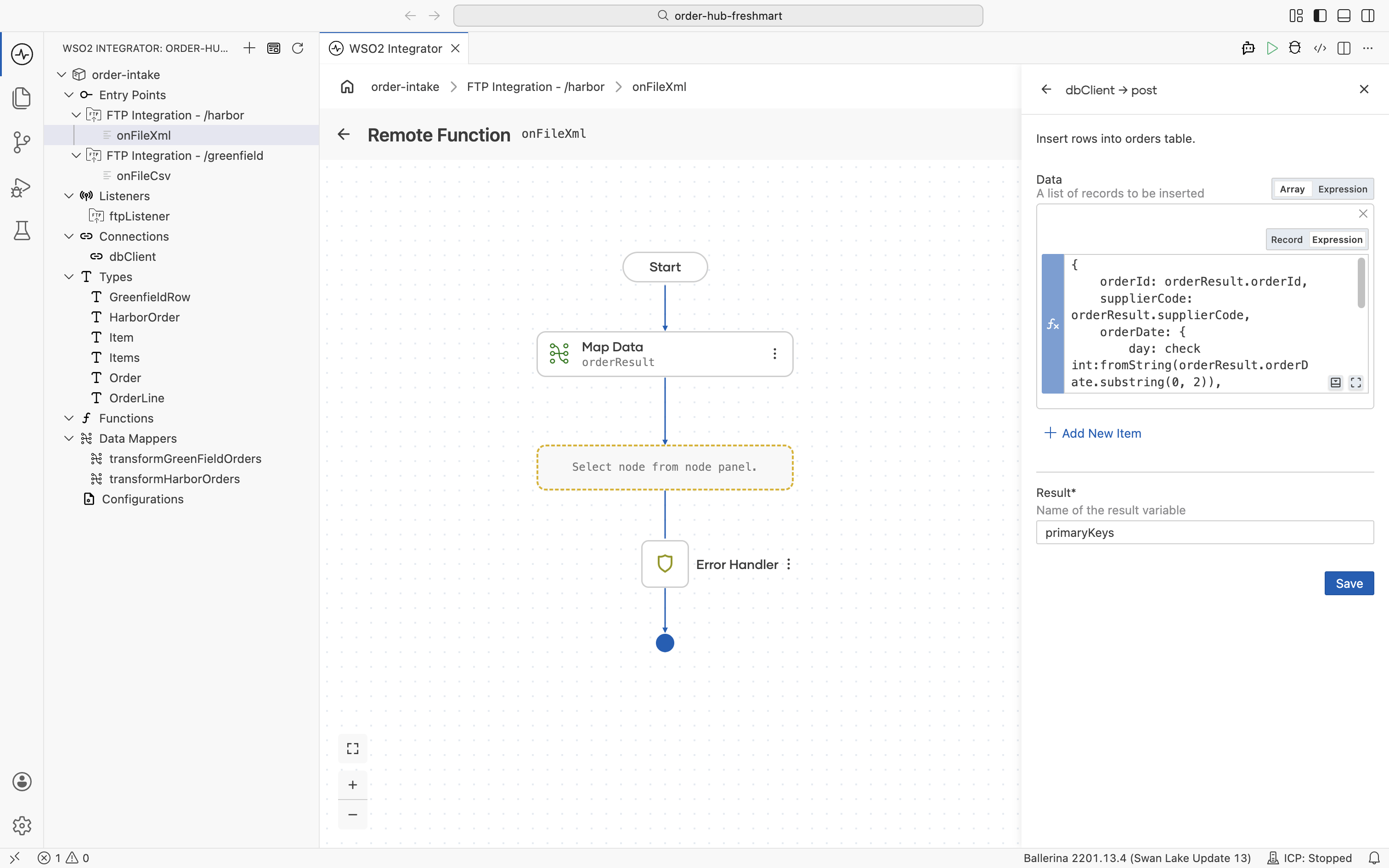
-
Loop the lines: add a Foreach over
orderResult.lineswith the loop variableorderLine.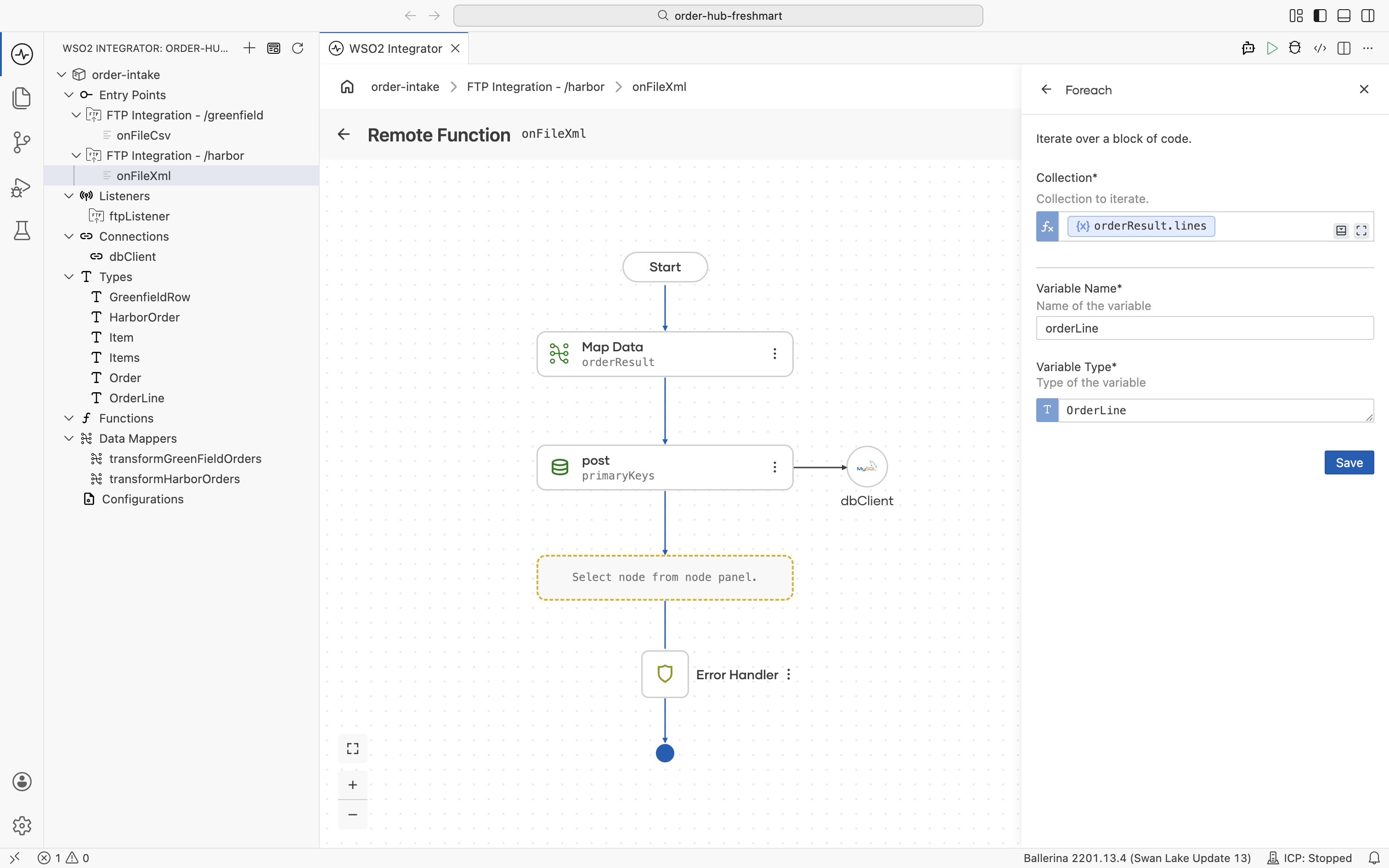
-
Inside the loop, add the
dbClientInsert rows into order_lines table operation, building the line fromorderLinewithorderIdset toprimaryKeys[0].![The Record Configuration for the order_lines insert, mapping the OrderLine fields and setting orderId to primaryKeys[0]](/integration-platform/docs/saas/assets/images/harbor-persist-lines-d6ff679abe61d00704df31a3e1212f82.png)
-
Name the result
orderLineKeysand save.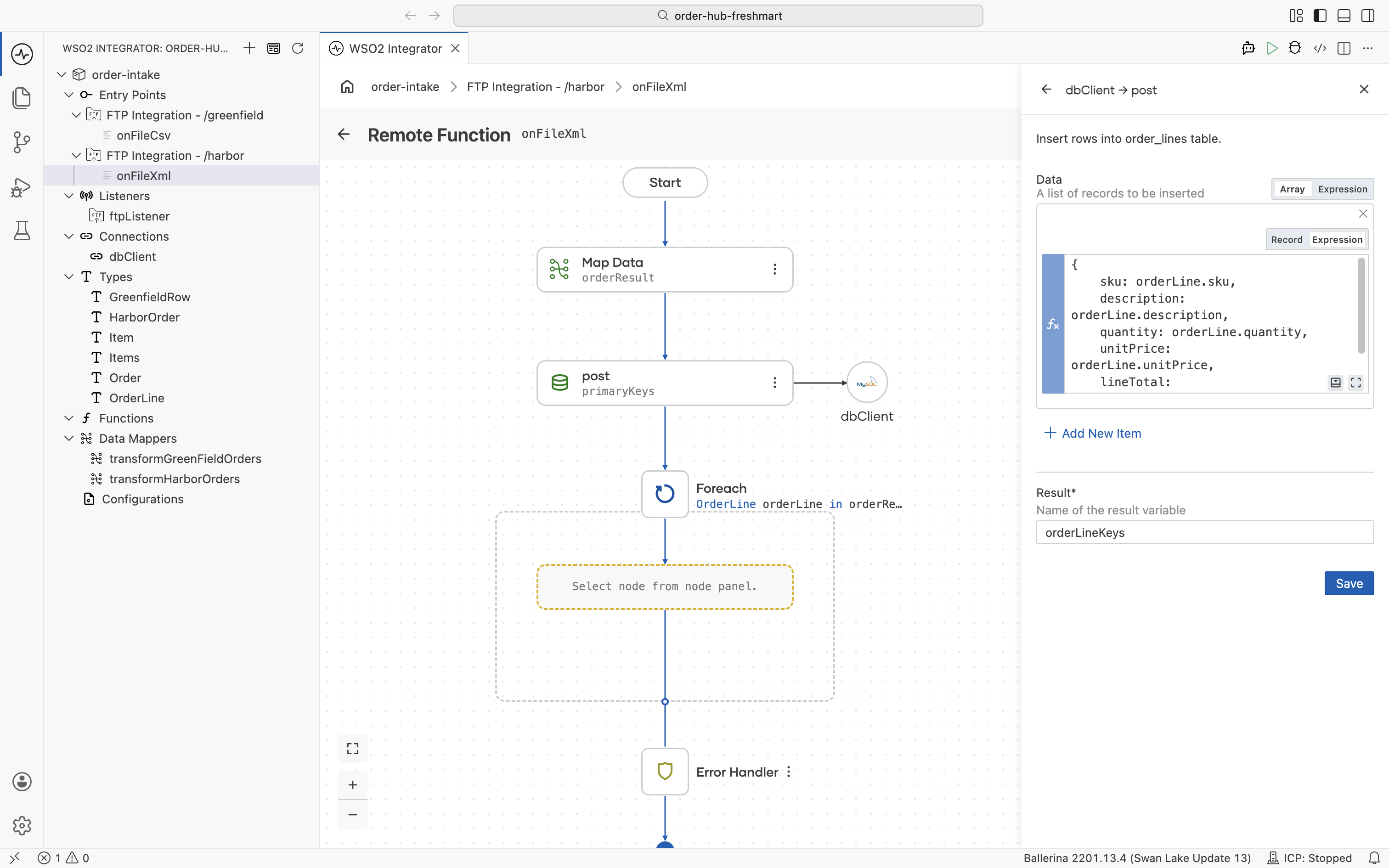
-
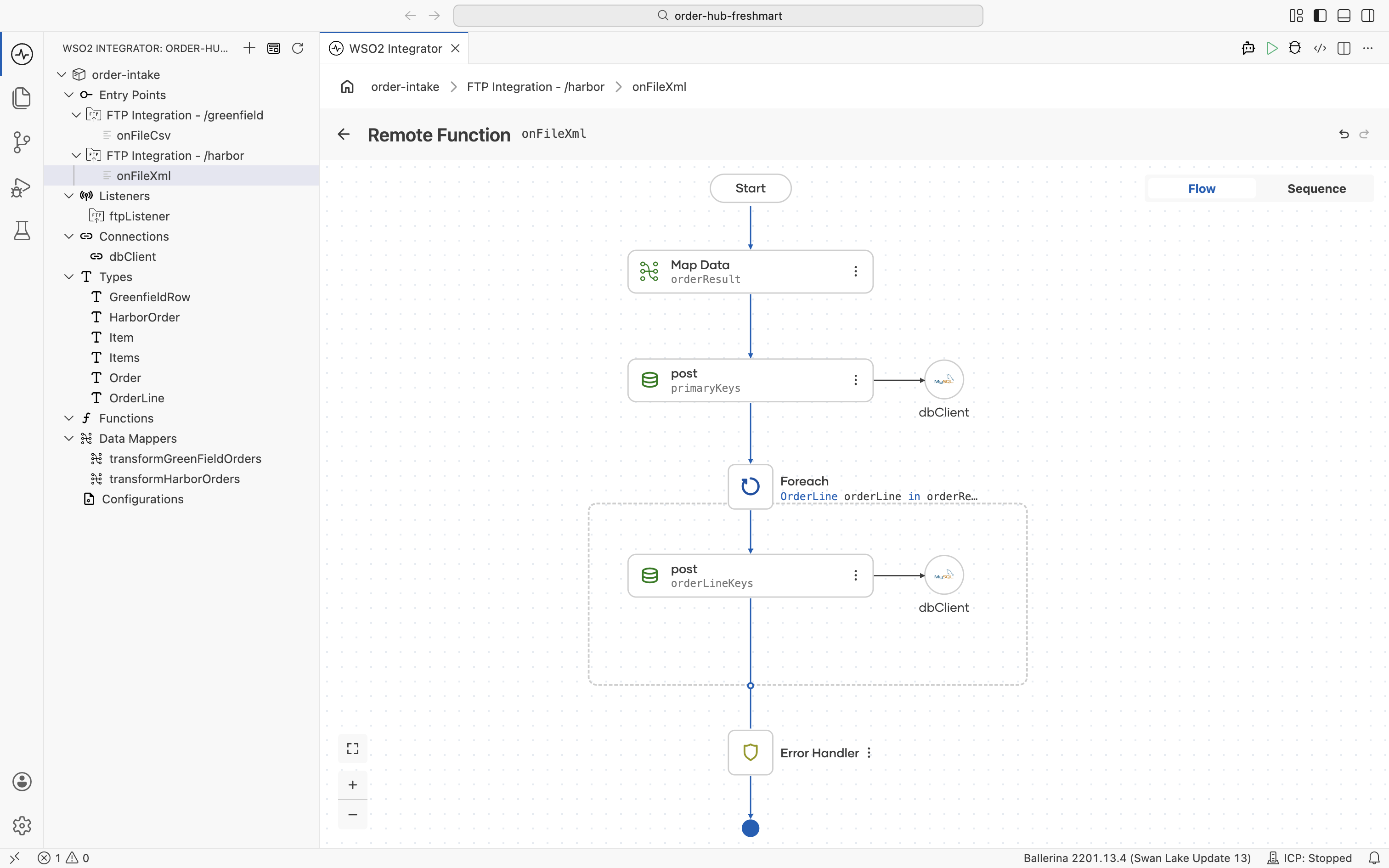
The completed flow is the same shape as Greenfield's. Only the mapper and the date parsing differ.
Importing the XML sample generated these records in types.bal. Each attribute is annotated with @xmldata:Attribute, and the root element name is preserved with @xmldata:Name:
import ballerina/data.xmldata;

type Item record {
    @xmldata:Attribute
    string code;
    @xmldata:Attribute
    string name;
    @xmldata:Attribute
    string price;
    @xmldata:Attribute
    string units;
};

type Items record {
    Item[] item;
};

@xmldata:Name {
    value: "purchaseOrder"
}
type HarborOrder record {
    Items items;
    @xmldata:Attribute
    string currency;
    @xmldata:Attribute
    string date;
    @xmldata:Attribute
    string id;
};
The mapper in data_mappings.bal converts each text attribute to its typed value with a 0 fallback, fixes supplierCode as a constant, and aggregates the order total, landing on the same Order as Greenfield:
function transformHarborOrders(HarborOrder harborOrder) returns Order => let decimal[] lineTotals = from var itemItem in harborOrder.items.item
        select (let decimal|error tmp = decimal:fromString(itemItem.price) in (tmp is error ? 0.0d : tmp)) * (let decimal|error tmp = decimal:fromString(itemItem.units) in (tmp is error ? 0.0d : tmp))
    in {
        orderId: harborOrder.id,
        currency: harborOrder.currency,
        supplierCode: "HARBOR",
        lines: from var itemItem in harborOrder.items.item
            select {sku: itemItem.code, description: itemItem.name, unitPrice: (let decimal|error tmp = decimal:fromString(itemItem.price) in (tmp is error ? 0.0d : tmp)), quantity: (let int|error tmp = int:fromString(itemItem.units) in (tmp is error ? 0 : tmp)), lineTotal: (let decimal|error tmp = decimal:fromString(itemItem.price) in (tmp is error ? 0.0d : tmp)) * (let decimal|error tmp = decimal:fromString(itemItem.units) in (tmp is error ? 0.0d : tmp))},
        orderTotal: from var lineTotalsItem in lineTotals
            collect sum(lineTotalsItem),
        orderDate: harborOrder.date
    };
The onFileXml handler mirrors onFileCsv, except it parses the DD/MM/YYYY date positionally:
service on ftpListener {
    @ftp:FunctionConfig {
        afterProcess: {moveTo: string `/processed`},
        afterError: {moveTo: string `/errors`}
    }
    remote function onFileXml(HarborOrder harborOrder, ftp:FileInfo fileInfo) returns error? {
        do {
            Order orderResult = transformHarborOrders(harborOrder);
            int[] primaryKeys = check dbClient->/orders.post([
                {
                    orderId: orderResult.orderId,
                    supplierCode: orderResult.supplierCode,
                    orderDate: {
                        day: check int:fromString(orderResult.orderDate.substring(0, 2)),
                        month: check int:fromString(orderResult.orderDate.substring(3, 5)),
                        year: check int:fromString(orderResult.orderDate.substring(6, 10))
                    },
                    orderTotal: orderResult.orderTotal,
                    currency: orderResult.currency
                }
            ]);
            foreach OrderLine orderLine in orderResult.lines {
                int[] orderLineKeys = check dbClient->/orderlines.post([
                    {
                        sku: orderLine.sku,
                        description: orderLine.description,
                        quantity: orderLine.quantity,
                        unitPrice: orderLine.unitPrice,
                        lineTotal: orderLine.lineTotal,
                        orderId: primaryKeys[0]
                    }
                ]);
            }
        } on fail error err {
            return error("unhandled error", err);
        }
    }
}
Capability: generate-from-sample and convert-and-map. Bootstrap the source type from one pasted XML sample, coerce its string attributes to typed numbers, and handle its own date format, all landing on the same
Orderthe CSV pipeline produces, in the same two tables.
Step 5: Build the Daily Summary automation
Reporting runs on a clock, not on a file event, so it belongs in a separate automation rather than the intake path. You add a second integration to the same project, give it its own database connection, and build an automation that reads the day's orders and emails procurement an HTML summary. Because both integrations live in one project, the automation reuses the same order_hub database the intake wrote to.
An automation is a main function that runs once per invocation. Its periodic invocation is configured in an external system once the automation is deployed. Available options include:
- Cron job: schedule the automation from a cron entry on a Unix or Linux host.
- Kubernetes: define a
CronJobresource to run the automation on a recurring schedule. - VM: use a host scheduler such as Windows Task Scheduler or systemd timers.
- WSO2 Integration Platform: configure the schedule in the WSO2 Integration Platform when the integration is pushed to the cloud.
- Visual Designer
- Ballerina Code
Create the automation
-
From the project view, click + Add to add a second integration to the
order-hub-freshmartproject. Select Integration, name itdaily-summary, and click Add.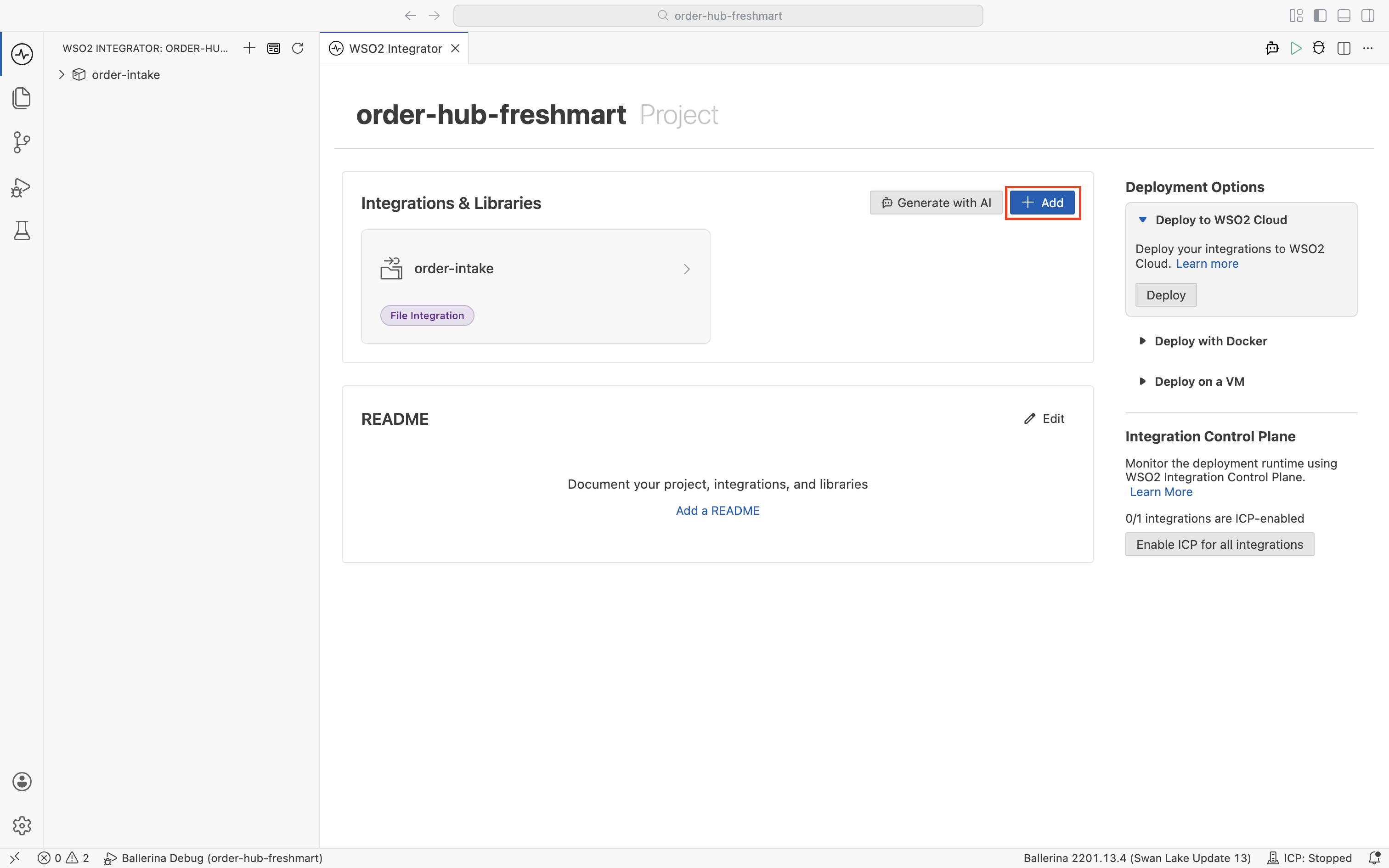
-
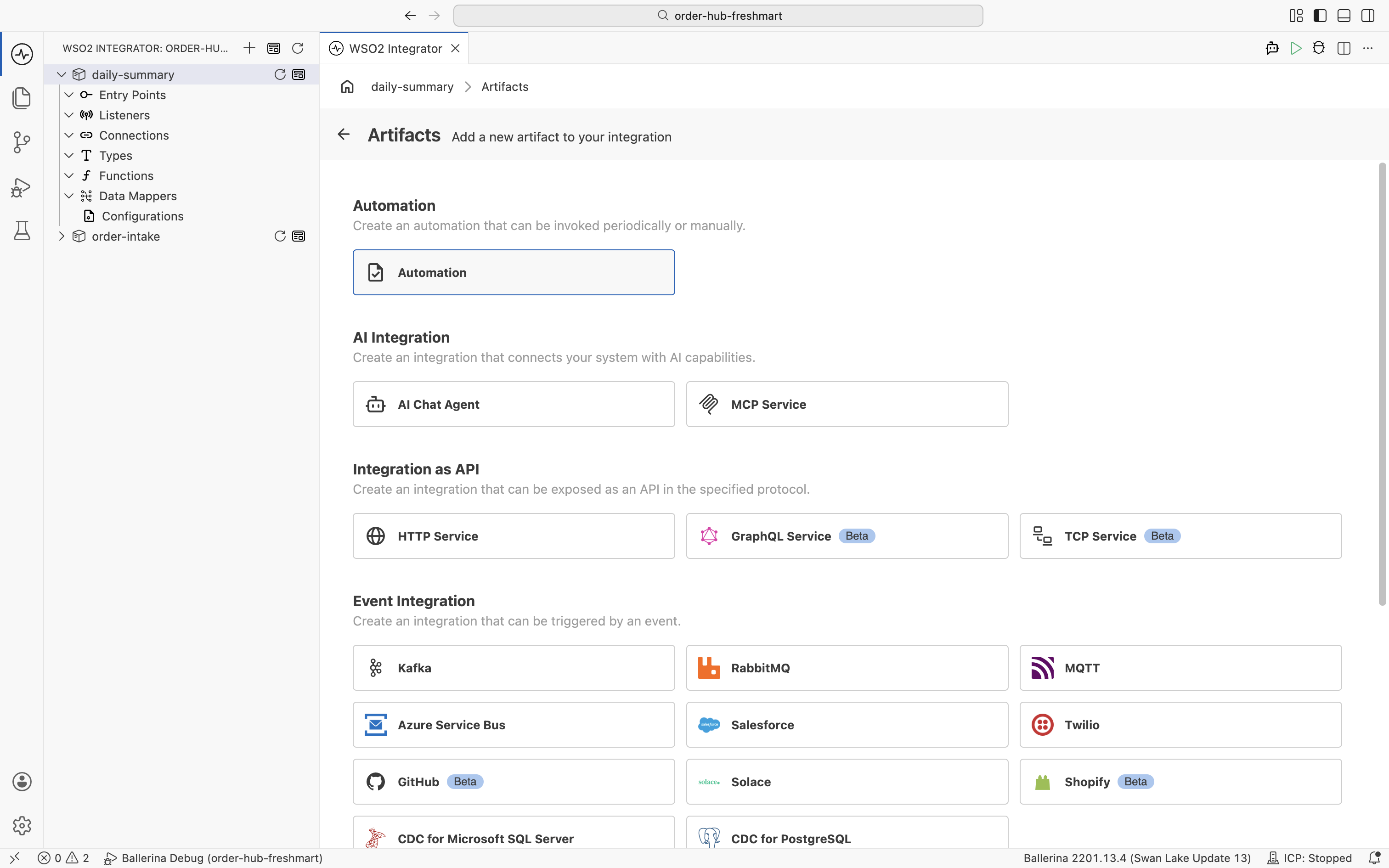
In the new integration, click + Add Artifact and choose Automation, an artifact that runs periodically or on demand rather than in response to a request.
-
Click Create. The automation is a
mainfunction you schedule externally (cron, Kubernetes, or WSO2 Cloud); see Creating an automation.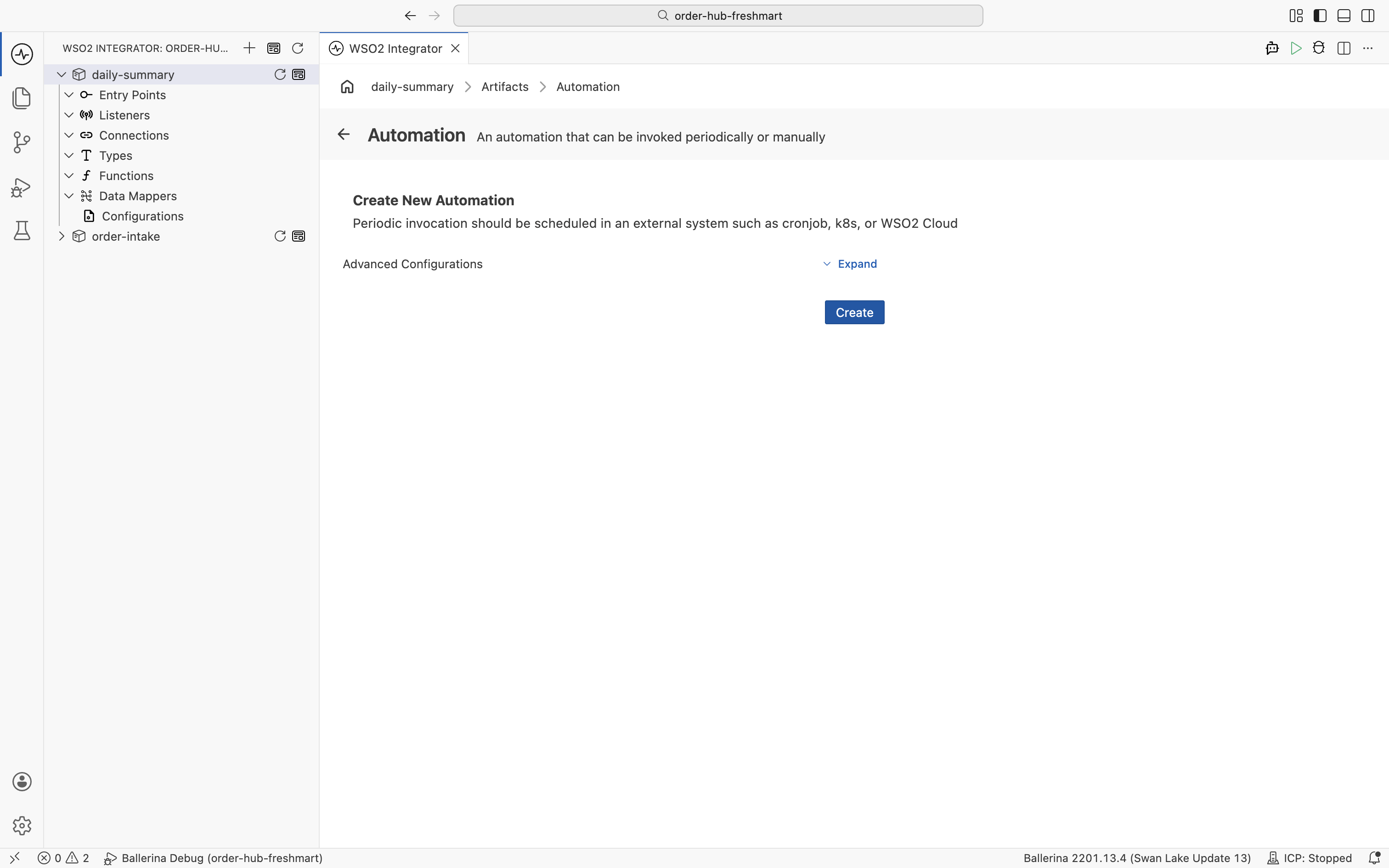
Compute today's date
-
In the automation flow, add the
time:utcNowfunction to get the current instant.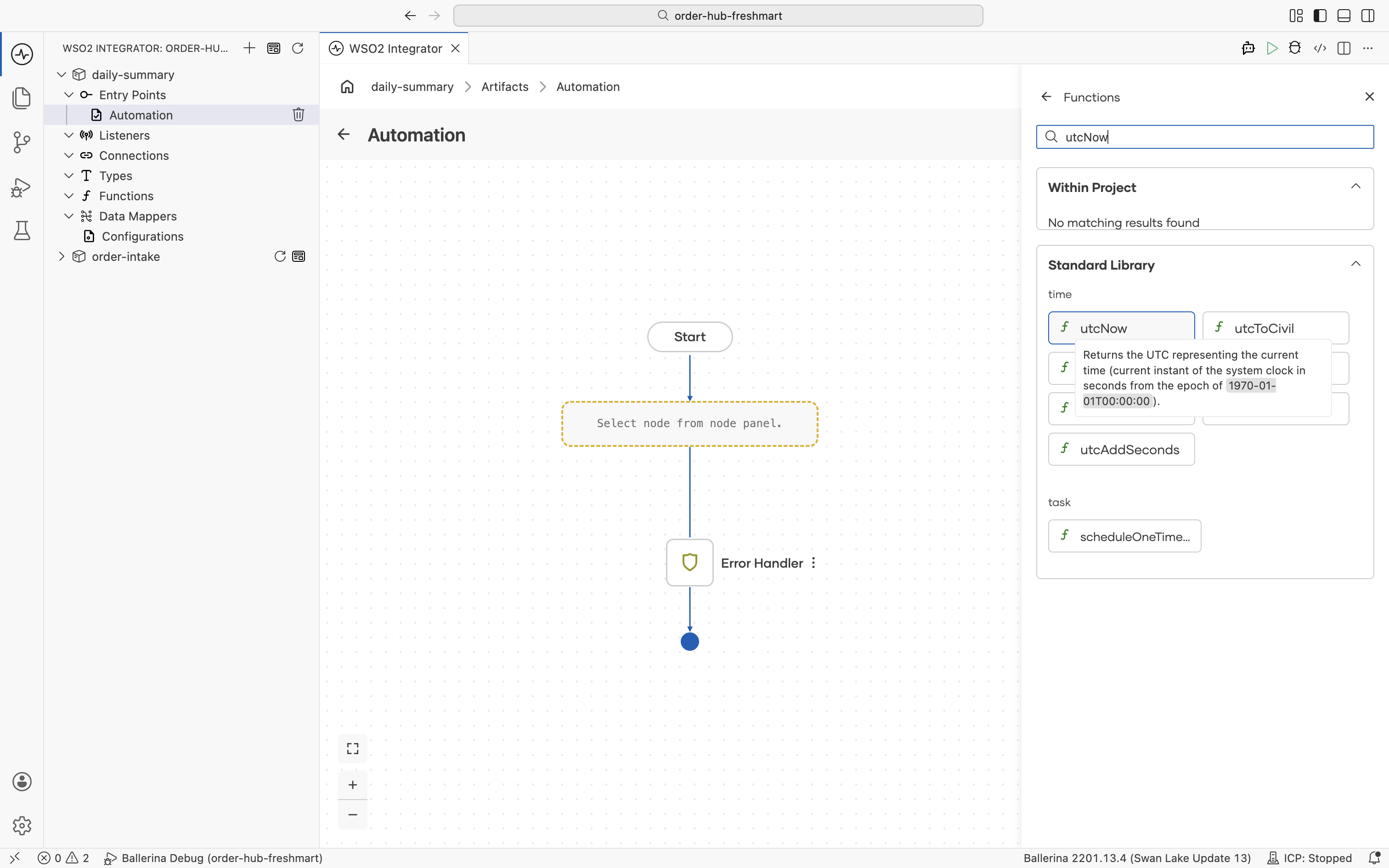
-
Name its result
timeUtc.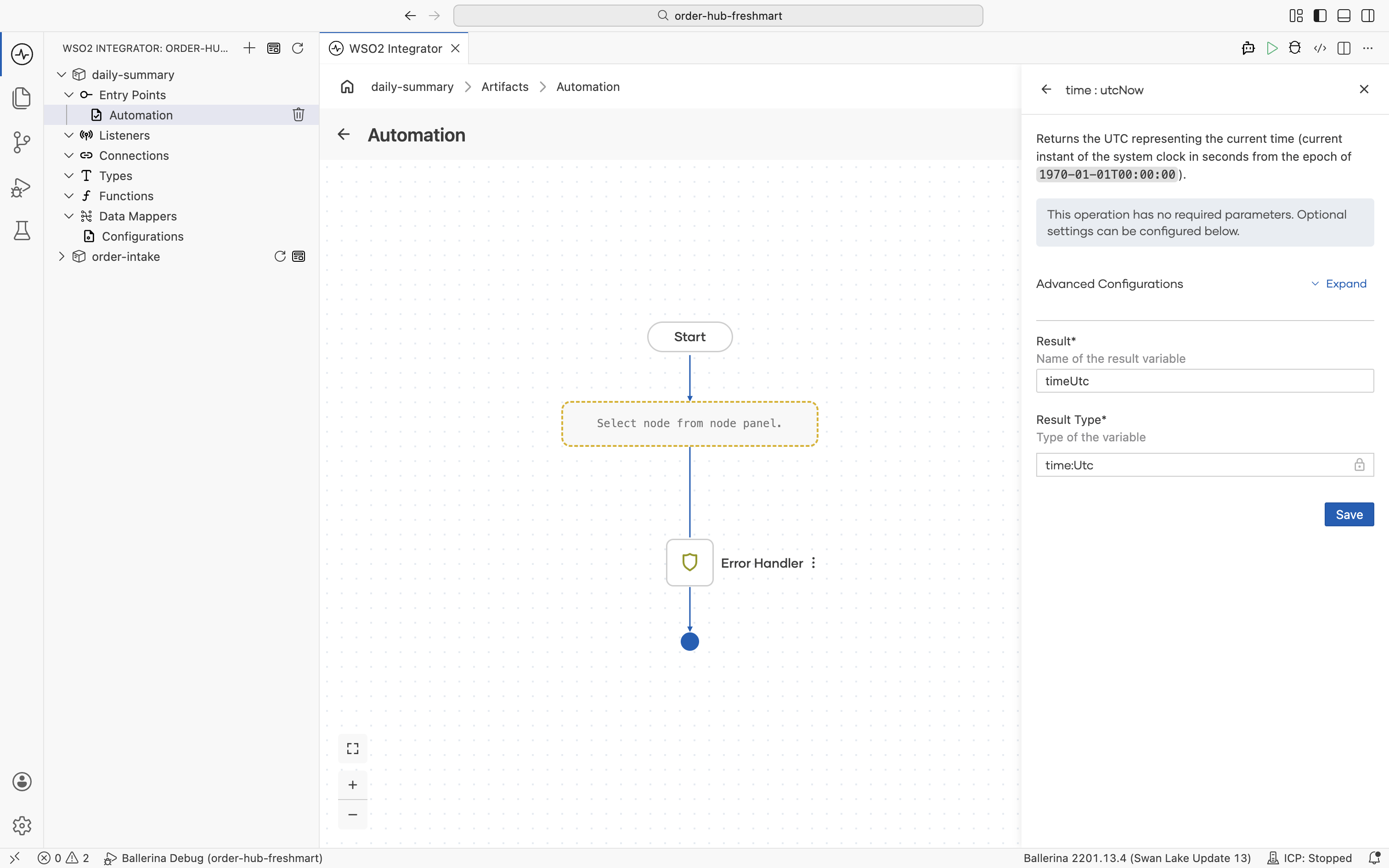
-
Add
time:utcToCivilto break that instant into civil fields.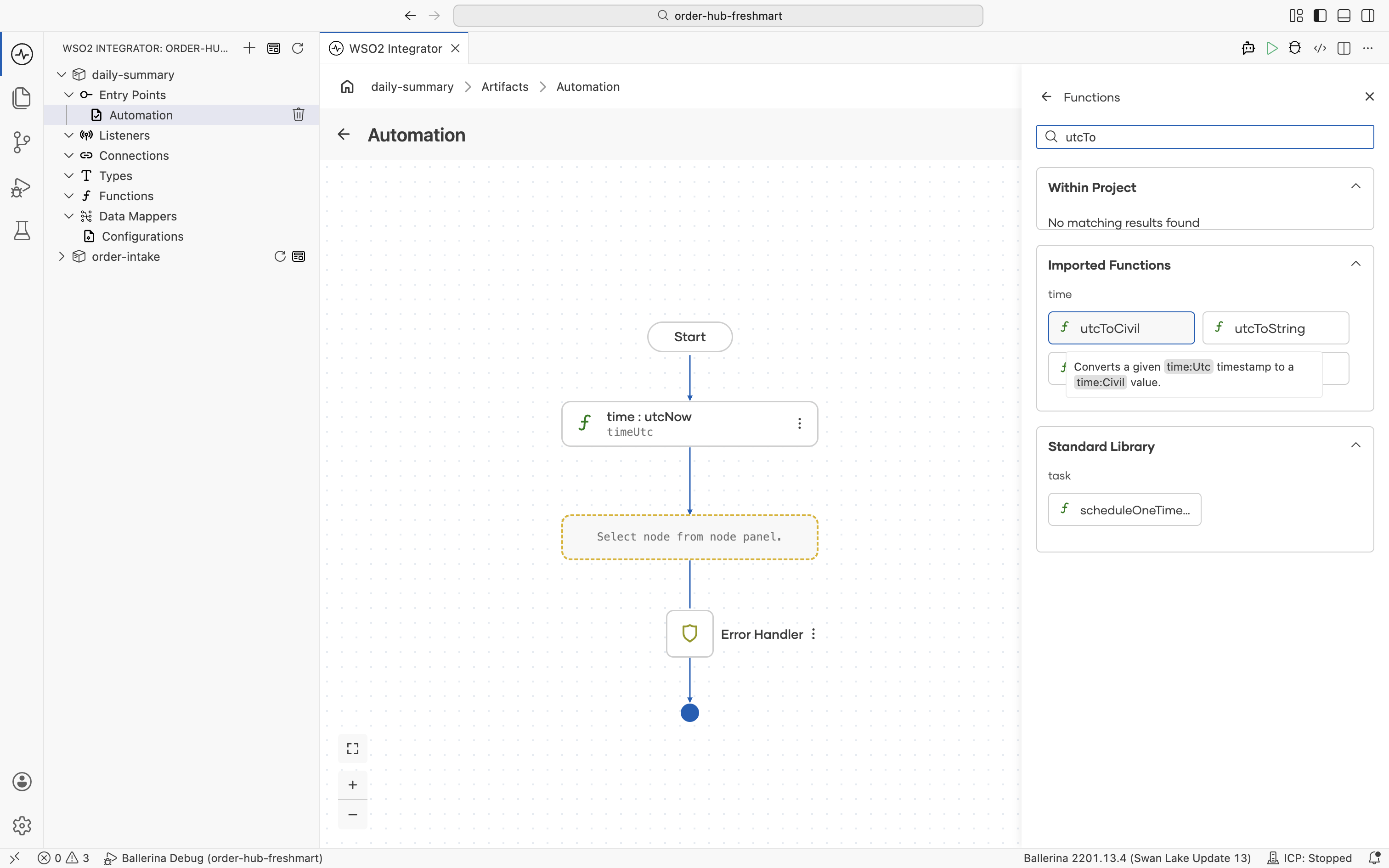
-
Pass
timeUtcto it and name the resulttimeCivil.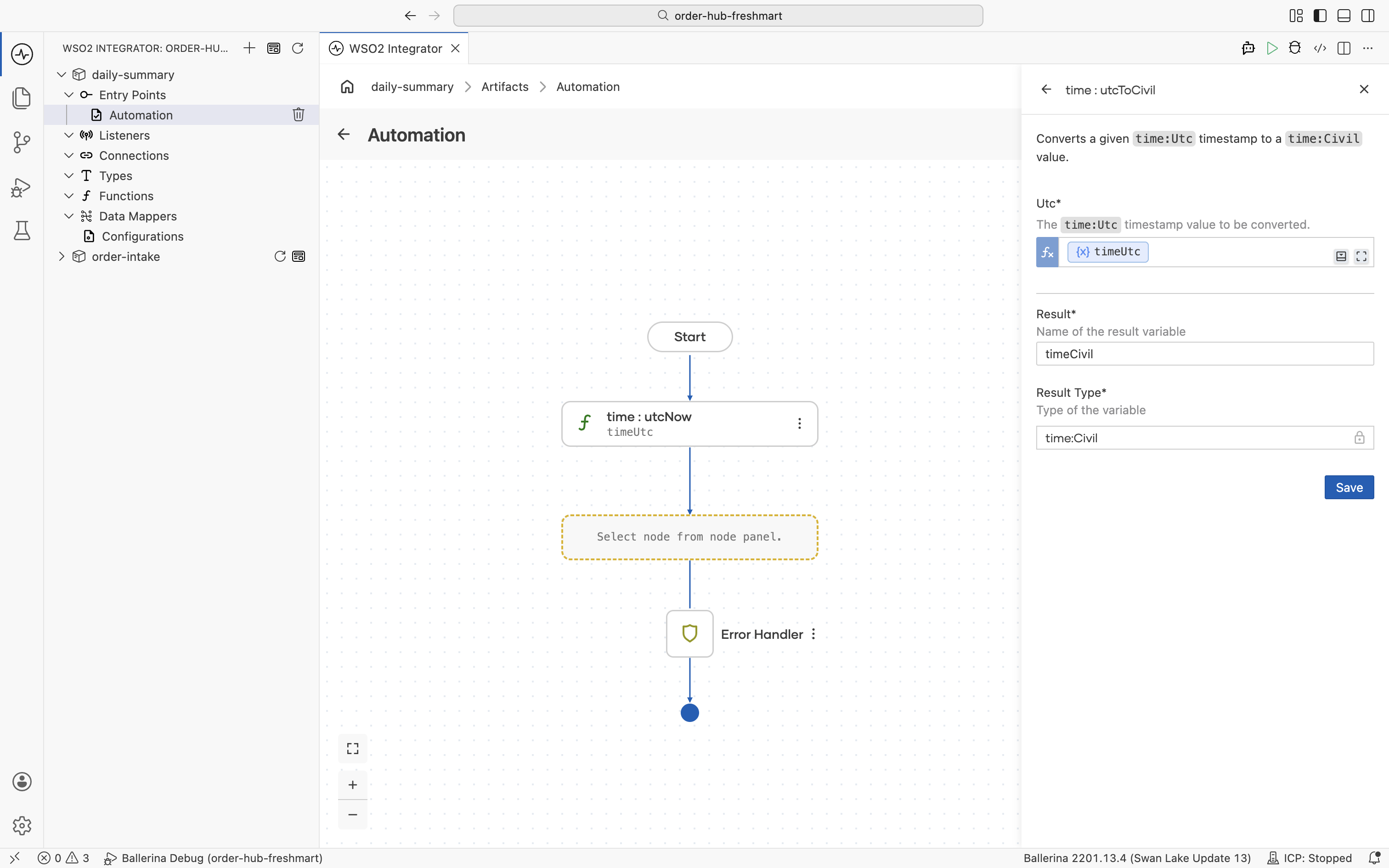
-
The query needs a
time:Date. Add a Declare Variable and picktime:Datefrom the type browser.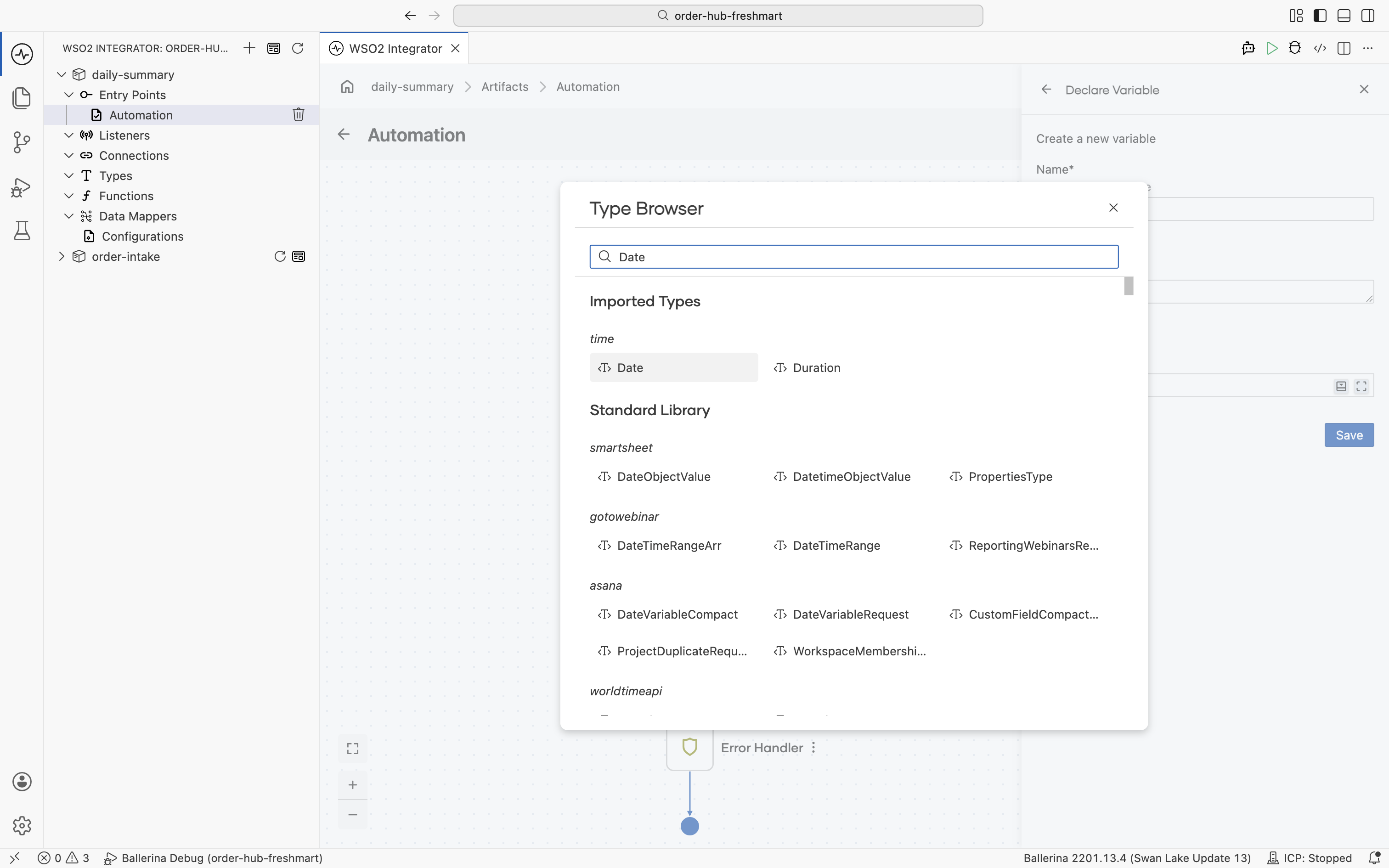
-
Name it
date, then click Open in Data Mapper to build its value fromtimeCivil.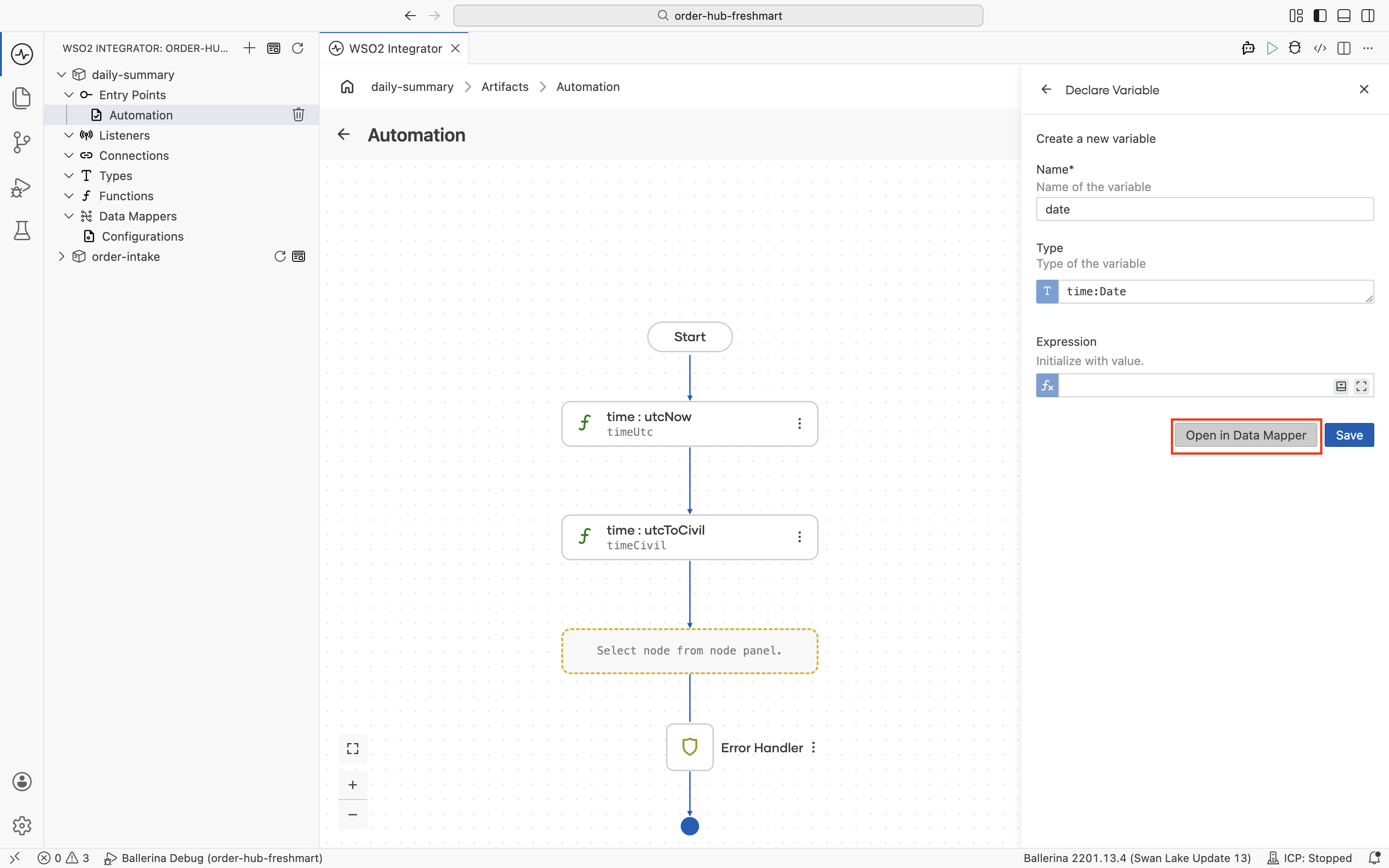
-
Map
year,month, anddayofdatefrom the matchingtimeCivilfields.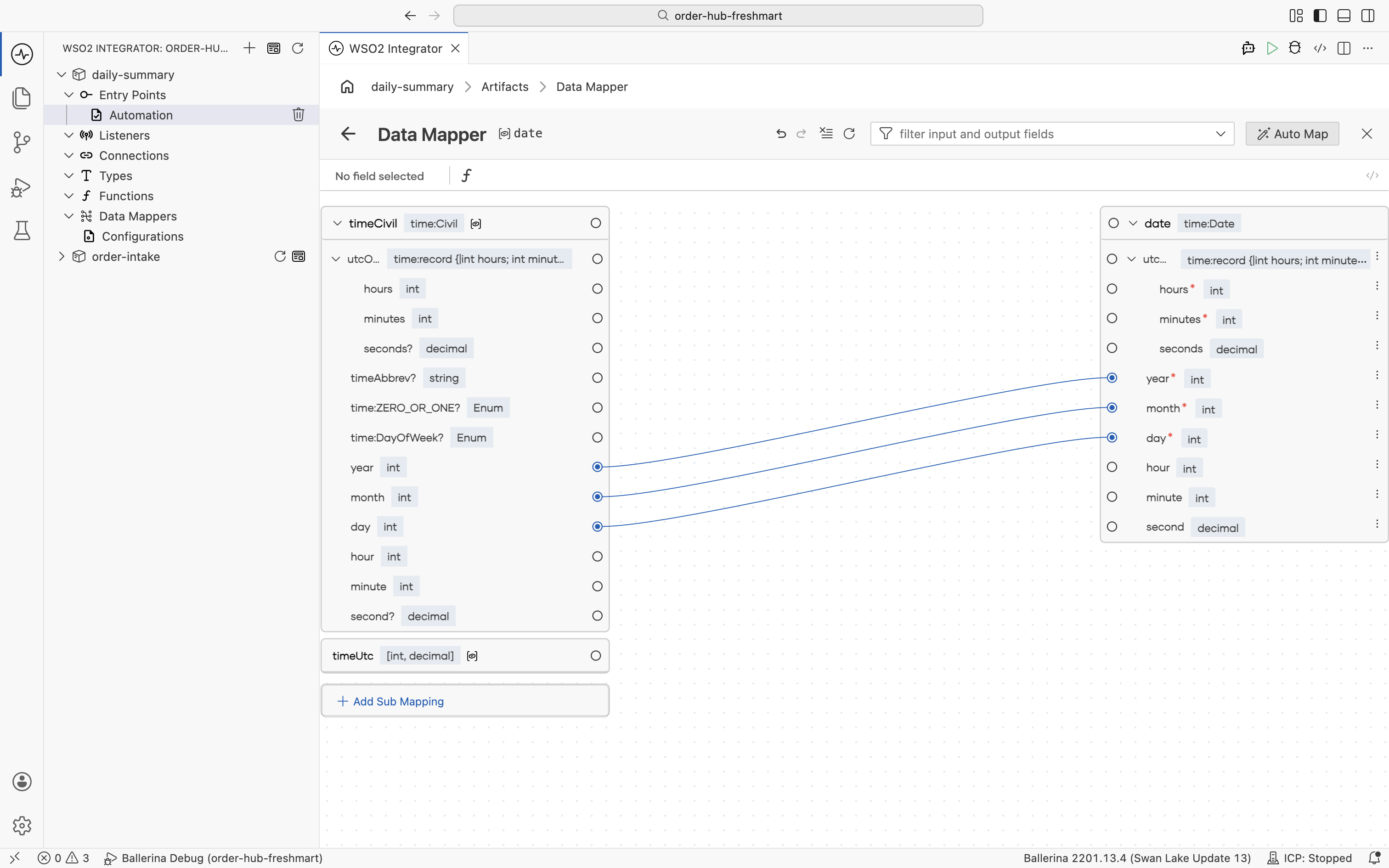
Read today's orders
-
This integration needs its own database connection. Add a Connect to a Database connection to the same
order_hubMySQL database and name itdbClient.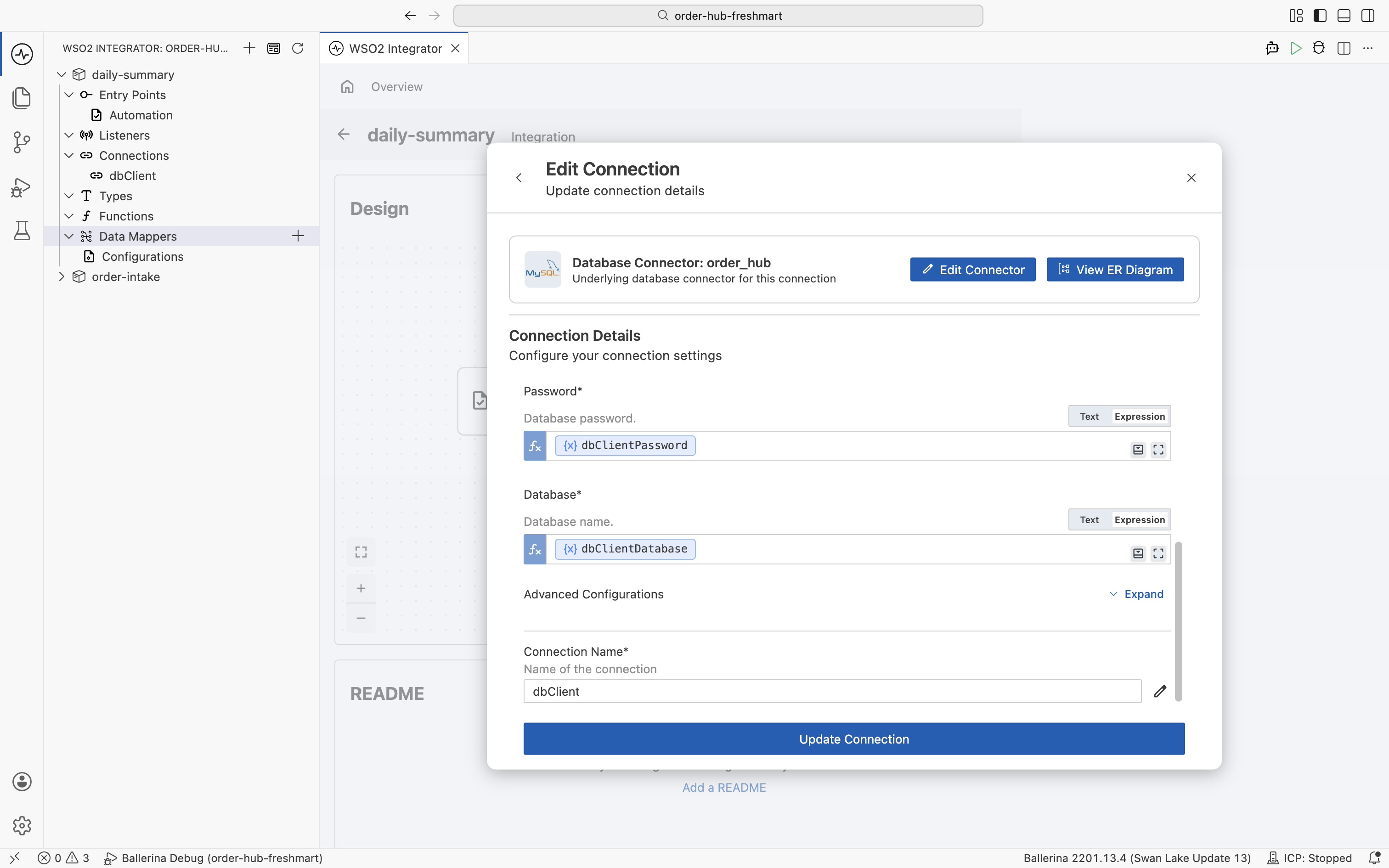
-
In the flow, add the
dbClientGet rows from orders table operation, name the resultorderSummary, and select the summary fields:orderId,supplierCode,orderDate,orderTotal, andcurrency. The generated result type isOrderSummaryType.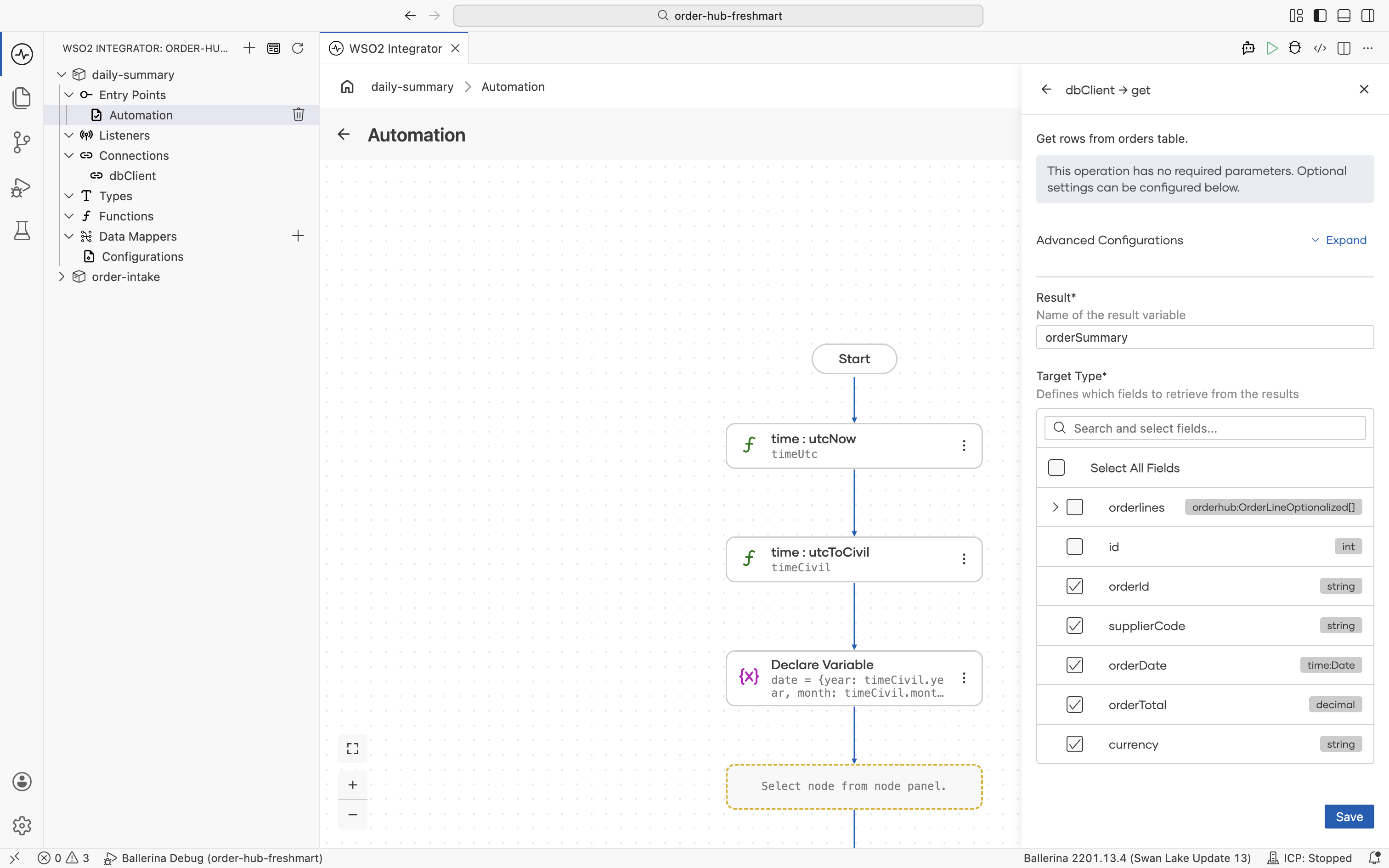
-
Expand Advanced Configurations and set the Where Clause to
order_date = ${date}, so only today's orders are returned. Binding thetime:Datedirectly produces a safe parameterized query.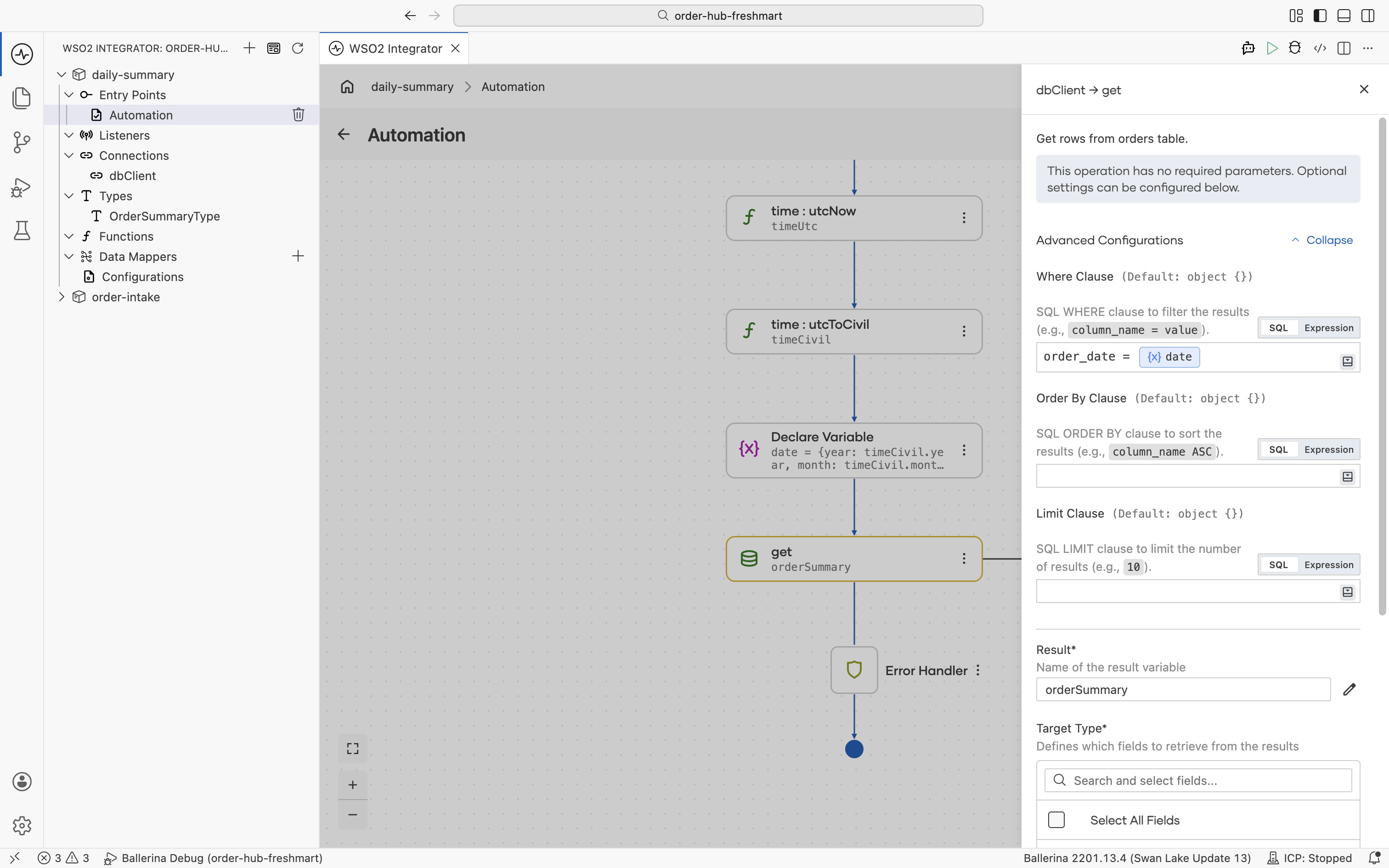
Build the HTML summary
-
Declare a
string[]namedorderRows, initialized to[]. It collects one HTML table row per order.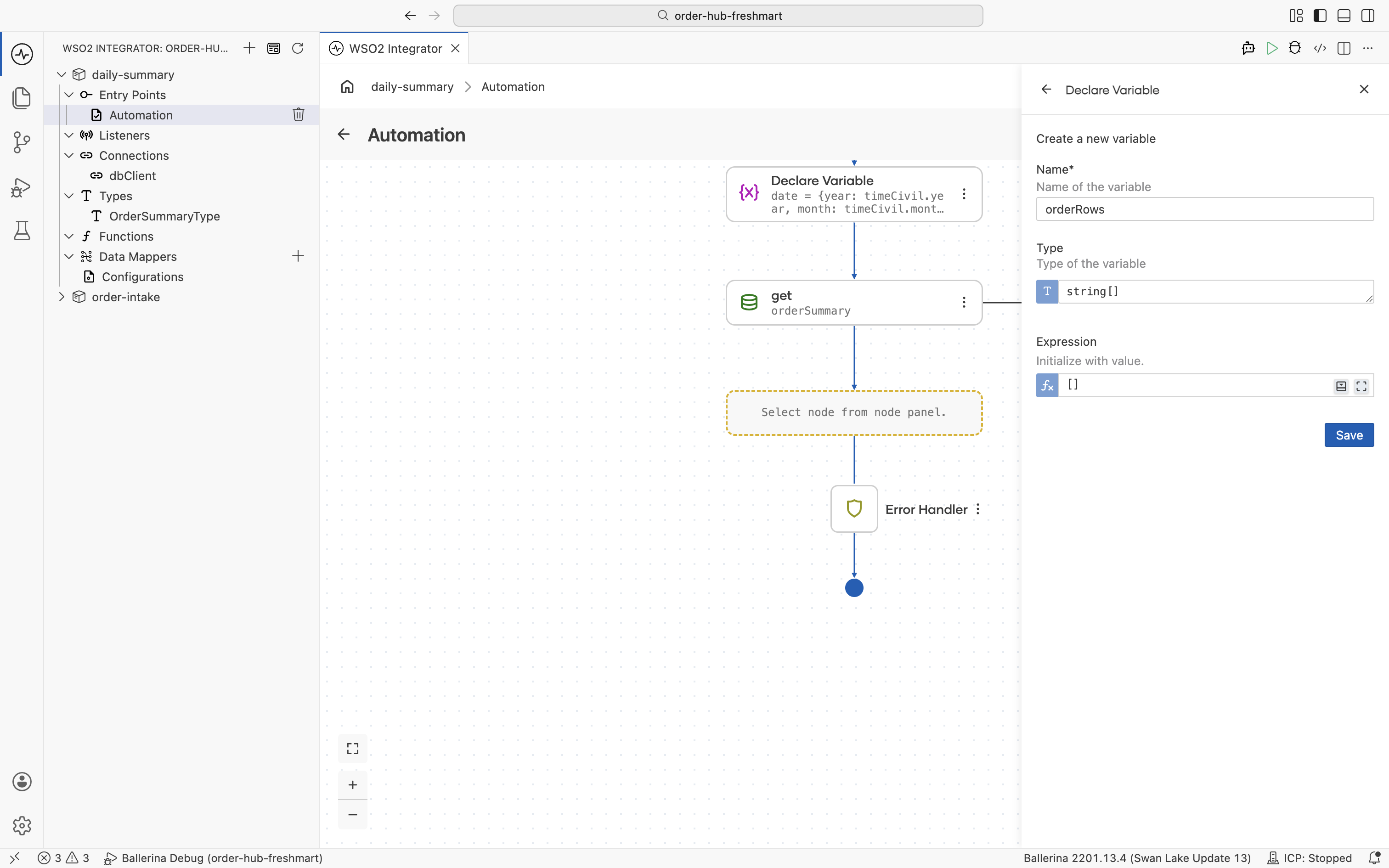
-
Declare an
intnamedorderCount, initialized to0.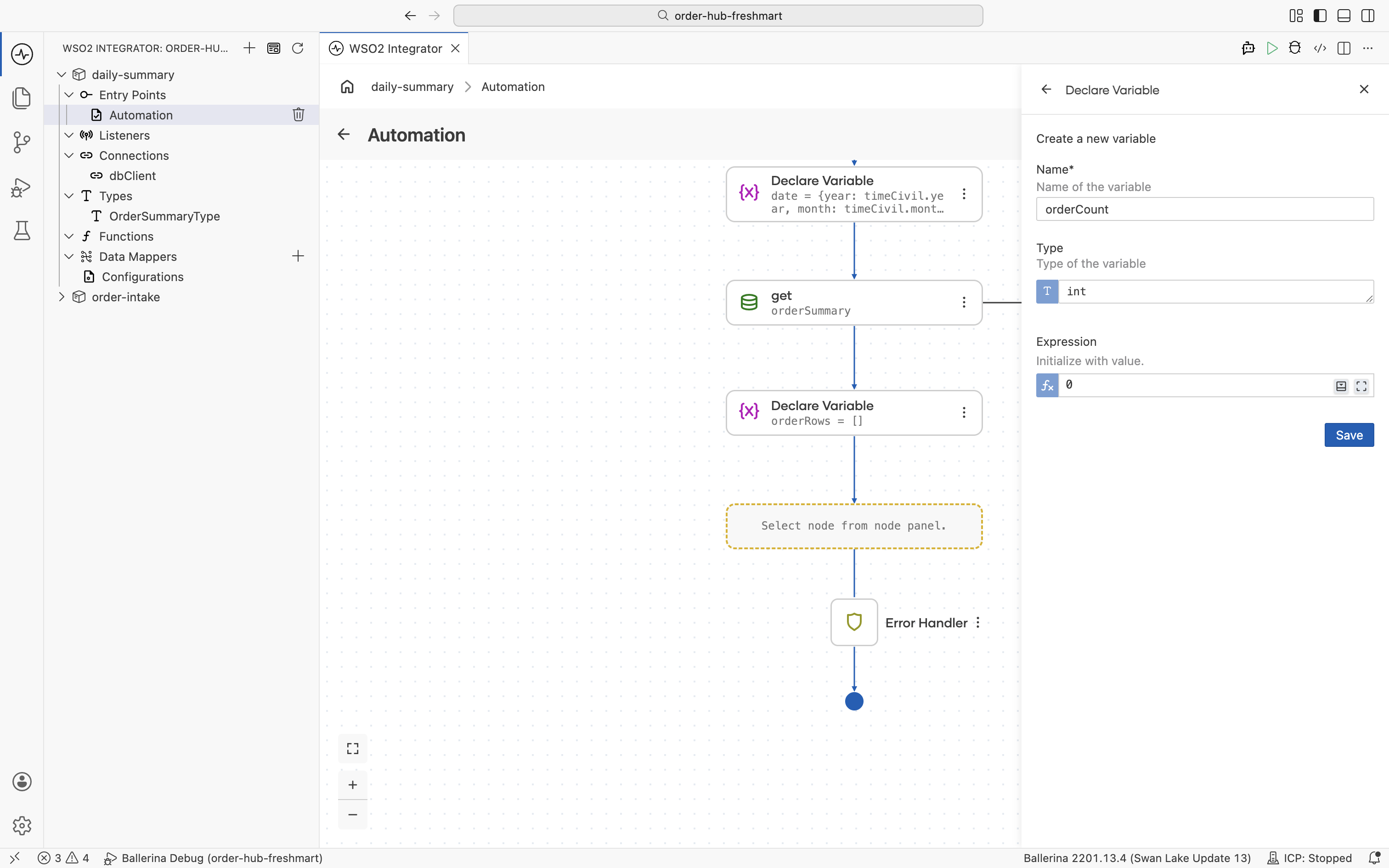
-
Add a Foreach over
orderSummary, with the loop variableorderItemof typeOrderSummaryType.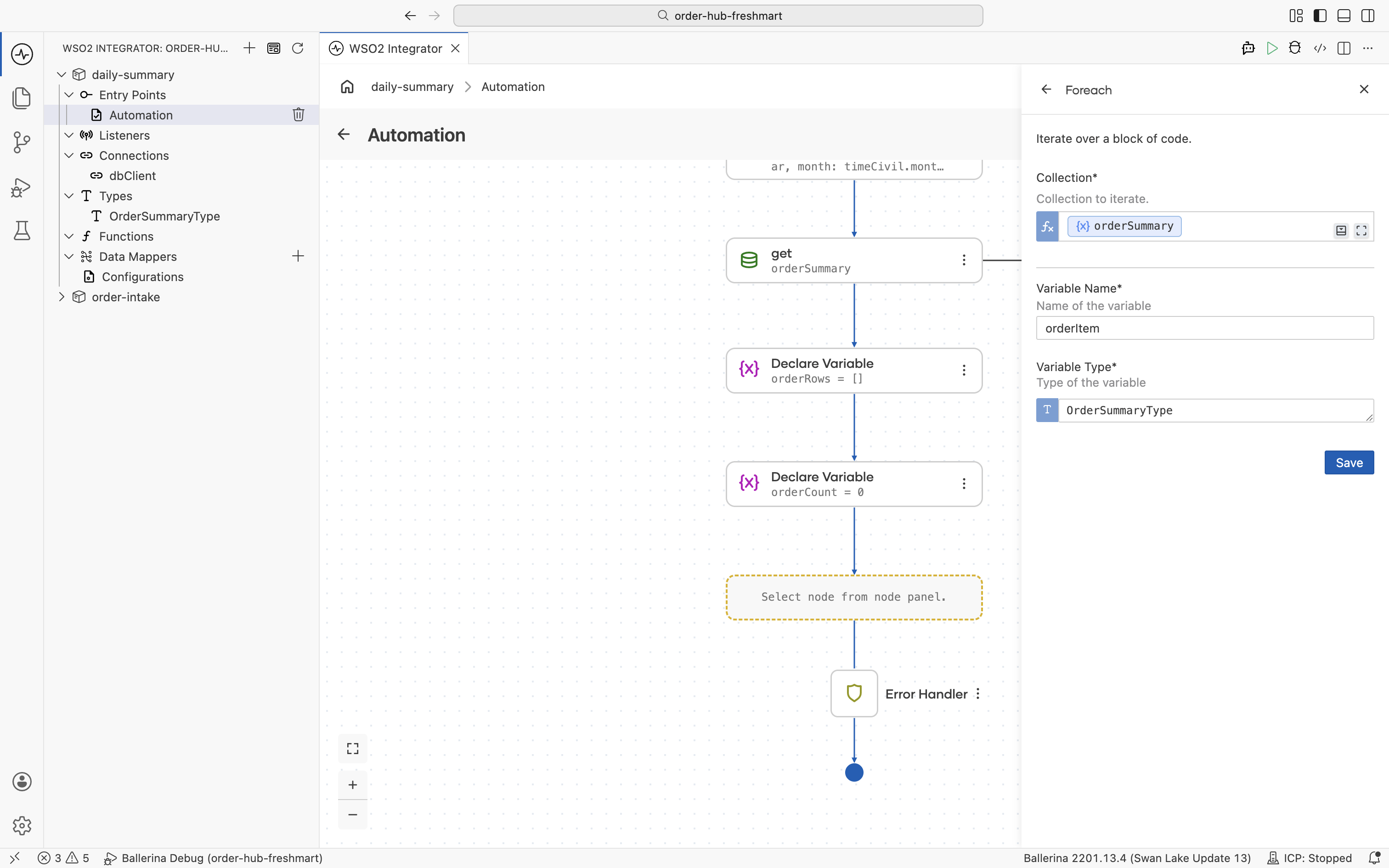
-
Build an HTML table row from the order: its id, supplier, and
currency-prefixed total.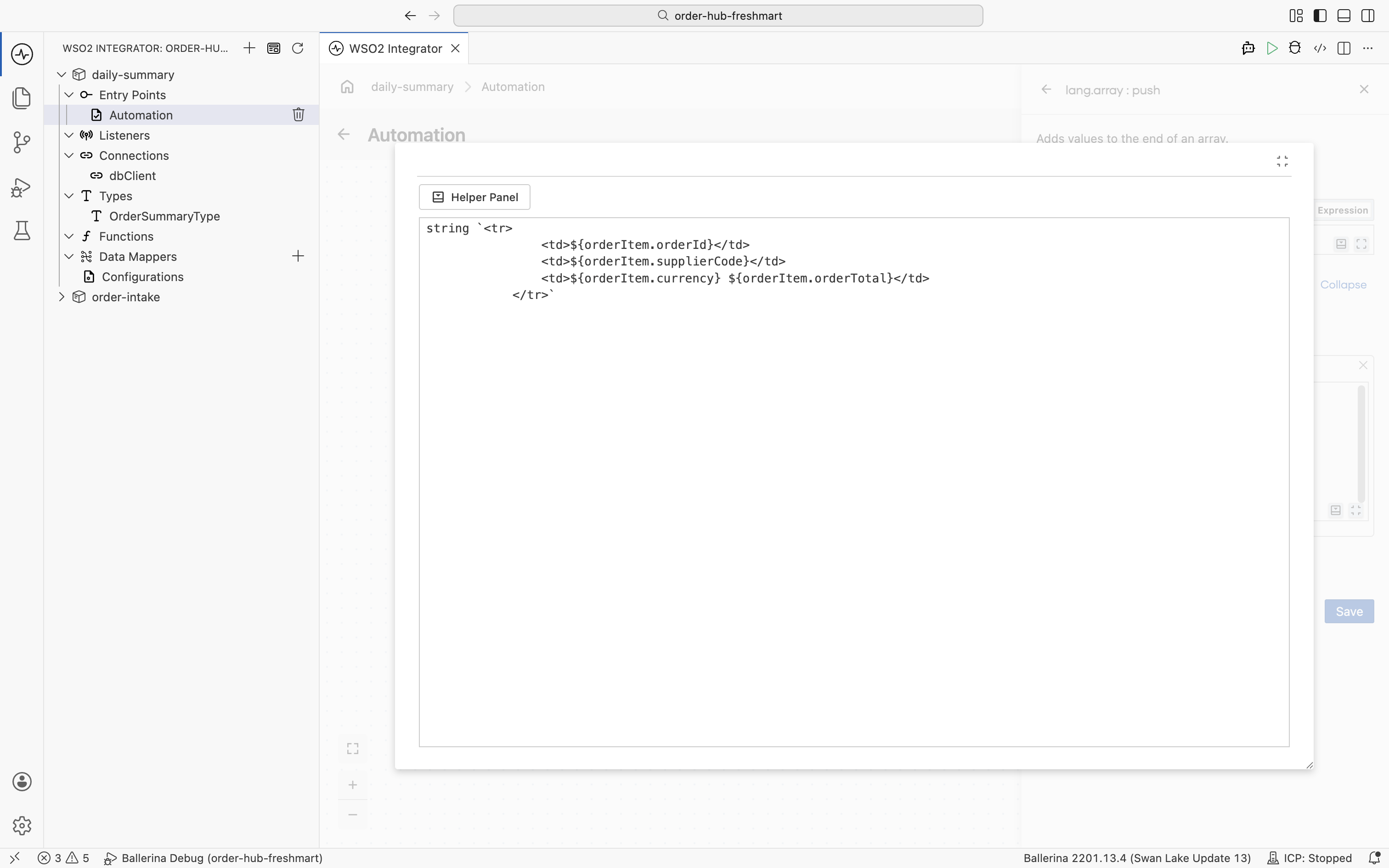
-
Inside the loop,
array:pushthat row ontoorderRows.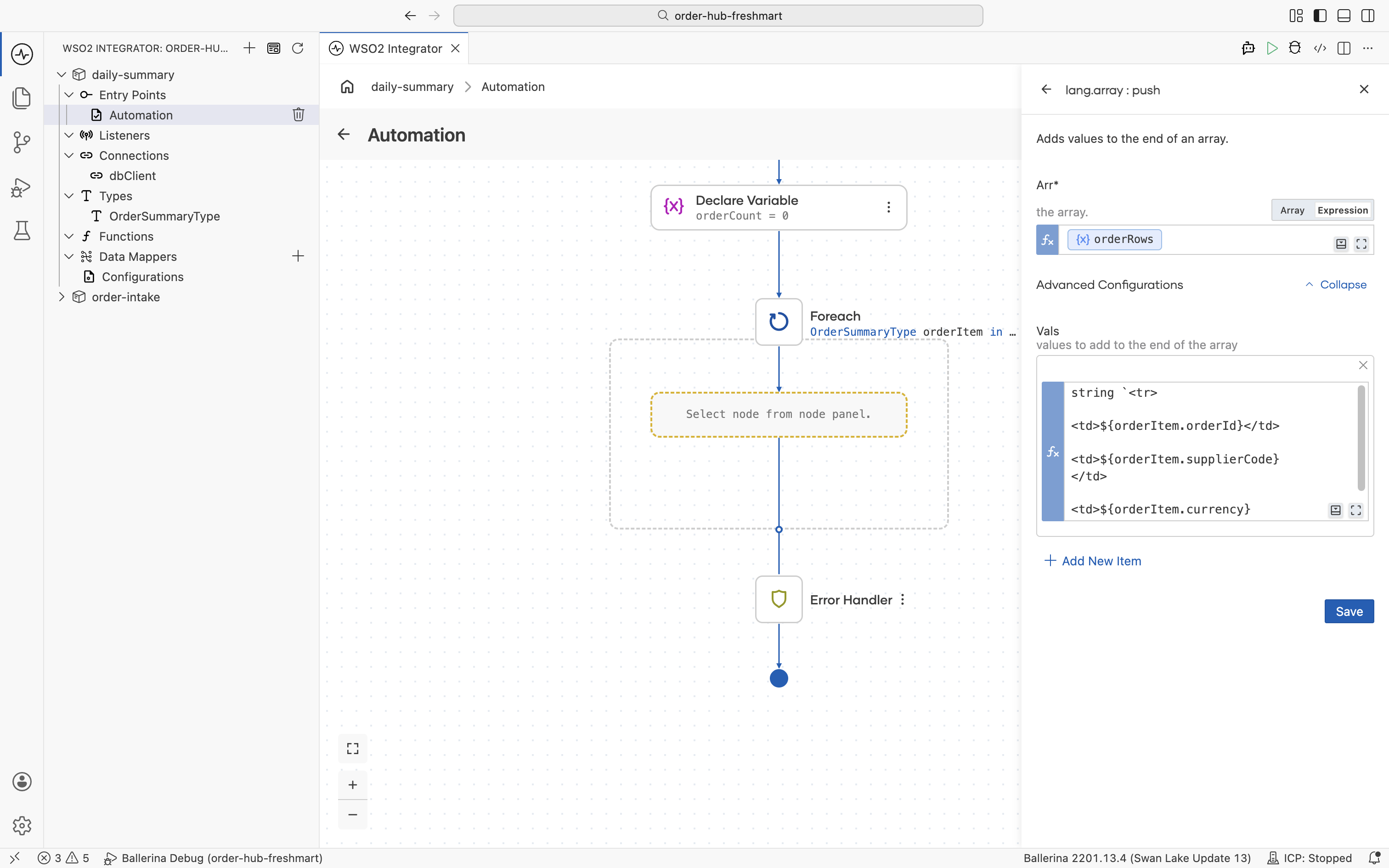
-
Also in the loop, Update Variable
orderCounttoorderCount + 1.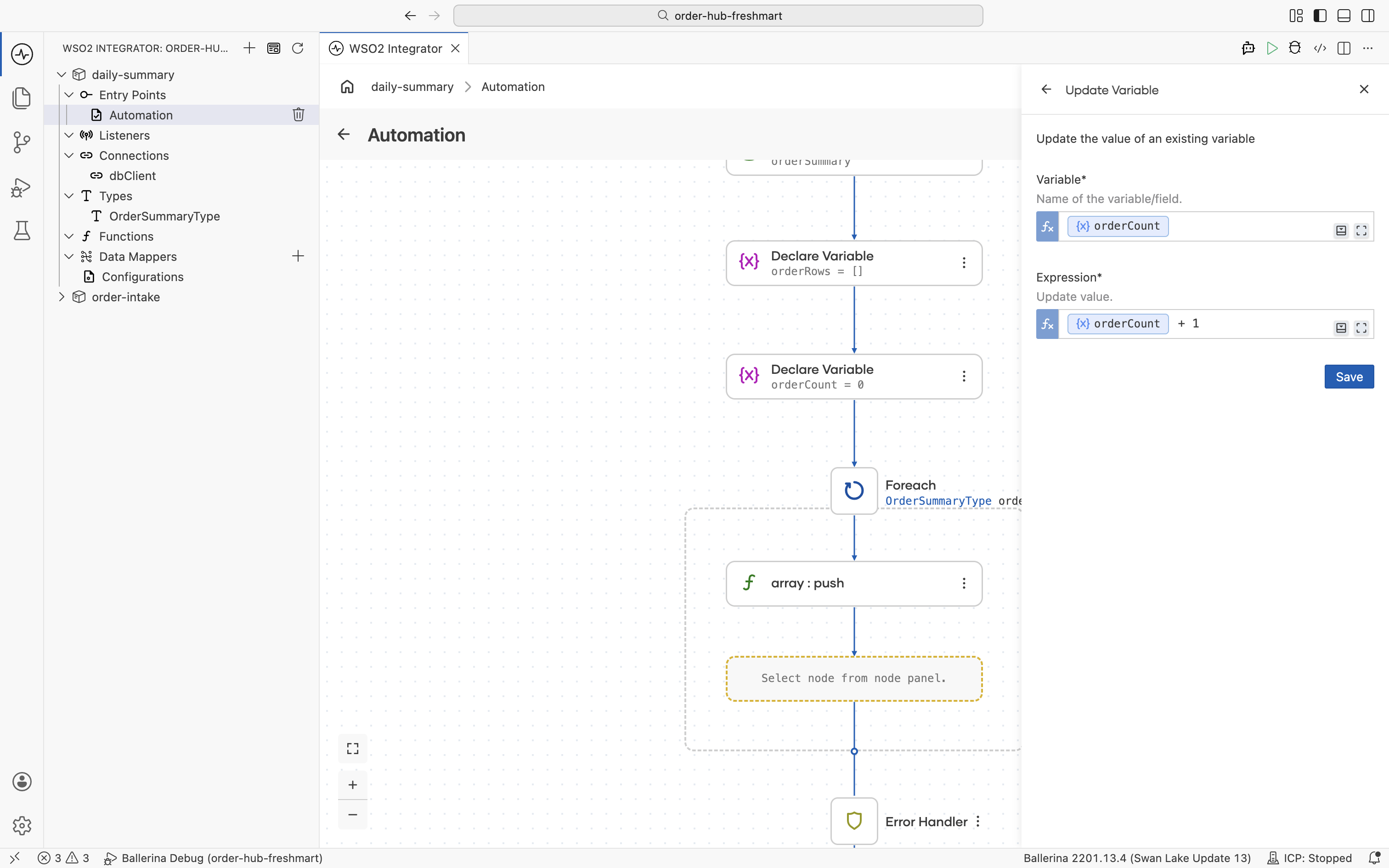
-
After the loop, declare the
htmlBodystring: a heading with the date, the order count, and a table that joins all theorderRows.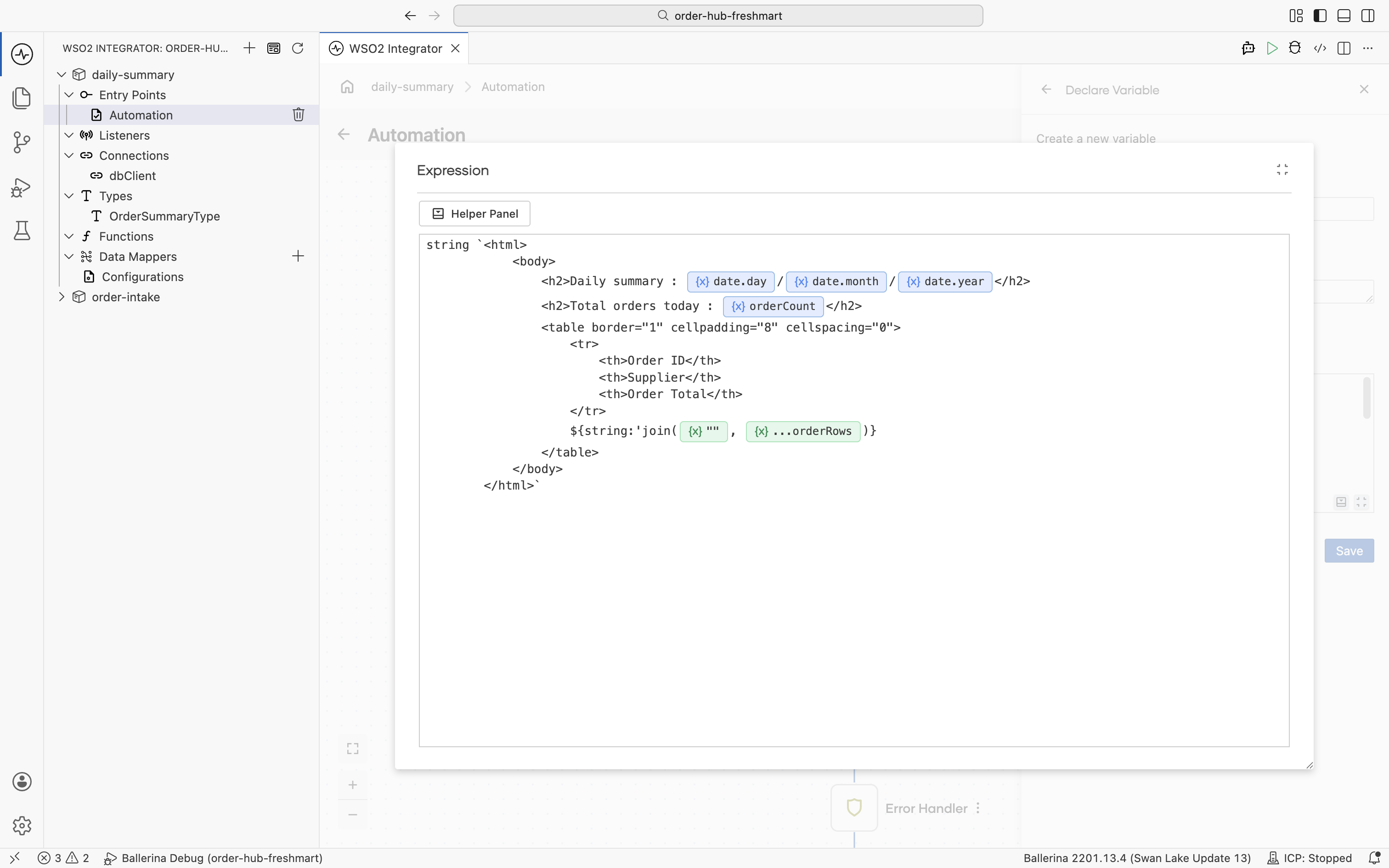
-
The
htmlBodyvariable now holds the full report markup.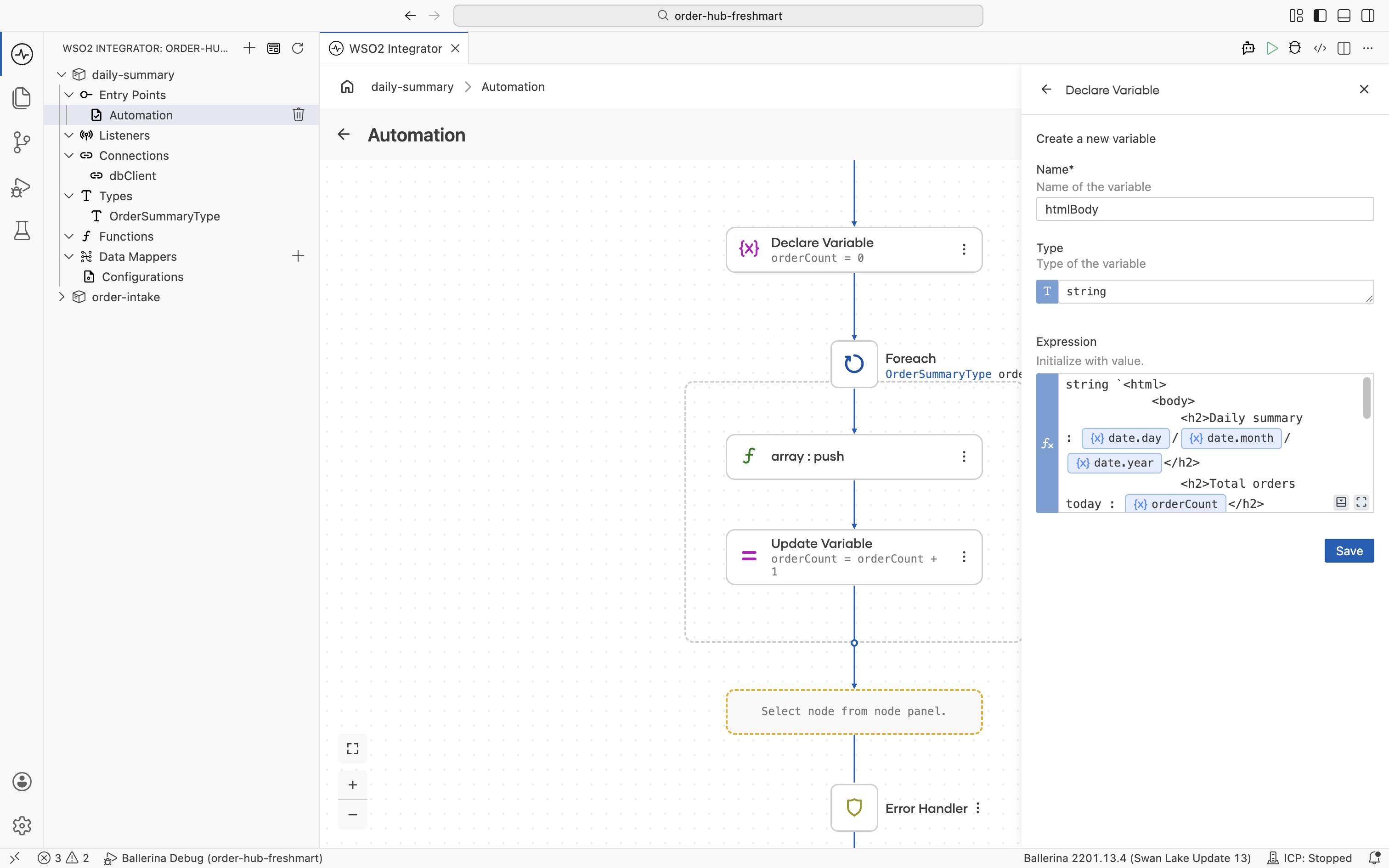
Send the email
-
The SMTP server details belong in configurations. Declare
smtpHost,smtpPort,smtpUser, andsmtpPassword.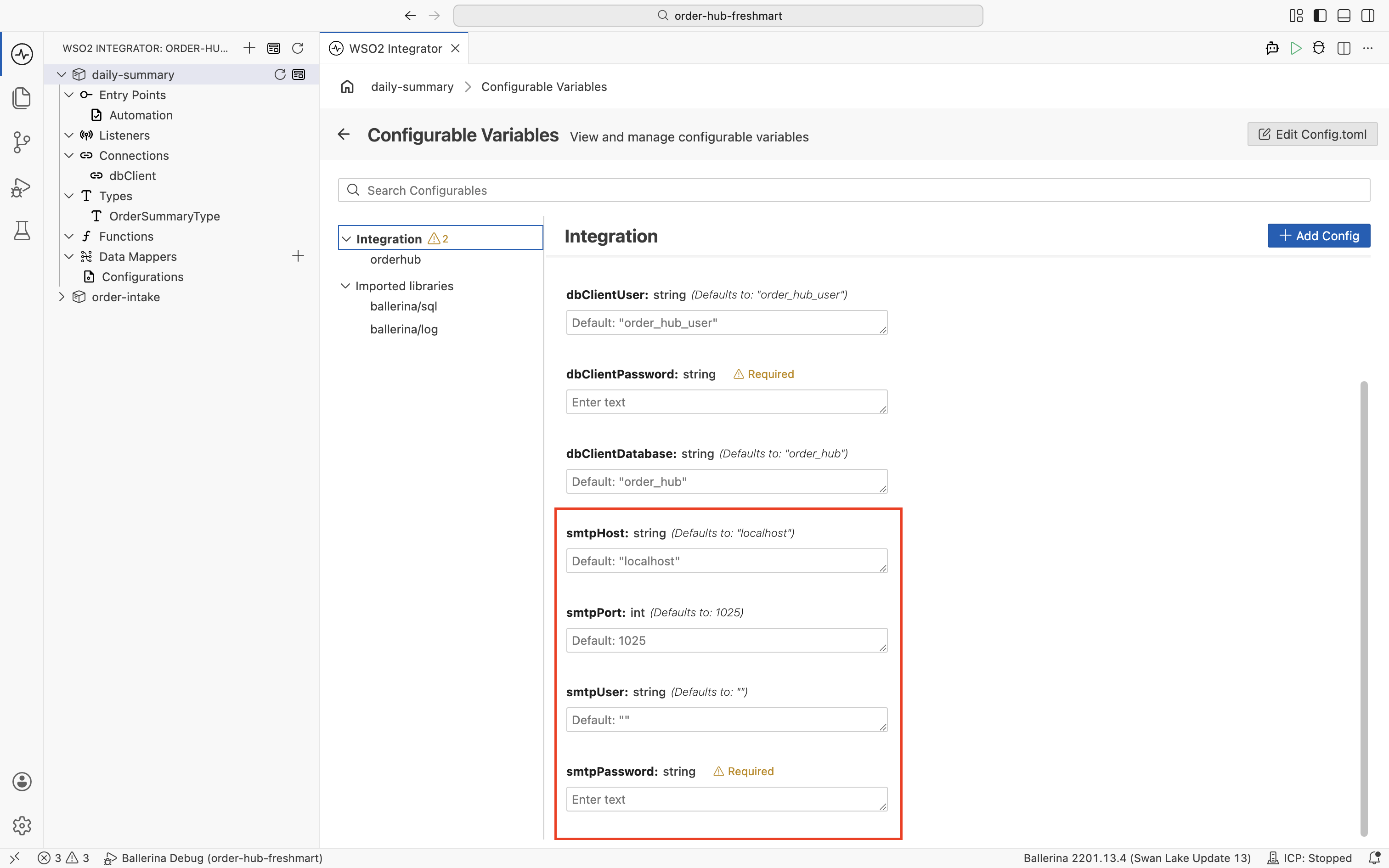
-
Add an Email (SMTP) connection named
emailSmtpclient, binding Host, Username, and Password to those configurables.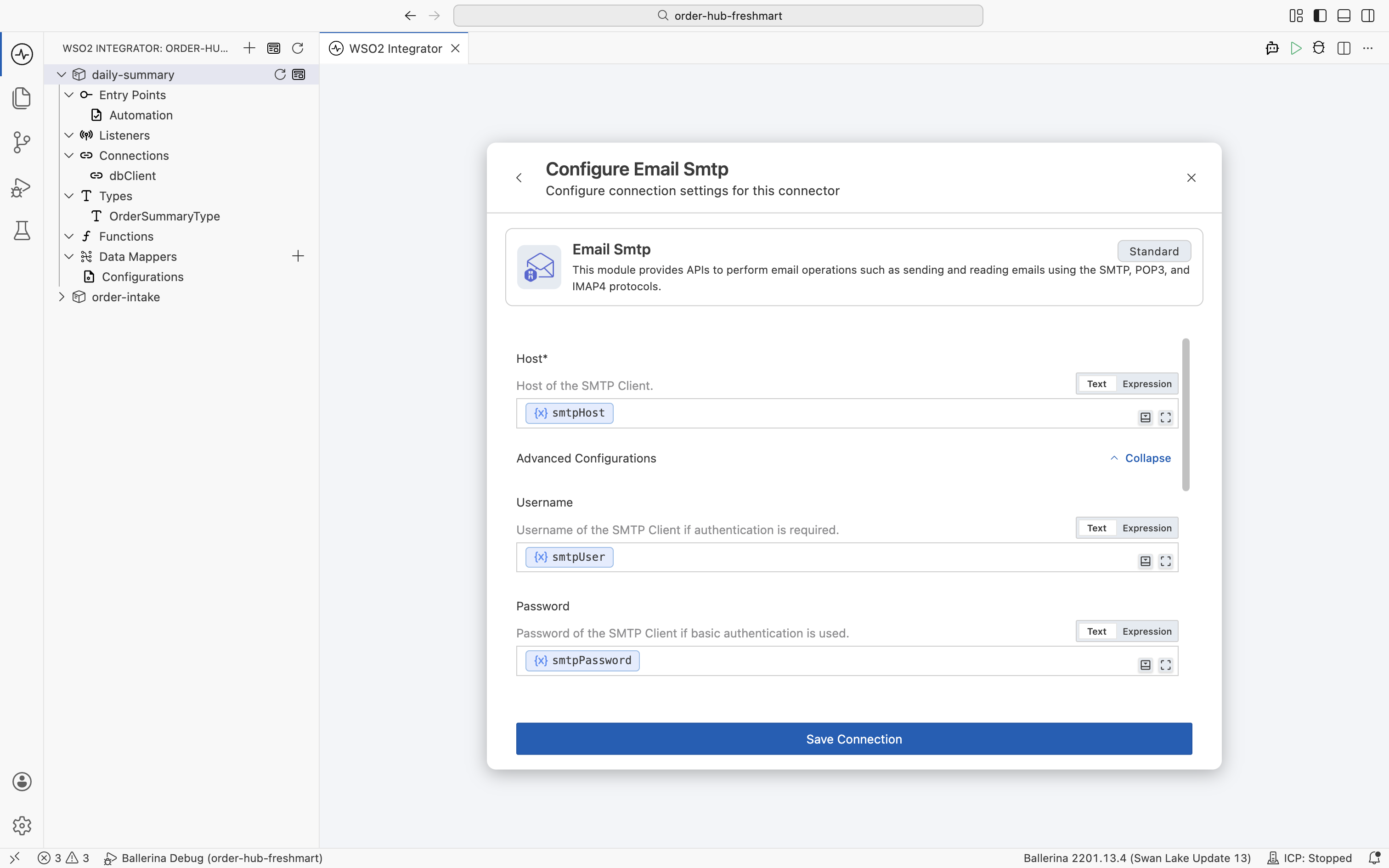 Sending through a no-TLS mock
A local mock such as Mailpit has no TLS and no auth, so set the connection's security to
START_TLS_NEVER(and leave the username/password empty). Pointing the default SSL settings at port1025would hang. -
Add the
emailSmtpclientSend a message operation. Set the recipient and subject, and pass thehtmlBodyyou built.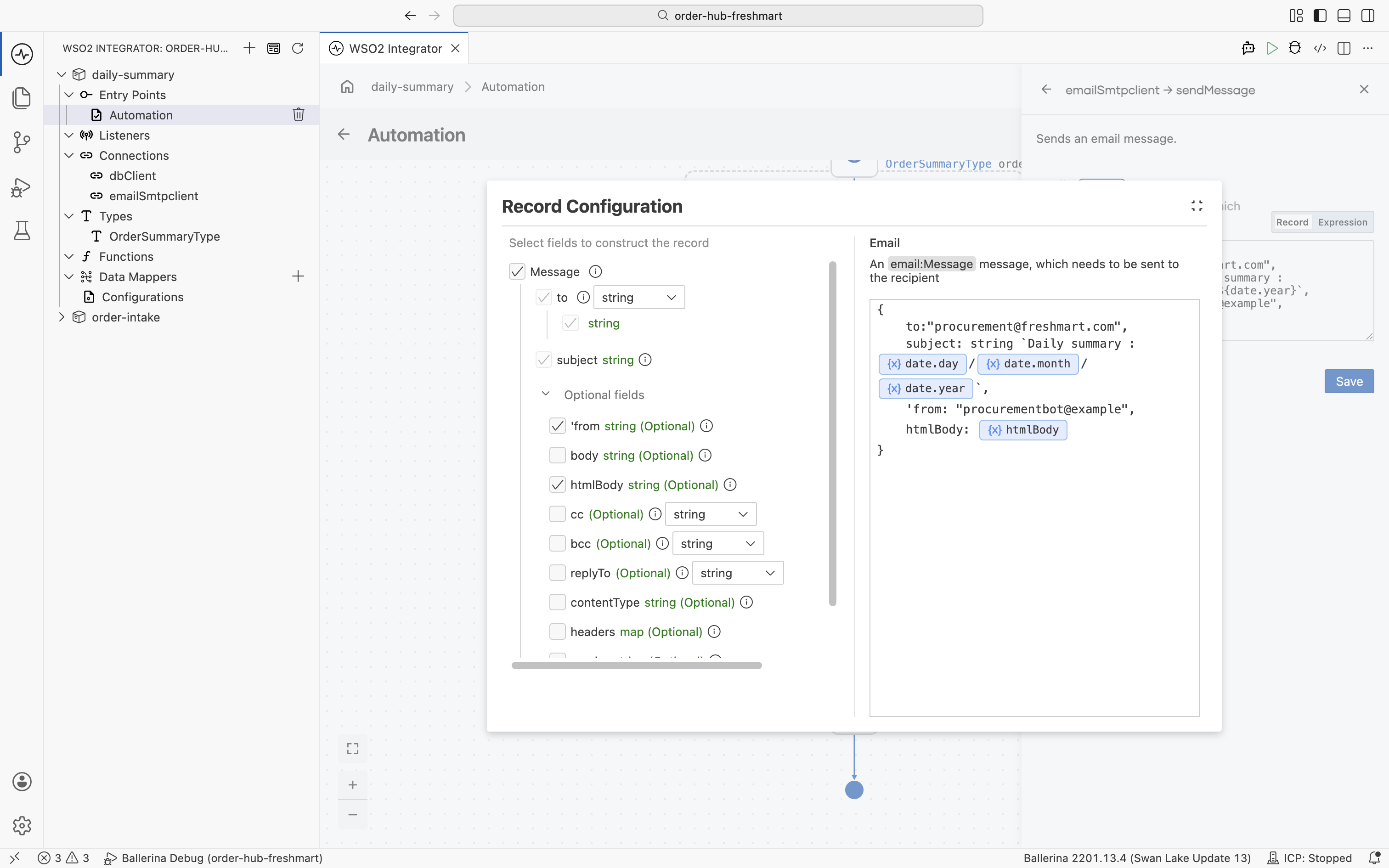
-
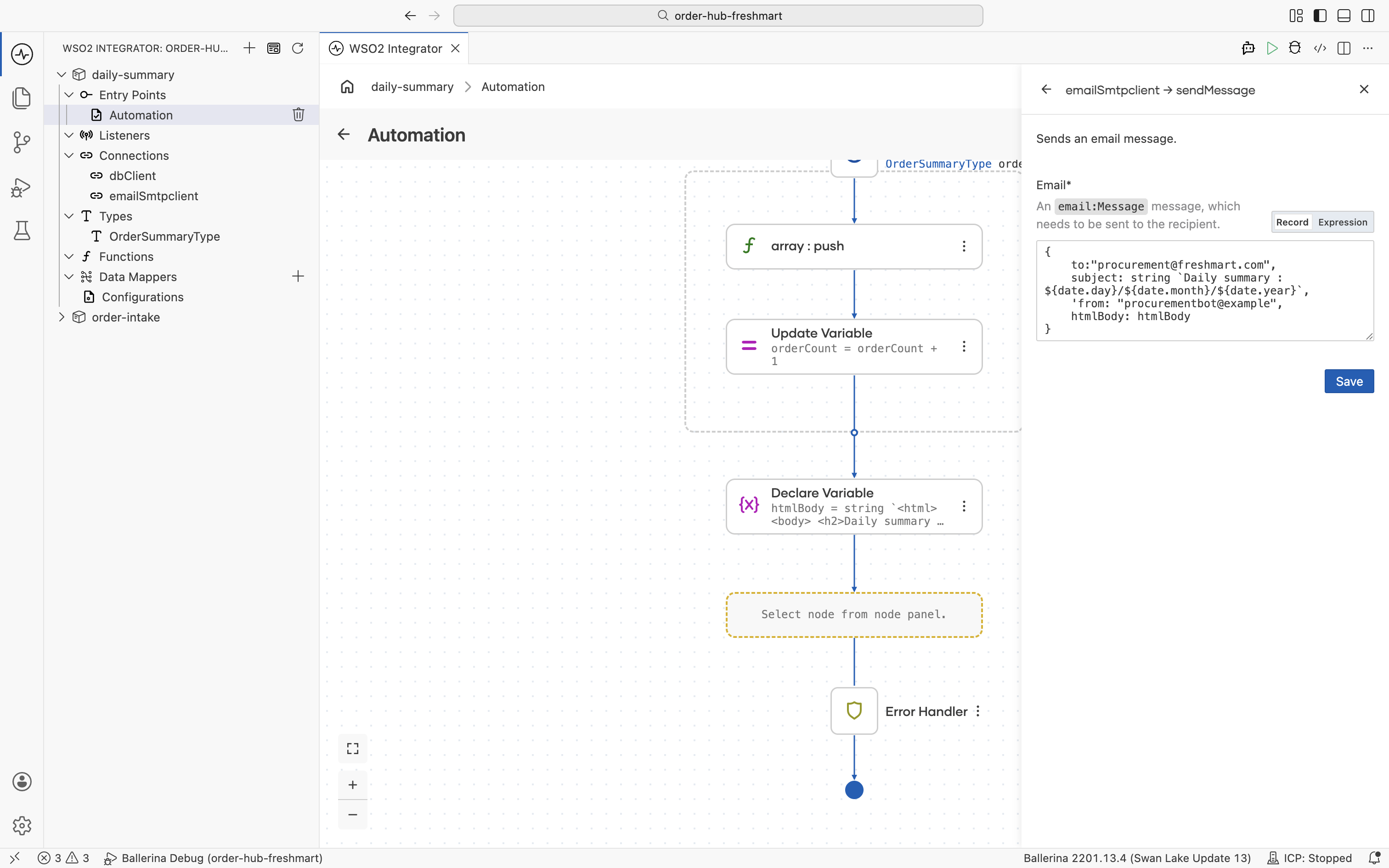
The completed automation reads the day's orders, builds the HTML table, and emails it.
The query projects each order onto a small summary record in types.bal:
import ballerina/time;

public type OrderSummaryType record {|
    string orderId;
    string supplierCode;
    time:Date orderDate;
    decimal orderTotal;
    string currency;
|};
The connection settings live in config.bal, with the values supplied in Config.toml:
configurable string dbClientHost = "localhost";
configurable int dbClientPort = 3306;
configurable string dbClientUser = "order_hub_user";
configurable string dbClientPassword = ?;
configurable string dbClientDatabase = "order_hub";

configurable string smtpHost = "localhost";
configurable int smtpPort = 1025;
configurable string smtpUser = "";
configurable string smtpPassword = ?;
# Config.toml. The section header uses your package's organization name: [<org>.daily_summary]
[<org>.daily_summary]
dbClientPassword = "order_hub_pass"
smtpPassword = ""
The two connections are declared in connections.bal. The SMTP client uses START_TLS_NEVER for the no-TLS mock:
import daily_summary.orderhub;

import ballerina/email;

final orderhub:Client dbClient = check new (dbClientHost, dbClientPort, dbClientUser, dbClientPassword, dbClientDatabase);

final email:SmtpClient emailSmtpclient = check new (string `${smtpHost}`, string `${smtpUser}`, string `${smtpPassword}`, port = smtpPort, security = "START_TLS_NEVER");
The automation itself is automation.bal. It resolves today's date, queries the orders for that date, folds them into HTML rows, and sends the summary email:
import ballerina/lang.array;
import ballerina/log;
import ballerina/time;

public function main() returns error? {
    do {
        time:Utc timeUtc = time:utcNow();
        time:Civil timeCivil = time:utcToCivil(timeUtc);
        time:Date date = {year: timeCivil.year, month: timeCivil.month, day: timeCivil.day};
        OrderSummaryType[] orderSummary = check dbClient->/orders.get(whereClause = `order_date = ${date}`);
        string[] orderRows = [];
        int orderCount = 0;
        foreach OrderSummaryType orderItem in orderSummary {
            array:push(orderRows, string `<tr>
                <td>${orderItem.orderId}</td>
                <td>${orderItem.supplierCode}</td>
                <td>${orderItem.currency} ${orderItem.orderTotal}</td>
            </tr>`);
            orderCount = orderCount + 1;
        }
        string htmlBody = string `<html>
            <body>
                <h2>Daily summary : ${date.day}/${date.month}/${date.year}</h2>
                <h2>Total orders today : ${orderCount}</h2>
                <table border="1" cellpadding="8" cellspacing="0">
                    <tr>
                        <th>Order ID</th>
                        <th>Supplier</th>
                        <th>Order Total</th>
                    </tr>
                    ${string:'join("", ...orderRows)}
                </table>
            </body>
        </html>`;
        check emailSmtpclient->sendMessage({
            to: "[email protected]",
            subject: string `Daily summary : ${date.day}/${date.month}/${date.year}`,
            'from: "procurementbot@example",
            htmlBody: htmlBody
        });
    } on fail error e {
        log:printError("Error occurred", 'error = e);
        return e;
    }
}
Capability: scheduled batch with connector delivery. The same persist client that stored each order now feeds a daily report, queried by date, formatted as HTML, and delivered through the email connector, on a timer rather than a request.
Step 6: Run and test
Now exercise both intakes and the report end to end.
Start the services and run the intake
Start the three backing services: the FTP server, MySQL with the order_hub schema from the Prerequisites, and the Mailpit SMTP mock. The Docker commands for the FTP and SMTP servers are in the Prerequisites collapsibles above.
Fill in each integration's Config.toml (for order-intake, the database and FTP passwords; for daily-summary, the database password and SMTP settings), then Run the order-intake integration. It begins polling /greenfield and /harbor.
Drop a Greenfield order (CSV)
These commands target the file-order-hub-ftp container from the Prerequisites setup (user home /home/vsftpd/ftpuser); adjust the names if your server differs. Each order writes the data file first, then the .ok marker: the service only picks the file up once the marker lands and the file has settled (30s age filter).
docker exec -i file-order-hub-ftp sh -c 'cat > /home/vsftpd/ftpuser/greenfield/GF_10231.csv' <<'EOF'
order_id,order_date,sku,description,qty,unit_price
GF-10231,2026-06-23,APL-001,Gala Apples 1kg,120,2.50
GF-10231,2026-06-23,BAN-004,Bananas 1kg,80,1.20
GF-10231,2026-06-23,ORG-009,Navel Oranges 1kg,60,3.10
EOF
docker exec file-order-hub-ftp sh -c 'touch /home/vsftpd/ftpuser/greenfield/GF_10231.ok && chmod 644 /home/vsftpd/ftpuser/greenfield/GF_10231.*'
Drop a Harbor order (XML)
docker exec -i file-order-hub-ftp sh -c 'cat > /home/vsftpd/ftpuser/harbor/HS_55012.xml' <<'EOF'
<purchaseOrder id="HS-55012" date="23/06/2026" currency="USD">
  <items>
    <item code="MLK-220" name="Whole Milk 2L" units="200" price="1.85"/>
    <item code="EGG-012" name="Free-Range Eggs (dozen)" units="150" price="3.40"/>
  </items>
</purchaseOrder>
EOF
docker exec file-order-hub-ftp sh -c 'touch /home/vsftpd/ftpuser/harbor/HS_55012.ok && chmod 644 /home/vsftpd/ftpuser/harbor/HS_55012.*'
Watch the files get processed
Within a minute (30s age filter + poll interval), each data file moves to /processed (the .ok markers stay behind):
docker exec file-order-hub-ftp sh -c 'cd /home/vsftpd/ftpuser && for d in greenfield harbor processed errors; do echo "== $d =="; ls -1 "$d"; done'
Confirm both orders landed in MySQL, in the same canonical shape, despite arriving as CSV and XML:
mysql -u order_hub_user -porder_hub_pass order_hub \
  -e "SELECT order_id, supplier_code, order_date, order_total, currency FROM orders;
      SELECT order_id, sku, quantity, unit_price, line_total FROM order_lines ORDER BY order_id;"
You should see:
| order_id | supplier_code | order_total | currency | lines |
|---|---|---|---|---|
| GF-10231 | GREENFIELD | 582.00 | USD | 3 |
| HS-55012 | HARBOR | 880.00 | USD | 2 |
Confirm the error path
Drop a malformed file, for example a Greenfield CSV whose name matches the pattern but whose contents are not valid rows, together with its .ok marker. When the handler fails, the file is moved to /errors instead of /processed:
docker exec -i file-order-hub-ftp sh -c 'cat > /home/vsftpd/ftpuser/greenfield/GF_99999.csv' <<'EOF'
this is not,a valid
greenfield,order,file
EOF
docker exec file-order-hub-ftp sh -c 'touch /home/vsftpd/ftpuser/greenfield/GF_99999.ok && chmod 644 /home/vsftpd/ftpuser/greenfield/GF_99999.*'
Run the daily summary
Finally, Run the daily-summary automation. It queries the orders for today's date, builds the HTML table, and emails the report. Open the Mailpit inbox at http://localhost:8025 to see the summary, with one row per order and the day's order count.
The automation selects only orders whose order_date equals the day you run it (order_date = ${date}). The sample files above use 2026-06-23, so to see them in the summary either run the automation on that date or change order_date in the sample CSV and XML to today's date before dropping them. Otherwise the email arrives with Total orders today : 0.
To reset between runs, delete everything under the FTP home and clear the tables:
docker exec file-order-hub-ftp sh -c 'find /home/vsftpd/ftpuser -type f -delete'
mysql -u order_hub_user -porder_hub_pass order_hub -e "DELETE FROM order_lines; DELETE FROM orders;"
Because orders has a UNIQUE (order_id, supplier_code) constraint, re-dropping the same order without clearing first will fail and route the file to /errors.
What's next
You have built a complete B2B ingestion hub as two integrations, designed in the Visual Designer: an FTP intake that picks up two file formats through one gated, shared listener, normalizes both into a single canonical Order with the data mapper, stores them in MySQL through the persist feature, archives every file, and emails a scheduled daily report.
Explore more of what you can build with WSO2 Integrator: