Manage Workflows
A workflow executes long-running processes that are made of steps, called activities. A workflow can also wait for a person to complete a human task or review an activity before it continues.
From the WSO2 Cloud console, you can start workflows, monitor their runs, control running workflows, and act on human tasks and reviews.
Prerequisites
- The workflow is created and deployed. See import a workflow.
- The environment has a Temporal credential. See Temporal Credentials.
Some features need the console to call the workflow as you, because the workflow decides what you can see and do based on who you are:
- The flow diagram, timeline, step details, and event history of a run.
- Resetting a run.
- Human tasks and reviews.
The easiest way to get an identity is to enable the User Portal and publish the workflow to it. The console then calls the workflow with your identity in the production environment. When these features are not available, the console shows a notice that explains why.
View workflows on the overview page
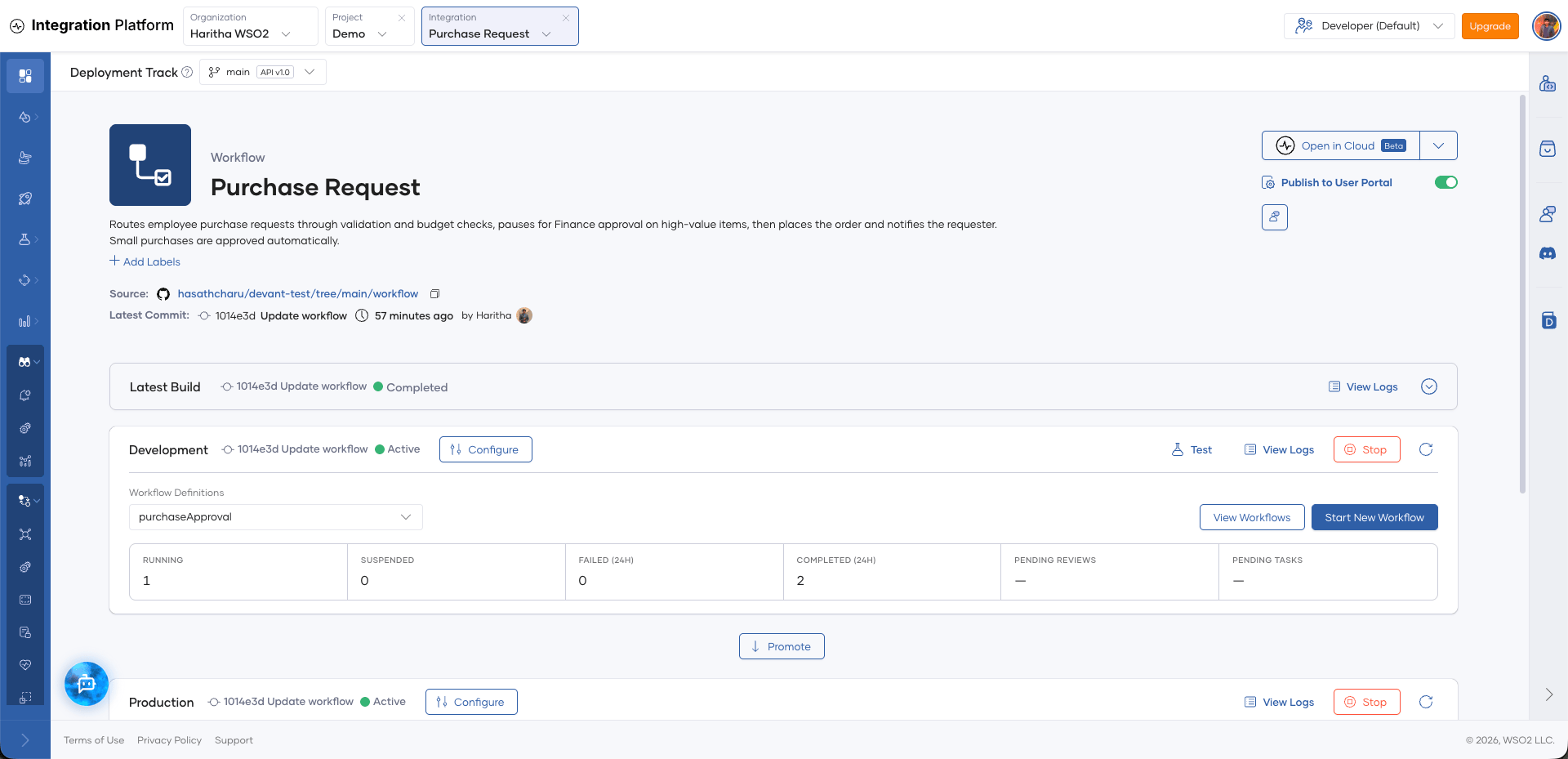
On the workflow overview page, each environment card shows the following:
- Workflow Definitions: The long-running processes that the integration defines. Select one to see its figures.
- View Workflows and Start New Workflow buttons.
- Figures for the selected workflow definition: Running, Suspended, Failed (24h), Completed (24h), Pending Reviews, and Pending Tasks. Click a figure to open the matching list.
View workflow runs
- Open the workflow.
- In the left navigation menu, click Operate > Workflows.
- Select the environment, and the deployment track if the integration has more than one.
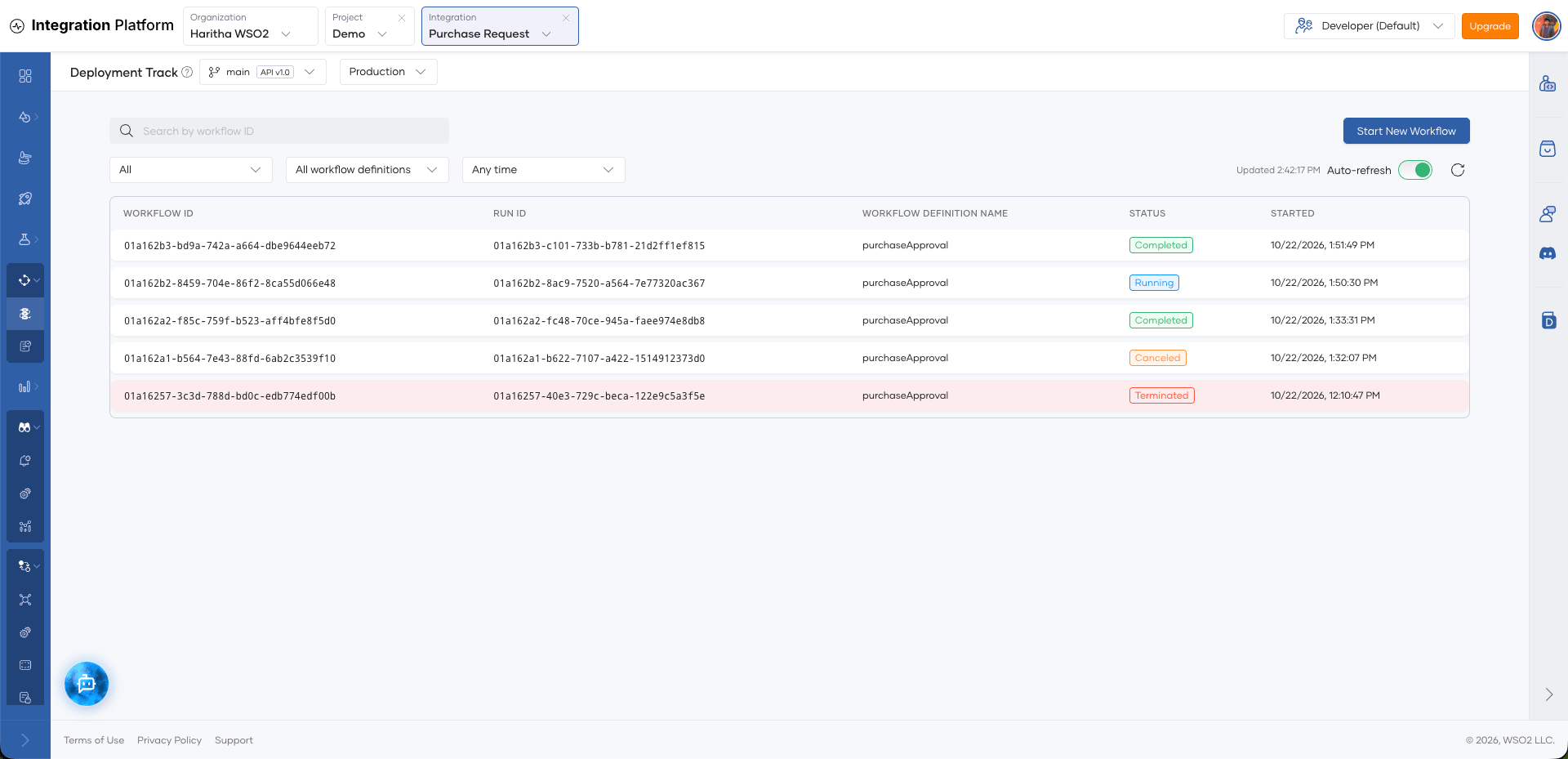
The page lists the runs of the workflow, newest first. To narrow the list, search by workflow ID, or filter by status, workflow definition, or start time. To see older runs, click Load more.
While Auto-refresh is on, the list updates on its own. To update it manually, click the refresh icon.
Start a workflow
-
Open the workflow.
-
In the left navigation menu, click Operate > Workflows.
-
On the Workflows page, click Start New Workflow. You can also click it on the overview page.
-
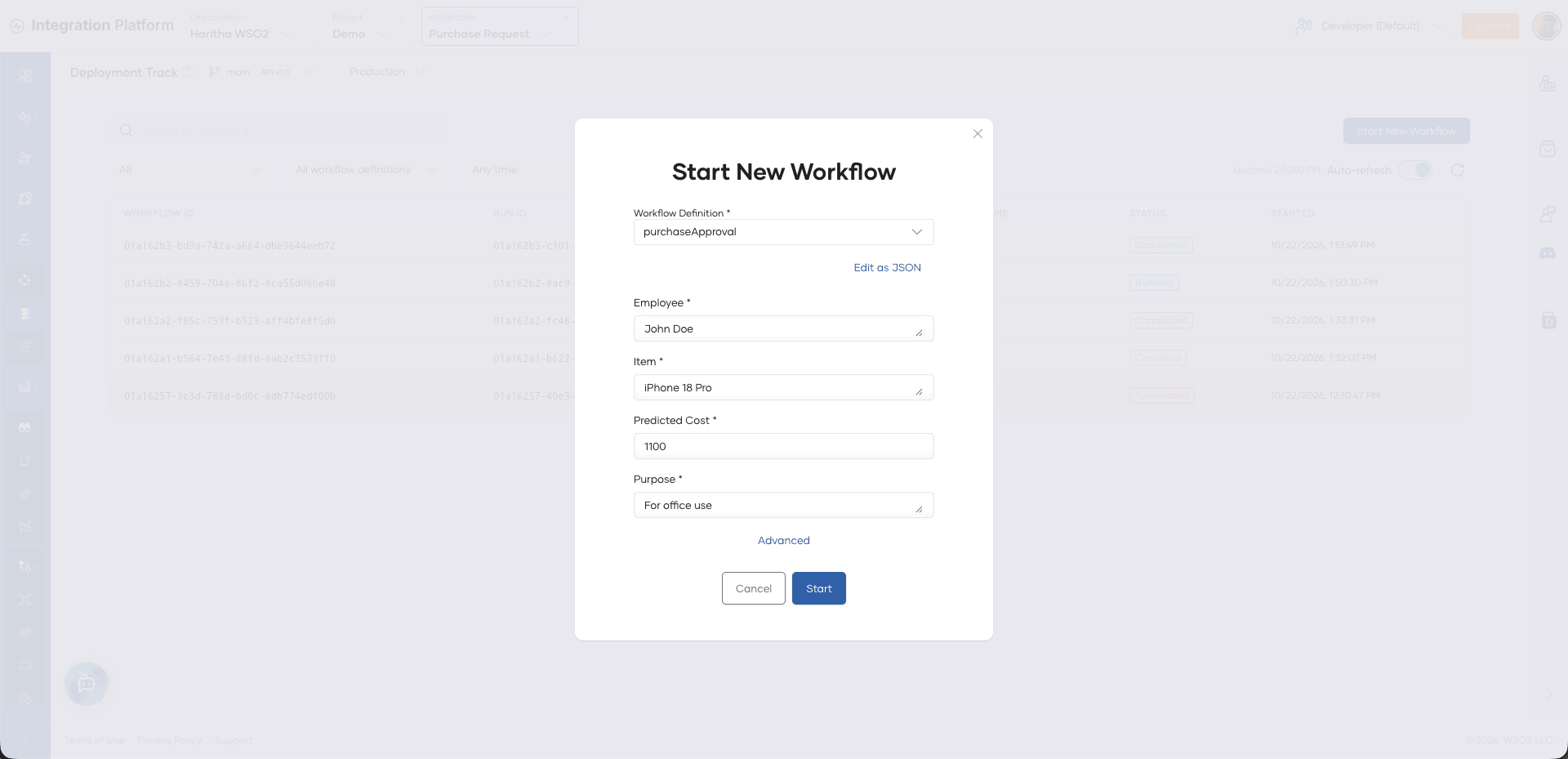
Select the Workflow Definition.
-
Enter the input in the form. To enter the input as JSON instead, turn on Edit as JSON.
-
Optional: Click Advanced to set the following:
- Workflow ID: The ID of the workflow. If you leave it blank, the engine generates one. If you set your own ID, starting the workflow again with the same ID does not start a second workflow.
- Timeout (seconds): How long the workflow can run.
-
Click Start.
The dialog shows the workflow ID of the new run. To open the run, click View Running Workflow.
View the details of a run
- Open the workflow.
- In the left navigation menu, click Operate > Workflows.
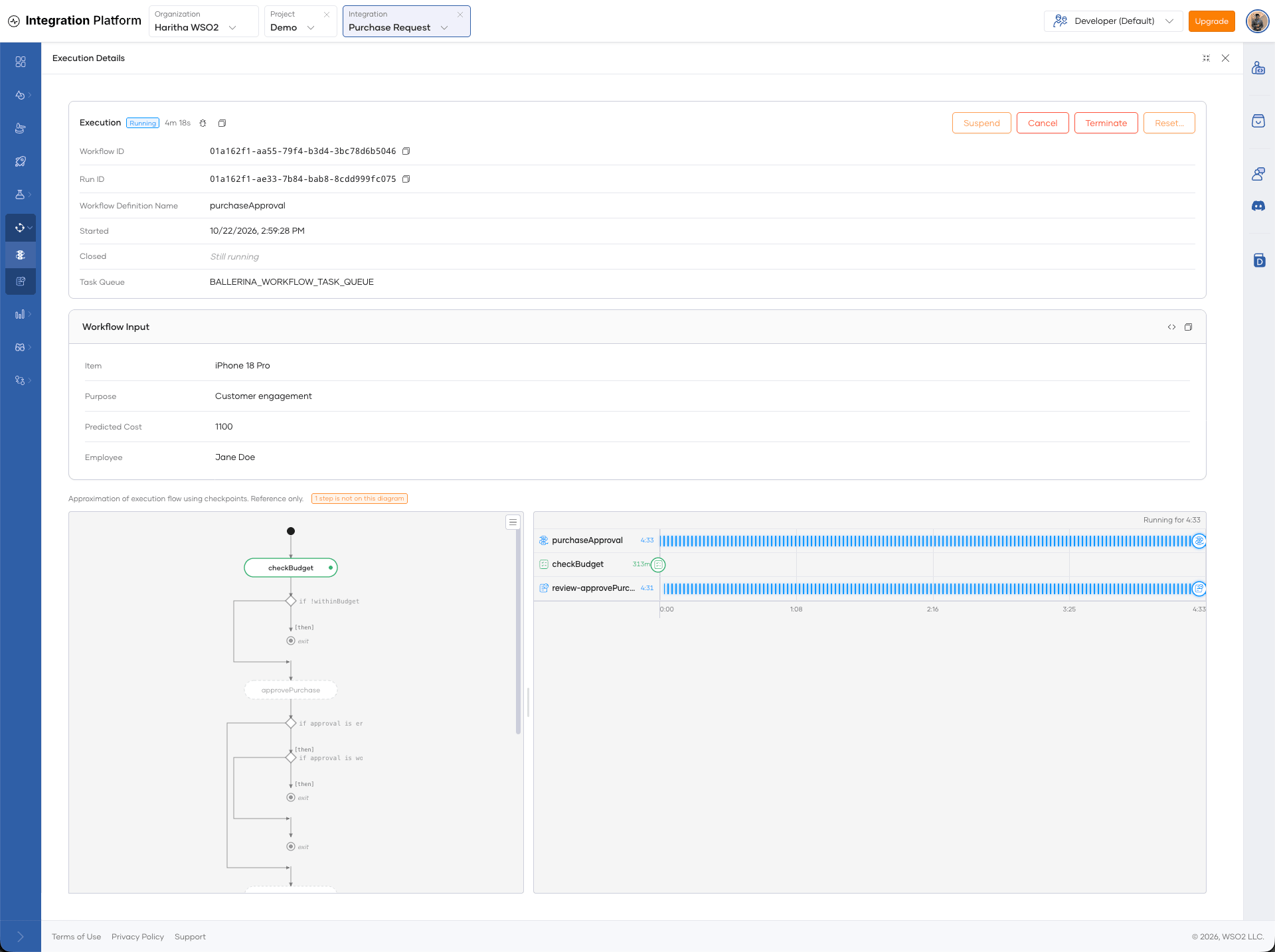
On the Workflows page, click a run to open its details. The details show the following:
- The workflow ID, run ID, workflow definition, start and close times, and task queue.
- Workflow Input and Workflow Result. Click Show the raw JSON to see the values as JSON.
- The error, if the run failed.
- A diagram of the workflow's steps and a timeline of each step's executions. Click a step to see its input, result, error, and the number of times it ran. To switch to a list of steps, click the list view icon.
To see the workflow run raw event history, click the bug icon in the header.
Control a run
Open the details of a run, then click one of the following buttons in the header:
| Button | Available when the run is | What it does |
|---|---|---|
| Suspend | Running | Pauses the run until you resume it. |
| Resume | Suspended | Continues a suspended run. |
| Cancel | Running or suspended | Asks the run to stop. The workflow can clean up before it stops. |
| Terminate | Running or suspended | Stops the run immediately. You can enter a reason. |
| Reset | In any status | Starts a new run of the workflow from an earlier point. See Reset a run. |
Cancel and terminate cannot be undone.
Reset a run
A reset keeps the workflow ID and starts a new run from an earlier point in the original run.
-
Open the details of the run and click Reset.
-
Under Replay from, select where the new run starts:
- Last workflow task: From the last completed workflow task. Activities after that point run again.
- Beginning of the run: From the start. Every activity runs again, including the ones that succeeded.
- A specific checkpoint: From a checkpoint that you select in Checkpoint. The checkpoint just before the first failure is marked.
-
Optional: Enter a Reason.
-
Click Reset.
Act on human tasks and reviews
A workflow can wait for a human in two ways:
- Human task: The workflow waits for someone to submit a result.
- Review: The workflow waits for someone to approve an activity before it runs, or to decide what to do after an activity fails.
To see them, open the workflow, then click Operate > Human Tasks in the left navigation menu. By default, the page shows pending items. You can filter by type, status, and workflow definition.
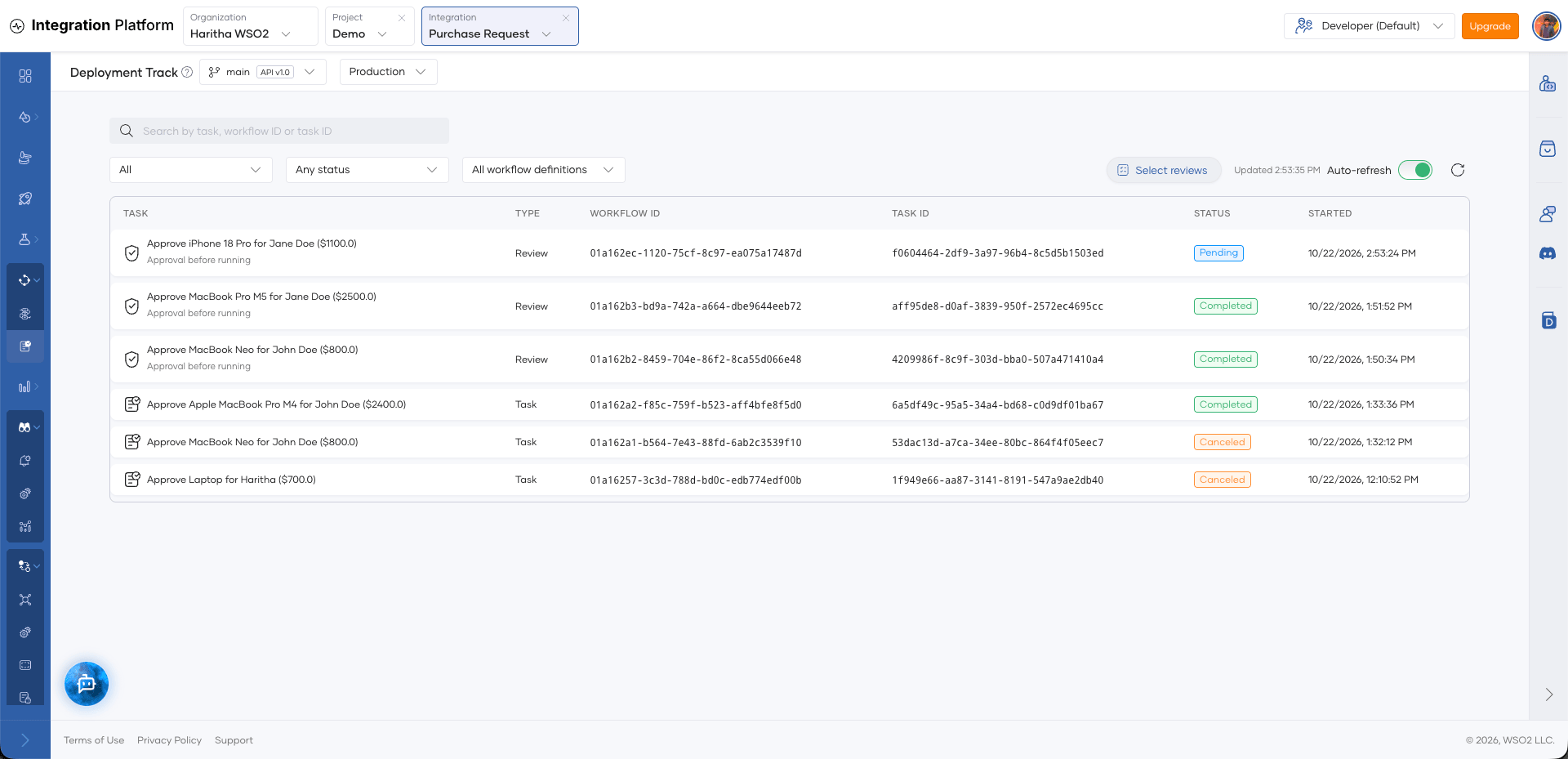
You can act only on the items that you are eligible for. The details of each item list its Eligible Roles, Eligible Users, and Administrators.
Complete or fail a human task
-
In a workflow, in the left navigation menu, click Operate > Human Tasks.
-
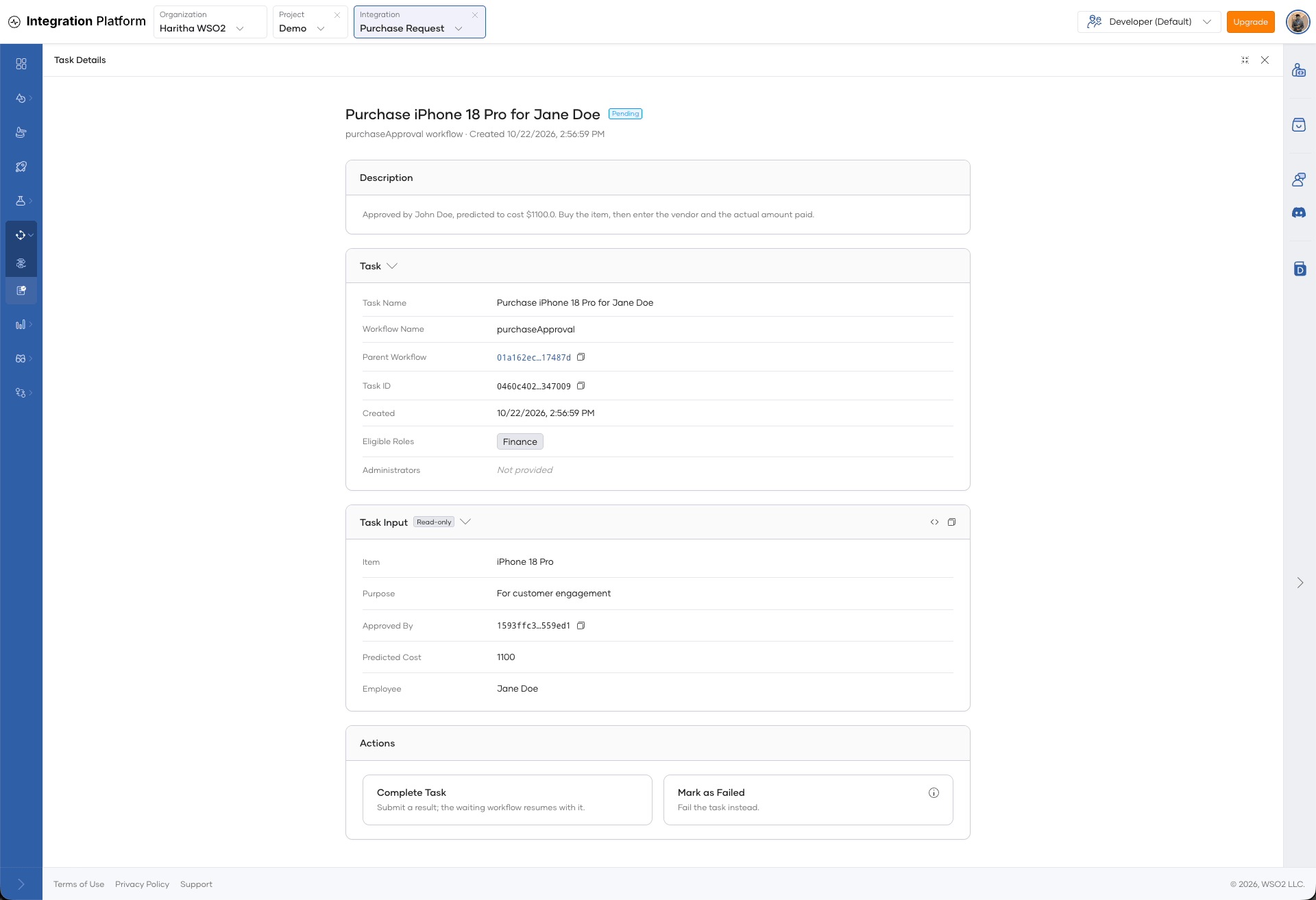
On the Human Tasks page, click the task.
-
Do one of the following:
- To complete the task, click Complete Task, enter the result, and click Review before completion. Then click Complete Task. The workflow continues with the result.
- To fail the task, click Mark as Failed, enter a Reason, and click Mark as Failed. The workflow receives the failure and decides what to do next.
Decide a review
-
In a workflow, in the left navigation menu, click Operate > Human Tasks.
-
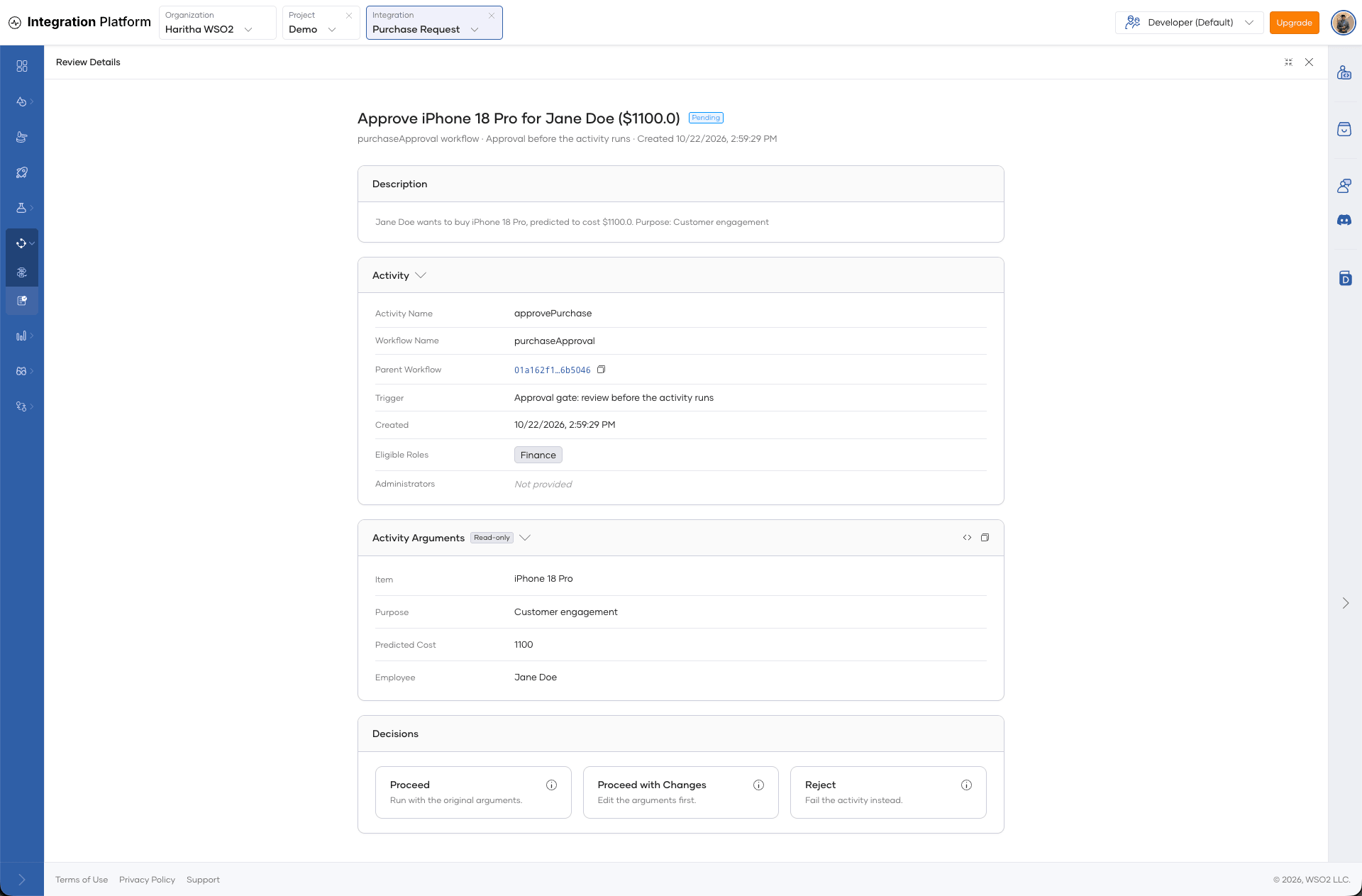
On the Human Tasks page, click the review.
-
Select a decision:
- Proceed: Run the activity with its original arguments. For a failed activity, this retries it.
- Proceed with Changes: Edit the arguments first. The console shows what changed before you confirm.
- Reject: Fail the activity. You can enter feedback, which the workflow receives as the reason.
-
Confirm the decision.
To decide several reviews at once, click Select reviews, select the pending reviews, and click Retry Selected or Fail Selected. A bulk decision uses each activity's original arguments.