User Portal
The User Portal is a separate portal that exposes your integrations to external users. These users are the people your organization serves, not the developers who build integrations. In the User Portal, they can:
- Chat with the AI agents that you publish.
- Run the automations that you publish, with or without runtime arguments.
- Run the workflows that you publish.
Users sign in to the User Portal through your organization in WSO2 Identity Platform, which is the user store for the User Portal. Users do not need access to the WSO2 Cloud console. You create users and roles, and assign permissions to roles, from the WSO2 Cloud console. The roles of a user control which integrations the user can see and what the user can do with them. See Manage users in the User Portal.
You enable the User Portal once for each organization. After that, you choose which integrations to show in it. See Publish an integration to the User Portal.
Prerequisites
Before you enable the User Portal, make sure of the following:
- You have the required permission. Your role must include the Manage Organization permission under Organization Management, assigned at the organization level. For more information about roles and permissions, see Access Control.
- Your WSO2 Identity Platform organization validates usernames as email addresses. The platform adds members of your WSO2 Cloud organization to WSO2 Identity Platform with their email address as the username. You must change this setting yourself. See Resolve blockers.
- The Developer Portal uses your WSO2 Identity Platform organization as its key manager. The User Portal calls your AI agents and workflows through the Developer Portal. It works only when the Developer Portal trusts the WSO2 Identity Platform organization that belongs to your WSO2 Cloud organization as its key manager. WSO2 Identity Platform then issues the keys and tokens, and the Developer Portal accepts them. If this is not the case, the User Portal page shows a blocker. You can fix most key manager blockers from that page. See Resolve blockers.
- No other resources use the names that the User Portal needs. If a resource with the same name already exists in WSO2 Identity Platform or in the Developer Portal, and the User Portal did not create it, the User Portal page shows a blocker. You must rename or remove that resource before you continue.
When you create an organization in WSO2 Cloud, the platform creates an organization with the same name in WSO2 Identity Platform. The User Portal uses that organization.
What the platform provisions for you
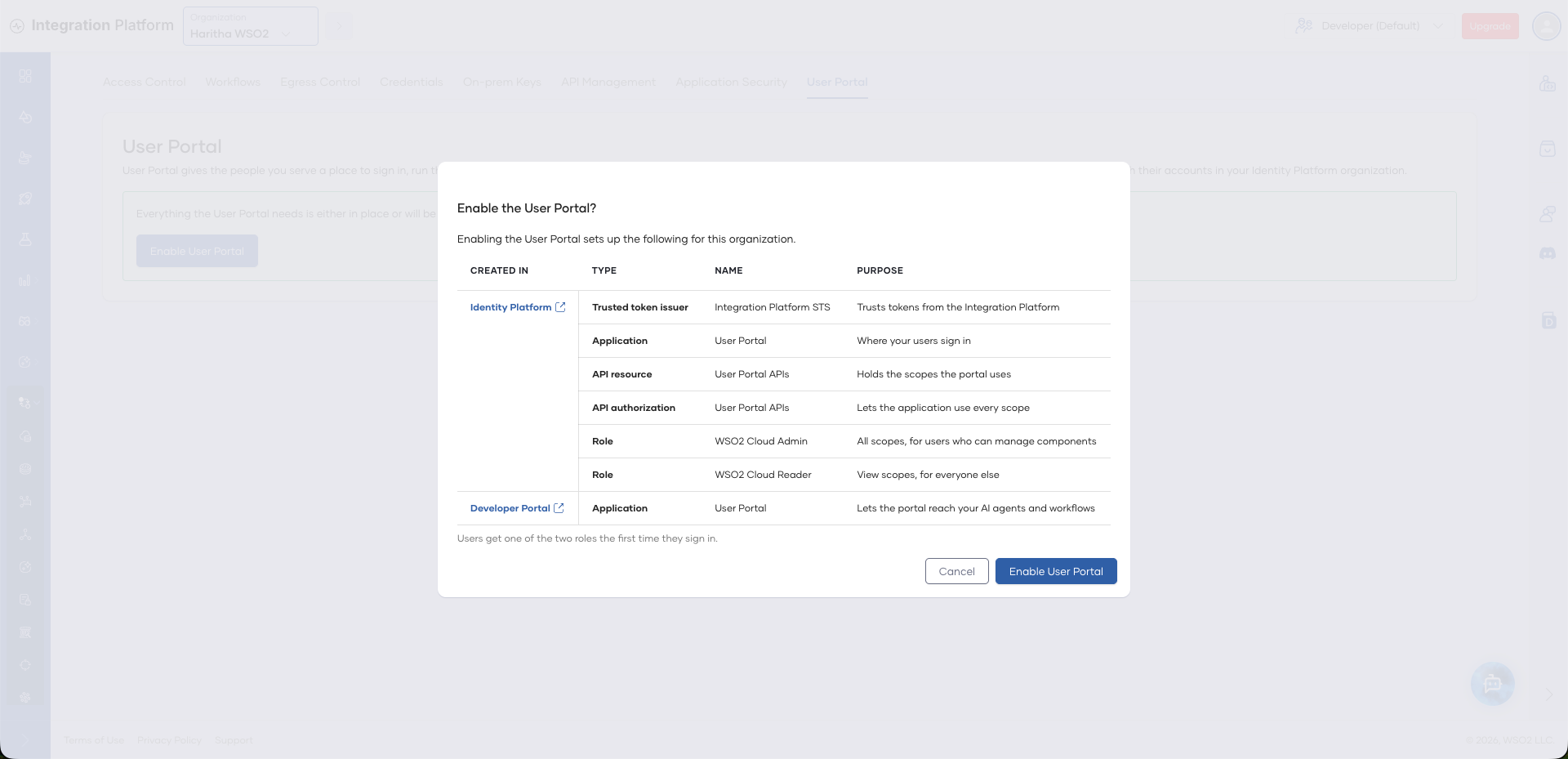
When you enable the User Portal, the platform creates the following resources on your behalf. You do not need to create them manually. The confirmation dialog in Admin > Settings > User Portal lists them before you enable the User Portal.
| Resource | Name | Where it is created | Purpose |
|---|---|---|---|
| Trusted token issuer | Integration Platform STS | Your WSO2 Identity Platform organization | Lets WSO2 Identity Platform trust tokens that the Integration Platform issues. |
| User Portal application | User Portal | Your WSO2 Identity Platform organization | The application that users sign in to. |
| User Portal API resource | User Portal APIs | Your WSO2 Identity Platform organization | Defines the scopes that control what a user can do in the User Portal. See Scopes. |
| API authorization | User Portal APIs | Your WSO2 Identity Platform organization | Authorizes the User Portal application for every scope of the User Portal API resource. |
| WSO2 Cloud Admin role | WSO2 Cloud Admin | Your WSO2 Identity Platform organization | A role on the User Portal application with all the scopes. |
| WSO2 Cloud Reader role | WSO2 Cloud Reader | Your WSO2 Identity Platform organization | A role on the User Portal application with only the view scopes. |
| Developer Portal application | User Portal | The Developer Portal | Subscribes to the APIs of the AI agents and workflows that you publish, so that the User Portal can call them. |
The WSO2 Cloud Admin and WSO2 Cloud Reader roles are system roles. The platform manages them, so you cannot rename them or change their permissions. For more information about how the platform assigns these roles, see Default roles.
If the Developer Portal has no key manager, you can also let the platform configure your WSO2 Identity Platform organization as its key manager. The platform does this only after you confirm it. See Resolve blockers.
Enable the User Portal
-
Sign in to WSO2 Cloud.
-
In the top navigation, click the Organization list and select your organization.
-
In the left navigation menu, click Settings under Admin.
-
Click the User Portal tab.
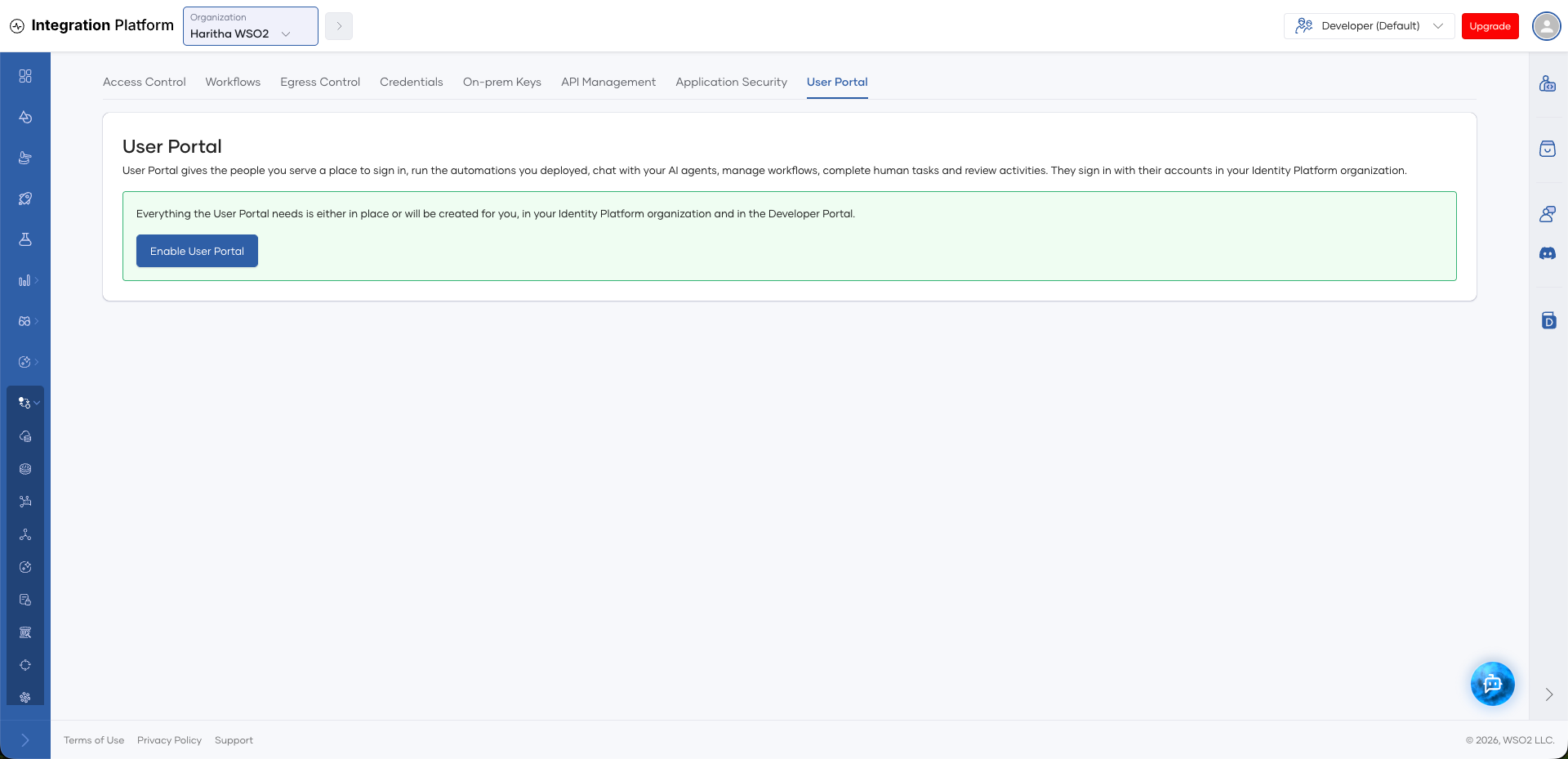
The page checks what the User Portal needs and shows one of the following:
- Ready to enable: Everything is in place or the platform will create it for you.
- Blockers: One or more items must be fixed before you can enable the User Portal. See Resolve blockers.
-
Click Enable User Portal.
The Enable the User Portal? dialog lists the resources that the platform sets up, with the type, name, purpose, and location of each resource.
-
In the dialog, click Enable User Portal.
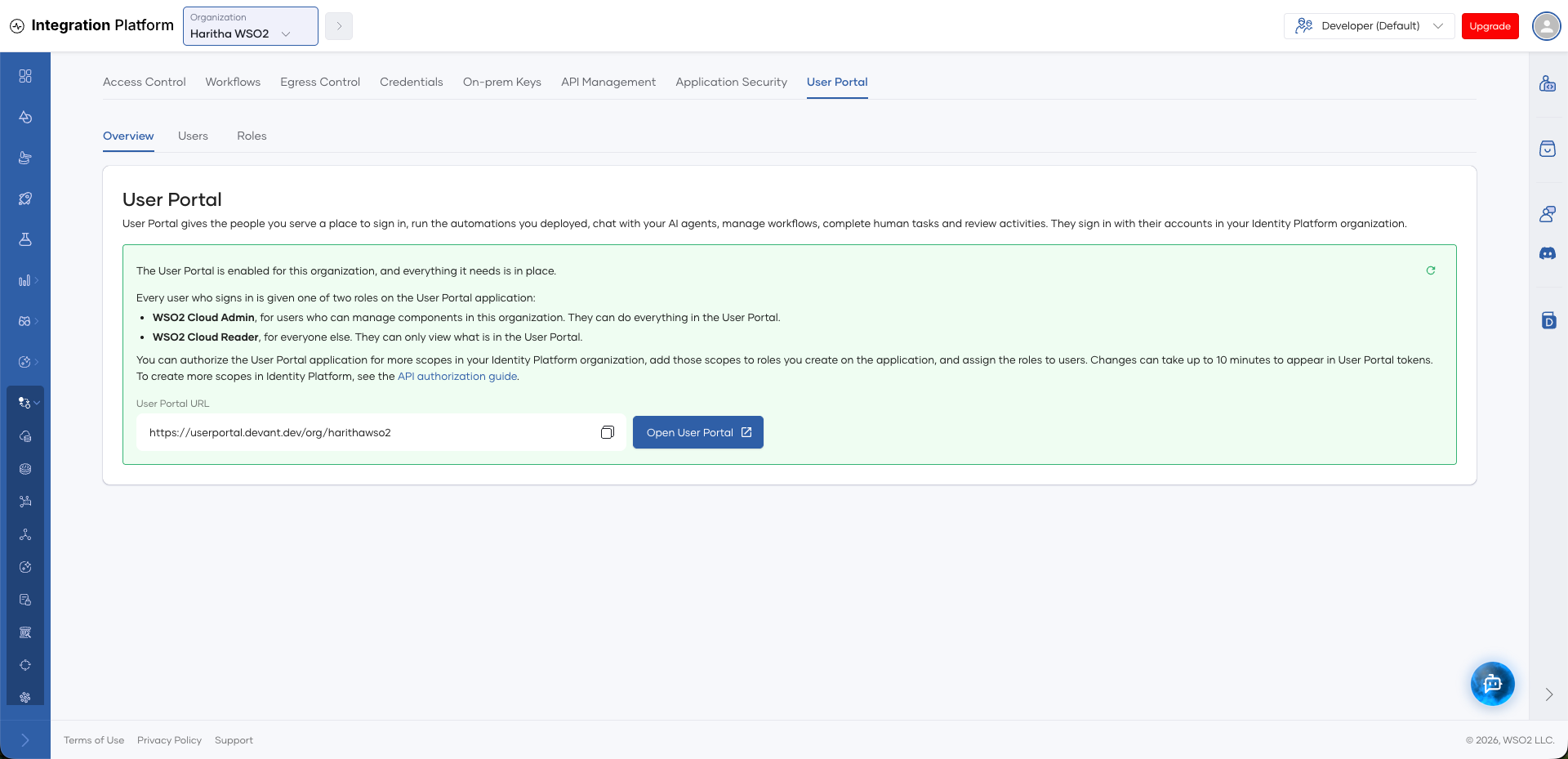
When the platform finishes, the page shows that the User Portal is enabled for the organization and that everything it needs is in place. The page also shows the following:
- User Portal URL: The link to the User Portal of your organization. To copy the link, click the copy icon. To open the User Portal in a new tab, click Open User Portal.
- The default roles that the platform assigns to users. See Default roles.
The User Portal tab now also has the Users and Roles tabs, where you manage User Portal users and roles. You can now publish integrations to the User Portal and add users.
After you enable the User Portal, the User Portal tab also works as a health check. See Check and repair the User Portal.