Publish an Integration to the User Portal
After you enable the User Portal, you choose which integrations appear in it. An integration appears in the User Portal only after you publish it there. You can unpublish it at any time.
Supported integration types
The User Portal supports the following integration types:
| Integration type | What users can do in the User Portal |
|---|---|
| AI agent | Chat with the agent. |
| Automation | Run the automation. If the automation has runtime arguments, users first enter values in a form that the User Portal builds from those arguments. |
| Workflow | Run and manage workflows, and act on assigned human tasks. |
For each automation, users can also see when it last ran and, if it is scheduled, when it runs next.
Prerequisites
- The User Portal is enabled for your organization. See Enable the User Portal. Until then, the integration's overview page shows a Publish to User Portal button instead of the toggle. Click it, then click Enable in Settings to go to the User Portal page. If you do not have the permissions to enable the User Portal, ask an organization administrator to enable it.
- The integration is deployed to the production environment. Until then, Publish to User Portal is disabled. See Promote an integration.
- Your role includes the Manage Organization permission and the permission to publish APIs to the Developer Portal. Without these permissions, Publish to User Portal is disabled. You need the same permissions to choose the chat endpoints of an AI agent and to unpublish an integration.
Publish an integration
-
Sign in to WSO2 Cloud.
-
Select the project that contains the integration.
-
In the Integrations pane, click the integration that you want to publish.
-
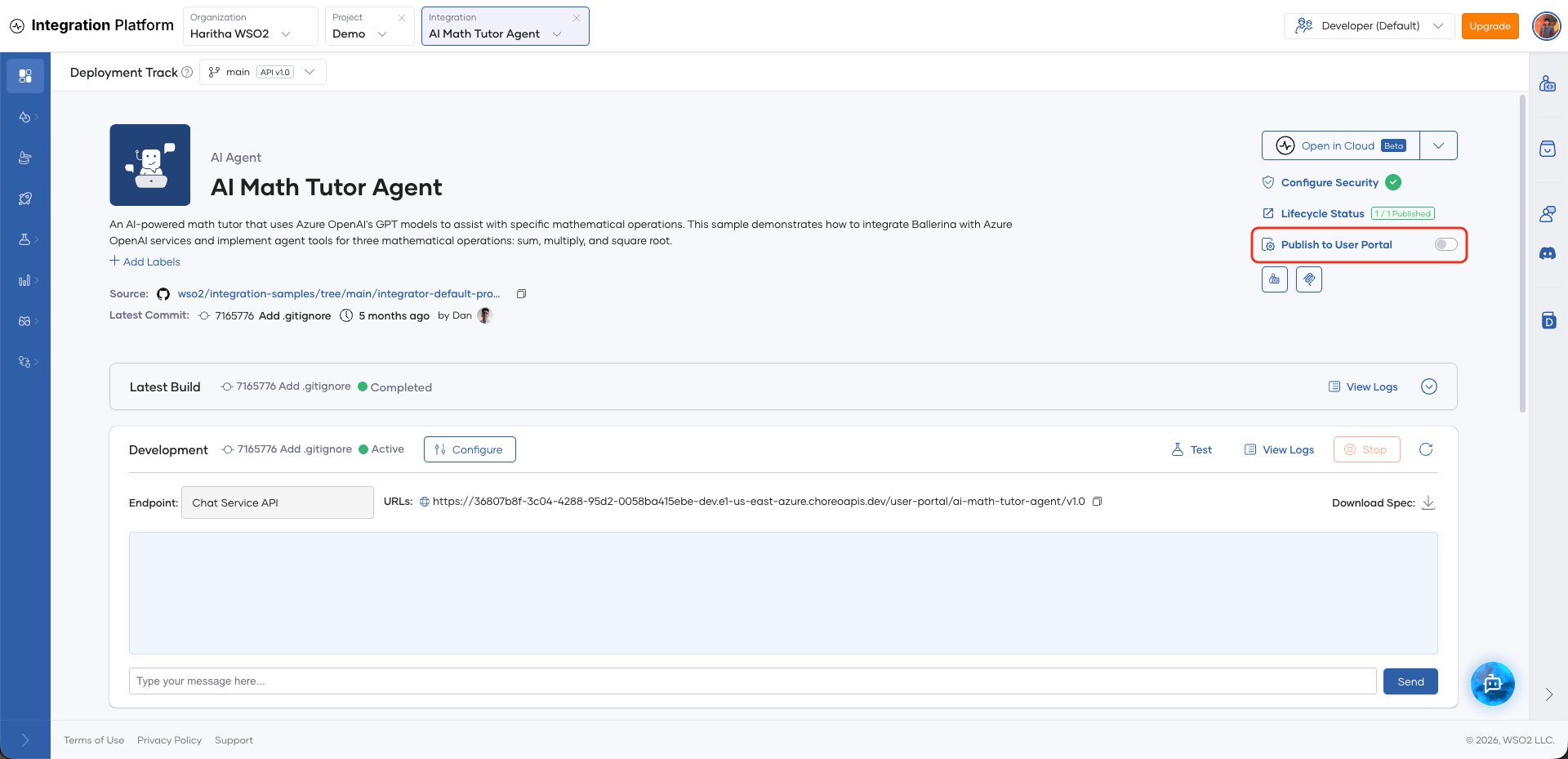
On the integration's overview page, turn on the Publish to User Portal toggle.
-
In the confirmation dialog, click Publish.
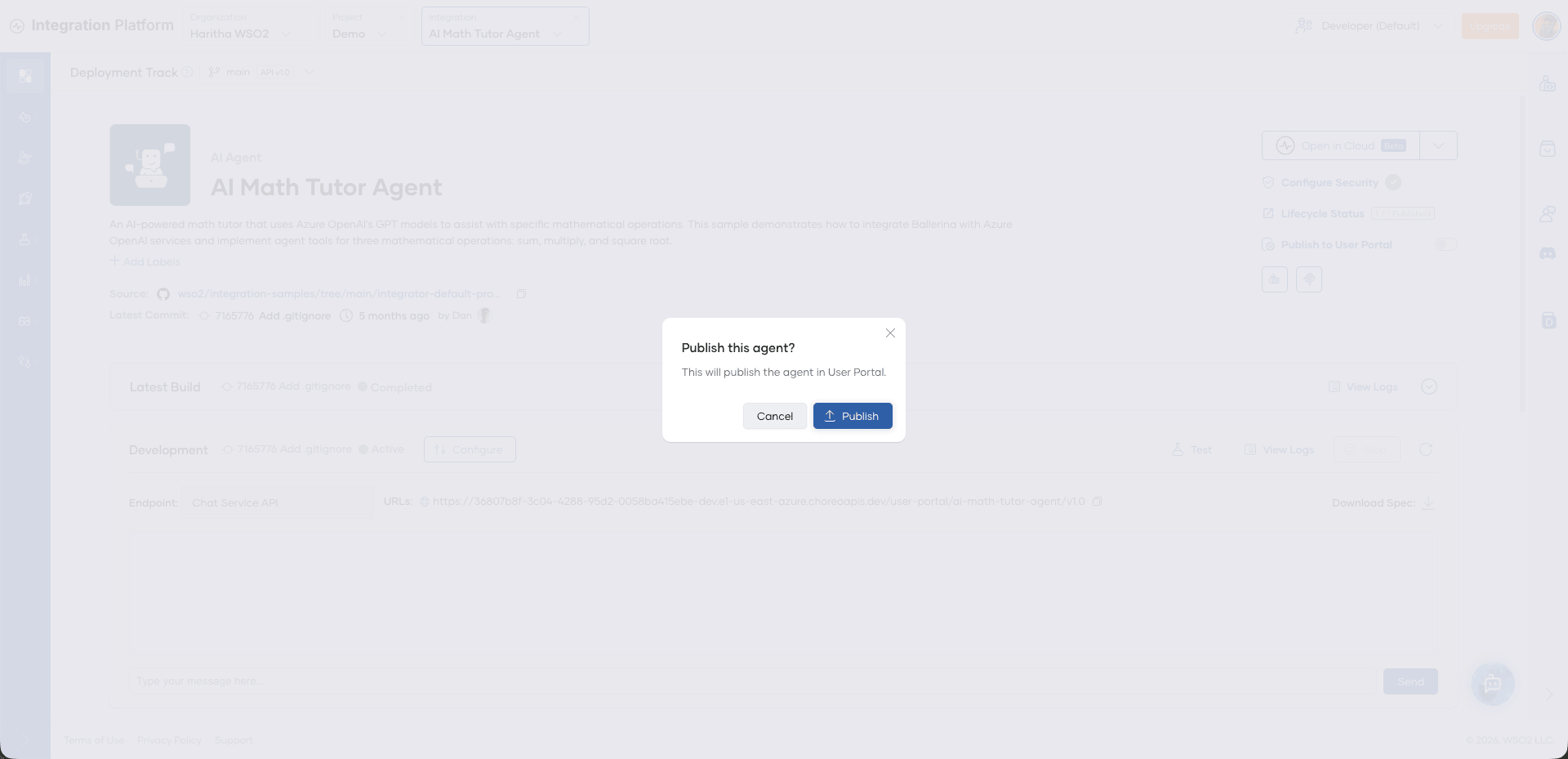
When you confirm, the platform publishes the integration to the User Portal. For AI agents and workflows, the User Portal calls the integration through the Developer Portal, so the platform also does the following automatically:
-
Publishes the endpoints that the User Portal uses to the Developer Portal, by moving them to the
PUBLISHEDlifecycle state. The platform skips any endpoint that is already in that state.- AI agents: The endpoints that have a
/chatresource. - Workflows: The management endpoint. WSO2 Cloud adds this endpoint to every workflow when it deploys the workflow.
- AI agents: The endpoints that have a
-
Subscribes the User Portal's Developer Portal application to those endpoints.
Automations are not called through the Developer Portal, so the platform skips these steps for them.
Publishing an integration does not give users access to it. To see the integration in the User Portal, a user needs a role with the view scope for the integration's type. See Scopes.
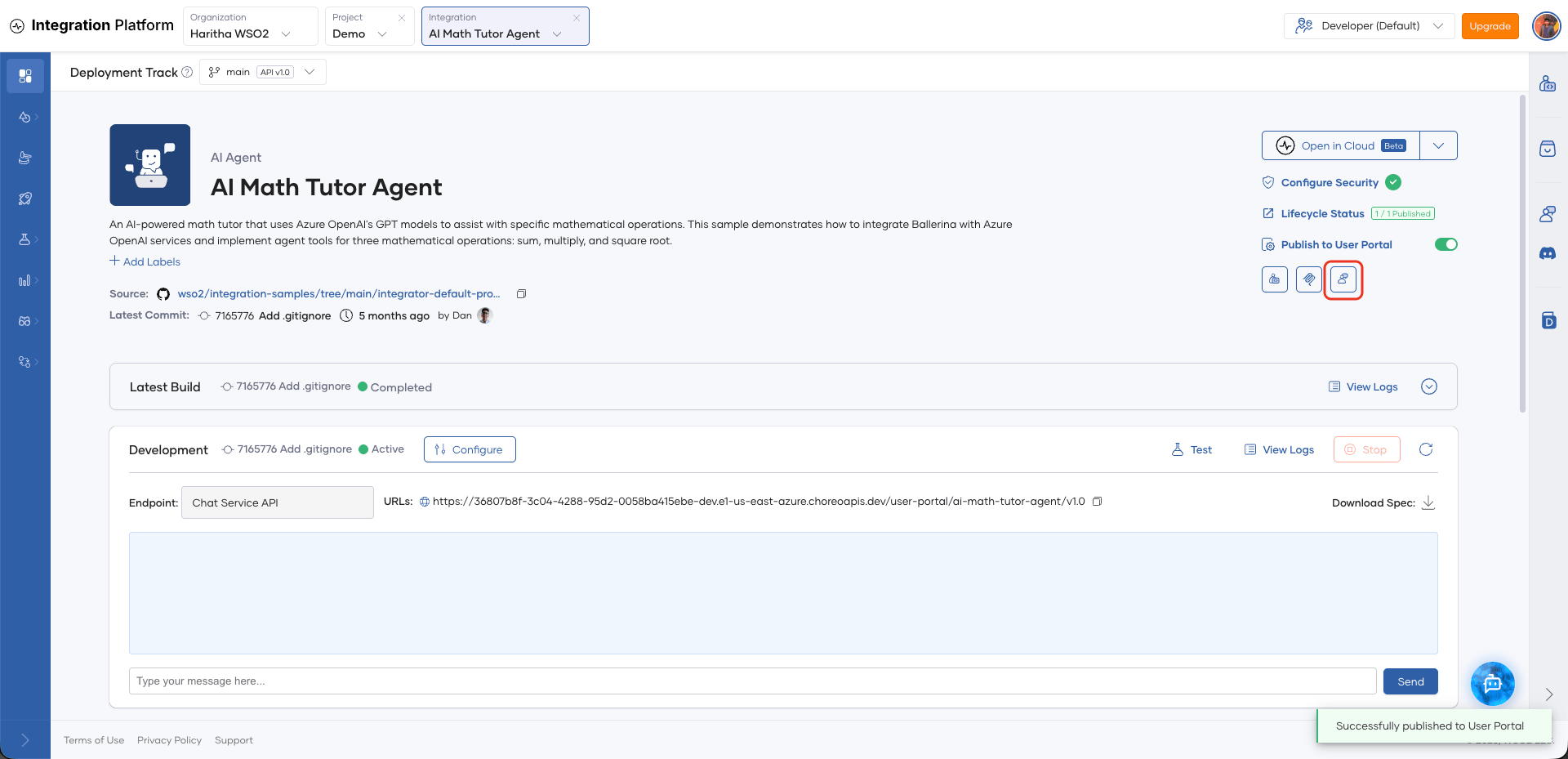
After the integration is published, the platform shows a confirmation message, and a User Portal button appears on the overview page. Click it to open the User Portal for your organization in a new tab. The User Portal tries to sign you in automatically. See Automatic sign-in from the console.
If publishing fails
If the platform cannot publish the integration, it shows an error message. The following are common causes:
- The AI agent has no endpoint with a
/chatresource in production. Deploy an endpoint with a/chatresource to production, then try again. - The platform cannot publish an endpoint to the Developer Portal. This can happen when another API in the Developer Portal already uses the same name. To fix this, publish the endpoint to the Developer Portal manually. Open the integration, then in the left navigation menu, click Develop > Lifecycle. See Lifecycle Management. Then go to the integration's Overview page and publish the integration to the User Portal again.
Choose the chat endpoints of an AI agent
If a published AI agent has more than one endpoint with a chat resource, you can choose which endpoints are available in the User Portal. By default, all of them are available.
- Open the AI agent.
- In the left navigation menu, click Overview.
- On the production environment card, next to each chat endpoint, turn the User Portal toggle on or off.
When you turn on the toggle for an endpoint, the platform publishes that endpoint to the Developer Portal if needed, then makes it available in the User Portal.
Unpublish an integration
- Open the integration.
- In the left navigation menu, click Overview.
- Turn off the Publish to User Portal toggle.
- In the confirmation dialog, click Unpublish.
The integration no longer appears in the User Portal. For AI agents and workflows, the platform removes the User Portal's Developer Portal subscriptions to the endpoints.
Unpublishing from the User Portal does not change the lifecycle state of the endpoints in the Developer Portal. The endpoints stay in the PUBLISHED state. To change their state, see Lifecycle Management.
What's next
- Manage users and roles so that users can sign in to the User Portal and see the integrations.
- Sign in to the User Portal.
- Use the User Portal to chat with AI agents, run automations, and work with workflows.