Test GraphQL Service
The Try-It tool for GraphQL services opens a built-in GraphiQL editor where you can browse your schema, write queries and mutations, and execute them against your running service. Use it during development to verify your GraphQL operations before writing automated tests.
Open the GraphiQL editor
- Run the integration by selecting the play button.
- After the integration starts, a popup appears asking whether you want to open the Try-It panel. Select Yes.
- If the popup does not appear, open the Command Palette (
Cmd+Shift+Pon macOS,Ctrl+Shift+Pon Windows/Linux), type Try It, and select the command. Choose the correct service and port from the list.
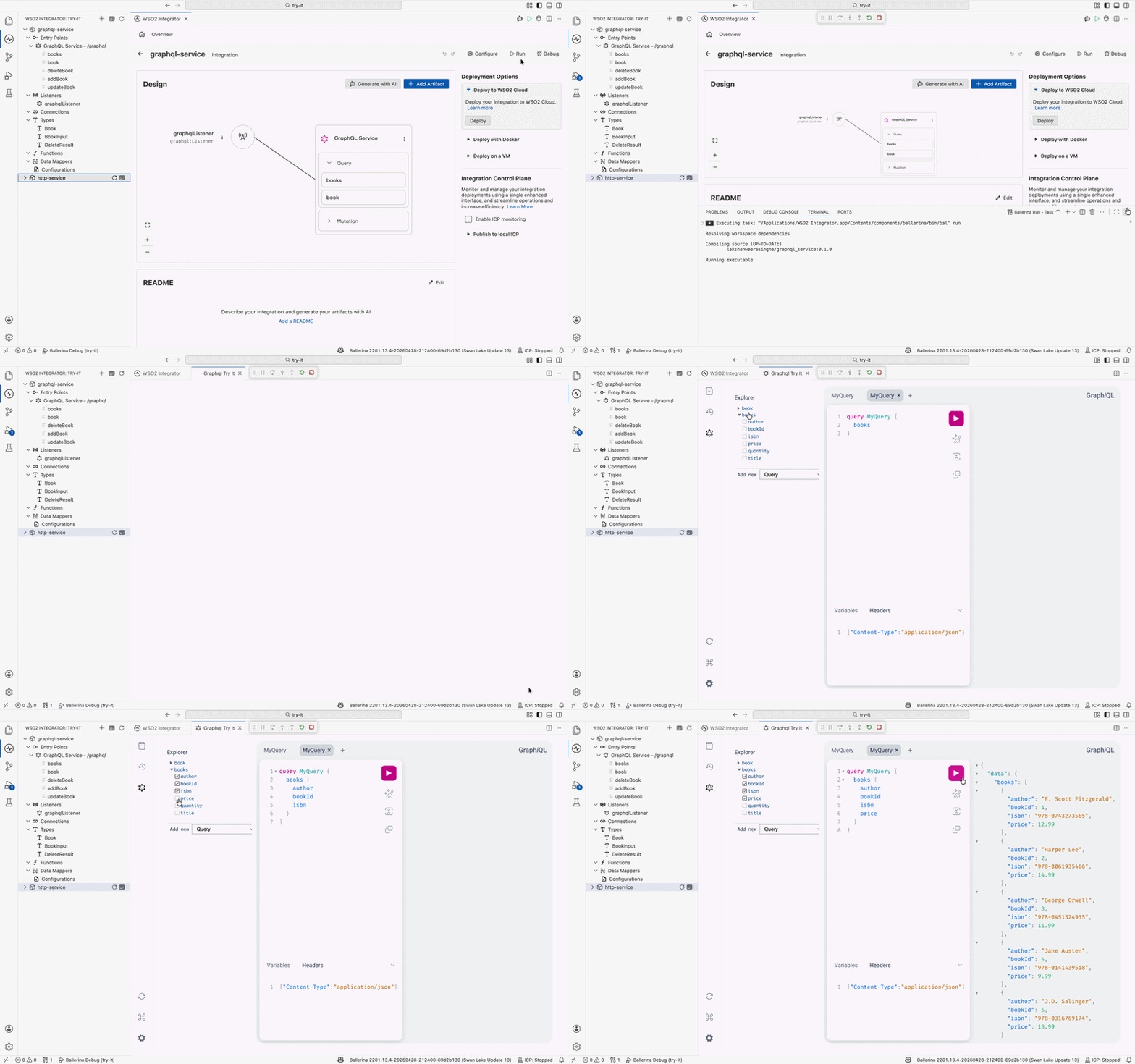
The GraphiQL editor
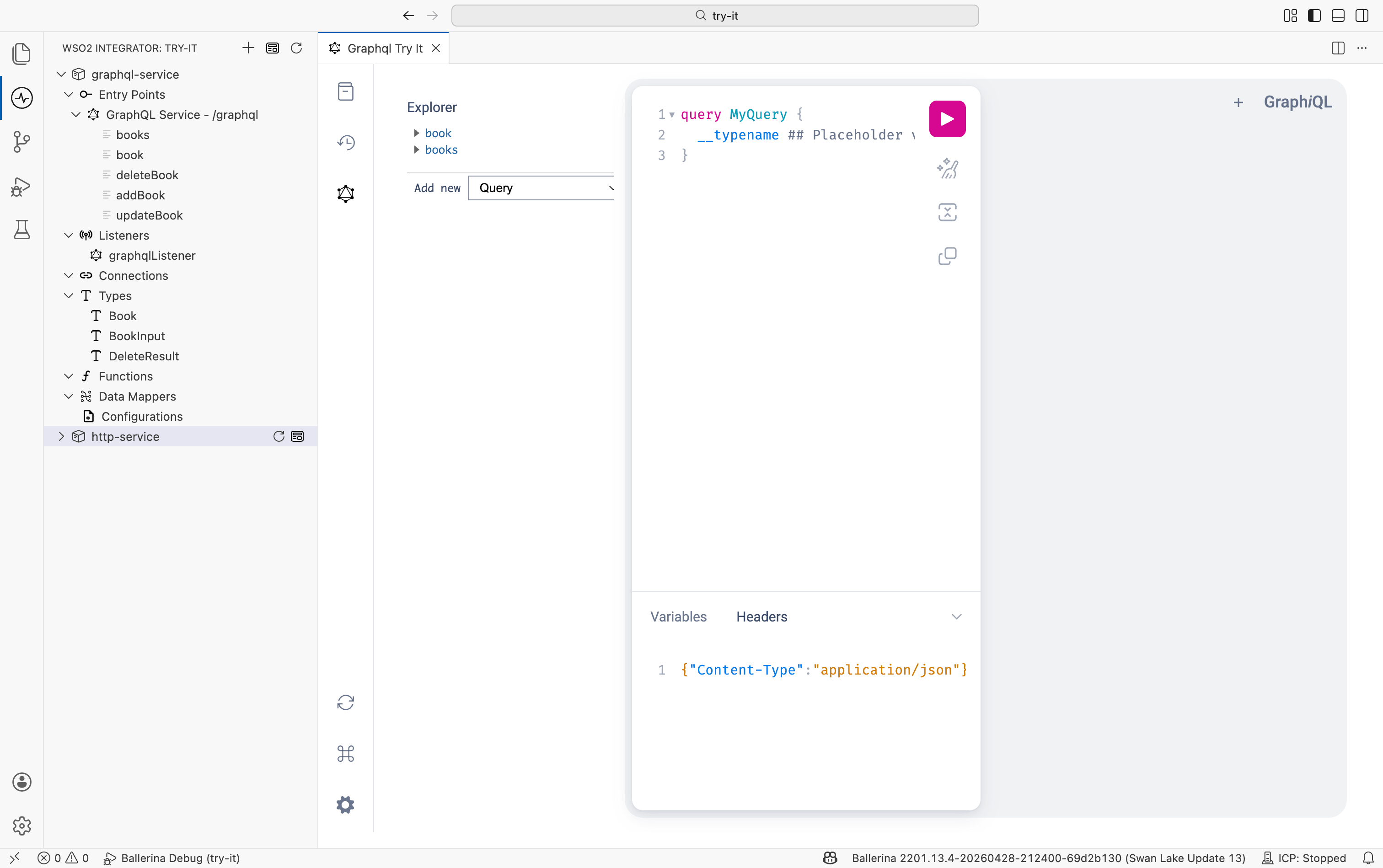
The editor is divided into three areas:
Explorer
The Explorer panel on the left lists every query, mutation, and subscription available in your service's schema. Expand a node to see its fields and select fields to automatically add them to the query editor. This is the fastest way to discover what your service exposes without reading the schema manually.
At the bottom of the Explorer you can select Add new and choose a type (Query, Mutation, or Subscription) to scaffold a new operation in the editor.
Query editor
The center editor is where you write or review your GraphQL operations. Three action icons appear on the right side of the editor:
| Icon | Action |
|---|---|
| Prettify | Formats and re-indents the query for readability. |
| Merge | Merges query fragments into a single operation. |
| Copy | Copies the current query to the clipboard. |
Select the pink play button at the top right of the editor to execute the query against the running service.
Variables and headers
The bottom panel has two tabs:
- Variables: pass input values for parameterized queries and mutations in JSON format, for example
{"id": 1}. - Headers: add or override request headers such as
AuthorizationorContent-Type.
The Explorer may show No Schema Available if schema introspection is disabled in your service configuration. You can still write and execute queries manually in the query editor.
What's next
- Test HTTP service — request builder for REST endpoints
- Test Chat agent — conversational testing for AI agents
- Test Explorer — create and run automated test cases from the IDE