Test MCP Server
The Try-It tool for MCP servers opens the MCP Inspector, an interactive interface for connecting to your server, listing its tools, and invoking them with input parameters. Use it during development to verify that each tool in your MCP server behaves correctly before connecting it to an AI agent.
Open the MCP Inspector
In the Service Designer, select the button next to the Configure button in the service header toolbar, then select Try It. The MCP Inspector tab opens automatically.
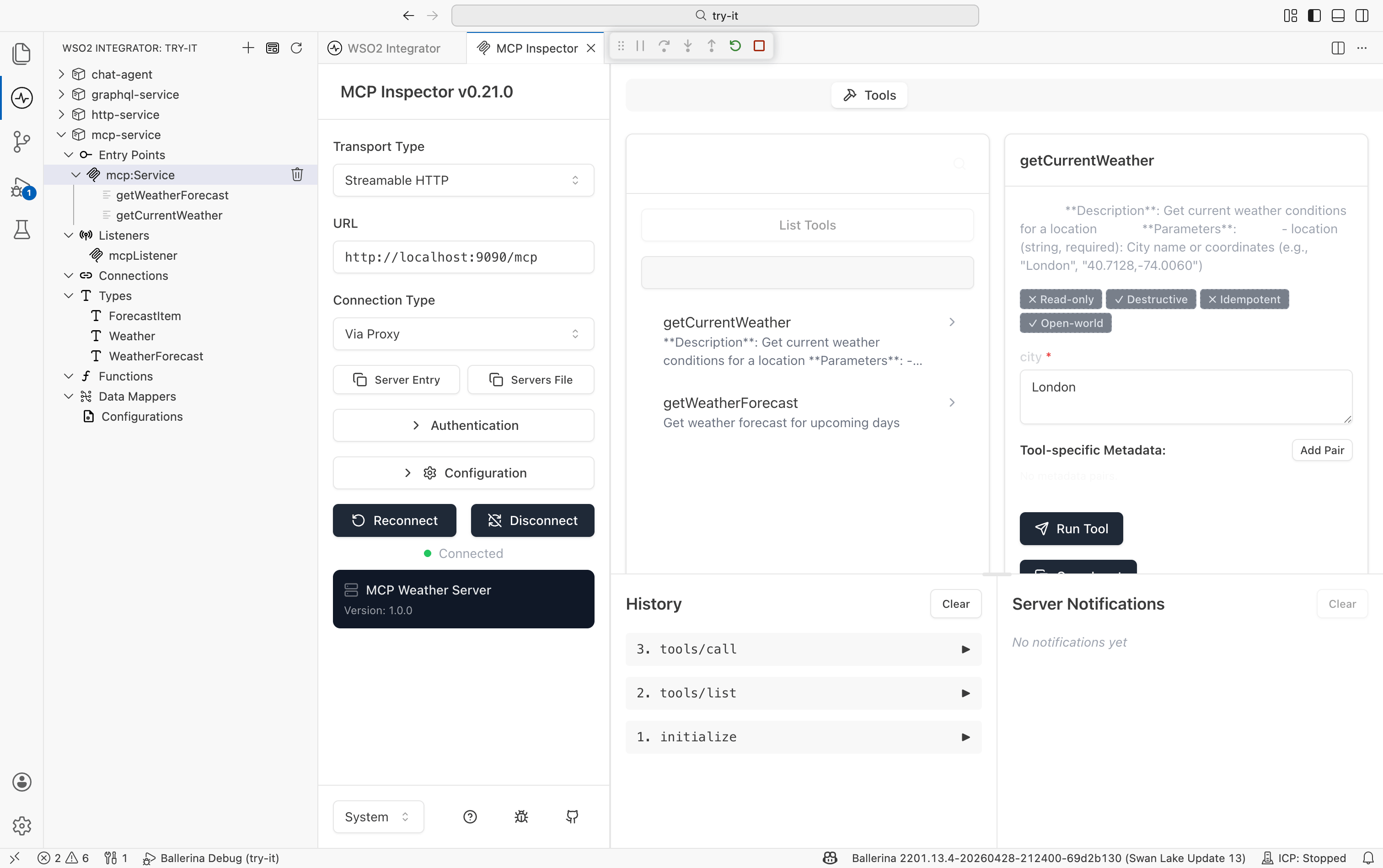
The MCP Inspector
The inspector is divided into three panels.
Connection panel
The left panel controls how the inspector connects to your MCP server.
| Field | Description |
|---|---|
| Transport Type | The protocol used to communicate with the server. Defaults to Streamable HTTP for MCP services built with WSO2 Integrator. |
| URL | The endpoint of your running MCP server, for example http://localhost:9090/mcp. |
| Connection Type | How the inspector routes requests. Via Proxy is the default and works for local development. |
| Authentication | Expandable section to configure authentication credentials if your server requires them. |
| Configuration | Expandable section for additional connection settings. |
Use the Reconnect button to re-establish the connection after restarting your service, or Disconnect to close it. A green dot next to the status label confirms the inspector is connected. The server name and version appear in a card at the bottom of the panel once the connection is established.
Tools panel
The center panel lists the tools your MCP server exposes.
Select List Tools to fetch the current tool list from the running server. Each tool appears with its name and a short description. Select a tool to open its detail view in the right panel.
The History section at the bottom records every MCP protocol call made during the session in order, including initialize, tools/list, and tools/call. Select the play icon next to any history entry to replay that call.
Tool detail panel
The right panel shows the full detail for the selected tool and lets you invoke it.
| Area | Description |
|---|---|
| Description | The tool's purpose as defined in your service code. |
| Annotation tags | Behavioral hints declared on the tool, such as Read-only, Destructive, Idempotent, and Open-world. These inform AI agents how to treat the tool safely. |
| Input parameters | One field per parameter the tool accepts. Required parameters are marked with a red asterisk. Fill in values before running. |
| Tool-specific Metadata | Key-value pairs you can attach to the invocation for advanced scenarios. Select Add Pair to add an entry. |
| Run Tool | Executes the tool with the provided inputs and displays the response inline. |
| Server Notifications | Displays any server-side notifications pushed during or after the tool invocation. |
What's next
- Test HTTP service — request builder for REST endpoints
- Test GraphQL service — built-in GraphiQL editor for GraphQL operations
- Test Chat agent — conversational testing for AI agents
- Test Explorer — create and run automated test cases from the IDE