Test HTTP Service
The Try-It tool lets you test your HTTP REST API endpoints without leaving WSO2 Integrator. You can interact with the request form directly to explore and verify each endpoint, or describe what you want to test in natural language and let WSO2 Integrator Copilot handle the execution for you.
Open the Try-It tool
Access the Try-It tool from any of the following entry points:
- Service Designer: select the dropdown arrow next to the Configure button in the service header toolbar, then select Try It.
- Flow diagram: open a specific resource in the flow diagram, then select the dropdown arrow next to the Configure button and select Try It.
- Code editor (CodeLens): a CodeLens action bar appears above the service declaration in source code showing Run | Debug | Visualize | Try it. Select Try it to open the panel without leaving the editor.
Try it with the UI
The UI Try-It panel lists all resources defined in your service. Each resource appears as a collapsible section showing its HTTP method and path, with a request form you can fill in before sending.
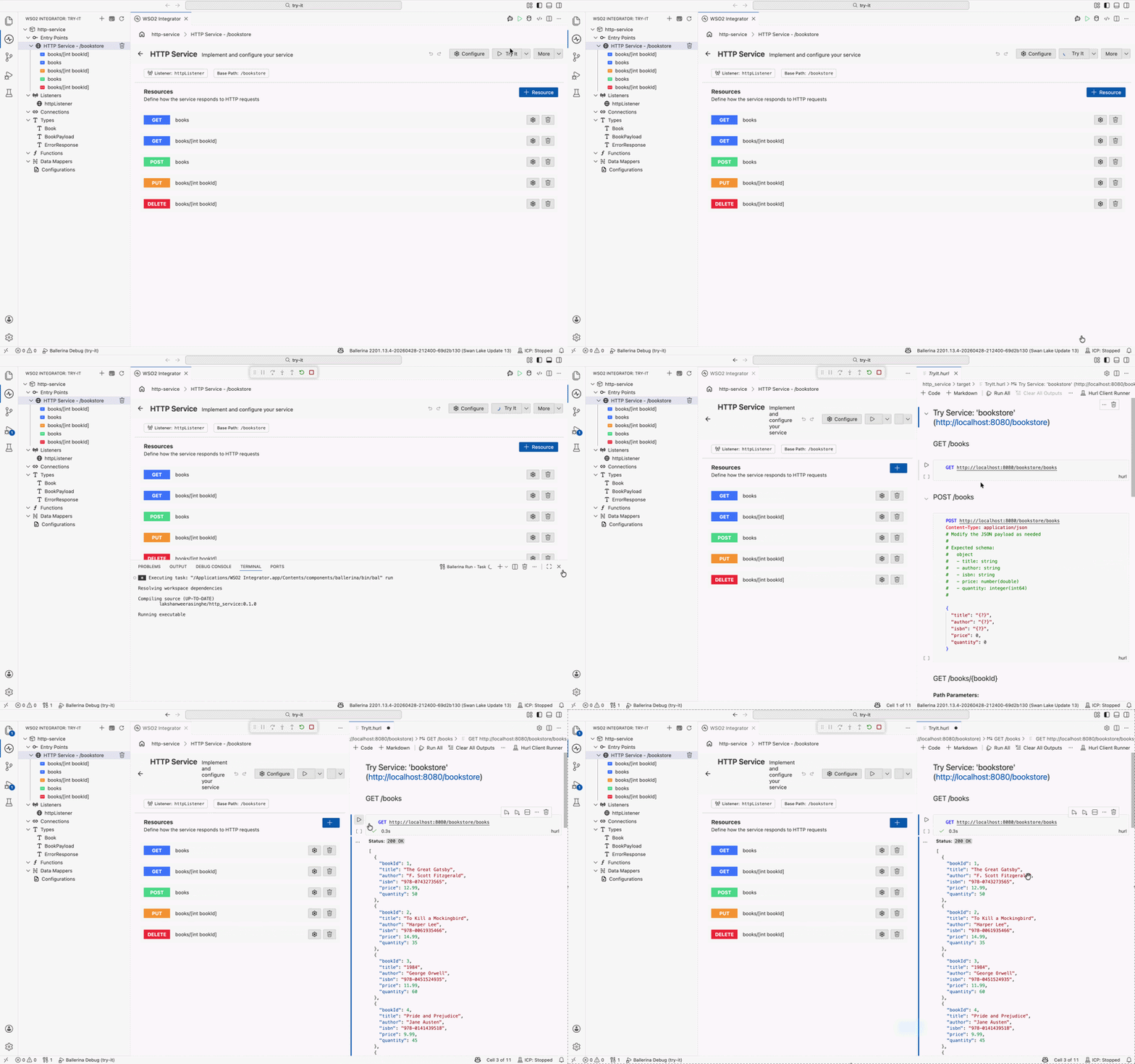
Compose a request
| Field | Description |
|---|---|
| URL | The endpoint URL with the method shown. Edit the URL directly to set path parameters and query parameters, for example change /orders/{id} to /orders/42 or append ?status=pending. |
| Headers | Add Authorization, Content-Type, or any custom header your service requires. |
| Request body | Available for POST, PUT, and PATCH resources. A sample payload is auto-generated based on your resource's parameter types. Edit it to match your test scenario. |
Select the run icon next to the endpoint to dispatch the request.
Read the response
| Field | Description |
|---|---|
| Status code | The HTTP status code returned, for example 200 OK or 404 Not Found. |
| Response body | Formatted JSON, XML, or plain text with syntax highlighting. |
| Elapsed time | How long the request took in milliseconds. |
Try it with AI
WSO2 Integrator Copilot can test your HTTP service for you. Open the Copilot panel and describe the endpoint you want to test in natural language. For example, tell Copilot which method you want to try and it compiles the service, sends the request, and presents the response directly in the chat.
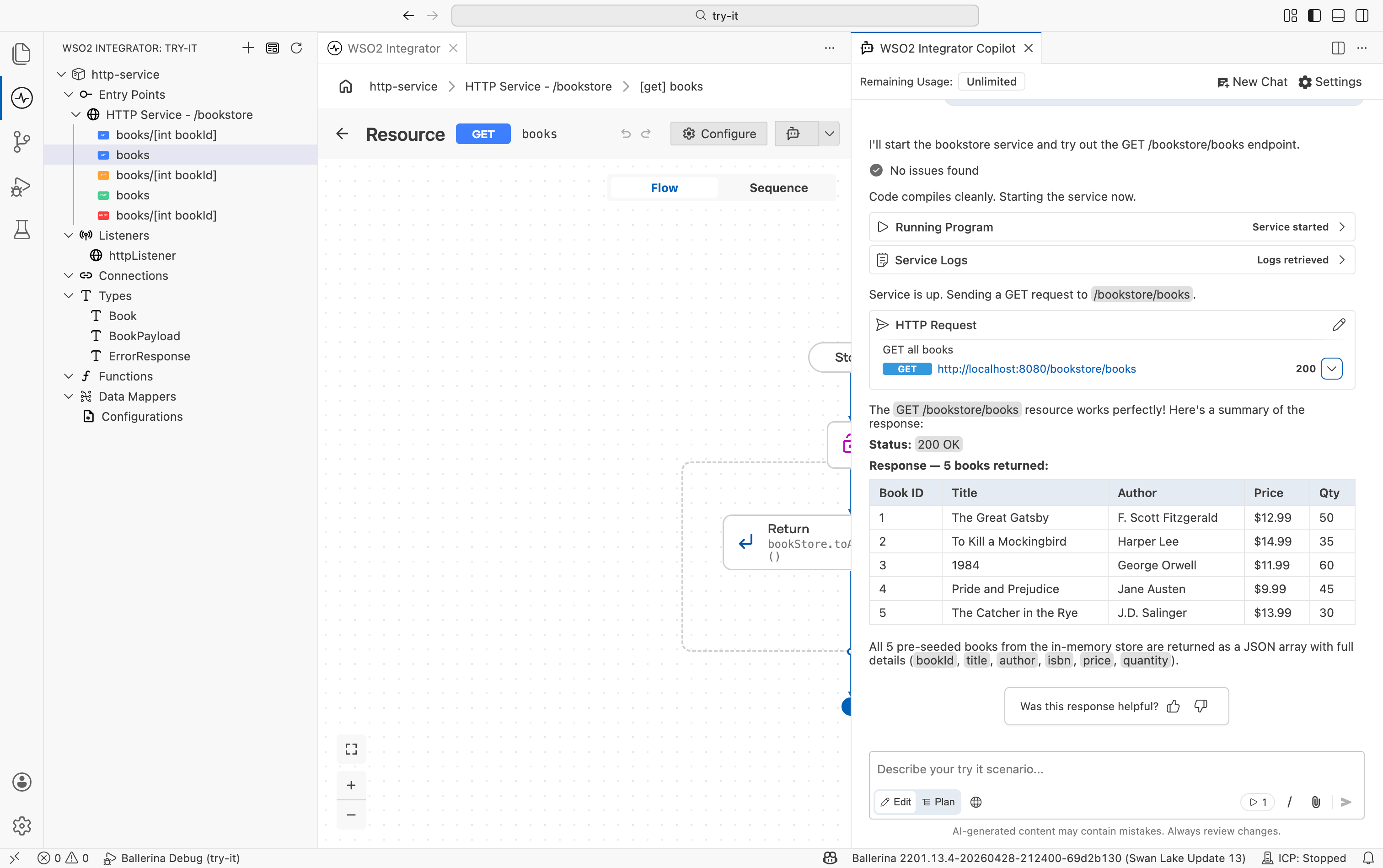
Copilot runs the service in the background as part of the test. To stop the running service after testing, select the play button in the input bar at the bottom of the Copilot chat panel.
What's next
- Test GraphQL service — built-in GraphiQL editor for testing GraphQL operations
- Test Explorer — create and run automated test cases from the IDE
- Write unit tests — automated tests with assertions for repeatable verification
- Execute tests — CLI options for filtering and running tests