Library View
The Library view is a dedicated view in WSO2 Integrator for creating utilities and shared resources that you can use across multiple integrations. Rather than building executable integrations, you use the Library view to bundle shared type definitions, utility functions, custom connections, and data mapper configurations into a centralized module that other integrations can depend on.
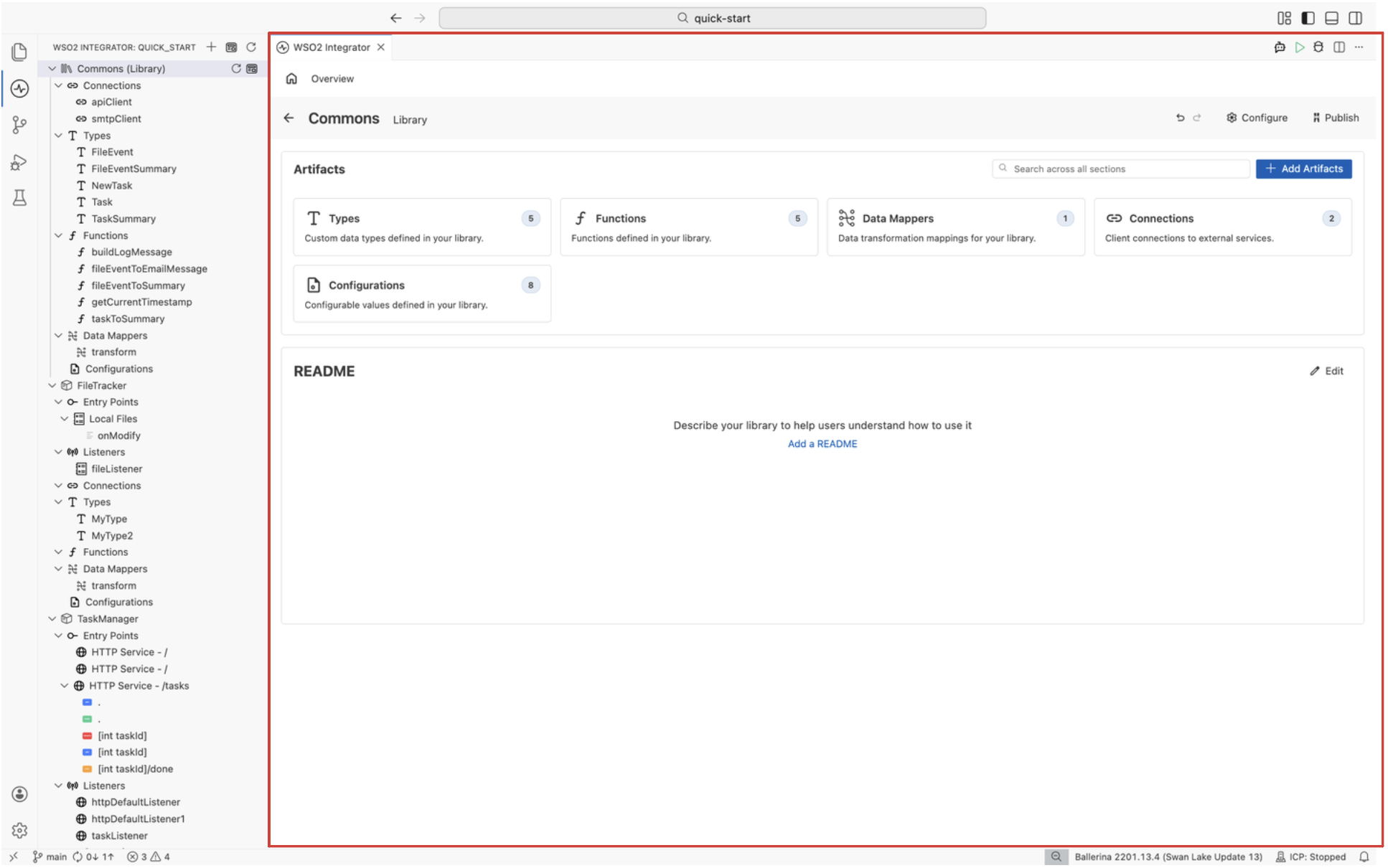
Library overview canvas
The library overview canvas is the central area of the Library view. It provides a dashboard for the library, showing the library name as a heading and an Artifacts summary with cards for the total number of defined types, functions, data mappers, and connections.
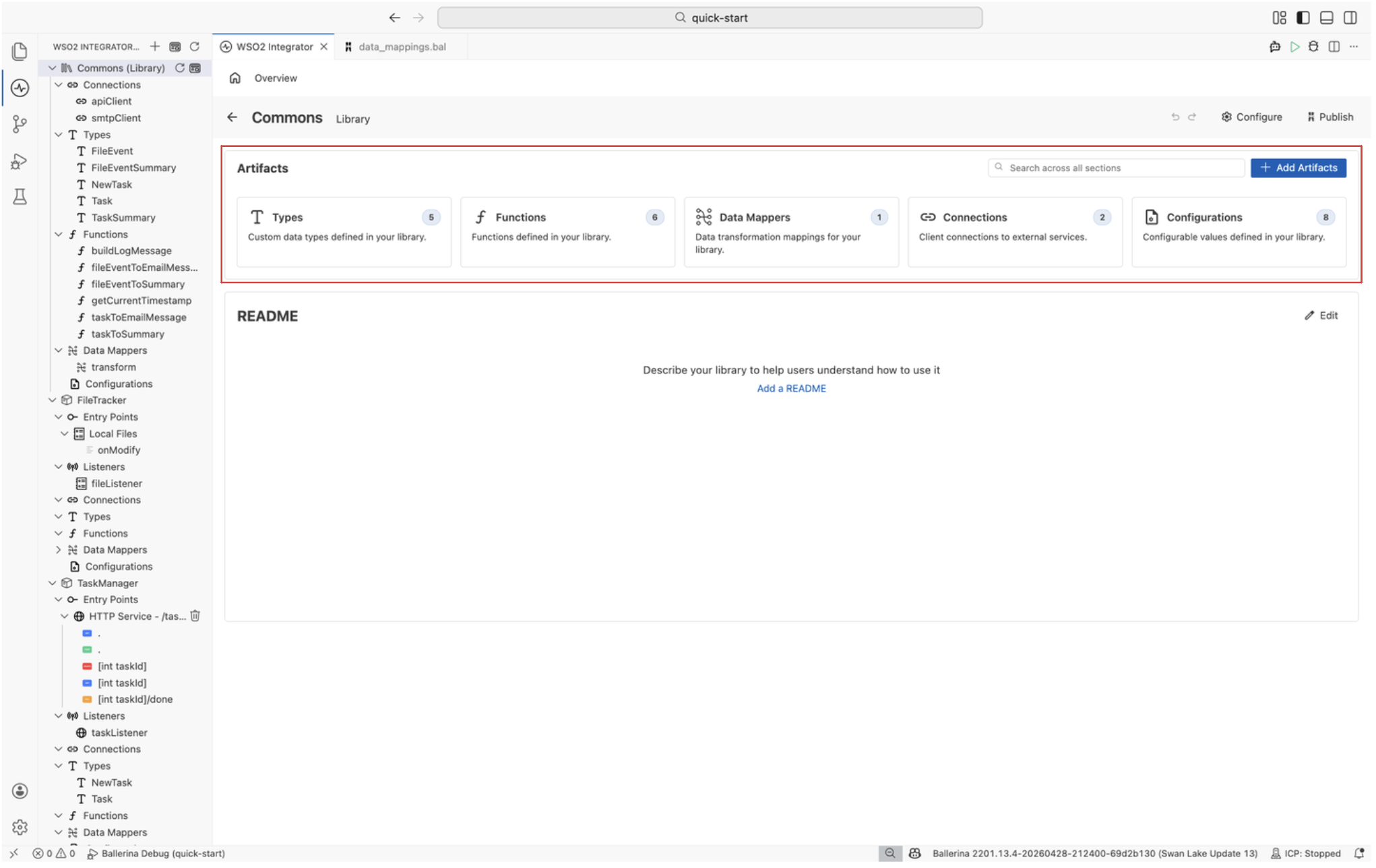
Add reusable artifacts
Click the + Add Artifacts button at the top right of the canvas to add a new component to your library. This opens a menu with all available artifact types that can be created in a library:
- Function
- Data Mapper
- Type
- Connection
- Configuration
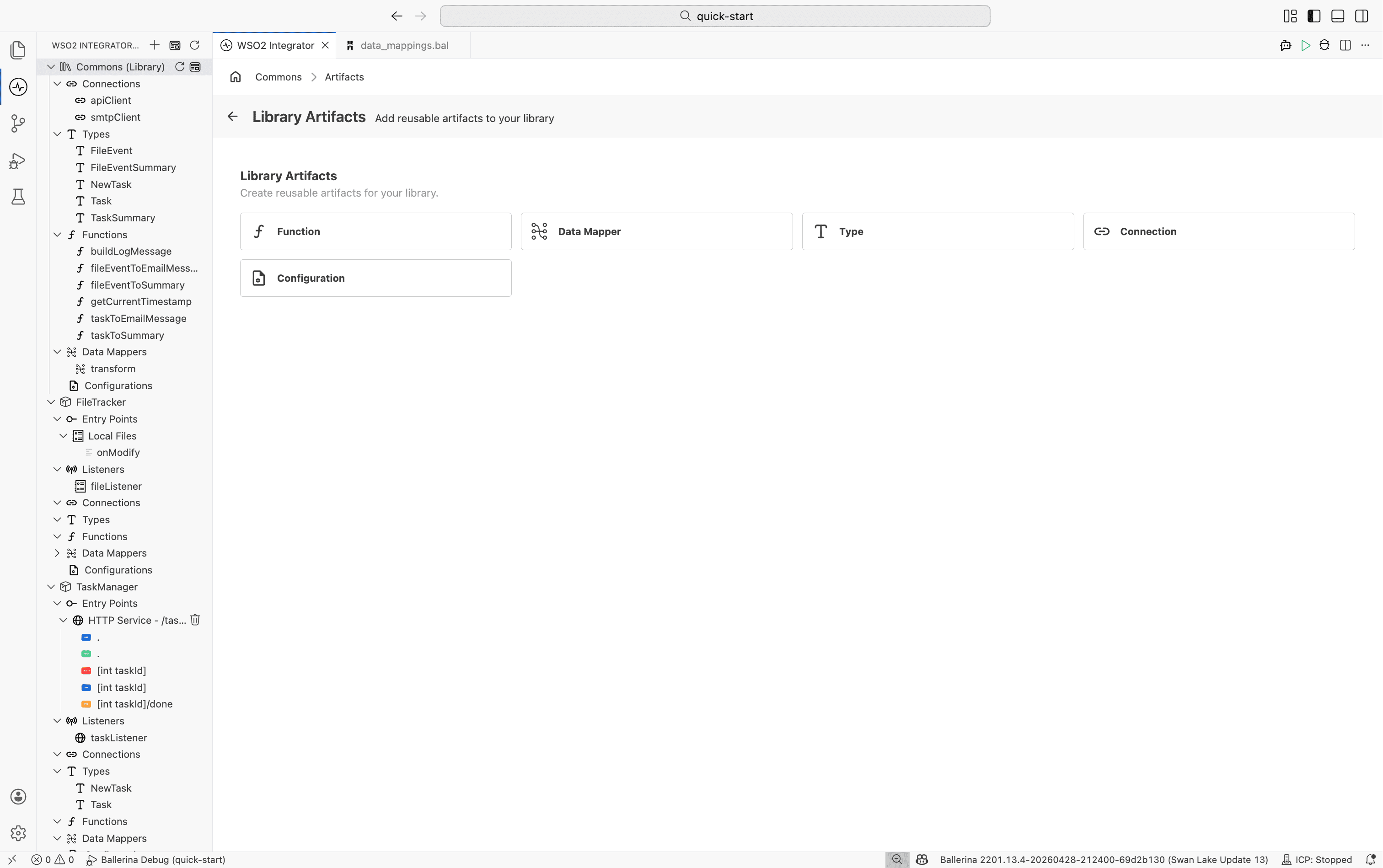
For detailed information on configuring each specific artifact type, see the Integration artifacts documentation.
Artifact management
Clicking any of the artifact category cards on the main canvas (such as Functions or Types) navigates to a specific list view for those artifacts.
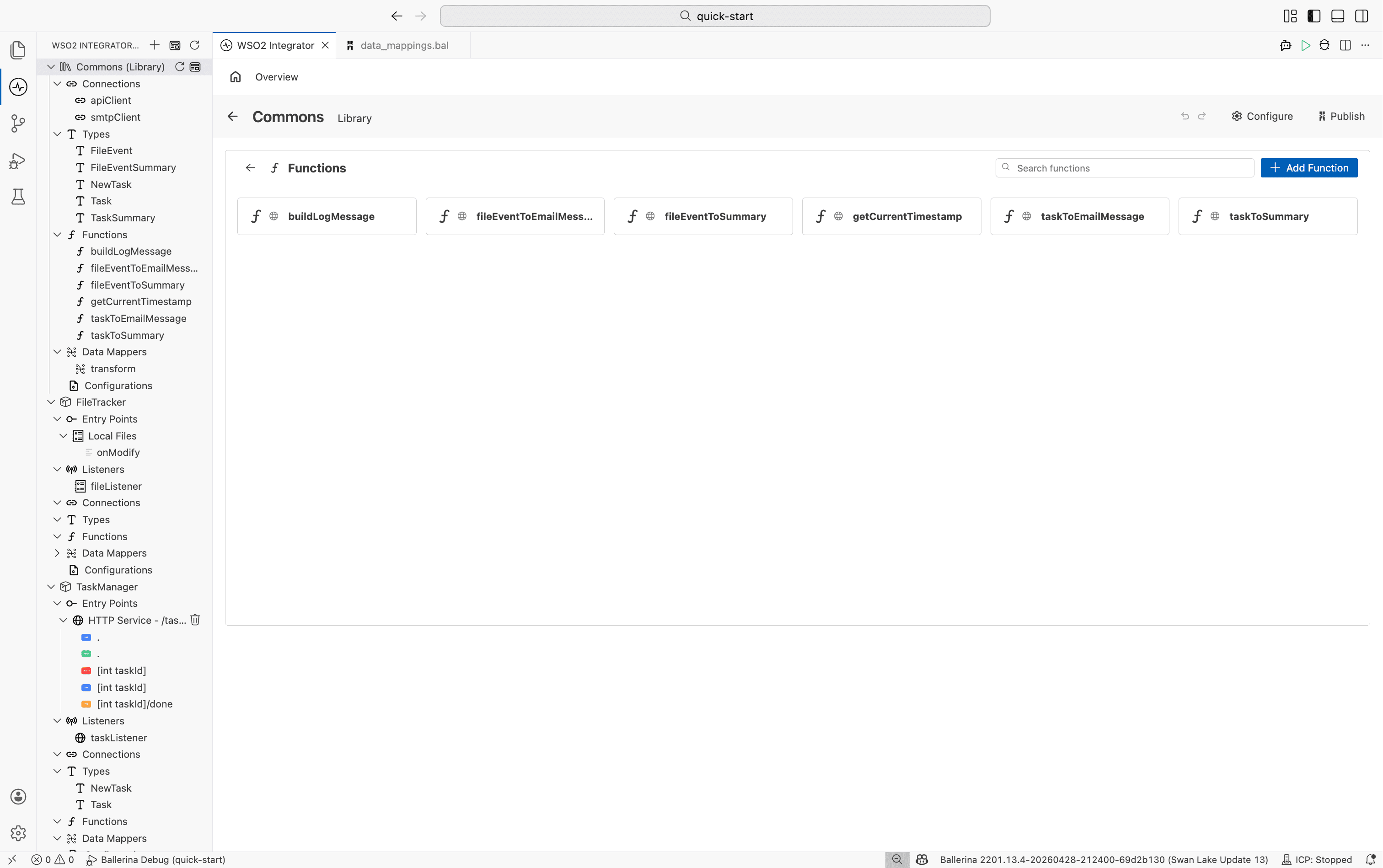
From this view, you can:
- View all defined artifacts of that specific type.
- Search for a specific artifact using the search bar.
- Click the + Add [Artifact] button (for example, + Add Function) to create a new artifact of that type directly.
Toolbar
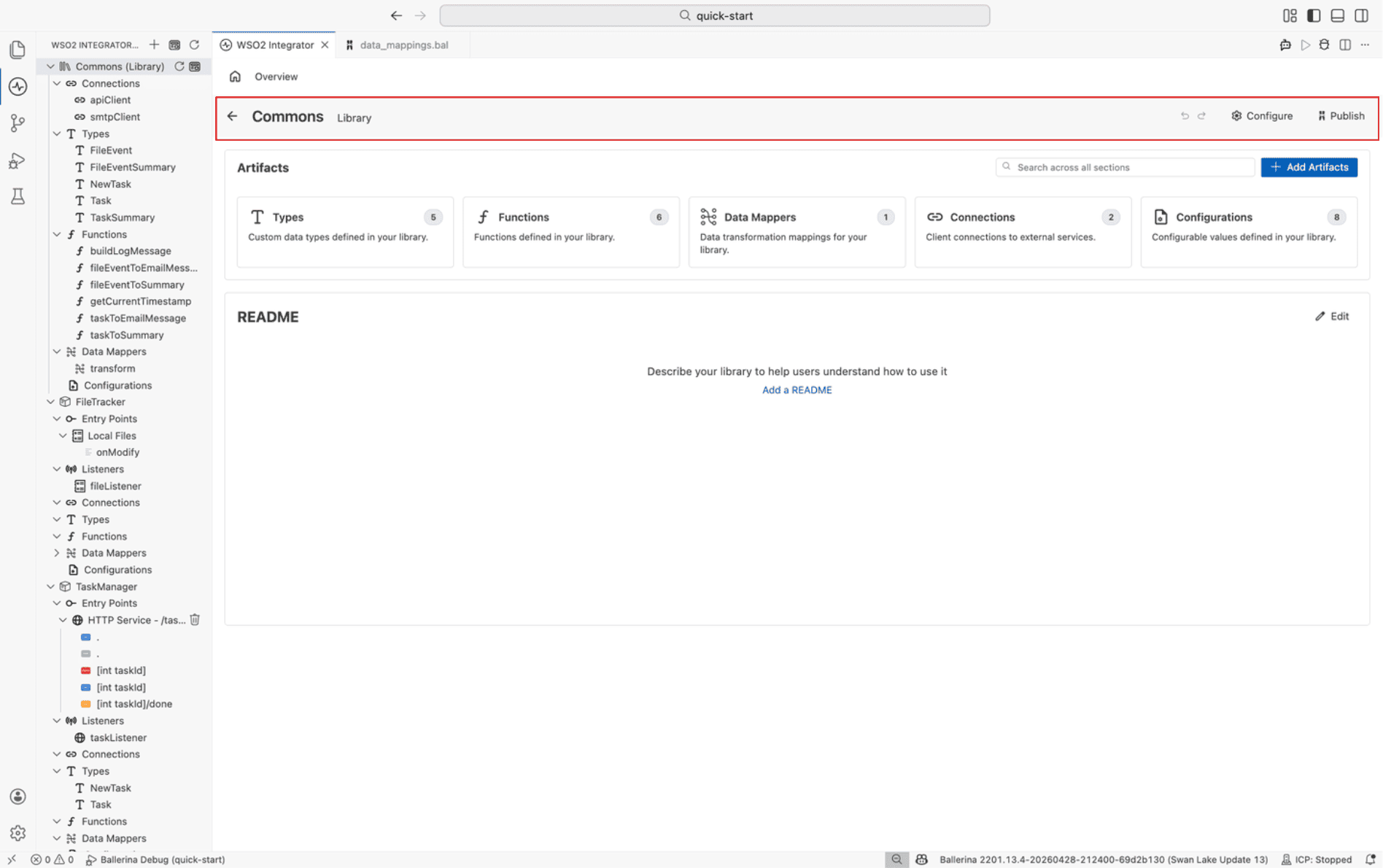
The toolbar sits at the top of the Library view and provides quick access to actions for configuring and publishing your library.
| Action | Description |
|---|---|
| Undo / Redo | Reverses or reapplies recent changes to your library artifacts. |
| Configure | Opens the configuration panel, equivalent to adding a configuration from the project explorer. |
| Publish | Builds the library and pushes it to a central repository (such as Ballerina Central), making the module available for other integrations to import. Libraries are not executable, so they are published rather than run. |
README section
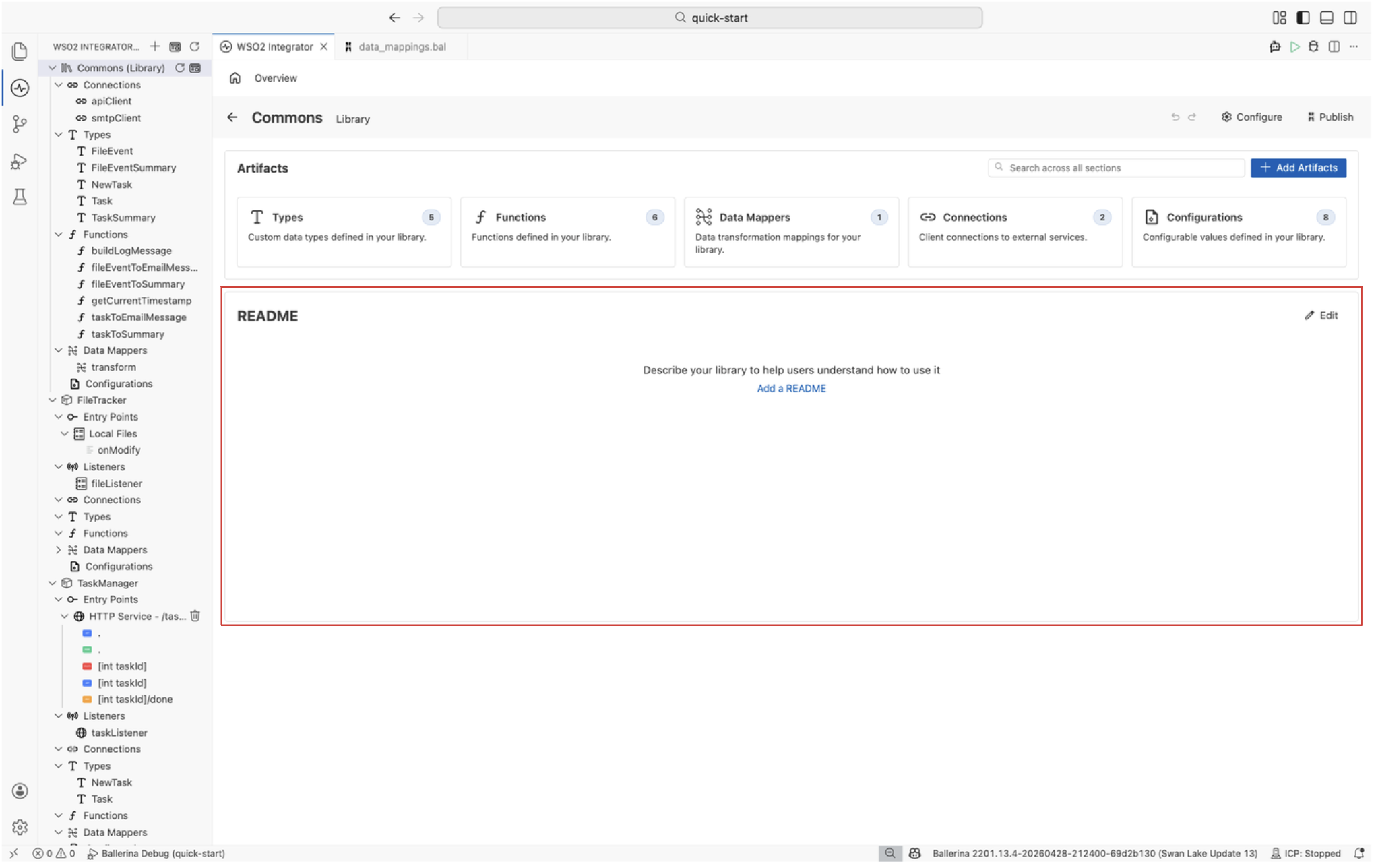
The README section at the bottom of the Library view displays the contents of your library's README.md file. Use it to document the library's purpose, setup instructions, and usage notes so other developers know how to consume it. Click Edit to modify the README directly.
What's next
- Create a library — Set up a new library package for sharing common logic across integrations.
- Integration artifacts — Learn about the artifact types you can define in a library.
- Functions — Encapsulate reusable logic in function artifacts for validation and transformation.