Flow Diagram Editor
The Flow Diagram editor is the visual designer for an integration's logic. Each step in the integration is a node on the canvas, and the editor generates valid Ballerina source as you build. Switch to pro-code at any time to read or edit the generated code.
The editor opens anywhere you are expected to author a flow in WSO2 Integrator, such as when you open an entry point or any other artifact whose body is a sequence of steps.
Anatomy of the editor
The editor has two main parts.
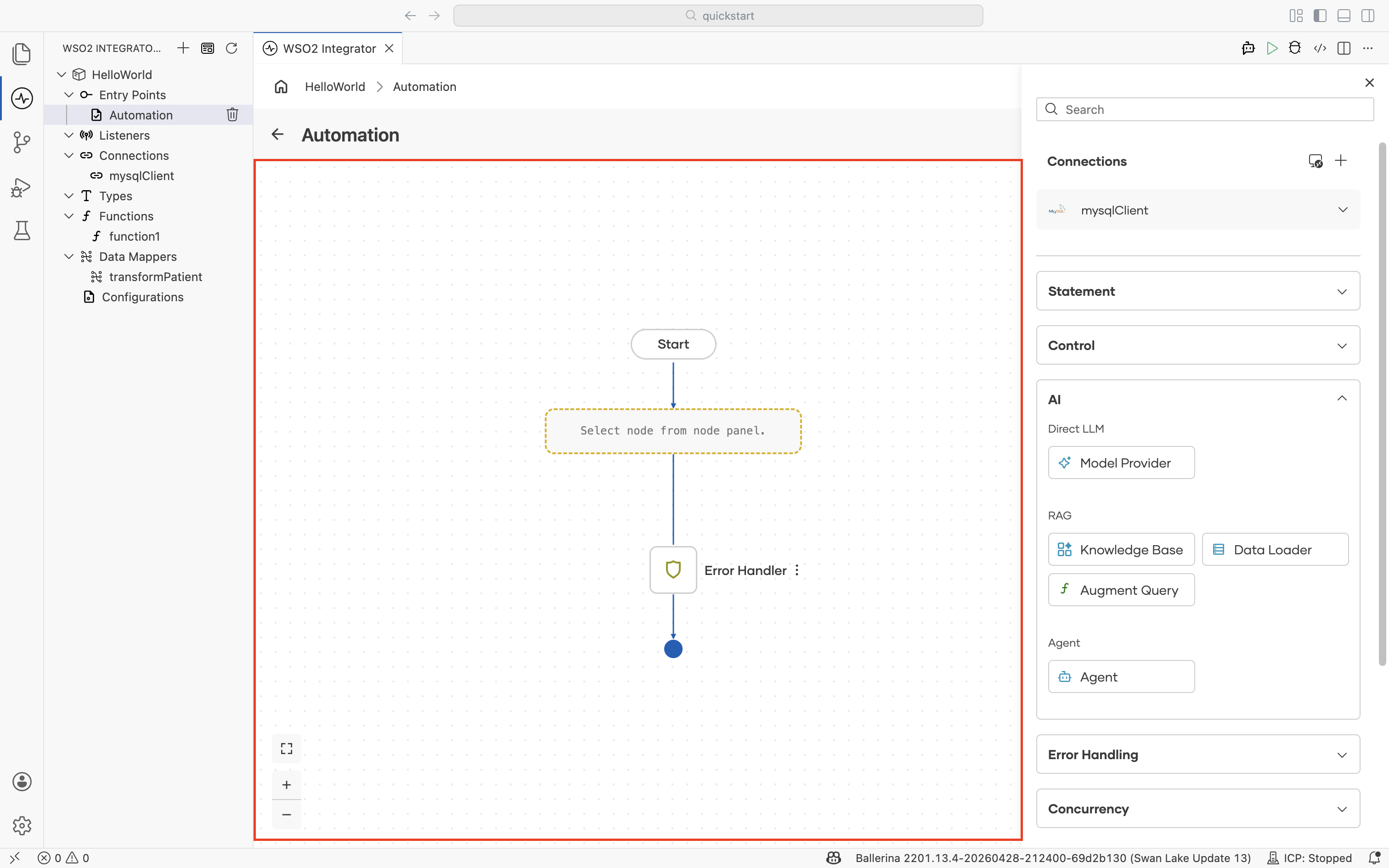
Canvas
The canvas shows the flow as a sequence of nodes connected from a Start node down to an end terminator. The canvas tracks the order of execution, the data that flows between nodes, and any branching or concurrency in the integration.
To add a step to the flow, select + between two nodes (or below Start) to open the node palette.
Node palette
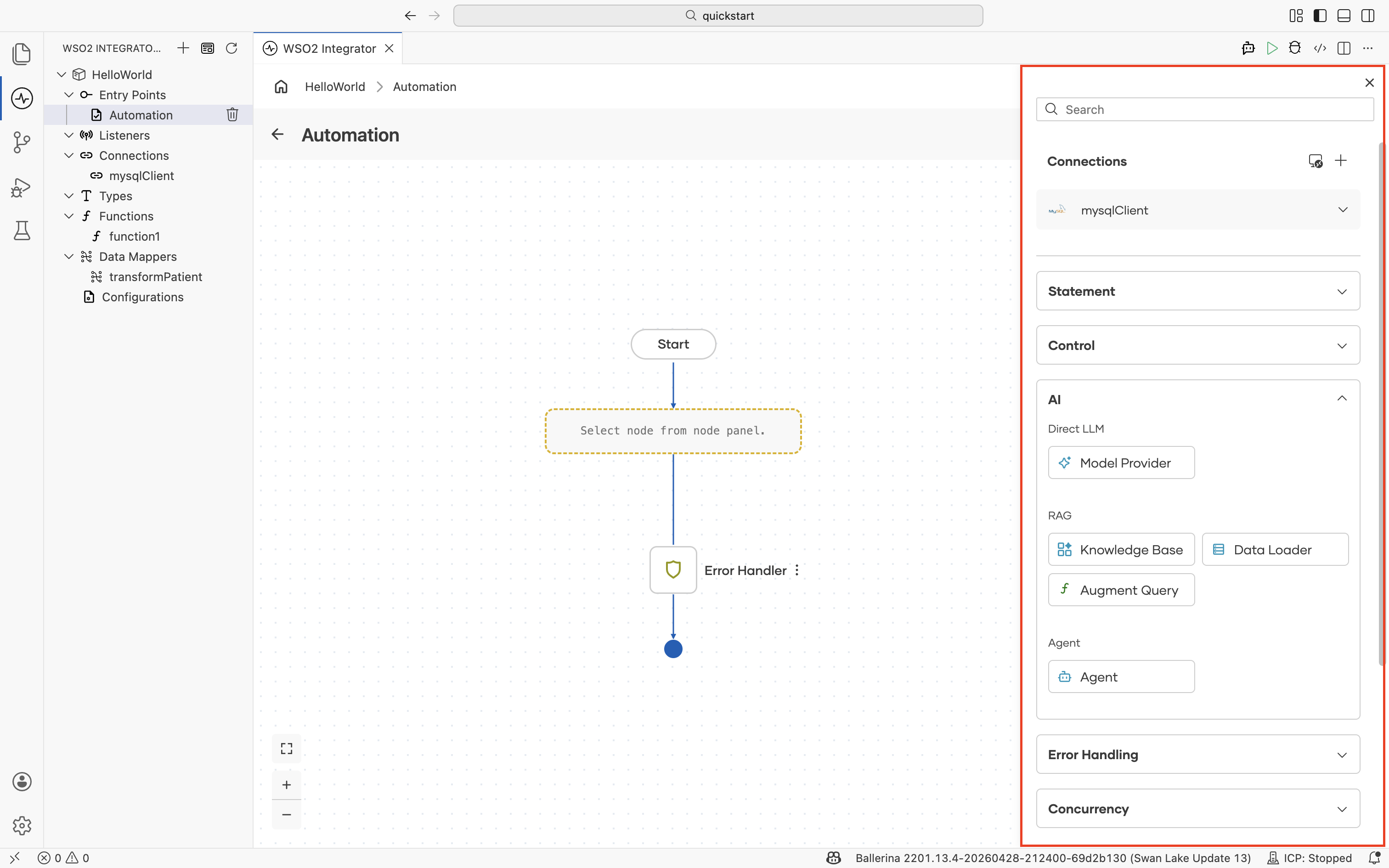
The node palette on the right lists every node you can add to the flow. From top to bottom, the palette contains:
- A Search field for finding any node by name.
- The Connections section, which lists every connection configured in the project and the actions available on each.
- The category sections (Statement, Control, AI, Error Handling, Concurrency, Logging) that group the nodes covered in the pages below.
- The Show More Functions action at the bottom, which opens the full functions picker.
Palette sections
Each section of the node palette covers one kind of work. The pages below describe the nodes in each section and the fields exposed on their configuration forms.
| Section | Use it for | Nodes |
|---|---|---|
| Connections | Invoking actions on a configured client. | Connection, plus the actions exposed by each connection type |
| Statement | Declaring and updating variables, calling functions, and mapping data. | Declare Variable, Update Variable, Call Function, Map Data |
| Control | Branching on conditions, matching values, looping, and returning from a flow. | If, Match, While, Foreach, Return |
| AI | Calling LLMs directly, building RAG pipelines, and running agents. | Model Provider, Knowledge Base, Data Loader, Augment Query, Agent |
| Error handling | Catching errors, raising failures, and aborting on unrecoverable conditions. | ErrorHandler, Fail, Panic |
| Concurrency | Running work in parallel, joining workers, and protecting shared state. | Fork, Wait, Lock |
| Logging | Emitting log messages at info, error, warn, or debug severity. | Log Info, Log Error, Log Warn, Log Debug |
| Show more functions | Reaching any function the project has access to when the panel does not list it as a shortcut. | Full functions picker (Within Project, Imported Functions, Standard Library) |
Configuring a node
Most nodes open a configuration form in a side panel when you add them. Forms commonly include:
- Expression fields for writing Ballerina expressions. The Expression editor provides type-aware autocomplete and inline validation in any expression field.
- Type fields for choosing or defining record, enum, union, or other types. Use the Type editor to create new types inline.
- Variable fields that bind a result to a named variable for downstream nodes to read.
Save the form to add the node to the flow. The visual designer keeps the canvas and the source in sync, so any change in either view is immediately reflected in the other.
What's next
- Connections — Invoke actions on configured clients.
- Statement — Variables, function calls, and data mapping.
- Control — Conditionals, loops, and returns.
- AI — LLM calls, RAG, and agents.