Project View
The Project view is the top-level view in WSO2 Integrator. It appears when you open a project that contains multiple integrations or libraries, giving you an overview of everything in the project, deployment options, and project-level actions in one place.
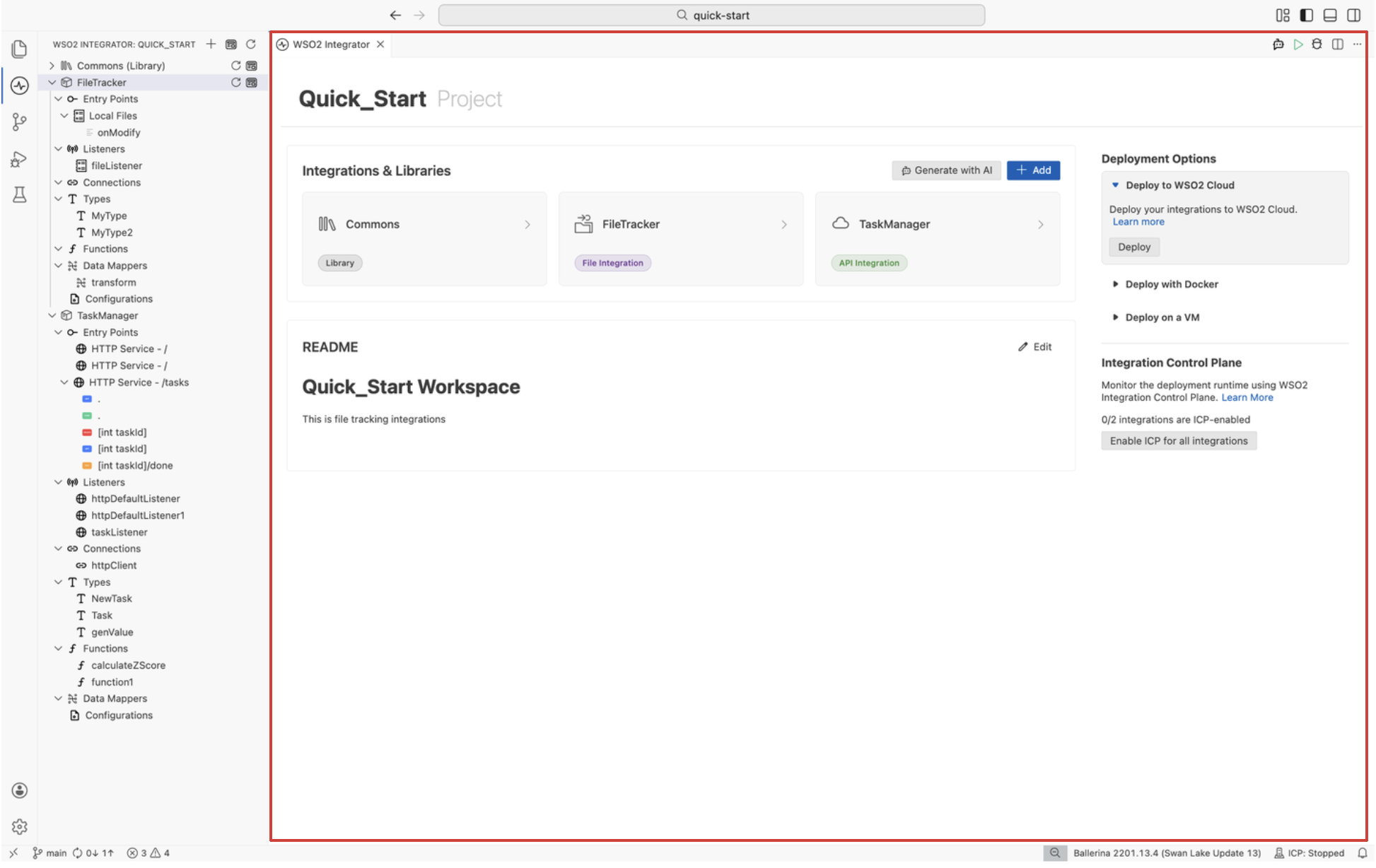
Project overview canvas
The project overview canvas is the central area of the Project view. It displays the project name as a heading and provides a unified dashboard for managing all integrations and libraries in the project.
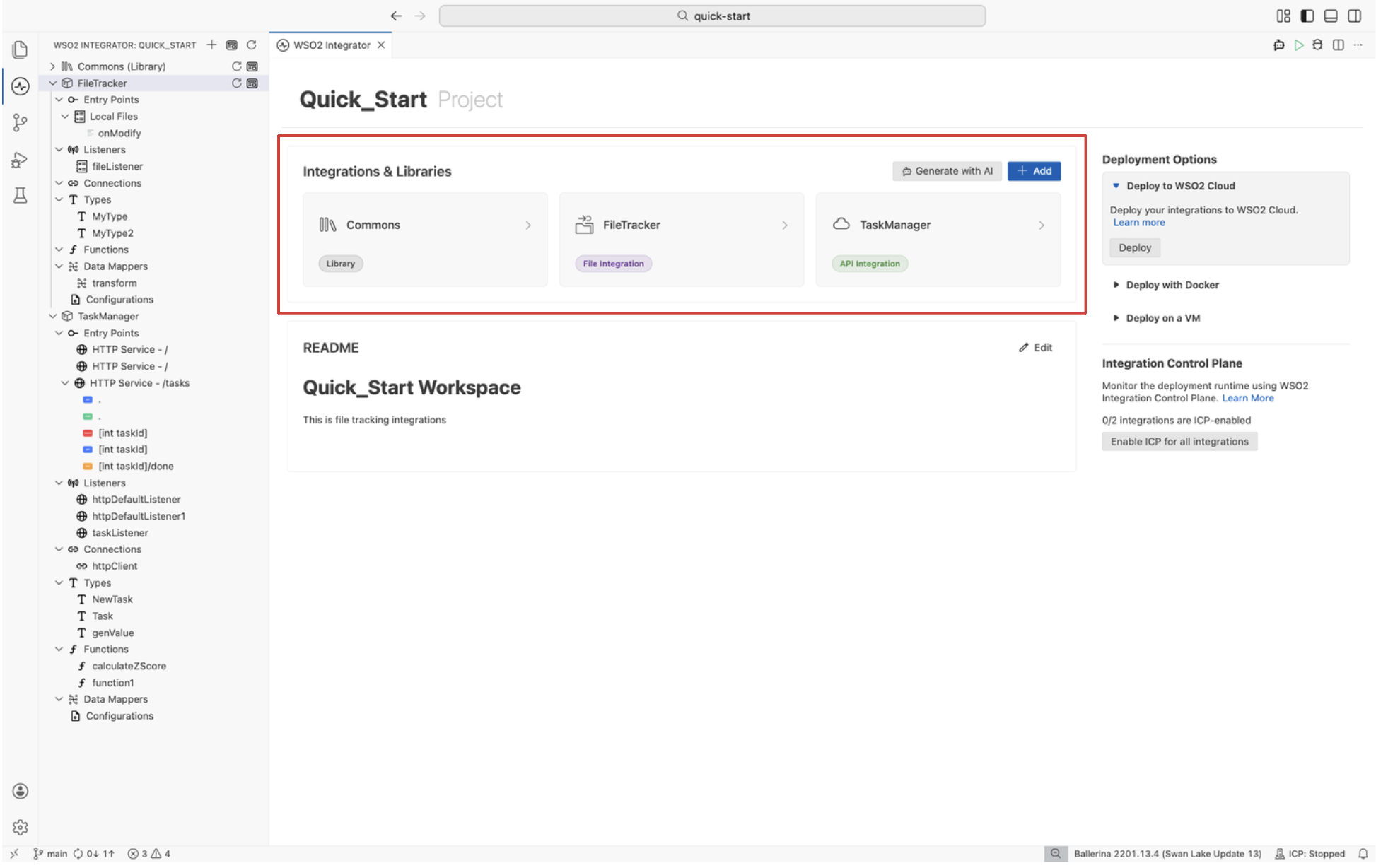
Integrations and libraries
The Integrations & Libraries section displays a card grid showing each integration and library in the project. Each card shows:
- The name (for example,
Integration1,Library1). - A type badge on libraries (for example,
Library) to distinguish them from integrations.
Click any card to navigate to the Integrator view or Library view, where you can build and manage its artifacts.
Generate with AI
Click the Generate with AI button at the top of the canvas to open the WSO2 Integrator Copilot. Describe what you want in natural language, and WSO2 Integrator Copilot generates the integration with the appropriate entry points, connections, and logic.
Add integration or library
Click the + Add button at the top of the canvas to add a new integration or library to the project. Select the type, provide a name and configuration, and the new entry appears in the card grid and project explorer.
Deployment options panel
The deployment options panel appears on the right sidebar and provides shortcuts to deploy your integrations to different environments.
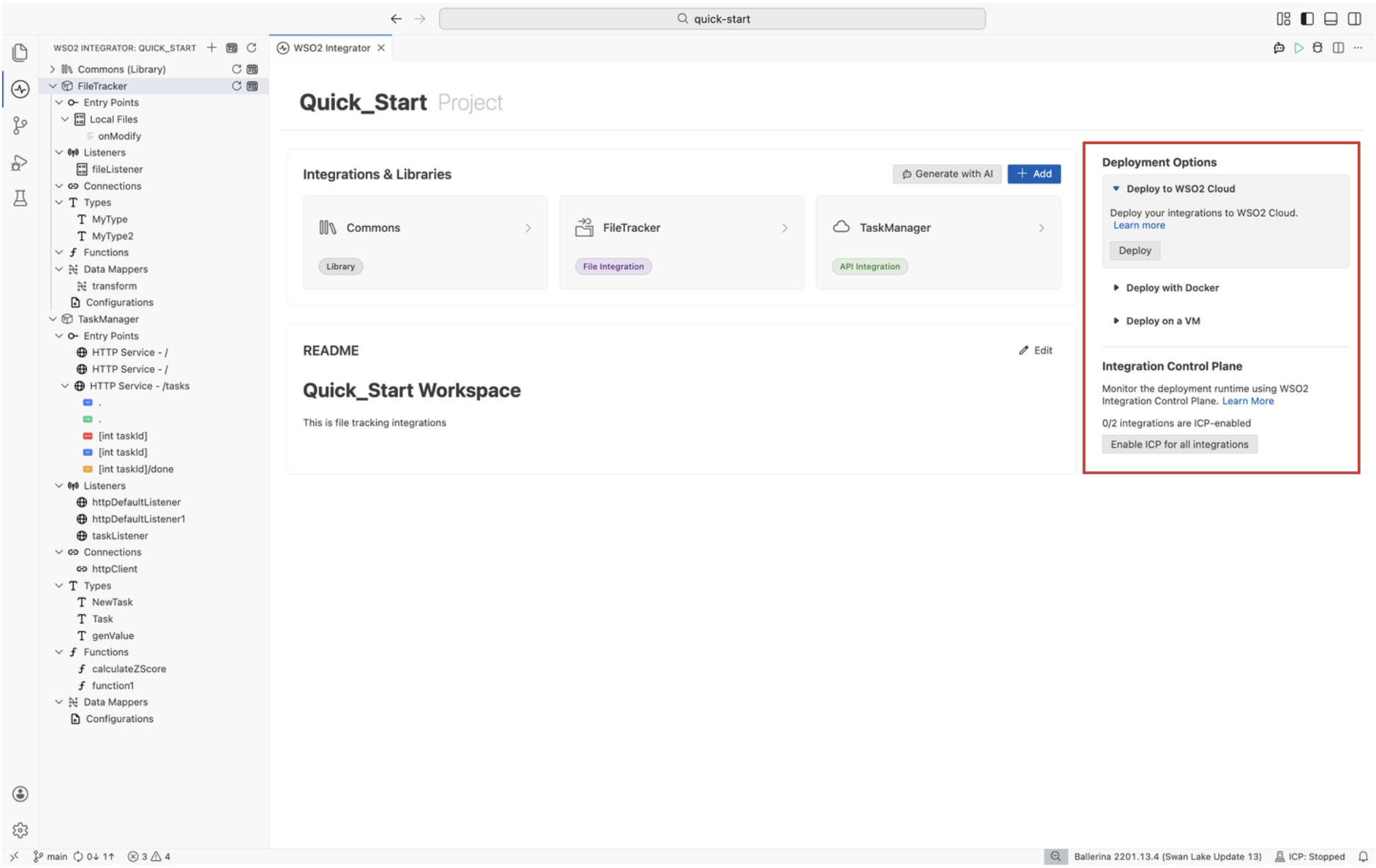
| Option | Target |
|---|---|
| Deploy to WSO2 Cloud | Fully managed cloud platform for hosting and running integrations. |
| Deploy with Docker | Build Docker images and deploy integrations to Kubernetes clusters. |
| Deploy on a VM | Run integrations as standalone JAR files on virtual machines. |
| Integration Control Plane (ICP) | Monitor and manage running integrations from a centralized dashboard. |
At the project level, click Enable ICP for all integrations to activate ICP monitoring for every integration in the project at once.
README section
The README section at the bottom of the Project view displays the contents of your project's README.md file. Use it to document the purpose, setup instructions, and usage notes for your project, integrations, and libraries.
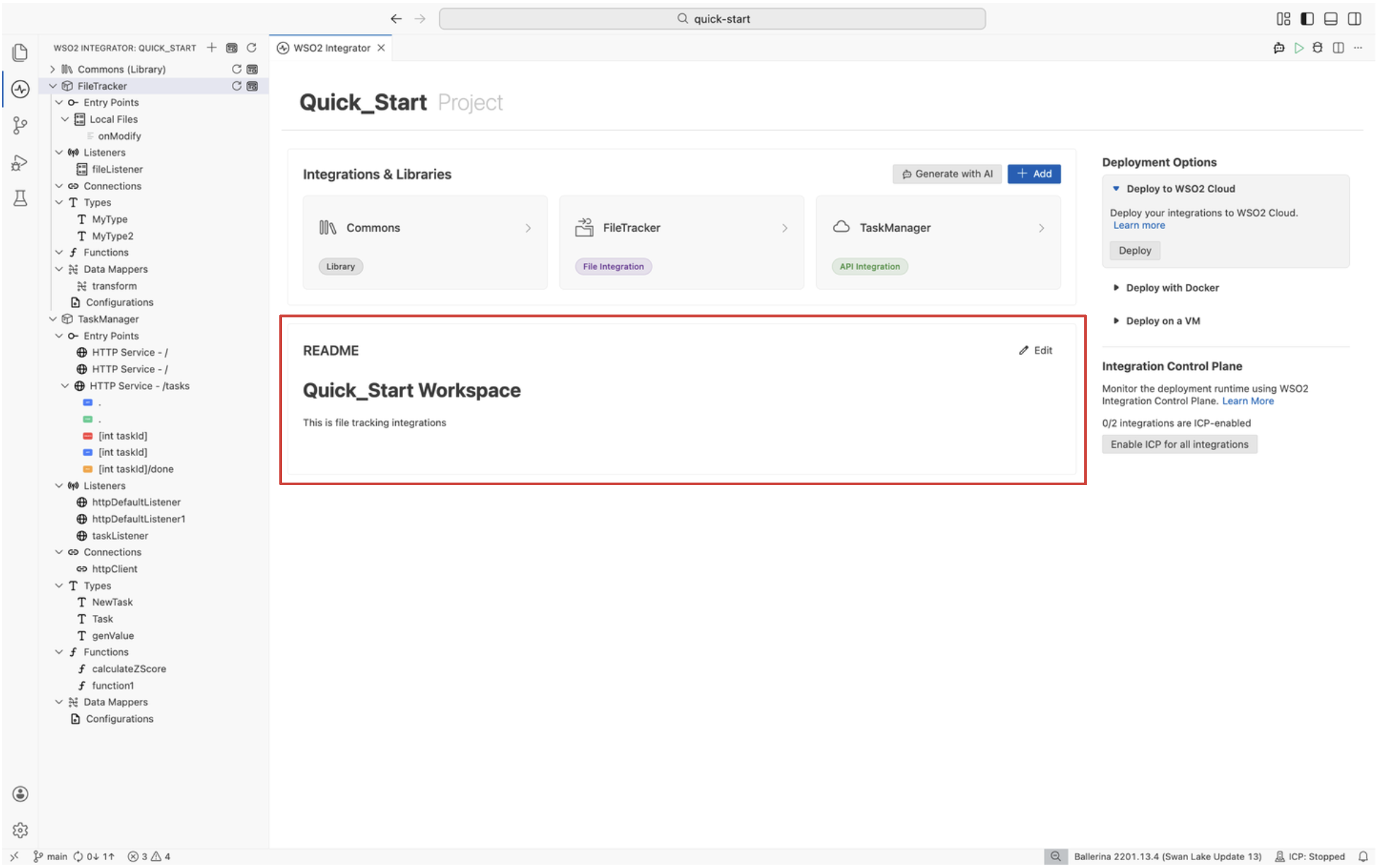
Click Edit to modify the README directly. If the project does not have a README yet, click Add a README to create one.
What's next
- Integrator view — The primary development interface for individual integrations.
- Library view — Build and manage reusable libraries.