Build an Event-Driven Integration
Orders queue in RabbitMQ broker and processes them.Event integrations are designed for reactive workflows triggered by messages from a broker. This quick start demonstrates the complete flow: creating a RabbitMQ message listener, adding an event handler to process messages, and implementing the integration logic executed when a message is received.
Prerequisites
A working WSO2 Integrator environment.
Local setupInstall and launch WSO2 Integrator on your machine.
WSO2 Cloud AccountFor AI assisted development and WSO2 Cloud deployments.
Also required, a running RabbitMQ instance. To start one with Docker, run:
docker run -d -p 5672:5672 -p 15672:15672 rabbitmq:4.2-management
Step 1: Create the integration
If you're using the cloud editor, a project is already open, so you can skip this step and go directly to Step 2: Add a RabbitMQ event listener.
-
Open WSO2 Integrator.
-
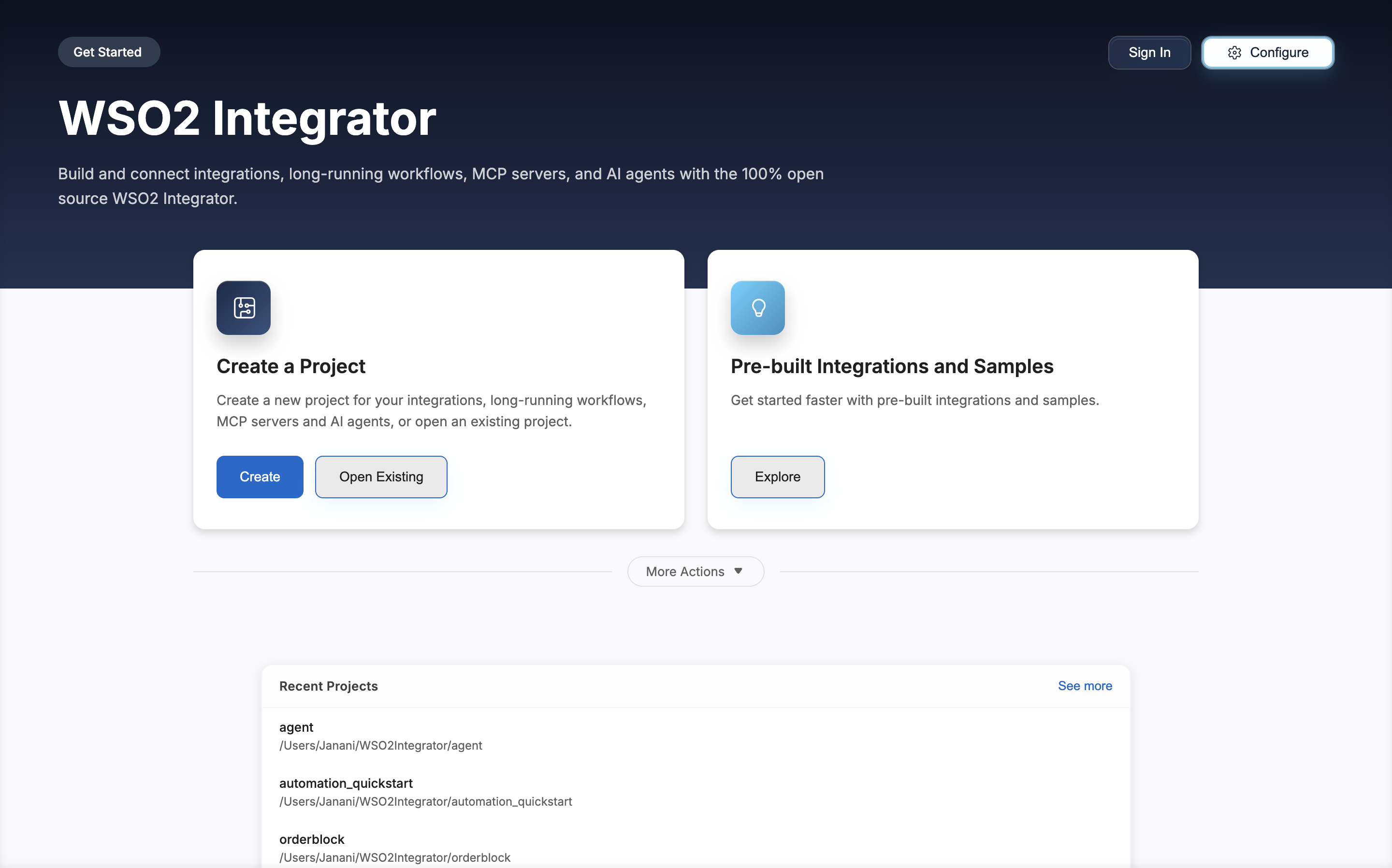
Click Create in the Create a Project card.
-
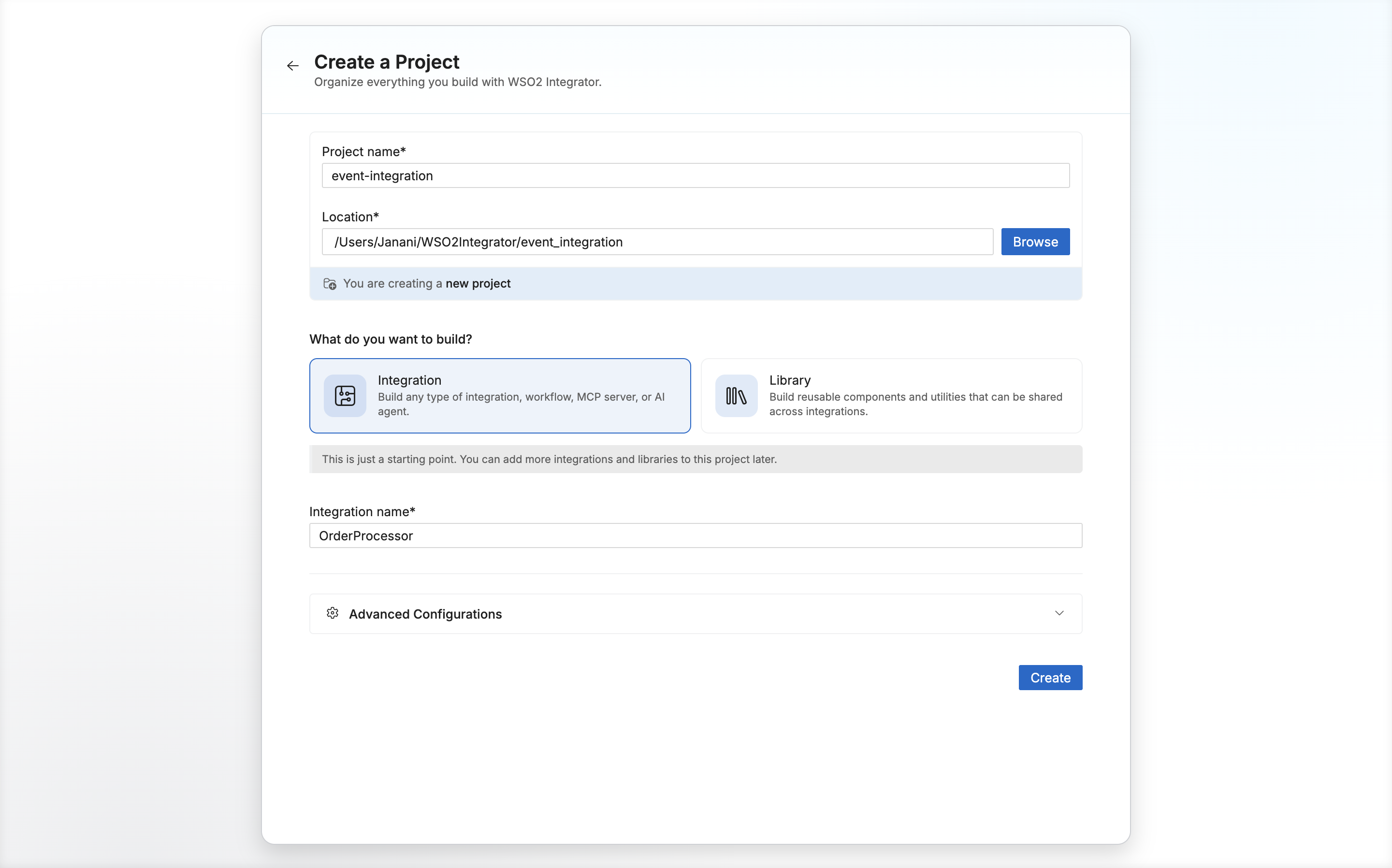
Set Project name to
event-integration. -
Set Integration name to
OrderProcessor. -
Click Create.
Step 2: Add a RabbitMQ event listener
-
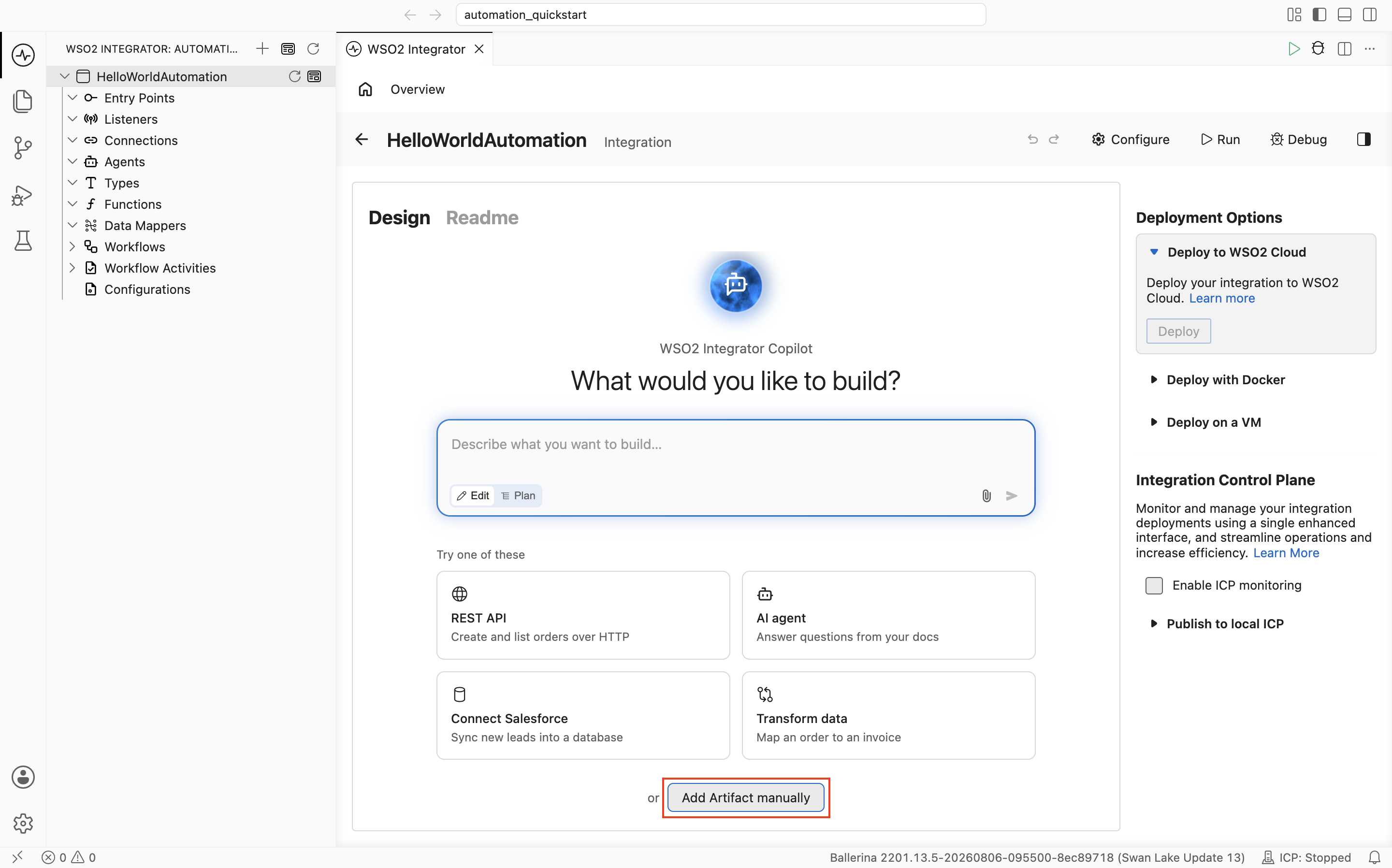
Select your integration from the project overview canvas.
-
In the design view, click Add Artifact manually.
-
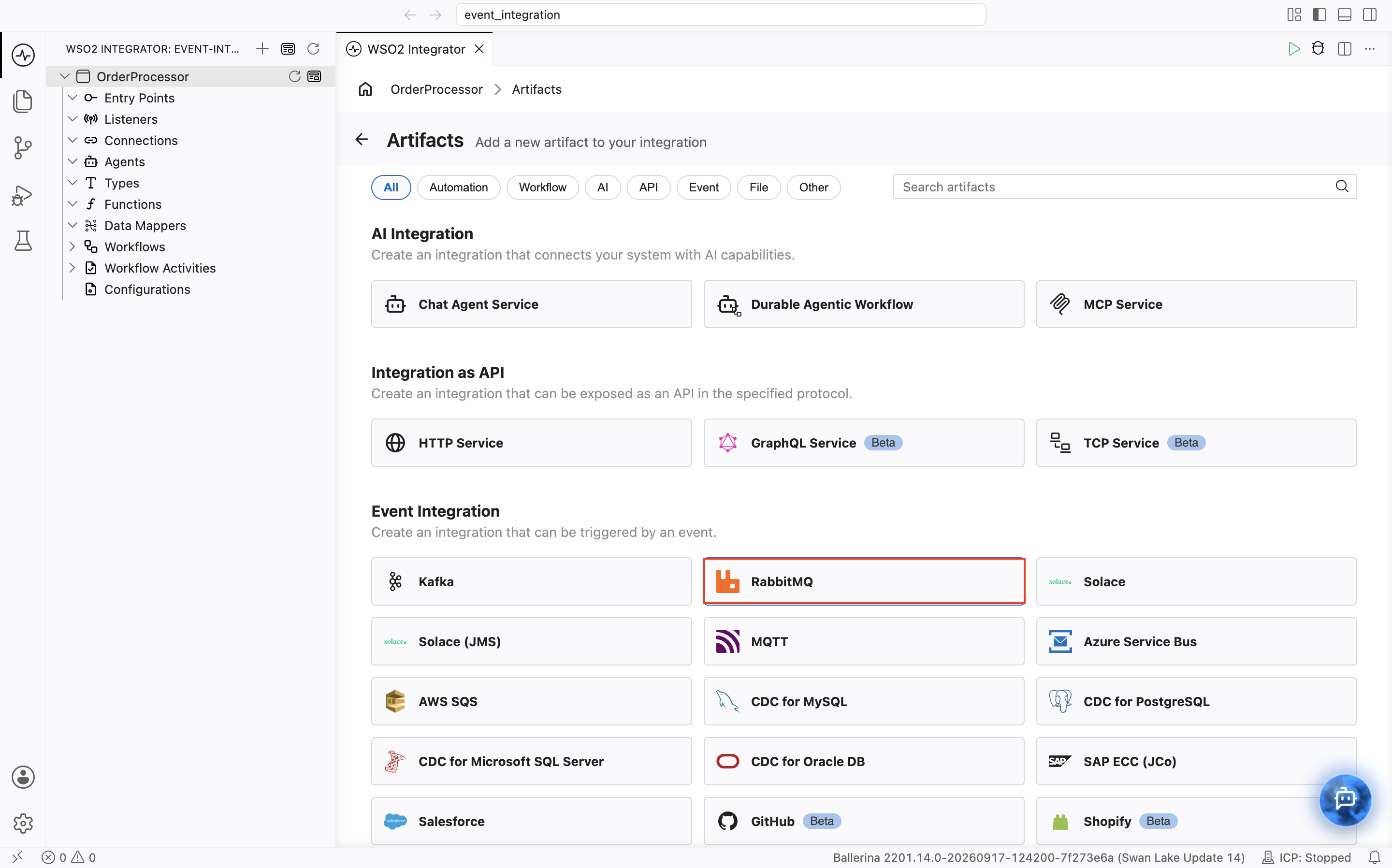
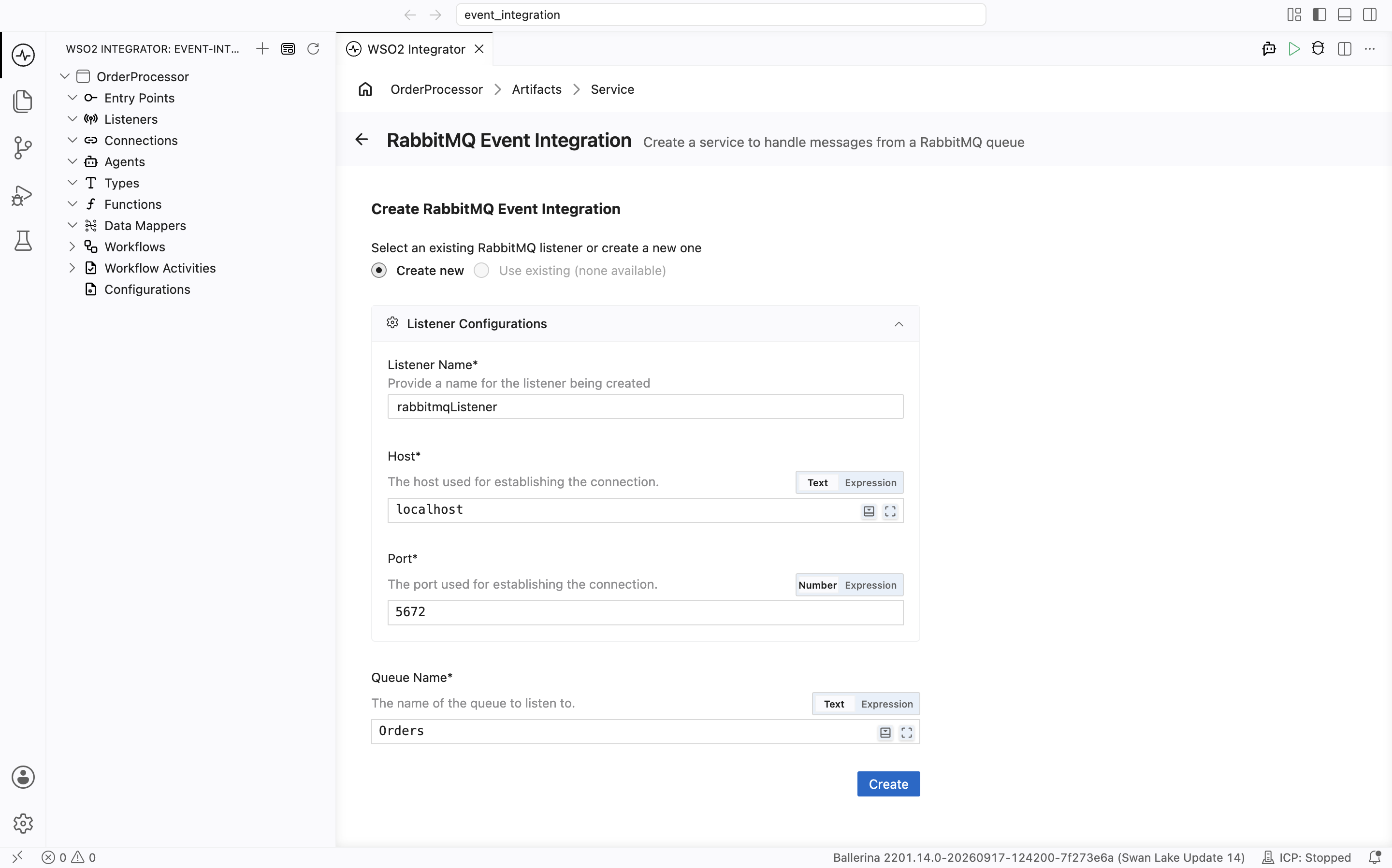
Select RabbitMQ under Event Integration.
-
Set Host to
localhostand Port to5672(update these if your RabbitMQ instance runs elsewhere). -
Set Queue Name to
Orders. -
Click Create.
Step 3: Add onMessage event handler
-
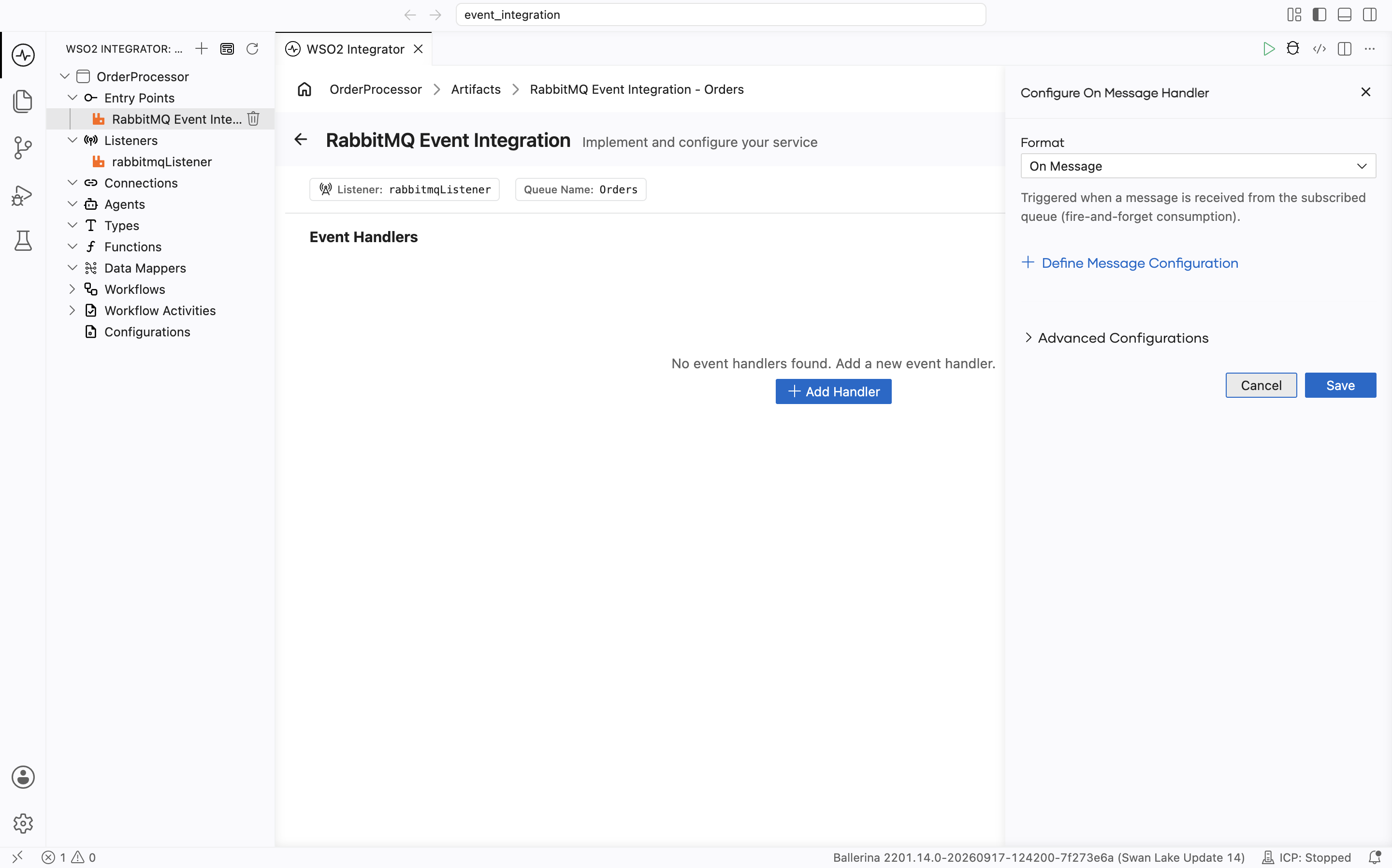
In the RabbitMQ service design view, click + Add Handler.
-
Set Format to On Message.
-
Click Save.
Step 4: Add message processing logic
-
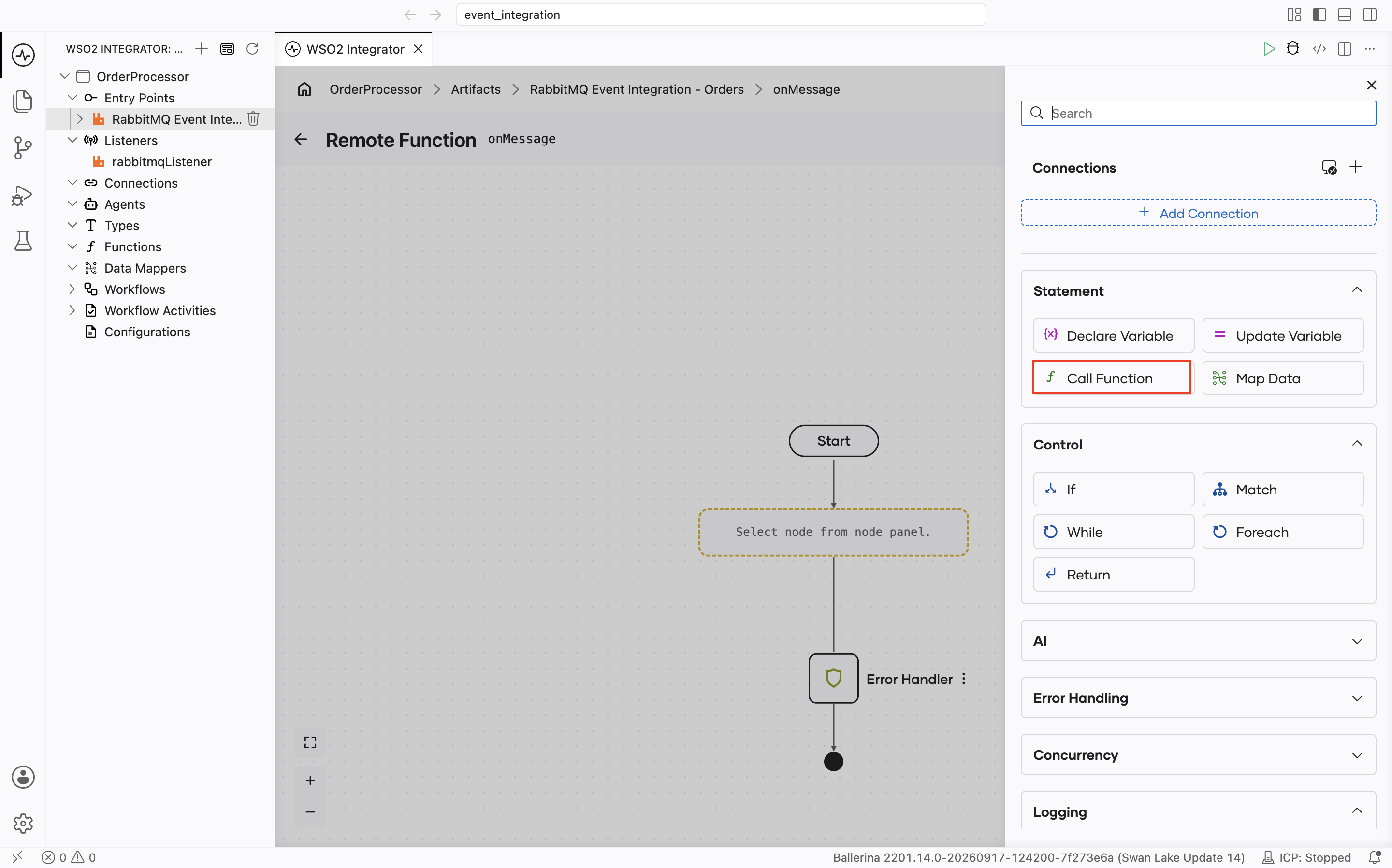
Click + inside the
onMessageflow. -
Select Call Function under Statement.
-
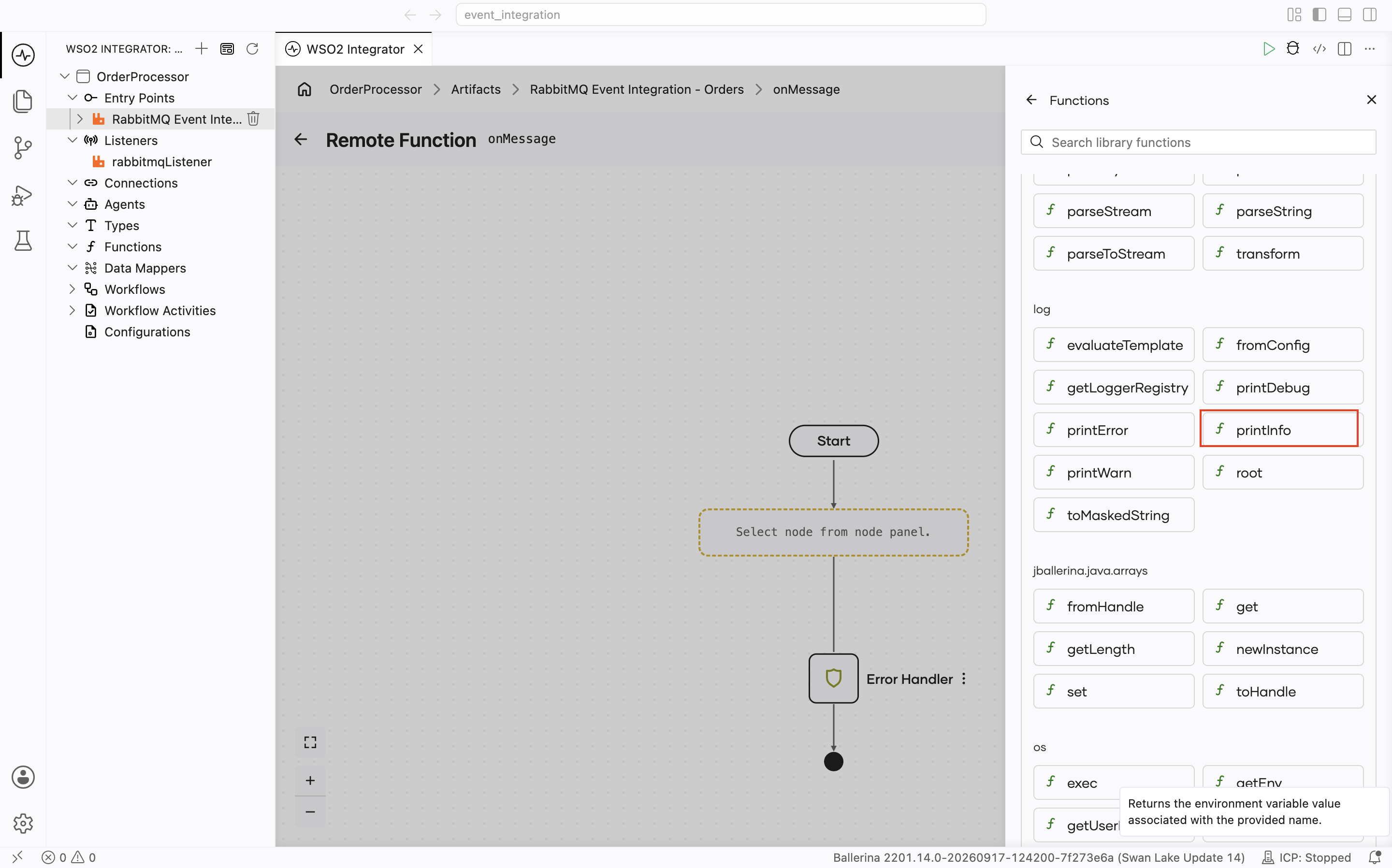
Select printInfo under log.
-
Set Msg to
Received order. -
Click Save.
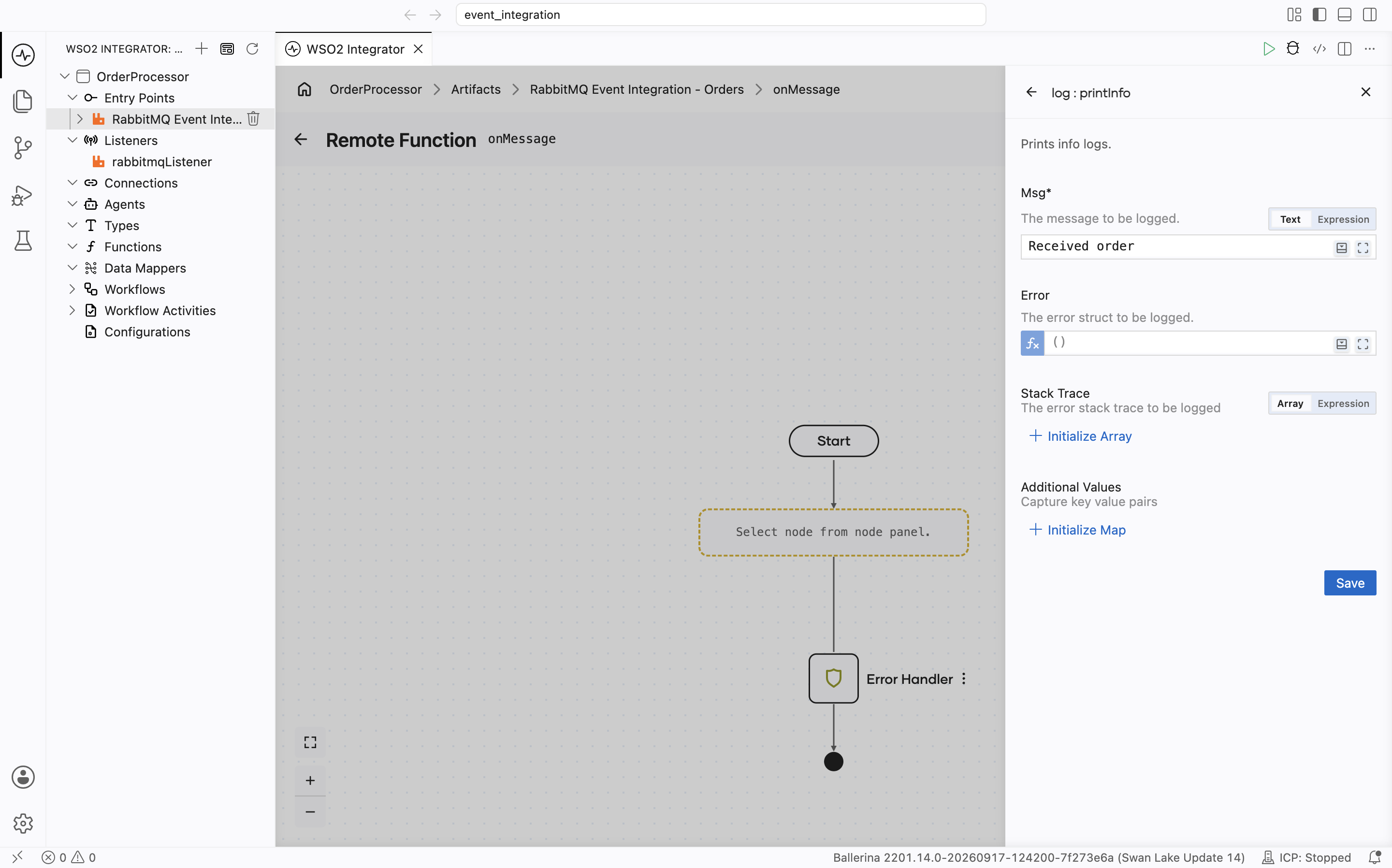
Step 5: Run and test the integration
-
Click Run.
-
The integration starts and listens for messages on the
Ordersqueue. -
Open the RabbitMQ Management UI at
http://localhost:15672(default credentials: guest/guest).- Go to Queues and Streams → Orders → Publish message, enter any text as the payload, and click Publish message.
- Confirm the integration log displays
Received order.
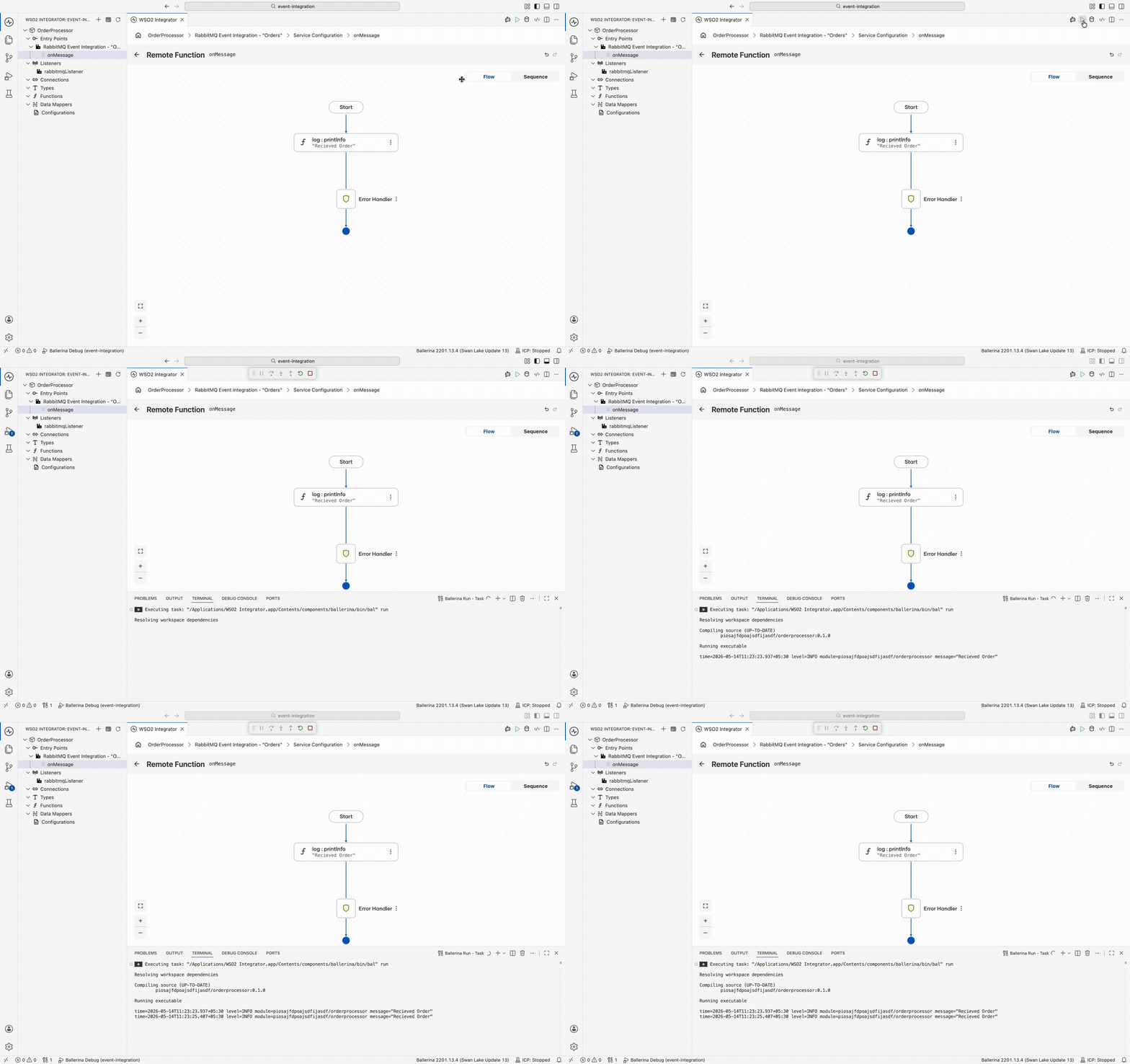
Step 6: Deploy to WSO2 Cloud
Before you deploy, set Host and Port to a RabbitMQ broker that WSO2 Cloud can reach; localhost doesn't resolve to your local broker there.
Deploy your integration to WSO2 Cloud - Integration Platform in any of the following ways:
- If you're using the cloud editor, see Save and deploy.
- If you're using WSO2 Integrator on your machine, see Deploy from WSO2 Integrator.
Skip ahead: deploy a ready-made sample
Rather not build it yourself? One-click deploy the OrderProcessor sample straight to WSO2 Cloud.

Source code
View the generated Ballerina code
The steps above generate the following complete, runnable Ballerina program:
import ballerina/log;
import ballerinax/rabbitmq;

listener rabbitmq:Listener rabbitmqListener = new ("localhost", 5672);

service "Orders" on rabbitmqListener {
   remote function onMessage(rabbitmq:AnydataMessage message, rabbitmq:Caller caller) returns error? {
       do {
           log:printInfo("Received order");
       } on fail error err {
           // handle error
           return error("unhandled error", err);
       }
   }
}
Supported event sources
| Broker | Ballerina Package |
|---|---|
| Apache Kafka | ballerinax/kafka |
| RabbitMQ | ballerinax/rabbitmq |
| MQTT | ballerina/mqtt |
| Azure Service Bus | ballerinax/asb |
| Salesforce | ballerinax/salesforce |
| GitHub Webhooks | ballerinax/trigger.github |
What's next
- Kafka — Consume and produce Kafka messages
- Azure Service Bus — Integrate with Azure Service Bus queues and topics
- RabbitMQ — Full RabbitMQ listener and publisher reference
- MQTT — Handle MQTT messages from IoT and messaging devices
- CDC for PostgreSQL — React to database changes with change data capture