Build a Durable Workflow
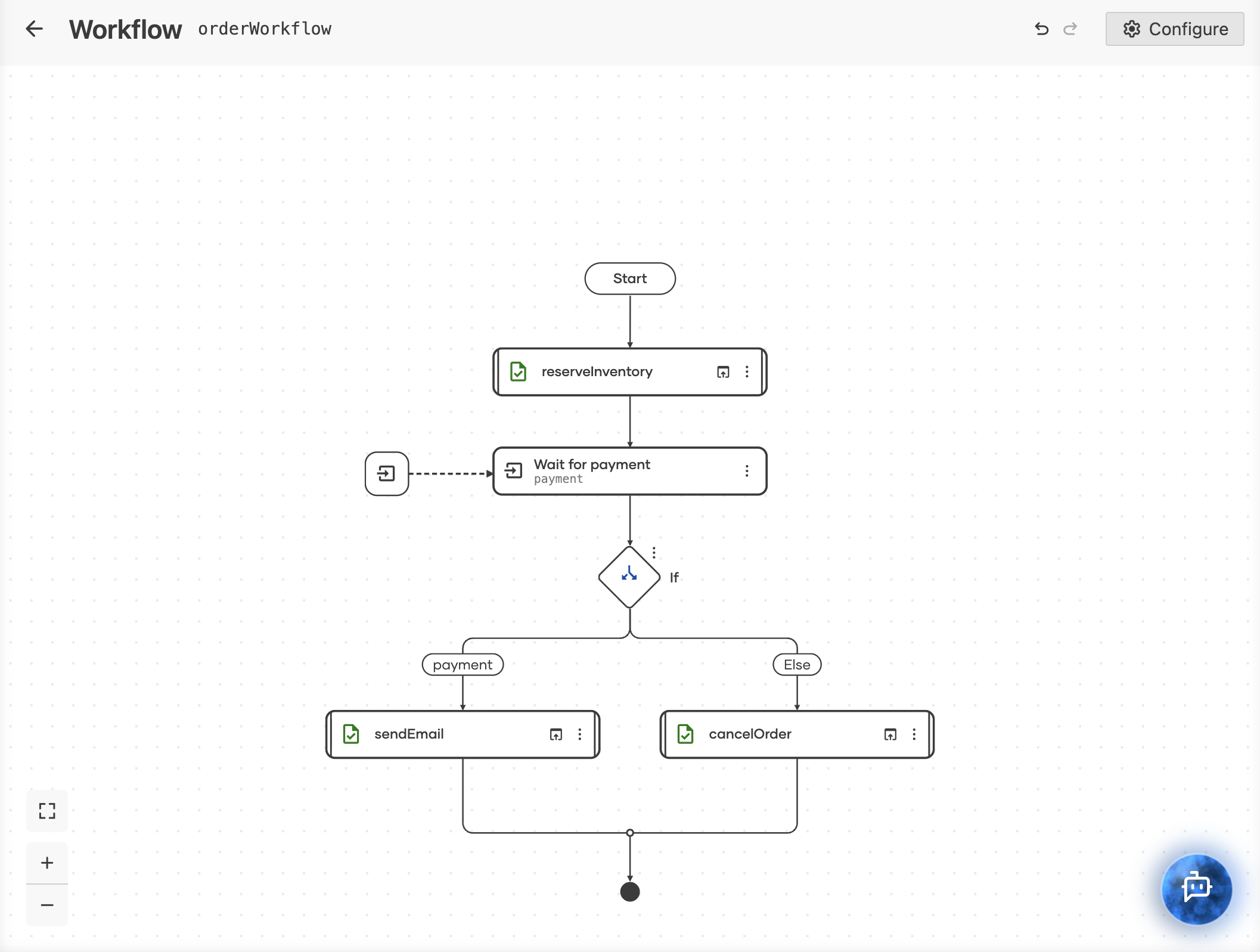
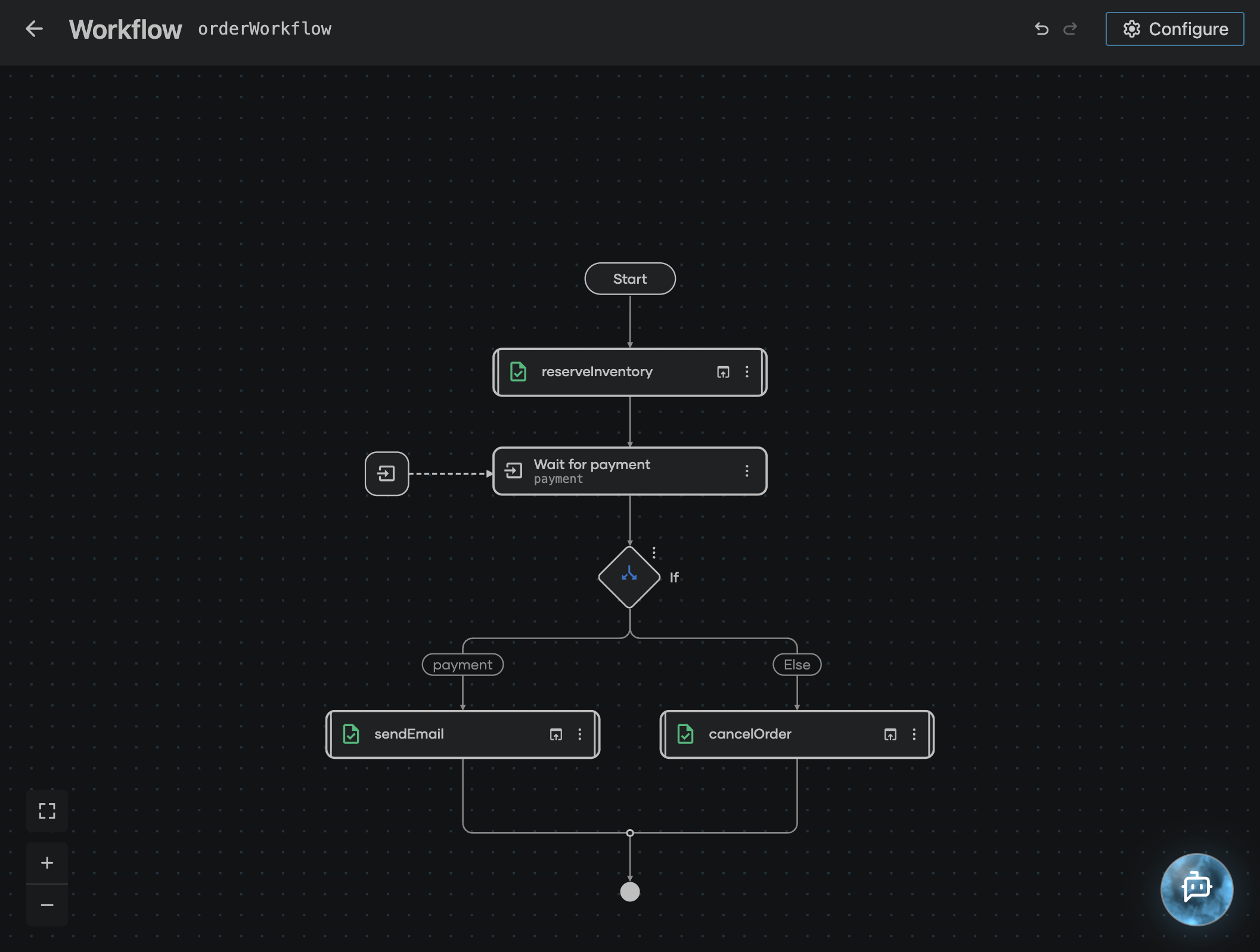
The durable workflow reserves inventory for an order, suspends until a payment confirmation arrives, and then either emails the customer or cancels the order. Every activity result and data event is recorded, so a restart replays the record instead of reserving twice, and the wait for payment holds no thread and no connection while it lasts, whether that is seconds or days.
The finished flow has three steps:
- Reserve inventory as a recorded activity.
- Wait for a payment data event delivered from outside the workflow.
- Send the confirmation email when payment succeeded, or cancel the order when it did not.
Prerequisites
A working WSO2 Integrator environment.
Local setupInstall and launch WSO2 Integrator on your machine.
WSO2 Cloud AccountFor AI assisted development and WSO2 Cloud deployments.
Step 1: Create the integration
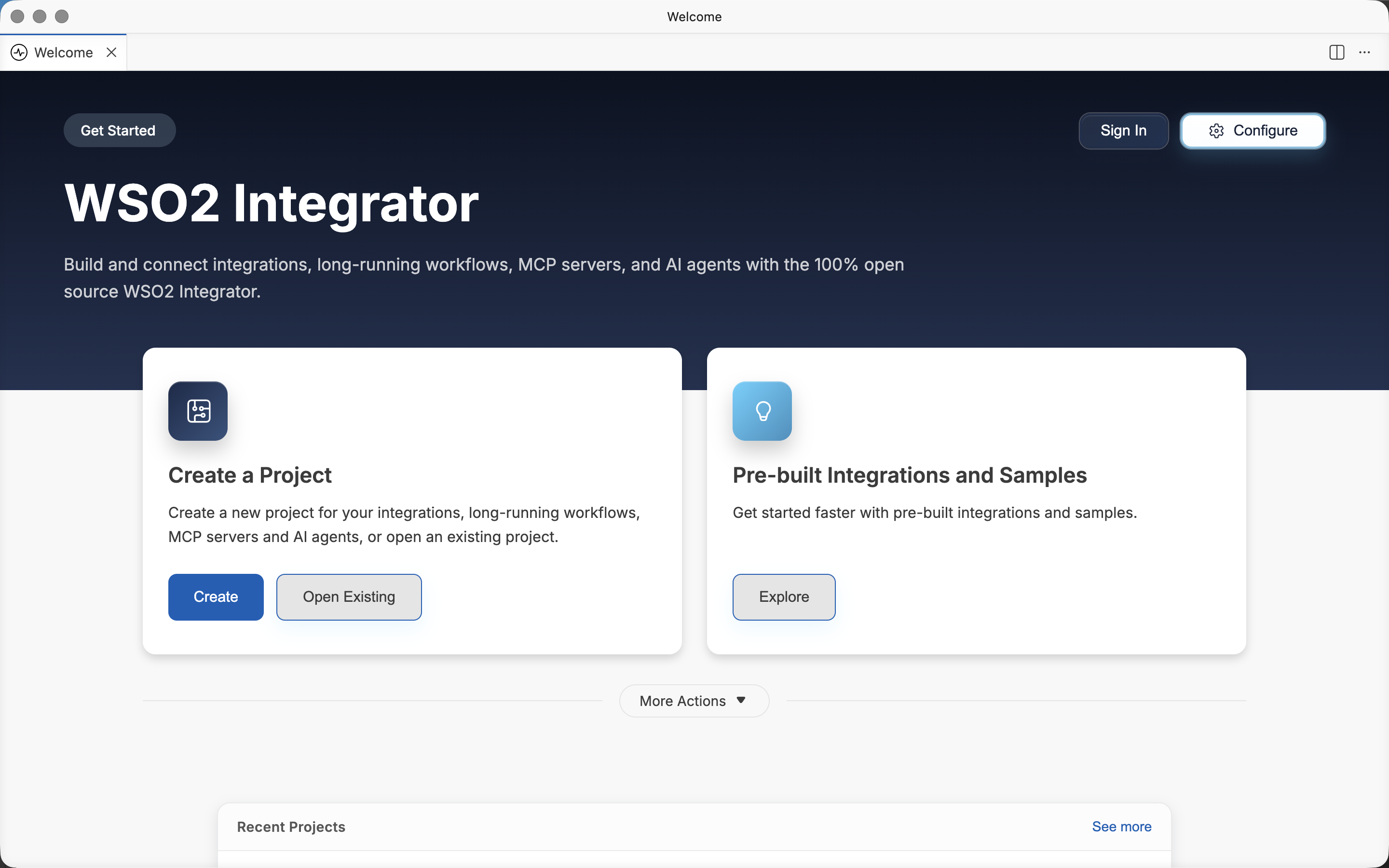
- Open WSO2 Integrator.
- Click Create in the Create a Project card.
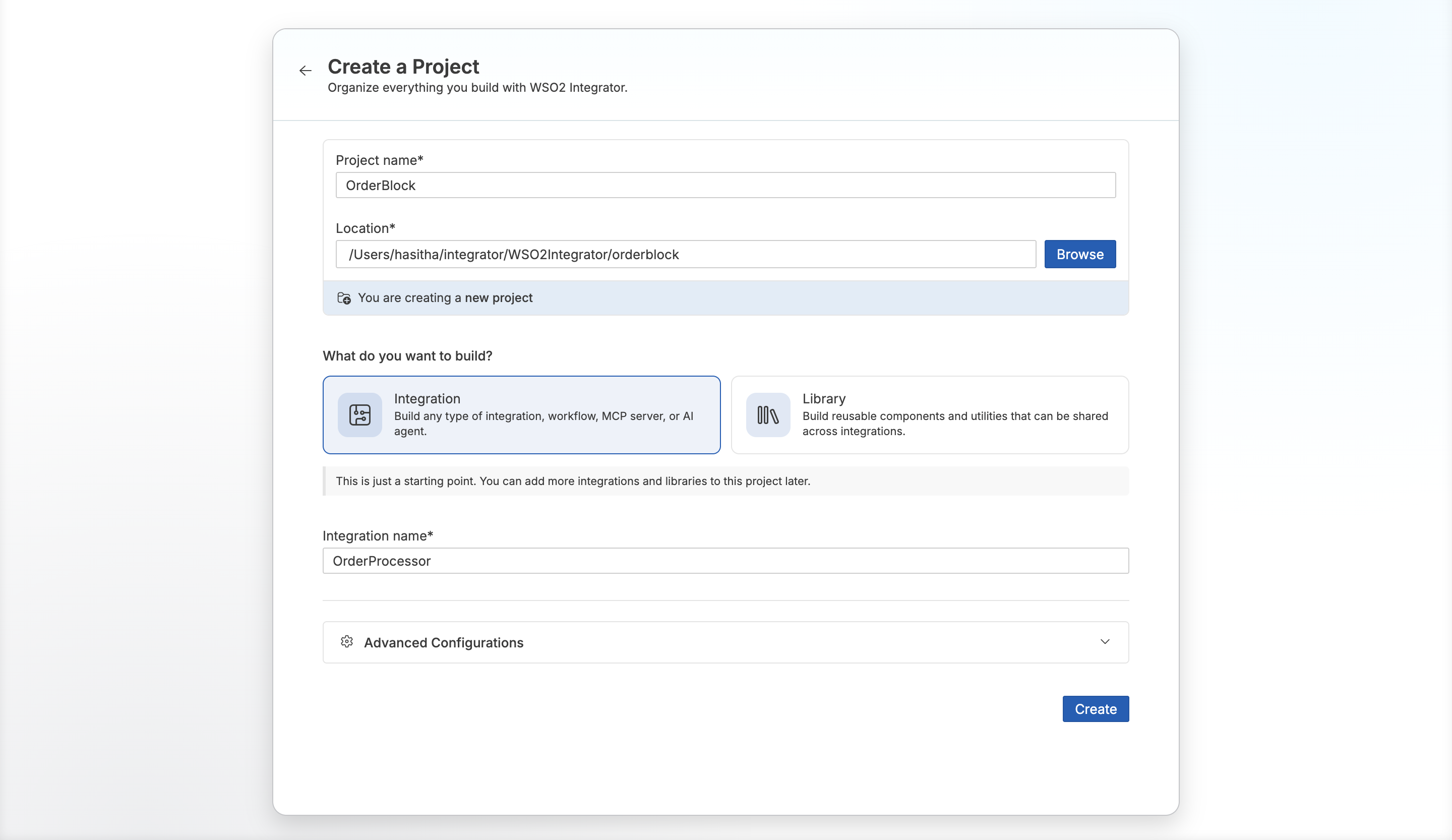
- Set Project Name to
OrderBlock. - Set Integration Name to
OrderProcessor. - Click Create.
Step 2: Add the durable workflow artifact
- Visual Designer
- Ballerina code
-
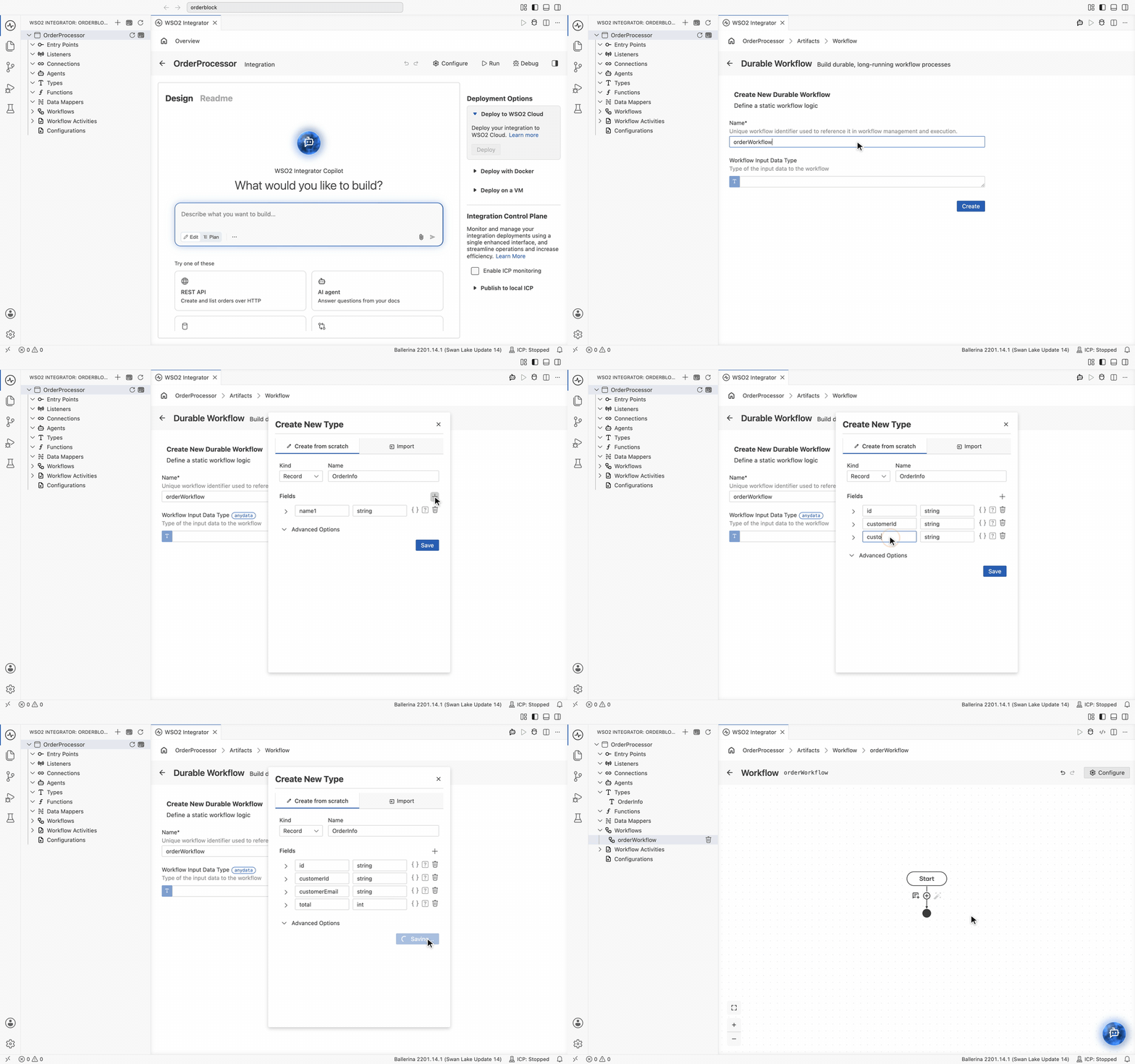
In the design view, click Add Artifact Manually.
-
On the Artifacts page, under Durable Workflow, click Durable Workflow. The Create New Durable Workflow form opens.
-
Set Name to
orderWorkflow. -
Click the Workflow Input Data Type field, then create a new type for the order information that the workflow needs.
-
Click + Create New Type.
-
The Create New Type dialog opens with the correct defaults: the Create from scratch tab and Kind set to Record.
-
Change Name from
MyTypetoOrderInfo. -
Add each field with the + next to Fields, then set its name and type:
Field Type idstringcustomerIdstringcustomerEmailstringtotalint -
Click Save. The record is added to your project and appears under Types in the sidebar.
-
Click Create. The workflow is generated and its diagram opens with a single Start node, ready for the first step. The workflow receives the order as its
inputparameter.
type OrderInfo record {|
    string id;
    string customerId;
    string customerEmail;
    int total;
|};
@workflow:Workflow
function orderWorkflow(workflow:Context ctx, OrderInfo input) returns json|error {
}
+ Create New Type is only one way to fill Workflow Input Data Type. Pick any type already in the project straight from the list, or click Open Type Browser to search the wider set. Either way the result is an ordinary record you can edit later from Types in the sidebar. See Types.
Step 3: Reserve the inventory
Anything that touches the outside world belongs in an activity rather than in the workflow body. The runtime records each activity result, so a completed activity is never executed twice on replay.
The first step of the order process reserves stock. You create the activity and the call that uses it in one pass, straight from the workflow diagram.
- Visual Designer
- Ballerina code
-
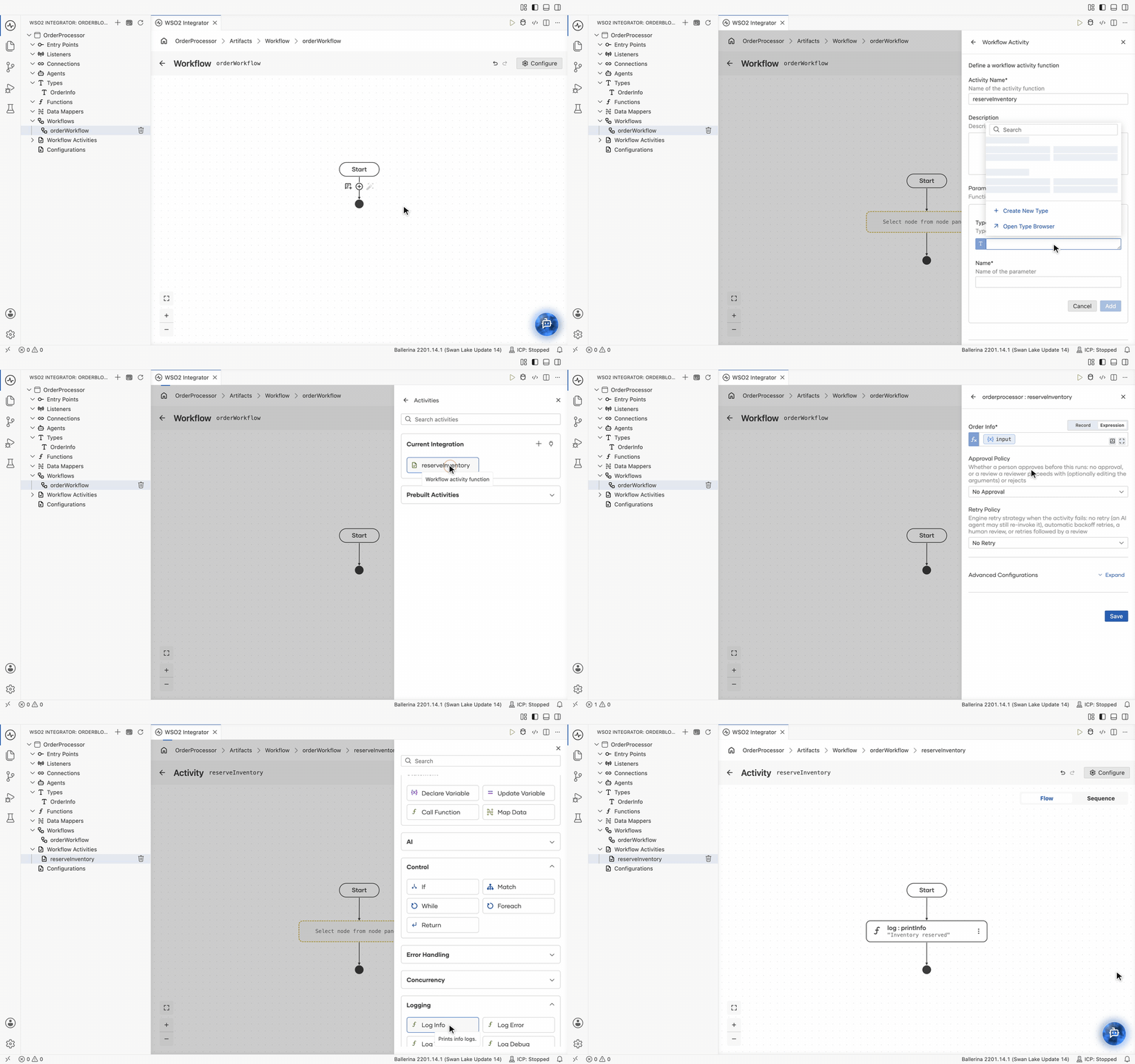
On the workflow diagram, click +.
-
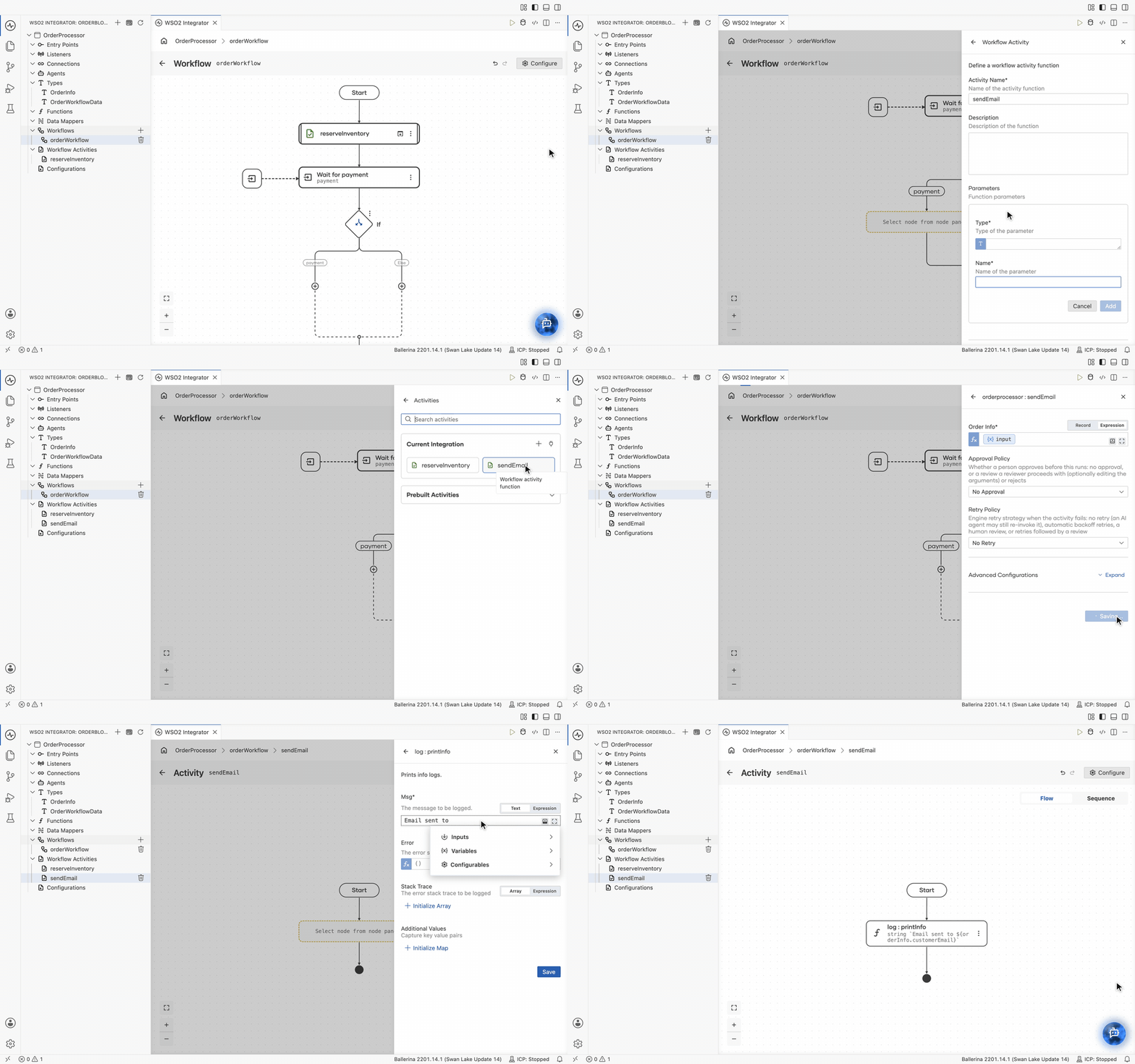
In the node panel, under Workflow > Steps, click Call Activity. The Activities panel opens, listing everything this workflow can call.
-
Under Current Integration, click + Create Activity.
-
In the Workflow Activity form, set Activity Name to
reserveInventory. -
Under Parameters, click + Add Parameter, set Type to
OrderInfoand Name toorderInfo, then click Add. -
Leave Return Type empty. This activity holds stock and returns nothing, so the designer declares it as
returns error?. Click Save. -
In the Activities panel, under Current Integration, click
reserveInventoryto add the activity call to the workflow diagram. -
Fill in the call form:
Field Value Order Info The order to reserve. Switch to Expression and set it to the workflow's input parameter. Retry Policy Leave it on No Retry, the default, for now. -
Click Save. The
reserveInventorynode appears on the diagram. -
Give the activity something to do. Click the open icon on the node to open its own diagram. To keep it simple, mock the implementation with a log line.
-
Click +, then Log Info under Logging. Set Msg to
Inventory reservedand click Save.
import ballerina/log;
import ballerina/workflow;

@workflow:Activity
function reserveInventory(OrderInfo orderInfo) returns error? {
    log:printInfo("Inventory reserved");
}
@workflow:Workflow
function orderWorkflow(workflow:Context ctx, OrderInfo input) returns json|error {
    () _ = check ctx->callActivity(reserveInventory, {orderInfo: input});
}
+ Create Activity writes a new activity function in your integration. Create Activity from a Connection wraps an action on a connector you already have, and Prebuilt Activities holds the ones that ship with the runtime, for REST calls, SOAP calls, and email. See Activities.
Step 4: Wait for the payment confirmation
Payment is confirmed by something outside the workflow, such as a payment gateway callback or an operator action. Model that as a data event: a named slot the workflow waits on, and that anyone holding the workflow ID can fill.
- Visual Designer
- Ballerina code
-
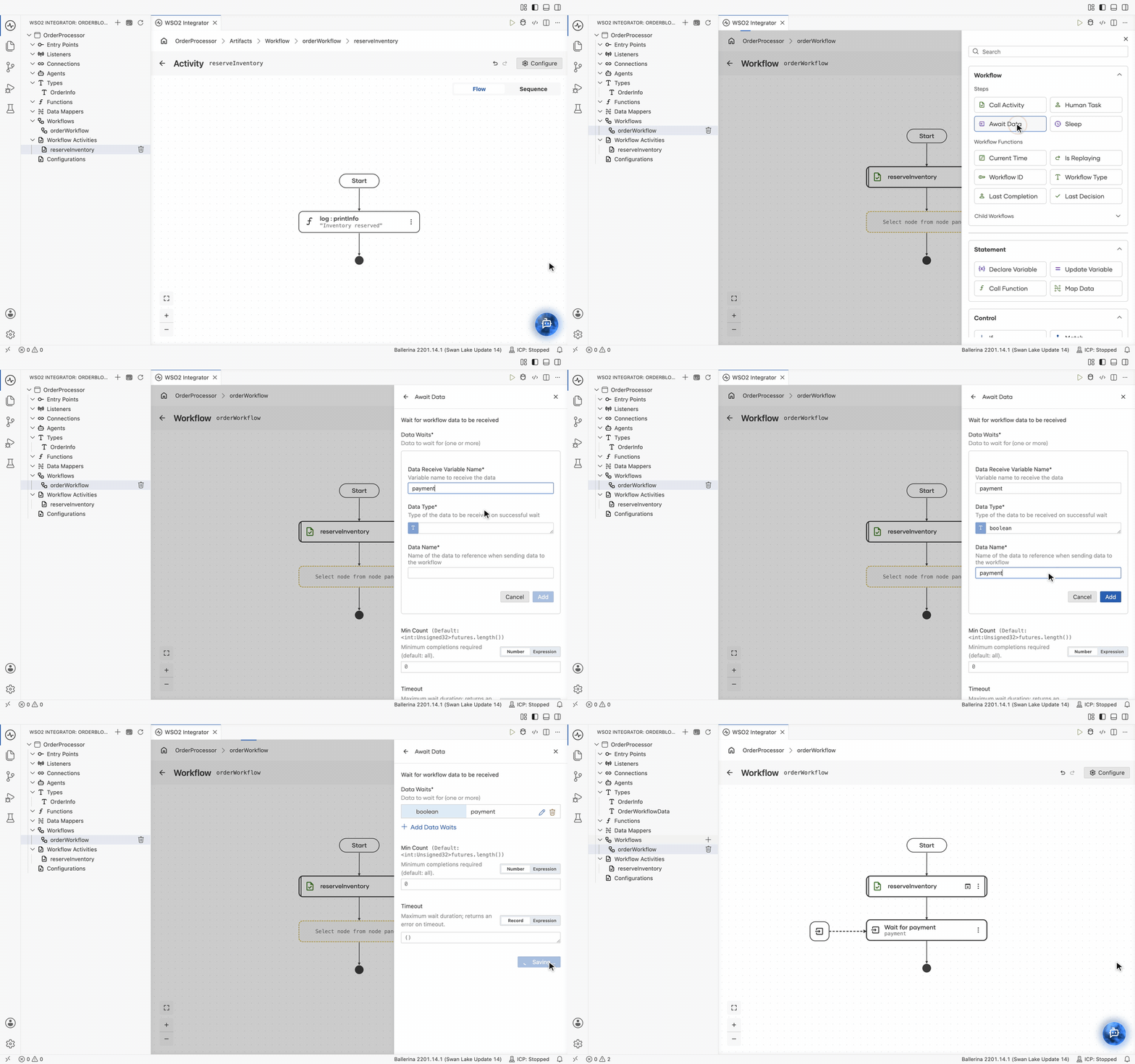
Go back to orderWorkflow under Workflows in the sidebar, then click the + below the
reserveInventorystep. -
In the node panel, under Workflow > Steps, click Await Data. The Await Data form opens.
-
Under Data Waits, fill in the entry:
Field Value Description Data Receive Variable Name paymentThe variable that receives the value once it arrives. Data Type booleanThe type of the value the workflow expects. To keep this guide simple, use boolean. If the payment is received, the value istrue.Data Name paymentThe name used when sending the data into this workflow. -
Click Add then click Save.
The diagram gains a Wait for payment node, drawn with an incoming arrow from outside the flow, because that is where the value comes from. The workflow now suspends at this line, and only at this line. It holds no thread and no connection while it waits, and it survives a restart of the runtime.
# Data record for workflow function
type OrderWorkflowData record {|
    future<boolean> payment;
|};
@workflow:Workflow
function orderWorkflow(workflow:Context ctx, OrderInfo input, OrderWorkflowData data) returns json|error {
    () _ = check ctx->callActivity(reserveInventory, {orderInfo: input});
    boolean payment = check wait data.payment;
}
Use a data event when a system or a person submits content the workflow processes, as here. Use a human task when a person makes a decision that the Integration Control Plane should render as a form in their inbox.
Step 5: Branch on the payment result
The value that arrived decides what happens next, so split the flow in two.
- Visual Designer
- Ballerina code
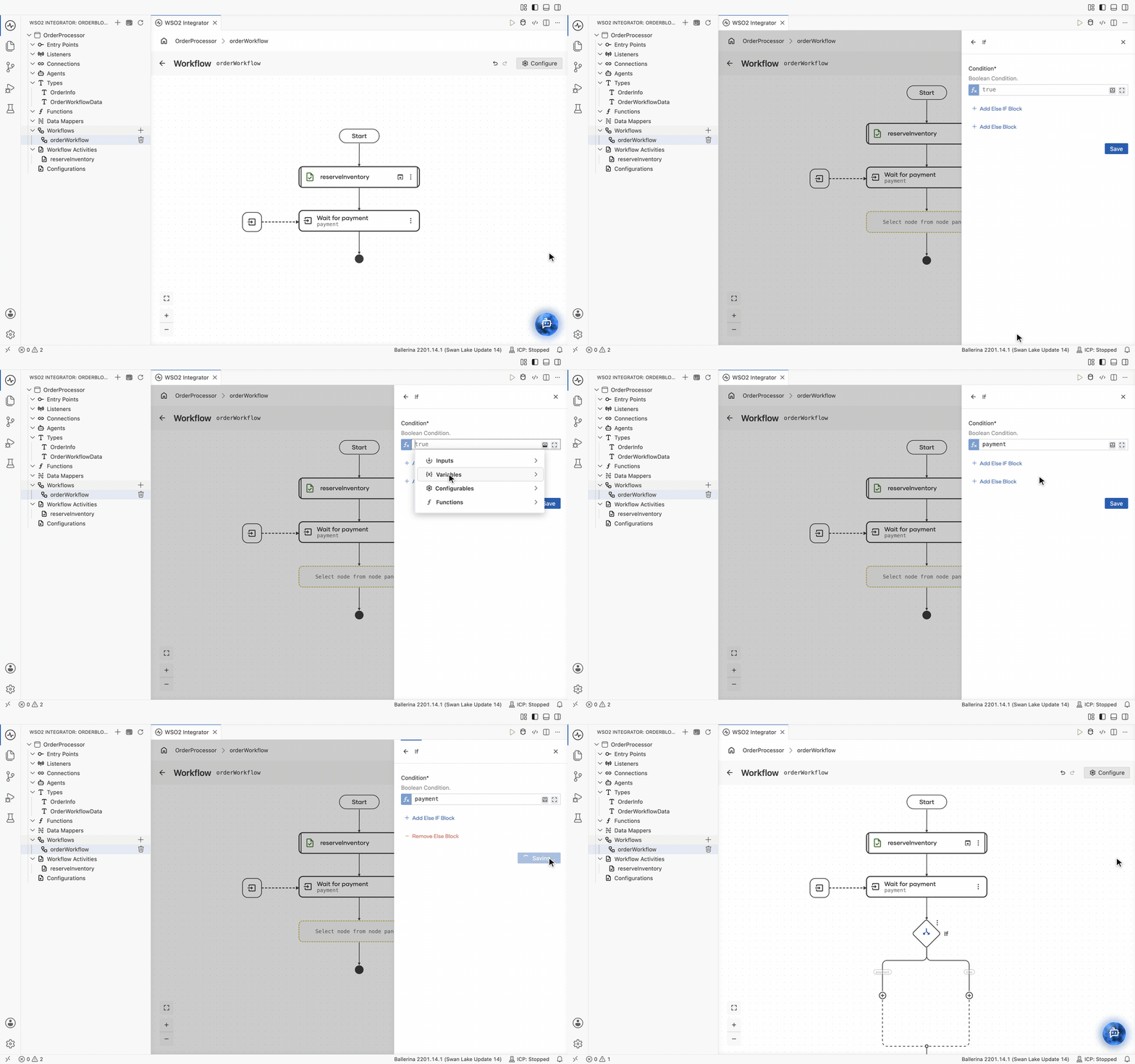
- Click + below the wait.
- In the node panel, under Control, click If.
- Condition is prefilled with
true. Replace it with the value the wait produced: click the field and pickpaymentunder Variables in the value helper. - Click Add Else Block.
- Click Save.
The diagram splits into a payment path and an Else path, each with its own +.
if payment {
} else {
}
+ Add Else If Block adds another condition to the same node, and Remove Else Block drops the else path when a branch is all you need.
Step 6: Send the confirmation email
The payment path tells the customer the order is confirmed. Create that activity and call it in one pass, the same way as reserveInventory.
- Visual Designer
- Ballerina code
-
Click + on the
paymentpath, then under Workflow > Steps, click Call Activity. -
The Activities panel already lists
reserveInventory, so click the + on the Current Integration header to add another activity. -
Set Activity Name to
sendEmail. Click + Add Parameter, set Type toOrderInfoand Name toorderInfo, click Add, then click Save. -
Click
sendEmailin the Activities panel under Current Integration. -
In the Order Info field, switch from Record to Expression, then select the workflow's input, and click Save.
-
Click the open icon on the
sendEmailnode to open its diagram. To keep it simple, mock the implementation with a log line. -
Click +, then click Log Info under Logging.
-
Leave Msg on Text and type
Email sent to. Click on the text box to open the field's value helper, then click Inputs >orderInfo>customerEmail. It lands in the text as an expression. -
Click Save.
@workflow:Activity
function sendEmail(OrderInfo orderInfo) returns error? {
    log:printInfo(string `Email sent to ${orderInfo.customerEmail}`);
}
Keep Msg on Text whenever the message is words with values dropped into it. Text takes what you type as the message and turns each inserted value into an interpolation, which is what produces the string template above. Expression treats the whole field as a single Ballerina expression, so bare words like Email sent to are a syntax error there. The same toggle appears on any field that accepts either, such as Order Info on a call.
Step 7: Cancel the order
The Else path releases the hold instead.
- Visual Designer
- Ballerina code
-
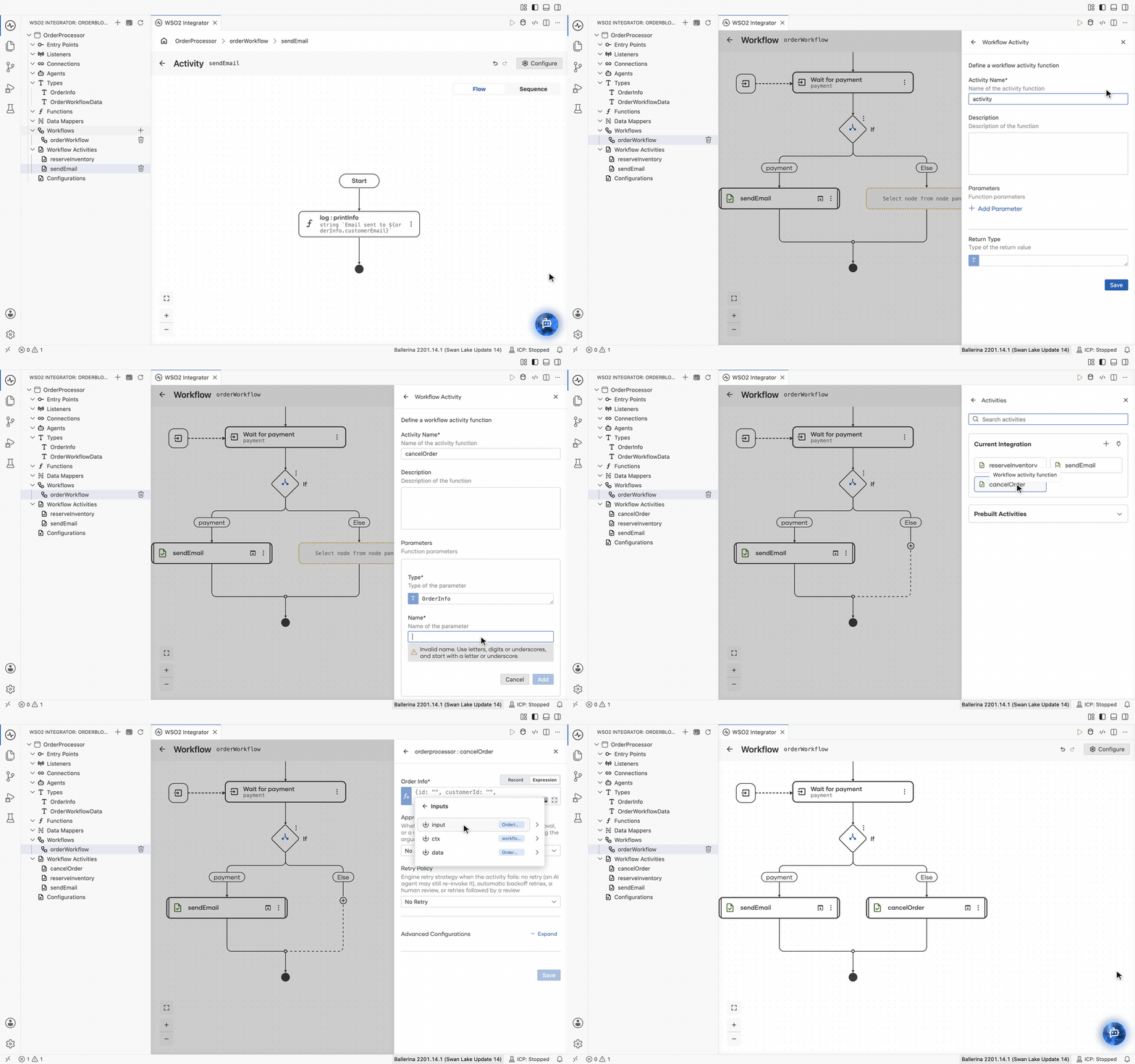
Go back to orderWorkflow under Workflows in the sidebar. Click + on the Else path, then under Workflow > Steps, click Call Activity.
-
Click the + on the Current Integration header.
-
Set Activity Name to
cancelOrder. Click + Add Parameter, set Type toOrderInfoand Name toorderInfo, click Add, then click Save. -
Click
cancelOrderin the Activities panel under Current Integration. -
In the Order Info field, switch from Record to Expression, then select the workflow's input, and click Save.
Both branches now end in an activity, and the workflow is complete.
@workflow:Activity
function cancelOrder(OrderInfo orderInfo) returns error? {
}
@workflow:Workflow
function orderWorkflow(workflow:Context ctx, OrderInfo input, OrderWorkflowData data) returns json|error {
    () _ = check ctx->callActivity(reserveInventory, {orderInfo: input});
    boolean payment = check wait data.payment;
    if payment {
        () _ = check ctx->callActivity(sendEmail, {orderInfo: input});
    } else {
        () _ = check ctx->callActivity(cancelOrder, {orderInfo: input});
    }
}
Step 8: Start the workflow from a service
A workflow does not start itself. It is launched from an entry point such as a service or an automation, so give the order process an HTTP resource that starts a run for each order that arrives.
- Visual Designer
- Ballerina code
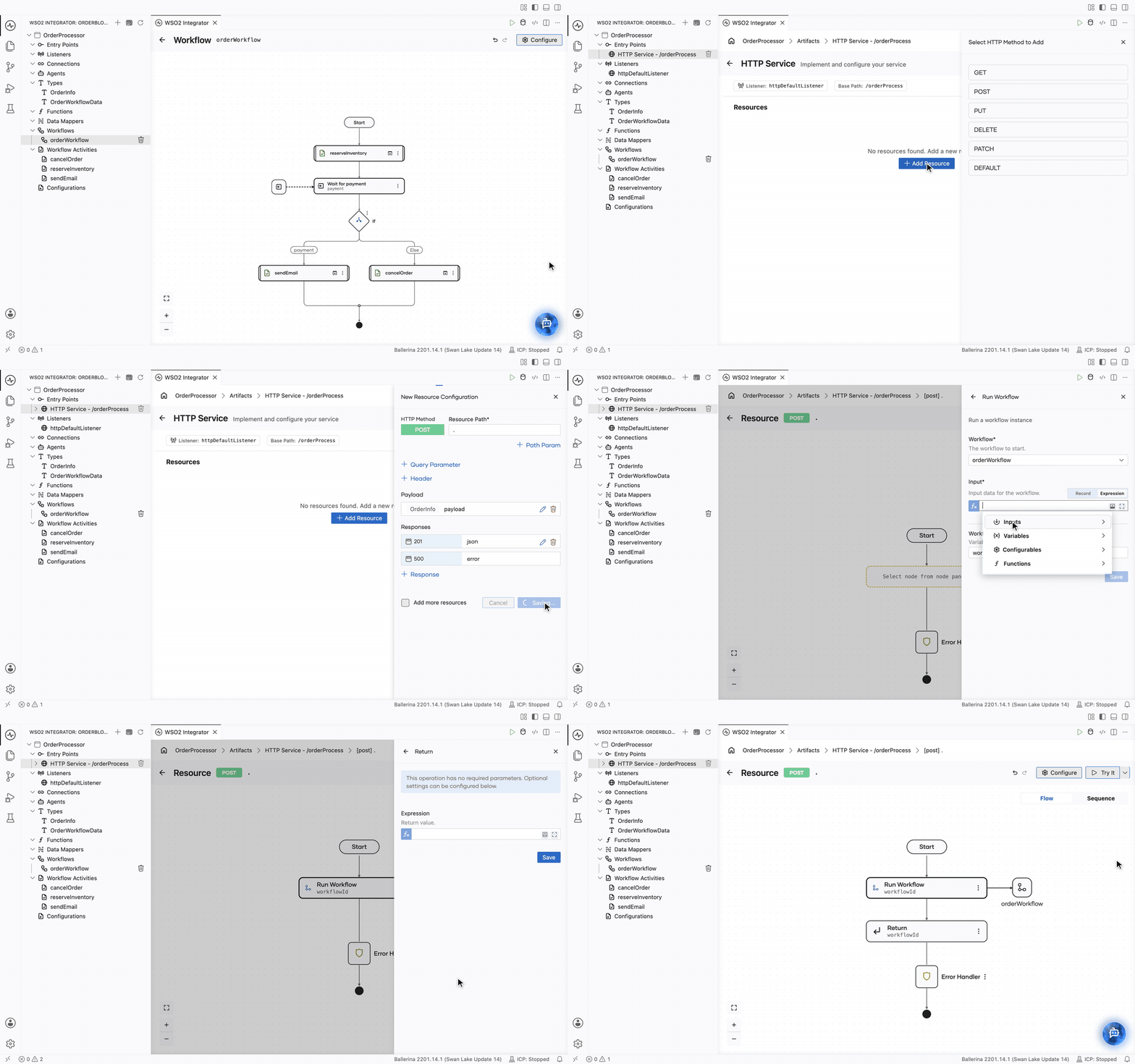
- At the top of the screen, click
OrderProcessorto return to the project. - Click + Add Artifact, then under Integration as API, click HTTP Service.
- On the Create HTTP Service form, keep Service Contract on Design From Scratch, set Service Base Path to
/orderProcess, and click Create. - The service opens with no resources. Click + Add Resource, then click POST in the Select HTTP Method to Add list.
- In New Resource Configuration, set Resource Path to
.. - Click + Define Payload, open the Browse Existing Types tab, click
OrderInfounder the current integration, and click Save. - Click Save to create the resource. Its own diagram opens.
- Click +, then under Workflow, click Run Workflow.
- Select the
orderWorkflowunder Current Integration. - Under Input, switch from Record to Expression and set Input to the request payload. Leave Workflow ID Variable Name as
workflowId, then click Save. - Click + below the Run Workflow node, then click Return under Control. In the Expression field, select Variables, then select
workflowId, and click Save.
The resource now starts a run for every order it receives and answers with that run's workflow ID.
import ballerina/http;
import ballerina/workflow;

listener http:Listener httpDefaultListener = http:getDefaultListener();

service /orderProcess on httpDefaultListener {

    resource function post .(OrderInfo payload) returns json|error {
        string workflowId = check workflow:run(orderWorkflow, payload);
        return workflowId;
    }
}
Run Workflow starts an instance and returns immediately with its ID. It does not wait for the order to finish, which is the point: the run may sit on the payment event for days. Return the ID to the caller, because it is what ties a later payment confirmation to this instance.
Step 9: Deliver the payment confirmation
The run is now waiting on the payment data event, and it will wait forever until something fills it. Add a second resource that does.
- Visual Designer
- Ballerina code
-
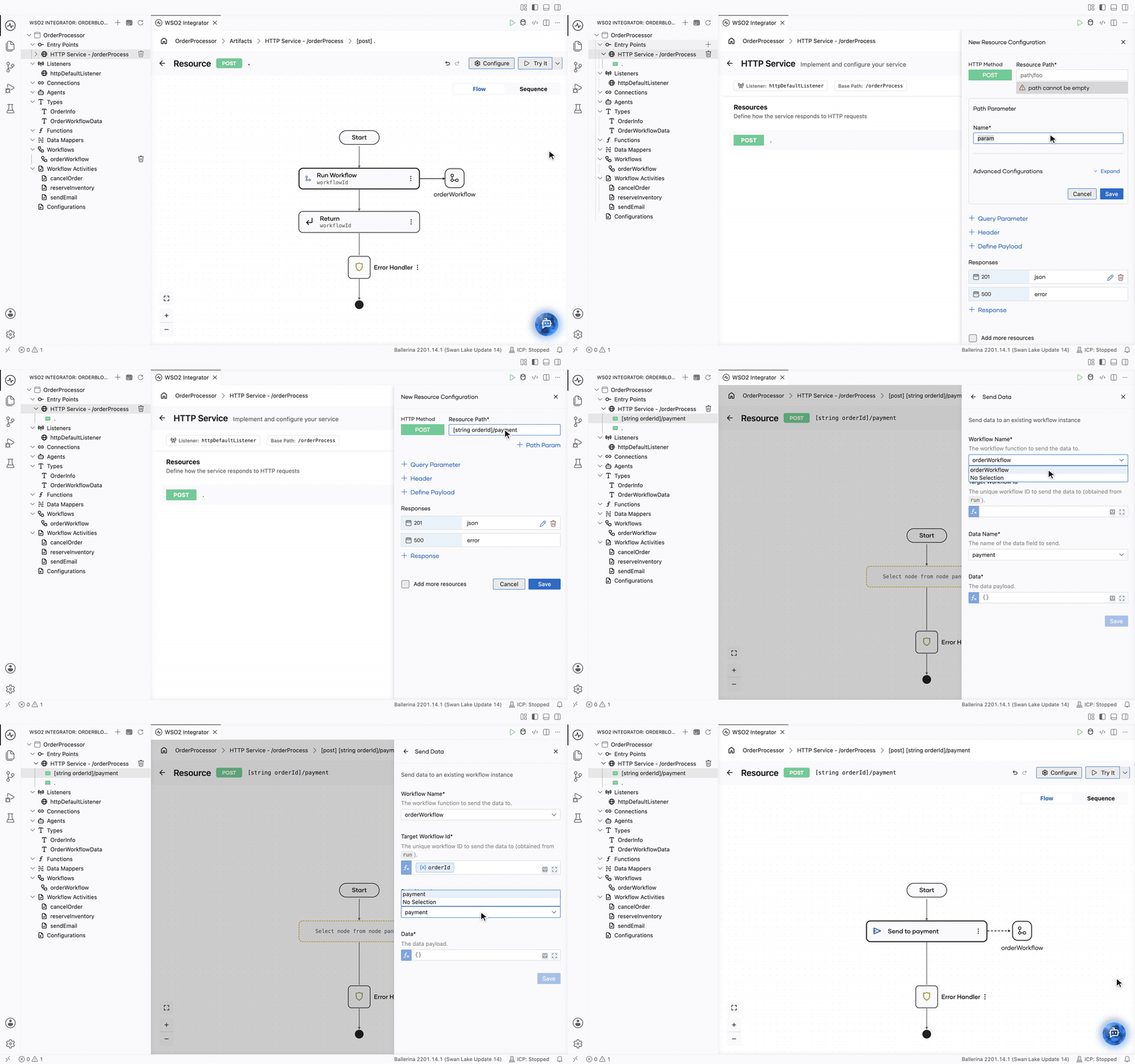
Return to the service: click HTTP Service - /orderProcess under Entry Points in the sidebar.
-
Click + Resource, then click POST.
-
The path needs a segment that carries the workflow ID, so click + Path Param and fill in the Path Parameter form:
Field Value Description Name orderIdThe variable the segment binds to, and the name you reference it by inside the resource. Type stringUnder Advanced Configurations. Defaults to string, which is what a workflow ID is. -
Click Save. The segment lands in Resource Path as
[string orderId]. Complete the path so it reads[string orderId]/payment. -
Click Save to create the resource. Its diagram opens.
-
Click +, then under Workflow, click Send Data Event.
-
Fill in the Send Data form:
Field Value Description Workflow Name orderWorkflowThe workflow to send the data to. The dropdown lists all the available workflows. Target Workflow Id orderIdThe instance to resume, taken from the request path. Data Name paymentThe event to fill. The dropdown lists the events the chosen workflow declares. Data trueThe value to deliver. -
Click Save.
The node reads Send to payment and is drawn with a dashed arrow across to orderWorkflow, because it hands a value to a run rather than calling something.
resource function post [string orderId]/payment() returns json|error {
    check workflow:sendData(orderWorkflow, orderId, "payment", true);
}
Anyone holding the workflow ID can deliver the value, so in a real integration this resource is what the payment gateway's callback hits. This walkthrough leaves it unprotected to keep the steps short. A real callback needs authentication and authorization on this resource, because the workflow ID on its own is not an authorization check. See Await data events.
Step 10: Run it
A durable workflow keeps its record in a workflow engine, and by default the runtime expects a local Temporal server (mode defaults to LOCAL). To keep this walkthrough self-contained, switch to the in-memory engine, which runs inside the integration and needs nothing external. See Deployment modes for the four modes and the settings each one needs.
-
In the sidebar, hover over Configurations and click its View Configuration icon.
-
On the Configurable Variables page, under Imported libraries, click ballerina/workflow.
-
In the box under
mode, enter"IN_MEMORY".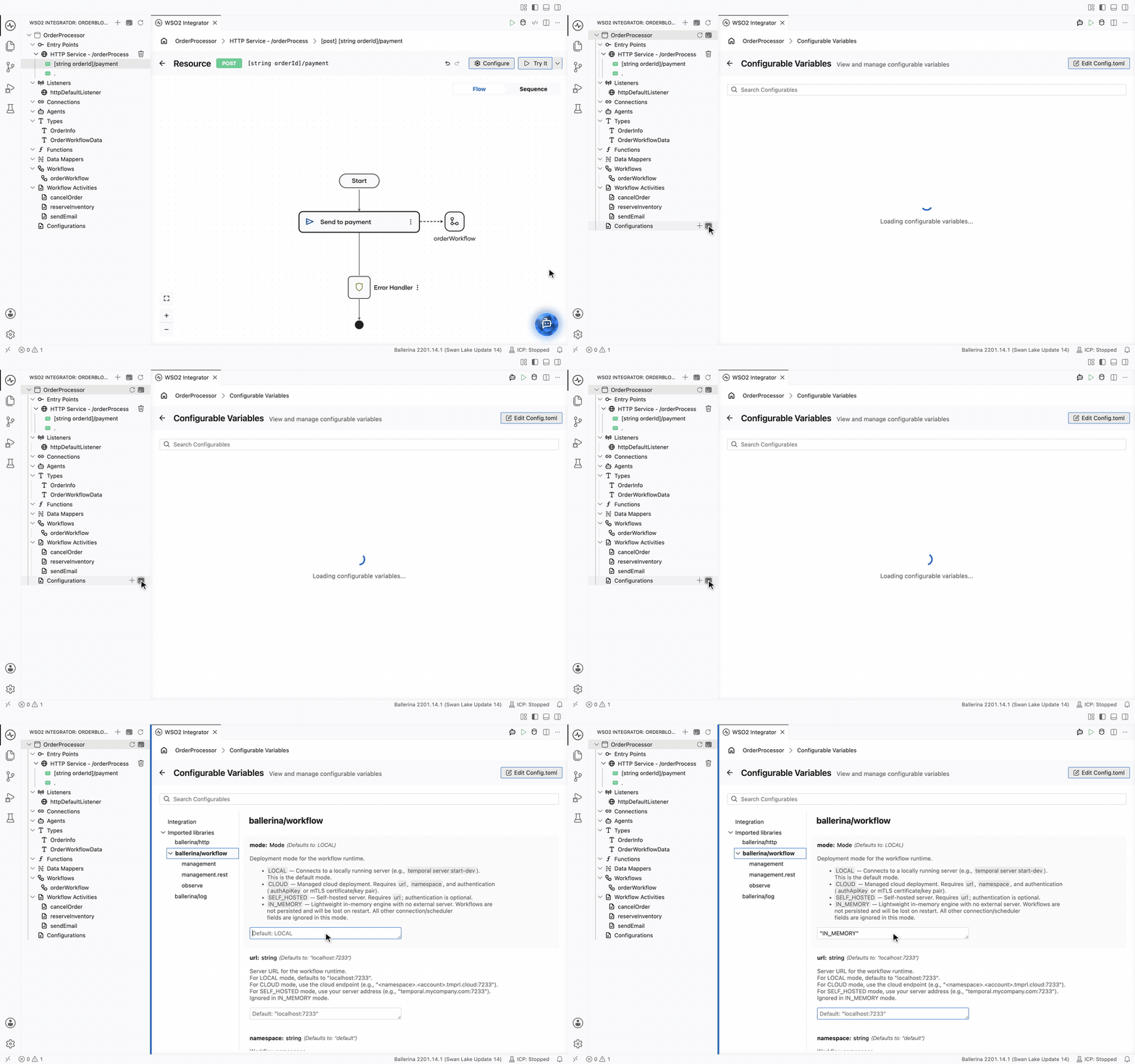
IN_MEMORYdoes not survive a restartThe in-memory engine keeps the record in the integration's own memory, so stopping the integration loses every run that was in flight. It is meant for trying a workflow out, not for the crash safety this guide is about. To see a suspended order survive a restart, set
modeback to"LOCAL"and start a Temporal server withtemporal server start-devbefore running. -
Click Run at the top of the Integrator window to start the integration.
-
Post an order and keep the returned workflow ID, for example
019ffed4-c12e-7e24-a438-8bdaae2b5a29:curl -X POST http://localhost:9090/orderProcess \
-H 'Content-Type: application/json' \
-d '{"id": "ORD-1", "customerId": "CUS-9", "customerEmail": "[email protected]", "total": 4500}'The workflow reserves the inventory and then suspends on the
paymentevent.Compiling source
myorg/orderprocessor:0.1.0
WARNING [types.bal:(11:5,11:29)] undocumented field 'payment'
Running executable
time=2026-10-13T07:53:30.737Z level=INFO module=ballerina/workflow message="" logger="workflow-metrics" sample="workflow.started" workflow_type="workflow-orderWorkflow" task_kind="none" task_name="none" workflow_id="019ffed4-c12e-7e24-a438-8bdaae2b5a29" run_id="16f8ef66-ade6-4534-b709-4bc3259b4e3b"
time=2026-10-13T13:23:30.814+05:30 level=INFO module=myorg/orderprocessor message="Inventory reserved"
time=2026-10-13T07:53:30.830Z level=INFO module=ballerina/workflow message="" logger="workflow-metrics" sample="activity.executed" activity_type="reserveInventory" workflow_id="019ffed4-c12e-7e24-a438-8bdaae2b5a29" run_id="16f8ef66-ade6-4534-b709-4bc3259b4e3b" attempt=1 outcome="success" duration_seconds=0.022
time=2026-10-13T07:53:30.832Z level=INFO module=ballerina/workflow message="Activity execution type=reserveInventory workflowId=019ffed4-c12e-7e24-a438-8bdaae2b5a29 runId=16f8ef66-ade6-4534-b709-4bc3259b4e3b activityId=5ea5fc48-6754-3de2-99dc-3c3bf7f4ea1a attempt=1 outcome=success durationMs=22 args={\"orderInfo\":{\"total\":4500,\"customerEmail\":\"[email protected]\",\"customerId\":\"CUS-9\",\"id\":\"ORD-1\"}} result=null" -
Confirm the payment with the workflow ID from the previous response:
curl -X POST http://localhost:9090/orderProcess/019ffed4-c12e-7e24-a438-8bdaae2b5a29/payment \
  -H 'Content-Type: application/json' -d 'true'
The workflow resumes and sends the confirmation email. Post
falseinstead and it cancels the order.time=2026-10-13T07:53:33.279Z level=INFO module=ballerina/workflow message="" logger="workflow-metrics" sample="data.sent" data_name="payment" workflow_id="019ffed4-c12e-7e24-a438-8bdaae2b5a29" outcome="success"
time=2026-10-13T13:23:33.300+05:30 level=INFO module=myorg/orderprocessor message="Email sent to [email protected]"
time=2026-10-13T07:53:33.304Z level=INFO module=ballerina/workflow message="" logger="workflow-metrics" sample="activity.executed" activity_type="sendEmail" workflow_id="019ffed4-c12e-7e24-a438-8bdaae2b5a29" run_id="16f8ef66-ade6-4534-b709-4bc3259b4e3b" attempt=1 outcome="success" duration_seconds=0.009
time=2026-10-13T07:53:33.306Z level=INFO module=ballerina/workflow message="Activity execution type=sendEmail workflowId=019ffed4-c12e-7e24-a438-8bdaae2b5a29 runId=16f8ef66-ade6-4534-b709-4bc3259b4e3b activityId=855793ce-3be1-36bf-99bb-e247797db228 attempt=1 outcome=success durationMs=9 args={\"orderInfo\":{\"total\":4500,\"customerEmail\":\"[email protected]\",\"customerId\":\"CUS-9\",\"id\":\"ORD-1\"}} result=null"
time=2026-10-13T07:53:33.338Z level=INFO module=ballerina/workflow message="" logger="workflow-metrics" sample="workflow.closed" workflow_type="workflow-orderWorkflow" task_kind="none" task_name="none" workflow_id="019ffed4-c12e-7e24-a438-8bdaae2b5a29" run_id="16f8ef66-ade6-4534-b709-4bc3259b4e3b" outcome="success" duration_seconds=2.688
Watch it run
Once the integration is connected to the Integration Control Plane, every instance is visible there, running or completed. The execution graph shows the reservation as a completed activity and the pending payment as a DATA node with status WAITING, so anyone can see exactly what an order is blocked on instead of guessing that it is stuck.
Next steps
- Activities — retry policies, activity inputs, and how results are recorded.
- Await data events — several events, timeouts, and delivering data from other systems.
- Await human task — pause the order for a person's decision instead of a system's data.
- Durable timers — add a payment deadline that survives restarts.