JSON Processing
JSON is a lightweight, text-based data exchange format derived from JavaScript. It is widely used in web services, APIs, microservices, and other connected applications, making it the most common data format in modern integration and API development.
WSO2 Integrator provides built-in support for JSON processing, allowing developers to easily create, read, modify, validate, and transform JSON data without relying on external libraries. This native support simplifies integration development and enables efficient handling of JSON payloads across different systems and services.
Creating JSON values
Construct JSON directly using Ballerina types. The json type accepts null, booleans, numbers, strings, arrays, and maps.
- Visual Designer
- Ballerina Code
-
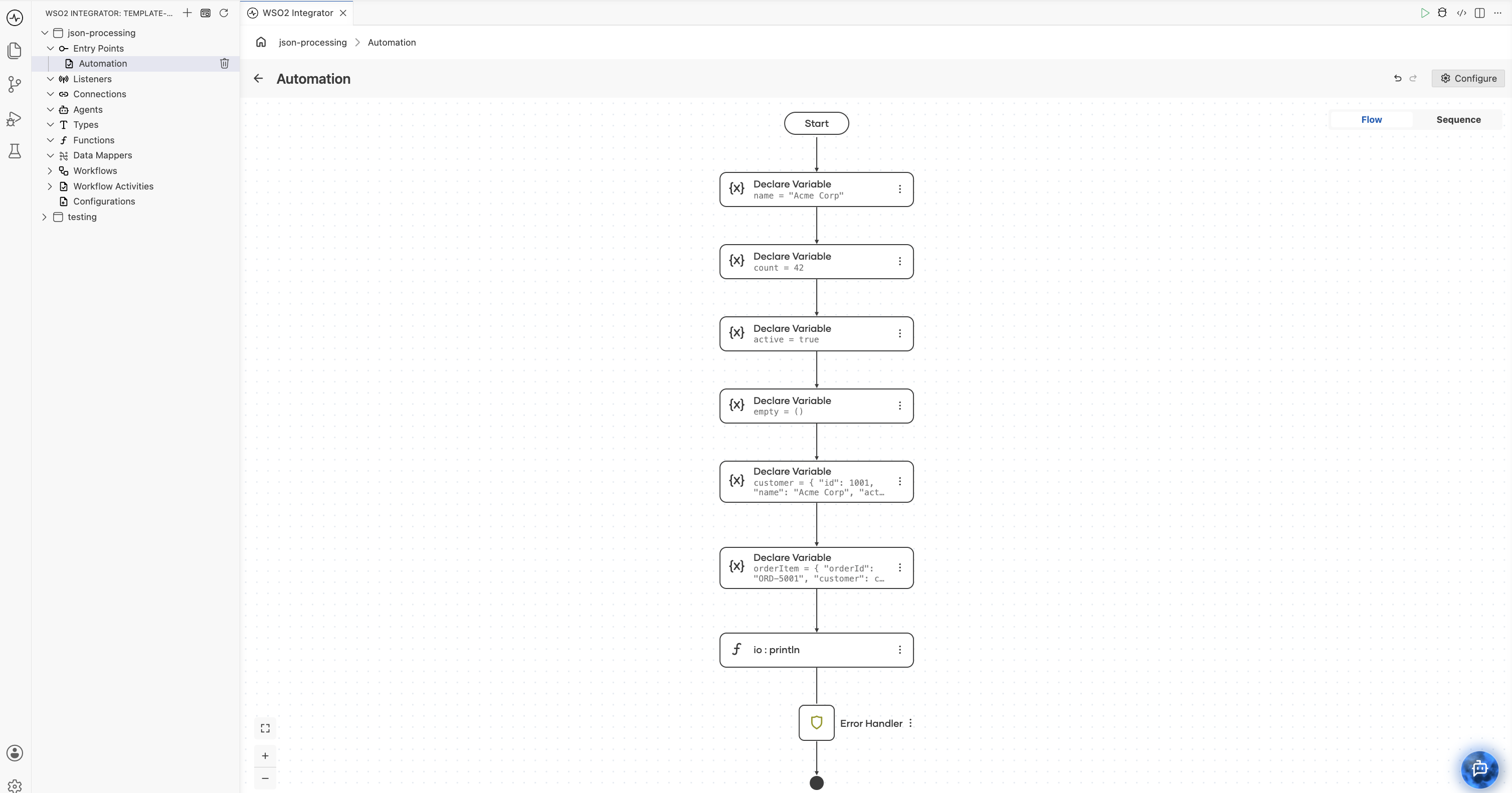
Add Variable steps for scalar values. In the flow designer, click + and select Statement → Declare Variable. Add a variable for each scalar JSON value:
- Name:
name, Type:json, Expression:"Acme Corp" - Name:
count, Type:json, Expression:42 - Name:
active, Type:json, Expression:true - Name:
empty, Type:json, Expression:()
- Name:
-
Add a Variable step for a JSON object. Click + and select Declare Variable. Set the name to
customer, the type tojson, and enter the following as the expression:{
"id": 1001,
"name": "Acme Corp",
"active": true,
"tags": ["enterprise", "priority"]
} -
Add a Variable step for a nested structure. Click + and select Declare Variable. Set the name to
orderItem, the type tojson, and enter the following as the expression:{
"orderId": "ORD-5001",
"customer": customer,
"items": [
{"sku": "WDG-01", "qty": 5, "price": 29.99},
{"sku": "GDG-02", "qty": 2, "price": 49.99}
]
}
-
Add a Function Call step to print the result. Click + and select Call Function. Search for
printlnand passorderItem.toJsonString()as the argument.
import ballerina/io;

public function main() {
    // Scalar values
    json name = "Acme Corp";
    json count = 42;
    json active = true;
    json empty = null;

    // JSON object
    json customer = {
        "id": 1001,
        "name": "Acme Corp",
        "active": true,
        "tags": ["enterprise", "priority"]
    };

    // Nested structures

    json orderItem = {
        "orderId": "ORD-5001",
        "customer": customer,
        "items": [
            {"sku": "WDG-01", "qty": 5, "price": 29.99},
            {"sku": "GDG-02", "qty": 2, "price": 49.99}
        ]
    };
    io:println(orderItem.toJsonString());
}
Accessing JSON values
Access JSON fields with field access. Since json is dynamically shaped, most access operations return json and may require type narrowing.
- Visual Designer
- Ballerina Code
-
Add a Variable step for the JSON input. In the flow designer, click + and select Statement → Declare Variable. Set the name to
payload, the type tojson, and enter the following as the expression:{
"orders": {
"id": "ORD-100",
"customer": "Globex Inc",
"items": [
{"sku": "A1", "qty": 3},
{"sku": "B2", "qty": 7}
]
}
} -
Add a Variable step for field access. Click + and select Declare Variable. Set the name to
orderId, the type tojson, and the expression tocheck payload.orders.id. This returns the value"ORD-100". -
Add a Variable step for optional access. Click + and select Declare Variable. Set the name to
notes, the type tojson?, and the expression tocheck payload.orders?.notes. The?.syntax returns()instead of an error when the key does not exist. -
Add a Variable step for array element access. Click + and select Declare Variable. Set the name to
items, the type tojson[], and the expression tocheck (check payload.orders.items).cloneWithType(). Then add another variable nameditemof typejsonwith the expressionitems[0]. -
Narrow to a specific type. Click + and select Declare Variable. Set the name to
customer, the type tostring, and the expression tocheck payload.orders.customer. Setting a concrete type (such asstringorint) withcheckperforms type narrowing at runtime.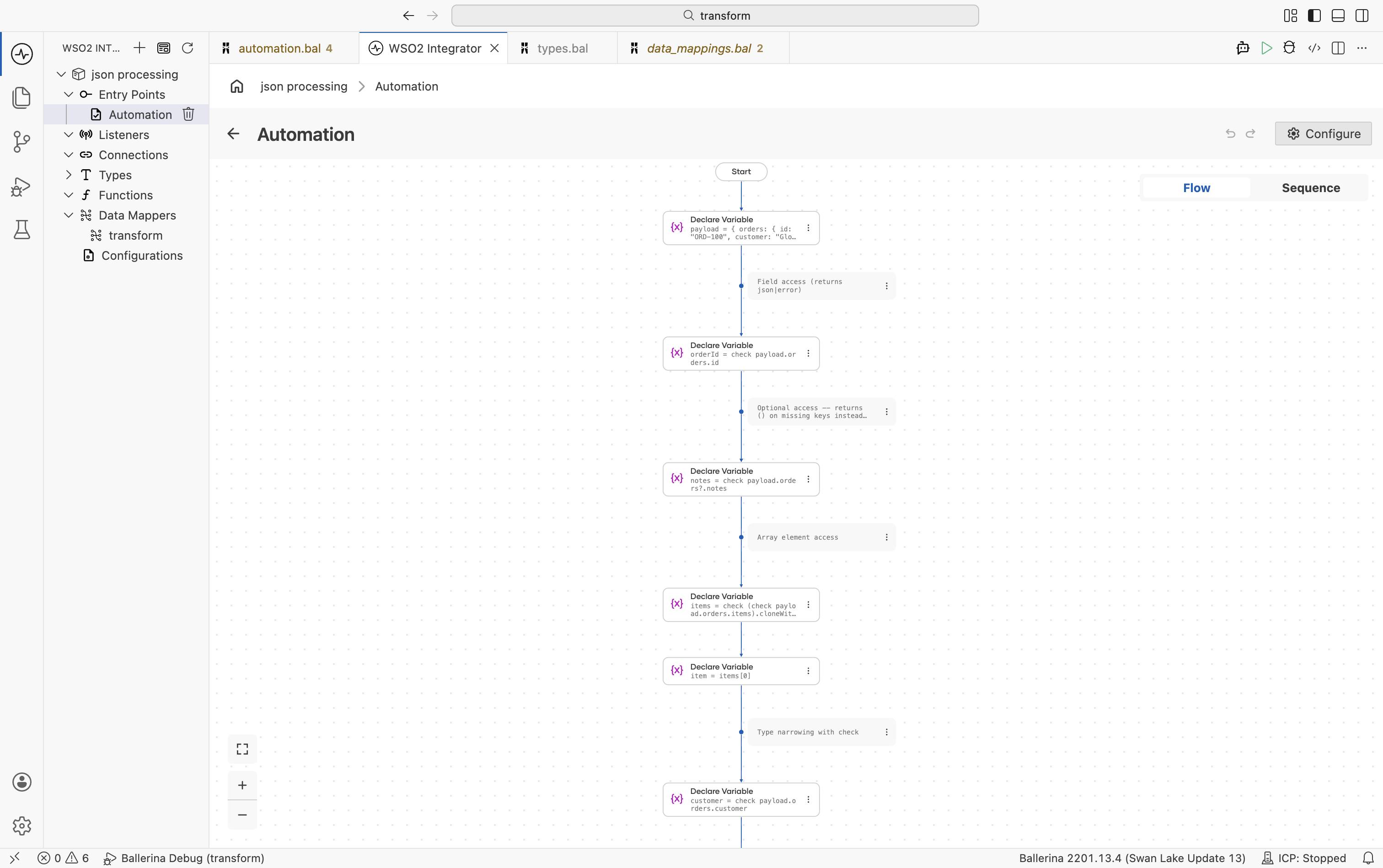
public function main() returns error? {
    json payload = {
        orders: {
            id: "ORD-100",
            customer: "Globex Inc",
            items: [
                {"sku": "A1", "qty": 3},
                {"sku": "B2", "qty": 7}
            ]
        }
    };

    // Field access (returns json|error)
    json orderId = check payload.orders.id;

    // Optional access -- returns () on missing keys instead of error
    json? notes = check payload.orders?.notes;

    // Array element access
    json[] items = check (check payload.orders.items).cloneWithType();
    json item = items[0];

    // Type narrowing with check
    string customer = check payload.orders.customer;
}
Parse a JSON string
Parse JSON payloads received as strings into either an untyped json value or a typed Ballerina record.
Into a JSON value
Use fromJsonString() when you need a quick untyped json value without defining a record type.
- Visual Designer
- Ballerina Code
-
Add a Variable step for the raw string. In the flow designer, click + and select Statement → Declare Variable. Set the name to
raw, the type tostring, and enter the following as the expression:string `{"name": "Widget", "price": 29.99, "inStock": true}` -
Parse the string into a JSON value. Click + and select Call Function. Search for
fromJsonStringand select it. Configure:- String Value*:
raw - Result*:
parsed - T*:
json
- String Value*:
-
Extract a typed value. Click + and select Declare Variable. Set the name to
name, the type tostring, and the expression tocheck parsed.name. Setting the type tostringwithcheckperforms type narrowing fromjsontostring. -
Add a Function Call step to print the result. Click + and select Call Function. Search for
printlnand passnameas the argument.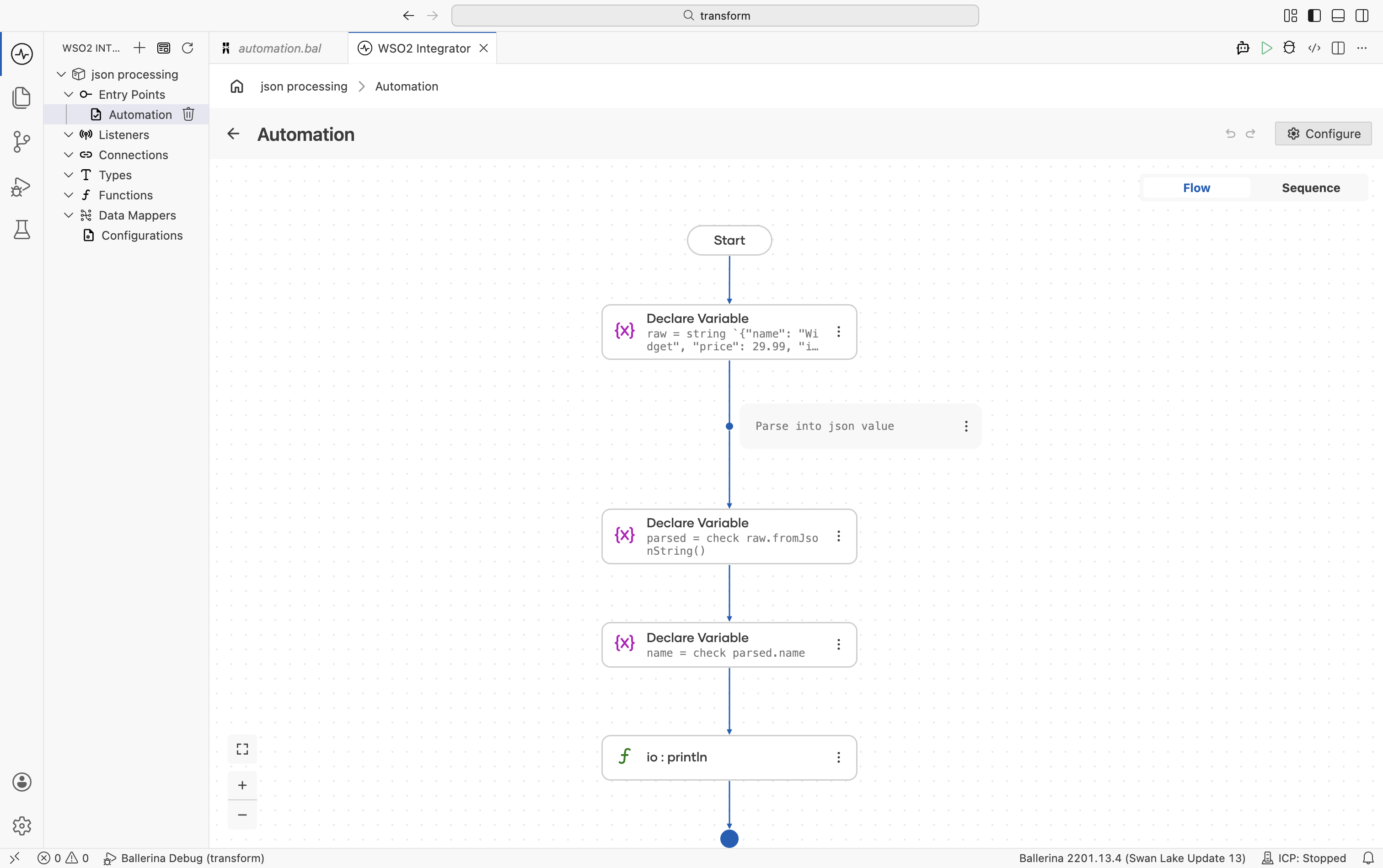
import ballerina/io;

public function main() returns error? {
    string raw = string `{"name": "Widget", "price": 29.99, "inStock": true}`;

    // Parse into json value
    json parsed = check raw.fromJsonString();
    string name = check parsed.name;
    io:println(name); // Widget
}
Into a typed record
Use jsondata:parseString() when the JSON structure is known. Define a matching record type and parse directly into it for compile-time type safety.
- Visual Designer
- Ballerina Code
-
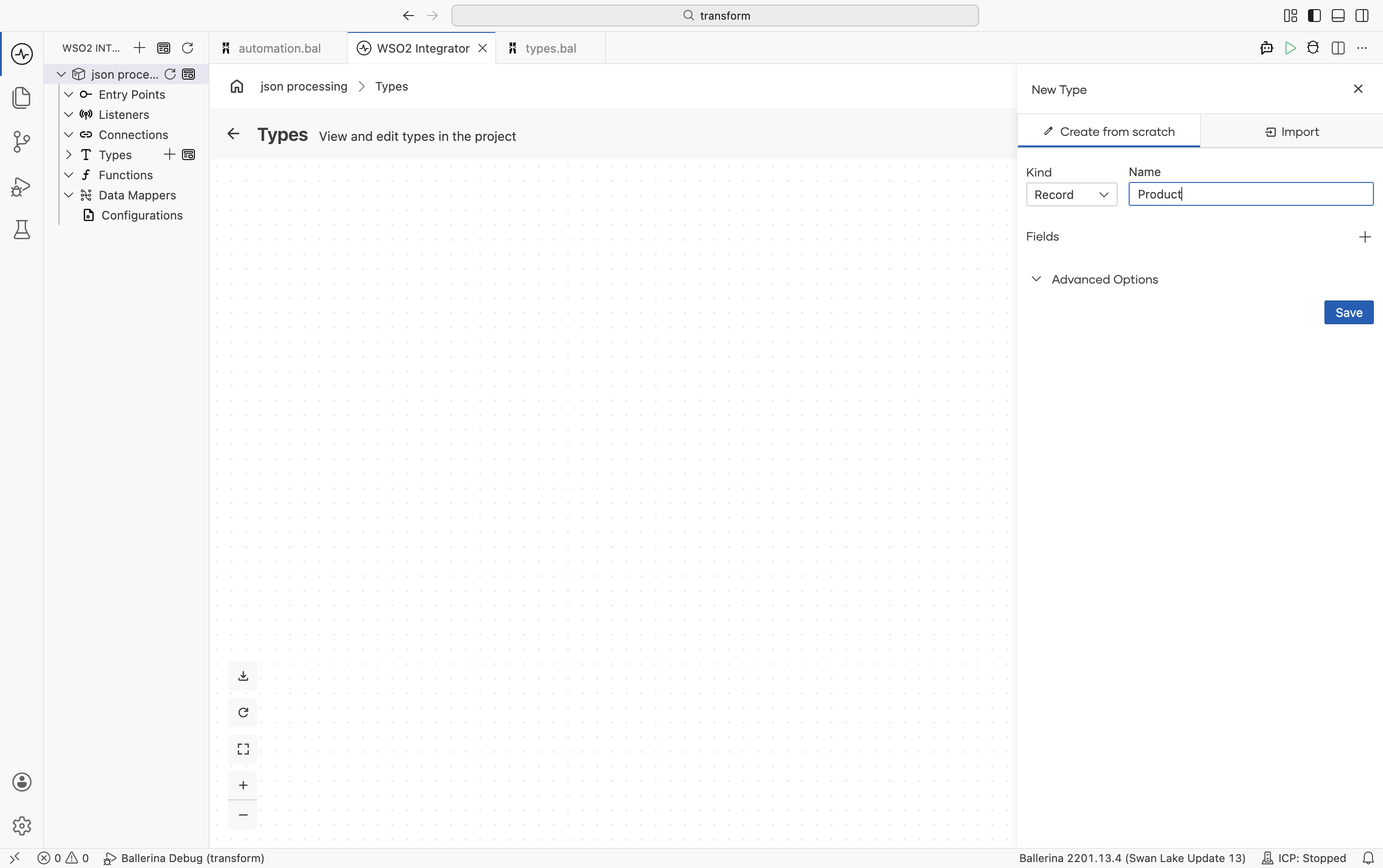
Define the target record type. Navigate to Types in the sidebar and click + to add a new type. Select Create from scratch, set Kind to Record, and name it
Product. Add fields using the + button:Field Type namestringpricedecimalinStockbooleancategorystring?For details on creating types, see Types.
-
Add a Variable step for the JSON string. In the flow designer, click + and select Statement → Declare Variable. Set the name to
jsonStr, the type tostring, and enter the following as the expression:string `{"name": "Widget", "price": 29.99, "inStock": true, "category": "hardware"}` -
Parse into the record type. Click + and select Call Function. Search for
parseStringand select it from thedata.jsondatamodule.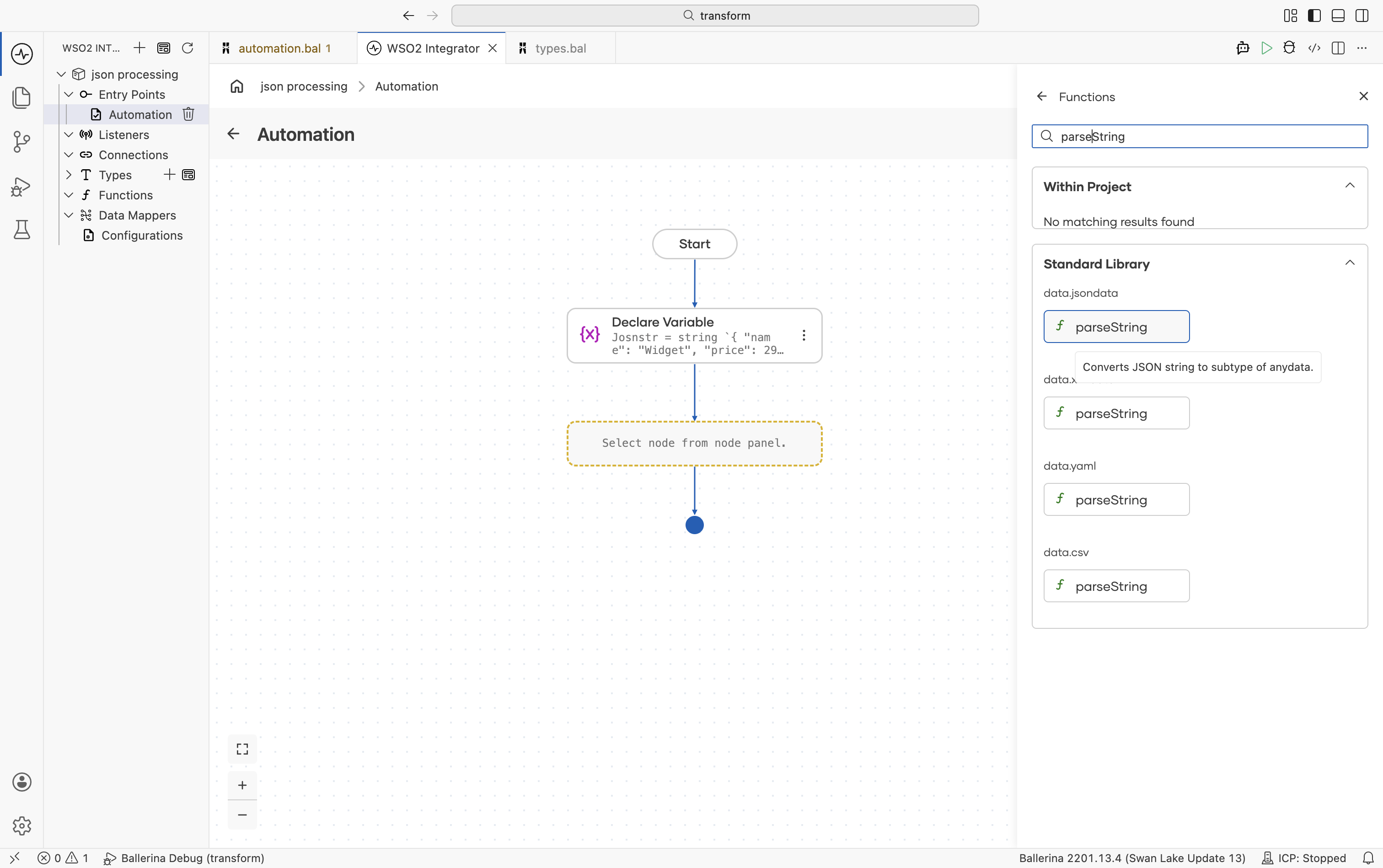
Configure the function call:
- String*:
jsonStr - Result*:
product - T*:
Product
The
data.jsondatamodule is automatically imported into your file.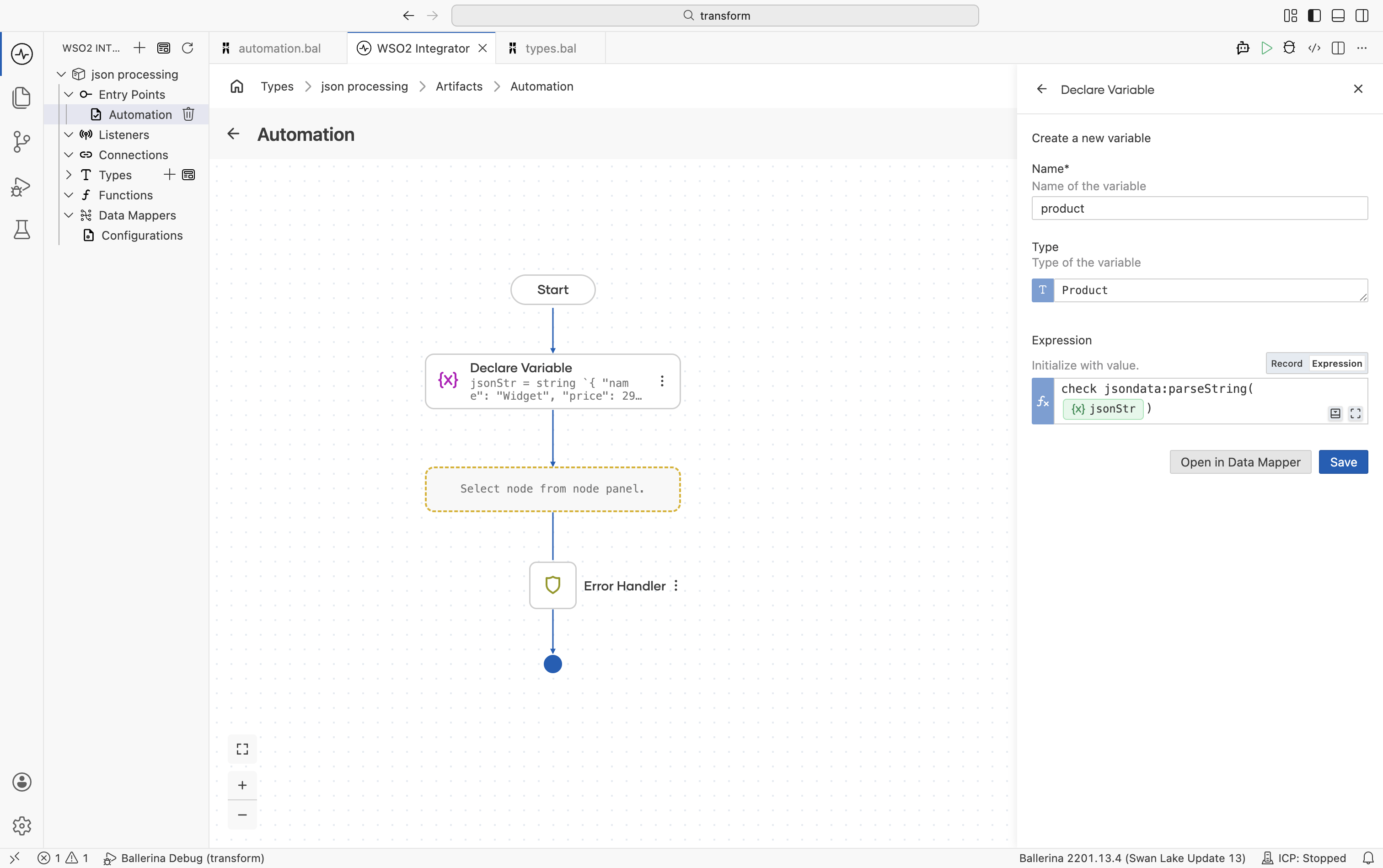
- String*:
-
Add Function Call steps to print the results. Click + and select Call Function. Search for
printlnand passproduct.nameas the argument. Add a secondprintlnstep and passproduct.price.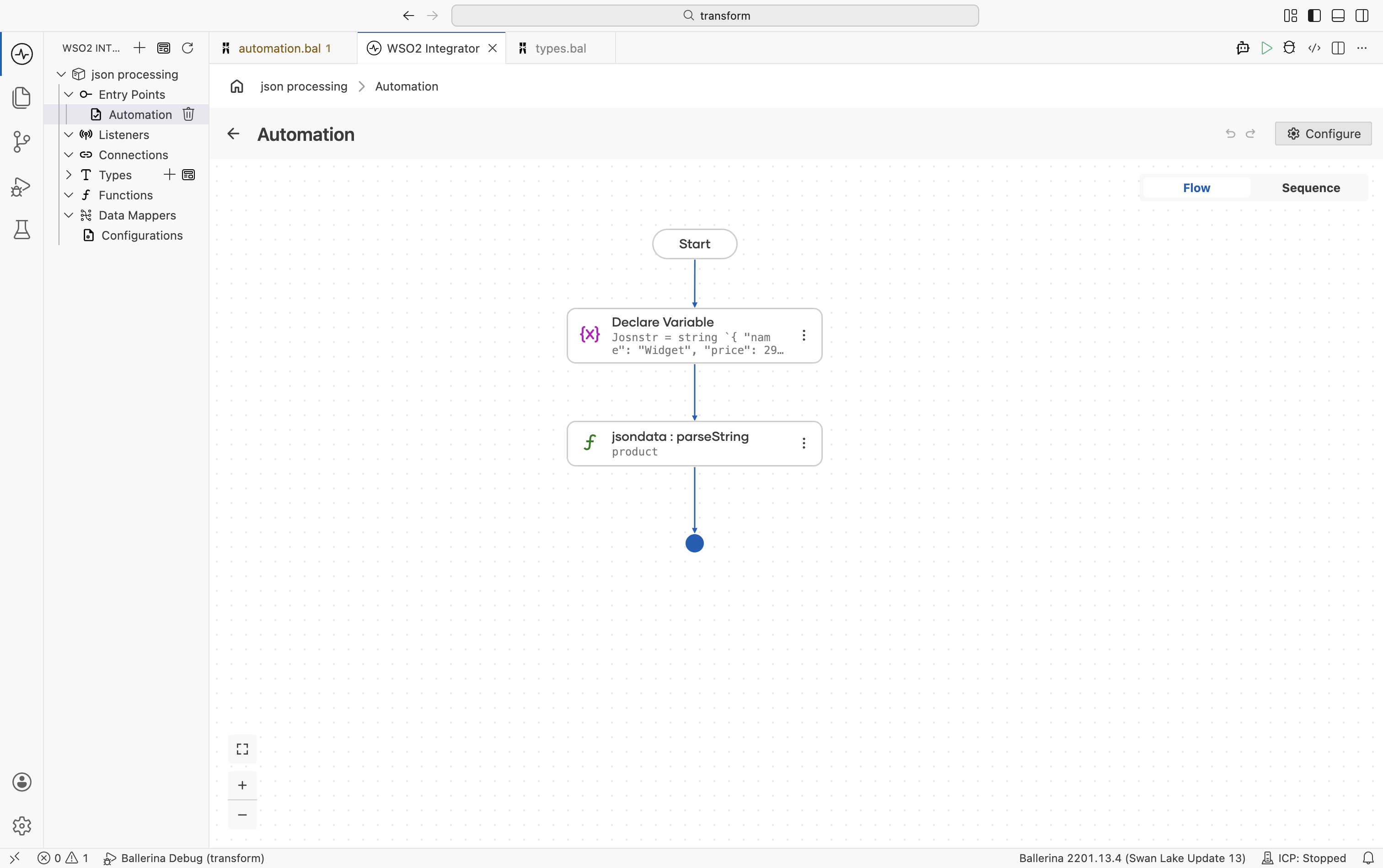
import ballerina/data.jsondata;
import ballerina/io;

// This is in the types.bal file
type Product record {|
    string name;
    decimal price;
    boolean inStock;
    string? category;
|};

public function main() returns error? {
    string jsonStr = string `{
        "name": "Widget",
        "price": 29.99,
        "inStock": true,
        "category": "hardware"
    }`;

    // Parse string directly into a typed record
    Product product = check jsondata:parseString(jsonStr);
    io:println(product.name);   // Widget
    io:println(product.price);  // 29.99
}
Convert a json value to a typed record
Use jsondata:parseAsType() when you already have a json value and want to convert it into a typed record.
- Visual Designer
- Ballerina Code
-
Define the record type. Navigate to Types in the sidebar and click + to add a new type. Select Create from scratch, set Kind to Record, and name it
Product. Add fields using the + button:Field Type namestringpricedecimalinStockbooleanFor details on creating types, see Types.
-
Add a Variable step for the JSON value. In the flow designer, click + and select Statement → Declare Variable. Set the name to
jsonInput, the type tojson, and enter the following as the expression:{"name": "Widget", "price": 29.99, "inStock": true} -
Convert to the record type. Click + and select Call Function. Search for
parseAsTypeand select it from thedata.jsondatamodule.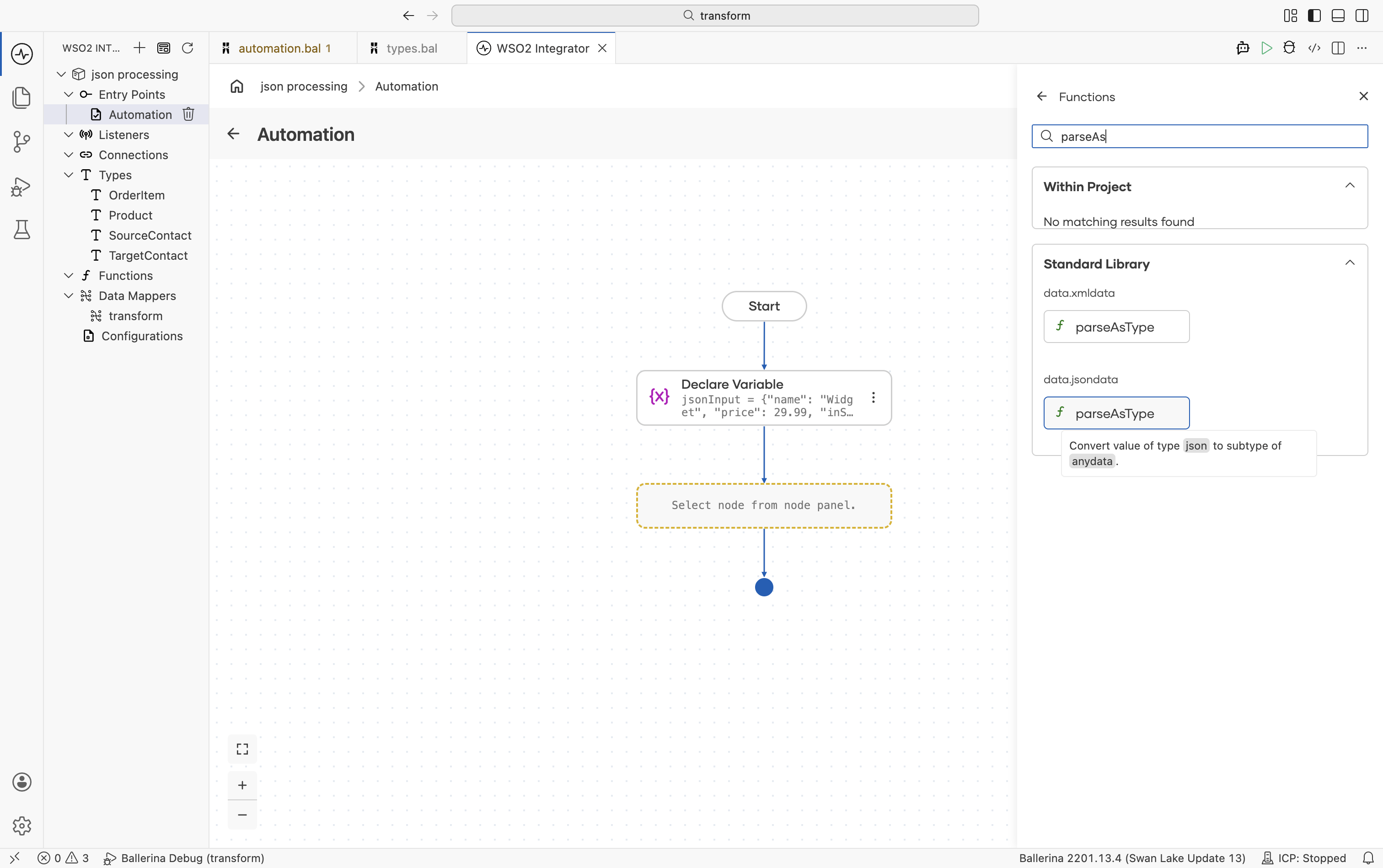
Configure the function call:
- Json Value*:
jsonInput - Result*:
product - T*:
Product
- Json Value*:
-
Add Function Call steps to print the results. Click + and select Call Function. Search for
printlnand passproduct.nameas the argument. Add a secondprintlnstep and passproduct.price.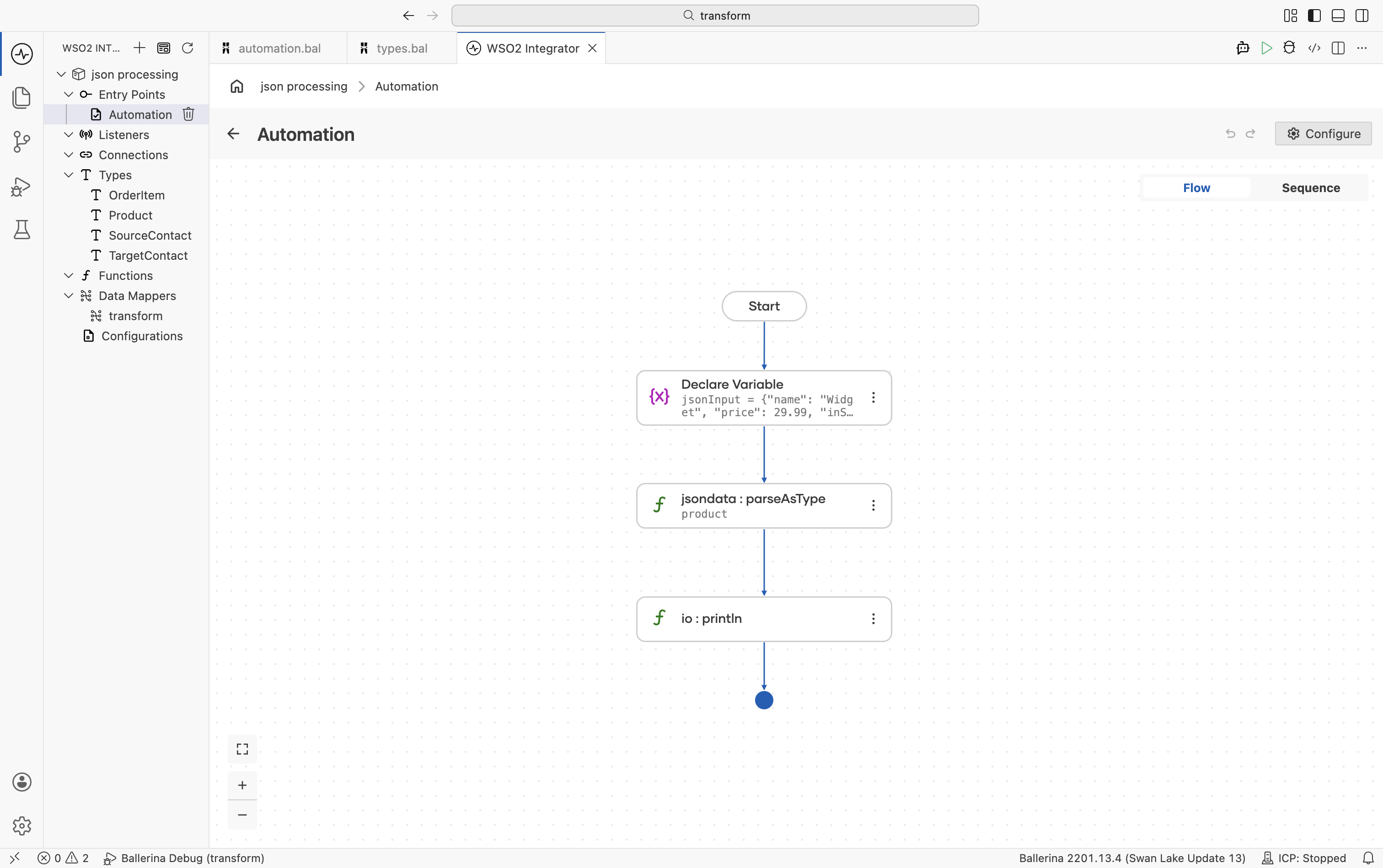
import ballerina/data.jsondata;
import ballerina/io;

type Product record {|
    string name;
    decimal price;
    boolean inStock;
|};

public function main() returns error? {
    json jsonInput = {"name": "Widget", "price": 29.99, "inStock": true};

    Product product = check jsondata:parseAsType(jsonInput);
    io:println(product.name);  // Widget
    io:println(product.price); // 29.99
}
Parse JSON arrays
Use jsondata:parseString() to parse a JSON array string directly into a typed record array. If you already have a json value instead of a string, use jsondata:parseAsType() as described in Convert a JSON value to a typed record.
- Visual Designer
- Ballerina Code
-
Define the record type. Navigate to Types in the sidebar and click + to add a new type. Select Create from scratch, set Kind to Record, and name it
OrderItem. Add fields using the + button:Field Type skustringquantityintunitPricedecimalFor details on creating types, see Types.
-
Add a Variable step for the JSON array string. In the flow designer, click + and select Statement → Declare Variable. Set the name to
itemsJson, the type tostring, and enter the following as the expression:string `[{"sku": "A1", "quantity": 3, "unitPrice": 10.00}, {"sku": "B2", "quantity": 1, "unitPrice": 25.50}]` -
Parse the array. Click + and select Call Function. Search for
parseStringand select it from thedata.jsondatamodule. Configure:- String*:
itemsJson - Result*:
items - T*:
OrderItem[]
- String*:
-
Add a Function Call step to print the result. Click + and select Call Function. Search for
printlnand passitemsas the argument.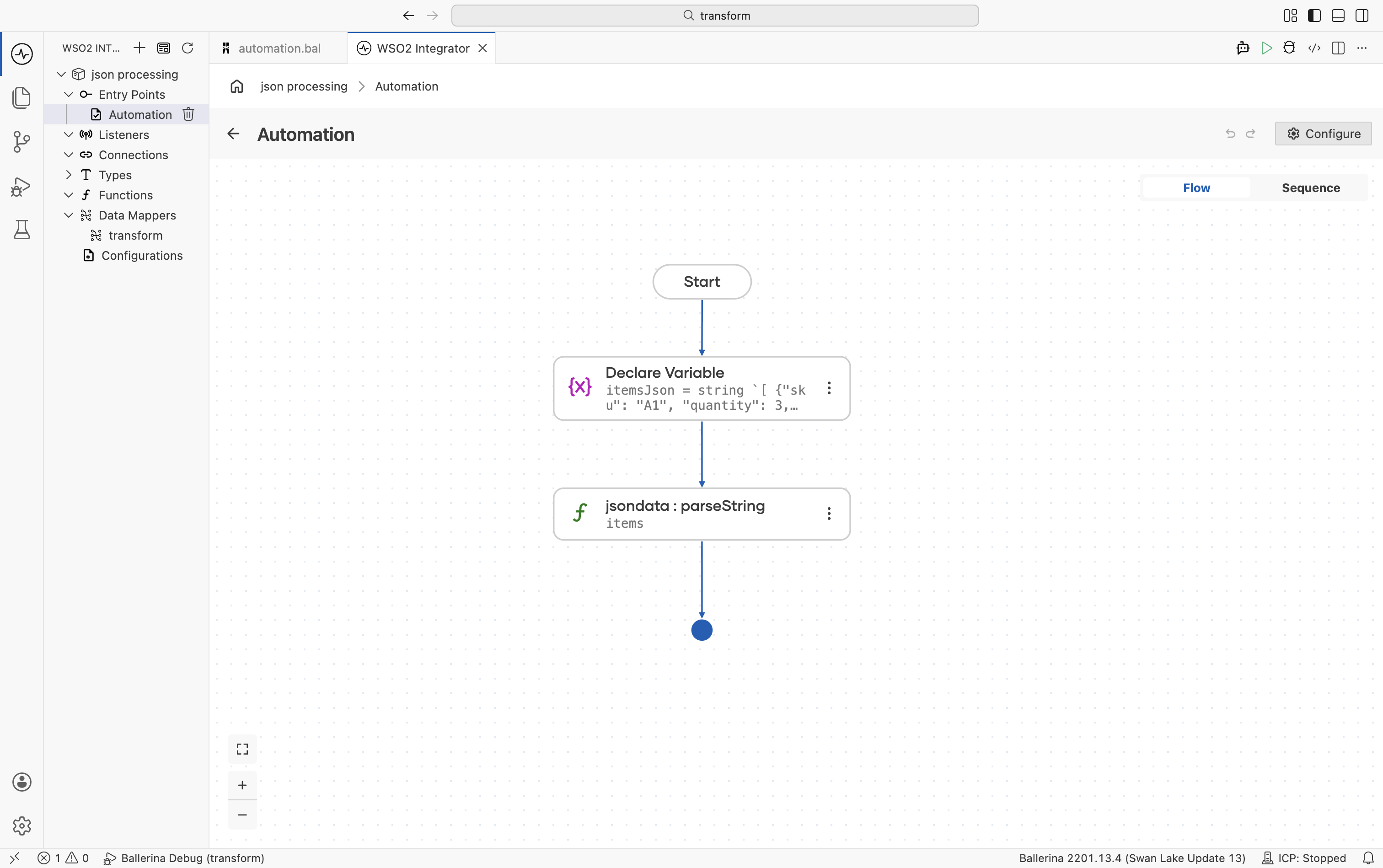
import ballerina/data.jsondata;
import ballerina/io;

type OrderItem record {|
    string sku;
    int quantity;
    decimal unitPrice;
|};

public function main() returns error? {
    string itemsJson = string `[
        {"sku": "A1", "quantity": 3, "unitPrice": 10.00},
        {"sku": "B2", "quantity": 1, "unitPrice": 25.50}
    ]`;

    OrderItem[] items = check jsondata:parseString(itemsJson);
    io:println(items);
}
Merging JSON objects
Combine multiple JSON objects using the mergeJson function.
- Visual Designer
- Ballerina Code
-
Add a Variable step for the first JSON object. In the flow designer, click + and select Statement → Declare Variable. Set the name to
order1, the type tojson, and enter{"sku": "A1", "quantity": "3"}as the expression. -
Add a Variable step for the second JSON object. Click + and select Declare Variable. Set the name to
order2, the type tojson, and enter{"address": "Sri Lanka", "status": "pending"}as the expression. -
Merge the objects. Click + and select Call Function. Search for
mergeJsonand select it from thelang.valuemodule (this adds theballerina/lang.valueimport). Configure:- Json1*:
order1 - Json2*:
order2 - Result*:
orders
- Json1*:
-
Add a Function Call step to print the result. Click + and select Call Function. Search for
printlnand passordersas the argument.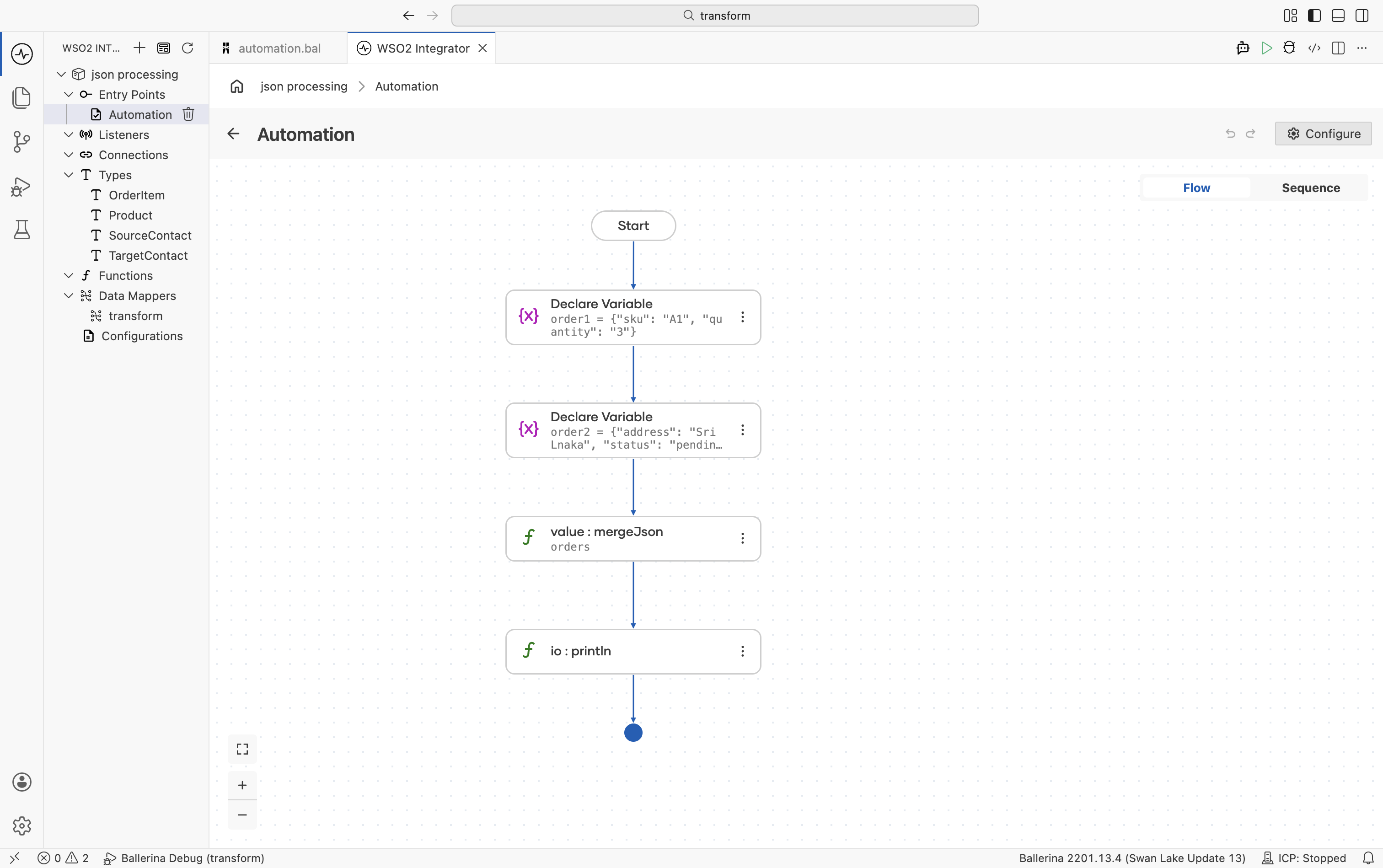
import ballerina/lang.value;
import ballerina/io;


public function main() returns error? {
    json order1 = {"sku": "A1", "quantity": "3"};
    json order2 = {"address": "Sri Lanka", "status": "pending"};
    json orders = check value:mergeJson(order1, order2);
    io:println(orders);
}
Additional scenarios
Remap field names
Use the @jsondata:Name annotation to map JSON field names to Ballerina record fields when the JSON keys do not match Ballerina naming conventions or identifier rules. This is useful when working with external APIs that use naming styles such as snake_case or kebab-case. Add the annotation directly to the record type definition in types.bal after creating the record.
import ballerina/data.jsondata;

type ApiResponse record {|
    @jsondata:Name {value: "total_count"}
    int totalCount;
    @jsondata:Name {value: "next_page"}
    string? nextPage;
|};
Null handling
Use optional types (?) to represent fields that may be missing or contain null values. Combine them with the Elvis operator (?:) to provide default values when a field is absent or evaluates to null. This helps safely process incomplete or optional JSON data without additional null checks.
- Visual Designer
- Ballerina Code
-
Add a Variable step for the JSON payload. In the flow designer, click + and select Statement → Declare Variable. Set the name to
payload, the type tojson, and enter{"name": "Test", "description": null}as the expression. -
Add a Variable step for optional access. Click + and select Declare Variable. Set the name to
desc, the type tojson?, and the expression tocheck payload?.description. The?.syntax returns()for null or missing fields instead of an error. -
Add a Variable step with the Elvis operator. Click + and select Declare Variable. Set the name to
description, the type tostring, and the expression todesc is string ? desc : "No description provided". This provides a default value when the field is null or absent.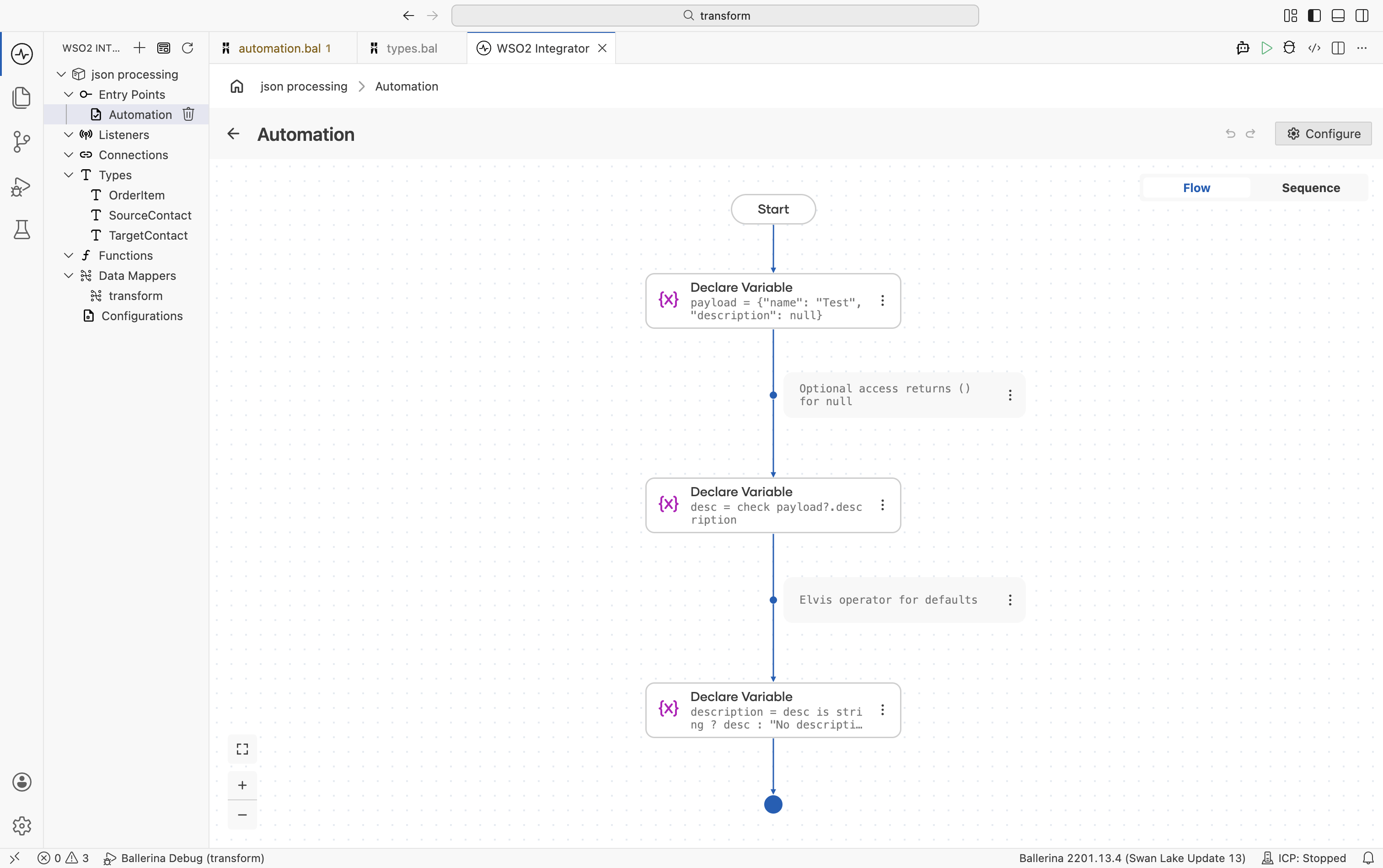
public function main() returns error? {
    json payload = {"name": "Test", "description": null};

    // Optional access returns () for null
    json? desc = check payload?.description;

    // Elvis operator for defaults
    string description = desc is string ? desc : "No description provided";
}
Large JSON payloads
For large JSON payloads, use jsondata:parseStream() to process JSON data directly from a byte stream without loading the entire payload into memory. This approach improves memory efficiency and is useful when handling large API responses, files, or streaming data sources.
- Visual Designer
- Ballerina Code
-
Define the record type. Navigate to Types in the sidebar and click + to add a new type. Select Create from scratch, set Kind to Record, and name it
Product. Add fields using the + button:Field Type idstringnamestringpricedecimalFor details on creating types, see Types.
-
Open the file as a byte stream. In the flow designer, click + and select Call Function. Search for
fileReadBlocksAsStreamunder io and select it (this adds theballerina/ioimport). Configure:- Path*:
"products.json" - Result*:
byteStream
- Path*:
-
Parse the stream into typed records. Click + and select Call Function. Search for
parseStreamand select it from thedata.jsondatamodule (this adds theballerina/data.jsondataimport). Configure:- Stream*:
byteStream - Result*:
products - T*:
Product[]
- Stream*:
-
Add a Foreach step to iterate. Click + and select Foreach under Control. Set:
- Collection:
products - Variable Name*:
product - Variable Type*:
Product
- Collection:
-
Add a Function Call step inside the loop. Inside the Foreach body, click + and select Call Function. Search for
printlnand passproductas the argument.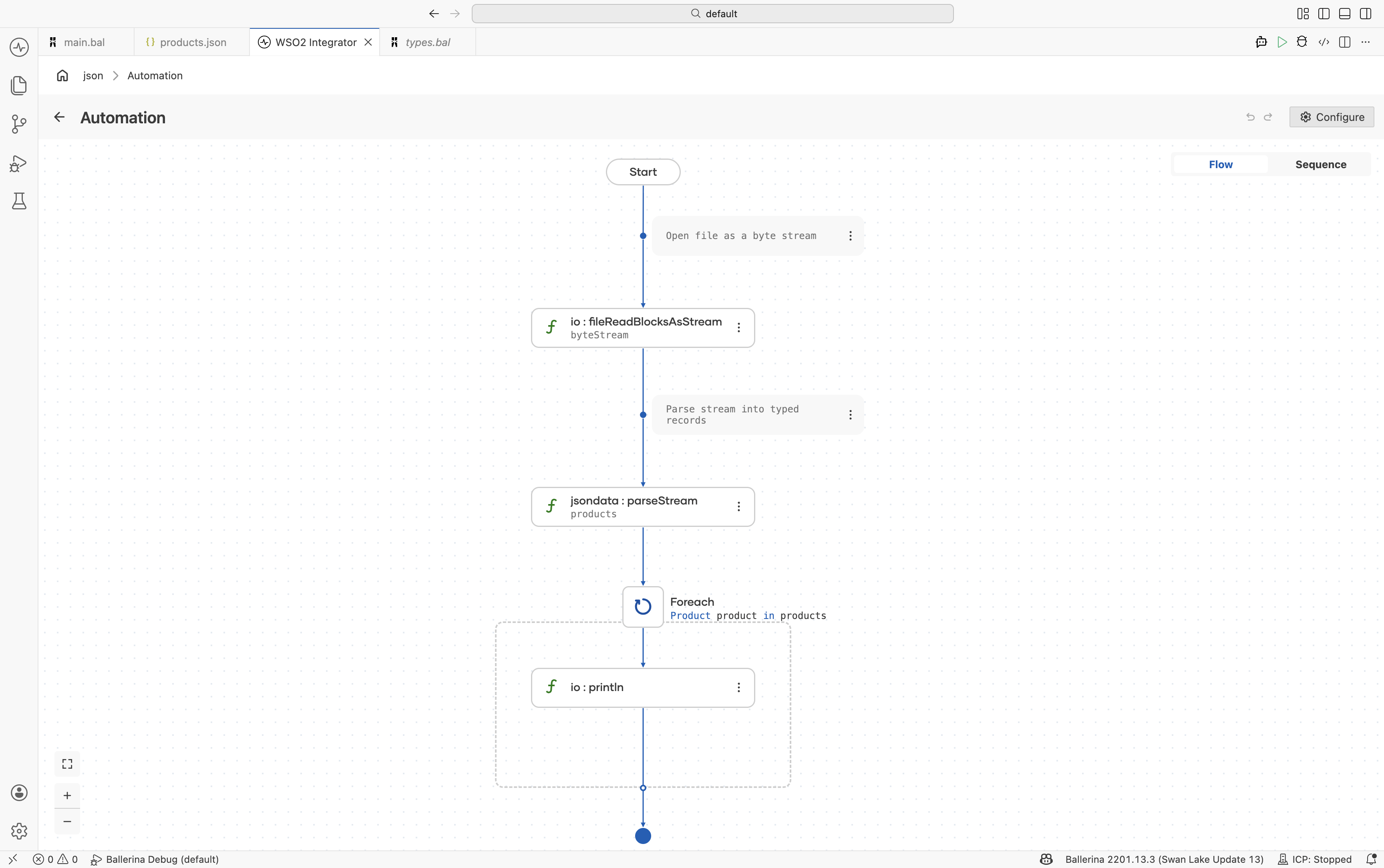
import ballerina/data.jsondata;
import ballerina/io;

type Product record {
    string id;
    string name;
    decimal price;
};

public function main() returns error? {

    // Open file as a byte stream
    stream<byte[], io:Error?> byteStream =
        check io:fileReadBlocksAsStream("products.json");

    // Parse stream into typed records
    Product[] products = check jsondata:parseStream(byteStream);

    foreach Product product in products {
        io:println(product);
    }
}
Create a products.json file in the project directory.
[
    {
        "id": "P100",
        "name": "Keyboard",
        "price": 99.99
    },
    {
        "id": "P200",
        "name": "Mouse",
        "price": 49.50
    }
]
What's next
- XML Processing - Work with XML data
- Type System & Records - Type-safe data handling