Gated Tools
By default, an agent runs on autopilot. It reasons and calls tools in a loop until it produces an answer, with no opportunity for a person to step in. That is fine for read-only actions such as looking up an order, but risky for sensitive ones such as issuing a refund, deleting a record, or sending an email.
Gating a tool makes the agent pause immediately before it runs that tool, show what it proposes to do, and continue once a person has approved or rejected the tool call.
How it works
Gating is opt-in for each tool. When you gate a tool, the agent stops before invoking it and reports the tool calls waiting for a decision. A person reviews each proposed tool call and approves or rejects it, and the run continues from exactly where it paused.
| Stage | What happens |
|---|---|
| Pause | The agent decides to call a gated tool. Instead of running it, the agent saves its state and returns the pending approval requests. |
| Decide | A person reviews each request, including the tool name and the arguments the agent proposes to use, and approves or rejects it. |
| Resume | The decisions are passed back to the agent. Approved tool calls run, rejected ones do not, and the agent continues reasoning. |
Two properties are worth knowing before you build on it.
- The agent does not hold a thread while it waits. A pending approval can be resolved seconds or days later, from a different process or server replica, as long as it can reach the same memory store.
- Nothing changes for agents that do not use it. If no tool is gated, the agent never pauses and existing agents behave exactly as before.
Rejection is not simply a failure. The agent receives the rejection, along with any reason you supply, as feedback and replans. That makes the reason field a useful way to redirect the agent, for example, "Refunds above 100 USD need manager sign-off. Create a ticket instead."
1. Gate a tool
Gating is configured on the tool, not on the agent.
- Select the AI Agent node in the agent canvas.
- Click the + button to open the Add Tool panel.
- Choose how you want to add the tool. For details on each option, see Tools.
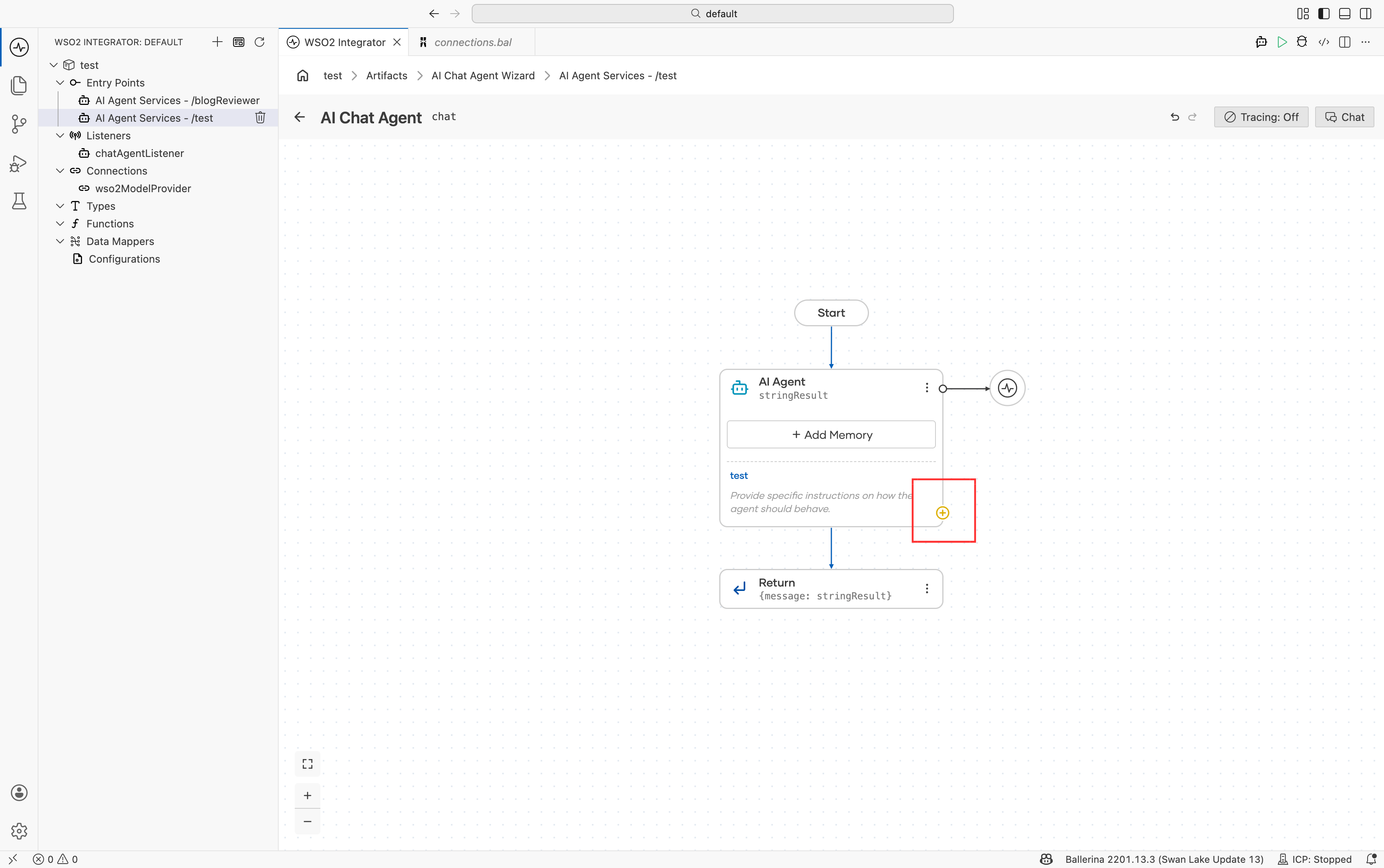
- In the tool configuration panel, tick Requires Approval.
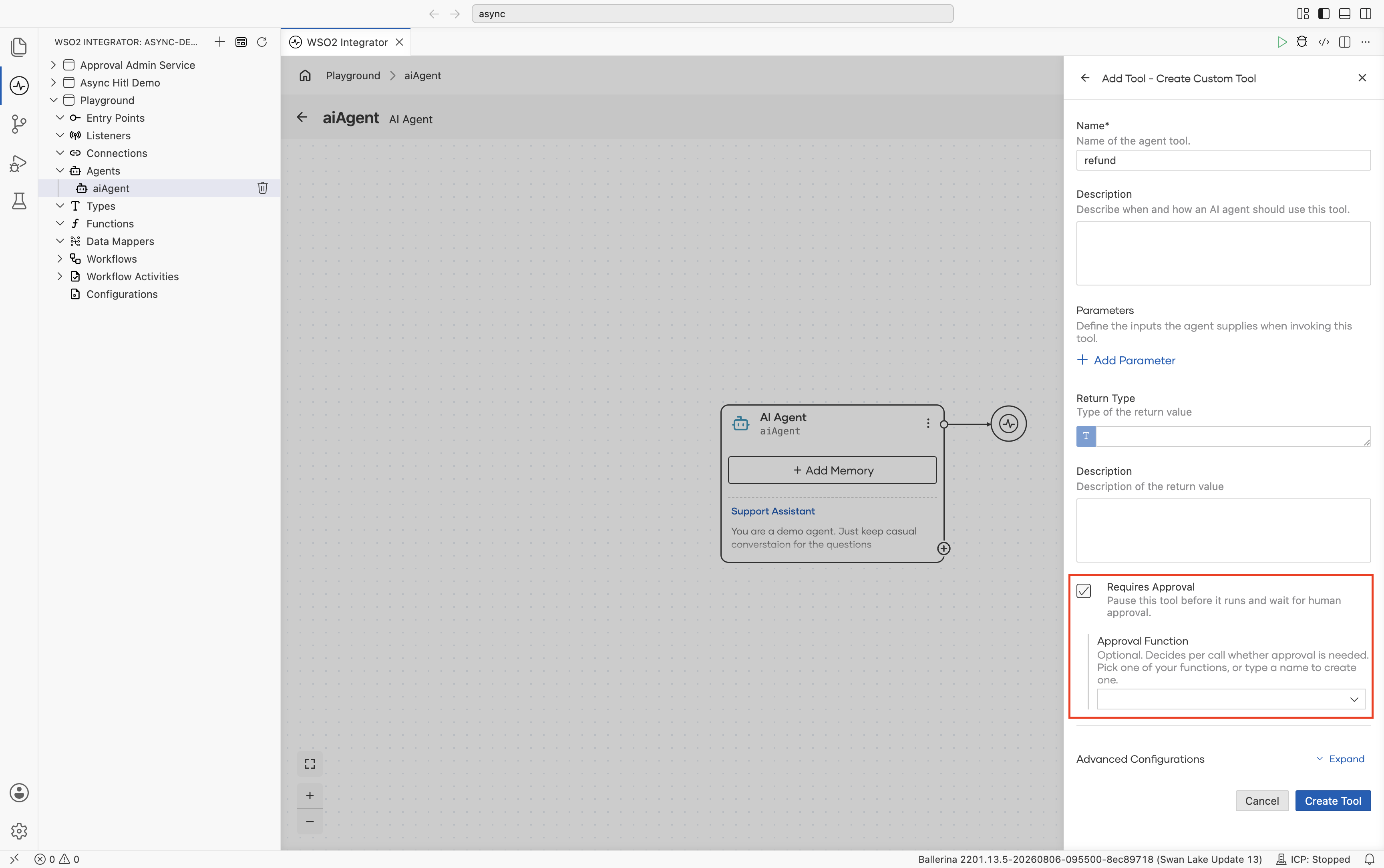
- Configure the following fields.
| Field | Description |
|---|---|
| Requires Approval | Optional. Pauses the tool before it runs and waits for approval. Off by default. |
| Approval Function | Optional. Decides for each tool call whether approval is needed. Available only when Requires Approval is ticked. Leave it empty to require approval for every call. For conditional gating, see Gate a tool conditionally. |
These fields combine to give three behaviours.
| Configuration | Behaviour |
|---|---|
| Requires Approval off | The tool runs freely. The agent never pauses for it. |
| Requires Approval ticked, Approval Function empty | Every call to this tool pauses for approval. |
| Requires Approval ticked, Approval Function set | Only the tool calls the function accepts pause. |
- Save the tool with Create Tool or Save Tool.
Where the field appears
Requires Approval is available for the following tool options.
| Tool option | Supports Requires Approval |
|---|---|
| Use Function | Yes |
| Use Connection | Yes |
| Create Custom Tool | Yes |
| Use Agent | Yes |
| Use MCP Server | No |
Tools discovered from an MCP server are generated from the remote server's tool list, so there is no local declaration on which to set the field. To gate an action provided by an MCP server, wrap it in a function or a custom tool and gate that instead.
2. Gate a tool conditionally
Gating every call to a tool is often stricter than you need. A refund of 5 USD and a refund of 5000 USD are the same tool call, but only one of them needs a person's attention. Approval Function lets you decide for each call, based on the arguments the agent proposes.
- Tick Requires Approval.
- Set Approval Function, either by picking one of your project's own functions, or by typing a new name.
The function you pick for Approval Function must take the same parameters as the tool it gates and return boolean. The picker lists every function in your project, not just ones that match.
Typing a new name has WSO2 Integrator generate a function next to the tool with the correct signature and a placeholder body. Generating a function this way is only available while you are creating the tool. If you edit a tool that already exists, Approval Function offers only your project's functions to pick from, so create the function first, then select it.
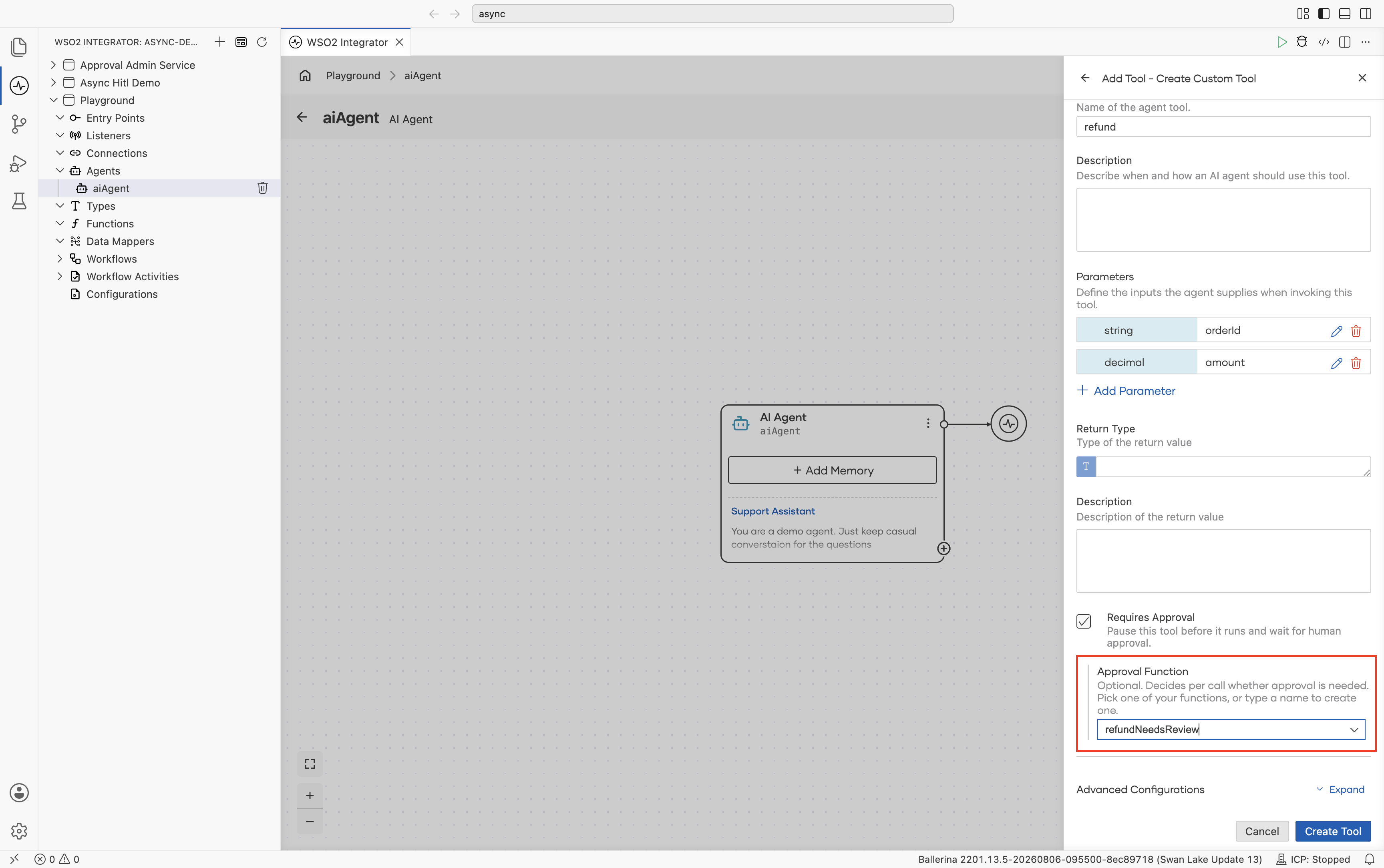
- Open the generated function and replace the placeholder body with the real condition. When the condition holds, that call is gated and pauses for approval. When it doesn't, the call is ungated and runs immediately.
- Visual Designer
- Ballerina Code
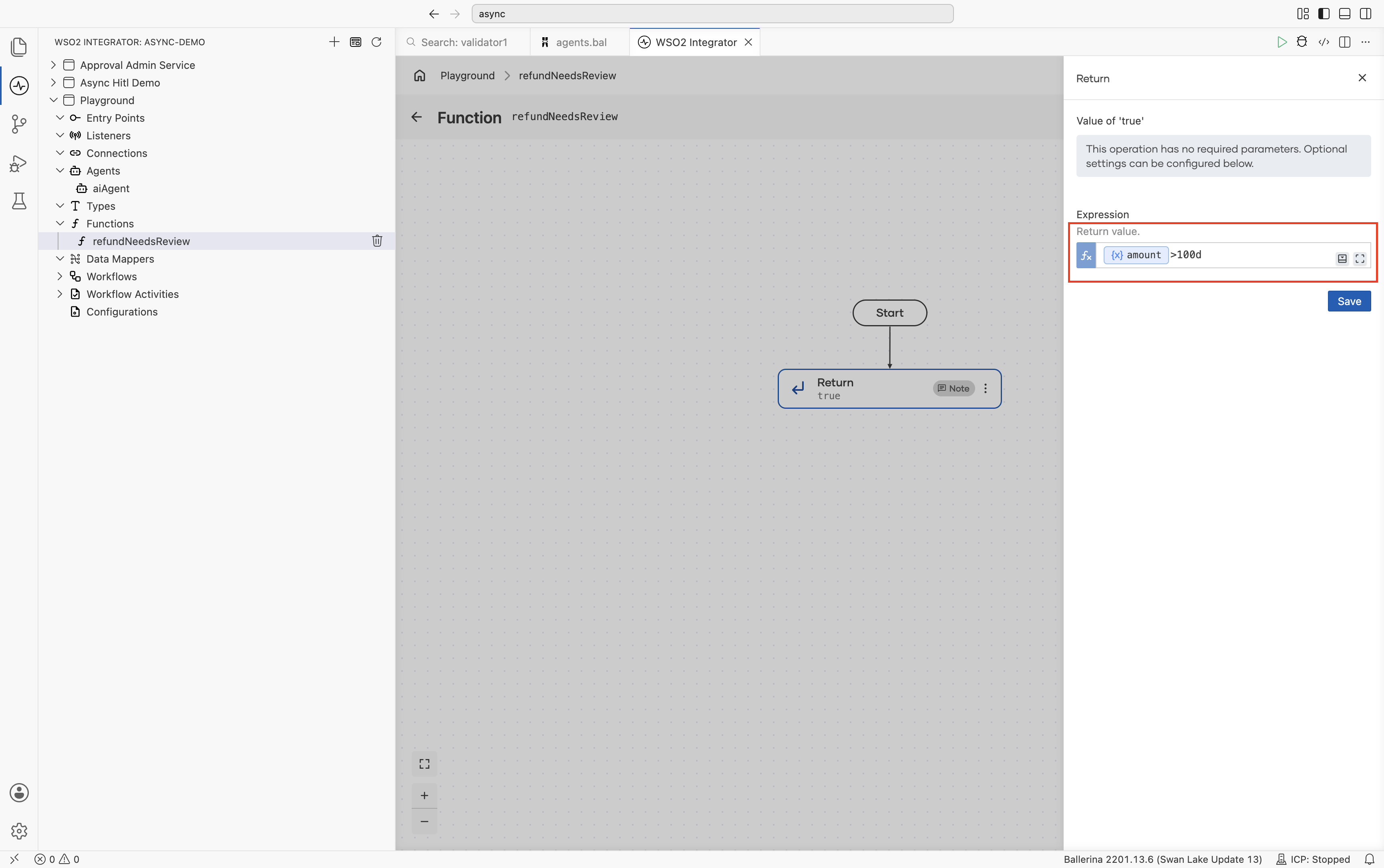
- Click the generated function in the left panel to open it.
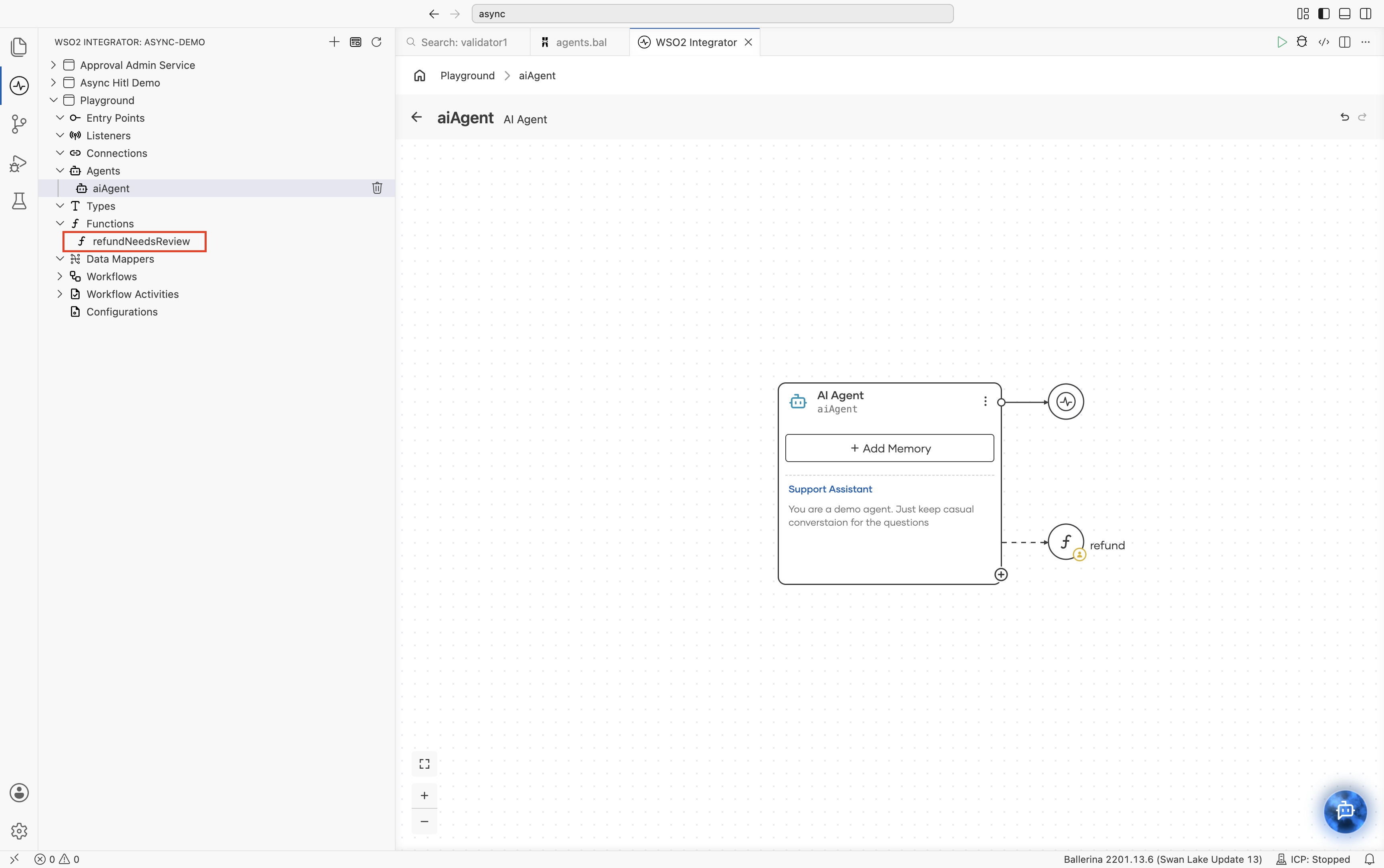
- Click the Return step. The right panel shows the return expression, starting with the default placeholder value,
true. Change it to the real condition, for exampleamount > 100d.
Generated for you, with a placeholder body:
isolated function refundNeedsReview(string orderId, decimal amount) returns boolean {
    // TODO: inspect the proposed arguments and return true to require approval
    return true;
}
Edited to the real condition:
isolated function refundNeedsReview(string orderId, decimal amount) returns boolean {
    return amount > 100d;
}
Keep the following constraints in mind.
- The function runs synchronously, as part of the agent's reasoning, so keep it fast rather than doing something slow like a network call.
- The function can be evaluated again later for the same call, so it must return the same answer every time.
- The function fails safe. If it panics or does not return a
boolean, the tool call pauses for approval rather than running unreviewed.
3. See which tools are gated
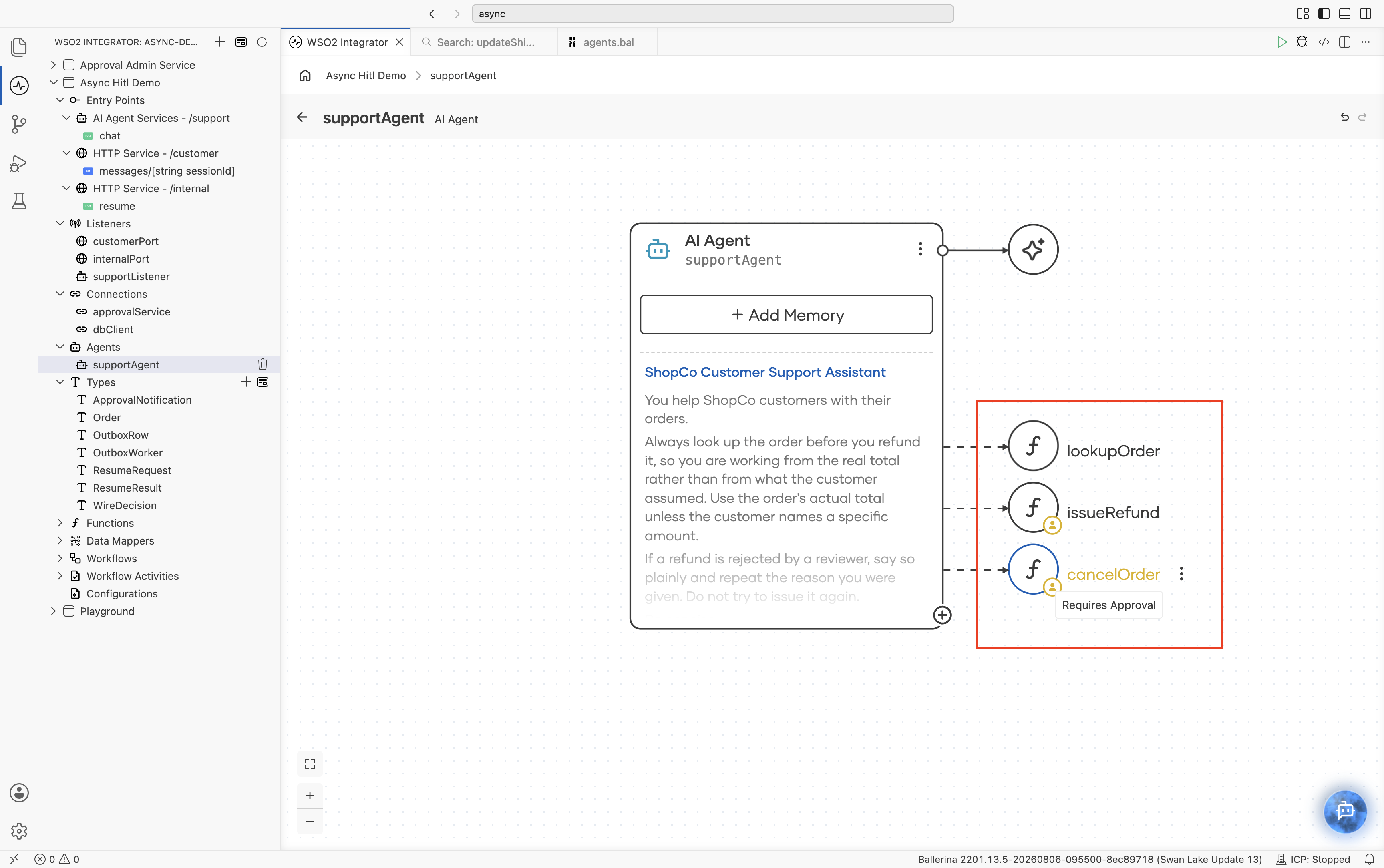
Gated tools are marked with a badge in the bottom-right corner of the tool in the AI Agent node. Hover over the badge to see the Requires Approval tooltip. The badge is informational, and it gives you a way to confirm at a glance which tools can pause the agent.
4. Make pauses survive a restart
A paused run is stored as a checkpoint in the agent's memory store, keyed by the session ID. Where that store keeps its data determines whether a pending approval survives.
| Memory configuration | Pauses survive a restart? |
|---|---|
| Default in-memory store | No. Pending approvals are lost when the process stops, and another replica cannot see them. |
| A durable store, such as a database-backed store | Yes. A pause can be resolved after a restart or by another replica. |
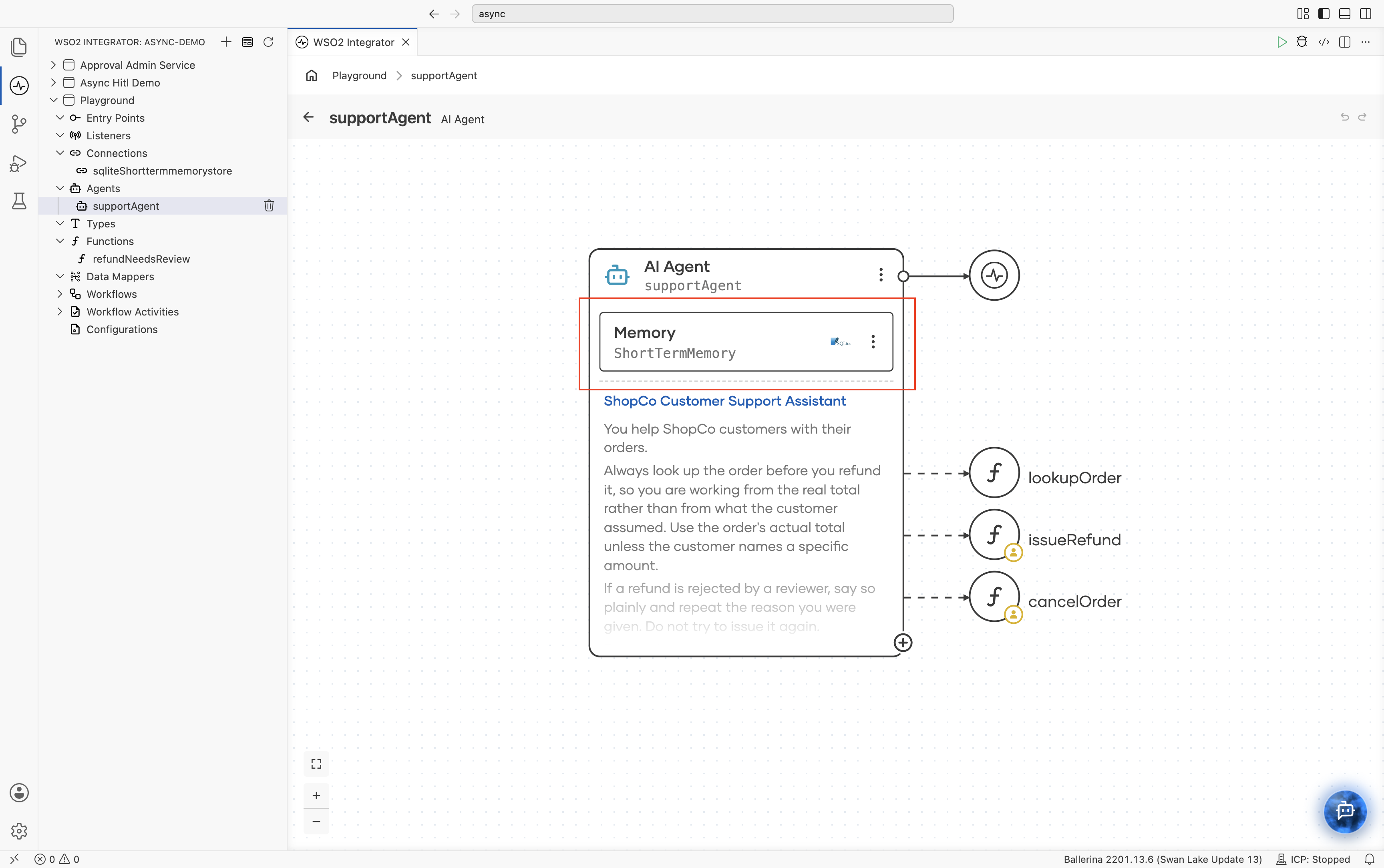
The default is fine while you develop and test. For production, where a person may take hours to respond, attach a durable store to the agent's memory. See Memory.
Choose what to gate
Use the following table as a starting point.
| Situation | Recommended setup |
|---|---|
| The tool only reads data | Leave Requires Approval off. Gating read-only tools adds friction with no benefit. |
| The tool moves money, deletes data, or contacts a customer | Tick Requires Approval and leave Approval Function empty. |
| The action is sensitive only past a threshold, such as a large refund | Tick Requires Approval and set an Approval Function that tests the amount. |
| The action is sensitive only for certain records, such as production tenants | Tick Requires Approval and set an Approval Function that inspects the identifier. |
| The tool comes from an MCP server | Wrap the operation in your own function or custom tool and gate that. |
| A person may take hours to respond | Attach a durable memory store so the pause survives a restart. |
Two habits keep gating useful rather than tiring. Gate the smallest number of tools you can, because reviewers who approve everything by reflex provide no real oversight. And write specific tool descriptions, because the description is what the reviewer reads when deciding.
What's next
- Tools — Add functions, connectors, and integrations to your agents.
- Memory — Configure conversational and persistent memory, including durable stores.
- Observability — Trace which tools the agent selects and when it pauses.