Tools
Tools enable AI agents to interact with external systems and perform actions during execution. WSO2 Integrator provides multiple ways to add and configure tools for an AI agent through a unified tool configuration experience.
This page describes the supported tool types, how to add them to an agent, and how each tool integration option works.
Add a tool
To add a tool to an agent, click the + button on the AI Agent node in the agent canvas.
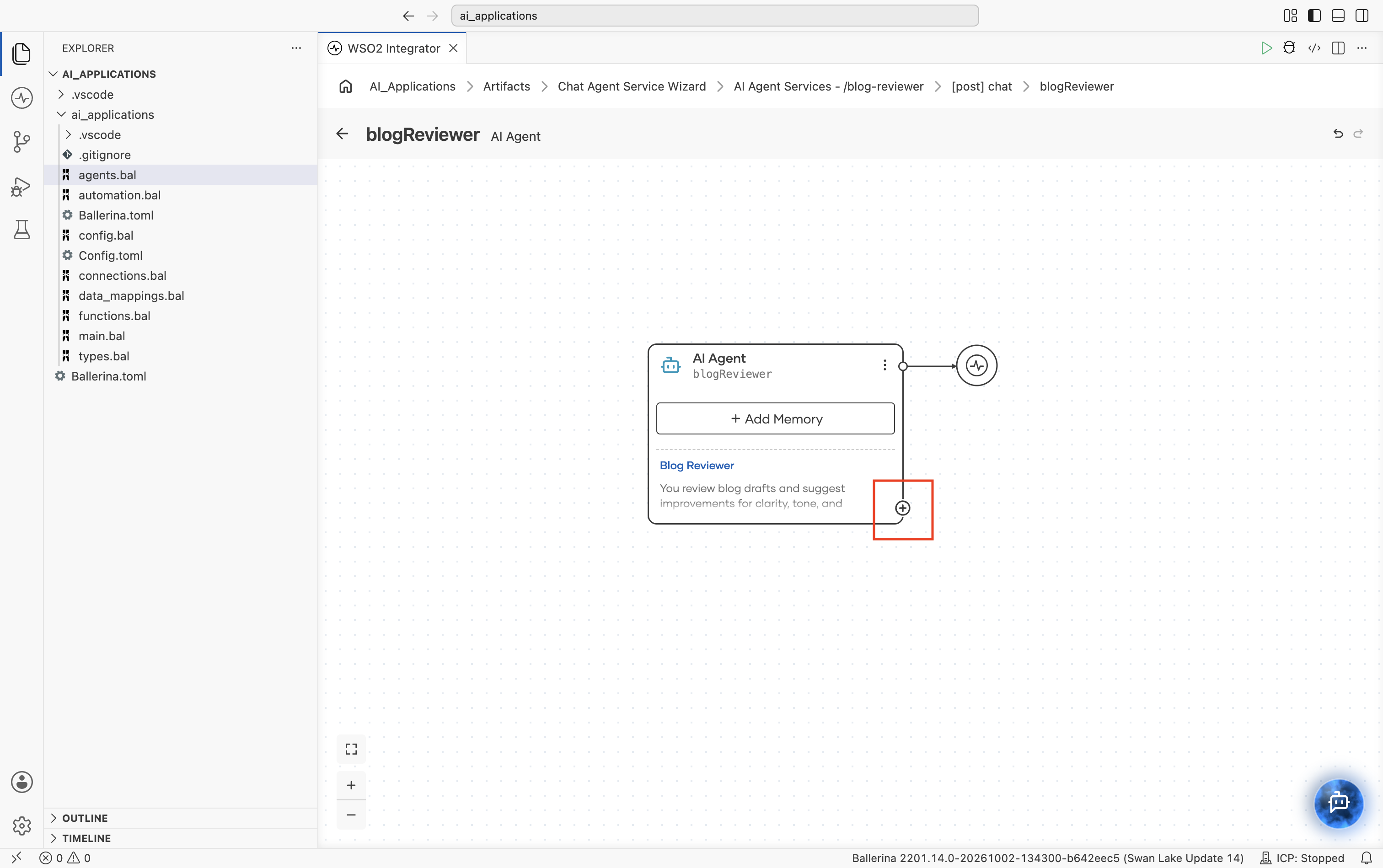
This opens the Add Tool panel, where you can choose how to add capabilities to the agent.
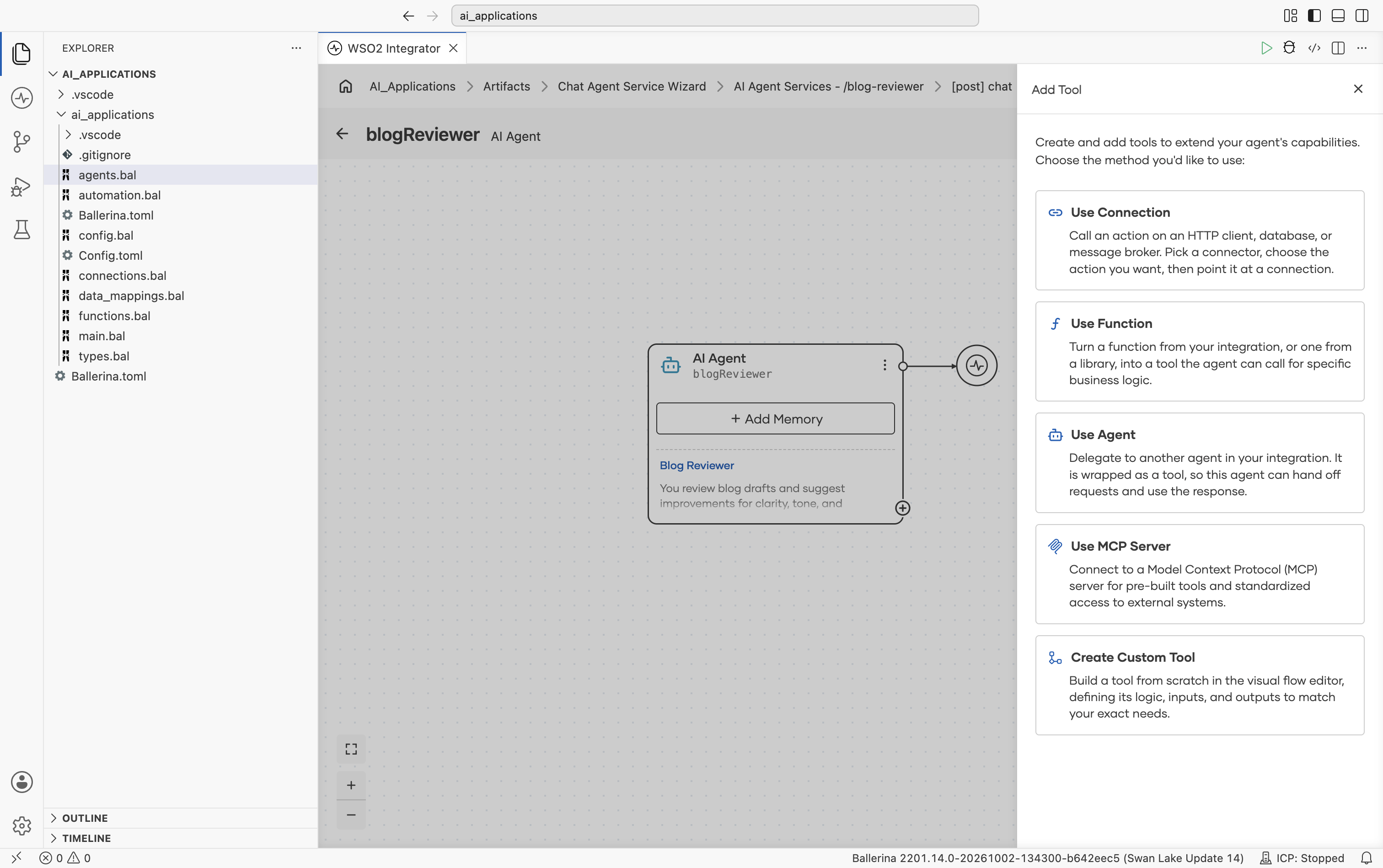
The following tool integration options are available:
| Option | Description |
|---|---|
| Use Connection | Use an existing WSO2 Integrator connector such as Salesforce, Gmail, MySQL, or GitHub. Each connector operation becomes available as an agent tool. |
| Use Function | Expose an existing project function or standard library function as an agent tool. |
| Use Agent | Delegate to another agent, wrapped as a tool, so this agent can hand off requests and use the response. |
| Use MCP Server | Connect to tools hosted on a remote MCP server, including custom, community, or SaaS MCP endpoints. |
| Create Custom Tool | Define a new tool by specifying its name, description, parameters, and return type directly from the UI. |
Each option opens a dedicated configuration panel for setting up the selected tool type.
1. Use connection
Selecting Use Connection opens the Add Tool - Use Connection panel, listing connectors to pick an existing connection or browse a connector's actions.
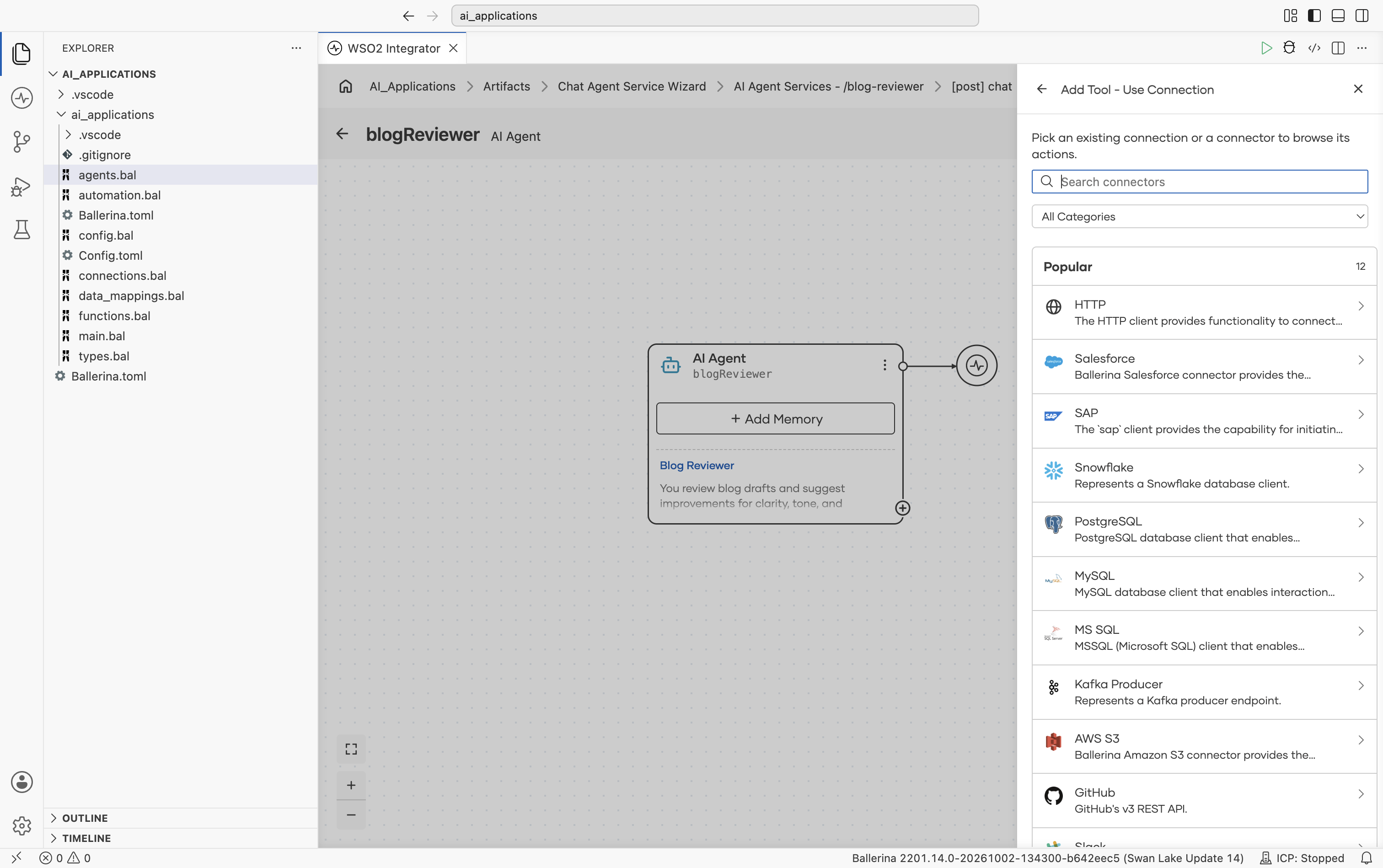
The panel provides the following options for finding a connector:
| Option | Description |
|---|---|
| Search connectors | Find a connector by name across every category. |
| All Categories | Filter the list to a single category. |
| Popular | The most commonly used connectors across all categories, shown by default. |
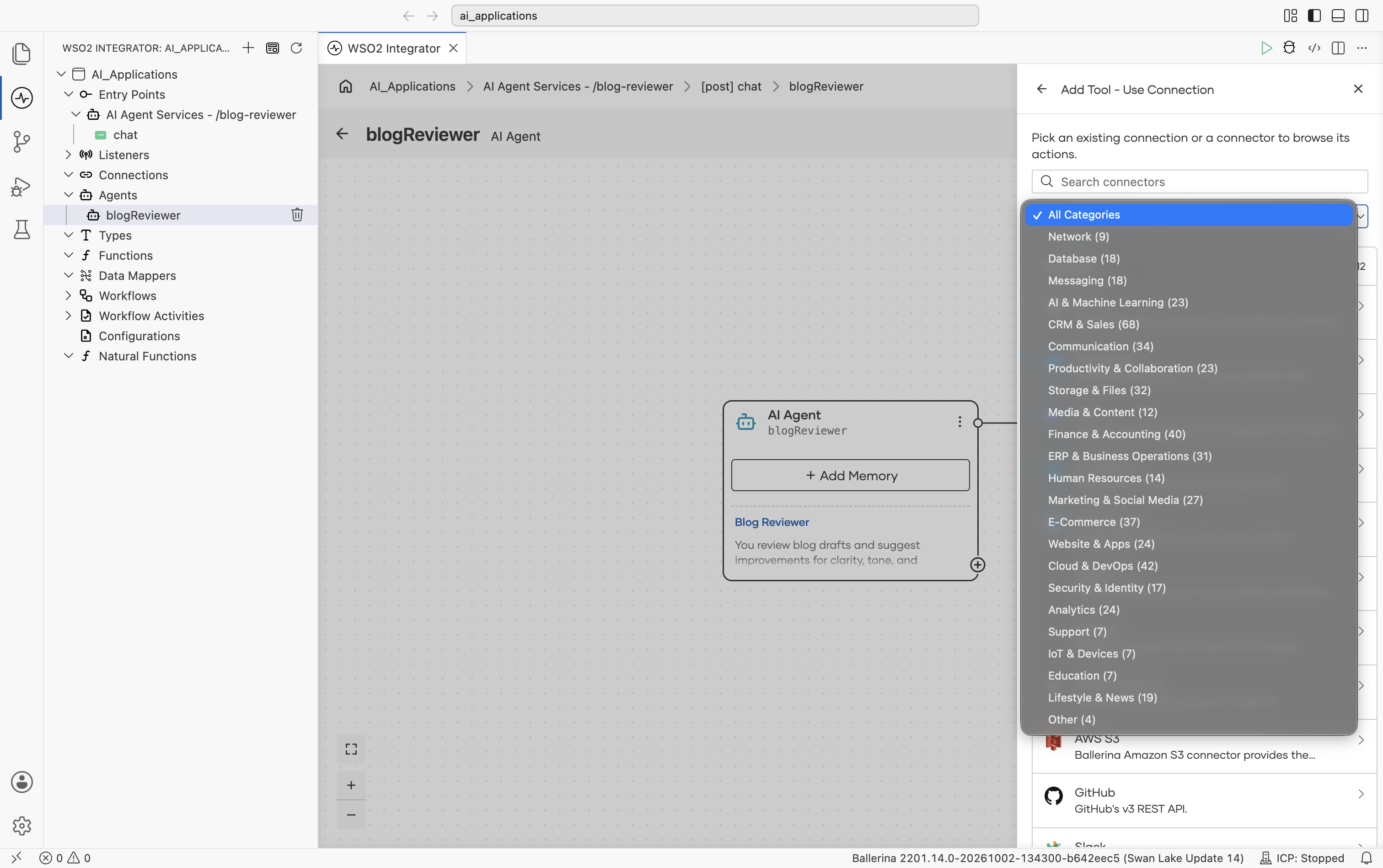
Choosing a category from the All Categories dropdown filters the list to show only the connectors in that category.
1.1 Select an operation
Select a connector from the Popular list, a category such as AI & Machine Learning, or a search result.
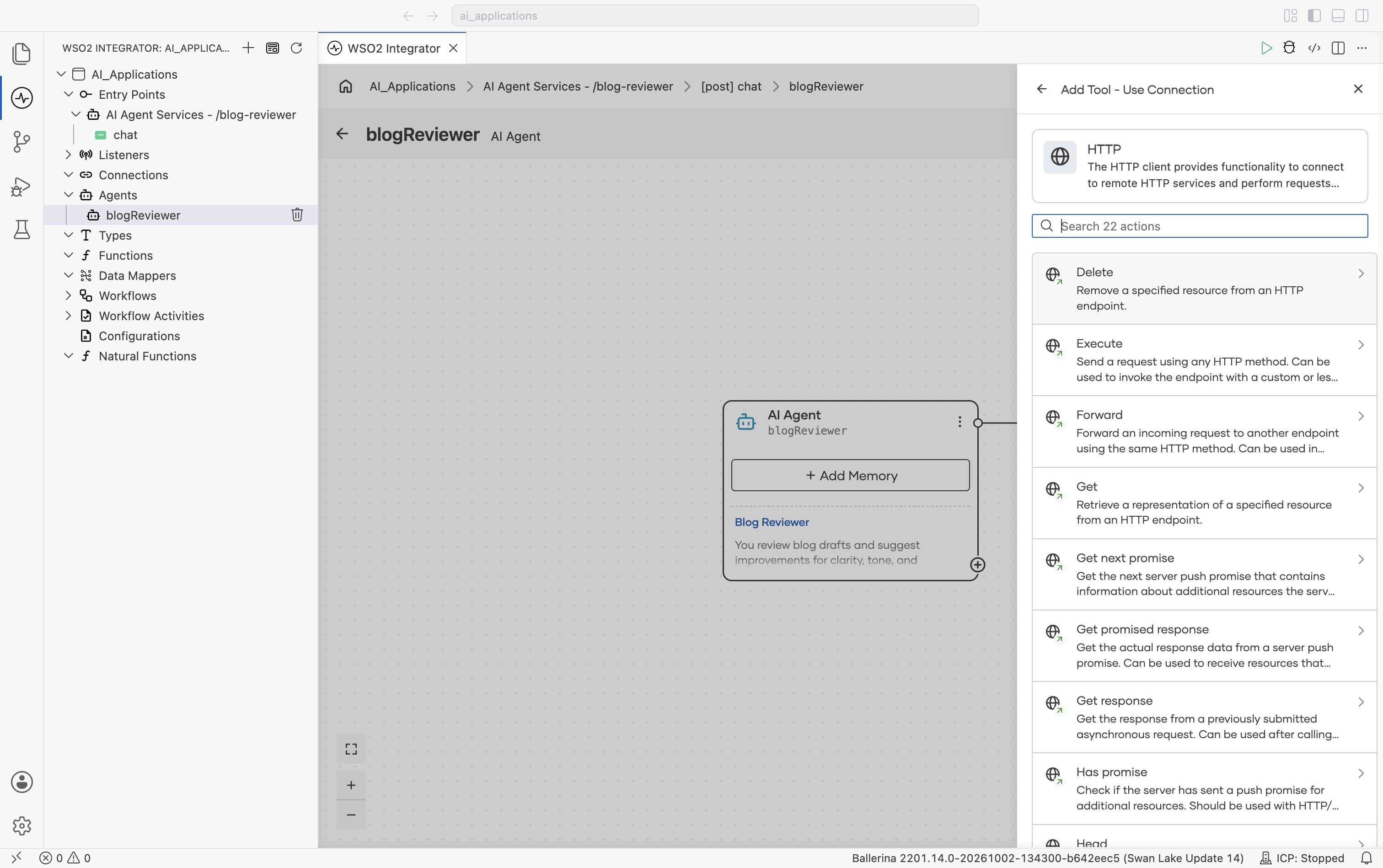
After selecting a connector, WSO2 Integrator lists its available operations, searchable by name:
Selecting an operation opens its tool configuration:
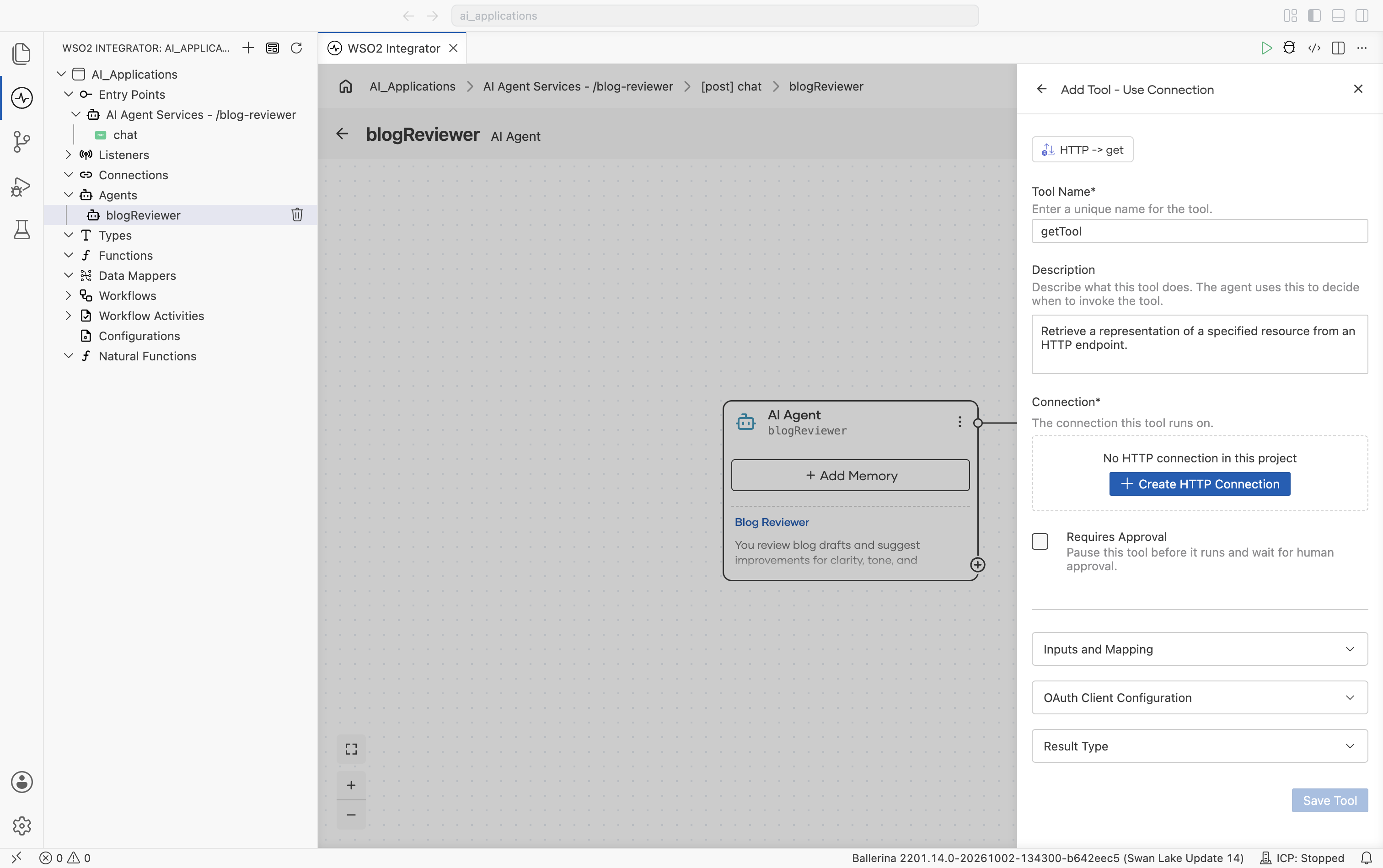
| Field | Required | Description |
|---|---|---|
| Tool Name | Yes | A unique name for the tool, prefilled from the operation. |
| Description | No | Explains what the tool does, prefilled from the connector definition. The agent uses this to decide when to invoke the tool. |
| Connection | Yes | The saved connection this tool runs on. Select an existing one, or click + Create Connector Connection to create one inline if none exists yet. |
| Requires Approval | No | Pauses the tool before it runs and waits for a person to approve the call. See Gated Tools. |
| Inputs and Mapping | No | The operation's parameters and how they map to the tool's inputs, derived from the connector definition. |
| OAuth Client Configuration | No | OAuth client settings, when the connection's authentication requires them. |
| Result Type | No | The Ballerina type the tool returns, derived from the connector definition. |
Use this option when a suitable pre-built or generated connector already exists, allowing the agent to interact with external systems without requiring additional wrapper code.
2. Use function
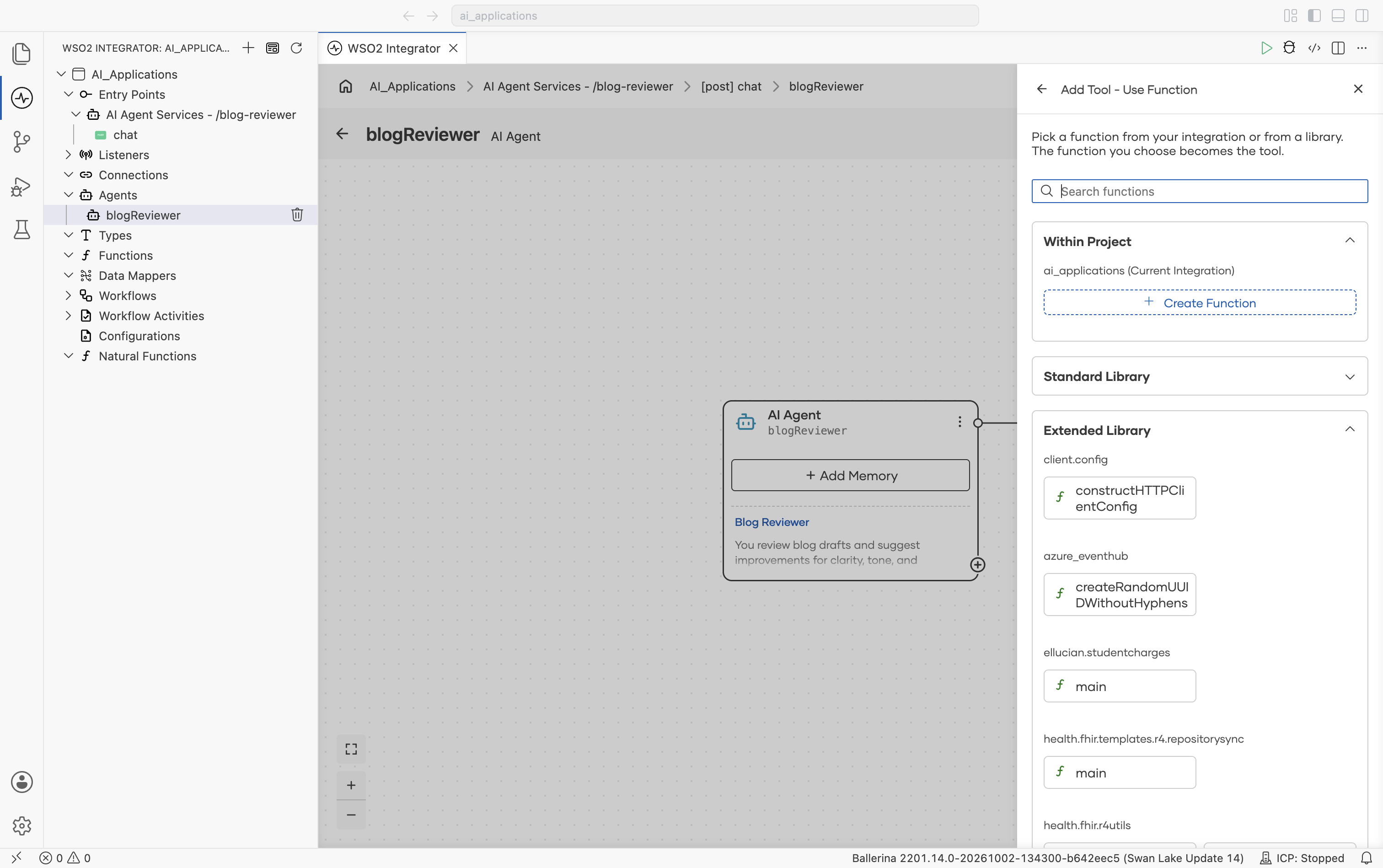
Selecting Use Function opens the Add Tool - Use Function panel, with a Search functions box at the top and the available functions grouped into collapsible sections.
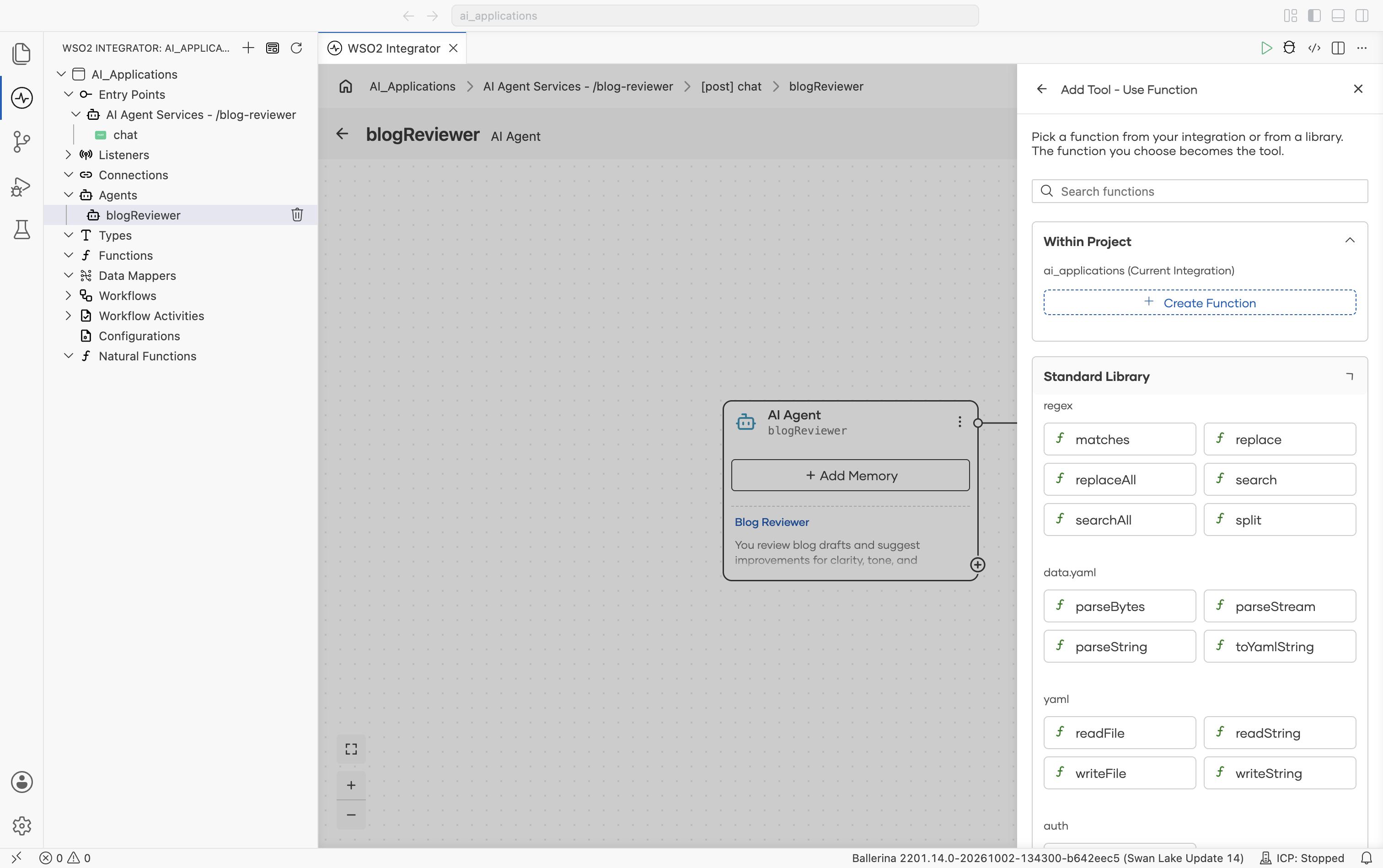
Expanding Standard Library lists Ballerina standard library functions grouped by module.
The panel provides the following sections for selecting a function:
| Section | Description |
|---|---|
| Within Project | Functions defined within your own project, including natural functions. Click + Create Function to author a new one inline. |
| Standard Library | Ballerina standard library functions, grouped by module (for example regex, data.yaml, yaml, auth). |
| Extended Library | Functions from connector modules available to the project (for example a configured connector's helper functions), grouped by module name. |
Use Search functions to find a specific function by name across all three sections instead of browsing each one. Selecting a function opens its tool configuration:
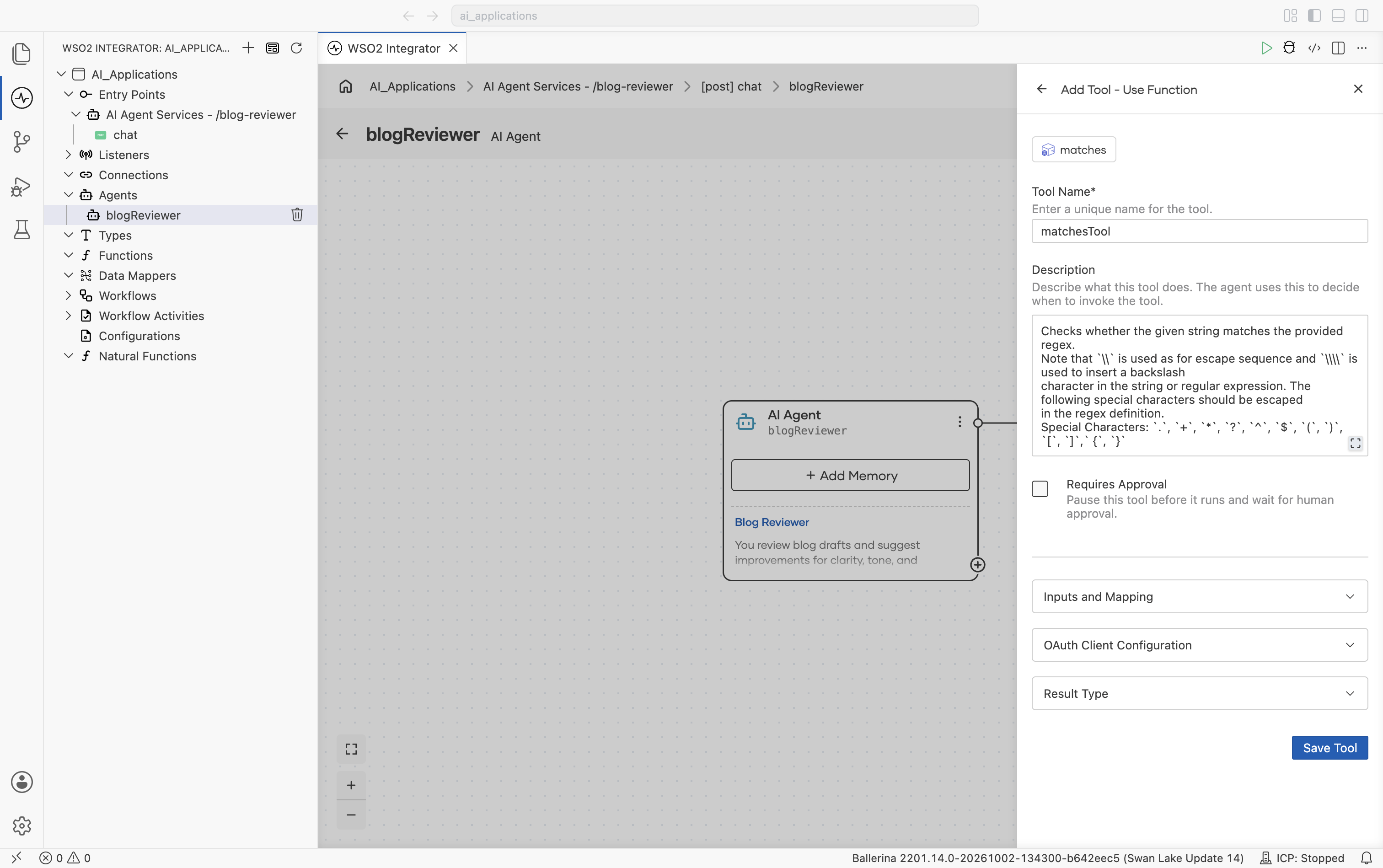
| Field | Required | Description |
|---|---|---|
| Tool Name | Yes | A unique name for the tool, prefilled from the function name. |
| Description | No | Explains what the tool does, prefilled from the function's doc comment when available. |
| Requires Approval | No | Pauses the tool before it runs and waits for a person to approve the call. See Gated Tools. |
| Inputs and Mapping | No | The function's parameters and how they map to the tool's inputs, derived from the function signature. |
| OAuth Client Configuration | No | OAuth client settings, when the function needs them (for example a connector-derived function that calls an OAuth-protected endpoint). |
| Result Type | No | The Ballerina type the tool returns, derived from the function's return type. |
Each selected function becomes available as an agent tool.
3. Use agent
Selecting Use Agent attaches another agent as a tool. The calling agent decides when to invoke it, passes it a task, and uses what comes back.
Agents already instantiated in the integration are listed for selection, and new ones can be created from the same panel. For the full flow and the fields on the tool, see Agents as Tools.
Use this option when a task needs its own multi-step reasoning rather than a single action. See Multi-Agent Systems for when to split work this way.
4. Use MCP server
Selecting Use MCP Server opens the Add Tool - Use MCP Server panel.
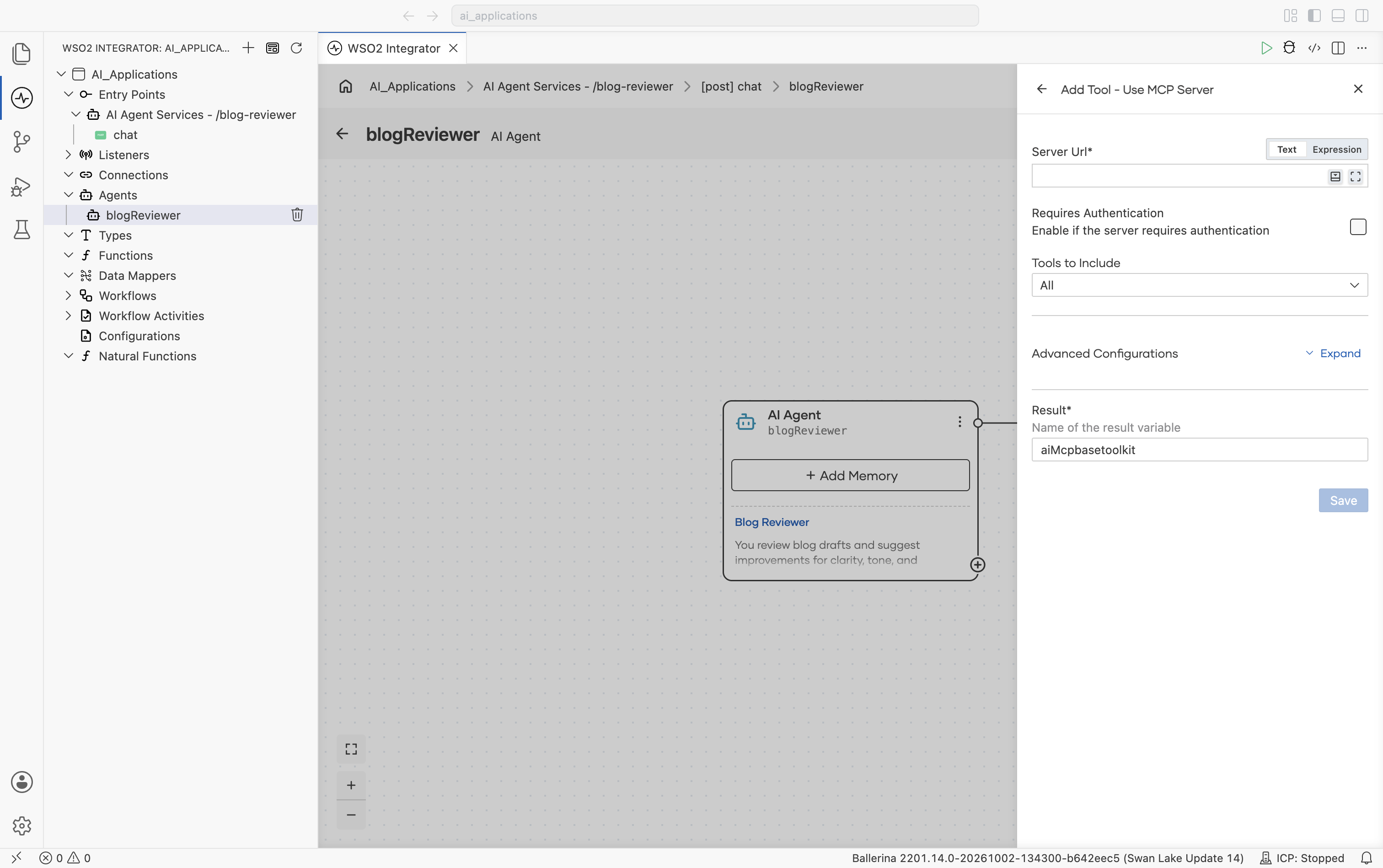
The dialog provides the following configuration for selecting a tool:
| Field | Description |
|---|---|
| Server URL | The MCP endpoint URL, for example http://localhost:9090/mcp or https://mcp.example.com. |
| Requires Authentication | Enable this option if the server requires authentication, then configure the required authentication settings. |
| Tools to Include | Select All to expose every tool advertised by the server, or choose a specific subset of tools by name. |
| Advanced Configurations | Additional HTTP client configurations. |
| Result | The name of the variable used to store the result returned by the MCP tool invocation. |
After saving, every tool exposed by the MCP server, or every tool selected in Tools to Include, becomes available to the agent. These tools appear alongside local function tools and are used transparently from the agent’s perspective.
Tip: A WSO2 Integrator project can also consume its own MCP service. See Exposing a Service as MCP.
5. Create custom tool
Use this option when you want to define a tool before implementing its logic, or when the tool requires a fully custom structure.
Selecting Create Custom Tool opens the Add Tool - Create Custom Tool panel, a structured form for defining a custom tool.
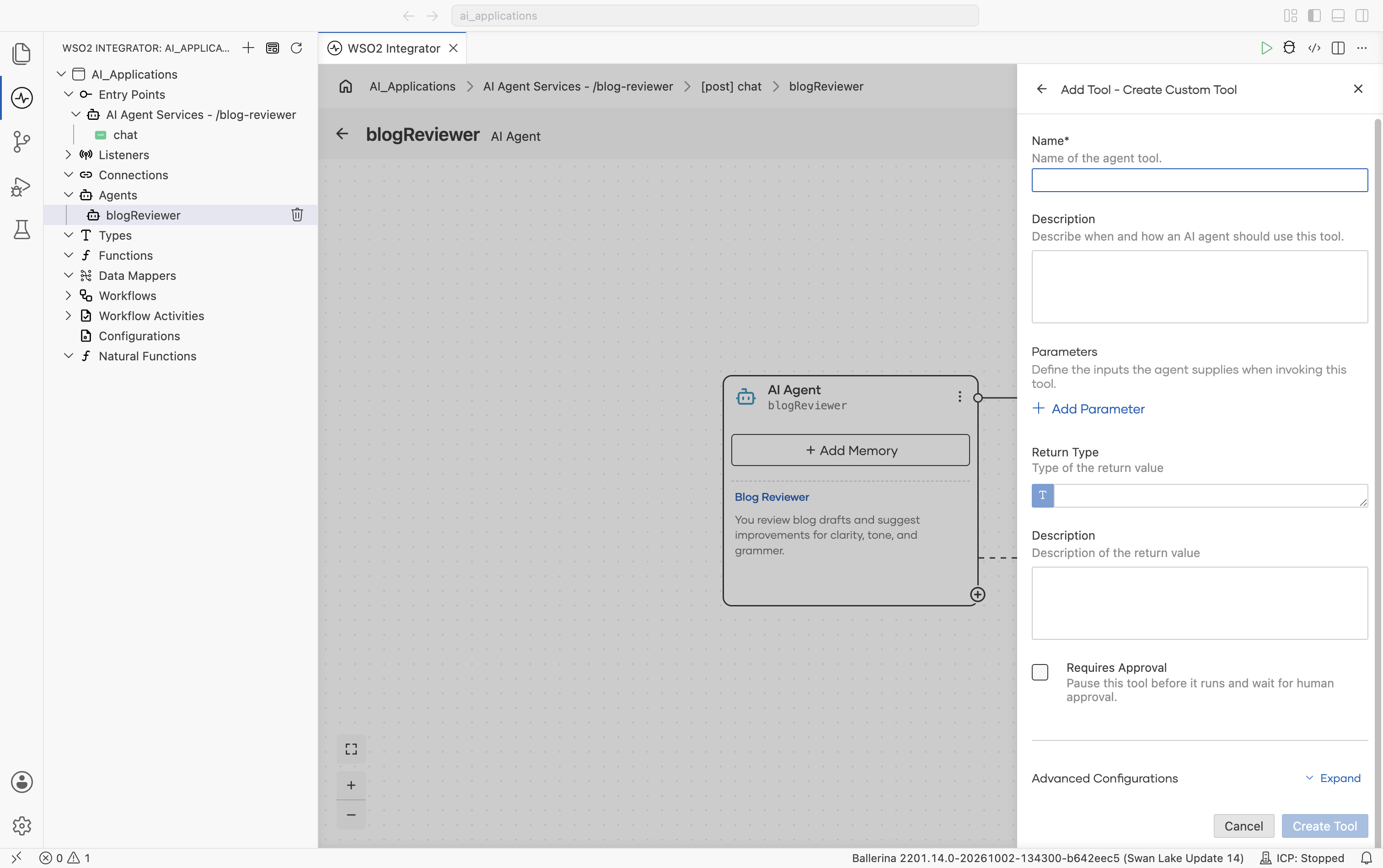
The panel provides the following fields for creating a tool:
| Field | Required | Description |
|---|---|---|
| Name | Yes | The name of the tool used by the LLM to identify and invoke it. |
| Description | No | Explains what the tool does and when the agent should use it. Although optional, providing a clear description significantly improves tool selection accuracy by the LLM. |
| Parameters | No | Defines the input parameters for the tool. Each parameter includes a name, type, and description. The descriptions help the LLM understand what values to provide. Selecting + Add Parameter adds a new parameter definition row. |
| Return Type | Yes | Defines the Ballerina type returned by the tool. This determines the schema exposed to the LLM. Supported primitive types include string, int, float, decimal, boolean, and (). You can also select + Create New Type or Open Type Browser to use project-defined record types. |
| Description (return) | No | A short description of the return value. |
| Requires Approval | No | Pauses the tool before it runs and waits for a person to approve the call. See Gated Tools. |
| Advanced Configurations | No | Additional settings such as visibility and Agent Identity client configuration. |
After clicking Create, WSO2 Integrator generates a stub function annotated with @ai:AgentTool. You can then implement the tool logic inside the generated function.
After adding a tool
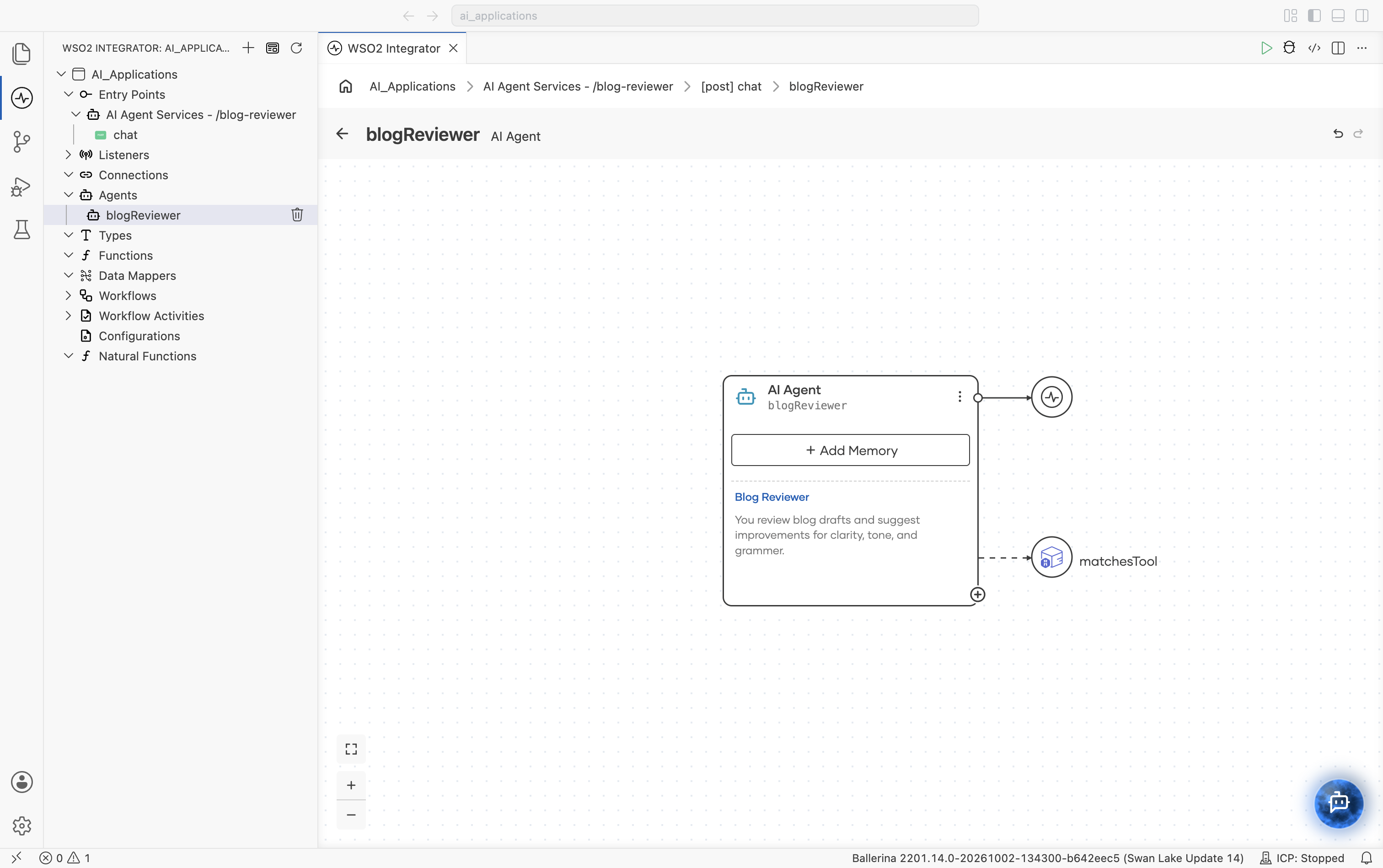
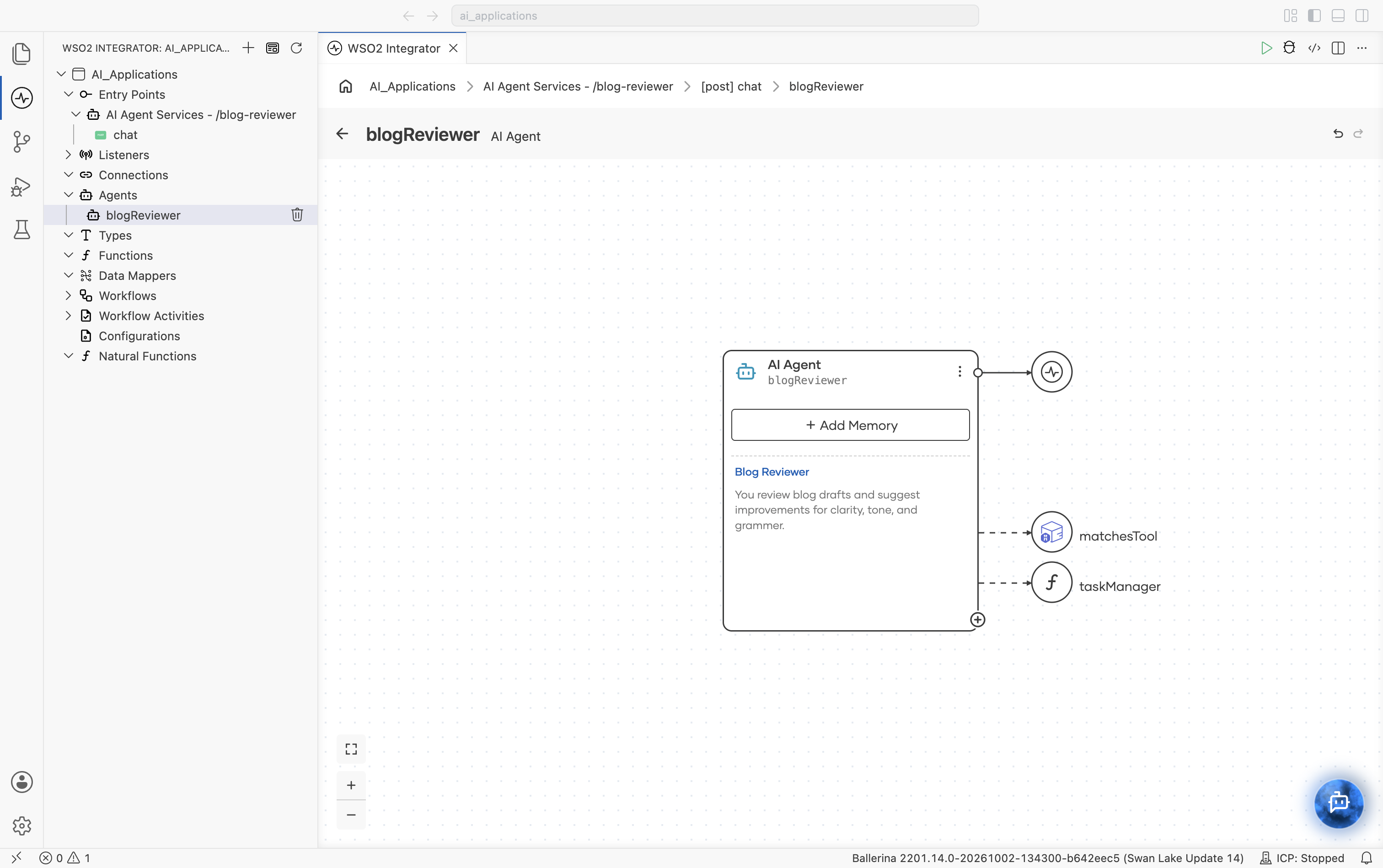
The new tool appears as its own node on the canvas, connected to the AI Agent node with a dashed line, and is included in every reasoning step from that point onward.
Toolkit
A toolkit is a class that bundles related tools. For example, a TaskManagerToolkit can expose addTask and listTasks. Toolkits are currently written in source view only (there is no dedicated UI yet). You create a single Ballerina class with tool methods and register the toolkit in the agent's tool list. The agent treats toolkit methods exactly like individual tools.
Use a toolkit when:
- A group of tools shares state, such as a connector, database client, or configuration value.
- You want to enable or disable a set of related tools as a unit.
- Ballerina Code
type Task record {|
    string description;
    time:Date dueBy?;
    time:Date createdAt = time:utcToCivil(time:utcNow());
    time:Date completedAt?;
    boolean completed = false;
|};

// A toolkit to manage a set of tasks.
public isolated class TaskManagerToolkit {
    *ai:BaseToolKit;

    private final map<Task> tasks = {};

    // The `getTools` method describes the tools provided by this toolkit.
    public isolated function getTools() returns ai:ToolConfig[] =>
        // The `ai:getToolConfigs` function generates tool configurations
        // for the specified tools.
        ai:getToolConfigs([self.addTask, self.listTasks]);

    // Tool to add a new task.
    @ai:AgentTool
    isolated function addTask(string description, time:Date? dueBy = ()) {
        lock {
            self.tasks[uuid:createRandomUuid()] = {
                description: description,
                dueBy: dueBy.clone()
            };
        }
    }

    // Tool to list all current tasks.
    @ai:AgentTool
    isolated function listTasks() returns map<Task> {
        lock {
            return self.tasks.clone();
        }
    }
}
Add the toolkit to the agent
Once you create the toolkit, open the agent in source view and add the toolkit to the tools configuration.
- Ballerina Code
import ballerina/ai;

TaskManagerToolkit taskManager = new TaskManagerToolkit();

final ai:Agent toolAgent = check new (
    systemPrompt = {role: string `tool`, instructions: string ``}, model = wso2ModelProvider, tools = [taskManager]
);
After adding the toolkit, the agent can invoke all tools exposed by the TaskManagerToolkit, including addTask and listTasks. Since the toolkit maintains shared state internally, all tool invocations operate on the same task collection managed by the toolkit instance.
Configure an attached tool
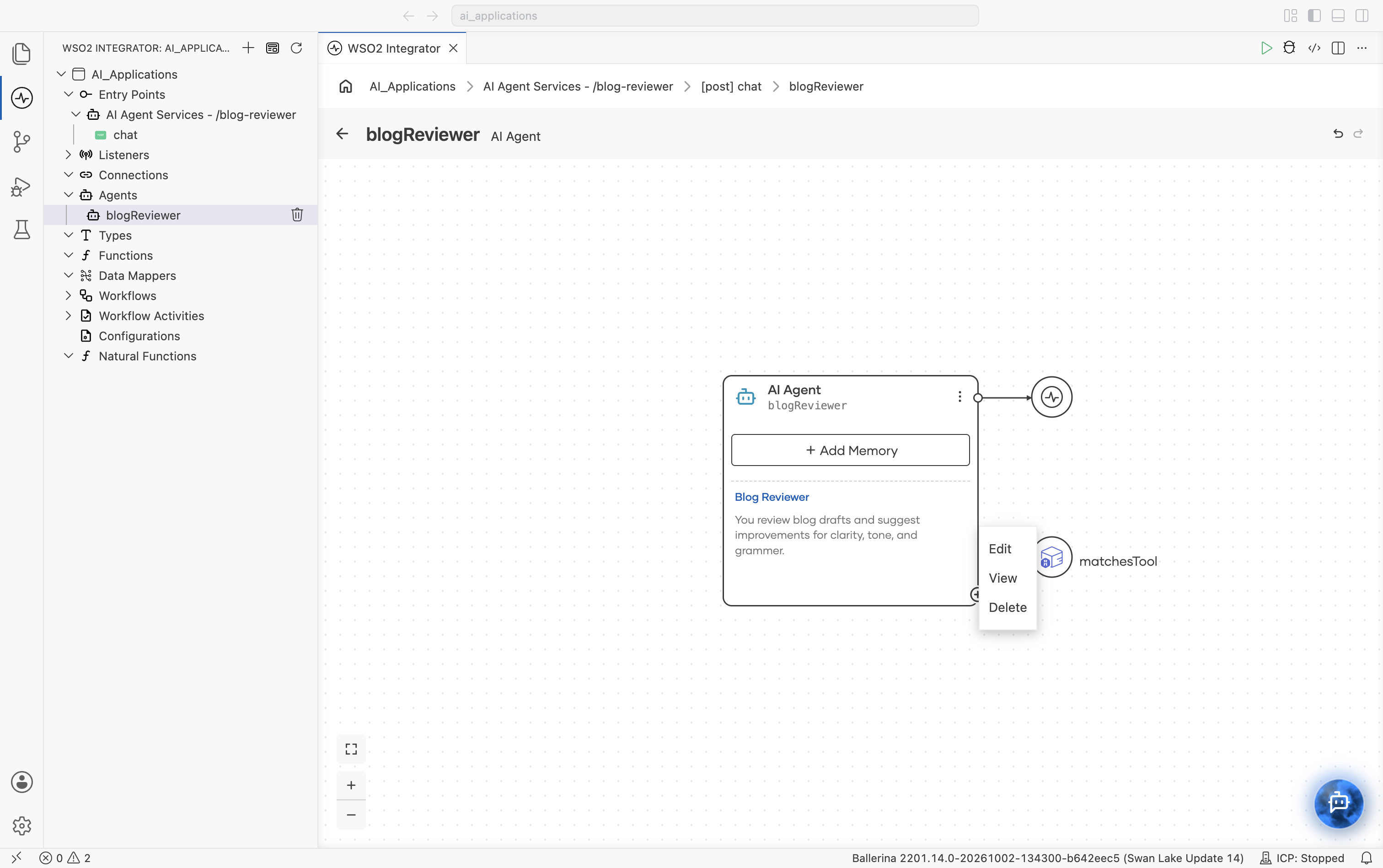
Once a tool is attached, right-click its node to Edit, View, or Delete it.
Selecting View (or clicking the node) opens the tool's own flow view: for a function- or connector-based tool, its underlying call and return; for a custom tool, the generated function stub. Click Configure at the top of that view to edit the tool's fields.
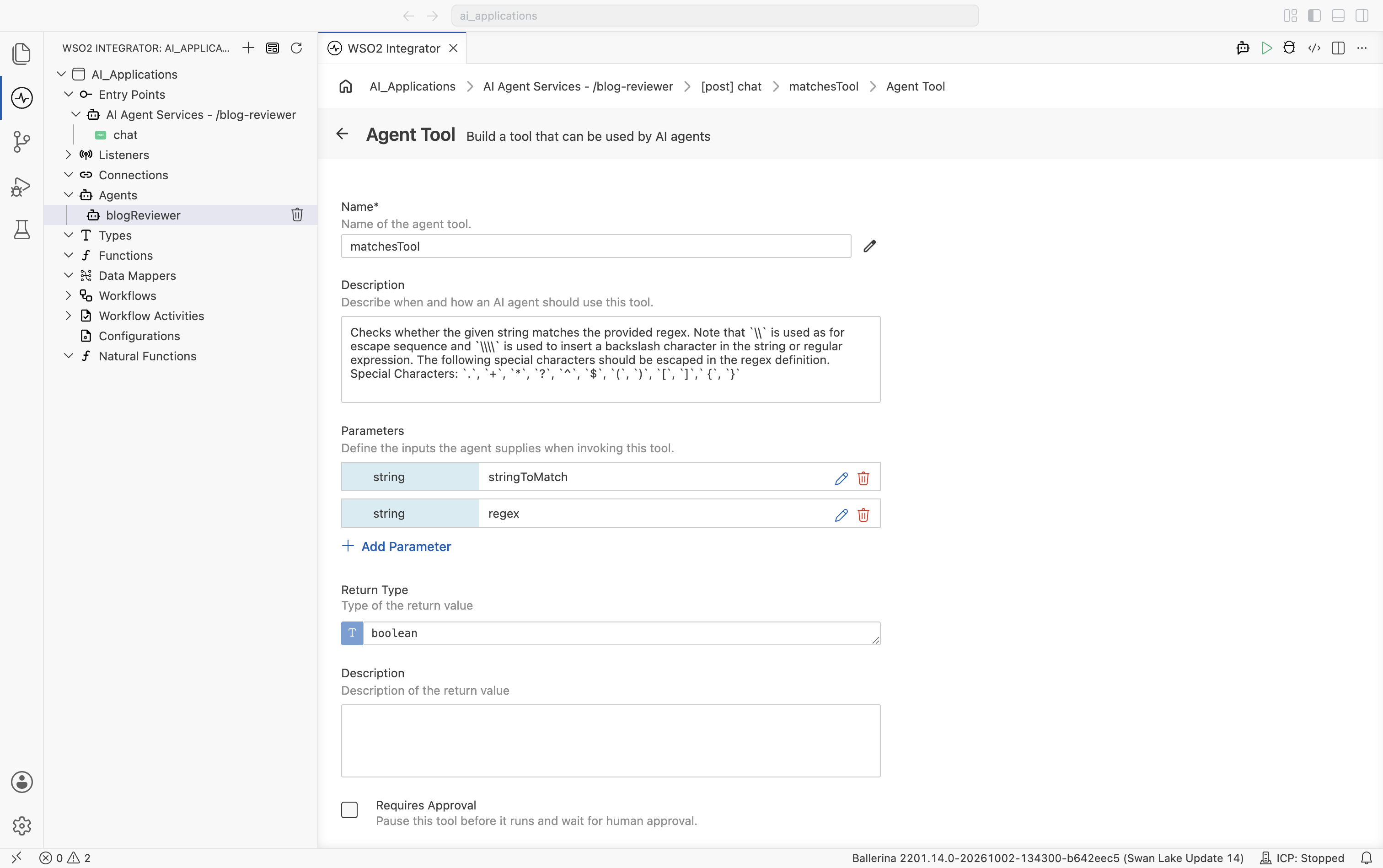
| Field | Required | Description |
|---|---|---|
| Name | Yes | The name or identifier of the agent tool. |
| Description | No | A description of the agent tool. This helps AI agents understand when and how to use the tool. |
| Parameters | No | Defines the input parameters used when invoking the tool. |
| Return Type | Yes | Defines the type of value returned by the tool. |
| Return Description | No | A description of the value returned by the tool. |
| Requires Approval | No | Pauses the tool before it runs and waits for a person to approve the call. See Gated Tools. |
| Advanced Configurations | No | Contains the agent authentication client configurations and additional security-related settings used to connect with external authorization servers. |
Advanced configuration
| Field | Required | Description |
|---|---|---|
| Authorization Server Base URL | No | The base URL of the OAuth 2.0 Authorization Server used to resolve authorization and token endpoints. |
| Client ID | No | The OAuth 2.0 client identifier issued for the application. |
| Client Secret | No | The OAuth 2.0 client secret issued for the application. |
| Redirect URI | No | The redirect URI registered for the OAuth client and used in the Authorization Code flow. |
| Required Scopes | No | The OAuth scopes required to invoke the tool. |
| Enable PKCE | No | Indicates whether PKCE (Proof Key for Code Exchange) is enabled for the Authorization Code flow. |
| Secure Socket | No | SSL/TLS-related configuration used for secure communication. |
What's next
- Memory — Make the agent’s tool calls remember earlier turns.
- Observability — See which tools the agent actually selects.
- Evaluations — Learn how to prevent regressions in AI agent quality.