Sync SAP SuccessFactors Employee Leave to Google Calendar
Time: About 30 minutes | What you'll build: A scheduled automation that reads approved leave starting today or tomorrow from SAP SuccessFactors Employee Central and creates a matching out-of-office event on Google Calendar, with no code to write.
HR systems know who is on leave; calendars are what everyone actually looks at. When those two go out of sync, meetings get booked with people who aren't there. In this guide you build an automation that closes that gap: it asks SAP SuccessFactors Employee Central for approved leave starting today or tomorrow, and for each one, creates an "Out of office" event on Google Calendar with the SuccessFactors leave ID in the description, so anyone can trace it back.
How it works
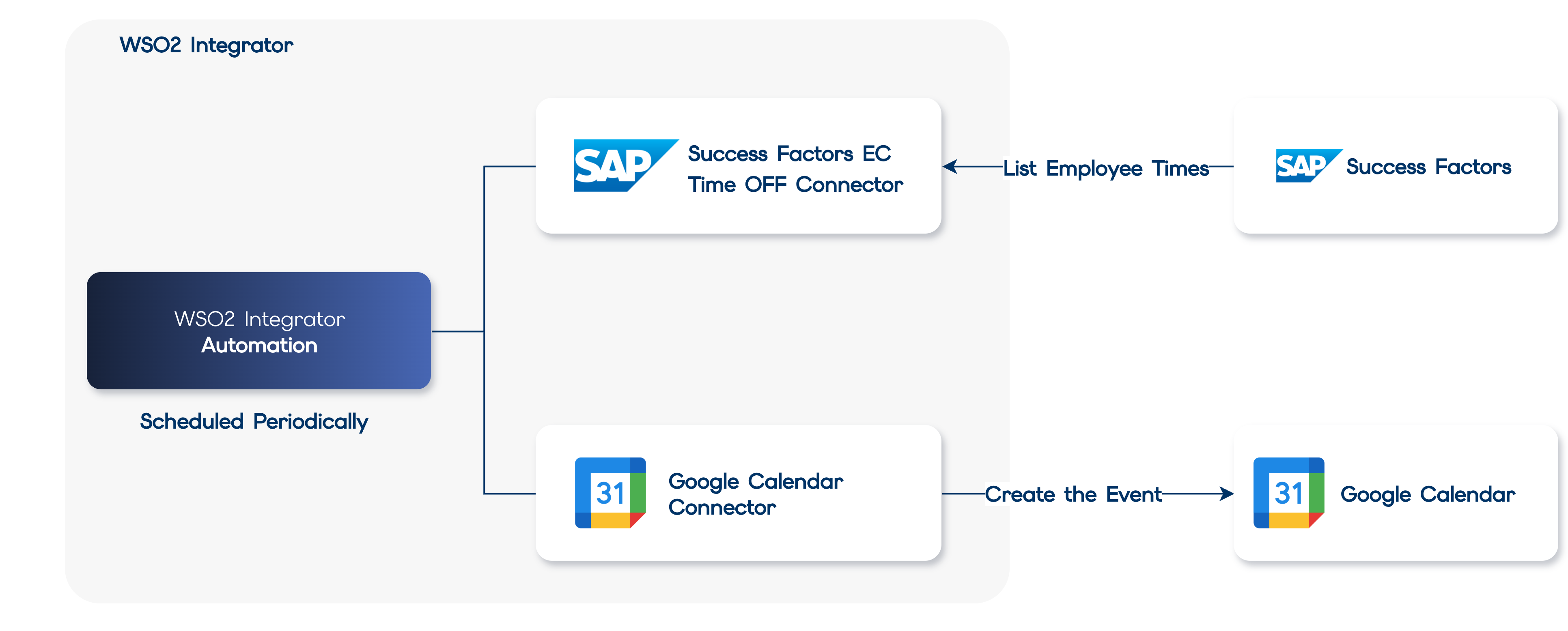
The WSO2 Integrator Scheduler invokes the automation periodically, and each run follows the same short flow:
- List
EmployeeTimerecords from Employee Central, filtered to those approved and starting today or tomorrow: a one-day look-ahead, so tomorrow's absences are already on the calendar. - Unpack the OData response into a plain array.
- For each approved leave, convert SuccessFactors' OData date format into the plain date Google Calendar expects.
- Create an "Out of office" event on Google Calendar for that date range, tagged with the SuccessFactors leave ID.
Before you begin
- A working WSO2 Integrator environment. See Setup.
- Access to an SAP SuccessFactors Employee Central tenant, and credentials for the Time Off API:
- Follow the SAP SuccessFactors Employee Central Time Off connector setup guide to register an OAuth 2.0 SAML Bearer client (recommended) or set up a username and password.
- It gives you the
apiKey,companyId,userName, andtokenUrlvalues used in Step 2, theprivate_key.pemandcertificate.pemfiles (supplied to the connector as file paths), and your API server hostname (for exampleapi12.successfactors.eu).
- A Google account with a Google Calendar, and OAuth 2.0 credentials for it:
- Follow the Google Calendar connector setup guide to create a Google Cloud project, enable the Calendar API, and create an OAuth client.
- It gives you the
clientId,clientSecret, andrefreshTokenvalues used in Step 3. TherefreshUrlis Google's token endpoint,https://oauth2.googleapis.com/token.
Build the automation
Build the flow in the Visual Designer, or switch to the Ballerina Code tab to see the equivalent source the designer generates for you.
- Visual Designer
- Ballerina Code
Step 1: Create the automation
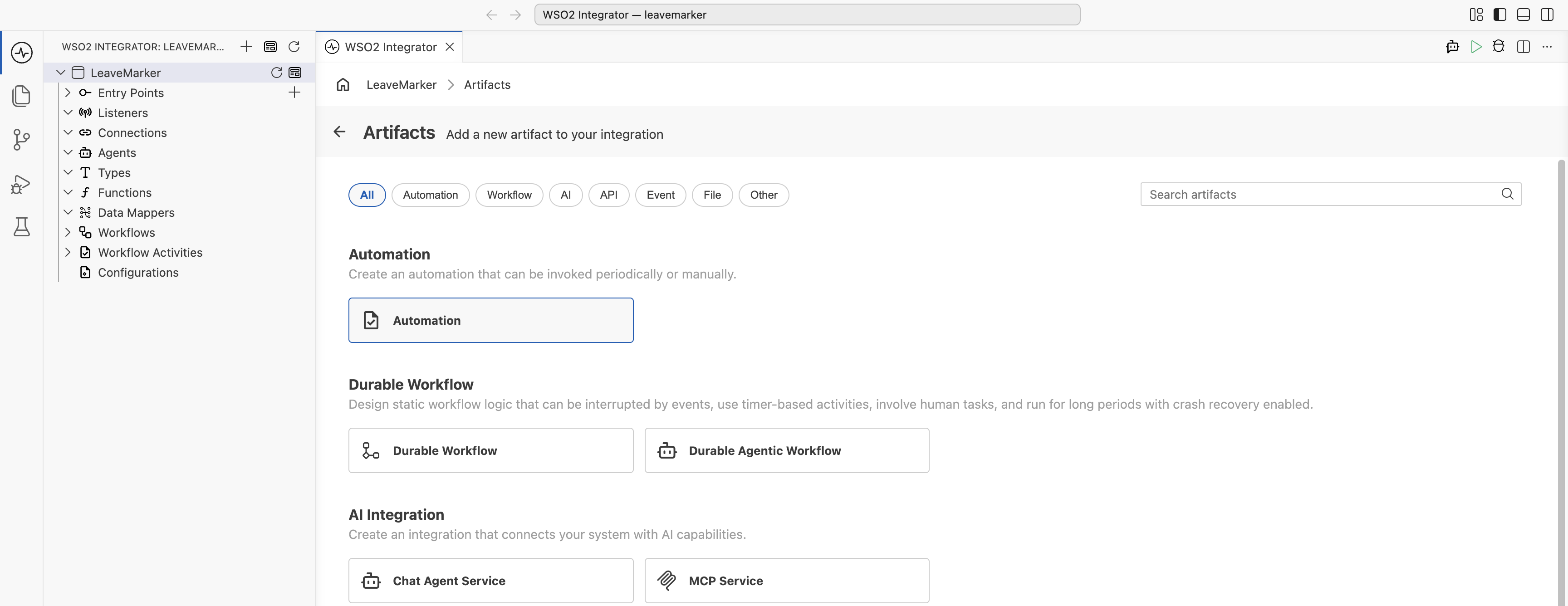
An automation runs on a schedule with no inbound request, which makes it the right artifact for a recurring leave check.
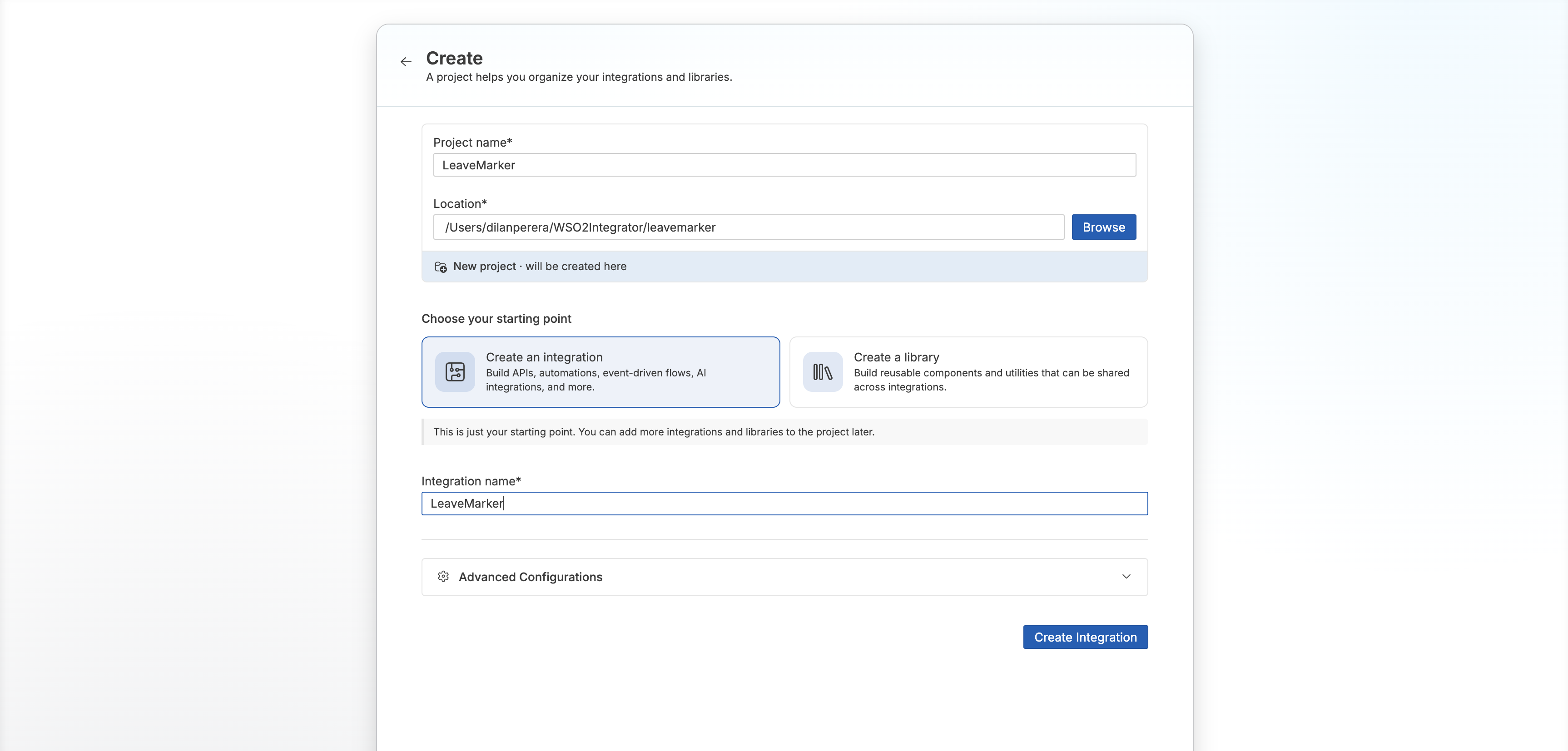
- Create a new integration named
LeaveMarkerin a project namedLeaveMarker. - Add an Automation artifact to the integration.
Step 2: Connect to SAP SuccessFactors Employee Central
-
Add a connection: Add Connection → Search Connectors, then search for
timeoffand select the Ectimeoff connector.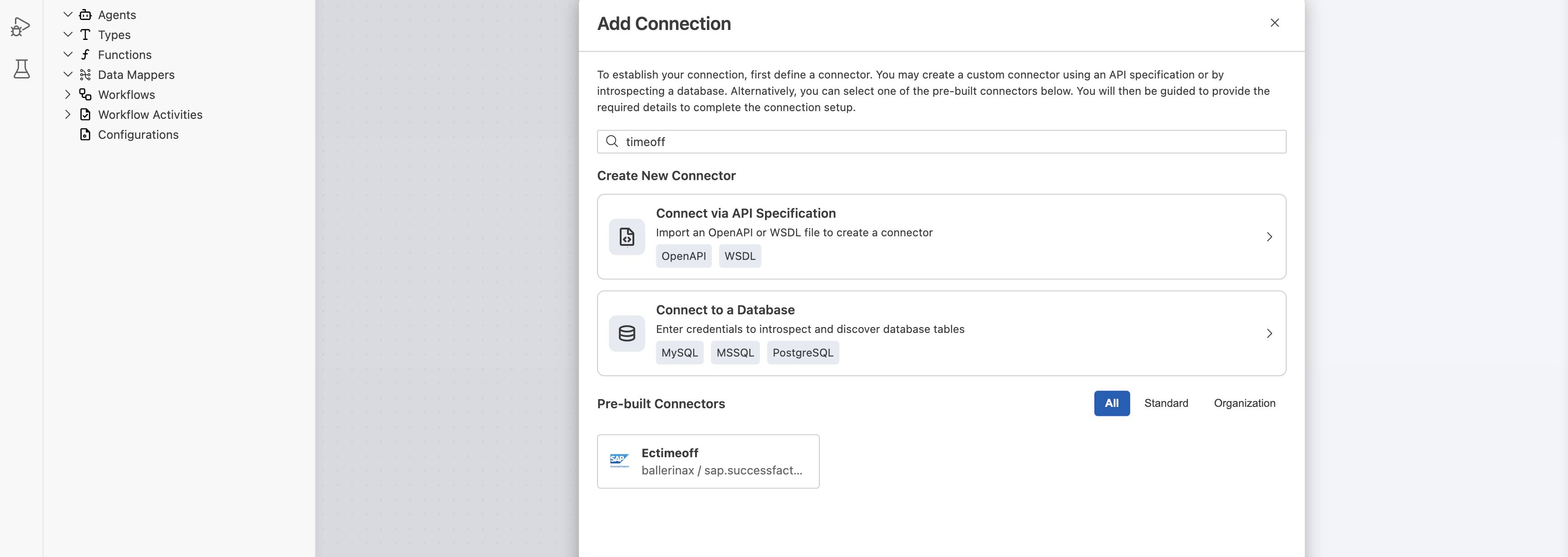
-
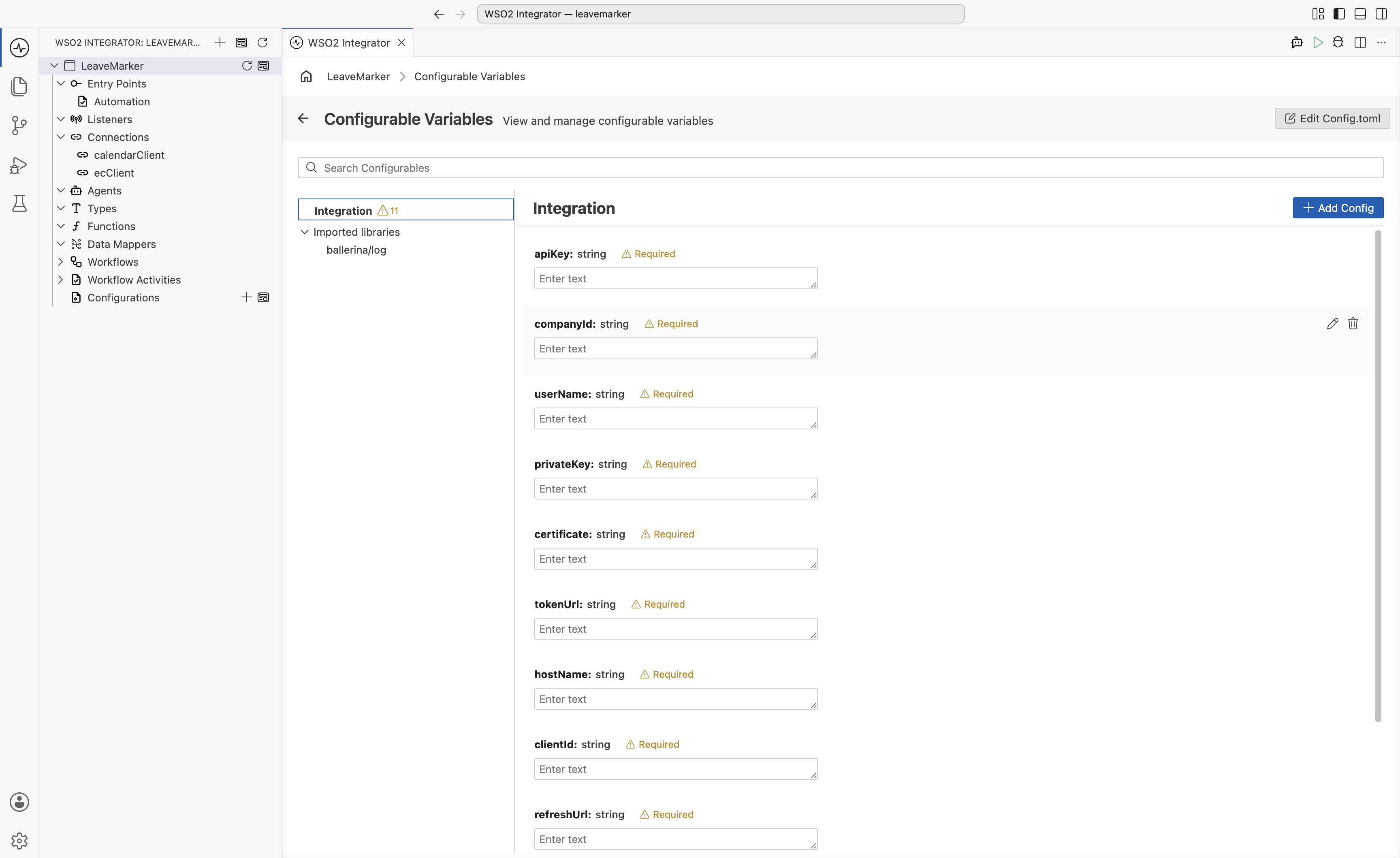
For every field in the connection config, select Configurables in the Expression editor's helper pane, then New Configurable, so credentials are supplied at runtime instead of stored in the flow. Create one for each of
apiKey,companyId,userName,privateKey,certificate, andtokenUrl(allstring).noteprivateKeyandcertificatetake the file paths of theprivate_key.pemandcertificate.pemfiles from the setup guide, not the PEM contents.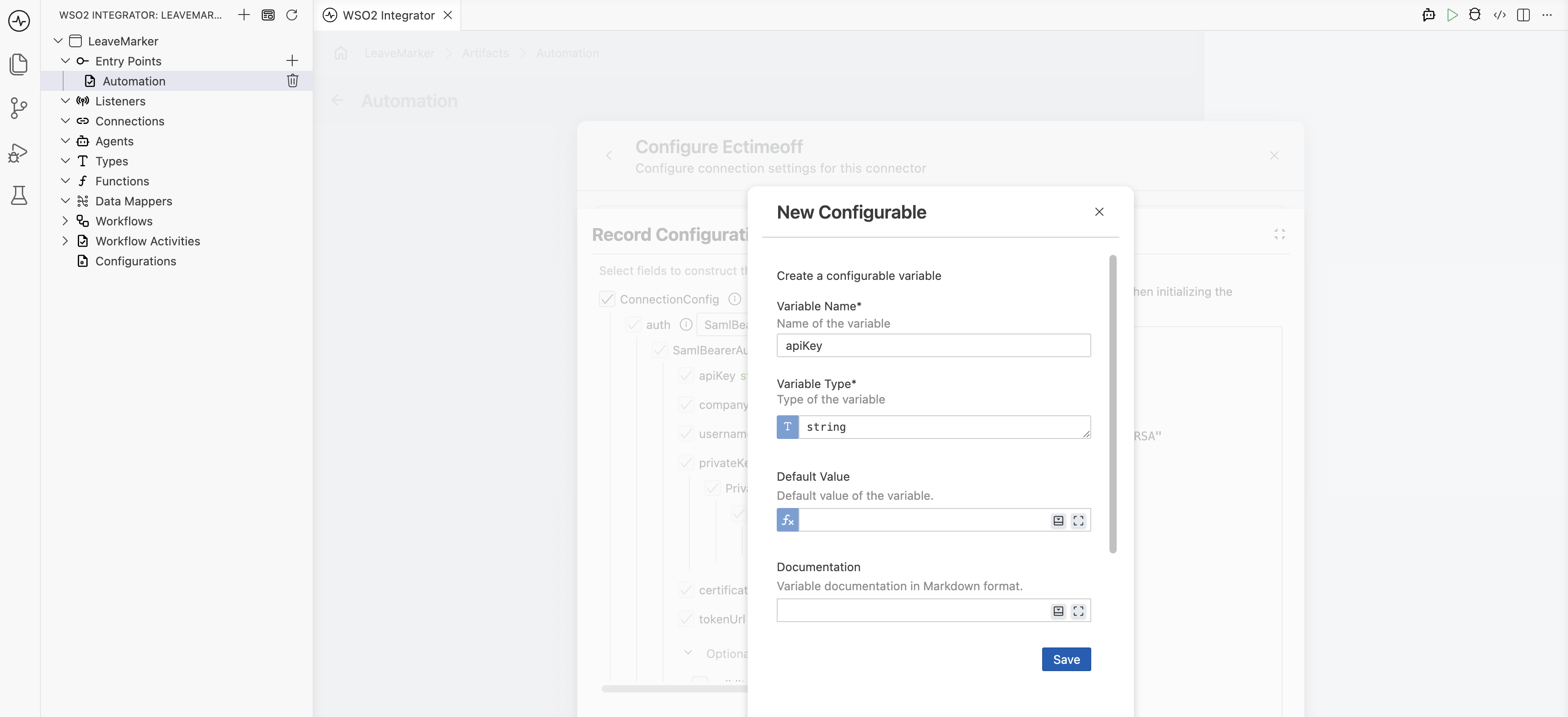
-
Bind each field to its matching configurable, and set Hostname to your SuccessFactors API server (for example
api12.successfactors.eu), also bound to a configurable namedhostName.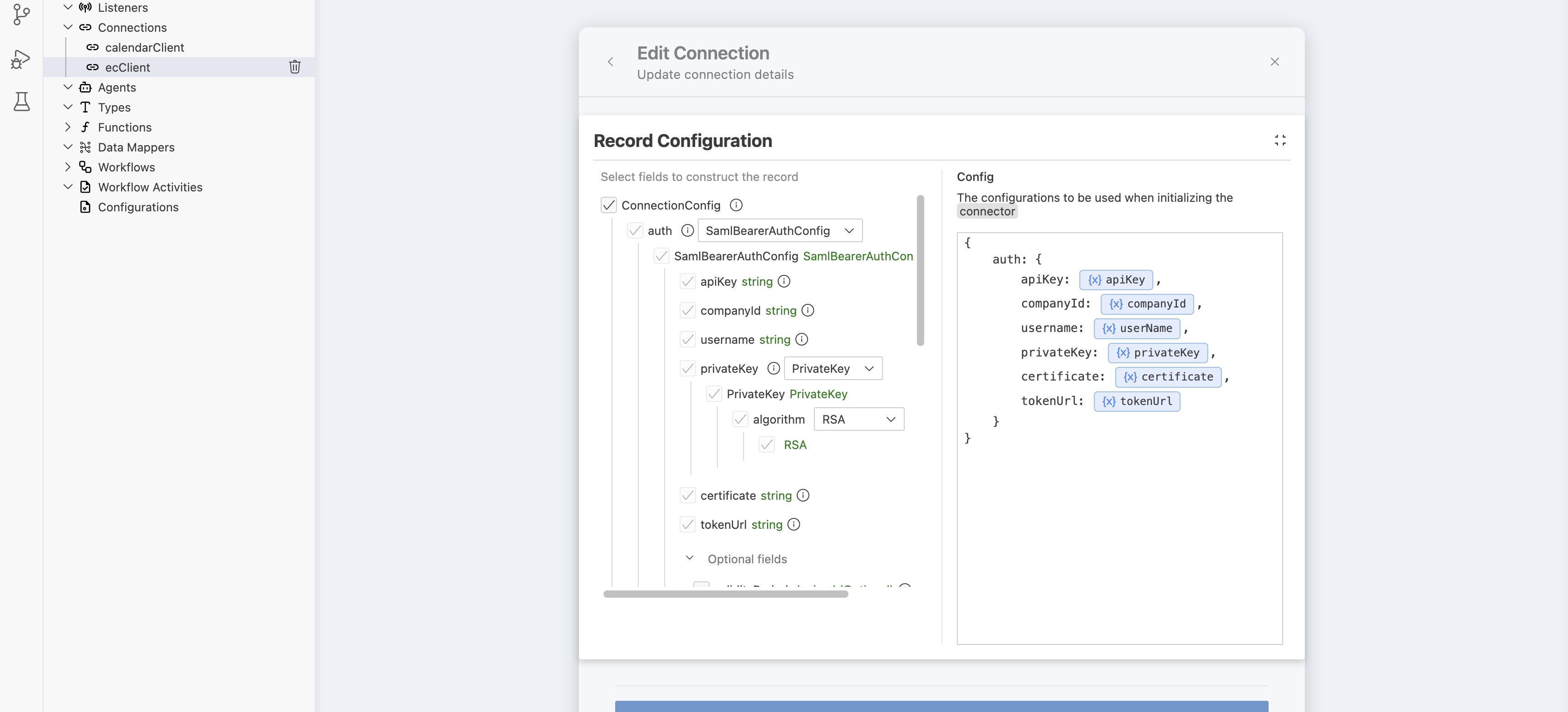
-
Name the connection
ecClient.
Step 3: Connect to Google Calendar
-
Add another connection: search for
google calendarand select the Google Calendar connector.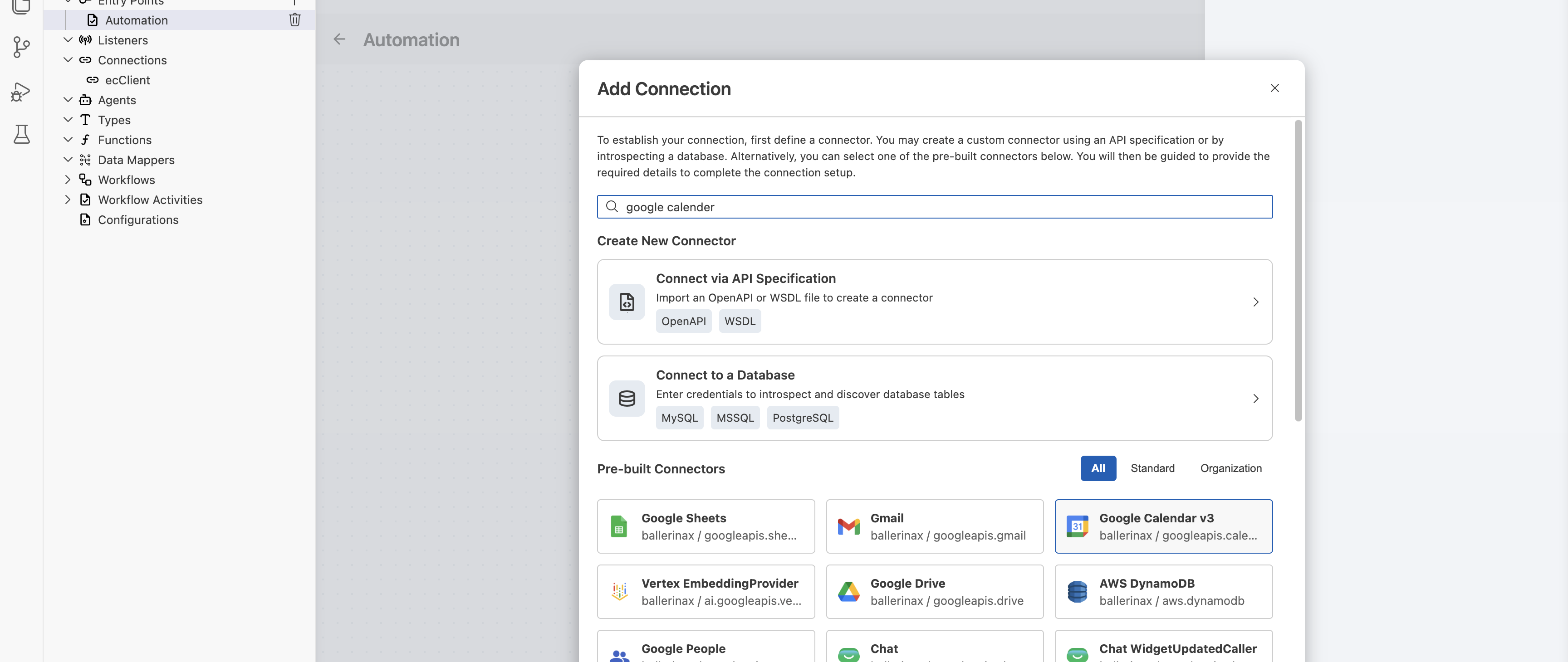
-
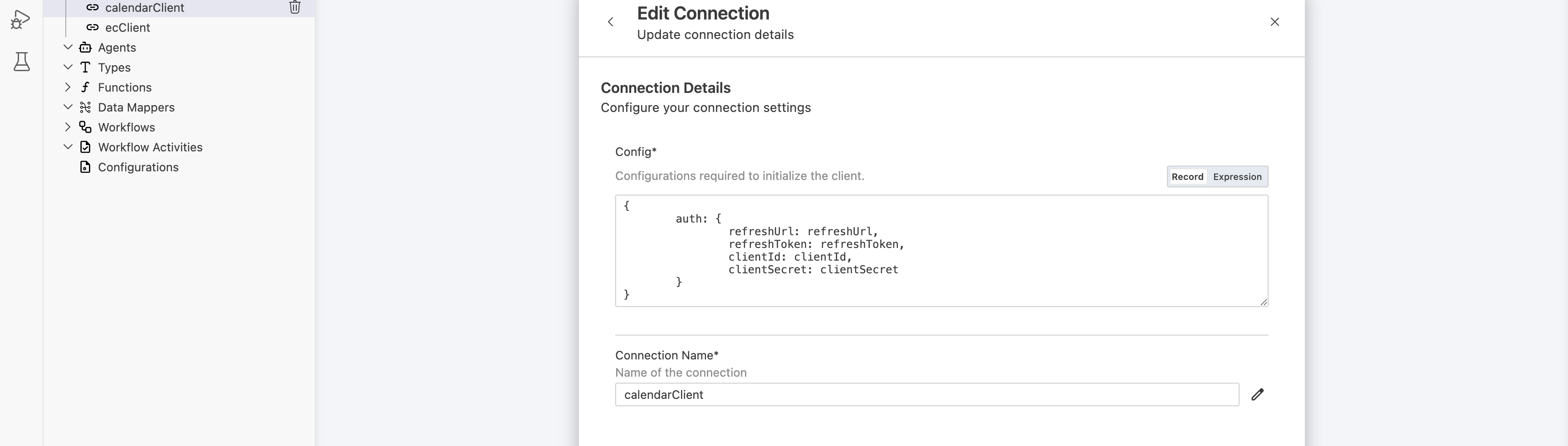
As before, bind refreshUrl, refreshToken, clientId, and clientSecret to configurables of the same names.
-
Name the connection
calendarClient.
Both connections now appear under Connections, and Configurable Variables lists all 11 values you'll need to supply before running the integration.
Step 4: List approved leave for today and tomorrow
-
After the Start node, add the
ecClientconnection's List Employee Times operation, and set Result tojsonResult.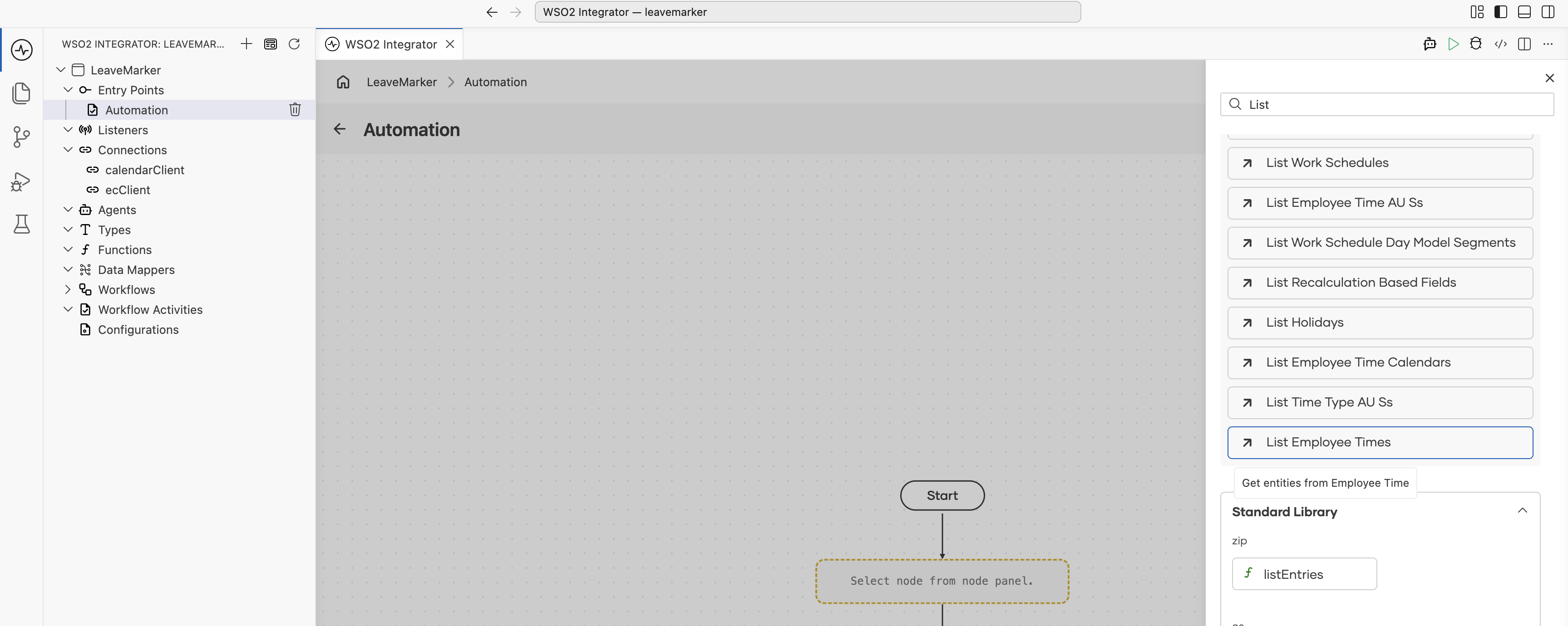
-
The filter needs a rolling two-day date window (today and tomorrow) as
YYYY-MM-DDstrings, so first build a small formatting helper. Under Functions, add a functionformatDate, public, taking atime:Civilparameter namedvalueand returningstring, with the Return expression:string `${value.year}-${value.month < 10 ? "0" + value.month.toString() : value.month.toString()}-${value.day < 10 ? "0" + value.day.toString() : value.day.toString()}`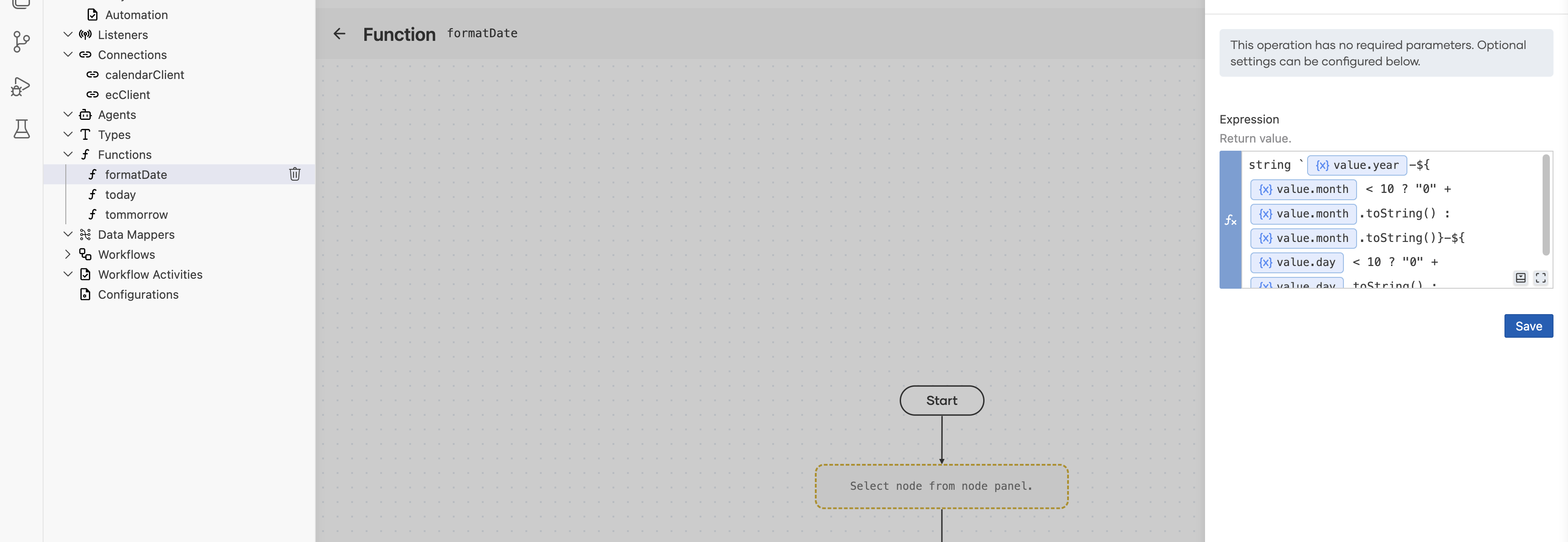
-
Add a second function,
today, public, with no parameters and astringreturn type.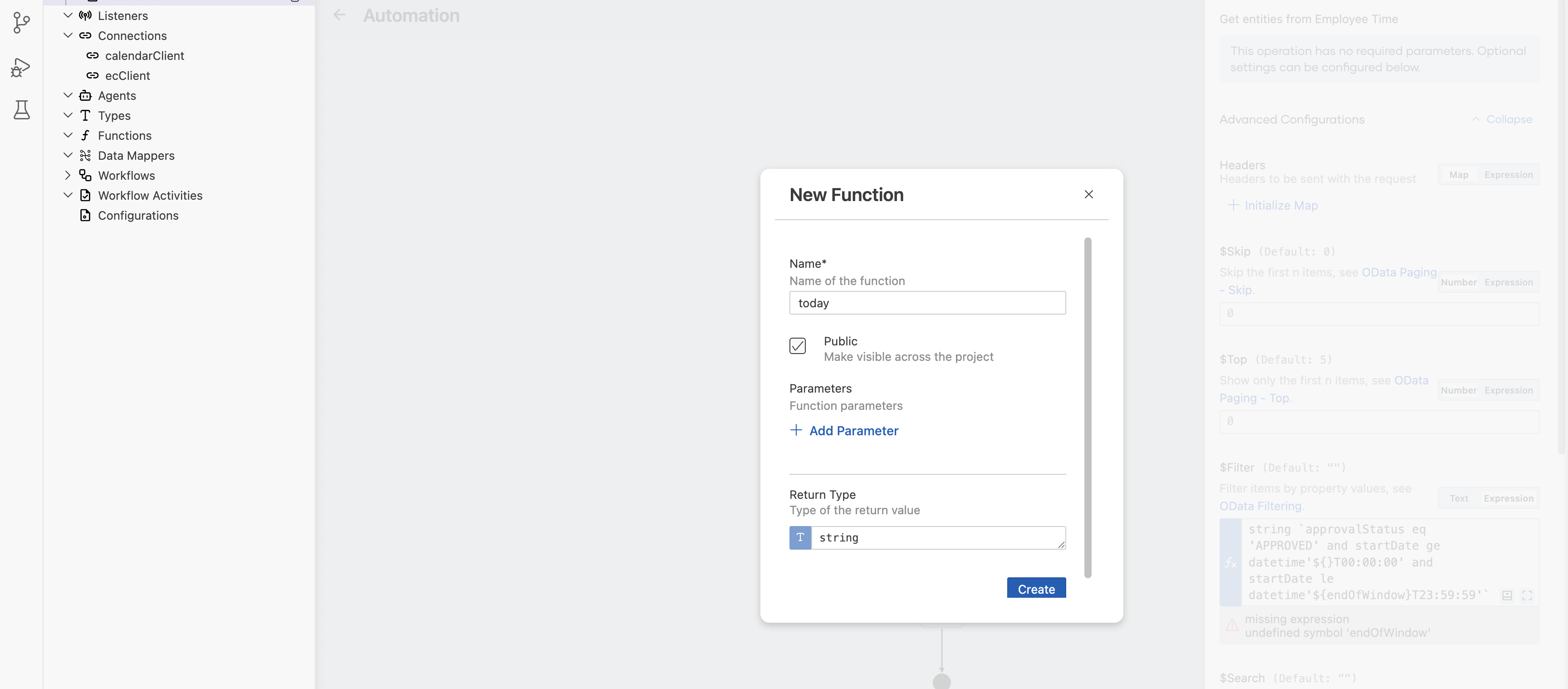
-
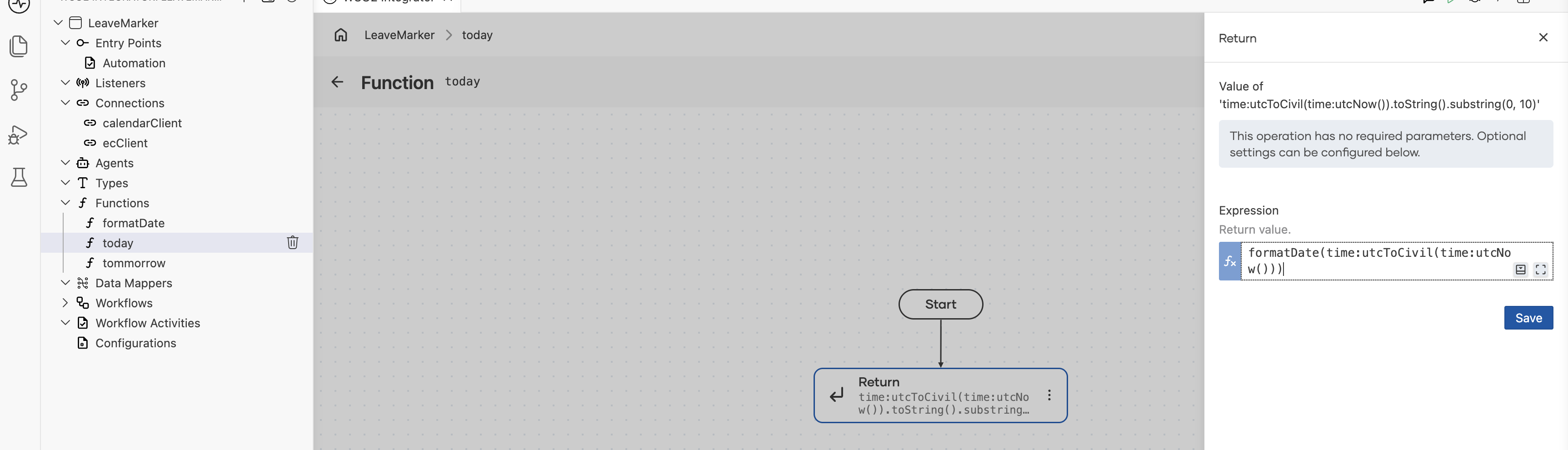
Set its Return expression to
formatDate(time:utcToCivil(time:utcNow())). The expression editor's Functions search finds thetimemodule's helpers (utcNow(),utcToCivil(),utcAddSeconds()) if you'd rather pick them than type them.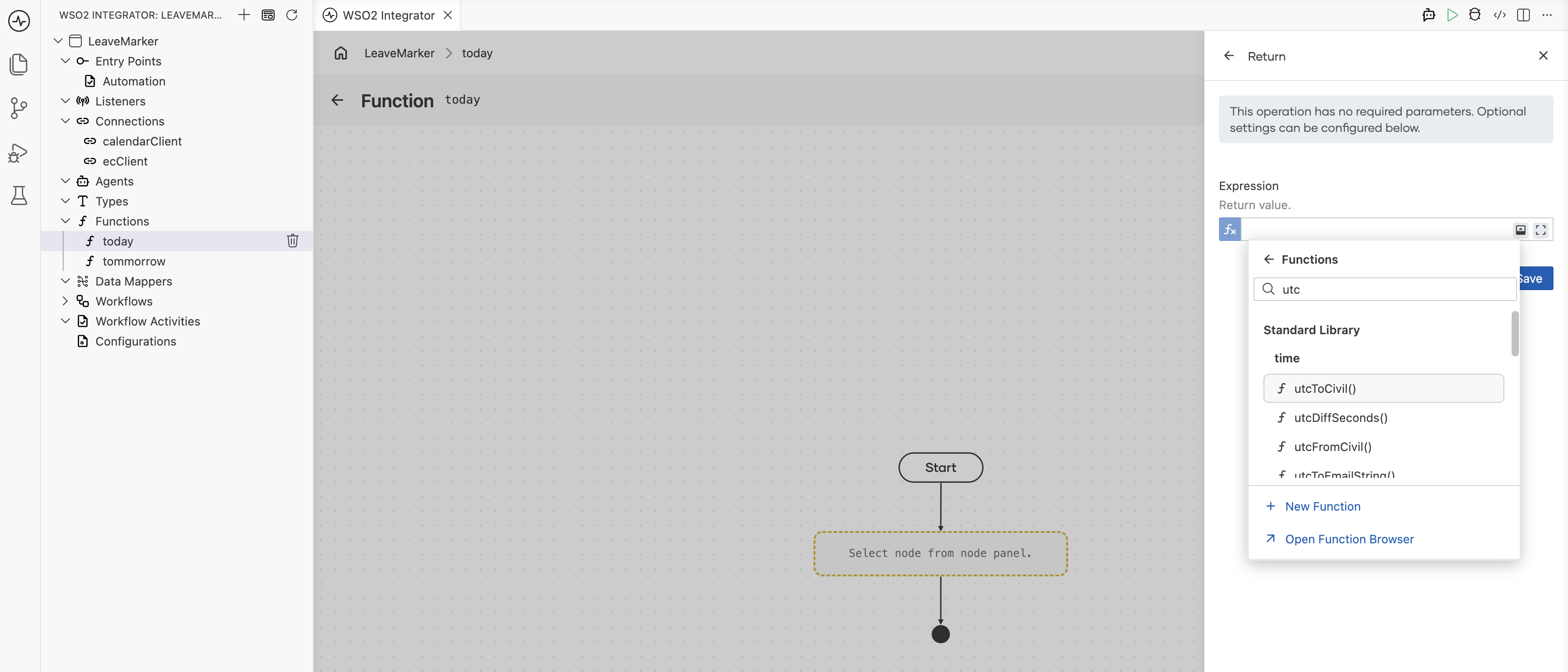
-
Add a matching
tommorrowfunction that adds a day first:formatDate(time:utcToCivil(time:utcAddSeconds(time:utcNow(), 86400))).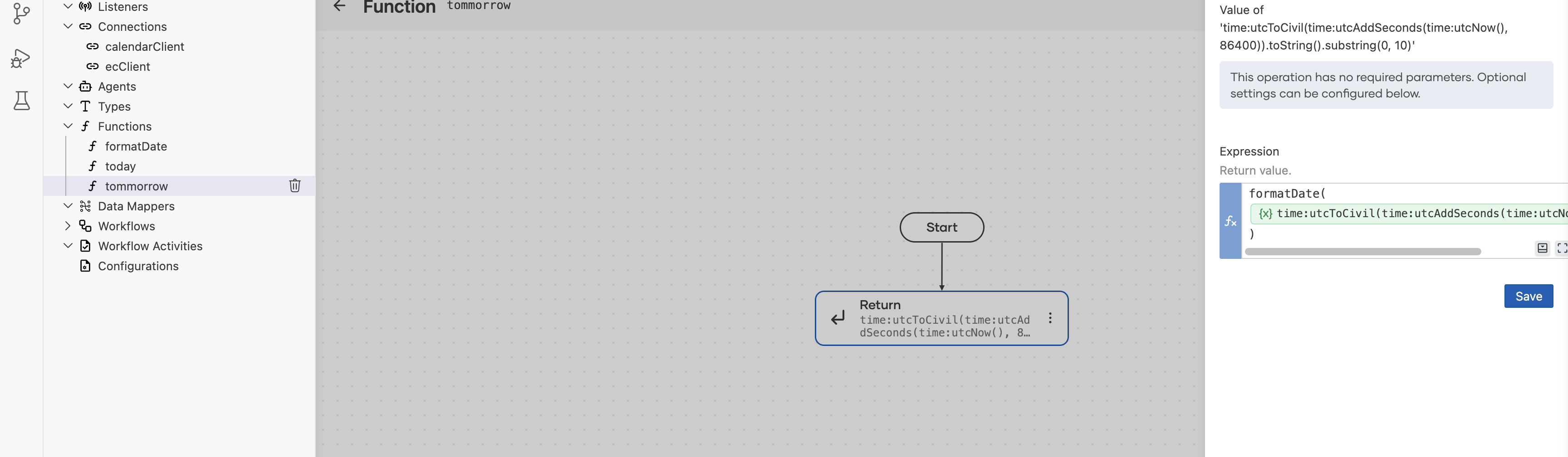
-
Back on List Employee Times, set Filter to:
string `approvalStatus eq 'APPROVED' and startDate ge datetime'${today()}T00:00:00' and startDate le datetime'${tommorrow()}T23:59:59'`set Orderby to
startDate, and set Select tostartDate,userId,endDate,externalCode,approvalStatus, andtimeTypeso the response only carries the fields the flow uses.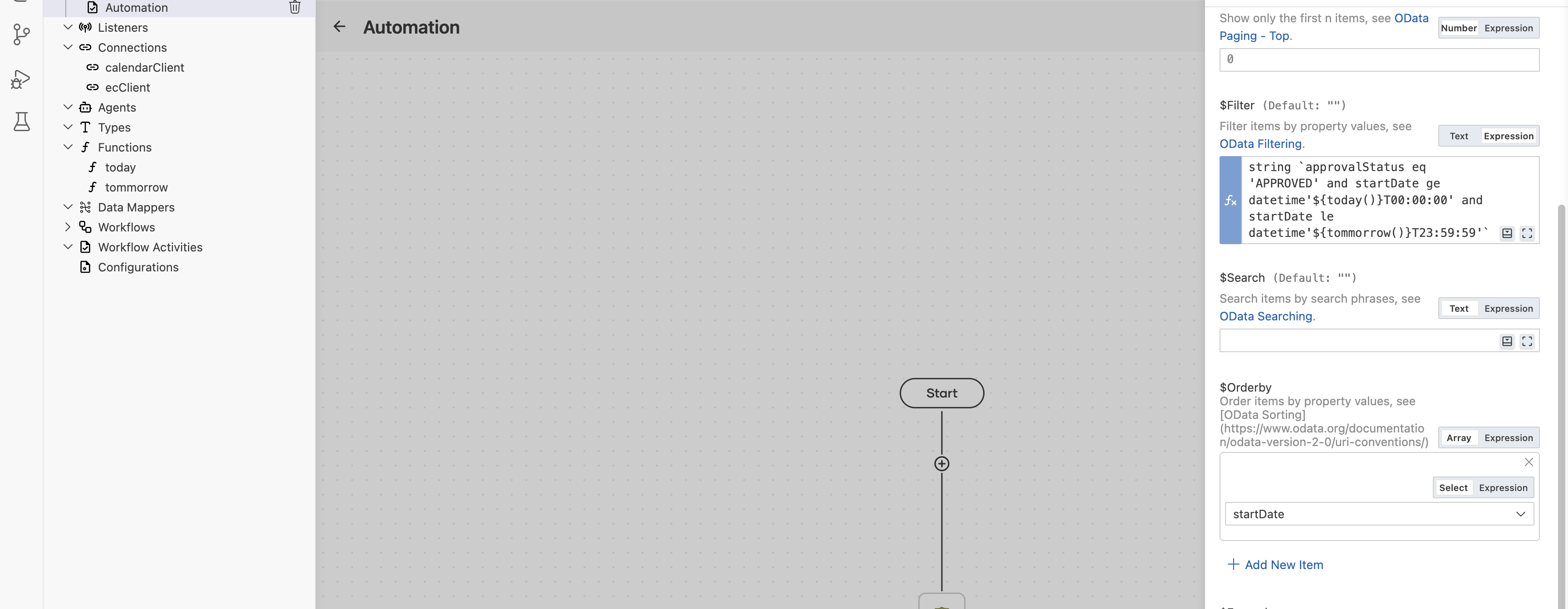
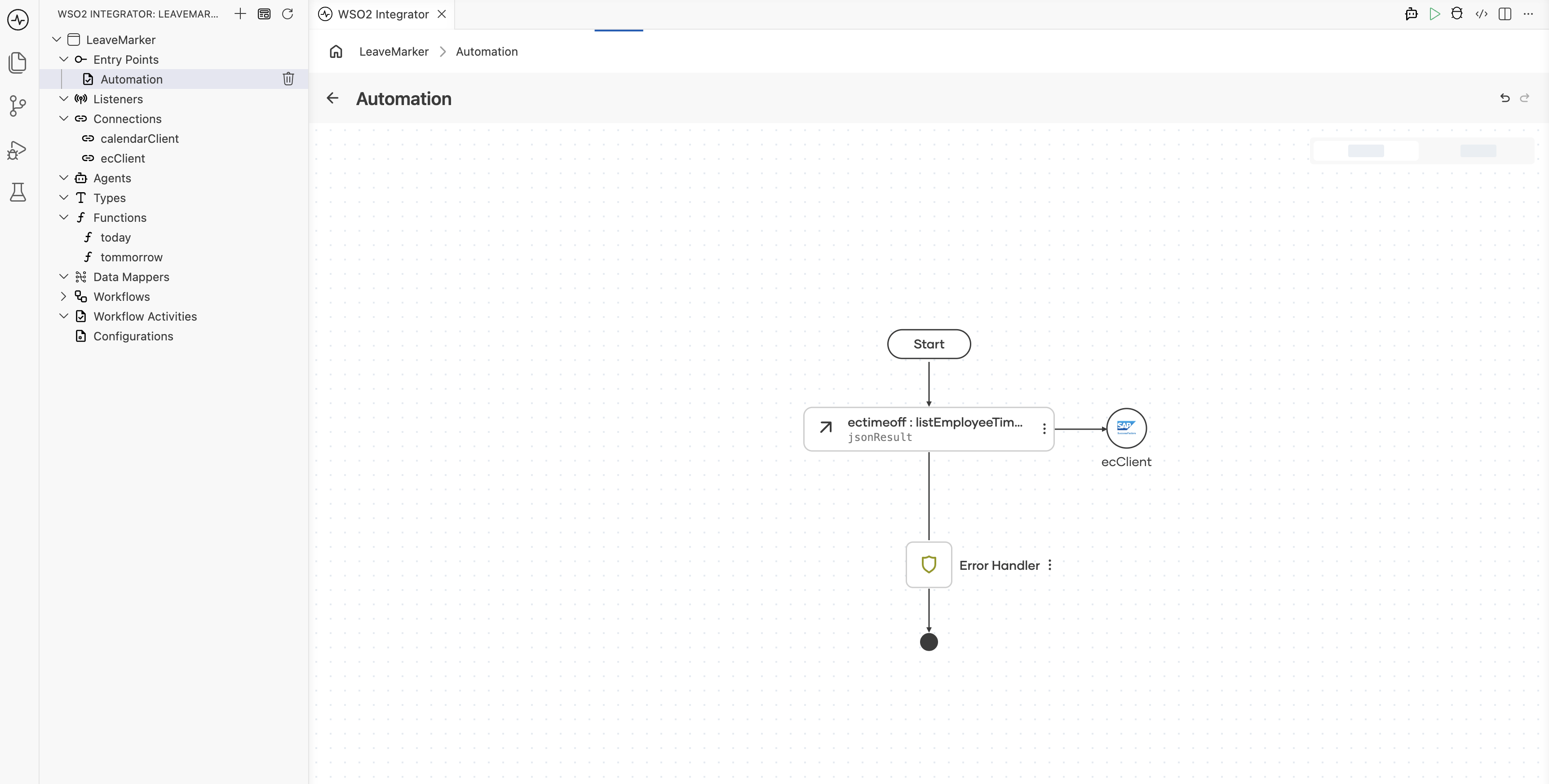
Your flow should now match the checkpoint below.
Step 5: Unpack the results
The OData response wraps the actual records under jsonResult.d.results as loosely-typed json, so pull that out into a typed array you can iterate.
-
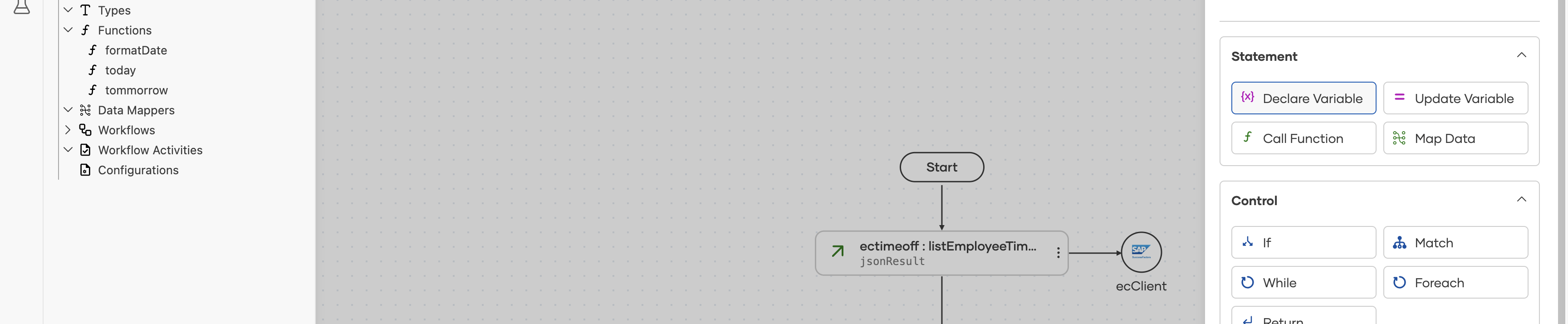
Add a Declare Variable node after List Employee Times.
-
Name it
leaves, typejson[], with the expressioncheck jsonResult.d.results.ensureType(). Search ensure in the expression editor's Functions panel to findensureType()if you're typing this by hand.![Declare Variable panel creating leaves with type json[] and expression check jsonResult.d.results.ensureType(), with the Functions helper panel searching ensure](/integration-platform/docs/saas/img/guides/usecases/sf-ec-leave-to-google-calendar-sync/18-declare-leaves-variable.png)
-
Add a Foreach node after it, looping over
leaveswith the item variableleave(typejson).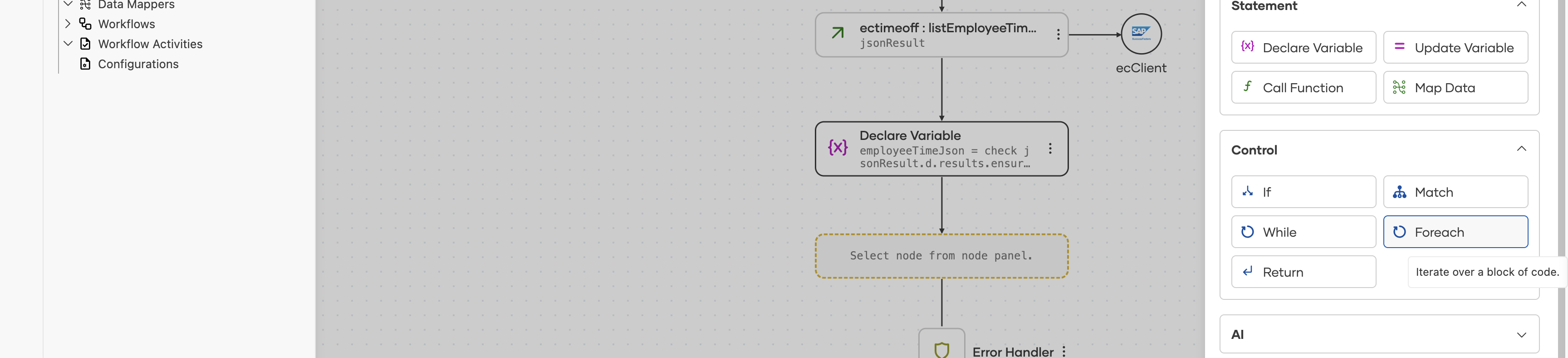
Step 6: Convert SuccessFactors' OData dates
SuccessFactors returns dates as OData's /Date(1790208000000)/ epoch-millisecond strings, but Google Calendar expects a plain YYYY-MM-DD date. Write one more function to bridge the two.
-
Add a function
odataDateToIsoDate, taking astringparameterodataDateand returningstring|error. Give it a short description, such as Converts a SuccessFactors OData date string, e.g./Date(1790208000000)/, into a plainYYYY-MM-DDdate the Google Calendar API accepts. It appears as a tooltip wherever the function is used, and as the#doc comment in the code tab. -
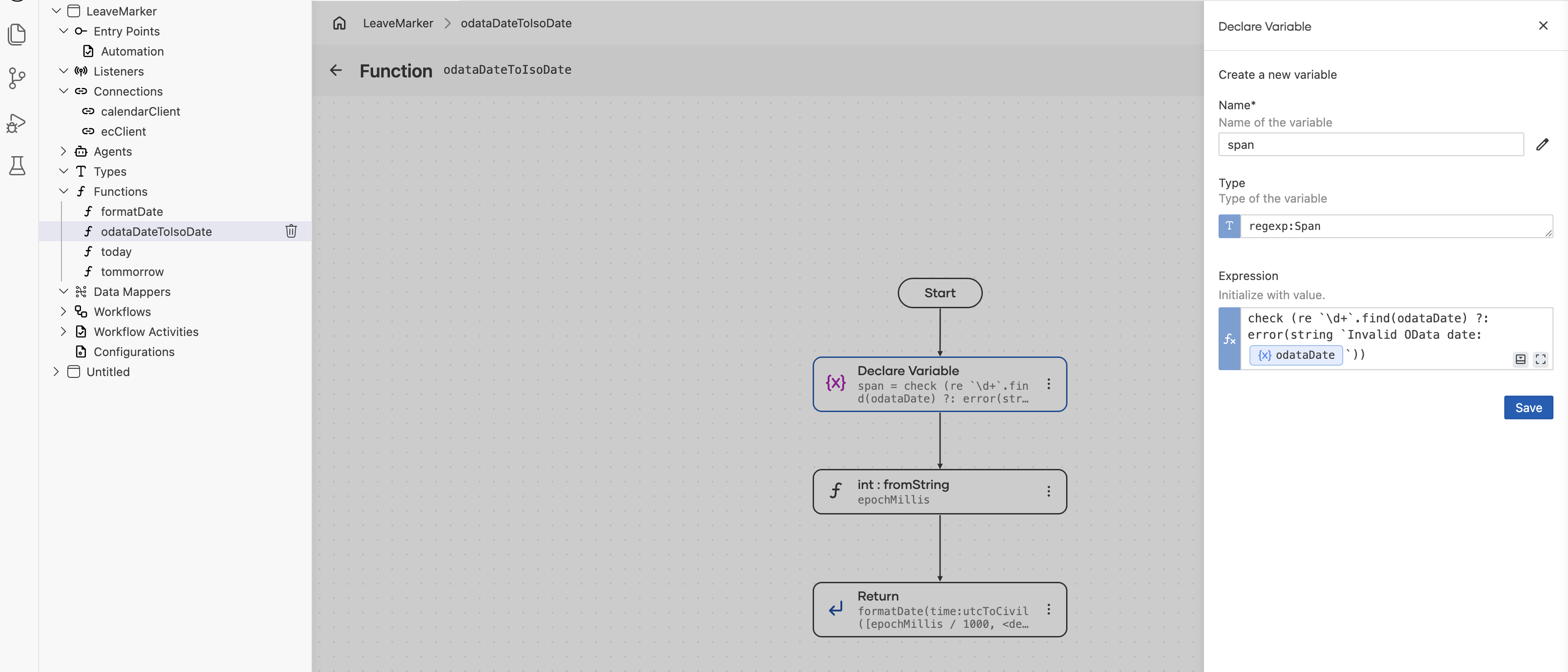
Inside it, add a Declare Variable named
span, typeregexp:Span, with the expression:check (re `\d+`.find(odataDate) ?: error(string `Invalid OData date: ${odataDate}`))This finds the first run of digits in the string (the epoch milliseconds) and fails clearly if the input doesn't look like an OData date at all.
-
Add a Call Function node for
lang.int:fromString, with S set tospan.substring()and Result namedepochMillis(typeint).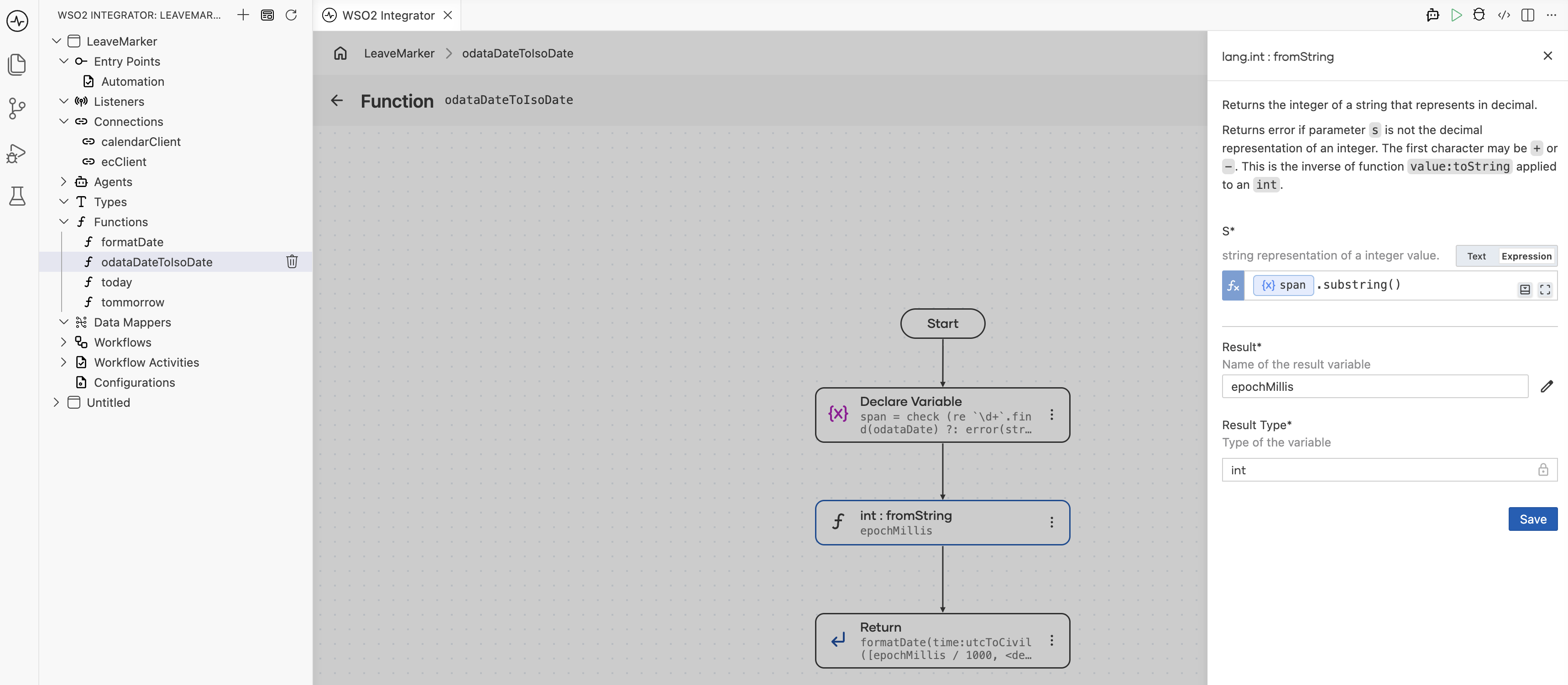
-
Add a Return node with the expression:
formatDate(time:utcToCivil([epochMillis / 1000, <decimal>(epochMillis % 1000) / 1000.0d]))time:Utcis a[seconds, fractionOfSecond]tuple, so this splits the epoch milliseconds into whole seconds and a fractional remainder before reusing the sameformatDatehelper from Step 4.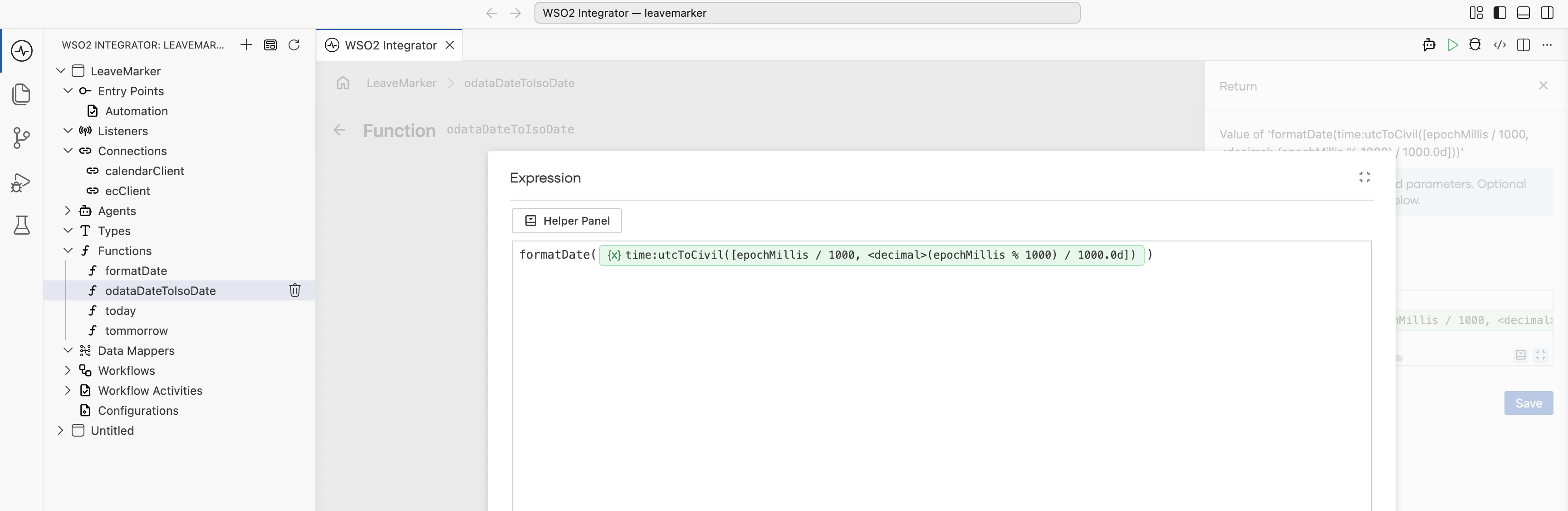
Step 7: Create the Google Calendar event and log the result
-
Inside the Foreach loop, add Declare Variable nodes for
userId(check leave.userId.ensureType()) andexternalCode(check leave.externalCode.ensureType()), the SuccessFactors leave ID you'll use to trace the event back later. -
Add two Call Function nodes for
odataDateToIsoDate, one with Odata Datecheck leave.startDate.ensureType()producingstartDate, and one withcheck leave.endDate.ensureType()producingendDate. Hovering the function shows the description you gave it in Step 6.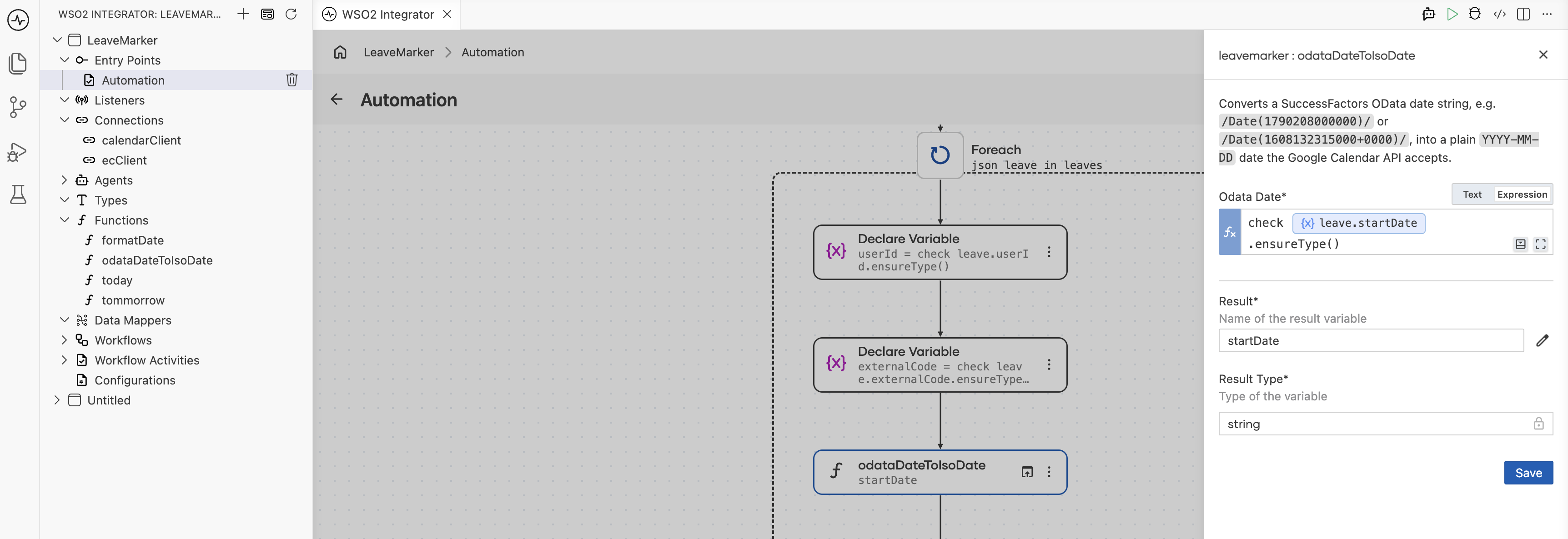
-
Add the
calendarClientconnection's Create Event operation.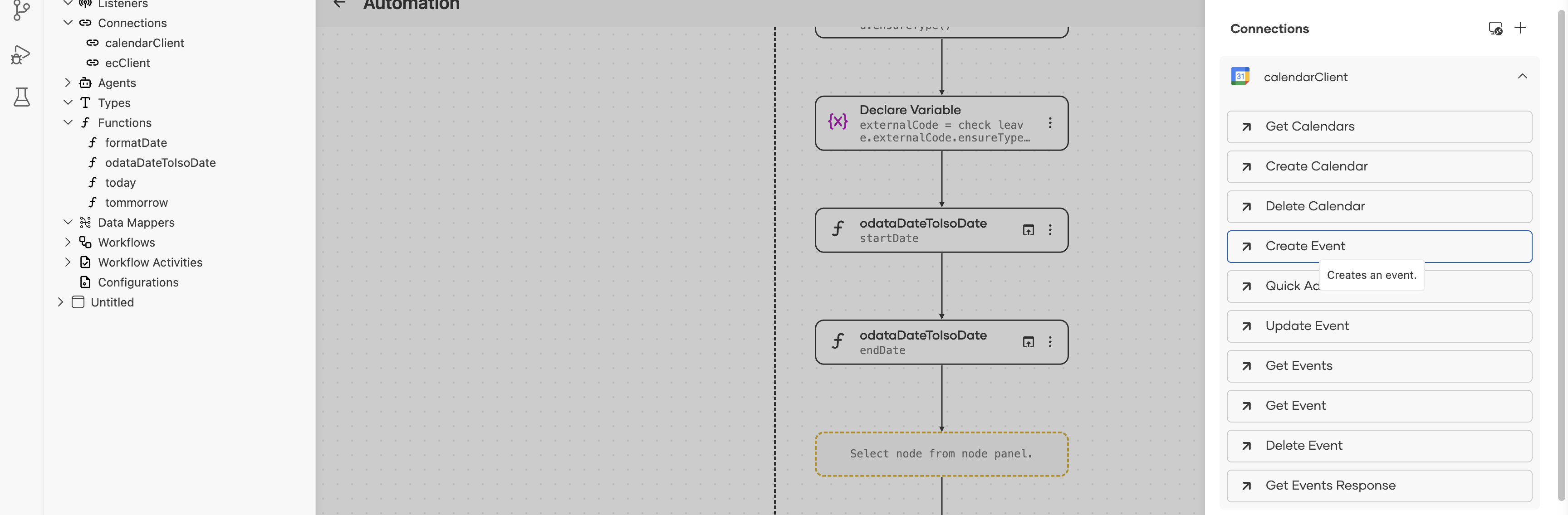
-
Configure it with Calendar ID
primary, ResultcreatedEvent, and the following fields on the Event record:Field Value summary string `[Out of office] ${userId.toString()}`description string `SuccessFactors leave ID: ${externalCode}`start {date: startDate}end {date: endDate}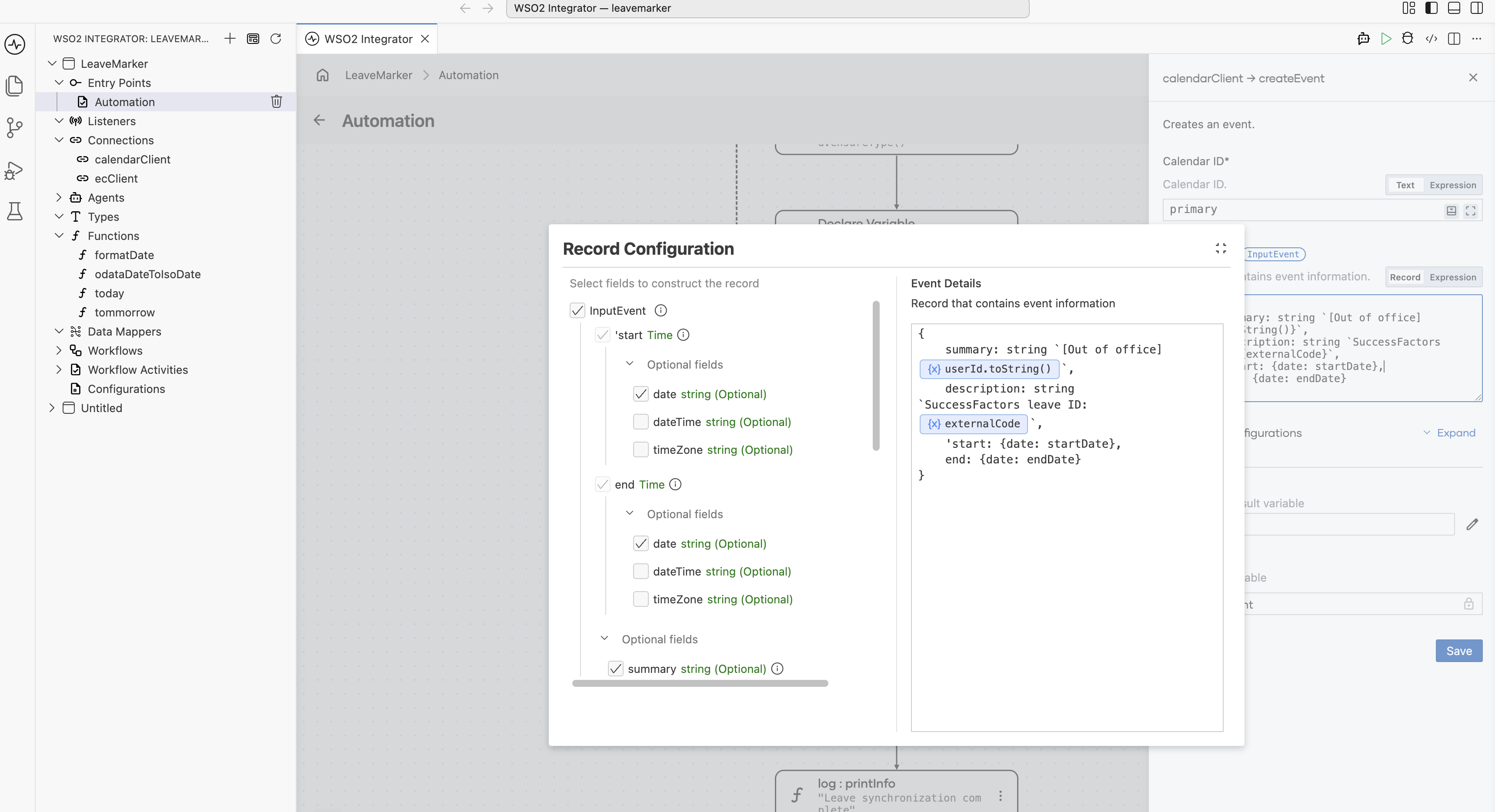
-
Add a Log Info node with Msg
"Created Google Calendar leave event", and under Additional Values, addeventId: createdEvent.idandleaveId: externalCodeso each log line is traceable to both systems.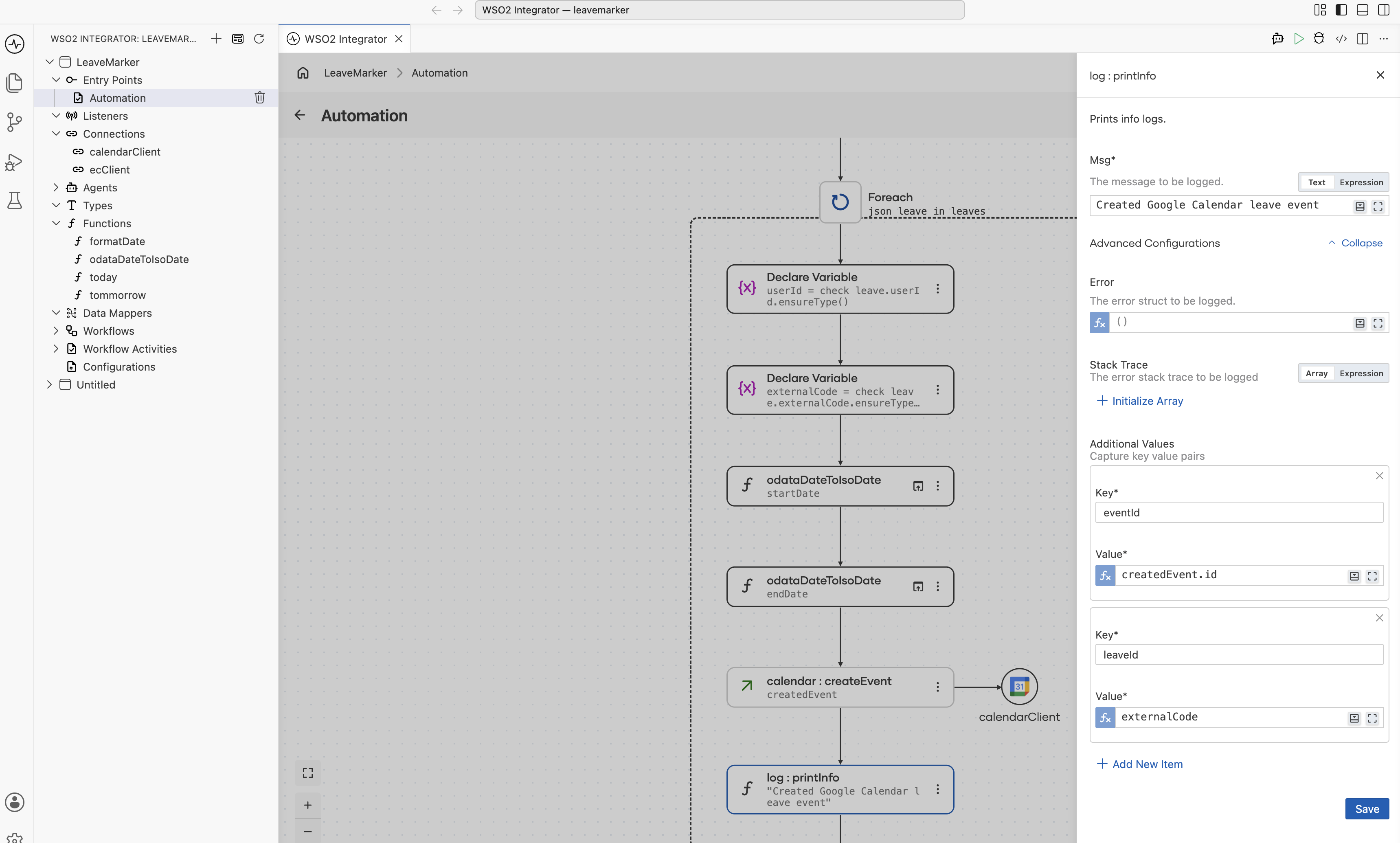
Step 8: Log a summary
After the Foreach node, add a final Log Info node with the message "Leave synchronization complete".
Your flow is now complete: it lists approved leave for today and tomorrow, unpacks the results, converts each date, creates a calendar event per leave, and reports completion.
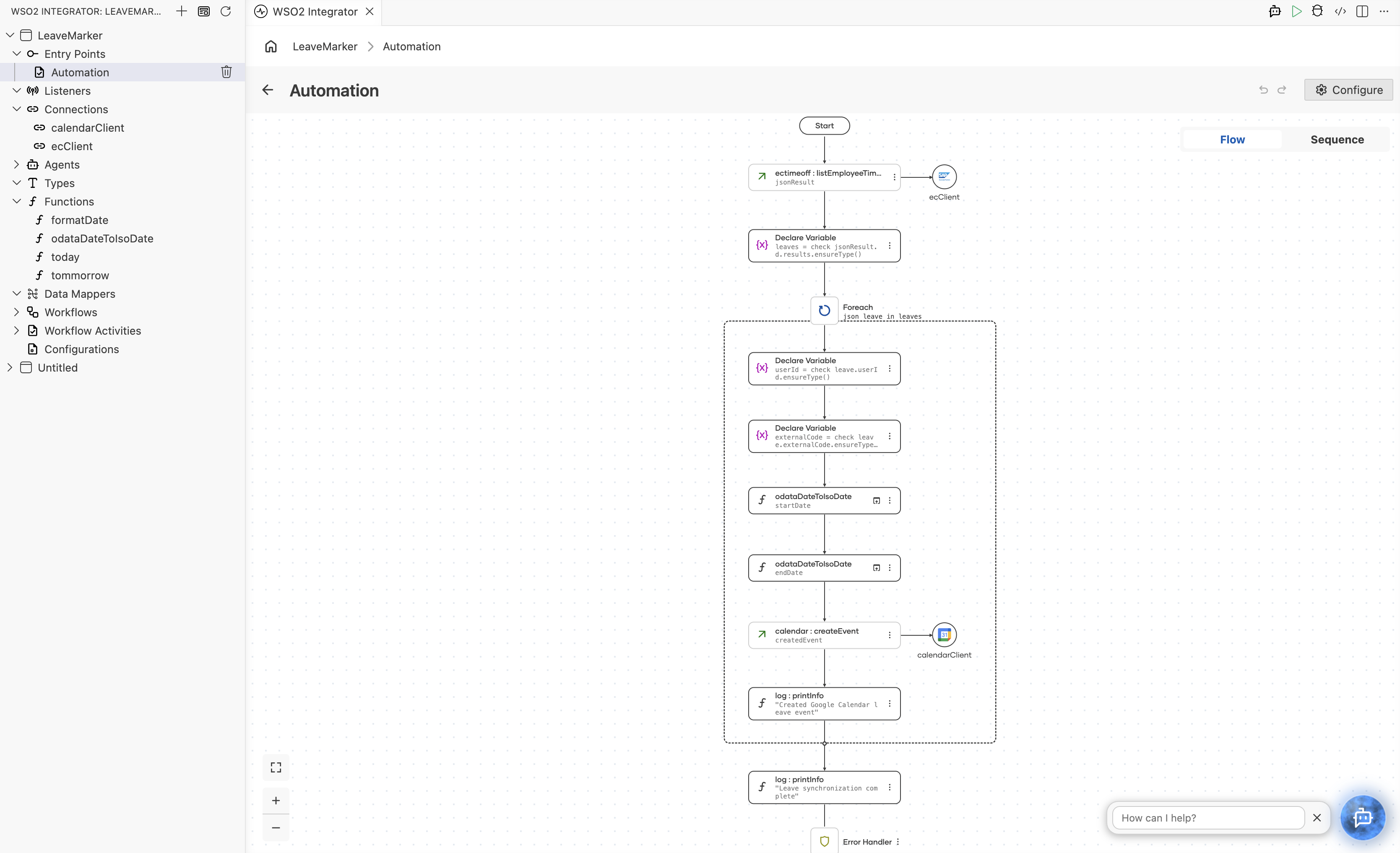
You design this on the canvas and never write any of it. The Visual Designer keeps the source in sync across config.bal, connections.bal, functions.bal, and automation.bal.
// config.bal
configurable string apiKey = ?;
configurable string companyId = ?;
configurable string userName = ?;
configurable string privateKey = ?;
configurable string certificate = ?;
configurable string tokenUrl = ?;
configurable string hostName = ?;
configurable string clientId = ?;
configurable string refreshUrl = ?;
configurable string refreshToken = ?;
configurable string clientSecret = ?;
// connections.bal
import ballerinax/googleapis.calendar;
import ballerinax/sap.successfactors.ectimeoff;

final ectimeoff:Client ecClient = check new ({
    auth: {
        apiKey: apiKey,
        companyId: companyId,
        username: userName,
        privateKey: privateKey,
        certificate: certificate,
        tokenUrl: tokenUrl
    }
}, string `${hostName}`);

final calendar:Client calendarClient = check new ({
    auth: {
        refreshUrl: refreshUrl,
        refreshToken: refreshToken,
        clientId: clientId,
        clientSecret: clientSecret
    }
});
// functions.bal
import ballerina/lang.regexp;
import ballerina/time;

public function today() returns string {
    return formatDate(time:utcToCivil(time:utcNow()));
}

public function tommorrow() returns string {
    return formatDate(time:utcToCivil(time:utcAddSeconds(time:utcNow(), 86400)));
}

public function formatDate(time:Civil value) returns string {
    return string `${value.year}-${value.month < 10 ? "0" + value.month.toString() : value.month.toString()}-${value.day < 10 ? "0" + value.day.toString() : value.day.toString()}`;
}

# Converts a SuccessFactors OData date string, e.g. `/Date(1790208000000)/` or
# `/Date(1608132315000+0000)/`, into a plain `YYYY-MM-DD` date the Google Calendar API accepts.
public function odataDateToIsoDate(string odataDate) returns string|error {
    regexp:Span span = check (re `\d+`.find(odataDate) ?: error(string `Invalid OData date: ${odataDate}`));
    int epochMillis = check int:fromString(span.substring());
    return formatDate(time:utcToCivil([epochMillis / 1000, <decimal>(epochMillis % 1000) / 1000.0d]));
}
// automation.bal
import ballerina/log;
import ballerinax/googleapis.calendar;

public function main() returns error? {
    do {
        json jsonResult = check ecClient->listEmployeeTimes(
            \$filter = string `approvalStatus eq 'APPROVED' and startDate ge datetime'${today()}T00:00:00' and startDate le datetime'${tommorrow()}T23:59:59'`,
            \$orderby = ["startDate"],
            \$select = ["startDate", "userId", "endDate", "externalCode", "approvalStatus", "timeType"]
        );
        json[] leaves = check jsonResult.d.results.ensureType();
        foreach json leave in leaves {
            string userId = check leave.userId.ensureType();
            string externalCode = check leave.externalCode.ensureType();
            string startDate = check odataDateToIsoDate(check leave.startDate.ensureType());
            string endDate = check odataDateToIsoDate(check leave.endDate.ensureType());
            calendar:Event createdEvent = check calendarClient->createEvent("primary", {
                summary: string `[Out of office] ${userId.toString()}`,
                description: string `SuccessFactors leave ID: ${externalCode}`,
                'start: {date: startDate},
                end: {date: endDate}
            });
            log:printInfo("Created Google Calendar leave event", eventId = createdEvent.id, leaveId = externalCode);
        }
        log:printInfo("Leave synchronization complete");
    } on fail error e {
        log:printError("Error occurred", 'error = e);
        return e;
    }
}
Run and verify
-
Go to Configurations and supply your SAP SuccessFactors and Google Calendar credentials, then select Run on the integration overview.
-
Watch the terminal. Each approved leave in the window gets a calendar event, and a final line reports completion.

-
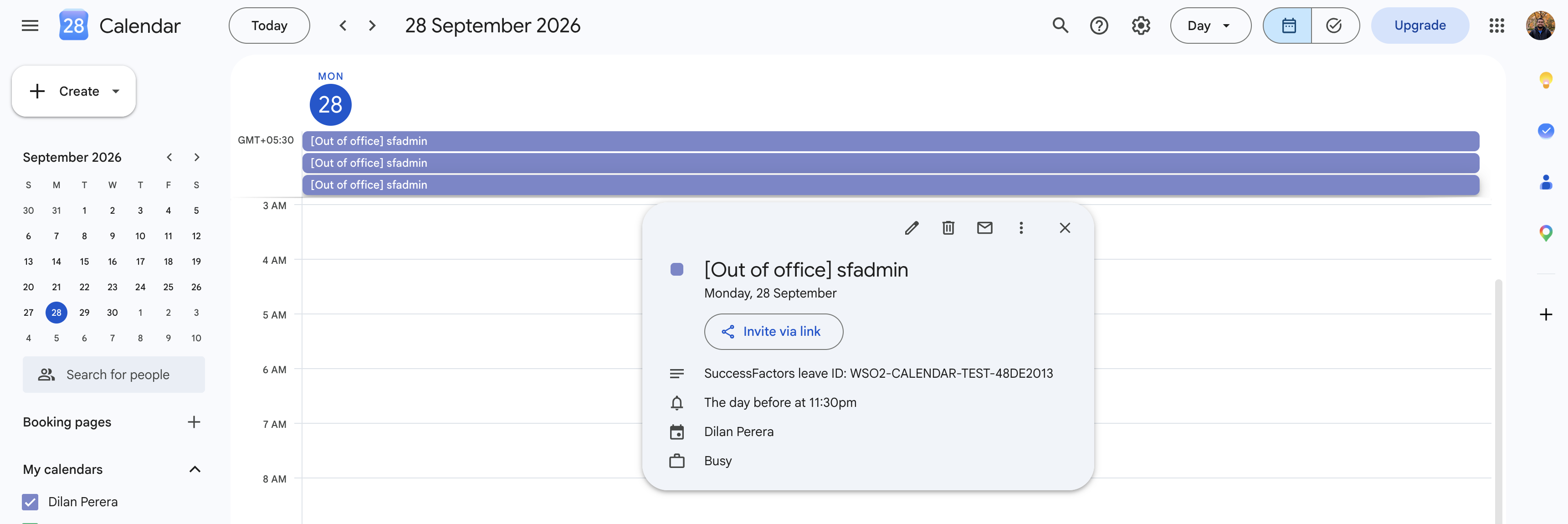
Confirm the event landed in Google Calendar: open the day of the leave and look for the new "Out of office" event. Its description carries the SuccessFactors leave ID, so you can always trace it back to the record that created it.
What's next
Now that the automation works, you can take it further:
- Deploy and schedule it. Ship it to WSO2 Cloud, a Docker container, Kubernetes, or a virtual machine, then schedule it to run once a day.
- Avoid duplicate events. The filter's one-day look-ahead means a leave starting tomorrow is seen by today's run and tomorrow's, so a daily schedule creates each event twice as built. Either narrow the window to a single day (
startDate lt datetime'${tommorrow()}T00:00:00'), or before creating an event call Get Events for that date and skip it if one already carries the same SuccessFactors leave ID in its description. - Sync updates and cancellations too. SuccessFactors'
EmployeeTimerecords can be modified or withdrawn after approval; extend the automation to look up the calendar event by the storedeventIdand update or delete it when the underlying leave record changes.