Build a Customer Care Agent with MCP
What you'll build
A customer care agent that connects to a ShopEasy MCP server and answers product availability, order status, and return questions over a chat API.
This tutorial shows how to build an agent that consumes an external MCP server using ai:McpToolKit. You do not build the MCP server here. It is provided as a running service. Your job is to wire the agent to it, write the system prompt, and expose a chat endpoint.
The agent receives customer messages over HTTP, reasons about which tool to call, invokes the MCP server, and returns a natural language answer.
- Model Providers for LLMs
- The ShopEasy MCP server running locally. Clone the repo and follow its README to start it: github.com/wso2/integration-samples.
- Visual Designer
- Ballerina Code
Step 1: Create and configure the agent
- Open WSO2 Integrator and create or select your project.
- On the Design tab, select Add Artifact manually (below the WSO2 Integrator Copilot's quick-start cards).
- On the Artifacts page, under AI Integration, select Chat Agent Service.
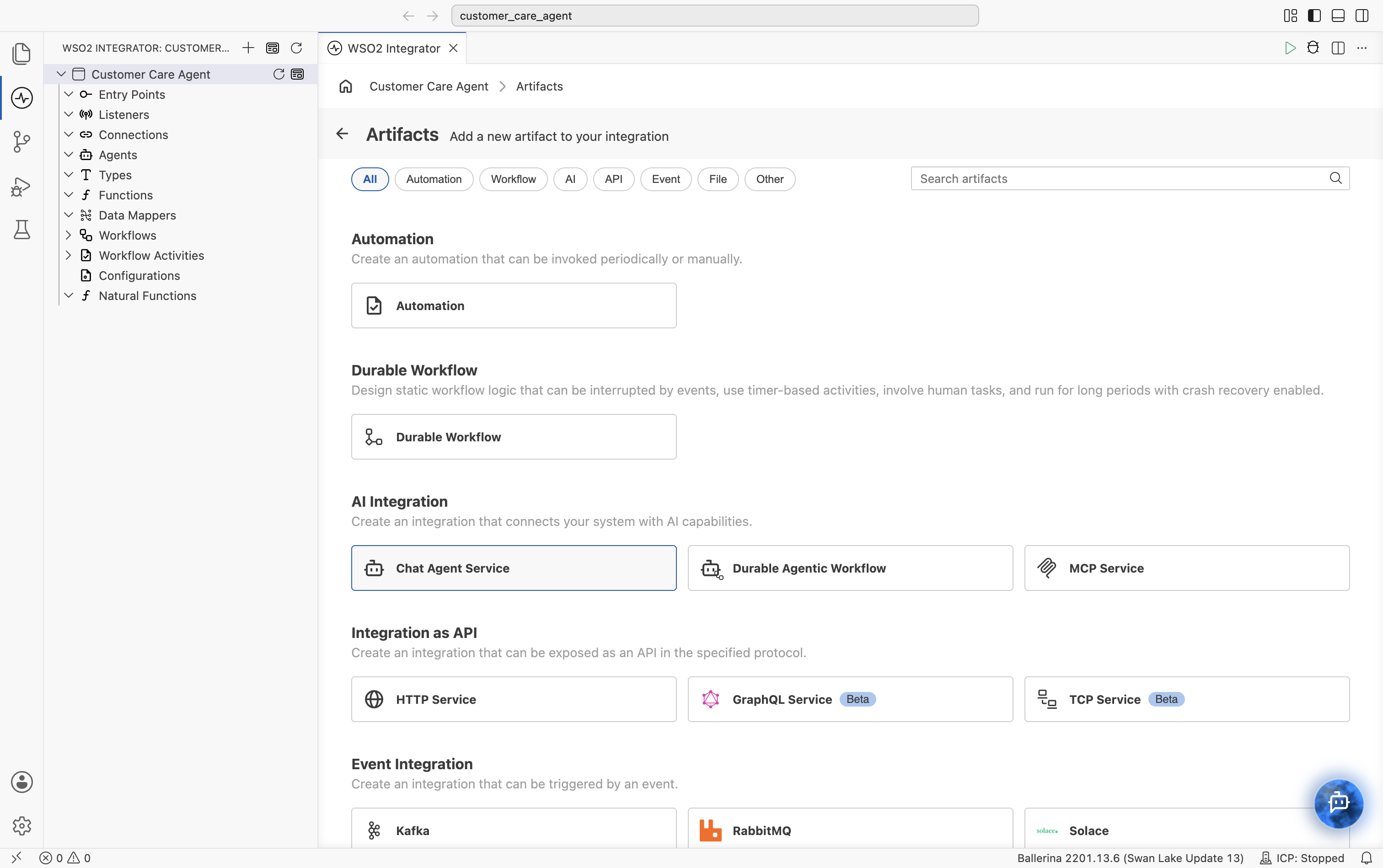
- On the Create Chat Agent Service form, set:
- Role to
Customer Support Agent. - Instructions to:
- Role to
You are a helpful customer support agent for ShopEasy, an online retailer.
Help customers with product availability, order tracking, and return requests.
Always use the available tools to look up accurate information. Never guess.
Keep responses friendly and concise. Include relevant IDs (order ID, return ID) in your responses.
- Model as Default WSO2 Model Provider.
- Leave Maximum Iterations at its default (
INFER_TOOL_COUNT).
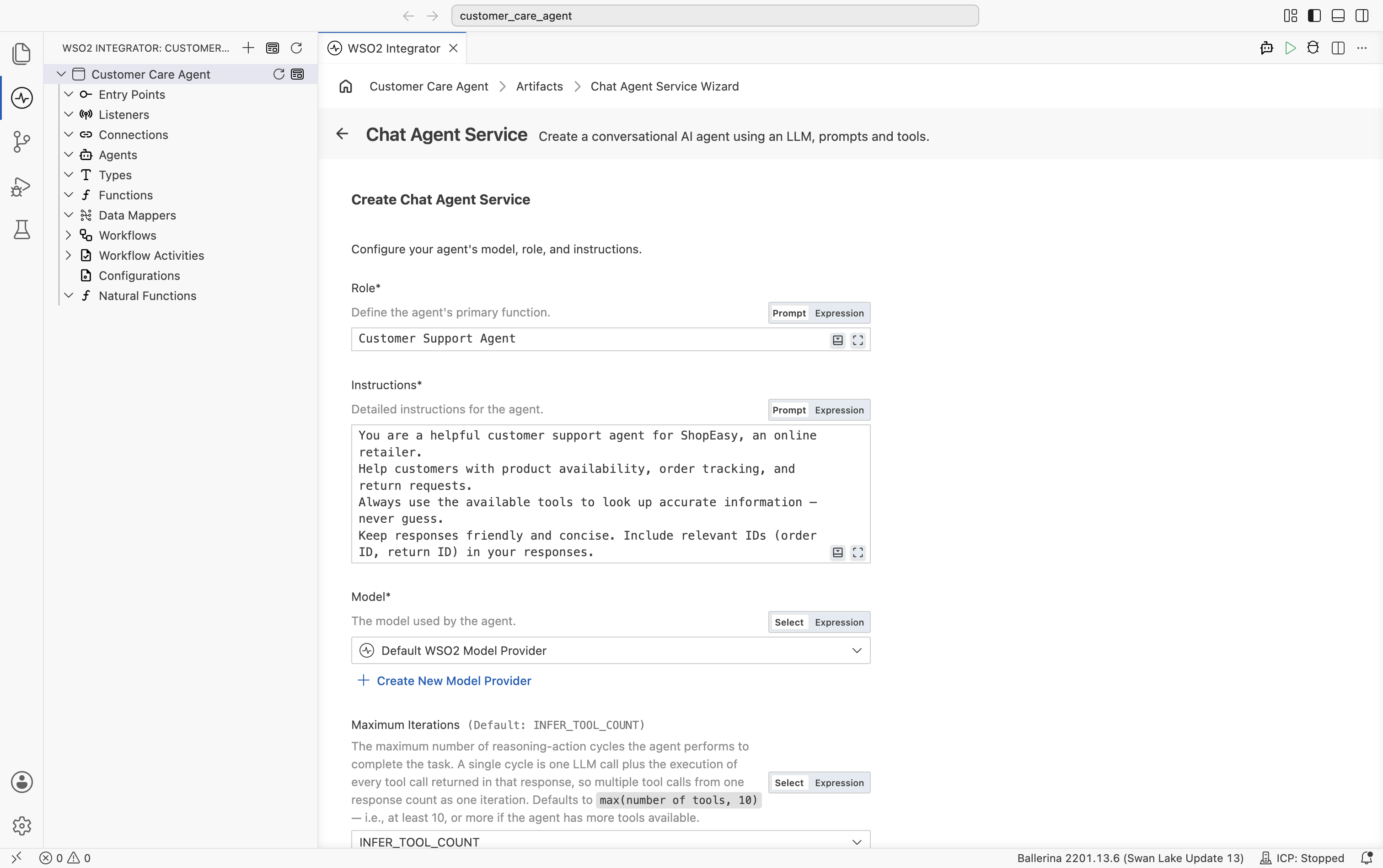
INFER_TOOL_COUNT resolves to max(number of tools, 10): at least 10 reasoning-action cycles, or more if the agent has more tools available. Once the MCP toolkit is attached in Step 2, this default already gives the agent enough room to reason, call a tool, and respond, without needing a manual override.
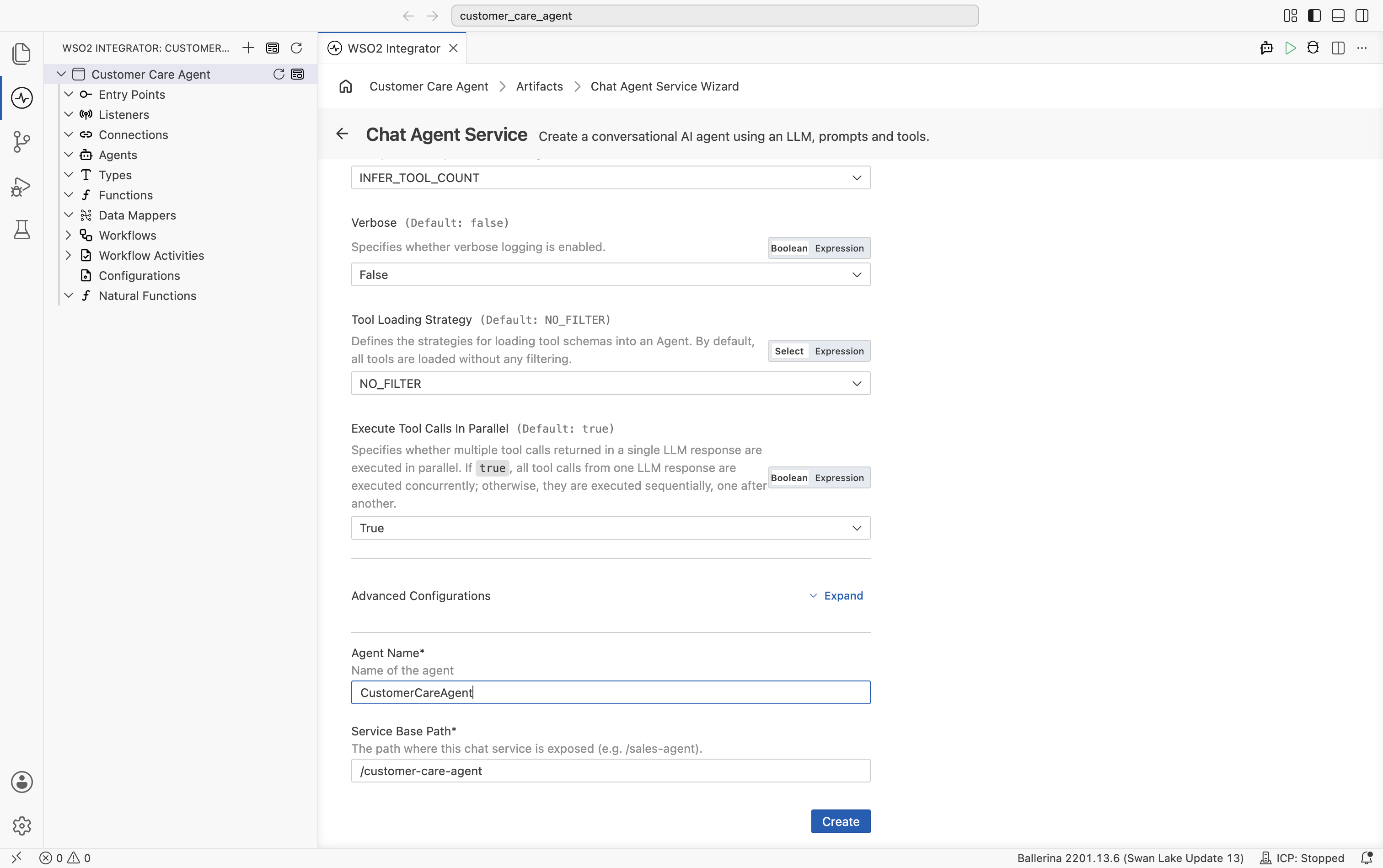
- Leave Verbose, Tool Loading Strategy, and Execute Tool Calls In Parallel at their defaults.
- Set Agent Name to
CustomerCareAgent. - Set Service Base Path to expose the chat service, for example
/customer-care-agent. - Select Create.
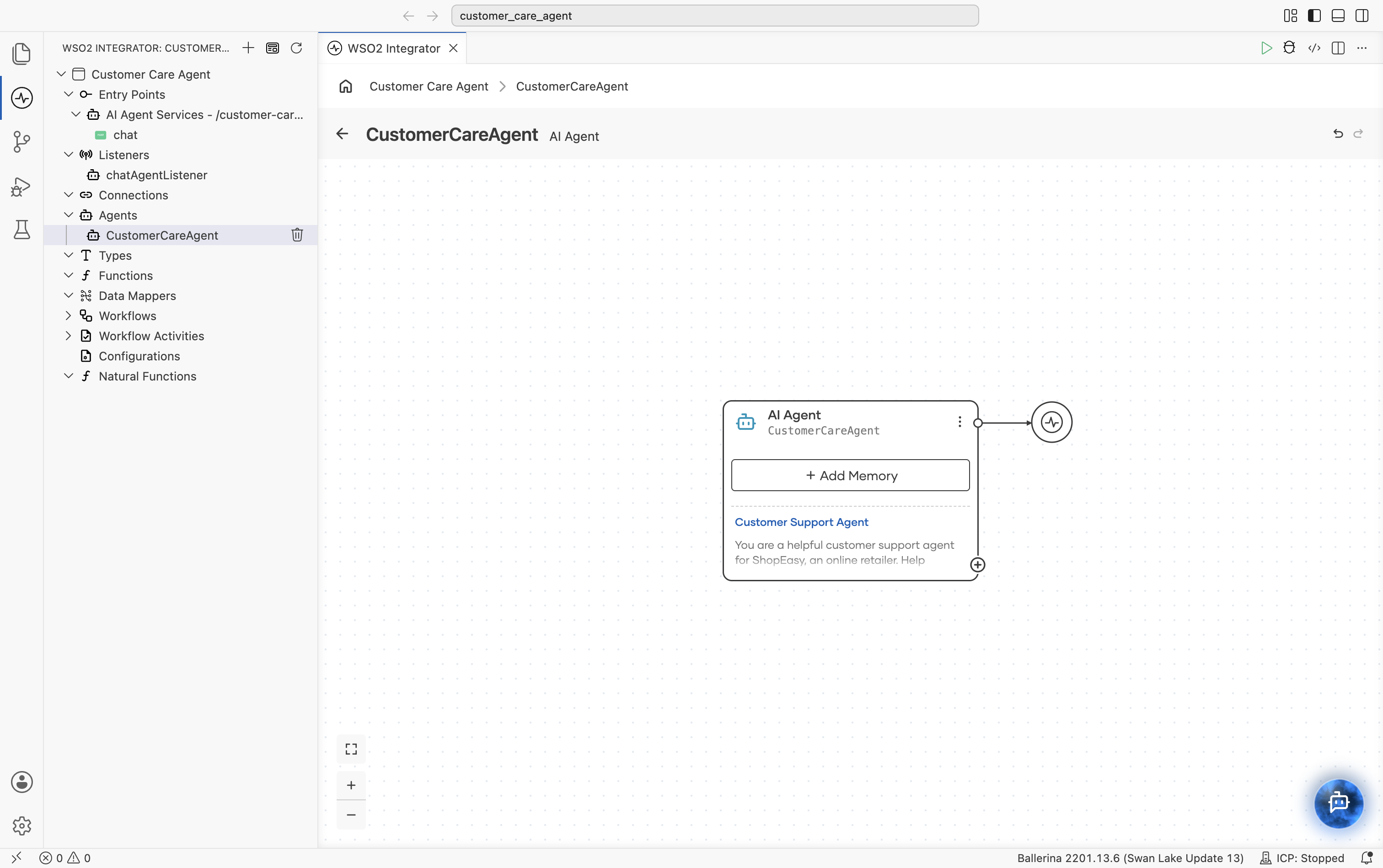
This creates an AI Agent Service with a POST /chat resource and a chatAgentListener, plus the CustomerCareAgent agent under Agents. Select CustomerCareAgent under Agents to open its canvas: the AI Agent node is connected to the model provider, with a + Add Memory button and a + icon at its bottom-right corner for adding tools.
Step 2: Add the MCP server as a tool
2.1 Select the tool type
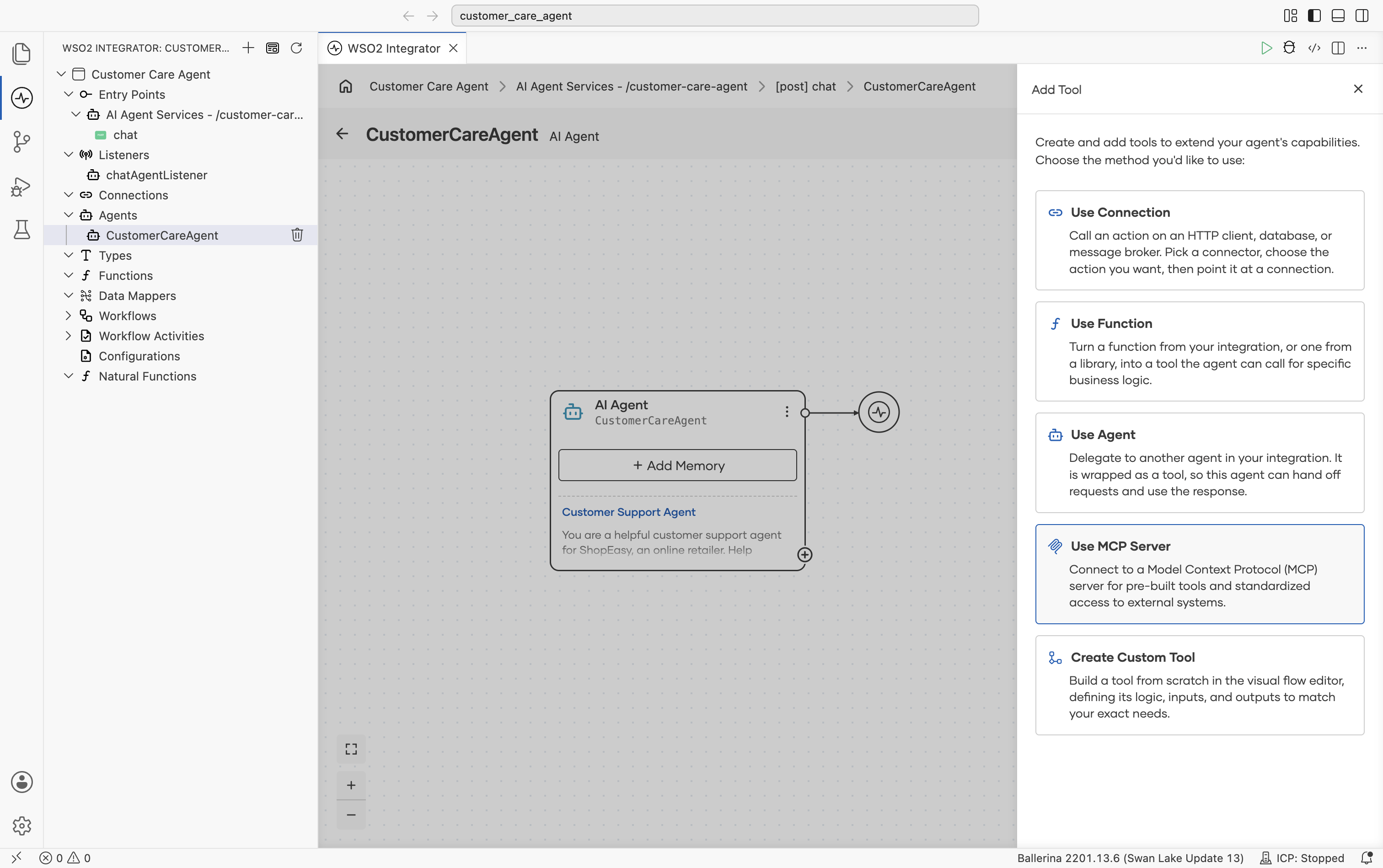
Select the + at the bottom-right corner of the AI Agent node. The Add Tool panel opens, listing Use Connection, Use Function, Use Agent, Use MCP Server, and Create Custom Tool. Select Use MCP Server.
2.2 Configure the server URL
- Set Server URL to
http://localhost:8080/mcp. - Leave Requires Authentication off.
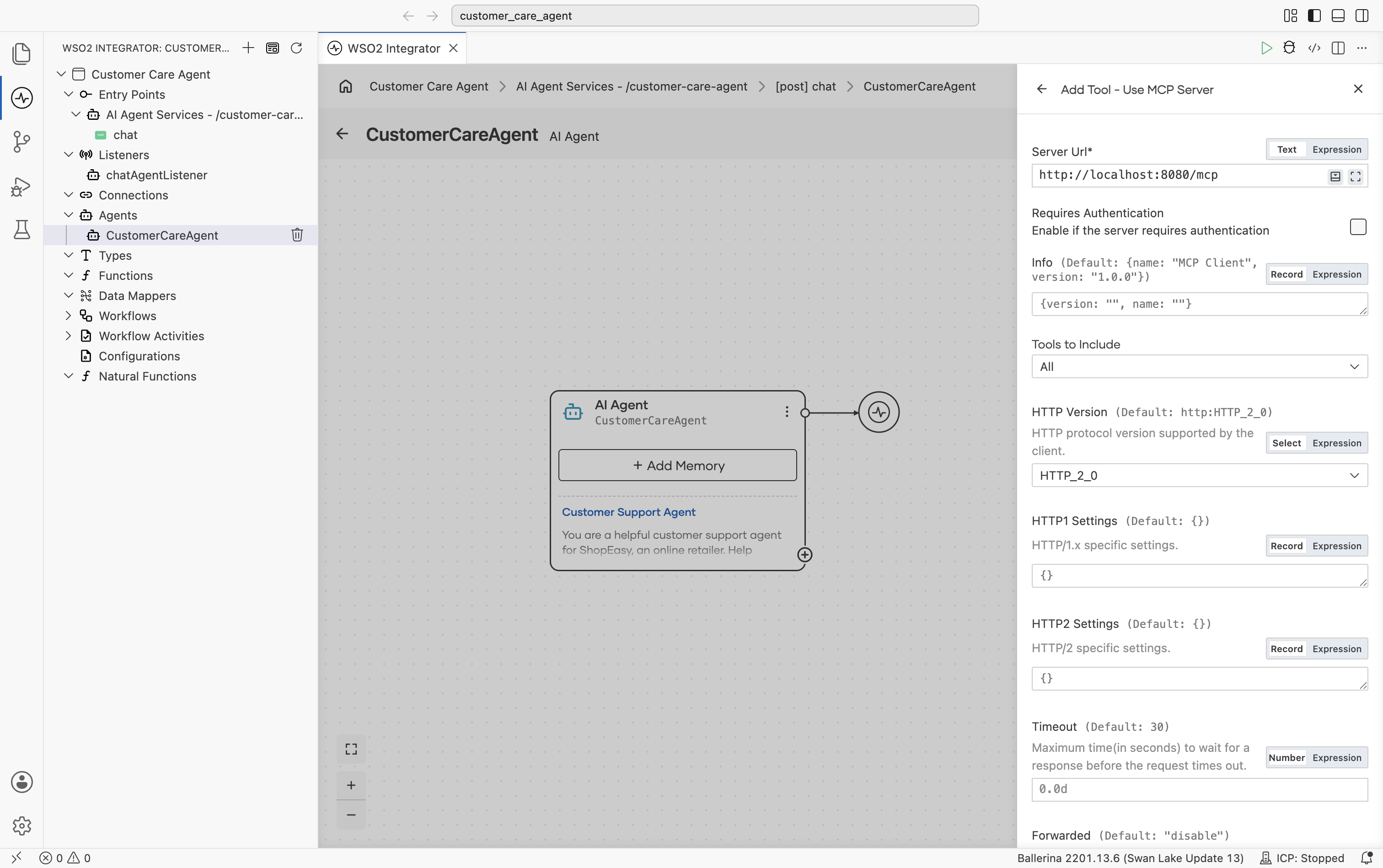
The panel also lists Info (the MCP client identity sent to the server, defaults to {name: "MCP Client", version: "1.0.0"}), Tools to Include (defaults to All), and a set of advanced HTTP client options (timeout, redirects, pooling, caching, compression, circuit breaker, retries, and TLS) under further scrolling. Leave these at their defaults for this tutorial.
- Leave Result as the default
aiMcpbasetoolkitand select Save.
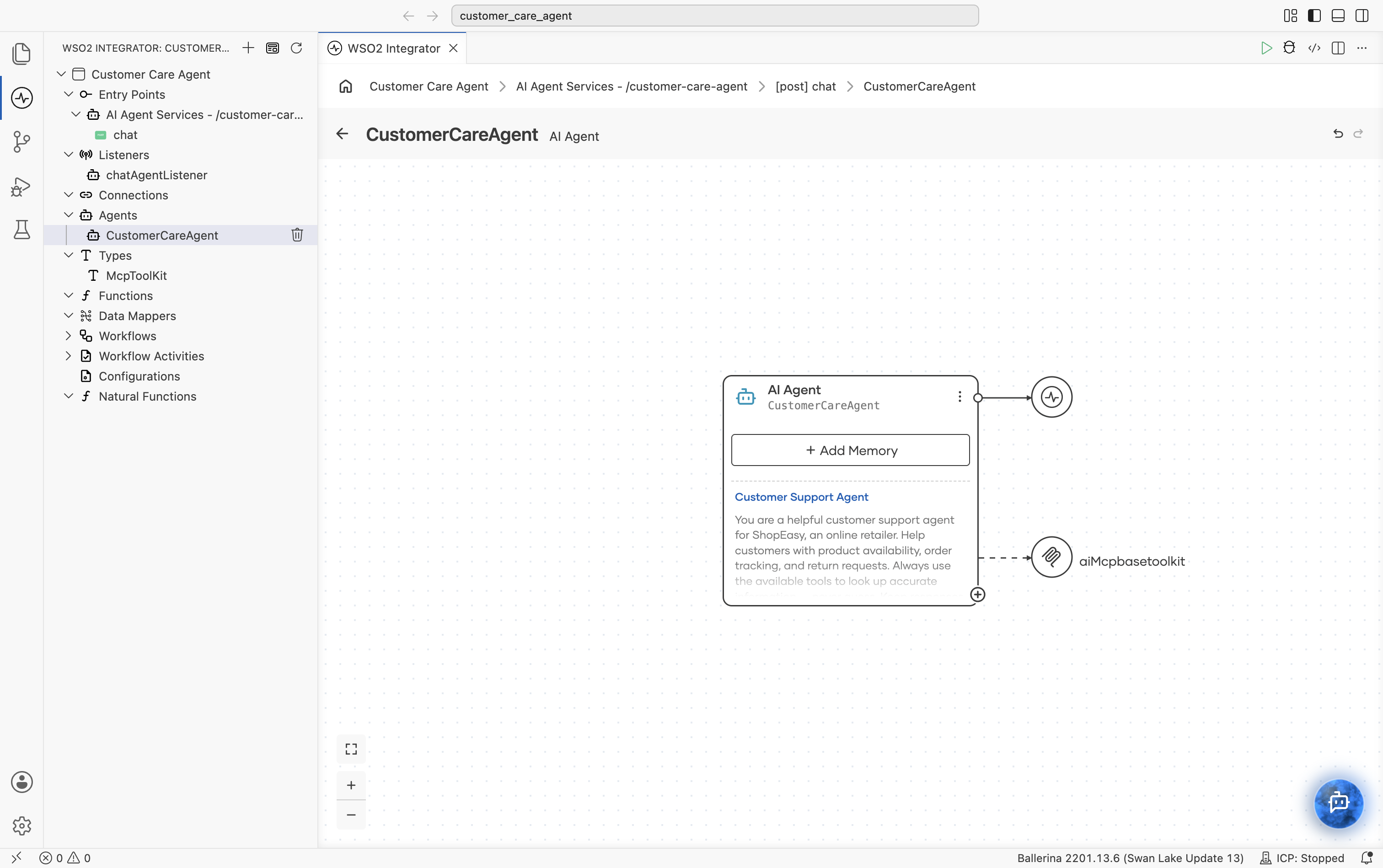
The MCP toolkit appears as aiMcpbasetoolkit attached to the agent node, connected by a dashed line, and a McpToolKit type is added under Types in the sidebar. The agent will discover the available tools from the server at startup.
Step 3: Run and test
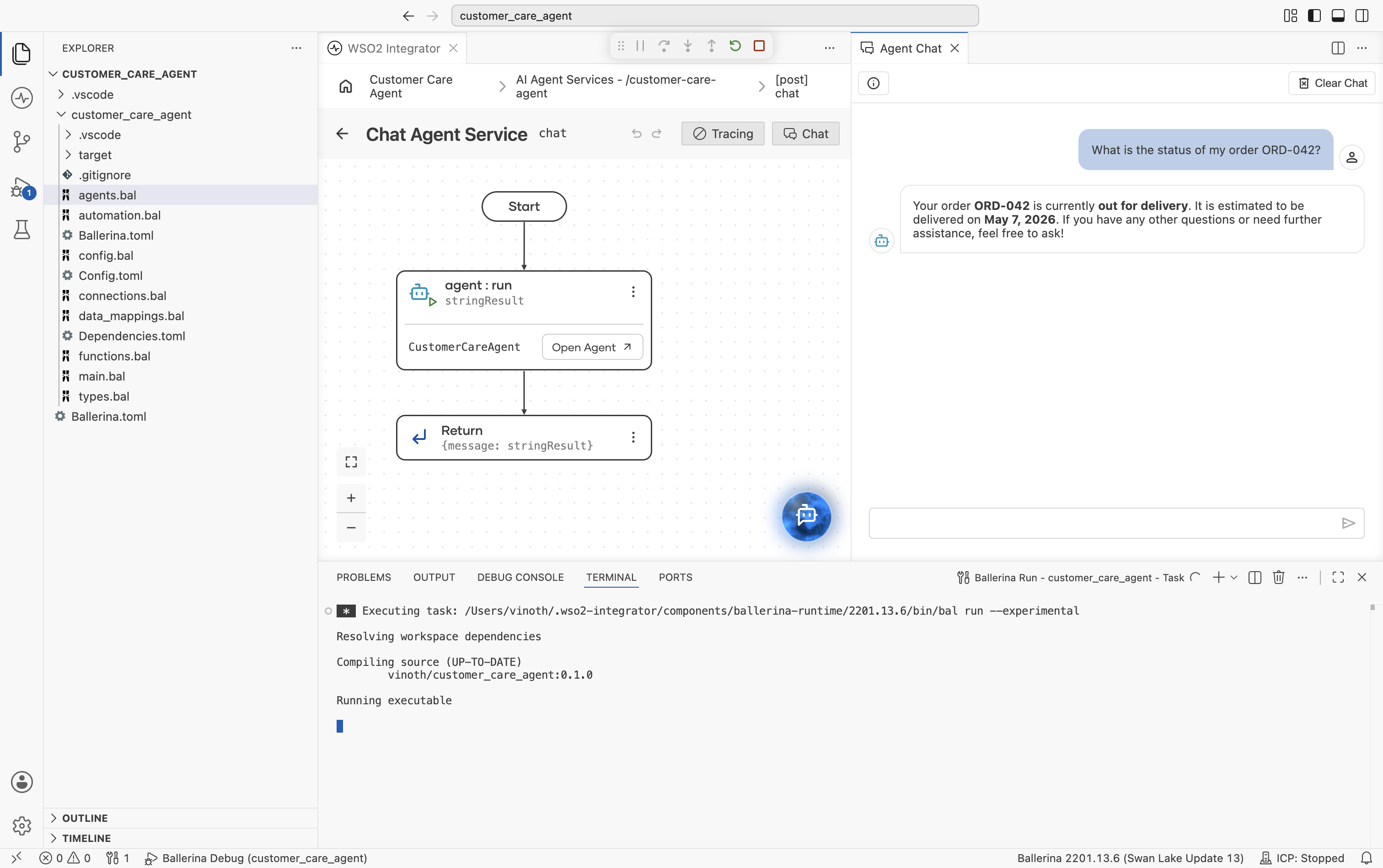
Make sure the ShopEasy MCP server is running, then select Run. WSO2 Integrator applies the --experimental flag and compiles and starts the service, with progress shown in the integrated terminal.
Once it's running, open the chat resource. Its flow shows Start, an agent:run node (with an Open Agent link back to the CustomerCareAgent canvas), and Return. Select Chat in the toolbar (next to Tracing) to open the Agent Chat panel. Type your message in the input field and press Enter to send it.
Try the following messages to exercise all three tools:
- "Do you have any wireless headphones in stock?"
- "What is the status of my order ORD-042?"
- "I want to return ORD-001. The item arrived damaged."
For more detail on using the chat panel, see Try-It experiences.
connections.bal: MCP toolkit connection:
import ballerina/ai;

final AiMcpbasetoolkit aiMcpbasetoolkit = check new ("http://localhost:8080/mcp");
The model provider is initialized inline with ai:getDefaultModelProvider() in agents.bal, so no separate connection is needed for the default WSO2 model provider.
agents.bal: agent definition:
import ballerina/ai;
import ballerina/mcp;

final ai:Agent CustomerCareAgent = check new (
    systemPrompt = {
        role: string `Customer Support Agent`,
        instructions: string `You are a helpful customer support agent for ShopEasy, an online retailer.
Help customers with product availability, order tracking, and return requests.
Always use the available tools to look up accurate information. Never guess.
Keep responses friendly and concise. Include relevant IDs (order ID, return ID) in your responses.`
    }, model = check ai:getDefaultModelProvider(), tools = [aiMcpbasetoolkit]
);

isolated class AiMcpbasetoolkit {
    *ai:McpBaseToolKit;
    private final mcp:StreamableHttpClient mcpClient;
    private final readonly & ai:ToolConfig[] tools;

    public isolated function init(string serverUrl, mcp:Implementation info = {name: "MCP", version: "1.0.0"},
            *mcp:StreamableHttpClientTransportConfig config) returns ai:Error? {
        do {
            self.mcpClient = check new mcp:StreamableHttpClient(serverUrl, config);
            self.tools = check ai:getPermittedMcpToolConfigs(self.mcpClient, info, self.callTool).cloneReadOnly();
        } on fail error e {
            return error ai:Error("Failed to initialize MCP toolkit", e);
        }
    }

    public isolated function getTools() returns ai:ToolConfig[] => self.tools;

    @ai:AgentTool
    public isolated function callTool(mcp:CallToolParams params) returns mcp:CallToolResult|error {
        return self.mcpClient->callTool(params);
    }
}
main.bal: HTTP chat service:
import ballerina/ai;
import ballerina/http;

listener ai:Listener chatAgentListener = new (listenOn = check http:getDefaultListener());

service /customer\-care\-agent on chatAgentListener {
    resource function post chat(@http:Payload ai:ChatReqMessage request) returns ai:ChatRespMessage|error {
        string stringResult = check CustomerCareAgent.run(request.message, request.sessionId);
        return {message: stringResult};
    }
}
To run and test the agent, follow the same steps in the Visual Designer tab under Step 3: Run and test.
What you built
- Connected an agent to a live MCP server using
ai:McpToolKit - The agent dynamically discovered three tools (
searchProducts,getOrderStatus,submitReturnRequest) at startup with no hardcoded tool definitions - Exposed the agent as an HTTP chat service with session-scoped memory
What's next
- Exposing a service as an MCP server — Build your own MCP server like the one used in this tutorial
- Consuming MCP from an agent — Deeper reference for
ai:McpToolKitoptions - Adding memory to an agent — Persist conversation history across sessions
- AI agent observability — Trace tool calls and monitor agent performance