MCP Implementations: How to Implement MCP
"Implementing MCP" covers a lot of ground: building a server from an official SDK, wiring it to a client host, or adopting a reference implementation someone already wrote, and then, separately, making that server safe to expose beyond a single machine. This guide covers the MCP architecture, how to implement a server step by step, the reference implementations worth knowing, and a reproducible walkthrough for taking a running MCP server from an unmanaged, local deployment to one that is governed across an organization with WSO2 AI Workspace.
What Are MCP Implementations?
An MCP implementation is any concrete piece of software that speaks the Model Context Protocol: a server that exposes tools, resources, and prompts; a client that connects an agent to servers; or the SDKs and reference servers that make building either faster. Because MCP is an open standard built on JSON-RPC 2.0, anyone can implement it in any language, as long as they follow the specification.
In practice, "implementing MCP" almost always means one of two things: building a new MCP server (with an official SDK), or exposing an existing one to the agents that need it, safely, and under an organization's control. Most guides to MCP server implementations focus overwhelmingly on the first half; this one covers both, in order.
MCP Architecture (Host, Client, Server)
MCP architecture defines three primary roles:
| Role | What it is |
|---|---|
| Host | The AI application the agent runs inside, a chat app, an IDE assistant, an autonomous agent runtime. |
| Client | The connector inside the host that mediates communication with a server. |
| Server | The program that exposes tools, resources, and prompts to MCP clients, often backed by APIs, databases, files, or internal systems. |
A server exposes three kinds of capability:
- Tools: functions the model can call (e.g. "echo a message," "get the weather for a city"). The model decides when to invoke them based on their name, description, and input schema.
- Resources: data or content that clients can retrieve and provide as context, such as documents, files, or records.
- Prompts: reusable, parameterized templates a client can pull in to steer a conversation.
Clients can offer capabilities back to servers too, such as sampling and elicitation. MCP interactions can involve stateful sessions, particularly over Streamable HTTP: a client initializes a session and then makes a series of calls within it, a departure from the stateless request/response model most REST APIs use, and one of the reasons governing MCP traffic (rate limits, authentication, visibility) needs to think in terms of sessions and capabilities, not just URLs and HTTP verbs.
How to Implement an MCP Server
If no MCP server exists yet, start here. (If one is already running, skip ahead to Implementing and Governing MCP with WSO2.)
Choose an Official SDK
Start from an official SDK rather than hand-rolling JSON-RPC. The set of supported languages has grown since MCP's introduction, so confirm the current SDK list and versions against modelcontextprotocol.io before building rather than relying on any fixed list. The official Python SDK ships a high-level, decorator-based interface under mcp.server.fastmcp (the example below uses it); this is distinct from the separately maintained FastMCP project, which is a related but different codebase, so check which one a given piece of documentation or a dependency actually refers to.
Define Tools, Resources, and Prompts
Declare each tool with a name, a description the model will read, and a typed input schema. Keep the set small and outcome-oriented: a few well-described tools beat dozens of thin ones. As a design heuristic, side-effect-free data lookups are usually a better fit for resources and actions for tools, but this is a modeling choice, not a protocol requirement; a read-only lookup exposed as a tool is entirely valid MCP.
A minimal server, using the Python SDK's high-level decorator style, looks roughly like this:
from mcp.server.fastmcp import FastMCP

mcp = FastMCP("example-server")

@mcp.tool()
def get_sum(a: int, b: int) -> int:
    """Add two numbers."""
    return a + b

@mcp.resource("docs://readme")
def readme() -> str:
    """Return the project README."""
    return open("README.md").read()

if __name__ == "__main__":
    mcp.run(transport="streamable-http")
This is illustrative rather than a specific version's exact API; check the SDK's own documentation for the current decorator names and transport options. The shape, however, is consistent across MCP SDKs: define a typed function, annotate it as a tool or resource, and run the server over a transport.
Test with MCP Inspector
Run the server and connect MCP Inspector to confirm tools are discoverable, schemas are correct, and invocations return what is expected, before any agent touches it.
Connect to a Client Host
Point an MCP-capable host or intermediary, such as an agent runtime, IDE assistant, or MCP gateway, at the server and verify end-to-end tool discovery and invocation.
Open-Source and Reference MCP Implementations
The ecosystem includes official SDKs, reference/example servers maintained in the MCP project, and gateway implementations that manage many servers. These reference implementations exist so a test server does not need to be built from scratch to learn the protocol or evaluate a client; they provide a useful baseline for learning the protocol and evaluating clients. When evaluating any implementation, check its license, whether it is a single server or a multi-server gateway, and its security posture; treat any vendor's own performance claims as unverified until tested independently. Confirm the current reference-server list directly on the official MCP GitHub organization before relying on any specific enumeration; even a single server's reported capabilities can vary by connecting client, not just by release (see the capability-negotiation note in the Implementing and Governing MCP with WSO2 section for a concrete example).
The hands-on walkthrough later in this guide uses one such reference implementation, the official @modelcontextprotocol/server-everything, which ships a broad, mixed set of tools: some suitable to expose to an external agent (echo, get-sum, a structured weather-style lookup), others clearly internal/demo-only (get-env, toggle-simulated-logging), which is exactly the shape of problem a governance layer needs to solve.
Implementation Best Practices
- Keep the tool surface small and well-named. Descriptions are read by a model; ambiguous names cause wrong tool selection.
- Validate inputs against the schema. Do not trust the agent to send well-formed arguments.
- Normalize errors. Predictable error shapes let agents recover; raw stack traces do not.
- Treat tool metadata from third-party servers as untrusted. The MCP spec warns that tool annotations should be considered untrusted unless the server is trusted; this is the root of tool-poisoning risk.
- Plan for authentication and rate limiting before going remote. A local
stdioserver is forgiving; a server reachable over the network, by agents outside direct control, is not. - Use URL-friendly identifiers for anything that becomes part of a route. A display name, once deployed, typically becomes part of a URL path. Characters that are valid in a human-readable label, like
/, are frequently invalid in a path segment.
Building an MCP server that runs on a local machine is the straightforward part: official SDKs handle the protocol plumbing, and a minimal server is usually running locally with relatively little effort. The harder part is everything that comes after: who is allowed to call it, how to stop one runaway agent from overwhelming the backend, how to hide internal debugging tools never meant to be exposed externally, and how other teams discover the server exists. Most write-ups of MCP server implementations stop at the point these questions start to matter; that is what the rest of this guide covers.
Implementing and Governing MCP with WSO2
Everything above applies regardless of vendor: the architecture, building a server, and the practices that hold up no matter who governs it later. What follows takes a server built with the How to Implement an MCP Server guidance (or an existing reference implementation from the Open-Source and Reference MCP Implementations list) and puts a governance layer in front of it. The walkthrough below uses WSO2 AI Workspace specifically, but the core requirements (capability access control, rate limiting, and authentication) are universal to any gateway deployment.
WSO2 AI Workspace's MCP Proxy feature governs an existing MCP server by putting it behind an AI Gateway. Concretely, it provides:
- Connect: link to any running MCP server (Streamable HTTP transport) by URL, with an optional auth header for the connection itself, and pull in its live list of tools, resources, and prompts.
- Deploy: push that connection to one or more gateways, producing a stable, gateway-fronted URL that agents call instead of hitting the server directly.
- Govern: apply policies to the traffic passing through: restricting which tools/resources/prompts are visible, rate-limiting calls per capability, rewriting capability names, stripping or setting headers, and applying CORS rules.
To be precise about scope, what it does not do is generate a brand-new MCP server from an OpenAPI spec or an existing REST API. The proxy connects to an MCP server that already exists and speaks the protocol; it does not manufacture one from a different kind of API definition. If no MCP server exists yet, build one first using the How to Implement an MCP Server section above, then bring it here to govern it.
A local MCP server used by a single trusted agent may need little beyond what the Implementation Best Practices section already covers. Governance becomes increasingly necessary as any of the following becomes true:
- The server is exposed beyond a single local machine. A local
stdioserver is forgiving. A server reachable over the network, by agents outside direct control, is not; security controls such as authentication, authorization, rate limiting, and capability visibility should be considered from the start. - The MCP server has tools that were never meant to be exposed externally. Reference implementations and internally-built servers often ship debugging or admin-only tools alongside the ones meant for agents. A way to hide those without touching the server's code is needed.
- A backend needs protection from being overwhelmed. Agents retry, loop, and sometimes misbehave. Per-tool or per-session rate limiting keeps one aggressive agent from taking down a shared resource.
- More than one team wants to use the same MCP server. Rather than every team pointing at the raw backend URL directly, a governed, gateway-fronted endpoint provides one place to change authentication, one place to see traffic, and one place to cut off access if something goes wrong.
With the concepts and trade-offs covered, the rest of this section puts MCP Proxy into practice: connecting it to a real server, deploying it, and locking it down with access control and rate limiting.
- What you will build: An MCP proxy in WSO2 AI Workspace, fronting a real MCP server, deployed to a gateway, with an access-control allowlist and a per-tool rate limit both enforced.
- What you will learn: How to connect AI Workspace to a running MCP server, deploy it behind a gateway, restrict which tools/resources/prompts are reachable with the MCP Access Control policy, and protect the backend from runaway traffic with the MCP Rate Limit policy.
- Prerequisites: A running WSO2 AI Workspace instance with at least one AI Gateway registered and connected, a project to work in, and an MCP server to govern (this walkthrough uses the official
@modelcontextprotocol/server-everythingreference server).
Prerequisites
-
A running WSO2 AI Workspace instance, with at least one AI Gateway registered and connected (AI Gateways in the left navigation should show it as Active).
-
A project to work in (this walkthrough uses the Default project).
-
An MCP server to govern. To follow along exactly:
npx -y @modelcontextprotocol/[email protected] streamableHttpThis starts a real MCP server on
localhost:3001. If the AI Gateway runs in Docker (the standard distribution does), the gateway reaches the host machine viahost.docker.internal, so the server's URL from the gateway's point of view ishttp://host.docker.internal:3001/mcp.
Connect and Deploy
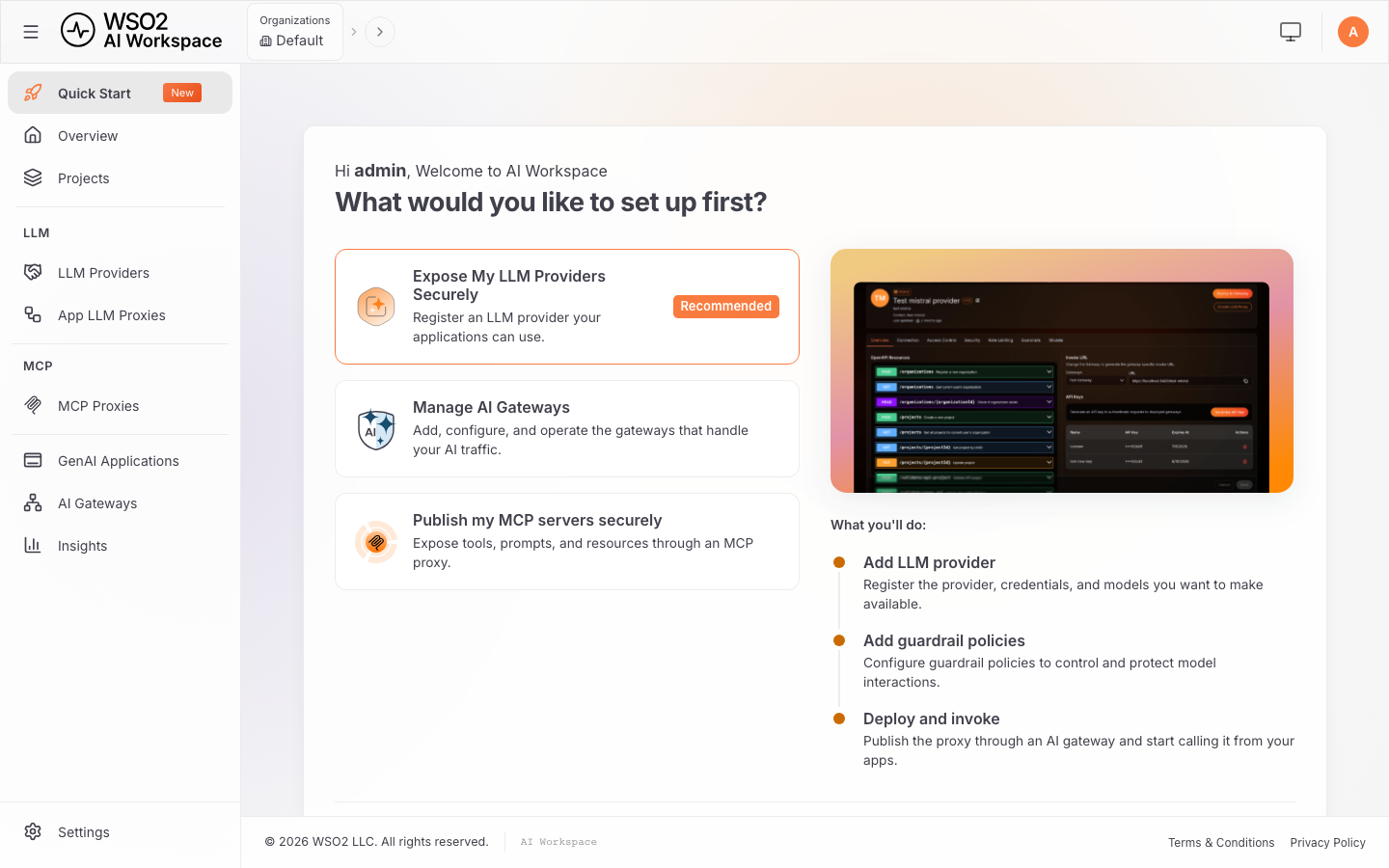
Step 1: Open MCP Proxies. From the AI Workspace home page, select MCP → MCP Proxies in the left navigation.
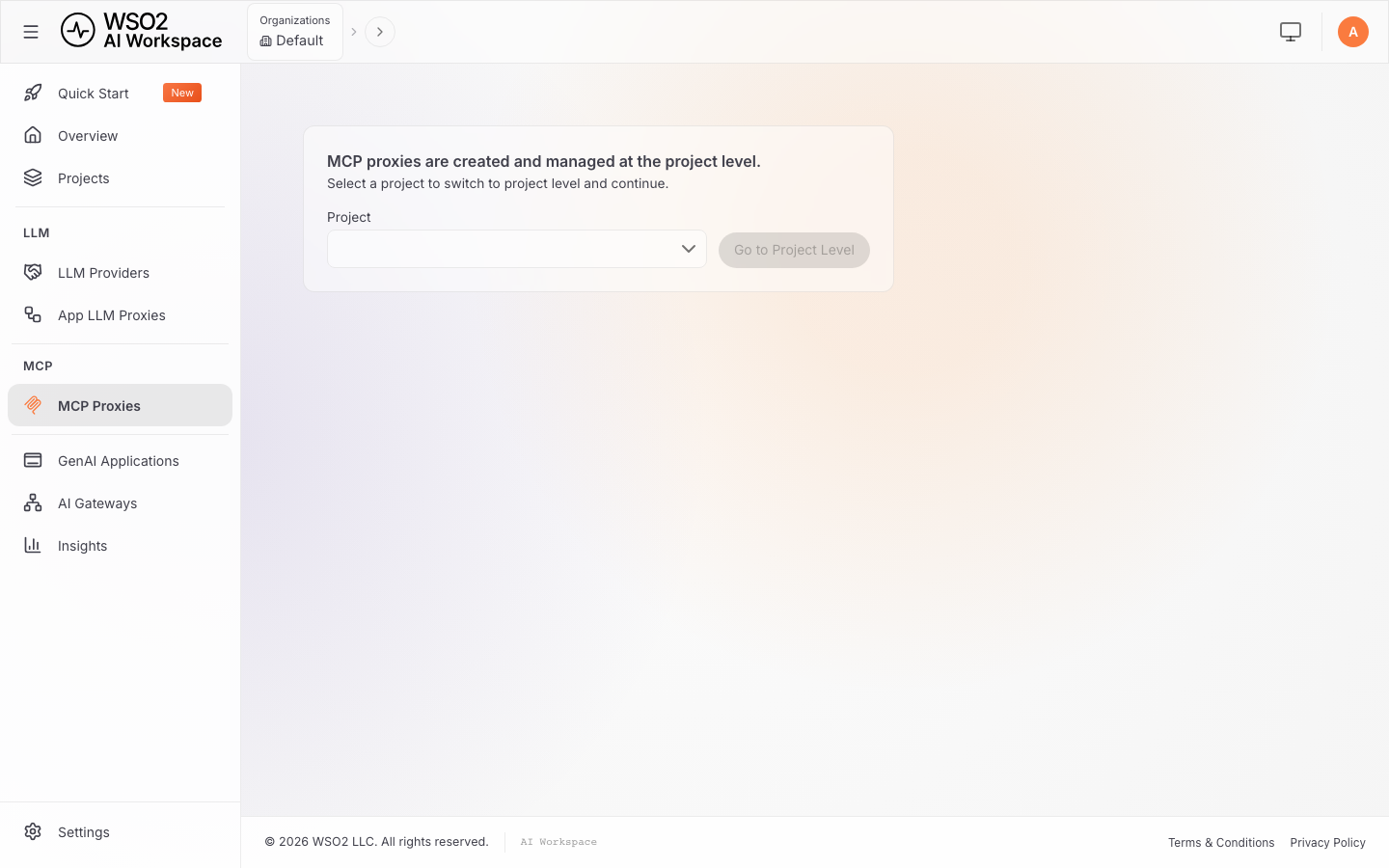
Step 2: Choose a project. MCP proxies are created and managed at the project level. Select a project and continue to reach the project-level MCP Proxy list.
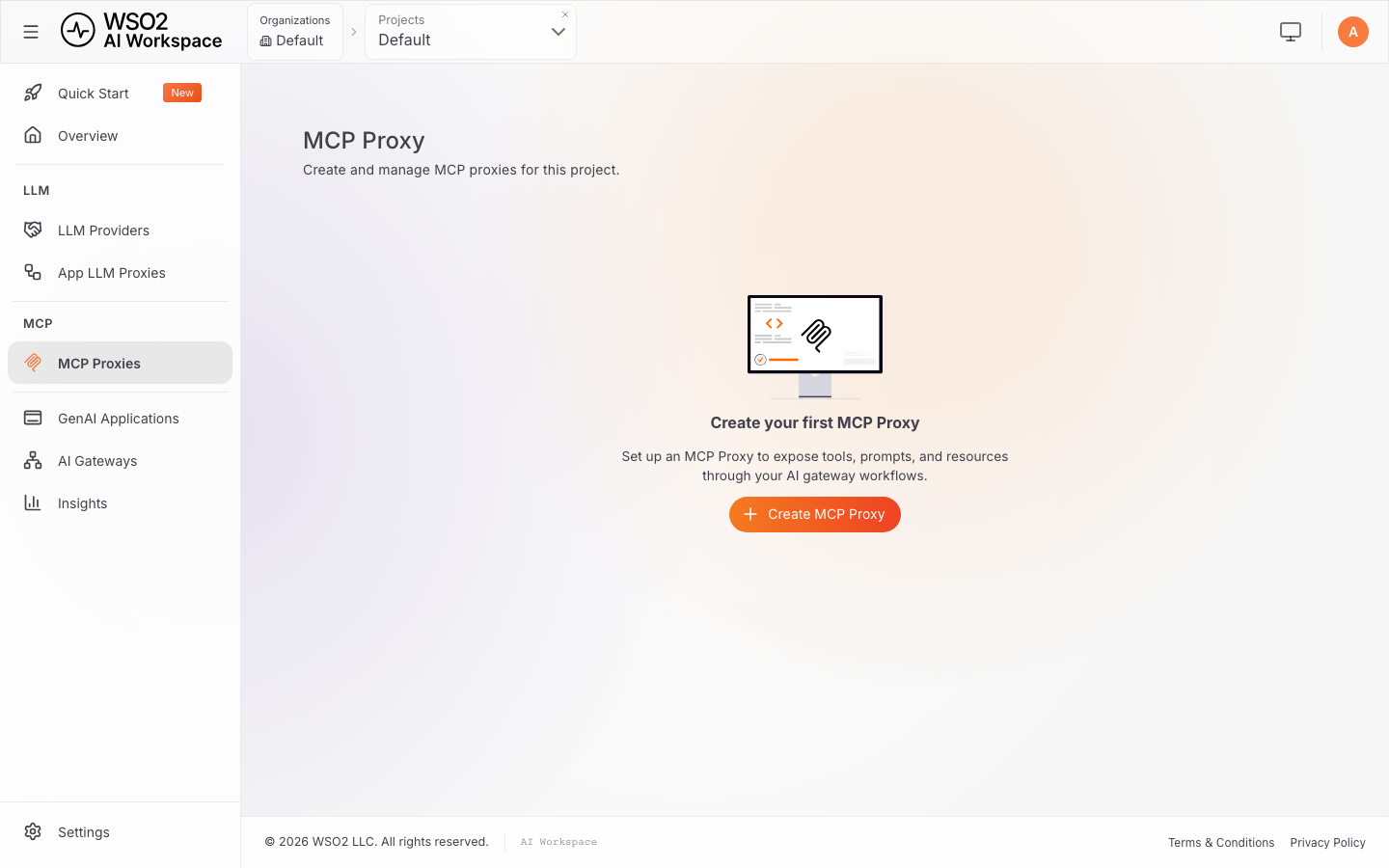
Step 3: Start creating a proxy. On a fresh project this list is empty; click Create MCP Proxy.
Step 4: Point it to the MCP server. Enter the MCP server's endpoint URL.
If the MCP server requires authentication, expand Advanced Configurations and provide the required Header name and Value. The gateway uses these credentials when connecting to the backend, so callers do not need to provide them themselves.
For this walkthrough, the reference MCP server does not require an authentication header, so leave Advanced Configurations unchanged.
Note: If a required authentication header is missing or incorrect, MCP server discovery fails. The exact response depends on the target server, but a common response is
401 Unauthorized.
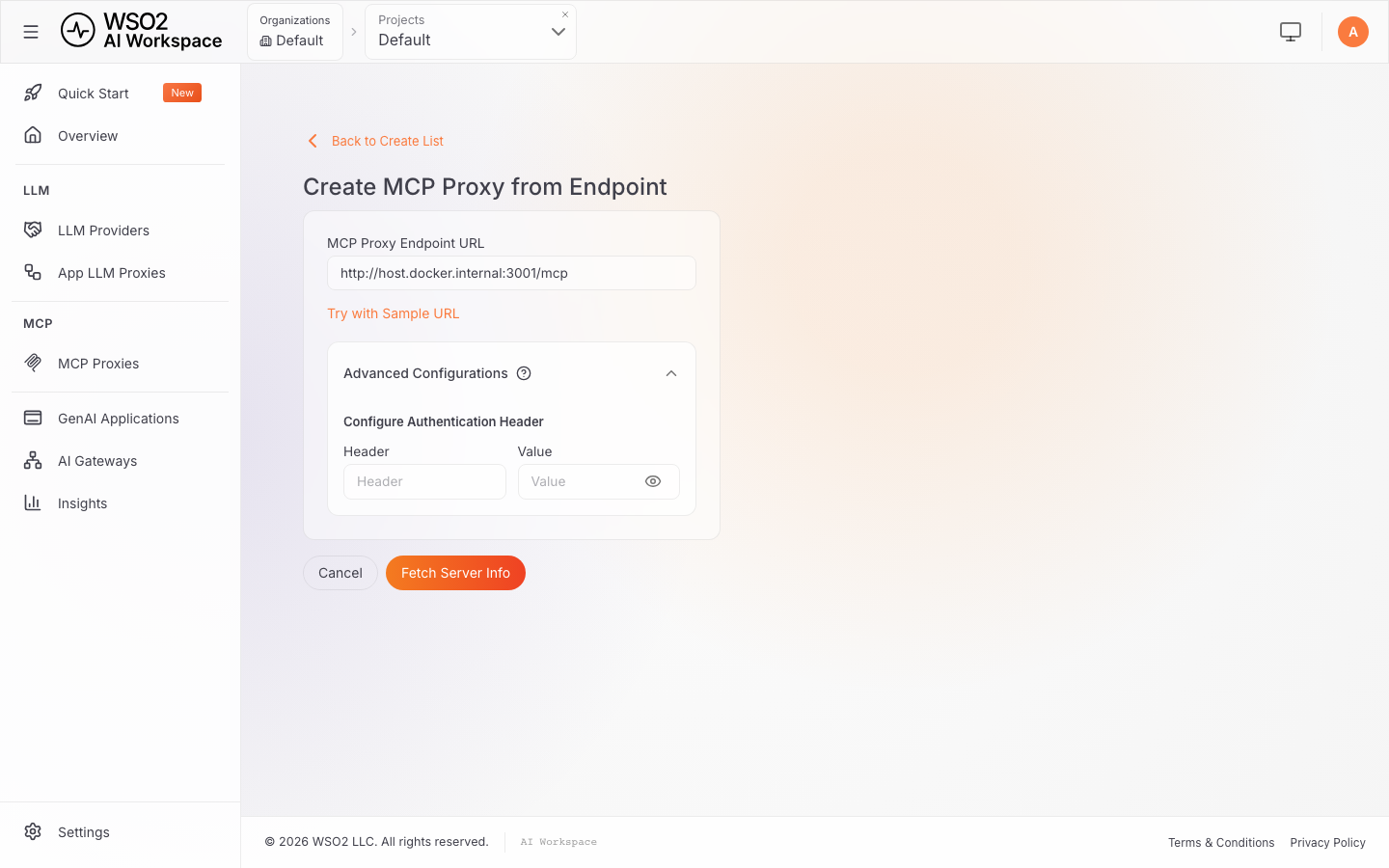
Step 5: Fetch Server Info. Click Fetch Server Info. AI Workspace connects to the server live, performs the MCP handshake, and reports exactly what it found:
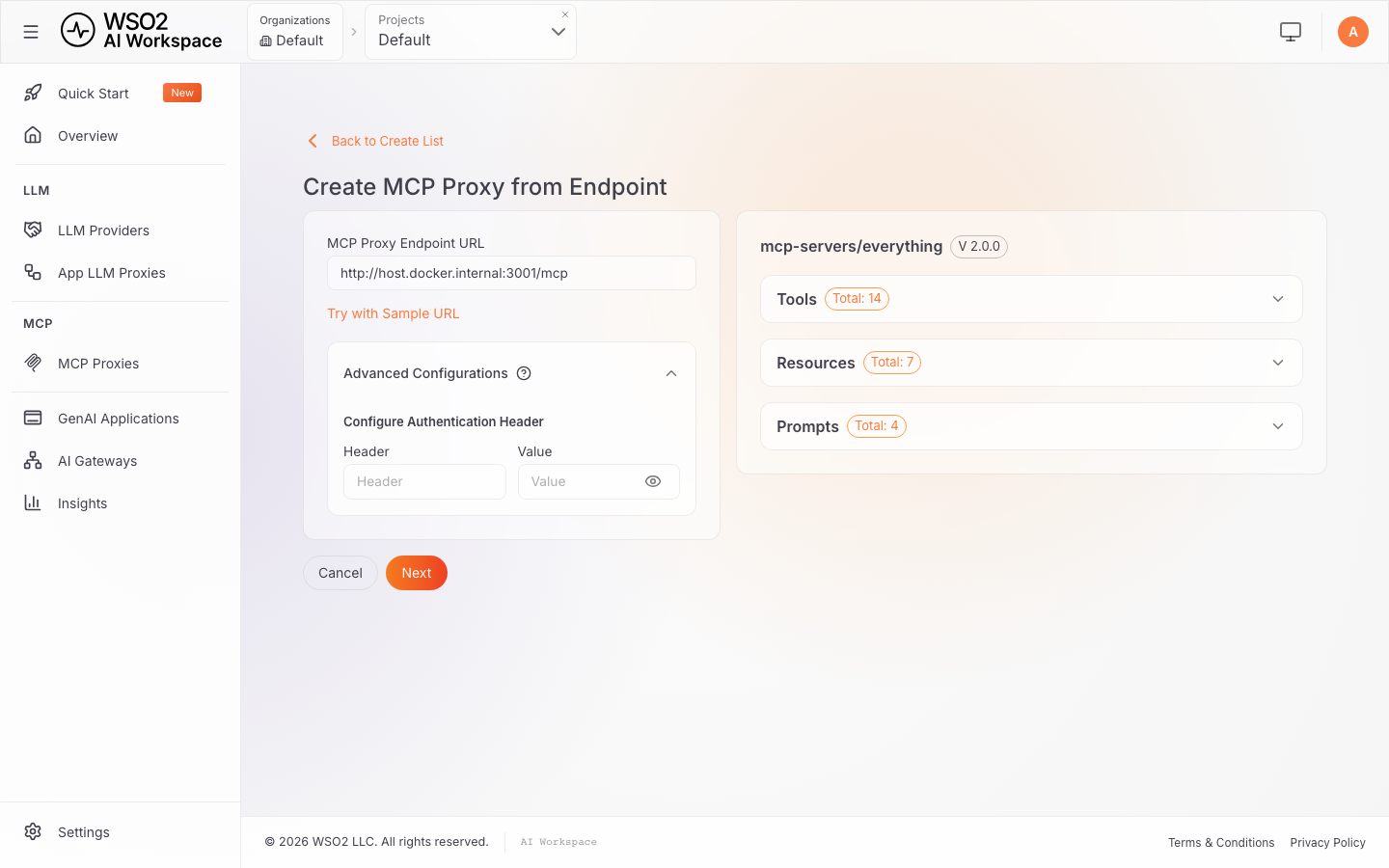
Why you may see 13 tools instead of 14: tool visibility here is capability-dependent, not fixed; see the FAQ for the full explanation.
Step 6: Review the pre-filled details. Click Next (the same button; it relabels itself once Fetch Server Info succeeds). AI Workspace pre-fills three fields from what it just learned about the server:
- Name: taken directly from what the server reported.
- Version: derived from the reported version, normalized to a
v<major>.<minor>format (a reported2.0.0becomesv2.0). - Context (URL path): computed by combining the project slug with a slugified version of the Name field.
Step 7: Create it. Click Create. The proxy now exists as a managed artifact but is not yet deployed to any gateway.
Step 8: Deploy to a gateway. Click Deploy to Gateway, then click the Deploy button on the target gateway's card.
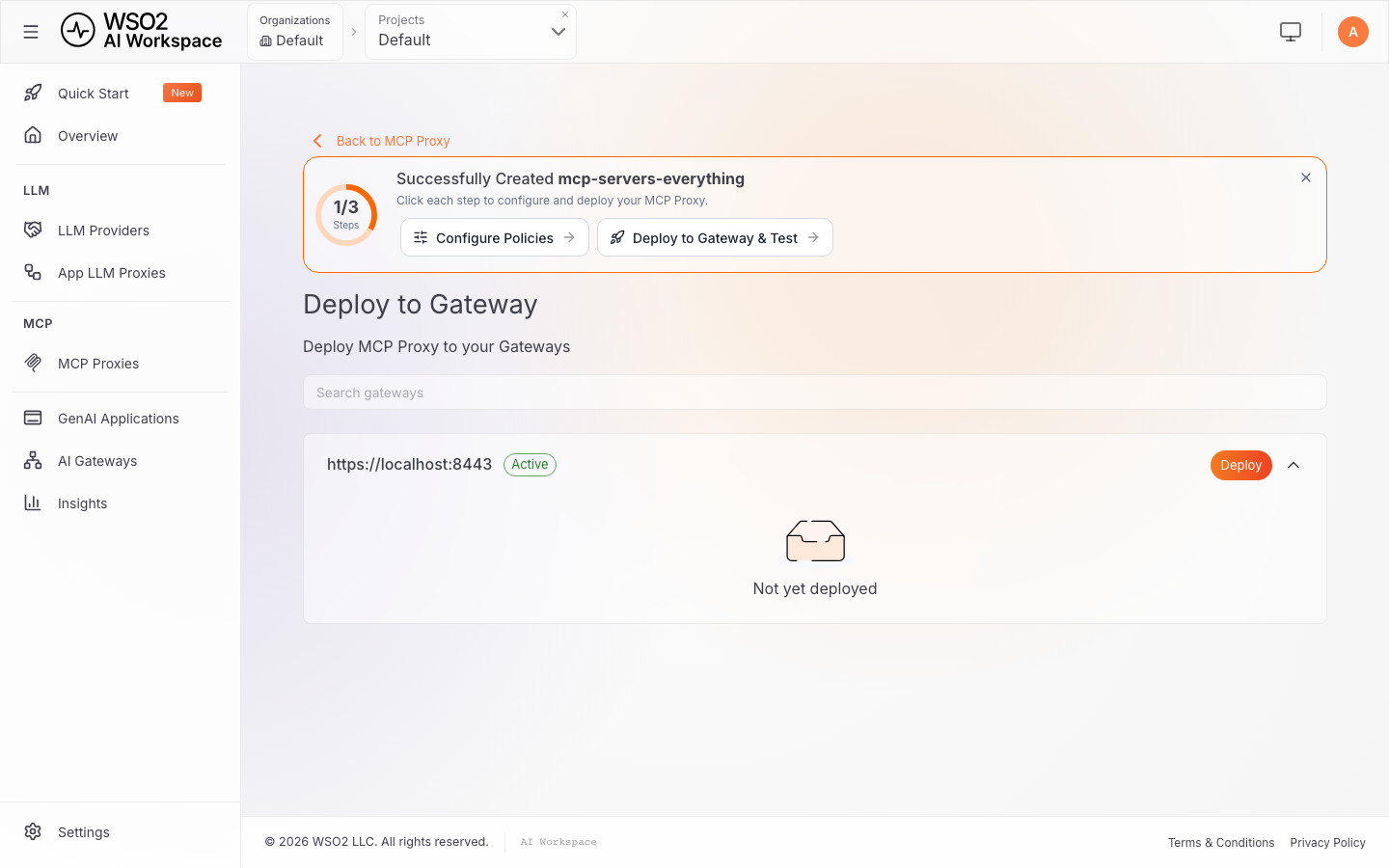
The deployment succeeds, and the proxy's status flips to Deployed / Active:
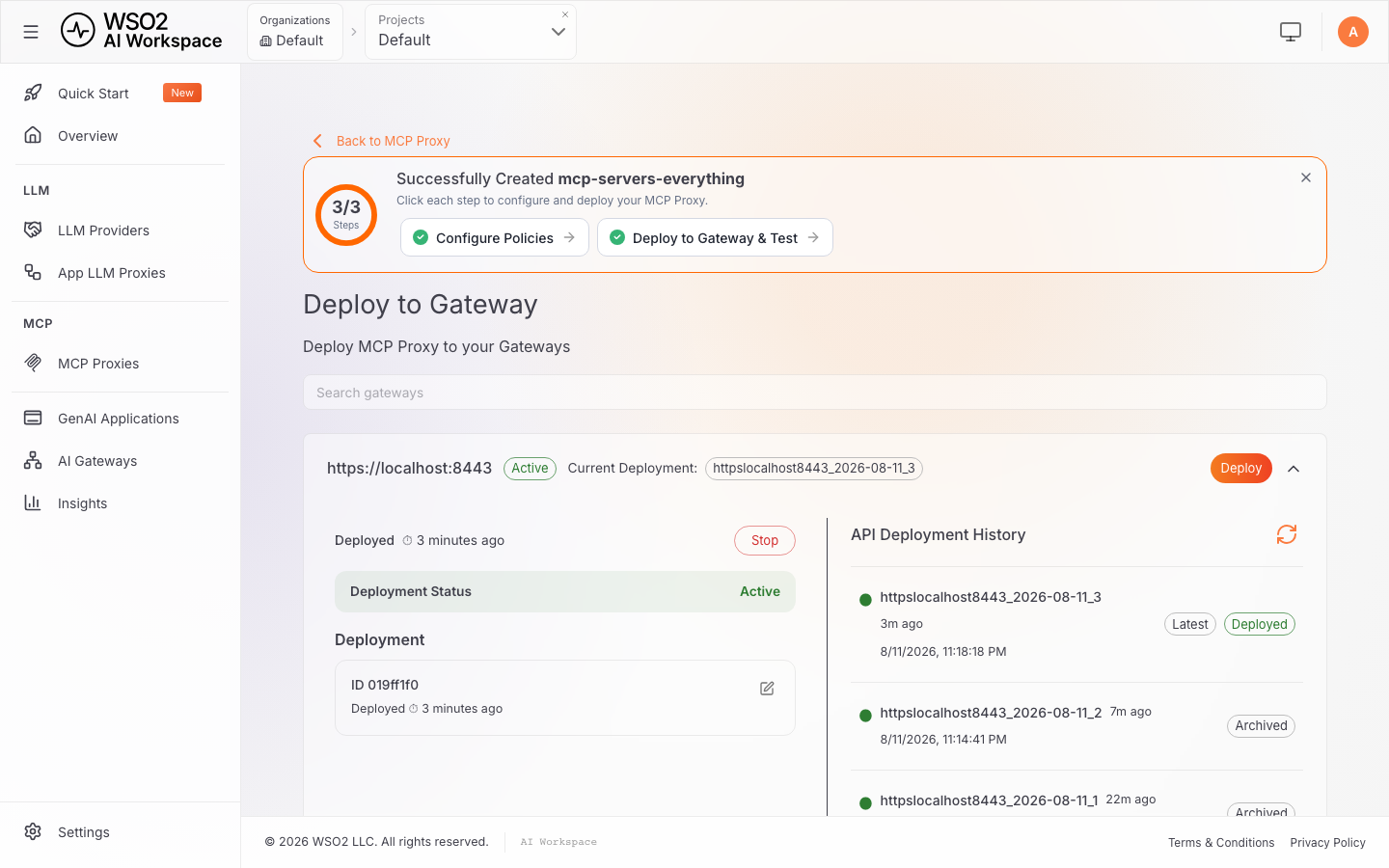
Verify it. A direct request against the gateway now succeeds. First, establish the MCP session by sending initialize and capture the session ID returned by the server. Then send notifications/initialized using the established session. For all subsequent requests, such as listing or invoking tools, accessing resources, or retrieving prompts, use the same session ID:
Set the gateway URL once; every command below reuses it.
GATEWAY=https://<your-gateway>/default/mcp-servers-everything/mcp
Step 1 — Initialize. The -D - flag dumps the response headers, which is where the session ID arrives.
curl -sk -D - "$GATEWAY" \
  -H "Content-Type: application/json" \
  -H "Accept: application/json, text/event-stream" \
  -d '{"jsonrpc":"2.0","id":1,"method":"initialize","params":{"protocolVersion":"2025-06-18","capabilities":{},"clientInfo":{"name":"verify-client","version":"1.0"}}}'
HTTP/2 200
content-type: text/event-stream
mcp-session-id: 3f9a2b6e-...

event: message
data: {"result":{"protocolVersion":"2025-06-18", ... "serverInfo":{"name":"mcp-servers/everything","title":"Everything Reference Server", ...}}}
Copy the mcp-session-id value from those headers into a variable:
SESSION=3f9a2b6e-...
Step 2 — Acknowledge the session. This notification completes the MCP handshake and returns no body.
curl -sk "$GATEWAY" \
  -H "Content-Type: application/json" \
  -H "Accept: application/json, text/event-stream" \
  -H "mcp-session-id: $SESSION" \
  -d '{"jsonrpc":"2.0","method":"notifications/initialized"}'
The stable gateway-fronted URL is also visible on the proxy's Overview tab as MCP Proxy URL, distinct from the similarly-named Backend Connection tab, which shows and allows editing of the raw upstream endpoint entered at creation time, not the gateway-fronted URL.
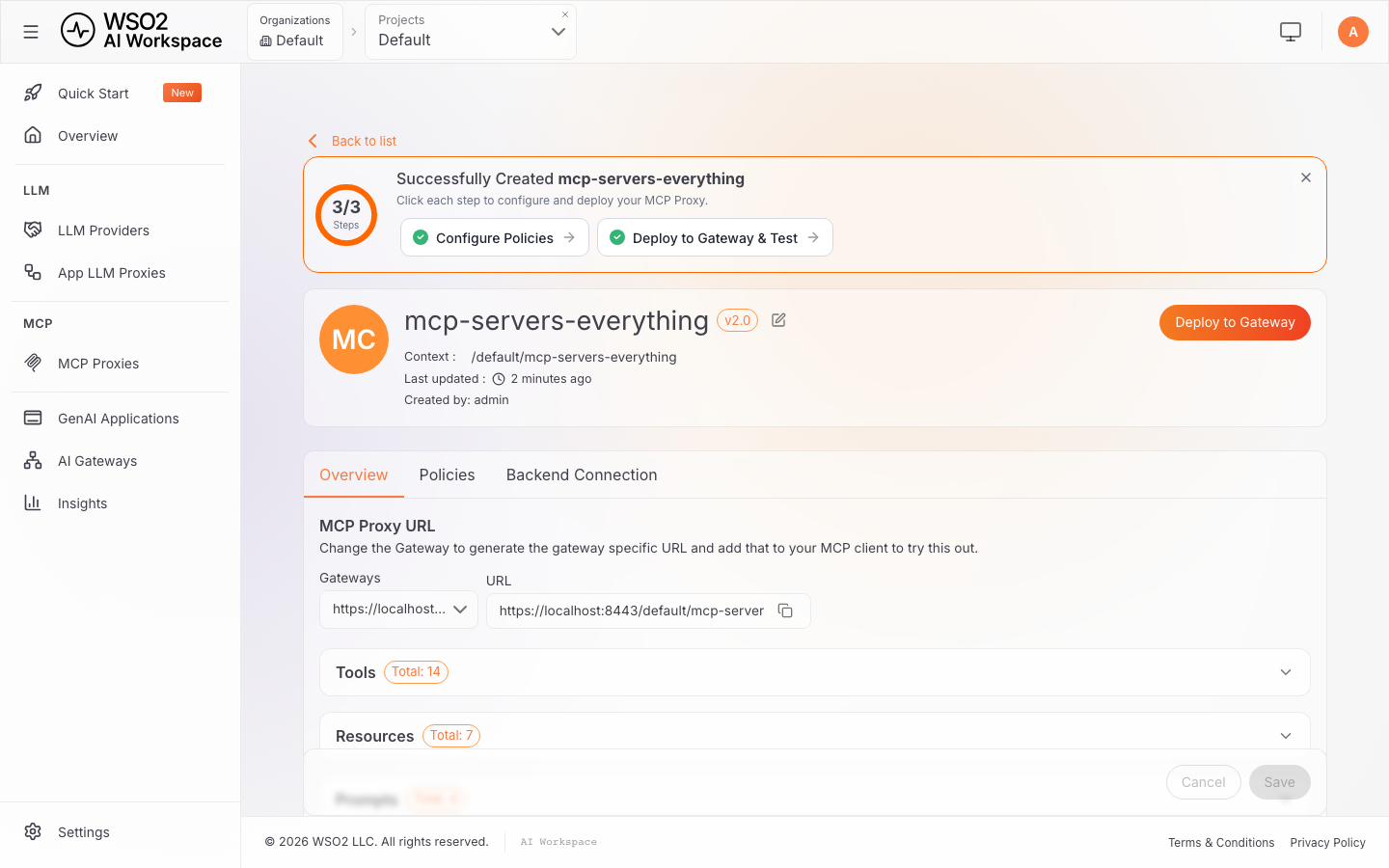
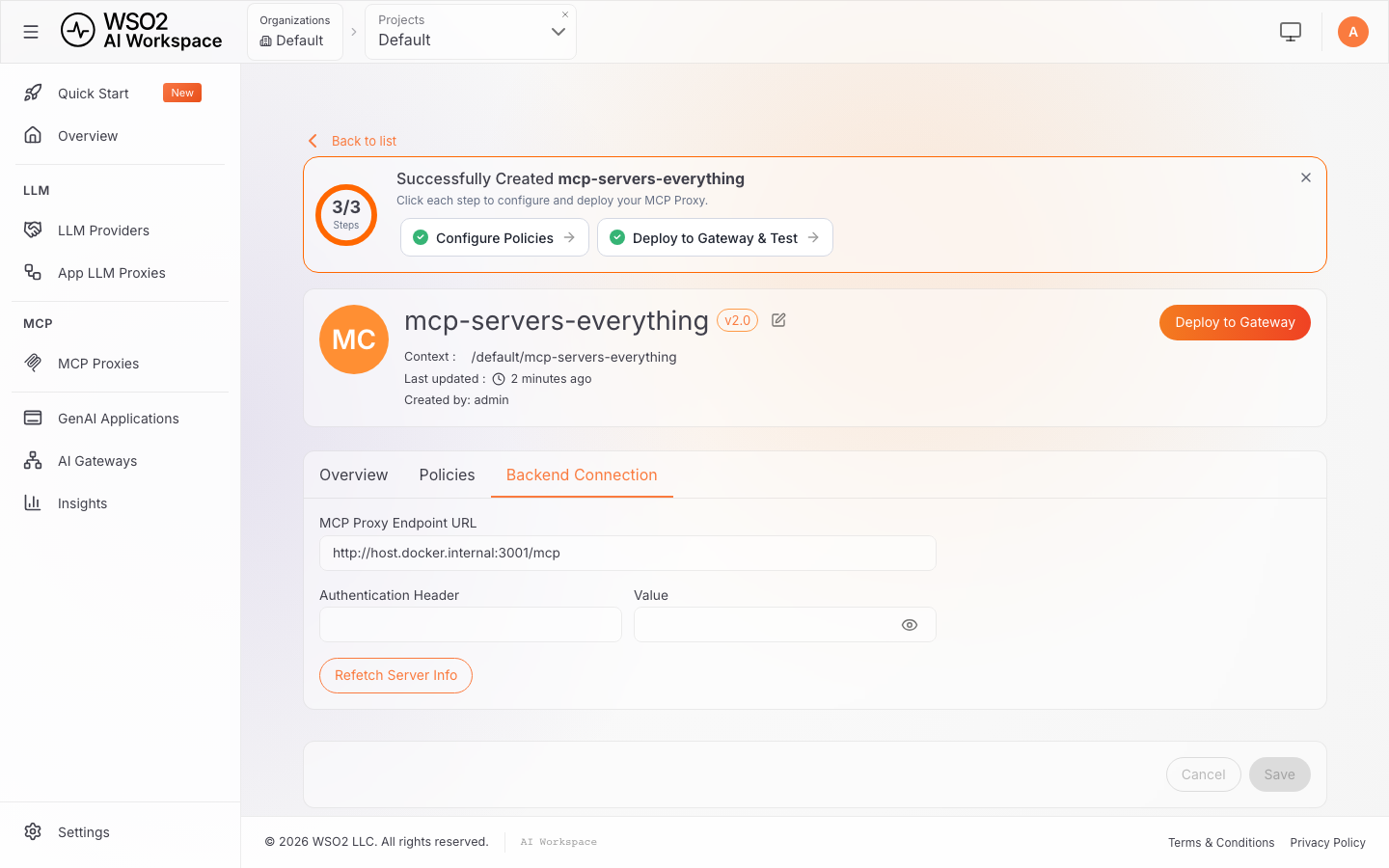
With the handshake complete, calling a tool through the gateway, using the same $GATEWAY and $SESSION from above, returns the expected result:
curl -sk "$GATEWAY" \
  -H "Content-Type: application/json" \
  -H "Accept: application/json, text/event-stream" \
  -H "mcp-session-id: $SESSION" \
  -d '{"jsonrpc":"2.0","id":2,"method":"tools/call","params":{"name":"get-structured-content","arguments":{"location":"New York"}}}'
data: {"result":{"content":[{"type":"text",
  "text":"{\"temperature\":33,\"conditions\":\"Cloudy\",\"humidity\":82}"}], ...}}
Resources and prompts work the same way, not just tools. They are reached over the identical session, with the identical JSON-RPC envelope, just a different method:
List resources:
curl -sk "$GATEWAY" \
  -H "Content-Type: application/json" \
  -H "Accept: application/json, text/event-stream" \
  -H "mcp-session-id: $SESSION" \
  -d '{"jsonrpc":"2.0","id":3,"method":"resources/list","params":{}}'
data: {"result":{"resources":[{"uri":"...","name":"architecture.md", ...}, ...]}}
List prompts:
curl -sk "$GATEWAY" \
  -H "Content-Type: application/json" \
  -H "Accept: application/json, text/event-stream" \
  -H "mcp-session-id: $SESSION" \
  -d '{"jsonrpc":"2.0","id":4,"method":"prompts/list","params":{}}'
data: {"result":{"prompts":[{"name":"simple-prompt", ...}, {"name":"args-prompt", ...}, ...]}}
There is no separate "resources mode" or "prompts mode" to configure at the gateway; the same MCP Proxy, same deployment, same session already serves all three capability types, only the JSON-RPC method changes.
At this point, the server is reachable through a governed gateway, but any tool the server exposes can still be called, with no limits. The next section restricts that.
Restrict What's Exposed
This reference server ships 13-14 tools depending on the connecting client's declared capabilities (see the FAQ). Several of them, get-env, toggle-simulated-logging, toggle-subscriber-updates, gzip-file-as-resource, and others, are debugging/demo capabilities that would typically not be exposed to an external agent in a production deployment. This is a common real-world situation: a server built for internal development purposes carries capabilities that were never meant to be exposed outside the organization.
The MCP Access Control policy solves this without touching the server at all: it filters what is visible and callable per tool, resource, and prompt, directly at the gateway. Tools, resources, and prompts are each configured independently within the same policy, but each one defaults to mode: deny with no exceptions the moment the policy is saved, whether or not it was touched in the form. Configuring only the tools section, as this walkthrough does, therefore also blocks every resource and every prompt as a side effect, not just the tools left off the list; see the note after Step 2.
Step 1: Open the Policies tab and add a policy. From the proxy, go to Policies → Add Policies. A policy is a discrete unit of behavior the gateway applies to every request and response passing through the proxy, attached and versioned independently of the proxy itself; a proxy can have any number of them, executed in order. The catalog shows every policy currently available for this gateway version:
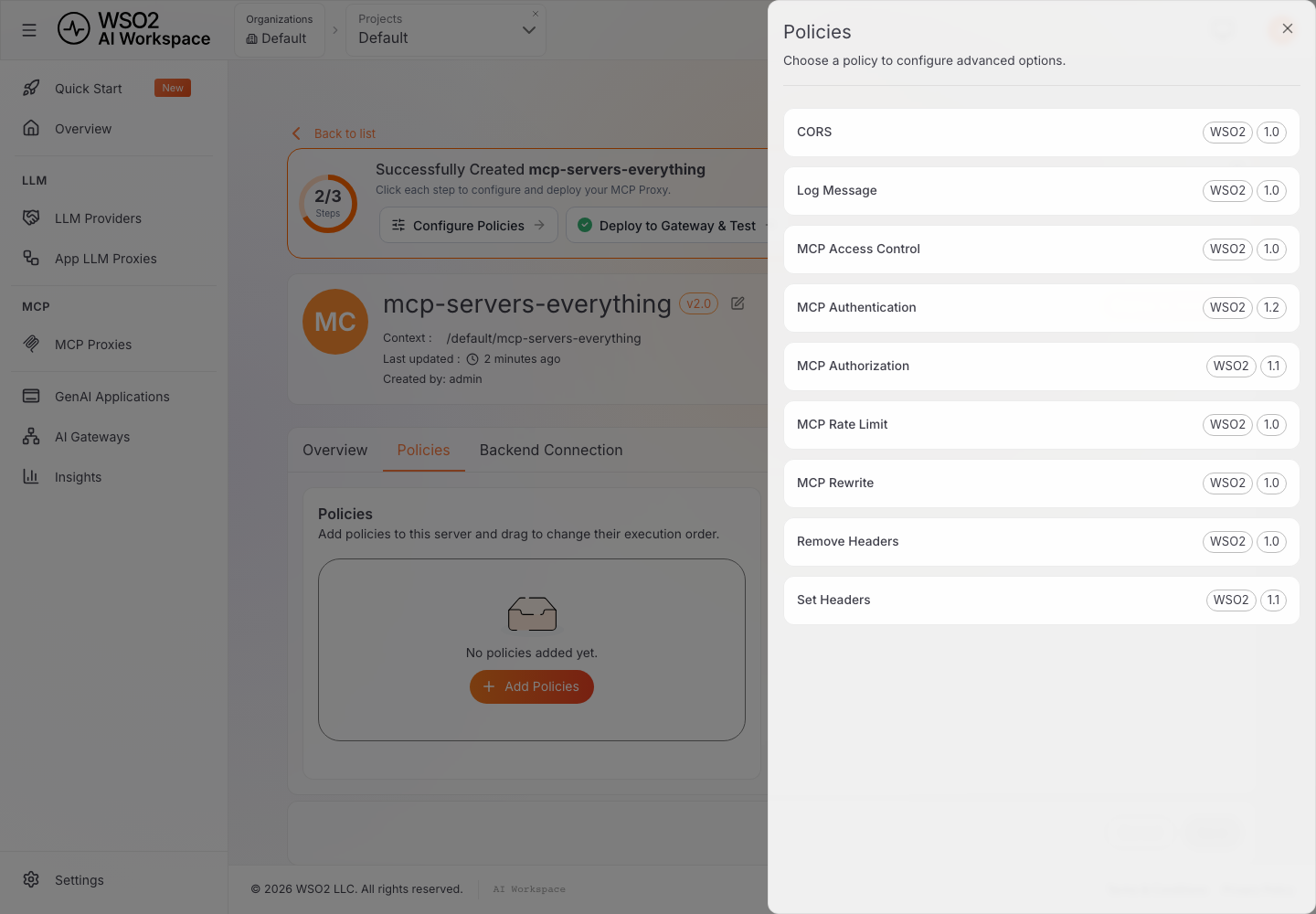
This walkthrough configures two of them, MCP Access Control and MCP Rate Limit, the ones most directly relevant to locking down a newly deployed proxy. The rest of the catalog (authentication, header manipulation, CORS, and so on) is available in the same way, and can be added whenever a specific requirement calls for it.
Choose MCP Access Control. Its own description states its behavior precisely: "Control MCP tool, resource, and prompt access with allow/deny mode plus exceptions, apply the same rules to requests and list responses, and avoid rewriting capability names or entry fields." Expanding the tools section reveals a mode selector (defaulting to deny) and an exceptions field:
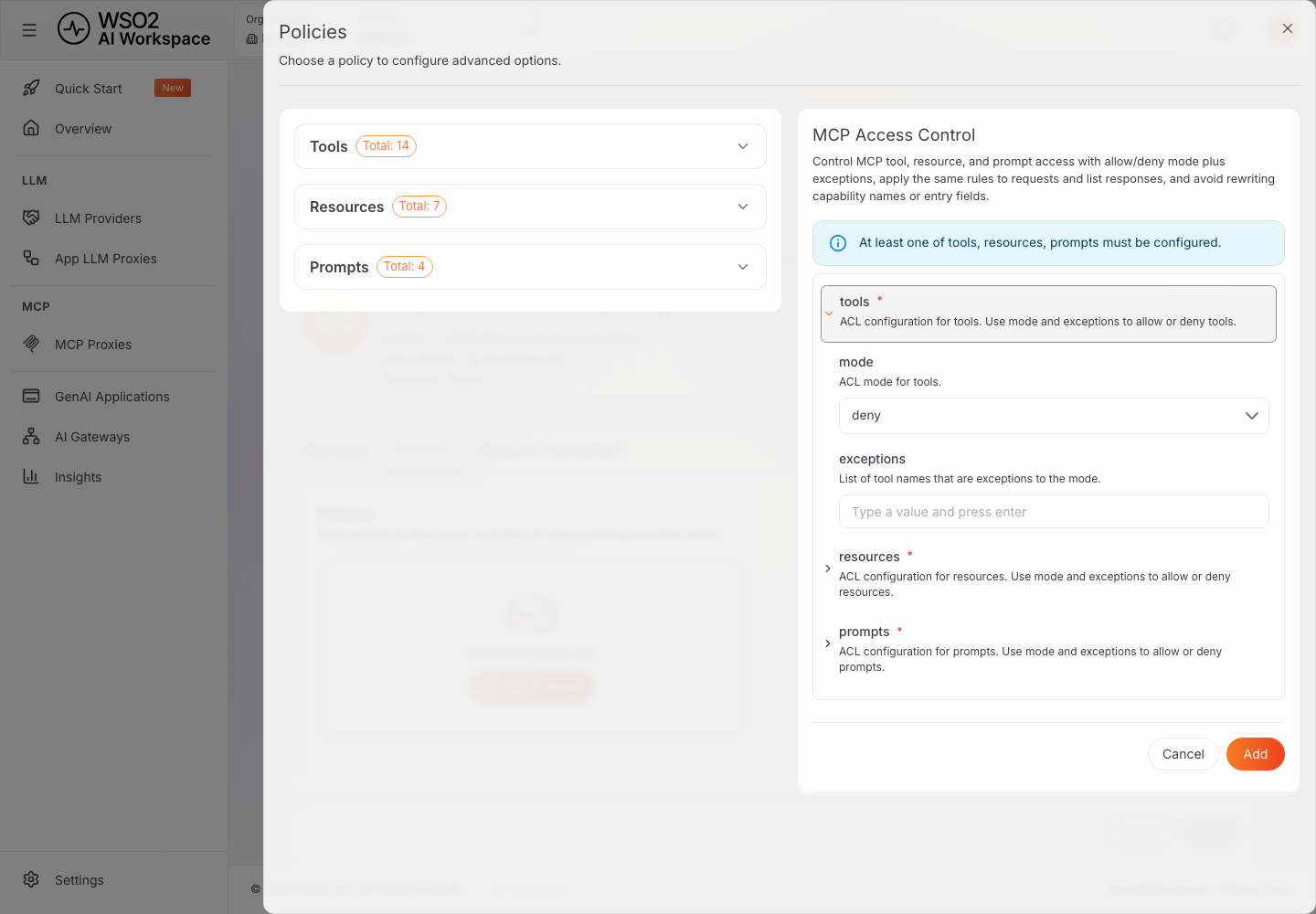
Step 2: Configure an allowlist. With mode left at deny, add the tools to expose through the proxy as exceptions; this combination reads as "block everything, except these." For this walkthrough: echo, get-sum, get-structured-content, get-annotated-message, and get-tiny-image.
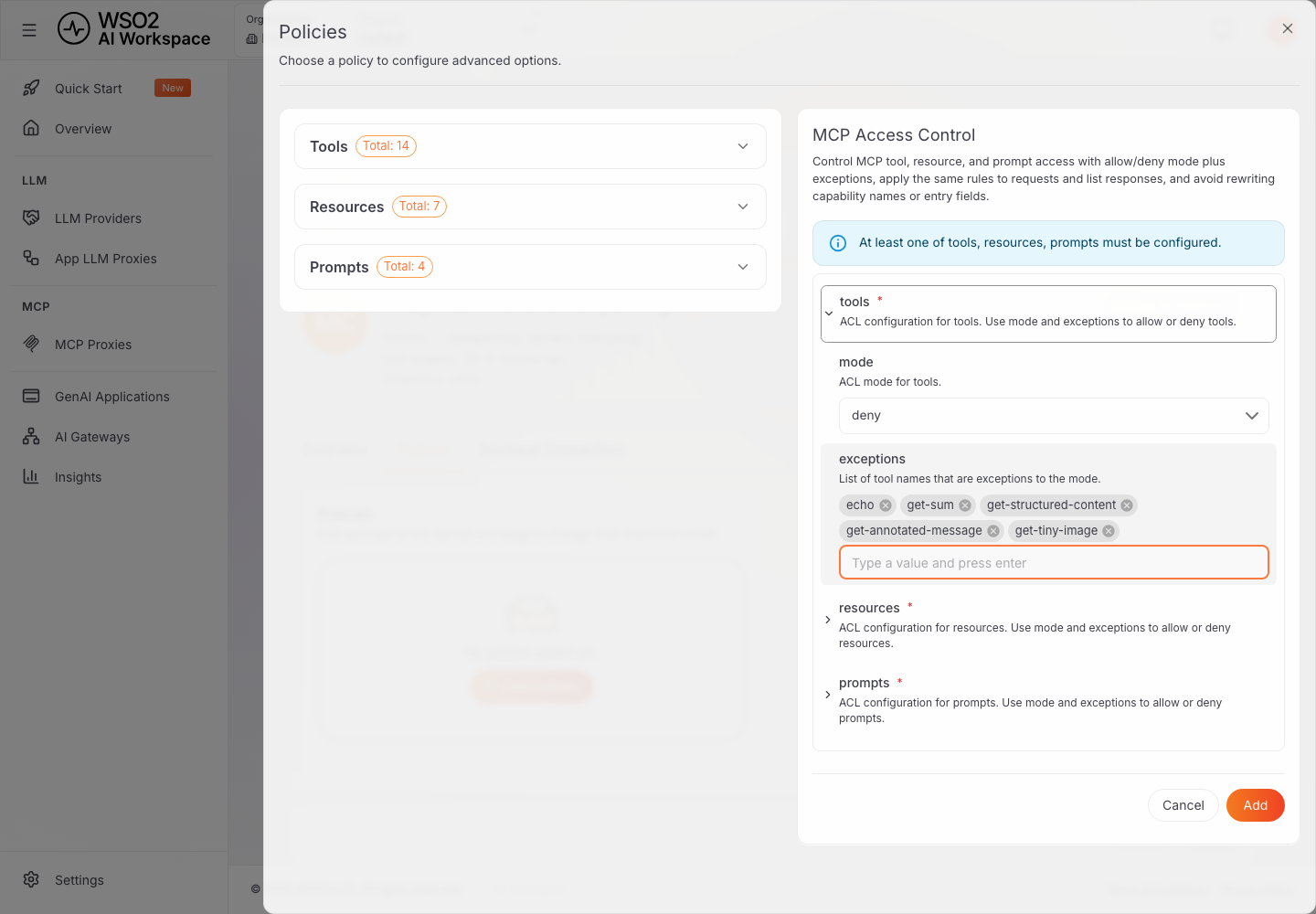
A note on scope. This walkthrough only expands and fills in the
toolssection. Theresourcesandpromptssections are left untouched, but not left unaffected: saving the policy submitsmode: denywith no exceptions for both, since that is each section's default. After this step,resources/listandprompts/list, which worked at the end of Connect and Deploy, both return empty results through this gateway. To keep resources or prompts reachable alongside a tool allowlist, their sections need to be explicitly configured too (for example,mode: allowwith no exceptions, to leave them fully open).
Click Add, then Save.
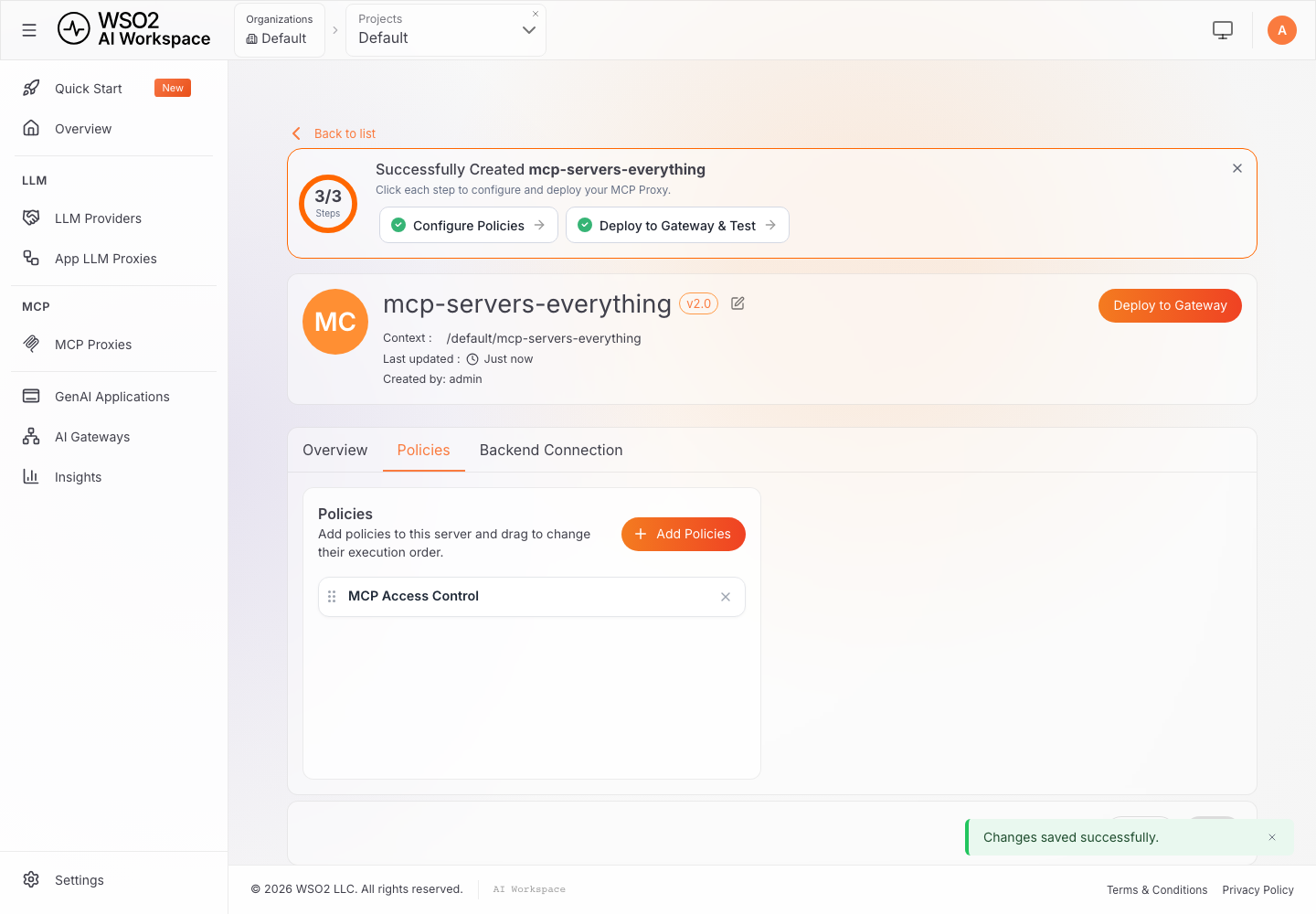
Step 3: Redeploy. The policy is now attached to the proxy's configuration, but a gateway only applies configuration it has actually received; redeploy (same action as in Connect and Deploy, Step 8) for the change to take effect.
Verify it. A tools/list call now returns only the five allowed tools:
curl -sk "$GATEWAY" \
  -H "Content-Type: application/json" \
  -H "Accept: application/json, text/event-stream" \
  -H "mcp-session-id: $SESSION" \
  -d '{"jsonrpc":"2.0","id":2,"method":"tools/list","params":{}}'
["echo", "get-annotated-message", "get-structured-content", "get-sum", "get-tiny-image"]
And calling one of the hidden tools directly is rejected; the tool is not merely hidden from the list, it is blocked outright:
curl -sk "$GATEWAY" \
  -H "Content-Type: application/json" \
  -H "Accept: application/json, text/event-stream" \
  -H "mcp-session-id: $SESSION" \
  -d '{"jsonrpc":"2.0","id":3,"method":"tools/call","params":{"name":"get-env","arguments":{}}}'
{"error":{"code":-32000,"message":"MCP capability not allowed"},"id":3,"jsonrpc":"2.0"}
The internal tools are now invisible and unreachable through the gateway, with zero changes to the server itself.
Protect Against Abuse
Even with the tool surface locked down, nothing yet stops one agent, misconfigured, stuck in a retry loop, or under heavy load, from calling get-sum at high frequency. The MCP Rate Limit policy applies limits per tool, resource, prompt, or raw JSON-RPC method, with enforcement delegated to the platform's rate-limiting engine.
Step 1: Add the policy. From Policies → Add Policies, choose MCP Rate Limit. Unlike Access Control's single allow/deny toggle, each capability type here is a list of independently configurable entries:
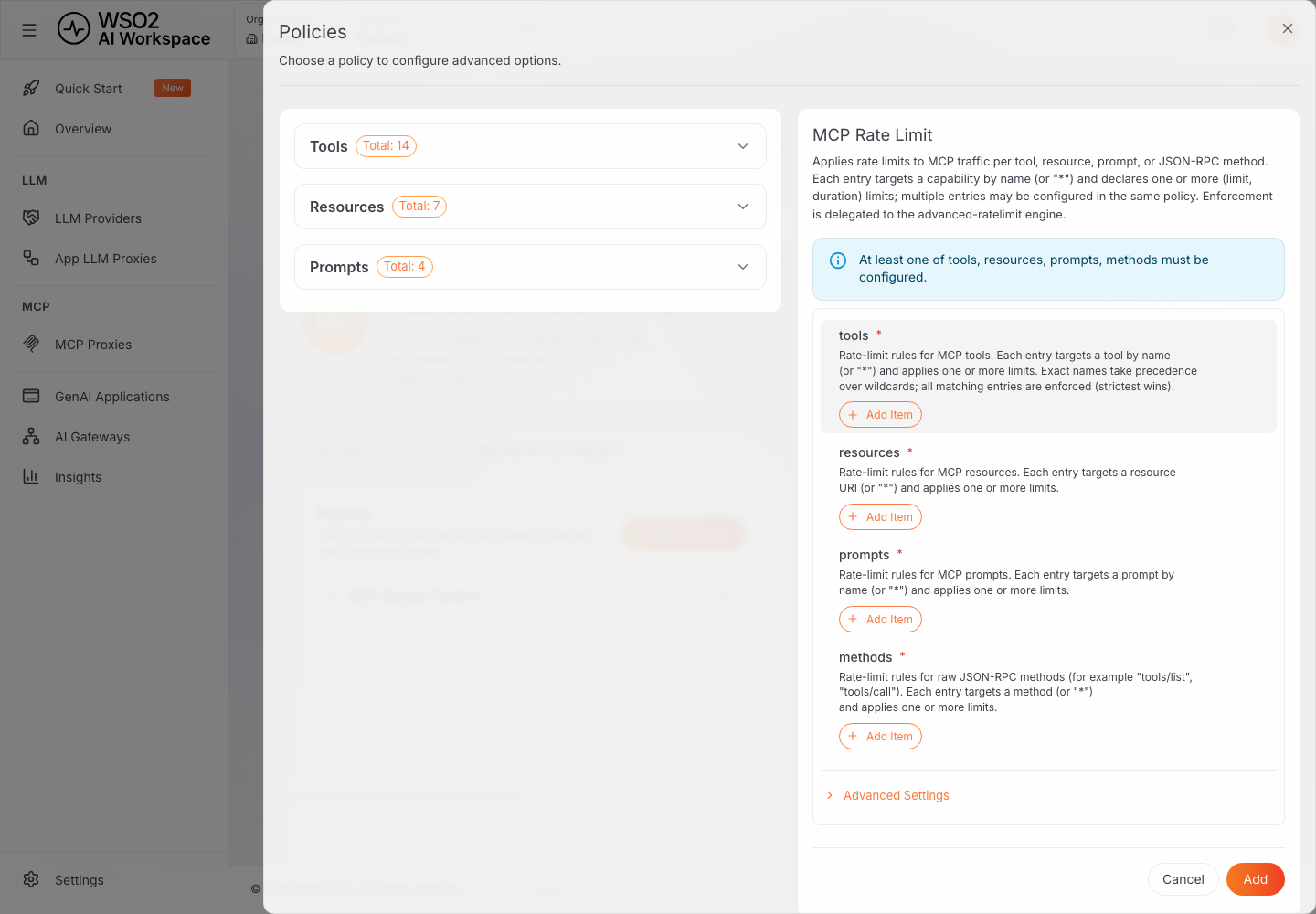
Step 2: Add and configure a limit. Click Add Item under tools. A new entry defaults its name field to * (every tool). Add a limits entry specifying the limit (a count) and duration:
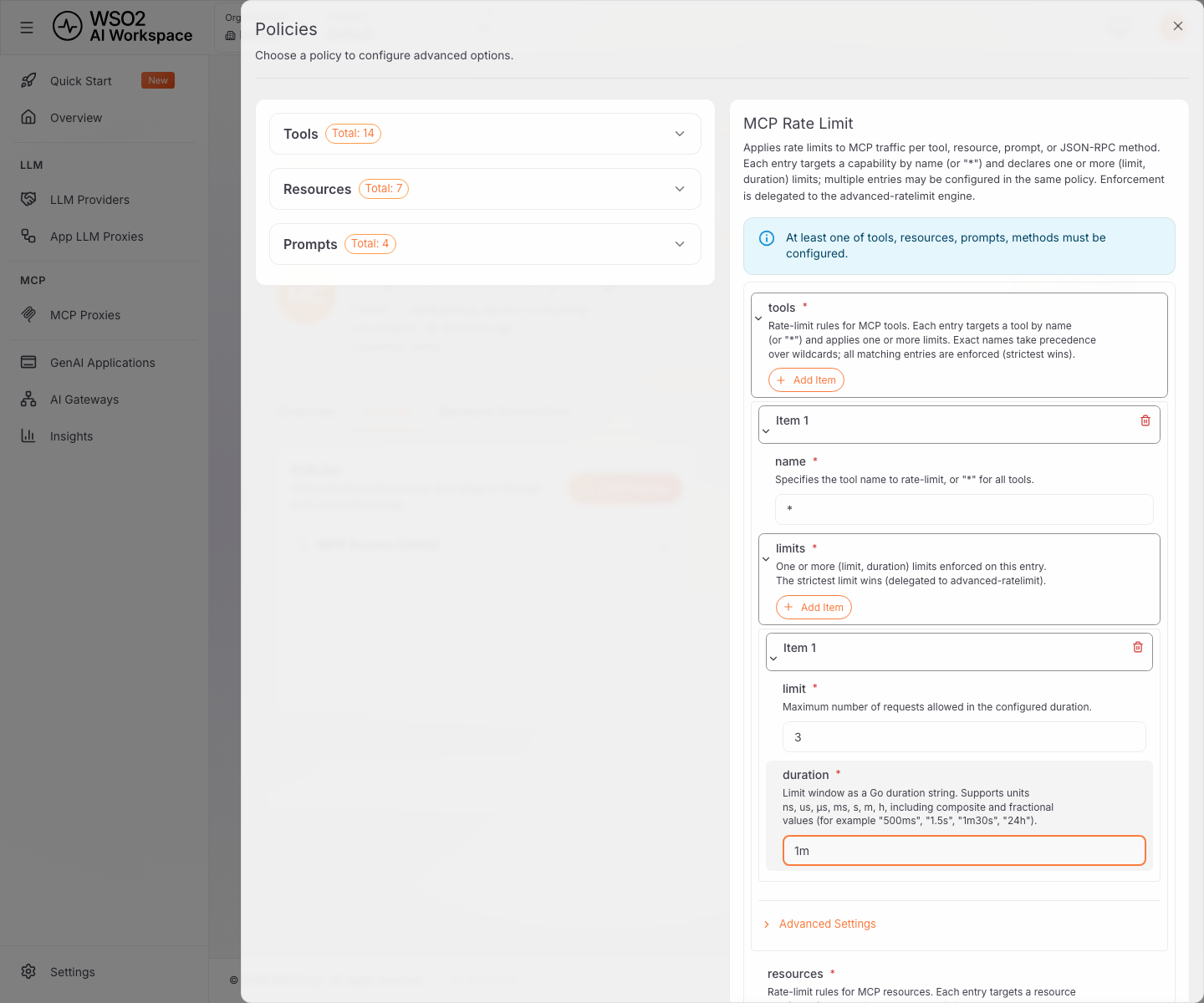
This walkthrough uses 3 calls per minute, deliberately low, to demonstrate the effect quickly. A production value would be sized to the backend's real capacity. Click Add, then Save.
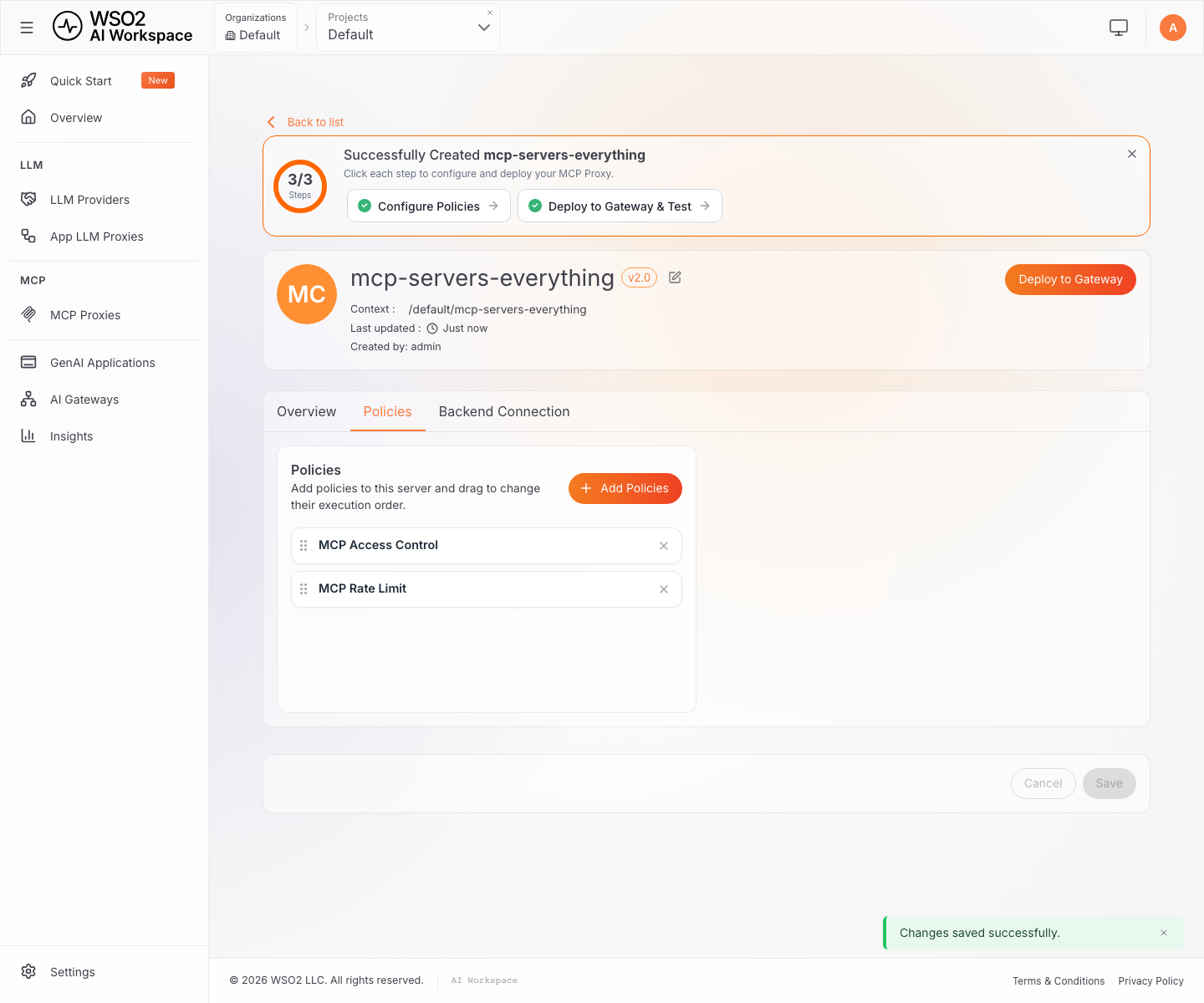
Step 3: Redeploy. Same as before: redeploy (same action as in Connect and Deploy, Step 8) for the change to take effect.
Verify it. The first three calls succeed; the fourth is rejected by the gateway's rate-limit policy:
for i in 1 2 3 4; do
  curl -sk "$GATEWAY" \
    -H "Content-Type: application/json" \
    -H "Accept: application/json, text/event-stream" \
    -H "mcp-session-id: $SESSION" \
    -d "{\"jsonrpc\":\"2.0\",\"id\":$i,\"method\":\"tools/call\",\"params\":{\"name\":\"get-sum\",\"arguments\":{\"a\":$i,\"b\":1}}}"
done
{"result":{"content":[{"type":"text","text":"The sum of 1 and 1 is 2."}]}, "id":1, ...}
{"result":{"content":[{"type":"text","text":"The sum of 2 and 1 is 3."}]}, "id":2, ...}
{"result":{"content":[{"type":"text","text":"The sum of 3 and 1 is 4."}]}, "id":3, ...}
{"error":{"code":-32000,"message":"Rate limit exceeded. Please try again later."},"id":4, ...}
The backend is now protected: a runaway agent gets a clean error in the JSON-RPC response instead of overwhelming the real server.
Frequently Asked Questions
What is an MCP implementation?
Any software that speaks the Model Context Protocol: a server exposing tools, a client connecting an agent, or the SDKs and reference servers used to build them.
Which SDK should I use to implement an MCP server?
Start from an official SDK. The official Python SDK's own mcp.server.fastmcp module provides a decorator-based interface that cuts boilerplate; do not confuse this with the separately maintained FastMCP project, which is a different codebase. Confirm the current supported languages and versions on modelcontextprotocol.io before building.
How do I test an MCP server?
Use MCP Inspector to verify tool discovery, schemas, and invocations before connecting a real agent host.
Why does the same MCP server report a different number of tools to different clients?
Tool, resource, and prompt visibility can depend on the capabilities a client declares during initialize, not only on the server's version. In the Connect and Deploy walkthrough, the reference server conditionally exposes one extra tool, get-roots-list, only when the connecting client declares the roots capability. AI Workspace's own discovery handshake declares it (14 tools total); a bare-bones client that initializes with "capabilities":{}, like the raw curl examples in this guide, does not, and sees 13. Both counts are correct; they reflect the session-and-capability-negotiation model described in the MCP Architecture section, not version drift.
Can I govern a hand-built MCP server?
Yes. A gateway can proxy an existing MCP server, adding authentication, rate limiting, and access control without a rewrite; this applies equally to a from-scratch build (the How to Implement an MCP Server section) and to any of the open-source reference implementations covered in the Open-Source and Reference MCP Implementations section. It cannot generate a new server from an OpenAPI spec or existing REST API; see Implementing and Governing MCP with WSO2.
Are there existing MCP server implementations I can learn from before building my own?
Yes; start with the official reference/example servers maintained by the MCP project (see Open-Source and Reference MCP Implementations) rather than an arbitrary, unmaintained community fork. They are maintained within the MCP project and provide a useful starting point for learning and evaluation.
How do I test resources and prompts, not just tools?
The same way: resources/list/resources/read and prompts/list/prompts/get, over the same session an initialize call opened, with the same JSON-RPC envelope as a tools/call. See the resources-and-prompts section in Connect and Deploy.
Does this guide cover authentication?
Not as a hands-on walkthrough. Restrict What's Exposed and Protect Against Abuse cover capability governance (what is reachable) and traffic protection (how much of it can be called). Authentication determines who can access the proxy; authorization determines what that caller is allowed to do. Both are added the same way, using the MCP Authentication and MCP Authorization policies from the same catalog (Restrict What's Exposed, Step 1) and the same "add a policy, redeploy" pattern, and complement the capability access-control and rate-limit policies demonstrated in this guide. For a deeper look at scope-gated authorization, per-tool rate limiting, and real-time traffic observability specifically for write-capable tools, see Govern write-capable MCP tools at the gateway in WSO2 API Platform.
Conclusion
Implementing MCP starts small: a well-described server built from an official SDK, tested with MCP Inspector before any agent touches it. The protocol is the easy part. Deciding who is allowed to call the server, capping how much any single agent can call, and keeping internal-only tools out of reach is where most write-ups stop, and where a governance layer has to start.
A gateway doesn't build the server for you, but it governs whichever one you already have: a hand-built server from How to Implement an MCP Server, or an unmodified reference implementation from Open-Source and Reference MCP Implementations, through the same access-control and rate-limit policies walked through in Implementing and Governing MCP with WSO2.