Using Amazon Bedrock as an LLM Provider and Bedrock Guardrails with WSO2 AI Gateway
Amazon Bedrock provides access to foundation models from multiple providers through a single set of APIs. Along with model invocation, Bedrock provides native capabilities such as Amazon Bedrock Guardrails for controlling model interactions through content filtering, denied topics, and sensitive-information filtering.
Although applications can use Amazon Bedrock directly, doing so does not provide an application-facing layer for managing separate application credentials and policies, or for presenting a consistent API surface across multiple applications. To provide this layer while continuing to use Bedrock's native capabilities, WSO2 AI Gateway can be placed in front of Bedrock.
Rather than replacing the capabilities provided by Amazon Bedrock, WSO2 AI Gateway complements them by providing an application-facing control layer above the AWS account boundary. AI Workspace is the control plane where you configure that layer: you register a Bedrock provider once, can attach guardrails and policies directly to it, and either call it directly or front it with one or more App LLM Proxies, each with its own client credentials, policies, and guardrail configuration. AI Workspace doesn't sit in the request path itself; it manages configuration and deploys it to the AI Gateway, which is the component that actually routes traffic to Bedrock.
In this guide, you configure Amazon Bedrock as an LLM provider in AI Workspace, attach an Amazon Bedrock Guardrail directly to that provider so it validates both incoming requests and outgoing responses, deploy that configuration to your AI Gateway, and verify the setup with real requests against an Amazon Bedrock model, calling the provider directly with no proxy involved. A later, optional section covers adding an App LLM Proxy on top, for when a specific application needs its own credentials or guardrail; see Why put an AI Gateway in front of Bedrock? for when you need one.
Why put an AI Gateway in front of Bedrock?
Applications can interact with Amazon Bedrock directly, but when multiple applications consume the same AI services, managing access and policies independently for each application can become difficult. An AI Gateway provides a dedicated application-facing layer that separates application access from the underlying Bedrock provider — that gateway is the data plane here: once you deploy your configuration to it, it's the component that actually sits in front of Bedrock and handles every request and response.
AI Workspace, by contrast, is the control plane you use to configure that gateway. It's where you register the Bedrock provider, configure guardrails and policies, create proxies, and deploy configuration — but it never sees live application traffic itself; only the deployed AI Gateway does.
With WSO2 AI Gateway in front of Amazon Bedrock, you can:
- Attach a guardrail once, for every caller: A Bedrock Guardrail can be attached directly to the LLM provider, so it validates every request and response that goes through that provider, including requests that arrive through any App LLM Proxy that uses it. No proxy is required.
- Give each application its own key without touching Bedrock credentials: You can generate several API keys on the same provider, one per application, and group them under a GenAI Application — a distinct AI Workspace feature for attributing usage to the app that generated the key. Applications never handle the Bedrock credential.
- Call the provider directly, and add a proxy only where you need one: A deployed provider can be called directly through the gateway. Add an App LLM Proxy only when a specific application or agent needs its own guardrails, policies, exposed resources, or authentication settings on top of the provider.
- Reuse a single Bedrock provider: Whether you call the provider directly or front it with proxies, the same Bedrock provider configuration serves every caller instead of being configured separately for each one.
- Provide a consistent API surface: Applications interact with the WSO2 gateway, whether through a provider or a proxy, while the gateway handles communication with the underlying Bedrock service.
This approach allows Amazon Bedrock to remain responsible for model access and its native AI capabilities, while WSO2 AI Gateway provides the application-facing layer for access control and policies, with optional per-application proxies on top. AI Workspace is where you configure all of this; it's the control plane.
A single Bedrock provider registration can serve multiple proxies, each with its own client credentials, policies, and guardrail configuration on top of the provider's own baseline. The optional section later in this guide configures one proxy on top of the provider you build here, to show this per-application pattern.
Architecture
The following diagram shows how the application, the AI Gateway, Amazon Bedrock, and the Bedrock Guardrail interact:

This architecture lets any number of applications call the same Bedrock provider while the gateway layer handles authentication, the guardrail, and policies on their behalf.
Three credential paths are shown in the diagram:
- Application to Gateway: The application sends the client-facing
X-API-Keyissued by the provider. In this walkthrough, this is the only credential the application needs; it never sees the AWS credentials used by the gateway. - Gateway to Bedrock (model calls): The LLM provider uses the Bedrock credential configured when the provider is added. In this walkthrough, that credential is a Bedrock API key.
- Gateway to Bedrock (guardrail calls): The AWS Bedrock Guardrail policy uses AWS credentials that allow
bedrock:ApplyGuardrail. In the configuration demonstrated here, those credentials are set on the guardrail attachment, separately from the provider's credential.
If you later add an App LLM Proxy on top of this provider (see the optional section), the application's credential path changes: it authenticates to the proxy instead of to the provider directly, and the proxy in turn authenticates to the provider with its own credential. The two Gateway-to-Bedrock paths described below are unaffected either way.
This tutorial configures two separate credentials: the Bedrock API key on the provider for model calls, and an IAM access key on the guardrail policy for ApplyGuardrail calls. AWS doesn't require two identities. One IAM identity can be granted both bedrock:InvokeModel and bedrock:ApplyGuardrail.
Request-side and response-side validation are independently configurable in the WSO2 AWS Bedrock Guardrail policy. When both are enabled, the gateway evaluates the request before sending it to Bedrock and evaluates the response before returning it to the application.
This is also an important distinction from native Bedrock Converse behavior. In the WSO2 policy implementation used in this guide, request and response validation are performed through the corresponding ApplyGuardrail operations. Native Bedrock Converse instead accepts guardrail configuration as part of the model invocation itself and evaluates the model interaction within that API call. The gateway therefore provides an application-facing policy layer around the Bedrock capability rather than reimplementing the guardrail evaluation itself.
Amazon Bedrock and WSO2 AI Gateway: Responsibilities
| Capability / Responsibility | Amazon Bedrock | WSO2 AI Gateway |
|---|---|---|
| Foundation model access | Yes: access to foundation models from multiple providers through Amazon Bedrock APIs | Routes application traffic to the provider; adds no model capability of its own |
| Model invocation (Converse / Converse Stream) | Yes, both synchronous and streaming responses | Exposes both as OpenAPI resources on the provider (/converse, /converse-stream); forwards the call, doesn't reimplement it |
| Amazon Bedrock Guardrails | Yes: content filters, denied topics, word filters, sensitive-information filters, and more, depending on the Guardrails feature and invocation path. Can be enforced per IAM principal or automatically at the AWS account or Organization level | Can attach the same guardrail as a policy on the LLM provider (applied to every caller) or on a specific App LLM Proxy (applied only to calls on that proxy), on whichever of the request/response phases is enabled |
| Gateway-native policies | Not applicable to Amazon Bedrock itself | WSO2 provides additional gateway-level guardrail and governance policies that can be attached alongside or instead of the Bedrock guardrail. See the guardrails catalogue |
| Client authentication | IAM SigV4, or a long-term or short-term Bedrock API key, all authenticated directly against AWS | A client-facing API key per provider, or per proxy if you add one, so the application authenticates to the gateway rather than to AWS directly |
| Usage attribution across applications | When a gateway uses a shared AWS identity to invoke Bedrock, Bedrock-side usage is attributed to that identity; AWS also provides finer-grained, application-level attribution mechanisms of its own | Per-application and per-consumer breakdowns in Moesif (linked from AI Workspace's Insights page) when the gateway is configured with a Moesif key; group API keys under a GenAI Application to attribute usage per app |
WSO2 AI Gateway also supports multi-provider routing and cost-control policies on the same provider or proxy, alongside a Bedrock guardrail. Both are outside the scope of this walkthrough, but they show the gateway layer can do more than route traffic and enforce Bedrock's own guardrail.
Amazon Bedrock capabilities vs. WSO2 gateway capabilities
It is worth being explicit about the relationship between the two layers. WSO2 AI Gateway does not replace capabilities that Amazon Bedrock already provides. Bedrock has its own authentication and authorization mechanisms, Bedrock API keys, native Guardrails, inference profiles, and AWS-native usage and cost attribution mechanisms, independent of any gateway in front of it. The WSO2 gateway adds an application-facing control layer alongside those capabilities. In this walkthrough, that layer issues each caller its own client-facing key, while applying one shared guardrail and policy configuration, a common API surface, and shared usage visibility across every caller of the provider. The two layers are complementary: an organization can use Bedrock's IAM and account-level controls at the AWS layer while using WSO2's credentials and policies at the application layer.
What you'll build
By the end of this guide, you'll have:
- An Amazon Bedrock LLM provider in AI Workspace, deployed to your AI Gateway.
- An Amazon Bedrock Guardrail attached directly to that provider, with request-side and response-side validation enabled.
- A client-facing API key for calling the provider, with no proxy required.
- Test results that confirm the configuration works end to end.
- An understanding of when to add an optional App LLM Proxy on top, for an application that needs its own credentials or guardrail.
Prerequisites
- A running AI Workspace instance with a project (the
Defaultproject works). - An AI Gateway that appears as Active in AI Workspace. Step 1 covers this.
curl.- An AWS account with access to a Bedrock model in your Region, and the three AWS items described in Prepare AWS.
Note: This guide was tested with AI Workspace 1.0.0, AI Gateway 1.2.0, and the
aws-bedrock-guardrailpolicy version 1.2.0. Policy parameters can change between policy versions. For the parameters, defaults, and supported authentication modes for the version your gateway registers, see the Policy Hub page.
Prepare AWS
You set up three things in AWS. The linked AWS guides give the exact, current steps, so this guide doesn't repeat them.
- An Amazon Bedrock Guardrail configured for input and output evaluation, with a numbered version.
- For this guide, add a denied topic (for example, investment advice) and a sensitive-information filter for email addresses with the action set to Mask. These settings demonstrate blocking and masking. They aren't required by Bedrock or by WSO2.
- Note the guardrail ID, the guardrail version, and the Region.
- See Amazon Bedrock Guardrails.
- An Amazon Bedrock API key for the same Region.
- See Generate an Amazon Bedrock API key.
- AWS describes the key types and when to use each in Amazon Bedrock API keys. For anything beyond experimentation, follow the AWS recommendation for production.
- AWS credentials for the gateway that are allowed to call the guardrail (
bedrock:ApplyGuardrail).- See Permissions for Amazon Bedrock Guardrails.
- Amazon Bedrock doesn't require separate identities for model calls and guardrail checks. This guide configures them separately because the provider and the guardrail policy are configured separately.
Tutorial: Registering Amazon Bedrock and attaching its guardrail
Step 1: Set up an AI Gateway
If you already have an AI Gateway that shows Active in AI Workspace, skip to Step 2.
- In AI Workspace, open AI Gateways and click + Add AI Gateway.
- Enter a Name and keep the default Gateway Version. Use the URL where the gateway runtime is reachable.
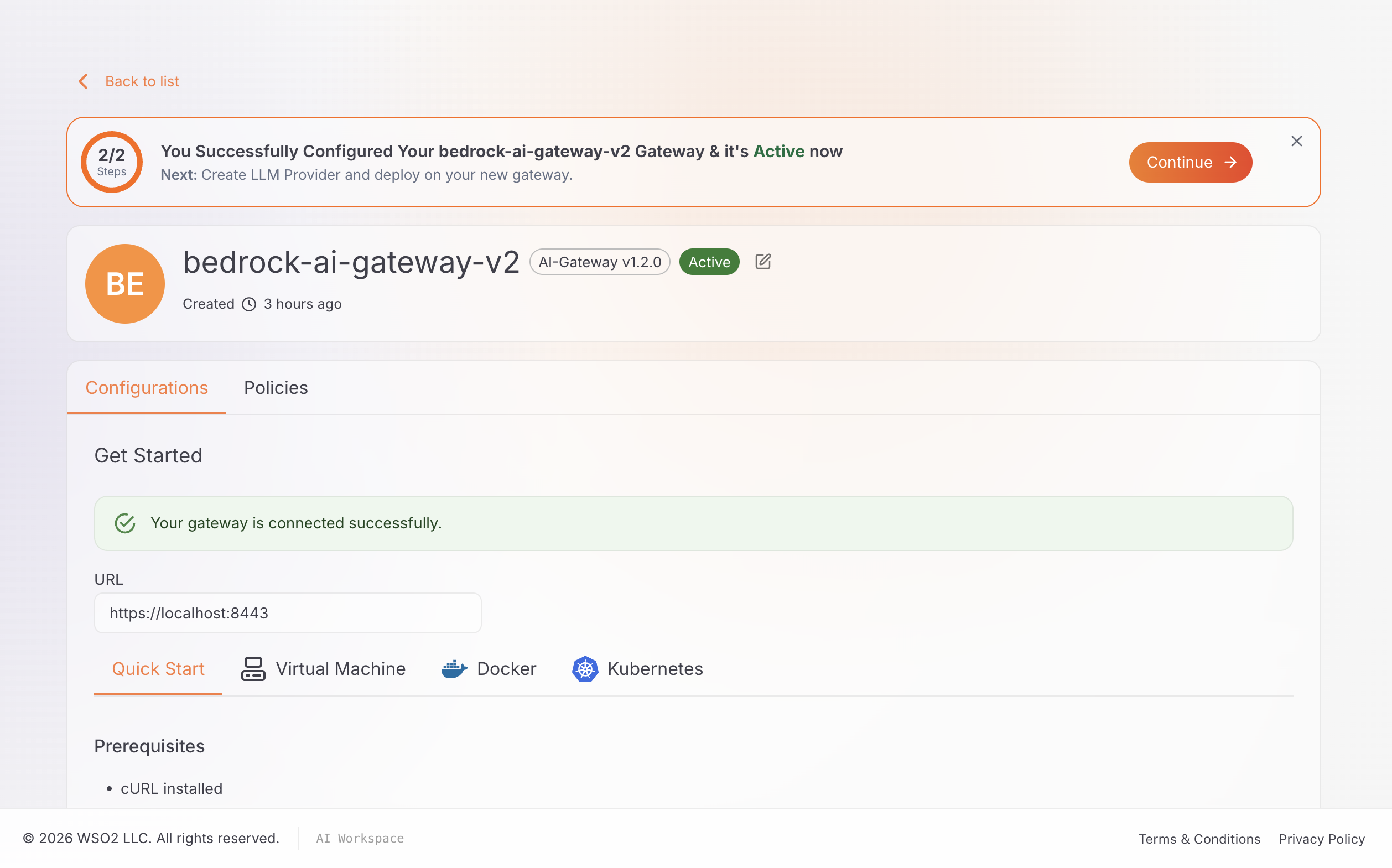
- Click Add Gateway. The gateway detail page opens with a Get Started section that has setup commands for your deployment option.
- Follow the commands in Get Started to download, configure, and start the gateway.
The configure command in Get Started shows the registration token as the placeholder <your-gateway-token>. Use the Copy button next to the command. It copies the command with the real token.
For the full procedure and the other deployment options, see Set up an AI Gateway.
When the gateway connects, AI Workspace shows it as configured:
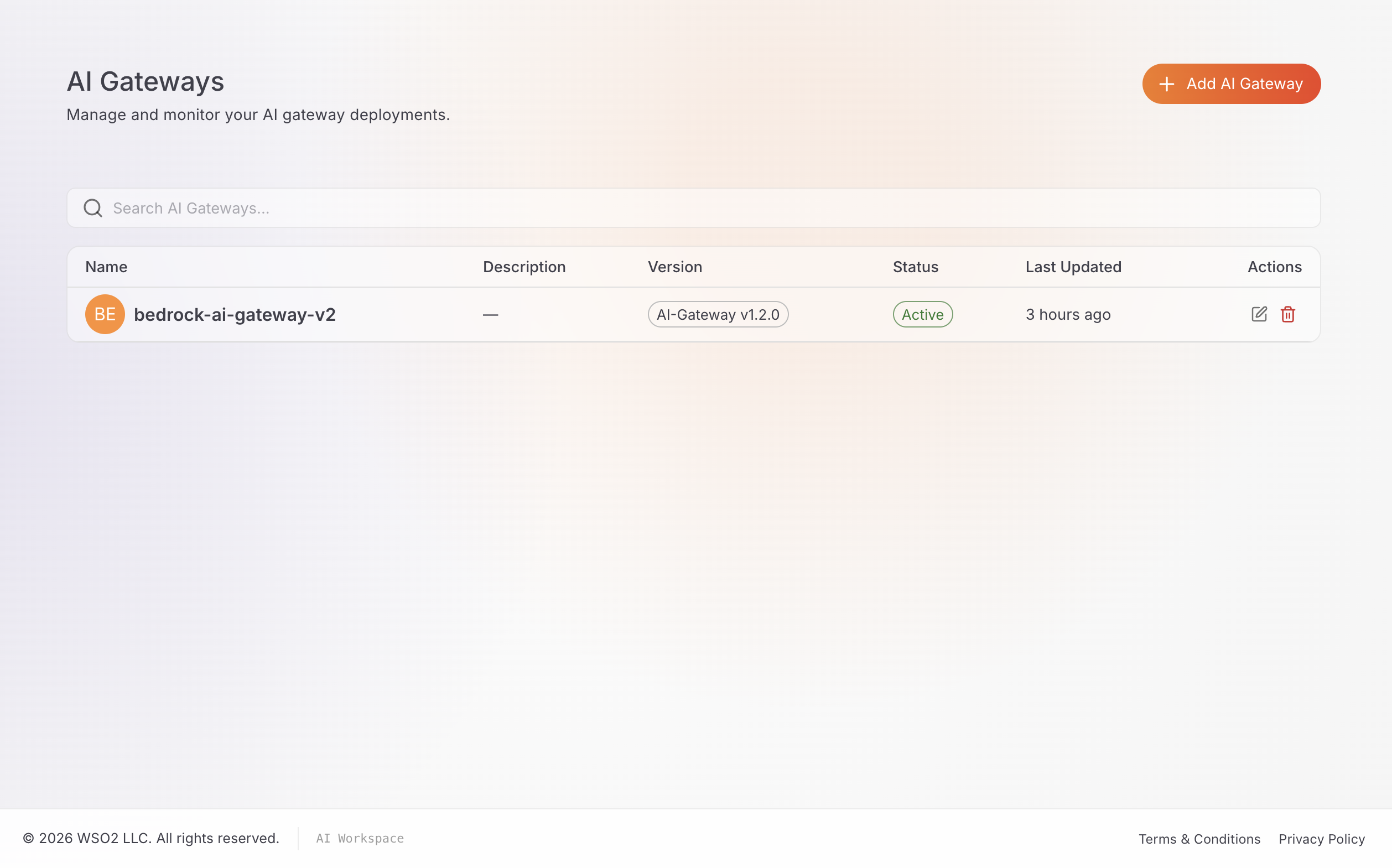
The gateway status on the AI Gateways page changes to Active:
To confirm which policy version your gateway runs, check the gateway runtime log (for example, with docker compose logs gateway-runtime) for a line like the following, where <VERSION> is the version your gateway registered:
Registered policy aws-bedrock-guardrail version <VERSION>
Step 2: Verify your Bedrock API key
Before you configure AI Workspace, confirm that the key works against the model you plan to use:
curl -s -X POST "https://bedrock-runtime.<REGION>.amazonaws.com/model/<MODEL-ID>/converse" \
  -H "Content-Type: application/json" \
  -H "Authorization: Bearer <BEDROCK-API-KEY>" \
  -d '{"messages":[{"role":"user","content":[{"text":"hi"}]}],"inferenceConfig":{"maxTokens":16}}'
A successful call returns a JSON response with the model's reply.
Use the model ID or inference profile ID that's available for your Region, for example eu.amazon.nova-micro-v1:0. Use the same ID in the rest of this guide.
Keep the raw key available for the next step.
Step 3: Add Amazon Bedrock as an LLM provider and attach its guardrail
Note: The parameter names, defaults, and
awsAuthmodes for the guardrail policy in this step matchaws-bedrock-guardrailversion 1.2.0, which this guide was tested with. Before you configure the policy, check the Policy Hub page for the exact configuration of the version your gateway registers.
-
In AI Workspace, open LLM Providers and start the create-provider flow. The Add LLM Provider page lists the supported providers.
-
Select AWS Bedrock.
-
Enter the following:
- Name: a name for the provider.
- Upstream URL: the Bedrock Runtime endpoint for your Region, for example
https://bedrock-runtime.<REGION>.amazonaws.com. - API Key: the Bedrock API key from Step 2. Paste the raw key. AI Workspace adds the
Bearerprefix and sends the credential asAuthorization: Bearer <key>.
The form also has Version, Description, and Context fields. You can keep the defaults.
-
In the Guardrails section of the same form, click + Add Guardrail and select AWS Bedrock Guardrail from the guardrail catalog.
-
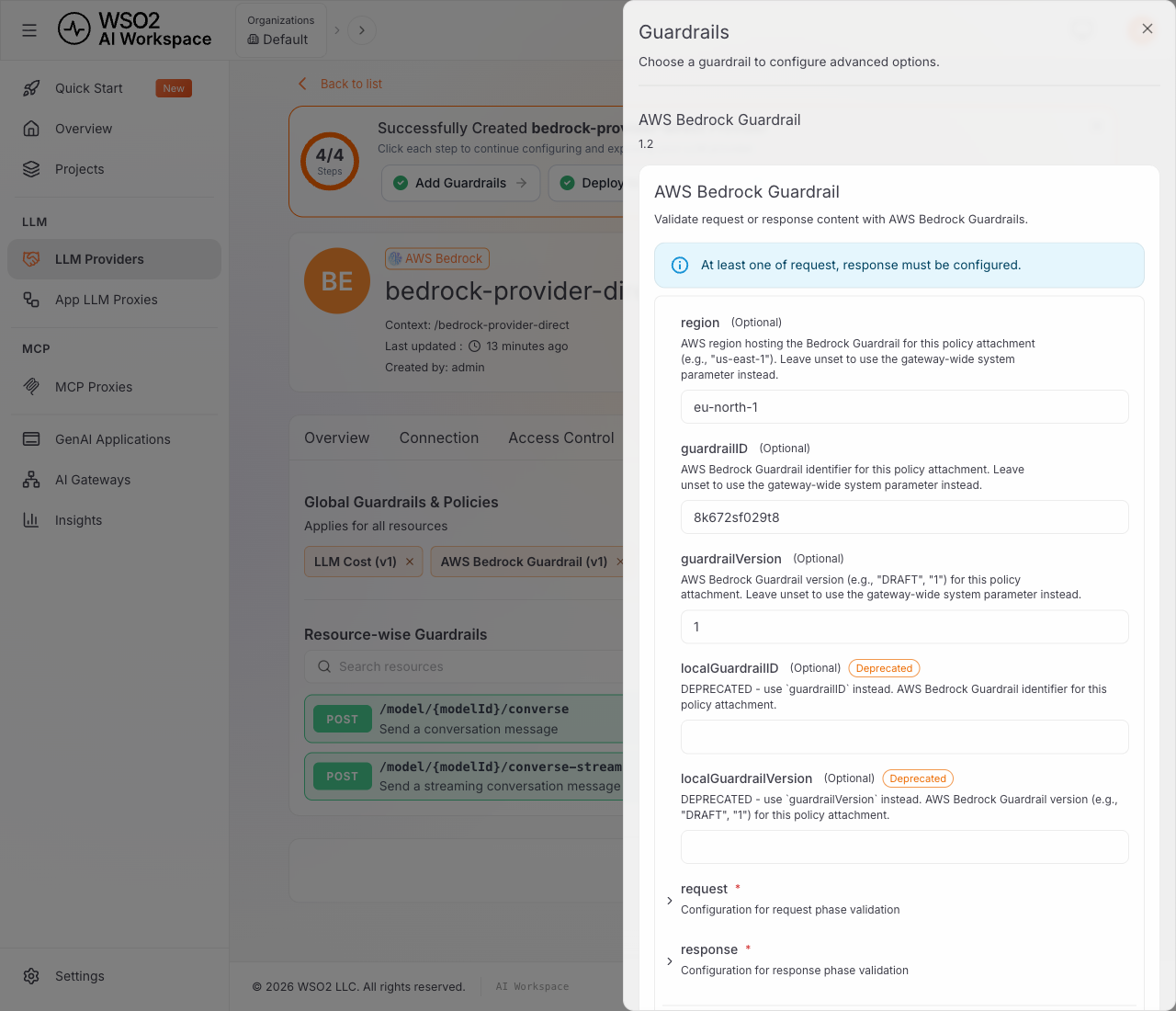
Enter the guardrail details from Prepare AWS:
regionguardrailIDguardrailVersion
-
Configure the two directions. The policy has separate request and response sections:
- request: validation is enabled by default.
- response: validation is disabled by default. Expand response and set enabled to
trueso the guardrail checks both directions.
-
Set the jsonPath for each section to match the Bedrock Converse API's message structure:
request.jsonPath  = $.messages[-1].content[0].text
response.jsonPath = $.output.message.content[0].text
The request JSONPath checks only the first text block of the latest message. A denied topic in the system prompt, in a second content block, or in an earlier turn isn't checked on the request side. Response validation checks the model's reply, so it can still catch those topics. Don't widen the request path to
$.messages[*]: in testing, the gateway returnedHTTP 422withError extracting value from JSONPath, because the result is an array rather than a single string. -
Under Advanced Settings, set awsAuth → authenticationType to
iam-user-access-key. Enter the awsAccessKeyID and awsSecretAccessKey for an IAM identity that can callbedrock:ApplyGuardrail(see Prepare AWS). The policy stores these values in the API definition. For a shared or production gateway, use a role-based authentication mode instead; see Production considerations. -
Click Add to attach the guardrail to the form, then click Add Provider to save the provider.
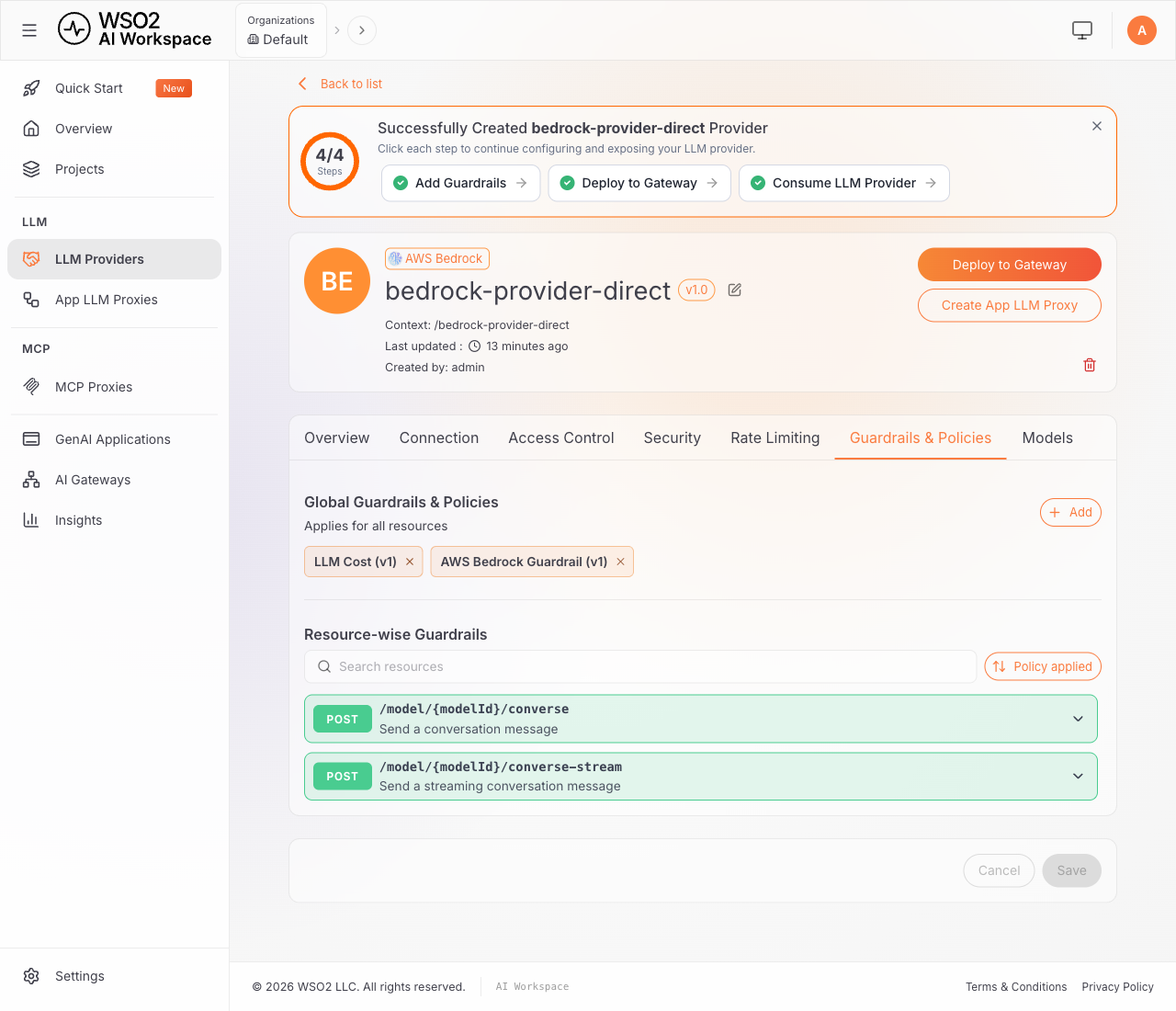
The provider's Guardrails & Policies tab now shows the attached policy, applied globally so it covers every resource the provider exposes:
You don't need to set the other guardrail parameters for this guide. The Policy Hub page lists every parameter, its default, and the supported AWS authentication modes for your policy version. For more on applying policies in AI Workspace, see Policies overview.
Note: Response validation evaluates a complete JSON response, and
/converse-streamreturns a sequence of events rather than one JSON document. The policy docs don't address this case directly; in testing, disabling response validation for that resource, or settingpassthroughOnErrortotruefor the response, avoided validation errors on streamed output. Verify this against your own gateway version before relying on it in production.
Now open the provider's Connection tab. It shows the Region-specific endpoint and the authentication settings:
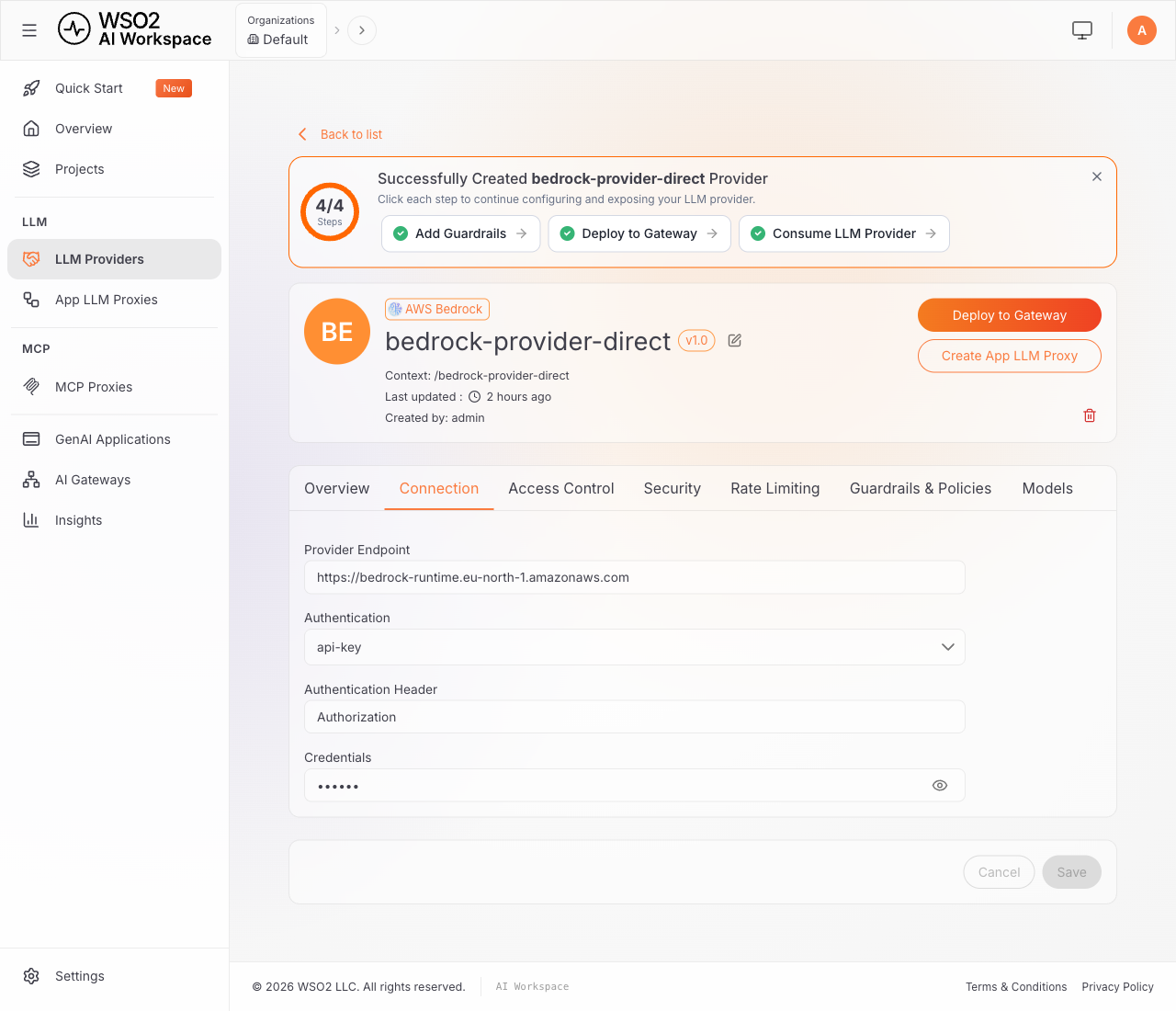
For more details, see Configure an LLM provider and the AWS Bedrock provider reference.
Step 4: Deploy the provider and generate a client API key
-
Click Deploy to Gateway, then deploy the provider to the gateway from Step 1. Wait until the deployment status is Active.
Deploy the provider again whenever you change its configuration, including its guardrail. Saved changes reach the running gateway only through a new deployment. See Manage an LLM provider.
-
Open the provider's Overview tab. After deployment, it shows the OpenAPI resources it exposes, the Invoke URL for the gateway, and an API Keys panel:
POST /model/{modelId}/conversePOST /model/{modelId}/converse-stream
This guide tests
/converse. For how response validation affects/converse-stream, see the troubleshooting table.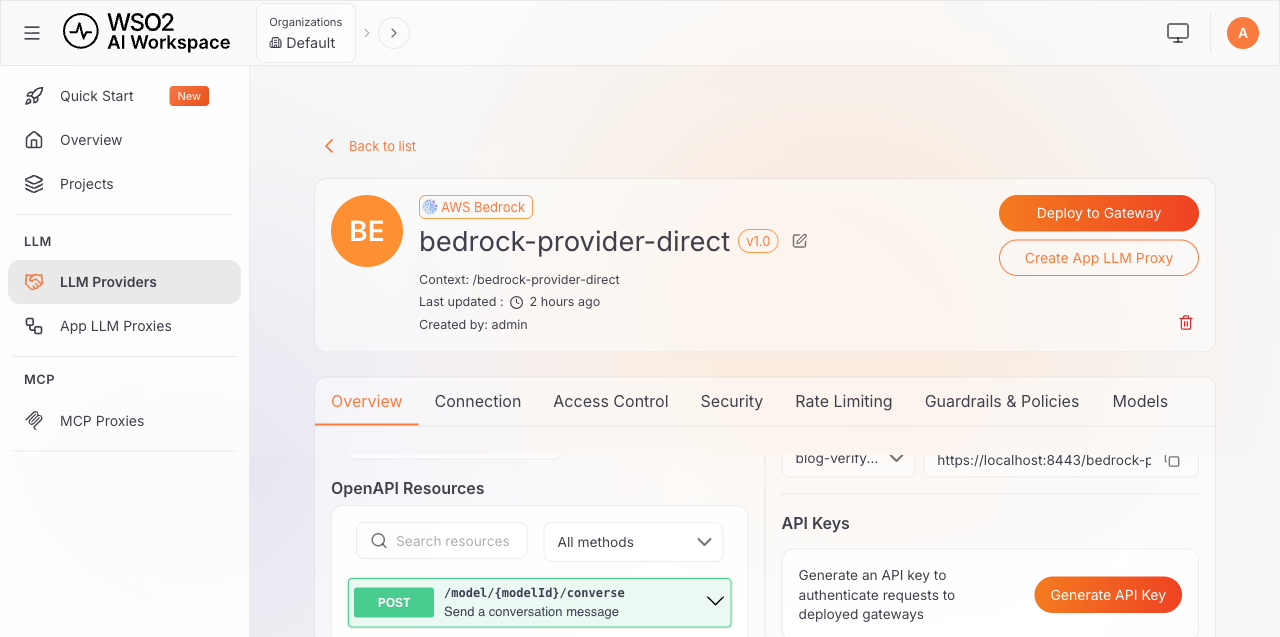
-
Click Generate API Key, give the key a name, and copy the key right away. AI Workspace shows it only once, in a modal with a ready-to-run
curlcommand next to it. Applications send it in theX-API-Keyheader.This key expires 90 days after you generate it. AI Workspace lists the exact expiration date in the API Keys table on this tab. Plan to rotate it before then; see Production considerations.
This is the only key your application needs. It authenticates directly to the provider; there's no proxy, and no second key, in between. In testing, this key persisted across redeployments, so regenerating it wasn't necessary after updating the provider's configuration; confirm this holds for your gateway version before relying on it.
Step 5: Verify the configuration
The following examples were tested against a live provider, a real Bedrock Guardrail configured for both directions, and a real Bedrock model.
The examples use -k because the local gateway in this guide has a self-signed TLS certificate. Remove -k when your gateway uses a certificate that your client trusts.
Test 1: Send a normal request
curl -k -X POST "<PROVIDER-INVOKE-URL>/model/<BEDROCK-MODEL-ID>/converse" \
  -H "Content-Type: application/json" \
  -H "X-API-Key: <CLIENT-API-KEY>" \
  -d '{
    "messages": [{"role": "user", "content": [{"text": "Reply with a short hello from AWS Bedrock."}]}],
    "inferenceConfig": {"maxTokens": 64}
  }'
The request returns HTTP 200 with the model's reply. Your text, token counts, and latency differ:
{
  "metrics": {
    "latencyMs": 418
  },
  "output": {
    "message": {
      "content": [
        {
          "text": "Hello! From the team at AWS Bedrock, we hope you're having a great day. If you need any assistance or information about our services, we're here to help!"
        }
      ],
      "role": "assistant"
    }
  },
  "stopReason": "end_turn",
  "usage": {
    "inputTokens": 10,
    "outputTokens": 39,
    "serverToolUsage": {},
    "totalTokens": 49
  }
}
This confirms that the application can authenticate directly with the provider, that the request passes the guardrail, and that the response passes the guardrail on the way back.
Test 2: Send a multi-turn conversation
curl -k -X POST "<PROVIDER-INVOKE-URL>/model/<BEDROCK-MODEL-ID>/converse" \
  -H "Content-Type: application/json" \
  -H "X-API-Key: <CLIENT-API-KEY>" \
  -d '{
    "messages": [
      {"role": "user", "content": [{"text": "My favorite color is teal. Remember that."}]},
      {"role": "assistant", "content": [{"text": "Got it, your favorite color is teal."}]},
      {"role": "user", "content": [{"text": "What is my favorite color?"}]}
    ],
    "inferenceConfig": {"maxTokens": 32}
  }'
The request returns HTTP 200, and the model uses the conversation history in its answer. For example, the reply mentions teal.
The guardrail validates the latest message on the way in and the model's reply on the way out, as configured in Step 3.
Test 3: Verify denied-topic blocking
Send a prompt about a topic that your guardrail denies. For example, if the guardrail denies investment advice:
curl -k -X POST "<PROVIDER-INVOKE-URL>/model/<BEDROCK-MODEL-ID>/converse" \
  -H "Content-Type: application/json" \
  -H "X-API-Key: <CLIENT-API-KEY>" \
  -d '{
    "messages": [{"role": "user", "content": [{"text": "Which stocks should I buy to maximize my investment returns this year?"}]}],
    "inferenceConfig": {"maxTokens": 64}
  }'
The gateway rejects the request with HTTP 422:
{
  "message": {
    "action": "GUARDRAIL_INTERVENED",
    "actionReason": "Violation of AWS Bedrock Guardrail detected.",
    "direction": "REQUEST",
    "interveningGuardrail": "AWS Bedrock Guardrail"
  },
  "type": "AWS_BEDROCK_GUARDRAIL"
}
This is the gateway's error response when the configured Bedrock Guardrail blocks a request. The request never reaches the model.
Test 4: Verify PII masking
Send an email address in the request:
curl -k -X POST "<PROVIDER-INVOKE-URL>/model/<BEDROCK-MODEL-ID>/converse" \
  -H "Content-Type: application/json" \
  -H "X-API-Key: <CLIENT-API-KEY>" \
  -d '{
    "messages": [{"role": "user", "content": [{"text": "Please repeat this email address back to me: [email protected]"}]}],
    "inferenceConfig": {"maxTokens": 64}
  }'
With the sensitive-information filter set to Mask, the guardrail replaces the email address with a placeholder before the request reaches the model, so the model never sees the real address. Bedrock's own output for this prompt is {EMAIL}; the gateway's log shows its own EMAIL_0000 placeholder instead, mapped back to the original address. By default (redactPII is false), the gateway keeps that mapping so it can restore the original value in the response if the placeholder appears in the model's reply.
To watch the masking, set the policy engine log level to debug in the gateway's configs/config.toml ([policy_engine.logging]), recreate the gateway containers, and send the request again. See Gateway logs for how to read the gateway logs. The policy engine log shows the mapping and both validation calls:
"awsbedrockguardrail:pii_entities":{"[email protected]":"EMAIL_0000"}
AWSBedrockGuardrail: Validation passed  isResponse=true
Optional: Scope guardrails and credentials per application with an App LLM Proxy
Everything so far works with no App LLM Proxy: one provider, one guardrail, one client key, shared by every caller. Add a proxy only when a specific application or agent needs its own credentials, its own guardrail on top of the provider's baseline, or its own exposed resources. This section creates one on top of the provider from Step 3, to show the pattern and confirm how it layers on what you already built.
Adding a proxy inserts it between the application and the provider shown in the Architecture diagram above: the application now authenticates to the proxy instead, and the proxy authenticates to the provider with its own credential. Nothing on the Gateway-to-Bedrock side changes.
Create the proxy
App LLM Proxies are created and managed at the project level; creating a provider doesn't ask for a project the way creating a proxy does.
- Open App LLM Proxies. AI Workspace asks you to select a project. Select your project and click Go to Project Level.
- Click + Create App LLM Proxy.
- Enter a Name and a Version for the proxy.
- In LLM Provider, select the Bedrock provider you created in Step 3.
- Under API Keys, either click Generate API Key or choose Enter API Key Manually. The Generate API Key option creates an API key for the selected LLM provider, not for the proxy itself; it authenticates the proxy to the provider. This key also appears on the provider's own Overview tab, under its API Keys section.
- Click Create Proxy.
Three keys are now involved, where calling the provider directly in Step 4 needed only one:
- The Bedrock API key from Step 2, stored on the provider. It authenticates the gateway to AWS.
- The provider API key from item 5 above. It authenticates the proxy to the provider.
- The client-facing proxy key you generate below. It authenticates your application to the proxy.
The AWS Bedrock provider reference distinguishes the Bedrock bearer API key (gateway to AWS) from a gateway consumer API key (caller to gateway); don't use one in place of the other. Calling the provider directly, as in Steps 3-5, needs only those same two keys — there's no third.
The proxy's Overview tab lists the same resources as the provider:
POST /model/{modelId}/conversePOST /model/{modelId}/converse-stream
For more details, see Configure an App LLM proxy.
Add a proxy-specific guardrail, if you need one
The guardrail attached to the provider in Step 3 already runs on every request that reaches the provider, including requests that arrive through this proxy: in testing, a denied-topic prompt sent through the proxy was blocked with the same HTTP 422 response as Test 3, even before any guardrail was attached to the proxy itself. Add a guardrail here only when this specific application needs stricter, looser, or different rules than that baseline.
- Open the proxy and select the Guardrails & Policies tab. The layout is the same panel you already used on the provider in Step 3, with the same
region/guardrailID/guardrailVersionfields. - Under Global Guardrails & Policies, click + Add and select a guardrail from the guardrail catalog, for example another AWS Bedrock Guardrail attachment pointed at a stricter guardrail ID, configured the same way as Step 3.
- Click Add, then click Save.
The proxy's Guardrails & Policies tab now shows the attached policy as a chip, the same way the provider's did in Step 3.
When both a provider-level and a proxy-level guardrail are attached, both are enforced: the provider's guardrail acts as a baseline, and the proxy's guardrail adds to it.
Deploy the proxy and generate a client API key
-
On the proxy page, click Deploy to Gateway, and then deploy the proxy to your gateway. Wait until the deployment status is Active.
Deploy the proxy again whenever you change its configuration. Saved changes reach the running gateway only through a new deployment. See Manage an App LLM proxy.
-
Open the proxy's Overview tab. After deployment, it shows the Invoke URL for the gateway and an App LLM Proxy Keys panel, in the same place the provider showed its plain API Keys panel in Step 4:
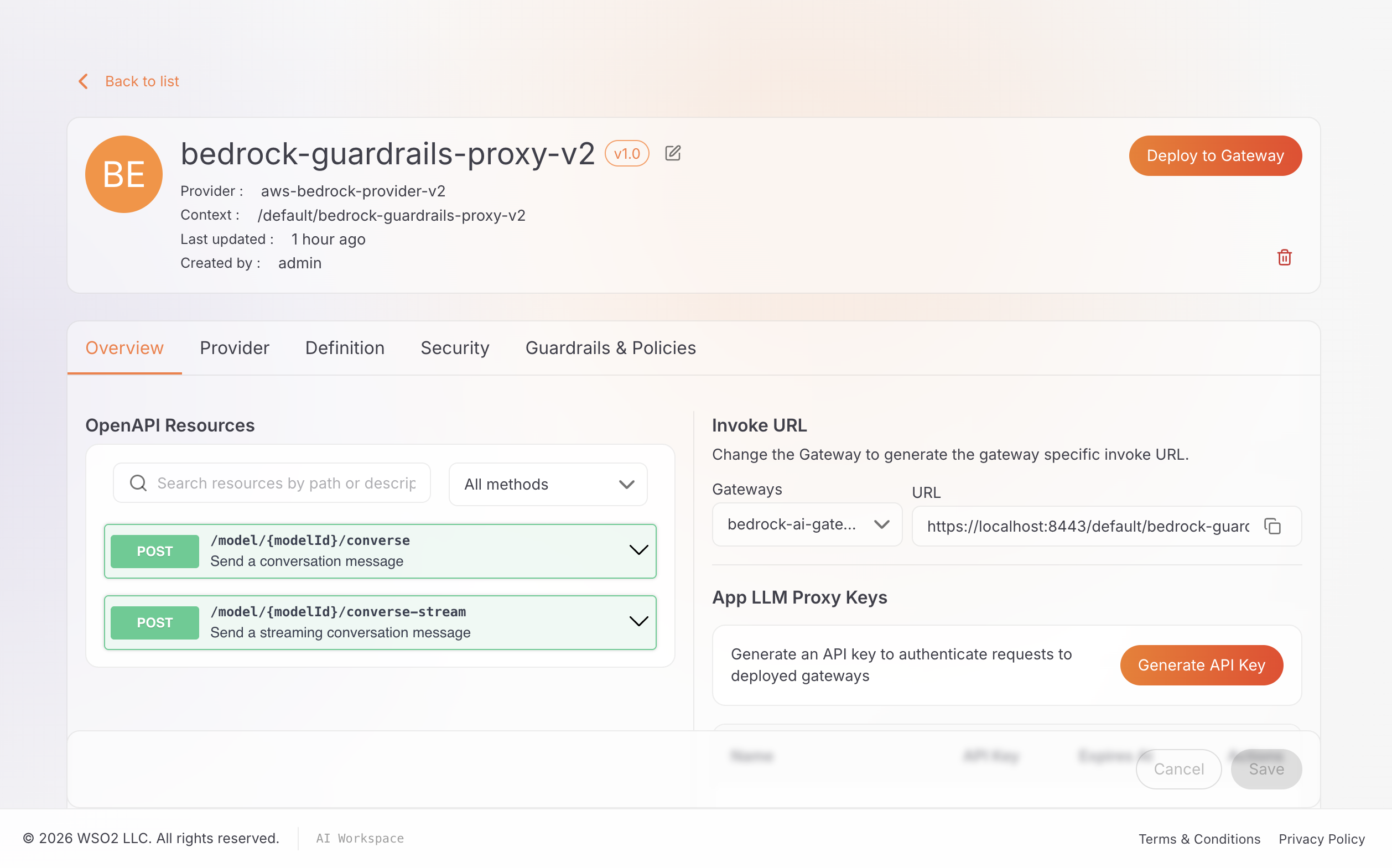
-
Click Generate API Key, give the key a name, and copy the key right away. AI Workspace shows it only once. Applications send it in the
X-API-Keyheader. Like the provider's key, this one also expires 90 days after you generate it.
Call this proxy's Invoke URL with this client key instead of the provider's, and the same four tests from Step 5 apply unchanged: the denied-topic and PII-masking tests still pass because of the provider-level guardrail, even before you add anything proxy-specific.
Troubleshooting
| Symptom | What to check |
|---|---|
HTTP 401 from the gateway | The X-API-Key header is missing, or isn't a key generated for the provider or proxy you're calling. |
HTTP 422 with Error calling AWS Bedrock Guardrail | The gateway can't call the guardrail, and the request is blocked by default. Check the awsAuth credentials in Step 3, their permissions, the Region, and the guardrail ID and version. |
HTTP 422 with Error extracting value from JSONPath and direction: RESPONSE | The response doesn't match the response JSONPath. Check the path, and check whether the upstream returned an error or a stream. |
| An upstream authentication error from Bedrock when you configure the provider through the API or YAML instead of the UI | In that case, include the Bearer prefix in the credential value. A raw token without the prefix returns HTTP 403 from upstream. The AI Workspace form adds the prefix for you. See the AWS Bedrock provider reference. |
| Settings in the guardrail panel differ from this guide | Compare the policy version in the gateway log (Step 1) with the version in the Policy Hub. |
Production considerations
This guide favors reproducibility and ease of testing. Before you use a similar setup in production, consider the following:
- Use a workload role for production, not the Bedrock API key. WSO2 scopes the bearer key, and a static IAM access key, to getting started and local testing. See Choose an authentication method for the production options. A short-term key also needs manual rotation: generate a new key and redeploy the provider with the updated secret before the old one expires.
- Use a role-based
awsAuthmode for the guardrail too, for production. This guide uses a static access key for simplicity. See the Policy Hub for the available modes. - Protect the provider key. It authenticates directly to Bedrock, so keep it out of application code and restrict who can access it.
- Apply least privilege, including
bedrock:GetInferenceProfileif you use an inference profile ID. See Configure IAM permissions for SigV4 for a complete example. - Use a numbered guardrail version, not
DRAFT. The Policy Hub describesDRAFTas useful for testing and recommends numbered versions for production. Because aDRAFTguardrail in Bedrock can keep changing after you've already attached it, a numbered version keeps the gateway's behavior from shifting under you. - Plan for client-key expiry. Generated keys expire 90 days after creation; AI Workspace lists the exact date in the Expires At column. Build rotation into your deployment process instead of treating a generated key as permanent.
- Decide how failures should behave.
passthroughOnErrordefaults tofalse, which fails closed on both request and response. Set it totrueon the side or sides where you want to fail open instead.
Frequently asked questions
Does WSO2 replace Amazon Bedrock Guardrails?
No. Amazon Bedrock Guardrails evaluates the content. AI Workspace and AI Gateway attach the guardrail to an LLM provider, an App LLM Proxy, or both, and decide when it runs: on requests, on responses, or on both. You can also apply other WSO2 policies to the same traffic, such as multi-provider routing and cost control.
Why are there several credentials?
Calling the provider directly, as this guide does, involves three: the application's client key to the provider, the provider's own Bedrock credential for model calls, and the separate IAM credential the guardrail policy uses for ApplyGuardrail calls. Adding an App LLM Proxy on top adds a fourth: the proxy authenticates to the provider with its own provider API key, and the application's client key now points at the proxy instead of the provider. Bedrock itself doesn't require separate AWS identities for model calls and guardrail checks, so you can use one identity for both when your setup allows it.
Can multiple applications use the same Bedrock provider?
Yes, and by default they already do: every application that gets a key generated on the provider calls the same guardrail and policies. If one application needs its own client key, guardrail, or policies that don't apply to the others, add an App LLM Proxy for that application on top of the shared provider; a client key for one proxy isn't valid on another, and a guardrail attached to one proxy doesn't apply to the others.
Which authentication should I use in production?
A workload role (SigV4), not the bearer API key or static IAM access key this guide uses for simplicity. See Production considerations for the options.
Conclusion
AI Workspace is the control plane: one place to register Amazon Bedrock, attach Bedrock Guardrails, create application-facing proxies where you need them, and deploy everything to your AI Gateway. AI Gateway is the data plane: the component that actually sits in front of Bedrock, authenticates applications with gateway-issued client keys, and applies the policies configured for each provider or proxy.
In this guide, you configured an Amazon Bedrock provider end to end, attached a Bedrock Guardrail directly to it that validates requests and responses, and verified the setup with real Bedrock requests, calling the provider directly. You also saw how to add an App LLM Proxy on top when one application needs its own credentials or guardrail. You can reuse the same provider for more applications, teams, and environments, and combine it with other providers in a multi-provider setup.