MCP Registry: How to Build a Governed Catalog for MCP Servers
Once a few teams start building AI agents, MCP servers multiply quickly. One team runs a server for internal docs, another wraps a CRM API, and a third connects to a public server they found online. Soon nobody can say which MCP servers exist, who owns them, or which ones agents should use.
An MCP registry solves this. This tutorial explains what an MCP registry is, how it works, and when your team needs one. It then shows you how to build one in WSO2 API Platform, from publishing your first MCP server to calling its tools from Claude Desktop.
What is an MCP registry?
The Model Context Protocol (MCP) is an open standard that lets AI agents use external tools, such as looking up a customer or searching a code repository. An MCP server is the program that offers those tools to agents.
An MCP registry is a central, governed record of the MCP servers your organization has approved. For each server, it keeps track of the following.
- What the server does and who owns it
- The tools it exposes and the inputs each tool expects
- The URL that clients connect to
- How clients authenticate before they use it
Developers browse the registry through a catalog to find servers. AI agents read it to discover servers on their own. Both see the same approved list.
To learn more about MCP catalogs, including how public MCP directories differ from internal catalogs, see MCP Server Catalog: Building an Internal Registry.
MCP registry vs. MCP catalog vs. MCP gateway
These three terms often appear together. Each one plays a different part.
| What it is | Who uses it | In WSO2 API Platform | |
|---|---|---|---|
| MCP registry | The record of approved MCP servers | Platform teams and agents | MCP proxies published from AI Workspace |
| MCP catalog | The place where people browse and search the registry | Developers | MCP Hub in API Portal |
| MCP gateway | The runtime that checks and routes every tool call | Every client, on every request | AI Gateway |
The registry says which servers are approved. The gateway makes sure every call to those servers follows your rules. To learn more about the gateway side, see what an MCP gateway is.
Why teams need an MCP registry
- Find servers instead of rebuilding them. Developers search one catalog before they build a new server.
- Check tools before connecting. Tool descriptions and input schemas show what a server can do before any agent uses it.
- Control access in one place. Every approved server uses the same authentication and policies.
- See how tools are used. Tool calls from every client appear in one analytics view.
- Let agents discover servers. Agents can find approved servers on their own, without someone pasting URLs into their configuration.
Common MCP registry use cases
- Internal developer copilots. Give coding assistants one approved list of internal tool servers, such as docs search or ticketing.
- Governing third-party MCP servers. Place a public MCP server behind your gateway so your organization's policies apply to every call.
- Sharing MCP servers across teams. One team publishes a server, and other teams find it and reuse it.
- Agent self-discovery. Agents read a machine-readable file, such as
llms.txt, to learn which servers are available.
How an MCP registry works
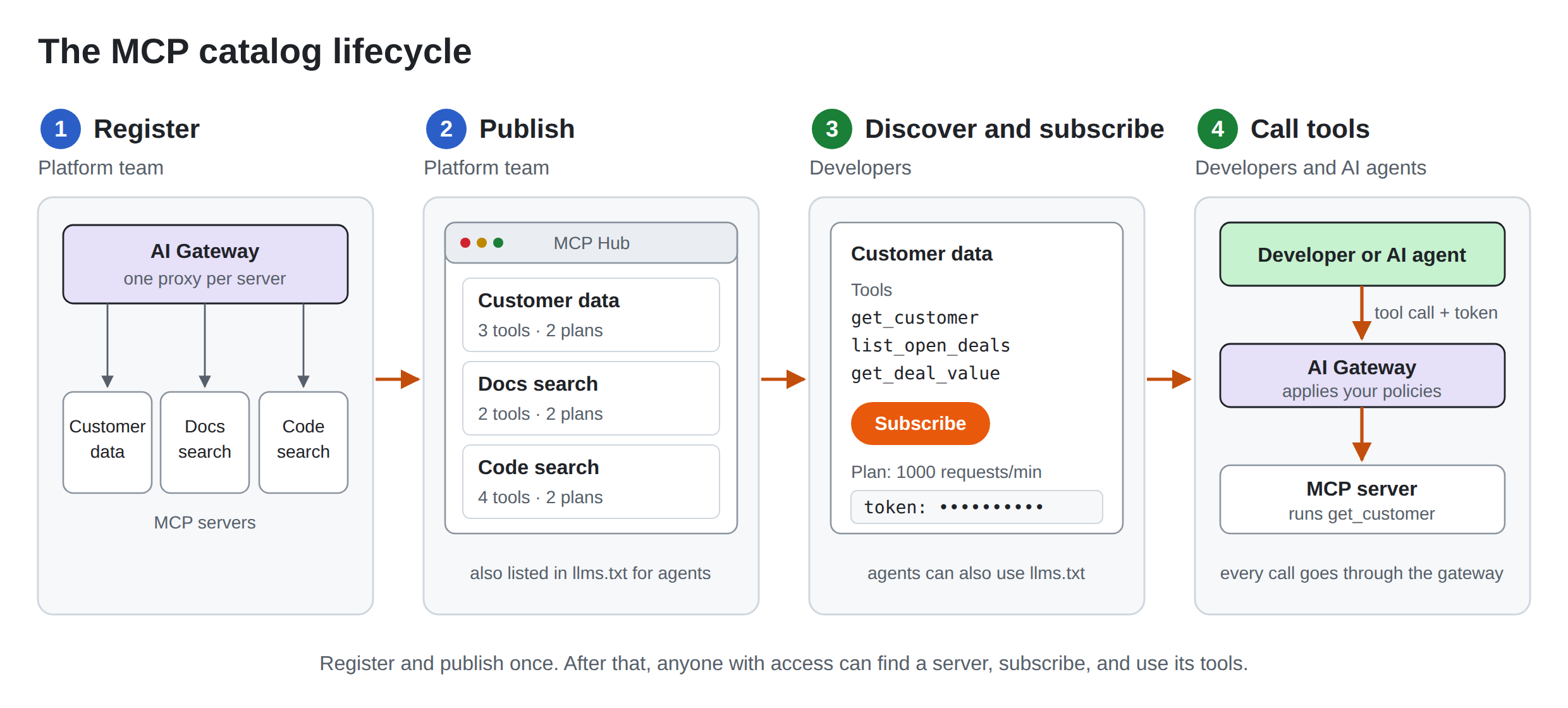
An MCP registry follows a simple lifecycle. The platform team sets it up once, and then developers and AI agents use it.
- Register. The platform team creates a proxy for each MCP server on the gateway.
- Publish. The platform team adds the servers to the catalog. They are also listed in
llms.txt, so agents can find them. - Discover and subscribe. Developers browse the catalog, review a server's tools, and subscribe to get a token. Agents can also read
llms.txtto find servers. - Call tools. Developers and AI agents call the server's tools with the token. Every call goes through the gateway.
Building an MCP registry with WSO2 API Platform
WSO2 API Platform covers both sides of the registry.
- AI Workspace is where you create MCP proxies. An MCP proxy is an entry point on the AI Gateway that sits in front of an existing MCP server.
- AI Gateway runs your proxies and applies policies, such as authentication and access control, to every tool call.
- API Portal and MCP Hub is the catalog. Developers search for servers, review tools, and test them in the MCP Playground. It also creates an
llms.txtfile so agents can discover servers. - Insights in AI Workspace show which tools are called and by how many users.
Tutorial: Build an MCP registry and connect Claude Desktop
In this tutorial, you publish an MCP server to your organization's registry and then use it from Claude Desktop, just as a developer in your team would.
What you will build
- An MCP proxy for an existing MCP server, running on an AI Gateway.
- A catalog entry for that server in MCP Hub.
- A Claude Desktop connection that calls the server's tools with a subscription token.
What you will learn
- How to publish an MCP server to a governed catalog without changing the server.
- How developers find a server and review its tools in MCP Hub.
- How AI agents discover servers through
llms.txt. - How to see tool usage in AI Workspace.
Prerequisites
- A WSO2 API Platform account with access to AI Workspace and API Portal.
- Docker with the Compose plugin, to run the AI Gateway.
- Claude Desktop installed.
Step 1: Open AI Workspace and connect an AI Gateway
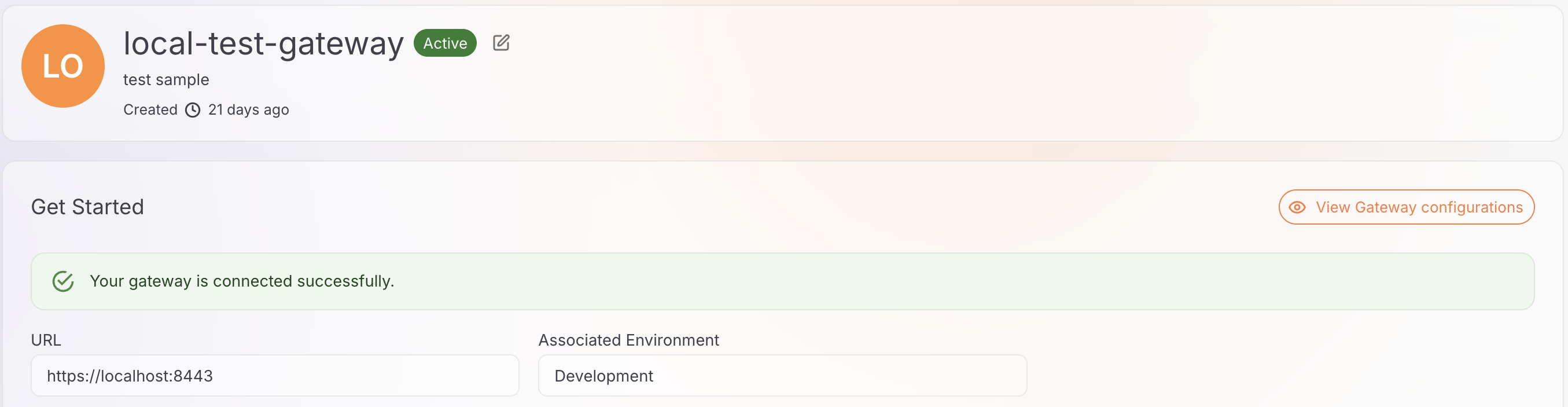
The AI Gateway runs your MCP proxies. You register it in AI Workspace and run it on your own machine with Docker.
- Sign in to WSO2 API Platform and click AI Workspace at the top of the page. If this is your first time, create an organization and a project.
- Go to AI Gateways and click Add AI Gateway.
- Enter a name and the gateway URL, select an environment, and click Add Gateway.
- Open the Quick Start tab and run the commands it shows to download and start the gateway.
When the gateway connects, its status changes to Active. To learn more, see Set up an AI Gateway in AI Workspace.
Step 2: Create an MCP proxy for an existing server
- Go to MCP Proxies and click Create MCP Proxy.
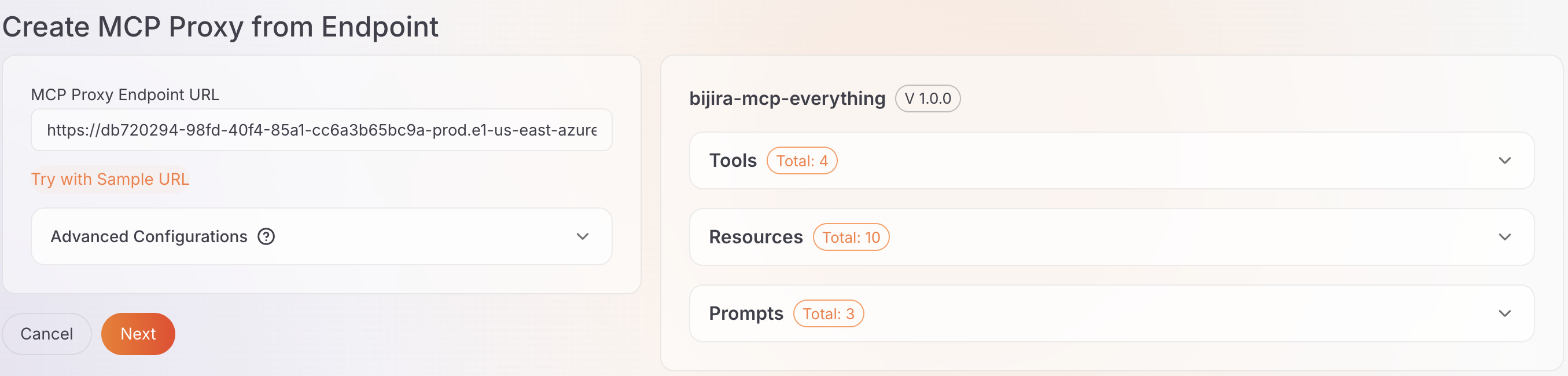
- Enter the URL of the MCP server you want to publish and click Fetch Server Info. To try it quickly, click Try with Sample URL instead.
- Click Next, check the proxy details, and click Create.
AI Workspace reads the server's tools, resources, and prompts for you.
Step 3: Deploy the proxy and publish it to MCP Hub
- On the proxy's overview page, click Deploy to Gateway, then click Deploy next to your gateway.
- When the deployment status is Active, click Publish to MCP Hub.
- Confirm the gateway and endpoint, then click Publish.
The server is now part of your organization's MCP registry.
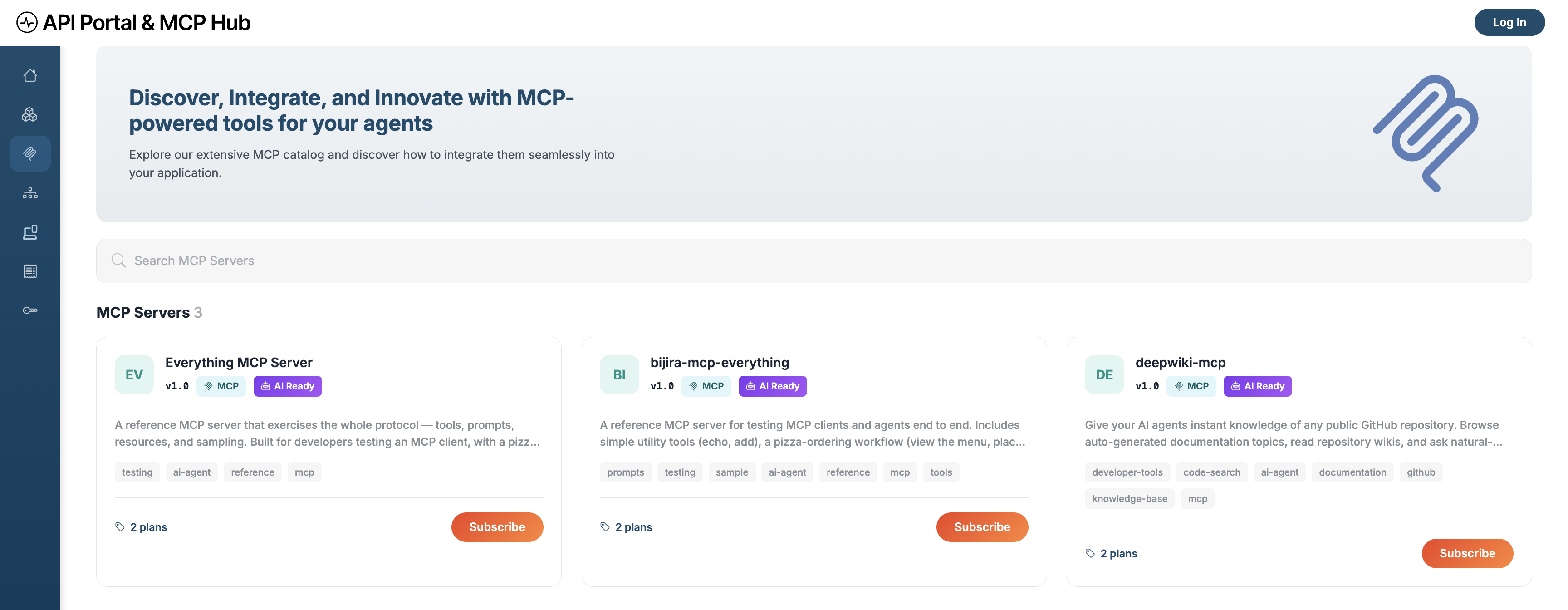
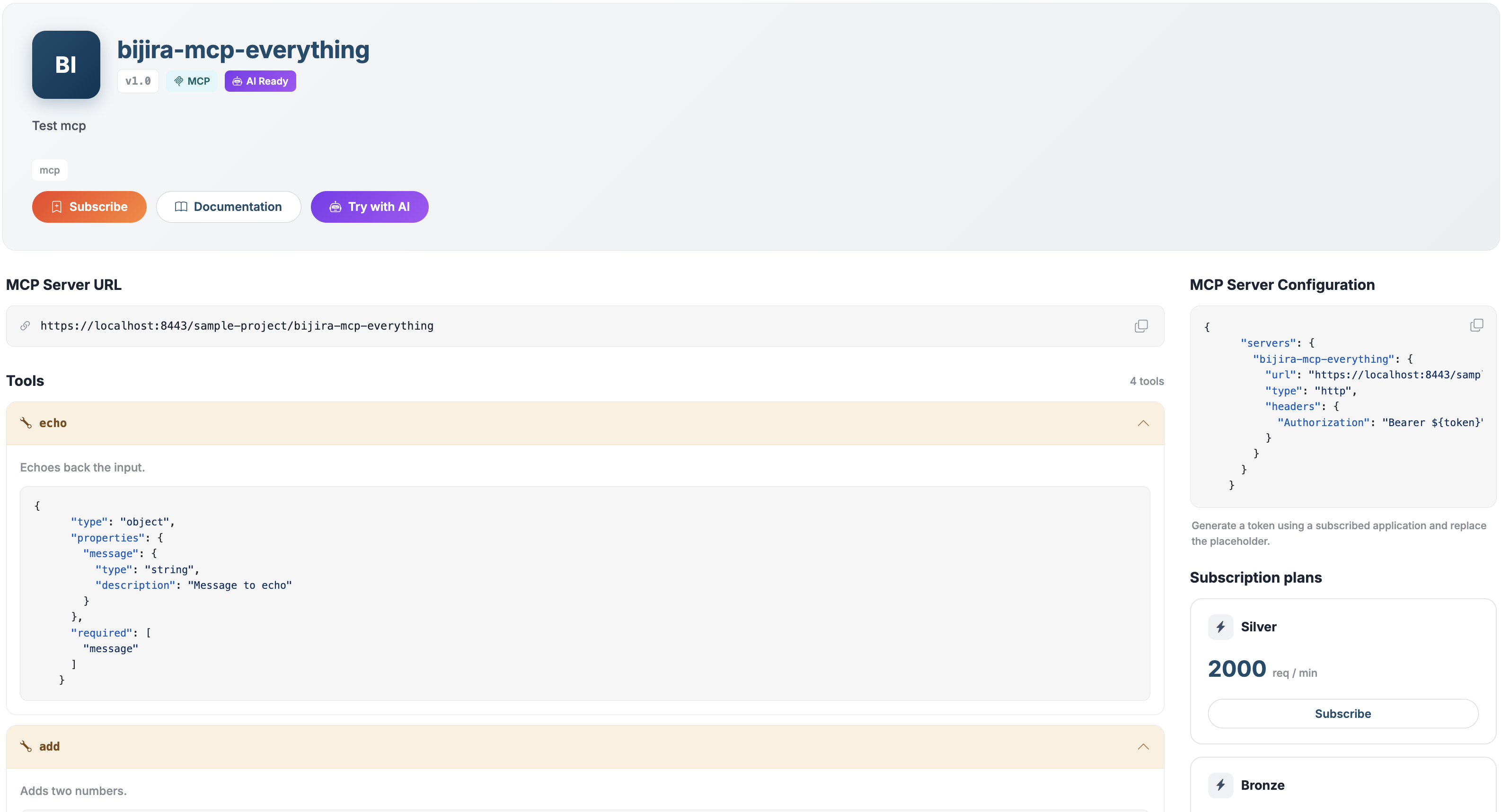
In MCP Hub, the MCP Servers page now lists every server your organization has published. This is your governed catalog.
Step 4: Find the server in MCP Hub
- On the proxy's overview page in AI Workspace, click View in MCP Hub. The server's page opens in API Portal and MCP Hub.
- Review the Tools section. Each tool shows a description and the inputs it expects.
- Note the MCP Server URL, the MCP Server Configuration, and the Subscription plans. You use these to connect a client later.
Step 5: Check that agents can discover the server
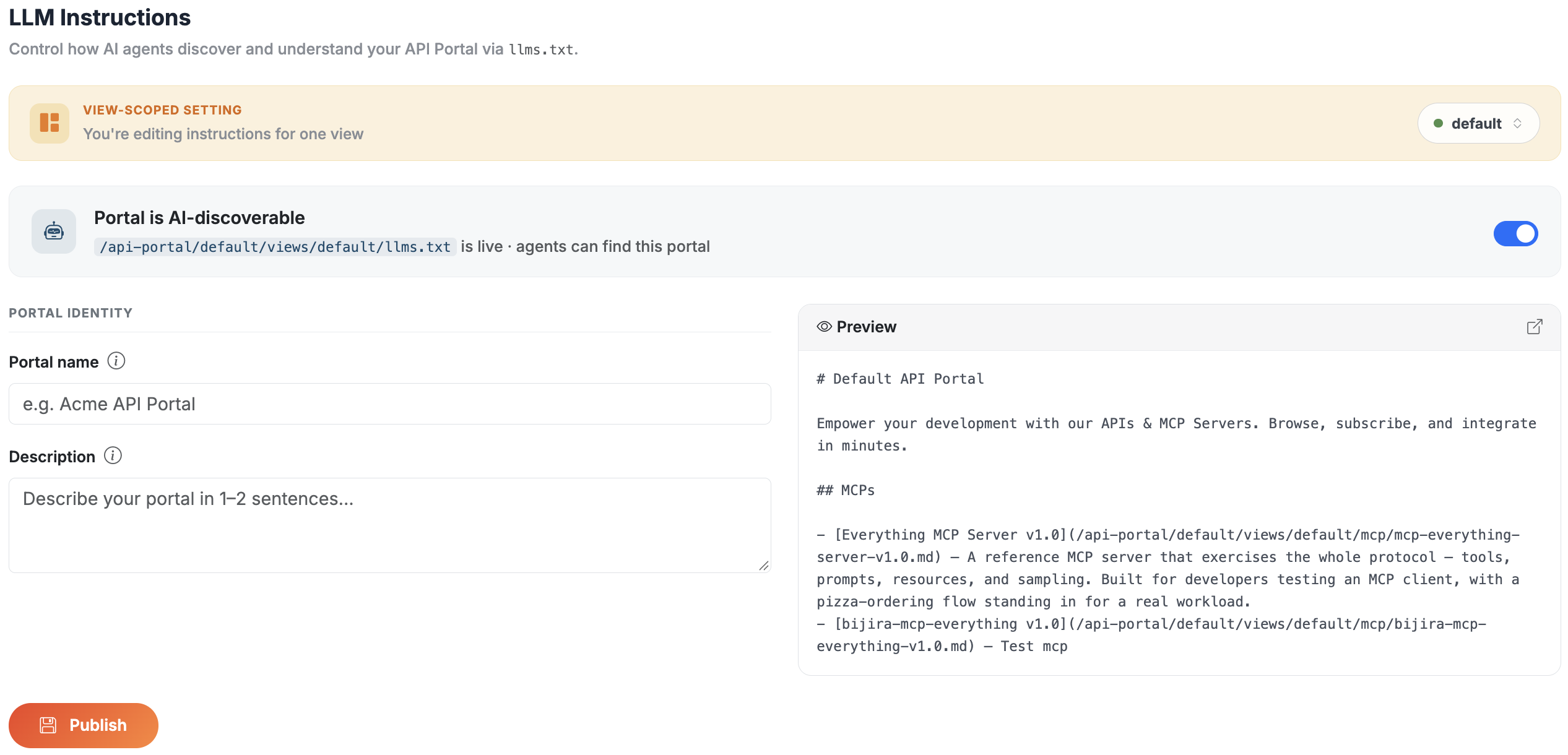
API Portal creates an llms.txt file for your organization. This is a plain text file that tells AI agents which APIs and MCP servers are available.
- In API Portal, go to Settings and open LLM Instructions.
- Make sure Portal is AI-discoverable is turned on. It shows the address where agents can read your
llms.txtfile. - Check the Preview panel. Your server should appear under MCPs.
Step 6: Subscribe and get a token
Clients need a subscription token to call the server's tools.
- On the server's page in MCP Hub, click Subscribe and choose a subscription plan.
- Copy the Subscription token that appears, and keep it somewhere safe.
Step 7: Connect Claude Desktop
-
On the server's Overview page in MCP Hub, copy the MCP Server URL.
-
In Claude Desktop, go to Settings > Developer and click Edit Config.
-
Add the server to the configuration file, replacing the URL and token placeholders.
{
  "mcpServers": {
    "my-mcp-server": {
      "command": "npx",
      "args": [
        "mcp-remote",
        "<MCP_SERVER_URL>",
        "--header",
        "Subscription-Key: <SUBSCRIPTION_TOKEN>"
      ]
    }
  }
} -
Save the file and restart Claude Desktop.
-
Ask Claude a question that one of the server's tools can answer.
Claude calls the tool through the AI Gateway, which checks the token on every call.
Step 8: See tool usage in AI Workspace
In AI Workspace, go to Insights > MCP Traffic. You can see the number of tool calls and unique users for your MCP servers. Allow a couple of minutes for new calls to appear.
For the full provider and consumer walkthroughs, see Publish MCP servers to a governed catalog and Find and connect to an enterprise MCP server from the MCP Hub.
Frequently asked questions
What is an MCP registry? A central, governed record of the MCP servers an organization has approved, including their tools, endpoints, and how to authenticate. Developers browse it through a catalog, and agents read it to discover servers.
What is the difference between an MCP registry and an MCP catalog? The registry is the record of approved servers. The catalog is the place where people search and browse it. In WSO2 API Platform, MCP Hub is the catalog for your registry.
Do I need to change my MCP server to add it to a registry? No. In WSO2 API Platform, you create an MCP proxy in front of the existing server, and the proxy is what you publish.
How do AI agents discover MCP servers in a registry? Agents can read the llms.txt file that API Portal creates for your organization. It lists the available APIs and MCP servers.
Is an MCP registry the same as an MCP gateway? No. The registry decides which servers are approved. The gateway checks and routes every tool call to those servers. An enterprise MCP registry works best with both.
Conclusion
An MCP registry gives your organization one approved list of MCP servers that developers can search and agents can discover. Pairing it with a gateway means every tool call follows the same policies, whichever client makes it.
To build your own MCP registry, explore WSO2 API Platform. To run the same pattern locally with self-hosted components, try the MCP registry catalog sample.