Explore Sample Integrations
WSO2 Integrator includes a curated collection of pre-built integration samples that you can download and open as ready-to-use projects. Use these samples to learn common integration patterns or as starting points for your own projects.
Open the sample gallery
On the WSO2 Integrator home screen, click Explore on the Explore Pre-built Integrations and Samples card.
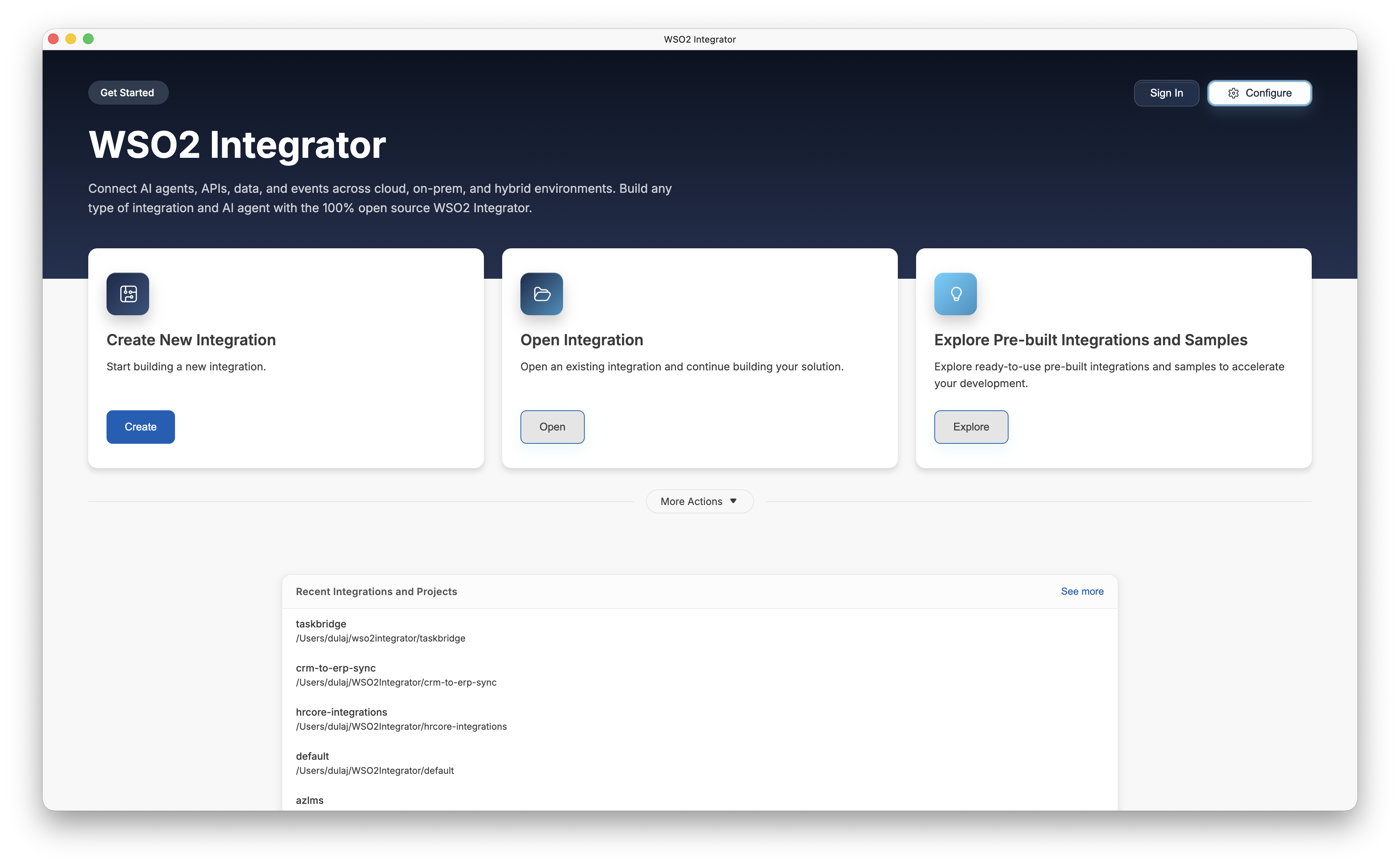
The home screen also shows the Create New Integration and Open Integration cards, along with a Recent Integrations and Projects list for projects you've opened recently.
Browse samples
The Browse Samples view opens with the prompt Start quickly by downloading a curated integration sample for your selected profile. Each card shows the sample name, a type tag (for example, ai agent, service, scheduled task, file integration, webhook), a brief description, and a Use action.
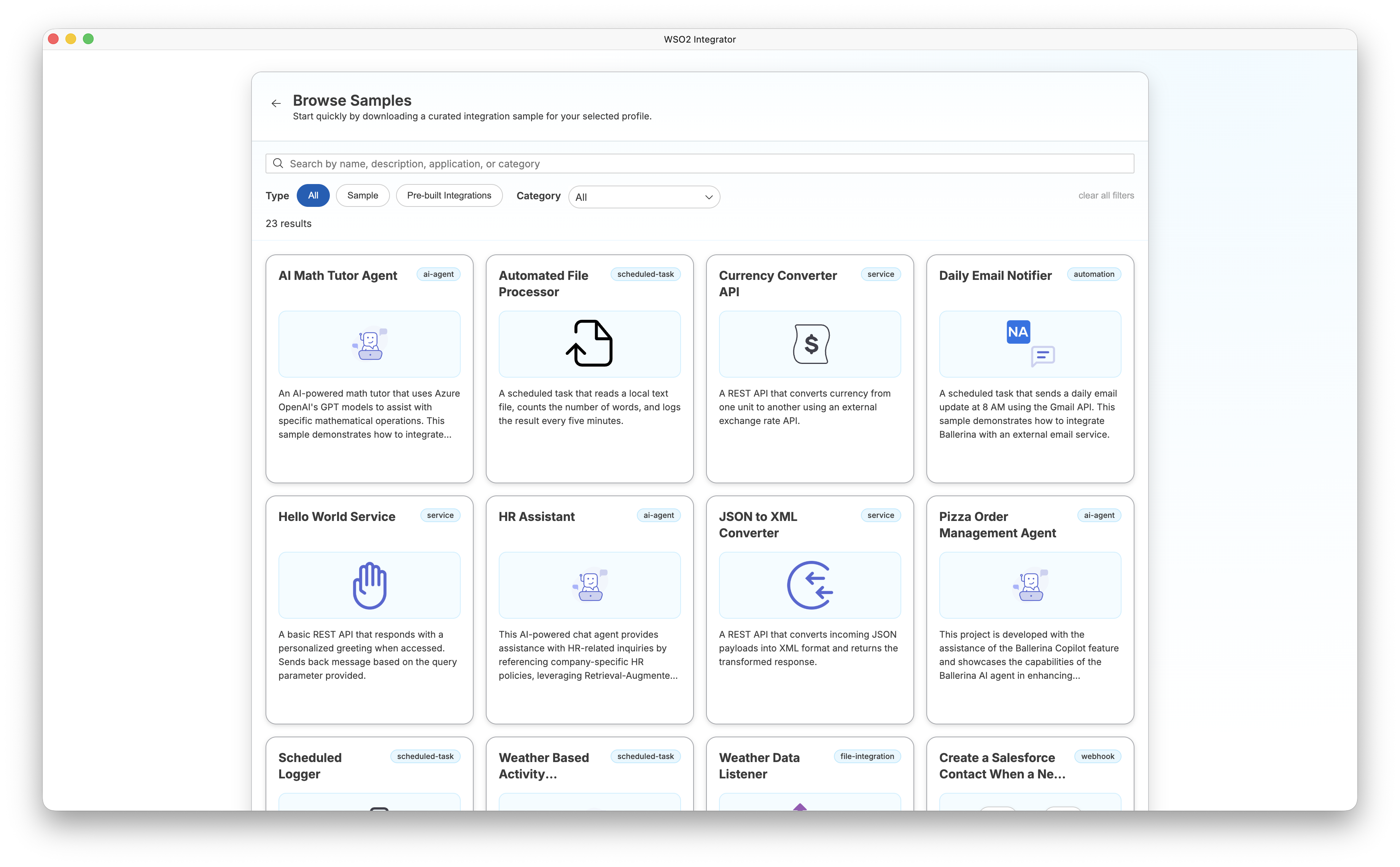
Use the controls at the top of the view to find samples:
- Search bar — Search by name, description, application, or category.
- Type filter — Filter by All, Sample, or Pre-built Integrations.
- Category filter — Narrow results by category (for example, AI Agent, File Integration, Integration as API).
- Clear all filters — Reset every filter and search term.
The result count appears below the controls (for example, 23 results).
Use a sample
Click Use on a sample card. A native file browser appears so you can choose the directory where the sample project will be created.
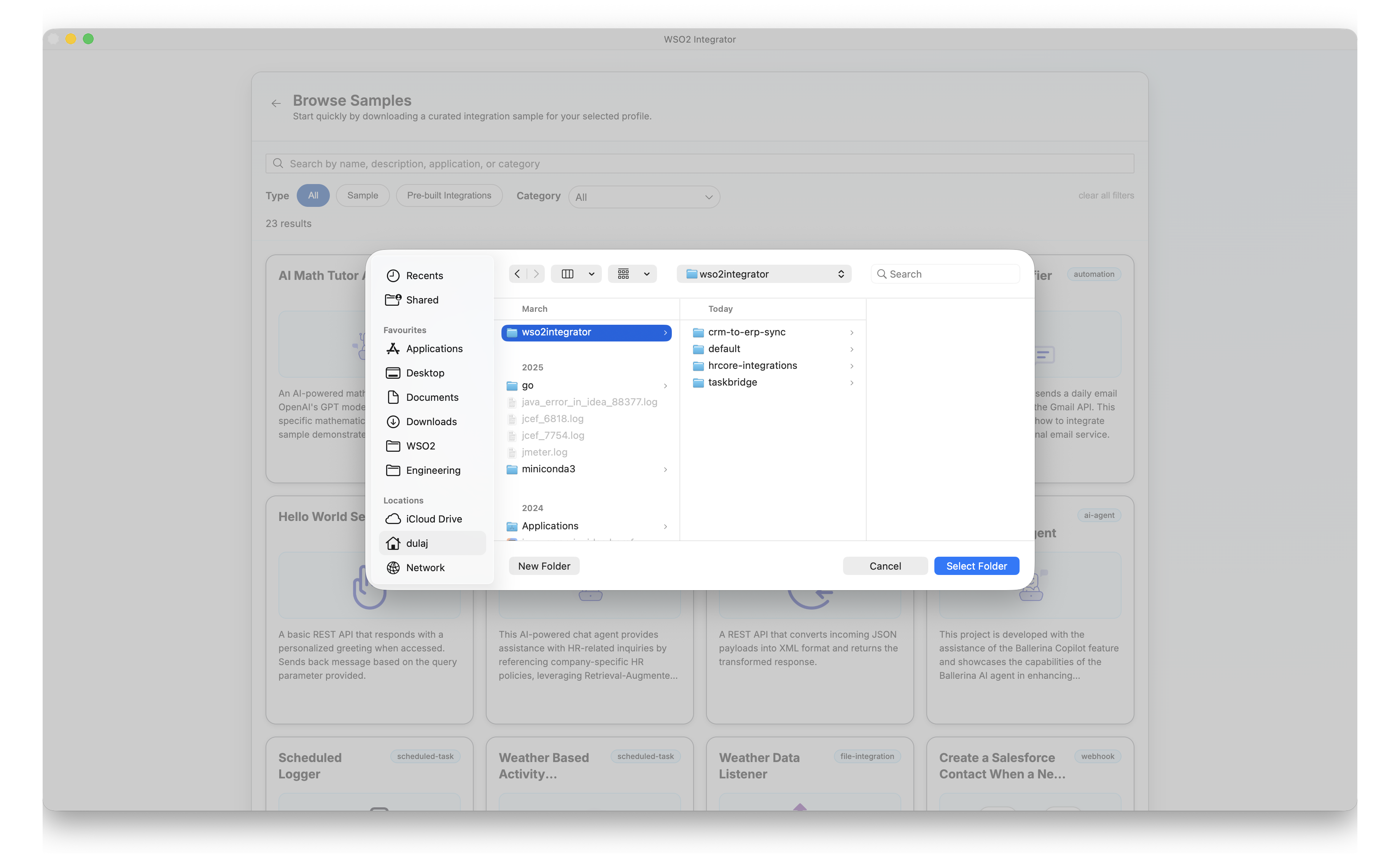
Select a folder and click Select Folder. WSO2 Integrator downloads the sample and opens it as a project. From there, you can explore the code, run, edit, and debug the integration using the project views.
What's next
- Project view — Run, edit, and debug your sample project
- Create a new integration — Start a new project from scratch
- Integration artifacts — Understand the artifact types used in samples