Open an Existing Integration
If you already have an integration or project on your local machine, you can open it directly from the WSO2 Integrator home screen. WSO2 Integrator detects the project structure and activates its tooling automatically.
Open from the home screen
When you open WSO2 Integrator, the home screen offers three ways to get started:
- Create New Integration — Start building a new integration from scratch.
- Open Integration — Continue working on an existing integration on your machine.
- Explore Pre-built Integrations and Samples — Browse ready-to-use samples to accelerate your development.
The Recent Integrations and Projects list at the bottom links to projects you've opened recently. Click an item to reopen it without browsing the filesystem.
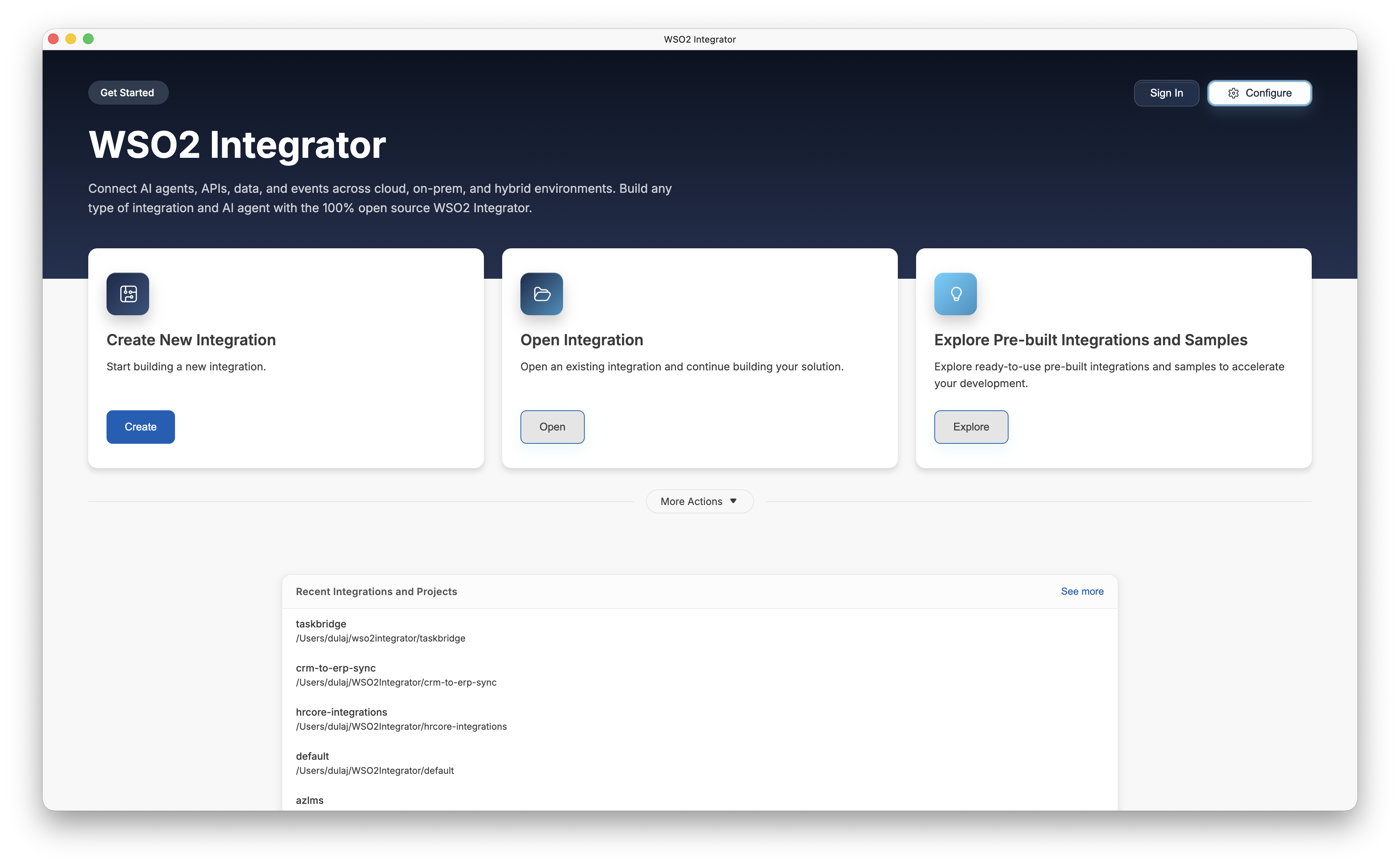
Click Open on the Open Integration card to browse your local filesystem.
Select the integration or project
A native file browser appears. Navigate to the directory that contains your integration or project, select it, and click Open. The dialog requires a folder selection — if no folder is highlighted, the message A folder must be selected appears.
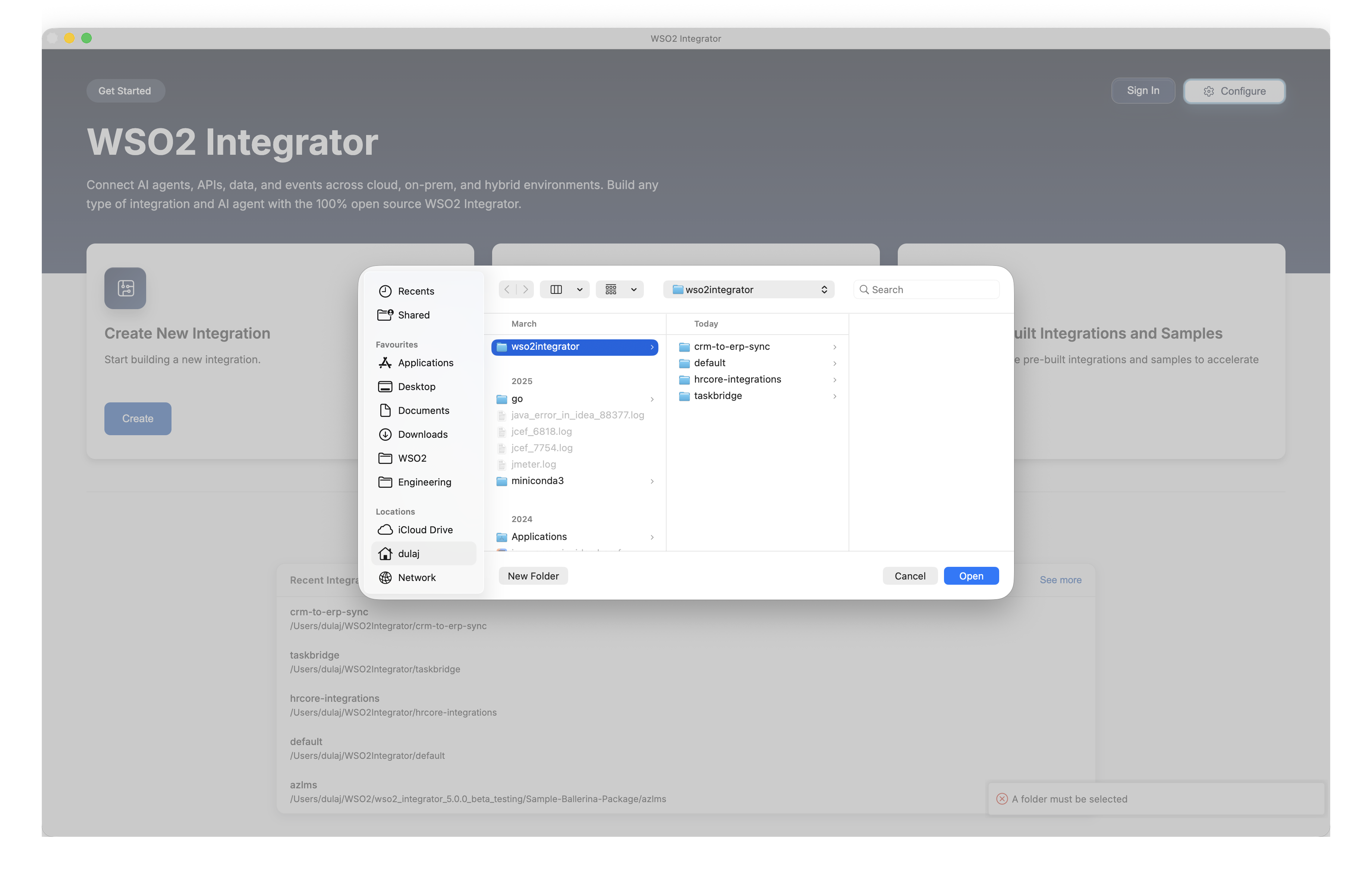
You can select either:
- A project folder — A directory that contains a root
Ballerina.tomland one or more integration or library subdirectories. WSO2 Integrator opens the project view. - An integration or library folder — A single package directory that contains a
Ballerina.tomland.balsource files. WSO2 Integrator opens the integration view or library view depending on the package type.
What's next
- Create a new integration — Start a new project from scratch
- Explore sample integrations — Browse and learn from built-in examples
- Project view — Manage multi-package workspaces