Open a Project
If you already have a project, you can open it from the WSO2 Integrator home screen. You can open projects stored locally on your machine or clone cloud projects from your WSO2 Cloud organization.
Open the project wizard
On the WSO2 Integrator home screen, click More Actions below the three primary cards to reveal additional options.
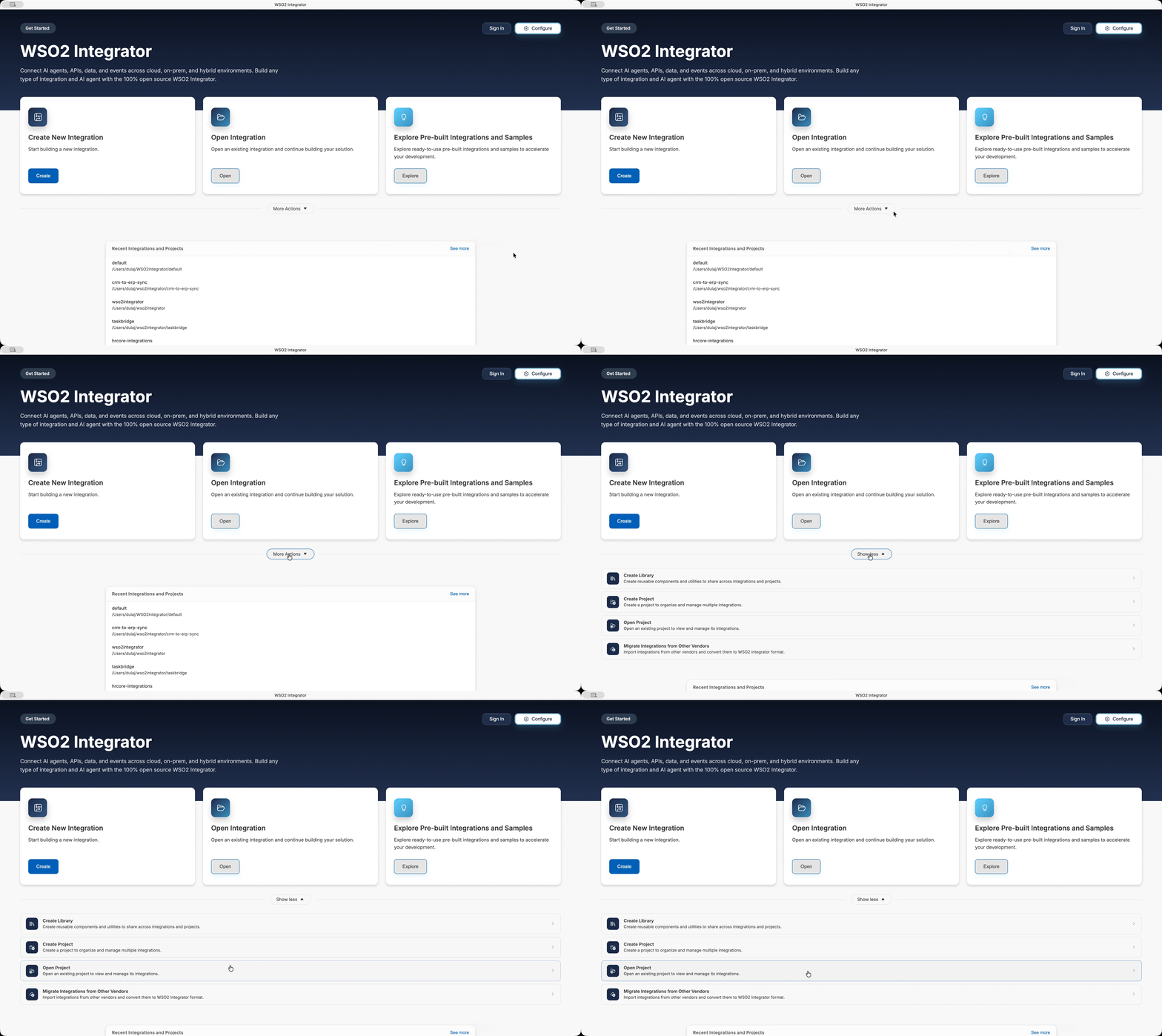
The expanded panel shows four entries (and the trigger relabels itself Show less):
- Create Library — Create reusable components and utilities to share across integrations and projects.
- Create Project — Create a project to organize and manage multiple integrations.
- Open Project — Open an existing project to view and manage its integrations.
- Migrate Integrations from Other Vendors — Import integrations from other vendors and convert them to WSO2 Integrator format.
Click Open Project to open the project wizard.
Choose a source
The wizard opens with the prompt Choose how you'd like to open a project. and presents two cards.
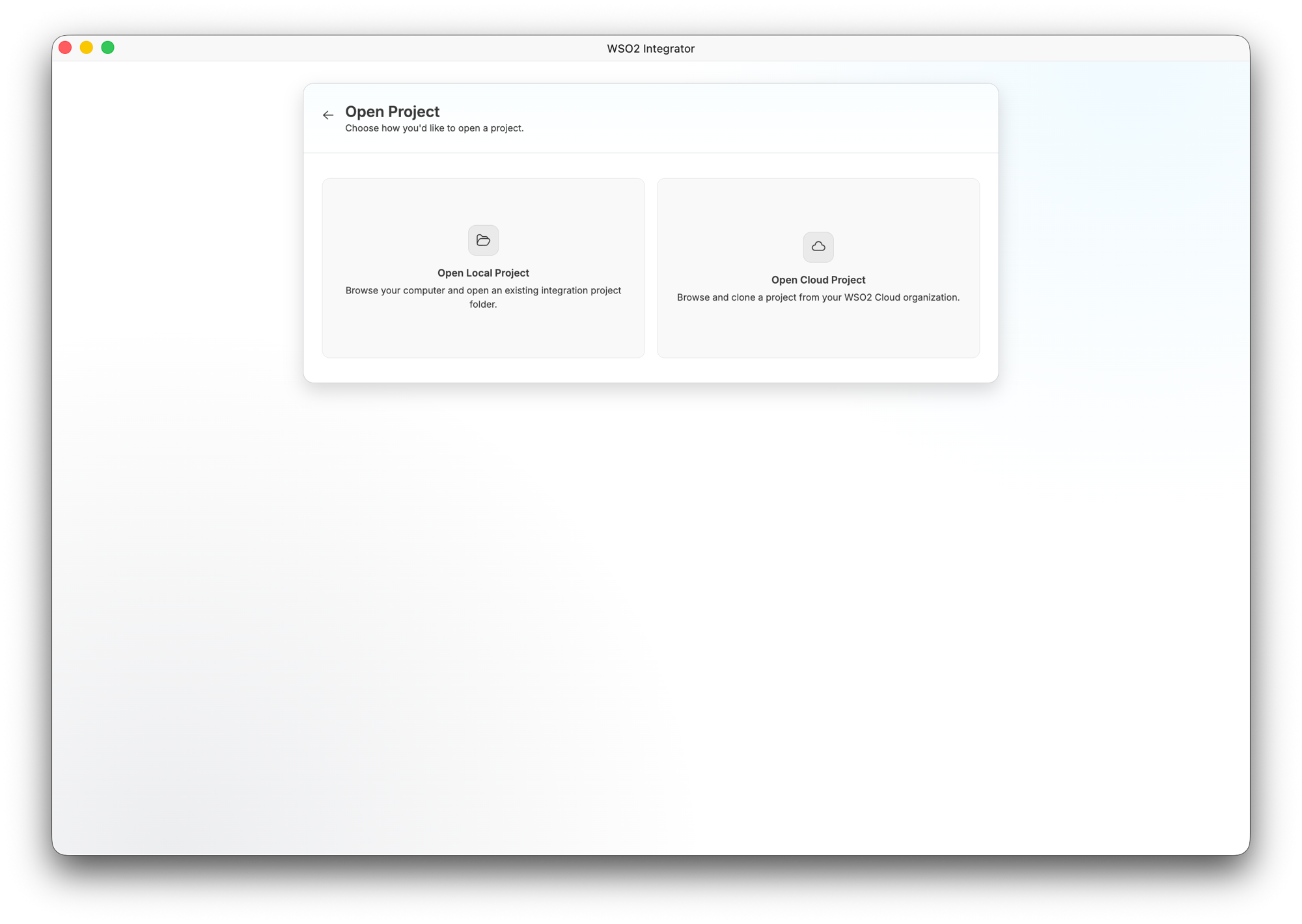
- Open Local Project — Browse your computer and open an existing integration project folder.
- Open Cloud Project — Browse and clone a project from your WSO2 Cloud organization.
Open a local project
- Click Open Local Project.
- A native file browser appears. Navigate to the directory that contains your project.
- Select the project folder and click Open.
WSO2 Integrator detects the project structure and opens the project view.
Open a cloud project
-
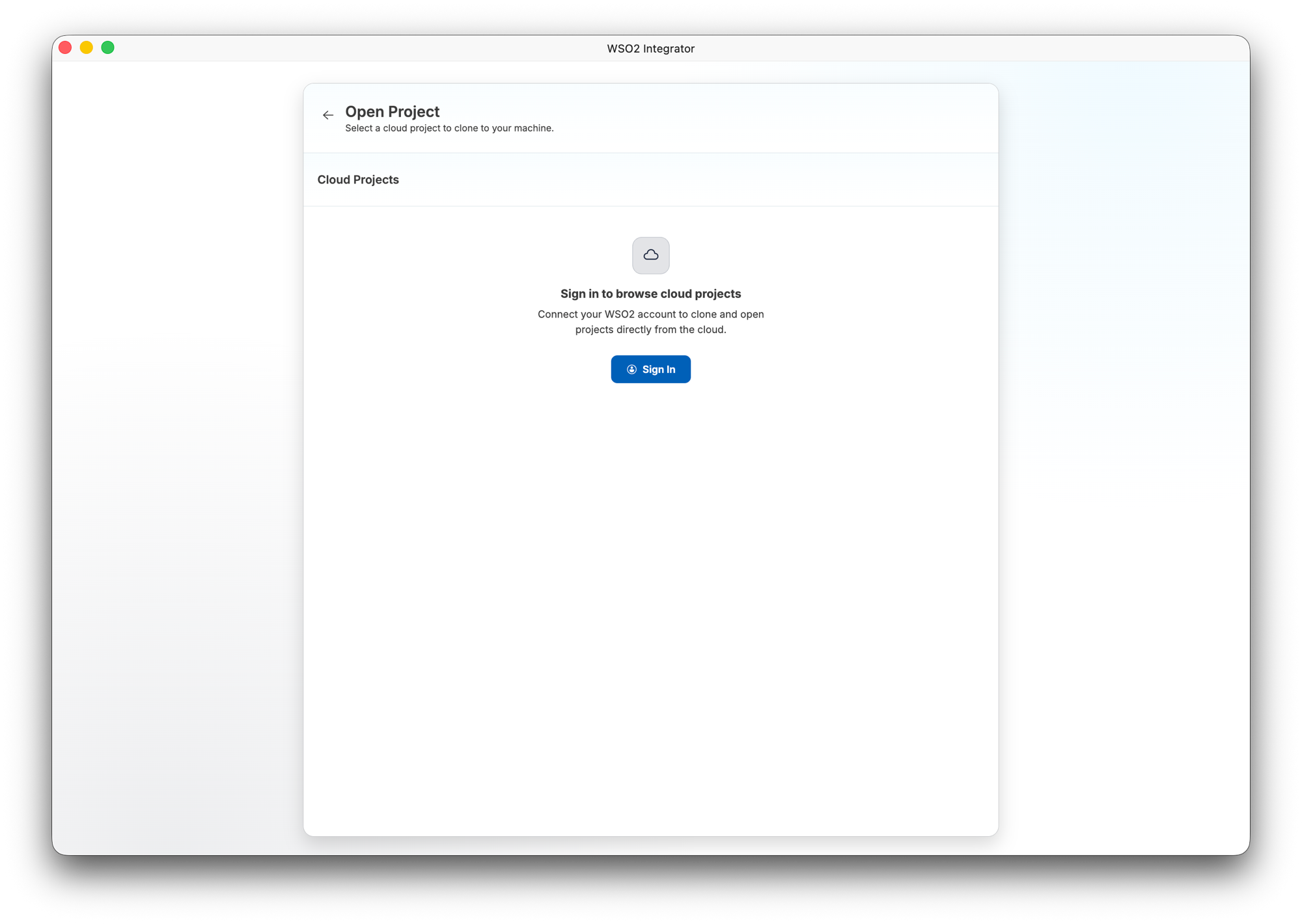
Click Open Cloud Project. The wizard updates with the prompt Select a cloud project to clone to your machine. and a Cloud Projects section.
-
If you are not signed in, the empty state shows Sign In to browse cloud projects — Connect your WSO2 account to clone and open projects directly from the cloud. Click Sign In to connect your account.
-
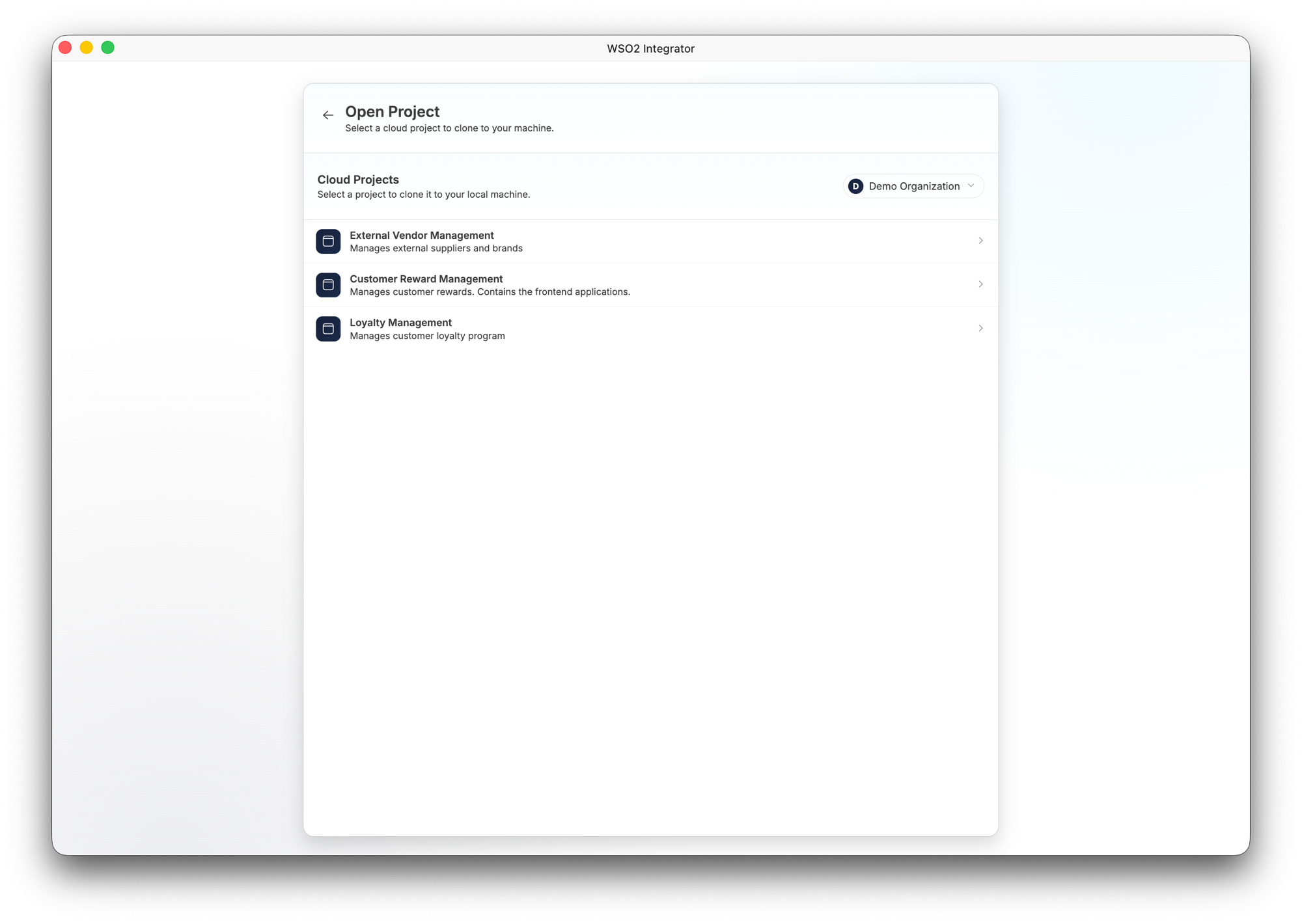
After signing in, the wizard lists the cloud projects available in your organization. The active organization is shown at the top right (for example, Demo Organization), and each entry displays the project name and description.
-
Click a project to clone it to your local machine and open it in WSO2 Integrator.
What's next
- Project view — Manage, run, and debug your project
- Create a project — Create a new project from scratch
- Create a new integration — Create a standalone integration