Natural Functions
A natural function is a function whose body is written in English instead of code. You declare the signature (typed parameters and a typed return) and write the instructions in the Prompt node in the visual designer. At runtime, WSO2 Integrator turns the return type into a JSON schema, sends both the prompt and the schema to a model provider, and gives you back a typed value.
This page is a single, end-to-end reference covering the form that creates the function, the Prompt node, the return type, and how to call it from a flow.
Looking for a hands-on walkthrough? See the Customer Review Analyzer with Natural Function tutorial. It builds the example shown on this page from an empty project to a working
POST /api/v1/analyzeendpoint.
Natural functions are an experimental feature. Enable experimental features in WSO2 Integrator before using them: open Settings, expand Extensions, select the Ballerina extension, and tick Experimental: Enable Experimental Feature.
How a Natural Function Looks
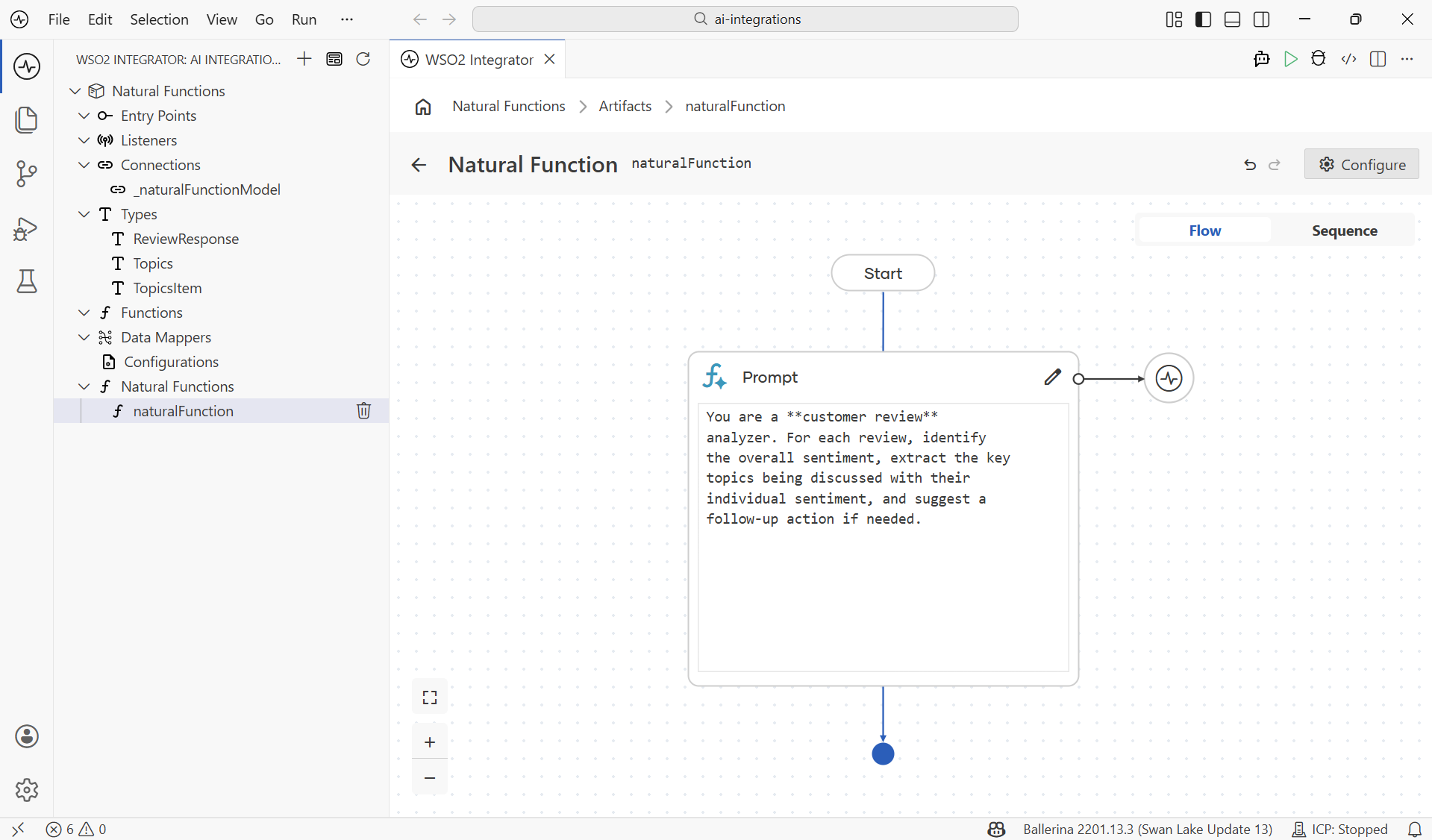
A finished natural function is a single Prompt node sitting between Start and the end of the flow. The cog on the right binds a model provider; the pencil at the top edits the English body.
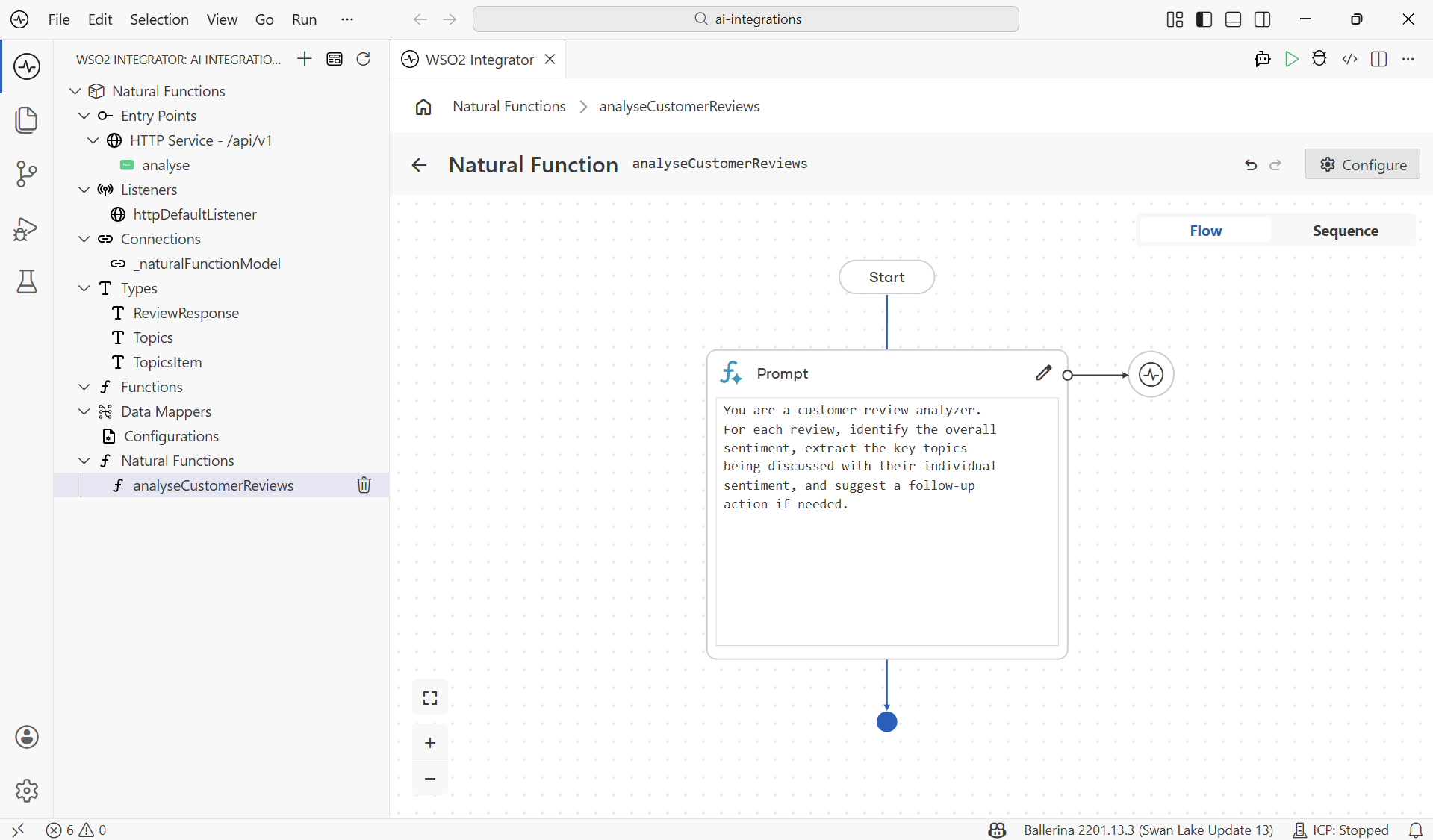
What you do in the visual designer:
- Declare the function's signature (name, parameters, and return type) once in the Create New Natural Function form.
- Bind a Model Provider to the Prompt node.
- Write the English instructions in the Prompt node.
What WSO2 Integrator handles for you:
- Generating a JSON schema from the function's return type.
- Sending the prompt and the schema to the bound model provider.
- Parsing the response back into a typed return value.
- Surfacing any parsing errors.
To build one, you do four things in order:
- Create the function: name, parameters, and return type.
- Bind a model provider: the Default WSO2 Model Provider is bound automatically; swap it here if you want a different model provider.
- Write the prompt inside the Prompt node.
- Call it from a flow.
The rest of this page walks each step.
Creating a Natural Function
There are two equivalent entry points; both open the same form.
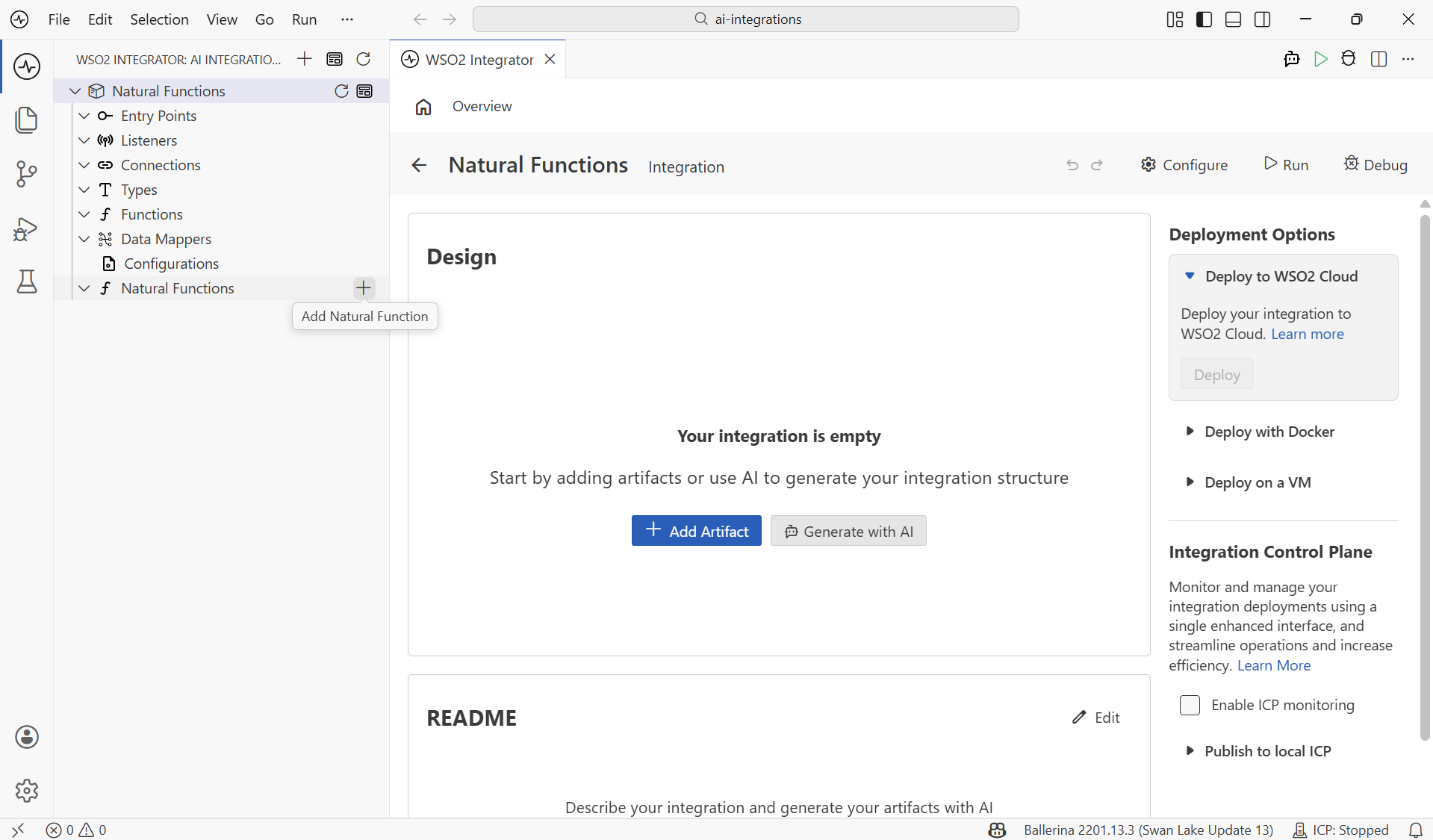
From the project sidebar. Hover the Natural Functions node and click the + that appears.
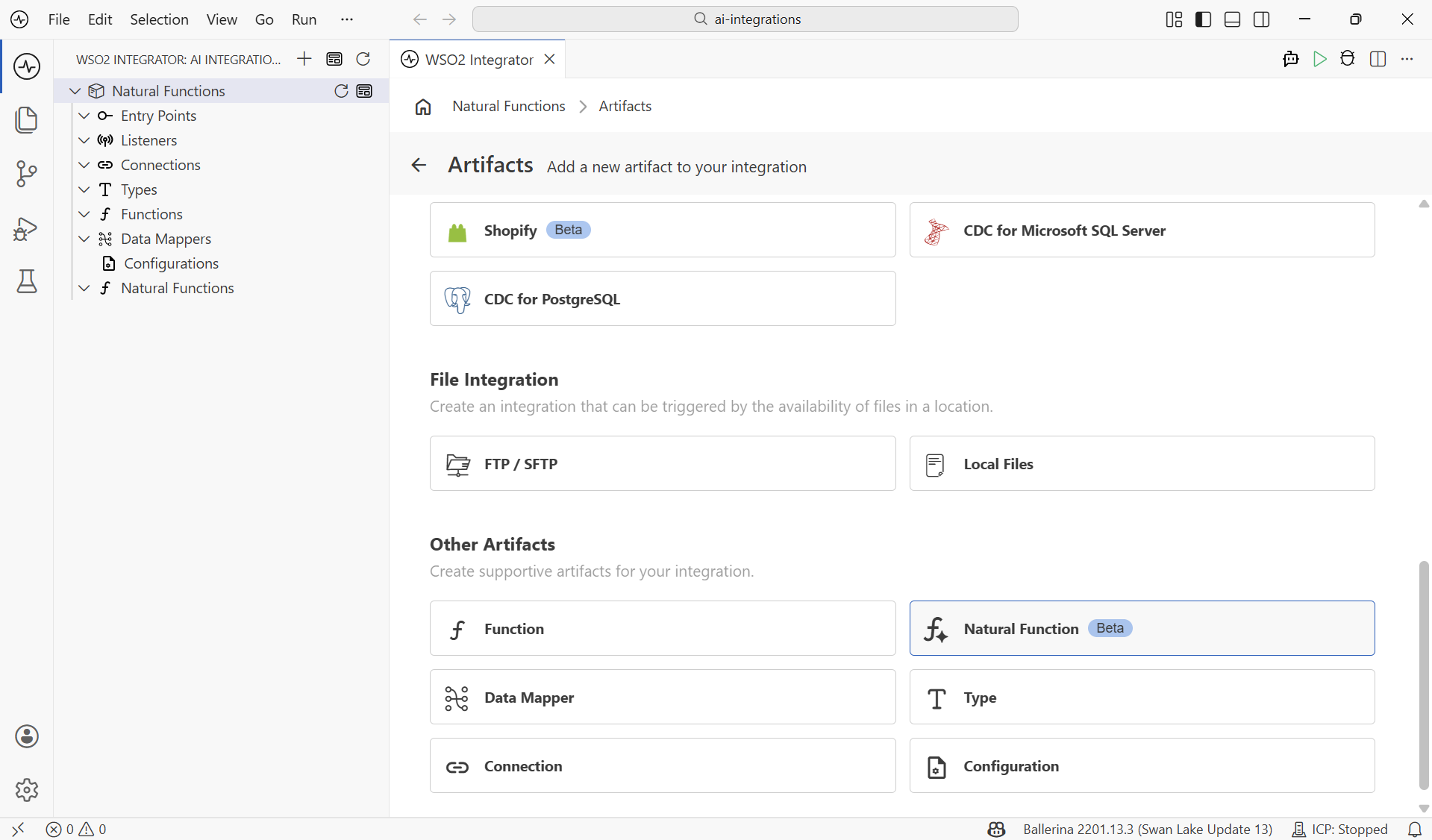
From the Artifacts panel. Click + Add Artifact on the integration overview, then under Other Artifacts pick Natural Function (badged Beta).
The create form
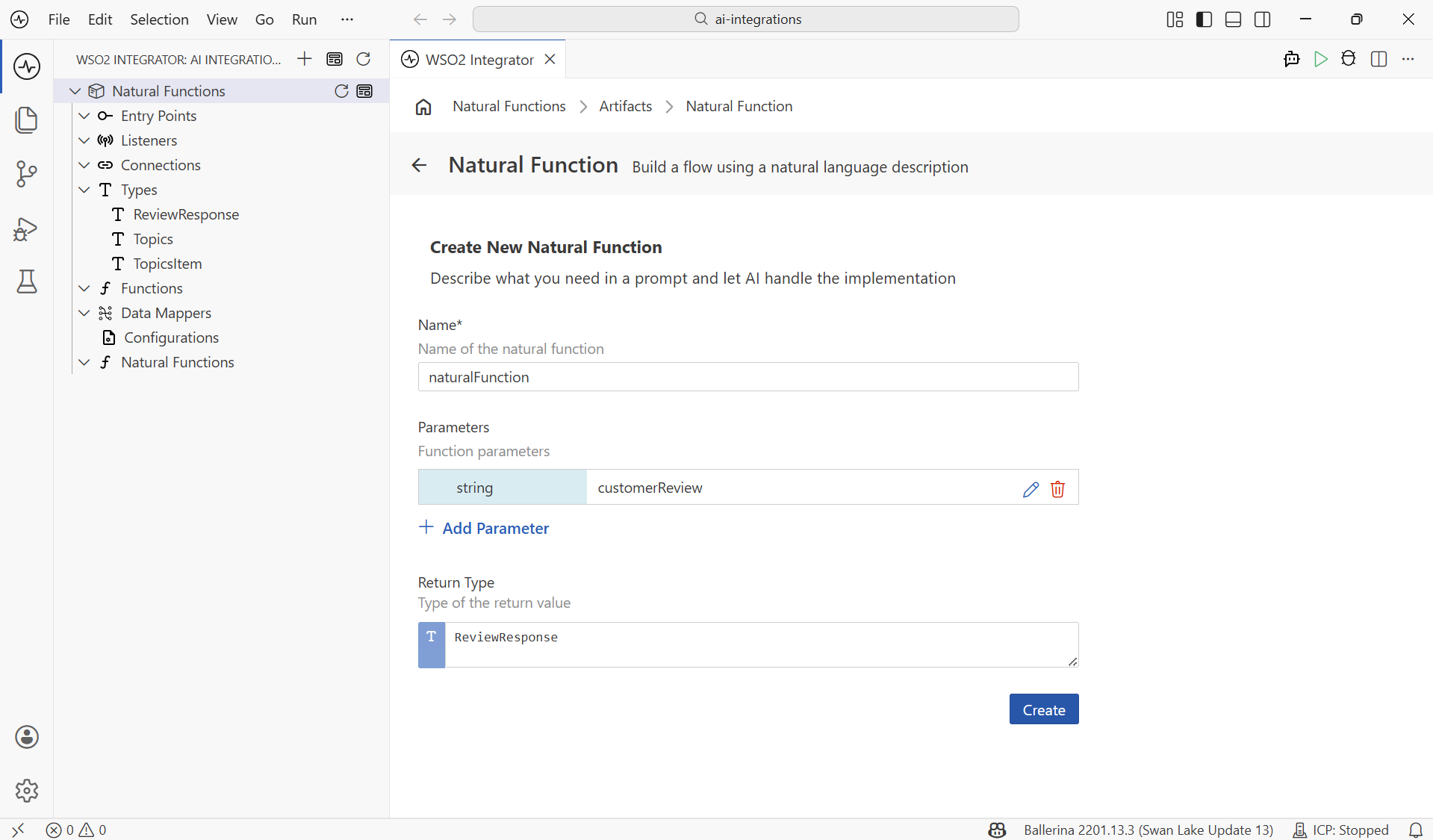
The form has three fields and a Create button.
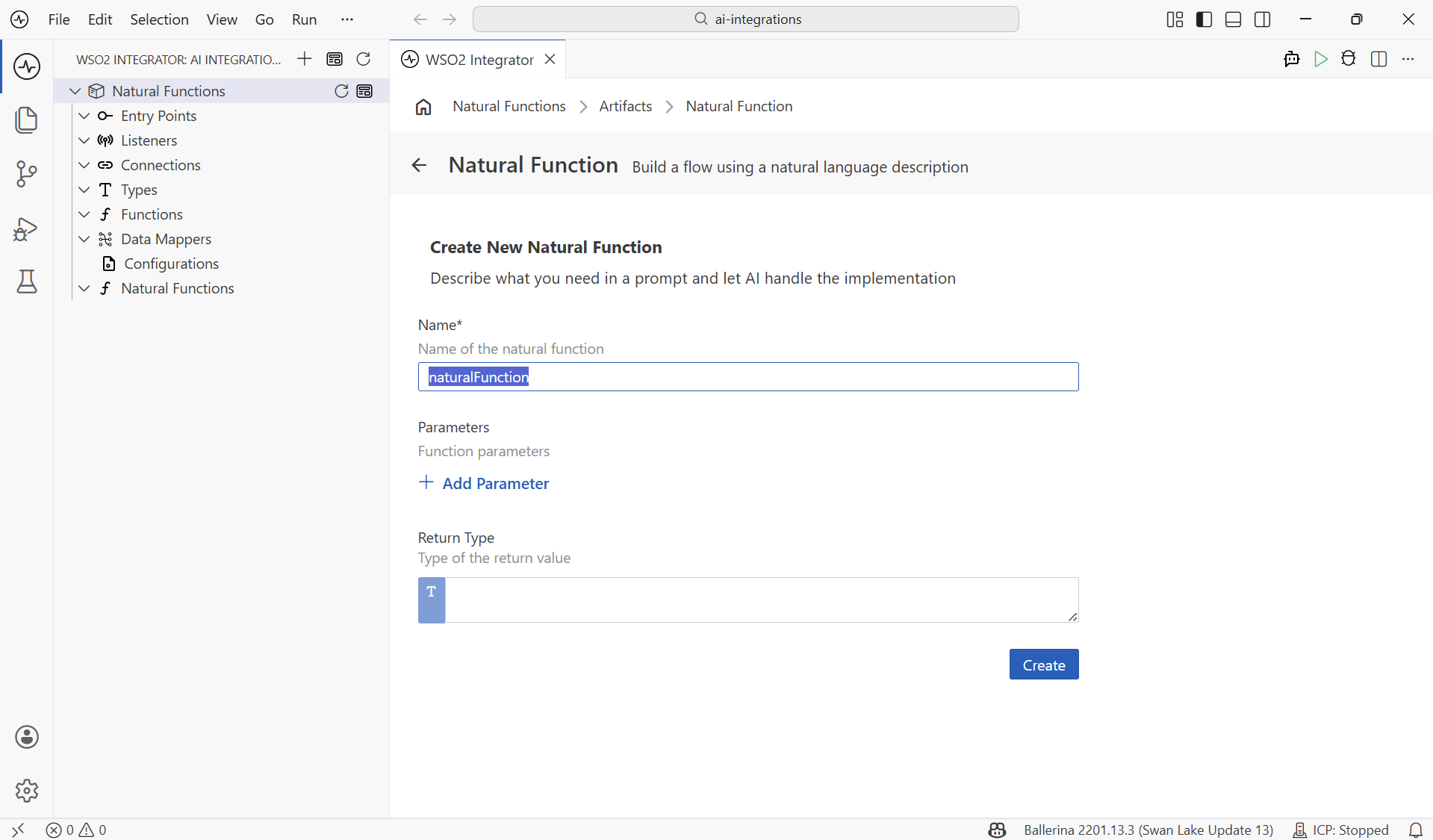
| Field | What it does |
|---|---|
| Name | Function identifier, in camelCase. |
| Parameters | Zero or more typed inputs. Each parameter is a {type, name, description} triple. |
| Return Type | The shape of the value the function produces. Drives the JSON schema sent to the LLM. |
Adding a Parameter
Click + Add Parameter. The inline dialog asks for a type, a name, and a short description that is surfaced both to the LLM (as part of the schema) and to callers in WSO2 Integrator when they bind arguments.
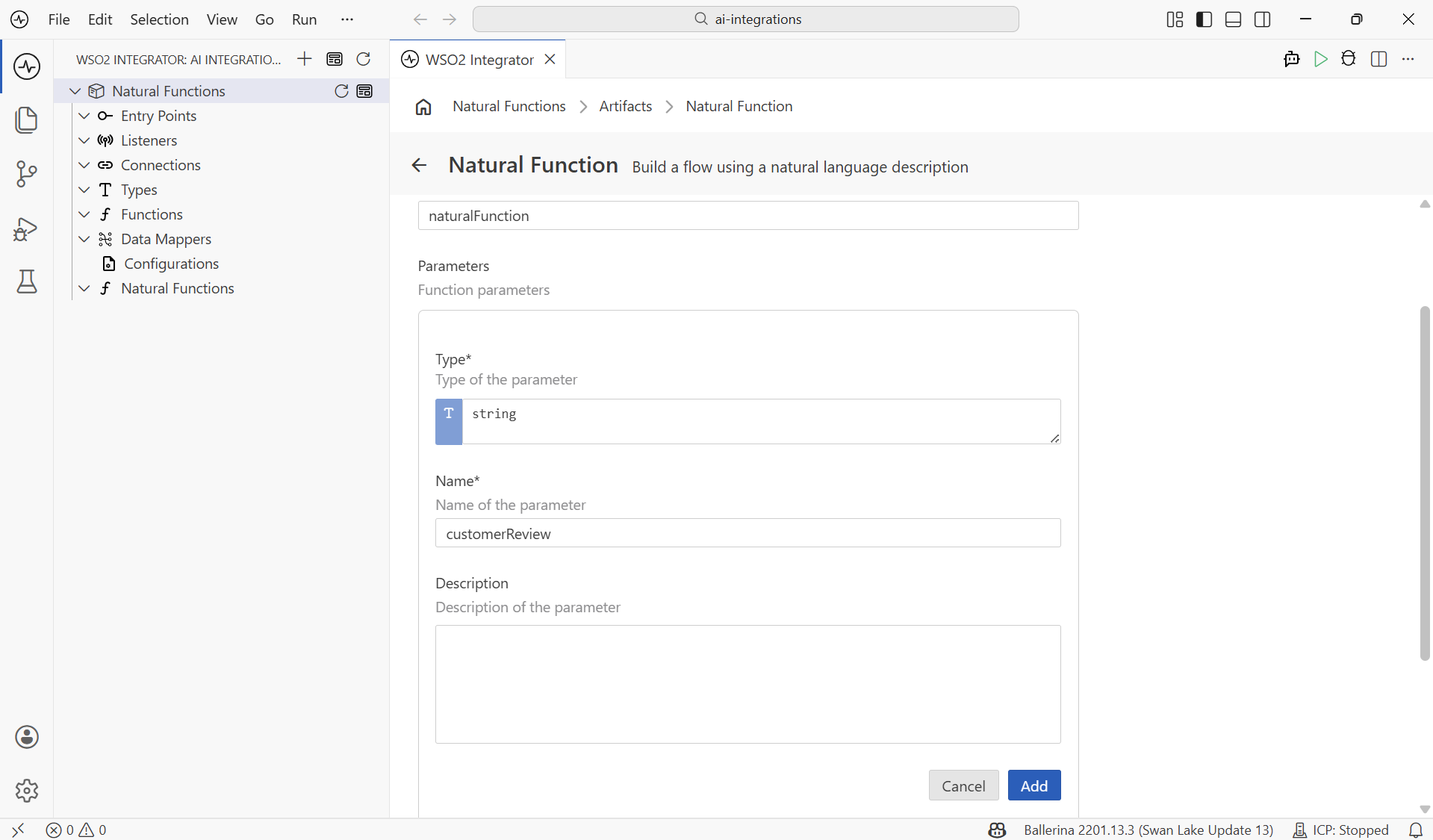
Choosing a Return Type
Click Return Type. The picker offers primitives, plus Create New Type and Open Type Browser.
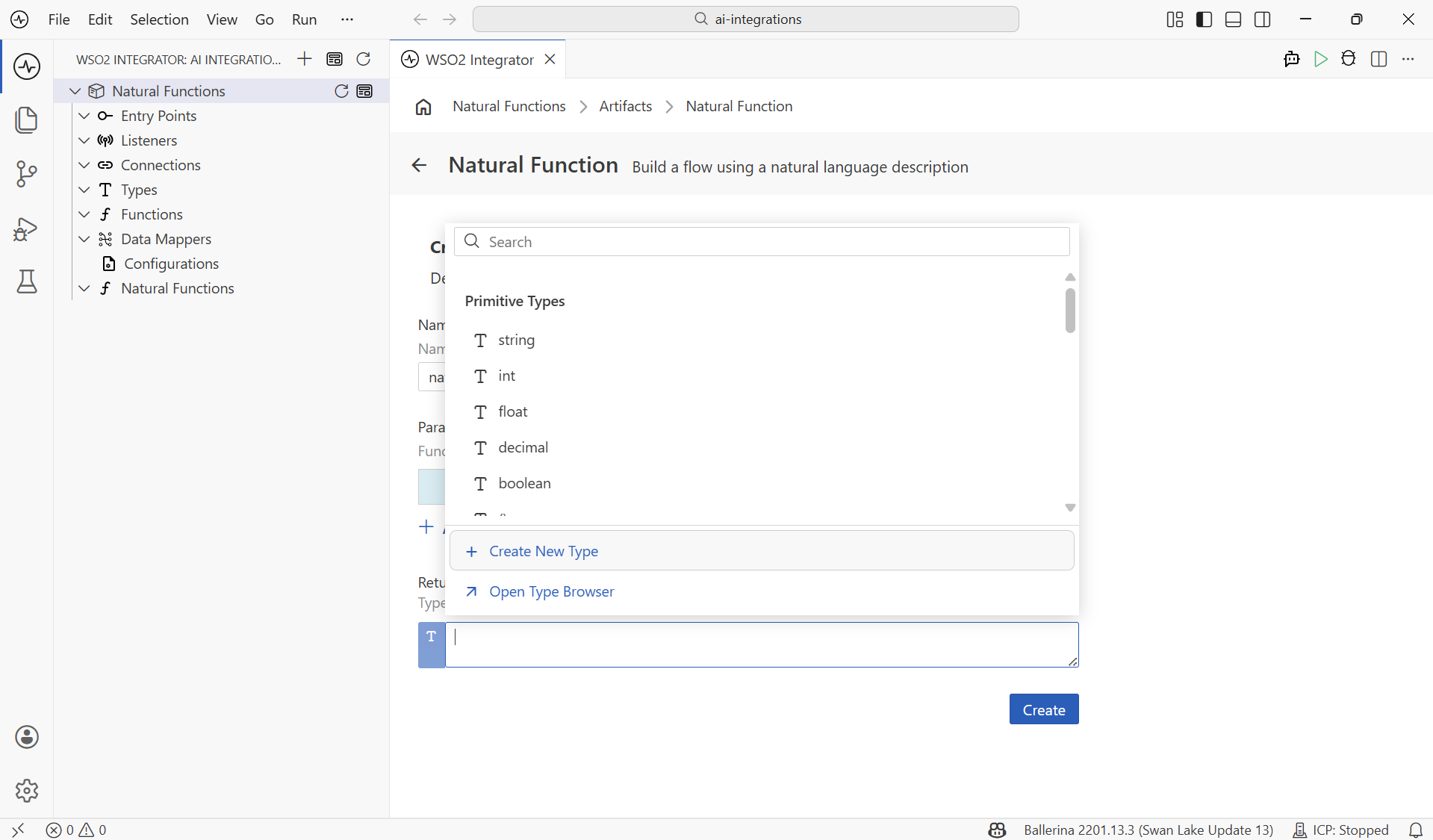
For most natural functions you want a record so each output field is named and typed. The Create New Type dialog has two tabs:
-
Create from scratch: pick
Record, name the type, and add fields with types and descriptions.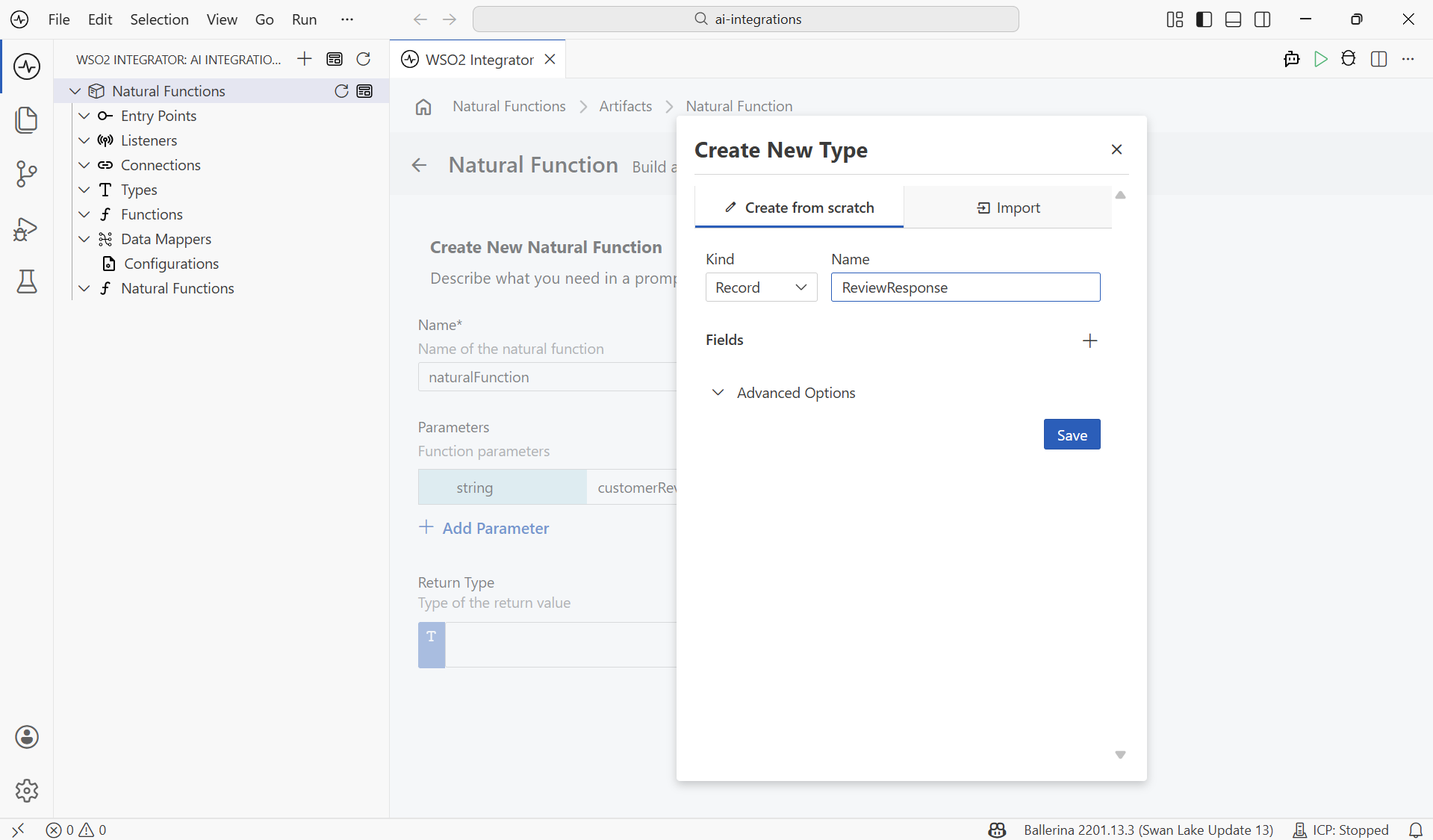
-
Import: paste a JSON sample (or load a
.jsonfile) and WSO2 Integrator infers the record type, including nested records and arrays. This is the fastest path when you already have an example response.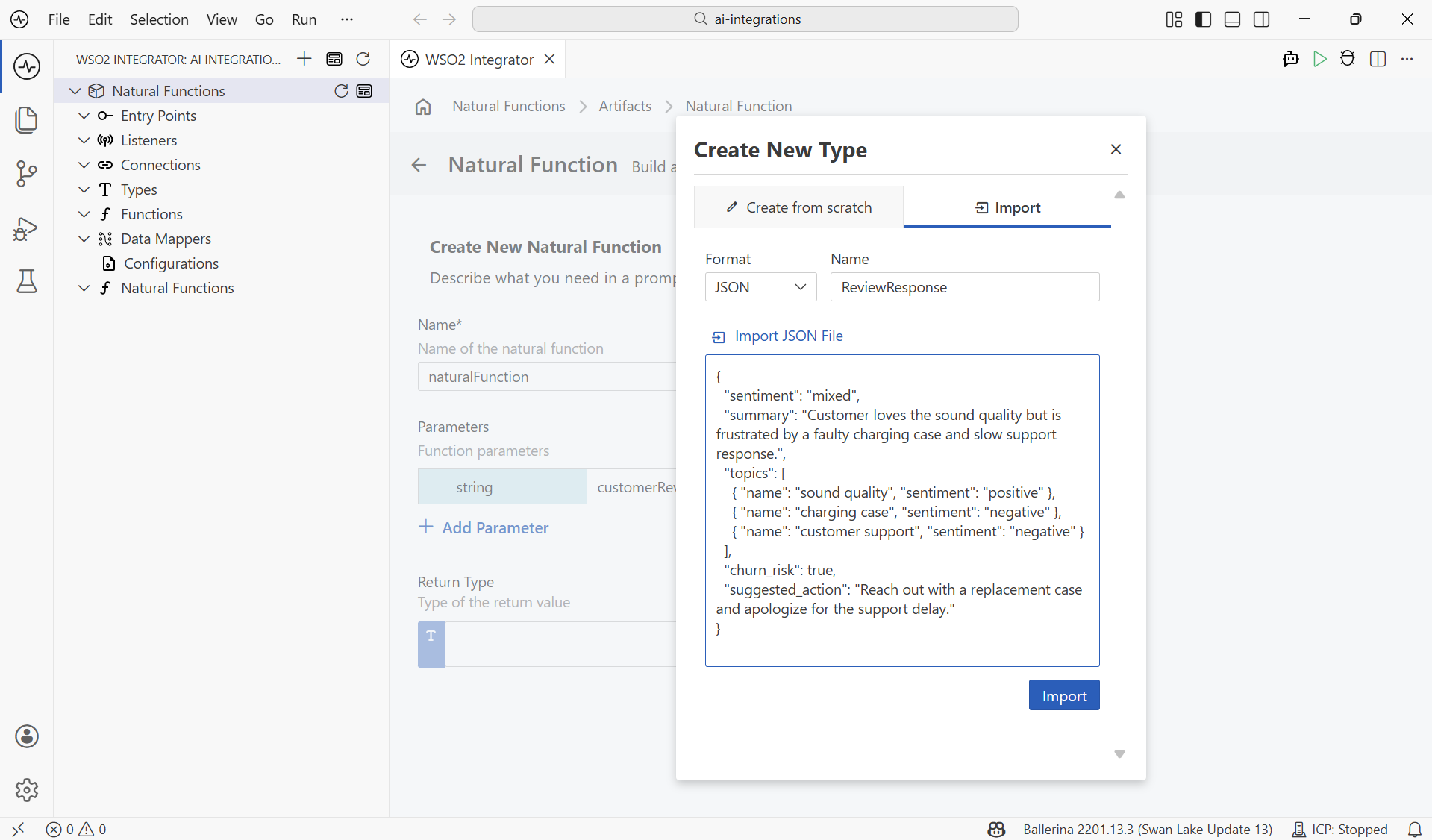
The new type is selected automatically as the function's return type. With at least a name, one parameter, and a return type, click Create.
WSO2 Integrator generates the source and opens the function in the Flow Designer with three additions in the sidebar: a _<functionName>Model connection, the type(s) under Types, and the function under Natural Functions. The flow itself is just a single Prompt node between Start and the end.
The Prompt node has two controls: the pencil (top-right) edits the prompt body, and the cog (right of the node) configures the model provider.
Configuring the Model Provider
When you create a natural function, WSO2 Integrator automatically binds it to the Default WSO2 Model Provider, so the function can run as soon as it is created. To swap to a different model provider, hover the cog on the right of the Prompt node and click Configure Model Provider.
If a provider already exists in the project, pick it from the dropdown and click Save. If not, click + Create New Model Provider and pick from the catalogue (OpenAI, Anthropic, Azure OpenAI, Default WSO2, …).
Adding a provider, the per-provider form fields, the supported models, and the advanced HTTP knobs are all documented in AI Connections and Stores: Model Providers. Every natural function, direct LLM call, RAG generate node, and AI Agent in the project shares the same provider connections.
Writing the Prompt
Click the pencil icon at the top-right of the Prompt node. An inline editor opens; click Expand Editor for the full Markdown editor with formatting tools.
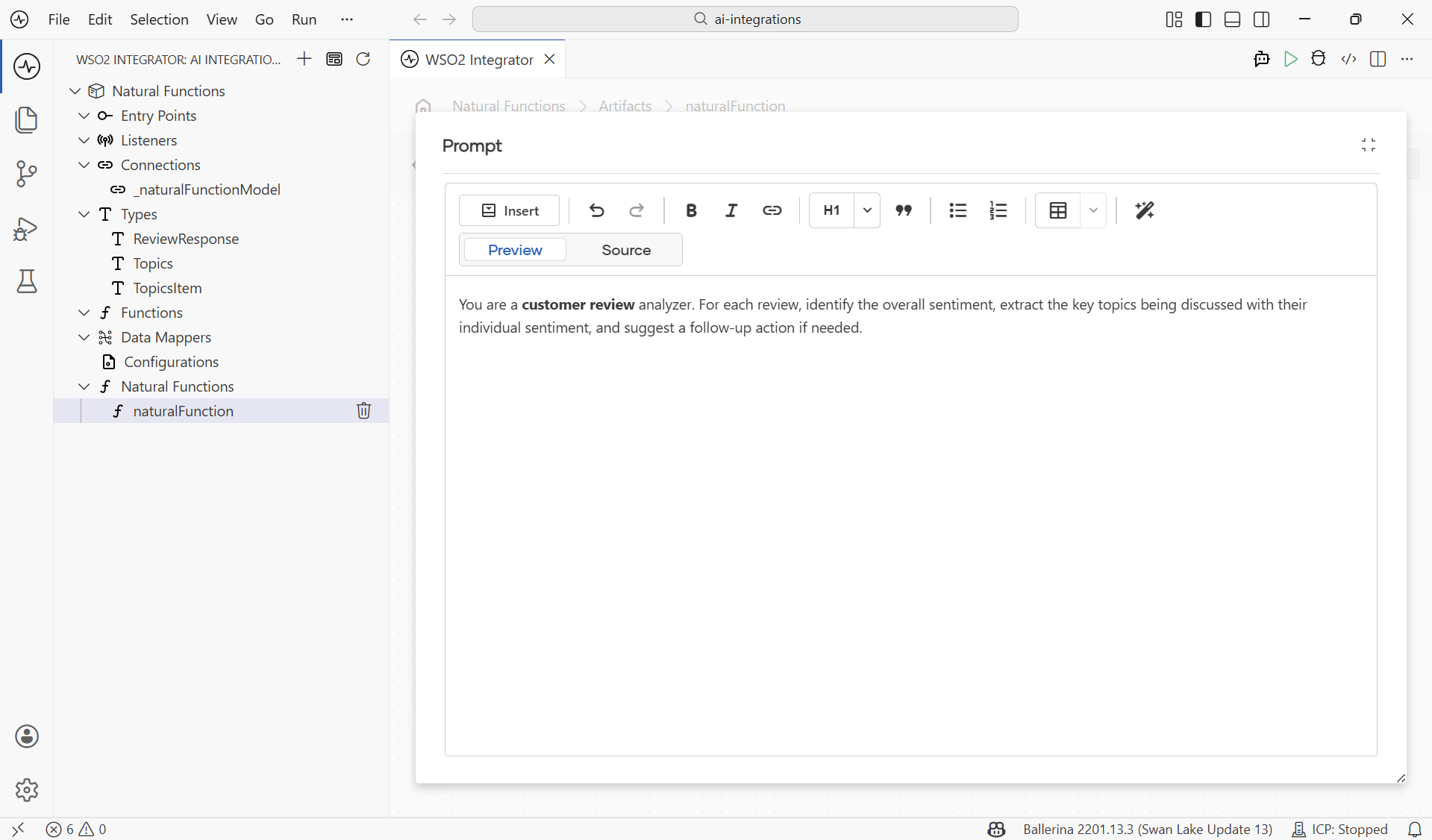
| Toolbar action | Effect |
|---|---|
| Insert | Insert a parameter reference for any in-scope variable, or a snippet (block quote, code block). |
| Bold / Italic / Underline | Inline emphasis. The model treats Markdown emphasis as a hint to weight that term. |
| H1, lists, blockquote, table | Structural Markdown. Useful for Rules:-style lists and Examples:-style sections. |
| Preview / Source | Toggle between rendered Markdown and the literal text the runtime sends. |
Click Save. The body collapses back into the Prompt node.
Typed Return Inference
The headline feature of natural functions is this: the return type is the contract. When the runtime processes a natural function, it:
- Looks at the declared return type.
- Builds a JSON schema from that type and includes it in the LLM call.
- Parses the model's response back into a value of that type.
If the model produces something that doesn't match the type, the runtime asks it to retry once with a refined prompt; if parsing still fails, it returns an error. By the time a successful call returns, every required field is present and every value has the right shape. There is no "the LLM forgot a field" failure mode further down the flow.
Picking a Type
| Return type | When to use it |
|---|---|
string | Free-form text. |
int, decimal, boolean | A scalar parsed from the model's reply. |
Record (closed record \{| ... |\}) | Named, typed fields. The most common choice. |
Array (Topic[]) | A list. |
Union ("a"|"b"|"c" or Approved|Rejected) | The variant the model picked, parsed into the right shape. |
Tips for Result Types
-
Use closed records (
record \{\| ... \|\}) when you want exactly these fields. The schema is tighter, the parser is stricter. -
Use enum unions for fixed-set values, such as
"positive"|"negative"|"neutral". The model is constrained to pick one. -
Add field descriptions. Each field in the type editor takes a short description; that description is included in the JSON schema sent to the LLM. Visualised in the Types editor, a record with a nested array (
Topics) and a row record (TopicsItem) looks like this: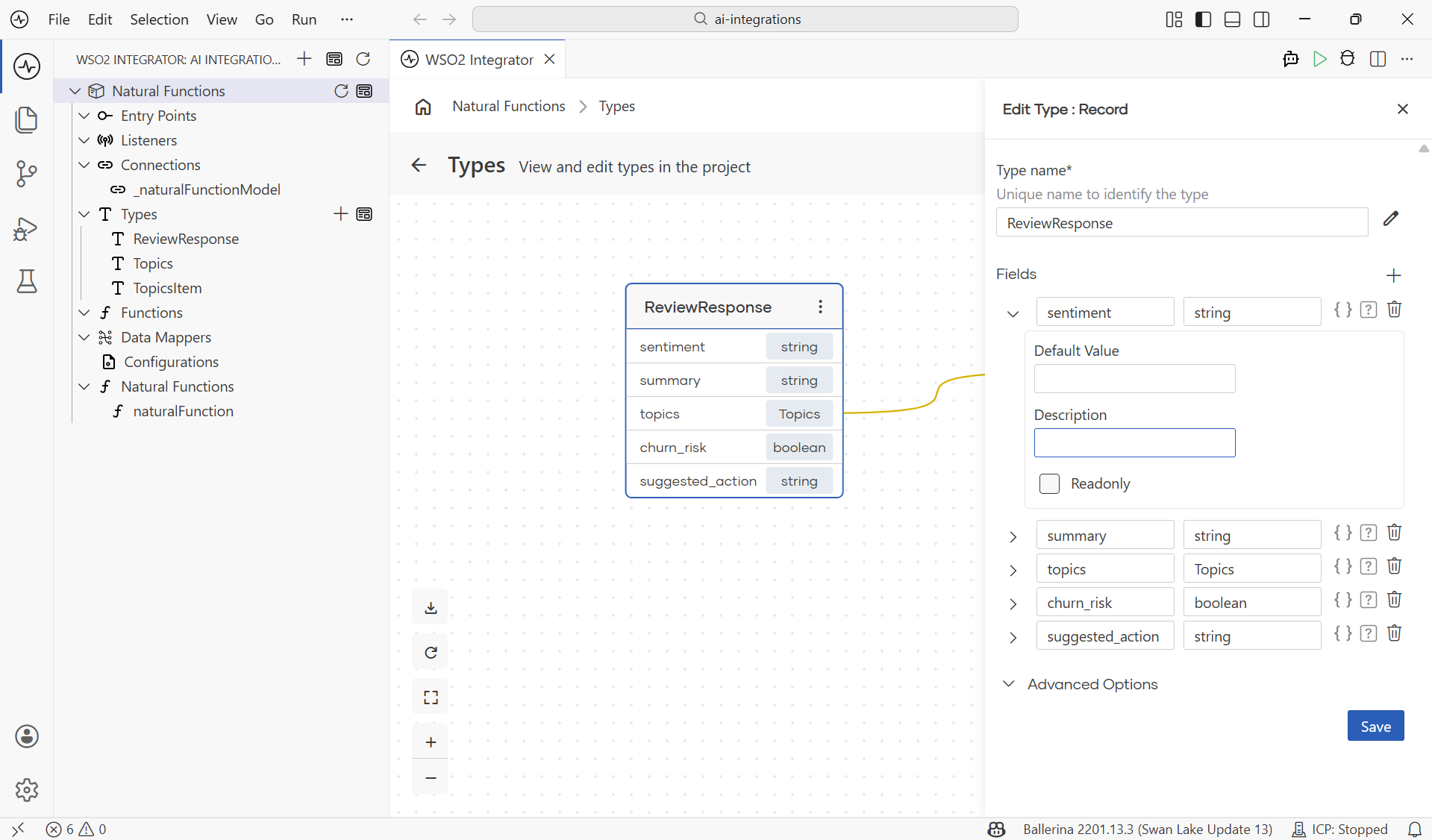
-
Keep nesting shallow. One level of records and arrays is fine; two starts to confuse smaller models; three usually benefits from being split.
Schema is derived from the type
Because the type already drives the schema, you don't have to write "please return JSON with fields …" in the prompt. It is redundant when it agrees with the type, and brittle when it doesn't. Set the return type and leave the schema out of the prompt. The prompt describes the task; the type drives the shape.
Calling from a Flow
Once the function exists, calling it from a flow is one step.
- Open a resource, automation, or function flow in the Flow Designer.
- Click + between two nodes.
- In the Add Node panel, expand the AI category and click Call Natural Function.
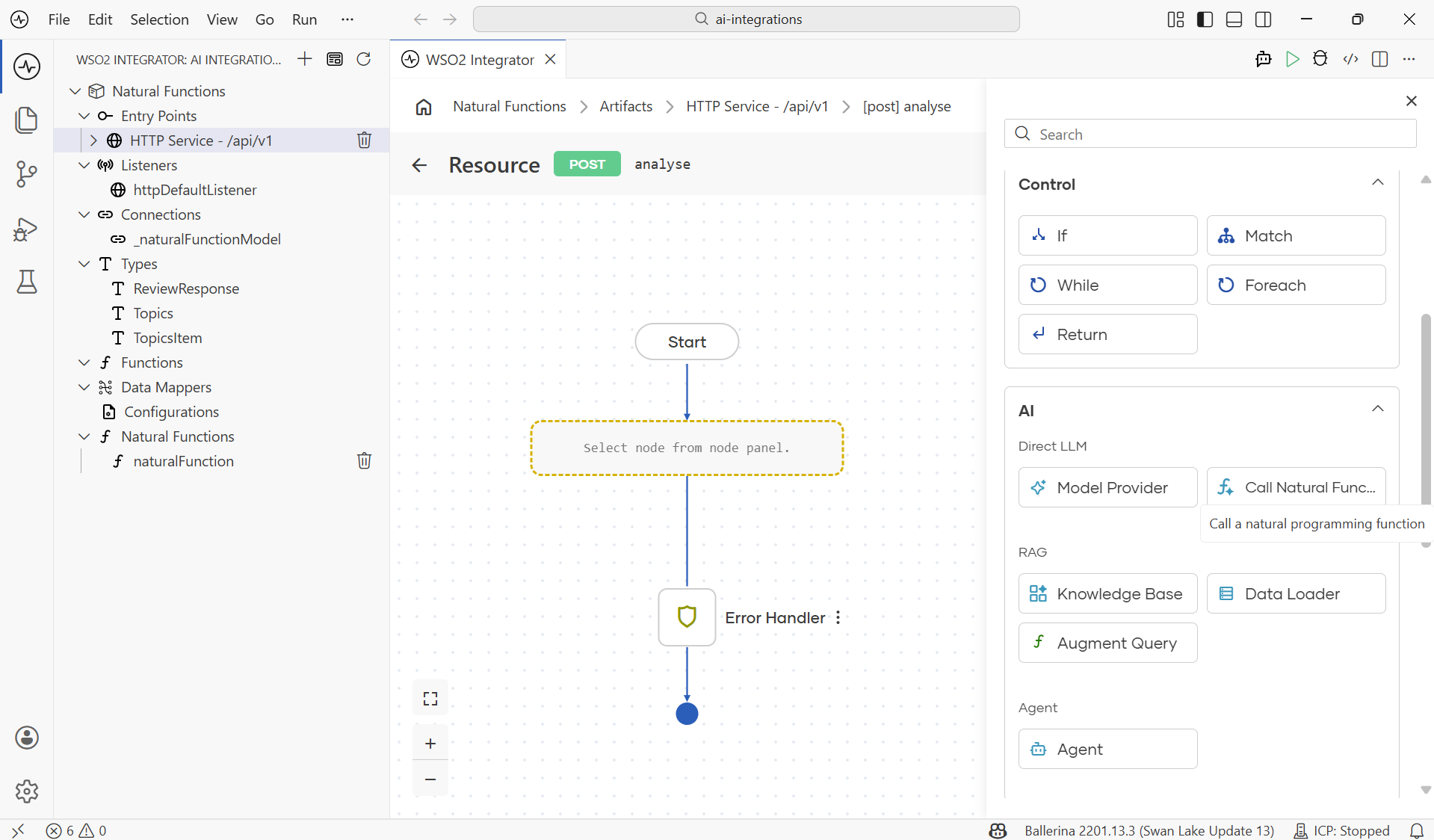
-
The Natural Functions picker lists every natural function in the current integration. Pick one.
-
The configuration form opens. Each parameter on the function becomes a row; bind it to an in-scope value. Result is the variable name that holds the typed return; Variable Type is locked to the function's declared return type.
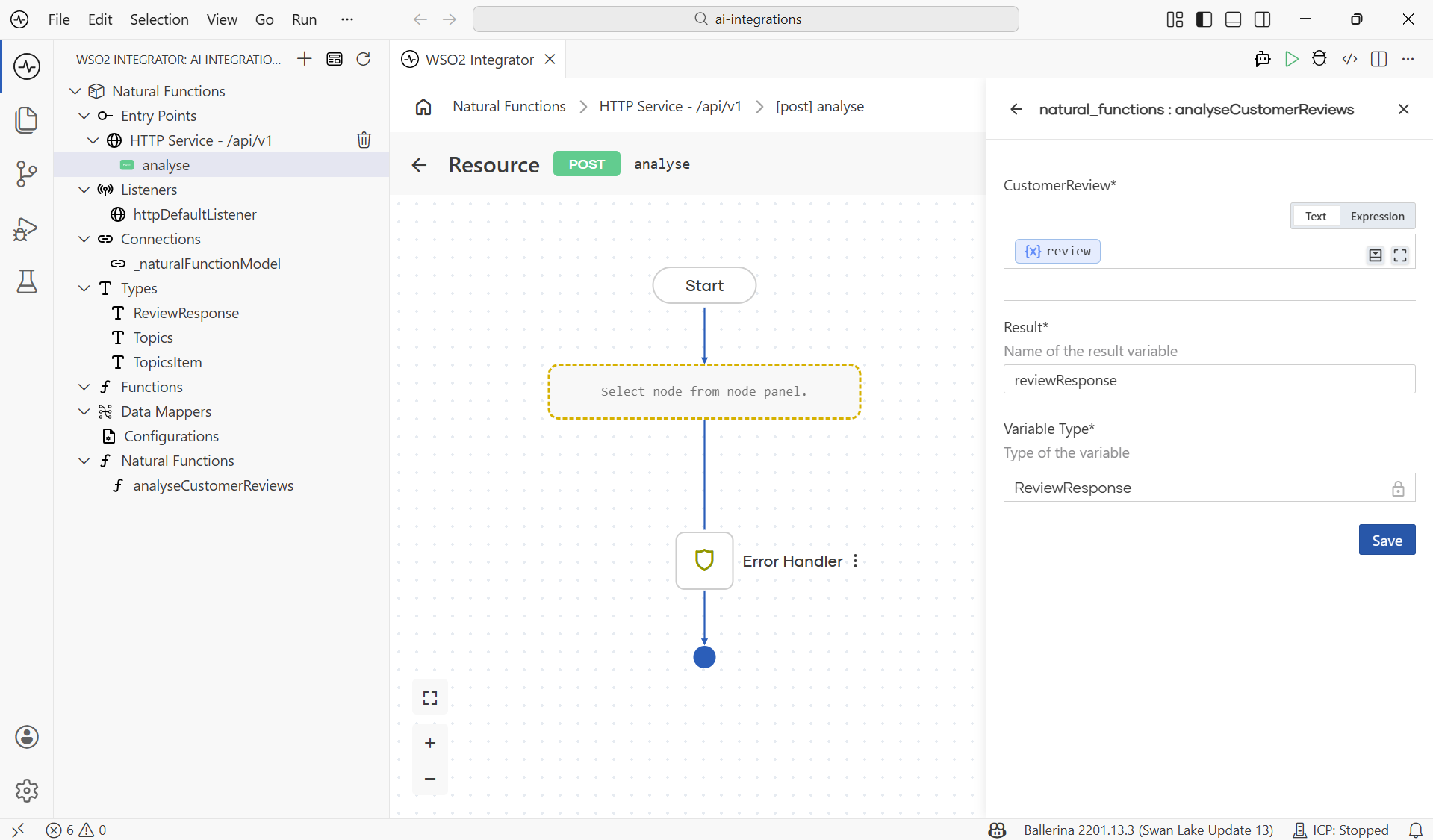
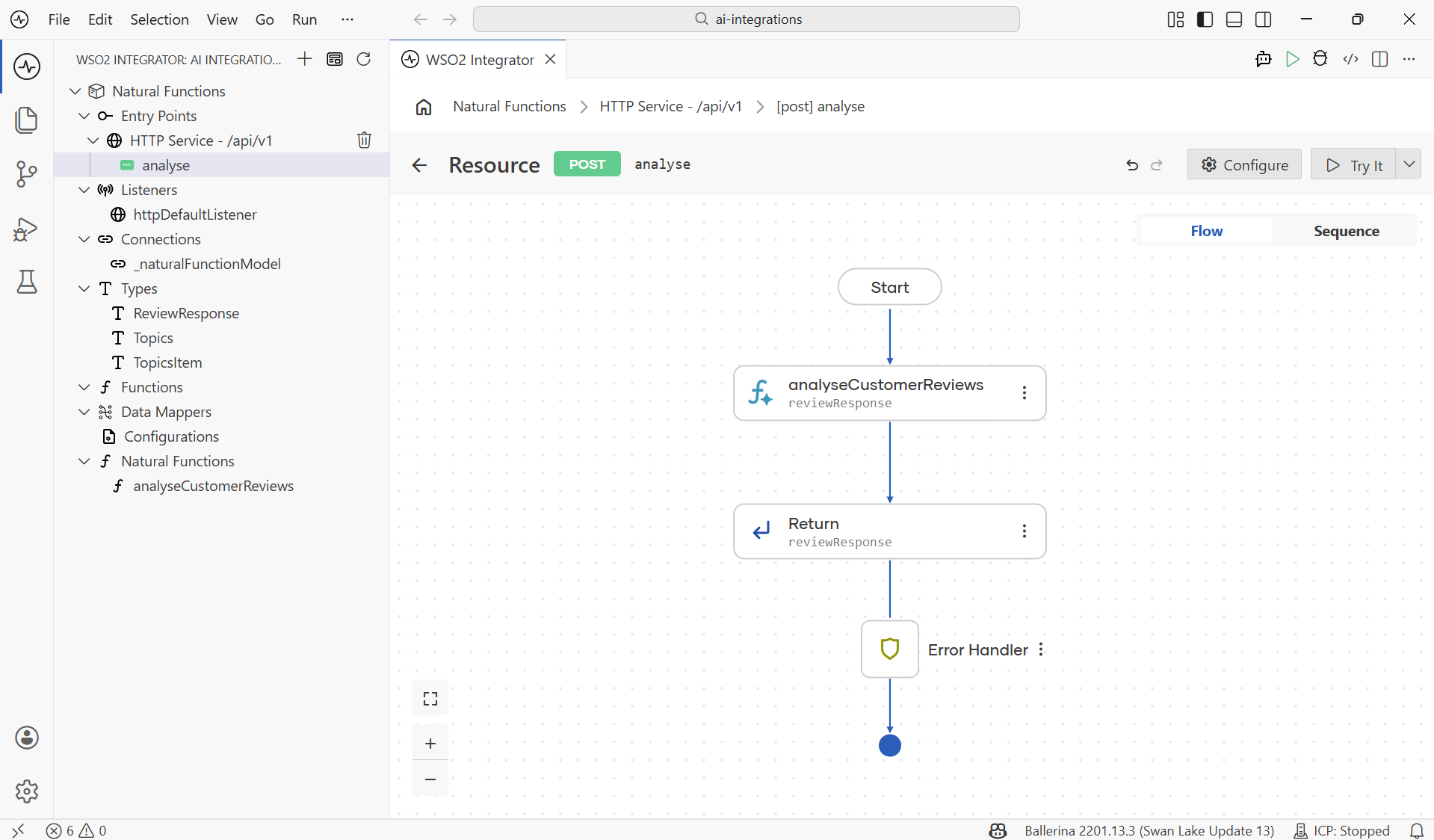
- Click Save. A new node appears in the flow, named after the bound result variable. Use that variable like any other typed value: return it from an HTTP resource (it becomes the JSON response), branch on a field with
Match, transform it withMap Data, or pass it to another node.
Calling from Another Function or Agent
Natural functions are first-class functions, so they can call each other from inside any flow. Open a function flow, select + Add Node > Statement > Call Function, and pick the natural function from the picker. Two-step prompts (extract first, then transform) are often cleaner than one giant prompt; each step has its own type and can be tested in isolation.
A natural function can also be wired up as an agent tool: the agent decides whether to call it, and the natural function's own model handles the call with a tighter prompt and stricter return type.
What's Next
- Customer Review Analyzer with Natural Function (Tutorial) — end-to-end tutorial that builds a
POST /api/v1/analyzeservice using everything on this page. - Model Providers — switch providers, tune temperature, max tokens, and retries for the Prompt node's connection.
- Direct LLM Calls — when you only need a single in-flow call without packaging it as a function.
- AI Agents — when natural functions become tools an agent can choose to call.