AI Agents
AI agents are software components that use large language models (LLMs) to understand requests, make decisions, and perform actions autonomously. They can interact with users, invoke tools, access external systems, and maintain conversation context to complete tasks.
Components of an AI agent
An AI agent is composed of four core components that enable reasoning, action execution, and context management.
| Component | Description |
|---|---|
| Model | The Large Language Model (LLM) responsible for reasoning and response generation |
| System Prompt | Instructions that define the agent’s role, behavior, constraints, and interaction style |
| Tools | Functions, APIs, connectors, or services that the agent can invoke during execution |
| Memory | Context and conversation state maintained across interactions |
Without tools, the agent is limited to generating responses without interacting with external systems. Without memory, the agent cannot maintain context across multi-turn conversations.
In WSO2 Integrator, AI agents can be visually designed, configured with tools and memory, connected to model providers, and exposed through APIs or listeners.
What an agent looks like in the canvas
The agent is represented as a simple integration flow consisting of the following blocks:
- Start
- AI Agent
- Return
The AI Agent block provides a centralized configuration interface for defining the agent’s behavior and capabilities.
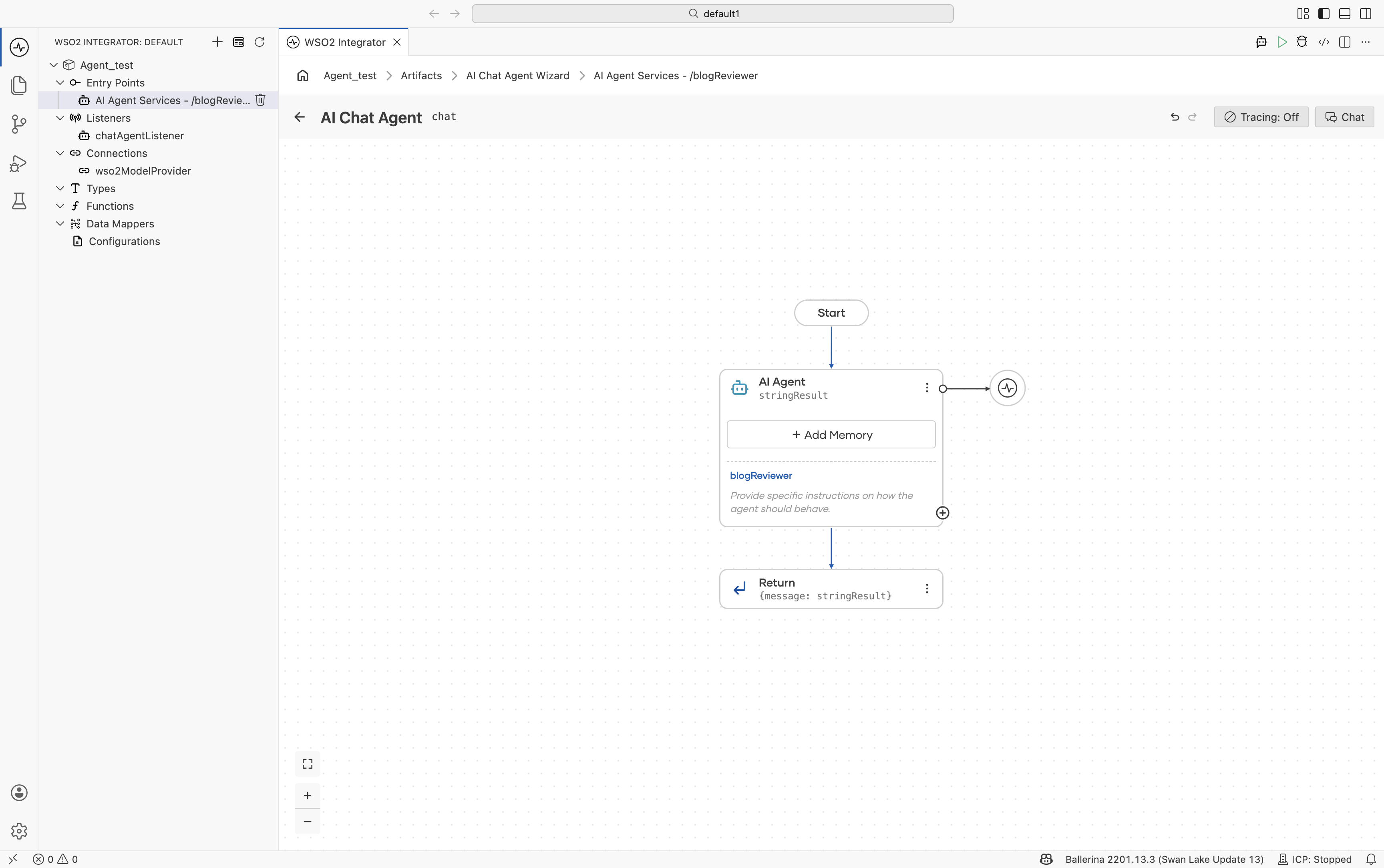
The AI Agent block allows you to configure the following components of the agent:
- System prompt and agent behavior: Click the AI Agent block to open the configuration panel, where you can configure the agent role, instructions, query input, and response mapping.
- Memory configuration: Use the Add Memory option to configure conversational or persistent memory for the agent. For more information, see Memory.
- Tools: Use the + button on the AI Agent block to add tools and integrations that the agent can invoke during execution. For more information, see Tools.
- Model Provider Configuration: Click the attached model provider node (for example,
wso2ModelProvider) to configure the LLM provider and model settings used by the agent. For more information, see Model Providers.
Try it and run
The top-right controls in the agent canvas allow you to interact with and test the agent directly within WSO2 Integrator.
| Button | Description |
|---|---|
| Tracing: Off / On | Enables or disables OpenTelemetry tracing for the agent |
| Chat | Opens an in-IDE chat interface for interacting with the agent |
The chat interface reuses the same session across interactions, enabling memory-aware conversations during development and testing.
Common pitfalls
| Symptom | Likely cause | Fix |
|---|---|---|
| Agent doesn't pick the tool you expected. | Tool description is vague, or the system prompt doesn't mention when to use the tool. | Tighten the tool description; add a one-liner trigger condition in Instructions. |
| Agent's first response is empty, second is fine. | The default WSO2 Model Provider isn't fully signed in yet. | Run Ballerina: Configure default WSO2 model provider from the Command Palette. |
| Agent drifts off-topic over a long conversation. | Memory is full and trimming is dropping the system prompt context. | Lower Max Messages Per Key (MSSQL) or use a larger-context model. |
| Same input produces wildly different responses. | Temperature is high on the model provider. | Lower temperature on the provider's Advanced Configurations. |
bal run fails with "default model provider not configured". | wso2aiKey missing from Config.toml. | Run Configure default WSO2 model provider again. |
What's next
- Creating an Agent - Learn how to create and configure agents using the AI Chat Agent Wizard.
- Tools - Add functions, connectors, and integrations to your agents.
- Memory - Configure conversational and persistent memory.
- Observability - Monitor traces, logs, and execution details.
- Evaluations - Test and evaluate agent behavior and response quality.