Complete Human Tasks
When a durable workflow reaches a point only a person can settle, it suspends and puts the work on the Human Tasks page of the Integration Control Plane. Nothing is held open while it waits, so the work can sit there for minutes or for months, and the workflow resumes the moment someone decides it.
Two kinds of work arrive on that page:
-
A task asks a person for something the workflow cannot compute, such as validating an order or judging a claim. You complete a form, and the workflow resumes with what you submit. See Await Human Task.
-
A review activity is a decision attached to an activity rather than a freestanding question. It is raised in two cases:
- After an activity fails, when its retry policy is Human Review, so a person decides whether to retry it. See Human review failed activities.
- Before an activity runs, when a durable agent registered it with Approval Policy set to Human Approval, so a person approves the call first. See Durable agent activities.
- For tasks:
workflow_mgt:view_human_tasksorworkflow_mgt:manage_human_taskspermission to see them, andworkflow_mgt:manage_human_tasksto act on them - For review activities: any Workflow-Management permission to see them, and
workflow_mgt:manage_human_tasksorworkflow_mgt:manage_workflowsto decide them (Workflow permissions)
Reviewers need their roles
A task or review activity is addressed to the roles the workflow declares, and Human Tasks shows a user only the tasks applicable to them. Create each role the workflow names, such as a Finance role on an approval gate, and attach it to the group that holds those users, or the task reaches nobody. See Access control.
Permissions and roles do different jobs. A permission decides whether you may open the page and act at all, and the role name decides which items you see. Holding the permission without a matching role shows you nothing to decide, because the item is not listed for you.
Find your tasks
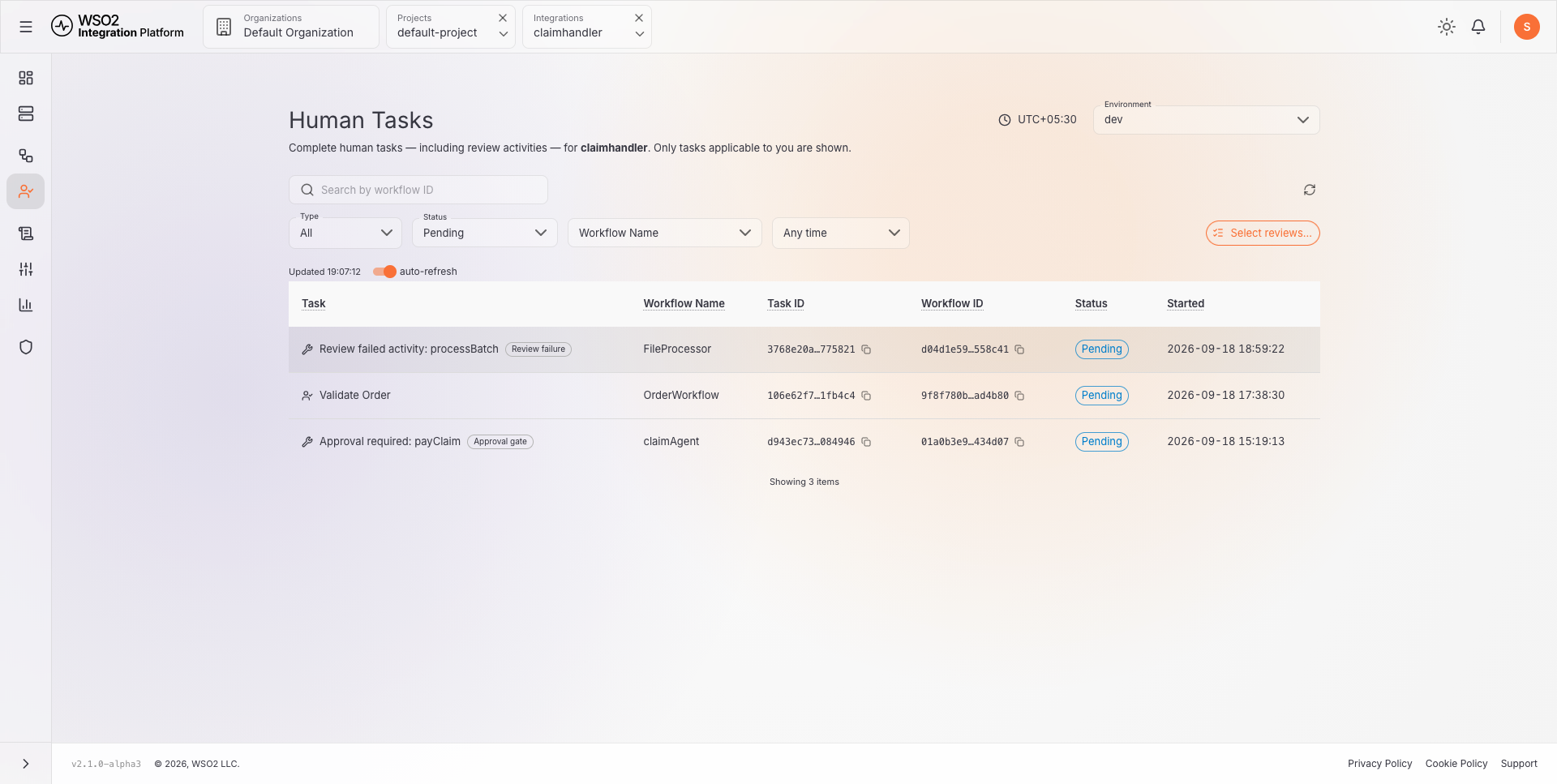
In the integration view, open Human Tasks in the sidebar and pick an environment. The page holds one queue of the work waiting on a person: human tasks and the review activities raised by gated or failed activities. Only the items applicable to you are listed.
Filter the queue
| Control | What it does |
|---|---|
| Search by workflow ID | Narrows the list to the items belonging to one workflow instance. |
| Type | All, Tasks, or Reviews. Shown only when you can see both kinds. |
| Status | Pending when the page opens. Also All, Completed, Failed, Canceled, and Terminated. |
| Workflow Name | Narrows to one workflow definition. |
| Time range | Narrows to the items started in a period. Any time while the status is Pending, and Past 3 days for any other status, until you pick a range. |
| Integration | Narrows to one integration. Shown at project level when more than one integration is in scope. |
| Clear | Appears as soon as a filter differs from its default, and resets them all. |
| Select reviews… | Starts a selection of pending reviews to retry or fail together. It is disabled when the list holds none, because human tasks are completed one at a time through their own form. |
Beside the filters, the refresh icon fetches immediately, and the auto-refresh toggle next to the Updated time keeps the view checking for fresher data every 30 seconds. Turn it off and the view updates only when you refresh it.
Read the list
| Column | Description |
|---|---|
| Task | The item's title, with an icon for its kind. A review activity also carries a badge reading Approval gate, Review failure, or Review. A Read-only badge means you can see the item but hold no matching role to complete it. |
| Workflow Name | The workflow definition the parent instance runs. |
| Integration | The integration whose runtime owns the item, resolved from its task queue. Shown at project level when more than one integration is in scope. |
| Task ID | The item's own identifier, which the management API and audit records use to name it. |
| Workflow ID | The parent workflow instance waiting on this item. |
| Status | Pending, Completed, Failed, Canceled, or Terminated. |
| Started | When the item was created. |
Click a row to open it. A human task opens the form described in Complete a human task; a review activity opens the decision panel described in Decide a review activity. The footer counts the items loaded so far and offers to load more when the queue runs past one page.
Statuses
| Status | Meaning |
|---|---|
| Pending | Waiting for someone to decide it. |
| Completed | Someone decided it and the workflow resumed. A rejected review also completes; its failure is what travels to the workflow. |
| Failed | A human task that was failed through Mark as Failed, or that reached its deadline before anyone acted. |
| Canceled | Retired without a decision, for example because the run it belonged to closed. |
| Terminated | Ended without a decision when the underlying task or its run was terminated. |
Only a pending item can be decided. A completed, failed, canceled, or terminated item still opens, but it opens read-only, with its decision and result recorded instead of the action cards.
Complete a human task
Open a human task from the queue. The panel gathers what you need in order to answer it.
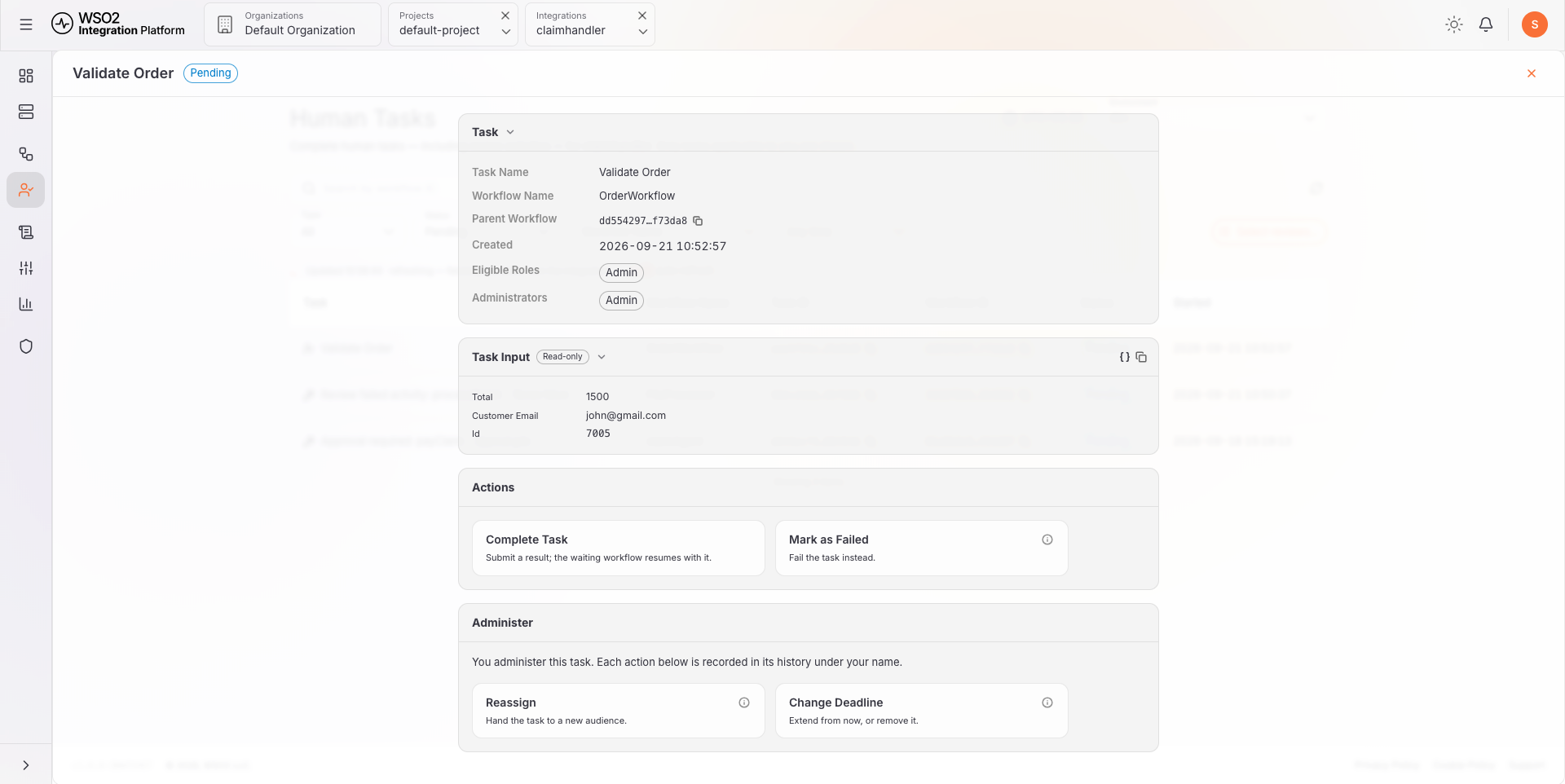
| Card | What it holds |
|---|---|
| Description | The context the workflow supplied. Shown only when the task carries one. |
| Task | Task Name, the Workflow Name and Parent Workflow it belongs to, when it was Created, the Eligible Roles that may complete it, and the Administrators who may reassign it or change its deadline. Each row of roles is shown as one chip per role. |
| Task Input | The payload the workflow sent with the task, read-only, one row per value. Use the braces icon to read it as JSON, or the copy icon to copy it. |
| Actions | Complete Task and Mark as Failed. Shown while the task is pending, to users holding workflow_mgt:manage_human_tasks. |
| Administer | Reassign and Change Deadline. Shown while the task is pending, to its administrators who also hold workflow_mgt:manage_human_tasks. See Administer a task. |
Submit a result
Complete Task opens the form the workflow expects, under the line The result the workflow resumes with.
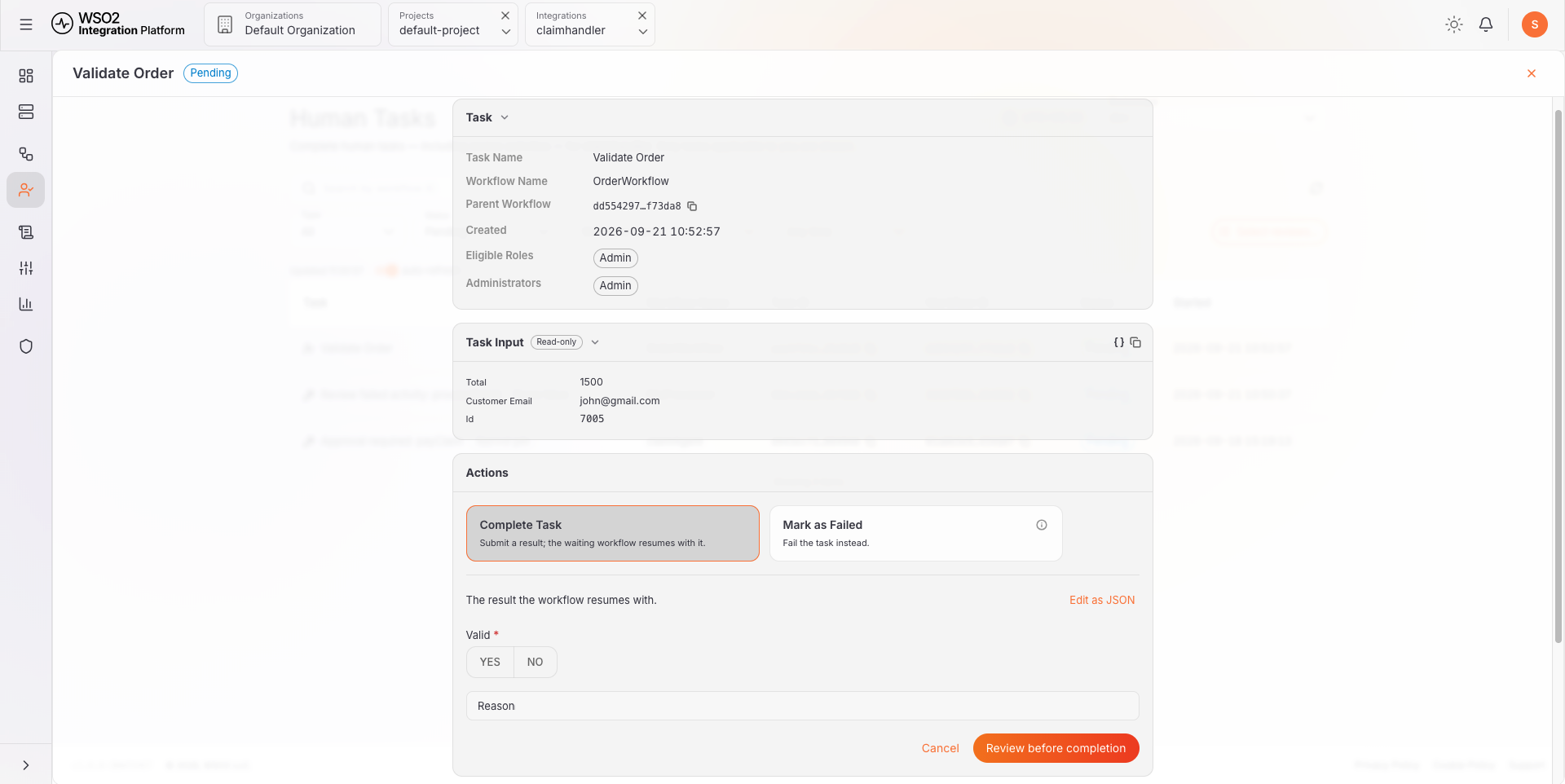
The fields come from the result type the workflow declared for the task. See Await Human Task. Only a record result type has a form. Any other type, such as a plain boolean, opens a Result (JSON) box with the note "This task declares no result schema", and you enter the value itself, for example true.
public type OrderValidation record {|
    boolean valid;
    string reason = "";
|};

OrderValidation decision = check ctx->awaitHumanTask("Validate Order", orderInfo,
        userRoles = "Admin");
That record renders as a Valid Yes/No toggle and a Reason text box. Each declared type maps to a control:
| Type in the workflow | Control in the console |
|---|---|
string | Text box |
| Enum or union of string constants | Dropdown of the allowed values |
int, decimal, float | Text box validated as a number |
boolean | Yes/No toggle |
| Nested record | An indented group of that record's own fields |
Open record, map, or array | Multi-line box where you enter JSON |
Required fields carry a red asterisk. Edit as JSON swaps the form for a raw editor carrying the values you have entered so far, which is useful when a value does not fit the generated controls; the raw text is then submitted exactly as typed, and Back to form returns to the fields. A task that declares no result schema opens in that raw editor from the start.
Review before completion shows the exact result to be submitted and asks you to confirm it. Complete Task on that dialog sends it, and the waiting workflow resumes with it. The completion cannot be undone.
Keep result records small. Whatever the record declares is exactly what the person on the other end has to fill in, so a decision flag plus a short reason usually reads better than a long form.
Mark a task as failed
Mark as Failed ends the task without a result. A Reason is required and is relayed to the workflow as the failure reason. The task is recorded as Failed, the failure is propagated to the workflow, and the workflow decides what happens next, for example by escalating to another role or by ending the process.
Use it when the task cannot be answered at all. To answer with a rejection the workflow already expects, complete the task with the rejecting value instead, so the run follows its normal rejection path.
Decide a review activity
A review activity names the activity it guards, and its Trigger says why it was raised:
| Trigger | Raised | What you are deciding |
|---|---|---|
| Approval gate — review before the activity runs | Before a gated activity runs, including every activity a durable agent registered with Approval Policy set to Human Approval | Whether the call should be made at all, and with which arguments |
| Review failure — decide the failed activity's retry | After an activity failed | Whether to run it again, with the original or corrected arguments, or to let the failure reach the workflow |
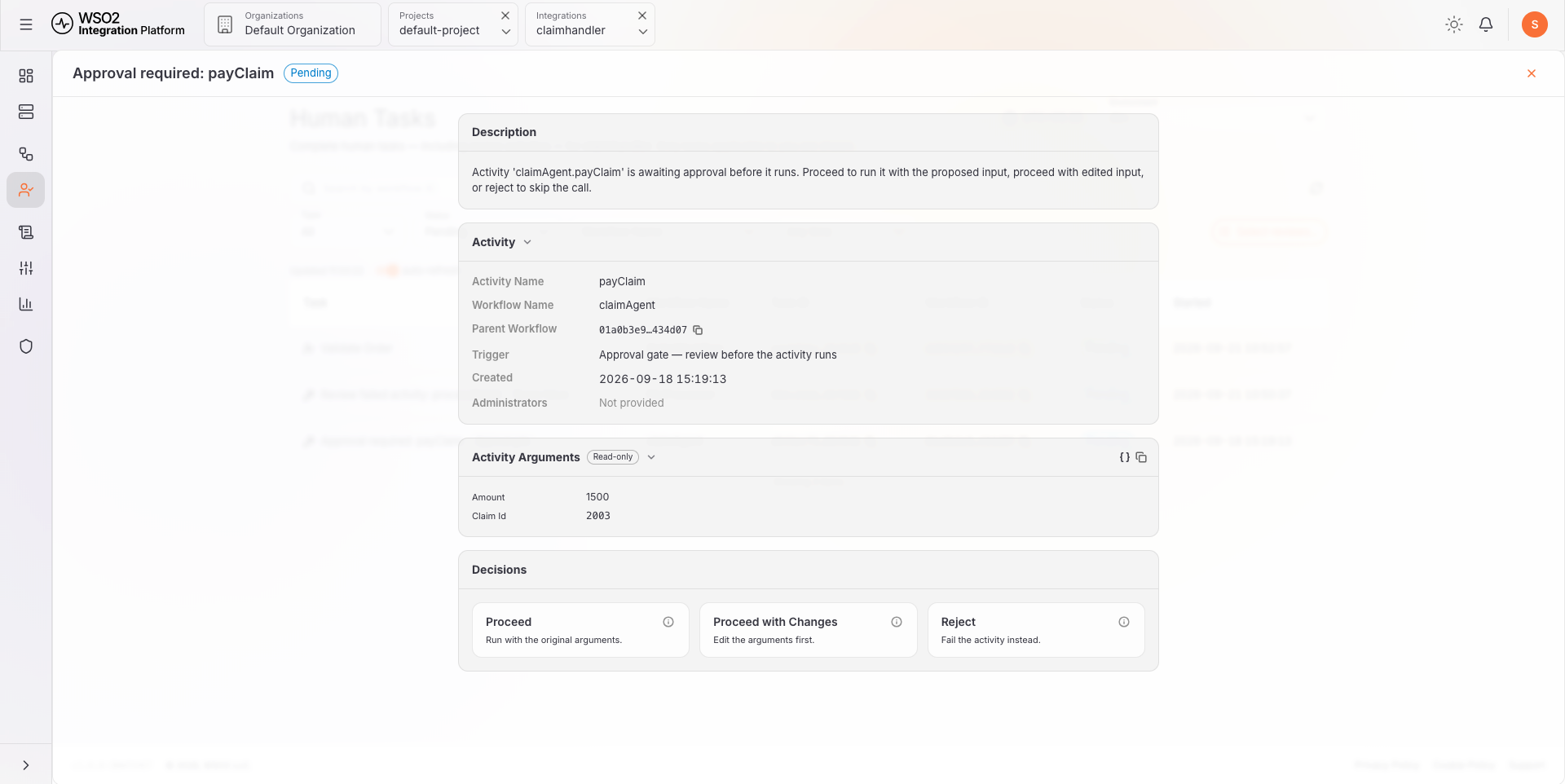
| Card | What it holds |
|---|---|
| Description | What the review is for, naming the activity and, for a failure, the error it raised. |
| Activity | Activity Name, Workflow Name, Parent Workflow, Trigger, Created, and Administrators, plus the Error on a failure review. Administrators reads Not provided when the review names none. |
| Activity Arguments | The arguments the activity would run with, read-only. |
| Decisions | Proceed, Proceed with Changes, and Reject. Shown while the review is pending, to users holding workflow_mgt:manage_human_tasks or workflow_mgt:manage_workflows. |
Proceed
Proceed runs the activity with the arguments exactly as recorded. On a failure review it retries them instead. Confirm Proceed repeats the arguments and warns that the decision cannot be undone, before anything runs.
Proceed with changes
Proceed with Changes opens the arguments for editing, in a form generated from the activity's parameters and pre-filled with the proposed values. It is how you correct a bad argument before the step runs, or fix the input that made it fail.
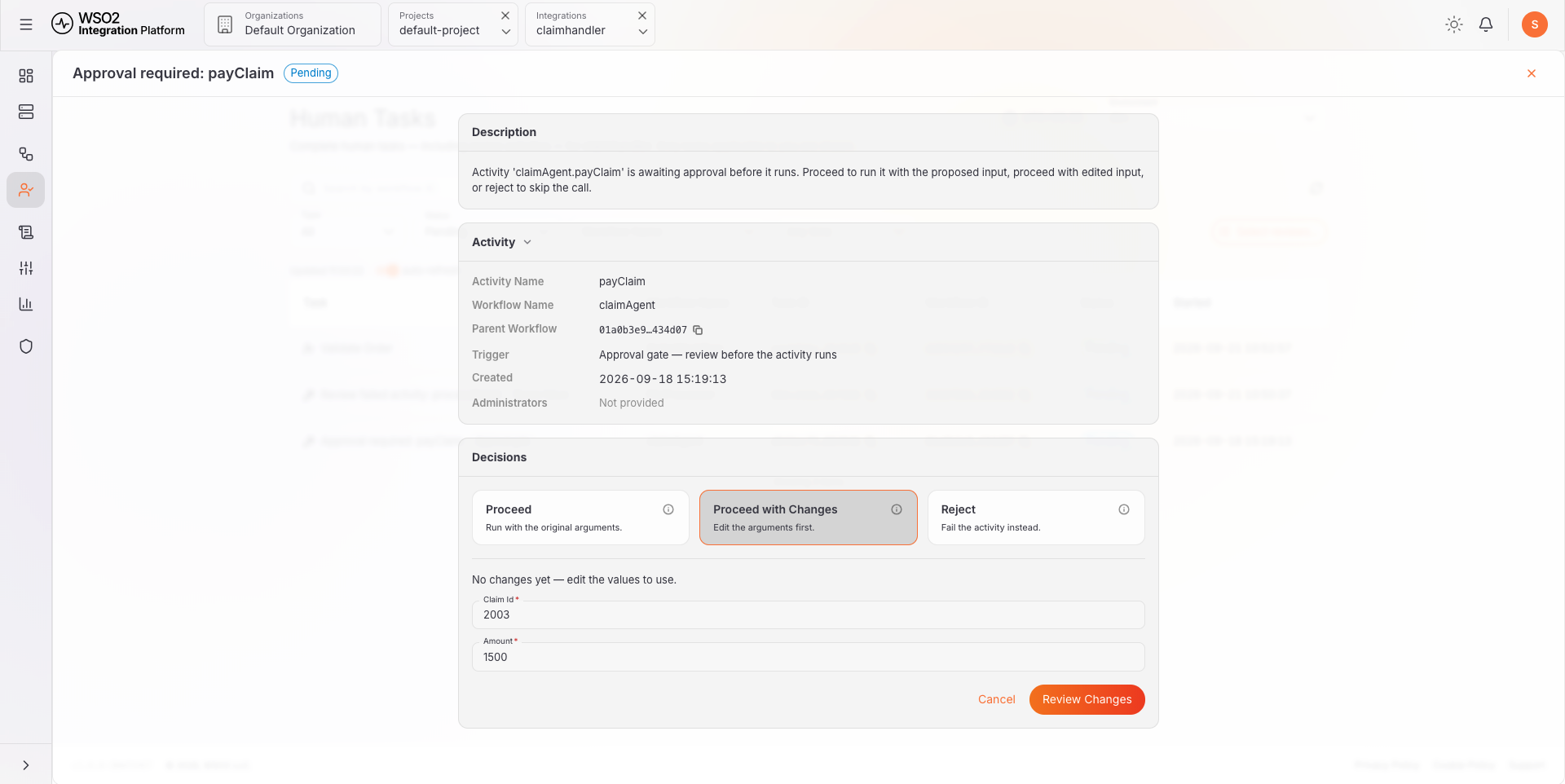
Reject
Reject fails the activity instead of running it. Feedback is optional and is relayed to the workflow as the rejection reason.
Rejecting completes the review as a failure and propagates that failure to the workflow, which decides what happens next. An approval gate you reject never makes the call; a failure review you reject surfaces the original failure. Either way the review itself completes, so a rejected review is listed under Completed with its decision recorded, rather than under Failed.
Review a failed activity
A failure review reads the same way as an approval gate, with one addition: the Error row and the description carry the message the attempt failed with, so you can tell whether a retry is worth it.
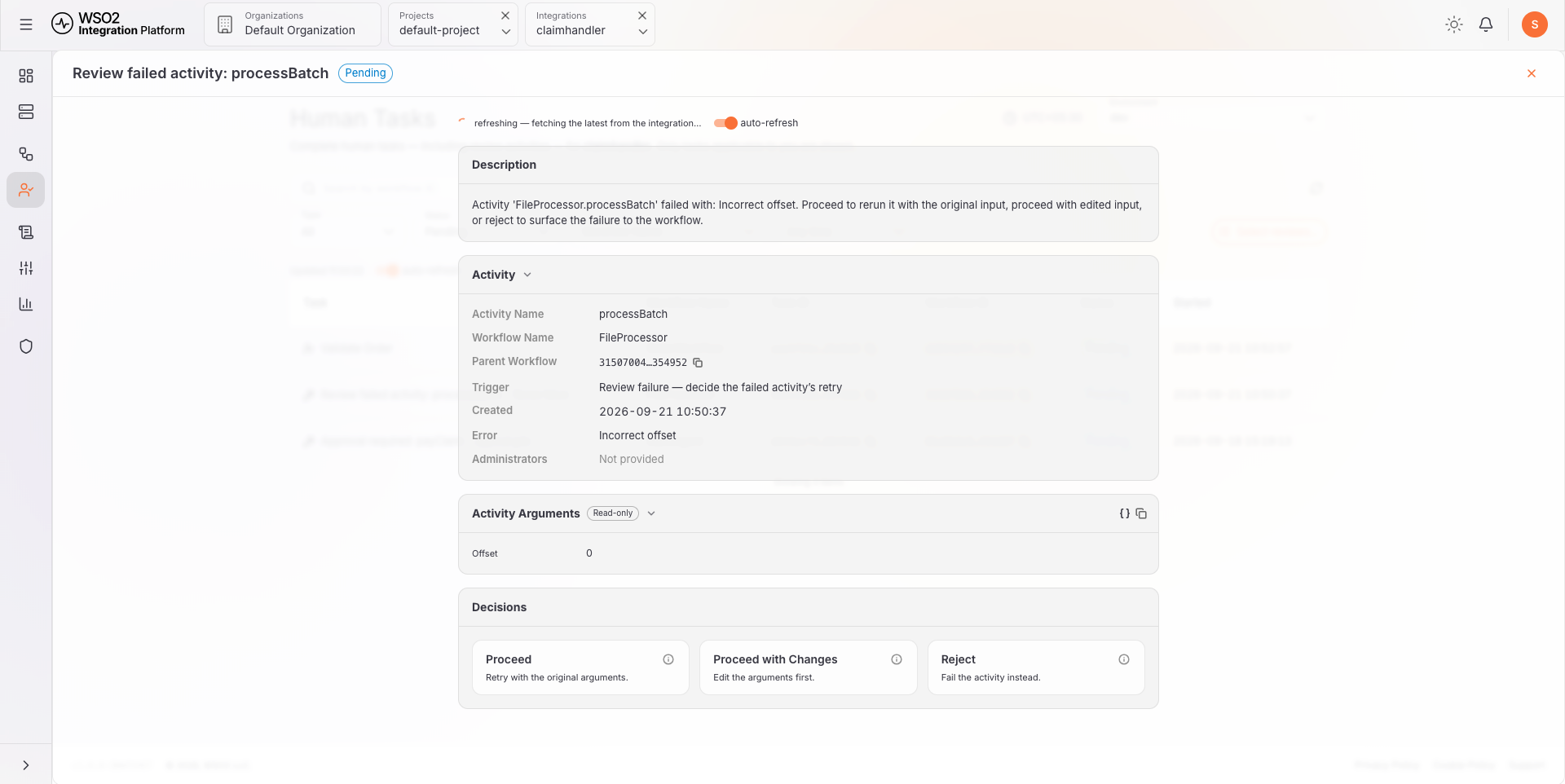
Because the activity has already run, the decisions read as a retry: Proceed retries with the original arguments, Proceed with Changes retries with corrected ones, and Reject lets the failure reach the workflow.
Decide several reviews at once
Select reviews… above the list turns on checkboxes for the pending reviews, and the banner reports how many can be selected. Retry Selected reruns each selected activity with its original arguments, and Fail Selected rejects them all with one optional feedback note. Each dialog confirms the count before anything is sent, and the result reports how many were applied, skipped, and errored.
A bulk decision cannot edit arguments, so correct an input through Proceed with Changes on the review itself. Human tasks are never selectable here, because each one is completed through its own form.
Administer a task
Completing a task and administering it are separate jobs. The Eligible Roles decide the task; the Administrators decide who gets to decide it, and how long they have. Both are named when the work is created, and both are shown on the item: the Task card carries an Administrators row on a human task, and the Activity card carries one on a review activity, reading Not provided when the work names no administrator.
When you hold one of those administrator roles, a pending item carries an Administer card below Actions (Decisions on a review activity), reading You administer this task. Each action below is recorded in its history under your name. It offers Reassign and Change Deadline.
Neither action decides the item. The task stays Pending, and the workflow stays suspended, until someone from the audience, or an administrator, completes it or fails it. A completion by an administrator is recorded as such in the item's decision.
The Administer card reaches you only when you hold an ICP role whose name matches one of the item's Administrators. The same exact, case-sensitive match applies to the roles you type into Reassign, so a role named there reaches nobody until an ICP role of that exact name exists and is mapped to a group. See Reviewers need their roles.
Reassign
Reassign hands the task to a new audience. The form opens pre-filled with the audience the task currently carries, so an unedited field keeps what it had.
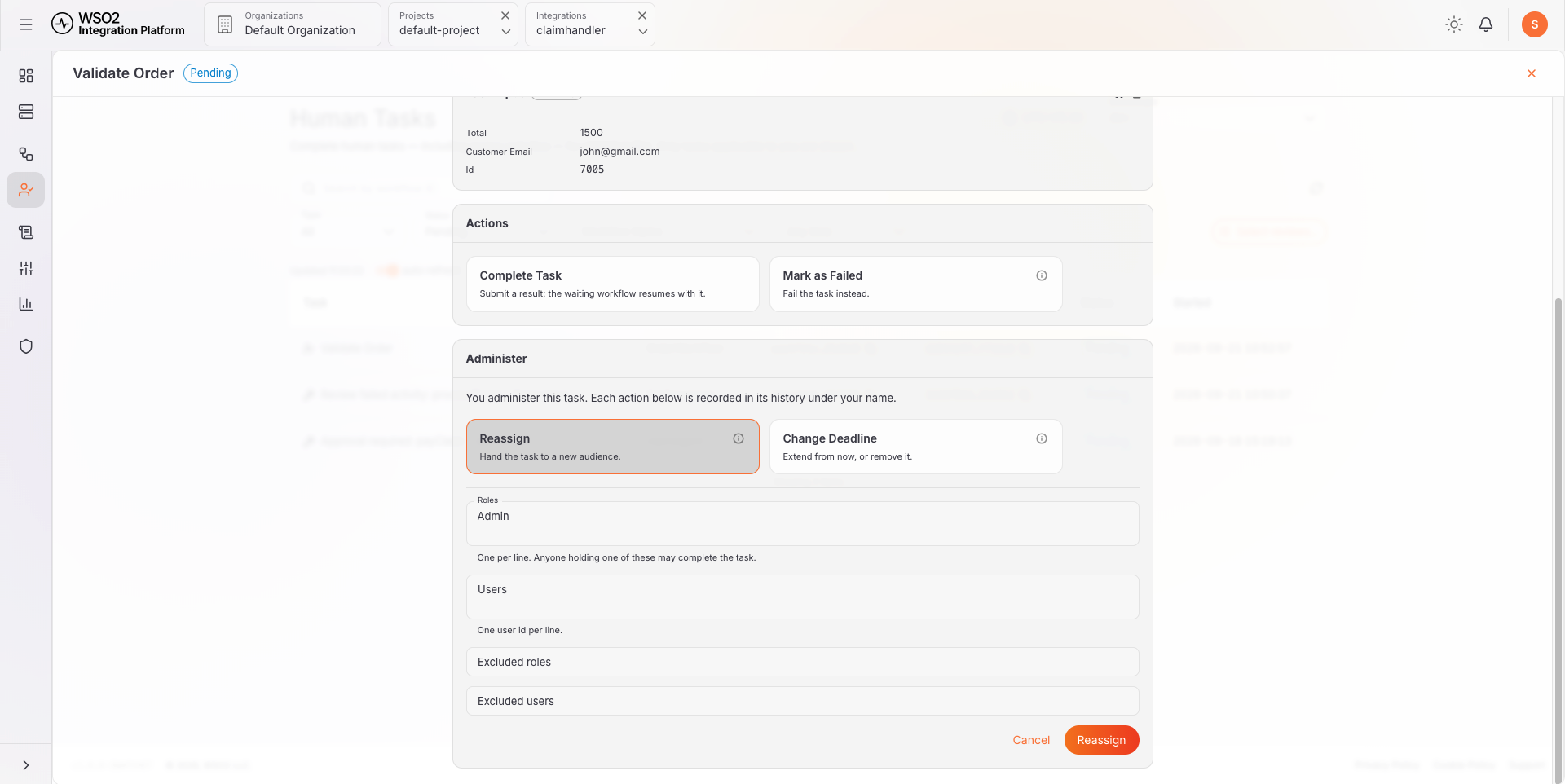
| Field | What it takes |
|---|---|
| Roles | One role name per line. Anyone holding one of these may complete the task. |
| Users | One user ID per line, for handing the task to named people rather than to a role. |
| Excluded roles | One role name per line, kept out of the audience. |
| Excluded users | One user ID per line, kept out of the audience. |
The task needs at least one role or user, so you cannot reassign it to nobody. Reassign applies the new audience and Cancel closes the form without changing it.
Change deadline
Change Deadline replaces the deadline the task is carrying, under the line The new deadline, counted from now.
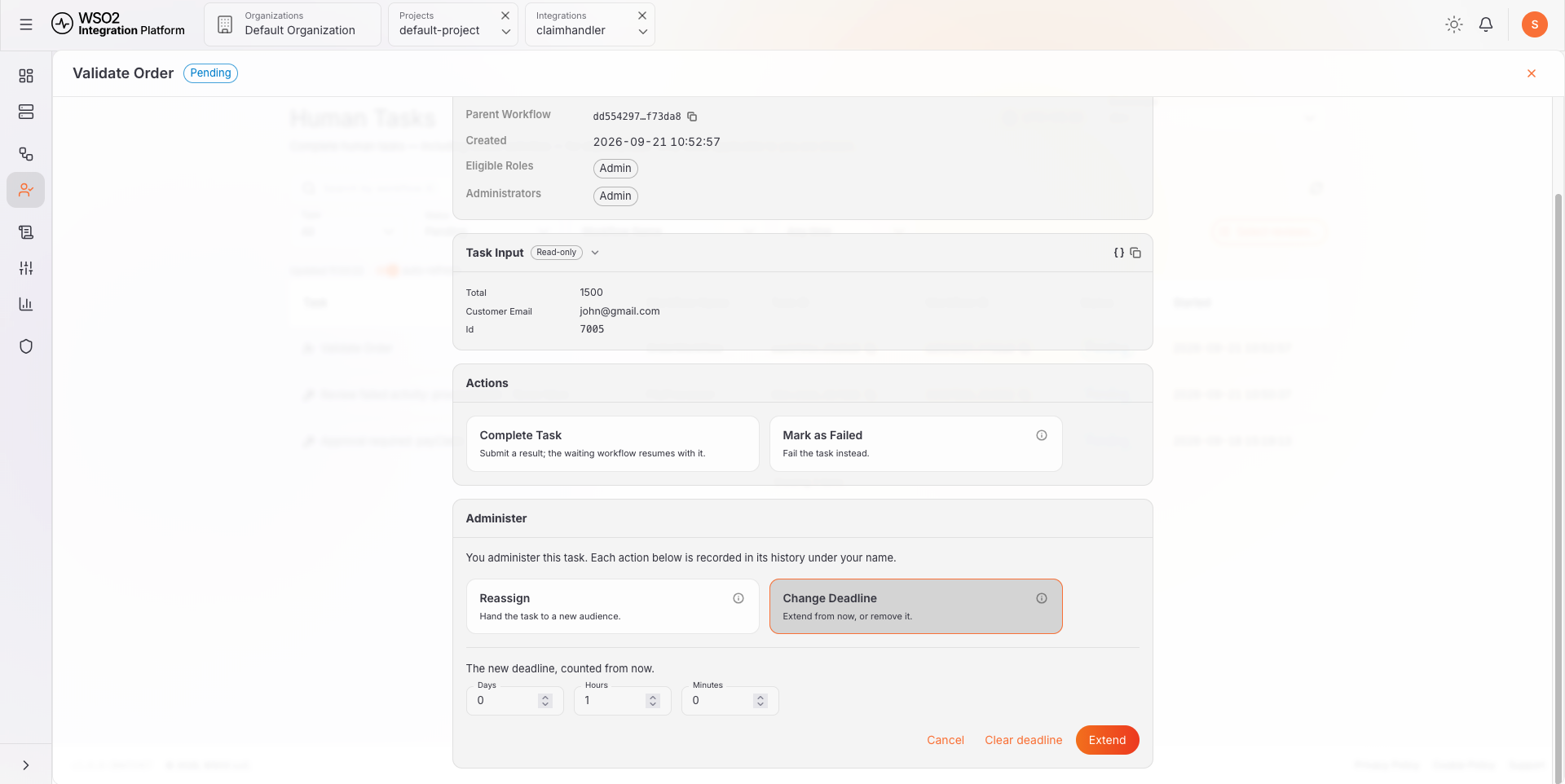
Set Days, Hours, and Minutes, and Extend applies that span measured from now, not from when the task was created or from its existing deadline. Clear deadline removes the deadline instead, which leaves the task open until someone decides it. Cancel closes the form without changing anything.
The deadline is the Timeout the workflow declared for the task. See Bound the wait. A task that reaches it with nobody acting is recorded as Failed, and the waiting workflow is resumed with that error to handle. Extending the deadline is therefore how you keep a run alive when the person who has to answer cannot answer yet, and clearing it is how you take the time limit off a task altogether.
What's next
- Await Human Task — how a workflow creates tasks and types their results
- Error handling and review activities — how a workflow declares approval gates and failure reviews
- Await data events — wait for data from a system or a person instead of a decision
- Workflow executions — see where the waiting run is halted
- Workflow permissions — the permissions behind each view and action
- Management API — complete tasks and decide reviews programmatically