Workflow Executions
The Workflow Executions page lists the runs created by workflows in the selected integration and environment. Select a run to view its status, input, and execution flow, and to reset, suspend, resume, cancel, or terminate it.
- The
workflow_mgt:view_workflowspermission to browse and view executions. - The
workflow_mgt:manage_workflowspermission to reset, suspend, resume, cancel, or terminate an execution.
Open the workflow executions page
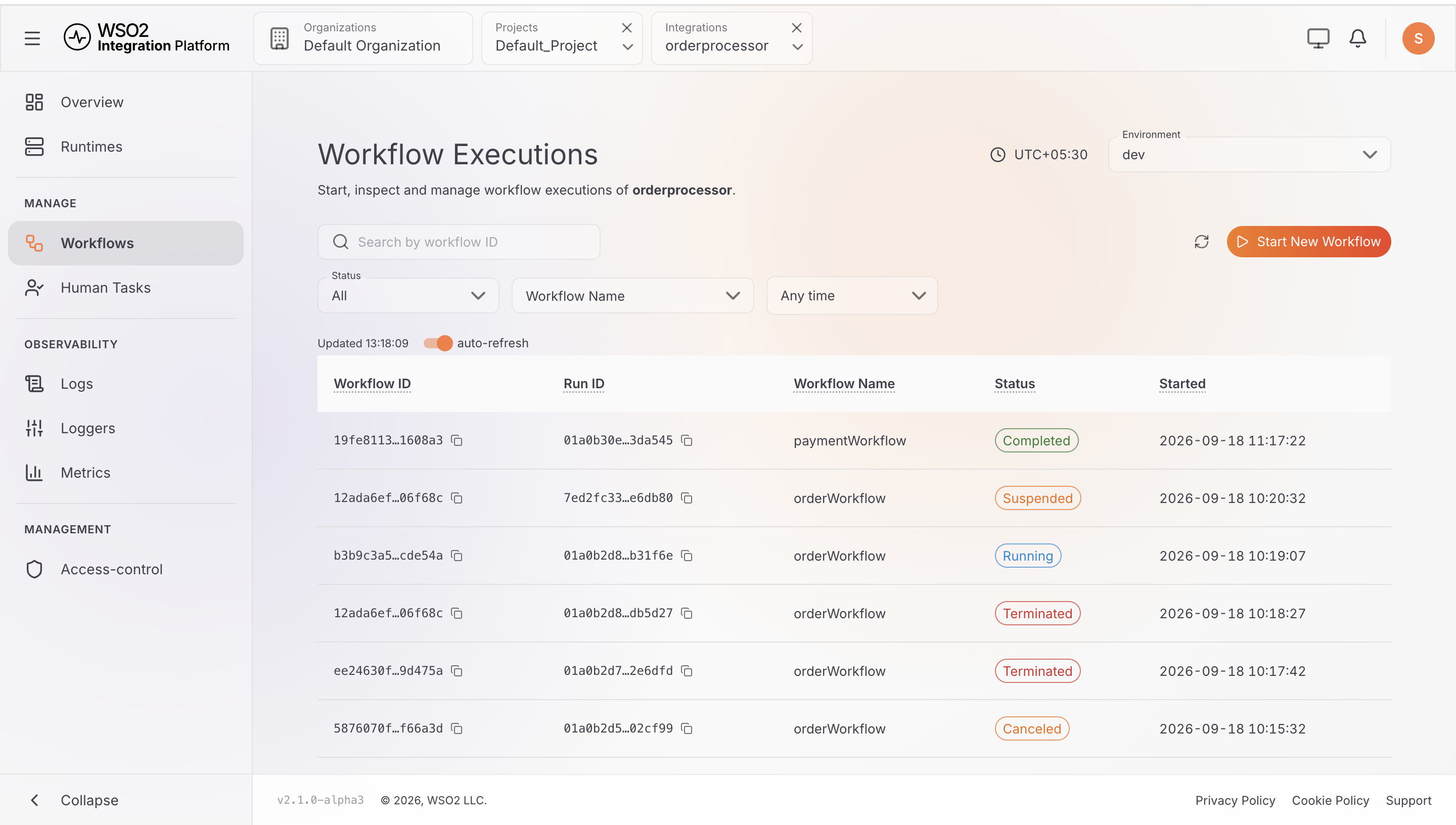
Select Workflows in the console navigation. The console opens the Workflow Executions page for the current integration.
The page header shows the integration name and an environment selector. Use the selector to switch between environments such as dev and prod.
Browse executions
Filter executions
Use the following filters to find an execution:
| Filter | Description |
|---|---|
| Search by workflow ID | Finds an execution by its workflow ID. |
| Status | Filters executions by status: All, Running, Completed, Failed, Terminated, Canceled, or Timed out. |
| Workflow Name | Filters the list by workflow definition, such as orderWorkflow or paymentWorkflow. |
| Any time | Filters the list by start time: Past 30 minutes, Past 1 hour, Past 24 hours, Past 3 days, Past 7 days, Past 30 days, or Custom, which adds Start From and End On fields. |
| Clear | Appears once a filter is set, and resets them all. |
Page actions
| Action | Description |
|---|---|
| Refresh | Reloads the execution list. |
| Start New Workflow | Opens the form for starting a new workflow execution. |
The auto-refresh toggle next to the Updated time keeps the list checking for fresher data every 30 seconds. Turn it off and the list updates only when you refresh it.
Execution list columns
Each row in the list is one workflow execution, listed newest first. The columns show:
| Column | Description |
|---|---|
| Workflow ID | The identifier of the workflow execution. A copy icon next to the value copies the ID. |
| Run ID | The identifier assigned to the individual workflow run. A copy icon next to the value copies the ID. |
| Workflow Name | The workflow definition used to create the execution. |
| Status | The current state of the execution, such as Running, Completed, Suspended, Terminated, or Canceled. |
| Started | The date and time when the execution started. |
View an execution
Select an execution in the list to open the Execution Details panel.
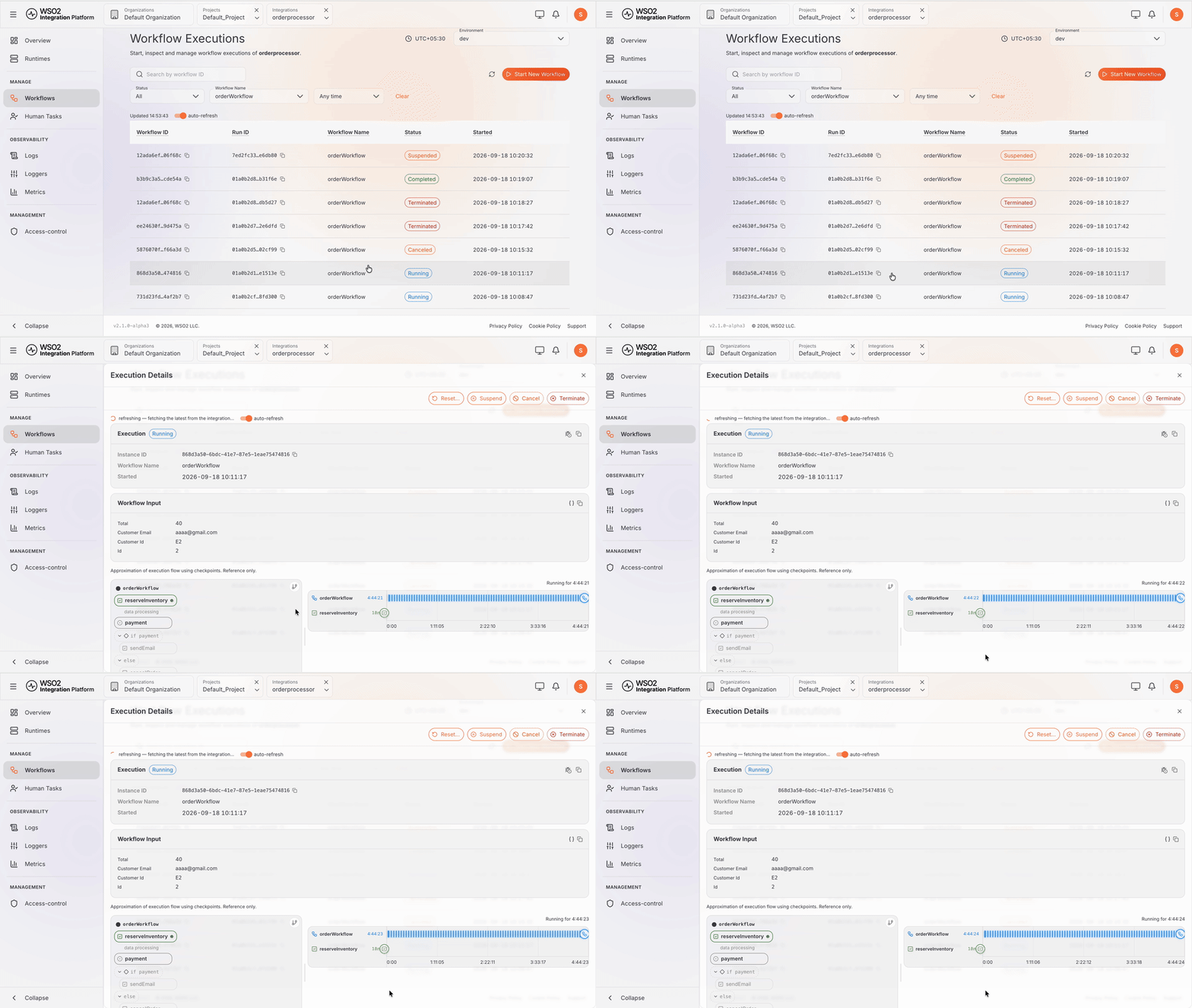
The panel header holds the action buttons, which are covered in Manage an execution. Below the header, the panel shows the execution's status and details, its input, and its flow.
Execution status and details
The Execution card shows the current status of the run and the details that identify it.
| Field | Description |
|---|---|
| Status | The current state of the execution, shown as a badge next to the Execution title. For example, Running, Suspended, or Completed. |
| Instance ID | A unique identifier for this execution. A copy icon next to the value copies the ID. |
| Workflow Name | The workflow definition this execution is an instance of, such as orderWorkflow. |
| Started | The date and time the execution began. |
| Closed | The date and time the execution finished. This field appears only after the execution is no longer running. |
The badge also shows how long a finished execution ran, and a failed execution shows its error message below the fields.

Workflow input
The Workflow Input card shows the data that was provided when the execution started. For example, if you started a workflow with a customer's order details, those details appear here.
Use the {} icon to switch between the structured view and the raw JSON view. Select the copy icon to copy the workflow input. Once the execution completes, a Workflow Result card beside it shows the value it returned.

Execution flow
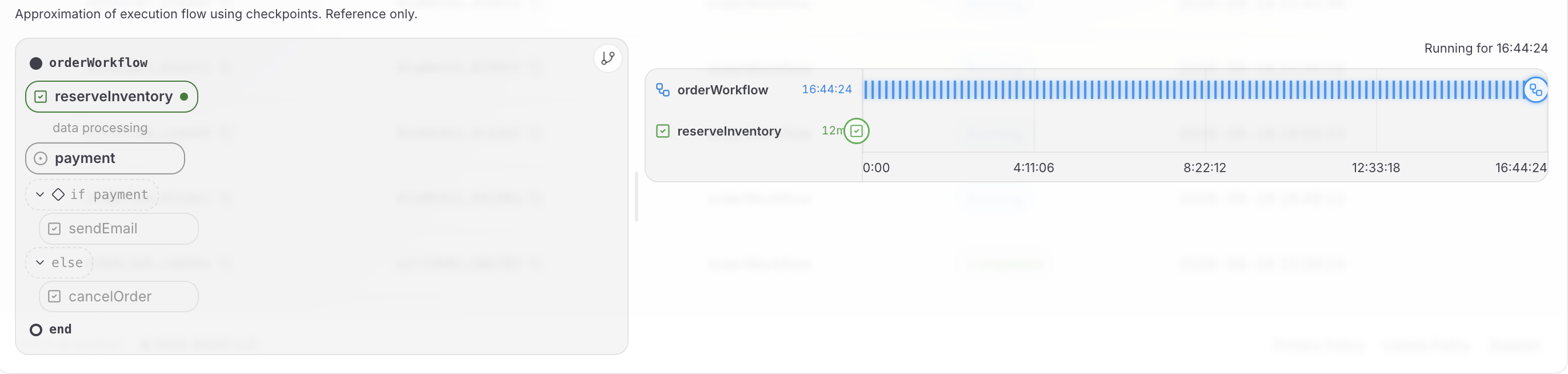
Below the cards, the execution flow shows the steps in a workflow execution and how they are connected. For example, it can show:
reserveInventory— an activity, marked COMPLETED.payment— a data event the run is WAITING on.if payment— the condition that picks a branch.sendEmailandcancelOrder— the two branches, marked not executed until the data arrives and one of them runs.
The timeline next to the flow shows when each step ran, how long it took, and the total execution time.
Select a step to view its details, including the input and execution status.
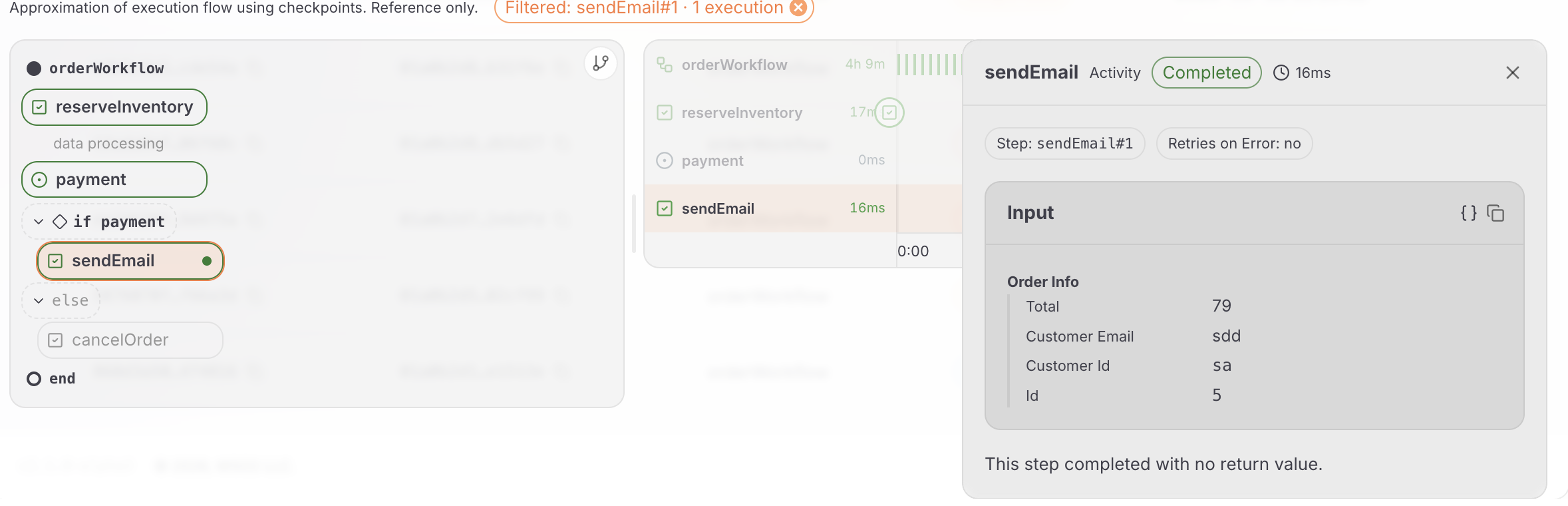
The execution flow is generated from workflow checkpoints and is an approximation of the execution. It may not show every action performed during the workflow run.
Manage an execution
Use the action buttons in the panel header to change what happens to an execution:
- Reset replays the workflow from an earlier point in its history.
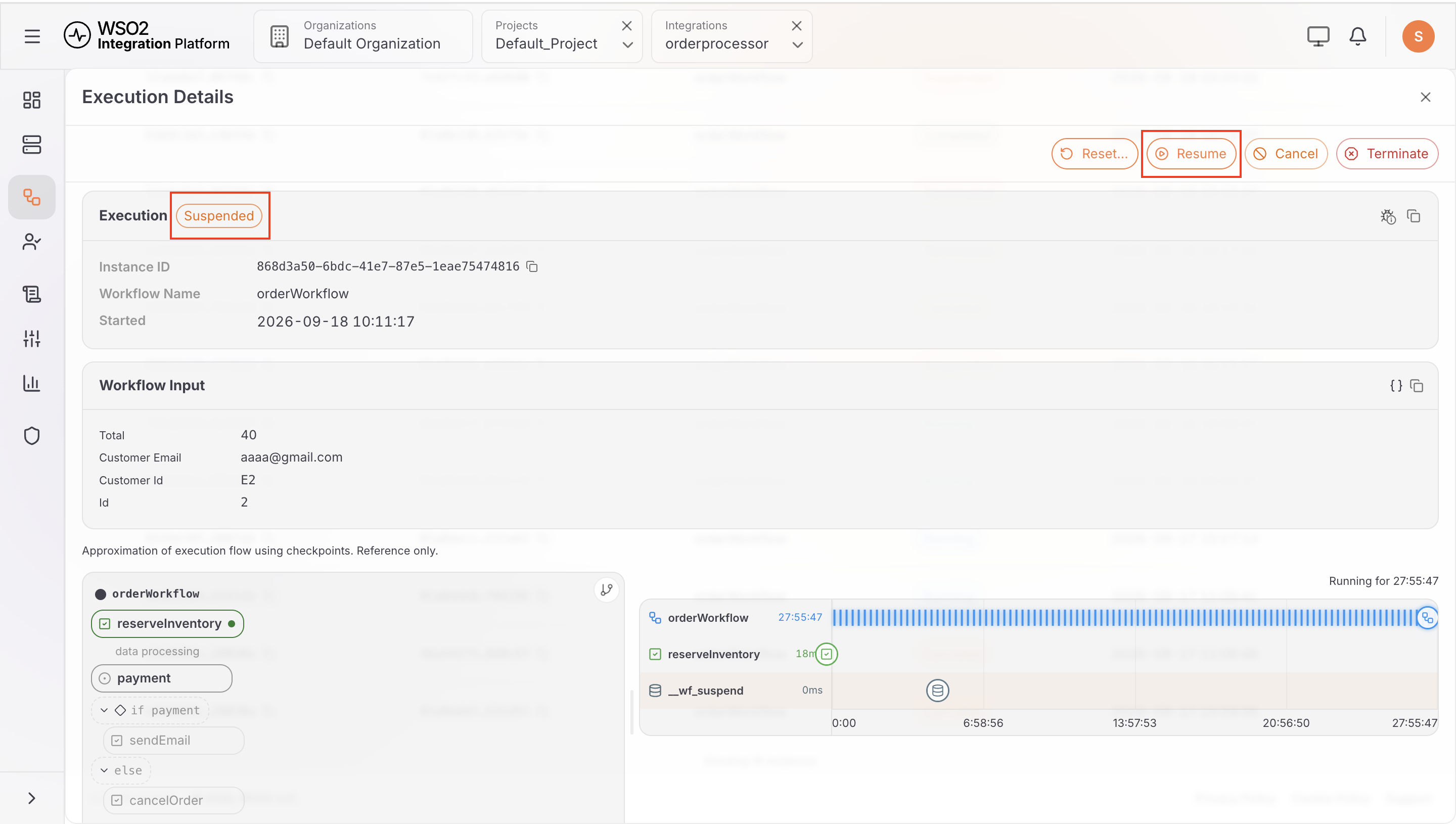
- Suspend pauses a running execution at its current position, and Resume continues it from where it paused.
- Cancel stops the execution gracefully, so the workflow can run its own cleanup logic.
- Terminate stops the execution immediately, without running any cleanup logic.
- Wake, shown only for a running durable agent, ends an in-progress sleep early.
The panel shows only the buttons that apply to the execution's current status and your permissions. For example, a completed execution has no Suspend button, and Resume appears only while the execution is suspended. Reset… remains available after the execution closes. All of them need workflow_mgt:manage_workflows.
Reset a workflow
Select Reset… to open the Reset Workflow dialog, and then choose where to replay from:
- Before the last step redoes only the most recent workflow task.
- From the beginning reruns the whole workflow with its original input.
- A specific point in this run's history starts the replay from a history point you select.
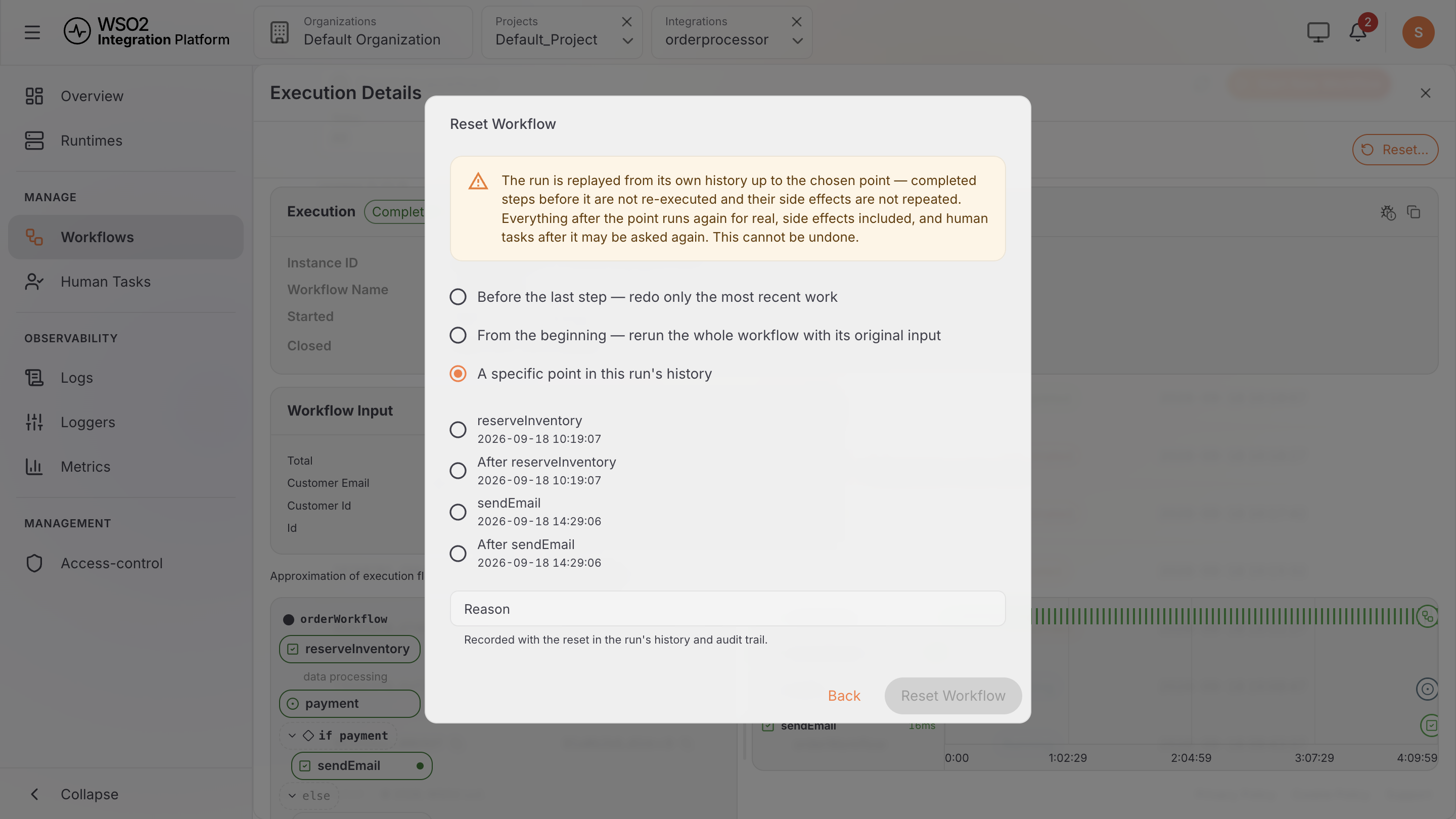
Optionally, enter a Reason. Then select Reset Workflow to confirm, or Back to cancel.
Suspend and resume an execution
The status doesn't change the moment you select Suspend. It can still read Running for a short time, because the console sends the suspension to the workflow as a signal instead of applying it immediately. Once the workflow engine confirms that the run has paused, the status changes to Suspended and Resume replaces Suspend.
Cancel or terminate an execution
Terminate asks you to confirm in the Terminate Workflow dialog, with an optional reason, and you can't undo it. Prefer Cancel when the workflow has cleanup logic that needs to run.
What's next
- Start a workflow — launch a new execution from the console
- Complete human tasks — decide the tasks and reviews a halted run is waiting on
- Activities — how the steps on the timeline are recorded and retried
- Management API — read the same history and execution graph over REST