Start a Workflow
Workflows usually start from your own integration logic, but during testing, onboarding, and day-to-day operations it is useful to launch one by hand. The Integration Control Plane can start any workflow the runtime advertises and builds the input form for you from the workflow's input type, so you do not have to hand-write JSON.
- An integration registered with ICP as a workflow integration, with a running runtime (Manage workflows)
- The
workflow_mgt:manage_workflowspermission on the project or integration
Where to start a workflow
-
Select Start New Workflow. The button is available in two places:
- Select Overview in the console navigation, and then select Start New Workflow on the card for the environment where you want to run the workflow.
- Select Workflows in the console navigation, and then select Start New Workflow.
-
The Start Workflow form opens.
-
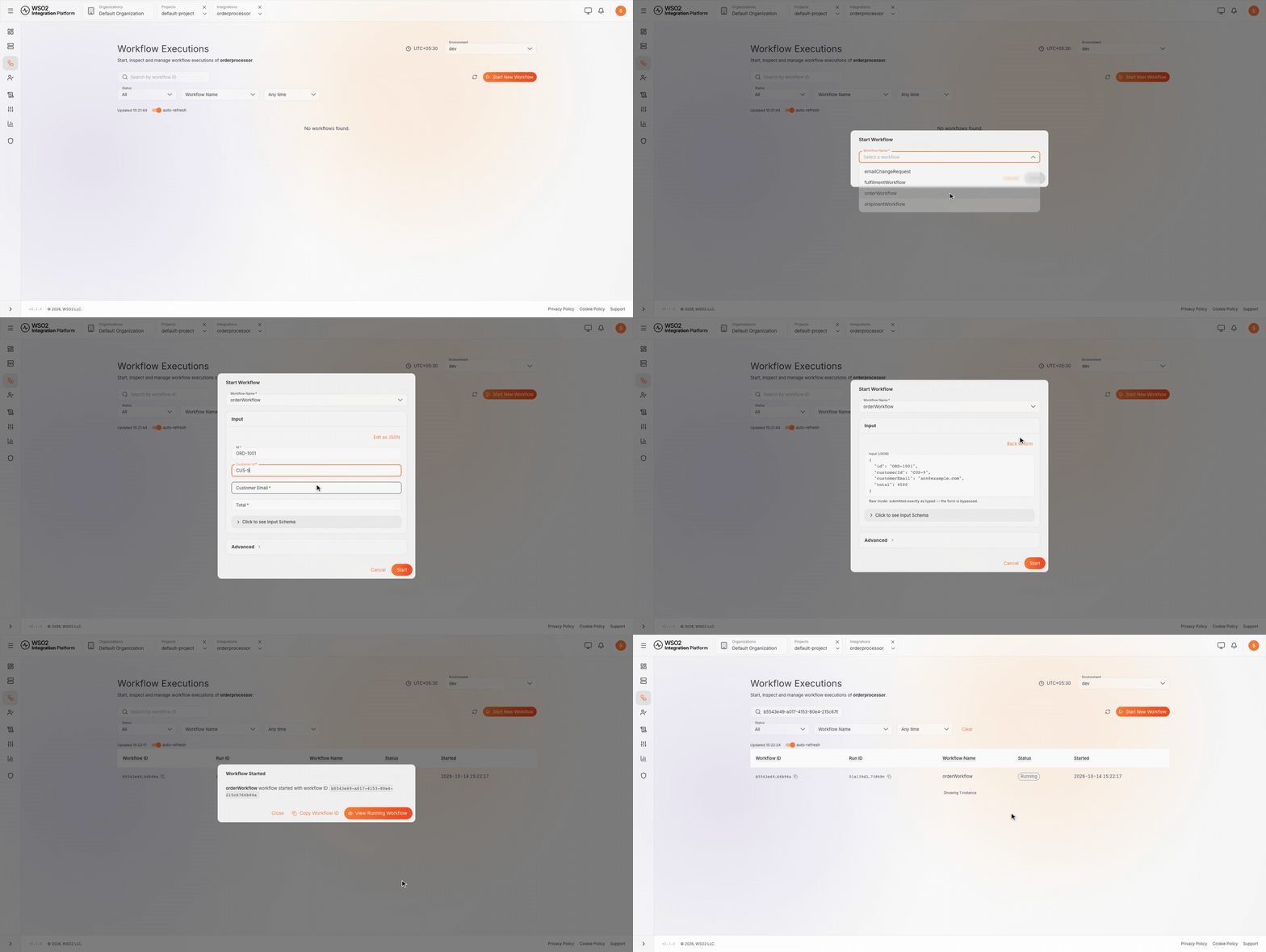
In the Workflow Name field, select the workflow you want to run. The list shows the workflow definitions available in the current integration.
-
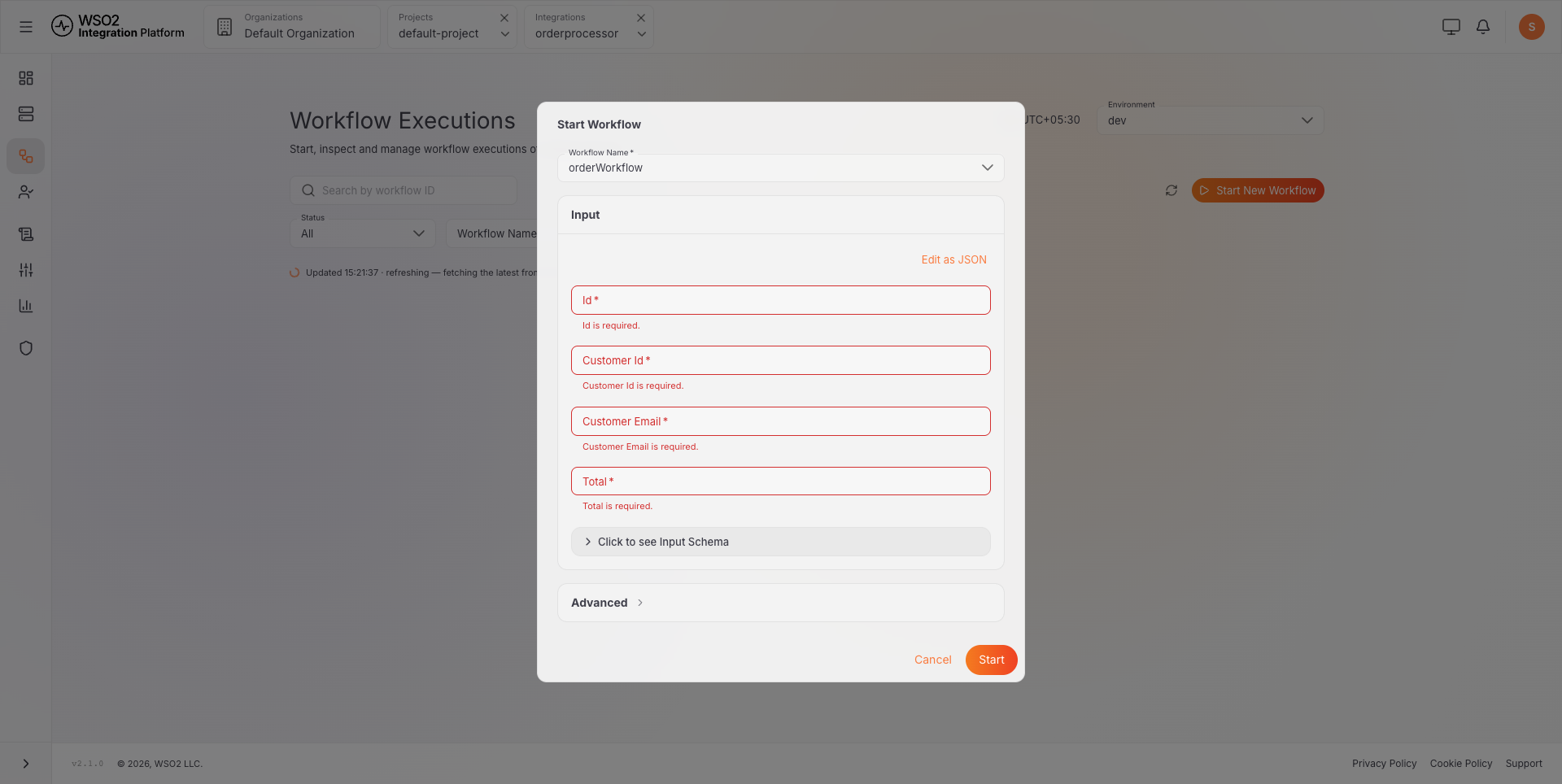
After you select a workflow, its input form appears under Input. A workflow that takes no input says so instead.
-
The form is validated according to the workflow input type. Required fields are marked with an asterisk.
-
Enter the values for the fields shown in the form, or select Edit as JSON to type the input as JSON. Optionally, expand Advanced to set a Workflow ID for the run (left empty, the runtime assigns one) and a Timeout (seconds) for the whole run.
-
Click Start to launch the workflow. The Workflow Started dialog shows the workflow name and its workflow ID. You can then:
- Copy Workflow ID puts the ID on your clipboard, which is useful for correlating logs.
- View Running Workflow opens the Workflow Executions page searched to that ID.
- Close closes the dialog.
-
The workflow starts and appears in the Workflow Executions list with a status such as Running. You can then inspect the execution, monitor its progress, and review activity details.
What's next
- Workflow executions — monitor workflow runs and inspect their status
- Complete human tasks — handle task-based approvals or actions
- Activities — review the steps recorded during workflow execution