Activities
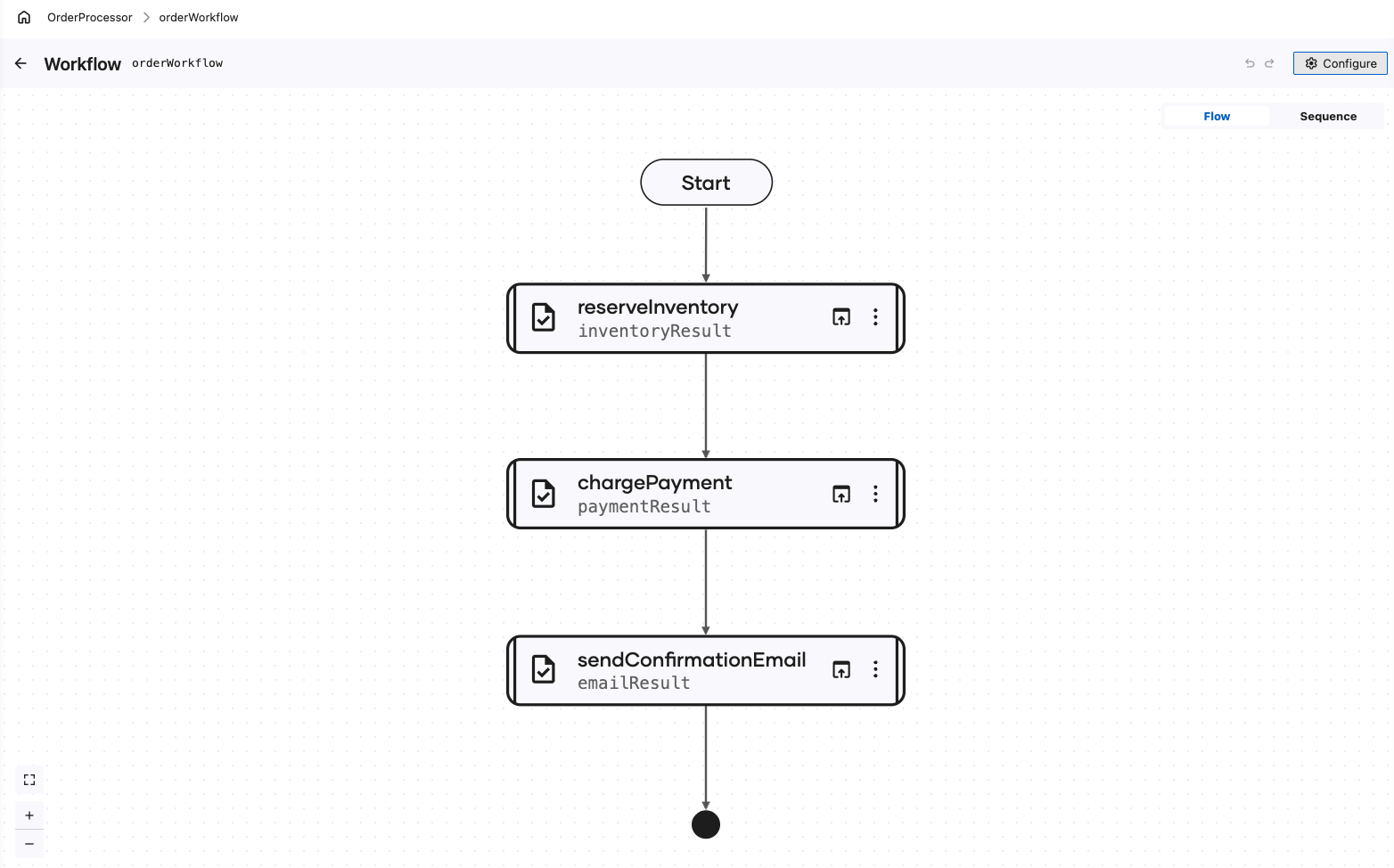
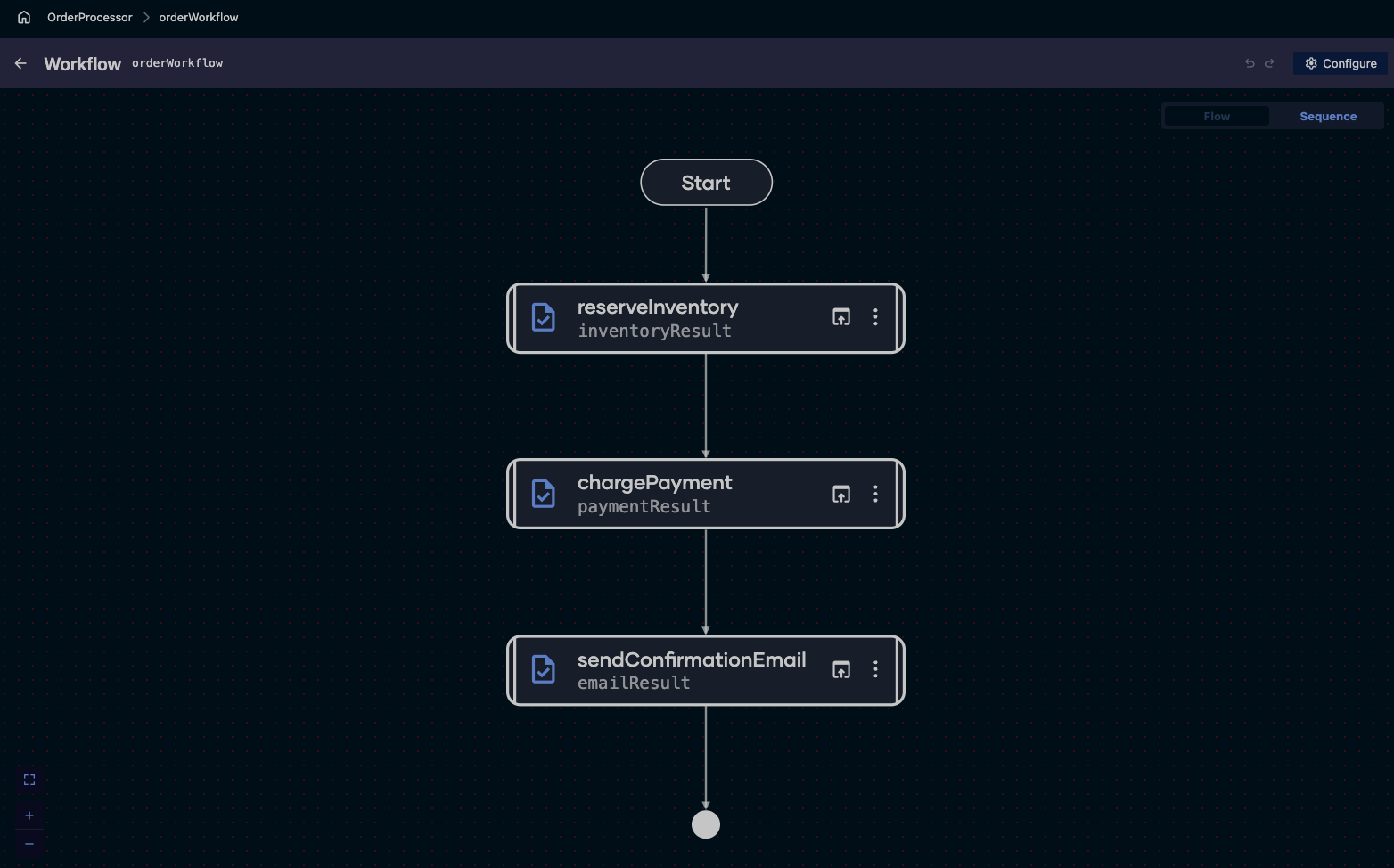
An activity is a single unit of work that the durable runtime records. It is modeled as a function. Anything that touches the outside world — an API call, a database write, a payment, an email — belongs in an activity rather than in the workflow body. That split is what makes a workflow crash-safe: the workflow function can be replayed from the start after a restart, while the work already done inside activities is read back from the record instead of being repeated.
Why the split matters
When a workflow resumes after a crash or a restart, the runtime replays the workflow function to rebuild its state. During that replay:
- A completed activity is never re-executed. Its recorded result is handed straight back, so the card is not charged twice and the email is not sent twice.
- A failed activity can be retried on its own, without repeating the steps that already succeeded.
Everything outside an activity is ordinary code that runs again on replay. No direct API calls, no random values, and no wall-clock reads in the workflow body — put that work in an activity so its result is recorded instead of recomputed.
Create an activity from scratch
To create an activity, click + on Workflow Activities in the left sidebar.
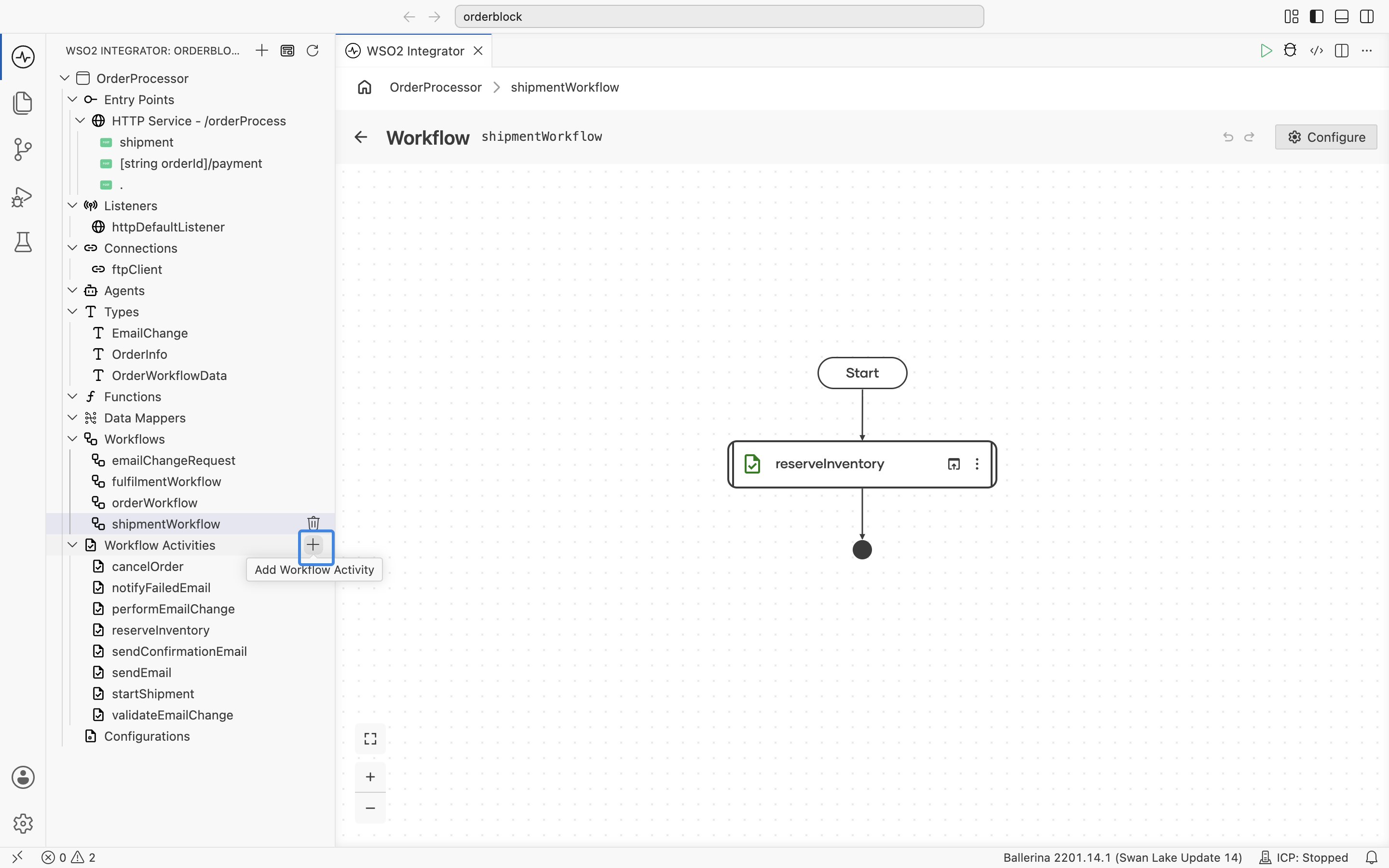
The Create New Workflow Activity form provides the following fields for defining the activity function:
| Field | Required | Description |
|---|---|---|
| Activity Name | Yes | The name of the activity function. This is the name the workflow calls and the name shown on the activity's node in the execution graph. |
| Description | No | Explains what the activity does. |
| Parameters | No | Defines the inputs of the activity function. Each parameter has a name and a type. Selecting + Add Parameter adds a new parameter definition row. |
| Return Type | No | The type of the value the activity returns, for example string or string|error. Leave it empty for an activity that returns nothing. |
After clicking Create, you will be directed to design its body in the same flow diagram used for any other function.
Create an activity from a connection
An activity can also be generated from a connection, so a single operation on an FTP server, a database, or a Slack workspace becomes a durable step without writing its body. The activity wraps the operation, and the runtime records its result like any other.
-
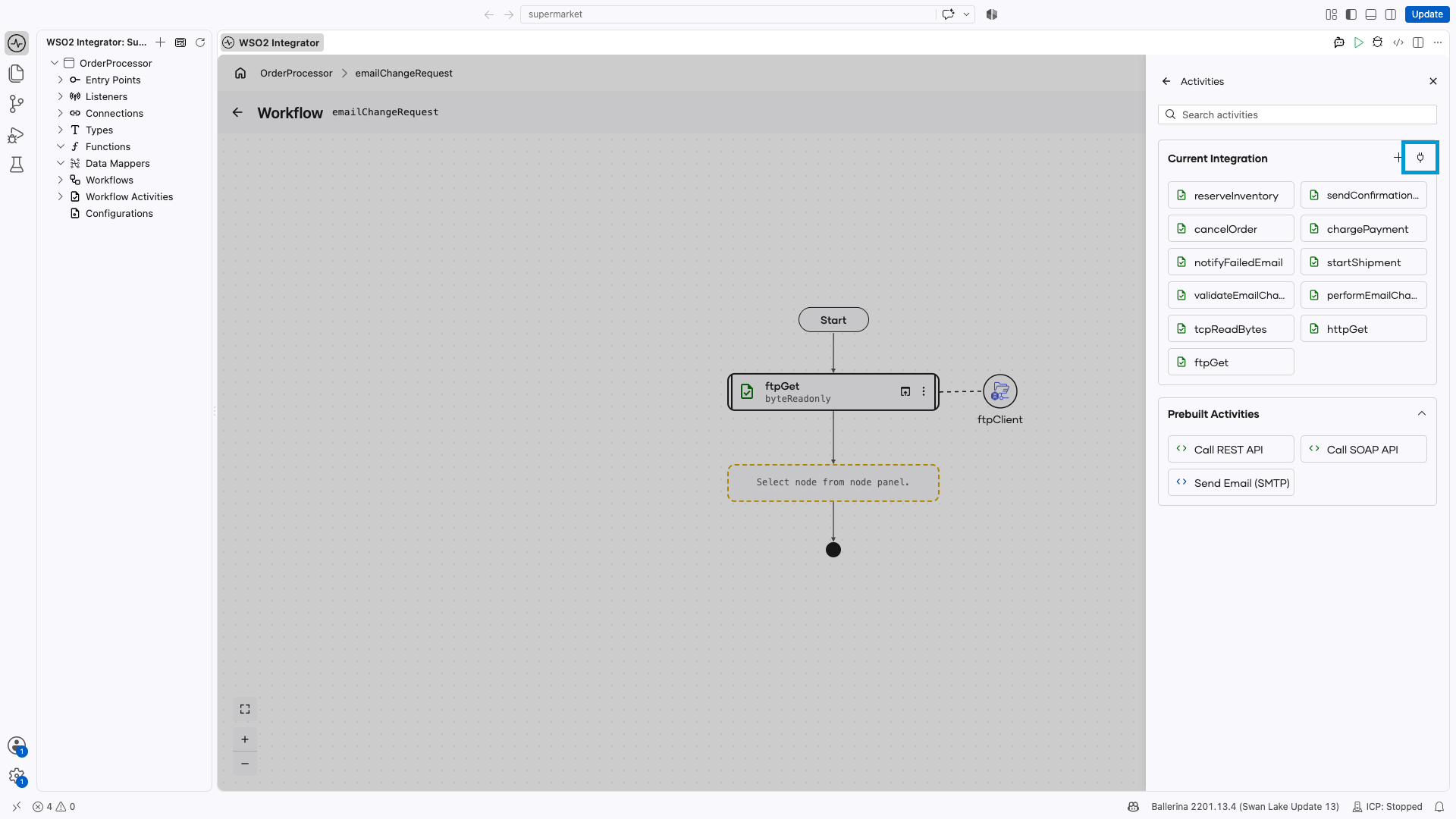
On the workflow diagram, click +, then click Call Activity. The Activities panel opens.
-
In the Current Integration header, click the plug icon.
-
The Connections panel lists the project's connections. Click a connection to expand its operations, or click + to add a connection first,
ftpClienthere. -
Click the operation the activity should wrap, Get here. The activity form opens, headed with the operation it came from,
ftpClient -> get. -
Fill in the form:
Field Required Description Activity Name Yes The name of the generated activity function, for example ftpGet.Description No Explains what the activity does. It is prefilled from the operation's own documentation. Choose what the activity takes as input No One checkbox per parameter of the operation. Check a parameter to expose it as an activity input; clear a required one to fix its value inside the activity instead, in the Value for '<parameter>' field that appears under it. Optional parameters are under Advanced Configurations. ↳ Connection as parameter No Exposes the connection as the activity's first parameter, the way the prebuilt activities work, instead of using the module-level connection. Check it when the same activity should run against more than one connection. Return Type Yes Derived from the operation. It is editable only where the operation returns a union, to narrow it, or infers its return type. Where the operation returns a stream, the activity collects it and returns an array, for example (byte[] & readonly)[]. -
Click Create Activity.
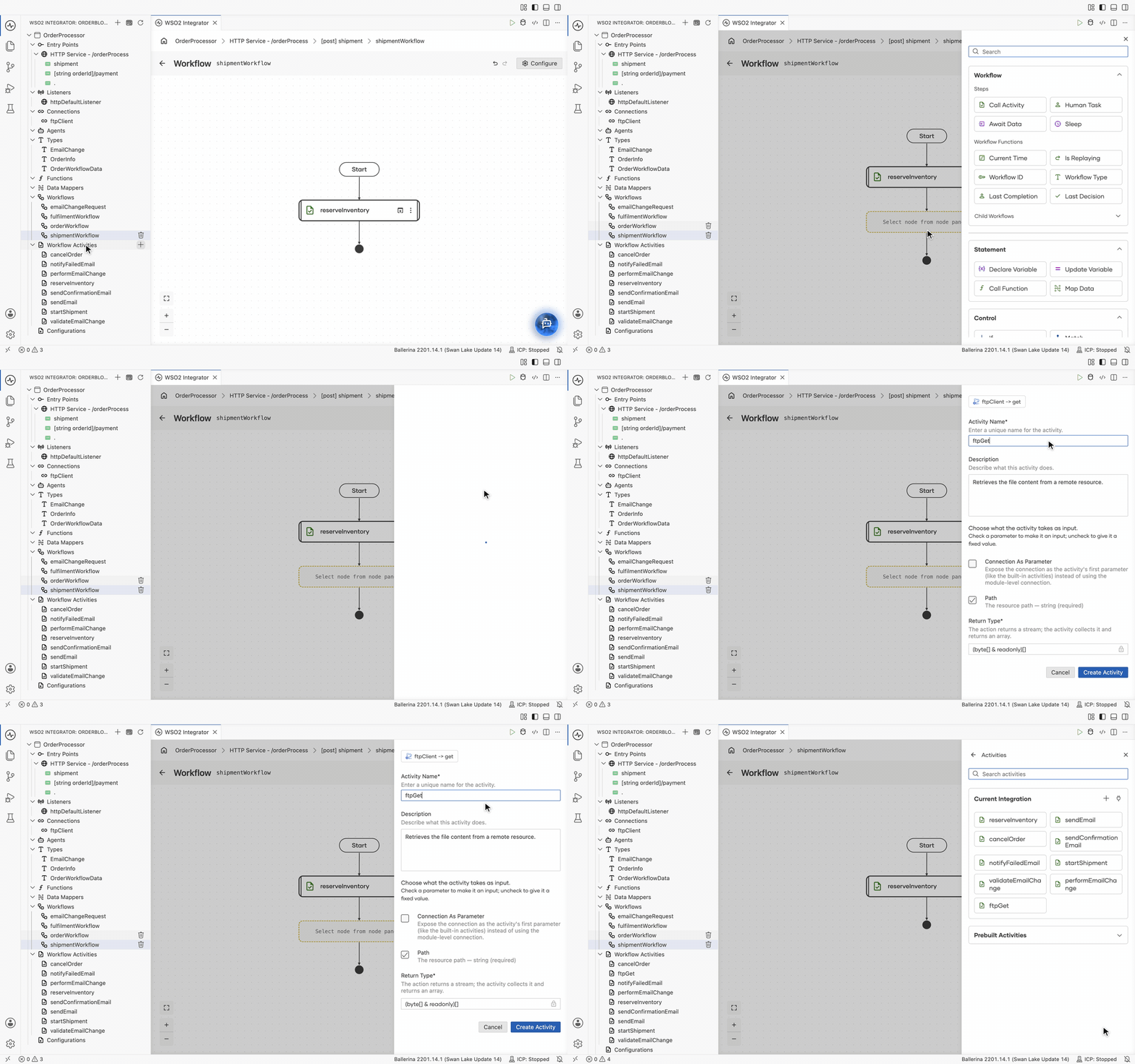
The activity appears under Workflow Activities alongside the ones written by hand, and the panel returns to the Activities list, where you click the new activity to place its call in the workflow. Checking Connection as parameter adds a Connection field to that call form, where the connection is chosen per call.
REST calls, SOAP calls, and SMTP email already have durable wrappers that ship with the runtime, so there is nothing to write for those. See Prebuilt activities.
Call an activity from a workflow
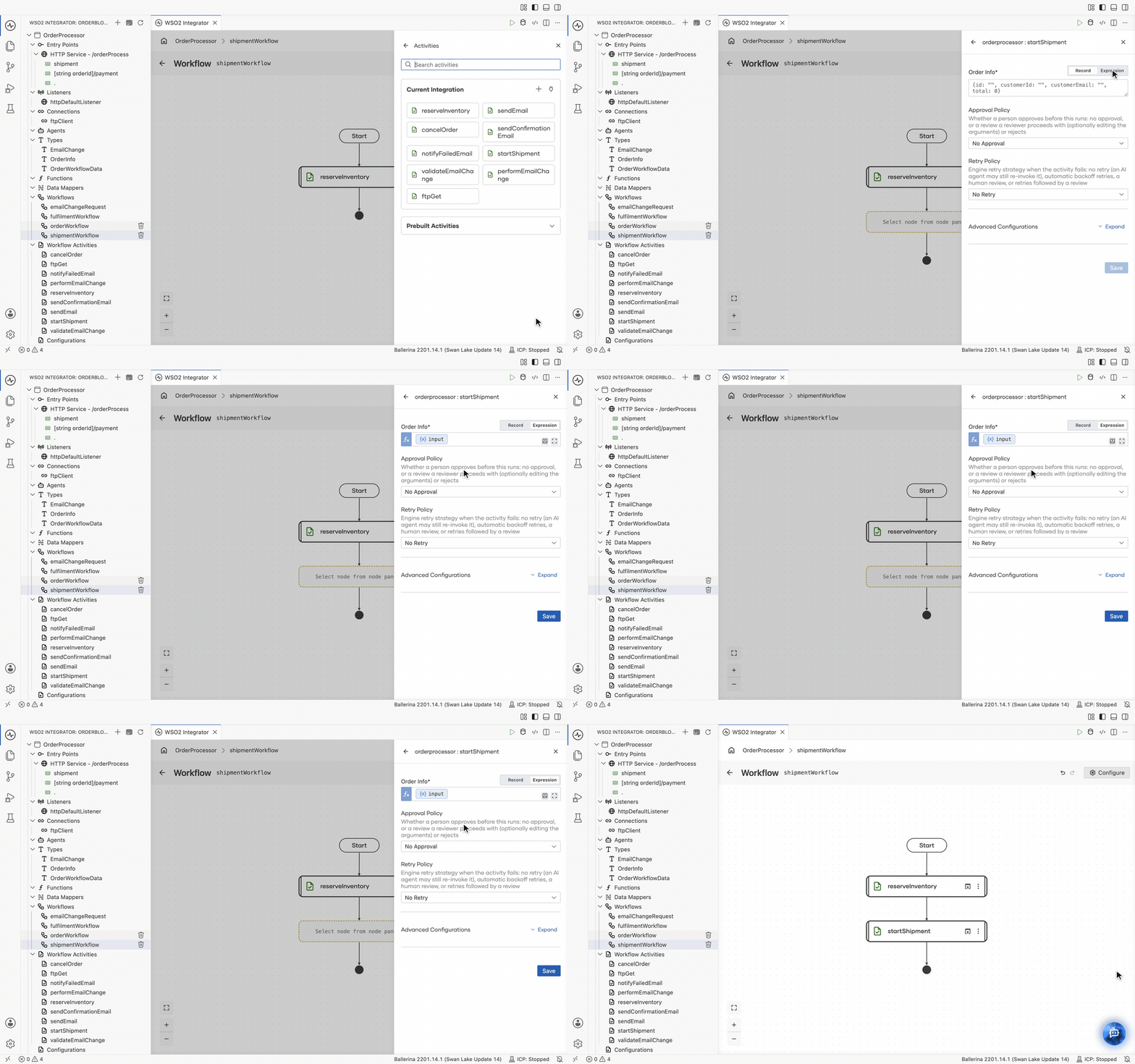
To call an activity from a workflow, click + on the workflow diagram and select Call Activity from the palette's Workflow → Steps group. Then select the activity function you want to call.
The Call Activity form provides the following fields for calling an activity function:
| Field | Required | Description |
|---|---|---|
| Activity Arguments | Yes | A form field appears for each activity function parameter. Provide the relevant arguments for each required parameter. |
| Approval Policy | Yes | Whether a person must approve the call before it runs: No Approval (the default) or Human Approval. See Approval gates. |
| Retry Policy | Yes | Determines how the workflow handles a failed activity call: No Retry (the default), Auto Retry, Human Review, or Retry, then Review. See Error handling and review activities. |
| Result | Only if the output of the activity is not null | Name of the result variable to capture the activity's output. |
| Result Type | Only if the output of the activity is not null | Type of the resulting data of the activity function. |
| Check Error | No | Under Advanced Configurations. Adds check to the call so a failure automatically propagates out from the workflow. Clear it to handle the error yourself. Selected by default. See Error handling in the workflow logic. |
A completed activity never runs twice, but a failed attempt may run again once retries are on. Make the side effect idempotent — pass an idempotency key to the payment gateway, upsert instead of insert — so a repeated attempt cannot double-charge or duplicate a record.
Watching activities run
Each activity call appears as an ACTIVITY node in the instance's execution graph in the Integration Control Plane, so you can see which step an instance is on, which activities have completed, and which one failed. The same graph is available over the Management API.
Next steps
- Prebuilt activities — durable REST, SOAP, and email calls with no wrapper to write.
- Durable timers — pause between activities without holding resources.
- Error handling and review activities — retry policies and approval gates.
- Create a Durable Agent — registering these same activities on an agent that picks which to call.
- Build an order processing workflow — activities wired into a complete flow.