Runtime Configurations
WSO2 Cloud - Integration Platform lets you configure each integration's runtime values per environment. For values shared across multiple integrations, you can define configuration groups at the organization level and link them directly to your integrations.
Configure an integration
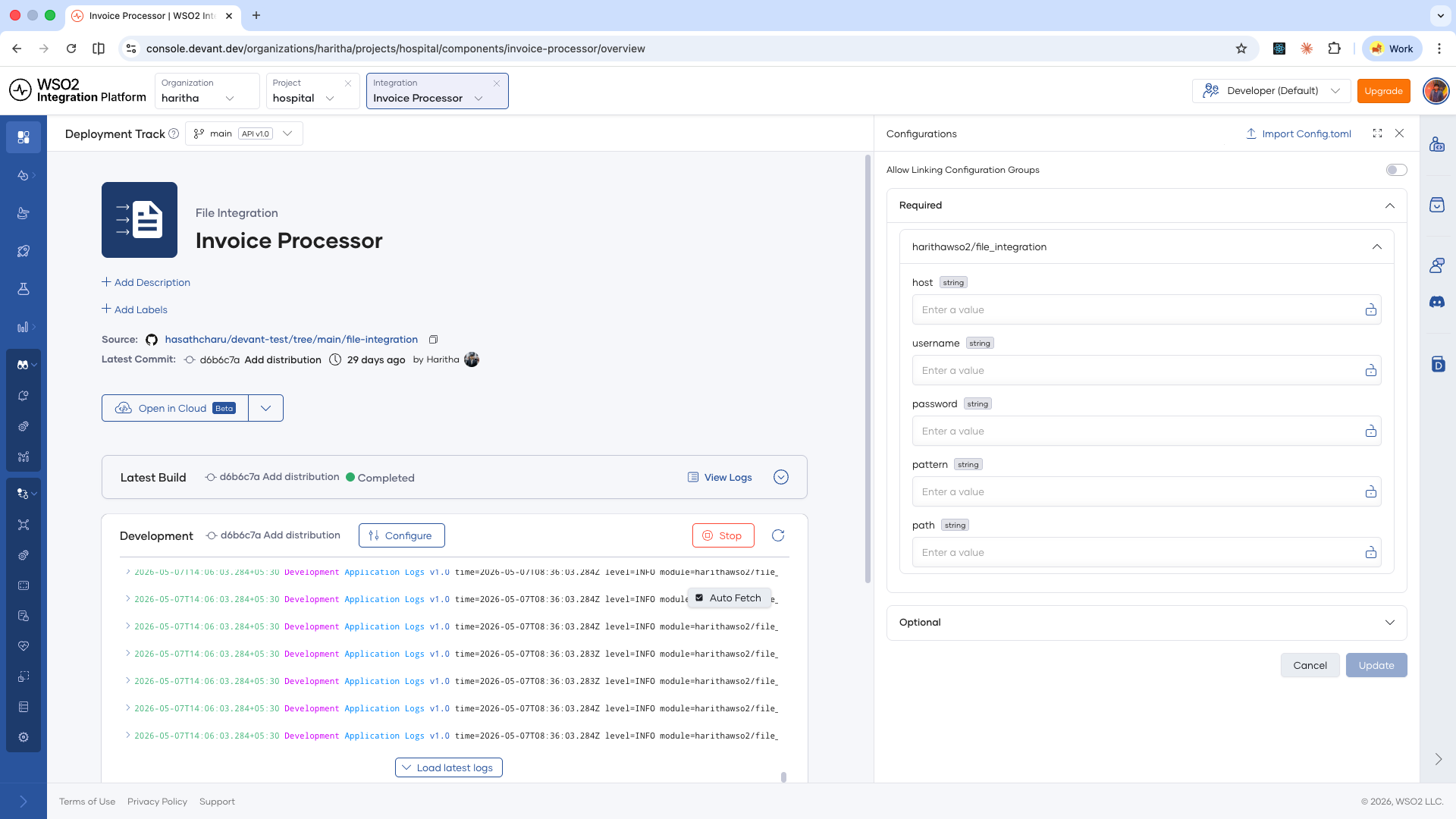
Each deployed integration exposes a Configure button for every environment. Use it to set or update the configurable values that the integration reads at runtime.
-
Open your integration from the project home.
-
On the integration overview page, locate the environment you want to configure.
-
Click Configure on that environment card.
-
Add the configurable values as needed.
-
Click Update to apply the changes.
The integration restarts with the new configuration.
Secrets
Sensitive configuration values, such as passwords, API keys, and tokens, can be marked as secrets. Secrets are stored in the Data Plane's secret vault and are never exposed again after they are saved.
To mark a value as a secret:
- Open your integration and click Configure for the target environment.
- Enter the secret value.
- Next to the configurable field you want to protect, click the padlock icon.
- Click Update.
The value is stored in the secret vault, and cannot be viewed once saved. You can only replace it with a new value by clicking the Update Sensitive Content button.
Configuration groups
Configuration groups let you define a named set of configurable fields at the organization level and reuse them across multiple integrations. Changes to a group propagate to every integration that links to it once the integrations are restarted.
Create a configuration group
-
In the top navigation, click your organization name to switch to the organization level.
-
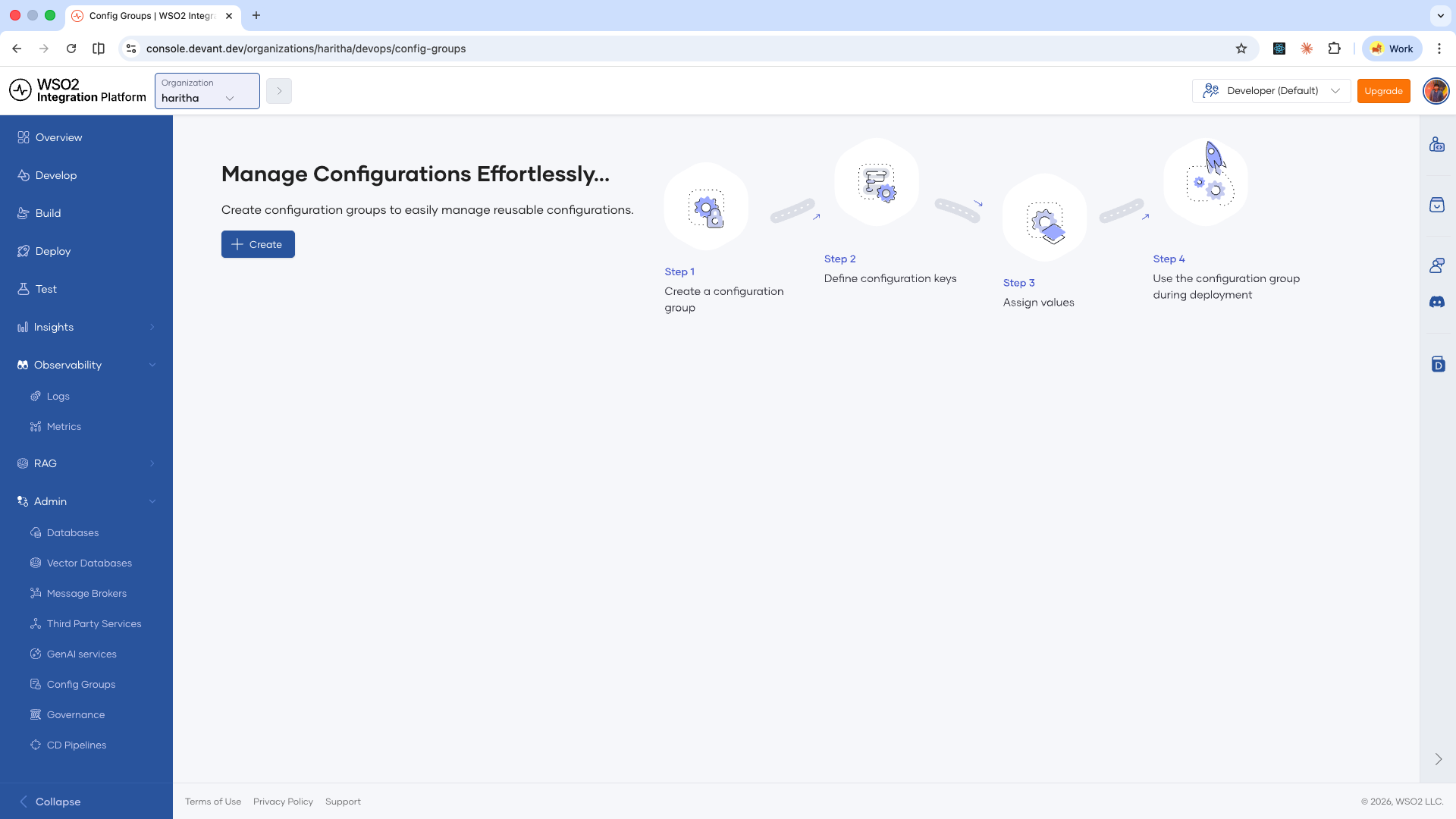
In the left navigation, go to Admin > Config Groups.
-
Click Create to create a configuration group.
-
Fill in the following fields:
Field Description Name A unique name for the configuration group. Description Optional. A short description of what the group configures. -
Add the fields for the group. For each field, provide:
Field Description Key The key name for the configurable value. Type Either Text (a plain string value) or File mount (a file that the integration mounts at runtime). Secret Optional. If the value is sensitive, you can mark it as a secret by clicking the padlock icon. More about secrets. 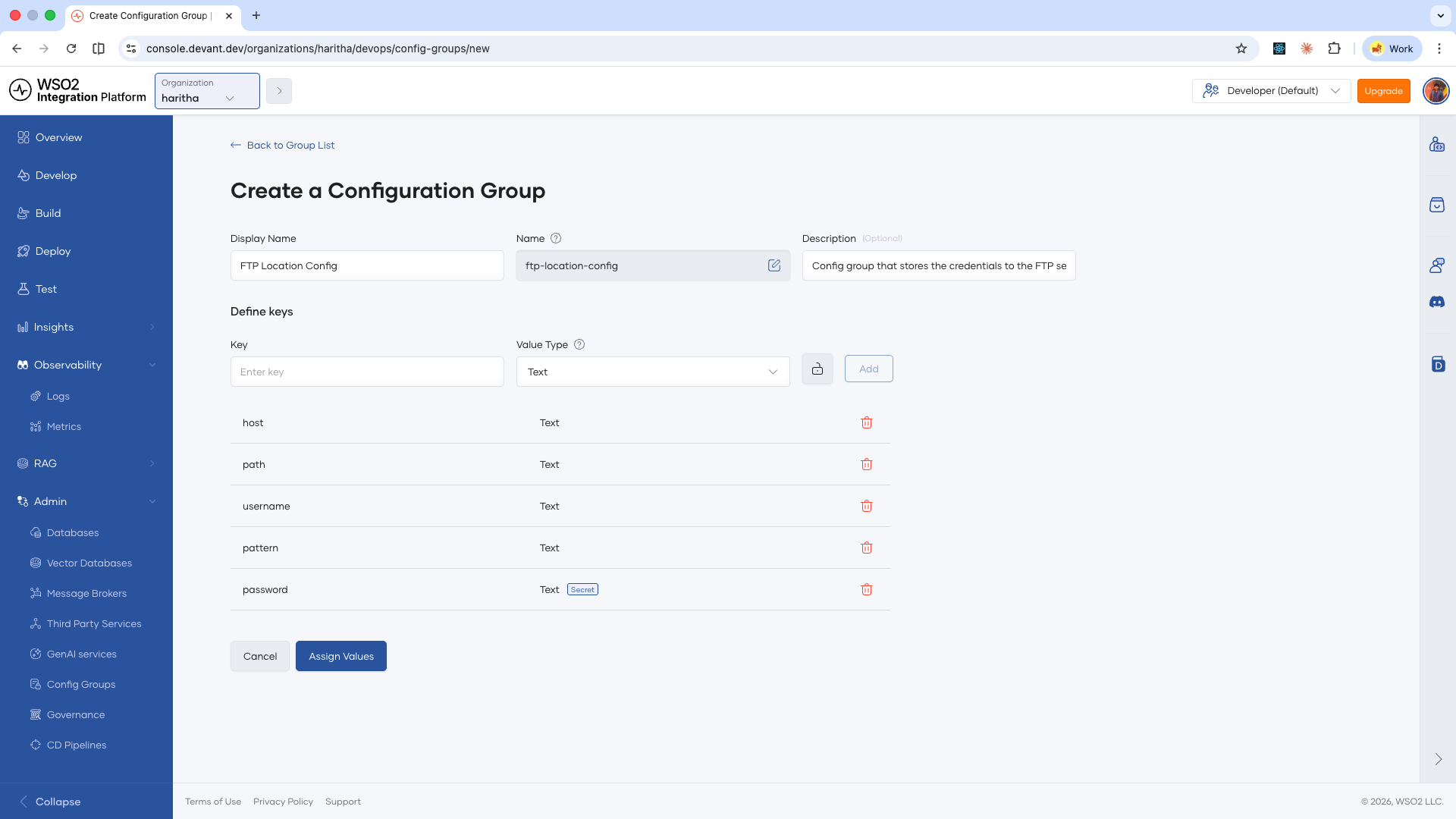
-
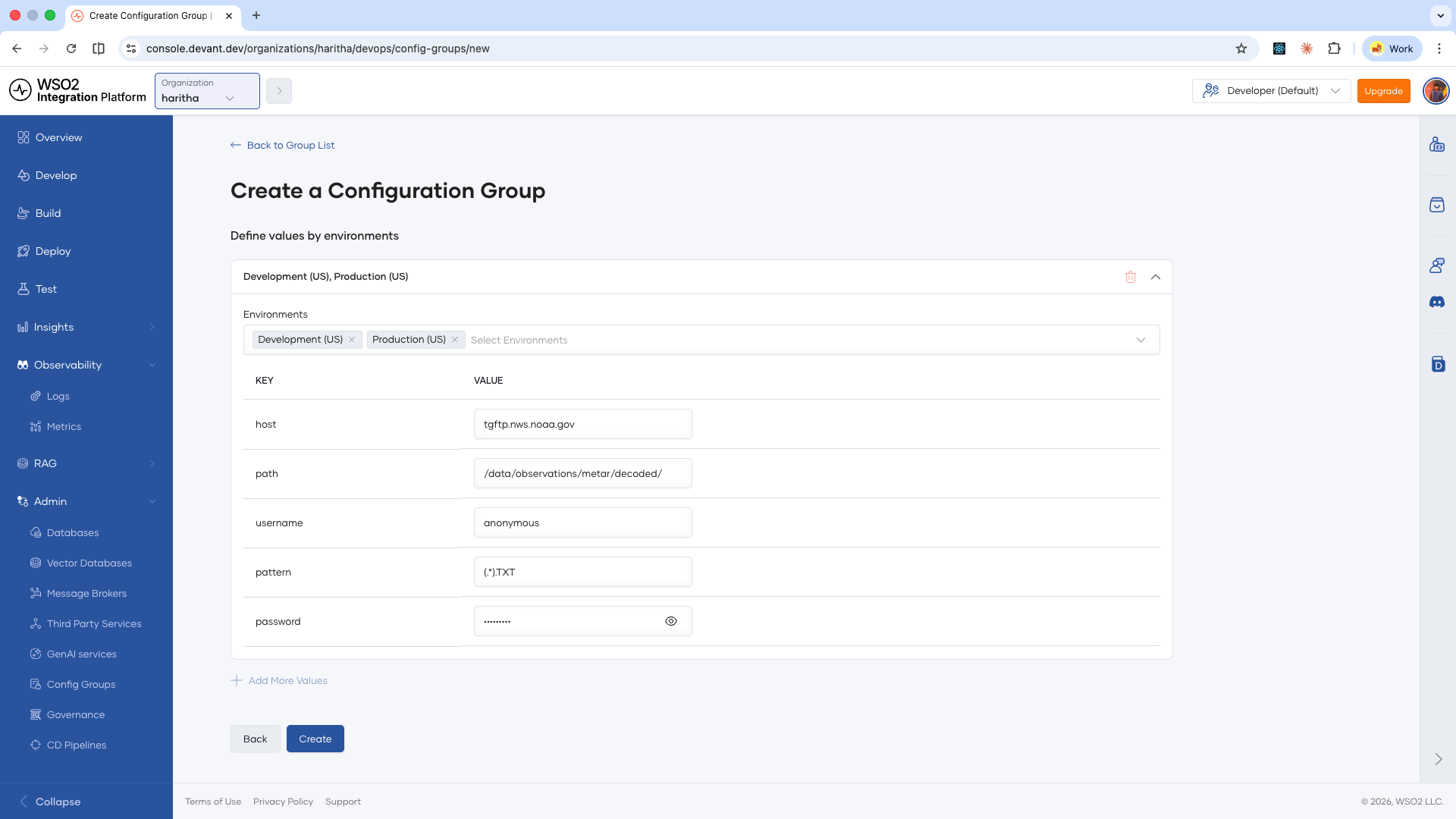
After adding all fields, assign values to each field.
-
Click Create to save the configuration group.
Edit a configuration group
-
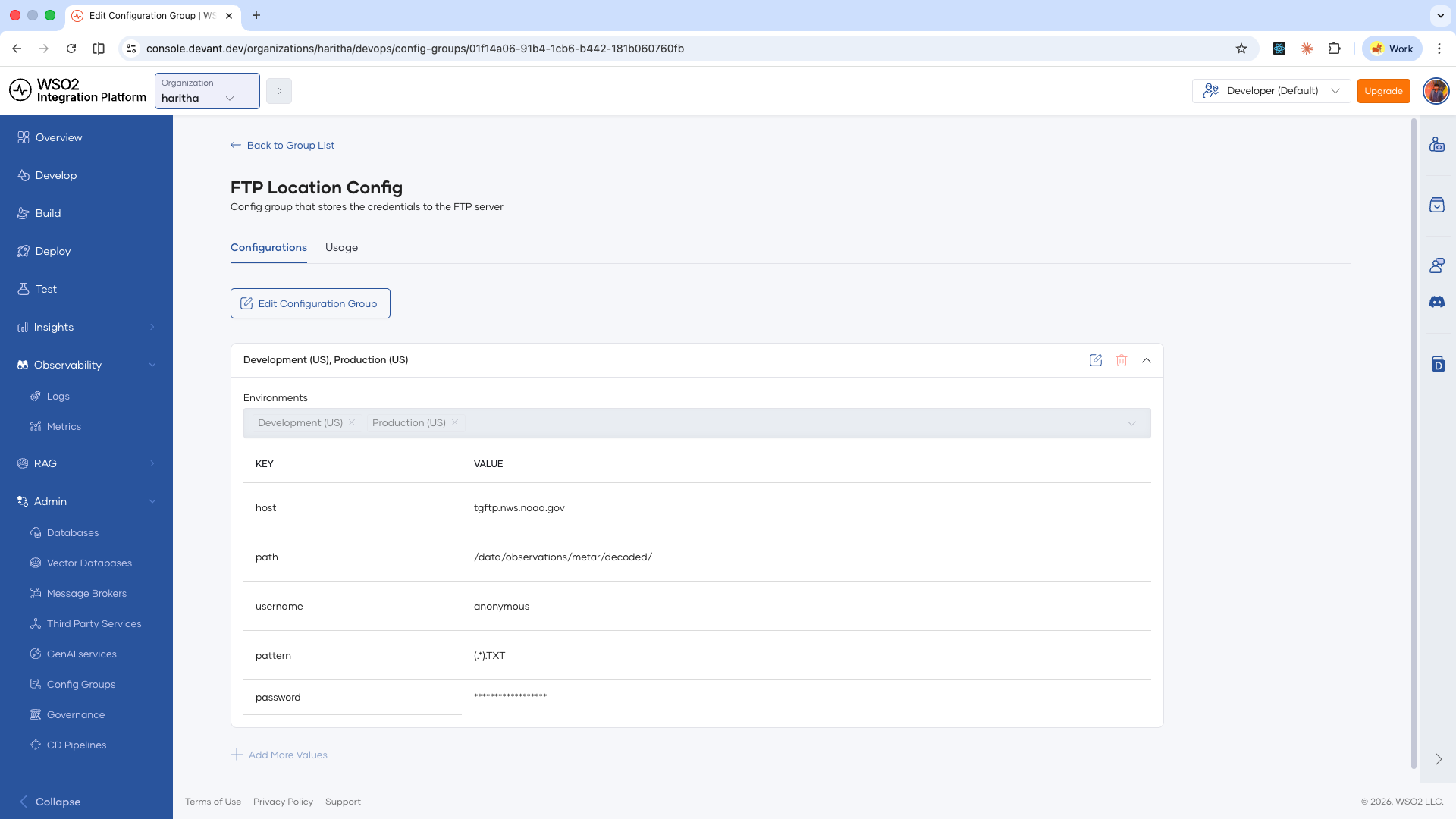
On the Config Groups page, click the configuration group you want to edit.
-
If you only want to update the values of the fields, click the edit icon on the value card.
-
To edit the fields, click Edit Configuration Group.
-
Update the fields, their types and values as needed.
-
Click Update to save the changes.
Editing a configuration group updates the values for all integrations that link to it. Verify that the new values are valid for every linked integration before saving, and make sure to restart the linked integrations after the update to apply the new values.
Link a configuration group to an integration
Once you have a configuration group, you can link its fields to the configurables in an integration.
-
Open your integration and click Configure for the target environment.
-
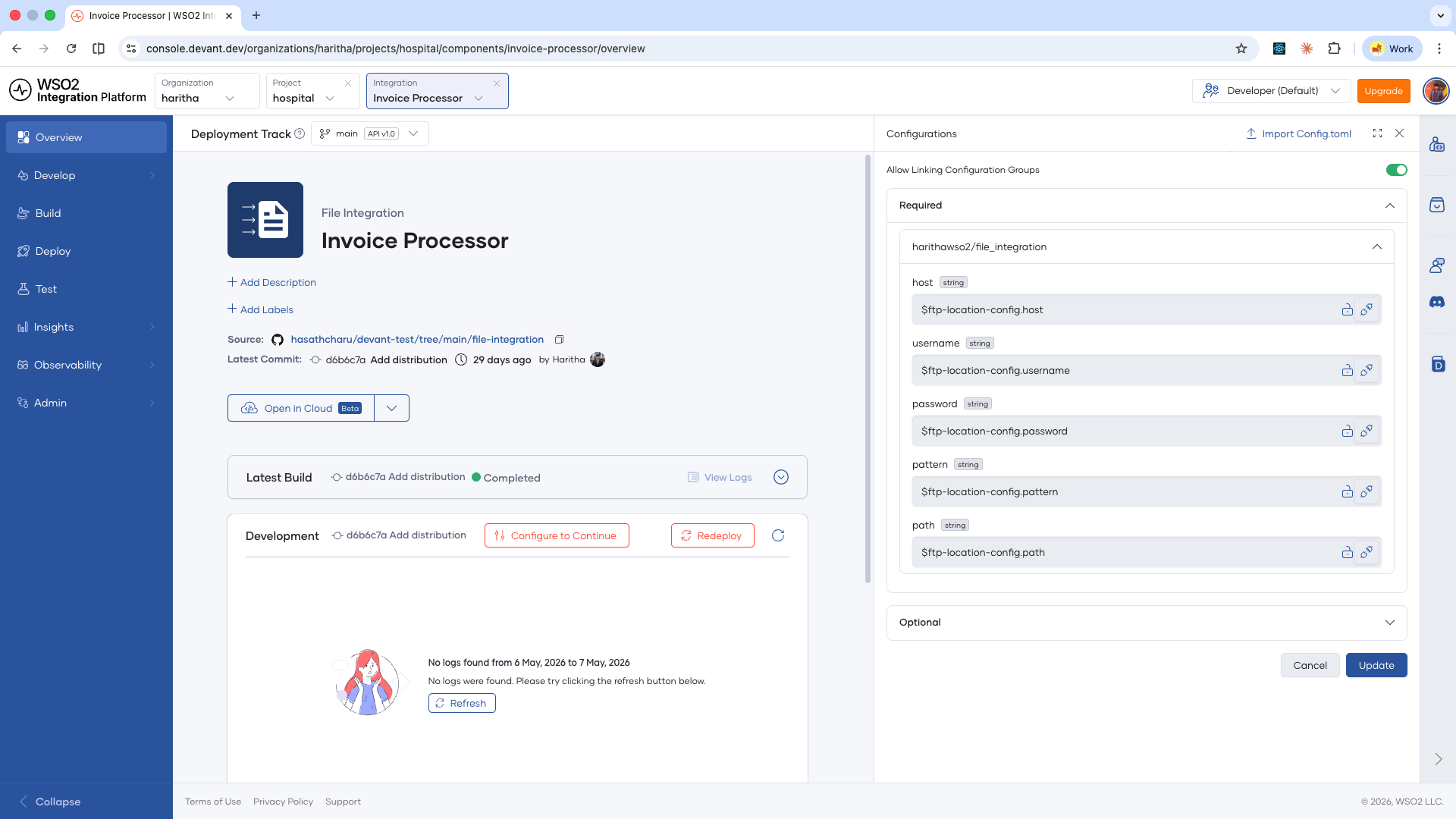
Enable the Allow Linking Configuration Groups toggle.
A link icon appears next to each configurable field.
-
Click the link icon next to a configurable field.
-
Select the configuration group and the specific field within the group that maps to this configurable.
-
Repeat for each configurable you want to link.
-
Click Update.
The integration now reads its configurable values from the configuration group. When the group is updated, the linked integration picks up the new values automatically on the next restart.
What's next
- Endpoint configurations — Configure endpoint visibility settings for integrations.
- Build configurations — Control how your integrations are built on WSO2 Cloud - Integration Platform.