Scale Integrations
WSO2 Cloud - Integration Platform supports two scaling modes: horizontal autoscaling based on resource consumption, and scale-to-zero for Integration as APIs using HTTP. Both modes can be configured independently per environment.
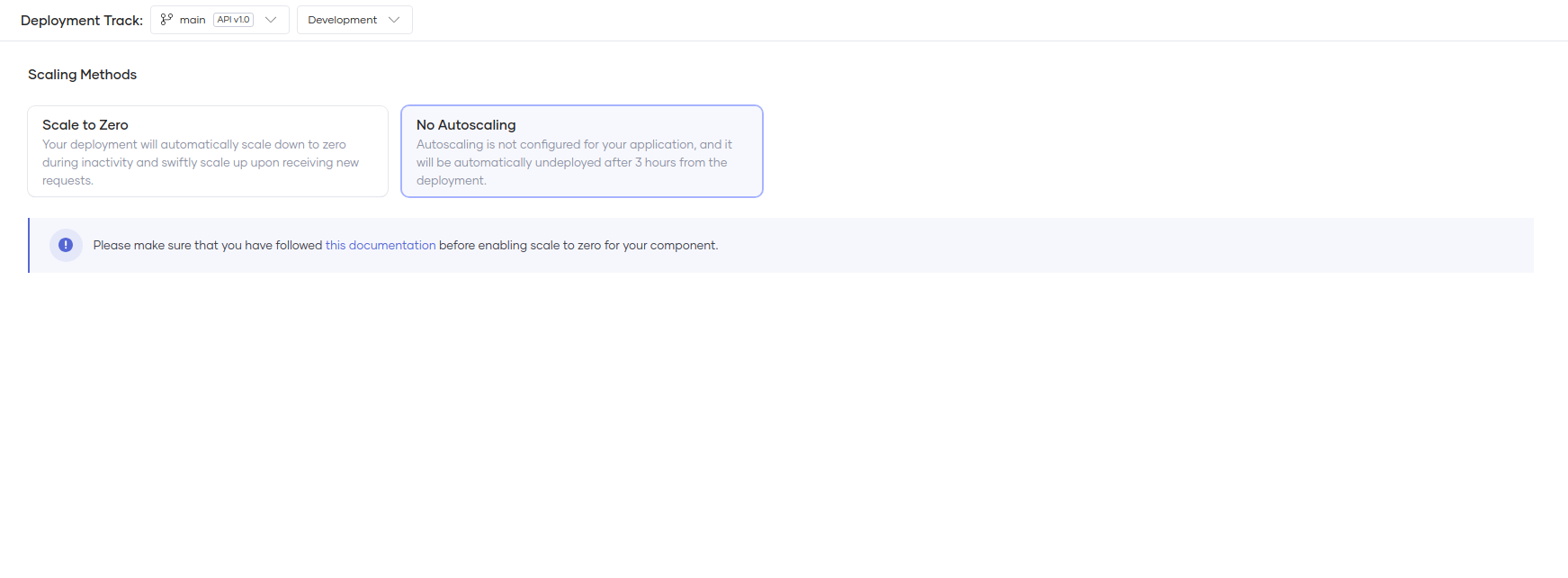
Autoscaling is only available in paid plans using private data planes. In the free tier, integrations run in single-replica, low-availability mode. You can still turn off scale-to-zero, but it will automatically shutdown after 3 hours. You will see a view similar to below if you are on the free tier.
Autoscale replicas
Horizontal autoscaling adjusts the number of running replicas based on CPU and memory usage. The platform monitors resource consumption across all active replicas and scales up or down to keep usage within the thresholds you define.
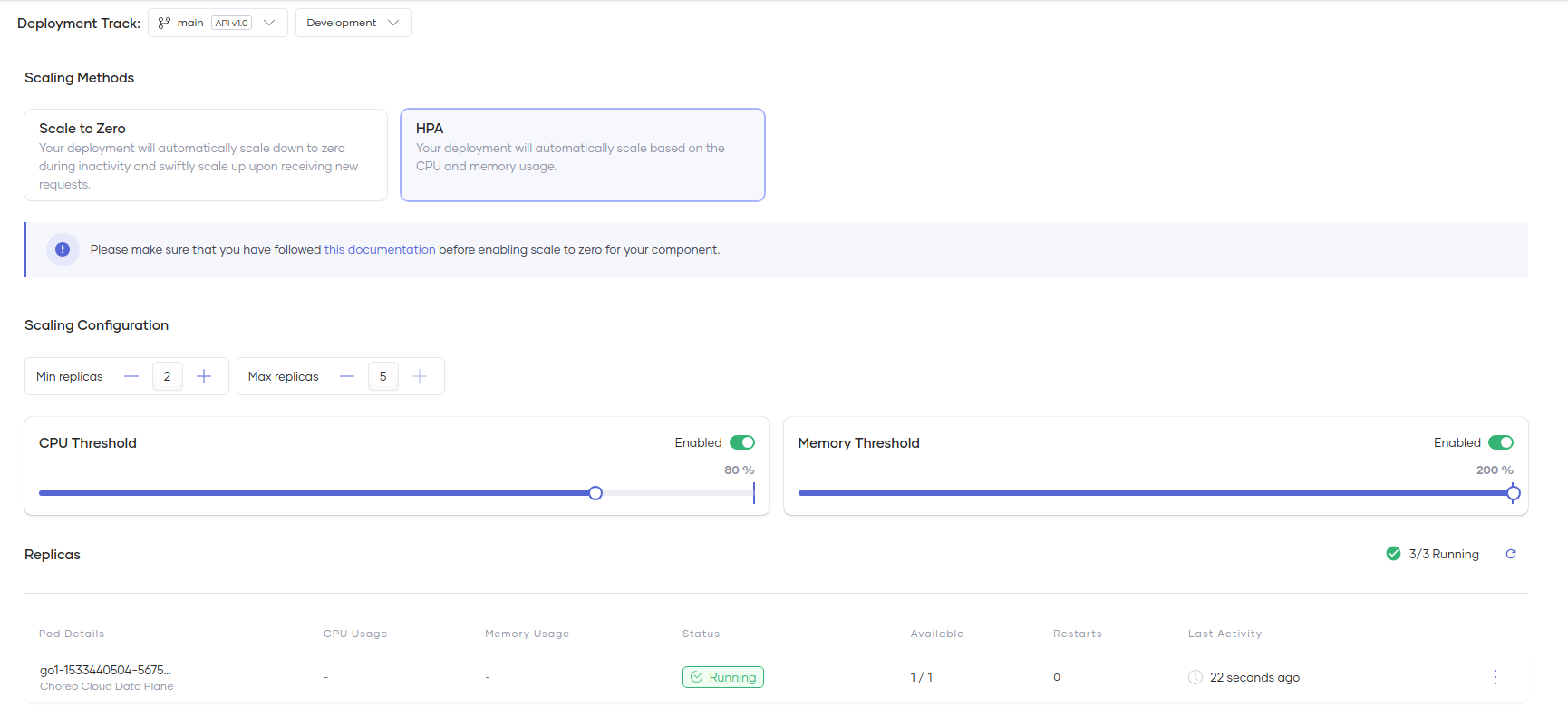
Configure the following parameters to control autoscaling:
| Parameter | Description |
|---|---|
| Min replicas | The minimum number of replicas to keep running at all times. A value of 2 or higher is recommended for high availability. |
| Max replicas | The maximum number of replicas to scale up to. In the cloud data plane, this is capped at 5. Private data planes have no restriction. |
| CPU threshold | The average CPU utilization across all running replicas. When this threshold is reached, the platform scales up until utilization falls below it. |
| Memory threshold | The average memory usage across all running replicas. The platform scales up when this threshold is reached, until usage falls below it. |
Scaling parameter changes can take some time to propagate. The console may not reflect updates immediately after saving.
To run exactly 3 replicas at all times, set both Min replicas and Max replicas to 3.
Setting both Min replicas and Max replicas to 0 suspends the deployment. Although setting only the minimum to 0 is allowed, the platform will not automatically scale below 1 replica during low usage.
Scale to zero
Scale-to-zero lets HTTP integrations run in a serverless mode, scaling down to zero replicas when idle and scaling back up automatically when a request arrives. This is useful in lower environments to reduce infrastructure costs for idle workloads.
For production integrations that require consistent availability, use horizontal autoscaling with a minimum of 2 replicas instead.
How scale to zero works
When no HTTP traffic arrives for approximately 5 minutes, the platform scales the integration down to zero replicas. An intermediary proxy intercepts all incoming requests. When a new request arrives, the proxy holds it in a queue and triggers a scale-up to one replica. Once the integration is ready, the proxy forwards the queued requests.
If traffic surges while the integration is running, the platform adds replicas up to the configured maximum. A new replica is added when the number of pending requests exceeds the Number of pending requests threshold, which defaults to 100.
The first request after a period of inactivity incurs a startup delay while the integration scales up from zero. In service chains where one integration calls another, this delay compounds for each service that needs to scale up.
Enable scale to zero
For HTTP integrations, scale-to-zero is enabled by default on deploy and promote. To configure it manually for an integration:
- In the left navigation, click Admin, then click Scaling.
- Click the Scale-to-zero card.
- Set the Max replicas the integration can scale up to under high traffic.
- Optionally, adjust the Target pending requests threshold.
- Click Save.
You can configure scale-to-zero independently for each environment. The deployment card shows the current scaling status per environment.
Limitations
-
Scale-to-zero supports HTTP services only. TCP and HTTPS services are not supported.
-
The HTTP service must run on one of the following ports:
5000,6000,7000,8000,9000,7070–7079,8080–8089,9090–9099, or8290. Services on other ports do not scale to zero automatically on deploy or promote. -
Integrations with at least one endpoint set to Project network visibility do not scale to zero automatically on deploy or promote.
-
Automations cannot connect to a project-scoped service when scale-to-zero is enabled. The following error is returned:
Host not found, not forwarding request.To allow an automation to invoke a project-level service, switch to HPA mode on a paid plan, or to no-scaling mode on the free plan.
Troubleshoot scale-to-zero
If the first request to a scale-to-zero integration returns a 503 error, the readiness probe may not allow enough time for your integration to start. Adjust the readiness probe in Admin > Health Checks to match your integration's startup time.
What's next
- Environments — Organize your integration lifecycle with multiple environments.