Create Evaluations from Templates
An evaluation template is a prebuilt evaluator for a common AI evaluation pattern. You pick a template, fill a short form, and WSO2 Integrator generates the evaluation for you, with no flow to build.
This page walks through the Tool Trajectory template, which checks that the agent calls the tools recorded in an evalset. To write your own evaluation logic instead, see Create custom evaluations.
The Tool Trajectory template replays an evalset, so have at least one evalset in your project. See Create evalsets to capture or import one.
Start a new evaluation
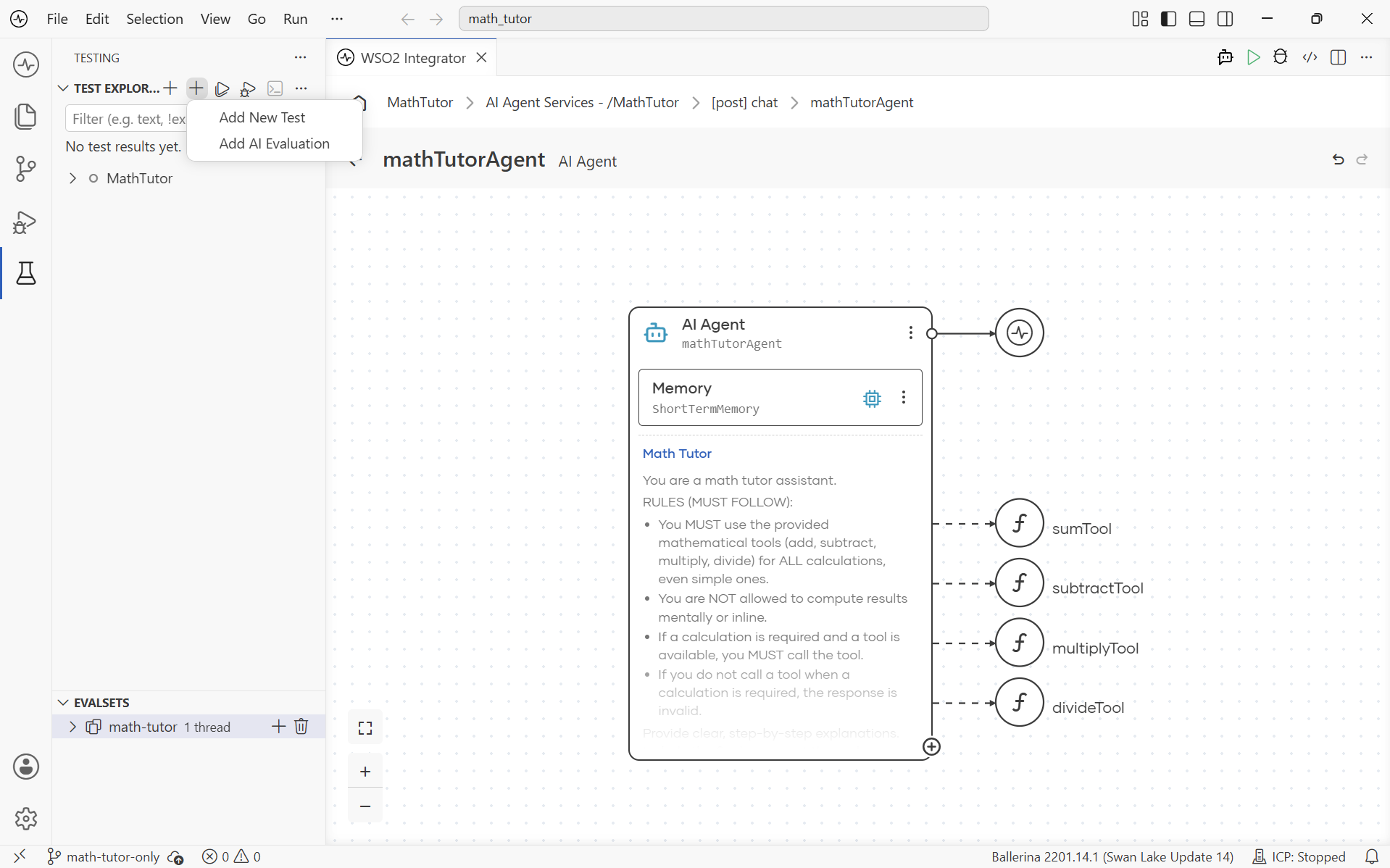
- Open the Test Explorer by clicking the test beaker icon in the activity bar.
- Click Add Test at the top of the Test Explorer and choose Add AI Evaluation.
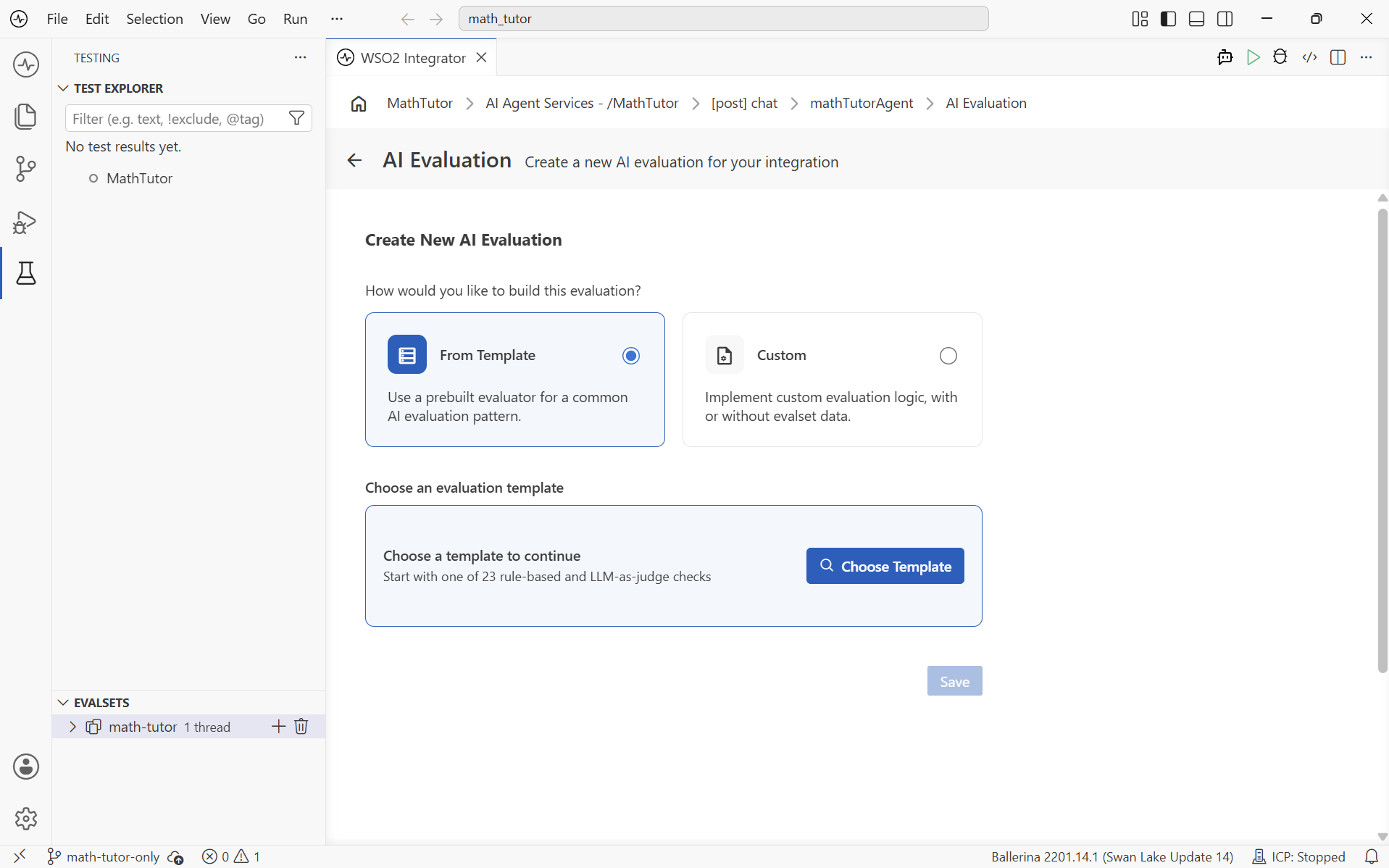
- In the Create New AI Evaluation form, under How would you like to build this evaluation?, select From Template.
Choose a template
Click Choose Template to open Browse Evaluation Templates. Templates come in two kinds:
- Rule-based. Scored in code, with no LLM involved. Results are deterministic.
- LLM-as-Judge. Scored by a judge model, which returns a score and its reasoning. The evaluation passes when the score reaches the configured threshold.
The badges on each card show its kind and the test input it accepts. Evalset required templates replay the conversations recorded in an evalset. Evalset or queries templates can also run on queries you enter manually. Use the search box or the filter buttons to narrow the list.
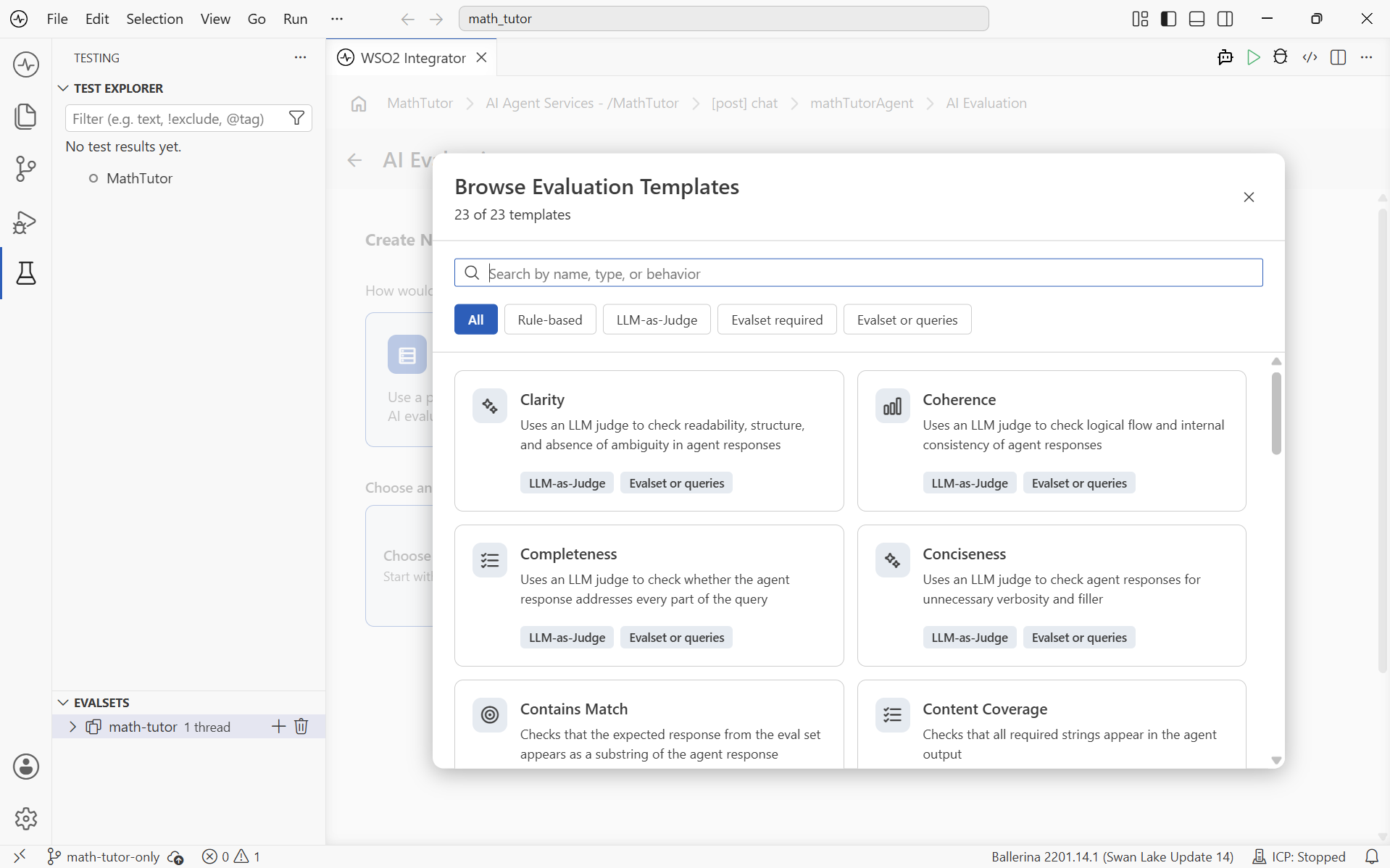
Select Tool Trajectory. You can type tool in the search box to find it quickly.
Configuring a template
For example, choose the Tool Trajectory evaluation template. The selected template opens in a configuration card. Tool Trajectory replays each turn in the evalset against the agent and compares the tool calls the agent makes with the tool calls recorded for that turn. A tool call matches when both the tool name and its arguments are equal.
| Field | Value | Notes |
|---|---|---|
| Target Agent | mathTutorAgent | The agent under evaluation. |
| Evalset File | math-tutor | The evalset to replay. Under Test input. This template always evaluates against an evalset. |
| Match Mode | STRICT (default) | How the agent's tool calls are compared with the recorded ones. Under Optional settings; click Expand to change it. |
| Minimum Pass Rate (%) | 90 | The percentage of evalset threads that must pass for the run to succeed. |
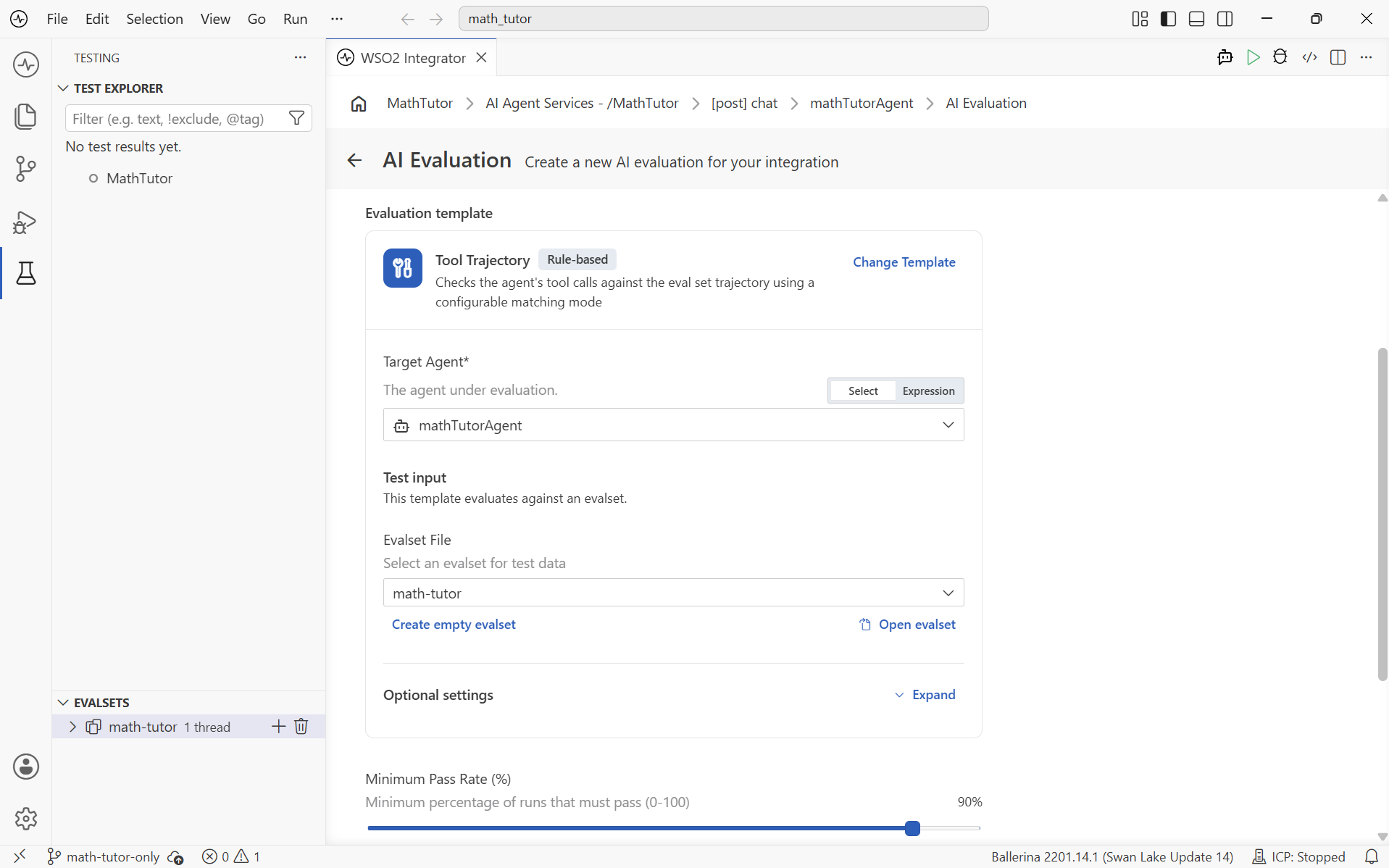
If the project has no evalset yet, click Create empty evalset to create one. Open evalset opens the selected evalset in the Evalset Viewer. To pick a different template, click Change Template.
Match modes
| Mode | Passes when |
|---|---|
STRICT | The agent makes exactly the recorded tool calls, in the same order. |
UNORDERED | The agent makes exactly the recorded tool calls, in any order. |
SUBSET | Every tool call the agent makes is in the recorded calls. The agent does not have to make all of them. |
SUPERSET | The agent makes at least all the recorded tool calls. Extra calls are allowed. |
Consider lowering the Minimum Pass Rate below 100%. Agent responses are non-deterministic, so a small amount of run-to-run variation is expected even when the agent is behaving correctly. A threshold around 80–90% tolerates that variance while still catching real regressions.
Save the evaluation
Click Save. The evaluation opens in the visual designer as a single AI evaluation node that shows the template and the target agent, and it appears under evaluations in the Test Explorer. To change the template settings later, click Configure.
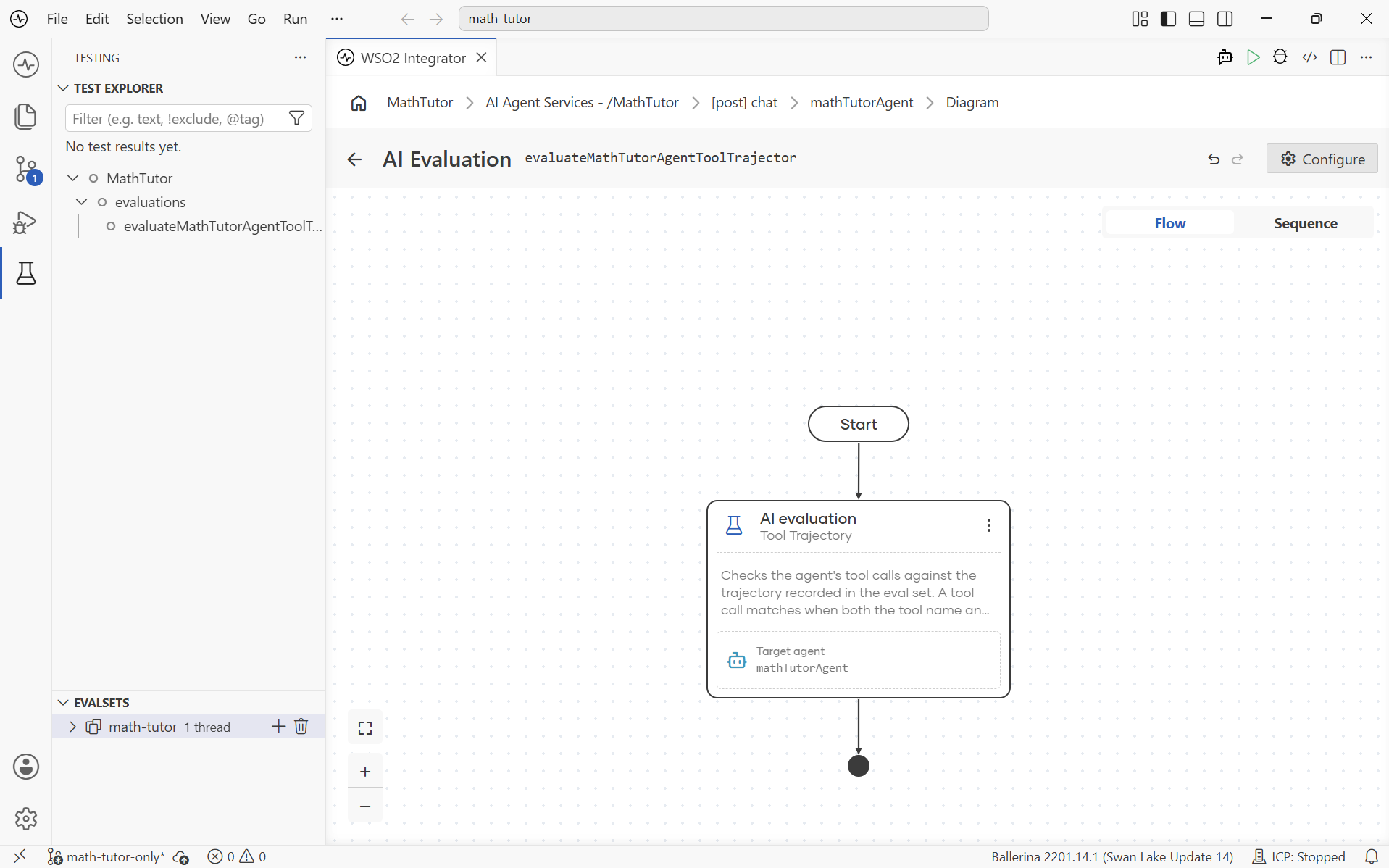
The evaluation is now ready to run.
What's next
- Run evaluations — Execute the evaluation and open the report.
- Create custom evaluations — Build your own evaluation logic in the visual designer.
- Create evalsets — Add more evalsets to broaden coverage.