Exposing a Service as MCP
An MCP service is a WSO2 Integrator artifact that publishes a set of tools over the Model Context Protocol. Any MCP-compatible client (Claude Desktop, GitHub Copilot, or another AI agent) can connect, discover the tools, and call them. This page covers the configuration options for the listener, service, and tools, including how to read request metadata and HTTP request data, handle sessions, and define tools dynamically.
WSO2 Integrator MCP services run over the Streamable HTTP transport. The generated code uses the mcp:StreamableHttpListener listener and the mcp:StreamableHttpService service type from the ballerina/mcp module.
Creating an MCP service
- Visual Designer
- Ballerina Code
-
In the design view, select Add Artifact manually.
-
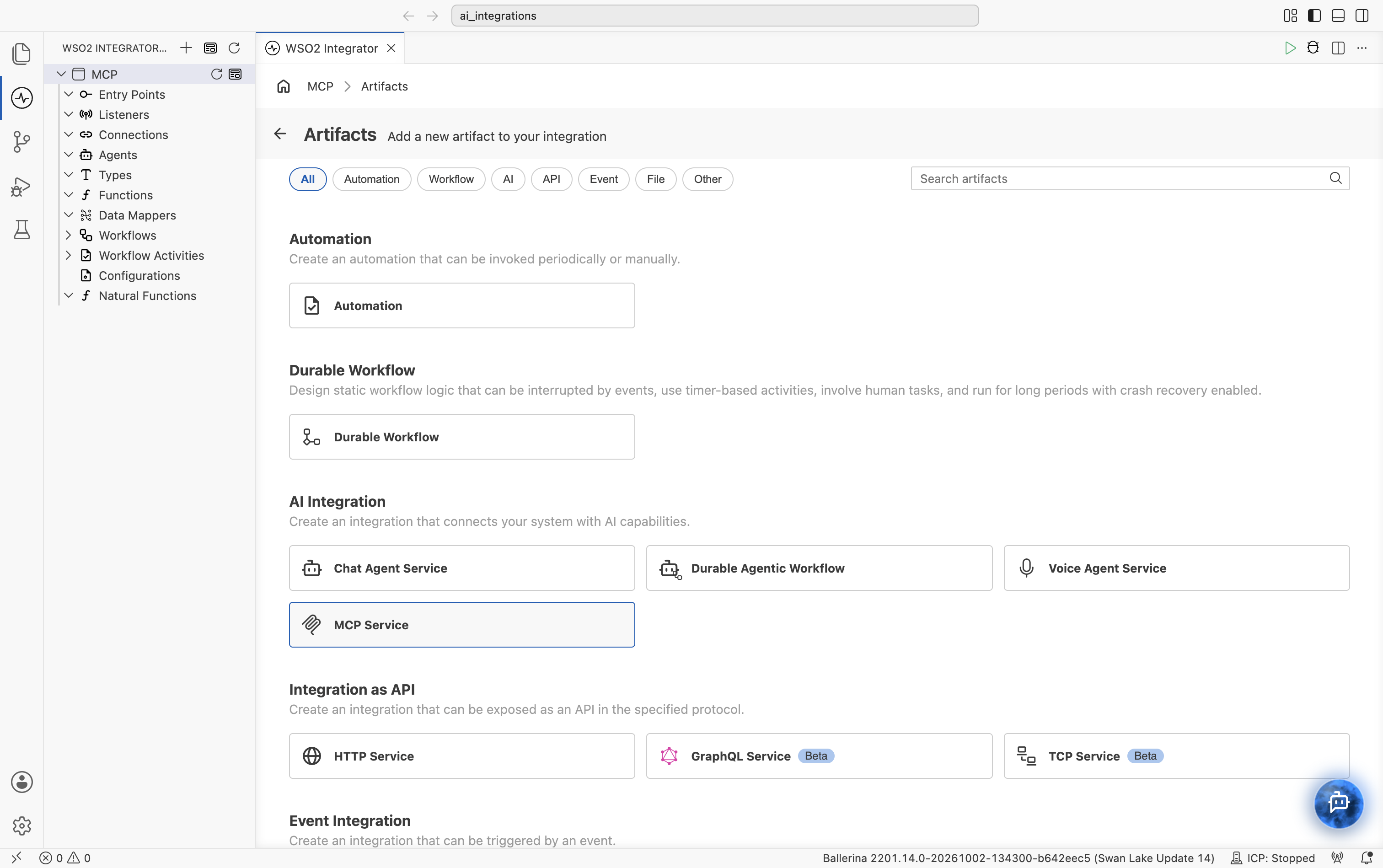
Under the AI Integration category, select MCP Service.
-
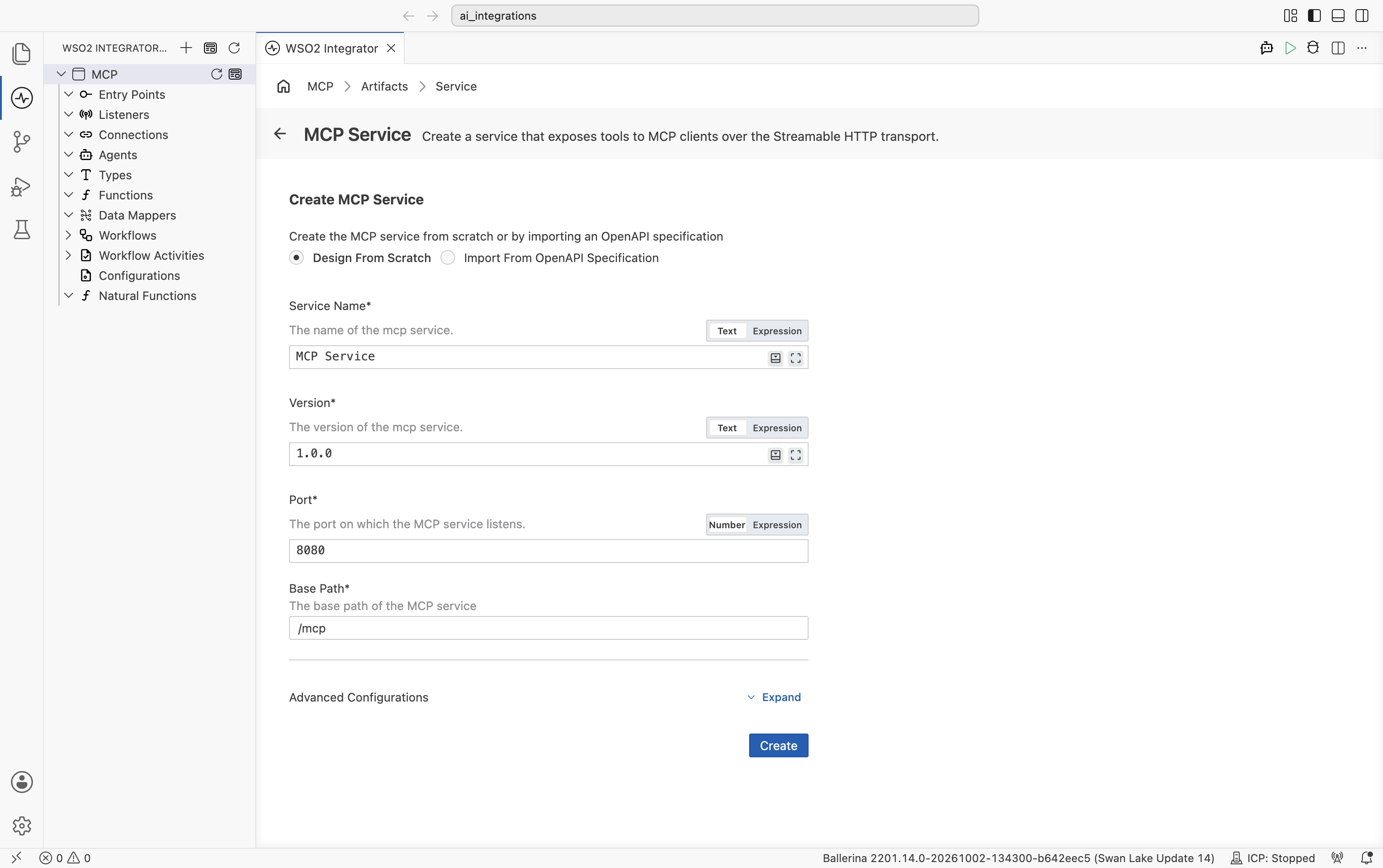
Choose how to create the service, fill in the creation form fields, and click Create.
| Field | Description |
|---|---|
| Design From Scratch / Import From OpenAPI Specification | Design From Scratch (default) creates an empty MCP service that you add tools to. Import From OpenAPI Specification generates an MCP server from an existing OpenAPI specification. |
| Service Name | Display name advertised to MCP clients (for example, MCP Service). Sent to clients as serverInfo.name during initialization. |
| Version | Service version string (for example, 1.0.0). Sent to clients as serverInfo.version during initialization. |
| Port | Listening port for the MCP listener. Defaults to 8080. |
| Base Path | URL prefix for the MCP service (for example, /mcp). |
| Advanced Configurations | Expand to set the name of the listener that is created for the service. Defaults to mcpListener. |
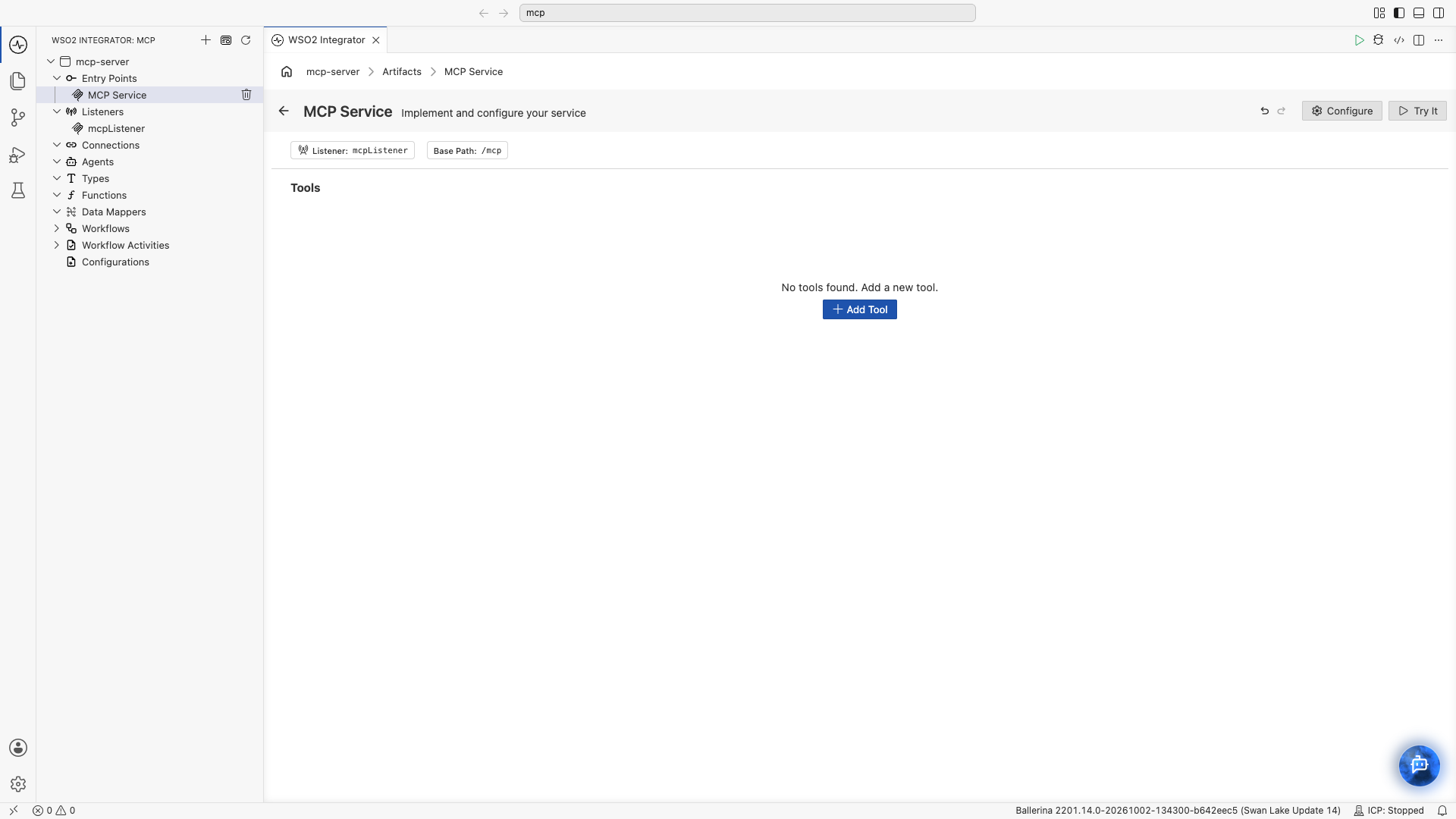
After clicking Create, WSO2 Integrator opens the service in the MCP Service Editor. The header shows the listener and base path, a Tools section, and Configure / Try It buttons in the top-right.
| Element | What it does |
|---|---|
| Listener | The mcp:StreamableHttpListener the service runs on. |
| Base Path | The URL prefix the service is mounted on. |
| Tools | The tools the service exposes. Empty by default; click + Add Tool to add one. |
| Configure | Service-level settings: base path, server info, session mode, HTTP options, and listener settings. |
| Try It | Send sample MCP requests to the service from inside the editor. |
The visual designer generates the following code for a new MCP service with a single add tool:
import ballerina/mcp;

listener mcp:StreamableHttpListener mcpListener = new (8080);

@mcp:StreamableHttpServiceConfig {info: {name: "MCP Service", version: "1.0.0"}}
service mcp:StreamableHttpService /mcp on mcpListener {
    # Adds two numbers together
    # + a - First number to add
    # + b - Second number to add
    remote function add(int a, int b) returns int {
        return a + b;
    }
}
Save this as main.bal, then run bal run from the project directory. The service is now reachable at http://localhost:8080/mcp.
The function name becomes the tool name. The doc comment becomes the tool description. The parameter doc lines become parameter descriptions. The parameter types become the tool's input schema.
Service configuration
Service configuration controls the base path, the server identity advertised to clients, the session management mode, and HTTP-level options such as CORS and authentication.
- Visual Designer
- Ballerina Code
In the MCP Service Editor, click Configure in the header to open the MCP Service Configuration page. The left-hand navigation lists MCP Service and, under Attached Listeners, each listener the service uses (for example, mcpListener). Selecting MCP Service shows the service-level fields below.
| Field | Description |
|---|---|
| Streamable HTTP Service | The service type. Read-only; WSO2 Integrator always creates an mcp:StreamableHttpService, which handles MCP tool calls over the Streamable HTTP transport. |
| Base Path | URL prefix for the MCP endpoint (for example, /mcp). Required. |
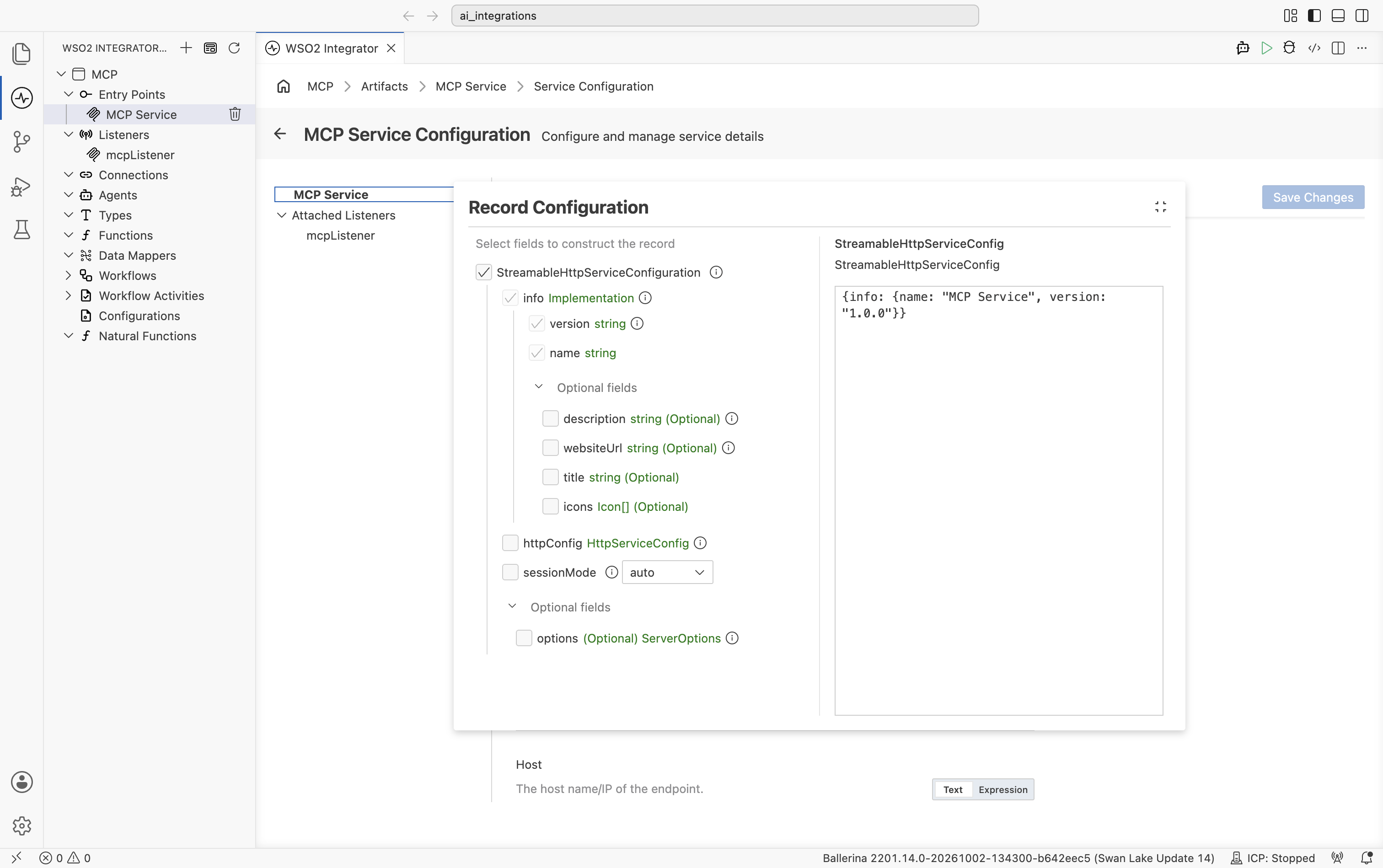
| StreamableHttpServiceConfig | The @mcp:StreamableHttpServiceConfig annotation record. Click the field to open the Record Configuration editor. |
The same form also shows the configuration of the attached listener. See Listener configuration.
| Field | Description |
|---|---|
| info.name | Name of your server implementation (for example, MCP Weather Server). Sent to clients as serverInfo.name during initialization. Required. |
| info.version | Version of your server implementation (for example, 1.0.0). Sent as serverInfo.version. This is the version of your service, not the MCP protocol version; the protocol version is negotiated by the runtime. Required. |
| httpConfig | HTTP service configuration (CORS, auth, compression, validation, and so on). Same fields as the HTTP service @http:ServiceConfig. |
| sessionMode | Session management mode. Options: auto (default), stateful, stateless. See Session modes. |
| options.capabilities | Capabilities the server advertises during initialization. Defaults to {tools: {}}. |
| options.instructions | Instructions describing how to use the server and its tools. Sent to clients during initialization. |
| options.enforceStrictCapabilities | Whether to enforce strict compliance with the advertised capabilities. |
Service-level settings map to the @mcp:StreamableHttpServiceConfig annotation placed before the service declaration.
import ballerina/mcp;

listener mcp:StreamableHttpListener mcpListener = new (8080);

@mcp:StreamableHttpServiceConfig {
    info: {
        name: "MCP Weather Server",
        version: "1.0.0"
    },
    sessionMode: mcp:AUTO,
    httpConfig: {
        cors: {
            allowOrigins: ["https://app.example.com"],
            allowMethods: ["GET", "POST"]
        }
    },
    options: {
        instructions: "Use these tools to look up current weather conditions and forecasts."
    }
}
service mcp:StreamableHttpService /mcp on mcpListener {
    // Tools defined as remote functions.
}
All @mcp:StreamableHttpServiceConfig fields:
| Field | Description |
|---|---|
| info.name | Name of your server implementation. Sent to clients as serverInfo.name during initialization. Required. |
| info.version | Version of your server implementation. Sent as serverInfo.version. Distinct from the MCP protocol version, which is negotiated by the runtime. Required. |
| httpConfig | An http:HttpServiceConfig record. Controls CORS, auth, compression, payload validation, and other HTTP-level concerns. |
| sessionMode | Session management mode. Options: mcp:AUTO (default), mcp:STATEFUL, mcp:STATELESS. |
| options.capabilities | Capabilities advertised during initialization. Defaults to {tools: {}}. |
| options.instructions | Instructions describing how to use the server and its tools. |
| options.enforceStrictCapabilities | Whether to enforce strict compliance with the advertised capabilities. |
Session modes
| Mode | Use when… |
|---|---|
mcp:AUTO (default) | Mode is decided automatically based on how the client initializes. Recommended for most services. |
mcp:STATEFUL | The transport tracks session IDs and your tools need per-session state (for example, a shopping cart). Tools can declare an mcp:Session first parameter to read and write session-scoped data. See Stateful tools. |
mcp:STATELESS | Each request is independent. Use for pure functions and read-only lookups. |
Listener configuration
The listener binds to a port and handles incoming MCP connections over Streamable HTTP.
- Visual Designer
- Ballerina Code
In the MCP Service Configuration form, select the listener under Attached Listeners to configure it.
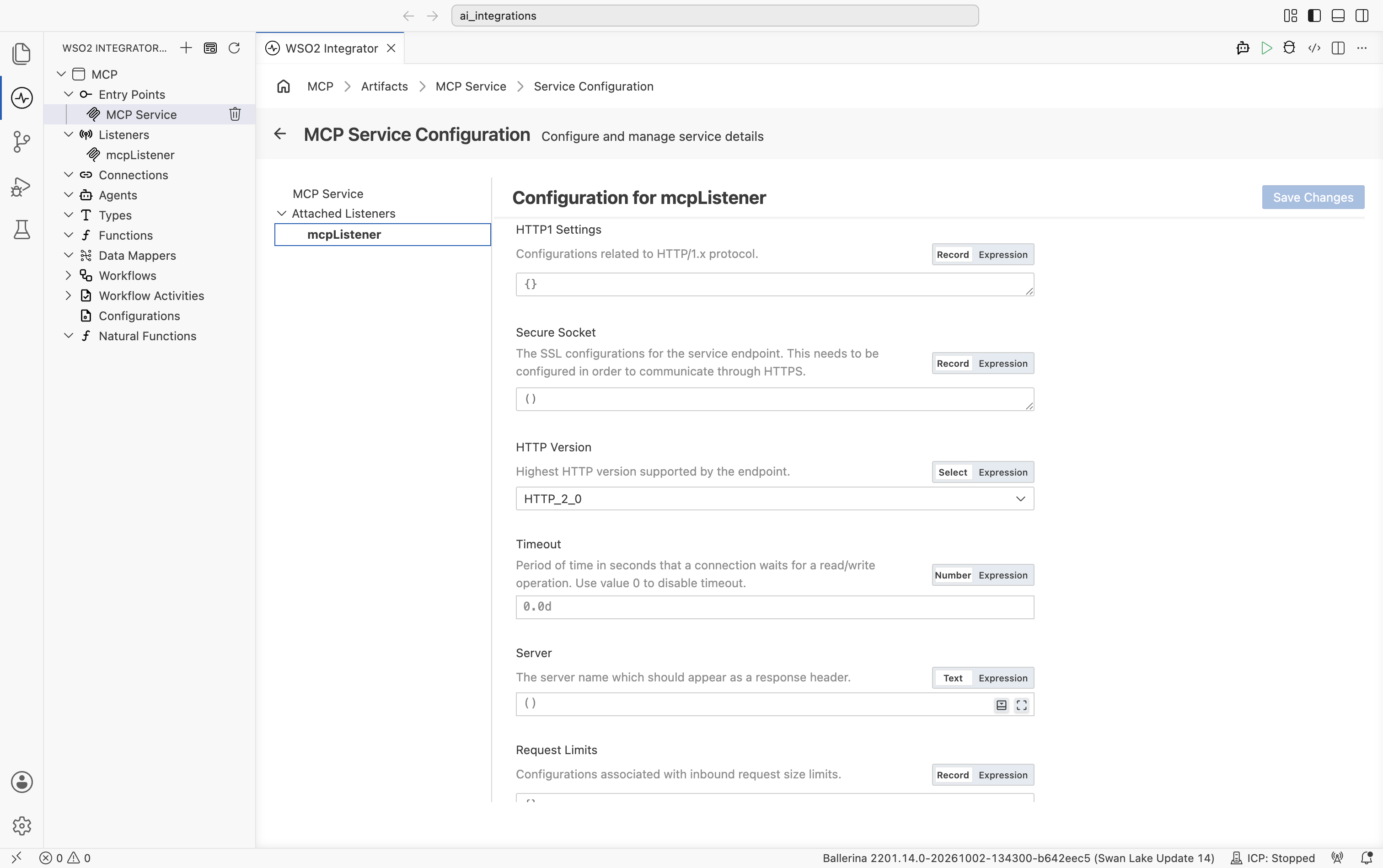
For standard HTTP setups, only Listen To (the port) is required. Configure Secure Socket to enable HTTPS.
| Field | Description | Default |
|---|---|---|
| Name | Identifier for the listener (for example, mcpListener). | |
| Listen To | Listening port (or an existing http:Listener reference). Required. | |
| Host | Host name or IP address the listener binds to. | 0.0.0.0 |
| HTTP1 Settings | HTTP/1.x protocol settings (keep-alive, max pipelined requests). | {} |
| Secure Socket | TLS/SSL configuration. Configure this to enable HTTPS. | () |
| HTTP Version | Highest HTTP version the endpoint supports. | HTTP/2.0 |
| Timeout | Read/write timeout in seconds. Set to 0 to disable. | 60 |
| Request Limits | Inbound size limits for URI, headers, and request body. | {} |
| Graceful Stop Timeout | Grace period in seconds before the listener force-stops. | 0 |
mcp:ListenerConfiguration includes all the fields of http:ListenerConfiguration, so every HTTP listener option applies to MCP listeners as well.
Listener with a port
import ballerina/mcp;

listener mcp:StreamableHttpListener mcpListener = new (8080);

service mcp:StreamableHttpService /mcp on mcpListener {
    // Tools…
}
Listener with custom configuration
import ballerina/mcp;

listener mcp:StreamableHttpListener mcpListener = new (8080, {
    host: "0.0.0.0",
    timeout: 60,
    secureSocket: {
        key: {
            certFile: "/path/to/cert.pem",
            keyFile: "/path/to/key.pem"
        }
    }
});

service mcp:StreamableHttpService /mcp on mcpListener {
    // Tools…
}
Reusing an existing HTTP listener
mcp:StreamableHttpListener can be initialized from an existing http:Listener, which lets MCP and HTTP services share a port.
import ballerina/http;
import ballerina/mcp;

listener http:Listener httpListener = new (8080);
listener mcp:StreamableHttpListener mcpListener = new (httpListener);

service mcp:StreamableHttpService /mcp on mcpListener {
    // Tools…
}
Tools
Tools are the operations the MCP service exposes. Each tool has a name, a description, typed parameters, and a typed return value. The framework derives the JSON Schema sent to clients automatically from the Ballerina types.
- Visual Designer
- Ballerina Code
Click + Add Tool in the editor to open the New Tool Configuration panel.
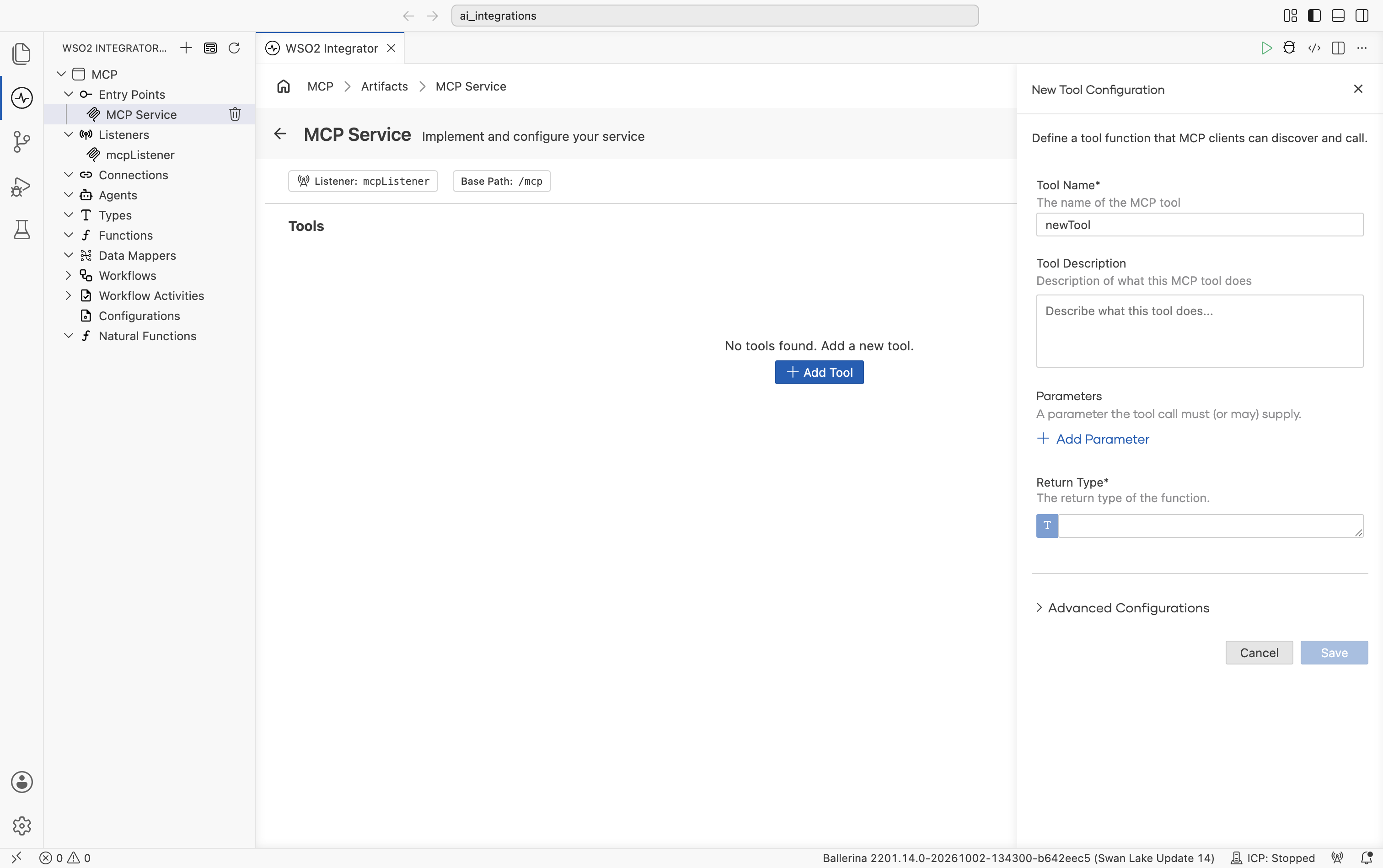
| Field | Required | Description |
|---|---|---|
| Tool Name | Yes | Name MCP clients will see. Use camel-case and be descriptive: getOrderStatus, searchProducts. |
| Tool Description | No | What the tool does and when the assistant should use it. Although optional, this is the single most important field for tool discoverability. See Writing a good tool description. |
| Parameters | No | Click + Add Parameter to add an argument the tool call must (or may) supply. Each parameter has a name, type, and description. Descriptions are included in the schema sent to the client. |
| Return Type | Yes | Ballerina type returned by the tool. |
| Advanced Configurations | No | Bind request metadata and HTTP request data to the tool. See Transport parameters and request metadata. |
After clicking Save, WSO2 Integrator generates a remote function within the service and opens the tool's flow diagram, where you implement the tool logic. The tool also appears under the MCP service in the project sidebar and as a row under Tools in the MCP Service Editor.
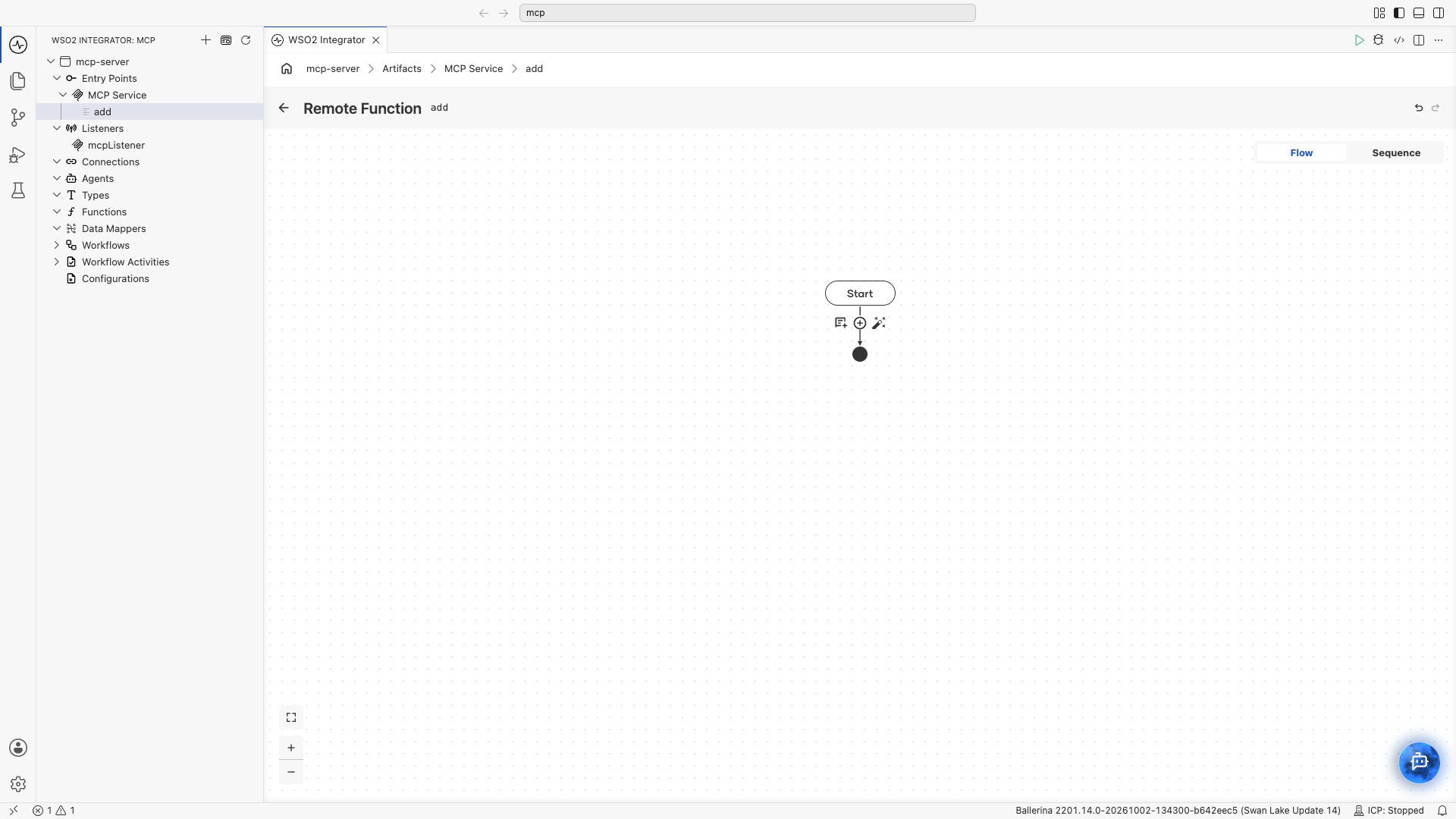
Each remote function on an mcp:StreamableHttpService becomes one tool. The function name becomes the tool name, the doc comment becomes the description, parameter doc lines become parameter descriptions, and the parameter types become the tool's input schema.
import ballerina/mcp;

listener mcp:StreamableHttpListener mcpListener = new (8080);

@mcp:StreamableHttpServiceConfig {info: {name: "Order Service", version: "1.0.0"}}
service mcp:StreamableHttpService /mcp on mcpListener {

    # Get the current status of a customer order by order ID.
    #
    # + orderId - Customer order identifier (format ORD-XXXXX)
    # + return - Current status, ETA, and tracking number
    remote function getOrderStatus(string orderId) returns OrderStatus|error {
        return check orderApi->/orders/[orderId]/status;
    }
}
Constraints
- Tool arguments must be subtypes of
anydata. - The return type must be a subtype of
anydata|error. - The runtime-injected parameters are the exceptions to the first rule:
mcp:Sessionfor stateful tools (must be the first parameter),mcp:Meta?for request metadata, and the HTTP bindings@http:Header,http:Headers, andhttp:Request. These are never part of the tool's input schema. See Transport parameters and request metadata.
Overriding the description or schema with @mcp:Tool
When you want explicit control over the description or input schema, use the @mcp:Tool annotation. The annotation has two fields, both optional:
| Field | Description |
|---|---|
| description | Tool description sent to clients. Overrides the function's doc comment. |
| schema | A map<json> JSON Schema for the tool's parameters. Overrides the schema WSO2 Integrator derives from parameter types. Use when you need richer schema metadata (enums, defaults, custom validation) than Ballerina types can express. |
@mcp:Tool {
    description: "Get current weather conditions for a location"
}
remote function getCurrentWeather(string city) returns Weather|error {
    return check weatherApi->/current/[city];
}
Stateful tools with mcp:Session
When the service is configured with sessionMode: mcp:STATEFUL, tools can take mcp:Session as the first parameter to read and write per-client session state.
@mcp:StreamableHttpServiceConfig {
    info: {name: "Shopping Cart Server", version: "1.0.0"},
    sessionMode: mcp:STATEFUL
}
service mcp:StreamableHttpService /mcp on mcpListener {

    @mcp:Tool {
        description: "Add an item to the shopping cart"
    }
    remote function addToCart(mcp:Session session, string productName, decimal price)
            returns string|error {
        CartItem[] cart = session.hasKey("cart")
            ? check session.getWithType("cart")
            : [];
        cart.push({productName, price});
        session.set("cart", cart);
        return string `Added ${productName}. Total items: ${cart.length()}`;
    }
}
Writing a good tool description
The tool description is what the AI client reads to decide whether and when to call the tool. Two patterns matter most:
Be explicit about scope
"Search the product catalog by keyword. Returns up to 10 matching products with name, price, and availability. Use for general product discovery questions."
"Retrieves a single product by its exact SKU. Use only when the user provides a SKU."
These two are clearly distinct, and the AI will not confuse them.
Bake in safety rules
"Cancel a customer order. IMPORTANT: Always confirm with the customer before calling this tool. This action cannot be undone."
The AI client will follow it most of the time. For deterministic enforcement, also keep server-side checks.
Don't leave it generic
"Customer endpoint." ❌
A generic description leads to bad tool selection downstream. If you can't write a useful one-liner, the tool is probably too vague to be useful.
Transport parameters and request metadata
Besides the arguments the client supplies, a tool can bind data that the runtime injects from the incoming request:
- Request metadata (
mcp:Meta?): the_metaobject the client attached to the tool call. - HTTP request data: individual HTTP headers (
@http:Header), all headers (http:Headers), or the full HTTP request (http:Request) that carried the tool call.
These parameters are excluded from the tool's input schema, so MCP clients never see them as tool arguments. Use them to read authentication tokens, tenant IDs, correlation IDs, or other request context without asking the AI client to pass them.
- Visual Designer
- Ballerina Code
In the New Tool Configuration panel, expand Advanced Configurations.
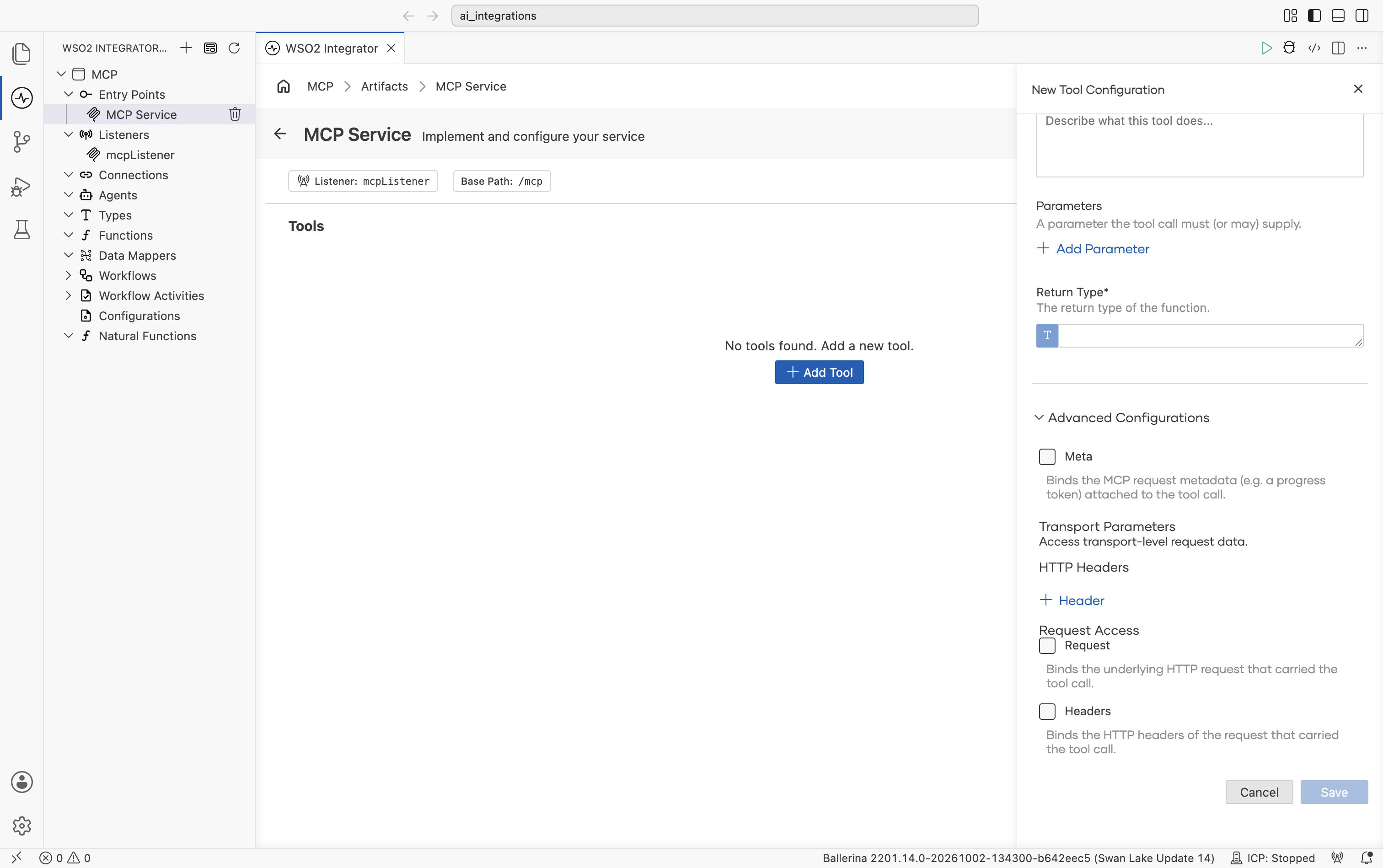
| Field | Generated parameter | Description |
|---|---|---|
| Meta | mcp:Meta? meta | Binds the MCP request metadata (for example, a progress token) attached to the tool call. |
| HTTP Headers > + Header | @http:Header <type> <name> | Binds an individual HTTP header as a typed parameter. Set the parameter name, its type (string, int, boolean, decimal, float, their nilable forms, or string[]), an optional default value and description, and the Header Name if the wire header name differs from the parameter name (for example, X-Request-Id). |
| Request | http:Request request | Binds the underlying HTTP request that carried the tool call. |
| Headers | http:Headers headers | Binds all the HTTP headers of the request that carried the tool call. |
Request metadata with mcp:Meta?
Declare an mcp:Meta? parameter to read the _meta object the client attached to the call. The parameter must be nilable (a non-nilable mcp:Meta is a compile error), at most one is allowed per tool, and it can appear anywhere in the signature. It is () when the client attached no metadata. mcp:Meta is an open record, so read the keys the client sent through member access.
# Summarize a document
#
# + document - The text to summarize
# + meta - The request metadata attached by the client
# + return - The summary
remote function summarize(string document, mcp:Meta? meta) returns string {
    string summary = summarizeText(document);
    anydata requestId = meta is mcp:Meta ? meta["requestId"] : ();
    if requestId is string {
        return string `[${requestId}] ${summary}`;
    }
    return summary;
}
Only document appears in the tool's input schema.
mcp:Meta declares a progressToken field for MCP spec conformance, but progress notifications are not implemented, so a server cannot act on it.
HTTP request data
Tools in an mcp:StreamableHttpService can bind HTTP request data the same way an HTTP resource function does. Import ballerina/http to use these parameters.
import ballerina/http;
import ballerina/mcp;

listener mcp:StreamableHttpListener mcpListener = new (8080);

@mcp:StreamableHttpServiceConfig {info: {name: "Tenant Service", version: "1.0.0"}}
service mcp:StreamableHttpService /mcp on mcpListener {

    # Get the profile of a customer
    #
    # + customerId - The customer identifier
    # + authorization - The value of the `Authorization` header
    # + tenantId - The value of the `X-Tenant-Id` header, if present
    # + return - The customer profile
    remote function getCustomer(string customerId,
            @http:Header string authorization,
            @http:Header {name: "X-Tenant-Id"} string? tenantId) returns string {
        return string `${tenantId ?: "default"}/${customerId}`;
    }

    # List the headers sent with the request
    #
    # + headers - All the headers of the request that carried the tool call
    # + return - The header names
    remote function listHeaders(http:Headers headers) returns string[] {
        return headers.getHeaderNames();
    }

    # Get the user agent of the caller
    #
    # + request - The HTTP request that carried the tool call
    # + return - The user agent
    remote function getUserAgent(http:Request request) returns string {
        return request.userAgent;
    }
}
| Parameter | Binds |
|---|---|
@http:Header <type> <name> | A single header. The header name defaults to the parameter name; set name in the annotation when the wire name differs (for example, X-Tenant-Id). Supports string, int, boolean, decimal, float, enums, arrays, their nilable forms, and records whose fields are headers. |
http:Headers | All the headers of the request. |
http:Request | The full HTTP request. |
Header binding follows these rules:
- If a required (non-nilable) header is missing, or a header value can't be converted to the declared type, the call fails with an
Invalid params(-32602) error before the tool runs. - A nilable header (
string?) is()when the header is missing. SethttpConfig: {treatNilableAsOptional: false}in@mcp:StreamableHttpServiceConfigto make nilable headers required.
Advanced: mcp:StreamableHttpAdvancedService
When tool definitions need to come from configuration, a database, or some runtime source (not from compile-time remote functions), use mcp:StreamableHttpAdvancedService. You implement two callbacks:
onListTools(): return the list of tools advertised to clients.onCallTool(params, session): dispatch a tool call by name.
The visual designer creates only mcp:StreamableHttpService services. Write an advanced service in code.
import ballerina/mcp;

listener mcp:StreamableHttpListener mcpListener = new (8080);

@mcp:StreamableHttpServiceConfig {
    info: {
        name: "MCP Crypto Server",
        version: "1.0.0"
    },
    sessionMode: mcp:STATELESS
}
service mcp:StreamableHttpAdvancedService /mcp on mcpListener {

    remote isolated function onListTools()
            returns mcp:ListToolsResult|mcp:ServerError {
        return {
            tools: [
                {
                    name: "hashText",
                    description: "Generate a hash for the given text.",
                    inputSchema: {
                        "type": "object",
                        "properties": {
                            "text": {"type": "string", "description": "Text to hash"},
                            "algorithm": {
                                "type": "string",
                                "enum": ["md5", "sha1", "sha256"],
                                "default": "sha256"
                            }
                        },
                        "required": ["text"]
                    }
                }
            ]
        };
    }

    remote isolated function onCallTool(mcp:CallToolParams params, mcp:Session? session)
            returns mcp:CallToolResult|mcp:ServerError {
        match params.name {
            "hashText" => {
                return self.handleHashText(params.arguments ?: {});
            }
            _ => {
                return error mcp:ServerError(string `Unknown tool: ${params.name}`);
            }
        }
    }

    private isolated function handleHashText(record {} arguments)
            returns mcp:CallToolResult|mcp:ServerError {
        // Implementation…
        return {content: [{'type: "text", text: "..."}]};
    }
}
Constraints
- Both
onListToolsandonCallToolmust be declared, and no otherremotemethods are allowed. onCallToolmust accept exactly onemcp:CallToolParamsparameter, and may accept anmcp:Session?parameter for stateful services.- An
mcp:Meta?parameter is not accepted. Read the request metadata from the_metafield ofmcp:CallToolParamsinstead. - Both methods can bind HTTP request data with
@http:Header,http:Headers, andhttp:Requestparameters, the same way tools can.
Use mcp:StreamableHttpService when… | Use mcp:StreamableHttpAdvancedService when… |
|---|---|
Tools map cleanly to compile-time remote functions. | Tools are dynamic (defined in configuration, a database, or another service). |
| You want WSO2 Integrator to derive schemas automatically. | You want hand-crafted JSON schemas or extra validation. |
| You want to build the service in the visual designer. | You want a dispatch-table architecture. |
In onCallTool, content items use the field name 'type (with a leading quote) because type is a reserved keyword in Ballerina.
Error handling
Tools should return informative errors so AI clients can recover or suggest alternatives. The framework propagates the error message back to the client as a tool-call error.
- Visual Designer
- Ballerina Code
When you build a tool flow in the visual designer, errors returned or propagated with check from the flow are sent back to the client automatically. To return a custom error message, use a Return node with an error value:
return error(string `Invalid invoice ID '${invoiceId}'. Expected format INV-XXXXX.`);
The error message is what the AI client will read, so make it actionable. Avoid bare error() with no message; the assistant has nothing to reason about.
For mcp:StreamableHttpService, return error from the tool function. The framework converts it into an MCP tool-call error containing the error message.
remote function getInvoice(string invoiceId) returns Invoice|error {
    if !invoiceId.startsWith("INV-") {
        return error(string `Invalid invoice ID '${invoiceId}'. Expected format INV-XXXXX.`);
    }
    return check billingApi->/invoices/[invoiceId];
}
For mcp:StreamableHttpAdvancedService, return mcp:ServerError from onCallTool when a call cannot be served:
return error mcp:ServerError(string `Unknown tool: ${params.name}`);
Avoid bare error() with no message. The AI client will pass the error message back into its reasoning loop, so a good message helps it suggest the right next step to the user.
Configuring an MCP client
Once your service is running, MCP clients connect by URL.
Claude Desktop
{
  "mcpServers": {
    "wso2-integrator": {
      "url": "http://localhost:8080/mcp"
    }
  }
}
Another agent inside WSO2 Integrator: see Consuming MCP from an Agent.
Operational notes
- Keep the tool list small. Fewer, better-described tools beat dozens of overlapping ones.
- Authenticate. Anything you expose over MCP is, by default, accessible to whoever connects. Configure auth on
httpConfig.auth(JWT, OAuth2, basic). - Log tool calls. Just like any other API surface; knowing who called what is essential for debugging and audit.
- Version explicitly. When tool shapes change, prefer adding a new tool over silently changing an existing one. AI clients depend on stable schemas.
FAQ
My existing code uses mcp:Listener, mcp:Service, or mcp:AdvancedService. Does it still work?
Yes. These types still compile and run:
mcp:Listeneris deprecated. Replace it withmcp:StreamableHttpListener, which takes the same arguments.mcp:Serviceandmcp:AdvancedServiceare transport-agnostic service types and are not deprecated. Their tools can't bind HTTP request data (@http:Header,http:Headers,http:Request). Usemcp:StreamableHttpServiceandmcp:StreamableHttpAdvancedService, which WSO2 Integrator generates by default, when you need that data.- The
httpConfigandsessionModefields of@mcp:ServiceConfigare deprecated. Set them in@mcp:StreamableHttpServiceConfigon anmcp:StreamableHttpServiceinstead.
What's next
- Consuming MCP from an Agent — the other half of the MCP picture.
- Tools (in AI Agents) — local-tool reference; the same description-quality rules apply.
- HTTP service — for the HTTP-level options exposed through
httpConfig.