Consuming MCP from an Agent
An AI Agent in WSO2 Integrator can use any MCP server as a tool source. Add the server once; the agent picks up every tool the server advertises (or only the ones you select) and treats them exactly like local function tools.
Adding an MCP server to an agent
- Visual Designer
- Ballerina Code
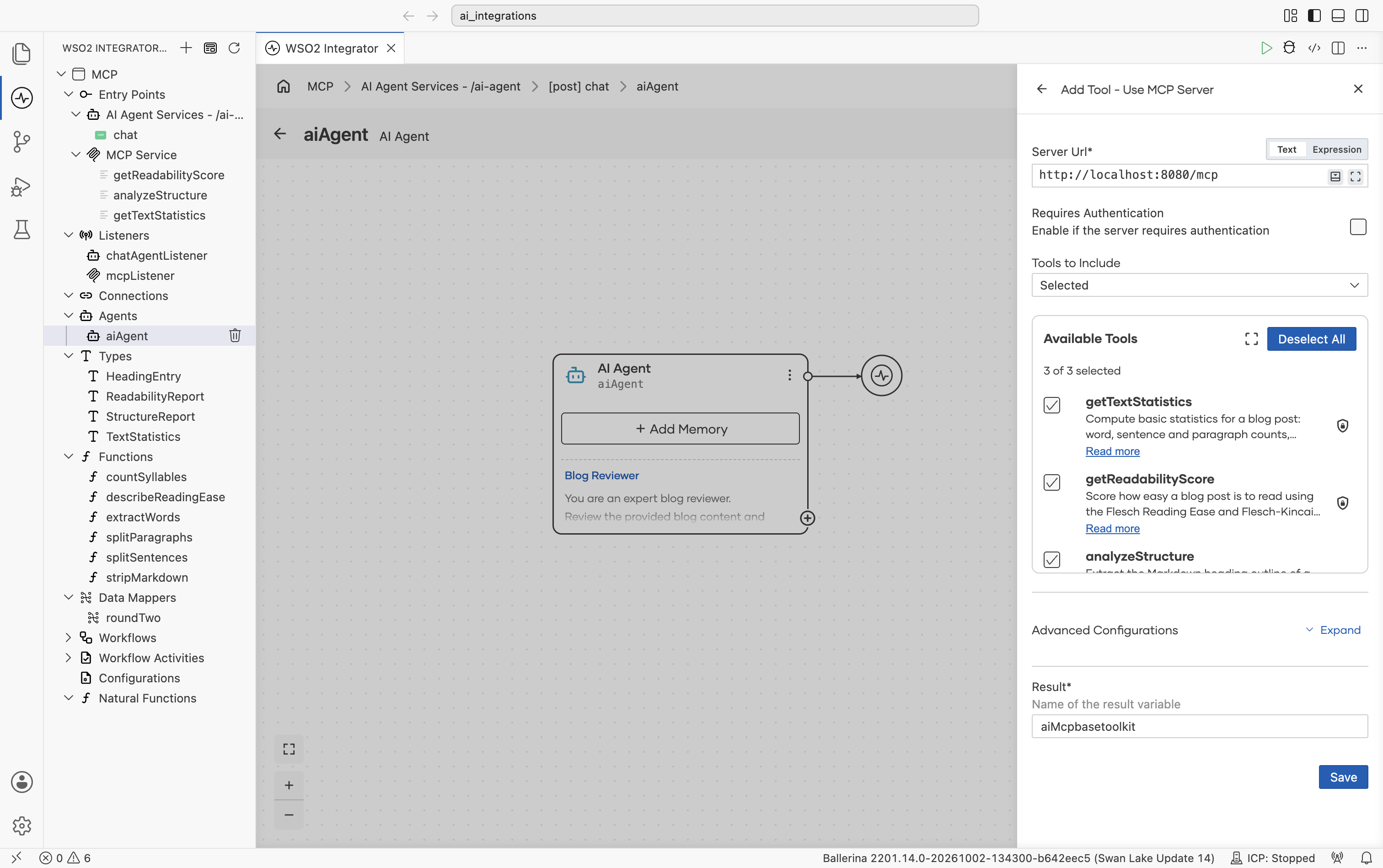
On the agent canvas, click + Add Tool → Use MCP Server. The Add Tool - Use MCP Server panel opens:
| Field | What it does |
|---|---|
| Server URL | The MCP endpoint, for example http://localhost:8080/mcp. |
| Requires Authentication | Enable if the server requires authentication, to reveal the auth configuration fields. |
| Tools to Include | All to expose every tool the server advertises, or Selected to expose only some. |
| Available Tools (shown when Selected) | Lists every tool the server advertises, with its description and a Read more link. Check the ones the agent should have access to; Select All / Deselect All toggles everything at once. |
| Advanced Configurations → Info → name/version | The MCP client identifier and version sent to the server. |
| Advanced Configurations → HTTP Version | HTTP/2_0 for modern Streamable HTTP servers; HTTP/1_1 for older ones. |
| Advanced Configurations → HTTP1 / HTTP2 Settings | Protocol tuning such as keep-alive, header sizes, and frame sizes. |
| Advanced Configurations → Timeout | Per-call timeout. Default 30 s; increase for slow tools. |
| Advanced Configurations → Forwarded | Whether to send Forwarded / X-Forwarded-For when sitting behind a proxy. |
| Result | The variable name for the generated toolkit instance (for example, aiMcpbasetoolkit). |
After Save, every selected tool from the MCP server appears in the agent's tool list. They are indistinguishable to the agent's LLM from any other tool.
Saving the Add MCP Server panel generates a toolkit class named McpToolKit that implements ai:McpBaseToolKit, plus a module-level instance that connects at startup. The agent receives the toolkit through its tools list.
In agents.bal, WSO2 Integrator generates the toolkit class and the agent declaration:
import ballerina/ai;
import ballerina/mcp;

final ai:Agent aiAgent = check new (
    systemPrompt = {role: string `AI Agent`, instructions: string ``},
    model = check ai:getDefaultModelProvider(),
    tools = [aiMcpbasetoolkit]
);

isolated class McpToolKit {
    *ai:McpBaseToolKit;
    private final mcp:StreamableHttpClient mcpClient;
    private final readonly & ai:ToolConfig[] tools;

    public isolated function init(string serverUrl, mcp:Implementation info = {name: "MCP", version: "1.0.0"},
            *mcp:StreamableHttpClientTransportConfig config) returns ai:Error? {
        do {
            self.mcpClient = check new mcp:StreamableHttpClient(serverUrl, config);
            self.tools = check ai:getPermittedMcpToolConfigs(self.mcpClient, info, self.callTool).cloneReadOnly();
        } on fail error e {
            return error ai:Error("Failed to initialize MCP toolkit", e);
        }
    }

    public isolated function getTools() returns ai:ToolConfig[] => self.tools;

    @ai:AgentTool
    public isolated function callTool(mcp:CallToolParams params) returns mcp:CallToolResult|error {
        return self.mcpClient->callTool(params);
    }
}
In connections.bal, it instantiates the toolkit with the server URL from the panel:
final McpToolKit aiMcpbasetoolkit = check new ("http://localhost:8080/mcp");
Settings from the panel land in this generated code as follows: Server URL is the first argument in connections.bal; Info maps to the info parameter; Tools to Include is enforced by the permittedTools argument to ai:getPermittedMcpToolConfigs; and the Advanced Configurations (HTTP Version, HTTP1/HTTP2 Settings, Timeout, Forwarded) are passed through mcp:StreamableHttpClientTransportConfig.
Filtering tools
When an MCP server exposes many tools, do not pull them all in. Pick the few you actually want.
- Visual Designer
- Ballerina Code
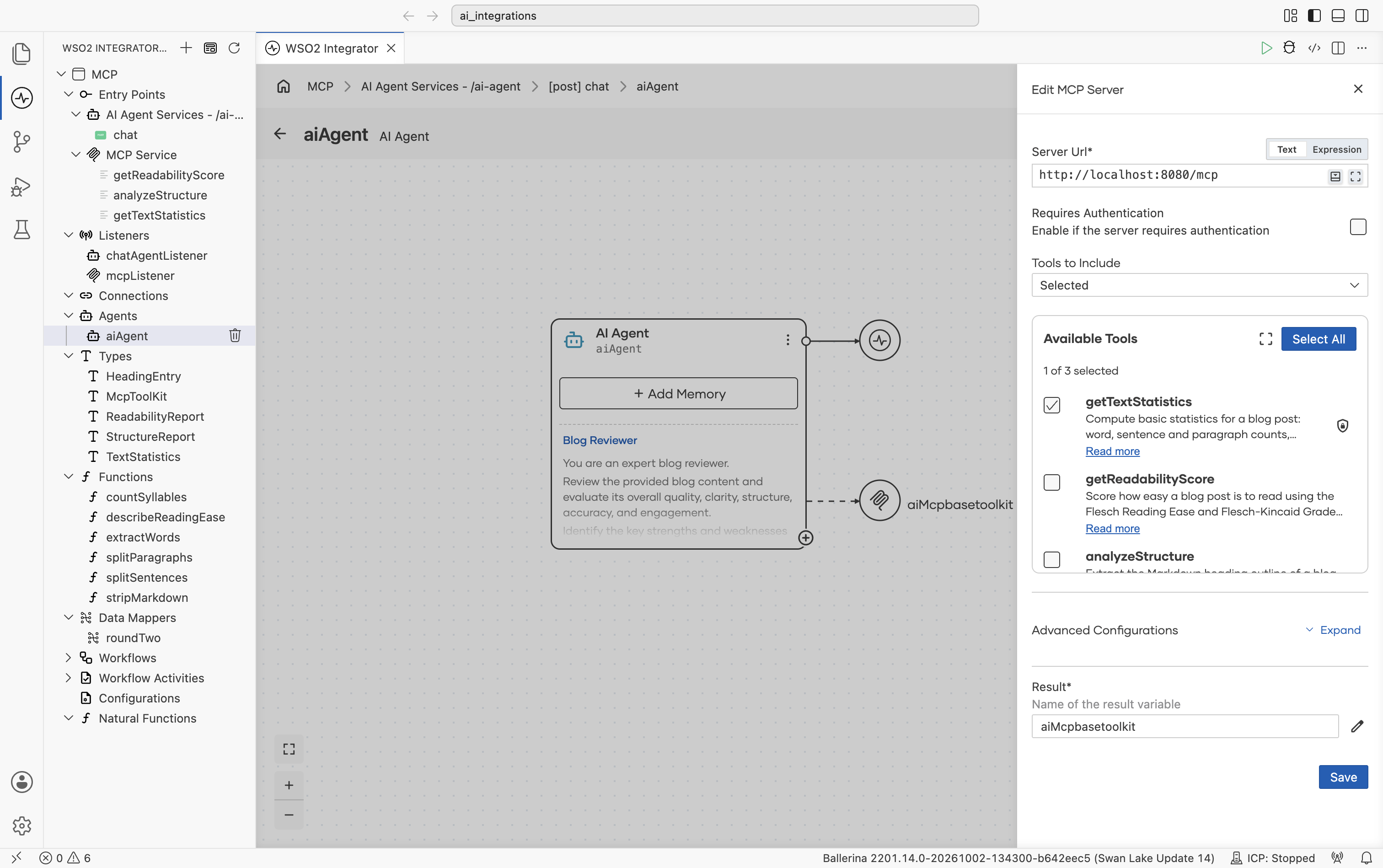
In the Edit MCP Server panel, set Tools to Include to Selected and check the tools the agent should have access to. The panel queries the server and lists every tool it advertises under Available Tools, with a Select All / Deselect All shortcut and a running count (for example, "1 of 3 selected").
When you select tools in the panel, the generator extends the toolkit class with one @ai:AgentTool-annotated dispatcher per permitted tool and registers them in a map<ai:FunctionTool>. The map is then passed to ai:getPermittedMcpToolConfigs, which filters the server's tool list to those keys.
public isolated function init(string serverUrl, mcp:Implementation info = {name: "MCP", version: "1.0.0"},
        *mcp:StreamableHttpClientTransportConfig config) returns ai:Error? {
    final map<ai:FunctionTool> permittedTools = {
        "submitReturnRequest": self.submitreturnrequest,
        "searchProducts": self.searchproducts
    };

    do {
        self.mcpClient = check new mcp:StreamableHttpClient(serverUrl, config);
        self.tools = check ai:getPermittedMcpToolConfigs(self.mcpClient, info, permittedTools).cloneReadOnly();
    } on fail error e {
        return error ai:Error("Failed to initialize MCP toolkit", e);
    }
}

@ai:AgentTool
public isolated function submitreturnrequest(mcp:CallToolParams params) returns mcp:CallToolResult|error {
    return self.mcpClient->callTool(params);
}

@ai:AgentTool
public isolated function searchproducts(mcp:CallToolParams params) returns mcp:CallToolResult|error {
    return self.mcpClient->callTool(params);
}
If you write the toolkit by hand using the generic ai:McpToolKit class instead of the generated per-server class, the equivalent is a single string[] of permitted tool names passed to the constructor:
final ai:McpToolKit minimal = check new (
    "http://localhost:9090/mcp",
    ["searchProducts", "submitReturnRequest"]
);
Why it matters:
- Tool selection accuracy. LLMs choose better with fewer options.
- Prompt size. Every tool's name, description, and parameter schema is sent on every call. Filtering trims the prompt.
- Cost. Smaller prompts cost less.
- Security. Don't expose the agent to mutation tools you didn't design for.
Combining MCP servers, local tools, and toolkits
The agent's tools array accepts any combination of:
- Function tools marked
@ai:AgentTool. - Custom toolkit classes (your own
*ai:BaseToolKitimplementations). ai:McpToolKitinstances for one or more remote MCP servers.
final ai:McpToolKit slackMcp = check new ("http://localhost:9092/mcp");
final ai:McpToolKit calendarMcp = check new ("http://localhost:9093/mcp");

final ai:Agent supportAgent = check new (
    systemPrompt = {
        role: "Support Assistant",
        instructions: "Use CRM tools for customer info, Slack for notifications, " +
            "and Calendar for scheduling follow-ups."
    },
    tools = [
        getCustomerDetails,            // local function tool
        createSupportTicket,           // local function tool
        slackMcp,                      // MCP toolkit
        calendarMcp                    // another MCP toolkit
    ],
    model = check ai:getDefaultModelProvider()
);
Local tools and MCP tools are completely interchangeable from the agent's perspective. The LLM sees one unified tool list.
Production tips
-
configurablefor endpoints. Hard-coding MCP URLs makes environments harder to manage. Expose the URL as a configurable variable so it can be set per environment without changing source code. -
Run MCP servers close to the agent. MCP calls are on the agent's hot path. Network latency between agent and server directly increases user-perceived response time.
-
Authenticate the connection. If the MCP server is yours, put auth in front. If it's external, follow the vendor's auth scheme. Most use OAuth or bearer tokens passed via headers.
-
Watch token bills. Every tool the toolkit advertises is included in every reasoning step's prompt. A 50-tool MCP server, unfiltered, is a real prompt-token cost.
What's Next
- Exposing a Service as MCP — the other side of MCP.
- Tools (in AI Agents) — back to the Add Tool dialog.
- Creating an Agent — the agent that consumes the MCP tools.