Check and Repair the User Portal
After you enable the User Portal, the User Portal page works as a health check. Each time you open the page, it checks every resource that the User Portal needs.
Check the status of the User Portal
- Sign in to WSO2 Cloud.
- In the top navigation, click the Organization list and select your organization.
- In the left navigation menu, click Settings under Admin.
- Click the User Portal tab.
The page shows one of the following:
- Enabled, with everything in place: The User Portal is working. You do not need to do anything.
- Enabled, with items no longer in place: One or more resources are missing or changed. See Repair the User Portal.
To check the status again without reloading the page, click the Refresh icon next to the status message.
Repair the User Portal
If a resource is missing or changed, the page shows that the User Portal is enabled but that some items are no longer in place. For example, someone deleted the resource in WSO2 Identity Platform, or removed scopes from the User Portal API resource, its authorization, or one of the default roles. To fix this:
-
In your organization, go to Admin > Settings > User Portal.
-
Fix any blockers that need a manual change. See Resolve blockers.
-
Click Repair User Portal.
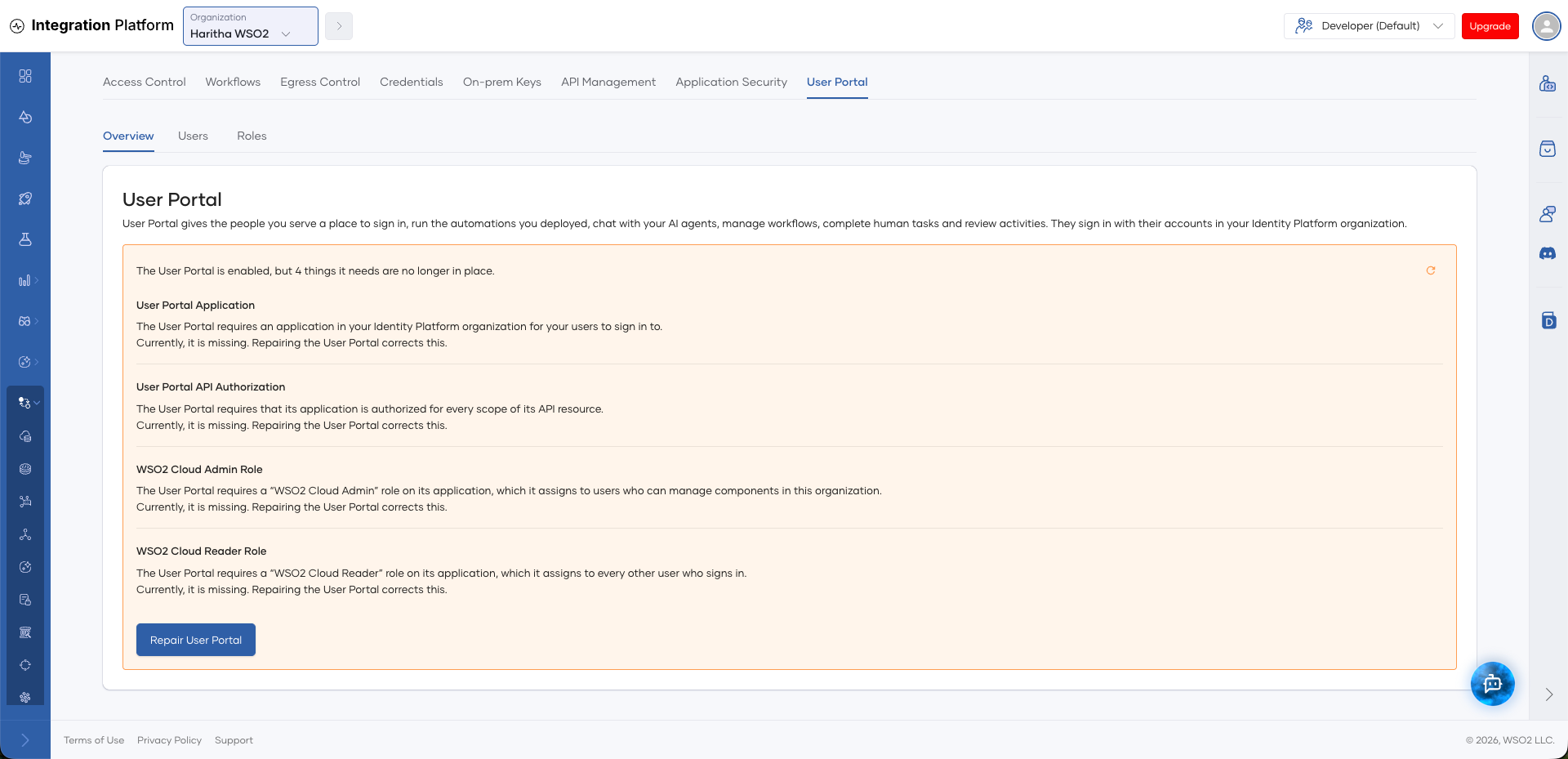
The platform recreates the missing resources and adds the scopes that are missing. It does not remove scopes that you added.
To enable or repair the User Portal, your role must include the Manage Organization permission under Organization Management.
Resolve blockers
The User Portal page shows blockers in two cases: before you enable the User Portal, when something prevents the platform from setting it up, and after you enable it, when a resource needs a manual change before you can repair it.
To see the blockers, go to Admin > Settings > User Portal in your organization. Each blocker shows the item that the User Portal needs, the current problem, and how to fix it. Fix the blockers, then click the Refresh icon to refresh the status.
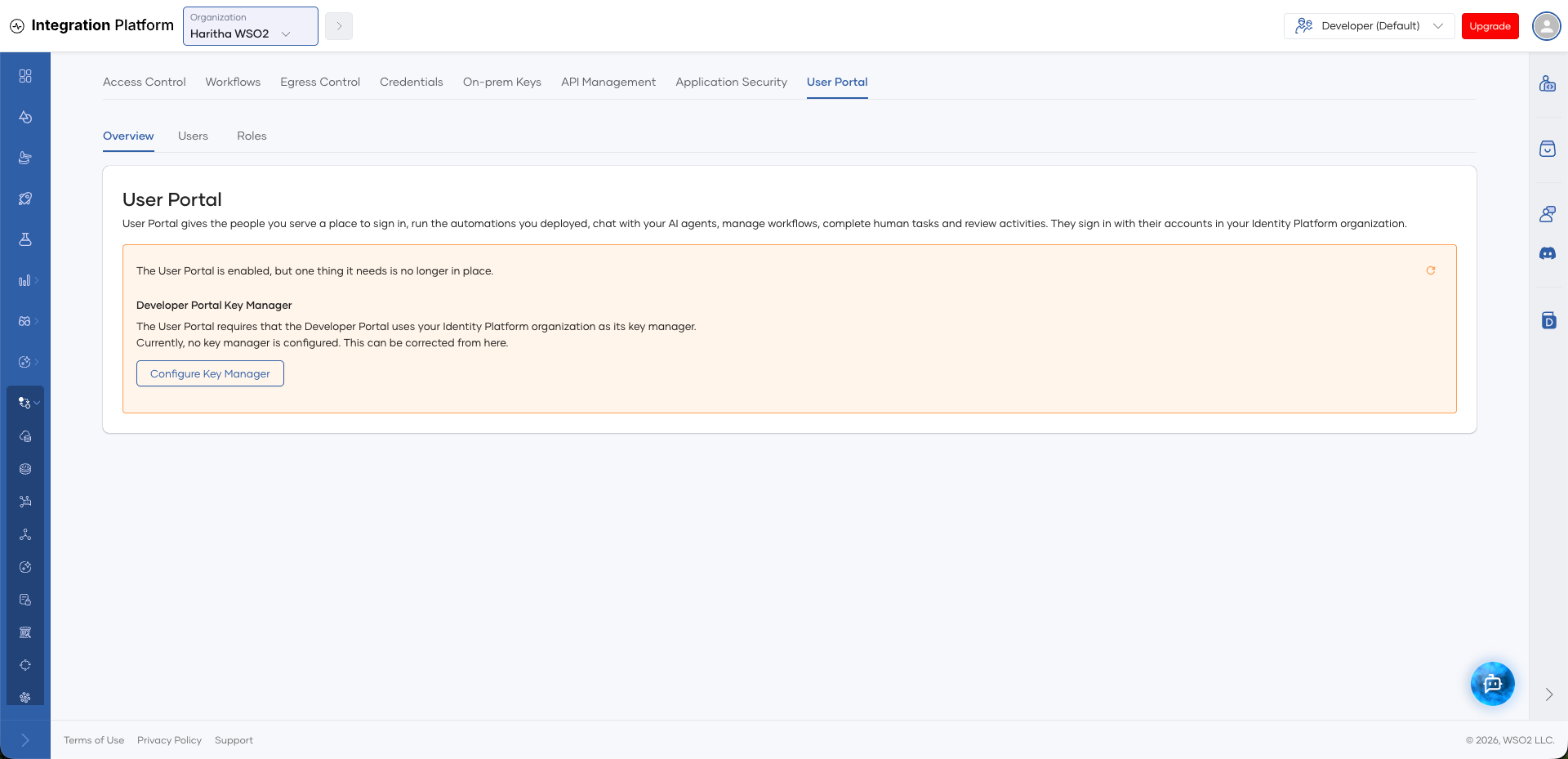
If the Developer Portal key manager has a problem, the page shows only that blocker. Most other blockers are a result of the key manager problem, and they clear when you fix it.
The following table lists the blockers that the page can show:
| Blocker | Common causes | How to fix |
|---|---|---|
| Developer Portal Key Manager | The Developer Portal has no key manager, has more than one, or has one that belongs to a different organization, is disabled, or has no well-known endpoint. | Click Configure Key Manager. If the page does not show this button, follow the instructions in the blocker. |
| Developer Portal Key Manager (token type) | The key manager uses a token type other than EXTERNAL. You cannot change the token type. | Deleting the key manager can stop Developer Portal users who sign in through it from signing in. First, make sure that no applications or users depend on it. Then delete the existing key manager in Settings > Application Security > Identity Providers, and click the Refresh icon. |
| Username Validation | Your WSO2 Identity Platform organization does not validate usernames as email addresses. The platform does not change this setting, because the change can affect existing users whose usernames are not email addresses. | In WSO2 Identity Platform, go to Login & Registration > Username Validation and set usernames to be email addresses. Then click the Refresh icon. |
| Trusted Token Issuer, User Portal Application, or User Portal API Resource | A resource with the same name already exists in WSO2 Identity Platform, and the User Portal did not create it. | Rename or remove the resource in WSO2 Identity Platform, then click the Refresh icon. |
| User Portal API Authorization, WSO2 Cloud Admin Role, or WSO2 Cloud Reader Role | The resource is missing, or it lacks some of the scopes that the User Portal needs. | Click Repair User Portal. |
| Developer Portal Application | An application with the same name already exists in the Developer Portal, or its keys are not mapped to the User Portal. | Correct the application in API Management, then click the Refresh icon. |
Configure the Developer Portal key manager
When you click Configure Key Manager, the platform points the Developer Portal at your WSO2 Identity Platform organization.
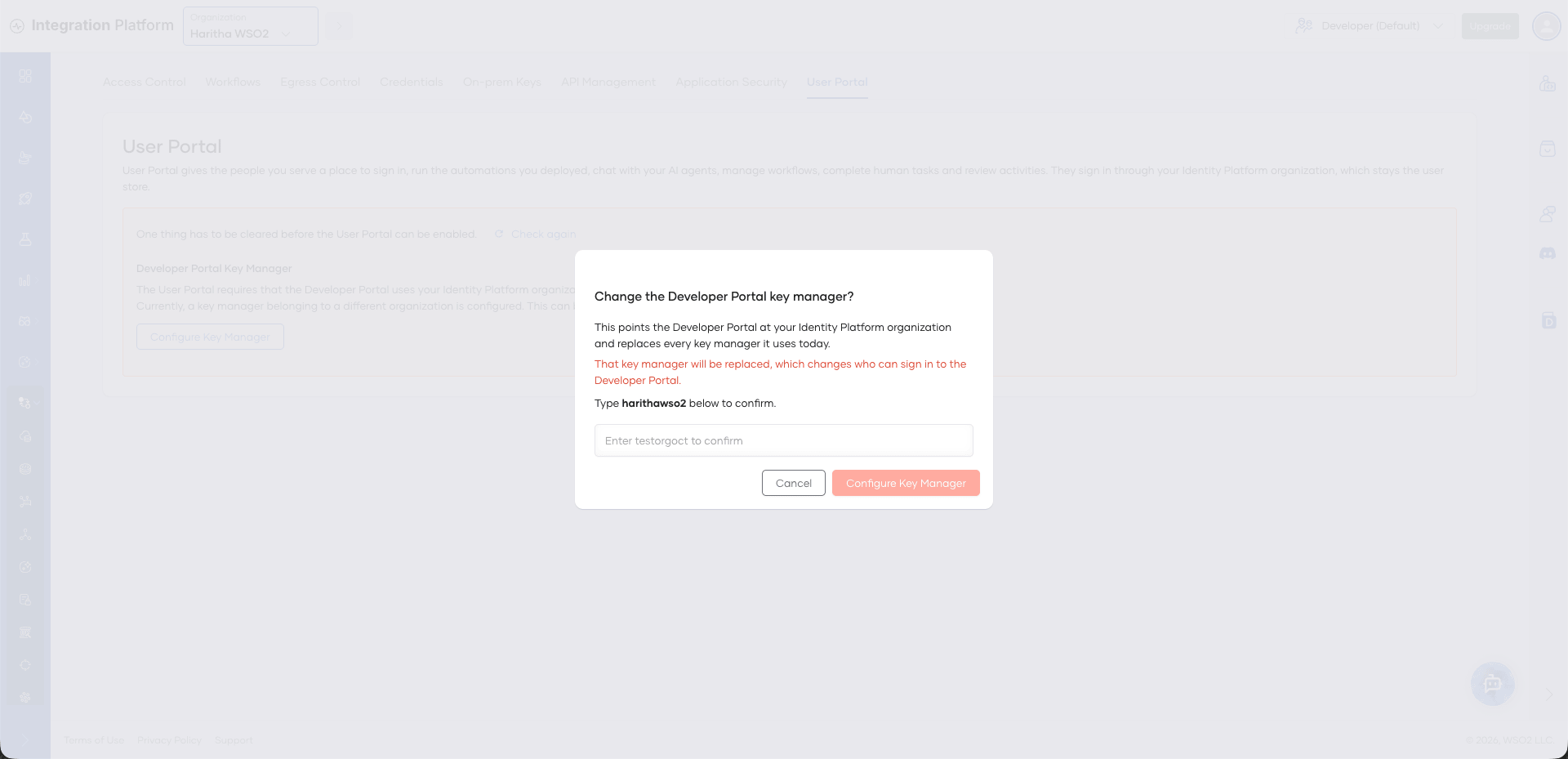
This action replaces the key manager that the Developer Portal uses. Users who sign in to the Developer Portal through a replaced key manager can no longer sign in. You cannot undo this from the User Portal page.
-
In your organization, go to Admin > Settings > User Portal.
-
On the blocker, click Configure Key Manager.
-
Read the confirmation. If the change replaces an existing key manager, the dialog explains the effect.
-
Type your organization handle to confirm.
-
Click Configure Key Manager.
After the key manager is in place, the page shows any remaining blockers.