Use the User Portal
After you sign in to the User Portal, you see the integrations that your organization published to you. Your roles decide which integrations you see and what you can do with them. If you do not see an integration that you expect, or a button is disabled, contact your organization's administrator. See Scopes. This page explains how to find an integration and how to use each type:
Find an integration
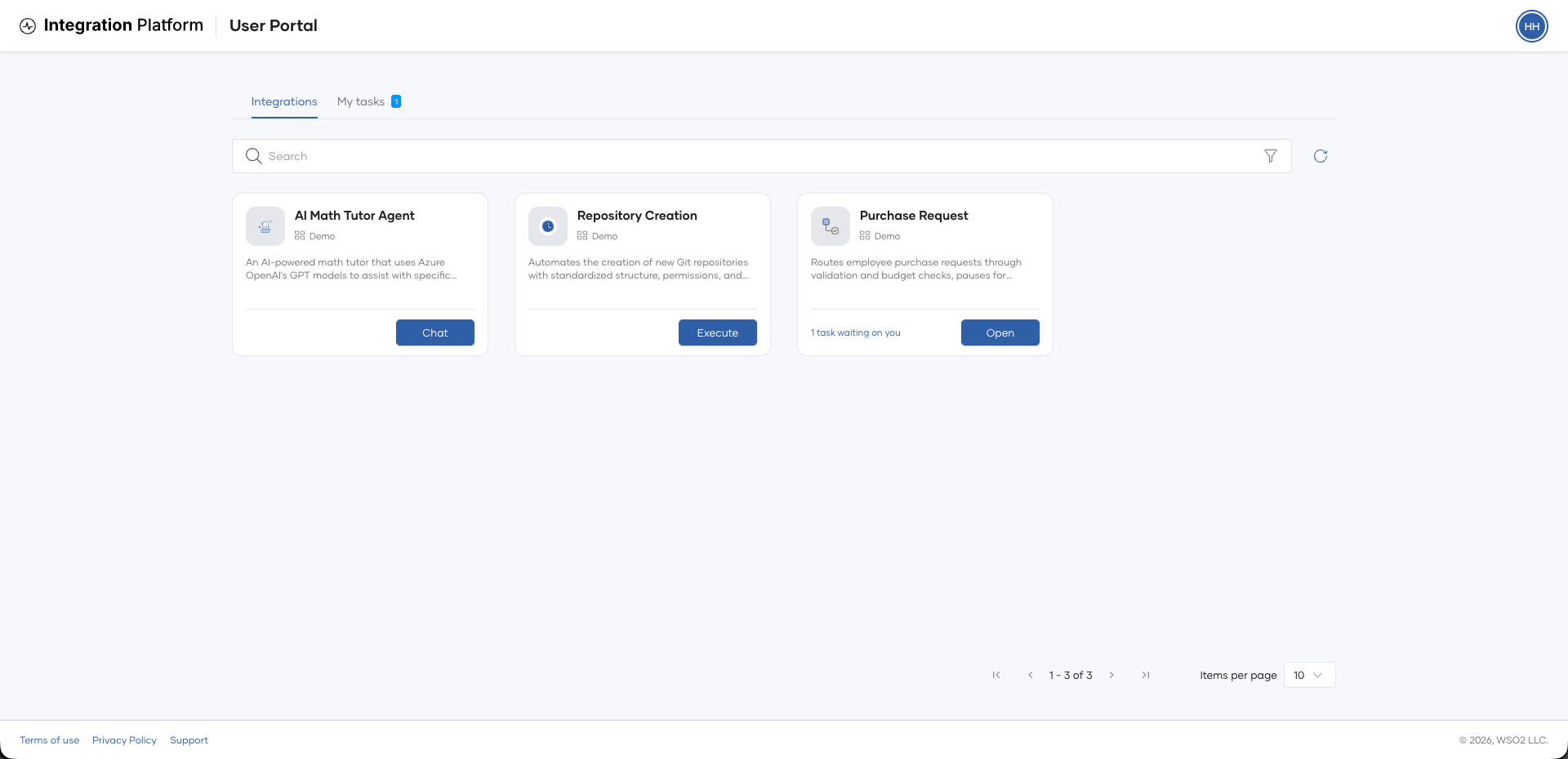
The Integrations tab shows the integrations published to you. To narrow the list, search by name, description, or project, or click the filter icon to filter by type or project.
Chat with an AI agent
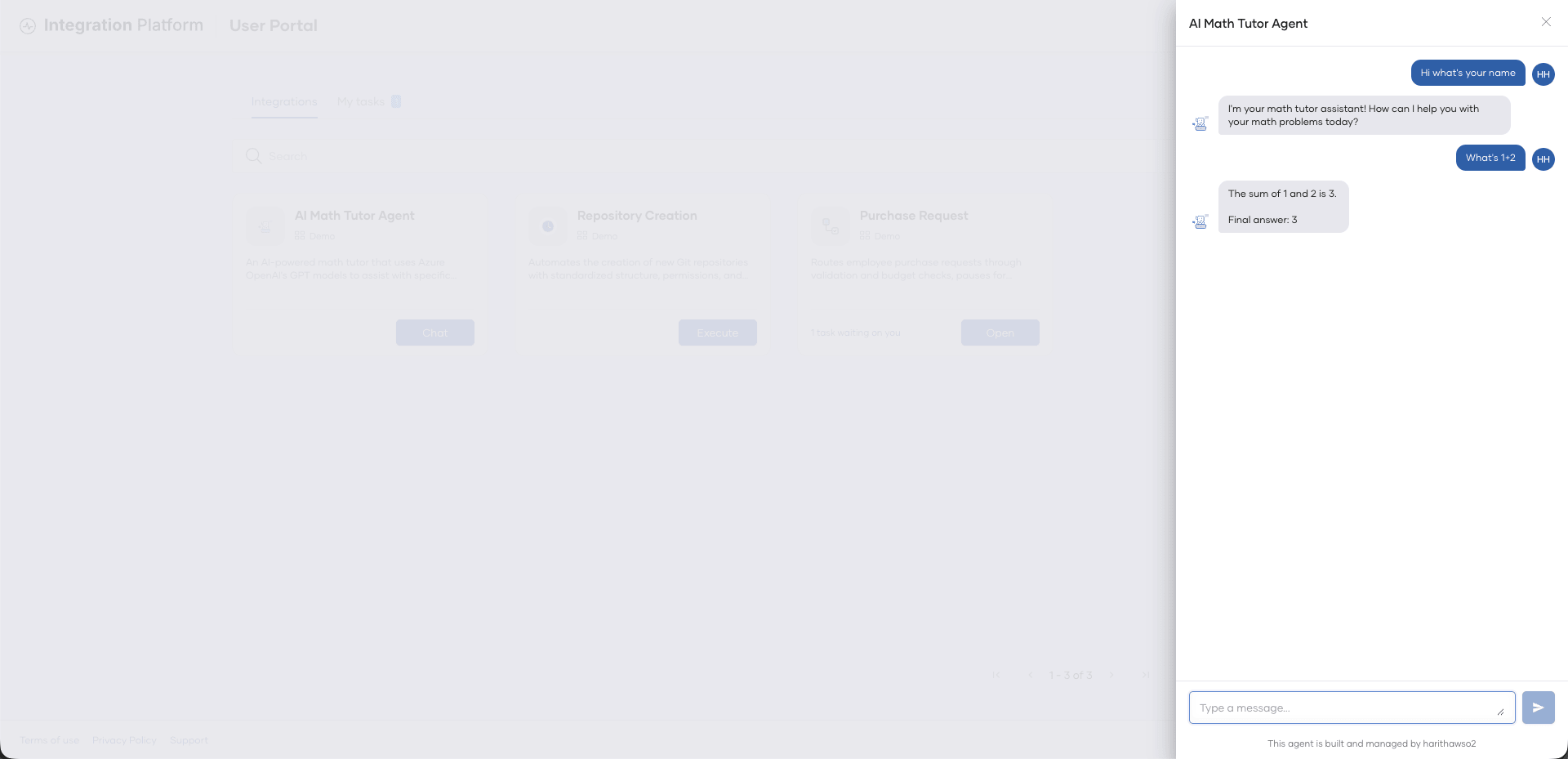
On the Integrations tab, find the AI agent and click Chat. The chat panel opens on the right, where you can send messages to the agent.
Run an automation
-
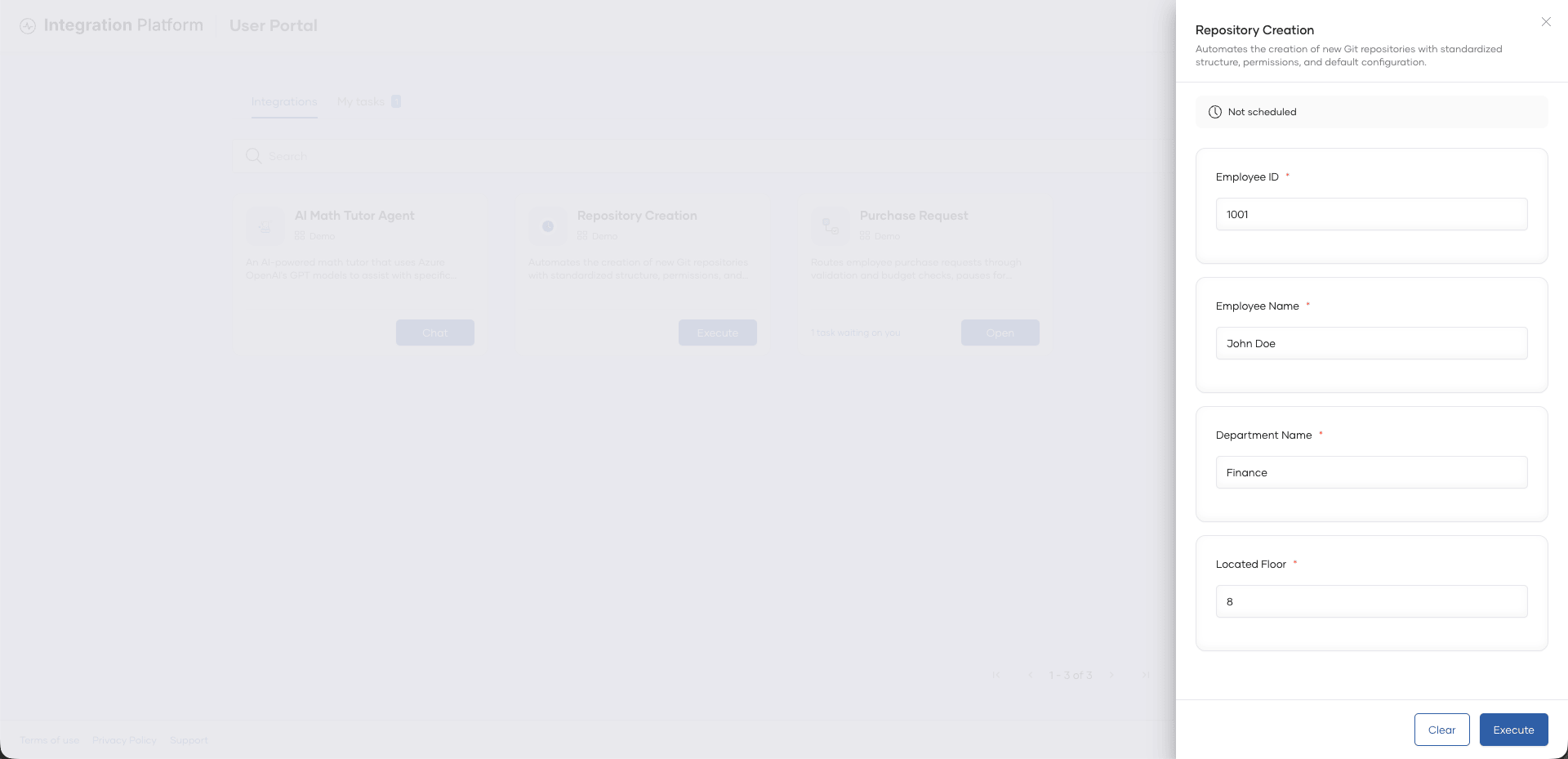
On the Integrations tab, find the automation and click Execute. For an automation that runs on a schedule, the button is Execute Now.
The automation panel opens on the right. It shows the following:
- Last run: When the automation last ran and whether it succeeded, failed, or is still running. If it never ran, the panel shows No previous runs.
- Next run: When the automation runs next and its schedule. If it does not run on a schedule, the panel shows Not scheduled.
-
If the automation takes runtime arguments, the panel shows a form. Enter a value for each field. Required fields are marked with an asterisk (
*).
-
Click Execute. The button is available after you fill in every required field. If you do not have permission to run the automation, the button is disabled.
The panel closes, and the automation runs on its latest deployment track.
Work with workflows
A workflow is a long-running process that can have many steps. Some steps can wait for a person to complete a task or approve the step before the workflow continues.
Open a workflow
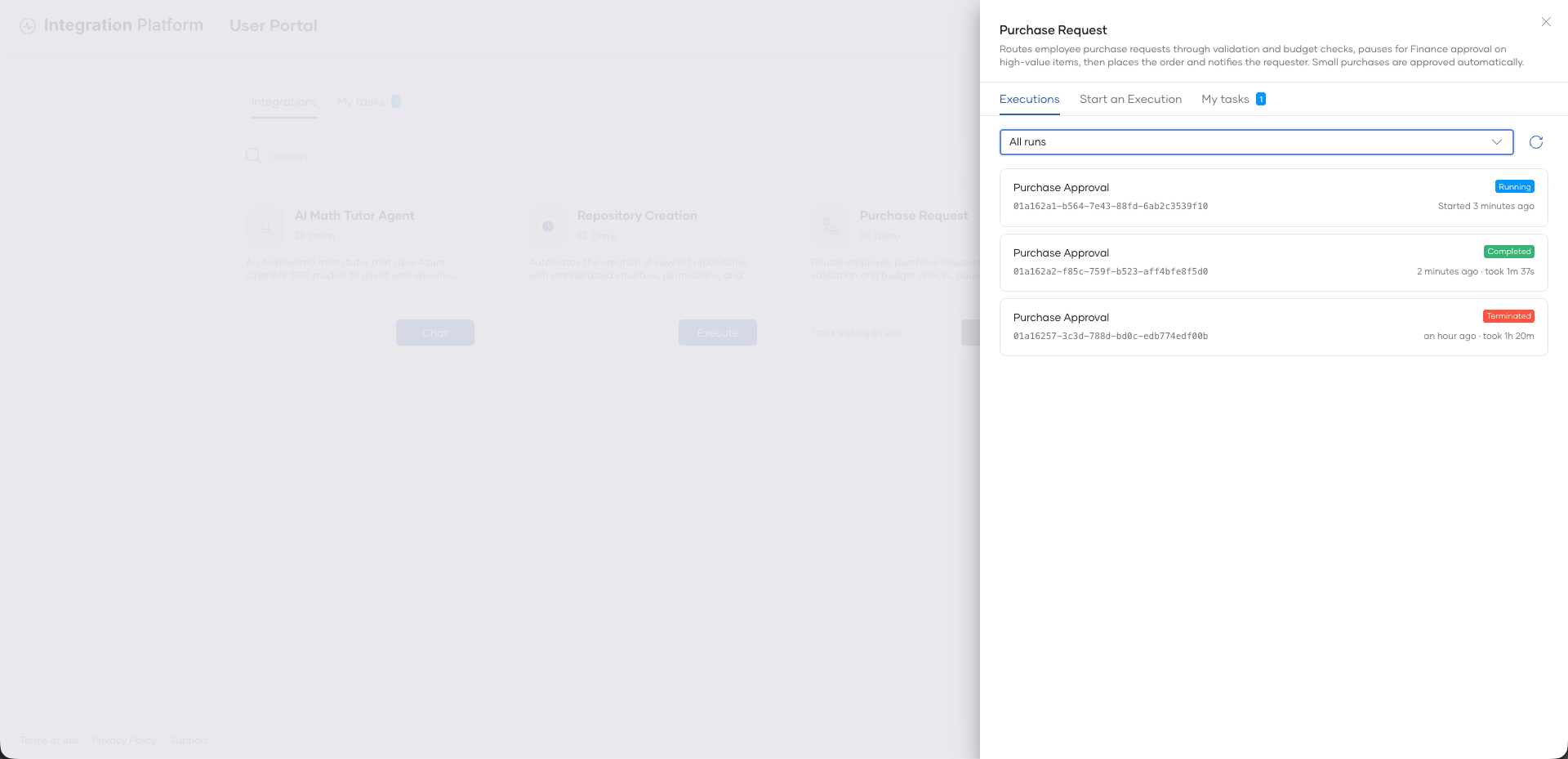
On the Integrations tab, find the workflow and click Open. The workflow panel opens on the right with the following tabs:
- Executions: The runs of the workflow. This tab opens by default.
- Start an Execution: Start a new run of the workflow.
- My tasks: The tasks and approvals in this workflow that are waiting on you.
Start an execution
-
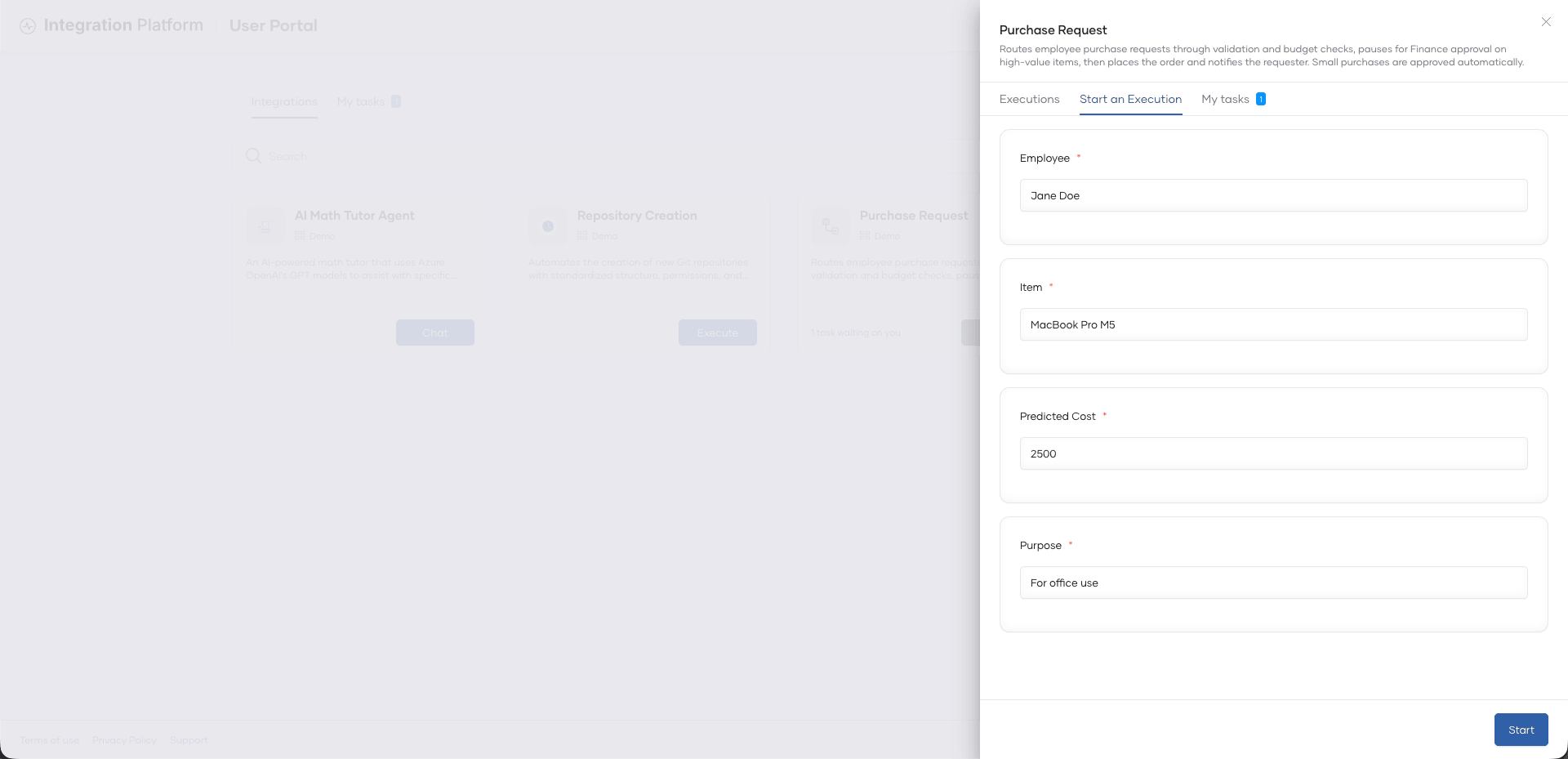
In the workflow panel, click the Start an Execution tab.
-
If the panel shows Workflow, select the workflow to start. This option appears only when the integration has more than one workflow that you can start.
-
If the workflow takes input, enter the input in the form. Required fields are marked with an asterisk (
*).
-
Click Start.
The panel opens the Executions tab and shows the details of the new execution.
View executions
The Executions tab lists the runs of the workflow. By default, it shows only the runs that are running. To see other runs, select a status in the status list, or select All runs.
Each run shows the workflow name, its workflow ID, its status, when it started, and how long it took. While a run is running, the list updates automatically. To reload the list, click the refresh icon. To see older runs, click Load more.
View the details of an execution
Click a run in the Executions tab to see its details:
- Workflow ID, Started, Ended, and Duration.
- Waiting on you: The tasks and approvals in this run that need your action. Click one to open it.
- Error: The error, if the run failed.
- Result: The output of the run, after it finishes.
- Steps: A diagram of the steps in the run. Each step is colored by its status. A marker shows the current step of a running run, and a count shows a step that ran more than once.
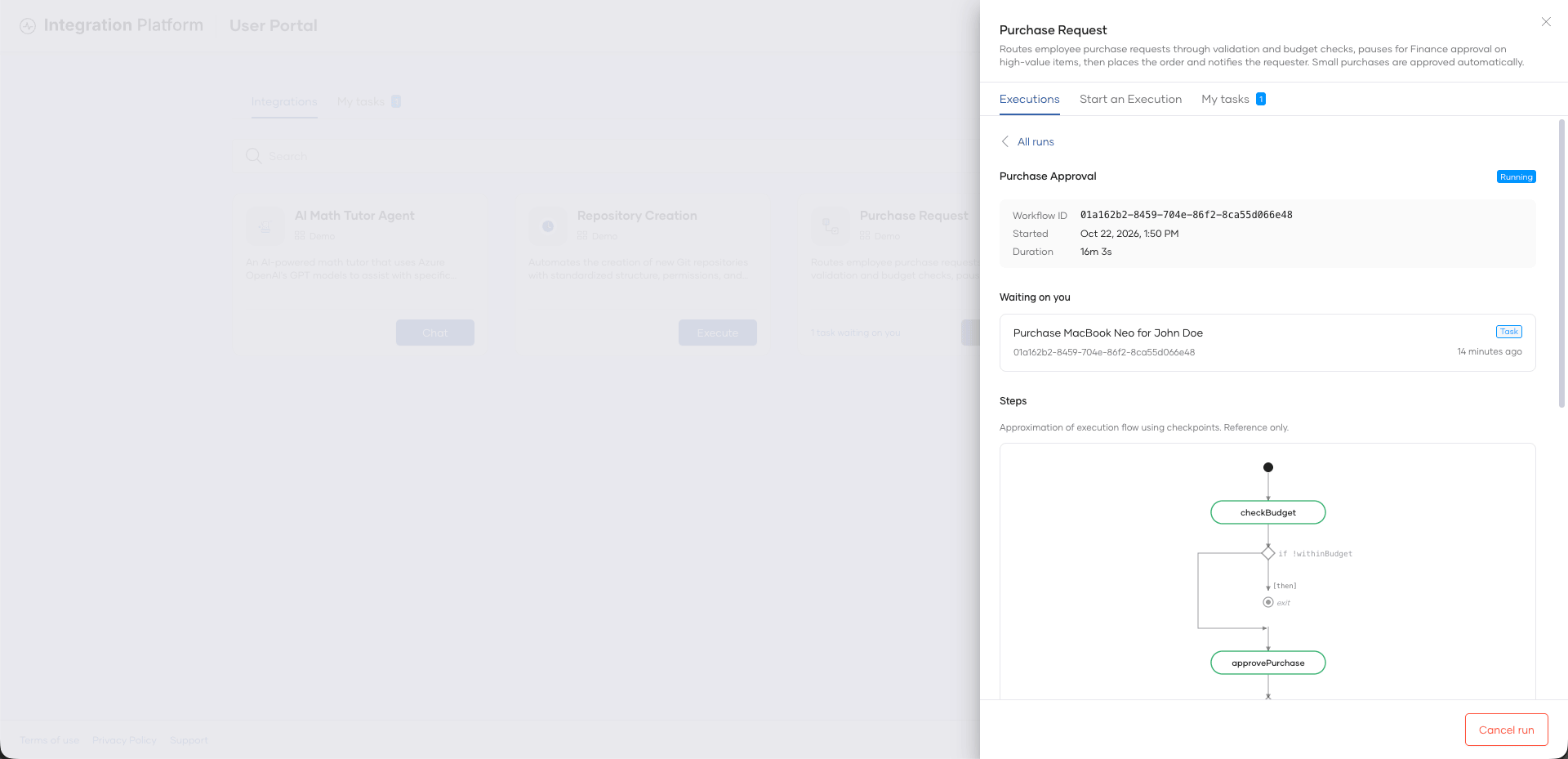
Click a step in the diagram to see each time it ran, with its status, start time, duration, Input, and Output. If the step failed, the error is also shown.
While the run is running, the details update automatically. To go back to the list, click All runs.
Cancel an execution
You can cancel a run that is running or suspended.
- Open the details of the run.
- Click Cancel run.
- In the confirmation, click Cancel run.
Steps that already finished are not undone.
Act on tasks and approvals
A workflow can wait for a person before it continues. It does this in two ways:
- Task: The workflow asks you to provide a response, such as a decision or some information.
- Approval: The workflow asks you to approve or reject a step. An approval can come before a step runs, or after a step fails so that you can decide whether to run it again.
You see only the tasks and approvals that you are allowed to act on. Workflows often assign them to a role. If you expect to see a task but it is not there, contact your organization's administrator. Administrators can assign roles to users. See Roles for workflow tasks.
Tasks and approvals that are waiting on you appear in the following places:
- The My tasks tab at the top of the User Portal, which lists them across all workflows.
- The My tasks tab in a workflow panel, which lists them for that workflow.
- Waiting on you in the details of a run.
- The workflow card on the Integrations tab, which shows how many are waiting on you.
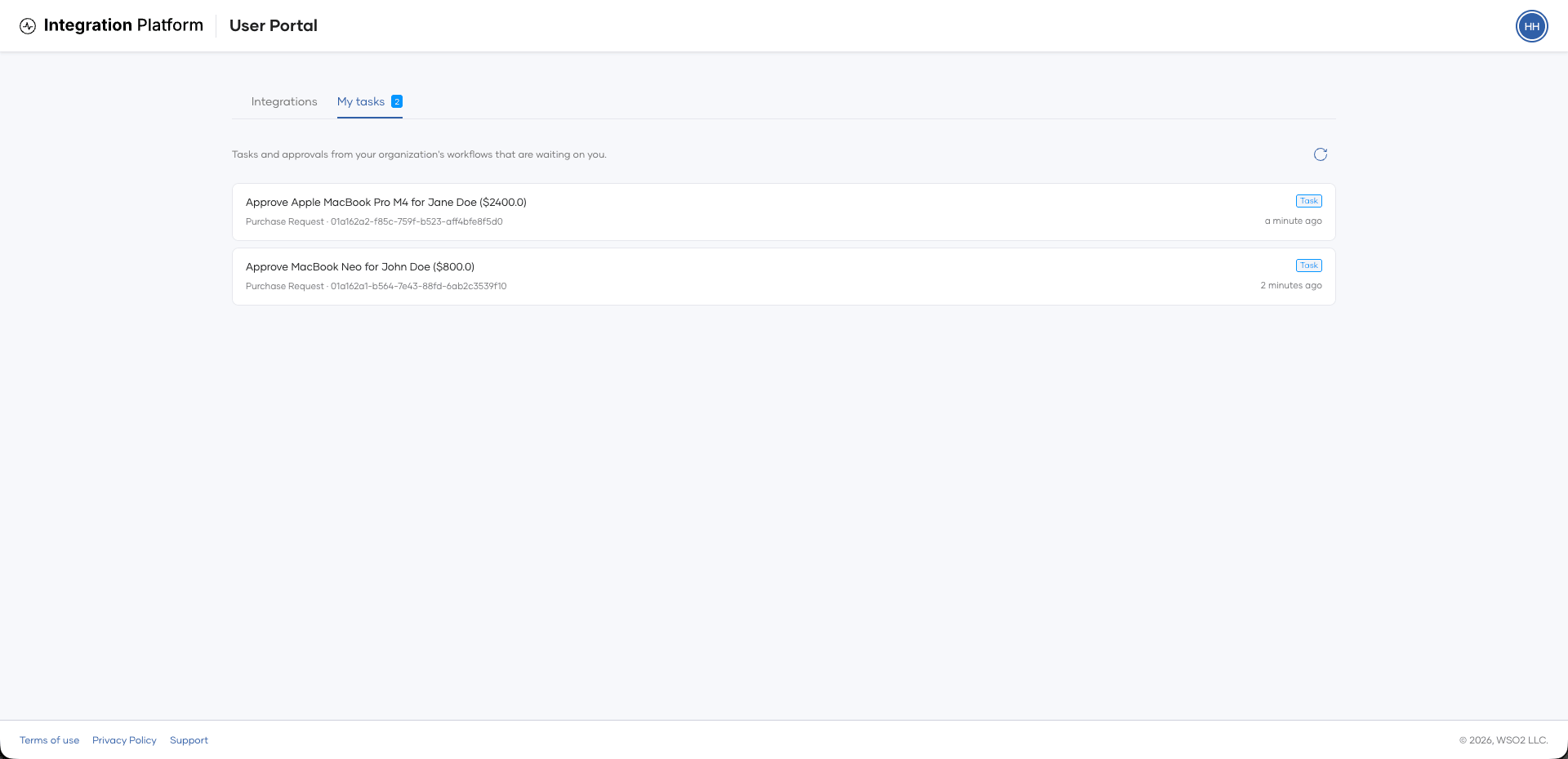
Each item shows its title, the workflow and run that it belongs to, whether it is a Task or an Approval, and when it was created. The newest items are at the top. Click an item to open it.
Complete a task
-
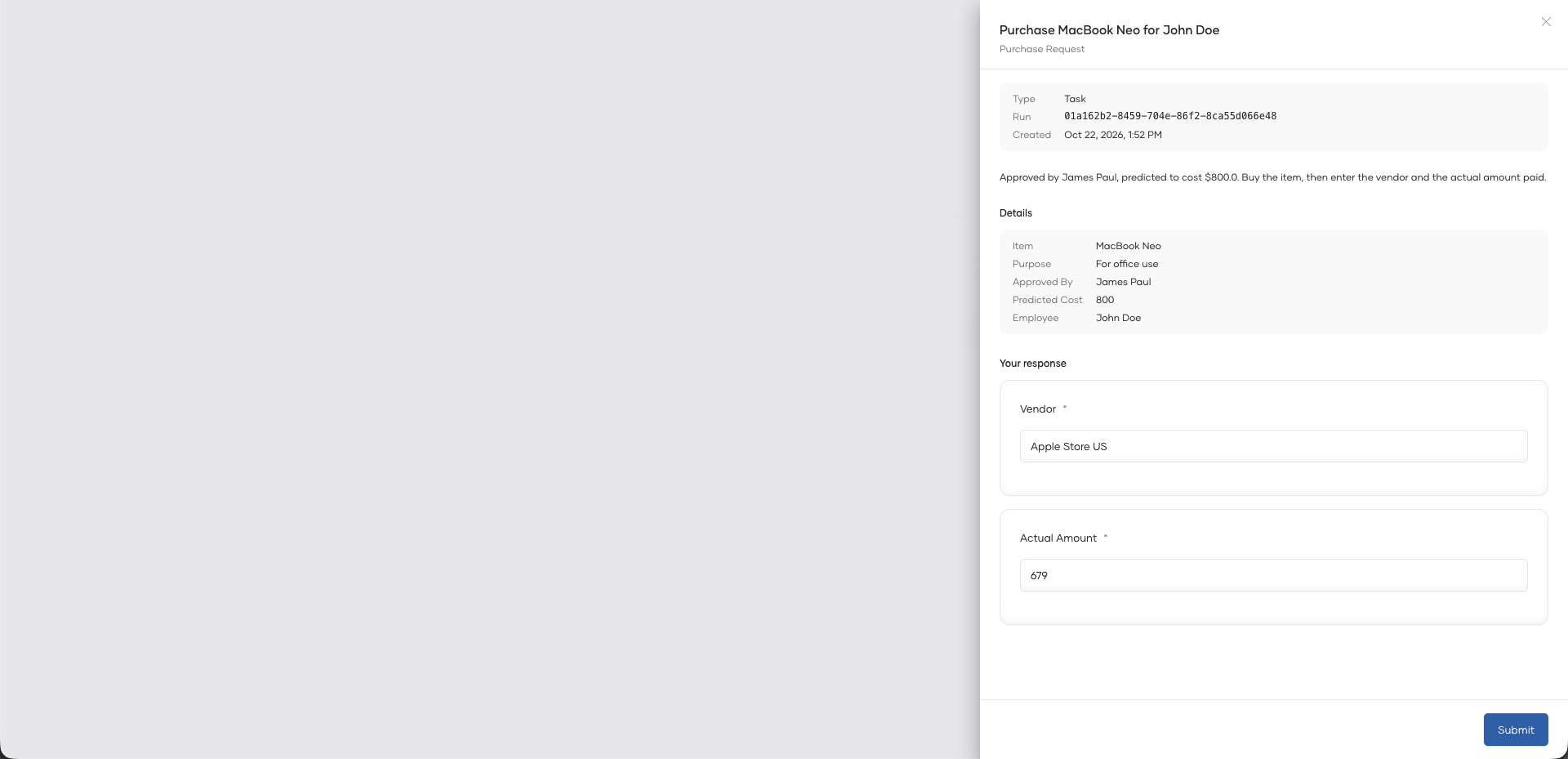
Open the task.
The task shows its description and, under Details, the information that the workflow provides.
-
Under Your response, fill in the form.
-
Click Submit.
The task closes, and the workflow continues.
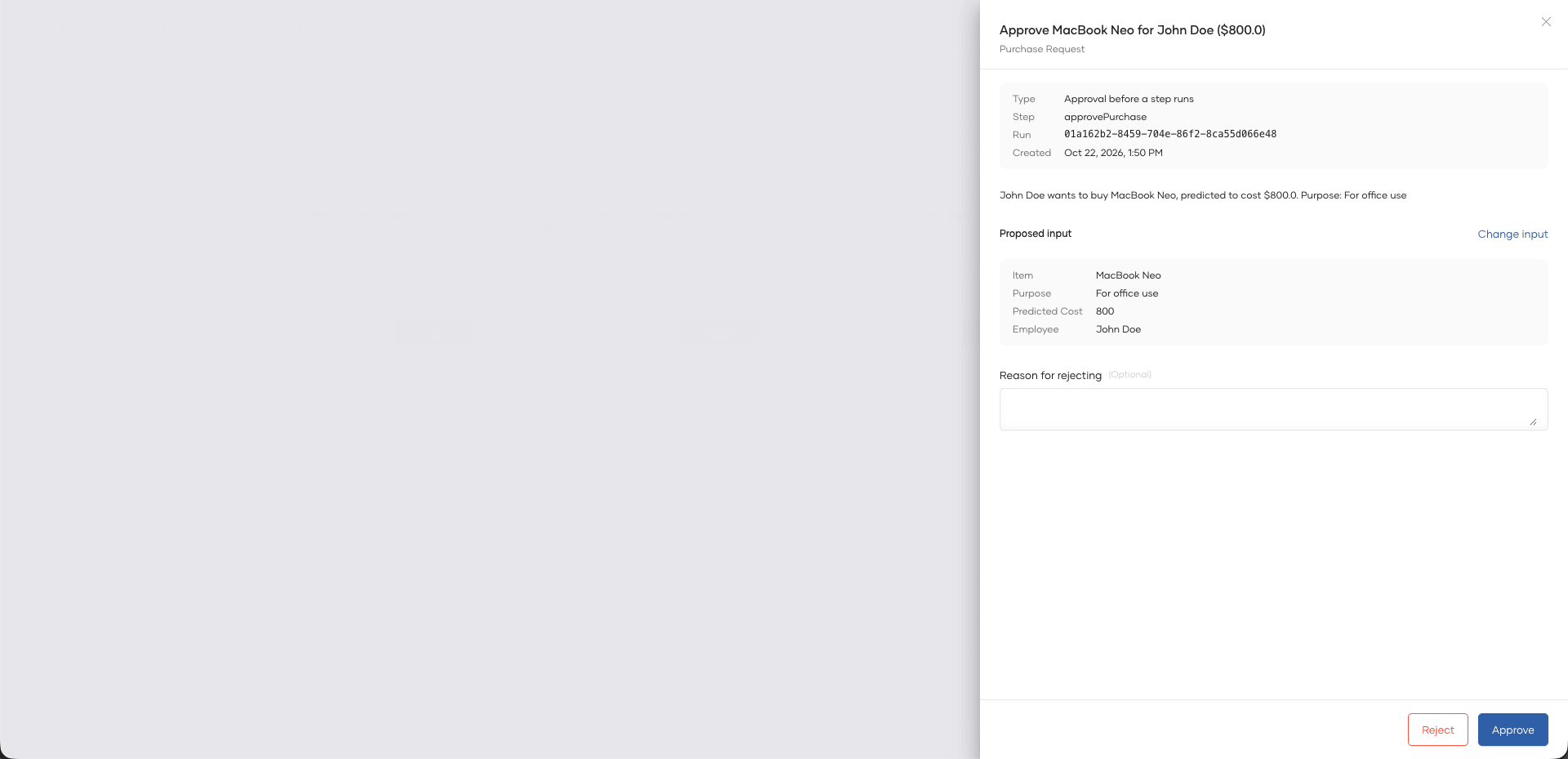
Approve or reject a step
-
Open the approval.
The Type field shows why the workflow is waiting:
- Approval before a step runs: The step runs only after you approve it.
- Decision after a failed step: The step failed. The approval shows the error, and you decide whether to run the step again.
Proposed input shows the input that the step runs with.
-
Optional: To change the input, click Change input, then edit the input under Input to run the step with. To undo your changes, click Discard changes.
-
Approve or reject the step:
- To approve the step, click Approve. If you changed the input, the button is Approve with changes.
- To reject the step, optionally enter a reason in Reason for rejecting, then click Reject.
The approval closes, and the workflow continues based on your decision.