Sign In to the User Portal
The User Portal shows the integrations that an organization publishes to it. To use them, you sign in to the User Portal of that organization.
Sign-in options
The User Portal has two sign-in options:
| Option | Who uses it | Credentials |
|---|---|---|
| Sign In | Anyone the organization gives User Portal access to, such as its customers, partners, or employees. | The User Portal account that the organization gave you. |
| Sign in with Integration Platform | Members of the WSO2 Cloud organization, such as developers and administrators. | The account that you use to sign in to the WSO2 Cloud console, with Google, GitHub, Microsoft, or email. |
To sign in with Sign In, you need a User Portal account from the organization. If you do not have one, or you cannot sign in, contact the organization's administrator. To give someone an account, administrators can follow Create a user.
What you can see and do after you sign in depends on your roles in the organization. If you sign in with Sign in with Integration Platform for the first time and you do not already have a role on the User Portal application, the platform gives you a role based on your permissions in the WSO2 Cloud organization. See Default roles.
Sign in to the User Portal
-
Open the User Portal.
- If you have a link to the organization's User Portal, open it. The link has the format
https://userportal.devant.dev/org/<organization-handle>. Go to step 3. - Otherwise, open the User Portal sign-in page.
- If you have a link to the organization's User Portal, open it. The link has the format
-
Enter the organization handle in Organization Handle, then click Continue.
If you are a member of the WSO2 Cloud organization, you can click Sign in with Integration Platform instead, without entering the organization handle. See Sign in with Integration Platform without an organization.
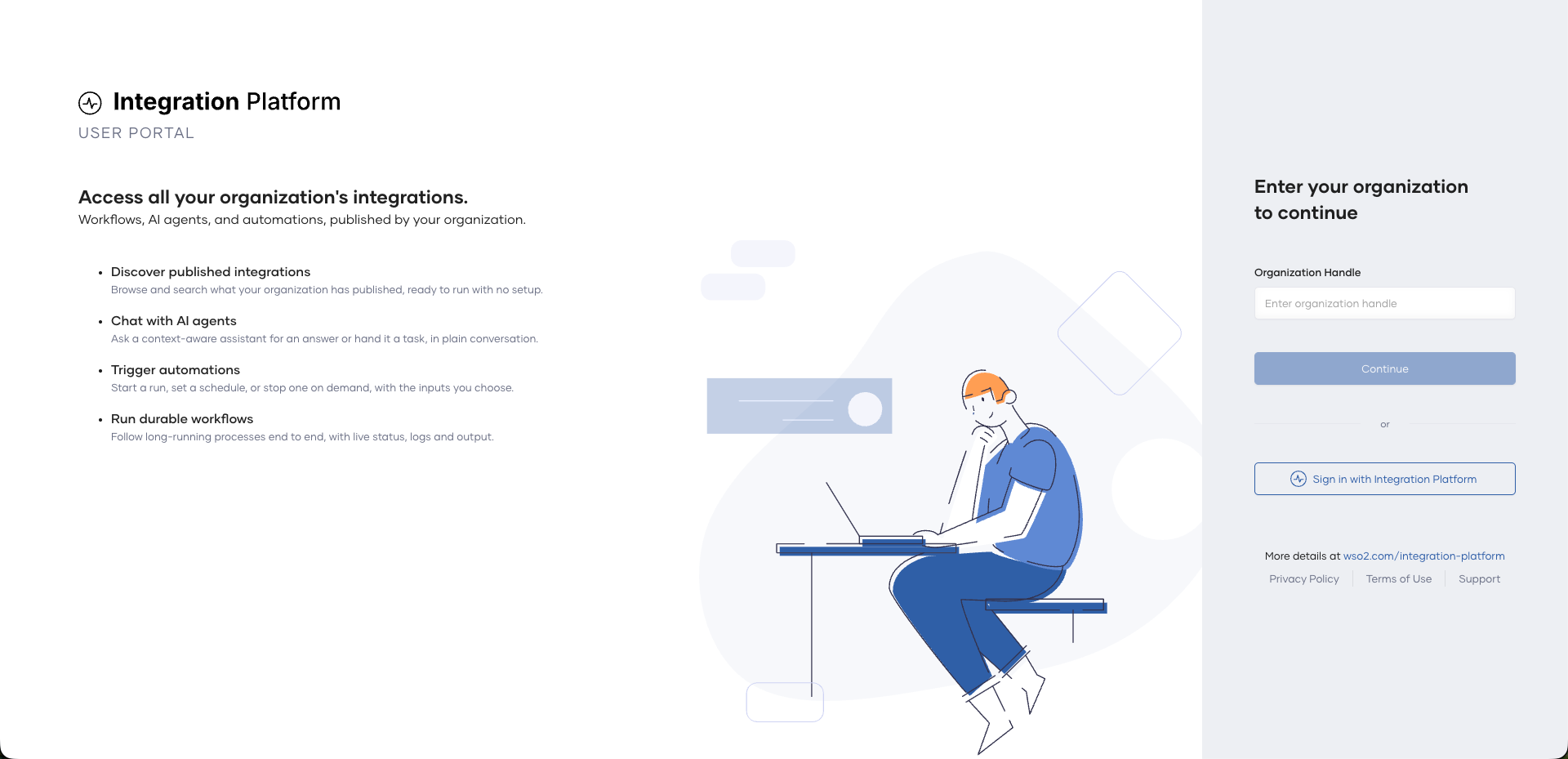
Organization handles use lowercase letters, numbers, and hyphens. If the User Portal cannot find the organization, check the handle with your organization administrator. The organization might not have enabled the User Portal yet.
-
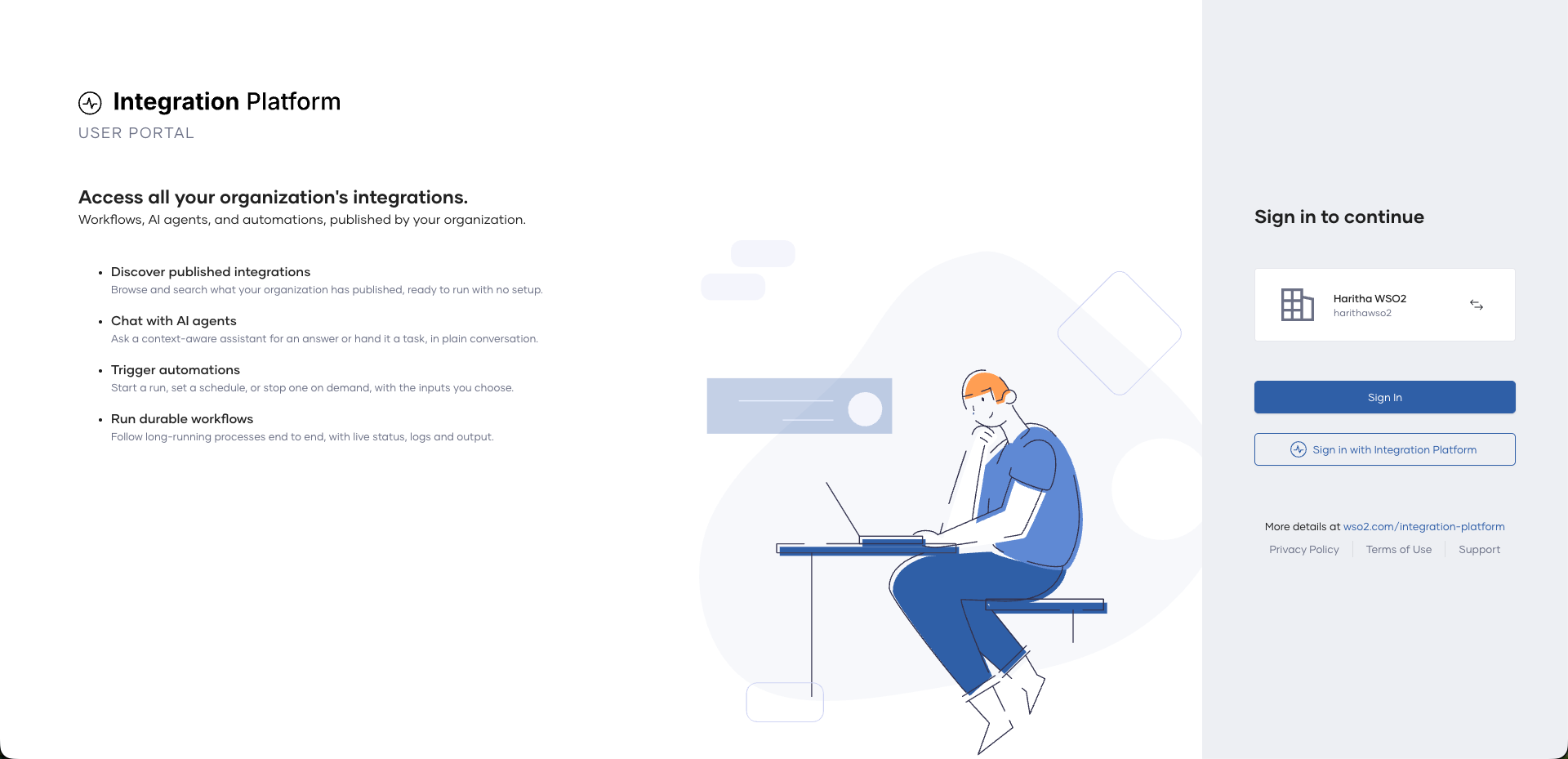
On the Sign in to continue page, check that the organization name and handle are correct. To choose a different organization, click the change organization icon next to the organization name.
-
Select a sign-in option:
- If your organization gave you an account for the User Portal, click Sign In, then sign in with that account.
- If you are a member of the WSO2 Cloud organization, click Sign in with Integration Platform, then click the option that you use to sign in to the WSO2 Cloud console: Continue with Google, Continue with GitHub, Continue with Microsoft, or Continue with Email. To go back, click Back to sign-in options.
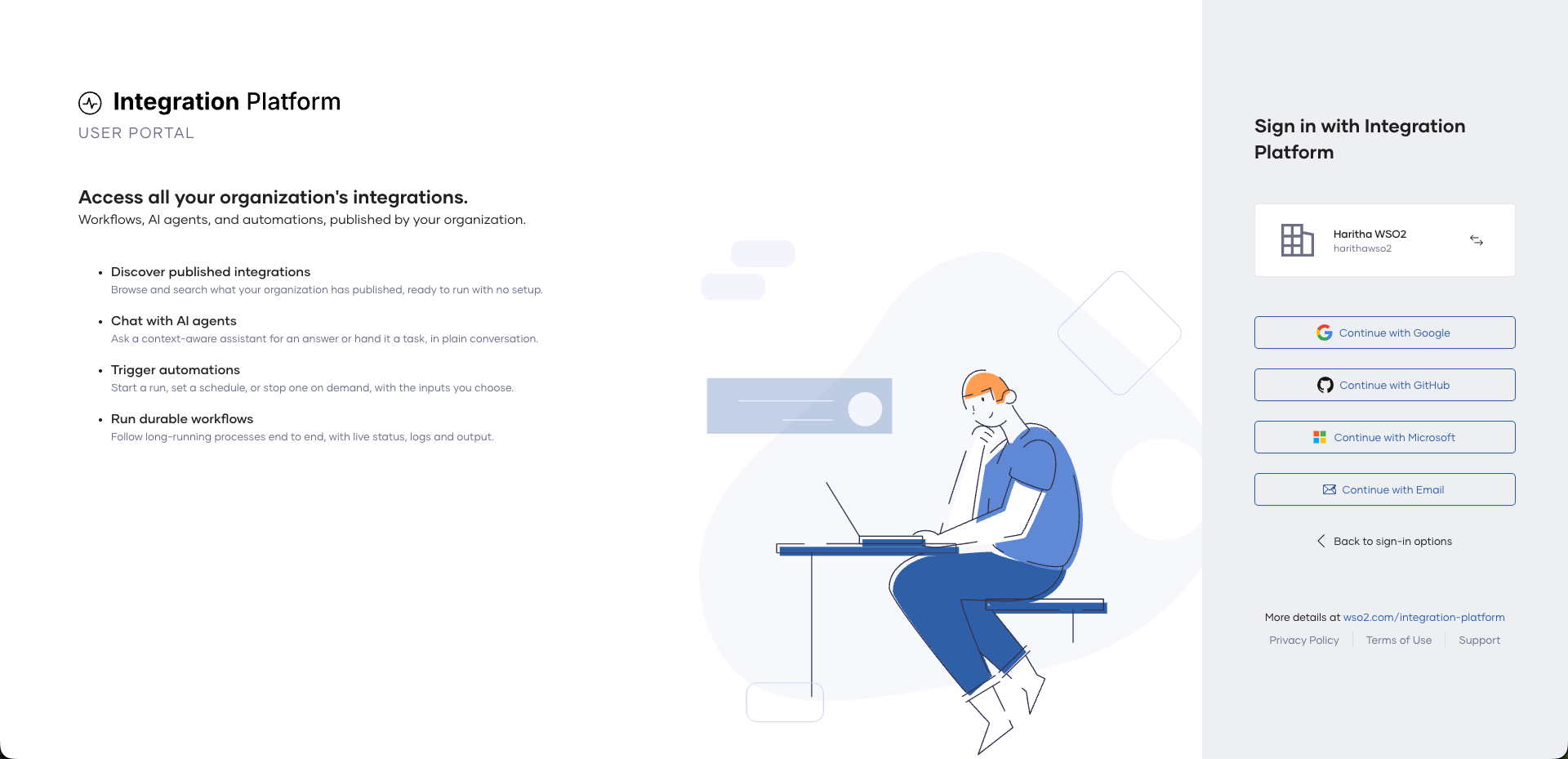
After you sign in, the User Portal lists the integrations that the organization published and that your roles let you see.
If you sign in with Sign in with Integration Platform but your account is not a member of the organization, the User Portal shows You don't have access to this organization. If you are a member of other organizations that enabled the User Portal, the page lists them, and you can choose one to continue.
Sign in with Integration Platform without an organization
If you are a member of the WSO2 Cloud organization, you can sign in first and then choose the organization.
-
Open the User Portal sign-in page.
-
Click Sign in with Integration Platform.
-
Click the option that you use to sign in to the WSO2 Cloud console.
-
On the Choose an organization page, click the organization to continue to.
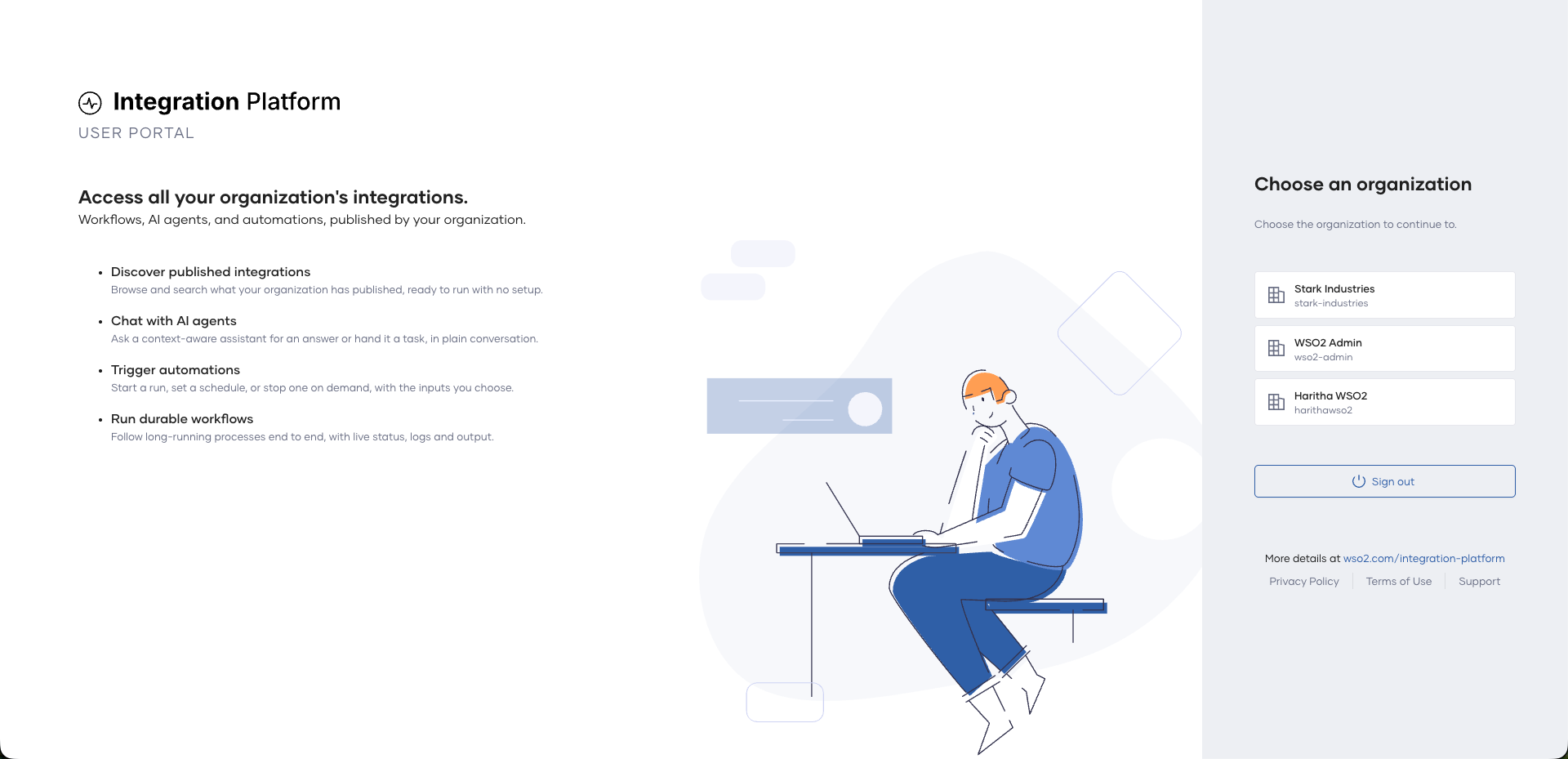
The page lists the organizations that you are a member of and that enabled the User Portal.
Automatic sign-in from the console
When you click the User Portal button on a published integration's overview page in the WSO2 Cloud console, the User Portal opens in a new tab and signs you in with your Integration Platform account. If it cannot sign you in automatically, it shows the Sign in to continue page, where you can select a sign-in option.
What's next
- Use the User Portal to chat with AI agents, run automations, and work with workflows.