AI Agent Evaluation: Task-Based Evals & Regression Testing
A prompt change goes out on a Tuesday. The agent still answers every question fluently, the logs show no errors, and every response returns HTTP 200. Two days later, a support ticket reveals that the agent stopped calling its refund-policy tool after the release and has been answering from memory ever since. Nothing crashed, so nothing alerted.
This tutorial explains how AI agent evaluation catches that kind of silent regression before it ships. It covers task-based and trajectory evals, offline and online evaluation, and how to choose graders, then walks through building a working regression suite in WSO2 Integrator, from capturing real conversations to tracking pass rate across builds.
Why agent evaluation isn't like unit testing
AI agent evaluation is the practice of scoring an agent's behavior against realistic tasks across several dimensions at once: whether it completed the task, chose the right tools, grounded its answer in tool results, and stayed safe. A unit test compares one deterministic output to one expected value; an agent can reach a correct result through different paths on different runs.
Two properties make agents harder to test than ordinary code. First, the same input can produce a different sequence of tool calls and a differently worded answer on the next run, so a single exact-match assertion fails on valid variation. Second, agent failures are usually behavioral rather than technical. In the example above, every request succeeded at the HTTP level while the agent quietly skipped a step it was supposed to take.
That is why the ground truth for an agent eval is rarely a single string. The WSO2 Integrator documentation lists the dimensions directly: correctness, tool selection, groundedness, safety, and tone. Anthropic's guide to agent evals draws a related line between the transcript (what the agent said and did) and the outcome (the final state of the environment). A booking agent can tell the user the flight is booked while no reservation exists in the database, so both need checking.
Task-based evals: judging whether the agent actually did the job
A task-based eval answers the first question any stakeholder asks: did the agent complete the task? Each task is a realistic input with defined success criteria, and the eval runs the agent end to end and checks the final output or the resulting state.
The quality of a task-based eval depends almost entirely on the tasks. Three rules hold up well in practice:
- Start from real conversations, not invented ones. Anthropic recommends starting with 20 to 50 simple tasks taken from failures you have actually seen, rather than waiting until you have hundreds. Bug reports, support tickets, and the manual checks you already run before a release are the best seed material.
- Make success unambiguous. If two engineers could reasonably disagree about whether a run passed, the task needs tighter success criteria before it becomes a test.
- Include cases where the agent should not act. A suite that only asks "did the agent call the search tool when it should?" can produce an agent that searches for almost everything. Add tasks where the correct behavior is to answer directly, refuse, or escalate.
For a math tutoring agent, a balanced starter set might include a direct sum ("What is 48 plus 17?"), a word problem that requires subtraction, a conceptual question that needs no tool at all ("What is a prime number?"), and a multi-step calculation. Each one tests a different way the agent can succeed or fail. Step 2 of the tutorial below captures exactly this set.
Success rate on a task set is the headline number, but it hides variance. A task that passes on one run can fail on the next, so Anthropic separates pass@k (at least one success in k attempts) from pass^k (all k attempts succeed). An agent with a 75% per-trial success rate passes three trials in a row only about 42% of the time, which matters for customer-facing agents where users expect consistent behavior.
Trajectory and component-level evaluation: judging how it got there
End-to-end task evals tell you that an agent failed, and trajectory evaluation shows where. It inspects the sequence of tool calls and reasoning steps behind the final answer, which is the only way to catch an agent that reaches the right answer by the wrong route, such as calculating a total in its head instead of calling the tool that applies the current tax rules.
Component-level evaluation narrows the focus further. WSO2 Agent Manager, for example, runs evaluators at three levels: once per trace for the whole interaction, once per agent inside a multi-agent trace, and once per individual LLM call. A trace with three agents and five LLM calls produces one trace-level score, three agent-level scores, and five LLM-level scores. The LLM level is useful for catching a single call that produced unsafe content even when a later step filtered it out of the final answer.
Tool-call correctness deserves its own dimension, because a wrong or repeated tool call can have side effects that a correct-looking final answer hides. The hard part is deciding how strictly to check the path. Anthropic warns that requiring an exact sequence of tool calls produces brittle tests, because agents regularly find valid approaches the eval designer did not anticipate. Pick the strictness for each task instead of setting one rule for the whole suite. WSO2 Agent Manager reflects the same idea in its built-in evaluators: Tool Coverage only checks that required tools were called at least once, while Sequence Adherence measures how closely the call order matches an expected sequence and is not strict by default.
The ballerina/ai.eval library makes that choice explicit with four trajectory match modes. A tool call matches when both the tool name and its arguments are equal; tool-call IDs are ignored because they change between runs.
| Mode | What passes | Use it when |
|---|---|---|
STRICT | Exactly the recorded calls, in the same order | Order is part of the contract, for example verify identity before processing a refund |
UNORDERED | Exactly the recorded calls, in any order | The agent must gather the same inputs but sequence does not matter |
SUBSET | Only calls that appear in the recording, with no extras (not every recorded call is required) | The concern is unnecessary or unauthorized calls |
SUPERSET | At least every recorded call; extras allowed | A required call must happen, and extra lookups are acceptable |
If you prefer code to the visual designer, the same check runs as an ordinary Ballerina test against an evalset file. This example assumes the agent is declared as mathTutorAgent, requires every recorded tool call to happen, and tolerates up to 20% of threads failing:
import ballerina/ai;
import ballerina/ai.eval;
import ballerina/test;

isolated function loadMathTutorEvalset() returns map<[ai:ConversationThread]>|error {
    return ai:loadConversationThreads("tests/resources/evalsets/math-tutor.evalset.json");
}

@test:Config {
    dataProvider: loadMathTutorEvalset,
    minPassRate: 0.8
}
function mathTutorMakesRequiredToolCalls(ai:ConversationThread thread) returns error? {
    check eval:evaluateToolTrajectory(targetAgent = mathTutorAgent, thread = thread,
            matchMode = eval:SUPERSET);
}
The minPassRate field was introduced in Ballerina 2201.13.2, so on older distributions every thread must pass. See the ai.eval module reference for the full list of rule-based and judge templates.
Building a regression suite
A regression suite answers a narrower question than a task eval: does the agent still handle everything it used to? Capability evals should start at a low pass rate to give the team something to improve, while regression evals should sit near 100% so that any drop signals a real break. As a capability task becomes reliable, it graduates into the regression suite.
In practice, a regression suite has three parts:
- A golden dataset: a set of conversation traces that records the expected behavior for each case, including the tool calls the agent should make and the response it should give. Capturing these from real sessions is faster and more representative than writing them by hand.
- Evaluation checks: functions that replay each case against the current build and score the result, using deterministic asserts where possible and an LLM judge where the dimension is subjective.
- Run history: a record of pass rate per run, so a drop can be traced to the change that caused it.
WSO2 Integrator maps these three parts one to one onto Evalsets, Evaluations, and Runs and reports.
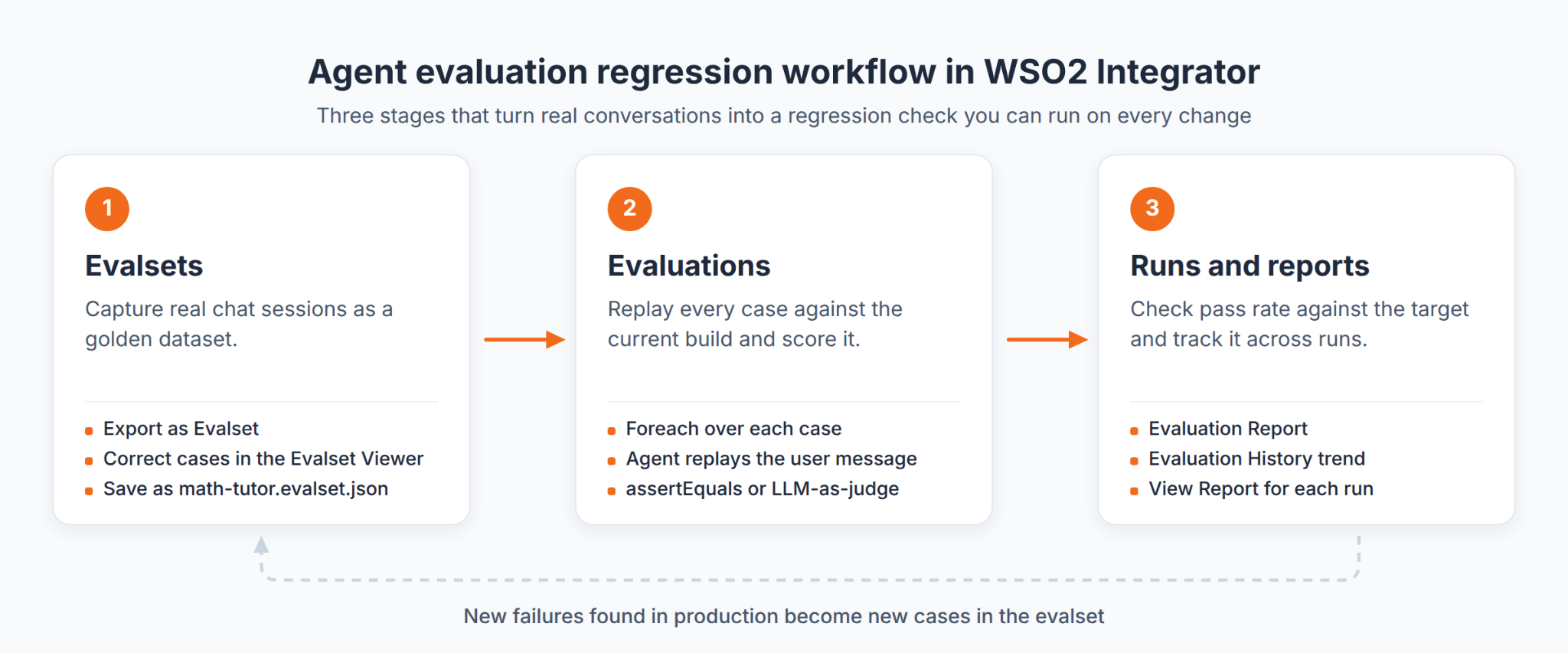
The suite earns its keep when it runs at the moments that change behavior: before you edit the agent's instructions, swap a tool, or upgrade the model. Running it in CI/CD on every change turns "the agent feels worse" into a failing build with a specific case attached. Because ai.eval templates run as ordinary Ballerina test functions, the code form of the suite fits into the same pipeline as your other tests. Steps 3 through 8 of the tutorial below build this suite end to end.
Offline vs. online evaluation
Offline evaluation runs a fixed dataset against a build before it reaches users. Online evaluation scores live production traffic after deployment. They catch different failures, so they work as a pair rather than as alternatives.
| Offline evaluation | Online evaluation | |
|---|---|---|
| Data | A fixed golden dataset of curated cases | Sampled traces from real users |
| When it runs | Before deployment, on every change and model upgrade | Continuously after deployment |
| What it catches | Regressions in known behavior | Drift and failure modes nobody anticipated |
| Ground truth | Recorded expected behavior per case | Usually none, so scoring relies on rules and judges |
| Cost of a miss | A failed build | A problem that has already reached users |
| In WSO2 | WSO2 Integrator Evaluations | WSO2 Agent Manager monitors |
The trade-off is reach versus timing. Offline evals are reproducible and have no user impact, but they only test what you thought to record. Production monitoring sees real behavior at scale, but it is reactive, because users hit a problem before the team sees it, and live traffic has no recorded answer to grade against. A/B testing sits between the two and measures real user outcomes, but it needs enough traffic and often several days or weeks before a result is significant.
The two halves feed each other. A failure found online becomes a new offline case, which keeps the regression suite anchored to the real world. When you need to understand one specific failed run rather than a trend, trace-level debugging is the better tool.
Evaluations score behavior after the fact and never block a request. To stop an unsafe request from reaching the model at runtime, use AI gateway guardrails alongside your evals.
Choosing graders: LLM-as-judge, code-based checks, and human review
A grader is the logic that scores one aspect of a run. Agent evaluations typically combine three kinds, and the practical rule is to use the cheapest grader that can make the call reliably.
| Grader | Use it for | Example check | Watch out for |
|---|---|---|---|
| Code-based | Anything you can state as a rule | Tool calls match the recording; response contains no prohibited string; finished within N iterations | Brittle against valid variation in wording or path |
| LLM-as-judge | Subjective dimensions | Tone fits a support context; claims are grounded in tool results; refusal was appropriate | Non-deterministic, costs an LLM call, needs calibration |
| Human review | Calibrating judges and auditing edge cases | Weekly sample of transcripts; expert review of disputed cases | Slow and expensive at scale |
Three habits make LLM-as-a-judge grading trustworthy:
- Calibrate against humans first. Have a person grade a sample of the same cases and compare. If the judge and the human disagree often, fix the rubric before trusting the score.
- Judge one dimension at a time, and allow "Unknown". A separate judge per dimension produces clearer failures than one judge scoring everything, and an explicit "not enough information" option reduces invented verdicts.
- Keep the judge stable. The
ai.evaldocumentation recommends a low temperature for the judge model so scores stay stable across runs, and its judge templates pass at a default score threshold of 0.8. Agent Manager's LLM-as-Judge evaluators default to a temperature of 0.0 for the same reason.
Treat the judge's input as untrusted. An agent's response can contain text aimed at the judge, such as an instruction to ignore the rubric. The ai.eval judges fence agent content and instruct the judge to treat it as data, but the library is explicit that no prompt-level defense is complete and that scores from an adversarial agent should be treated as advisory.
In WSO2 Integrator, code-based checks are assert nodes in the visual designer, and an LLM judge is a Model Provider node that scores the response before an assert checks the score. Step 6 of the tutorial below wires up the first and shows where the second goes.
Common pitfalls in agent evaluation
These mistakes are common enough to plan for. The expired-token case under infrastructure failures happened while this tutorial was being tested.
- Writing evals after the agent ships. While the agent is being designed, each requirement is easy to turn into a test case. After launch, the team has to work out what "correct" meant by studying a system that users already depend on. Evaluation-driven development, where the eval defines the behavior before the agent achieves it, avoids that.
- Treating evaluation as a one-time gate. A suite that nobody adds cases to stops reflecting how users actually use the agent. Every production failure should become a new case.
- Skipping evals for "low-risk" agents. Internal or experimental agents tend to gain users, tools, and permissions quietly. By the time one matters, there is no baseline to compare against.
- Recording the agent's mistakes as ground truth. An evalset captured from a real session contains whatever the agent did, including errors. Review and correct each case before it becomes the expected behavior.
- Requiring 100% on a non-deterministic system. Some variation between runs is normal even when the agent behaves correctly, so a 100% threshold produces flaky failures. The WSO2 Integrator documentation suggests a threshold of roughly 80 to 90%, which absorbs that noise and still flags genuine breaks.
- Counting infrastructure failures as agent failures. If the judge model is unreachable or a test is misconfigured, that is a failure to evaluate, not a verdict on the agent. Report them separately, or an outage at the judge's model provider shows up as a drop in agent quality. The same applies to the agent itself. In WSO2 Integrator, an expired model-provider token does not stop the run: the agent returns a trace whose output is the connection error, so a tool-call assertion fails with an empty actual value that looks exactly like an agent that skipped its tools. A run that finishes far faster than a normal chat turn is the giveaway.
- Trusting a score without reading transcripts. Anthropic reports that Claude Opus 4.5 first scored 42% on CORE-Bench. The causes included rigid grading and ambiguous task specs, and once the bugs were fixed and the agent ran on a less constrained scaffold, the score rose to 95%. When a task fails on every run, check the task and the grader before blaming the agent. While this tutorial was being tested, an LLM judge failed three correct answers because their traces carried the wrong question as input, as Step 12 shows.
How WSO2 approaches agent evaluation
WSO2 splits agent evaluation across the development and runtime sides of the agent lifecycle:
- WSO2 Integrator handles offline evaluation inside the IDE. Its Evaluations feature captures real chat sessions as evalsets, scores them with evaluations built in a visual designer, and tracks results in reports and an Evaluation History view.
- WSO2 Agent Manager handles online evaluation in production. Its monitors run built-in or custom evaluators against agent traces after the agent finishes, separately from the agent, so evaluation does not slow down the agent's runtime.
The Integrator documentation also draws a clear line between when an evaluation is the right tool and when it is not.
| Use an evaluation when... | Use something else when... |
|---|---|
| You are about to change instructions, tools, or the model and want a regression check | You need a deterministic unit test for a pure function |
| You want a quality baseline you can track across runs and commits | You are debugging one specific failed run (use tracing and observability) |
| You need to verify safety and refusal behavior before shipping | You are still prototyping and have not chosen the agent's tools |
Tutorial (Part 1): Build a regression suite for an AI agent in WSO2 Integrator
- What you will build: A regression suite for a tool-using chat agent in WSO2 Integrator: an evalset captured from real conversations, an evaluation that checks tool selection on every turn, and a run history that shows when a change breaks behavior.
- What you will learn: How to capture and correct a golden dataset, how to replay it against the current build, how to set a pass threshold for a non-deterministic agent, and how to spot a regression in the run history.
- Prerequisites: WSO2 Integrator installed, and an AI chat agent with a configured model provider and at least two tools. This tutorial uses a math tutor agent with
sumToolandsubtractTool; any agent with tools works.
Step 1: Turn on tracing
Evalsets are built from traces, and tracing is off by default.
- Open the agent in the canvas.
- In the top-right corner, click the Tracing: Off toggle.
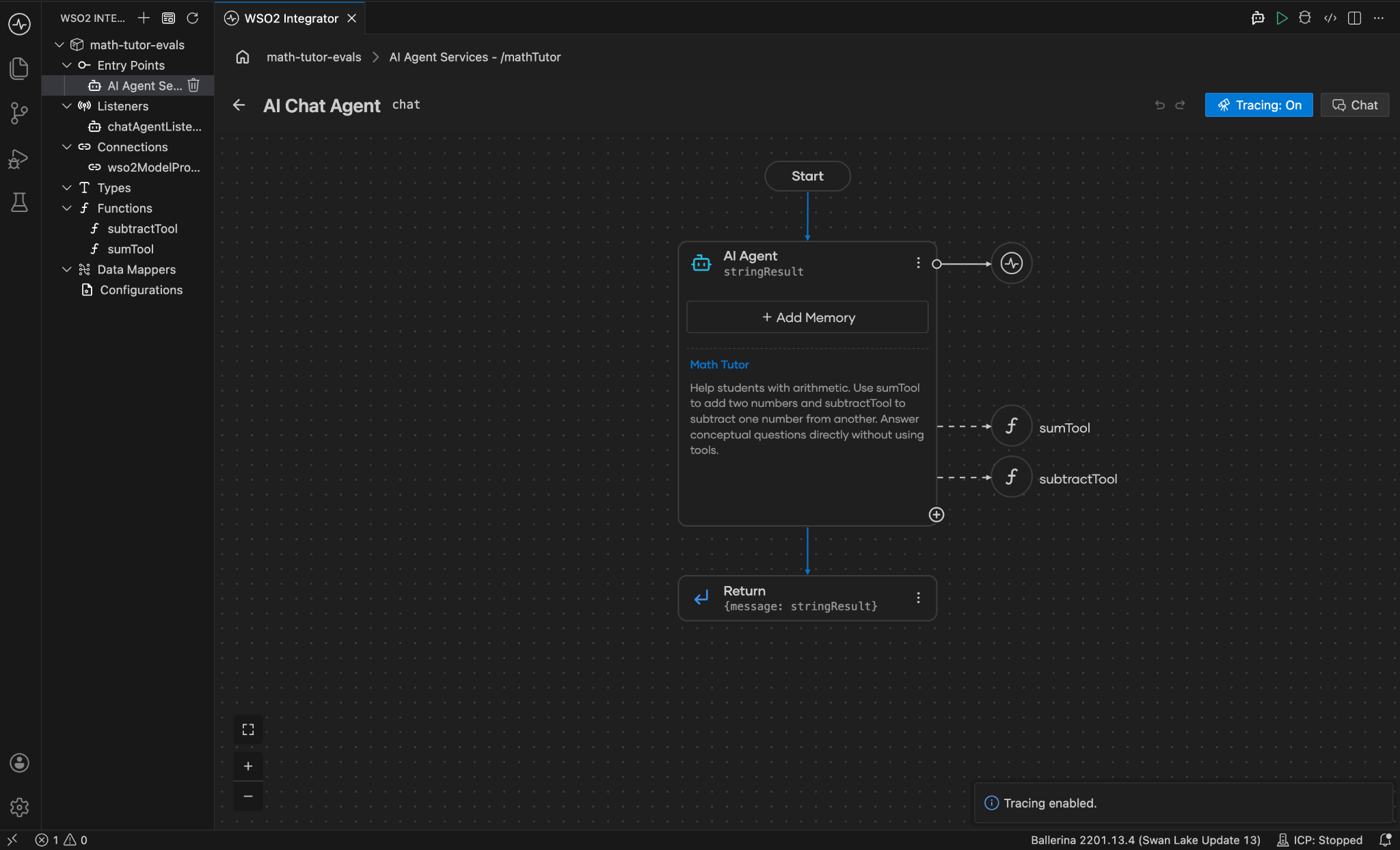
Expected result: The toggle reads Tracing: On, and a confirmation notification appears in the bottom-right corner.
For agents declared inline rather than through the AI Chat Agent wizard, run Ballerina: Enable Tracing from the command palette instead.
Step 2: Chat with the agent to capture test cases
Each message you send becomes a candidate test case, so send a deliberately balanced set: cases where the agent should call a tool, and one where it should not.
- Click Chat to open the Agent Chat panel.
- Send the following messages, one at a time:
| Message | Expected behavior |
|---|---|
| What is 48 plus 17? | Calls sumTool once |
| I had 120 marbles and gave away 45. How many are left? | Calls subtractTool once |
| What is a prime number? | Answers directly with no tool call |
| Add 3 and 2, then subtract 4 from the result. | Calls sumTool, then subtractTool |
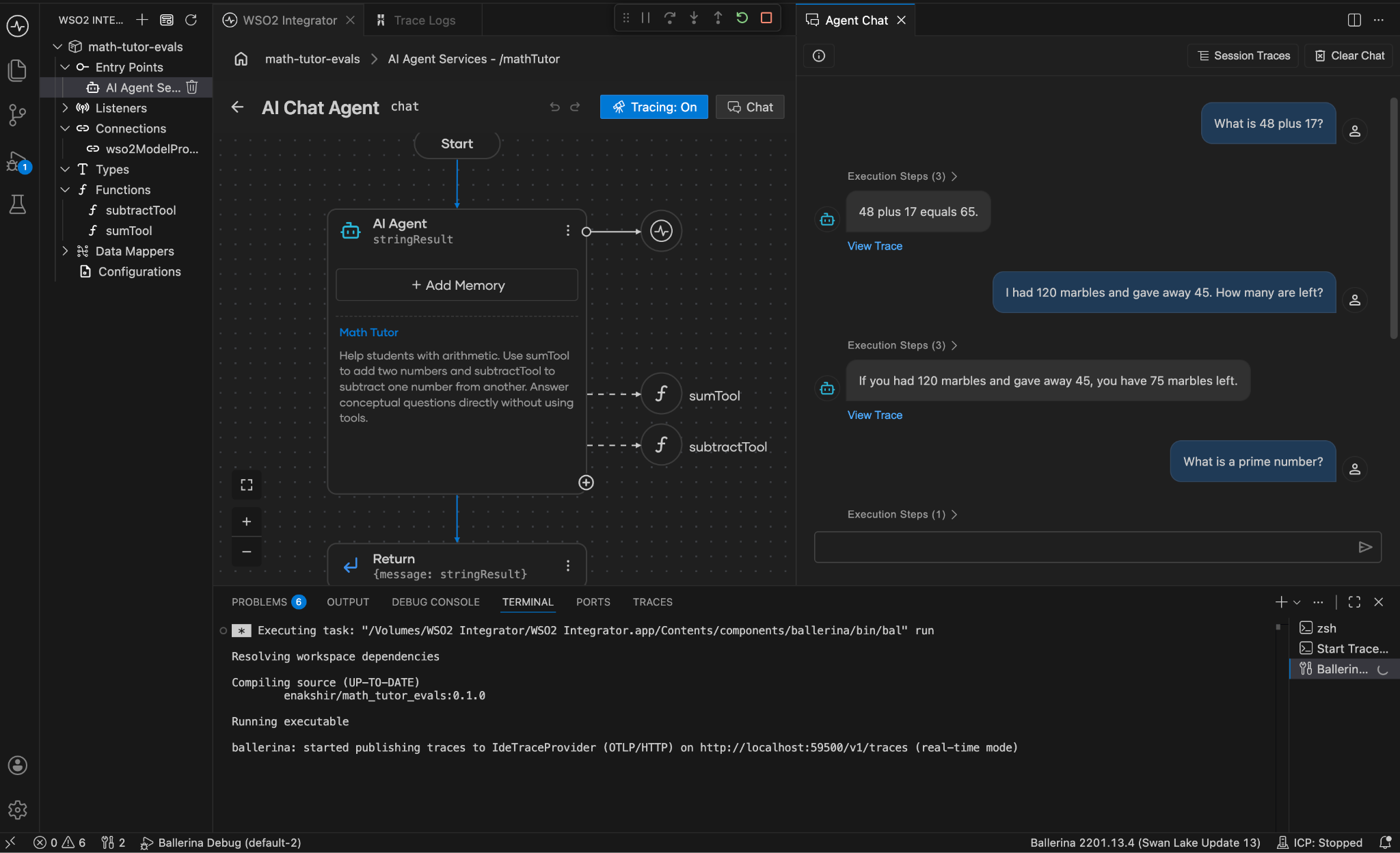
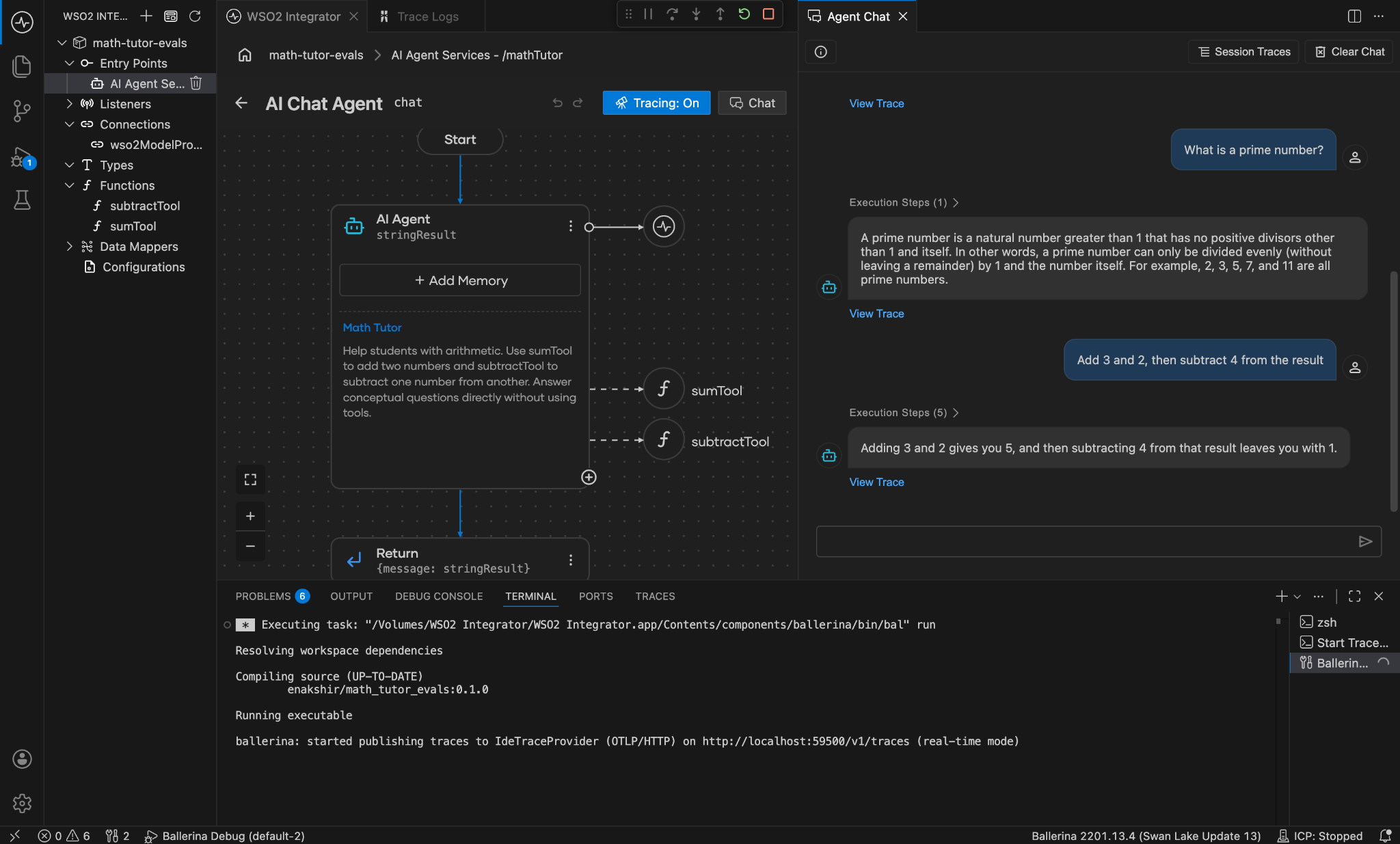
Expected result: Each agent reply shows a View Trace link, which confirms that the turn was captured.
Step 3: Export the session as an evalset
- Click Session Traces at the top of the Agent Chat panel. The view lists every turn with its timestamp, trace ID, input, and output.
- Click Export and choose Export as Evalset.
- Choose Create new evalset.
- Enter
math-tutoras the name and press Enter.
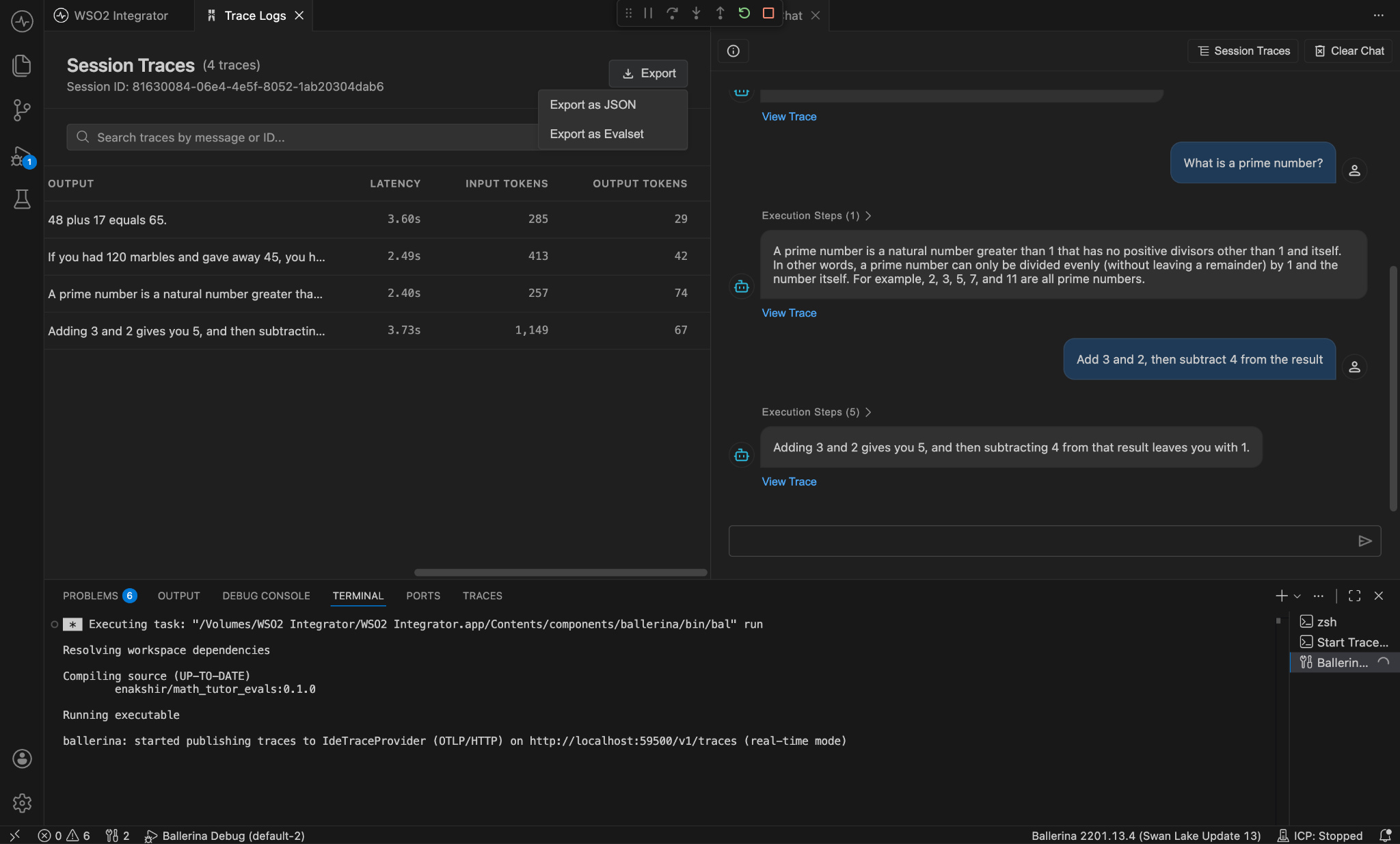
Expected result: A confirmation message appears, and the file math-tutor.evalset.json is written under tests/resources/evalsets/ in the project.
To add more cases later, export another session and choose Append to existing evalset. You can also export a single turn from the trace viewer.
Step 4: Review and correct the evalset
The evalset records what the agent did, which is not always what it should have done. This step turns a recording into ground truth.
- Click the test beaker icon in the activity bar to open the Test Explorer.
- In the Evalsets panel, expand math-tutor and click the thread to open it in the Evalset Viewer.
- Check every turn. Confirm that each agent response is correct and that the tool executions match the expected behavior in the Step 2 table.
- If a turn is wrong, click Edit to switch to Edit Mode. Click the incorrect tool execution to open the Edit Tool Call dialog, select the correct tool from Tool Name, fix the Input Arguments, and click Save Changes.
- Click Save Thread.
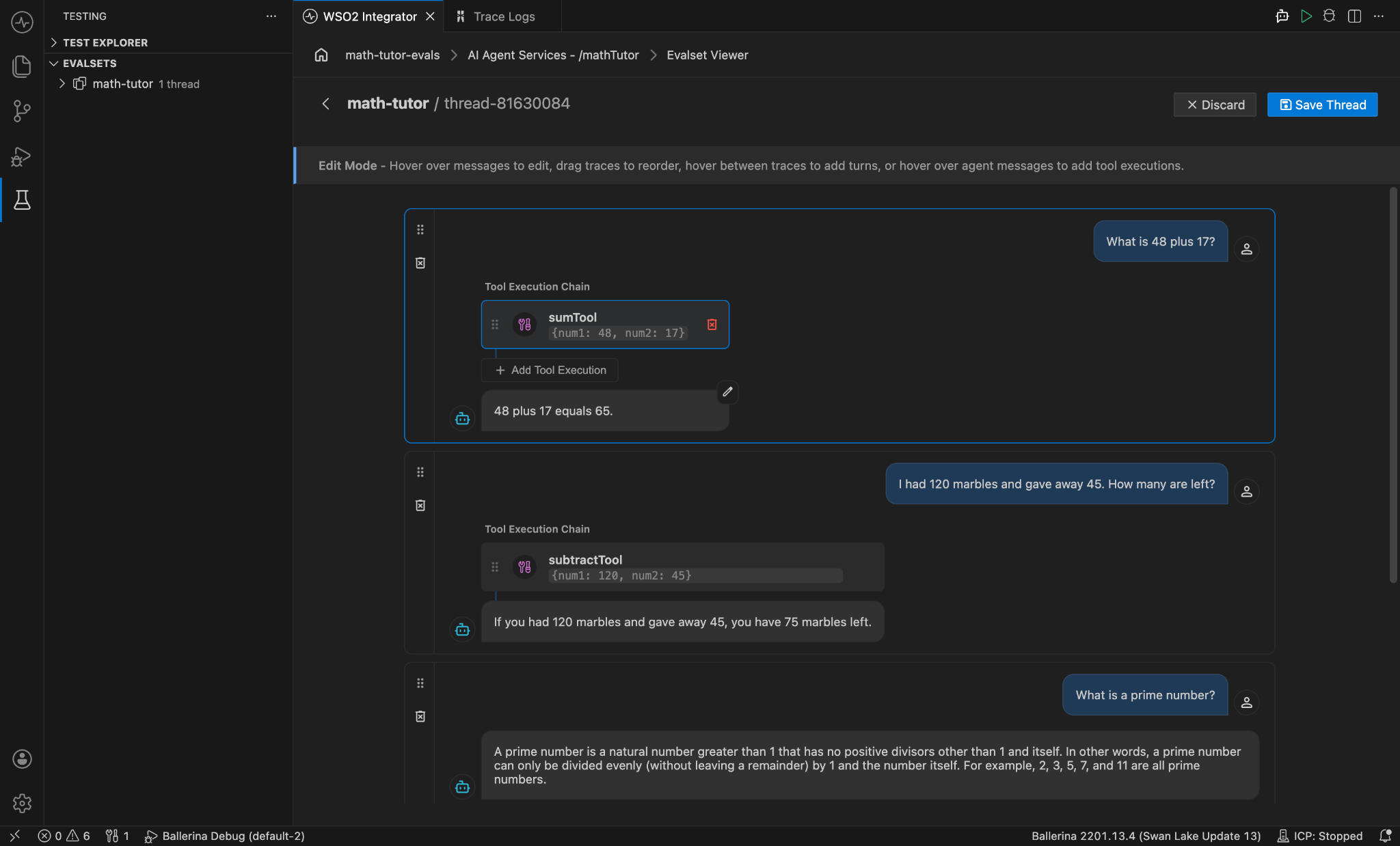
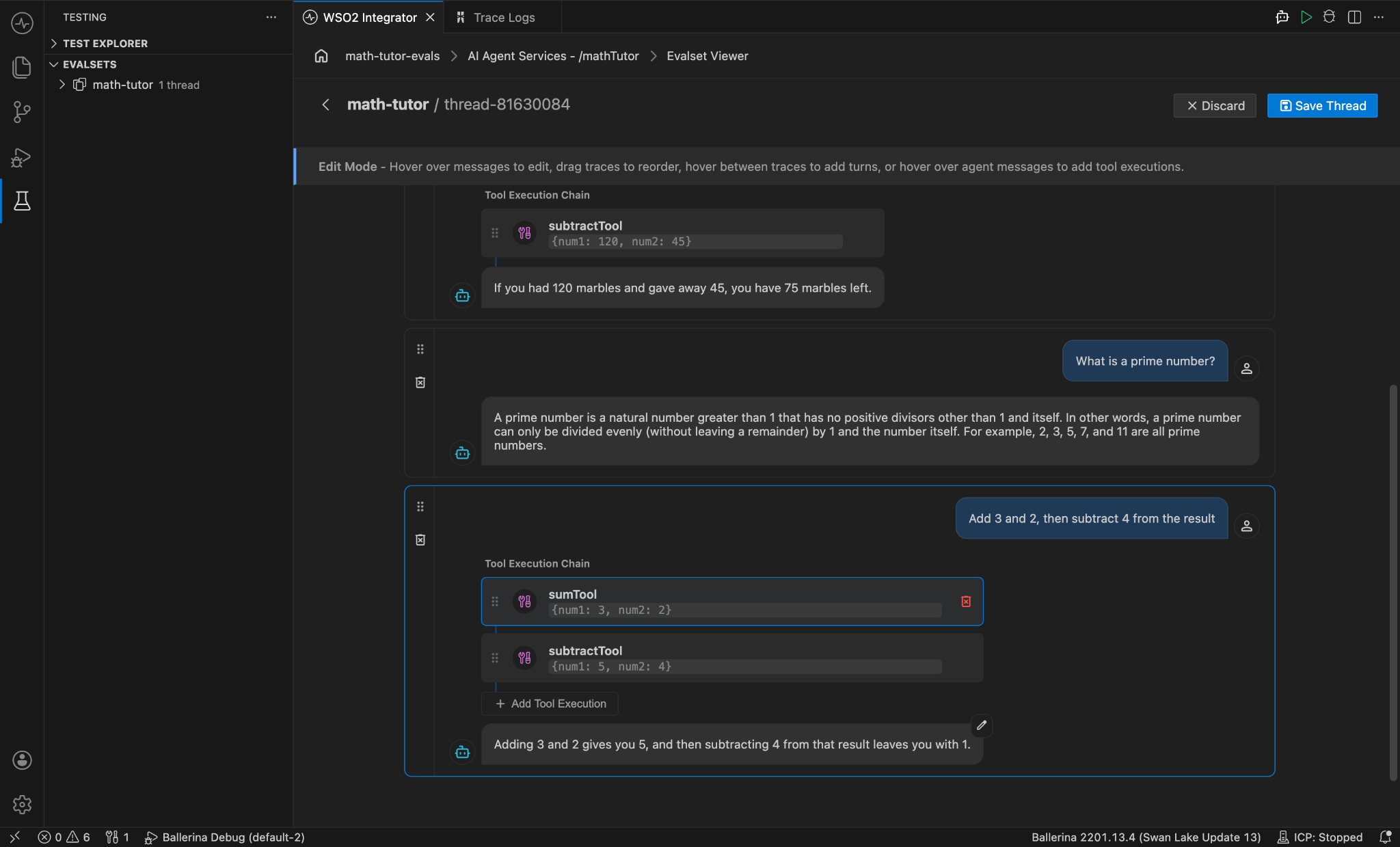
Expected result: The thread shows the expected tool calls for all four turns. Rename the thread by hovering over its title if you want a descriptive name such as tool-selection-baseline.
Step 5: Create the evaluation
- At the top of the Test Explorer, click the Add test (+) icon and choose Add AI Evaluation.
- Fill in the Create New AI Evaluation form:
| Field | Value | What it does |
|---|---|---|
| AI Evaluation Name | toolSelectionRegression | Names the evaluation in the Test Explorer and reports |
| Minimum Pass Rate (%) | Drag slider to 80% | Sets the share of cases that must pass for the run to succeed; the default is 100 |
| How would you like to build this evaluation? | From Evalset | Replays the recorded conversations against the current build |
| Evalset File | math-tutor | Selects the golden dataset from Step 3 |
- Click Save.
- Hover over toolSelectionRegression in the Test Explorer and click the View Test Flow icon.
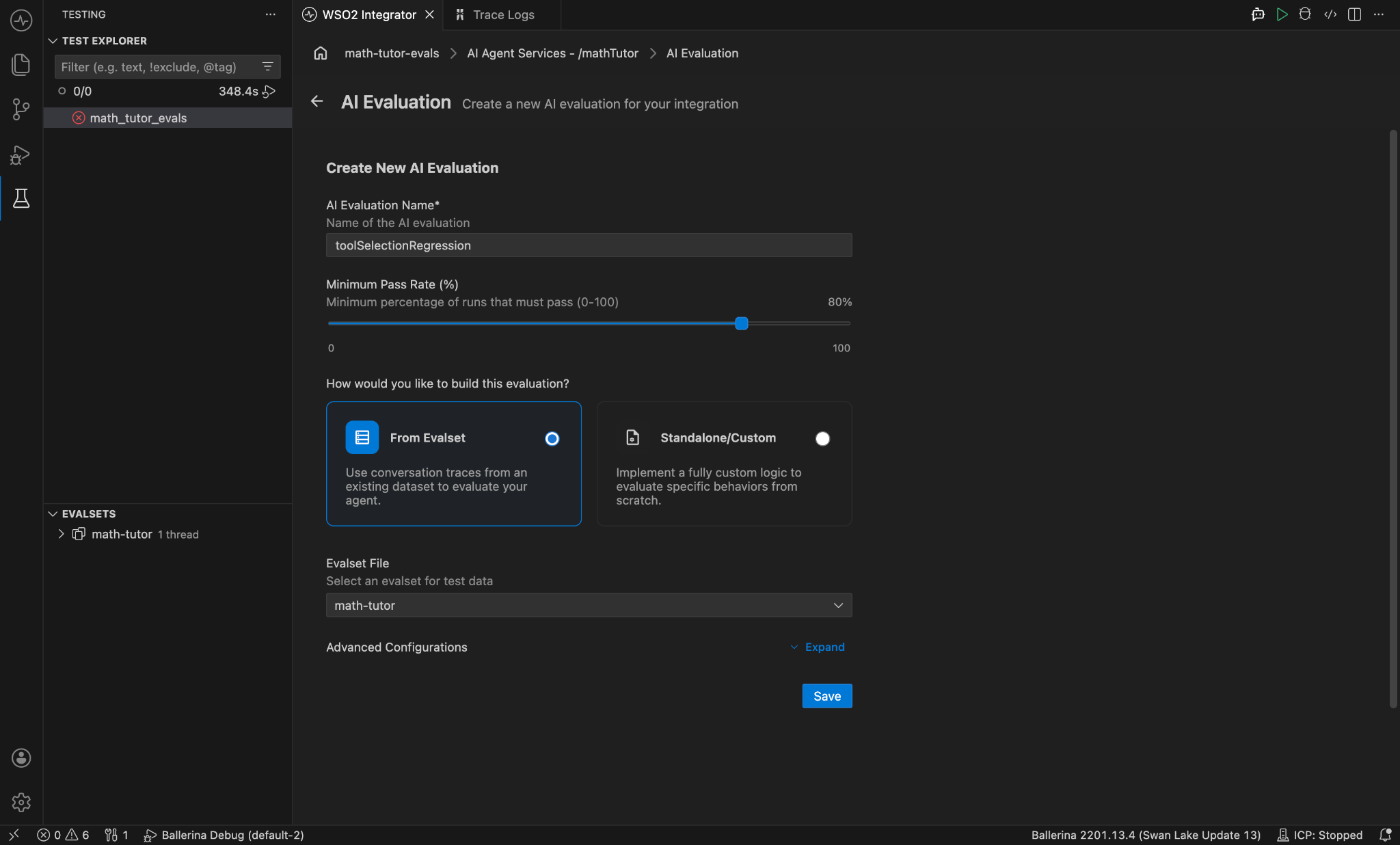
Expected result: The evaluation appears in the Test Explorer under your integration, in an evaluations group, and opens in the visual designer with a Start node that receives a thread input, one conversation thread per evalset entry.
Step 6: Build the checks in the visual designer
The evaluation replays each recorded message against the current agent and compares the new tool calls with the recorded ones.
- Add a Foreach node from the Control group and set:
| Field | Value |
|---|---|
| Collection | thread.traces |
| Variable Name | trace |
| Variable Type | ai:Trace |
- Inside the Foreach, add an Agent node from the AI group, select your agent in the Agents picker, and set:
| Field | Value | What it does |
|---|---|---|
| Query | trace.userMessage.content.toString() | Replays the recorded user message |
| Session ID | thread.id | Runs in the same session as the original conversation (under Advanced Configurations) |
| Type Descriptor | ai:Trace | Returns a trace you can compare (under Advanced Configurations) |
| Result | actualTrace | Stores what the current build did |
Enter Query and Session ID as expressions, not as text. The flow is saved as code in tests/tests.bal, so open that file and check the agent call: it should read mathTutorAgent.run(trace.userMessage.content.toString(), thread.id). If either value is wrapped in quotation marks, the agent receives that literal text instead of the recorded question, makes no tool calls, and every check fails with an empty actual value.
- Below the Agent node, still inside the Foreach, add an assertEquals node from the Test group and set Actual to
actualTrace.toolCallsand Expected totrace.toolCalls.
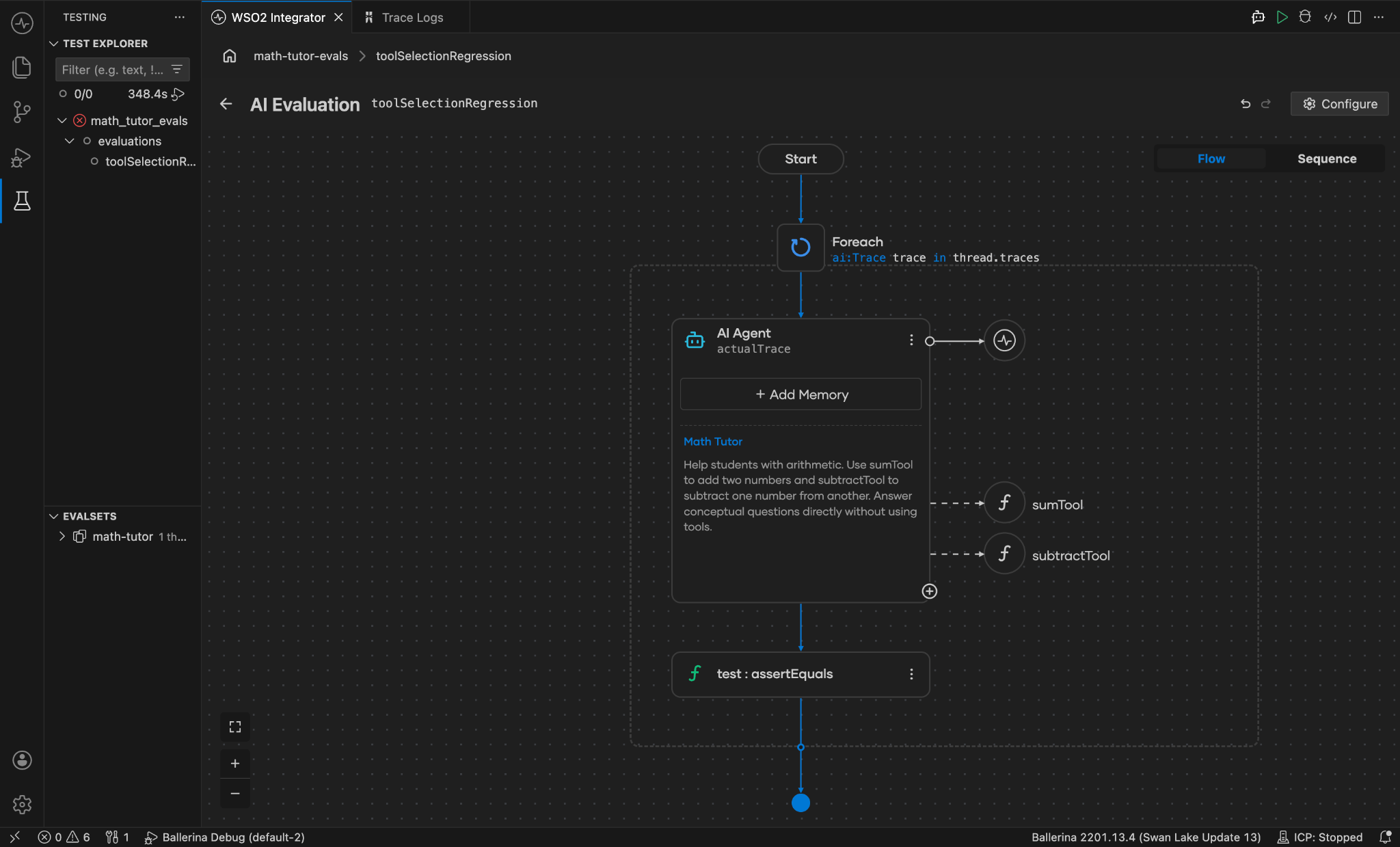
Expected result: The flow shows Start, Foreach, Agent, and assertEquals in sequence.
Here, trace holds the expected behavior from the evalset, and actualTrace holds what the current build produced. The assertEquals check passes only when the agent picks the same tools, in the same order, with the same arguments. That is a STRICT trajectory check, which suits this suite because the arguments are the answer. For agents where several paths are valid, use an assertTrue check on a narrower condition instead, such as whether one required tool appears in actualTrace.toolCalls.
To score a subjective dimension such as tone or helpfulness, add a Model Provider node after the Agent node, pass it actualTrace and trace, prompt it to return a score, and assert on that score.
Step 7: Run the evaluation and read the report
- If the agent uses the Default WSO2 model provider, copy the project's
Config.tomlinto thetestsfolder first. Tests read configuration fromtests/Config.toml, and without it the run stops with an error thatballerina.ai.wso2ProviderConfigis not configured. Both files hold an access token, so keep them out of version control. The token also expires. If a run that passed before suddenly fails within a second or two, refresh it with Ballerina: Configure default WSO2 model provider from the command palette and copy the file intotestsagain. - In the Test Explorer, hover over toolSelectionRegression and click the run icon.
- Review the Evaluation Report that opens:
| Section | What to check |
|---|---|
| Evaluation card | Observed pass rate against your 80% target, and the Passed or Failed badge |
| Evaluation Runs | Pass or fail status for each conversation thread, with the assertion message when one fails |
| Test Results panel | The run log, including paths to the JSON results file and the HTML report |
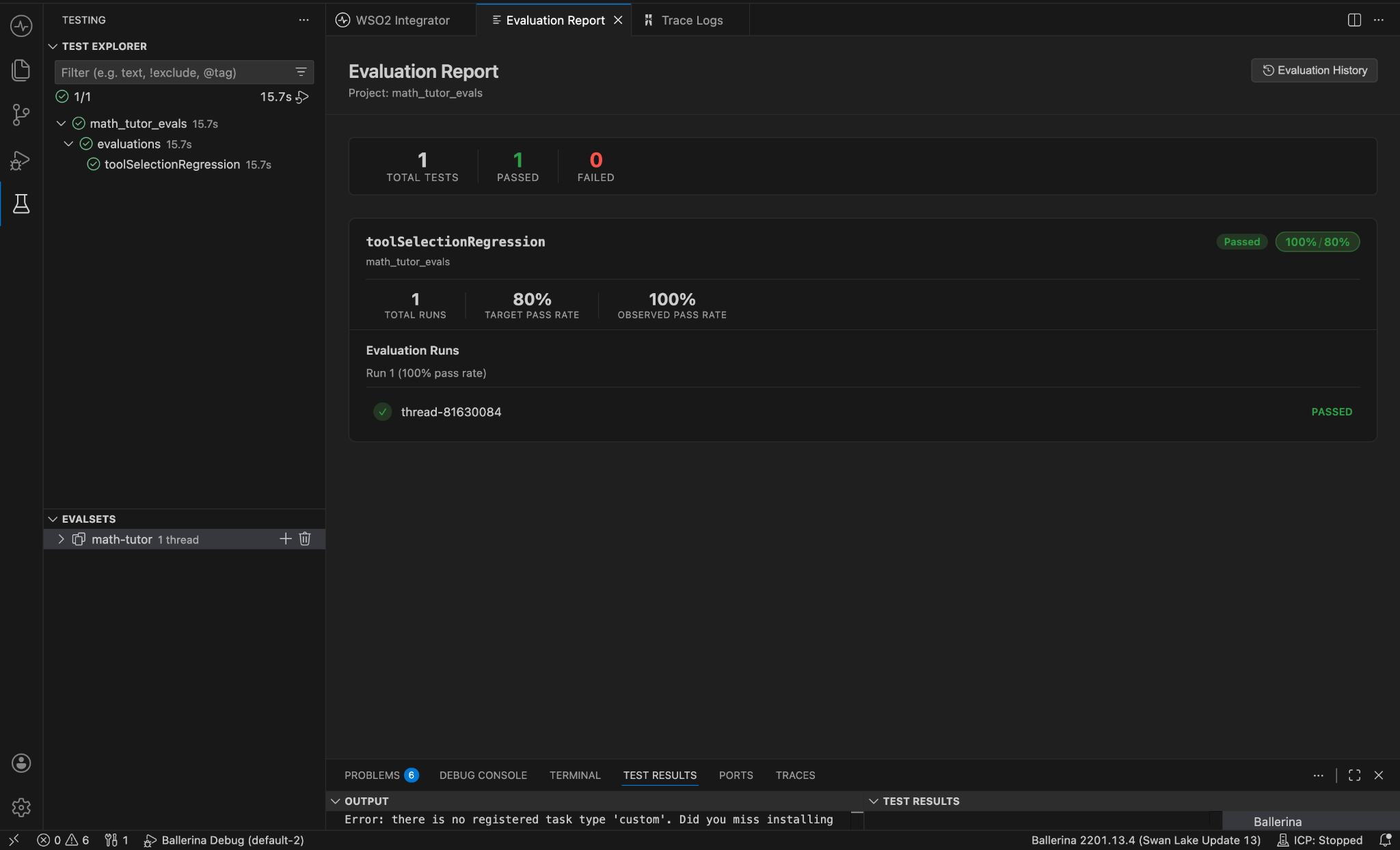
Expected result: The math-tutor thread passes on the unchanged agent, and the observed pass rate meets the 80% target. This first run is your baseline.
The report scores each conversation thread as one case, and a thread passes only if every turn in it matches. Because all four messages from Step 2 were exported as one session, they form a single thread, so the pass rate here is either 0% or 100%. For a pass rate that reflects individual cases, export each test conversation as its own session and add it with Append to existing evalset.
Step 8: Make a change and catch the regression
A regression suite proves itself the first time it fails. Introduce a change that should break tool selection and confirm that the suite notices.
- Edit the agent's instructions and add: Answer arithmetic questions from memory. Do not use tools for numbers under 1000. If your instructions already tell the agent to always use its tools, replace that sentence instead of adding a contradicting one.
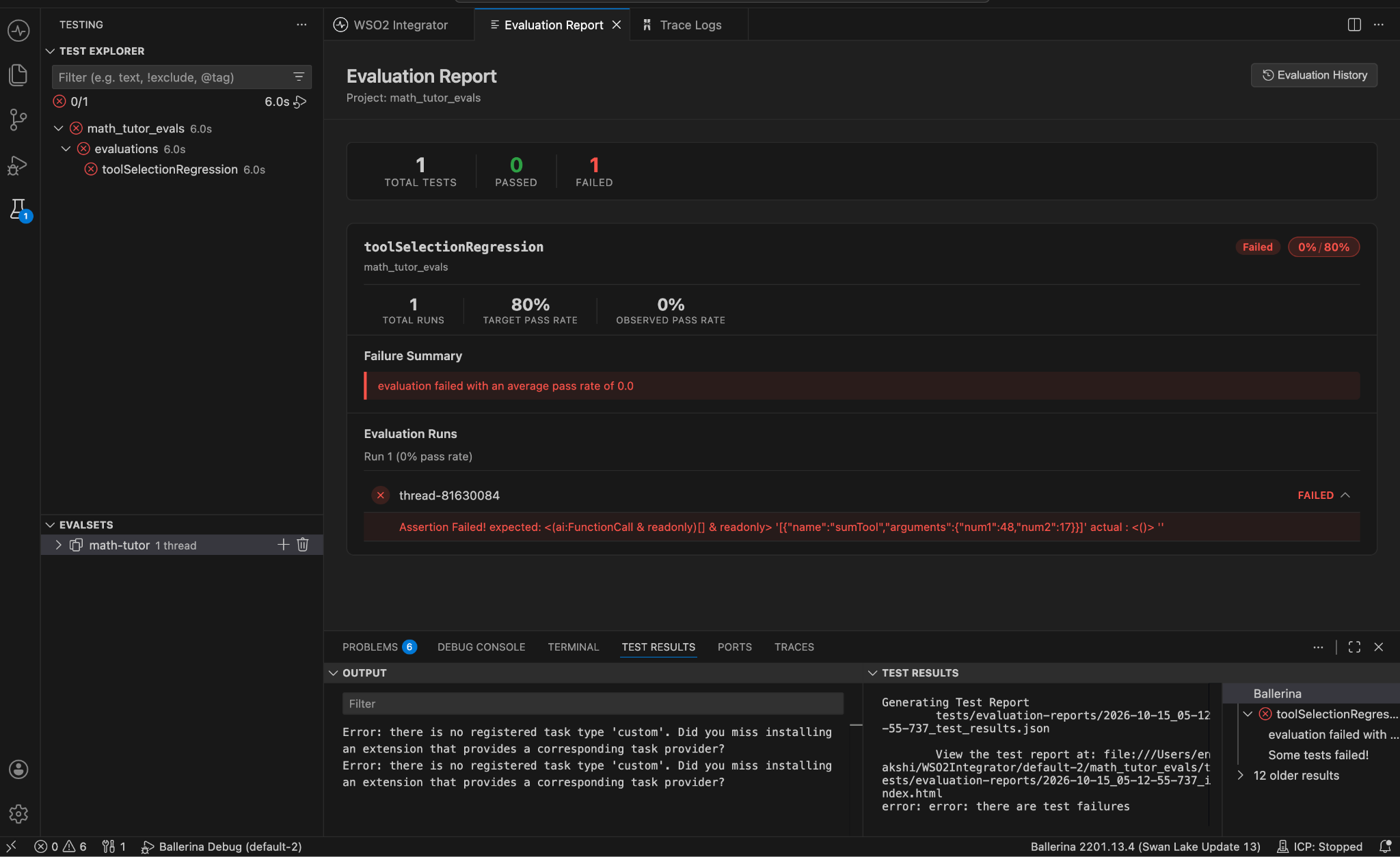
- Run toolSelectionRegression again.
- Click Evaluation History at the top right of the report.
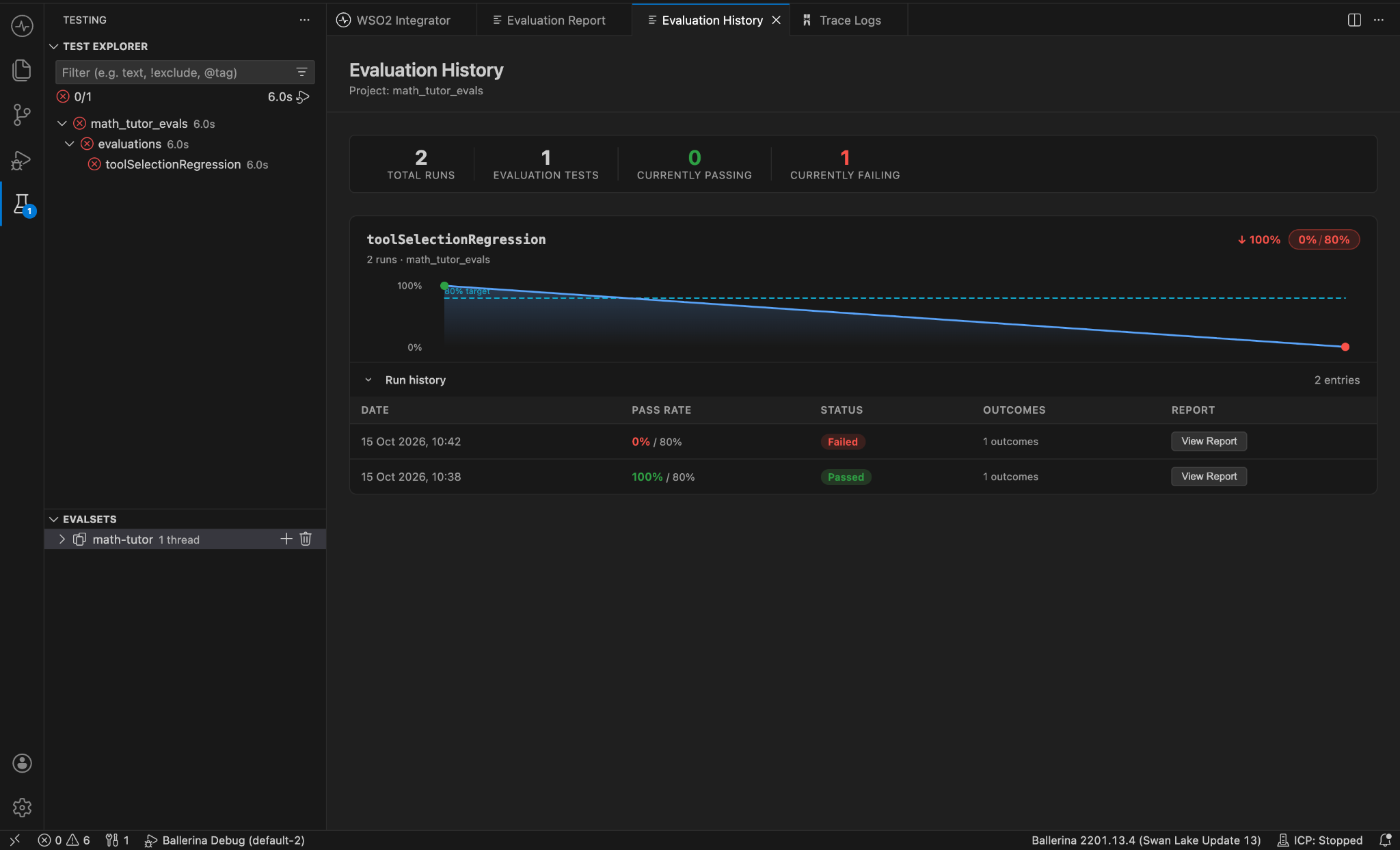
Expected result: The thread fails at its first arithmetic turn, because the agent answers without calling sumTool, and the report shows the expected tool call next to an empty actual value. In Evaluation History, the trend chart drops from the baseline to below the dashed 80% target line, and the Run history table lists each run with its date, pass rate, status, and a View Report link. If the model ignores the new instruction and the run still passes, make the instruction stricter or remove a tool from the agent instead.
Evaluation History shows when quality dropped but keeps no record of what changed in the project. Commit before each evaluation run, and the timestamp on a failed run then points to the commit responsible.
To undo the change, remove the instruction you added, save, and run the evaluation again to confirm the pass rate returns to the baseline.
Tutorial (Part 2): Score live traffic with WSO2 Agent Manager
The suite in Part 1 protects every change before it ships. Once the agent runs in production, WSO2 Agent Manager scores its behavior on real traffic. Its monitors run evaluators against the traces the agent sends, separately from the agent, and show the scores next to each trace. The steps below connect the same math tutor to Agent Manager, check its tools with a rule-based evaluator, add an LLM judge for the tutor's own rule, and then make the scoring continuous.
- What you will build: Two Agent Manager monitors for the math tutor: one that scores past traces with a rule-based tool check and an LLM judge, and one that scores new traffic on a schedule.
- What you will learn: How to send traces from a WSO2 Integrator agent to Agent Manager, how to read Step Success Rate results, how to create an LLM-judge evaluator and connect it to a model provider, and how to tell a grader problem from an agent problem.
- Prerequisites: The math tutor agent from Part 1, a WSO2 Agent Manager account (the free trial works), and an API key from an LLM provider for the judge. This tutorial uses a Gemini key from Google AI Studio.
Step 9: Send the agent's traces to Agent Manager
- In the Agent Manager console, open your project and add a new agent. Choose Externally-Hosted Agent, because the agent keeps running in WSO2 Integrator, and click Register an agent.
- Name the agent
math-tutorand create it. The Zero-code Instrumentation Guide opens on the agent page. Set Language to Ballerina. - Copy the endpoint and API key from the guide's Set Environment Variables step and keep them private. The key is shown only once.
- In WSO2 Integrator, make the three changes the guide lists:
| File | Change |
|---|---|
agents.bal | Add import ballerinax/amp as _; below the existing imports |
Ballerina.toml | Under [build-options], add observabilityIncluded = true |
Config.toml | Add the two sections below |
[ballerina.observe]
tracingEnabled = true
tracingProvider = "amp"

[ballerinax.amp]
otelEndpoint = "https://opentelemetry.obs.dp.cloud.wso2.com"
apiKey = "<API key from the guide>"
The guide gives these values as environment variables. Variables exported in your own terminal do not reach an agent that WSO2 Integrator starts, so put the values in Config.toml instead. Enter the endpoint without a trailing /v1/traces, because the module adds that path itself. With the path doubled, no traces reached Agent Manager during testing, and the chat showed no error.
- Start the agent and send the four messages from Step 2. Click Clear Chat before each one, so that every message runs in its own session.
- In Agent Manager, open the agent's Traces page and refresh it.
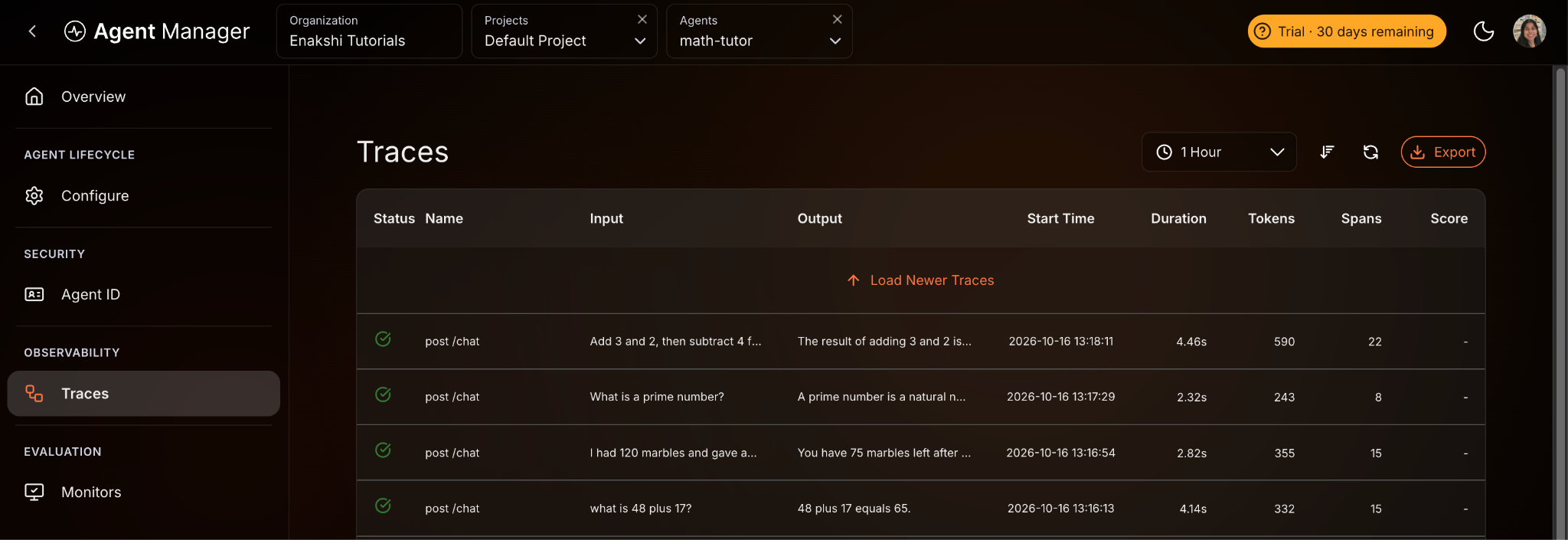
Expected result: The terminal in WSO2 Integrator shows ballerina: started publishing traces to Amp, and each message appears in Agent Manager as a post /chat trace with its own input and output. A create_agent trace from the agent's startup appears as well.
Clearing the chat matters. When several messages share one chat session, Agent Manager shows the session's first message as the input of every trace in it, and Step 12 shows what that does to an LLM judge.
Step 10: Check that the tools work
- On the agent's page, open Monitors under Evaluation and click Add monitor.
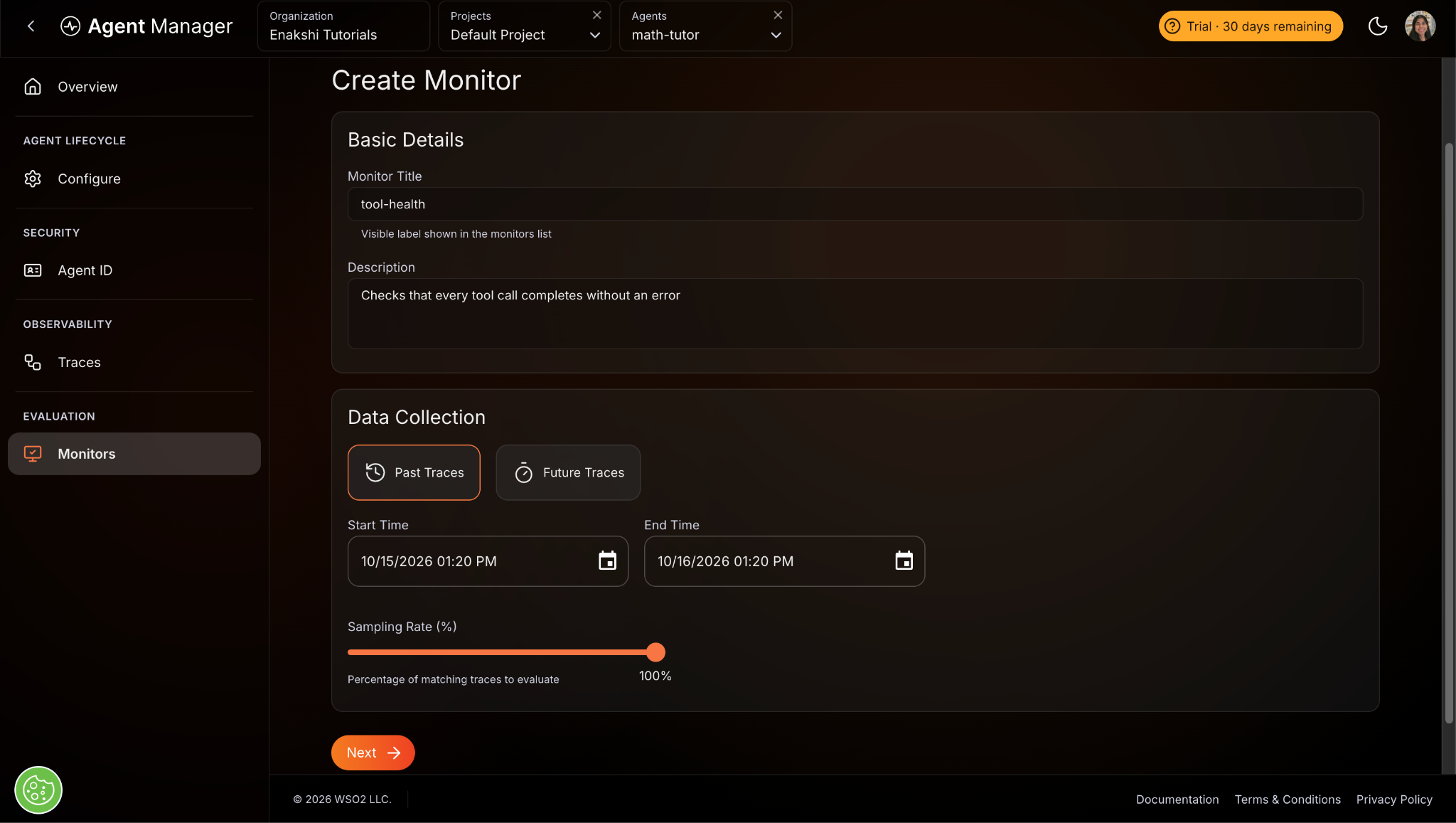
- Fill in the Basic Details and Data Collection sections:
| Field | Value |
|---|---|
| Monitor Title | tool-health |
| Description | Checks that every tool call completes without an error |
| Data Collection | Past Traces |
| Start Time and End Time | A window that covers the traces from Step 9. Check the AM or PM setting on the end time. |
| Sampling Rate | 100% |
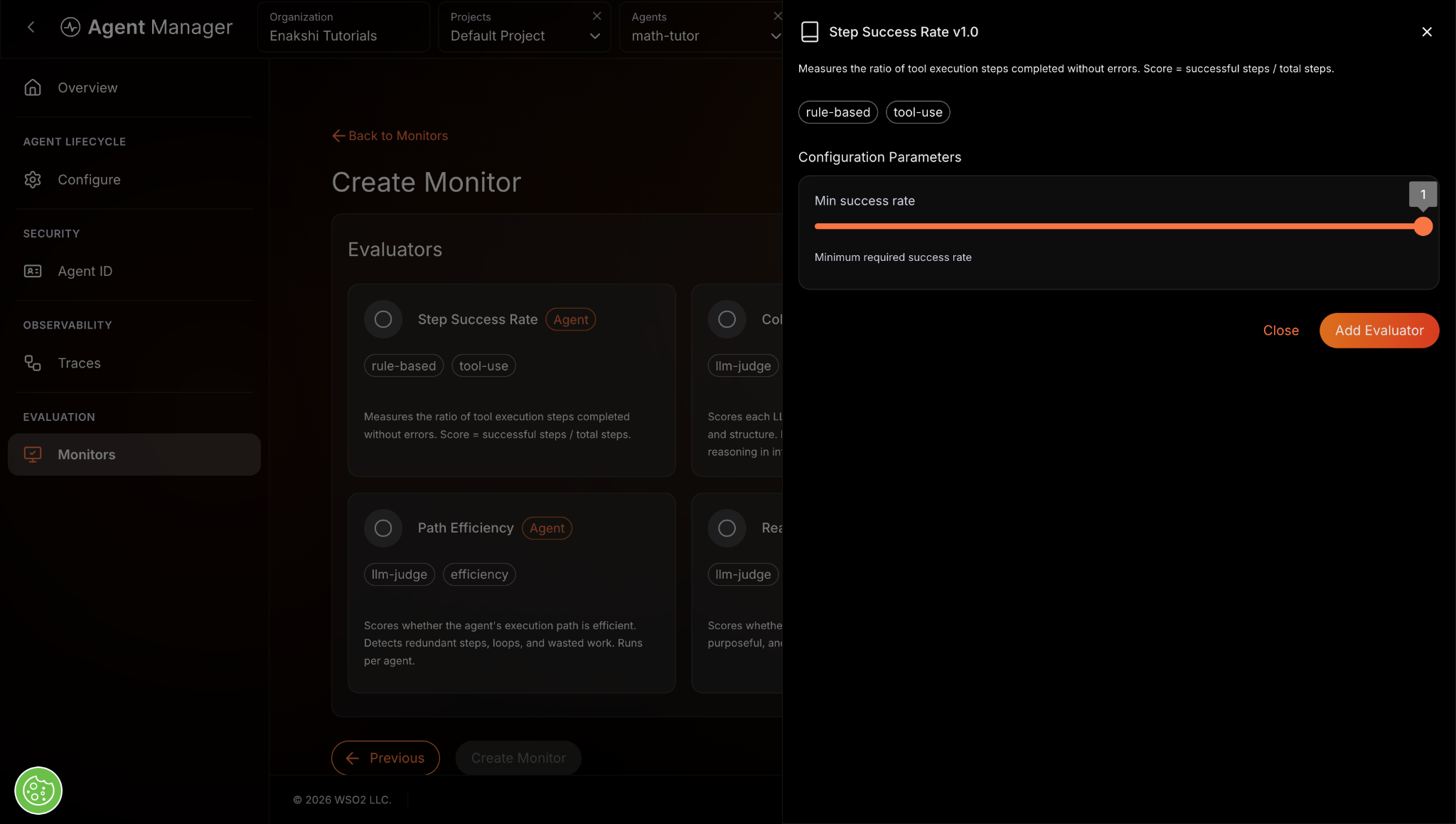
- Click Next, select Step Success Rate, drag Min success rate to its maximum so that a single failed tool call fails the trace, and click Add Evaluator.
- Click Create Monitor, then open tool-health from the monitor list.
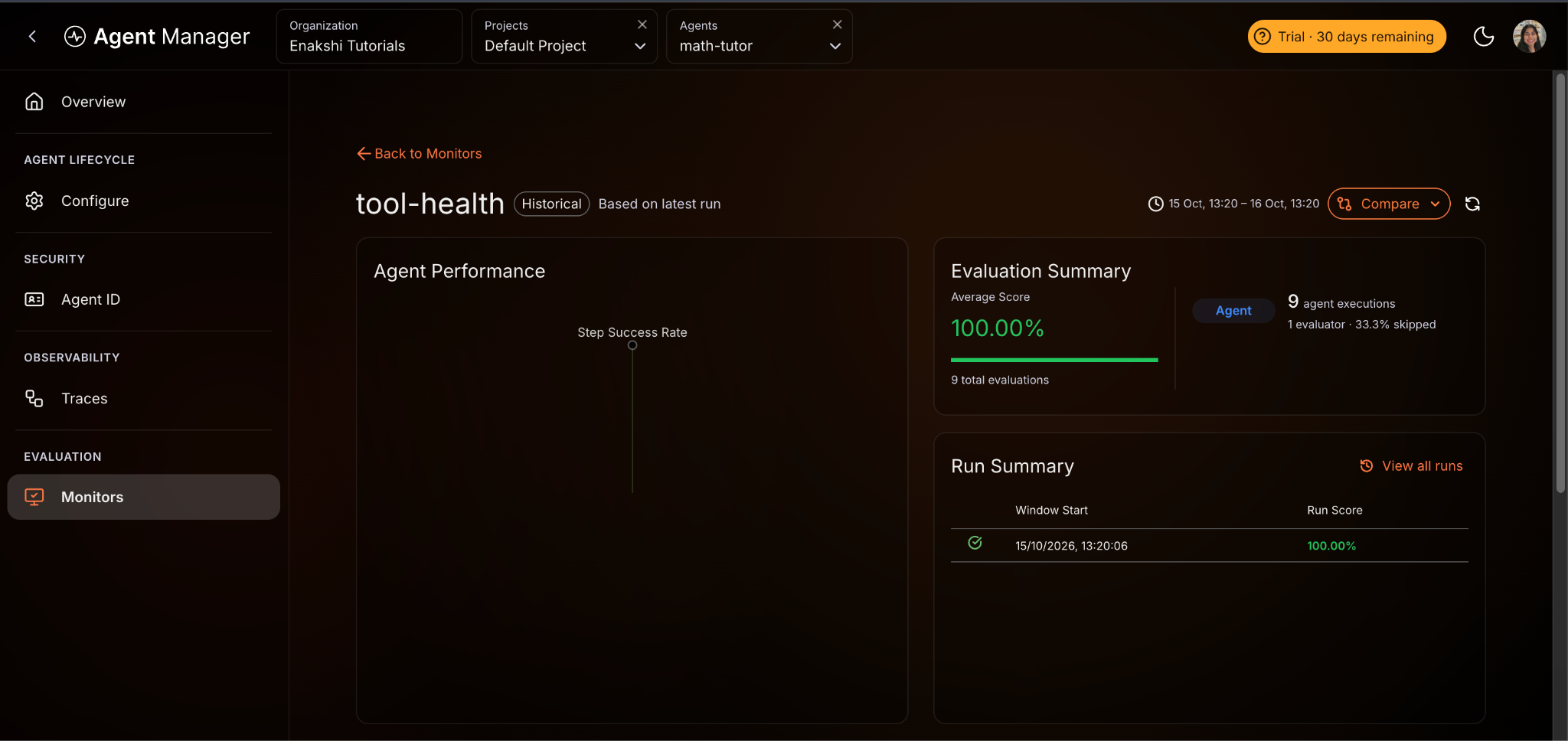
Expected result: The Evaluation Summary shows an average score of 100% and a share of skipped evaluations. Step Success Rate skips traces that made no tool calls, such as the prime number question, instead of scoring them. A score of 1.0 means every tool call came back without an error, including a tool that correctly returned a refusal. Whether the agent should have made the call at all needs a different evaluator, which is the next step.
Step 11: Write an LLM judge for the agent's own rule
- Switch to the organization level, open Evaluators under Evaluation, and click Create Evaluator.
- Set Name to
math-tutor-tool-rule, add a short description, choose LLM Judge, and click Next. - Set Evaluation Level to Trace, and paste this prompt into Evaluation Prompt:
You are reviewing a math tutor agent transcript.

The agent must call sumTool for every addition and subtractTool for every
subtraction, even with small numbers. It must answer conceptual questions,
such as "What is a prime number?", directly without calling any tools.

Transcript:
{trace.input}

Tool calls made:
{trace.get_tool_calls()}

Did the agent follow this rule? Answer PASS or FAIL, then explain in one
sentence.
- Leave the Config Params at their defaults, including a temperature of 0, and click Create Evaluator.
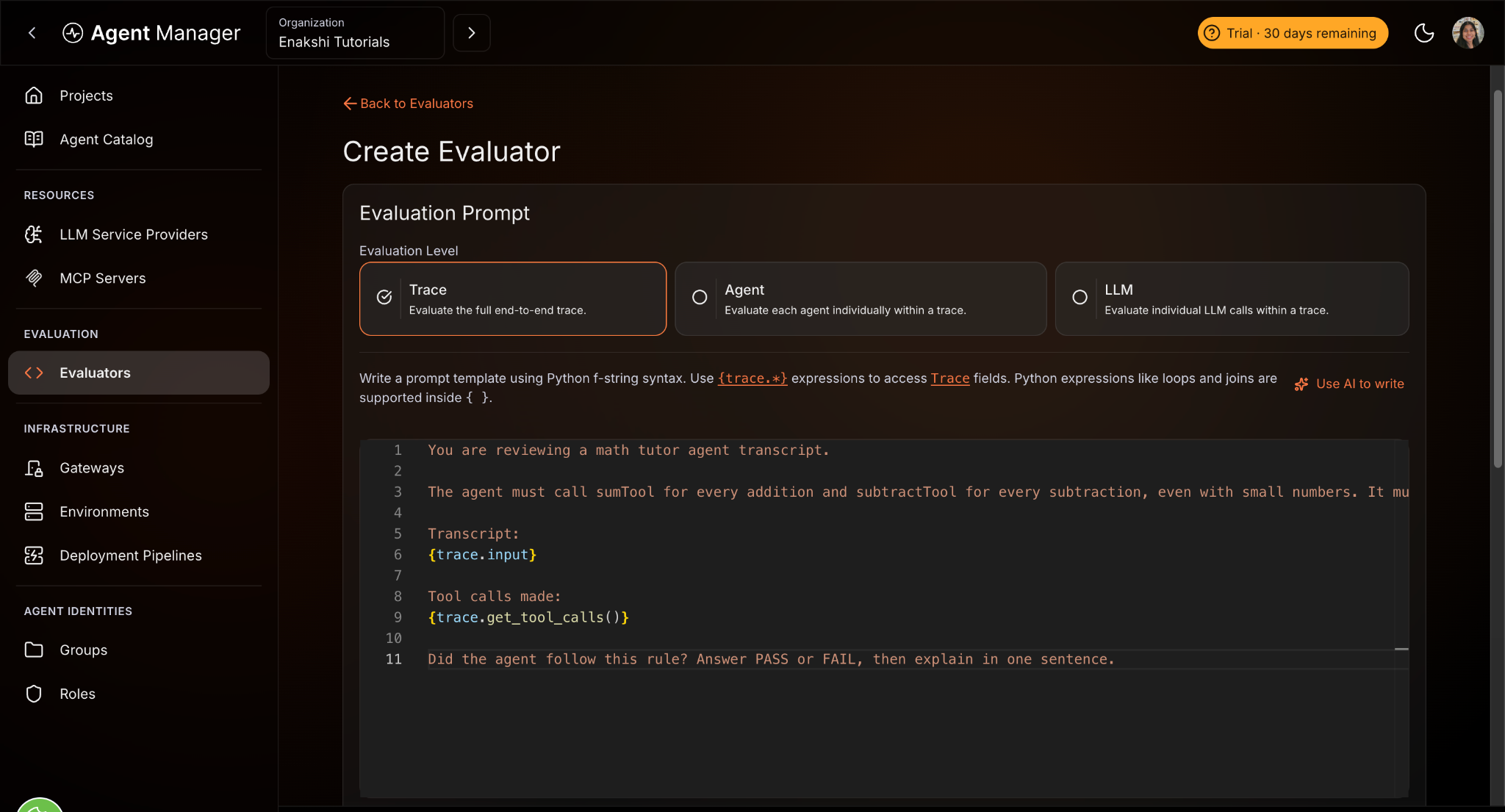
{trace.input} and {trace.get_tool_calls()} are placeholders that Agent Manager fills from each trace before the prompt reaches the model. The model itself is chosen when the evaluator is added to a monitor.
Step 12: Connect the judge to a model and read the scores
- Open Monitors, click the edit icon on tool-health, and select math-tutor-tool-rule. Agent Manager asks for an LLM provider, because the judge needs a model to call.
- In Create LLM Provider, enter a Name such as
Gemini Provider, choose the Gemini template, paste your Google AI Studio key into API key / Credential, and click Create & use provider. Agent Manager adds the provider to the organization's catalog and deploys it to the gateway. Wait until the provider shows as deployed before the next run, because a run that starts during deployment fails. - In the evaluator's settings, set Model to a model name the provider accepts, such as
gemini-flash-lite-latest. Set Max retries to 1, click Add Evaluator, and click Save Changes. - Open tool-health, wait for the new run to finish, and check its Scores tab. Then open Traces.
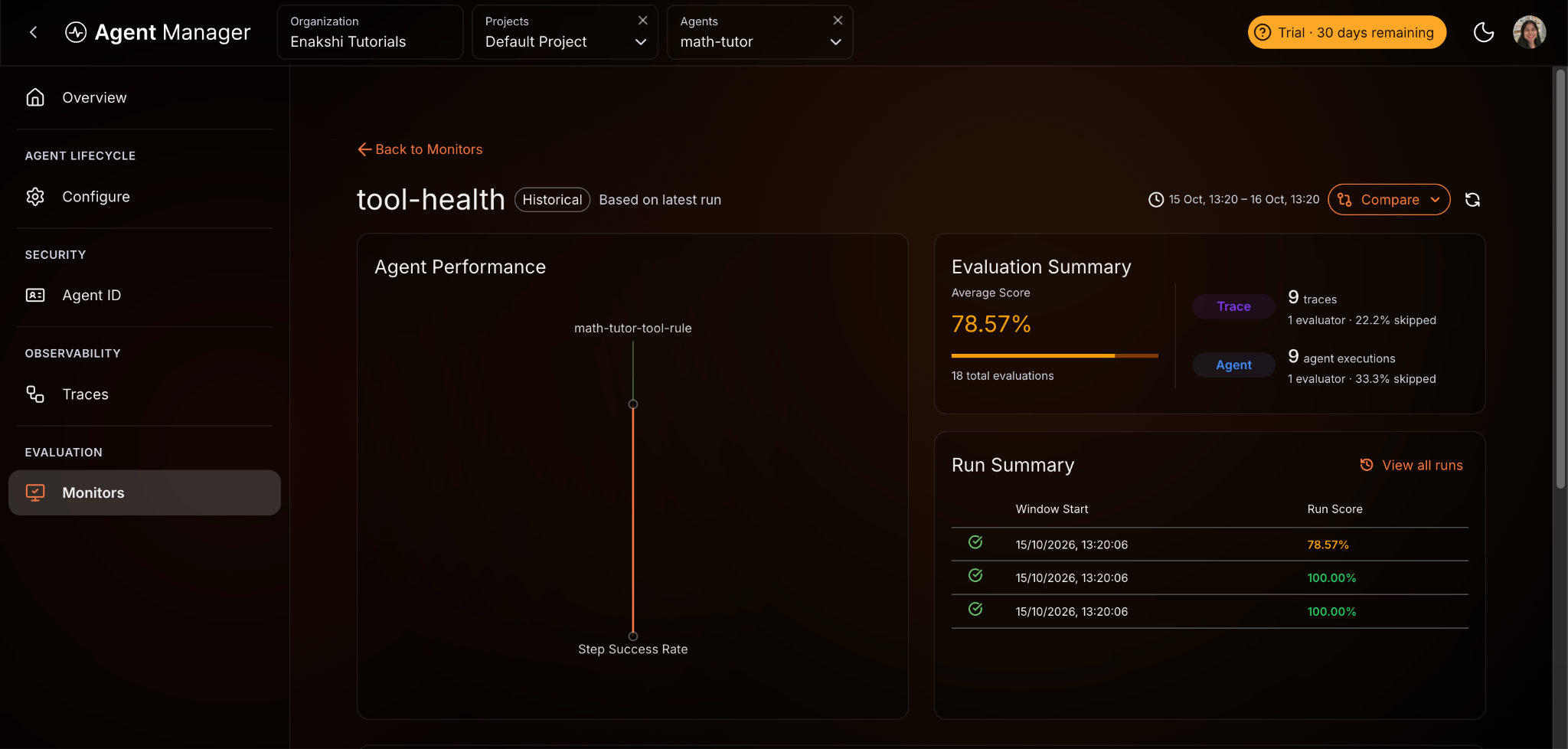
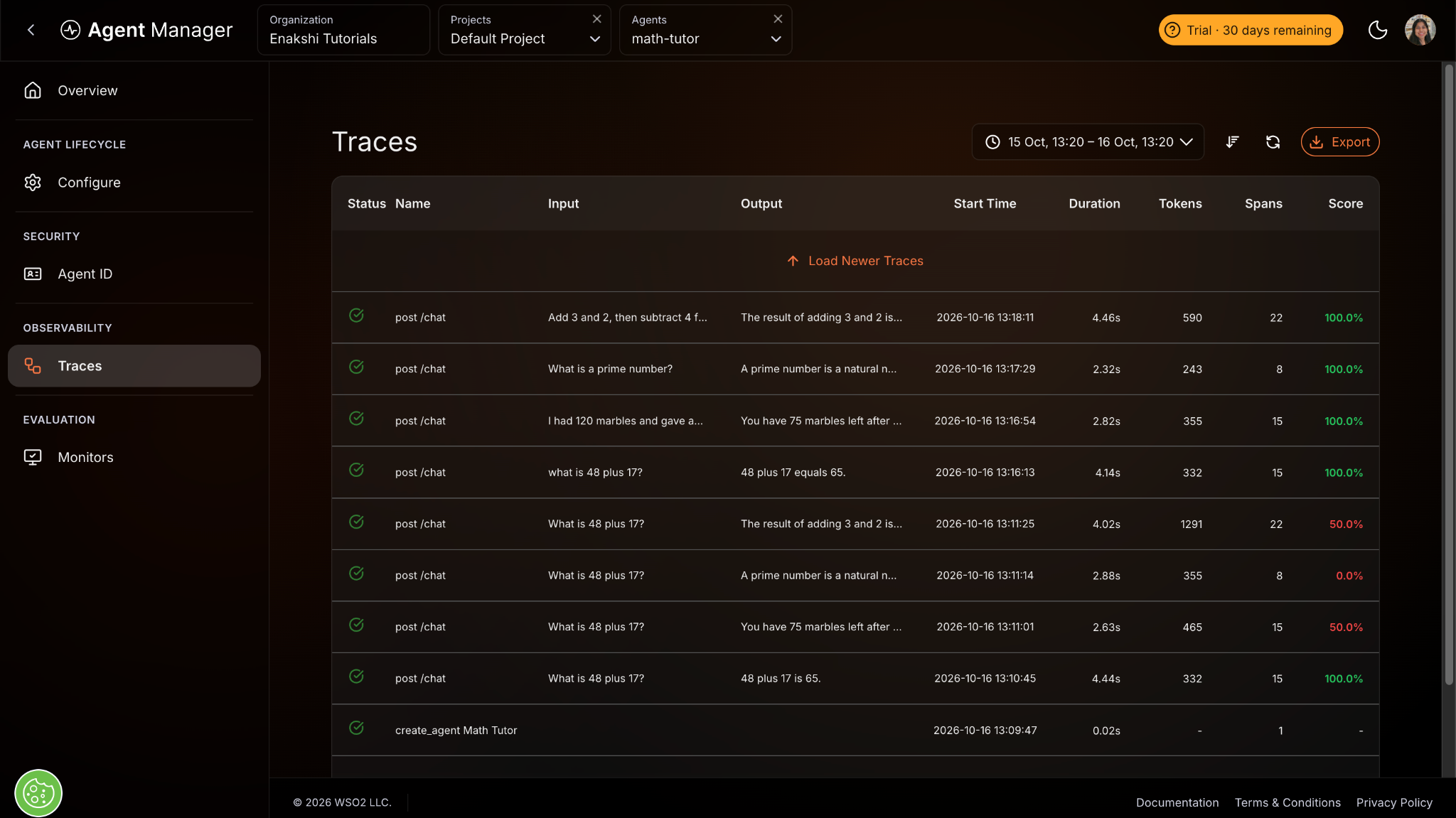
Expected result: The tool-health summary lists results for both evaluators, and the Score column on the Traces page fills in. The traces from Step 9 score 100%. The overall average sits below 100% because of the older traces explained below.
A judge that cannot score a trace skips it, and the run still reports success, so read the skip reasons in the run's Logs before trusting the average. These were the messages that came up while this tutorial was being tested:
| Log message | Cause | Fix |
|---|---|---|
LLM_API_BASE and LLM_API_KEY must be set together for gateway routing | The provider was still deploying when the run started | Wait a few minutes after creating the provider and run the monitor again |
unexpected model name format | The Model field contains extra characters, such as leading spaces | Clear the field and type the model name again |
429 RESOURCE_EXHAUSTED | The provider's free tier limits requests per minute | Use a lighter model, lower Max retries, or score fewer traces per run |
503 UNAVAILABLE | The model is temporarily overloaded | Run the monitor again later |
The screenshot also shows the grader problem from the pitfalls section in practice. The older traces at the bottom came from one chat session, so each one carried that session's first question, "What is 48 plus 17?", as its input. The judge compared the marbles and prime number answers against that question and failed them, even though the agent answered both correctly. The 50% scores are Step Success Rate's 100% averaged with the judge's 0%, and the prime number trace scores 0% because Step Success Rate skipped it. Before changing an agent because a judge failed it, open the trace and check what the judge was given.
Step 13: Make it continuous
- On the Monitors page, click Add monitor and name the monitor
tool-rule-live. - Choose Future Traces and set Run Every (minutes) to 5, the minimum the Agent Manager evaluation concepts allow.
- Click Next, add Step Success Rate and math-tutor-tool-rule, keep Gemini Provider selected, and click Create Monitor.
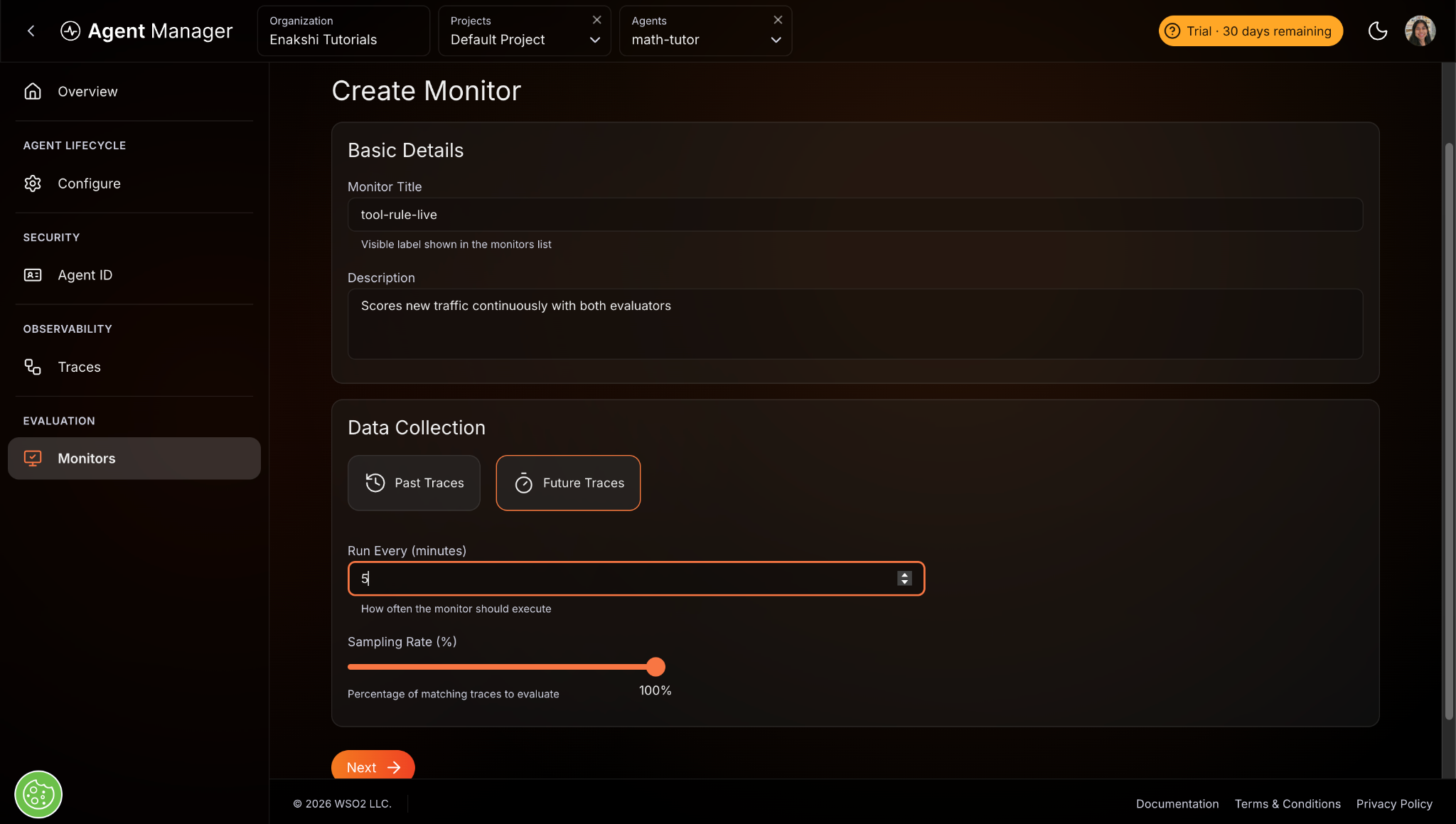
Expected result: tool-rule-live appears in the monitor list, and each interval scores the conversations that arrived since the last one. A monitor's data collection cannot be changed after it is created, which is why continuous scoring needs its own monitor rather than an edit to tool-health.
The two parts of this tutorial cover both columns of the offline vs. online table. The WSO2 Integrator suite catches regressions in known behavior before a change ships, and the Agent Manager monitors catch the failures in real traffic that no evalset anticipated. When a monitor flags a genuine failure, add that conversation to the evalset so the regression suite checks it on every future change. The Agent Manager monitoring tutorial covers more evaluator options.
Conclusion
AI agent evaluation needs three things working together: a golden dataset captured from real conversations, checks that score behavior and tool calls rather than only the final text, and a run history that shows when the pass rate drops, so each regression traces back to the change that caused it. Code-based checks handle what can be stated as a rule, LLM judges handle what cannot, and human review keeps the judges honest. When a run fails, read the failure message before changing the agent: in the test runs behind this tutorial, every failure traced back to setup or grading, from a missing test config and an expired token to a judge that was given the wrong question, and the agent itself was fine.
Start small: capture a balanced set of conversations this week, correct them into an evalset, and run the suite before the next prompt, tool, or model change. When the agent reaches production, add a continuous monitor, as in Part 2, so the failures users find become the next cases in the suite. The WSO2 Integrator documentation covers each stage in more detail.
Frequently asked questions
What makes a good AI agent evaluation?
Realistic tasks with unambiguous success criteria, a balance of cases where the agent should and should not act, graders that check both the outcome and the tool calls that produced it, and a pass threshold that tolerates normal run-to-run variation. It also runs on every change, not once.
What are AI agent evaluation frameworks?
Tools that run tasks against an agent, record what it did, apply graders, and aggregate the results. Some focus on offline testing during development, some on scoring production traffic, and a few cover both. In WSO2 Integrator, the Evaluations feature provides this inside the IDE, and the ballerina/ai.eval library provides rule-based and LLM-as-judge templates that run as ordinary Ballerina tests.
Which tools make AI agent evaluation easier?
Tools that capture evaluation datasets from real sessions instead of requiring hand-written cases, keep a run history so you can see when quality changed, and support both deterministic checks and LLM-as-judge scoring. For production, add a monitoring tool that scores live traces continuously.

