Production deployment overview
This section is for platform engineers and site reliability engineers who run API Platform AI Gateway 1.2.0 for an organization. It covers a highly available Helm deployment on Kubernetes:
- Hardened security.
- An external database shared by every controller replica.
- Replicated workloads.
- The AI-specific tuning that large language model (LLM) and Model Context Protocol (MCP) traffic needs.
For a single-host evaluation, follow the quick start guide instead. For the other ways to run the gateway, see Immutable Gateway and Kubernetes deployment modes.
Version-pinned instructions
Every command and configuration key on these pages is taken from the ai-gateway/v1.2.0 release tag and Helm chart 1.2.0. Chart fields change between releases, so follow the pages for the AI Gateway version you deploy.
What you deploy
A production AI Gateway deployment has three parts.
| Part | What it does | Where it runs |
|---|---|---|
| Gateway Controller | Accepts LLM provider, LLM proxy, and MCP proxy artifacts, persists them in the database, and distributes runtime configuration over xDiscovery Service (xDS). | Your cluster |
| Gateway Runtime | Envoy plus the policy engine in one container. Routes traffic to LLM providers and MCP servers, and enforces guardrails, rate limits, and other policies. | Your cluster |
| Database | The shared source of truth for artifacts, deployment state, and encrypted secrets across all controller replicas. | Managed service or your cluster |
The gateway serves traffic on its own. Connecting it to AI Workspace adds central governance across every gateway you run, and is covered in Connect to AI Workspace.
Cluster topology
Use at least two worker nodes. The recommended minimum production topology separates system and gateway workloads into dedicated node pools:
| Node pool | Purpose | Recommended size |
|---|---|---|
systempool |
Kubernetes system workloads | 1 to 2 nodes |
gatewaypool |
Gateway controller and runtime | Minimum 2 nodes |
This separation means no single-node failure takes down the gateway, autoscaling doesn't disrupt system pods, and resource use stays predictable.
Architecture
High availability comes from running several Gateway Controller replicas and several Gateway Runtime replicas, with the database as the shared state between controllers:
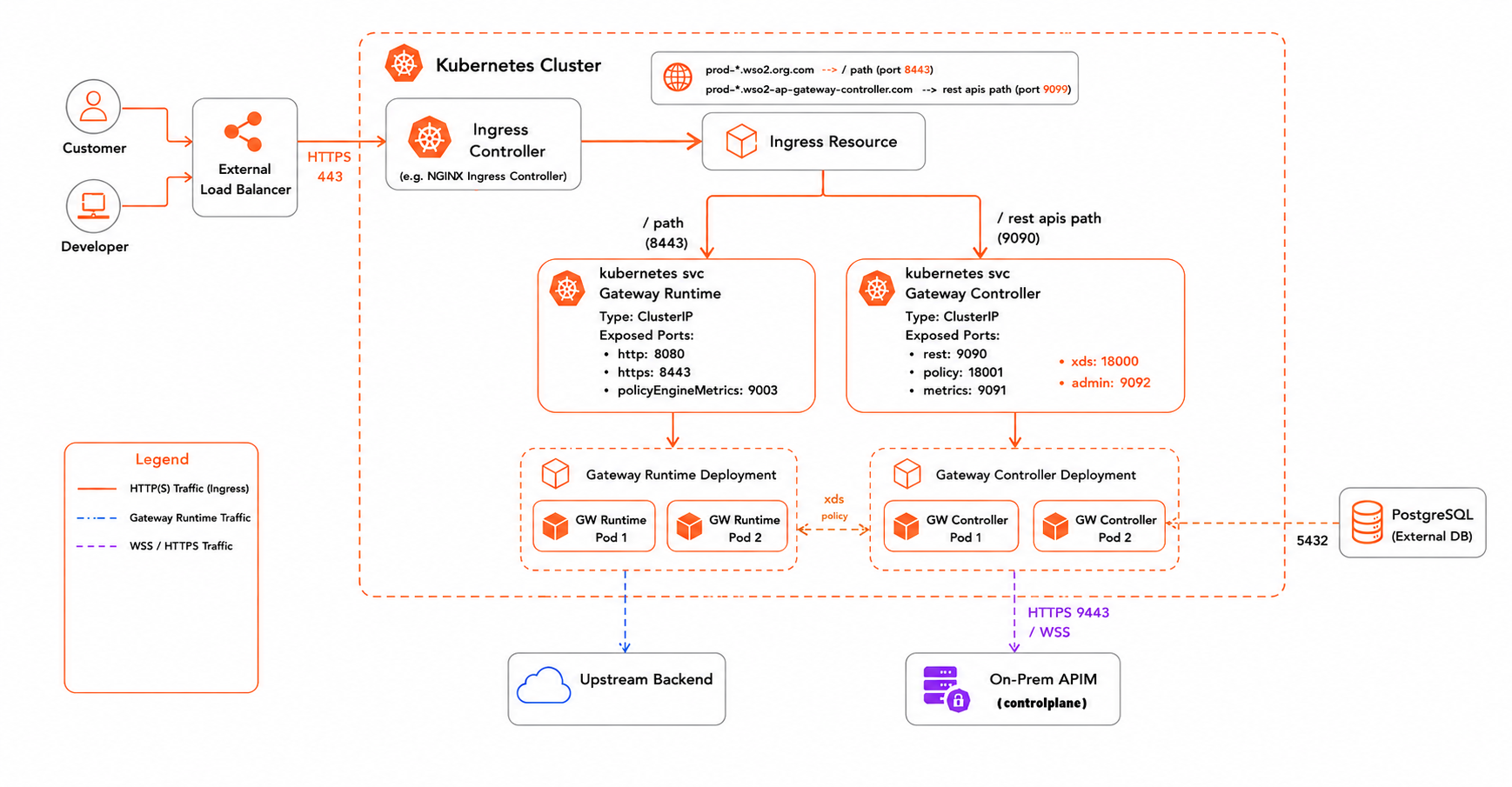
When you deploy an LLM provider, an LLM proxy, or an MCP proxy, one controller replica receives the request, validates the artifact, and writes it to the shared database. The other controller replicas read that state back and generate the runtime configuration for the Gateway Runtime instances connected to them. Each runtime then applies the configuration and starts serving the artifact.
Gateway Runtime replicas never read the database directly. They receive configuration from their connected controller over xDS, which keeps the runtime layer light and leaves configuration generation to the controller.
How failures are contained
The following diagram shows a deployment request reaching one controller replica while a second replica serves its own runtime replicas from the same shared database:
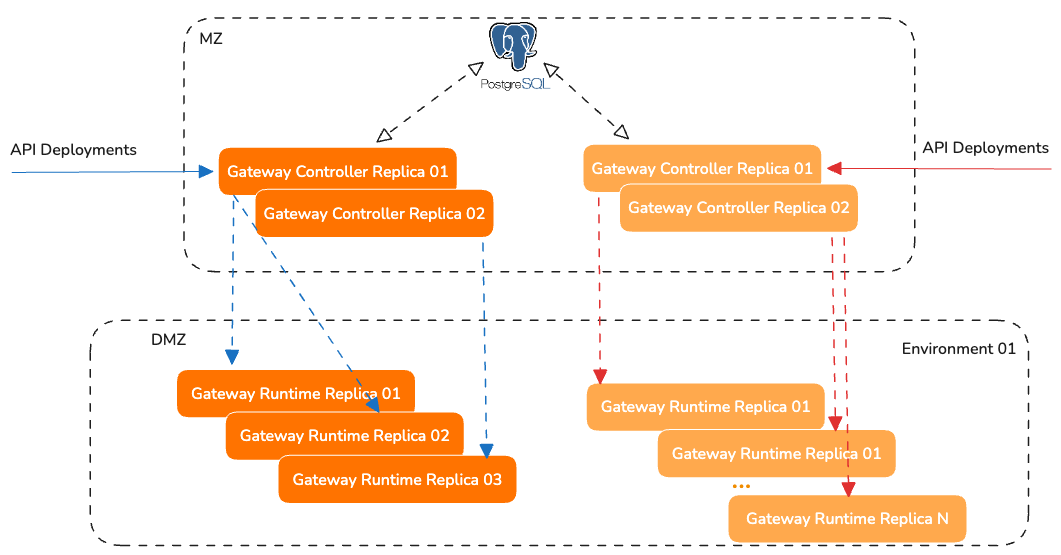
If one controller replica becomes unavailable, another replica keeps accepting deployment requests and keeps synchronizing configuration from the state already in the database. If one runtime replica becomes unavailable, the remaining replicas keep serving LLM and MCP traffic.
Two settings make this coordination work, and both are covered in Database configuration:
storage.typeset topostgresorsqlserver. The default SQLite backend is single-replica only.- The EventHub poll interval, which controls how quickly one controller replica notices another replica's writes.
Ingress configuration
The chart creates Kubernetes Service objects for the Gateway Runtime and the controller REST API. It doesn't create an Ingress Controller or Ingress resources, so route external access with the ingress solution you already run.
At a minimum, expose the Gateway Runtime service on port 8443 (HTTPS) for inbound LLM and MCP traffic. Expose the controller REST API service on port 9090 as well if developers deploy artifacts directly to the gateway through the management API.
Keep the admin ports internal
Leave gateway.controller.service.expose.admin, gateway.gatewayRuntime.service.expose.routerAdmin, and gateway.gatewayRuntime.service.expose.policyEngineAdmin off. The router admin port serves mutating endpoints such as /quitquitquit and /runtime_modify. Reach these ports with kubectl port-forward when you need them.
Before you begin
Install and configure these tools first:
| Tool | Requirement |
|---|---|
kubectl |
Configured against your target cluster |
helm |
Version 3.18 or above |
openssl |
Available in your local shell |
Verify your environment:
Start with the base values file
Download the values.yaml that ships with the 1.2.0 gateway chart and use it as the starting point. Every field referenced in this section lives in this file.
curl -o values.yaml https://raw.githubusercontent.com/wso2/api-platform/refs/tags/ai-gateway/v1.2.0/kubernetes/helm/gateway-helm-chart/values.yaml
Pin the image versions
Set the controller and runtime image tags to 1.2.0 before changing anything else.
Note
Use the same tag for both components. Mixed versions between the controller and the runtime aren't supported. Keep the major version of the image tags aligned with the major version of the Helm chart.
WSO2 subscription users
With a WSO2 subscription, use image tags that carry the U2 update version as a fourth digit, such as 1.2.0.1, instead of the base 1.2.0 release. The fourth digit carries patch-level updates delivered through the WSO2 private registry.
Pull images from the WSO2 private registry
With a WSO2 subscription, images come from registry.wso2.com instead of the public GHCR registry. One chart field switches this on end to end.
Create an image pull Secret in the namespace you install into. Replace <namespace> and <wso2-email> with your values, then enter your password or token at the prompt:
read -rsp "WSO2 password or token: " WSO2_TOKEN && echo
WSO2_USER='<wso2-email>'

json_escape() { printf '%s' "$1" | sed -e 's/\\/\\\\/g' -e 's/"/\\"/g'; }

printf '{"auths":{"registry.wso2.com":{"username":"%s","password":"%s"}}}' \
  "$(json_escape "$WSO2_USER")" "$(json_escape "$WSO2_TOKEN")" |
  kubectl create secret generic wso2-subscription-creds \
    --namespace <namespace> \
    --type=kubernetes.io/dockerconfigjson \
    --from-file=.dockerconfigjson=/dev/stdin

unset WSO2_TOKEN
Reading the password with read -rs keeps it off the screen and out of your shell history. Piping the credentials into kubectl also keeps it out of the host's process list, where --docker-password would expose it. The json_escape function escapes double quotes and backslashes, so a token that contains either produces valid JSON.
Then name that Secret in values.yaml:
Setting this field rewrites every default ghcr.io/wso2/api-platform/ repository to registry.wso2.com/wso2-api-platform/ and injects the Secret into the imagePullSecrets block of every component. An explicit image.repository override, such as an internal mirror, passes through unchanged. Left empty, the chart renders exactly as a non-subscription install.
Note
The chart stores only the name of the Secret, so the credentials themselves stay out of Helm release state.
Setup steps
Work through these pages in order:
- Security hardening — encryption keys, TLS, and authentication
- Database configuration — PostgreSQL or SQL Server for multi-replica controllers
- Resources and scaling — limits, anti-affinity, autoscaling, and disruption budgets
- Tune the gateway for AI traffic — streaming, large payloads, guardrails, and cost tracking
- Deploy and verify — install the chart and route a live LLM request through it
- Connect to AI Workspace — central governance across gateways (optional)