Create Applications
An application is a logical representation of a physical application such as a mobile app, webapp, device, etc. If an application needs to consume an API, it should subscribe to the required API over a selected business plan, which determines the usage quota the application is allowed. A single application can have multiple API subscriptions.
Prerequisites
- If you're signing in to the Developer portal for the first time, go to API Platform and create an organization:
- Go to API Platform Console and sign in using your preferred method.
- Enter a unique organization name. For example,
TestingOrg. - Read and accept the privacy policy and terms of use.
- Click Create.
This creates the organization and opens the Project Home page of the default project created for you.
Create a new application
-
Replace
<organization name>in the following URL with your actual organization name to access your Developer Portal. -
Sign in to Developer Portal using your preferred method.
- Click Applications from the sidebar.
-
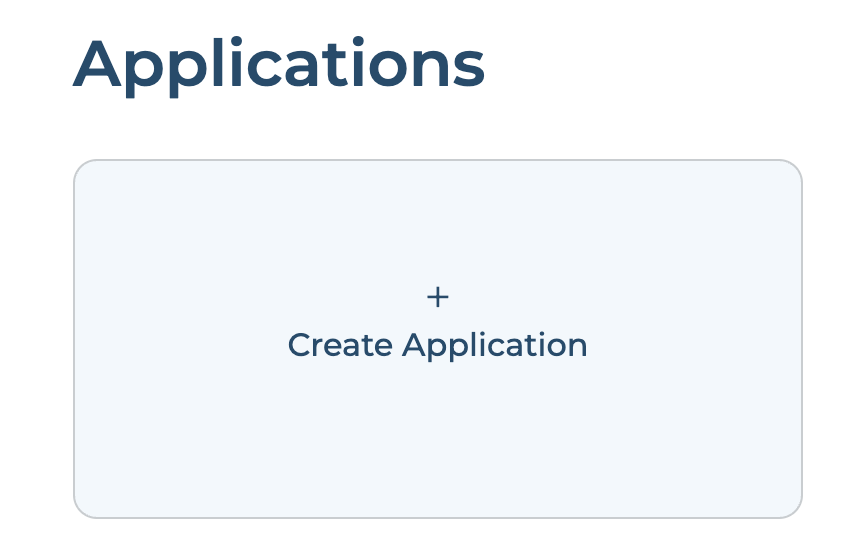
Click Create Application card. If you already have one or more applications click + Create button.
-
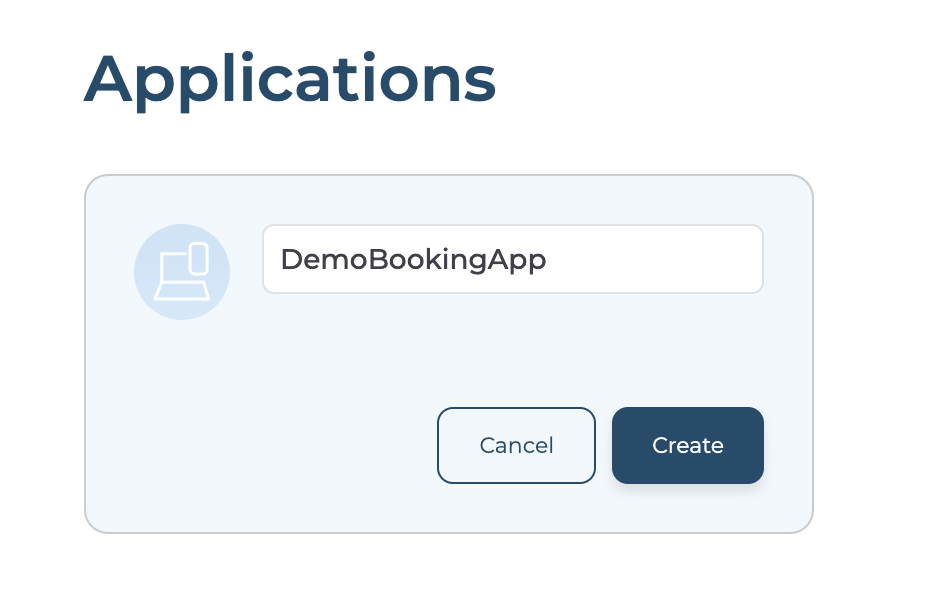
Enter application name and click Create.
-
You will find the created applications list.

Add Application Description
- Selected application.
-
Click + Add description to add the application's description.

-
Click ✔ to save the description.
