Subscription-based APIs
A subscription-based API is a published API proxy that has one or more subscription plans assigned. Subscription plans define quotas, rate limits, and related controls at the organization level. When consumers use the API Platform Developer Portal, they choose an API, subscribe to the API with a plan, and generate Subscription Token according to your plan rules.
This model fits APIs where you need tiered access, usage limits, or clear commercial separation between consumer applications.
Before you begin
- Organization administrators have created subscription plans. See Create API Subscription Plans.
- The API proxy is deployed to your Self-Hosted Gateway and behaves correctly. See Getting Started with Self-Hosted Gateway.
Assign subscription plans to the API
- Sign in to the API Platform Console.
- Select the project and the API proxy.
- Go to Manage → Monetize.
-
Enable the Subscription Plan Status toggle for each plan you want to offer for this API by toggling Enabled field.
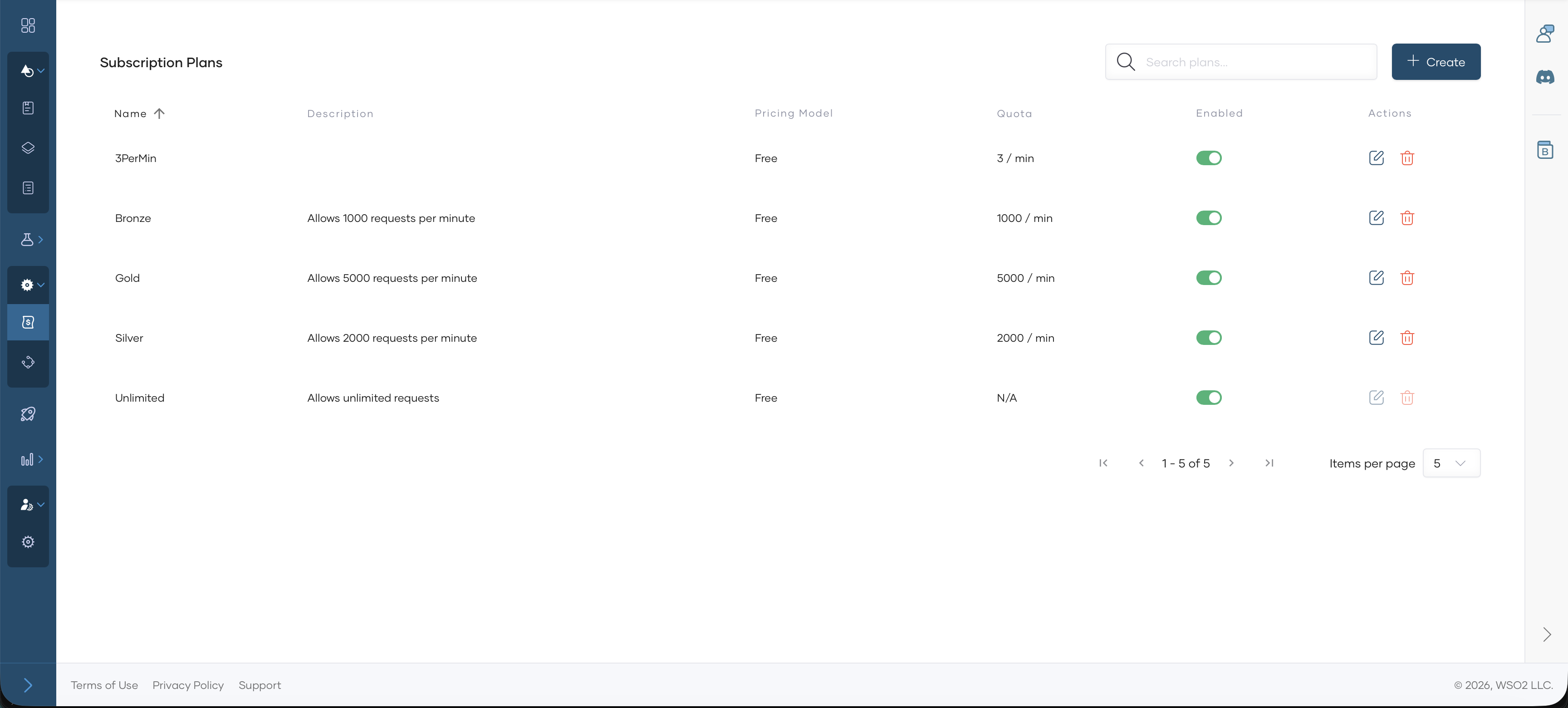
For detailed steps and field behavior, see Assign Subscription Plans to APIs.
Assign Subscription Validation Policy to the API
-
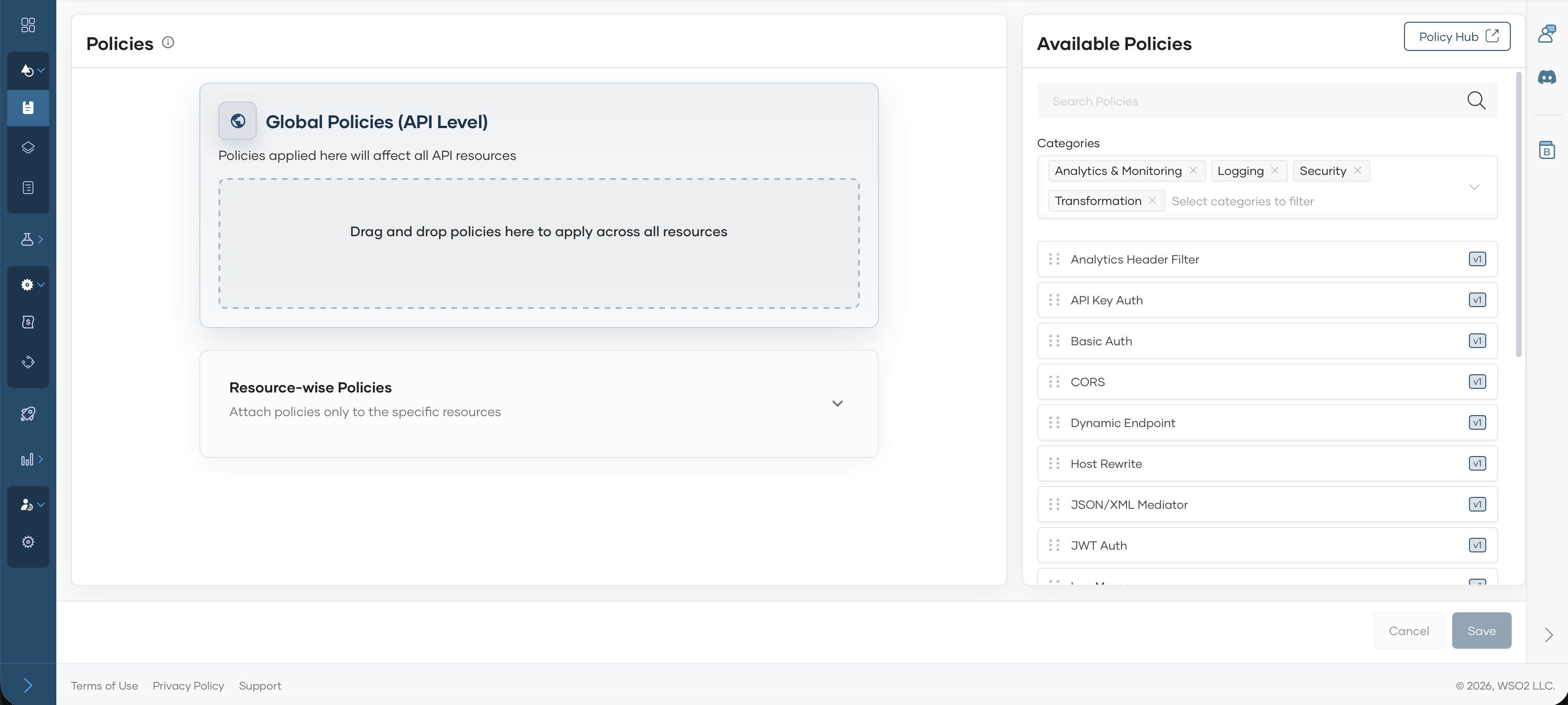
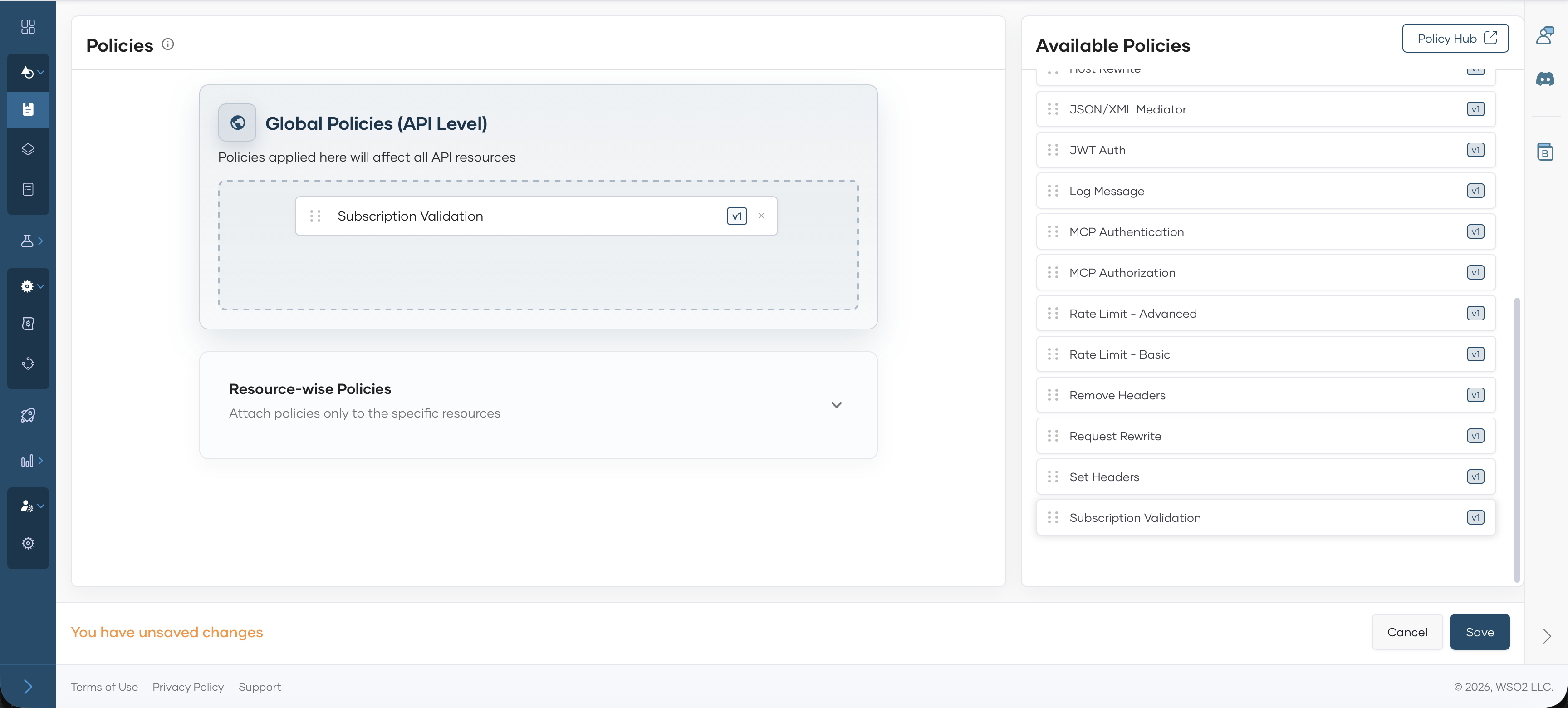
Go to Develop → Policies.
-
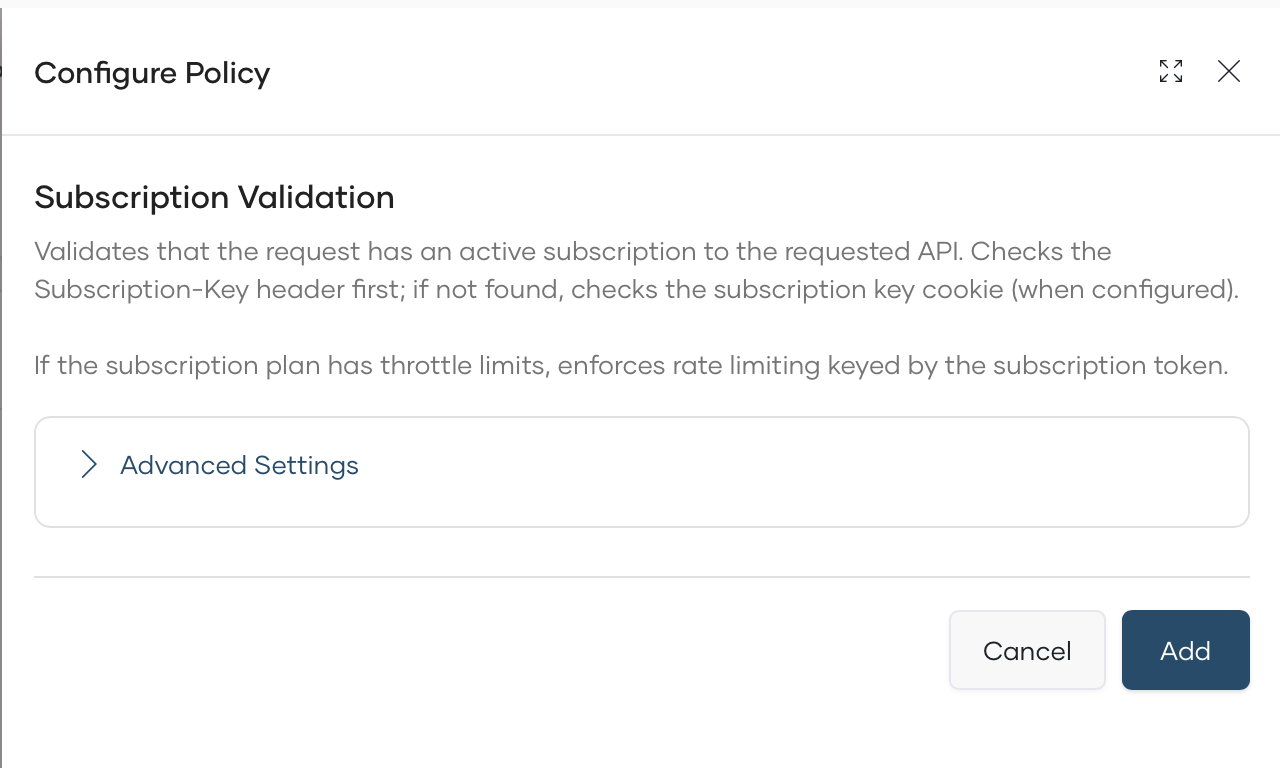
Select Subscription Validation policy.
-
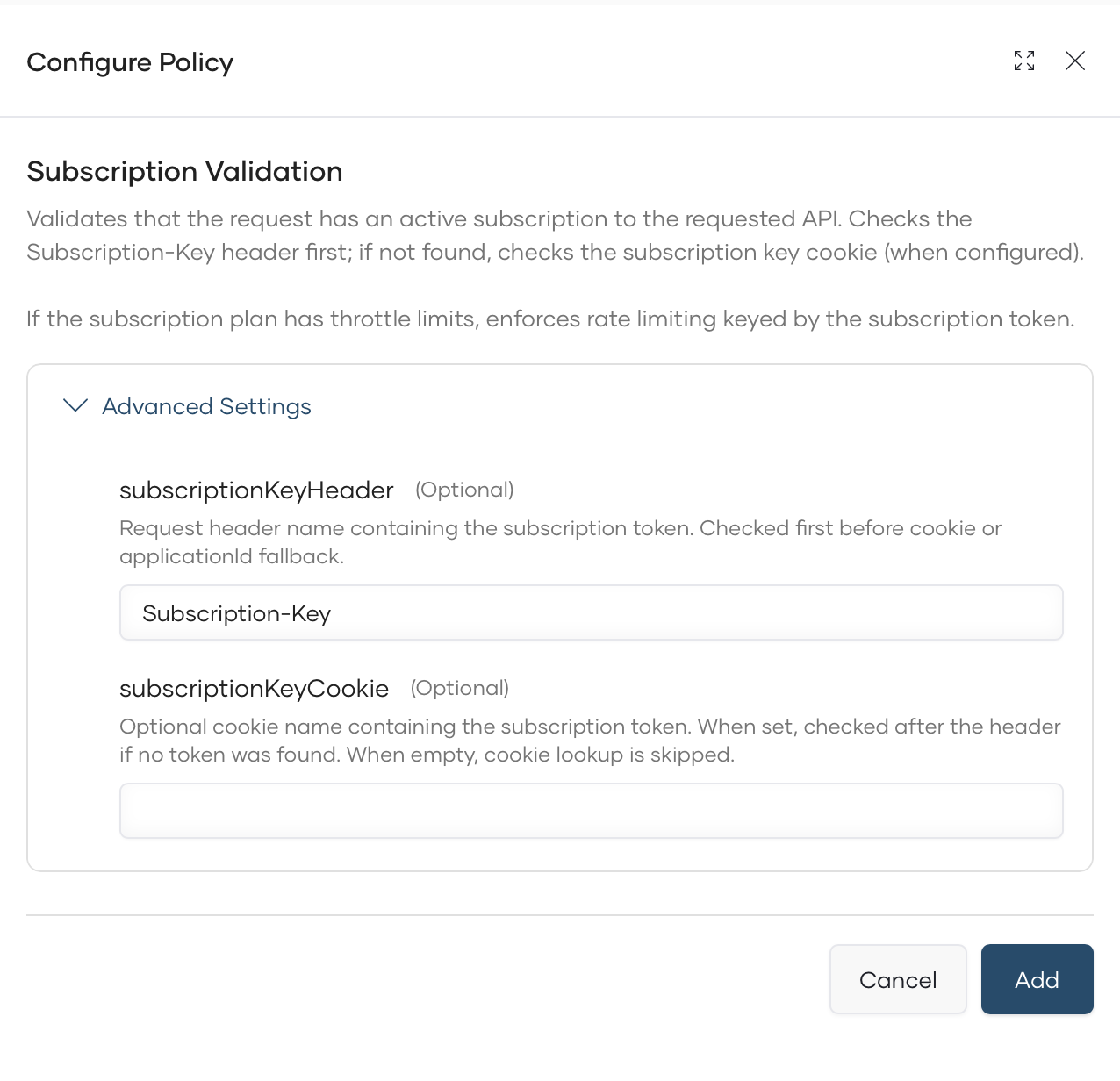
(Optional) Configure Subscription Header/Cookie value in the policy Advanced Section.
-
Click Add to attach the policy to API level policy.
-
Click Save to save the API.
Deploy the API
-
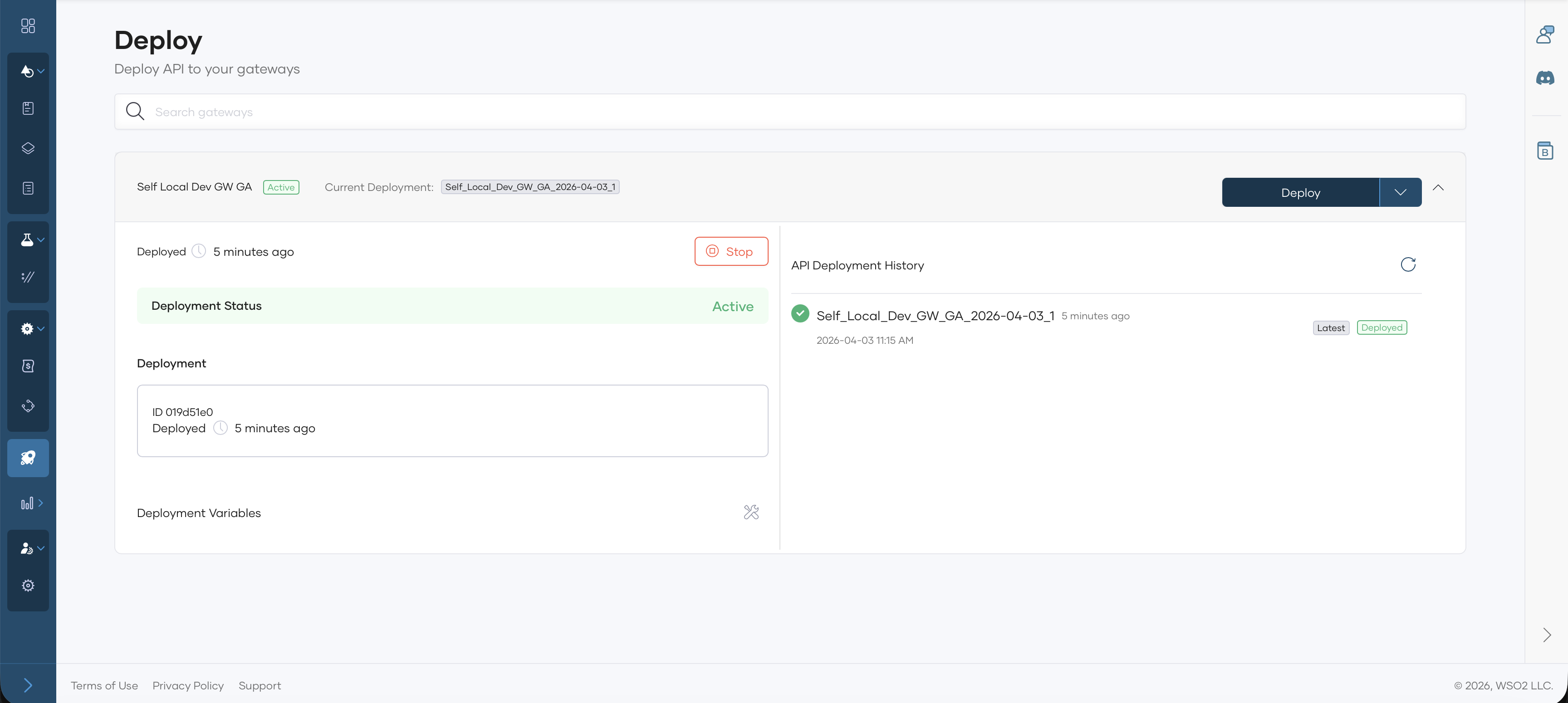
Go to Deploy and click Deploy.
Publish the API
-
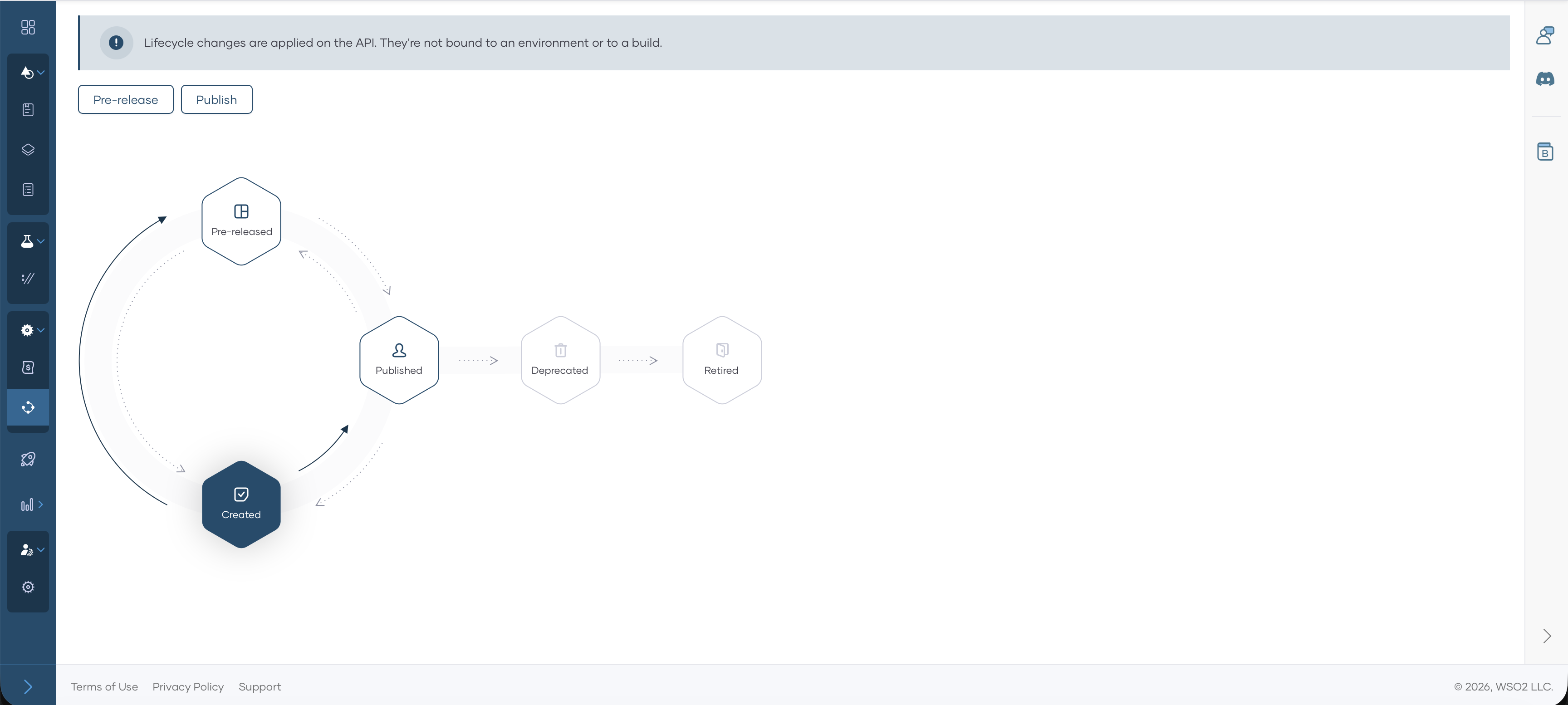
Go to Manage → Lifecycle.
-
Click Publish.
-
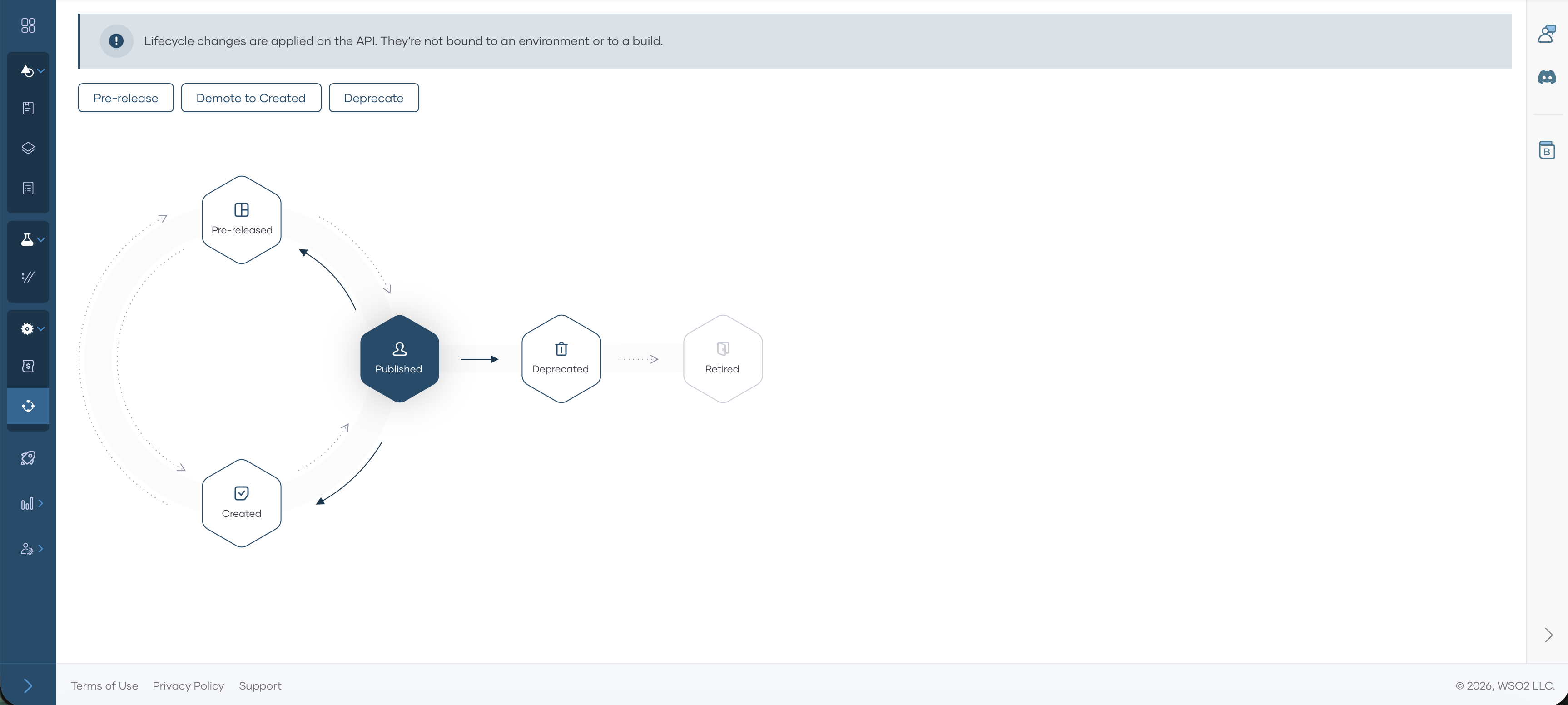
In the publish dialog, confirm the display name and production endpoint and click Confirm. The lifecycle state becomes Published.
Subscribe to the API
-
Navigate to Developer Portal by clicking Developer Portal.

-
Consumers can find the API in the Developer Portal by going to APIs.
-
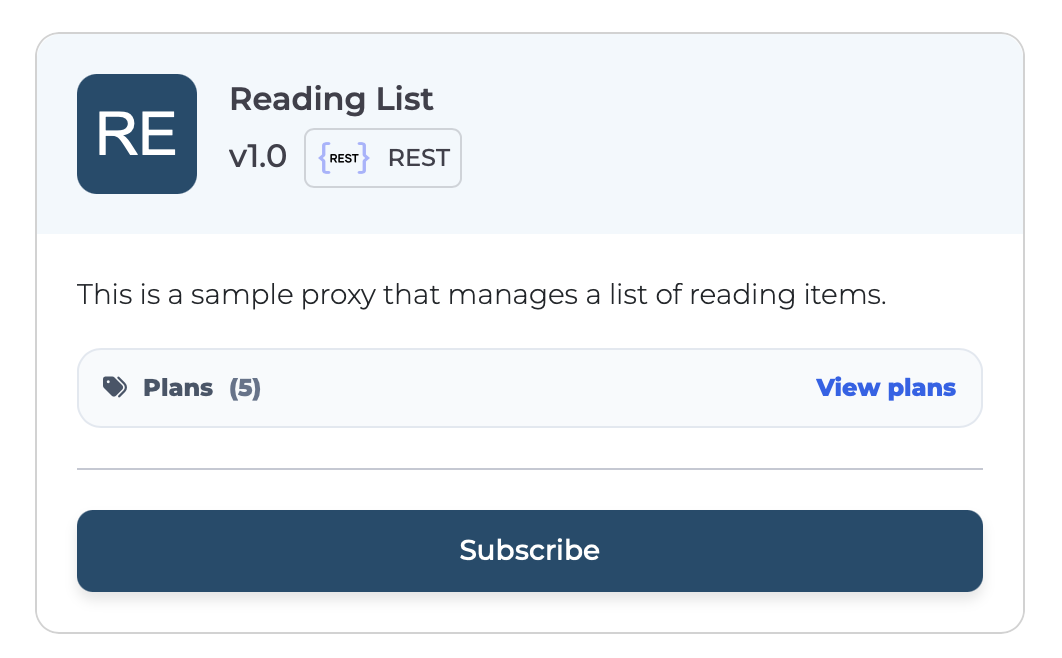
Select the API and click Subscribe.
-
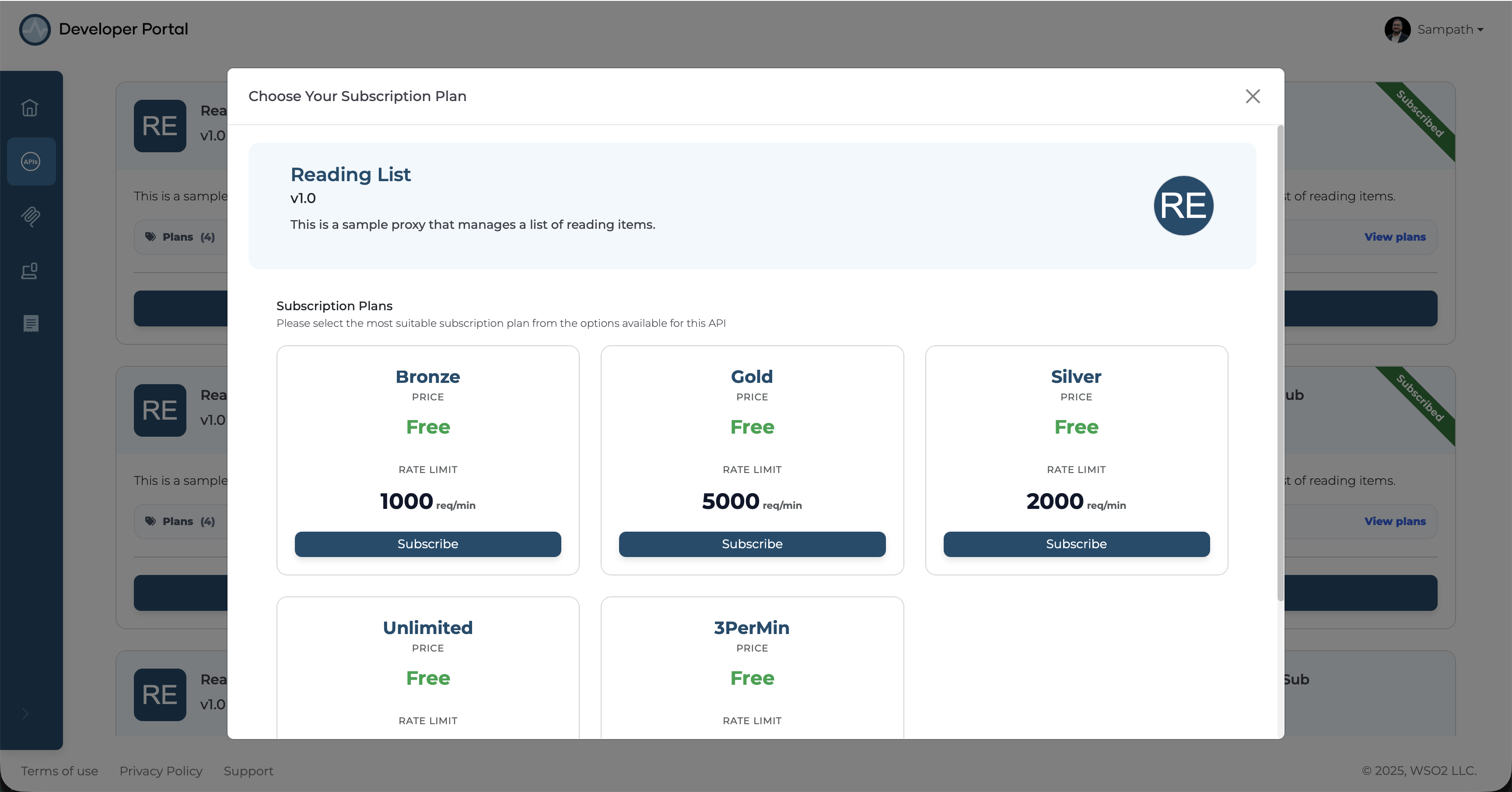
Pick a Subscription plan and click Subscribe.
-
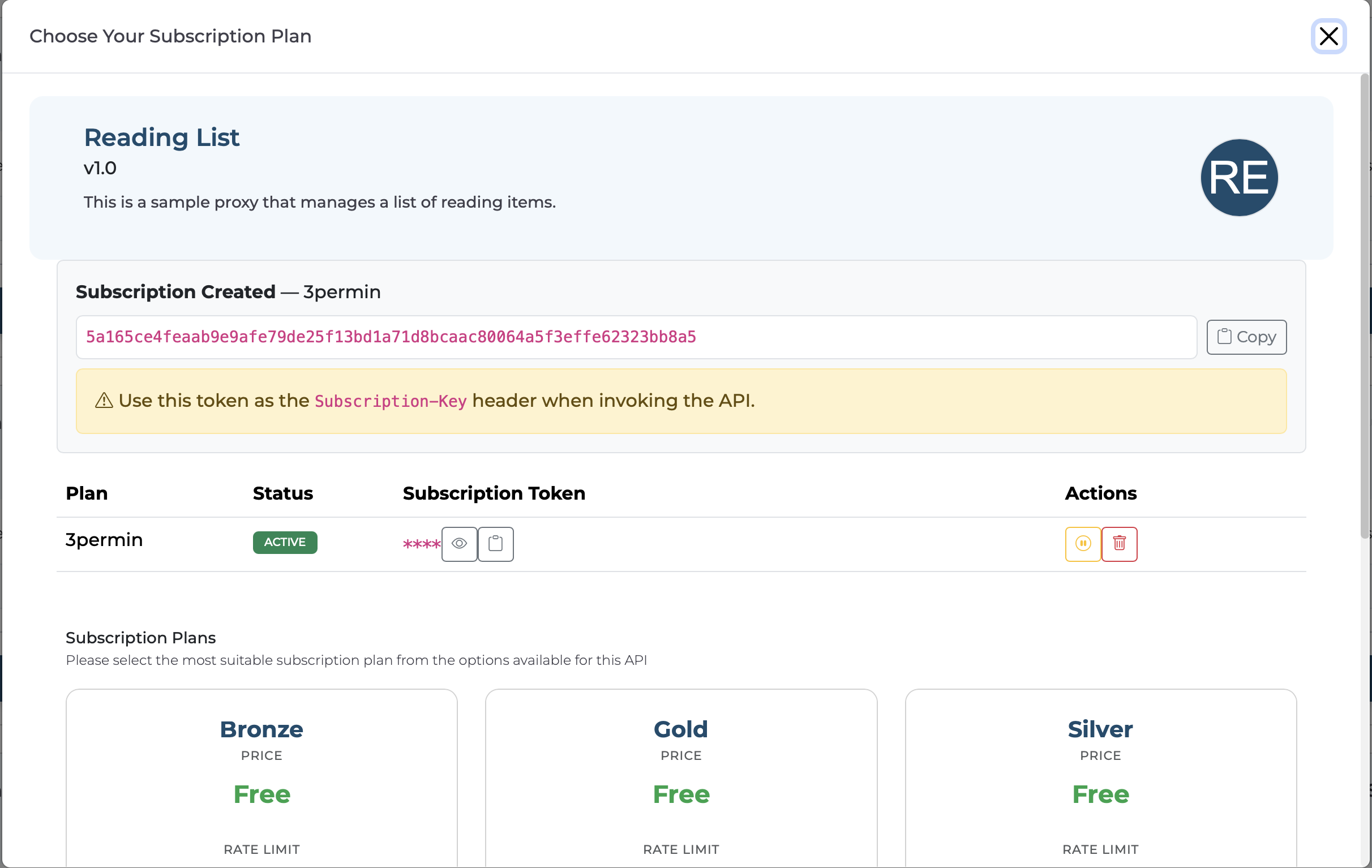
You will receive a Subscription Token.
Invoke the API
-
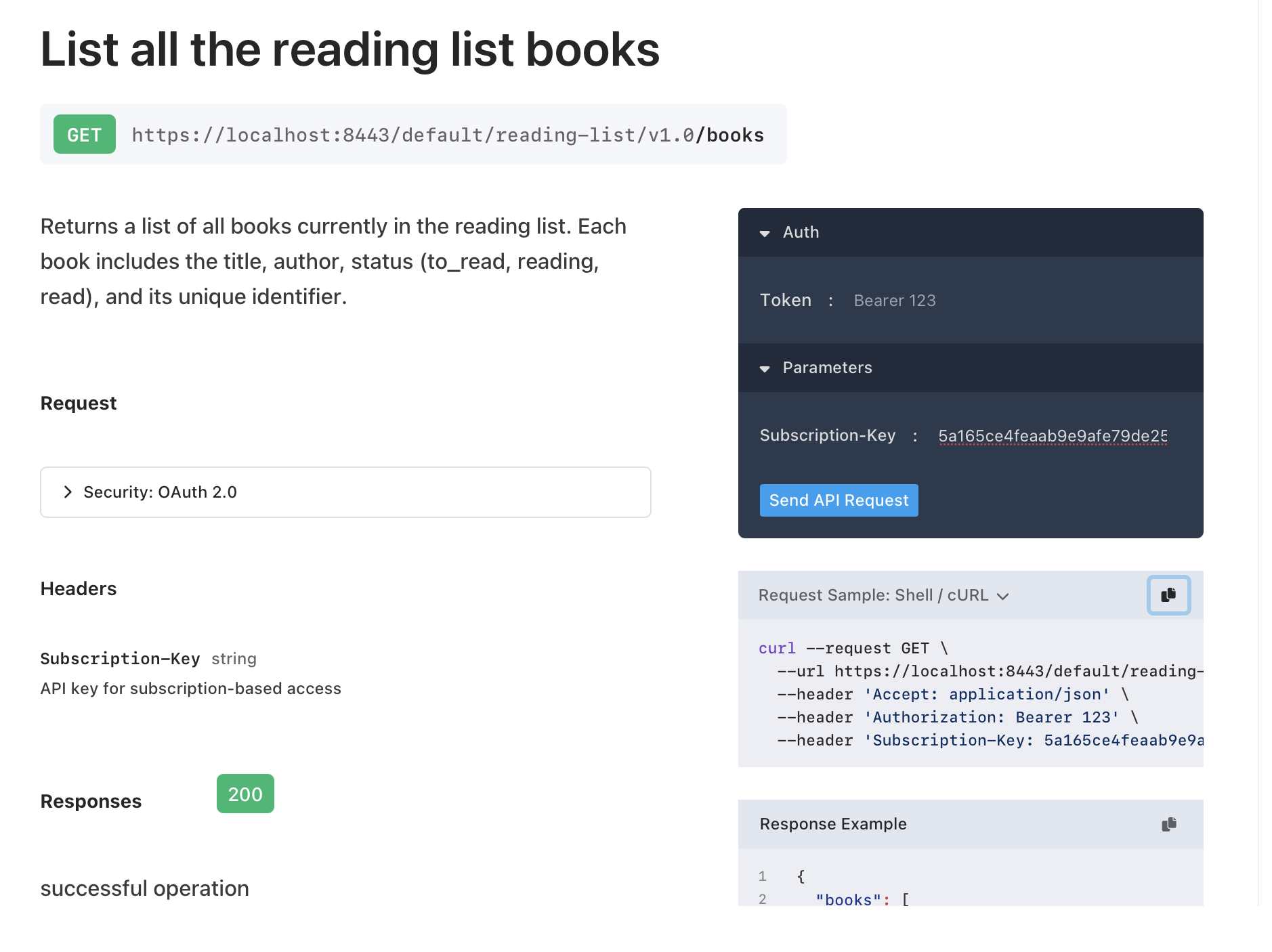
Receive the cURL to invoke the API using the Subscription Token by navigating to the Documentation.
-
Invoke the API.
Sample Request
curl --request GET \
--url <api-invocation-url> \
--header 'Accept: application/json' \
--header 'Subscription-Key: <subscription-token>' -k
Sample Response
