Theming Developer Portal with AI for your Organization
AI-powered branding simplifies the process of customizing your organization's Developer portal. By leveraging AI Branding, you can ensure that your pages not only look great but also align perfectly with your brand's identity.
Prerequisites
- If you're signing in to the API Platform Console for the first time, create an organization:
- Go to API Platform Console and sign in using your preferred method.
- Enter a unique organization name. For example,
TestingOrg. - Read and accept the privacy policy and terms of use.
- Click Create.
This creates the organization and opens the Project Home page of the default project created for you.
Get into Developer Portal tab
Go through the below steps to get the Developer Portal tab.
- Close the project tab selected by default. Then the
Organizationtab will be selected. - In the left navigation menu, click
Adminand then clickSettings. - Select
Developer Portaltab.
Theme your Devportal with AI
Go through the following steps to customize the theme of the Devportal with AI.
-
Click on
Theme with AI.
-
Enter the website URL you'd like to use as the basis for branding.

-
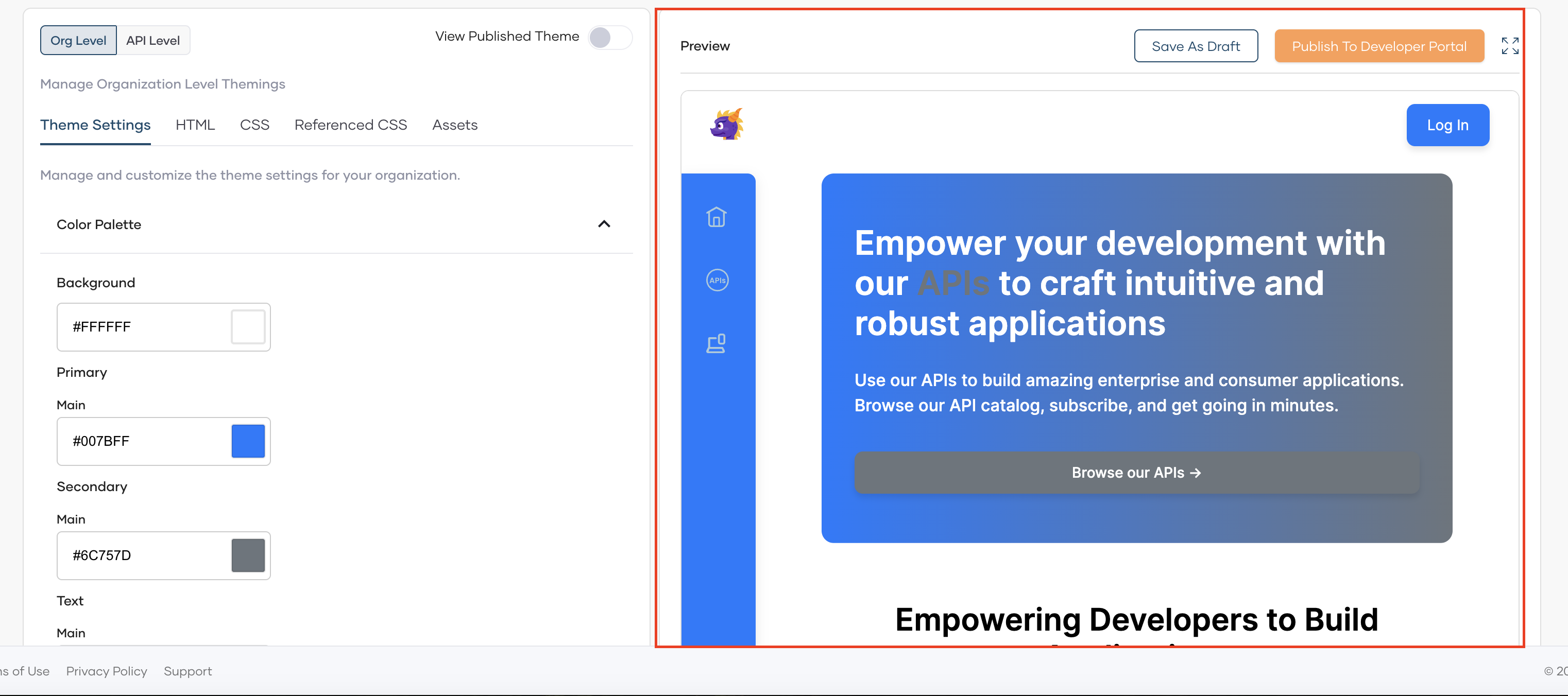
Click enter to automate branding for your organization based on the website you provided. The system will then process the website and start generating the branding theme. You can see the result in the preview section.
-
If you want to save those changes as a draft you can select
Save As Draft. -
If it perfectly aligns with your organization's unique identity, you can click
Publish to Devportal.
-
Go to
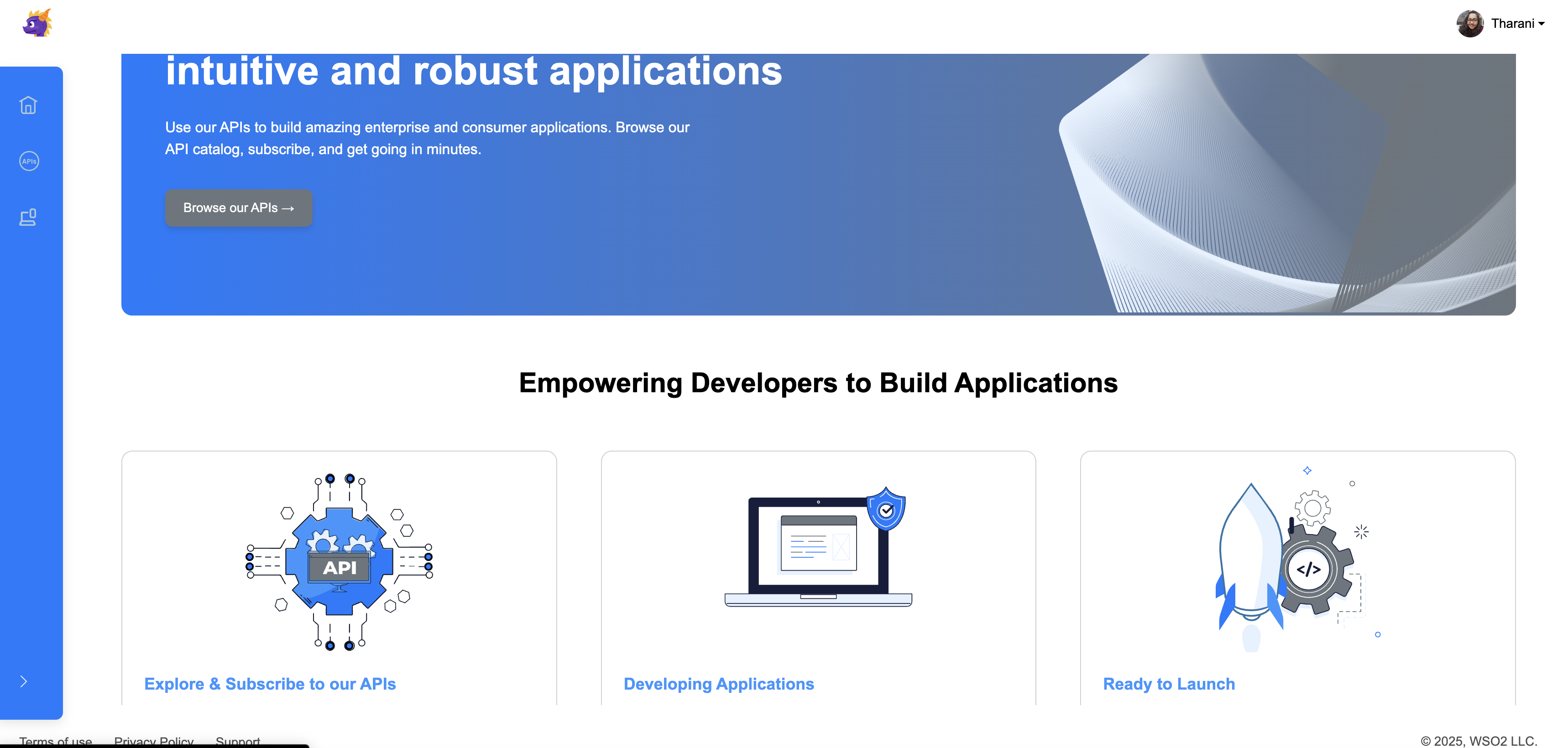
Developer portalto see the changes.
The finalized view will be as follows: